Advanced Telemarketing Module
- What is the Advanced Telemarketing Module?
- Advanced Telemarketing Module Configuration
- Advanced Telemarketing Module Usage
What is the Advanced Telemarketing Module?
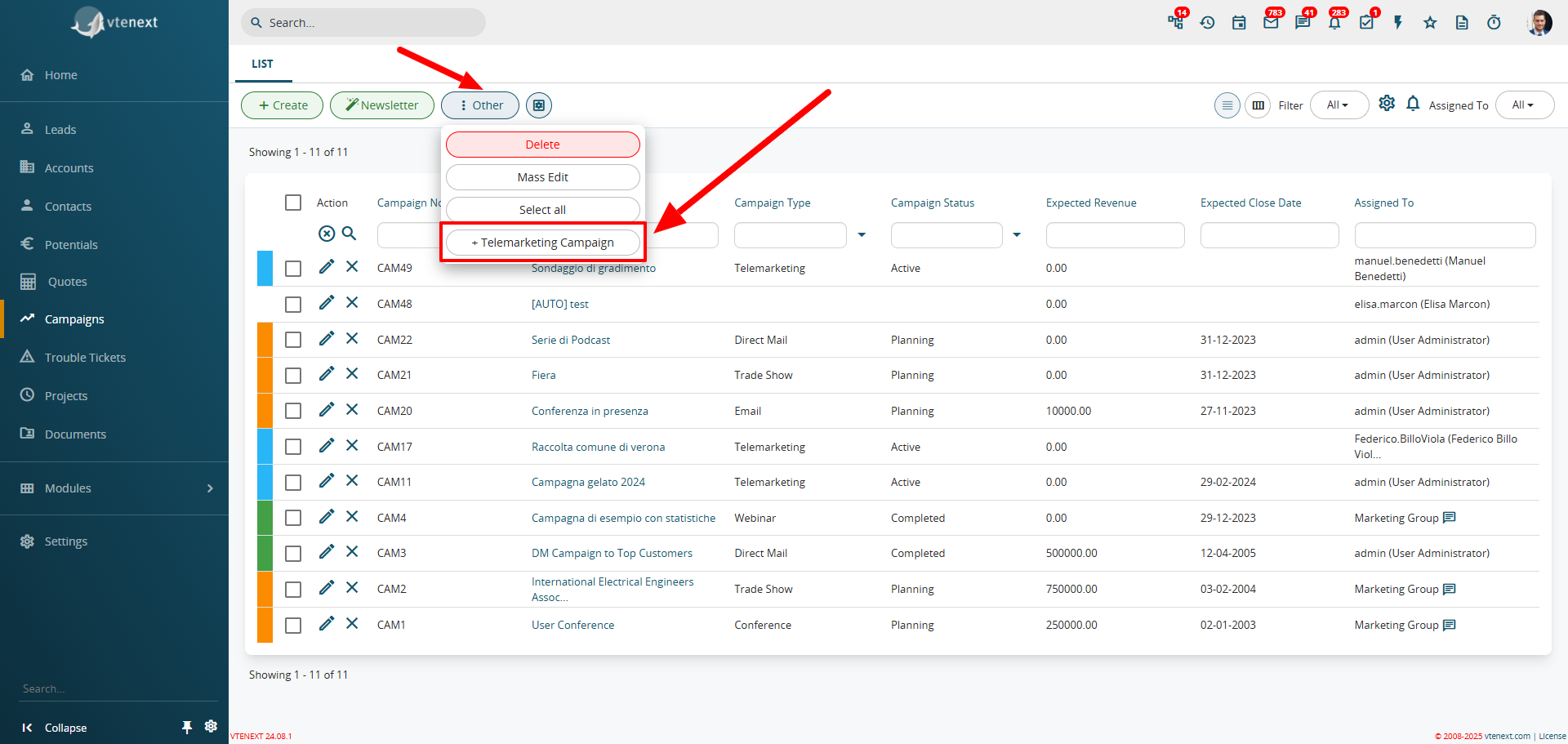
To create a Telemarketing campaign with vtenext, first, go to the Campaigns module and click on the sequence of buttons: More > + Telemarketing. This section is designed to facilitate and better organize telephone interviews.
The Telemarketing module helps manage the various pieces of information collected during calls, storing them in customer records and categorizing them by questionnaires.
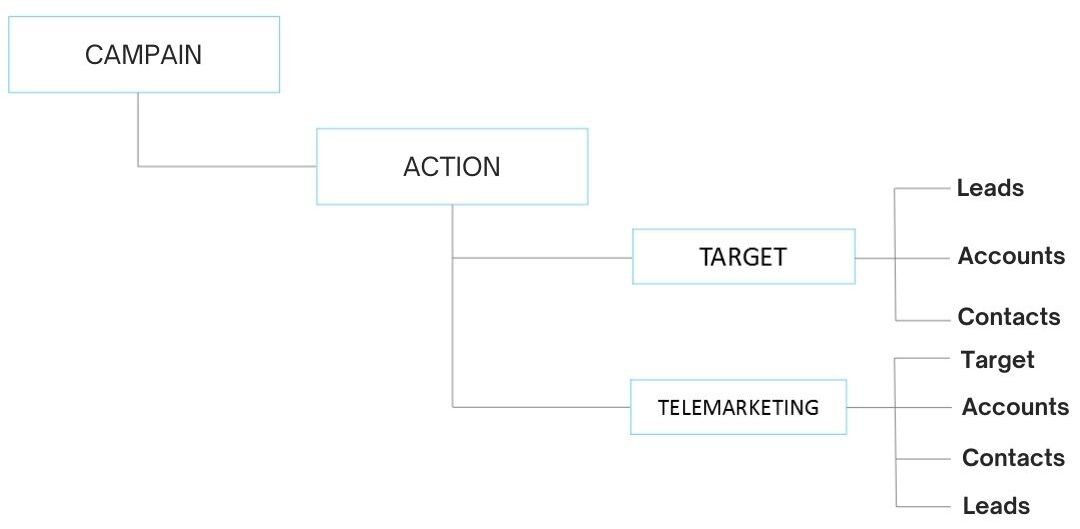
Advanced Telemarketing Module Configuration
The creation and use of the module are easy to manage by following these steps:
1. Creating a New Telemarketing Campaign
To create a new Telemarketing campaign, go to the Campaigns section and then select More > +Telemarketing Campaign.
A window will open where you can enter all the relevant details for the new campaign.
1.1 Selecting Recipients
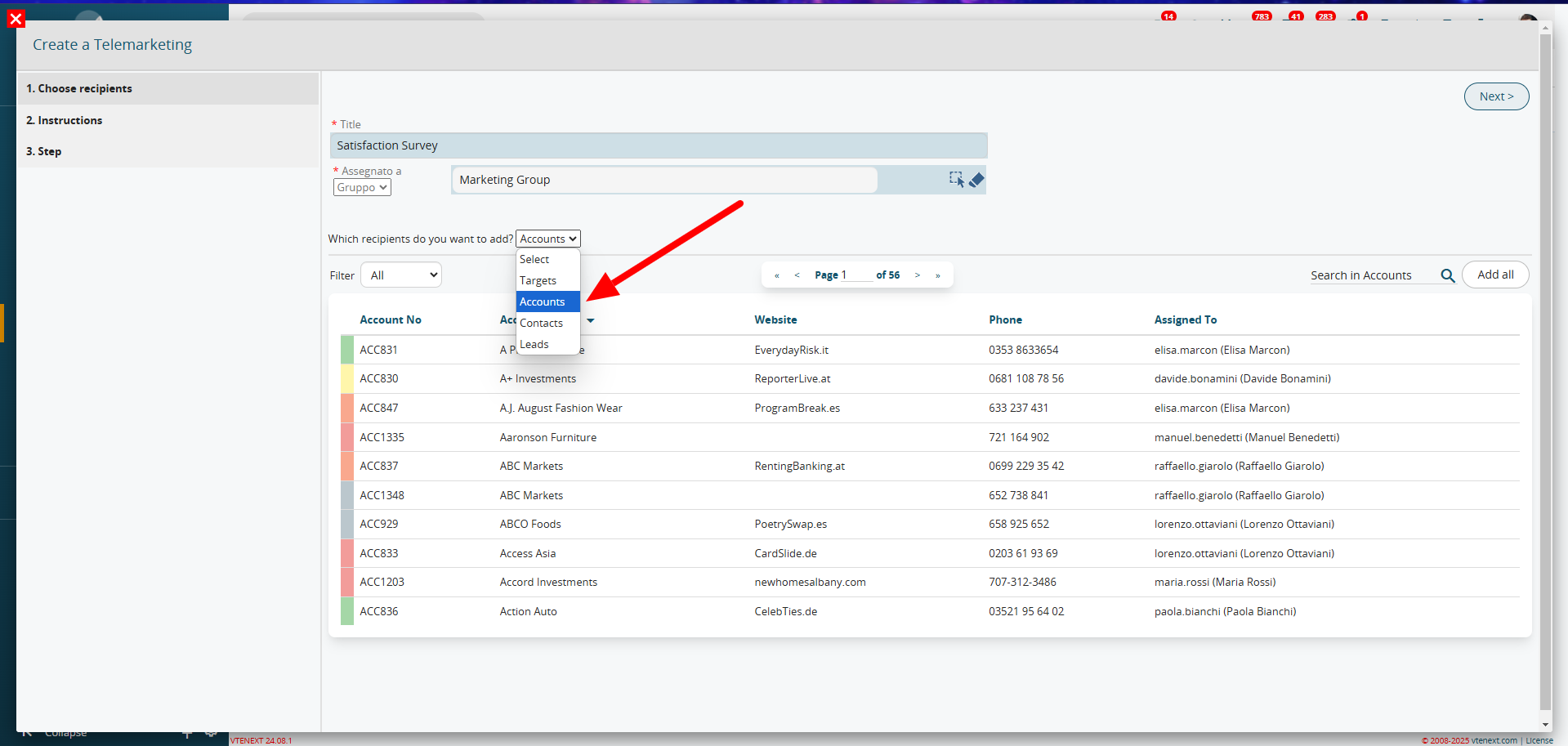
In the first section, set the name and recipients of the campaign (Targets, Companies, Contacts, Leads). Based on the selected entity, choose the desired records using filters or the search box if needed.
1.2 Instructions
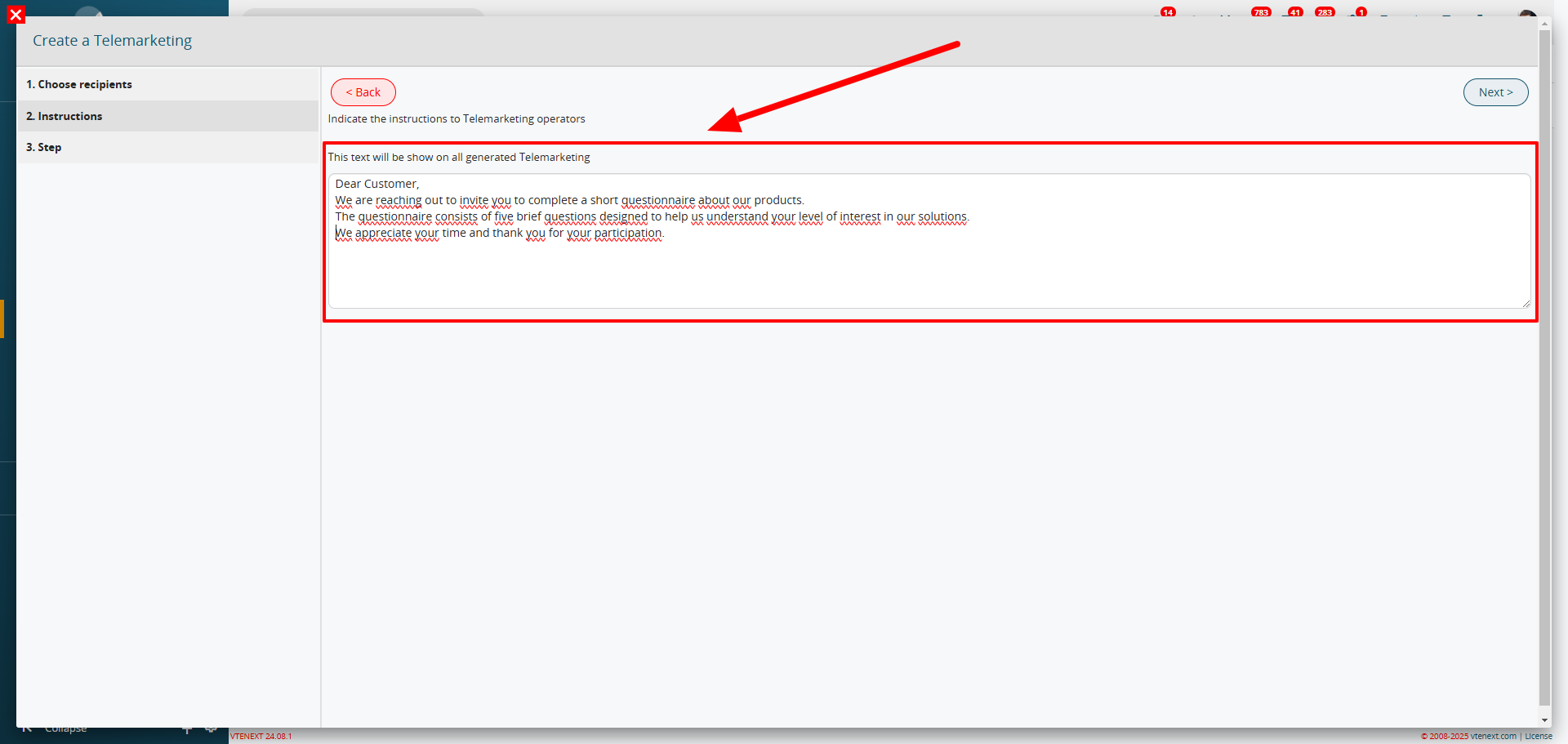
In this section, you can enter a text that will be visible in all telemarketing activities created from this campaign. This helps guide the conversation with the customer.
1.3 Steps
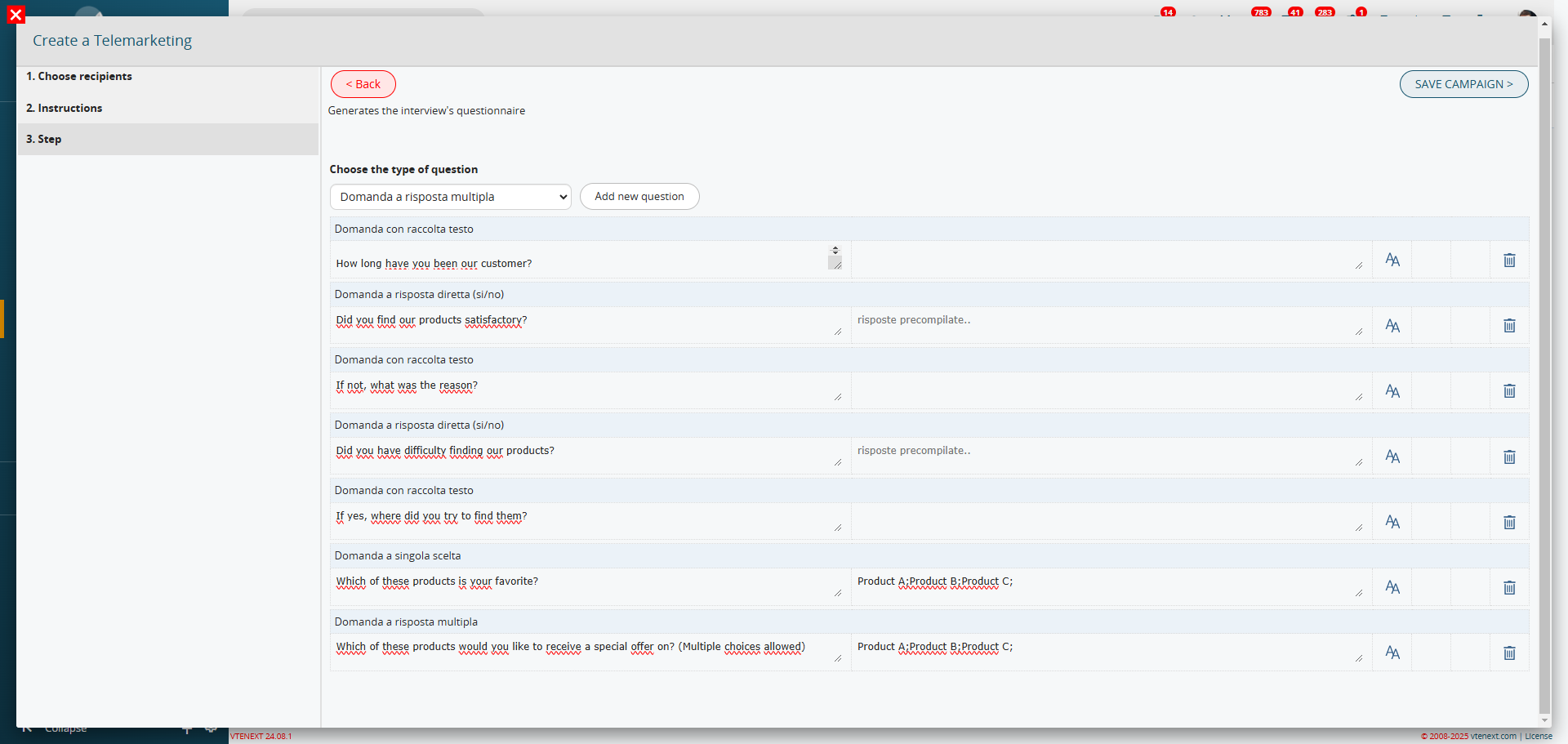
The final step allows you to generate the questionnaire to use during the customer call. You can also define the type of questions (multiple choice, boolean, text entry, etc.).
Advanced Telemarketing Module Usage
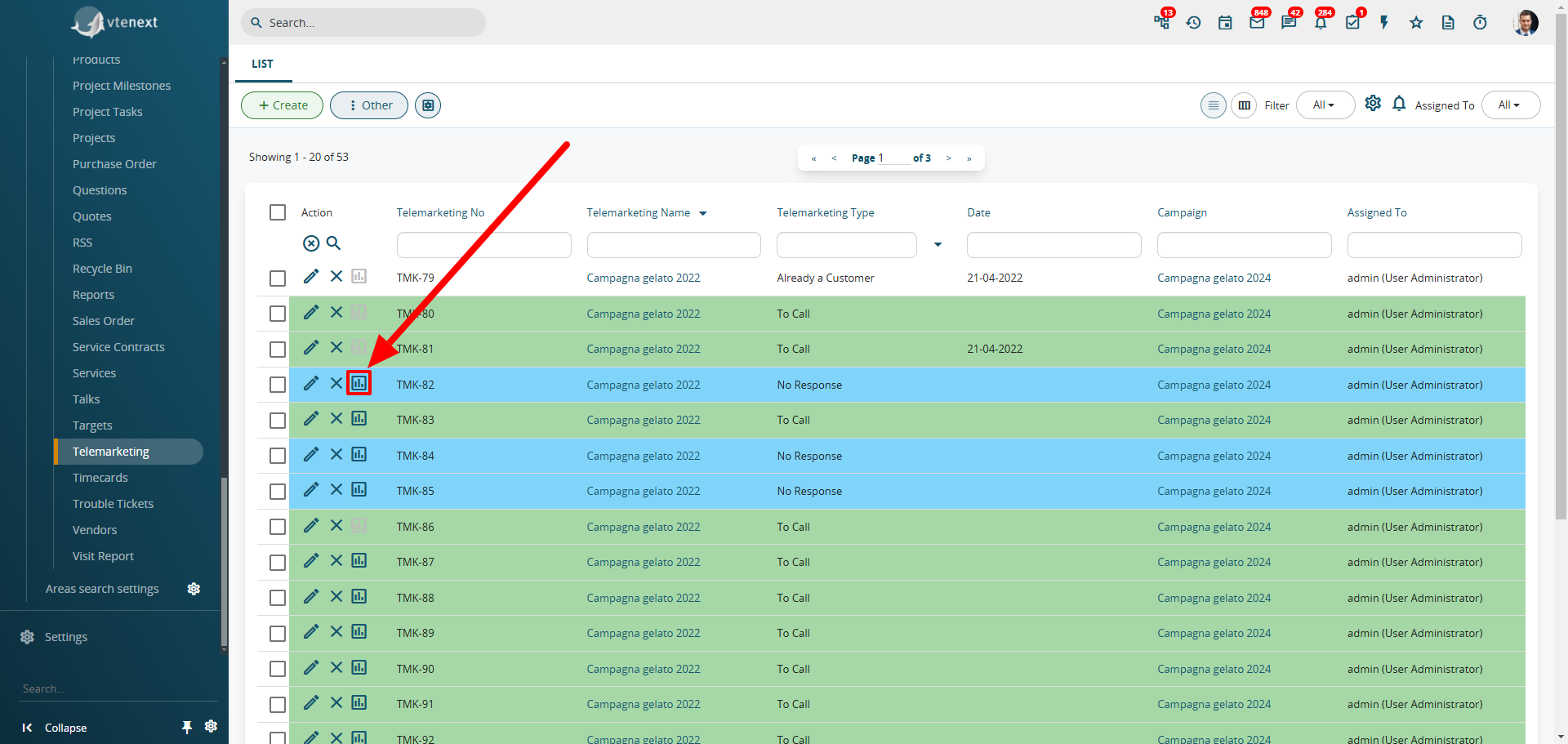
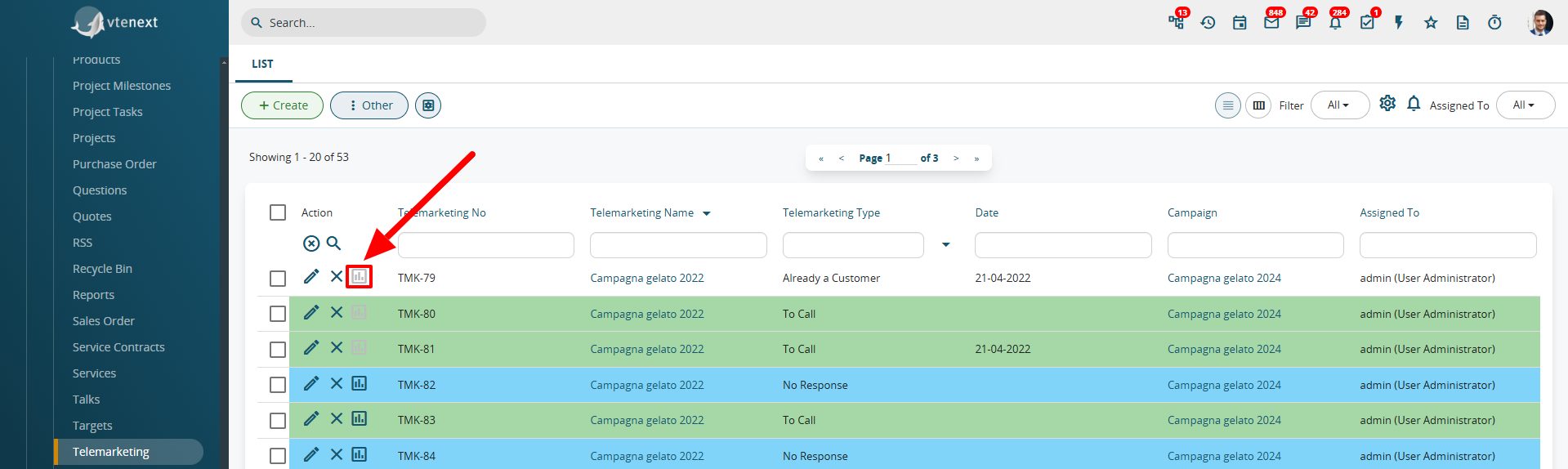
By accessing the dedicated “Telemarketing” page, you will see a complete list of all telemarketing campaigns created for the company, identified by the "Telemarketing Number". To view all relevant information, open the window located in the "Action" column, which corresponds to the "Questionnaire to be completed".
Once opened, this window will display all the assigned data from the campaign creation phase, including the questionnaire, script, and related questions.
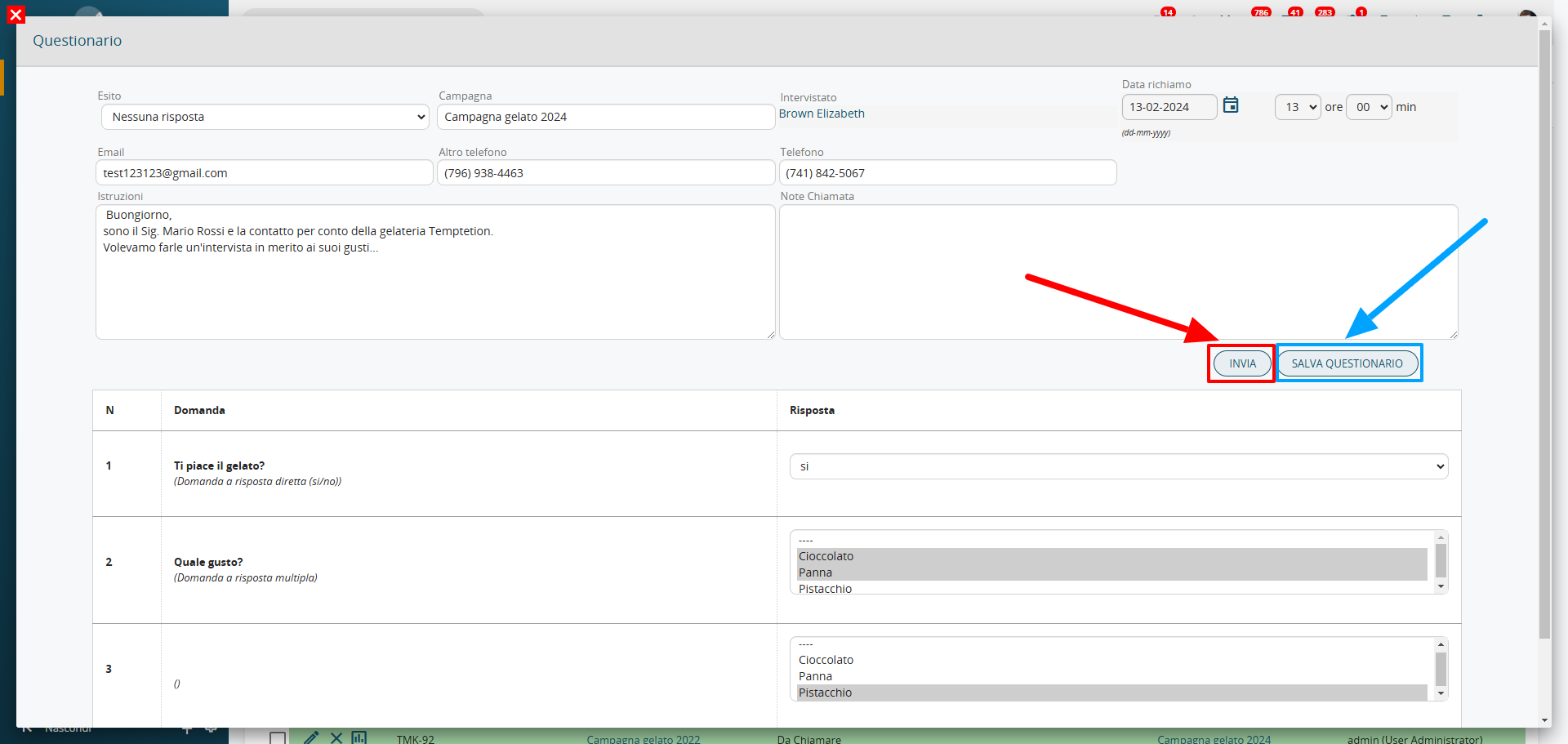
All previously entered data can be consulted and utilized later through filters and/or reports.
For each questionnaire entry, there are two save options available:
- Send: The questionnaire is not saved as it still needs to be completed.
- Save Questionnaire: The questionnaire is finalized, and the collected data can no longer be modified. (In the Telemarketing module list view, note that the questionnaire icon will appear disabled).