13 Standard Action Process SDK: Description and Usage
- 13.1 SDK Action: Set entity reference
- 13.2 SDK Action: Add comment to ticket
- 13.3 SDK Action: Update ModLight row
- 13.4 SDK Action: Update DynaForm table row
- 13.5 SDK Action: Set Receiving Newsletter
- 13.6 SDK Action: Freeze Entity
13.1 SDK Action: Set entity reference
This SDK function allows you to force a certain record within an entity (of the same module) involved in the process.
It is mainly used to be able to perform any type of standard action even on records that have been inserted within "Related to" fields of a dynamic form.
As the first parameter, the metaid (the id that uniquely identifies the instance of a module within a process) of the instance on which you want to force the record must be passed.
Instead, as the second parameter, the crmid of the record to be forced must be passed.
EXAMPLE OF USE
To better understand how it works, below is an example of using the SDK function Set entity reference() to manage the existing company within the standard BPMN lead conversion process.
In the dynamic form of the process helper (configured in the User Task "Request details"), the user is given the option to create a new company or select an existing one.
Specifically, the existing company's CRMID is stored in a "Related to" field within the dynamic form (Figure 1)
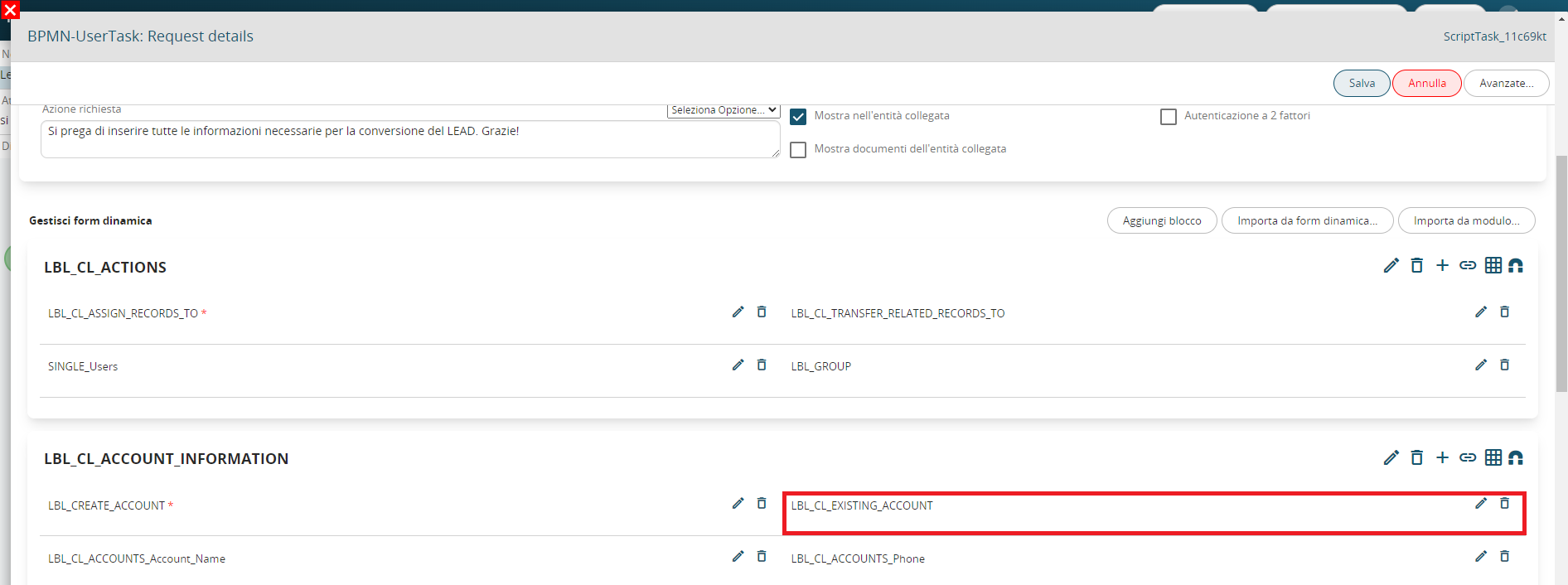
Figure 1 (click on the image for a larger graphic resolution)
This type of field does not establish a real relationship, therefore it is not seen as a complete instance of the Companies module.
In fact, it does not have any metaid (i.e. the id that uniquely identifies the instance of a module within a process).
For this reason, the actions that can be performed on the record contained in the relationship field are limited.
On the contrary, the entity instantiated by the Create entity action (configured in the Action Task "Create account") has its own metaid (i.e. 61), this is because it has been fully involved in the process (Figure 2)

Figure 2
In the case of the lead conversion process, it is not possible to involve the company contained within the relationship field within the standard action "Transfer relationships".
To solve this problem, it is possible to use the SDK Set entity reference() function to force the existing company record (present in the relationship field) within the instance of the Company module involved through the Create entity action (therefore of the company created directly in the process).
In this way, all the necessary actions can be performed without limitations.
Therefore, within the Action Task "Use existing account", an action of type "SDK Functions" was configured in which the SDK Set entity reference() was called.
The metaid of the created company instance was passed as the first parameter, i.e. 61 (Figure 3)
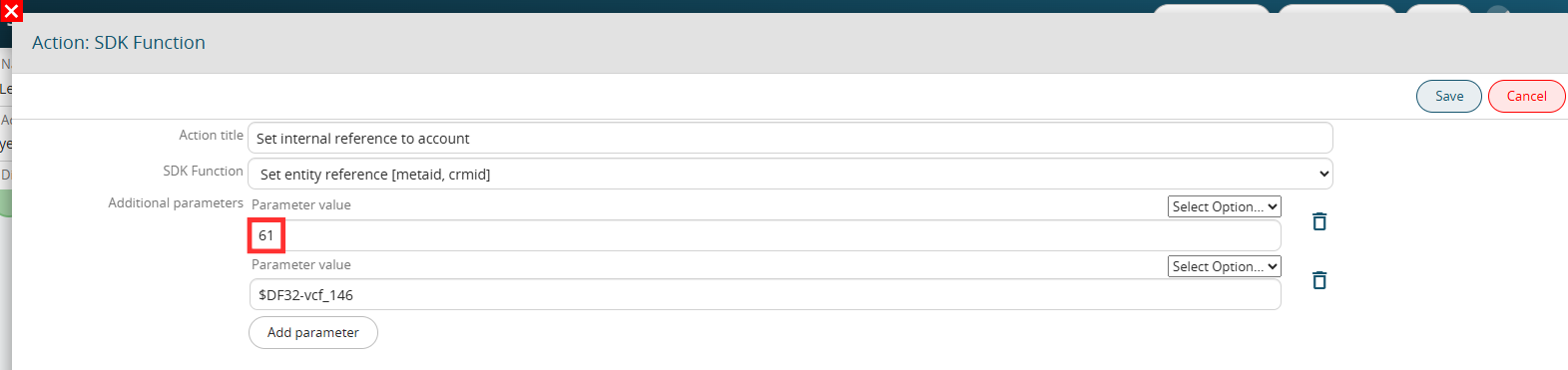
Figure 3 (click on the image for a higher graphic resolution)
The second parameter was passed the content of the relation field containing the existing company (Figure 4)
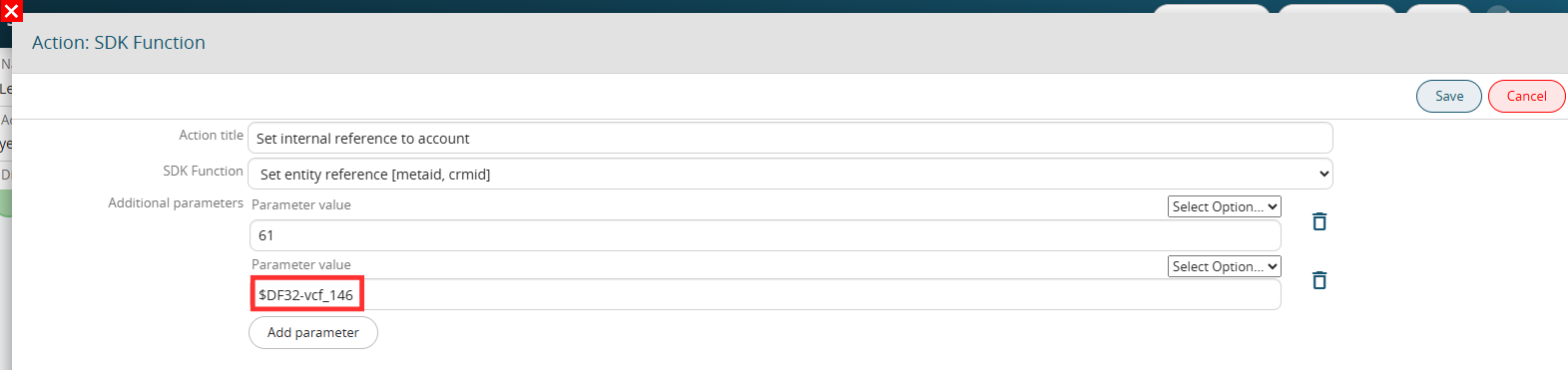
Figure 4 (click on the image for a higher graphic resolution)
In this way, for both cases (created or existing company), in the Action Task "Transfer relations to account" it was sufficient to configure a single Transfer relations action. (Figure 5)
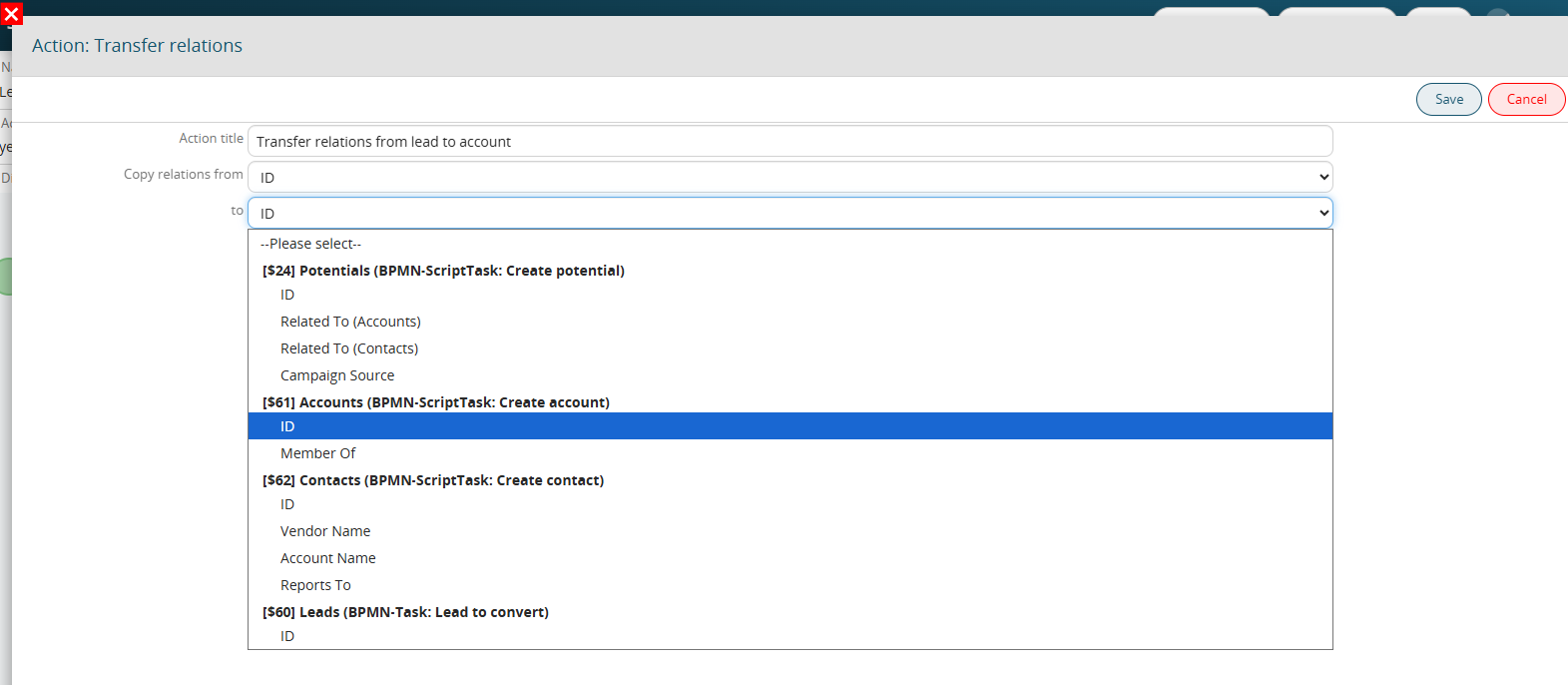 Figure 5 (click on the image for a higher graphic resolution)
13.2 SDK Action: Add comment to ticket
This SDK function allows you to generate a comment that will be inserted in the "Comments" section of the Customer Support module.
As the first parameter, you will need to pass the crmid of the ticket on which you want to add the comment.
As the second parameter, you will need to pass the text of the comment to be inserted.
As the third parameter, you will need to enter the id of the user or contact who will be the author of the comment.
If, as the third parameter, you pass the id of a crm user, as the fourth parameter you will need to pass the fixed item "user".
Instead, if, as the third parameter, you pass the id of a record of the Contacts module, as the fourth parameter you will need to pass the fixed item "customer".
As the fifth parameter, the fixed value "true" must be passed if you also want to send the automatic notification email containing the comment text and a direct link to quickly access the ticket details (as already happens by default to portal users when a CRM user writes a comment).
Otherwise, the fixed value "false" must be passed.
The sixth parameter must be set to the fixed value "true" if you want to append an informational note at the end of the comment indicating that the content was generated using AI.
Otherwise, the fixed value "false" must be passed.
EXAMPLE OF USE
To better understand how it works, below is an example of using the SDK function Add comment to ticket() to automatically insert a comment containing the following text:
"Dear customer, we will take charge of your request as soon as possible."
Inside an Action Task we proceed with the configuration of an action of the "SDK Functions" type in which we call the SDK Add comment to ticket().
As the first parameter we pass the crmid of the ticket on which we want to add the comment, in our case $44-crmid (Figure 1)
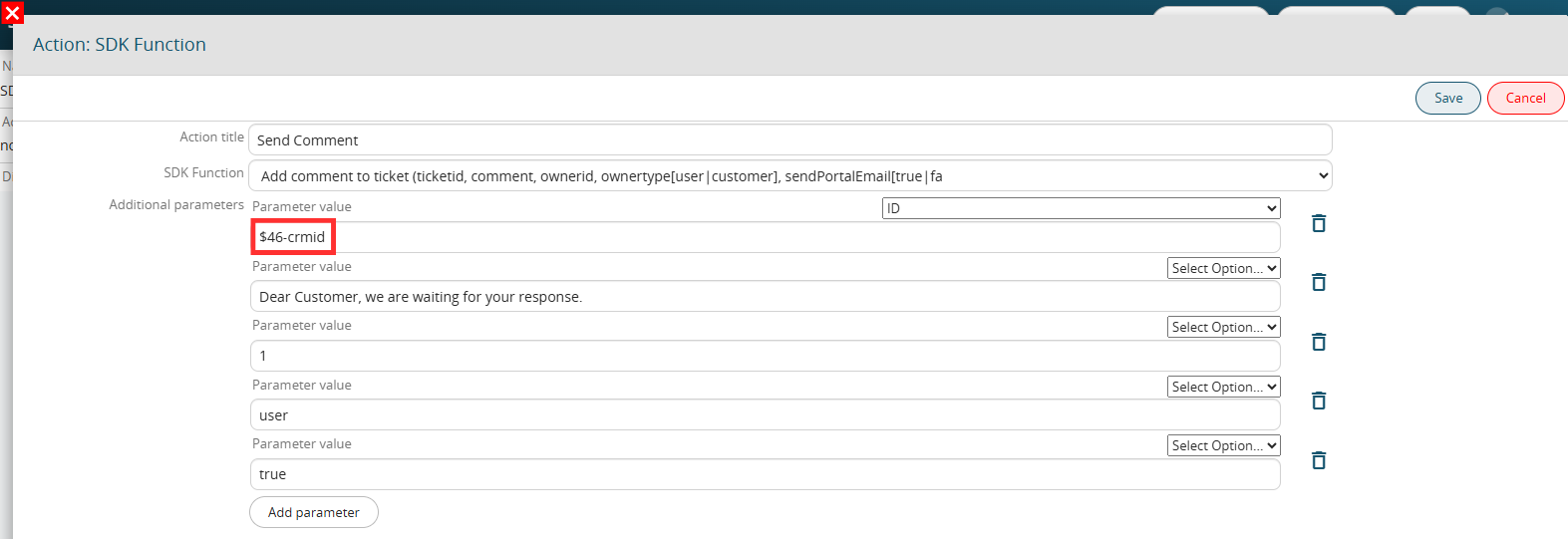
Figure 1 (click on the image for a higher graphic resolution)
As a second parameter we pass the text of the comment to be inserted, that is "Dear customer, we will take charge of your request as soon as possible." (Figure 2)
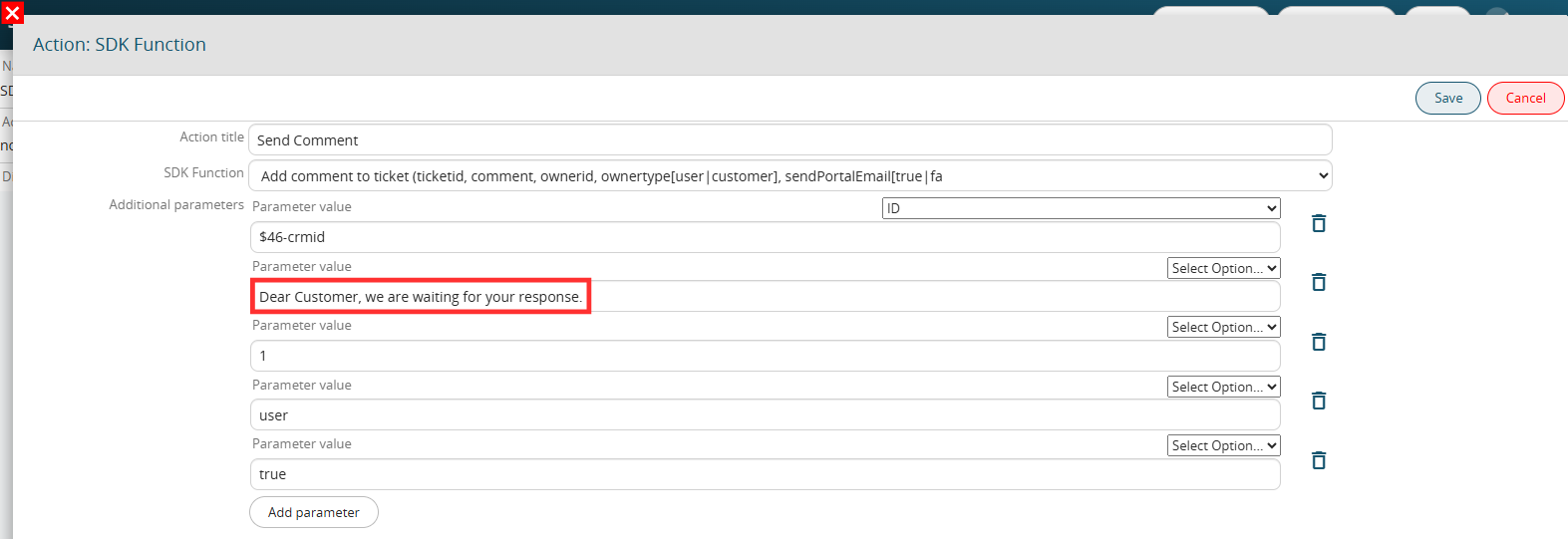
Figure 2 (click on the image for a higher graphic resolution)
As a third parameter we pass the fixed userid of the administrator user, in this way he will always appear as the author of the comment (Figure 3)
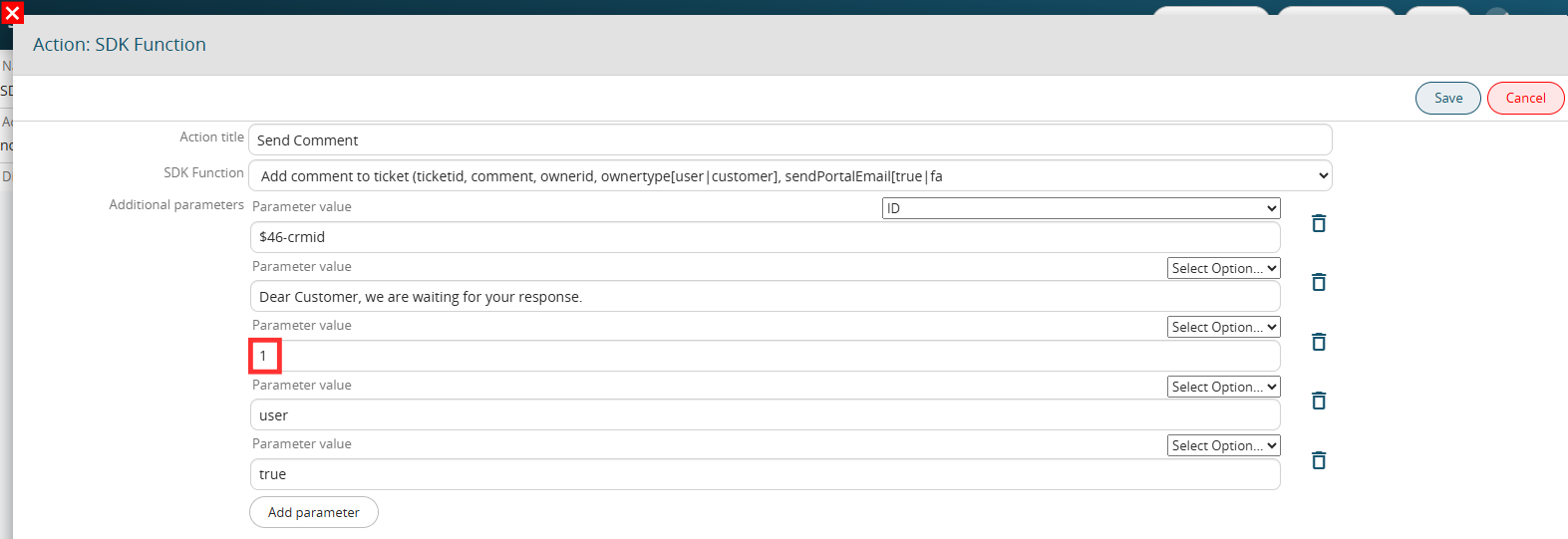
Figure 3 (click on the image for a higher graphic resolution)
As a fourth parameter we pass the fixed value "user" (Figure 4)
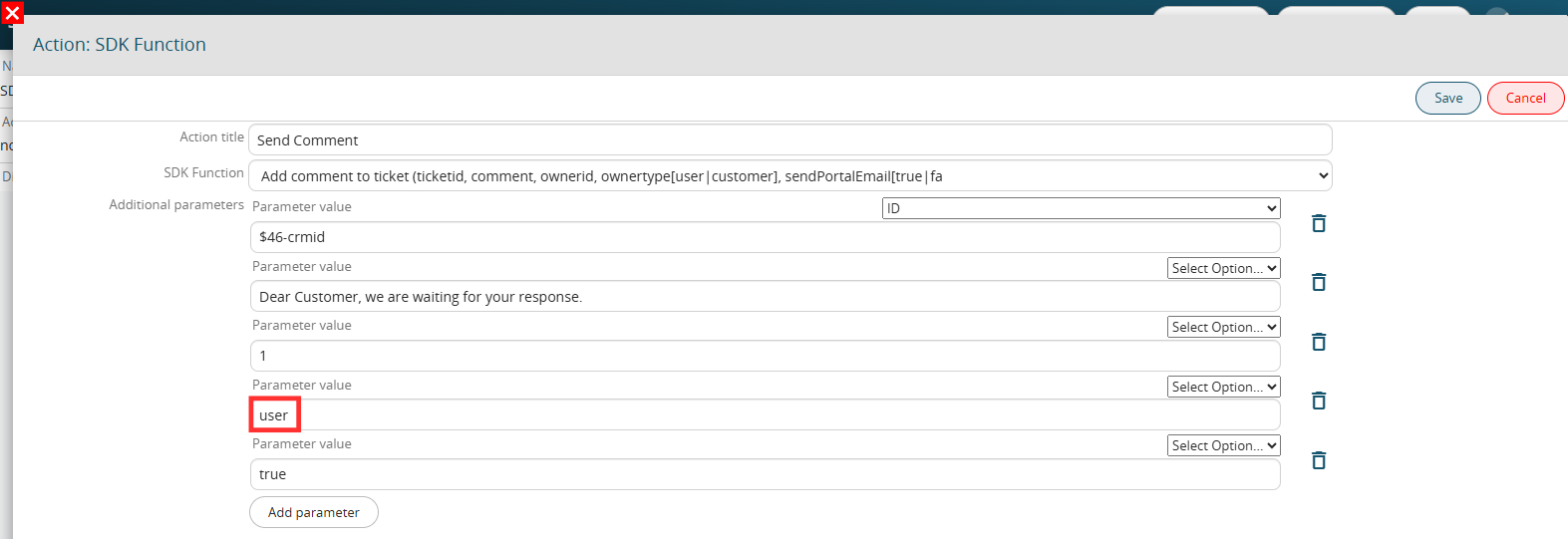
Figure 4 (click on the image for a higher graphic resolution)
As a fifth parameter we pass the fixed value "true" to send the automatic alert email to the contact with active portal user connected to the ticket (Figure 5)
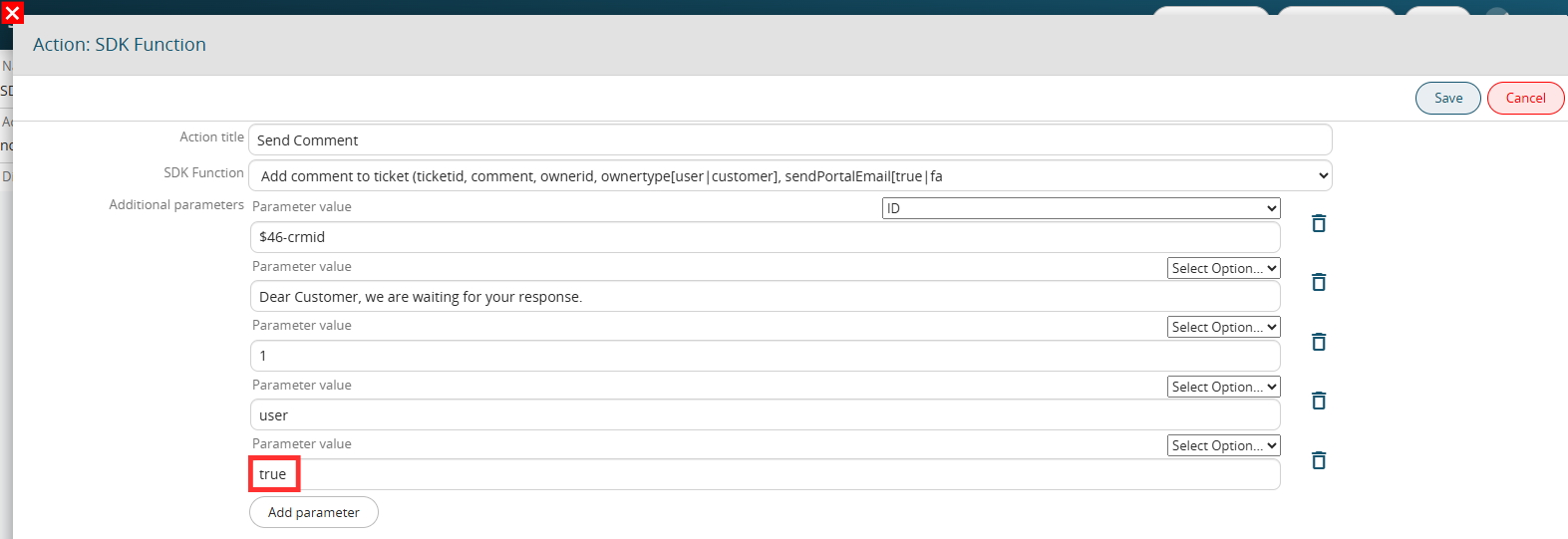
Figure 5 (click on the image for a higher graphic resolution)
For the sixth parameter, specify the fixed value "false" to prevent the system from appending an informational note at the end of the comment indicating that the content was generated using AI (Figure 6).
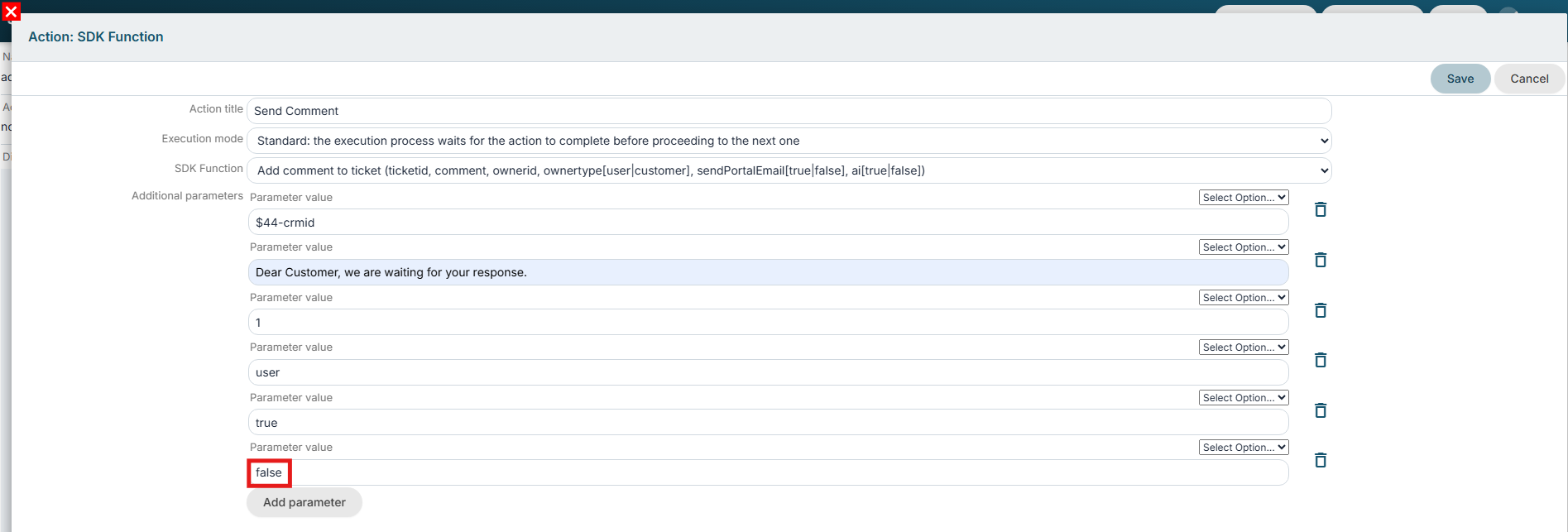
Figure 6
The final result will be as shown in Figure 7

Figure 7 (click on the image for a higher graphic resolution)
The automatic email sent to the contact with active portal user linked to the ticket will be as shown in Figure 8
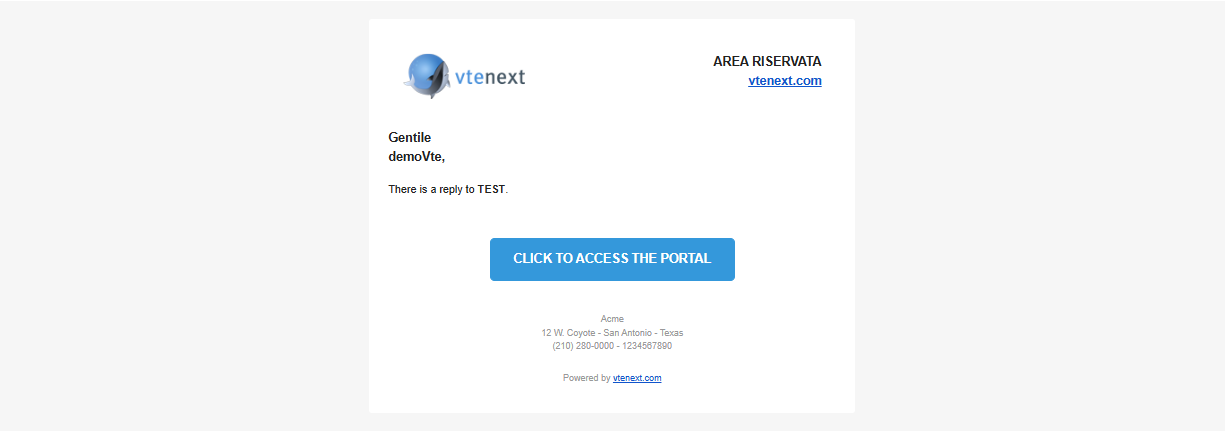 Figure 8 (click on the image for a higher graphic resolution)
13.3 SDK Action: Update ModLight row
This SDK function allows you to perform an update of the existing rows of a table field present on a specific module.
The row ID must be passed as the first parameter, i.e. the key parameter that allows you to uniquely identify a specific existing row in the table field.
The second parameter must be passed as the Database name of the column of the table field that you want to update.
The last parameter must be passed as the value that you want to insert into the column defined as the second parameter.
EXAMPLE OF USE
To better understand how it works, below is an example of using the SDK Update ModLight row() function to automatically update the value of the "Processed" column to "yes" for all existing rows of the "Operations" table field present in the Job Order module. (Figure 1)
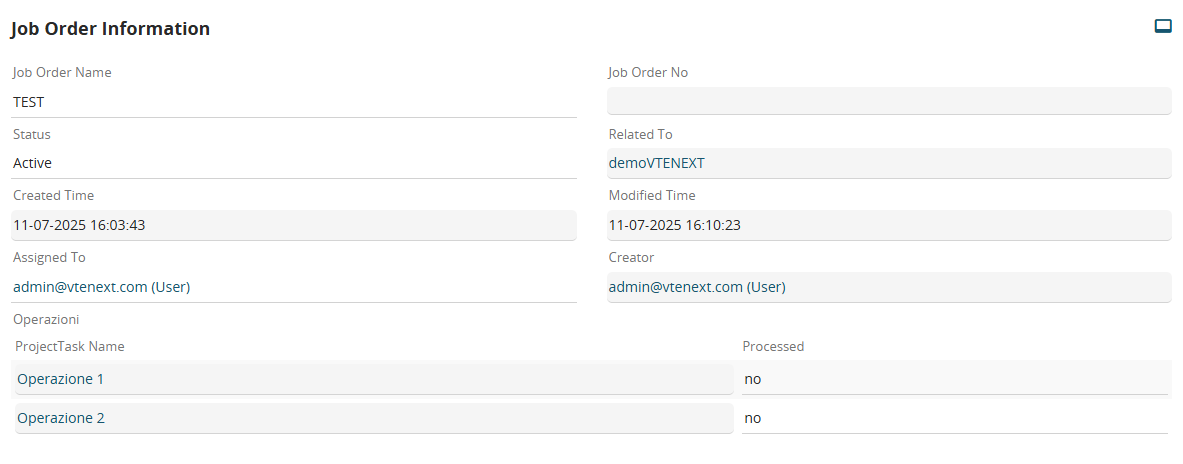
Figure 1
Inside an Action Task we proceed with the configuration of a cycle rows type action on the "Operations" table field and for each "SDK Functions" row in which we call the SDK Update ModLight row(). (Figure 2)

Figure 2
As the first parameter we insert the current value of the "ID" variable of the "Operations" table field (on which we are executing the cycle), so in our case "$28-ml3::crmid:curr". (Figure 3)
NOTE: this is a piece of data that is not present among the columns of the table but is automatically proposed as a variable within the process
As the second parameter we insert the name of the Database of the "Processed" column, so in our case "f8". (Figure 3)
As the last parameter we insert the value "si" which in this case, since the "Processed" column is of the checkbox type, in the Database corresponds to the value "1". (Figure 3)
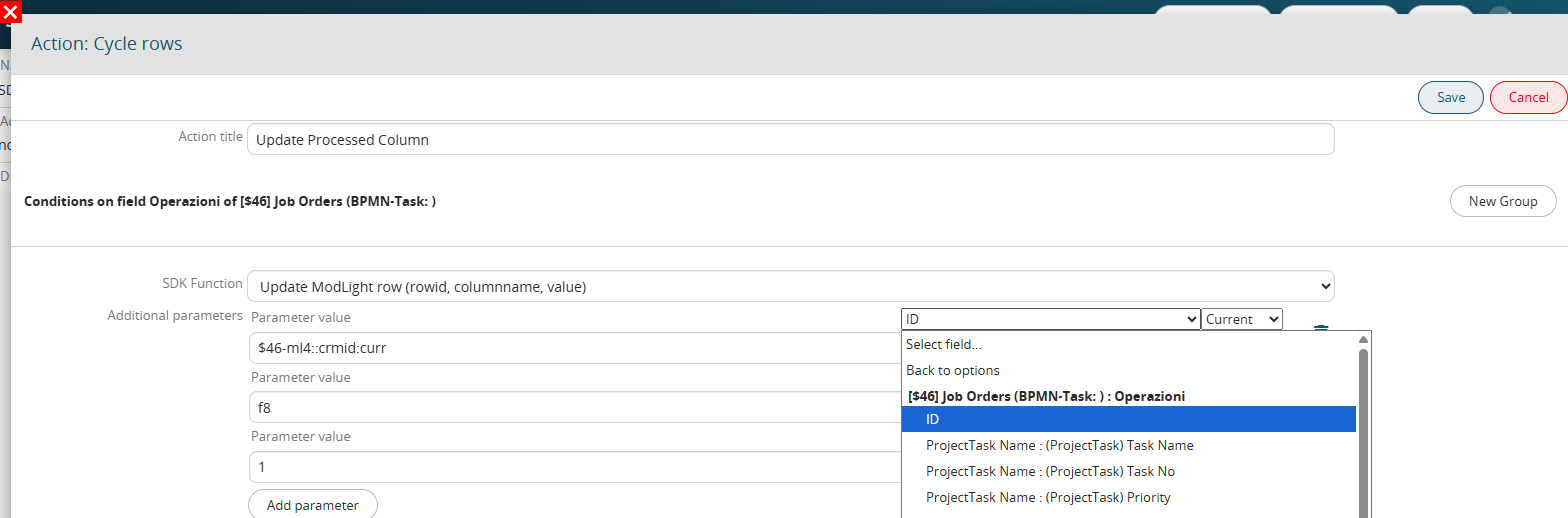
Figure 3
13.4 SDK Action: Update DynaForm table row
This SDK function allows you to update existing rows of a table field present on a dynamic form of a process helper.
The metaid must be passed as the first parameter, i.e. the ID that uniquely identifies a specific dynamic form within the process.
NOTE: the number must be passed without the DF prefix, so for example if the ID is DF9 you must enter only 9.
The second parameter must be passed as the Database name of the table field present on the dynamic form of the process helper.
The table sequence must be passed as the third parameter, i.e. the key parameter that is used to identify the rows to be updated.
As the fourth parameter, the name of the column of the table field that you want to update must be passed to the Database.
As the last parameter, the value that you want to insert into the column defined as the fourth parameter must be passed.
EXAMPLE OF USE
To better understand how it works, below is an example of using the SDK Update DynaForm table row() function to automatically update to "yes" the value of the "Processed" column for all rows of the "Operations" table field present on a dynamic form. (Figure 1)
Figure 1
Within an Action Task, we proceed with the configuration of a row cycle type action on the "Operations" table field and for each "SDK Functions" row in which we call the SDK Update DynaForm table row(). (Figure 2)

Figure 2
As the first parameter we insert the metaid, that is the ID that uniquely identifies a specific dynamic form within the process without the DF prefix, so in our case 3. (Figure 3)
As the second parameter we insert the Database name of the table field present on the dynamic form of the process helper, so in our case "vcf_8". (Figure 3)
As the third parameter we insert the current value of the "Sequence" variable, so in our case "$DF3-vcf_8::index:curr". (Figure 3)
As the fourth parameter we insert the Database name of the "Processed" column, so in our case "vcf_10". (Figure 3)
As the last parameter we insert the value "si" which in this case, since the "Processed" column is of the checkbox type, the Database corresponds to the value "1". (Figure 3)
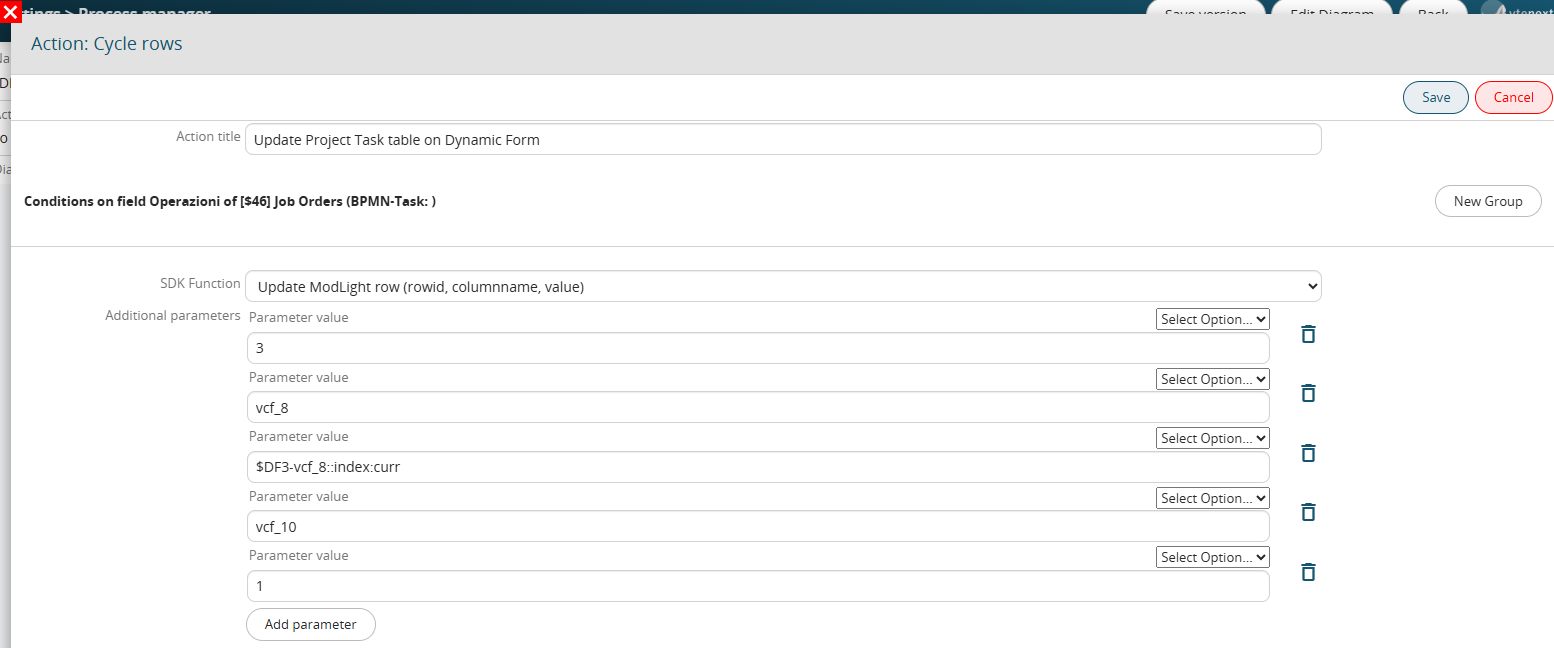
Figure 3
13.5 SDK Action: Set Receiving Newsletter
This SDK function allows you to enable or disable newsletter receipt for the email address associated with a Lead, Contact, or Company by controlling the "Receive Newsletter" checkbox field.
The first parameter must be the `crmid` of the record for which you wish to update the "Receive Newsletter" field value.
The second parameter must be the fixed value "lock" if you want to set the "Receive Newsletter" field to "no"; conversely, to set it to "yes," pass the fixed value "unlock."
USAGE EXAMPLE
To better understand how it works, the following is an example of using the "Set receiving newsletter" SDK function to disable newsletter receipt for a Lead.
As the first parameter, we pass the `crmid` of the lead for which we want to update the "Receive Newsletter" field value—in our case, `$1-crmid` (Figure 1).
As the second parameter, we pass the fixed value "lock" (Figure 1).
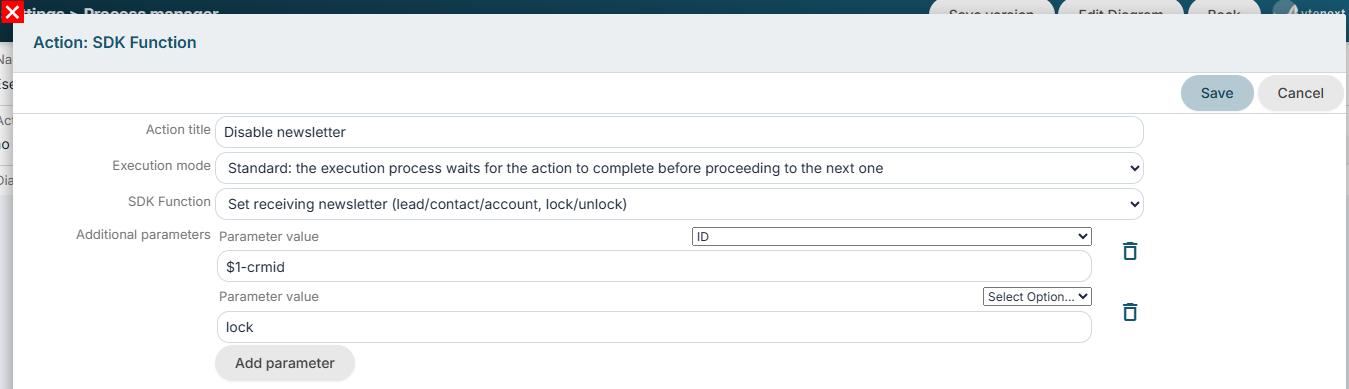
Figure 1
13.6 SDK Action: Freeze Entity
This SDK function allows you to "freeze"/"unfreeze" a specific record involved in a process.
The term "freeze" refers to the ability to prevent any user from modifying the affected record, including users with administrator privileges.
This function is particularly useful when background operations need to be performed and you want to prevent users from making additional changes to the affected record while those operations are in progress.
In practice, the main "Edit" button (Figure 1) is temporarily hidden, along with all related edit buttons, such as the one available in the List View (Figure 2).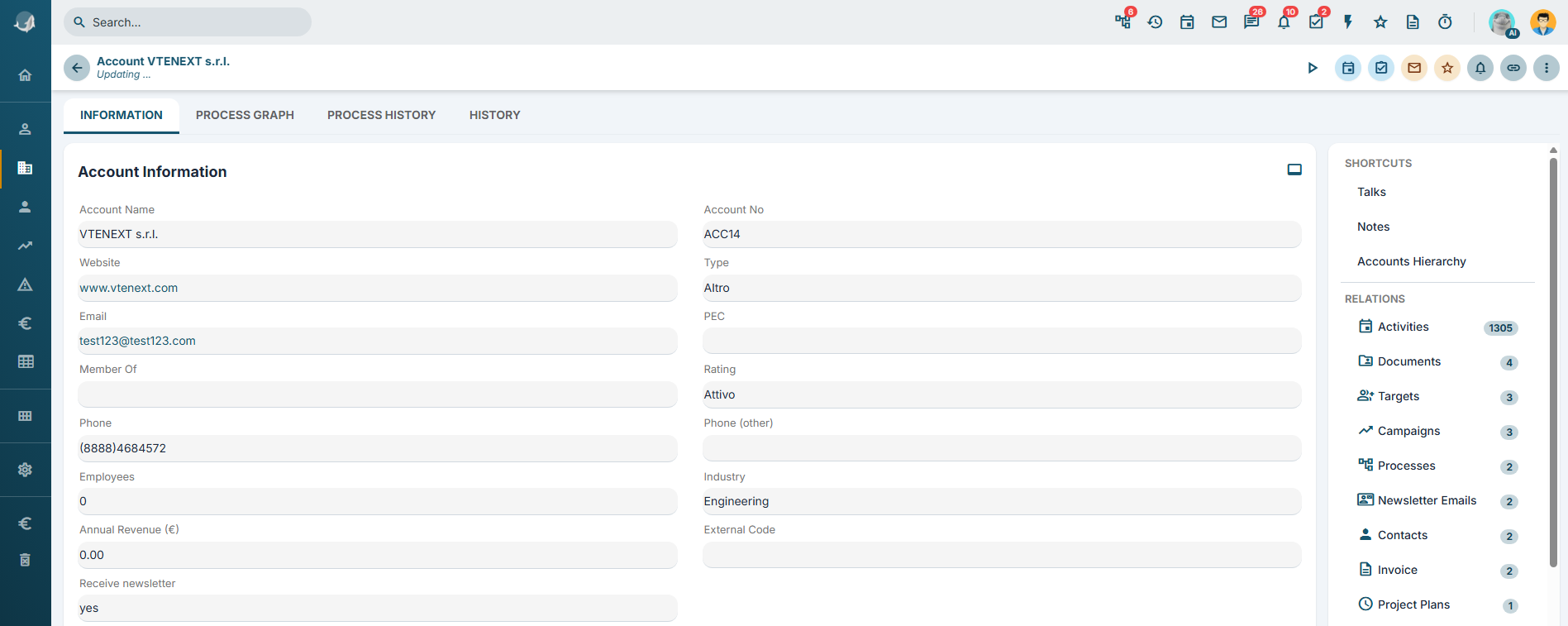
Figure 1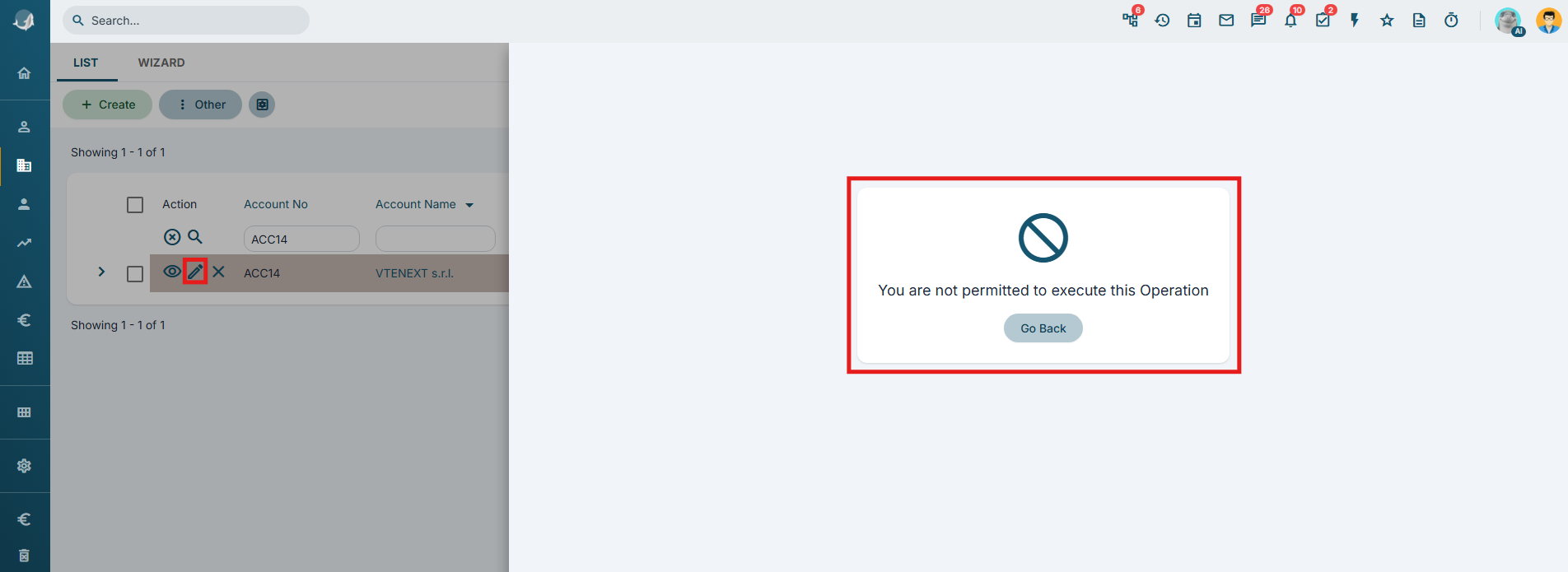
Figure 2
The first parameter must be the crmid of the record to frozen/unfrozen.
The second parameter must be the static value "1" to freeze the record, or "0" to unfreeze it.
USAGE EXAMPLE
To better understand how this SDK function works, the following example demonstrates how to use SDK Freeze Entity() to freeze an account record until the assigned to update of its related contacts has been completed.
Within an Action Task placed before the cycle related records action, configure an action of type SDK Functions and invoke the SDK Freeze Entity() function.
For the first parameter, specify the crmid of the account to be frozen. In this example, the value is $44-crmid (Figure 3).
For the second parameter, specify the static value "1" (Figure 3).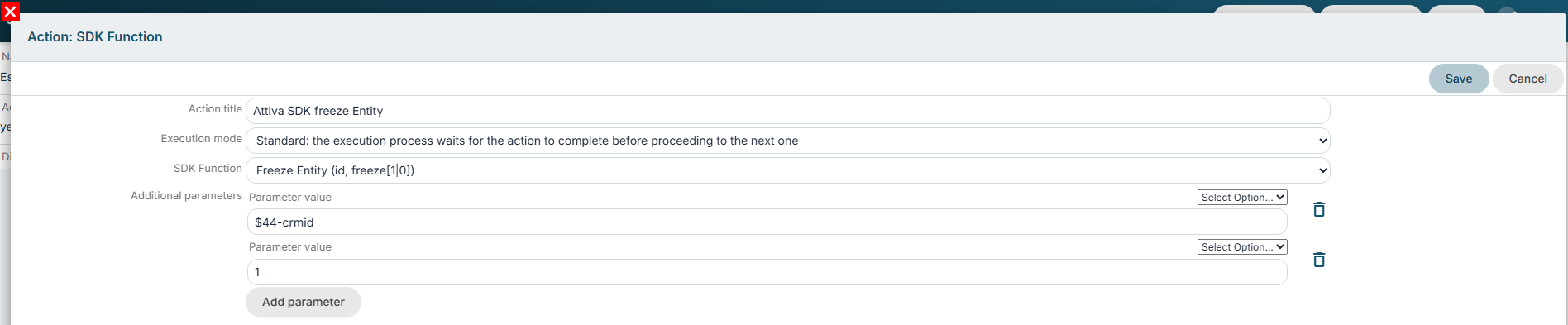
Figure 3
After the Action Task containing the cycle related records action, configure another SDK Functions action and invoke the SDK Freeze Entity() function.
For the first parameter, specify the crmid of the account to be unfrozen. In this example, the value is $44-crmid (Figure 4).
For the second parameter, specify the static value "0" (Figure 4).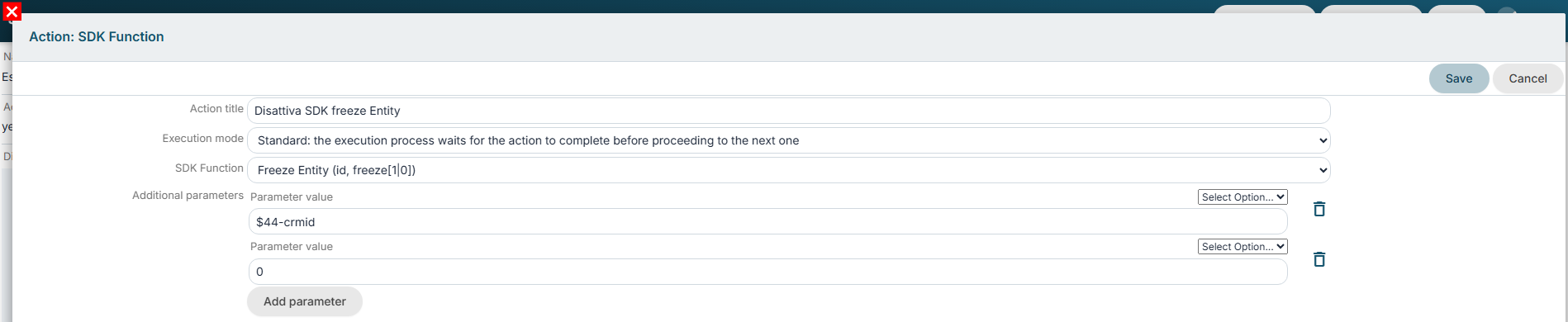
Figure 4