AI Actions
These actions allow you to integrate new AI tools into your processes and automate their use.
Call LLM
Allows you to make a request to a previously configured LLM in Settings > AI Tools > LLM.
Once you select one of the available LLM templates, all the elements configured in Settings > AI Tools > LLM will be loaded and can be customized.
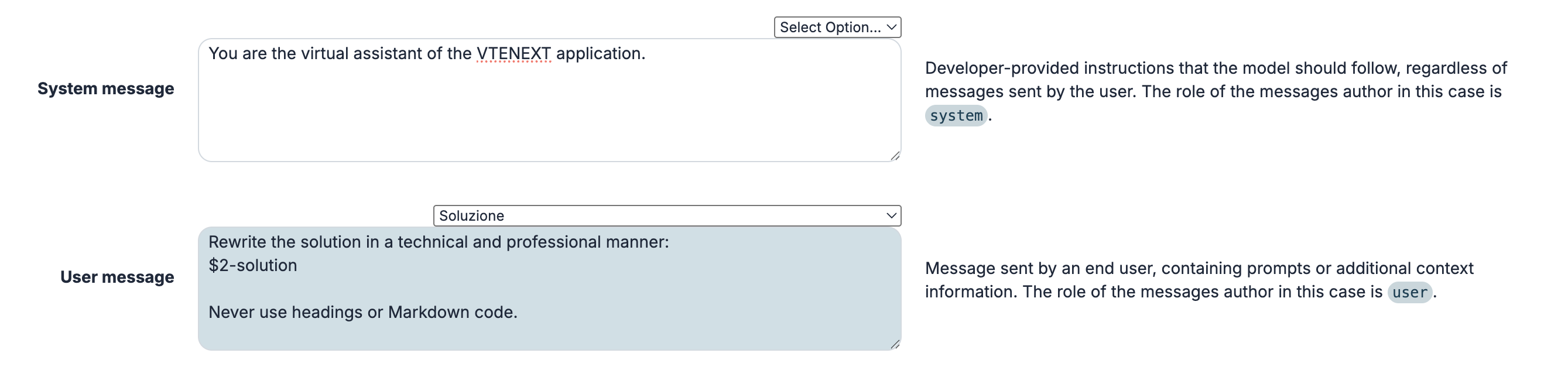 Figure 1
Additionally, you can define additional Headers, Parameters, and Return Fields, allowing you to pass dynamic values from the records involved in the process.
By default, the field containing the template's response content is already configured (Figure 2), which can be recalled for application in subsequent phases of the process (Figure 3).

Figure 2
 Figure 3
Call MCP tool
Allows you to make a request to a previously configured MCP server tool in Settings > AI Tools > MCP Client.
This action allows you to obtain a response from an MCP tool in a deterministic manner, unlike what an agent could do.
The user could therefore implement their own "agent" within a process by making calls to LLM and MCP tools interact.
Once one of the available MCP clients and the desired tool is selected, the Input Parameters expected by the tool and the Return Fields will be loaded, which can be modified based on the tool's response.
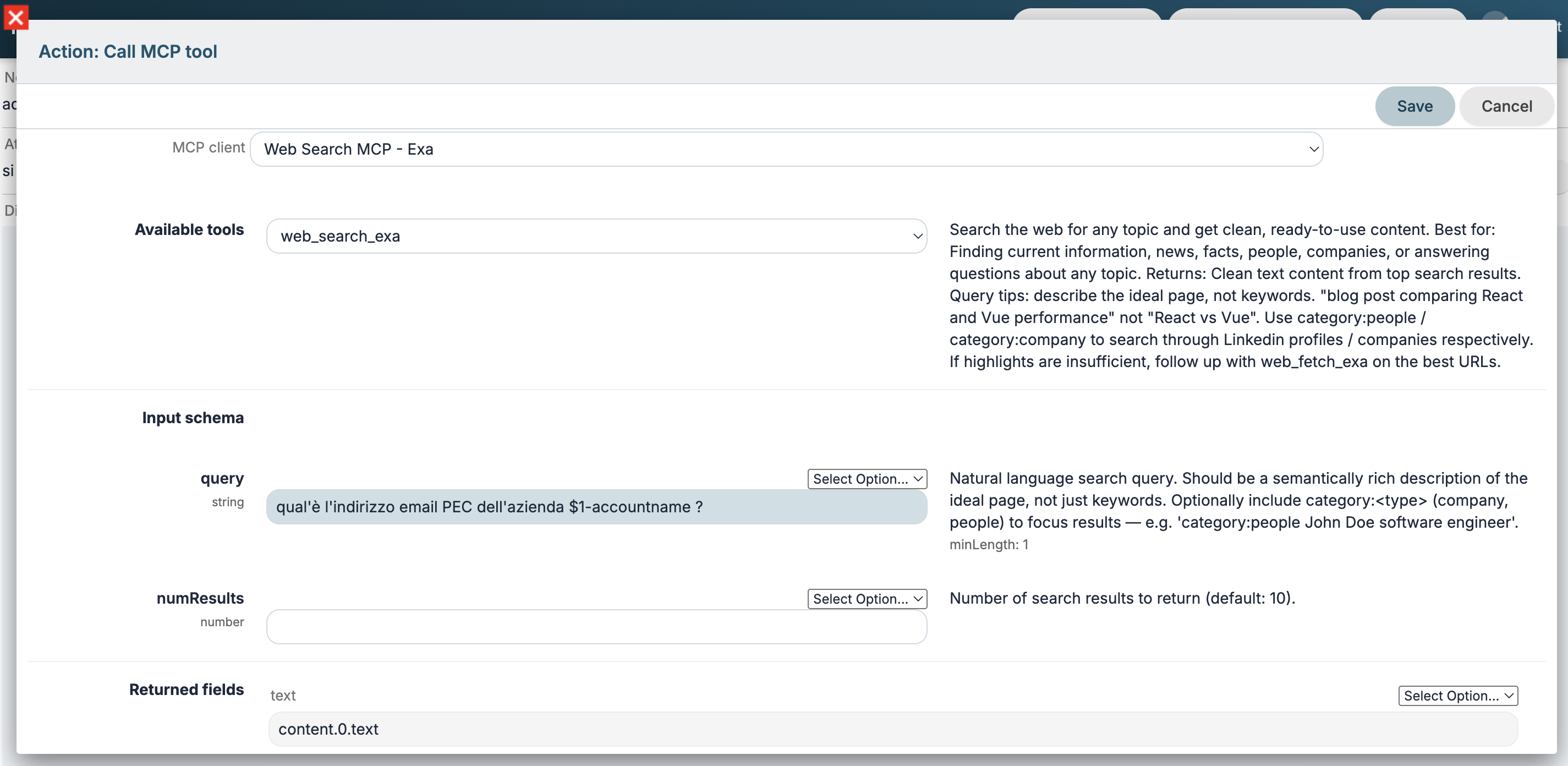 Figure 1 - Example of a call to a web search tool
Typically, tools return the result in a format suitable for interpretation by an LLM model, so the response must be verified for inclusion in a process flow.
e.g. response from the web_search_exa tool to the question "What is the PEC email address of the VTENEXT company?"
Title: Contatti - vtenext CRM + BPM
URL: https://www.vtenext.com/it/contatti/
Published: 2021-01-28T21:00:22.000Z
Author: N/A
Highlights:
info@vtenext.com Viale Sarca, 336/F 20126 Milano (MI) Tel (+39) 02 3790 1352 P.I. 09869110966 Registration Number MI – 2118732

---

Title: Fatturato Vtenext Srl (MI) – Scarica Bilanci e Visure Camerali Ufficiali
URL: https://www.companyreports.it/vtenext-srl-09869110966
Published: N/A
Author: N/A
Highlights:
**Indirizzo**

Viale Sarca, 336/F - [Milano (](https://www.companyreports.it/comune/milano "Vedi le aziende del comune di Milano")[MI](https://www.companyreports.it/provincia/milano "Vedi le aziende della provincia di Milano"))
...
**

**
...
## **Visura Camerale di Vtenext Srl**

La visura camerale di **Vtenext Srl** fornisce una panoramica completa dell’assetto legale e societario dell’impresa: sede legale, capitale sociale, oggetto sociale, elenco soci, cariche in corso e indirizzo PEC. La visura è disponibile in formato ordinario o storico ed è scaricabile in tempo reale da **CompanyReports.it**.

### **Bilanci e Documenti Aziendali di Vtenext Srl**
...
PEC
*
...
* Email PEC
* Codice di fatturazione
...
```json
{
"@context": "https://schema.org",
"@type": "Organization",
"name": "CompanyReports",
"url": "https://www.companyreports.it",
"logo": "https://www.companyreports.it/dist/img/companyreports-logo-new.webp",
"contactPoint": {
"@type": "ContactPoint",
"contactType": "sales",
"email": "info@adcapital.it"
}
}
...
{
"@context": "https://schema.org",
"@type": "LocalBusiness",
"name": "Vtenext Srl",
"legalName": "Vtenext Srl",
"image": "https://www.companyreports.it/og-image-Fatturato%20Vtenext%20Srl%20%28MI%29%20%E2%80%93%20Scarica%20Bilanci%20e%20Visure%20Camerali%20Ufficiali.jpg",
"vatID": "09869110966",
"taxID": "09869110966",
"foundingLocation": "MI",
"foundingDate": "2017-04-04",
"isicV4": "6201",
"knowsAbout": "Produzione di software non connesso all'edizione",
"address": {
"@type": "PostalAddress",
"postalCode": "",
"addressLocality": "Milano, Italy",
"addressCountry": "IT",
"addressRegion": "MI",
"streetAddress": "Viale Sarca, 336/F"
},
"keywords": "Vtenext Srl fatturato, utile Vtenext Srl, perdita Vtenext Srl, risultato Vtenext Srl , andamento Vtenext Srl, partita iva Vtenext Srl , bilancio Vtenext Srl , visura Vtenext Srl, 09869110966, Partita Iva 09869110966, Codice Fiscale 09869110966, DUNS Vtenext Srl, D-U-N-S Vtenext Srl, Report Aziende per fatturato"

---

Title: VTENEXT S.R.L. SOCIETA' BENEFIT 03641400233 - Visurissima.it - Le informazioni a portata di click
URL: https://www.visurissima.it/aziende/VTENEXT-SRL-SOCIETA-BENEFIT_03641400233.html
Published: N/A
Author: N/A
Highlights:
Indirizzo completo
...
VIA ALZANA 2/C, 37040 ARCOLE (VR)
...
crmvillage@pec.it
...
Scopri Email Scopri

---

[...]
Call agent
Allows you to make a request to a previously configured agent in Settings > AI Tools > Agents.
Once you select one of the available agents, all the elements configured in Settings > AI Tools > Agents will be loaded and can be customized.
The agent can perform tasks automatically based on the activated tools and the knowledge it has access to via RAG and LLM.
The System prompt can be modified, while operating instructions must be entered in the User message field.
The content of the response is already configured by default in the Returned fields for use in subsequent stages of the process.
Below is an example in which the agent is asked to search for the solution to a request received via a Customer Support ticket using the user_manual tool and to write it in a comment.
 Figure 1
The user-written prompt is supplemented with additional information to provide context for the request, such as the entities involved in the process (name, module, and crmid). This allows the agent to understand which CRM entity is being referenced.
Process variables can also be used to further clarify the request:
e.g., Add a comment to ticket $15-crmid suggesting a solution...
Call process tool
Allows you to execute a tool process.
Once the desired tool is selected, the required input parameters will be loaded, which can be configured using process variables as usual.
This action is not limited to subprocesses and can be called multiple times within the same process and even from multiple different processes.
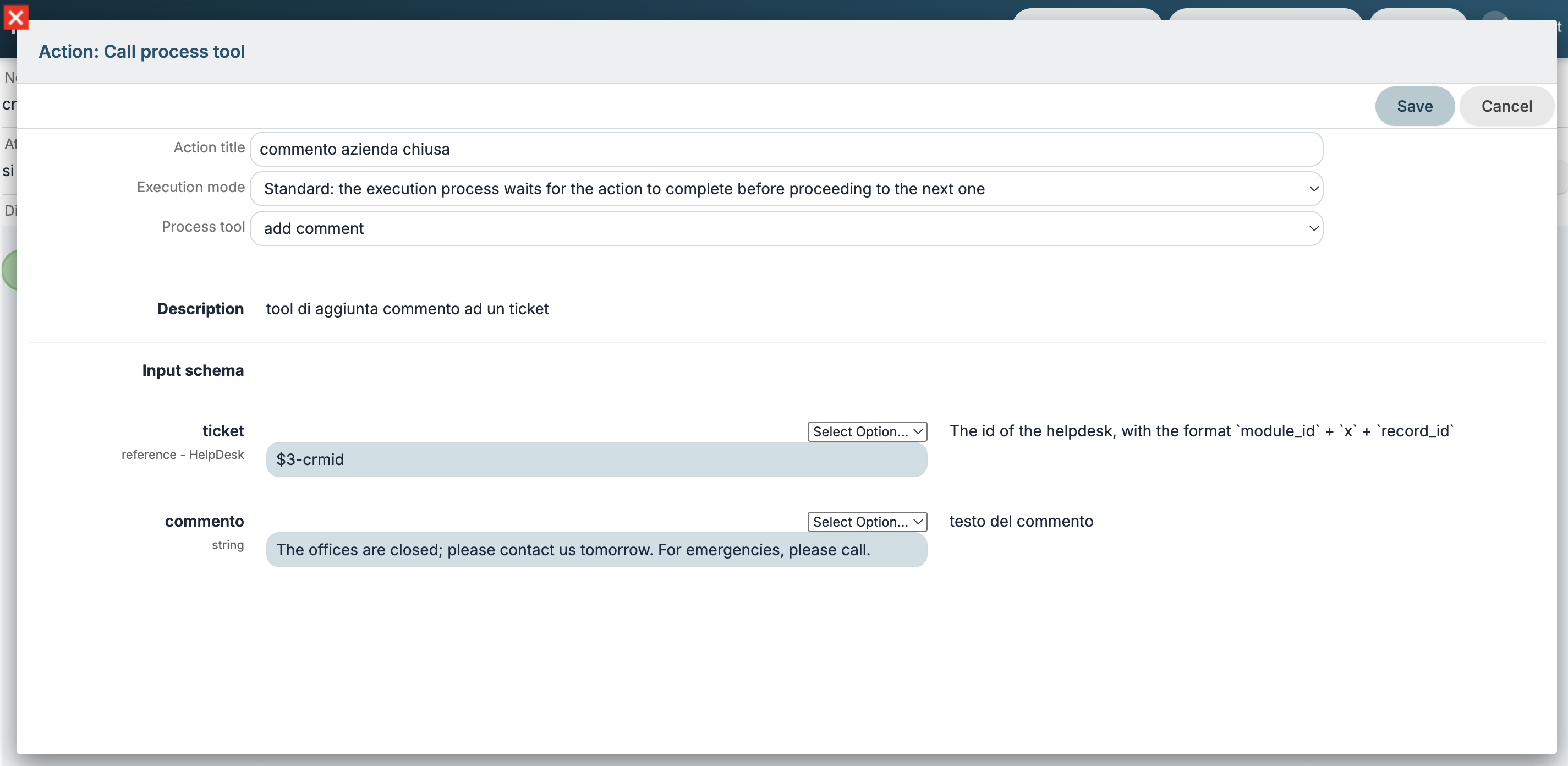
Below is an example of a tool call to add a comment to a ticket. The parameters are those defined in the tool process, which in this case are the ticket ID and the text.
Examples
Below are some example applications of how these new tools can be integrated into processes.
Web scraping
This is a process that, when a company is created, calls an agent to search for company information online and update it in the company records.
The agent must have activated a web search tool (e.g., web_search_exa) and the VTENEXT MCP client tools to access the module structure and update the record.
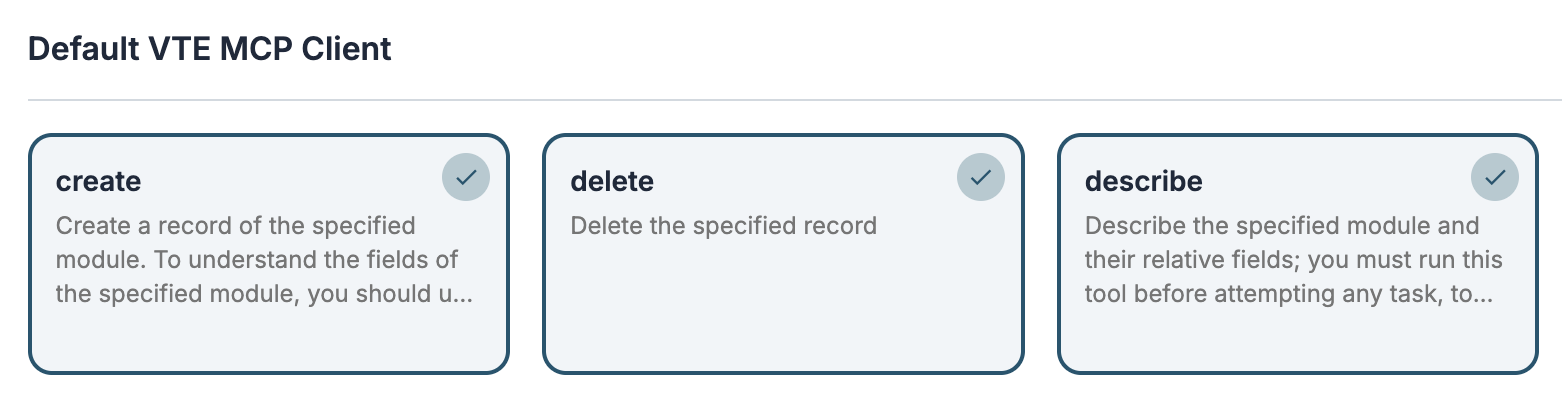

The process starts when a company is created and performs the Call Agent action.

In the User message, I ask to search for the information online and update the company fields. I also ask them to create a contact for the CEO.

If you have set the Background execution mode in the process action after saving, the system will notify that the record is still updating and once finished the browser page will automatically refresh.

From the History tab you will see the updated fields:
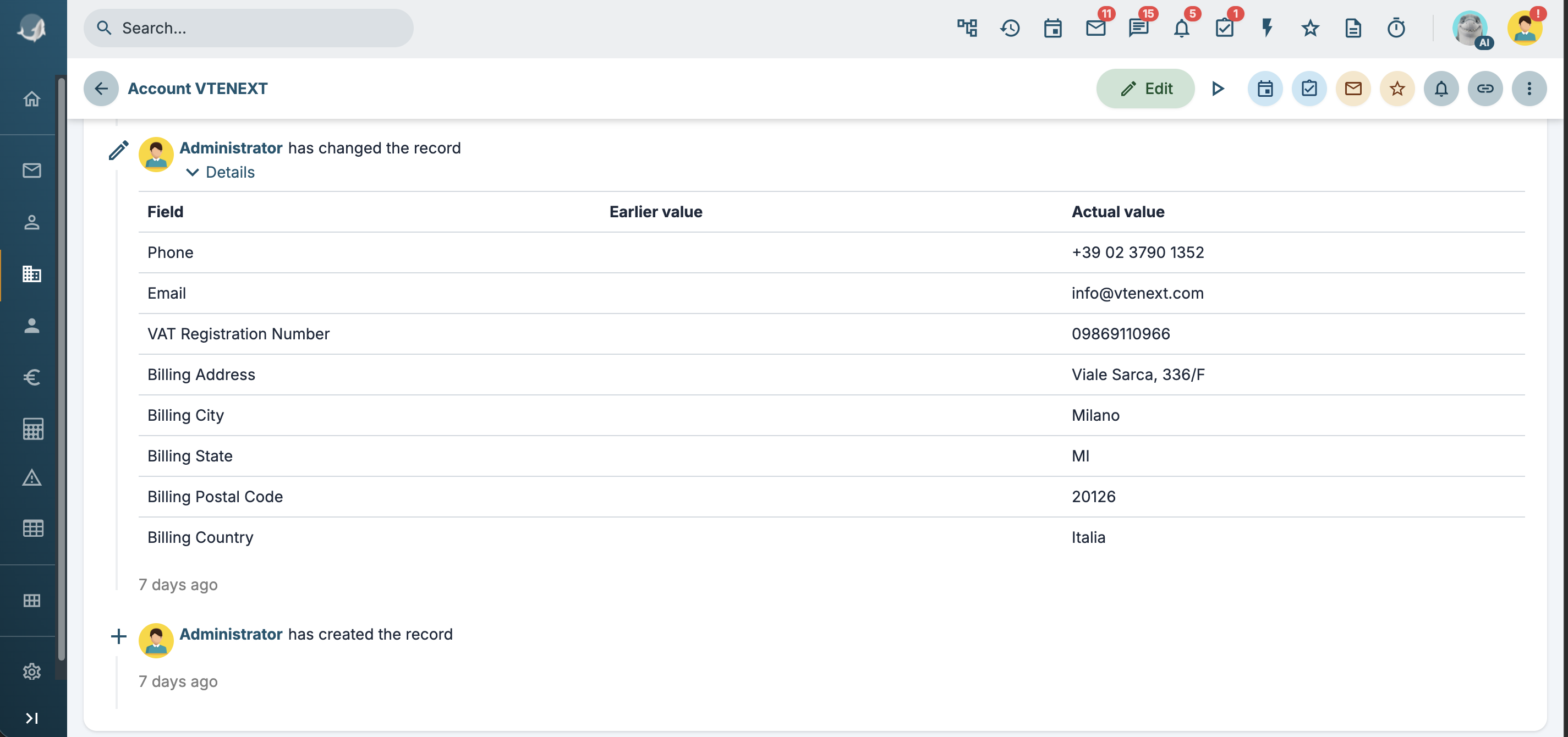
Customer service closed
In this case, we implement a process that automatically responds to technical support tickets during office hours, informing the customer of the closure and attempting to provide a solution to the problem.
Tool add_comment
First, we create a process tool to add a comment to a ticket that takes the ticket id and comment parameters as input.
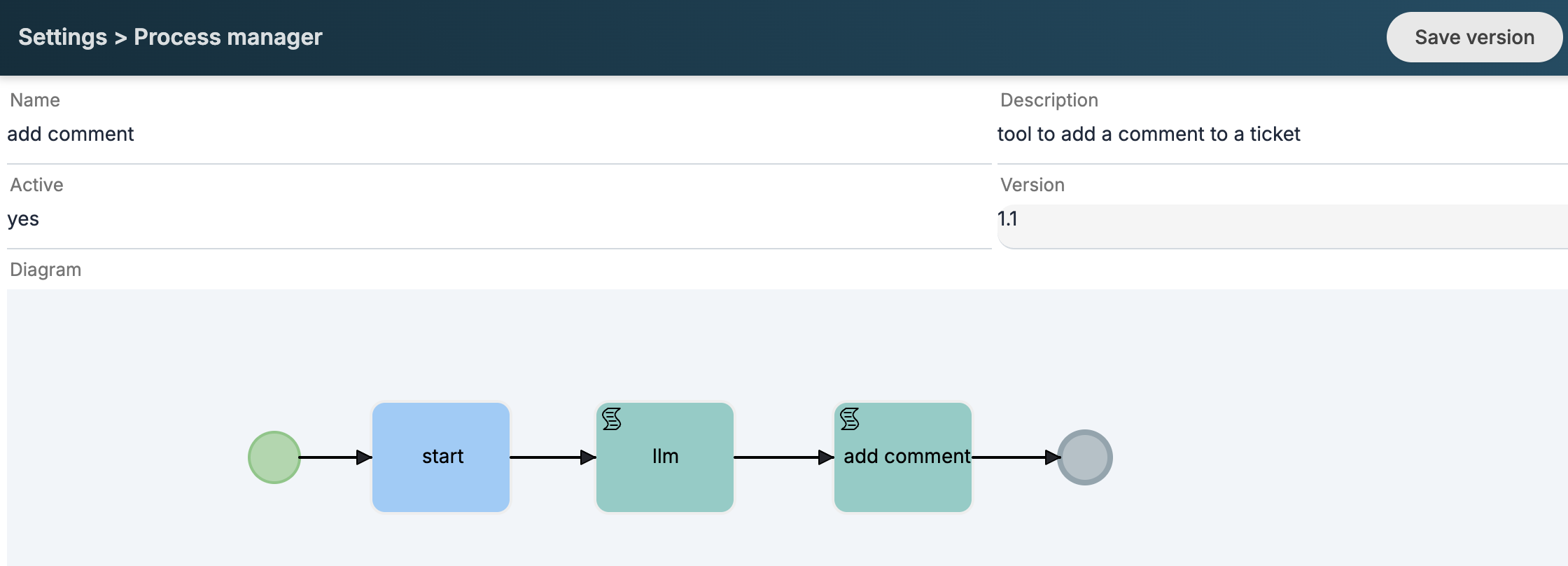

In the second step of the process, we perform an LLM call to rework the comment text by applying a certain style.
User message:
Rewrite the comment in a technical and professional manner:
$TOOLIN-comment

Never use headings or Markdown code.
In this case, it is sufficient to use an LLM instead of an agent since it is not necessary to use tools but only to exploit the linguistic capacity of the model.
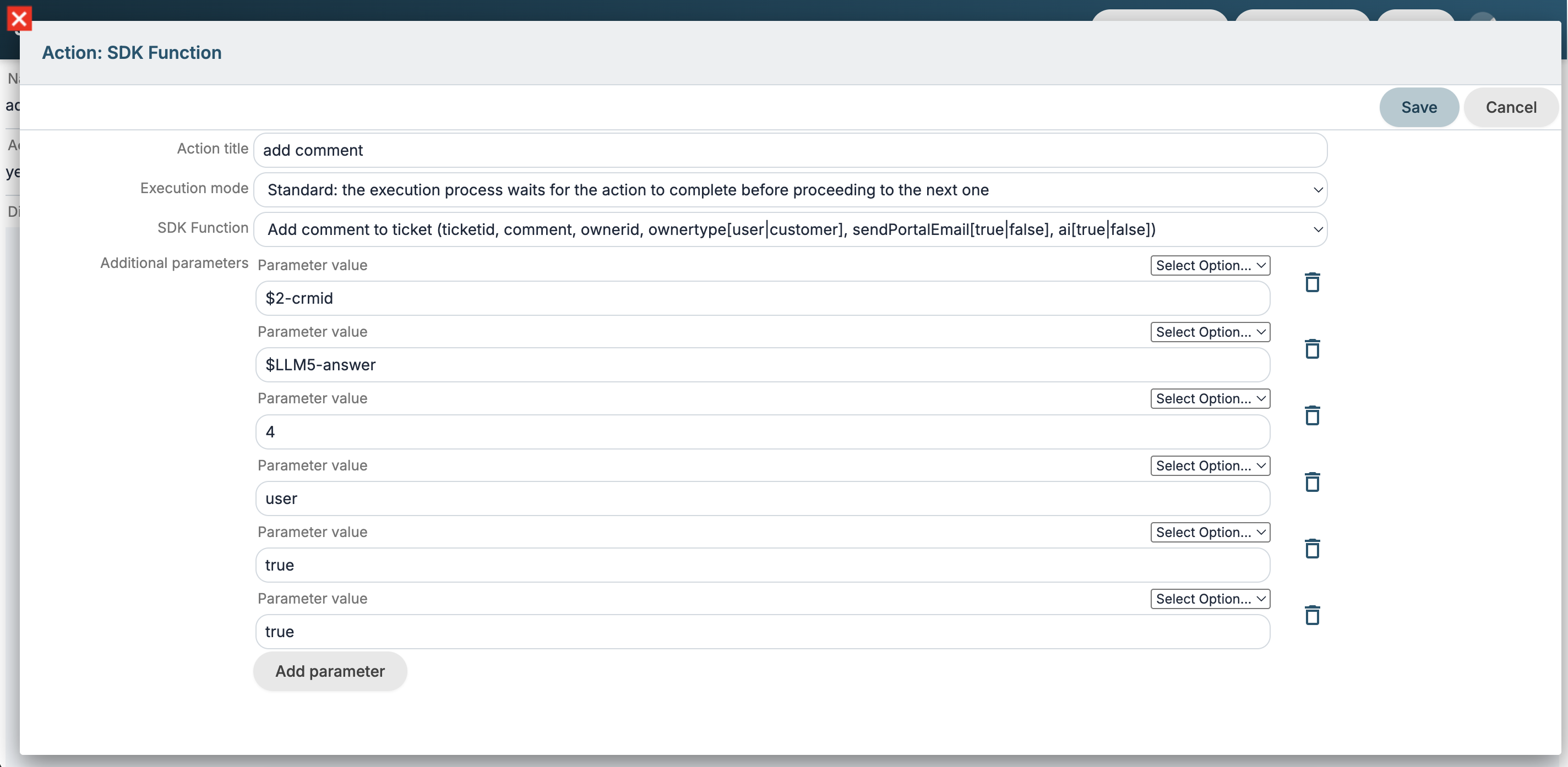
Finally, we use the Add comment SDK function, mapping all the required fields. In this case, I specify Kitt's user ID in the ownerid parameter, and with ai set to true, I force a note to be added to the comment's footer, indicating that the text was generated using AI.
The add_comment tool must then be activated in the agent we will use in the next steps, together with the user_manual tool and/or any documents in the RAG section for the knowledge needed to provide a solution.
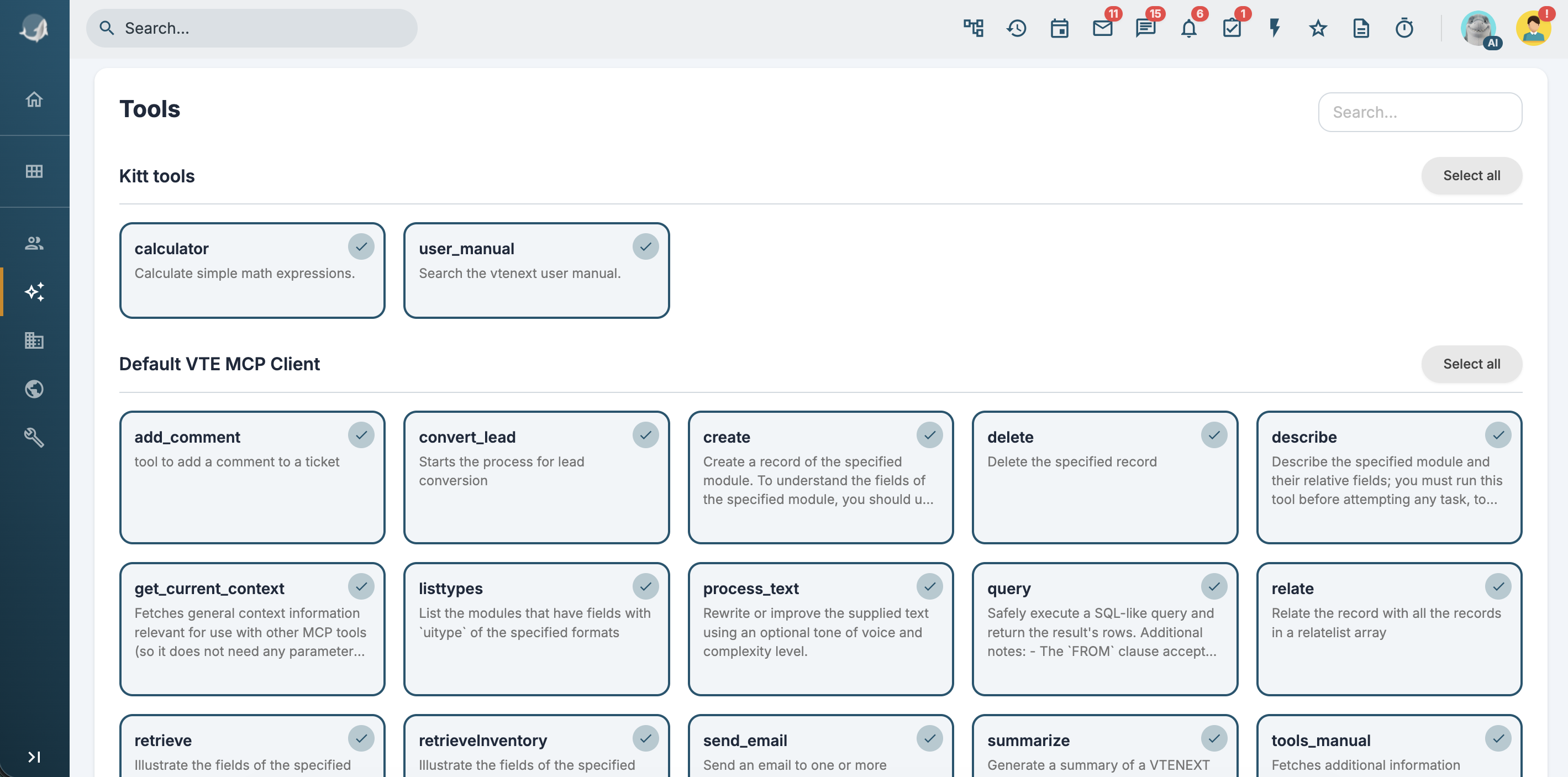
Ticket process implementation
We can then implement a new process or integrate the new AI logic into an existing one. In this case, I leverage an existing process that sets the SLA based on priority when a ticket is created.
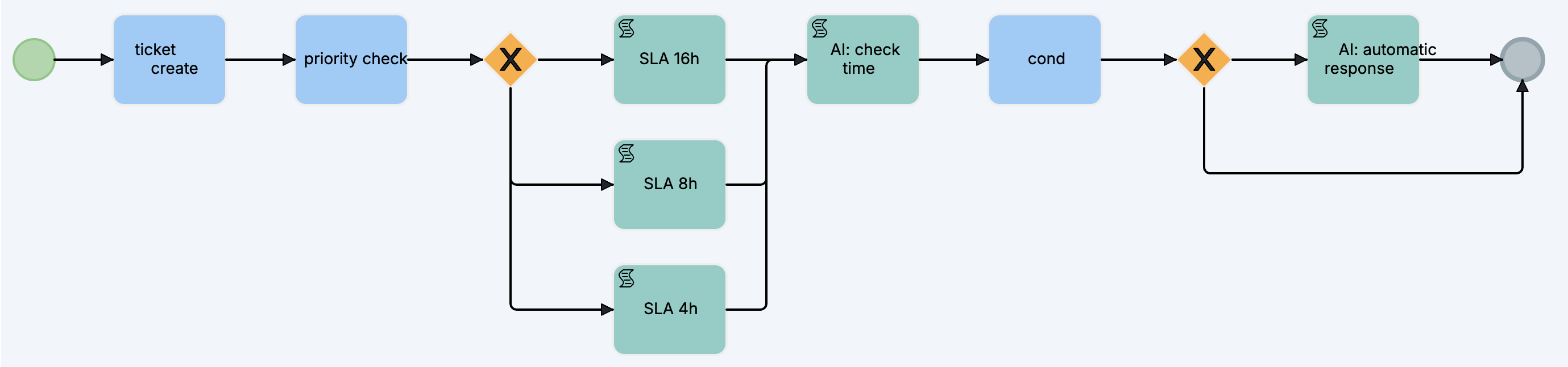
In the AI: check time task, I make a call to the agent with the following prompt:
The company is open Monday through Friday from 9:00 AM to 1:00 PM and from 2:00 PM to 6:00 PM on weekdays only.
If the ticket was created during business hours, return the string "open"; otherwise, return "closed."
Return exactly that string without adding any additional text or titles.
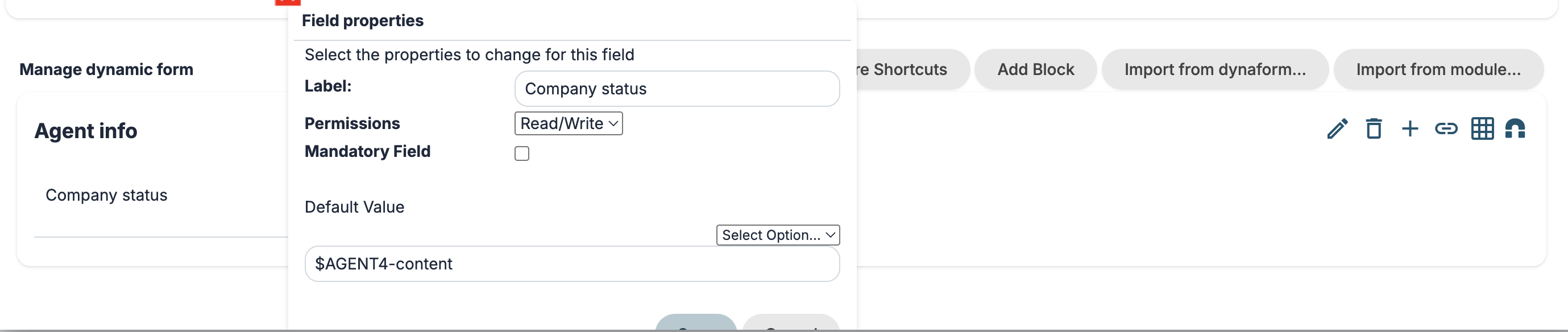
and I set up the dynamic form with a field populated with the answer:
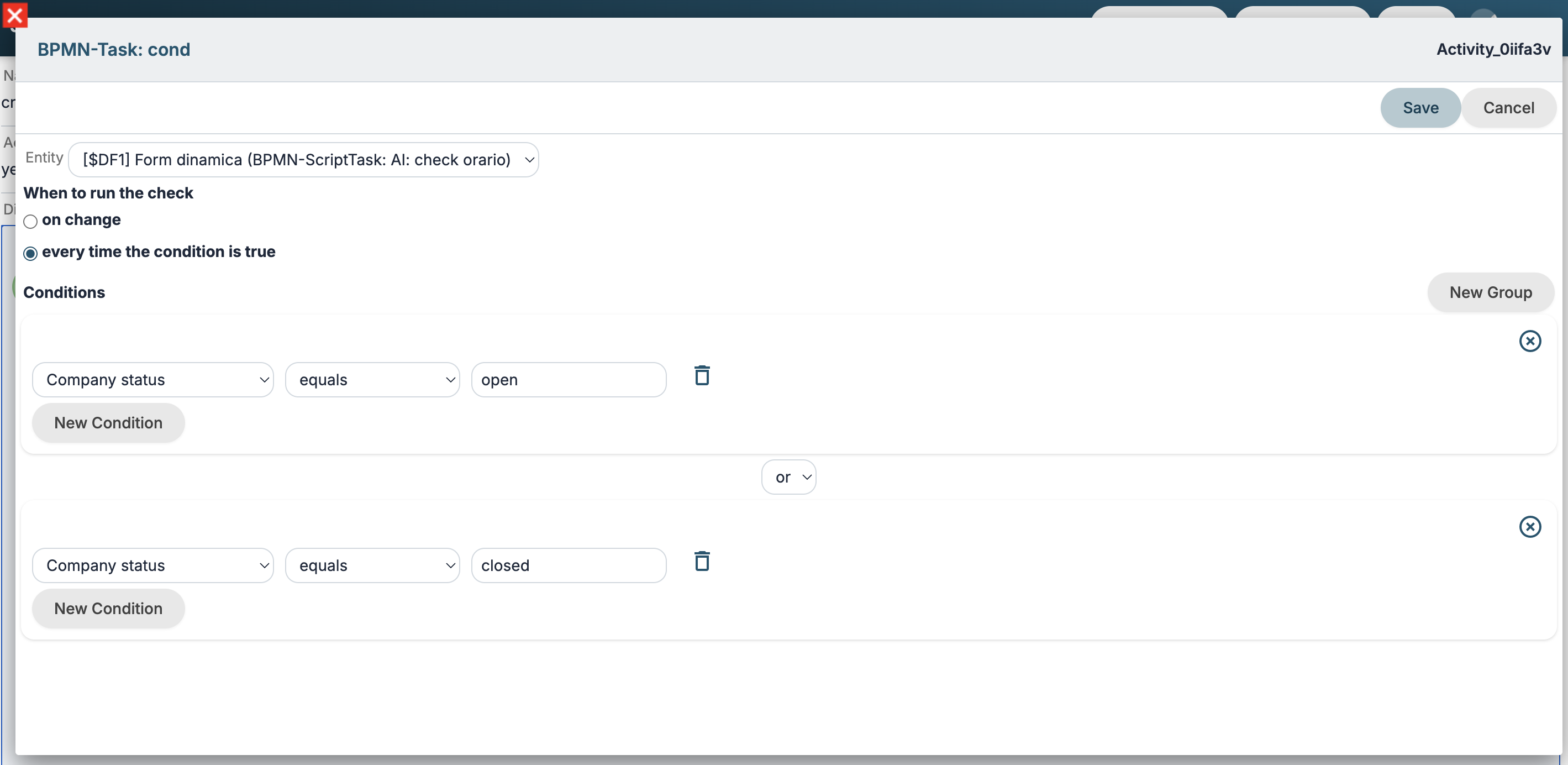
I configure the condition on the dynamic form field and the next gateway so that if the agent returns closed the process goes into the AI: automatic response task.
In the last task of the process, I first call the add_comment tool to inform the customer of the closure and finally call the agent to propose the solution.
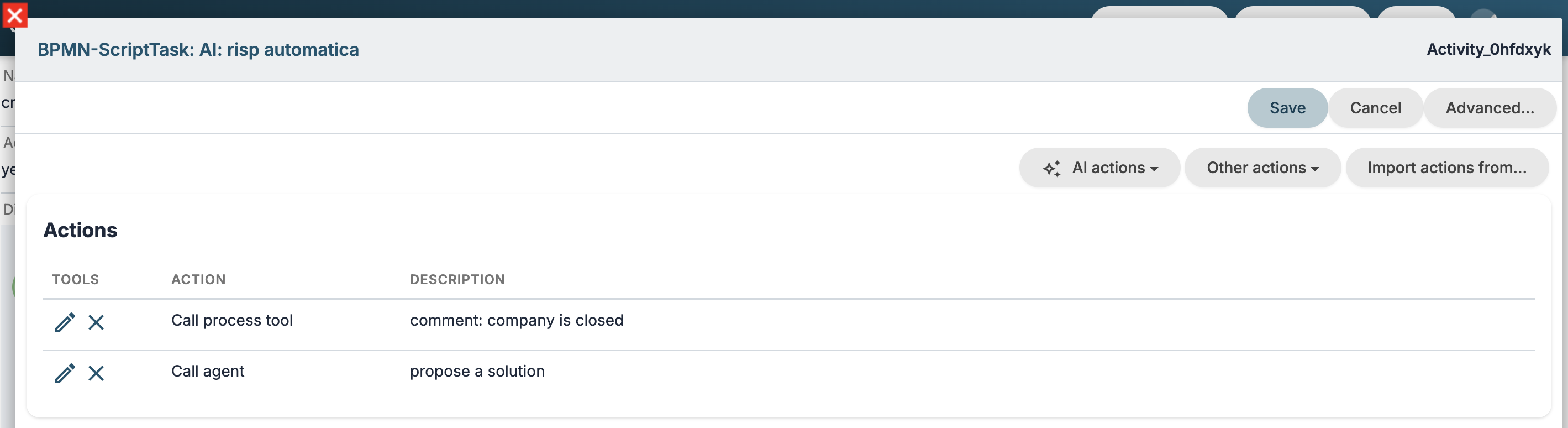
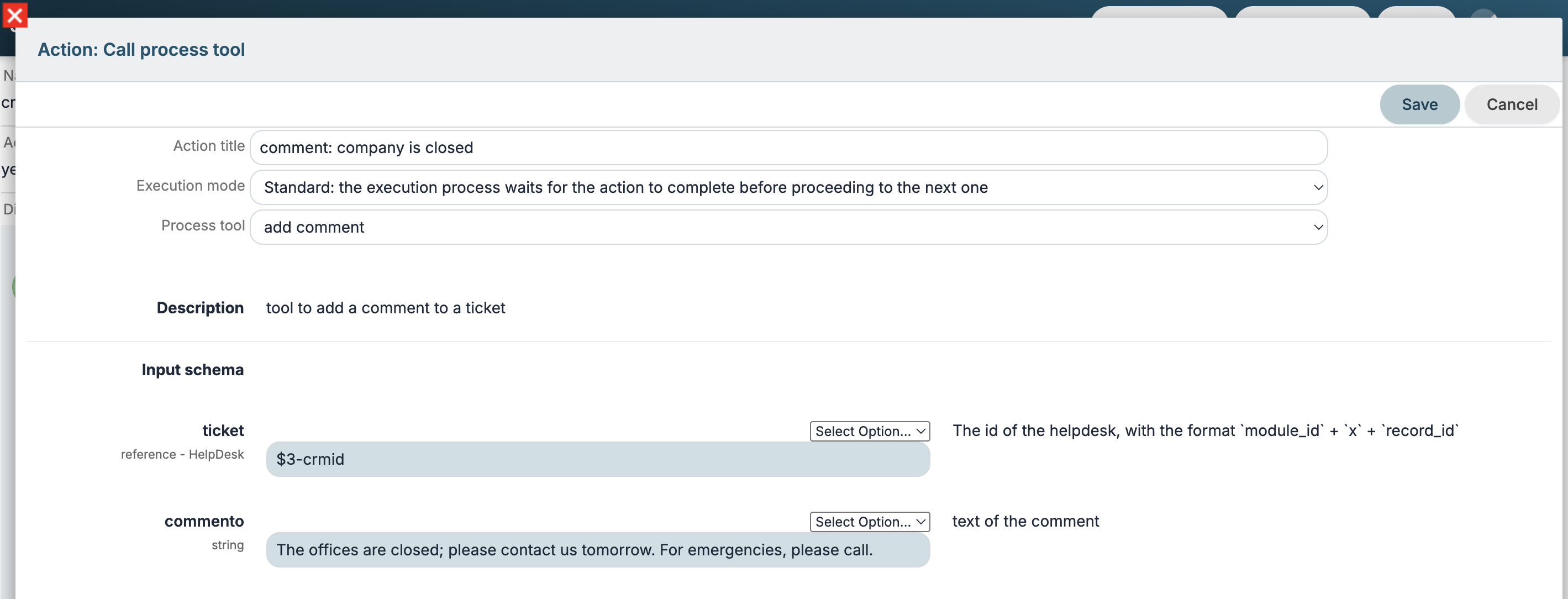
The comment indicated here will then be reworked by the LLM model in the tool process.
agent prompt:
Add a comment with the add_comment tool, suggesting a solution to their problem by searching in user_manual.
Never use headings or markdown code in the text; return only plain text.
Test
Let's test the process by creating a ticket during off-hours with the Title Login failed and Description "Good morning, I can't log in to vte this morning. Can you check urgently?"
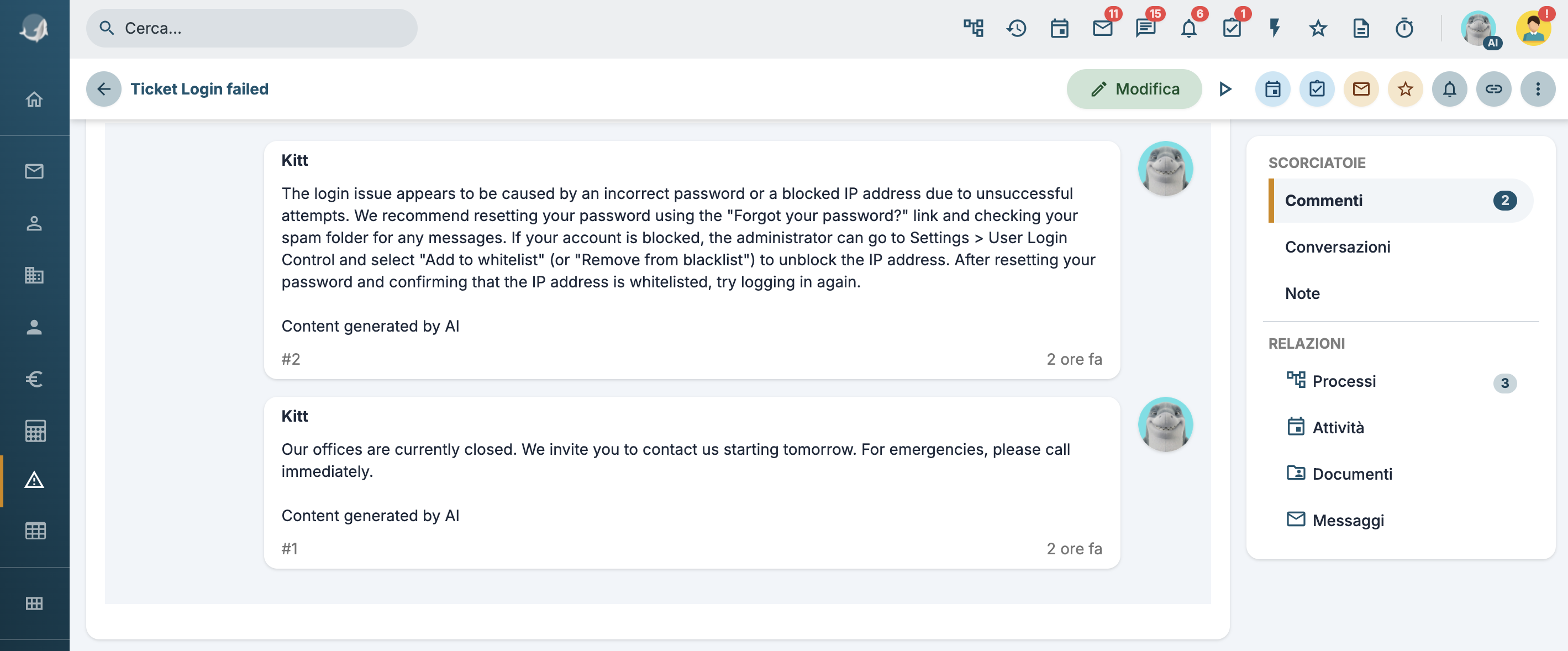
Comments similar to these will be added: