3.18 Cycle Record
Starting with version 26.07, an action has been implemented that allows you to use records from a specific module without that module necessarily being part of the process itself.
Furthermore, unlike the "Loop Related Records" action (see section 3.12 for details), the module records do not even need to be related to the main entity involved in the process.
Simply put, it can be compared to a database query targeting the content of a specific module.
When the "Loop Records" option is selected from the "Other Actions" picklist, the system prompts you to choose the module to iterate over and the specific action to perform on each record in the loop.
As previously mentioned, you can select any standard or custom module available in the CRM. (Figure 1)
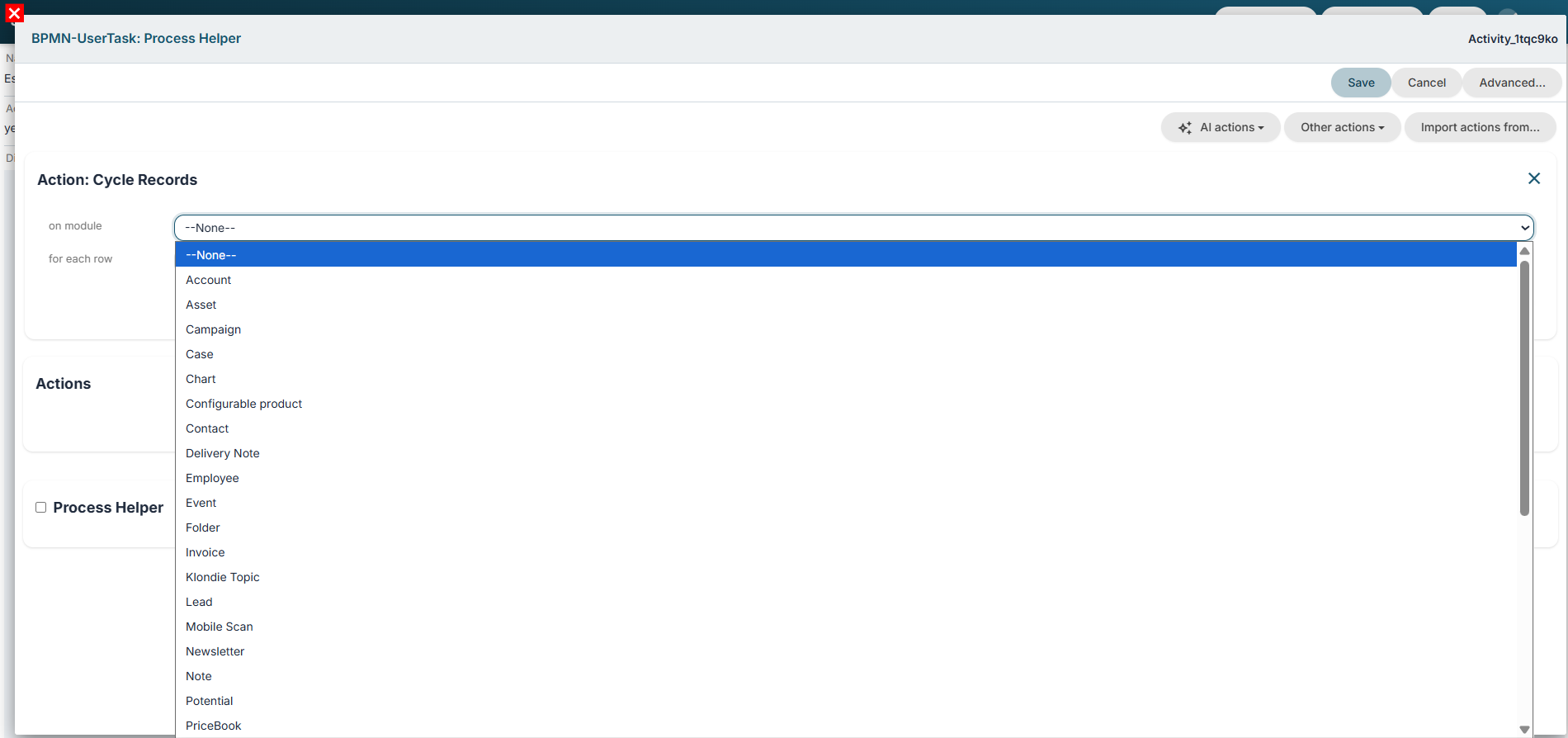
Figure 1
Clicking the "Create" button displays the actual configuration screen for the cycle action, where you can:
- Define the execution mode for the cycle action; for further details, refer to section 3.0. (Figure 2)
- Set a filter that the system will use as a starting point to retrieve the records to be cycled; the "All" filter is selected by default. (Figure 2)
- Define and apply additional conditions based on the fields of the module whose records are being cycled. (Figure 2)
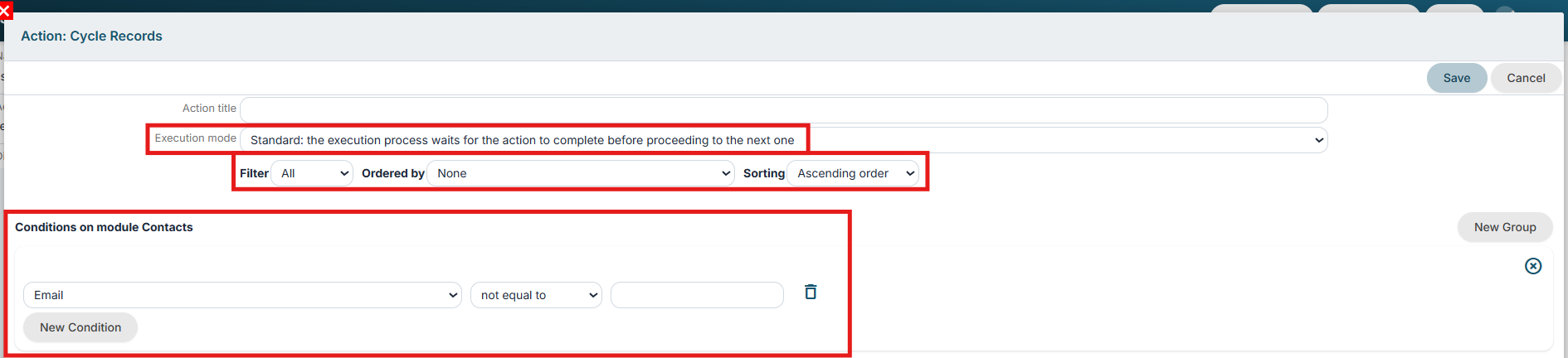
- Configure the details of the action to be performed for each iterated record; the available options are as follows:
Create entity
Allows you to create an entity from any module (standard or custom) for each record that meets the conditions set in the “Module conditions” section and the filters inherited as a base. (Figure 3)
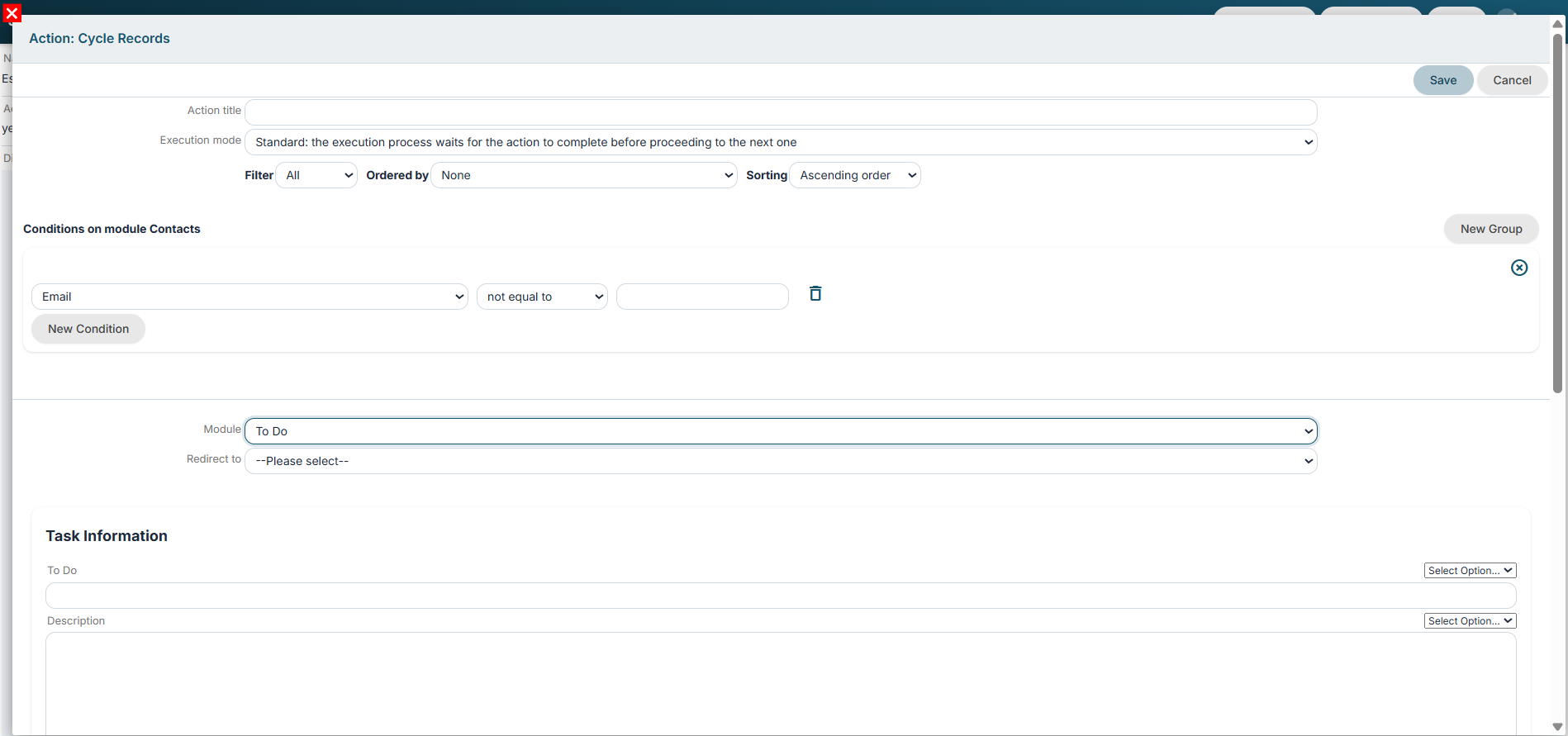
Figure 3
Update entity
Allows you to update an entity involved in the process for every record that meets the conditions set in the “Form conditions” section and the filters inherited as a baseline. (Figure 4)
Among the options available in the Entity picklist, the ID of the record currently being processed can be selected via a dedicated section that does not use a meta-ID.
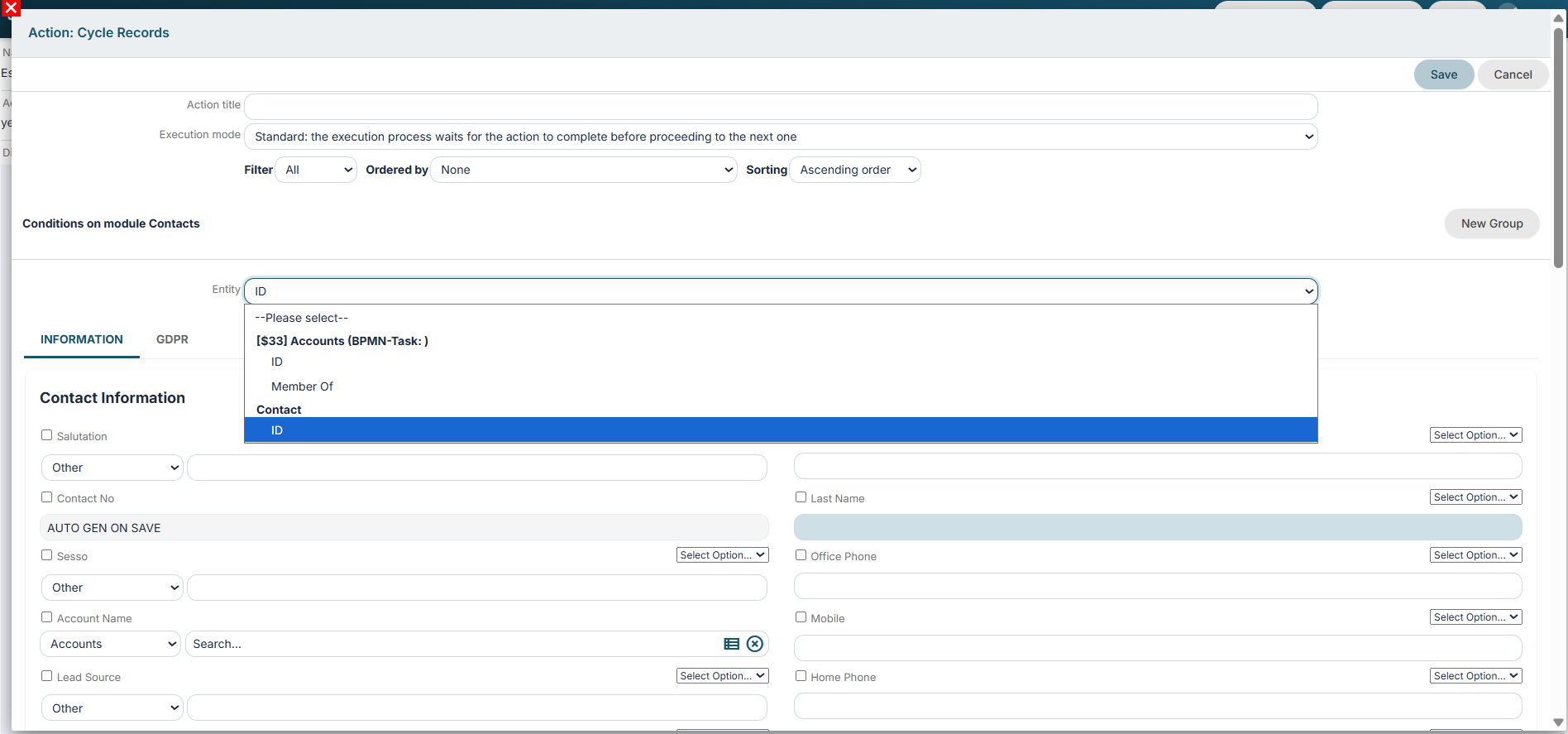
Figure 4
Send email
Allows you to send an email for each record that meets the conditions set in the “Form conditions” section and the filters inherited as a baseline. (Figure 5)
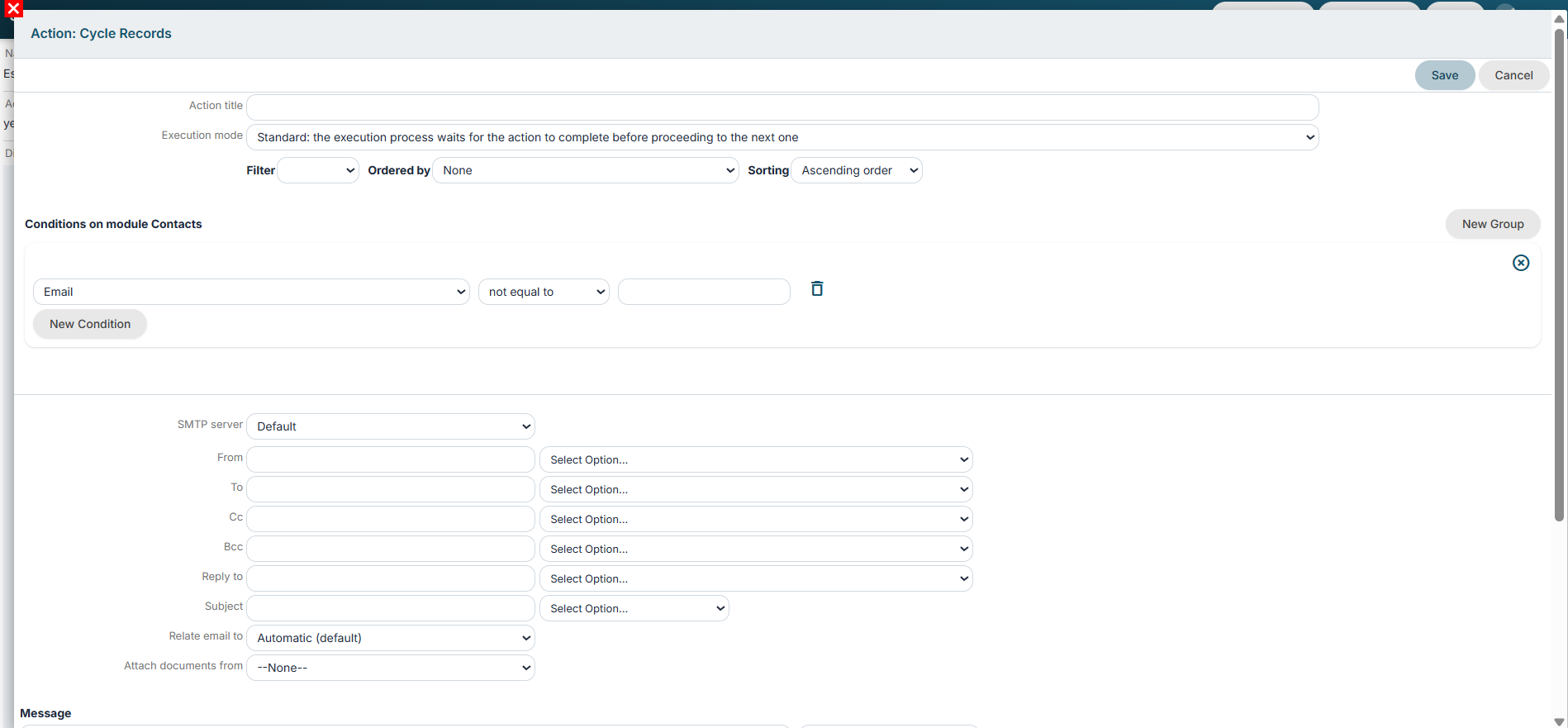
Figure 5
Sending a notification
Allows a notification to be sent for every record that meets the conditions set in the “Form conditions” section and the filters inherited as a baseline. (Figure 6)
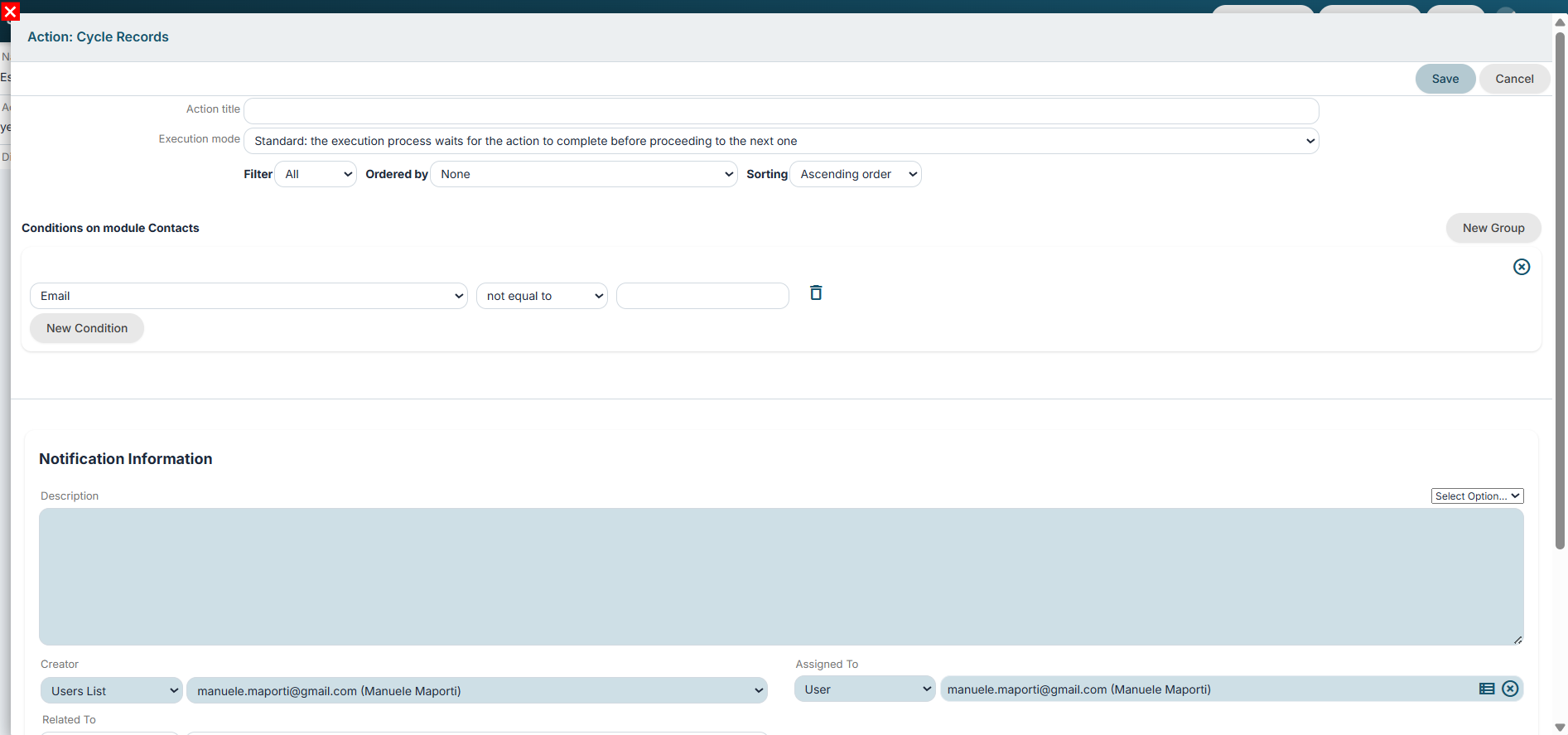
Figure 6
Create PDF
Allows you to create a PDF for each record that meets the conditions set in the “Form conditions” section and the filters inherited as a baseline. (Figure 7)
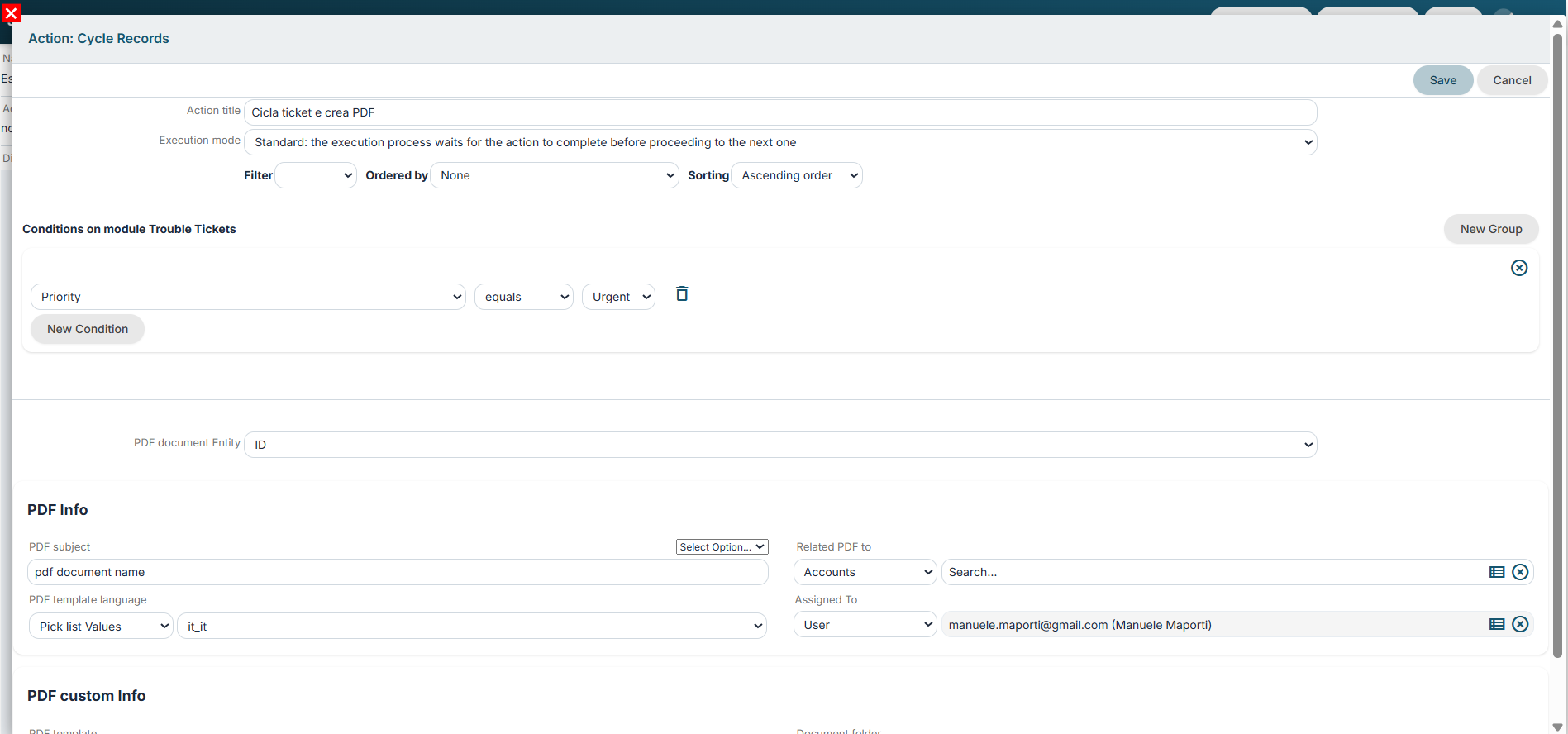
Figure 7
SDK Functions
Allows you to execute an SDK function of the "Action" type for each record that meets the conditions set in the "Form conditions" section and the filters inherited as a baseline. (Figure 8)
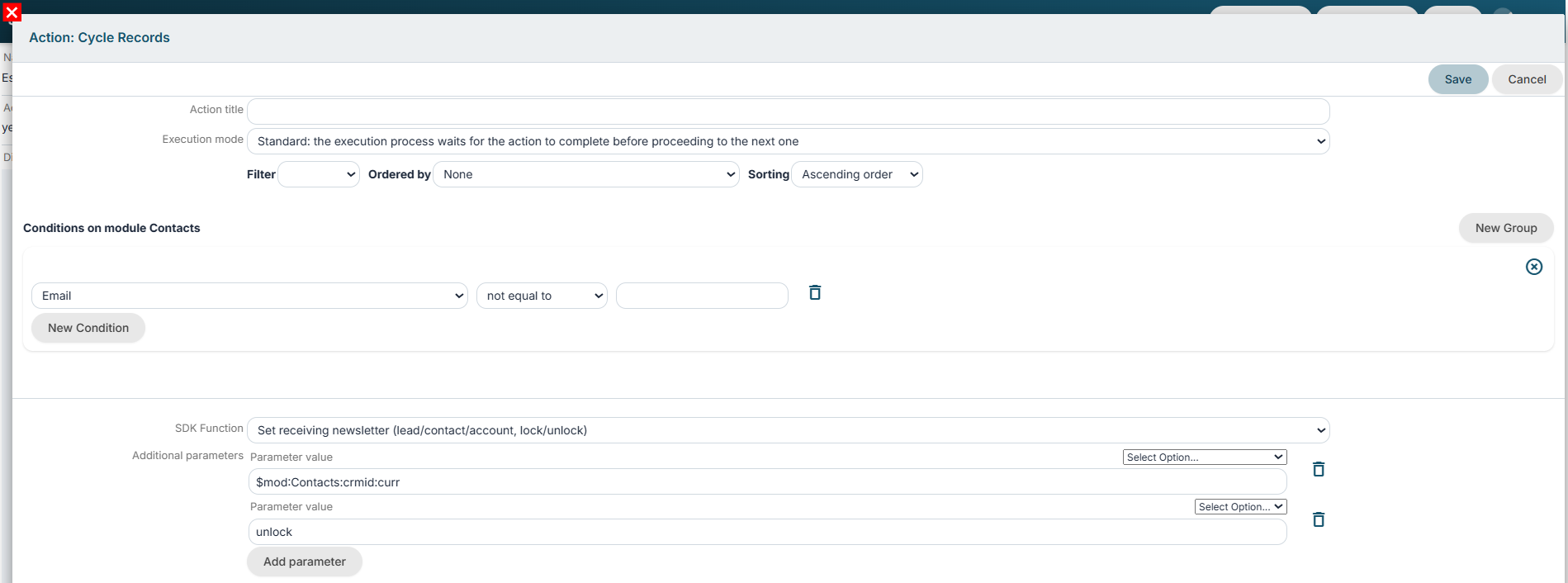
Figure 8
Call tool process
Allows you to launch an active tool process for each record that meets the conditions set in the “Form conditions” section and the filters inherited as a base. (Figure 9)
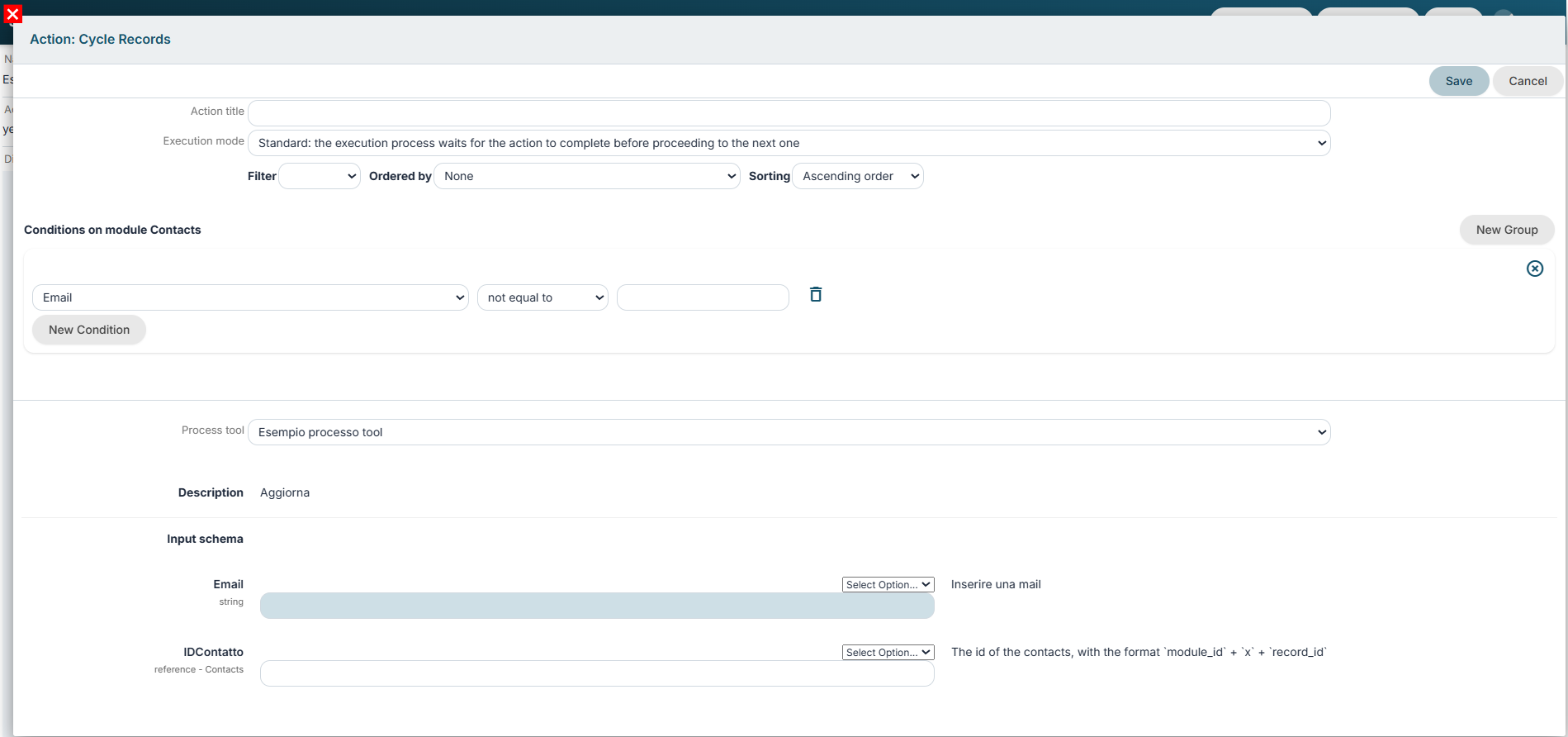
Figure 9
To utilize the contents of the fields in the form being iterated over, the system provides a dedicated entry in the "Select Option..." picklist labeled $mod (Figure 10).
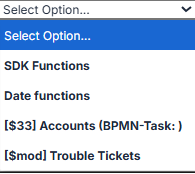
Figure 10