# 3.A.5 Examples

Below are some example applications showing how these new tools can be integrated into processes.

---

### Web scraping

This process, triggered when a new company is created, calls an agent that is requested to search online for information about the company and populate the corresponding fields in the company record.

The agent must have an enabled web search tool (for example, web\_search\_exa) and the VTENEXT MCP Client tools enabled in order to access the module structure and update the record.

[![image.png](https://usermanual.vtenext.com/uploads/images/gallery/2026-07/scaled-1680-/NQCimage.png)](https://usermanual.vtenext.com/uploads/images/gallery/2026-07/NQCimage.png)[![Screenshot 2026-07-09 alle 09.22.05.png](https://usermanual.vtenext.com/uploads/images/gallery/2026-07/scaled-1680-/screenshot-2026-07-09-alle-09-22-05.png)](https://usermanual.vtenext.com/uploads/images/gallery/2026-07/screenshot-2026-07-09-alle-09-22-05.png)

The process starts when a company is created and executes the Call Agent action.

[![image.png](https://usermanual.vtenext.com/uploads/images/gallery/2026-07/scaled-1680-/CRzimage.png)](https://usermanual.vtenext.com/uploads/images/gallery/2026-07/CRzimage.png)  
  
In the **User Message**, I request the agent to search online for the required information and populate the corresponding fields in the company record. I also request the creation of a contact for the Chief Executive Officer.

[![image.png](https://usermanual.vtenext.com/uploads/images/gallery/2026-07/scaled-1680-/p9Oimage.png)](https://usermanual.vtenext.com/uploads/images/gallery/2026-07/p9Oimage.png)

If the **Background** execution mode has been configured in the process action, after saving the record the system will notify you that the record is still being updated. Once the process is completed, the browser page will automatically refresh.

[![image.png](https://usermanual.vtenext.com/uploads/images/gallery/2026-07/scaled-1680-/oP3image.png)](https://usermanual.vtenext.com/uploads/images/gallery/2026-07/oP3image.png)

From the **History** tab, you can view the fields that have been updated.

[![image.png](https://usermanual.vtenext.com/uploads/images/gallery/2026-07/scaled-1680-/uEEimage.png)](https://usermanual.vtenext.com/uploads/images/gallery/2026-07/uEEimage.png)

##### Closed Customer Support  


In this example, we implement a process that automatically replies to technical support tickets outside office hours, informing customers that the office is closed and attempting to provide a solution to their issue.

##### Tool add\_comment  


First, we create a process tool to add a comment to a ticket. The tool requires the following input parameters:

- Ticket ID
- Comment

[![image.png](https://usermanual.vtenext.com/uploads/images/gallery/2026-07/scaled-1680-/iGKimage.png)](https://usermanual.vtenext.com/uploads/images/gallery/2026-07/iGKimage.png)

[![image.png](https://usermanual.vtenext.com/uploads/images/gallery/2026-07/scaled-1680-/kX7image.png)](https://usermanual.vtenext.com/uploads/images/gallery/2026-07/kX7image.png)

In the second step of the process, we execute an LLM call to rework the comment text by applying a specific style.

[![image.png](https://usermanual.vtenext.com/uploads/images/gallery/2026-07/scaled-1680-/8Jdimage.png)](https://usermanual.vtenext.com/uploads/images/gallery/2026-07/8Jdimage.png)

<p class="callout info">In this case, it is sufficient to use only an LLM instead of an agent, since no tools are required. We only need to leverage the language capabilities of the model.</p>

Finally, we use the SDK Add Comment function by mapping all the required fields.

In this case, we set the ownerid parameter with the ID of the Kitt user. By setting the ai parameter to true, we force the addition of an informational note at the bottom of the comment indicating that the text was generated using AI.

[![image.png](https://usermanual.vtenext.com/uploads/images/gallery/2026-07/scaled-1680-/W1dimage.png)](https://usermanual.vtenext.com/uploads/images/gallery/2026-07/W1dimage.png)

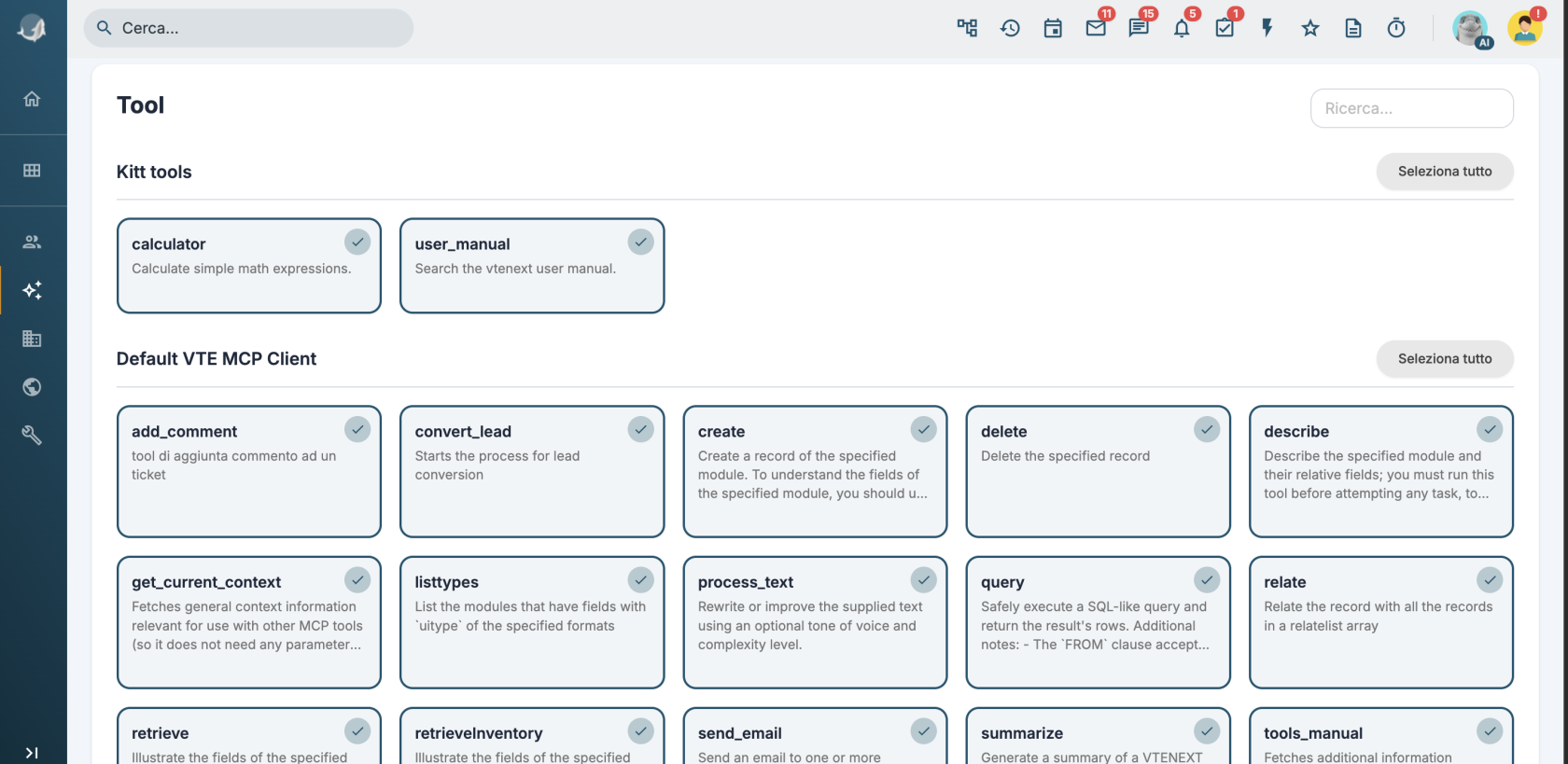
The add\_comment tool must therefore be enabled for the agent that will be used in the following steps, together with the user\_manual tool and/or any documents configured in the RAG section to provide the knowledge required to generate a solution.

[![image.png](https://usermanual.vtenext.com/uploads/images/gallery/2026-07/scaled-1680-/X03image.png)](https://usermanual.vtenext.com/uploads/images/gallery/2026-07/X03image.png)
### Implementing the Process on Tickets

We can either implement a new process or integrate the new AI features into an existing one.

In this example, we use an existing process that, when a ticket is created, sets the SLA based on the ticket priority.

[![image.png](https://usermanual.vtenext.com/uploads/images/gallery/2026-07/scaled-1680-/0mRimage.png)](https://usermanual.vtenext.com/uploads/images/gallery/2026-07/0mRimage.png)
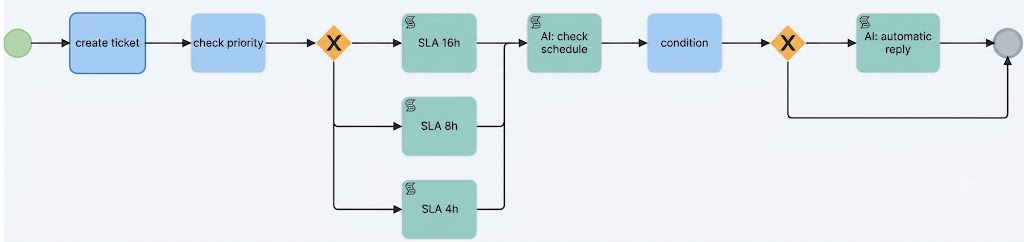
In the **AI: Check Office Hours** task, I execute a call to the agent using the following prompt:

```
The company is open Monday through Friday from 9:00 AM to 1:00 PM and from 2:00 PM to 6:00 PM, excluding public holidays.
If the ticket was created during business hours, return the string "open"; otherwise, return "closed".
Return exactly one of these strings and do not include any additional text, explanations, or headings.

```

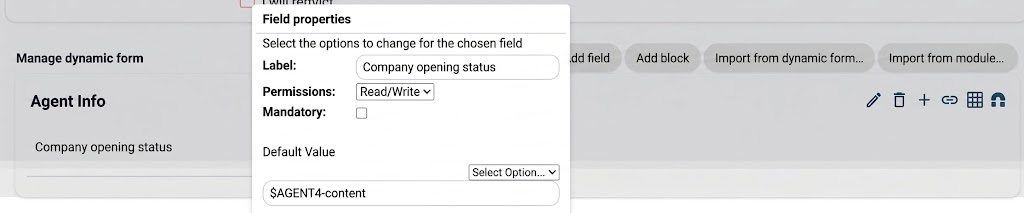
I then configure the dynamic form with a field populated by the response returned by the LLM.

[![image.png](https://usermanual.vtenext.com/uploads/images/gallery/2026-07/scaled-1680-/VKZimage.png)](https://usermanual.vtenext.com/uploads/images/gallery/2026-07/VKZimage.png)
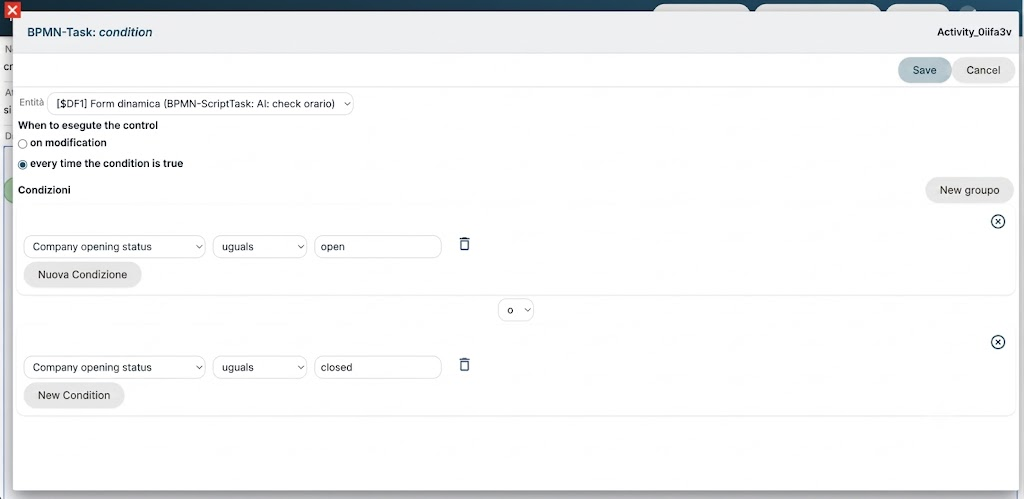
Next, I configure the condition based on the value of the dynamic form field and set up the following gateway so that, if the agent returns **"closed"**, the process proceeds to the **AI: Automatic Reply** task.

[![image.png](https://usermanual.vtenext.com/uploads/images/gallery/2026-07/scaled-1680-/Z6limage.png)](https://usermanual.vtenext.com/uploads/images/gallery/2026-07/Z6limage.png)
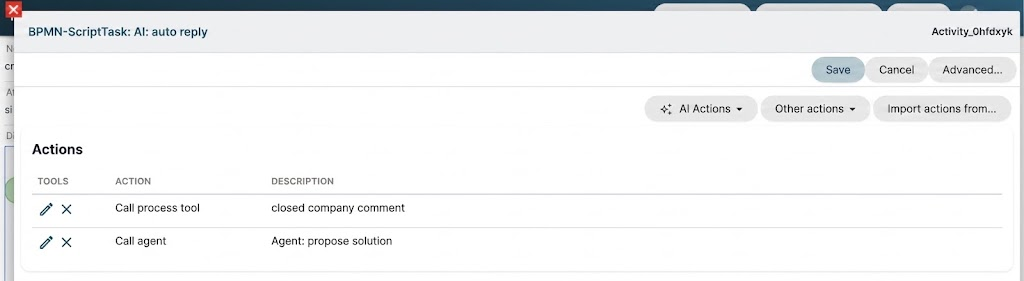
In the final task of the process, I first call the add\_comment tool to inform the customer that the office is closed. I then call the agent to generate and add a proposed solution to the issue

[![image.png](https://usermanual.vtenext.com/uploads/images/gallery/2026-07/scaled-1680-/aacimage.png)](https://usermanual.vtenext.com/uploads/images/gallery/2026-07/aacimage.png)
[![image.png](https://usermanual.vtenext.com/uploads/images/gallery/2026-07/scaled-1680-/QGPimage.png)](https://usermanual.vtenext.com/uploads/images/gallery/2026-07/QGPimage.png)
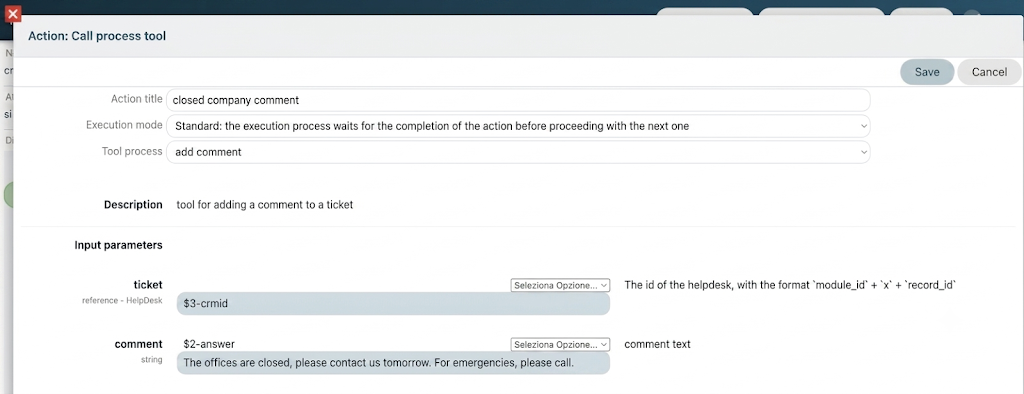

<p class="callout info">The comment entered here will then be reworked by the LLM as part of the process tool.  
</p>

Agent Prompt:

```
aggiungi un commento con il tool add_comment proponendo una soluzione al suo problema cercando in user_manual.
Nel testo non usare mai titoli o codice markdown, restituisci solo testo semplice.
```

##### Test

We can test the process by creating a ticket during closing hours with the title “Login Failed” and the following description:  
*"Good morning, this morning I am no longer able to log in to vtenext. Could you please check this urgently?"*

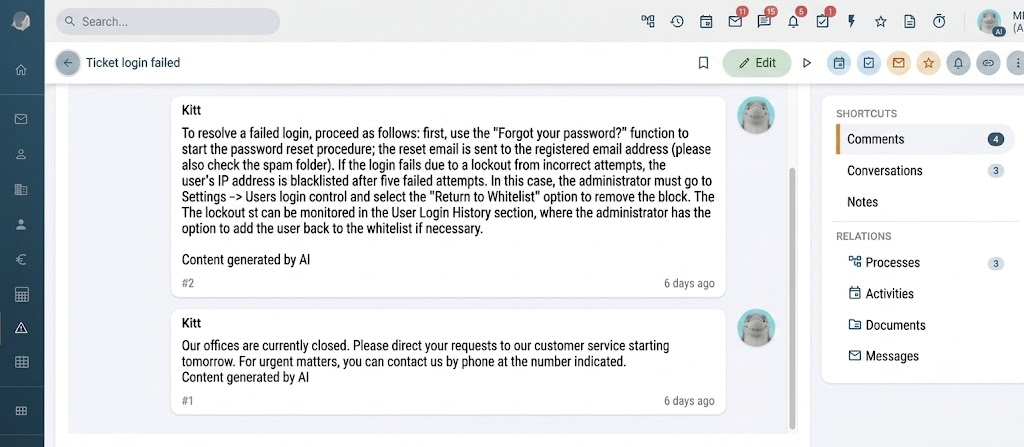
Comments similar to the following will be added:

[![image.png](https://usermanual.vtenext.com/uploads/images/gallery/2026-07/scaled-1680-/qXBimage.png)](https://usermanual.vtenext.com/uploads/images/gallery/2026-07/qXBimage.png)