5.1 Configure Shortcuts
This feature allows for the creation of custom buttons that differ from the standard "Compile" button; they are designed to simplify and accelerate the handling of procedures requiring simple, direct user input, such as when confirmation is needed to proceed with the workflow or to direct it along a specific branch. (Figure 1)
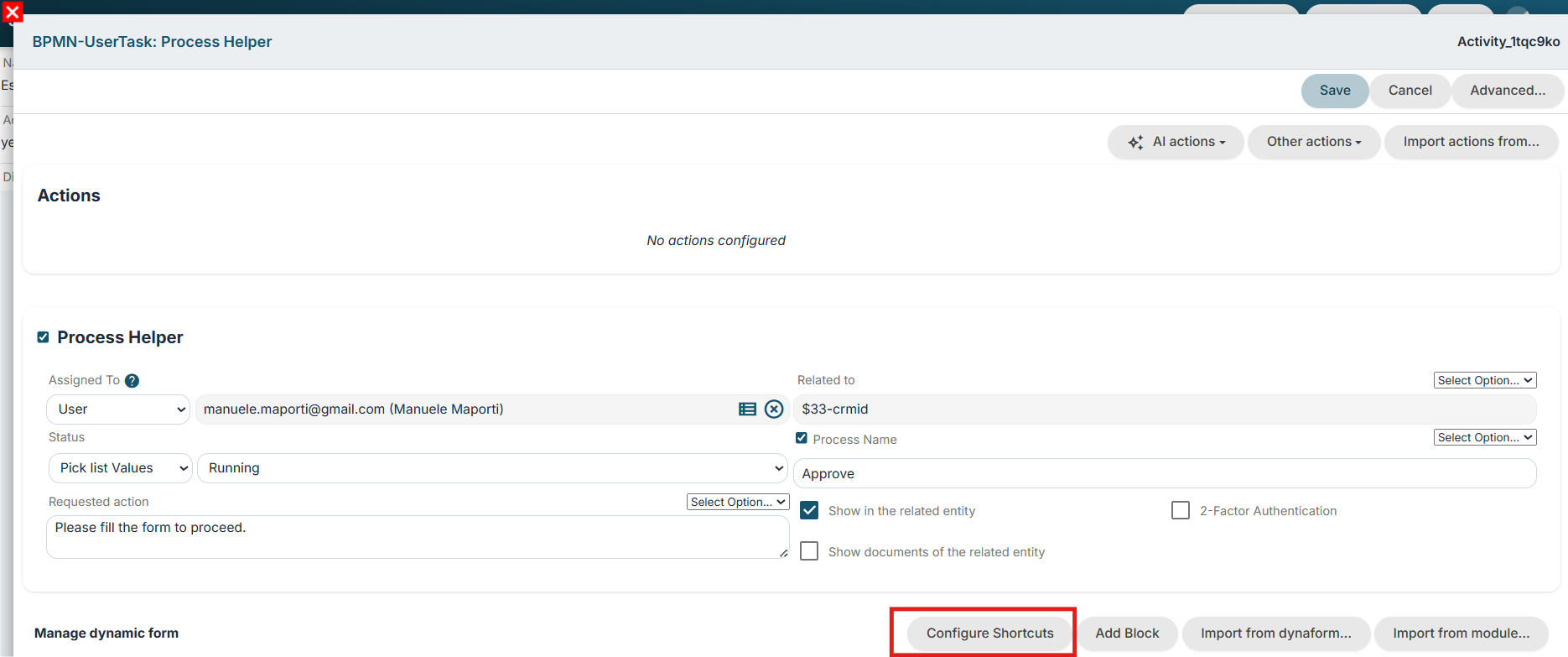
Figure 1
Clicking the "Configure Shortcuts" button displays a table where the desired buttons can be configured. (Figure 2)
Specifically:
- "Label" column -> represents the name displayed on the button
- "Value" column -> represents the value stored in the database and used for condition and gateway evaluations
Optionally, the "Label" field can contain a value such as "LBL_COLOR_RED". The corresponding translations can then be defined for each supported language (for example, Red, Rosso, etc.), while "red" is stored in the "Value" field.
- "Style" column -> represents the color in which the button is displayed
- "Confirm" column -> enables a double-confirmation step by displaying an additional pop-up when the button is clicked
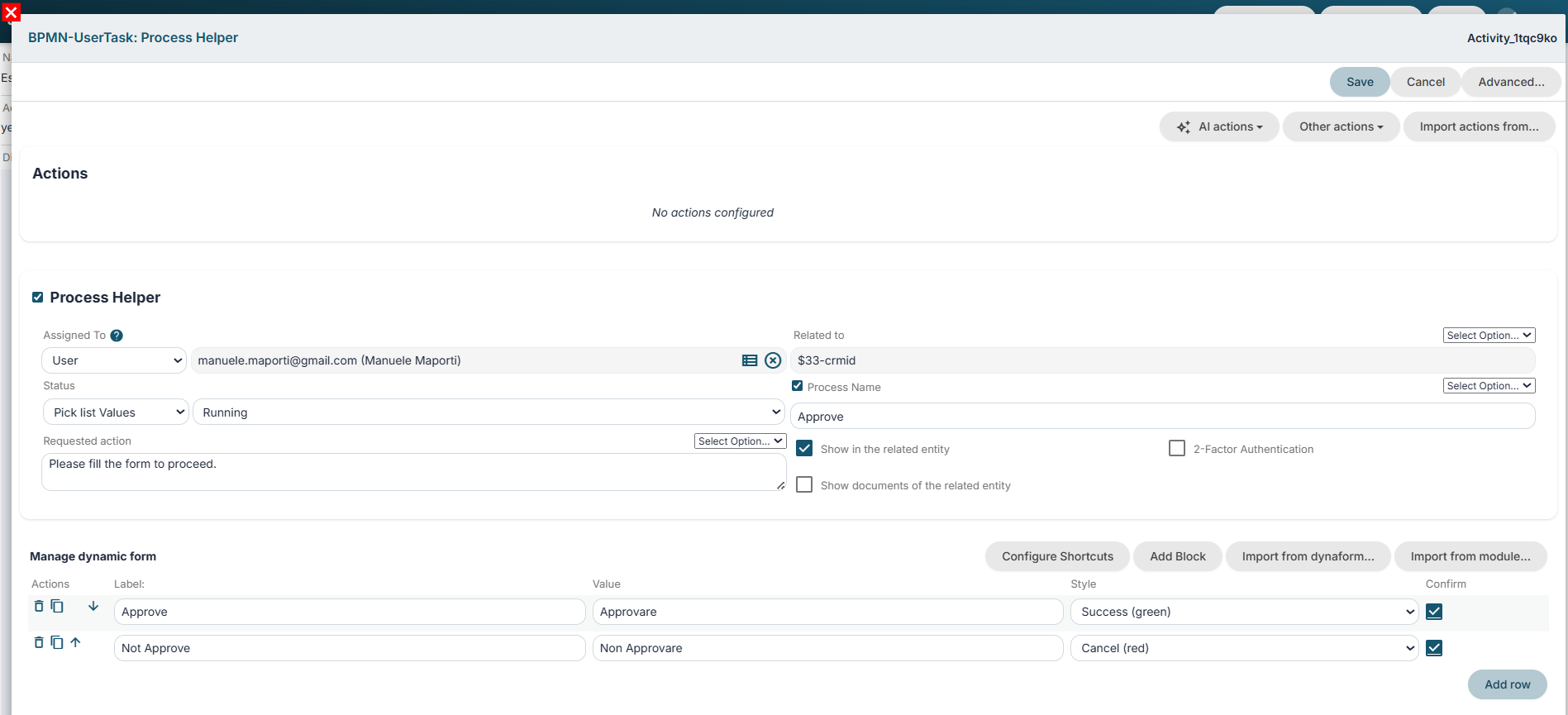
Figure 2
To view a practical example, consult Chapter 6.2.