Connector Configuration
Overview of the Teams Connector page: where it is located, what it is used for, and which settings it manages.
- The Teams Connector
- New Licence Management
- Teams Connector Page Details
- Active Licence Management
- Search Modules and Fields
The Teams Connector
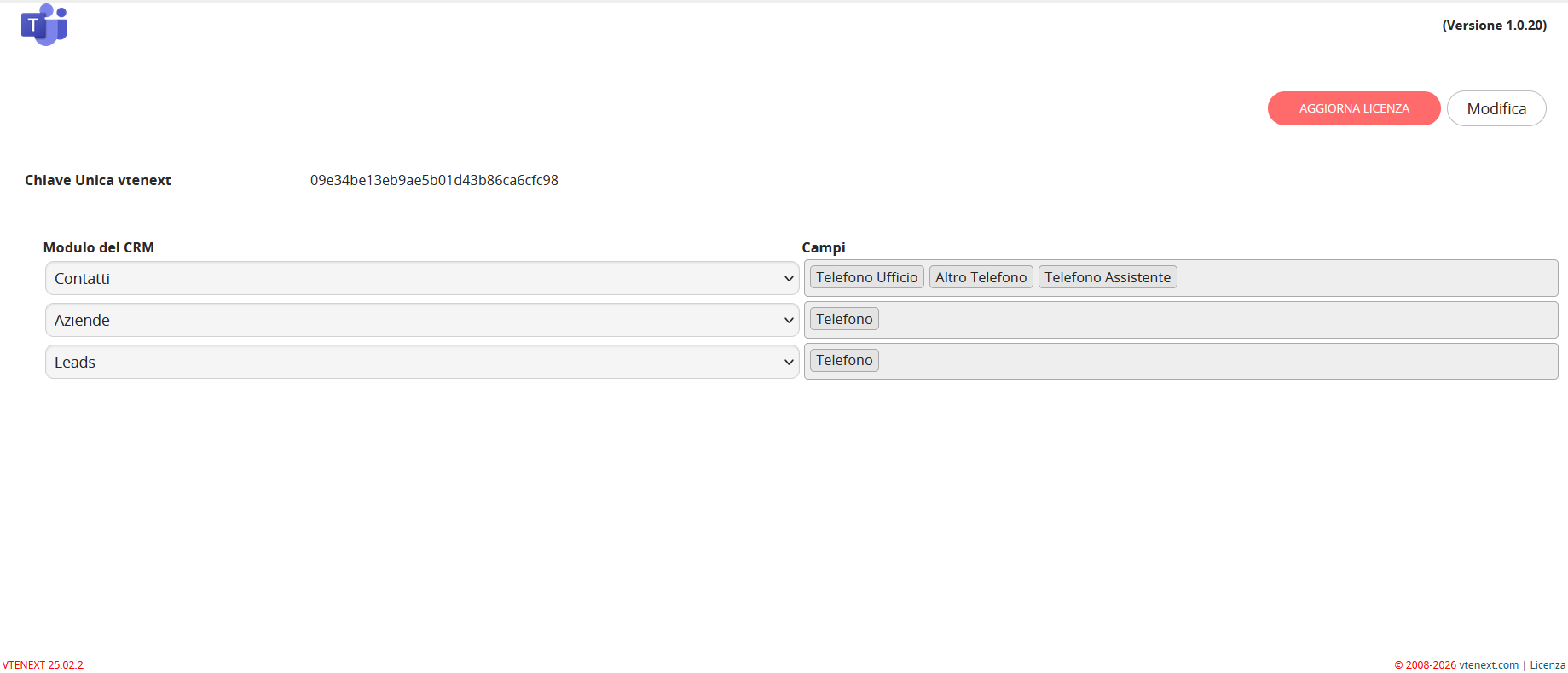
After installation, TeamsPhone Plugin provides administrators with a dedicated configuration page called Teams Connector. This page manages the technical settings required before end users can use the plugin during calls.
To open it, go to vtenext Settings, search for “Teams Connector”, and select the corresponding result.

New Licence Management
When the plugin is installed for the first time, or when no valid licence is available, TeamsPhone Plugin requires a licence before it can operate.
- Enter the supplied licence code.
- Click VERIFY.
- The system validates the code automatically.
- If valid, the plugin is activated.
- If invalid, an error message is displayed and activation is not completed.
Teams Connector Page Details
The Teams Connector contains two independent settings required for TeamsPhone Plugin:
- Licence activation and management, used to enable and maintain the plugin.
- Search modules and fields, which define where the caller's number is searched in the CRM.
These settings can be changed independently.
Active Licence Management
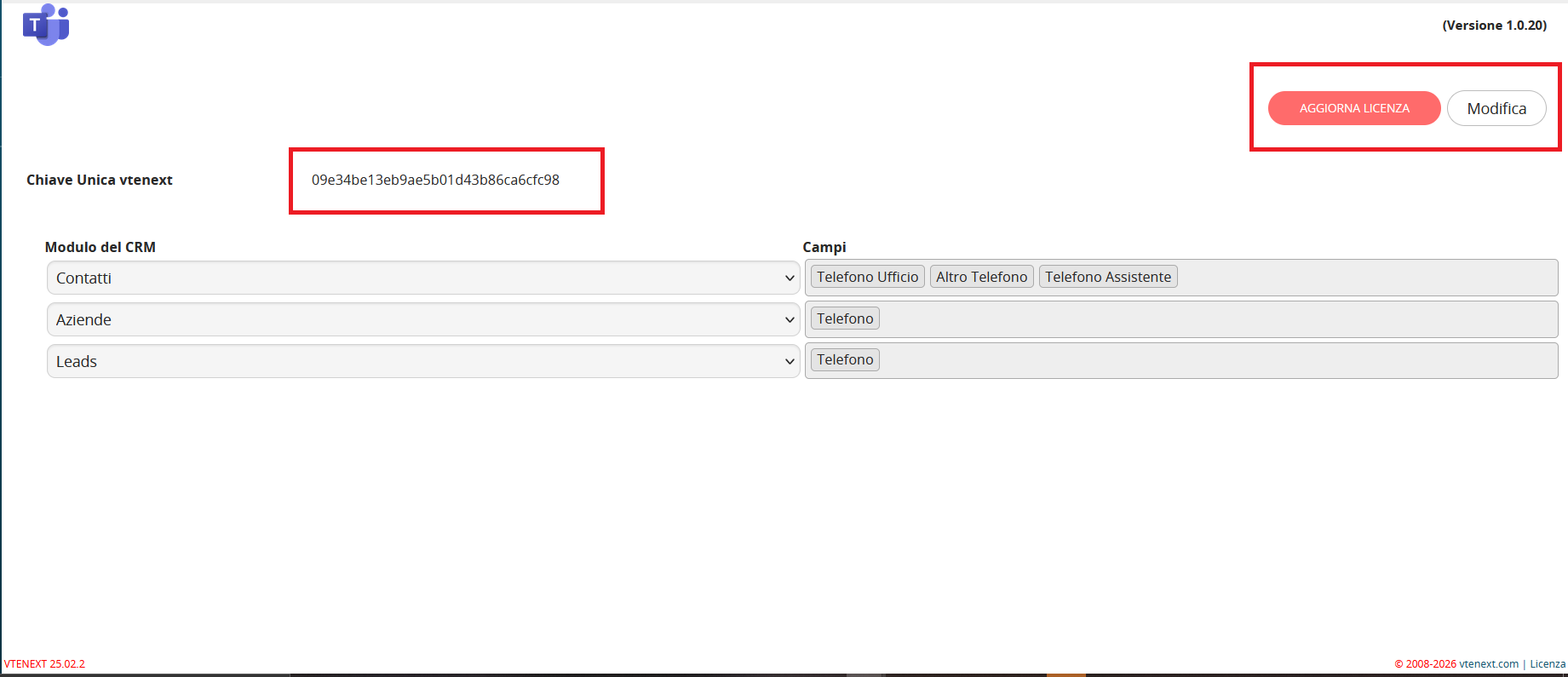
The UPDATE LICENCE button is available in the upper-right corner of the Teams Connector page. It can be used to enter the licence code supplied at purchase or replace it when the licence is renewed.
The page also displays the vtenext Unique Key, an automatically generated identifier for the instance. This key is required during licence activation or renewal.
Search Modules and Fields
The central table defines which CRM modules TeamsPhone Plugin searches and which phone fields are compared with the incoming number.
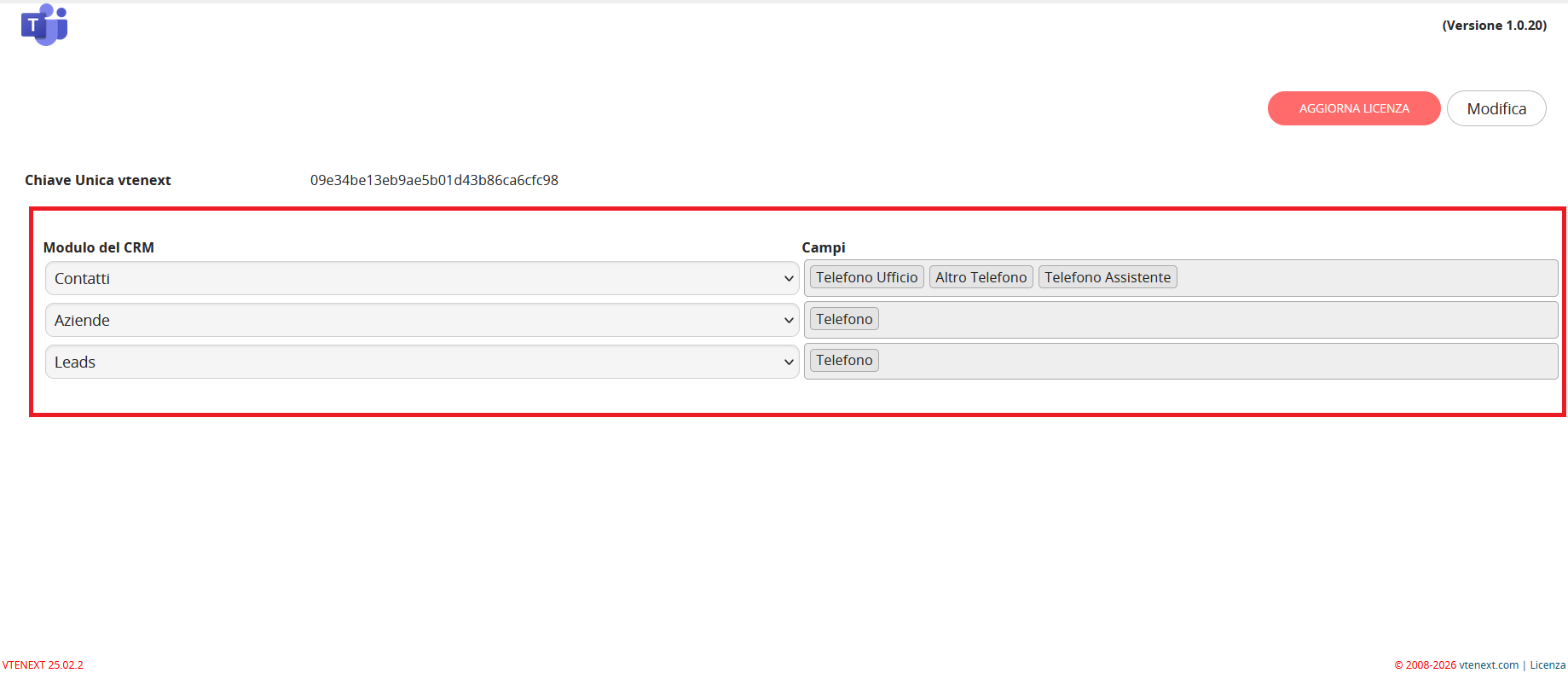
Click Edit to reorder rows, remove modules, select a CRM module, choose its phone fields, or add another row. Confirm with Save or discard with Cancel.
The row order also determines the module search order.