TeamsPhone Plugin
TeamsPhone Plugin is a native vtenext plugin that integrates Microsoft Teams telephony with vtenext.
- Introduction and Overview
- What Is TeamsPhone Plugin?
- How It Works
- Where TeamsPhone Plugin Is Configured
- Benefits
- Installation Requirements
- Installation Requirements
- Connector Configuration
- The Teams Connector
- New Licence Management
- Teams Connector Page Details
- Active Licence Management
- Search Modules and Fields
- Popup Configuration
- Call Scenarios
- In-Call Popup Details
Introduction and Overview
Overview of the TeamsPhone Plugin: what it does, how it works, and why it supports the operator without managing the call.
What Is TeamsPhone Plugin?
TeamsPhone Plugin is a native vtenext plugin that integrates Microsoft Teams telephony with the CRM. When a call arrives, the plugin automatically recognises the caller's number and displays the corresponding information already stored in the CRM, without requiring a manual search.
The goal is to reduce delays when answering: the operator immediately sees who is calling and can act at once, keeping the focus on the conversation rather than searching for data.
How It Works
TeamsPhone Plugin works in three automatic stages:
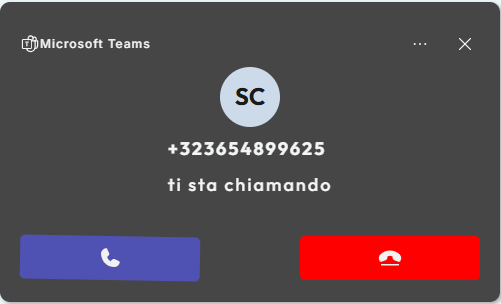
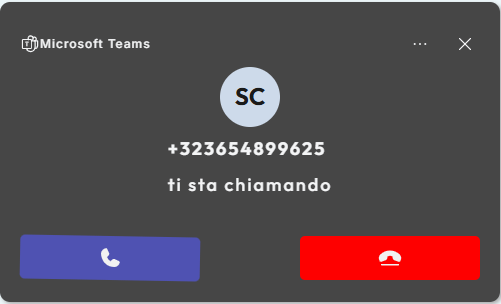
- Call notification: when a call arrives, Microsoft Teams proactively sends the notification to the CRM through a policy configured at company-tenant level in the Microsoft Teams administration.
- CRM search: after receiving the notification, TeamsPhone Plugin searches for the number in the configured module and can continue with linked searches in associated modules.
- Result display: the plugin shows a single result, multiple result cards, or an unknown-caller popup.
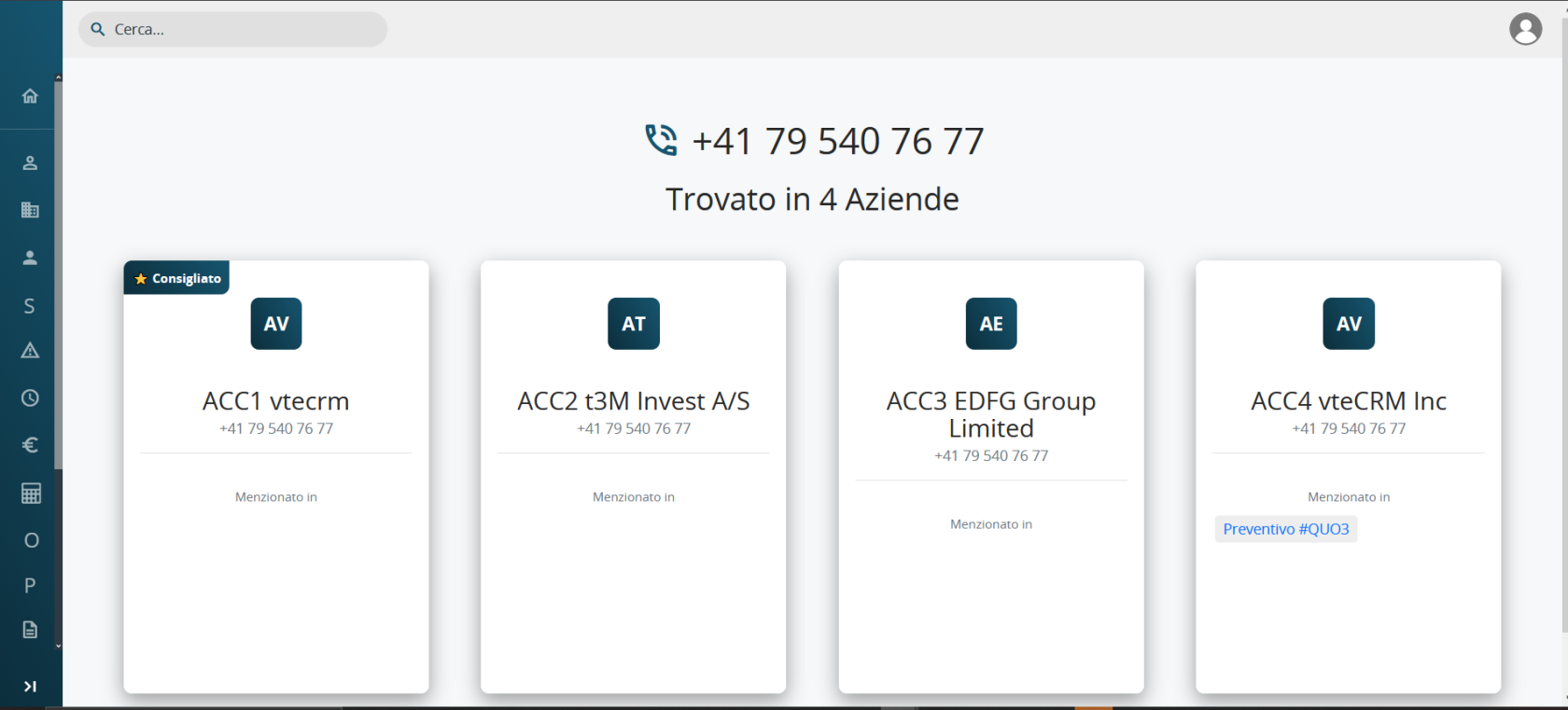
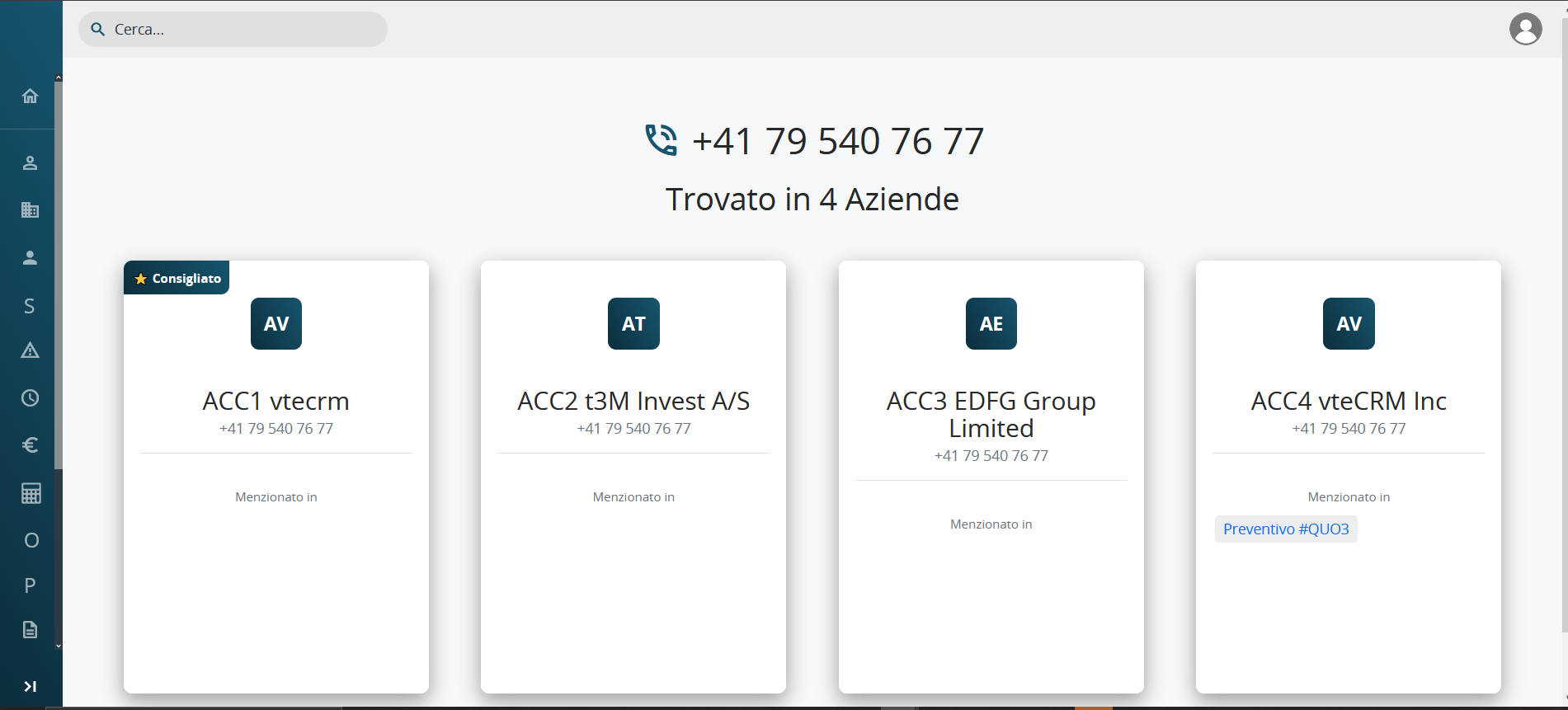
The popup can be moved freely and minimised.
Important: TeamsPhone Plugin is an integration, not a synchronisation.
Microsoft Teams and vtenext remain independent. Answering or ending a call in Teams does not automatically close the popup, and closing the popup does not end the Teams call. The call must always be managed directly in Microsoft Teams.
Where TeamsPhone Plugin Is Configured
TeamsPhone Plugin is configured in two separate areas of vtenext:
- Teams Connector, available in vtenext Settings. It manages licence activation and defines the CRM modules and phone fields in which the caller's number is searched.
- Popup Configurations, a dedicated vtenext module used to define which information and quick actions operators see during calls. Multiple configurations can be created and assigned to different company roles.
In summary, the Teams Connector defines the technical operating rules, while Popup Configurations define the user-facing content and behaviour.
Benefits
TeamsPhone Plugin turns an unexpected call into a prepared interaction by immediately providing the operator with useful information and actions.
- Immediate caller identification without manually searching the CRM.
- Instant operational context, including linked records such as existing quotations.
- Quick actions for opening or creating records during the call.
- Role-based flexibility, so each user sees only relevant modules and actions.
- Non-intrusive popup that can be moved and minimised.
Installation Requirements
Before installing and using TeamsPhone Plugin, verify that the vtenext environment meets the requirements listed below.
Supported vtenext versions
TeamsPhone Plugin is supported on vtenext versions from 24.08.x up to 26.x.
Versions later than 26.x are not currently supported.
HTTPS connection
The vtenext instance must be reachable through a valid HTTPS connection. The SSL/TLS certificate must be correctly installed and trusted by the devices and services that use the plugin.
Plugin licence
An active licence associated with the specific vtenext instance is required to use TeamsPhone Plugin.
Administrative permissions
Installation and initial configuration require a user with administrative permissions in vtenext. Microsoft Teams tenant administrator permissions are also required to configure PSTN call notifications.
Installation Requirements
Technical prerequisites to configure in Microsoft Teams before using TeamsPhone Plugin.
Enable PSTN Call Notification
For TeamsPhone Plugin to receive the caller's number and start the CRM search, the company's IT administrator must enable the Microsoft Teams calling policy “Open apps in browser for incoming PSTN calls”.
This setting allows Teams to open the URL supplied with TeamsPhone Plugin whenever an external PSTN call arrives, automatically passing the caller's number to the CRM.
The setting is disabled by default and must be enabled manually by a Microsoft Teams administrator for the whole company tenant.
This configuration is required only once and is independent of the plugin settings described in the following chapters.
For the detailed procedure, refer to Microsoft's official documentation on routing incoming calls in Microsoft Teams.
Connector Configuration
Overview of the Teams Connector page: where it is located, what it is used for, and which settings it manages.
The Teams Connector
After installation, TeamsPhone Plugin provides administrators with a dedicated configuration page called Teams Connector. This page manages the technical settings required before end users can use the plugin during calls.
To open it, go to vtenext Settings, search for “Teams Connector”, and select the corresponding result.

New Licence Management
When the plugin is installed for the first time, or when no valid licence is available, TeamsPhone Plugin requires a licence before it can operate.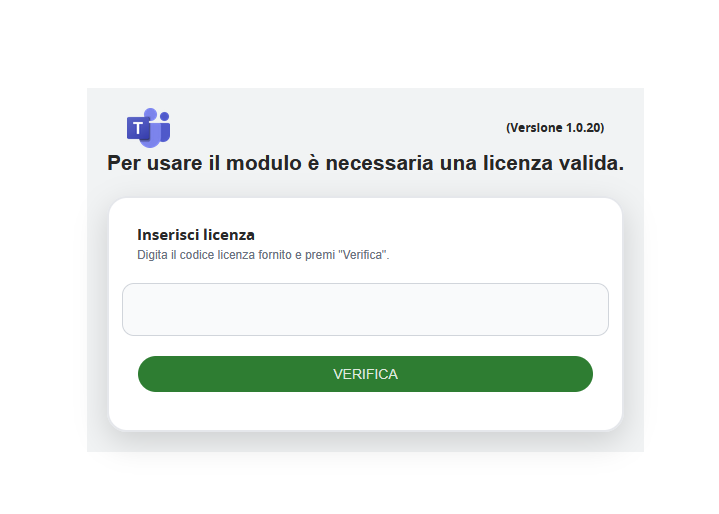
- Enter the supplied licence code.
- Click VERIFY.
- The system validates the code automatically.
- If valid, the plugin is activated.
- If invalid, an error message is displayed and activation is not completed.
Teams Connector Page Details
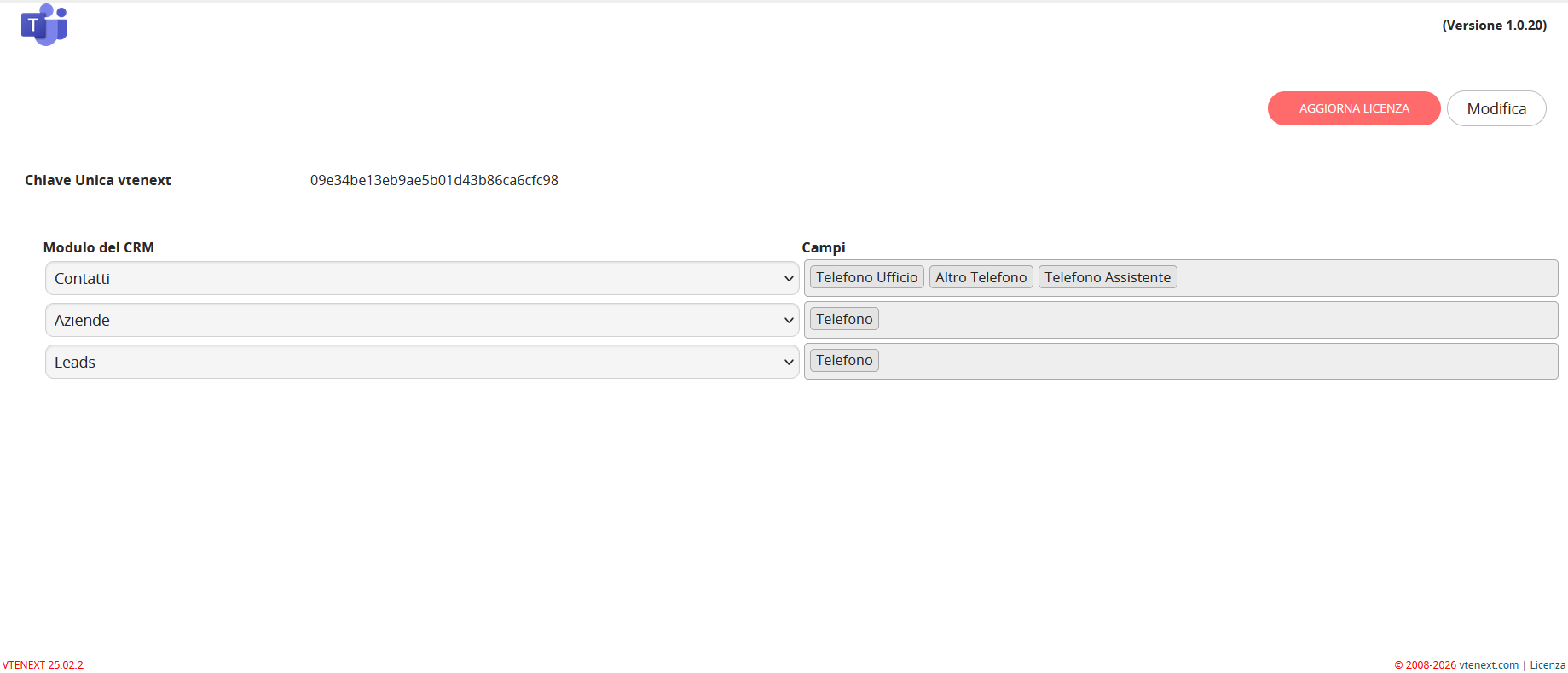
The Teams Connector contains two independent settings required for TeamsPhone Plugin:
- Licence activation and management, used to enable and maintain the plugin.
- Search modules and fields, which define where the caller's number is searched in the CRM.
These settings can be changed independently.
Active Licence Management
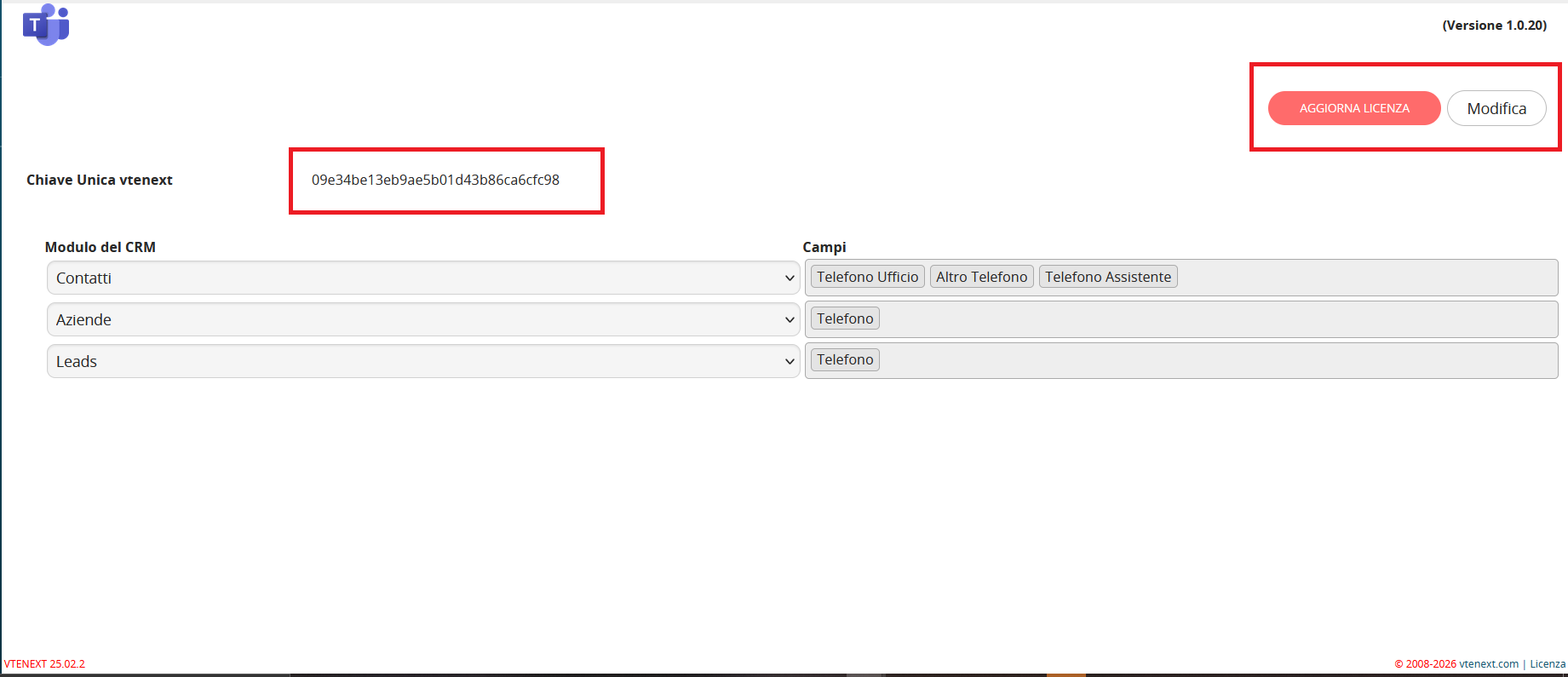
The UPDATE LICENCE button is available in the upper-right corner of the Teams Connector page. It can be used to enter the licence code supplied at purchase or replace it when the licence is renewed.
The page also displays the vtenext Unique Key, an automatically generated identifier for the instance. This key is required during licence activation or renewal.
Search Modules and Fields
The central table defines which CRM modules TeamsPhone Plugin searches and which phone fields are compared with the incoming number.
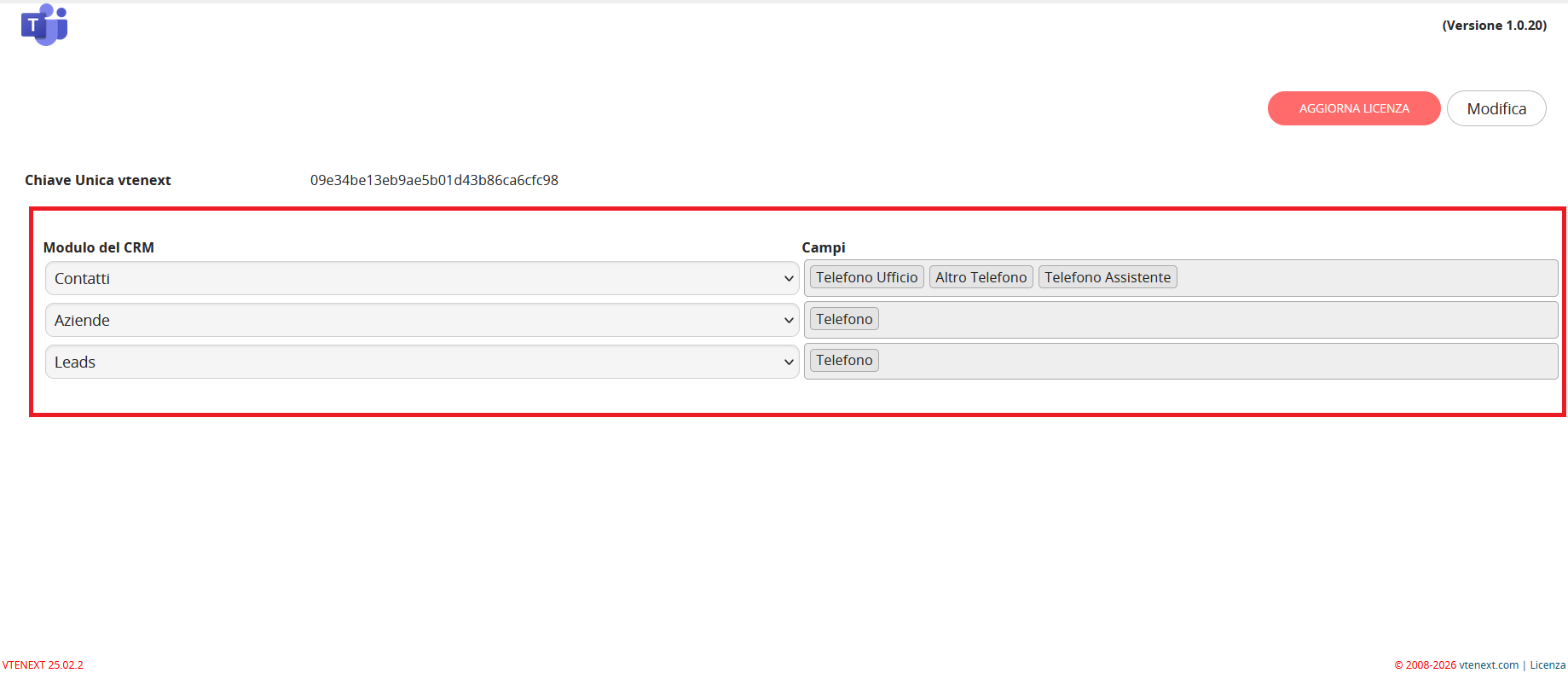
Click Edit to reorder rows, remove modules, select a CRM module, choose its phone fields, or add another row. Confirm with Save or discard with Cancel.
The row order also determines the module search order.
Popup Configuration
Creation and management of TeamsPhone Plugin popup configurations: displayed fields, quick actions, and role assignment.
Where to Find It
Popup configuration management is available in vtenext Settings. Search for Teams Popup Configurations in the Settings search bar.
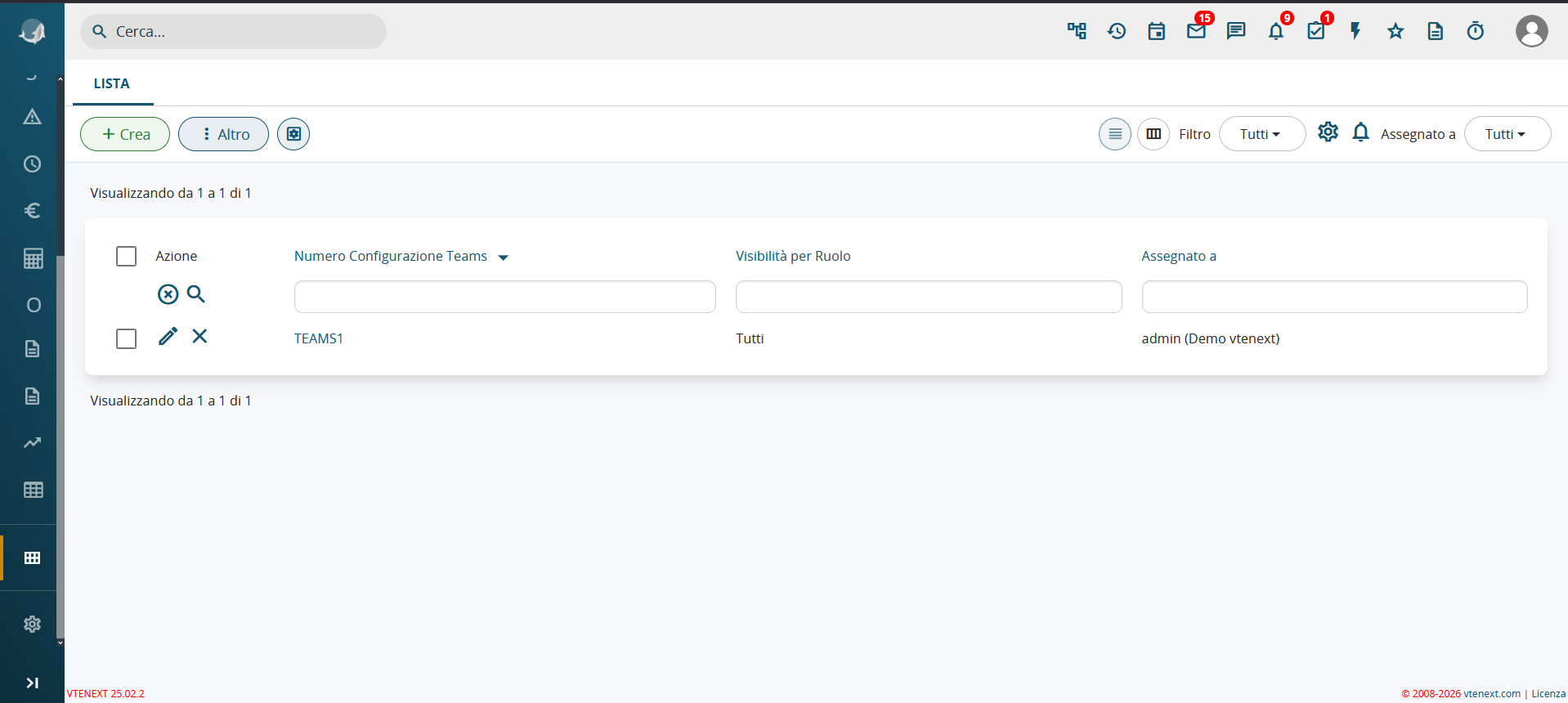
The list shows the configuration number, role visibility, and assigned user. From this page, administrators can create, edit, or delete configurations. Each configuration is independent and can be designed for a specific role.
Create a New Configuration
Click + Create on the Popup Configurations page. The form contains four sections:
- Teams Popup Configuration Information: automatically generated configuration number, assigned user, active status, and one or more visible roles.
- Teams Popup Field Configuration: CRM modules and fields displayed in the popup.
- Teams Mention Configuration: secondary searches in linked modules.
- Descriptive Information: an internal description that is not shown to operators.
Rows can be added, reordered, or removed. Save the configuration with Save or leave without saving with Cancel.
Quick-action buttons cannot be configured during initial creation. They become available on the configuration detail page after the record has been saved.
Configuration Detail Page
Open an existing configuration to view its detail page.

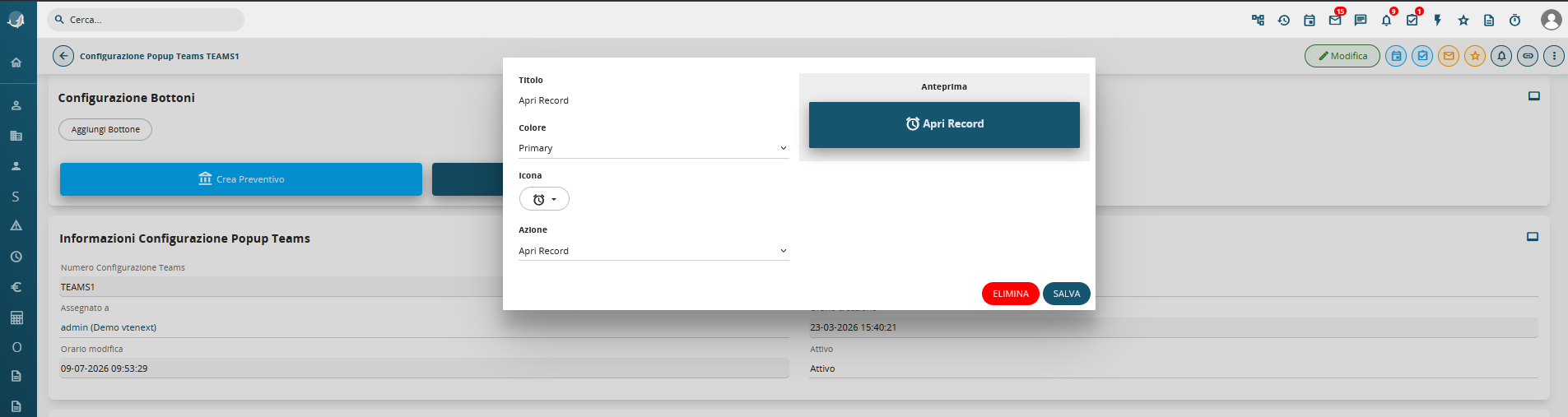
The page also summarises role visibility, active status, assigned user, popup fields, linked-module mentions, and the internal description.
Edit a Configuration
Open the configuration detail page and click Edit.
The edit form contains the same sections as the creation form, pre-filled with the current values. You can change the assigned user, active status, role visibility, popup modules and fields, linked-module mentions, and internal description. The configuration number cannot be changed.
Use Save to confirm the changes or Cancel to return without saving.
Call Scenarios
Overview of how TeamsPhone Plugin behaves during incoming calls based on the vtenext search result.
Introduction
When a call arrives in Microsoft Teams, the operator first sees the native Teams notification, including the caller's number and the controls to answer or reject the call.
Call Scenarios
At the same time, independently from the Teams notification, TeamsPhone Plugin searches the incoming number in the CRM.
- Single result: the matching CRM record is opened directly, without an intermediate selection page.
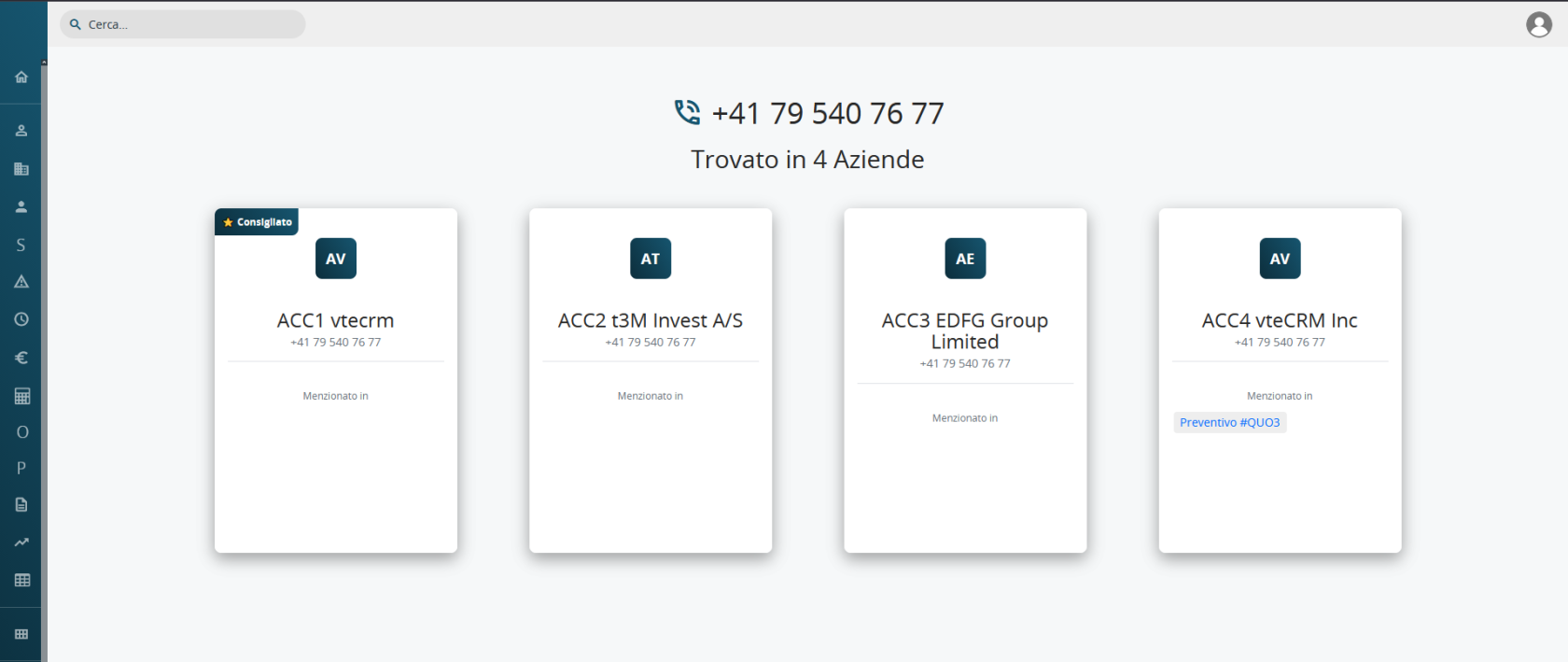
- Multiple results: the operator sees several cards containing the record name, matching phone number, and linked records. One card may be marked as Recommended, but the operator can select any result.
- No result: an unknown-caller popup is displayed, with the option to search for the number online.
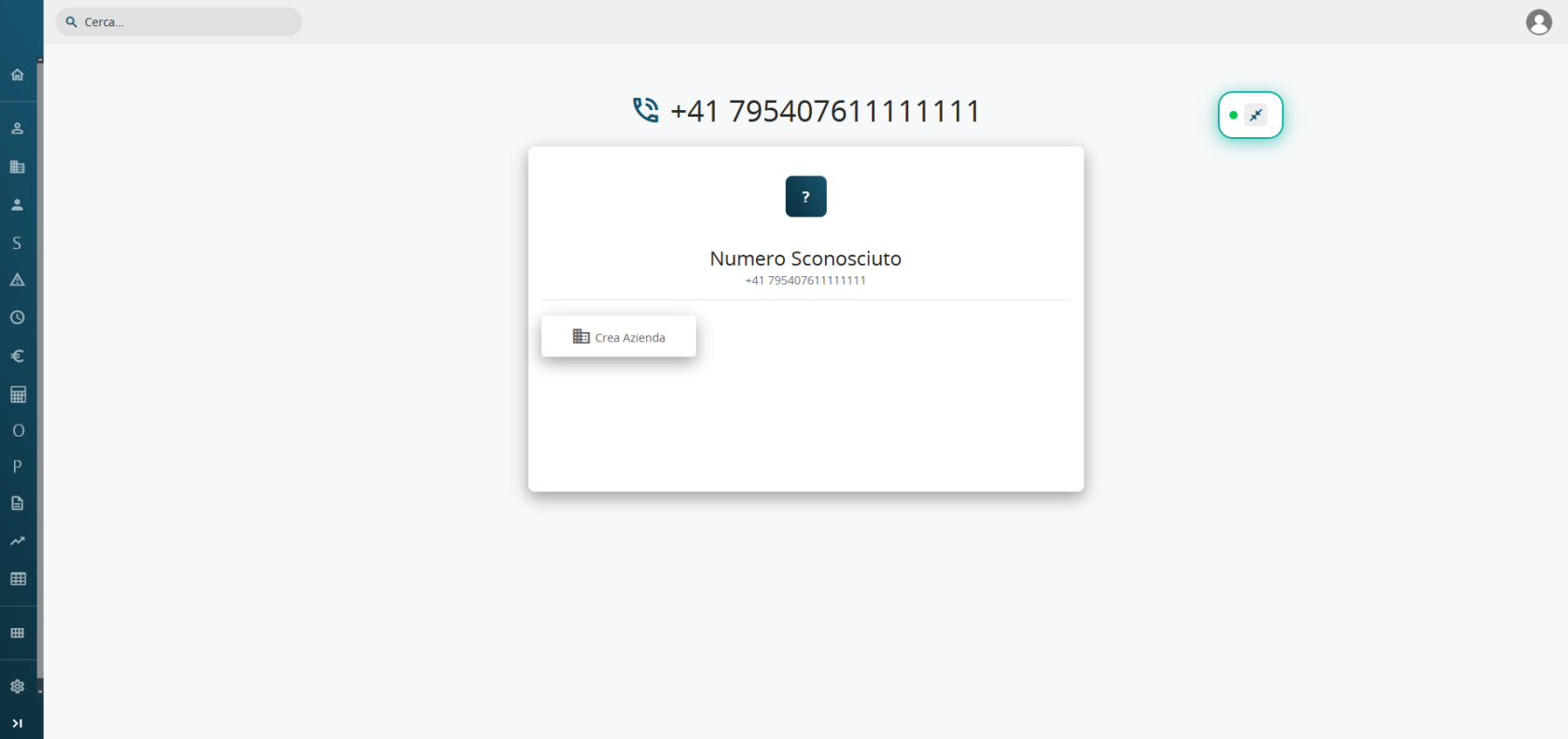
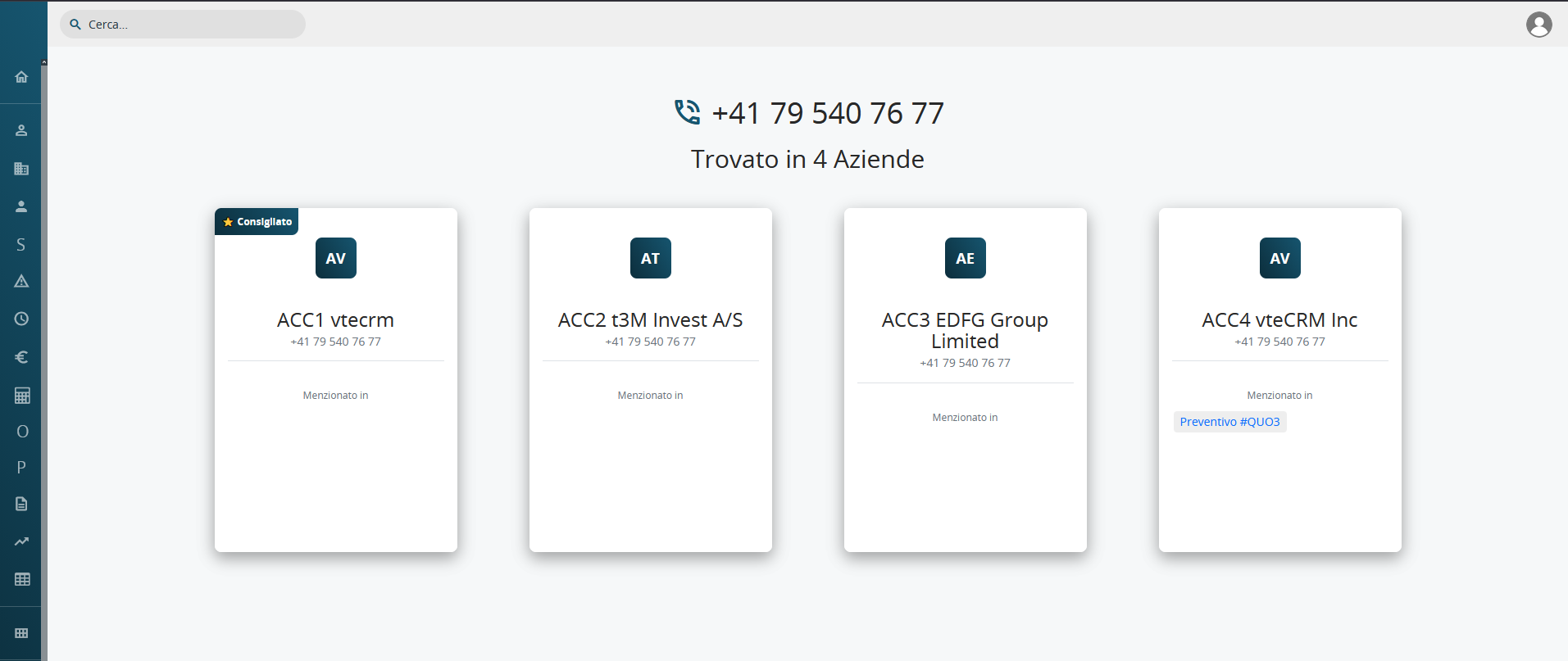
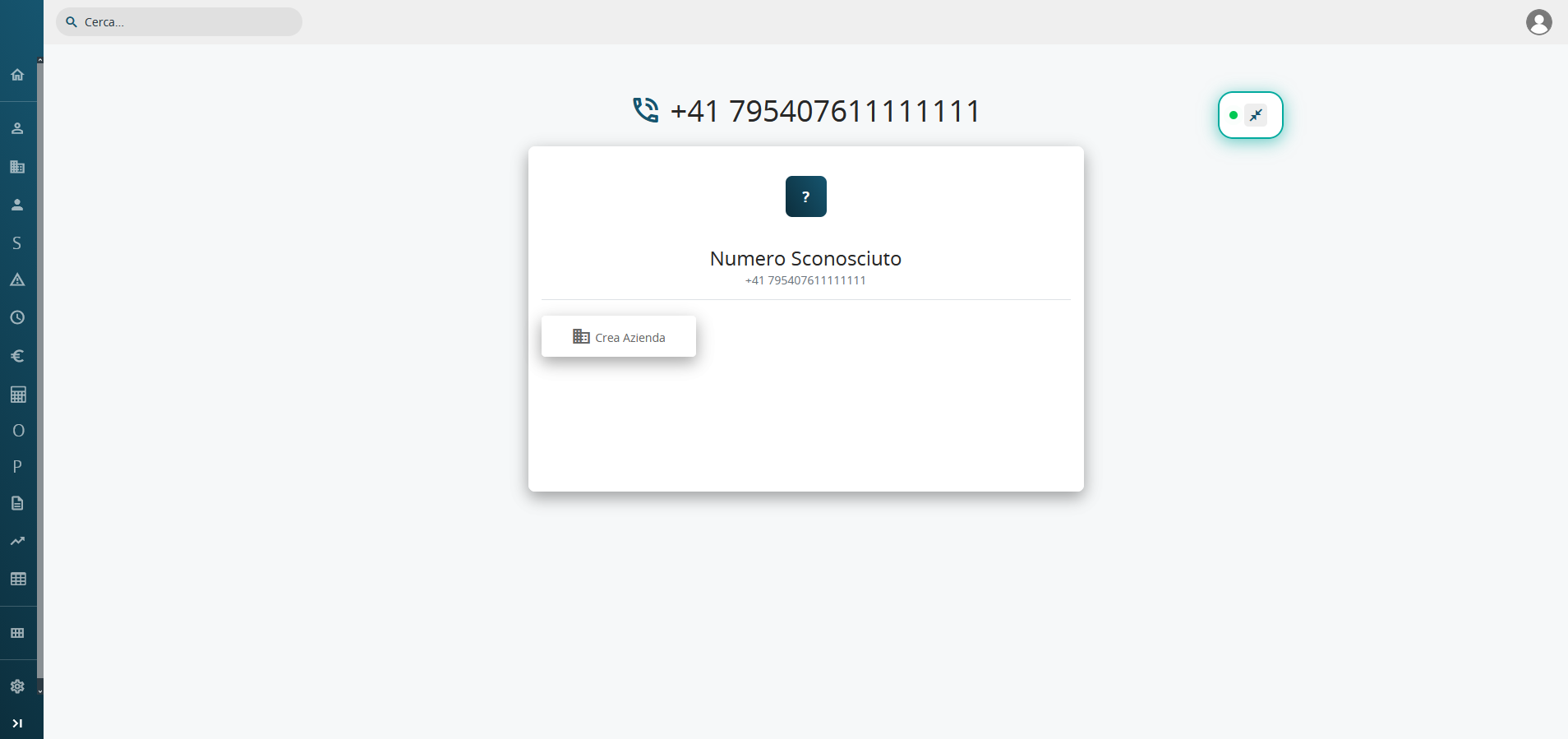
If a Create Record quick action has been configured for the operator's role, a new CRM record can be created directly from the popup during the call.
In-Call Popup Details
Description of the TeamsPhone Plugin popup elements and functions during a call.
Popup Anatomy
Regardless of the call scenario, the TeamsPhone Plugin popup uses the same basic structure.

Status indicator: a flashing green dot appears in the upper-left corner. It is only a visual element and is not synchronised with the real call status in Microsoft Teams.
Header: displays the matched record name and recognised phone number.
Quick Actions: expands the popup to show configured fields, linked records, and role-specific action buttons.
Minimise: reduces the popup to a small icon without losing its information.
Close: closes the popup after confirmation. Closing the popup does not end the Microsoft Teams call.
Popup Positioning
The complete popup can be dragged freely in both expanded and minimised mode. Click and hold the popup, then move it to any position on the screen so that it does not interfere with the operator's other activities during the call.