13 Reports and charts
- 13 Reports and charts
- 13.1 Reports
- 13.1.1 Report Creation Fundamentals
- 13.1.2 Basic Report Example
- 13.1.3 Advanced Reporting Examples
- 13.2 Charts
13 Reports and charts
Through Reports and Charts, you can examine the data in vtenext and extrapolate them from different points of view.
First of all, you have to identify the type of data extraction you want (i.e.: what do you want to obtain?) and, from there, build a report.
![13 [1].png](https://usermanual.vtenext.com/uploads/images/gallery/2022-06/rww13-1.png) Report Details
Report Details
![13 [2].png](https://usermanual.vtenext.com/uploads/images/gallery/2022-06/GMK13-2.png)
Summary Report
![13 [3].png](https://usermanual.vtenext.com/uploads/images/gallery/2022-06/BHP13-3.png)
Report Chart
13.1 Reports
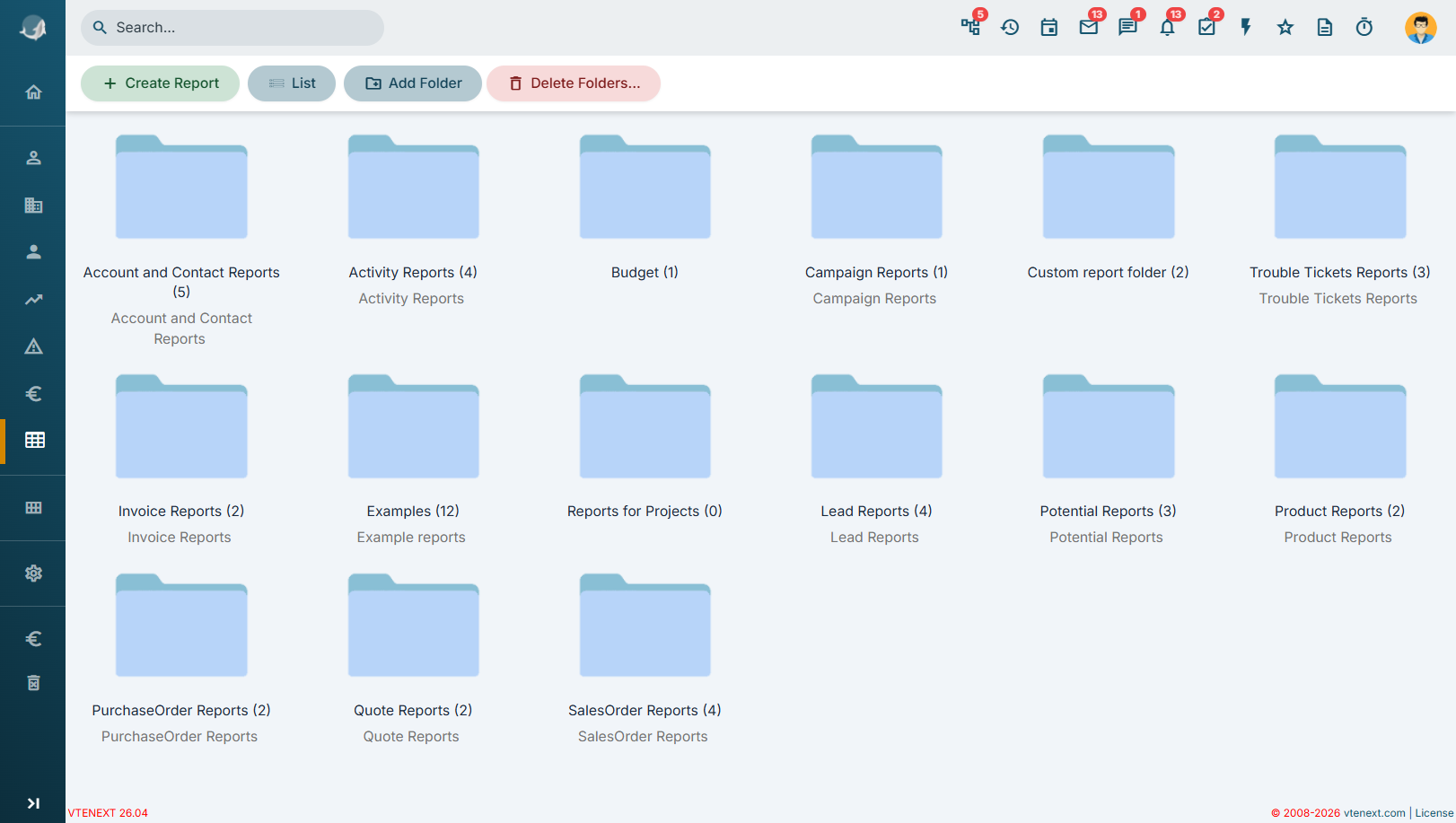
Reports are organised in folders. You can create new ones and delete them (only empty folders can be deleted), and also switch to list view via the List button.
To create a new report, click on the button from the Reports module 
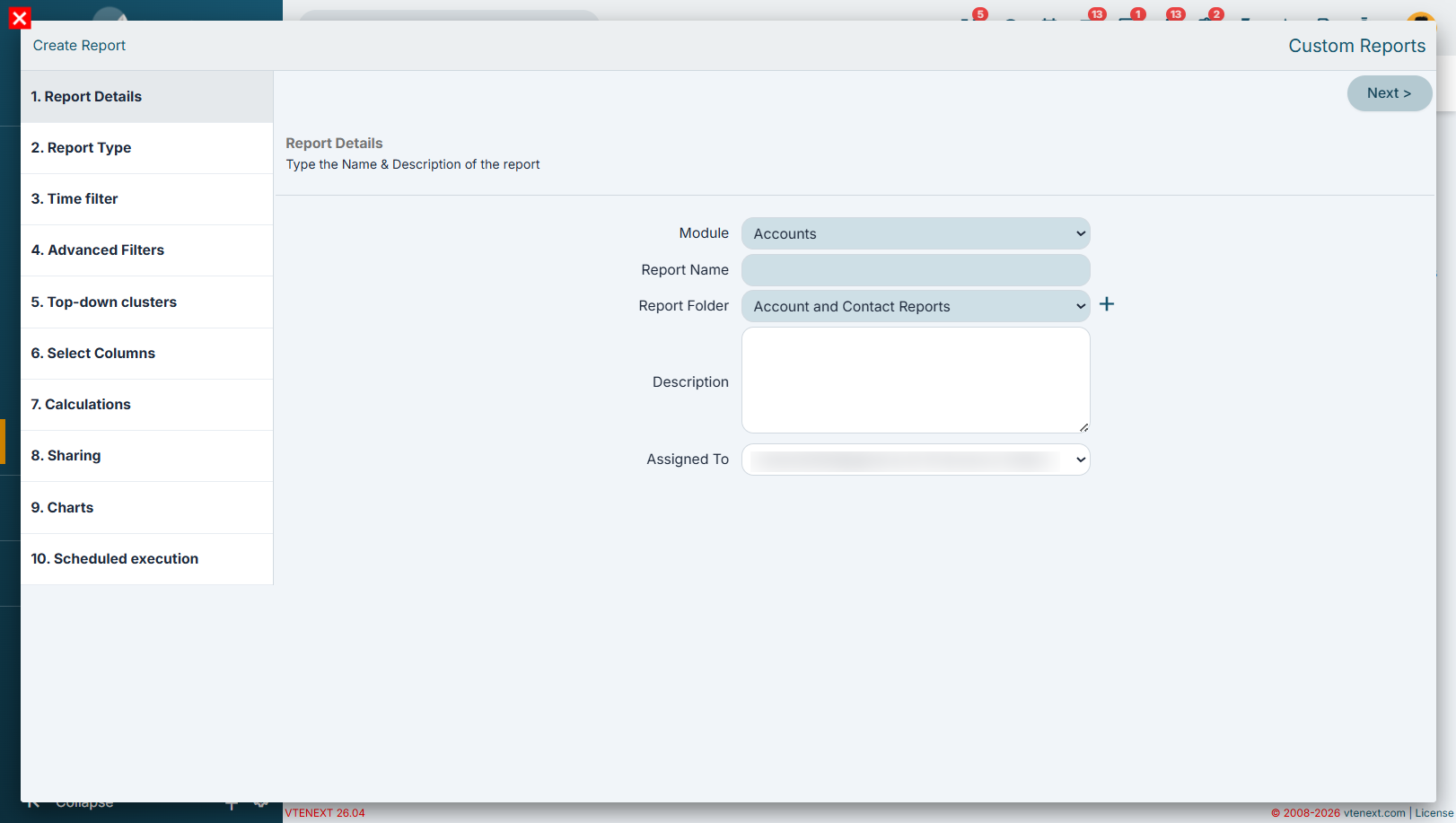
 Once you click the button, a wizard opens up with an 10-step guided procedure that will allow you to make the report intuitively.
For example, you want to create a report on the Sales Orders module that only displays orders from IT companies. In this case the main data to be displayed are the orders, while the companies are involved only if they meet a condition (sector)
|
STEP 1 |
Report Details: |
|
STEP 2 |
Report Type: |
|
STEP 3 |
Time filter: |
|
STEP 4 |
Advanced Filters: |
|
STEP 5 |
Top-down clusters: |
|
STEP 6 |
Select Columns: |
|
STEP 7 |
Calculations: |
|
STEP 8 |
Sharing: |
|
STEP 9 |
Charts: |
|
STEP 10 |
Scheduled execution (admin users only): Starting from version 26.04, two new options are available for scheduled reports:
These features help reduce unnecessary communications and make automated report distribution more efficient.
Warning: If you decide to use this function, the CRM will send a report displaying all the records it contains, without considering roles or profiles set in the CRM or the type of report sharing previously selected. |
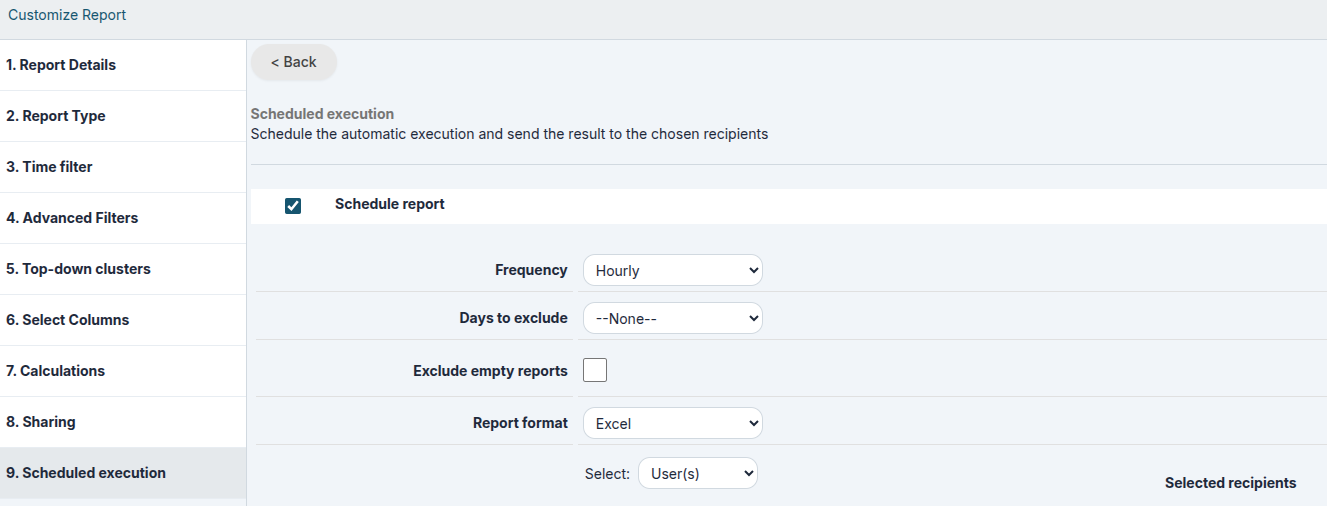
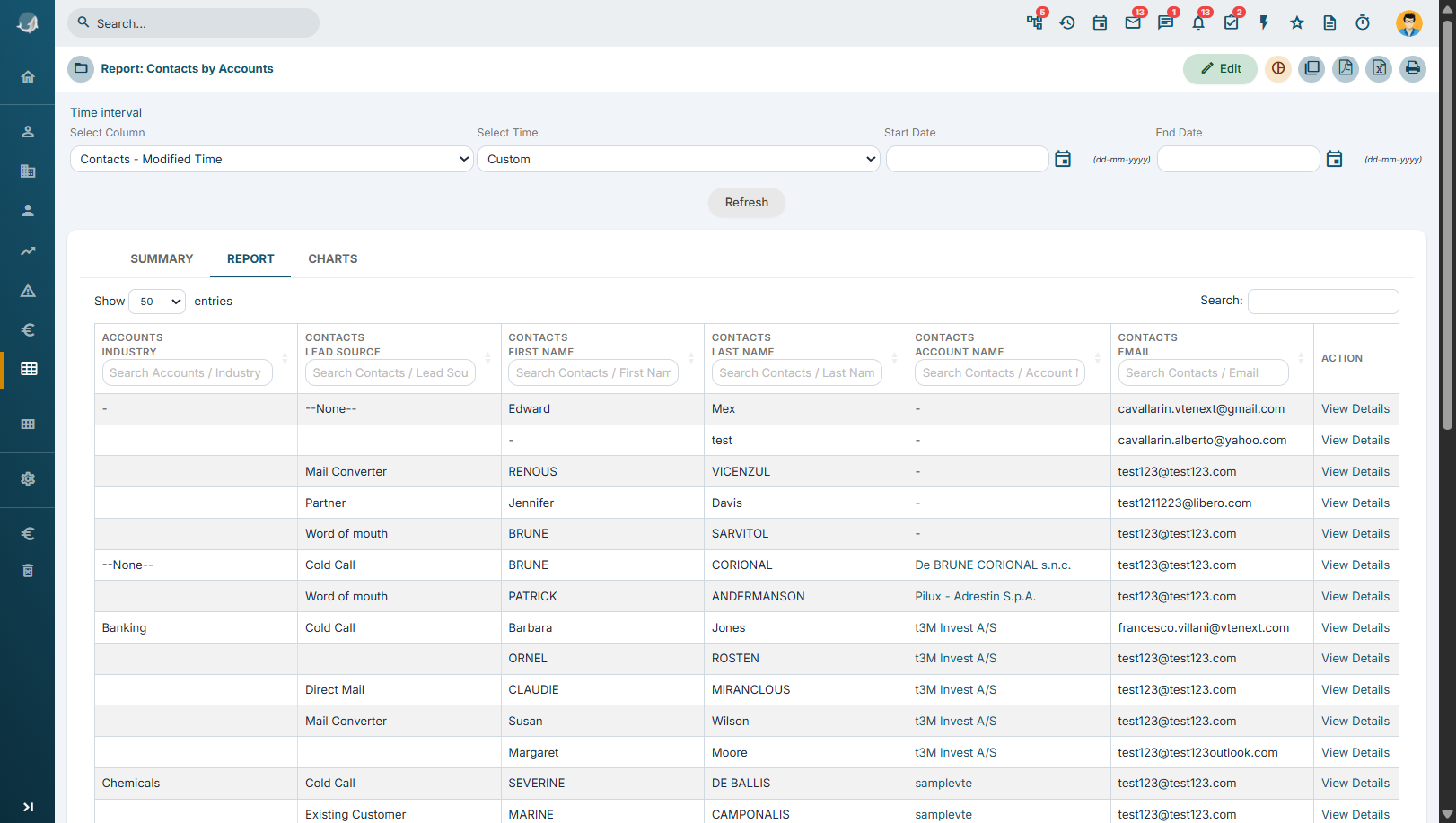
At the end of the wizard, you will be able to view the report. Below are the functions available on the screen.
|
Summary Tab |
Visible only if the report is of the Summary type (step 2), it displays report information (counts and calculations divided according to grouping criteria) |
|
Report Tab |
Table with the results of the report |
|
Charts Tab |
Visible only if set in step 8, it shows the chart based on the report |
|
Time Interval |
Apply a time-based filter (temporary field, cannot be saved) |
|
Edit Button |
To edit the Report by repeating the previous steps |
|
Create Chart |
Generate a new chart relating to the report |
|
Duplicate |
Opens the wizard to save a new report, starting from the settings of the previous one |
|
Export in PDF |
Export the total report in PDF format |
|
Export in Excel |
Export the total report in Excel format |
|
|
Print the total report directly |
13.1.1 Report Creation Fundamentals
Understanding the CRM Data Model
Before creating a report, it is essential to have a good understanding of the available data structure. Otherwise, you risk designing a report without knowing whether a specific piece of information is actually stored in the CRM. It is also very important to know the exact field names and the modules in which the information is stored, as these elements are crucial when defining filters, aggregations, and data processing logic.
For example, it is important to know whether a filter is applied to a free-text field or a picklist field, since the methods used to search, group, and aggregate data may differ significantly.
A solid understanding of the data structure enables you to design more accurate reports and helps avoid subsequent revisions caused by missing information or incorrect interpretations of the available data.
Understanding Relationships in the CRM
Understanding the relationships between CRM modules is essential when creating reports, as they determine which information can be retrieved from related modules and how that information can be filtered, grouped, and aggregated.
The relationships between CRM modules typically include:
- 1 (one-to-many)
- N:1 (many-to-one)
- N (many-to-many)
The following examples illustrate these relationship types.
1) – Many-to-One (N:1) Relationship (Multiple Contacts – One Account)
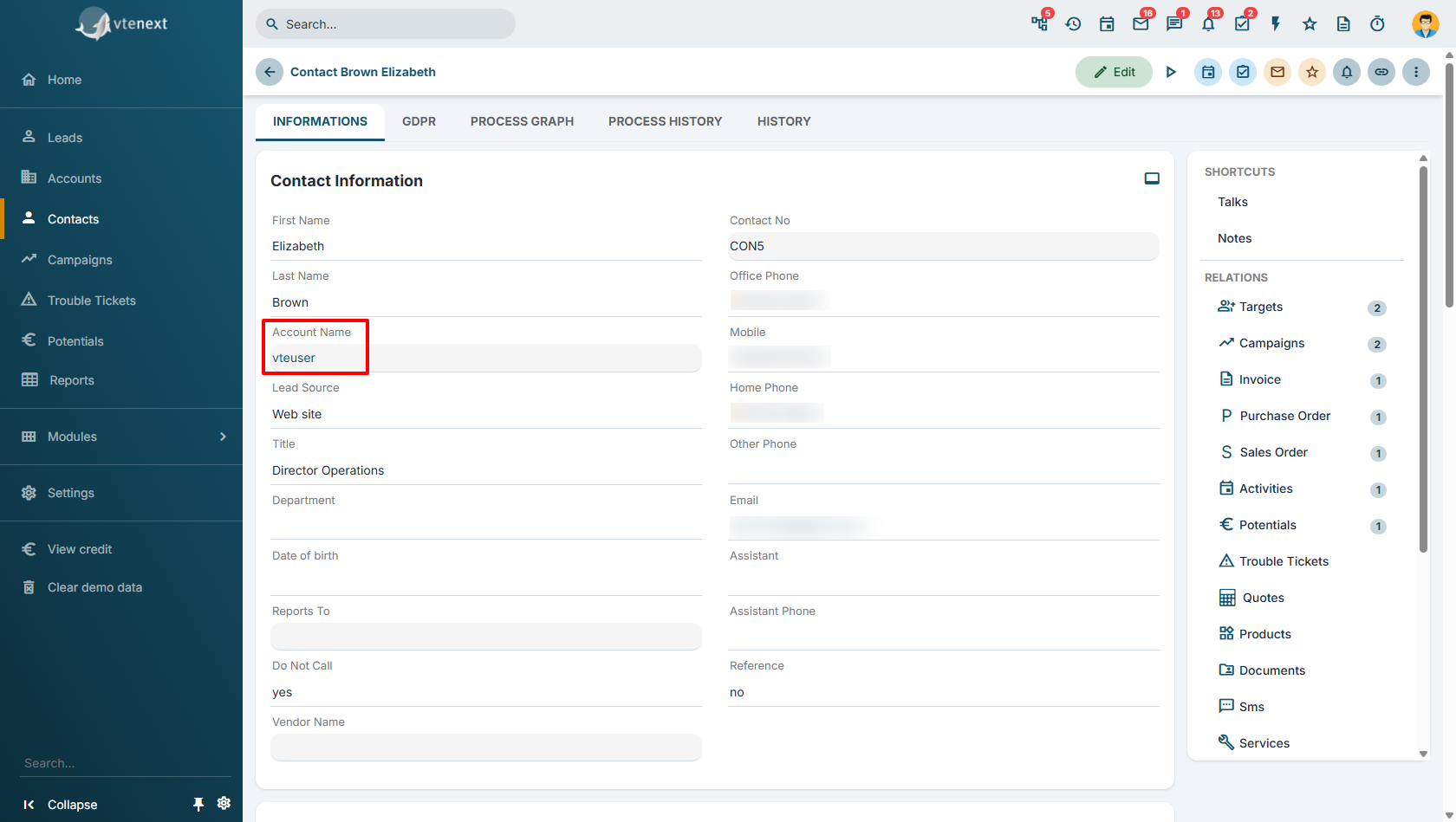
In this example, multiple Contacts are associated with a single Account. Each contact belongs to only one account, while an account can be linked to multiple contacts.
This relationship allows you to retrieve account information when reporting on contacts, or to analyze contacts in relation to their associated account.
In general, the presence of a lookup (relationship) field in a record's information tabs indicates a many-to-one (N:1) relationship.
For example, in the Contacts module, the Account Name field allows multiple contacts to be associated with the same account. In this case, the relationship is N:1, since many contacts can be linked to a single account.
2) – One-to-Many (1) Relationship (One Account – Multiple Quotes)
|
|
|
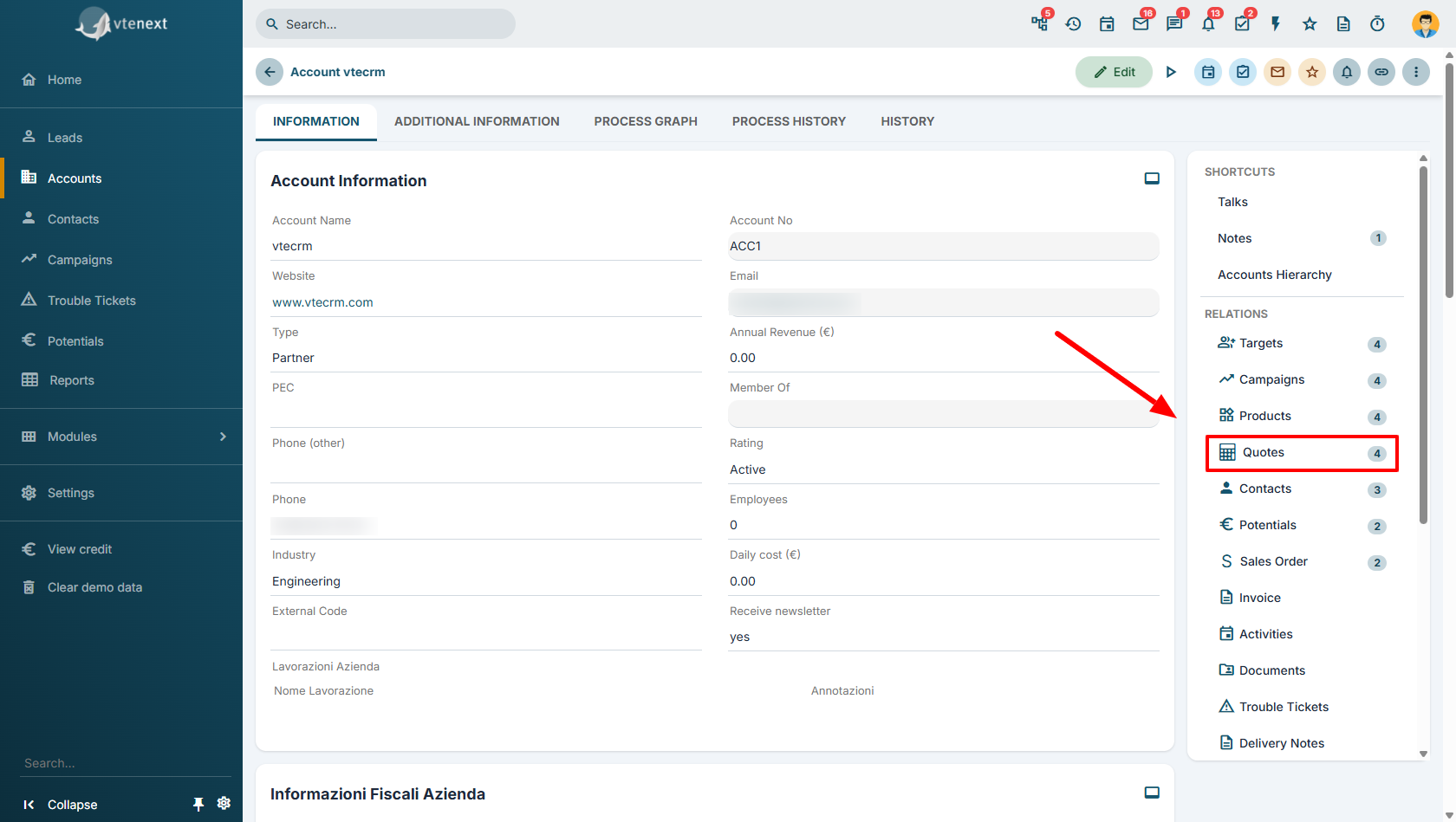
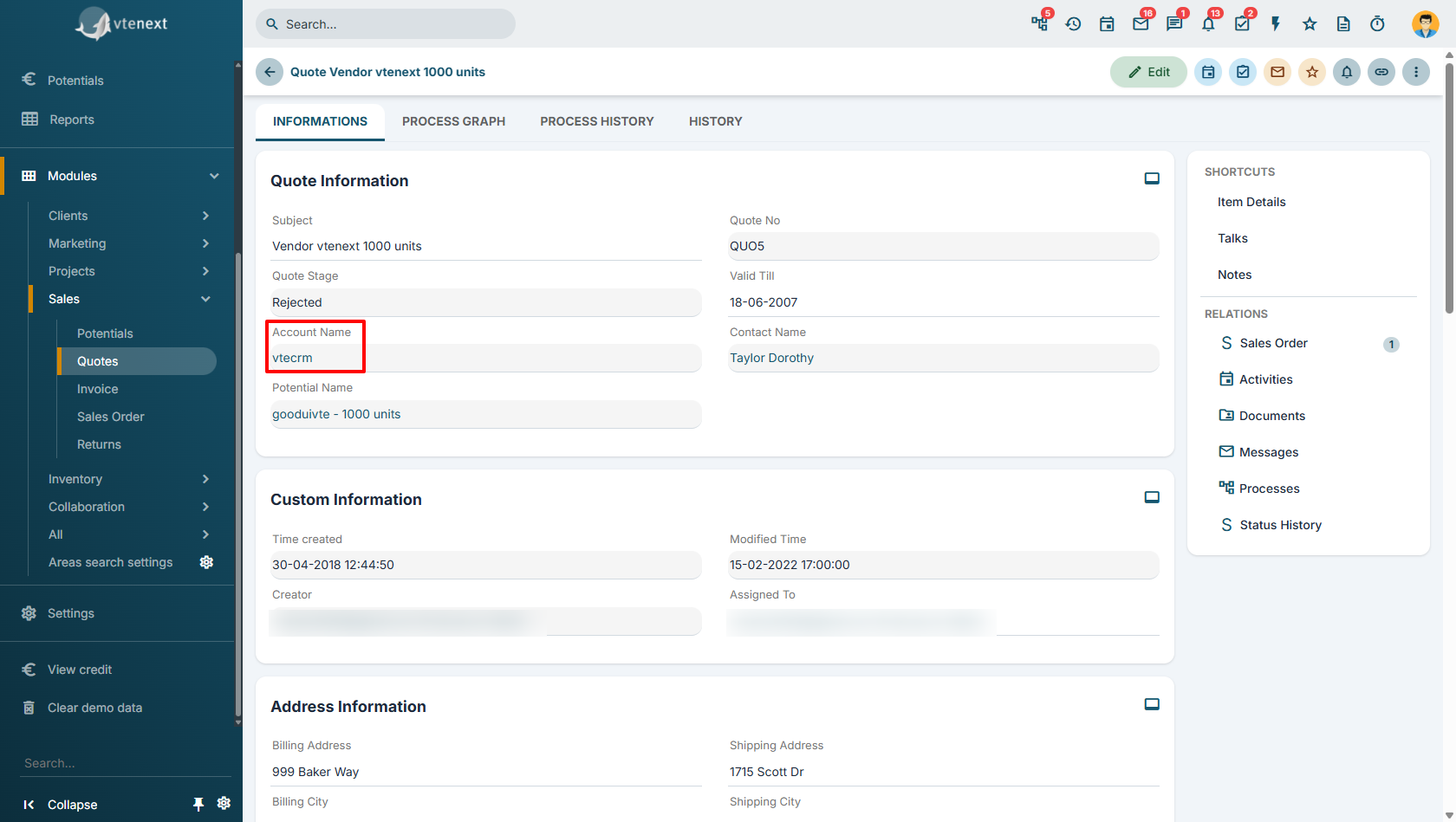
The relationships displayed in the Relationships panel, located on the right side of the record information tabs, indicate that the selected module has a one-to-many or many-to-many relationship with another module.
To determine whether the relationship is 1 or N, you need to examine the related module.
If the related module contains a relationship field that points directly back to the original module, the relationship is 1.
Example 3 – Many-to-Many (N) Relationship (One Account – Multiple Documents)
|
|
|
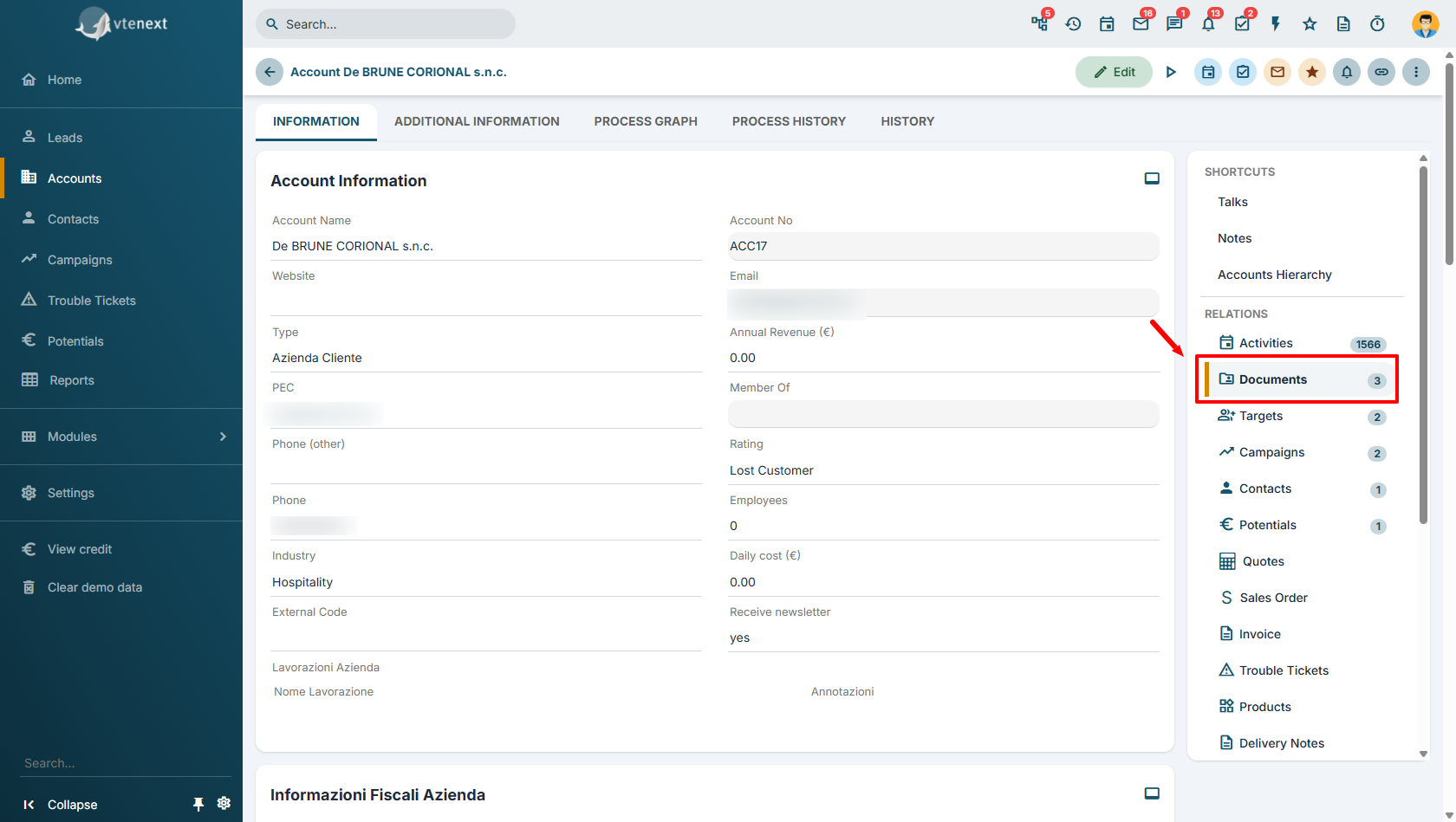
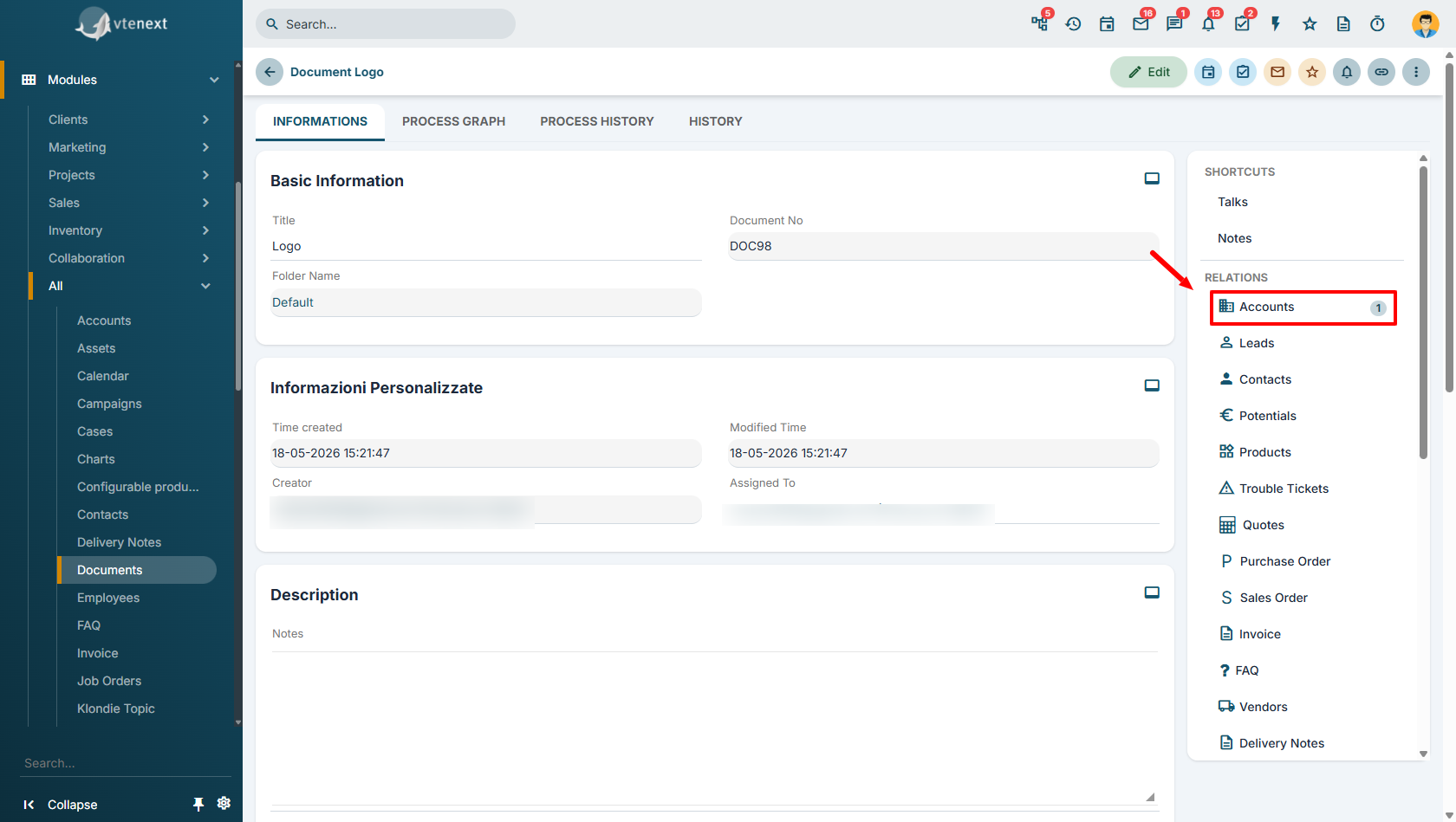
In this case, both modules appear in each other's Relationships panel. This indicates that multiple documents can be associated with the same account and, at the same time, the same document can be linked to multiple accounts.
The relationship between the two modules is therefore N (many-to-many).
Note: If, during the Filter or Select Columns steps of the report wizard, you select a field belonging to a module that has an N:1 (many-to-one) relationship with the report's primary module, the related information will be included in the report without increasing the number of rows in the final result.
This behavior occurs because each record in the primary module is associated with only one record in the related module. As a result, adding fields from that relationship does not create duplicate rows in the report.
The situation is different when you select fields from a module that has a one-to-many (1) or many-to-many (N) relationship with the primary module. In this case, the number of rows in the report may increase because each record in the primary module can be associated with multiple records in the related module.
13.1.2 Basic Report Example
In this chapter, we will create a report using data from a single module, applying filters and aggregations to the displayed information.
The examples provided in this document are intended solely for illustrative purposes and are not necessarily representative of real-world scenarios. Each company and project has its own specific characteristics, data structures, and objectives, making it impossible to define practical examples that fit every operational need.
Therefore, this guide is not intended to prescribe which fields should be used or how reports should be structured for a particular business context. Its purpose is solely to explain the features of the Reports module and demonstrate the main ways in which the tool can be used.
Report Requirements
The example report will be based on the Accounts module. Its purpose is to analyze the companies created during the current year, limiting the results to companies located in Italy and Poland, and belonging to the Engineering and Healthcare sectors.
This report is useful for the Sales department to monitor business performance in these two countries and within these specific industries.
The data will be aggregated using the following fields:
- Assigned To (the user responsible for the account record)
- Country (the country where the account is located)
Type (to analyze the types of companies created)
Let's get Started!
Report Creation
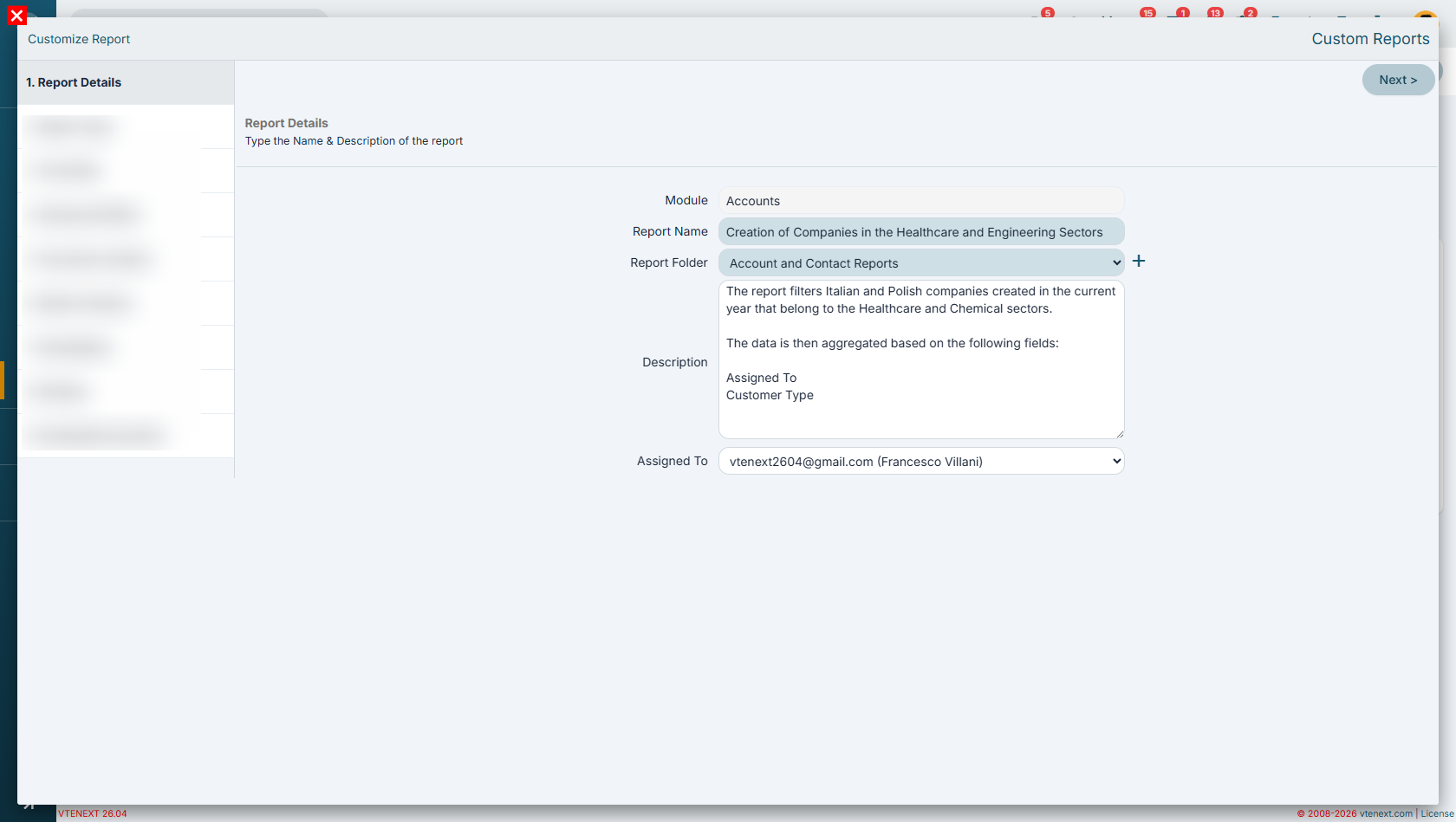
Step 1 - Report Details
Create the report by entering a name that clearly and concisely describes its purpose or content.
Next, select the folder where you want to save the report in order to maintain proper organization of the reports available in the system.
In the Description field, it is recommended to provide a brief explanation of the logic used in the report, including information such as:
- the filters applied;
- the aggregations used;
- any specific conditions or calculation criteria.
Documenting this information makes the report easier to understand over time and allows other users to quickly grasp its purpose, logic, and functionality.
Step 2 - Report Type
This topic will be covered in greater detail in Step 6 - Select Columns and later during the report analysis phase.
The goal is to better understand the differences between the two main report types:
- Tabular Report, which displays the details of individual records;
- Summary Report, which aggregates data based on the selected fields and provides summaries, counts, and statistics (available in the Summary tab).
Step 3 - Date Filter
In this step, we configure the first filter condition based on a date field.
In our example, we select the Creation Date field and set its value to the dynamic filter Current Fiscal Year.
Using dynamic values is particularly important because it allows the report to update automatically over time.
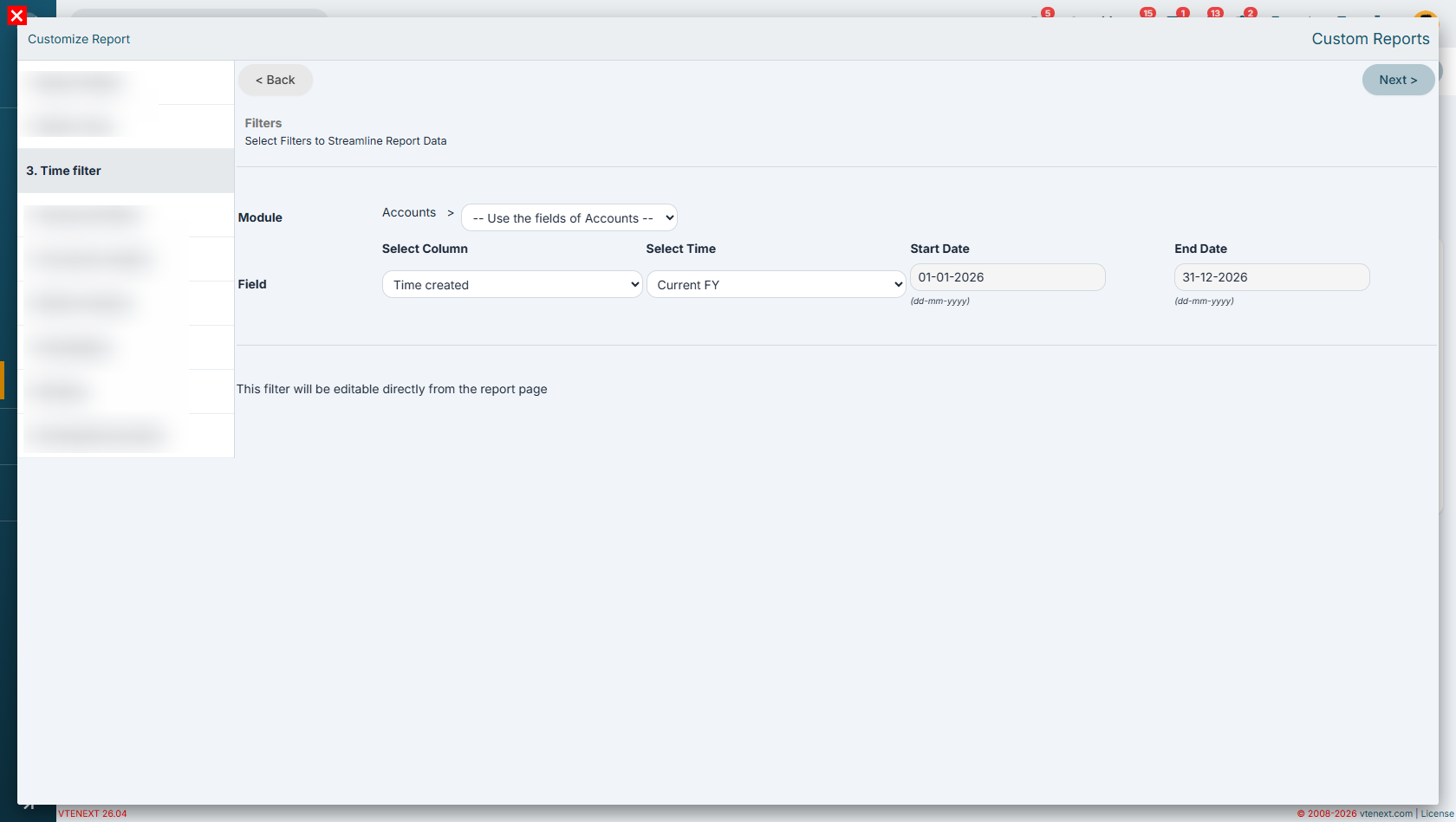
Step 4 - Advanced Filters
Next, we will filter the data by creating two separate groups of conditions:
-
Italian companies belonging to the Healthcare sector;
-
Polish companies belonging to the Engineering sector.
To achieve this, create two distinct filter groups:
Group 1
-
Country = Italy
-
Industry = Healthcare
Group 2
-
Country = Poland
-
Industry = Engineering
The two groups must then be connected using the OR logical operator, since we want to include companies that meet either of the two conditions.
In other words, the report will display:
-
all Italian companies in the Healthcare sector;
-
all Polish companies in the Engineering sector.
Using condition groups makes it possible to create more advanced filters and correctly combine different criteria within the same report.
It is important to carefully choose the logical operator and filter condition based on the type of field being queried.
For text fields, where the same value may be entered in slightly different ways, it is generally recommended to use the Contains operator. This approach makes the filter more flexible and increases the likelihood of capturing all relevant records.
In contrast, for picklist fields, it is recommended to use the Equals operator, since the available values are predefined and stored consistently. In this case, using Equals provides more accurate and efficient results.
Choosing the appropriate filter operator is essential to obtain reliable results and avoid unintentionally excluding relevant data or including records that do not match the intended criteria.
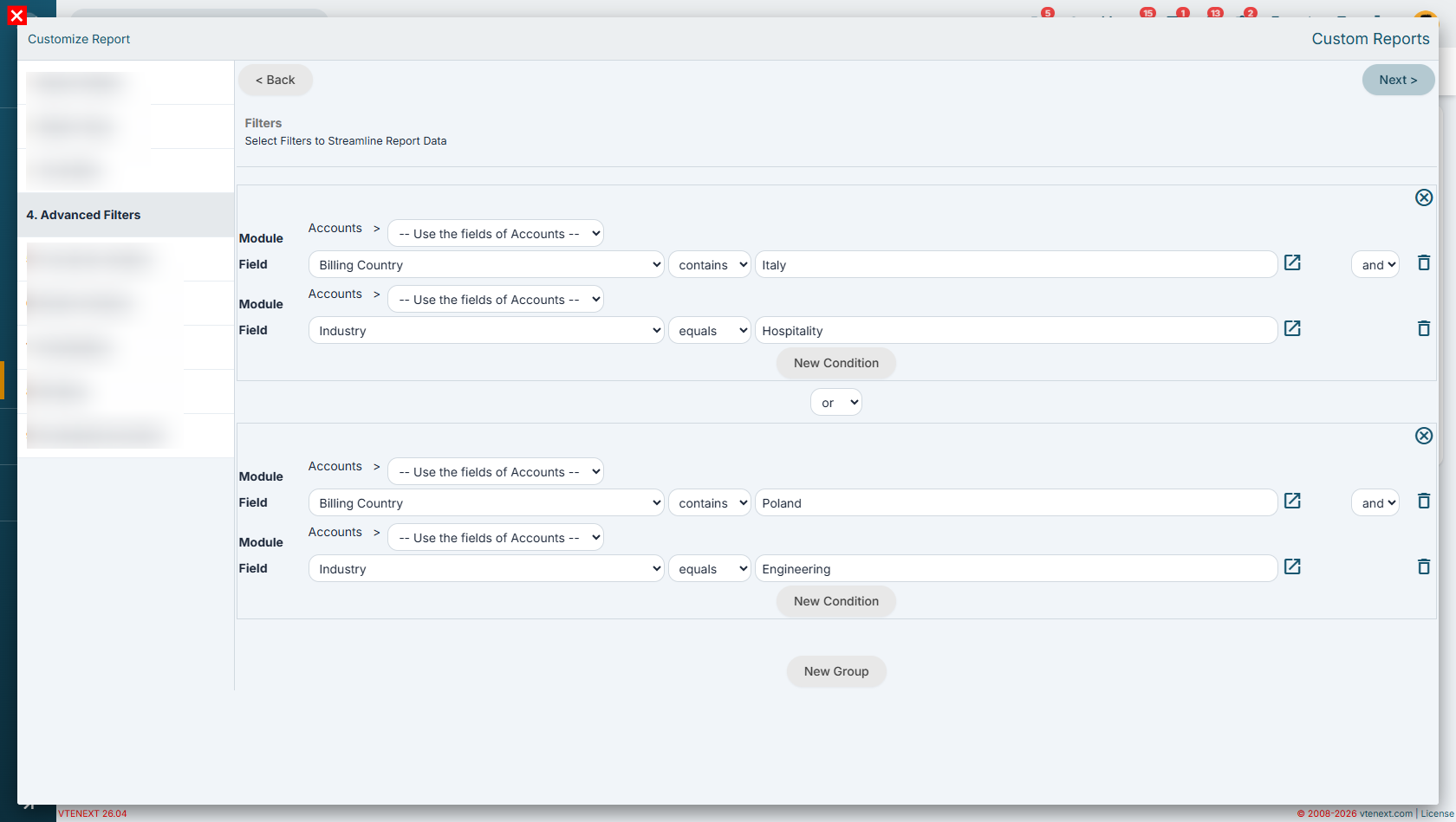
Step 5 - Top-Down Segmentation
For this report, it is not necessary to create any clusters, so this step can be skipped.
The cluster functionality will be explored in greater detail in the Advanced Reports section, where it becomes particularly useful for segmenting and classifying data according to more complex criteria.
Step 6 - Select Columns
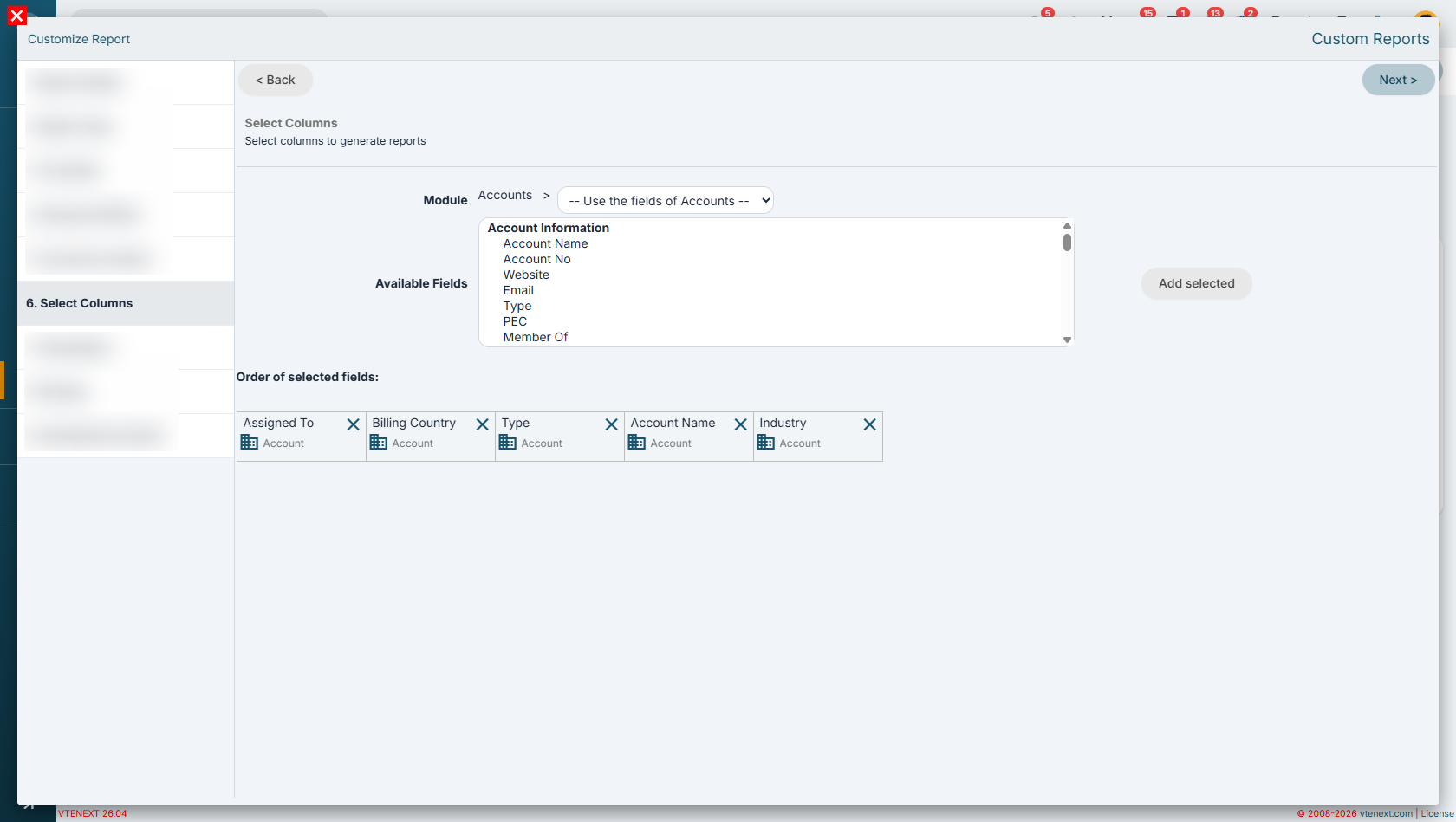
In this step, we select the columns that we want to display in the report.
For this example, all columns will be selected from the Accounts module using the drop-down menu available in Step 6.
Once you have selected the desired fields, it is important to click the Add Selected button to include them in the list of report columns displayed in the lower section of the page.
The selected columns will determine which information is available for display, grouping, sorting, and aggregation within the report.

It is at this stage that one of the main differences between a Summary Report and a Tabular Report becomes apparent.
With a Summary Report, you can:
-
aggregate data based on the selected fields;
-
decide whether to include fields in the Summary tab;
-
generate counts, totals, and grouped data views.
With a Tabular Report, these capabilities are not available.
A tabular report simply displays a list of records that match the defined criteria, without performing any data aggregation. In practice, the result is very similar to an export of filtered data, where each record is displayed individually.
For this reason, when the goal is to analyze trends, counts, or grouped information, a Summary Report is generally the preferred option. Conversely, when you need to view the complete details of individual records, a Tabular Report is the more appropriate choice.
Example of column selection in Step 6 for a Tabular Report (no column aggregation available)
Example of column selection for a Summary Report (with the ability to group data by a column and include it in the Summary tab)
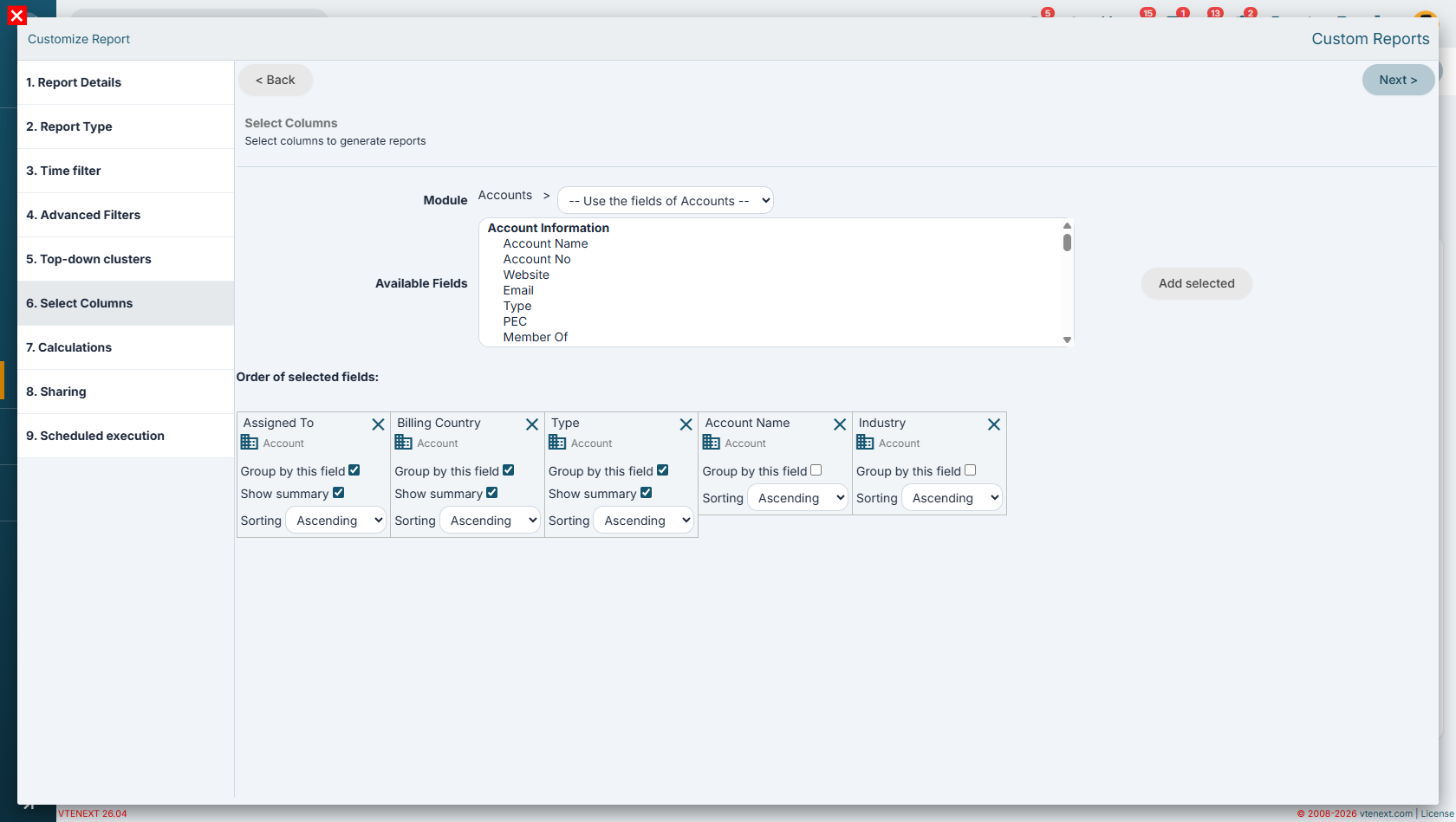
In this example, we aggregate the data by Assigned To in order to determine how many companies are managed by each user.
Next, we add a second level of aggregation based on the Country field to understand the geographical distribution of the companies assigned to each user.
Finally, we introduce a third level of aggregation using the Type field, providing an additional classification of companies within each country.
The result is a hierarchical structure that allows us to analyze:
-
how many companies are assigned to each user;
-
how those companies are distributed across different countries;
-
which customer types make up each group.
Step 7 - Calculations
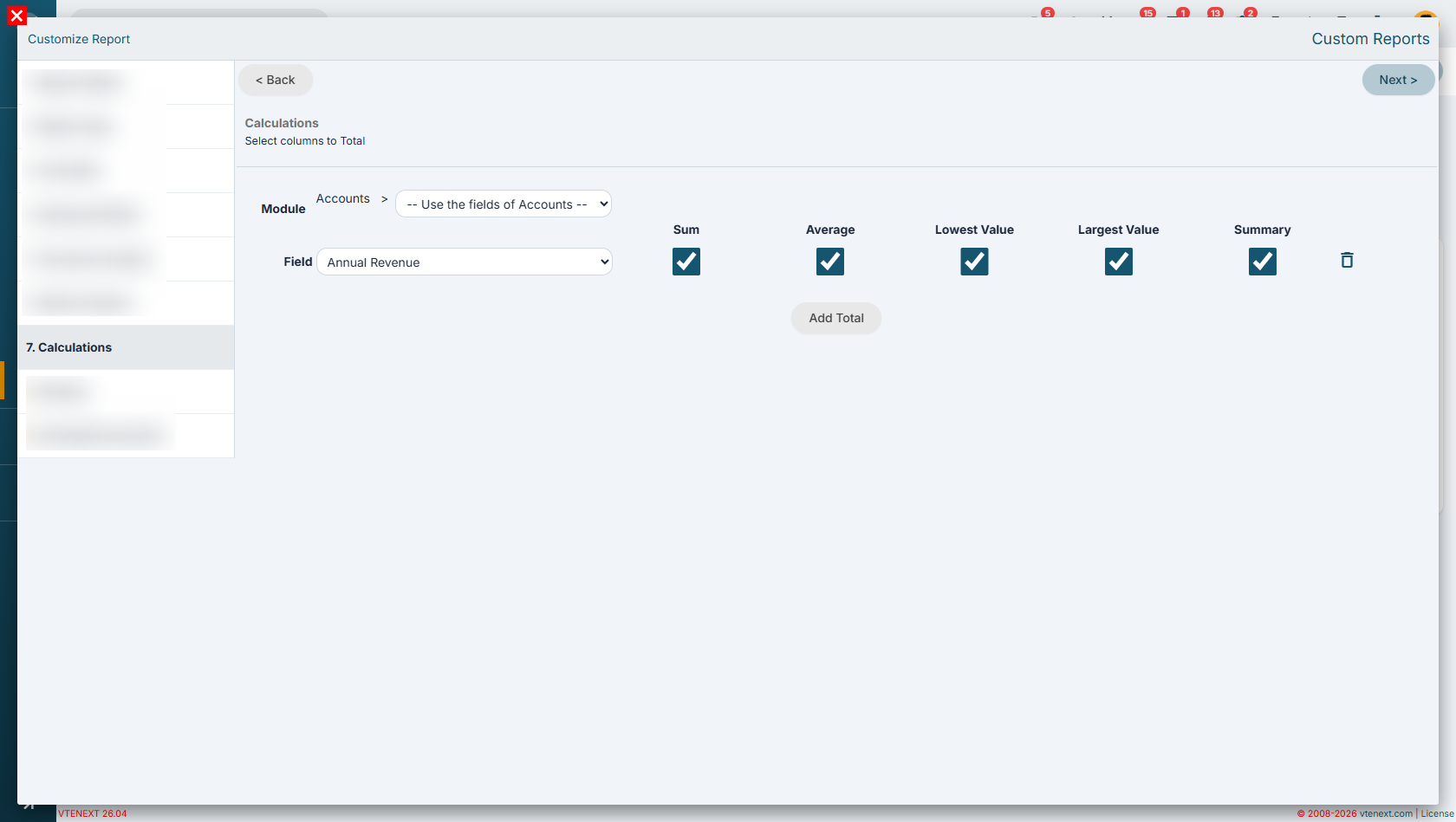
To gain a more comprehensive overview of the records included in the report, we can add the Revenue field and configure one or more aggregation metrics.
In this example, we will select the following metrics:
-
Sum, to calculate the total revenue generated by the selected companies;
-
Average, to determine the average revenue of the records included in the report;
-
Minimum Value, to identify the company with the lowest revenue;
-
Maximum Value, to identify the company with the highest revenue.
The final available option, the Summary flag, can only be used in Summary Reports. In a Tabular Report, this functionality is not available because this report type does not generate a Summary tab.
It is also important to note that the Summary tab can display only one metric at a time. Therefore, it is not possible to select multiple metrics and display them simultaneously within the Summary tab.
When multiple metrics are configured, you will need to switch between them individually to analyze each calculation.
Step 8 - Sharing
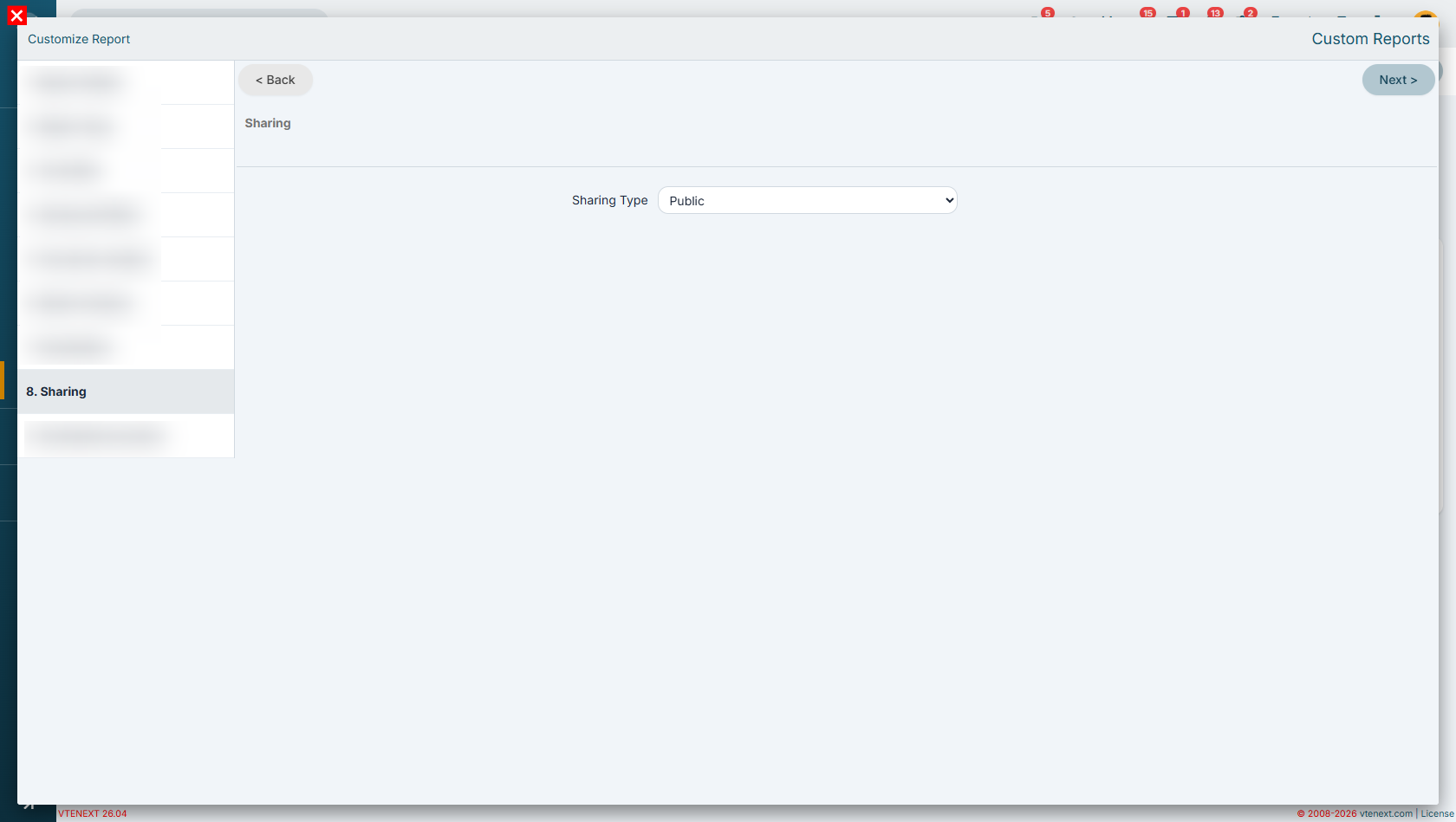
In this example, we want the report to be visible to all users who have access to the reporting functionality. For this reason, we select the Public sharing option.
A public report can be viewed by all users who are authorized to access reports, without the need to assign specific permissions to individual users or groups.
If it is necessary to restrict the visibility of the report to specific users, groups, or roles, you can instead use one of the other sharing options provided by the system.
Step 9 - Charts
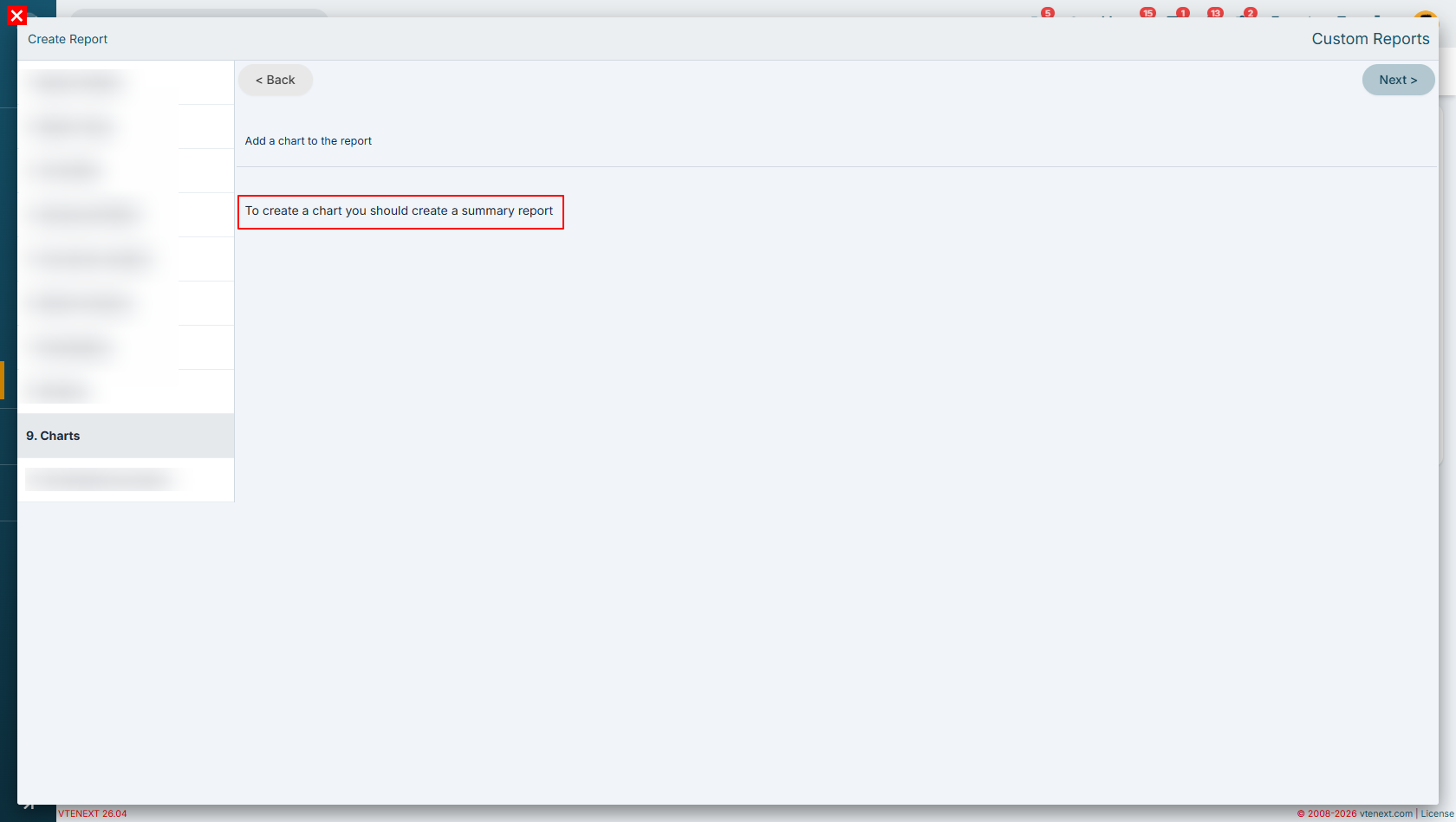
This step is available only for Summary Reports.
To create a chart, the report must generate a Summary tab. If this tab is not available, the system will not have any aggregated data to display graphically.
As a result:
-
Summary Report → allows charts to be generated from the aggregated data available in the Summary tab;
-
Tabular Report → does not generate a Summary tab and therefore does not provide any charting capabilities.
A tabular report is designed exclusively to display or export detailed record information without performing any grouping or data aggregation. For this reason, it cannot generate graphical representations of the data.
Step 10 - Scheduled Execution
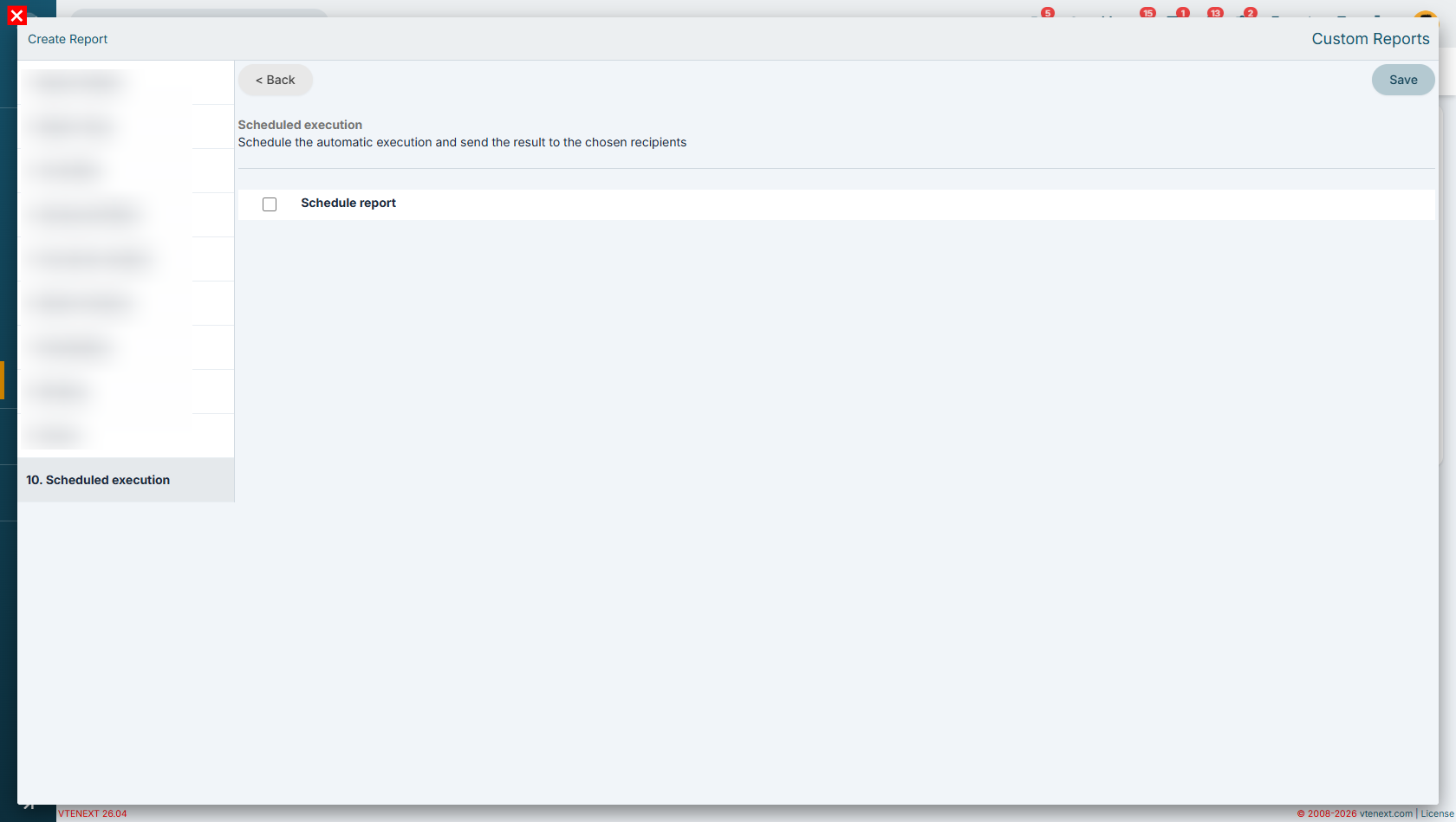
In this example, we will not use the report scheduling feature.
Therefore, we can skip the configuration that allows the report to be automatically delivered in Excel, PDF, or both formats to one or more recipients.
Report Results (Tabular View)
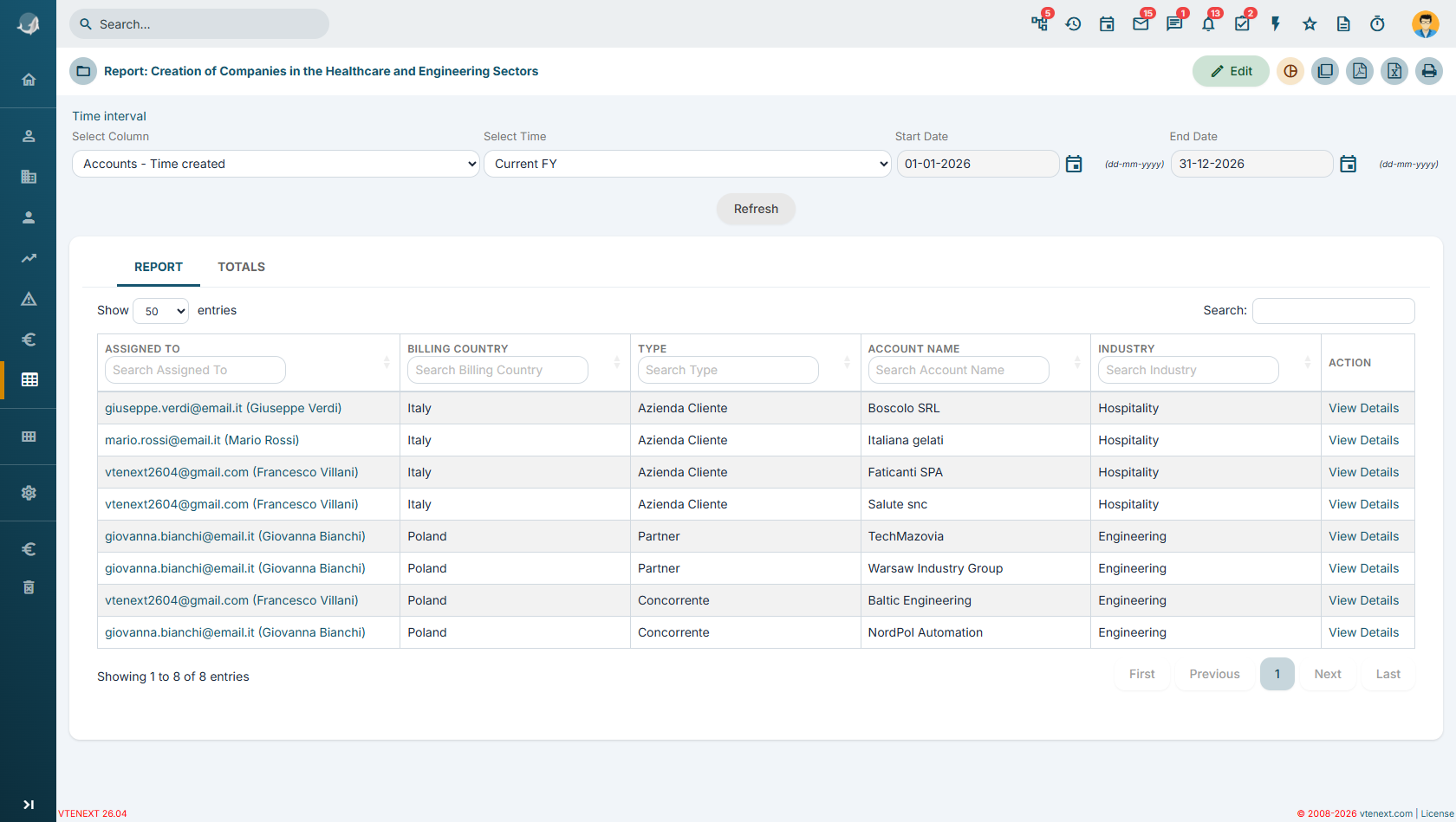
In the Tabular Format, data is displayed following the order of the columns selected in Step 6 - Select Columns of the report configuration wizard.
Unlike the summary view, this mode does not apply any grouping and does not calculate statistics or summaries. Records are simply displayed one after another, showing the detailed values requested.
For this reason, the Summary tab is not available in the tabular view, as no aggregations, counts, sums, averages, or other calculations are performed on the displayed data.
Report Results (Summary Report) - Report tab
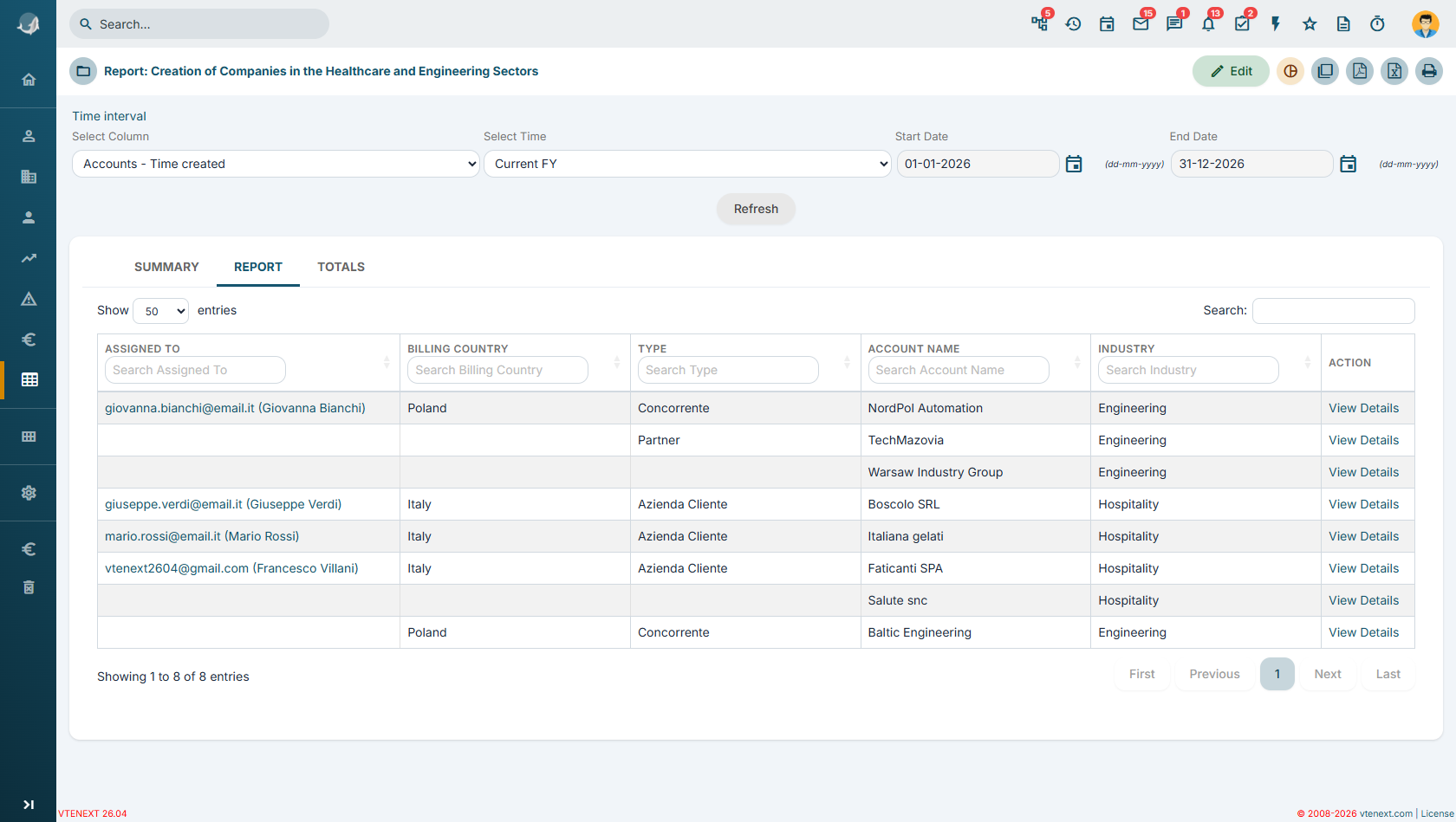
In this report, some values are intentionally not repeated. For example, in the second record, the value of the Assigned To field is not displayed because it is the same as in the previous record (giovanna.bianchi).
Data is presented in an aggregated form and grouped according to the criteria defined in the report. Starting from the first column, all companies assigned to the same user are displayed together. In this case, all companies assigned to Giovanna are shown first, followed by those assigned to other users.
Within each group, records are further aggregated according to the additional criteria defined in the report, namely:
-
Country
-
Type
Report Results (Summary Report) – Summary Tab
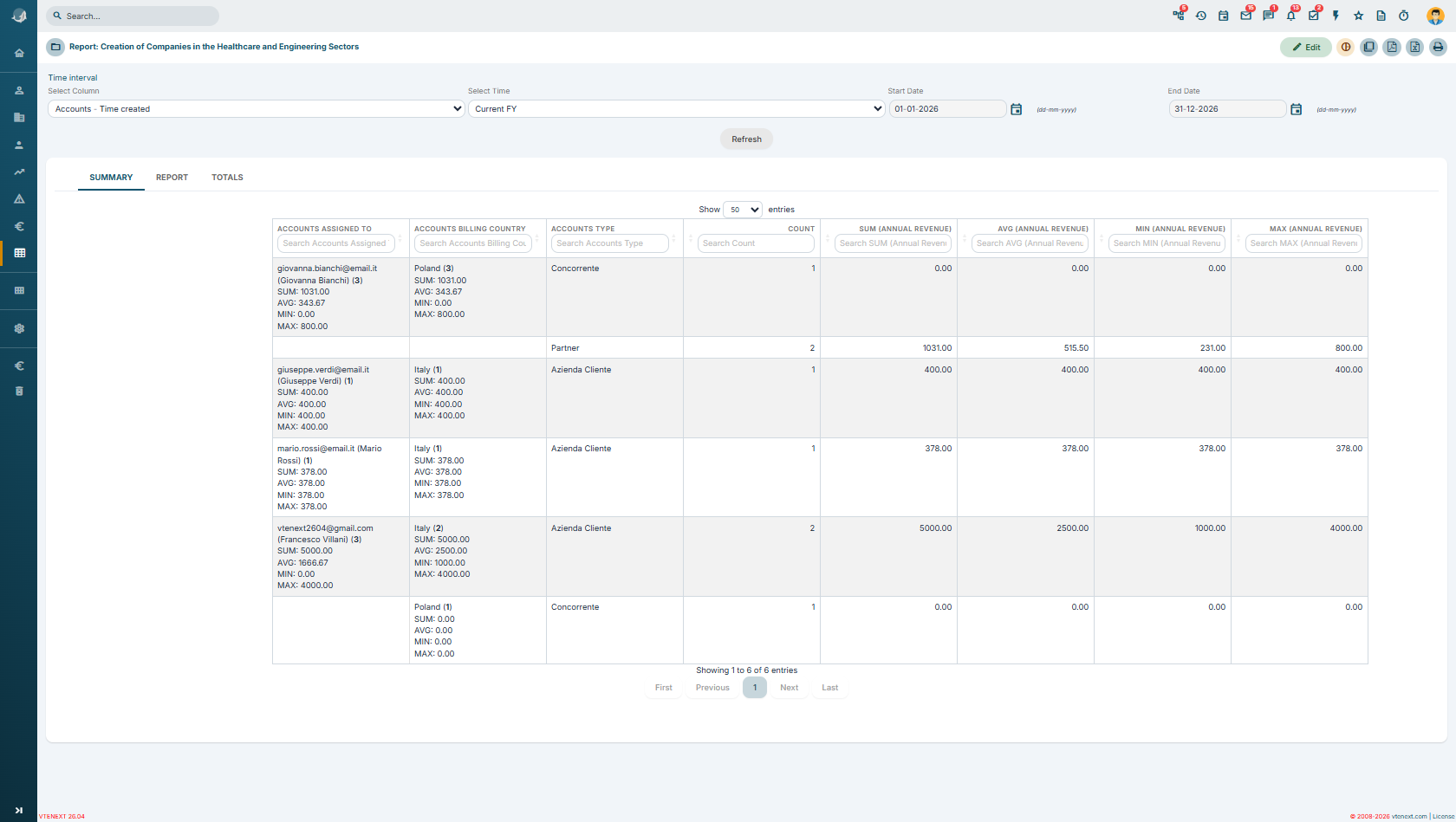
In the Summary Tab, for fields where the “Show Summary” flag has been enabled, it is possible to display a set of statistics related to the selected metric in the report (in this case, Revenue).
For each field selected in Step 6 - Select Columns, the system displays:
-
number of records;
-
sum of the selected metric;
-
average value;
-
minimum value;
-
maximum value.
In the example shown, we can see that Francesco has 3 assigned companies, which generate a total revenue of €500. The average revenue is €166, the minimum value is €0, while the company with the highest revenue generates €400.
Continuing the analysis of the summary, we can see that companies are further aggregated according to the criteria defined in the report. For example, for the Country field, we find:
-
2 Italian companies, with their respective revenue details;
-
1 Polish company, also with its corresponding revenue.
As we move deeper into the aggregation levels, the two Italian companies are classified as Customer, while the Polish company is classified as Competitor.
Note: If a Summary Report is created but no field has the “Show Summary” flag enabled in Step 6 - Select Columns, the Summary tab will not be displayed.
The system generates the summary only for fields where statistical calculations have been explicitly enabled. If no fields are configured for summary calculation, the report has no aggregated data to process and, as a result, the Summary tab is not shown.
13.1.3 Advanced Reporting Examples
In this section, we will explore in greater detail some of the configurations introduced earlier and examine additional steps of the report creation wizard that have not yet been covered.
Unlike the previous chapter, we will not walk through the complete report creation process again, as it has already been described in detail. Instead, we will focus on more advanced features and configurations, illustrating them through practical examples that will help you create more complex and structured reports.
The examples provided in this chapter are for illustrative purposes only and are not necessarily representative of real-world cases.
Each organization and project has its own specific characteristics, data, and objectives, making it impossible to define practical examples that apply to all operational needs.
Therefore, this guide is not intended to provide recommendations on which fields to use or how to structure reports for a specific business context. Instead, it aims exclusively to illustrate the features of the Reports module and the main ways in which the tool can be used.
How to Select Fields from Related Modules
To select information from the related Account, starting from the Contacts module, you can use the panel located in the upper-right section of the screen, which displays the available relationships.
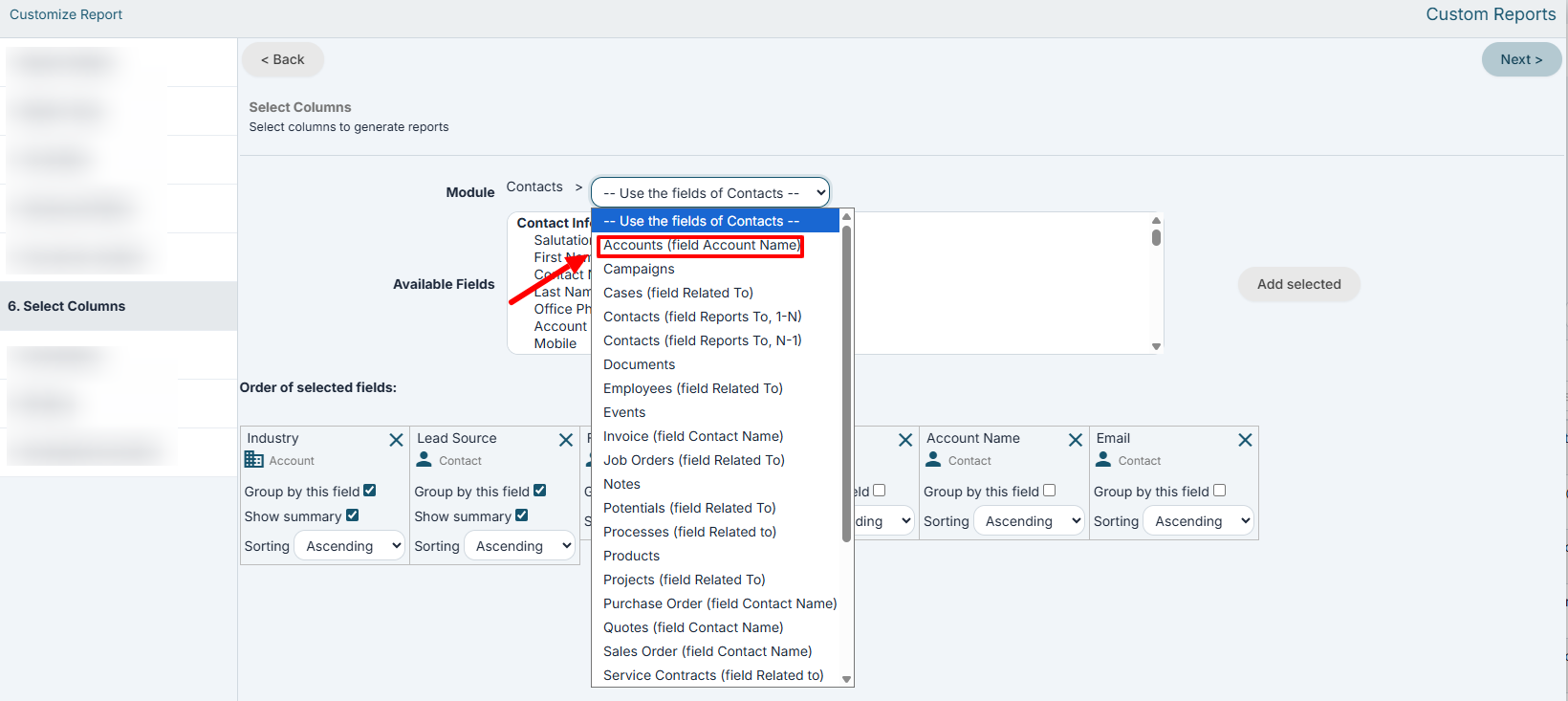
Once the desired relationship has been selected, the fields of the related module will appear in the lower panel and can then be used within the report.
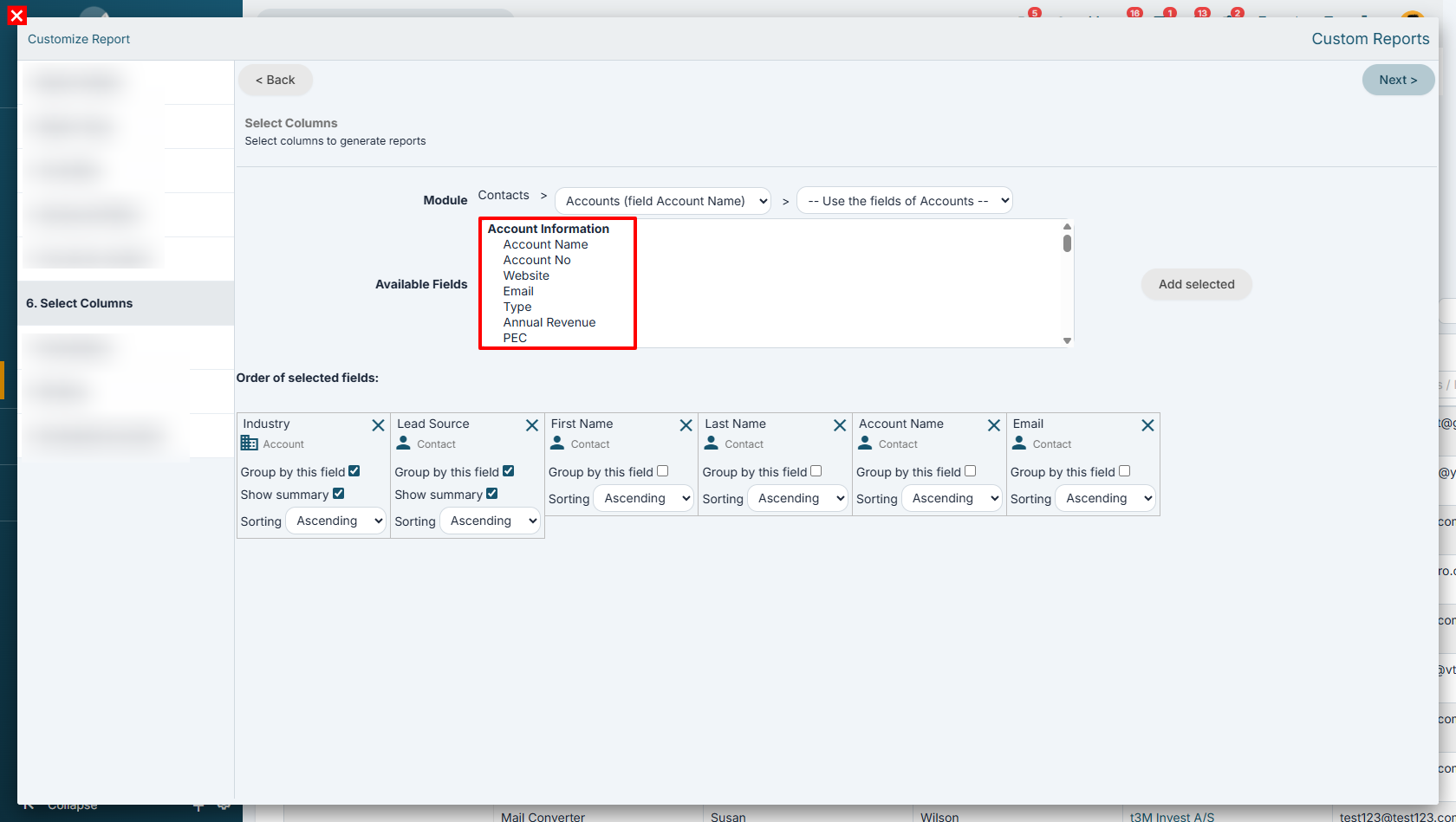
Combining information from different modules enables the creation of more advanced reports and statistics, which can be used, for example, to analyze sales performance and monitor business processes.
Example reports:
- List of companies with the number of associated contacts, combining data from the Accounts and Contacts modules.
- Number of visits carried out per customer, combining data from the Accounts and Visit Report modules.
- Number of calls made per customer, combining data from the Accounts and Calendar modules.
- Analysis of sales opportunity management, combining the Accounts, Opportunities, and Quotes modules to monitor deal progress and conversion rates.
- Value of opportunities generated by Lead Source, combining the Leads, Opportunities, and Sales Orders modules.
- Average deal closing time, combining the Opportunities, Quotes, and Sales Orders modules.
Advanced and Date Filters on Related Modules
For both types of filters (Advanced Filters and Time-Based Filters), the configuration logic is the same.
First, you need to select the module from which you want to use a field (for example, Accounts).
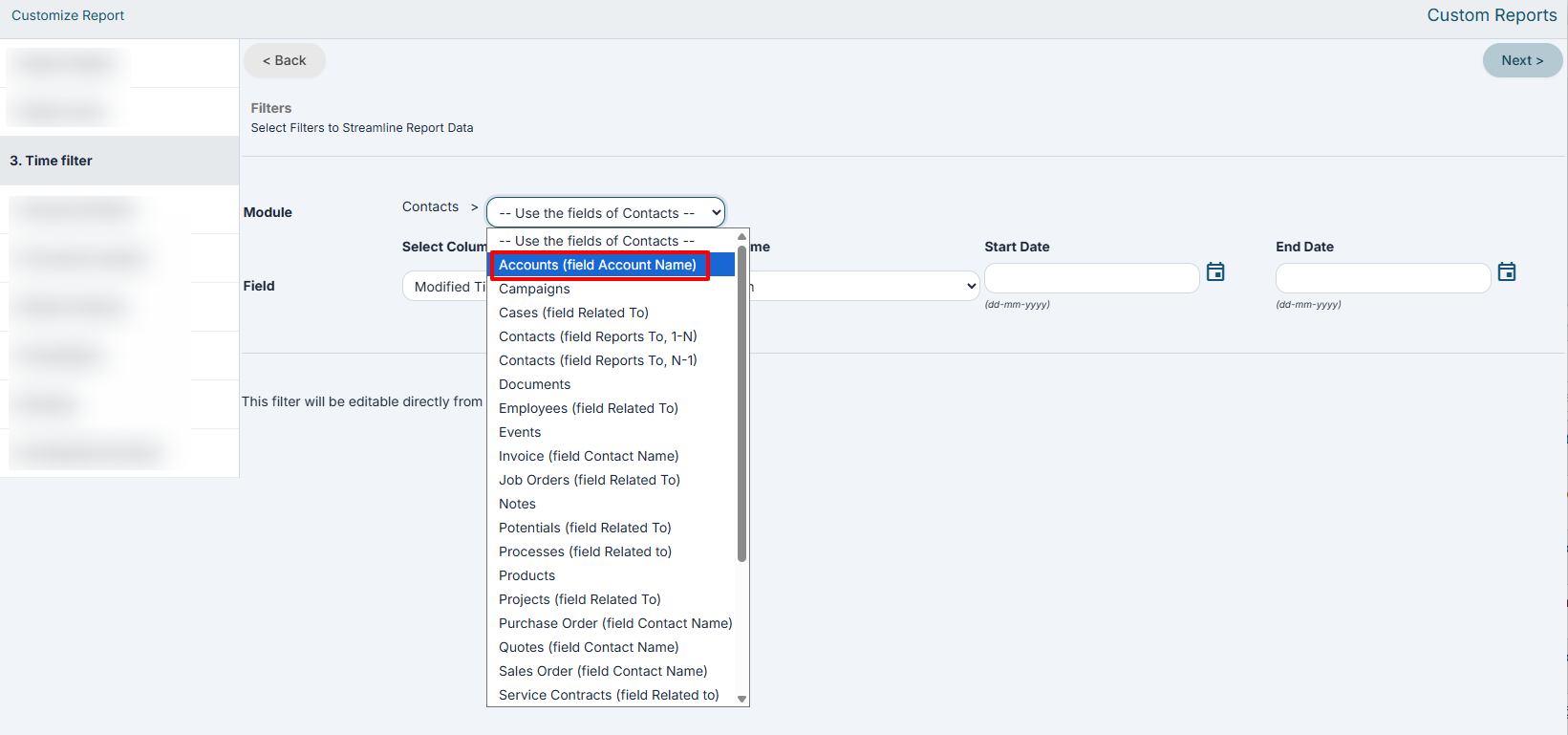
Next, the lower panel will display all compatible fields belonging to the selected module.
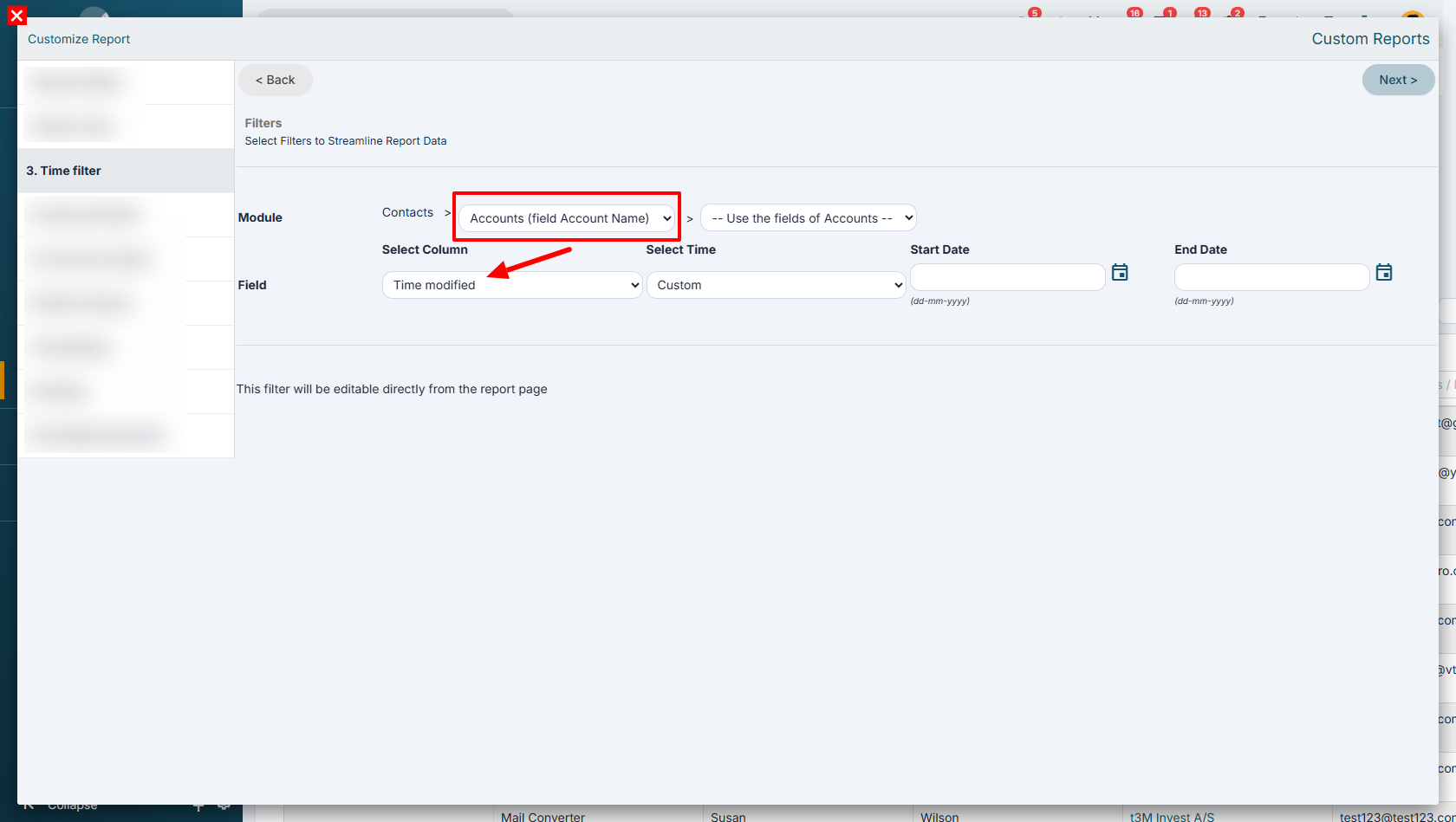
Examples of Time-Based Filter Logic
- Companies that have at least one Opportunity with a Expected Closing Date in the current month.
- Companies that have at least one Quote created in the last 30 days.
- Companies that have at least one Invoice issued in the last quarter.
- Contacts linked to an Opportunity created in the last 60 days.
- Leads linked to at least one Task due within the next 7 days.
- Companies that have at least one Ticket opened in the last 30 days.
- Companies that have at least one Sales Order created in the last year.
Examples of Conditional Filter Logic (also usable in time-based filters)
- Companies that have at least one Opportunity with an Amount greater than €50,000.
- Companies that have at least one Opportunity with Stage equal to Negotiation.
- Companies that have at least one Quote with Status equal to Accepted.
- Companies that have at least one Invoice with Total Amount greater than €10,000.
- Companies that have at least one Ticket with Priority equal to High.
- Contacts linked to an Opportunity with a Probability greater than 80%.
- Contacts linked to a Company belonging to the Metalworking industry.
Selecting Records Not Related to a Specific Module
Within Step 4 – Advanced Filters, it is possible to configure a condition that retrieves all records from the primary module that are not linked to a specific related module.
This functionality is particularly useful, for example, to identify:
- companies without opportunities;
- companies without contacts;
- contacts not linked to any account;
- products not included in any sales order.
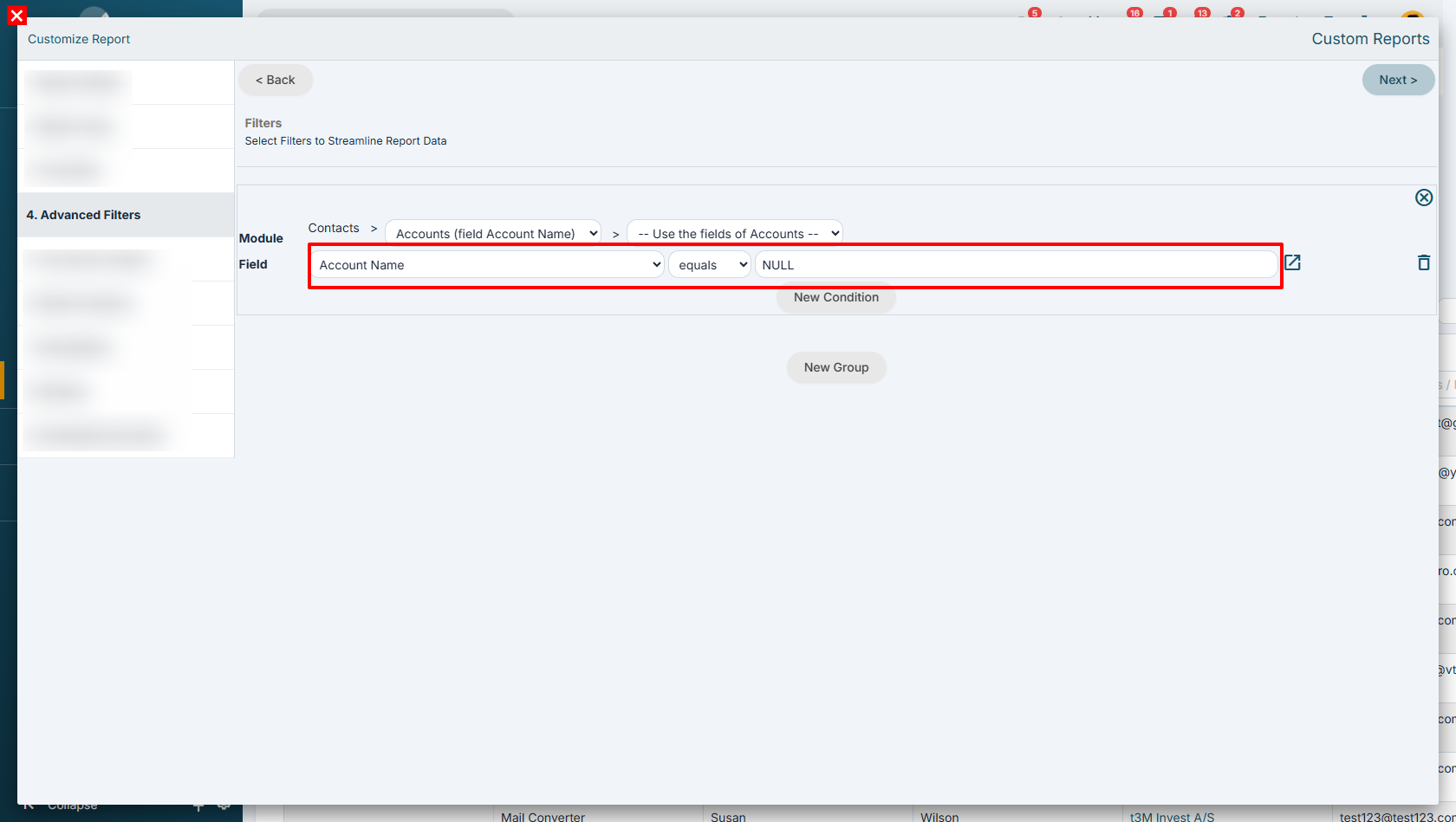
To achieve this result, simply select any field belonging to the related module and set the “NULL” operator in the last column of the condition.
This will ensure that the report retrieves all records from the main module that do not have any relationship with the selected module.
Below is an example of how to configure this condition.
Examples of Top-Down clusters Usage
Within this step, it is possible to create segments based on one or more conditions.
In this way, records retrieved by the report can be classified into different segments according to specific conditions defined by the user.
Segmentation therefore allows data to be grouped according to one or more custom criteria, making it easier to create charts and perform comparative analysis.
To add a new segment, simply click the “Add Segment” button.
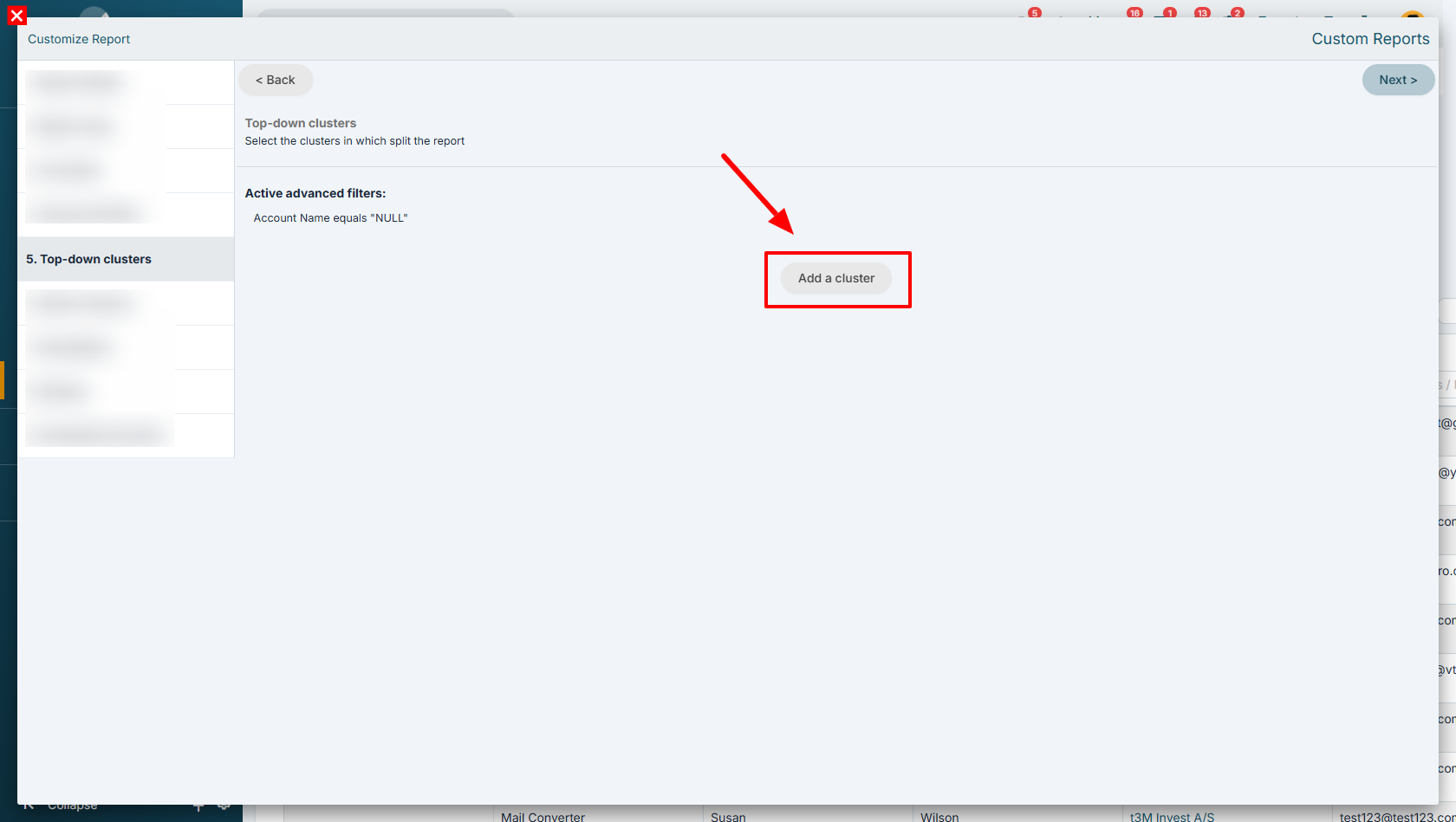
In this example, we are creating a segment that identifies all contacts belonging to companies in the Metalworking sector with a revenue greater than €500,000.
This allows these contacts to be grouped within the same segment and analyzed separately from the others included in the report.
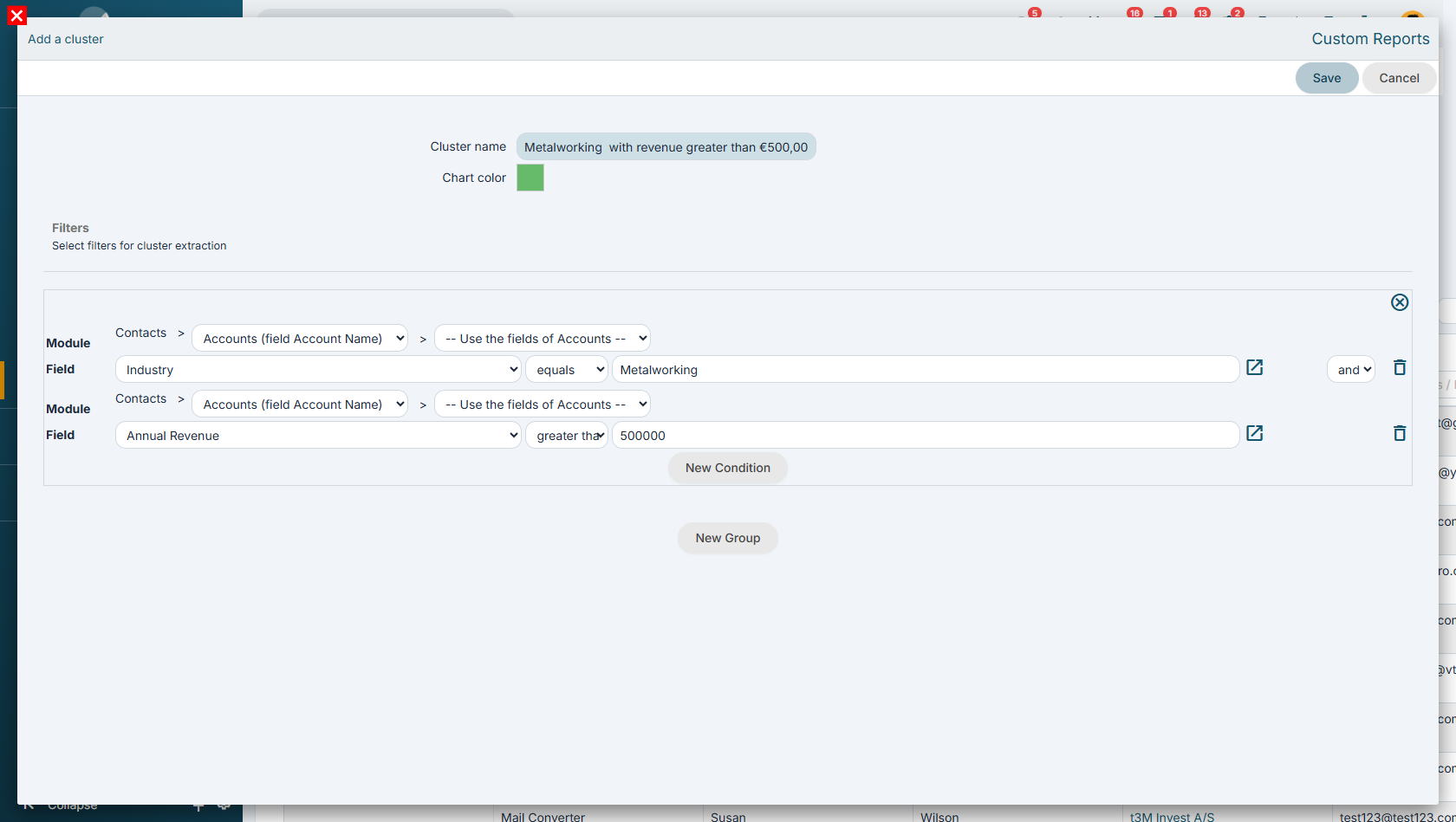
Once the segment configuration is completed, click the “Save” button to store it.
It is possible to create and add multiple segments within the same report, allowing data to be classified and compared according to different user-defined criteria.
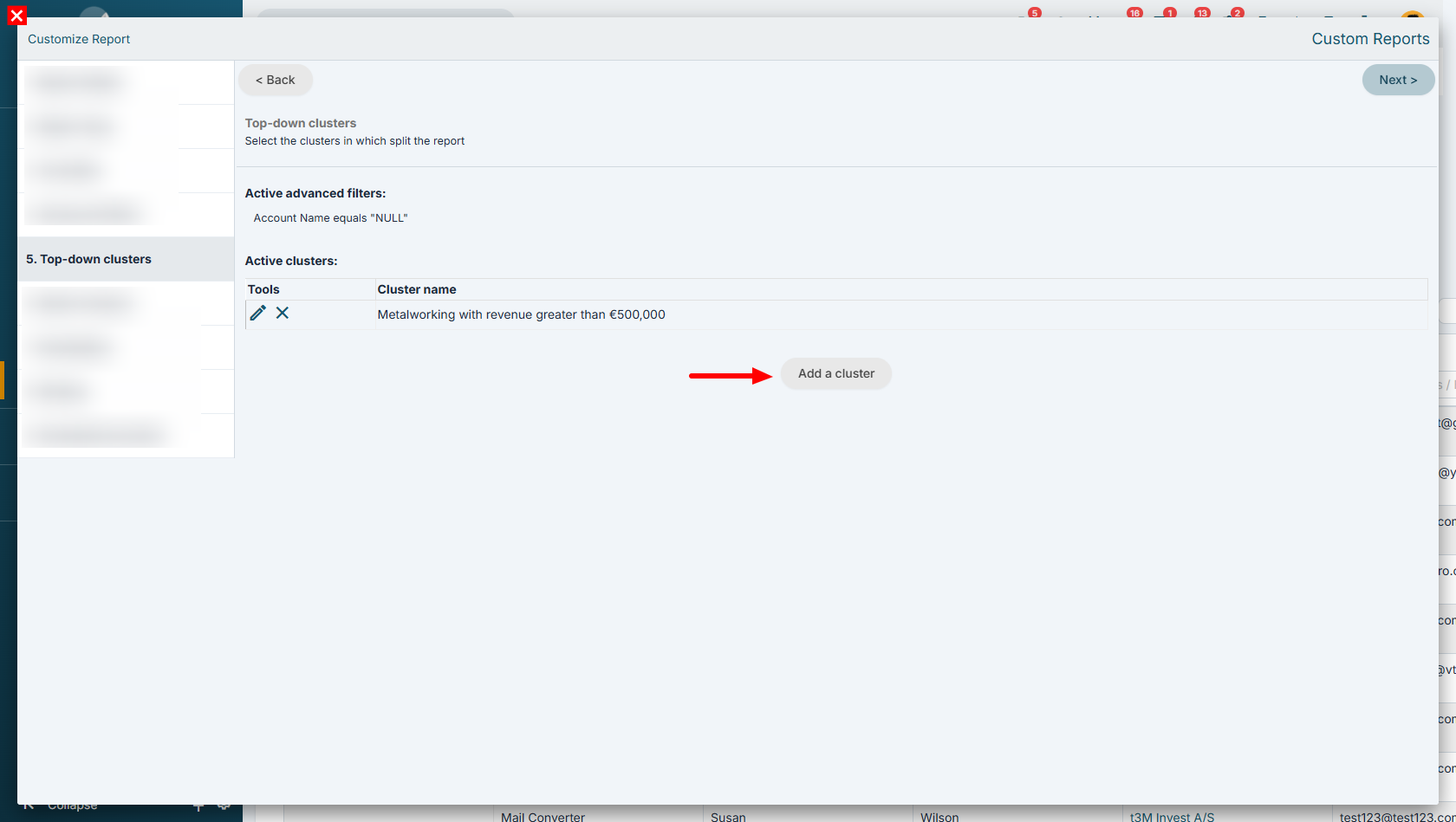
It is important to emphasize that segments do not act as filters, but rather as a way to classify the records returned by the report.
This means that while Advanced Filters and Time-Based Filters define the criteria used to limit the set of records included in the report, segments are used to further divide those records into groups based on specific conditions.
Records that do not meet the conditions of any segment are not excluded from the report. Instead, they are automatically assigned to a default “null” segment, identified by the “-” symbol.
In this way, the report always displays all retrieved records, distinguishing those that belong to defined segments from those that do not fall into any configured classification.
In particular, the Segment column is added as the first column in both the Report and Summary tabs, and it is also used as the primary grouping criterion for data aggregation.
Below are some practical examples of how the segmentation feature can be used.
Opportunity segmentation based on closing time
(using, for example, a “Closing Days” field)
-
1 to 30 days
-
31 to 50 days
-
51 to 100 days
-
over 100 days
Lead segmentation based on last contact date
(using, for example, a “Last Contact Date” field in the record)
This allows the creation of charts showing:
-
Leads not contacted for over 120 days
-
Leads not contacted for over 60 days
-
Leads not contacted for over 30 days
Customer classification based on revenue
-
up to €10,000
-
€10,001 to €50,000
-
over €50,000
Ticket segmentation based on resolution time
-
resolved within 24 hours
-
resolved between 1 and 3 days
-
resolved after more than 3 days
Creating groups based on multiple conditions
Segments can also be defined using multiple criteria simultaneously. For example:
-
customers with revenue over €100,000 and located in the Lazio region
-
customers with at least one open opportunity and no contacts in the last 90 days
-
companies belonging to a specific industry and with more than 50 employees
Comparing customer performance across different years
Segmentation can be used to compare, for example:
-
the same customer's revenue across two consecutive years
-
the number of open opportunities in different years
-
the evolution of sales over time
Comparing product sales performance
Segments can be created to compare:
-
sales of the same product across different years
-
quantities sold per year
13.2 Charts
Once you have created a report you can generate a chart from it using the Create Graph button.
![13.2 [1].png](https://usermanual.vtenext.com/uploads/images/gallery/2022-06/9E513-2-1.png)
![13.2 [2].png](https://usermanual.vtenext.com/uploads/images/gallery/2022-06/jNZ13-2-2.png)
|
Type |
Click on the type of chart you want: pie, histogram, bar … |
|
Chart Name |
Enter chart name |
|
Show Legend |
Activate to view the legend |
|
Show Labels |
Activate to display labels in the chart |
|
Show values |
Allows you to choose whether to display values (count) or percentages |
|
Folder Name |
The charts are organised in folders like documents |
|
Formula |
Allows you to choose whether to display the count, the sum, the average, the maximum or the minimum |
|
Palette |
Allows you to choose the colours of the chart, among predefined combinations |
|
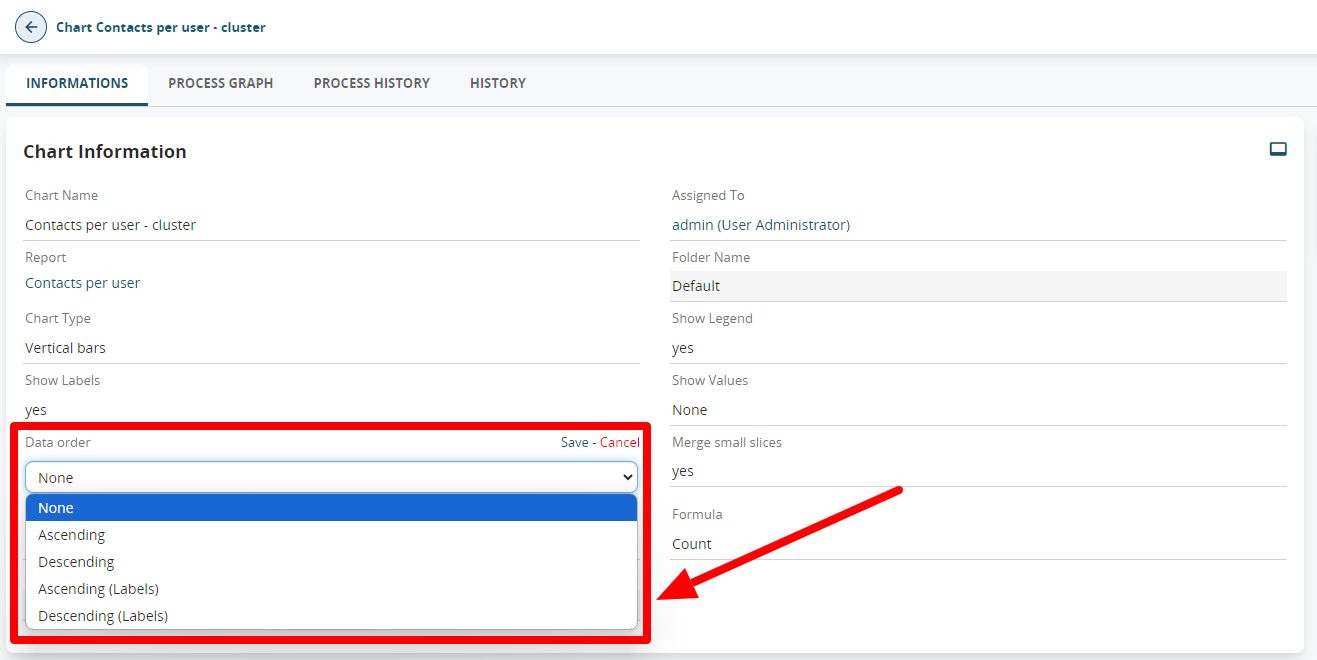
Data Order |
Allows you to define data sorting; if not set, it depends on the grouping criteria defined in the report |
Warning!
If the SHOW LABELS field is set to YES, the SHOW VALUES will not display any results.
If the SHOW LABELS field is set to NO instead, with the SHOW VALUES set to either VALUES or PERCENTAGES, it will show you the data on a single slice of the pie chart.
The graphs are available in the Charts module, organised into folders in the same way as with Reports.
The charts can also be added to the user’s Home Page through the button (see relevant chapter) or in the custom tabs of the modules.
Once the report is saved, it will be possible to edit the charts directly from the "Charts" module in vtenext. On this page, you can modify the parameters previously selected, and only here, you can determine the label sorting by using the "Data Order" option. This is particularly useful if you need to sort values alphabetically or arrange numbers in ascending/descending order.