# User Manual vtenext 26.04

# 1 Introduction

# Introduction

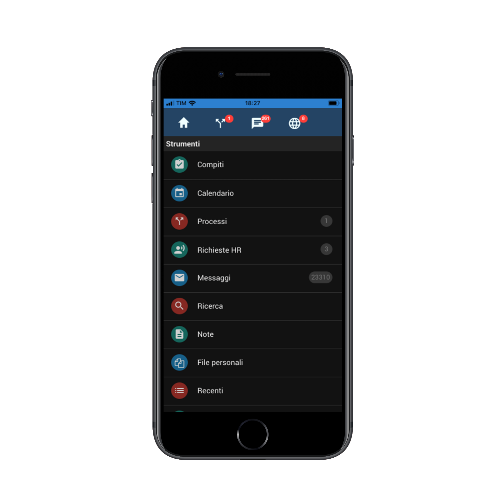
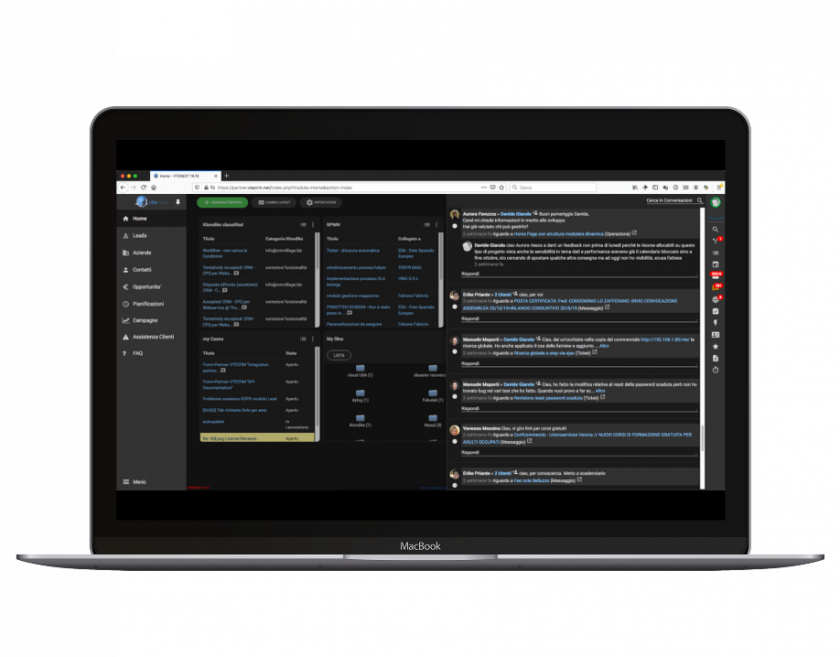
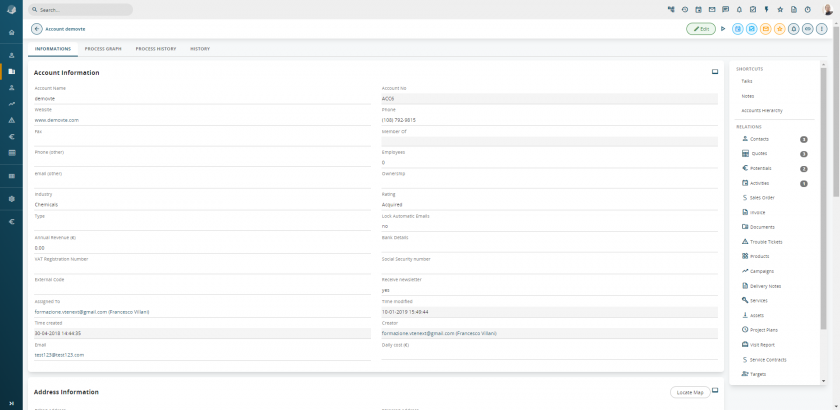
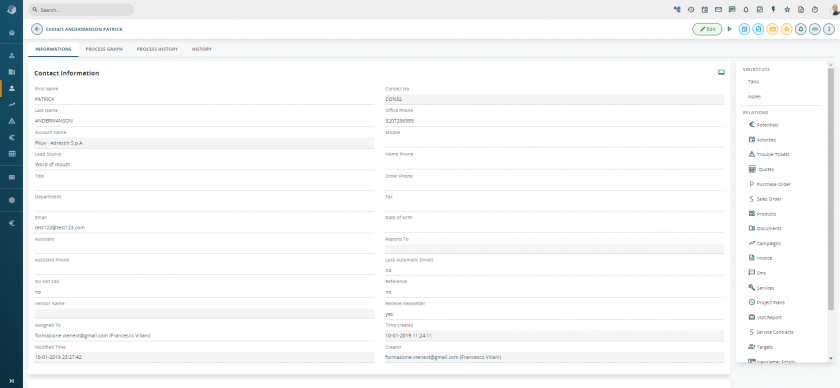
**vtenext** supports management of all customer-related flows, from acquisition to assistance, allowing also intelligent internal/external communication. Customer activities and communications are stored and available for consultation: vtenext centralises all information around the customer, in particular, information that is unstructured by nature (events, emails, documents, messages), thus increasing the value of the company's database. Furthermore, integration towards external systems (mobile, email server, ERP and e-commerce software and so forth) makes vtenext an ideal single working environment.

**vtenext is released in two versions:**

- **vtenext Business:** version with assistance fee guaranteeing constant support, updates and bug fixing;
- **vtenext Community:** free version, with limited functionalities and updates compared to the Business version.

vtenext is the leading open source CRM platform on the Italian market, with more than 19,000 registrations logged to date;

Issued with AGPL-3 license, which provides access to the unencrypted and editable code that can be released to the entire development community;

- Based on internal and community development activities;
- Supported by a certified network of more than eighty partners in Italy and Europe;
- Can operate with MySQL, Oracle and SQL Server and can be installed in Linux or Windows environments;

**Can be integrated with the main systems:**

- ERP platforms, namely Zucchetti, SAP, Teamsystem, Mago, Esa Software, As400;
- Email: GMail, Zimbra (server side) and Outlook, Thunderbird (client side);
- Documentary references (CMS) and company websites through the use of vtenext web services;
- Vtenext quality standards are based on unique development and design logic;
- Tested in extreme situations with millions of records and hundreds of users working simultaneously;
- Updated according to technological standards and to developments released by the open source community and by the top European software houses;
- Based on Enterprise logic;
- Multiplatform: Windows or Linux;
- Multi-database: Oracle, SQL Server, MySQL; Certified on Red hat;
- Verticalised for the main Manufacturing and Service sectors.

# 1.1 Examples of vtenext application areas

**Customer Acquisition &amp; Sales**

- Automated acquisition of potential accounts via contact webform; Lists allocation to sales personnel concerned;
- Management of corporate hierarchies, partners, etc.;
- Shared calendar to plan customer actions; Sales negotiations management with forecast reports;
- Sales and administration steps management: Quotes, Sales Orders, Invoices, Delivery Notes;
- Exportation to PDF of offers, invoices, etc. with customised forms.

**Communication &amp; Marketing**

- Management of multiple personal mailboxes;
- Mail and link conversion towards other CRM objects;
- Target management (segments) of customers database according to key-information;
- Transmission of newsletters and campaign statistics;
- Internal communications through Conversations linked to CRM entities. → Talks

**Customer Service &amp; Projects**

- Customer assets management: installed products and pending contracts;
- Collection of after-sales requests through different channels;
- Management of queued work processes and SLA times;
- Online customer portal for direct communications and documents sharing;
- Activities tracking and resources scheduling;
- Orders management through Projects, Operations, Deadlines and Gantt charts. → Project Tasks – Milestones

**Reports &amp; advanced tools**

- Reports and charts on all data in the CRM;
- Notification management system on both hierarchical and personal basis for users (Groups, Roles and Profiles);
- Privileges and security administration through advanced rules and exceptions; CRM layout customisation;
- Workﬂows (automations);
- Creation of interface side customised modules; Schedulable data importation from database;
- Report and supervision of user activities and accesses.

**BPMN and company processes mapping:**

- Improve company efficiency;
- Execution of company procedures in standard and unequivocal manner;
- Reduction of human error;
- Reduction of execution times;
- Checking of bottlenecks in the organisation;
- Reduction of procedure learning times;

# 1.2 Flows managed by vtenext

**Customer acquisition cycle**

![](https://usermanual.vtenext.com/uploads/images/gallery/2019-07-Jul/scaled-840-0/image-1564495626340.png)

**Acquired customer cycle**

![](https://usermanual.vtenext.com/uploads/images/gallery/2019-07-Jul/scaled-840-0/image-1564495669370.png)

**Assistance cycle**

![](https://usermanual.vtenext.com/uploads/images/gallery/2019-07-Jul/scaled-840-0/image-1564495705192.png)

**Purchasing cycle (vendors)**

![](https://usermanual.vtenext.com/uploads/images/gallery/2019-07-Jul/scaled-840-0/image-1564495732829.png)

# 1.3 Notes on the manual (Disclaimer)

The images and functions of vtenext shown in this manual may be subject to minor changes with the release of updates and described according to the version and the current graphic theme.

Screenshots may vary (colours, icons) depending on the configuration.

# vtenext Business 18.02 Release Note

**USER PREFERENCES**

**New Language Packs**  
Four new language packs have been added to the user preferences: French, Russian, Polish, and Spanish.

**New NEXT Design Selectable Among Themes**  
The NEXT theme has been added alongside SOFTED in user preferences. This theme introduces a completely modernized design, aligned with current trends:

- The module bar is now positioned on the left and can be minimized to icons. The last icon at the bottom combines all modules and areas.
- The function bar (conversations, notifications, quick creation, etc.), positioned on the right, now includes links to the Process module and search management.

**Process Module**  
This provides a list view of all processes in Vtenext.

**Search**  
The global search and module-specific search are unified under one button. The module-specific search adapts based on the module being used.  
Example: While in Customer Support, you can search globally across the CRM or only among available tickets.

---

**BPMN**

**Advanced Functions for BPMN Process Design/Scheduling Campaigns via BPMN**  
Creating BPMN processes in Vtenext allows for greater interaction between modules with N-to-N relationships (unlike the previous 1-to-N limitation) and eliminates the need for an initial condition (refer to the BPMN Manual for details).

- Conditional fields can be used in process tasks.
- The Newsletter module can be integrated for automated marketing campaigns, allowing mailings to be sent based on user-defined criteria.
- Process layouts now include color coding depending on the selected task type (note: colors are automatically assigned by the system).

**Rewind Processes and Replay Execution**  
Within the entity affected by an active process, users can return to a previous step by selecting from available options (for more details, refer to the BPMN Manual).

---

**REPORTS**

**New Reporting Options (Newsletter and Clusters)**  
The Reports module has been updated with the following features:

- Integration with the Newsletter module for report generation, including standard and advanced filters. Users can select statistics and clicked links as report columns.
- Cluster creation for further segmentation of results in the summary tab and charts, with color definitions. Charts will also display a gray bar grouping remaining results.
- Administrators can schedule automated email delivery of report results in PDF or Excel format, with recipients chosen from the user list.

---

**CONFIGURATION**

**Configurable REST Client Webservice**  
REST webservices enable integration between Vtenext and external platforms that support this protocol. Configurations can be done without requiring SDKs for external database updates. URLs can also be called with parameter passing.

**Version Control and Import/Export Functions for Modules, Processes, Roles, and Profiles**  
Configurations for modules, processes, roles, and profiles can be saved as versions (e.g., v1.0). Versions can be exported or imported for added security during setup.

**PHP 7 Support**  
Vtenext is now compatible with PHP 7.

**Table Fields**  
In the Module Manager &gt; Layout Editor, a new **Table** field type can be added. This field consists of grouped fields displayed on a single row for optimal data viewing. By default, it appears with one row and headers. Users can add rows by clicking **Add Row**, and rows can be duplicated or deleted.

---

**TARGETS**

**Automatic Target Synchronization**  
Targets now update automatically, eliminating the need for manual refreshes for newsletter management. Two modes are available:

1. **Incremental**: Adds names to the target based on the original filter, ignoring exclusions from filter changes.
2. **Complete**: Adds or removes names based on the filter.

---

**MESSAGES**

**Multiple SMTPs Linked to a Single Email Account**  
SMTP settings for outgoing emails can now vary for each account within the Messages module.

---

**MOBILE APP**

**Activity Tracking from the Mobile App**  
The mobile app now includes activity tracking to create calendar events or tickets automatically.

- The **START** function is accessible via the three-dot menu.
- Users can click **PAUSE** or **END** in the same menu.

---

**OUTLOOK ADD-ON PLUGIN**

**Create and Link New Entities from Outlook Plugin**  
The updated Outlook plugin offers the following features:

- Bidirectional synchronization of Contacts, Events, and Tasks with Vtenext.
- Linking emails to CRM entities.
- Creating new entities and linking emails directly to the new entities (e.g., creating leads/tickets and associating the email with them).

# vtenext Business 18.05 Release Note

The update to version 18.05 includes the addition of a section dedicated to functionalities for proper management of the GDPR directive.

All features and new additions are detailed in chapters 7 and 18.3.3 of this manual.

![](https://usermanual.vtenext.com/uploads/images/gallery/2019-04-Apr/scaled-840-0/image-1555342456395.png)

# vtenext Business 19.10 Release Note

**Automatic Updates via Interface**  
This feature simplifies keeping the system up-to-date, ensuring that new functionalities are released more frequently, with milestones for technical constraints (e.g., PHP version requirements).

---

**BPMN Engine Enhancements**

1. **Deadline Management**: Dynamic time periods can be set for timers, e.g., 3 months before a contract expiration date.
2. **Notification Sending**: The centralized notification system can be triggered by processes, for single notifications or looping over a table field.
3. **Transfer Relations**: Allows transferring (1:N) or copying (N:N) related entities from one record to another.
4. **Loop Through Related Entity Tables**: Enables looping through a table field in a record related to the current process record.
5. **Date Functions**: 
    - International date formatting
    - Current date (formatted)
    - Date difference calculations
6. **PDFMaker**: Enables selecting entities and records for PDF generation and supports multilingual templates within processes.
7. **Attachments via Dynamic Forms**: Upload files directly from dynamic forms/popups and link them to the parent record of the process.
8. **Extended Attribute Reading for Web Service Client**: Handles multiple JSON results from web service calls and accesses all first-level attributes of the returned object.
9. **Improved Process GUI Editor**: Enhancements for usability and compatibility.
10. **Filterable and Sortable Process List**: Easier navigation through process listings.
11. **Interactive Right-Side Indicator**: Displays pending user tasks (web/mobile). Clicking the icon opens a complete list of pending processes.

![Figura 1](https://usermanual.vtenext.com/uploads/images/gallery/2019-10-Oct/scaled-840-0/image-1572426335893.png)

**Human-Readable Process Activity History**  
Provides a narrative list of process execution steps, as an alternative to the classic BPMN view.

![](https://usermanual.vtenext.com/uploads/images/gallery/2019-10-Oct/scaled-840-0/image-1572426397024.png)

---

**Customer Portal SDK Extensions**

1. **Wizard for EditView Creation**
2. **Support for Custom Modules**
3. **Automated Calendar Slot Booking**

---

**Desktop Notifications**

When new messages or conversations arrive, a system notification appears. Clicking it opens a detail tab for quick viewing.

<table border="0" class="align-center" id="bkmrk--7" style="width: 100%; border-collapse: collapse;"><tbody><tr><td style="width: 50%;">[![notifica_messaggio_vtenext.png](https://usermanual.vtenext.com/uploads/images/gallery/2019-10-Oct/scaled-840-0/notifica_messaggio_vtenext.png)](https://usermanual.vtenext.com/uploads/images/gallery/2019-10-Oct/notifica_messaggio_vtenext.png)</td><td style="width: 50%;">[![notifica_conversazione_vtenext.png](https://usermanual.vtenext.com/uploads/images/gallery/2019-10-Oct/scaled-840-0/notifica_conversazione_vtenext.png)](https://usermanual.vtenext.com/uploads/images/gallery/2019-10-Oct/notifica_conversazione_vtenext.png)</td></tr></tbody></table>

---

**Dark Mode**

<table border="0" class="align-center" id="bkmrk--0" style="width: 100%; border-collapse: collapse;"><tbody><tr style="height: 31px;"><td style="width: 50.0618%; height: 31px;">![](https://usermanual.vtenext.com/uploads/images/gallery/2019-10-Oct/scaled-840-0/image-1572426794403.png)</td><td style="width: 50.0618%; height: 31px;">![](https://usermanual.vtenext.com/uploads/images/gallery/2019-10-Oct/scaled-840-0/image-1572426805595.png)</td></tr></tbody></table>

Introduces dark mode for both web and mobile versions, aligning with modern OS aesthetics while removing legacy and unoptimized code.

---

**Mobile App Updates**

1. **Dark Mode Support**
2. Highlight pending processes in the top menu.
3. Zoom functionality for messages ("a-A") and improved accessibility view.
4. Minor improvements and bug fixes.

---

**VTEsync for Information Platform**

Native synchronization with Salesforce® via OAuth2, supporting bidirectional communication for:

- Companies
- Installations
- Campaigns
- Leads
- Opportunities
- Products
- Trouble Tickets

---

**Performance Optimizations**

1. Native support for MySQL master-slave architecture for reports, list counts, global searches, relationship counts, and data exports.
2. Reduced cache footprint from single to global APC/memcache.

---

**System Requirements**

1. HTTP2 support.
2. PHP FastCGI support.
3. Minimum PHP version: 7.0.

---

**Artificial Intelligence (AI)**

Native integration with Klondike:

- Cloud as a Service with pre-trained models.
- On-Premise for specific contractual/project needs.

---

**Miscellaneous**

Over 100 new features and improvements were implemented as part of 10 months of continuous bug fixing. The detailed changelog is available for review.

# vtenext 20.04 release notes

**BPMN engine improvements**

**1.** Process History in detailview. In addition to the tab “Process graph” the user can find the additional tab “Process History” were can read in detail the execution of the process and it is possible to view which user performed a certain action and when.

**2.** Function relate email in ProcessMaker. It is possible to decide the entity to which relate the email sent by the process in more ways:  
• Default -&gt; The email will be related to the main entity of the process  
• Other -&gt; The user choses the entity

  
**3.** Added related fields in dynamic forms (uitype10). It is now possible to use all the data of the fields related in dynamic form. Therefore, if we add a related field in a dynamic form it is now possible to go back to all the information related to that specific entity, delating all the escalation limitation at N levels.

**4.** Log debug conditions. We added the possibility to activate the log debug with the aim to facilitate the dubug of eventual issues noticed when running the process.

**5.** Email send (Notifications, Processes, Email from Tickets) via new tail. The Email sending process follows now the standard procedure by following the sending tail. By doing so the execution time of the process is reduced because it doesn’t have to wait the sending.

**<span style="font-family: -apple-system, BlinkMacSystemFont, 'Segoe UI', Oxygen, Ubuntu, Roboto, Cantarell, 'Fira Sans', 'Droid Sans', 'Helvetica Neue', sans-serif; font-size: 15px; font-style: normal; font-variant-ligatures: normal; font-variant-caps: normal;">6</span>.** ProcessMaker: added related entities in actions Delete, Relate, RelateStatic.

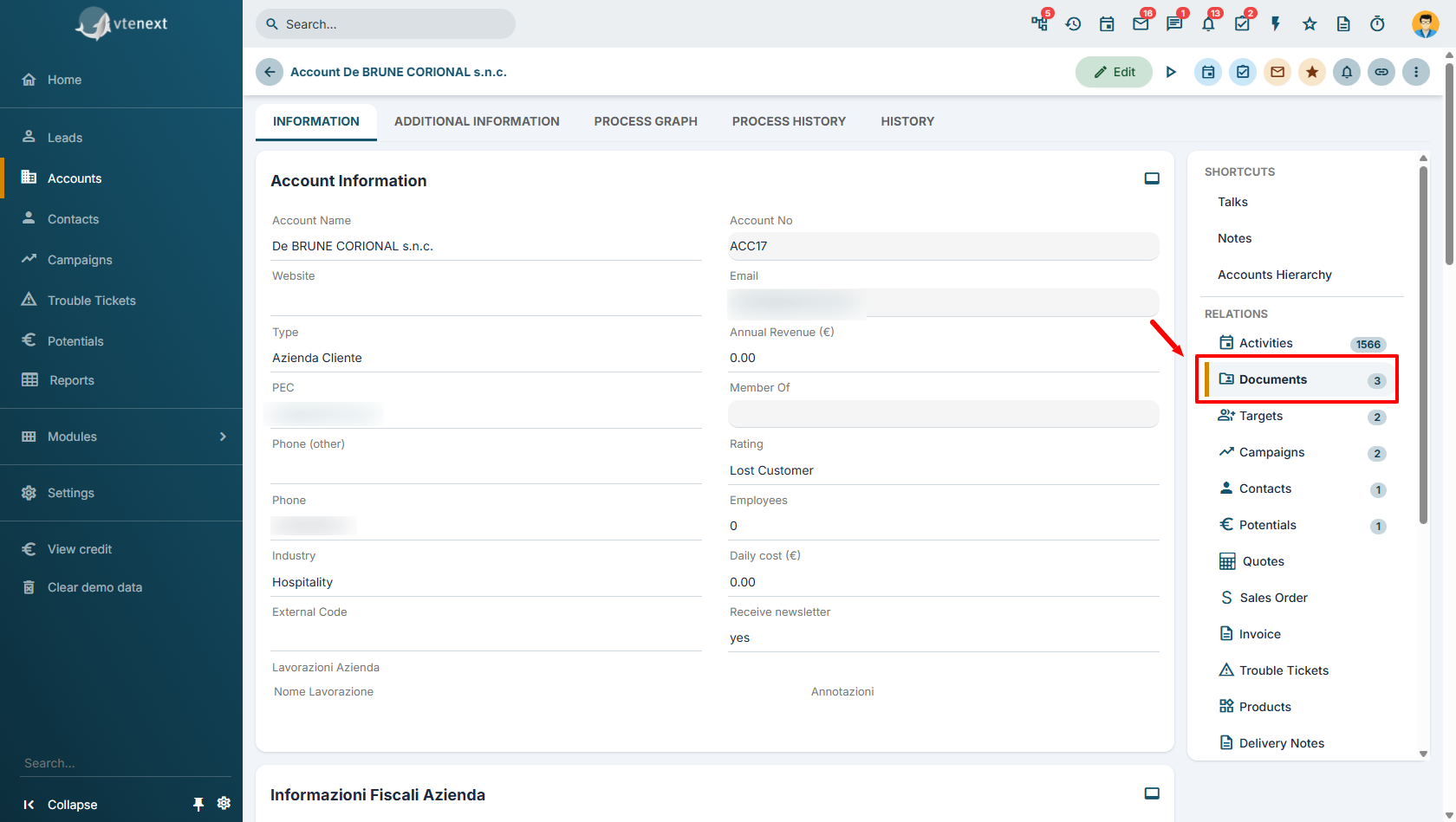
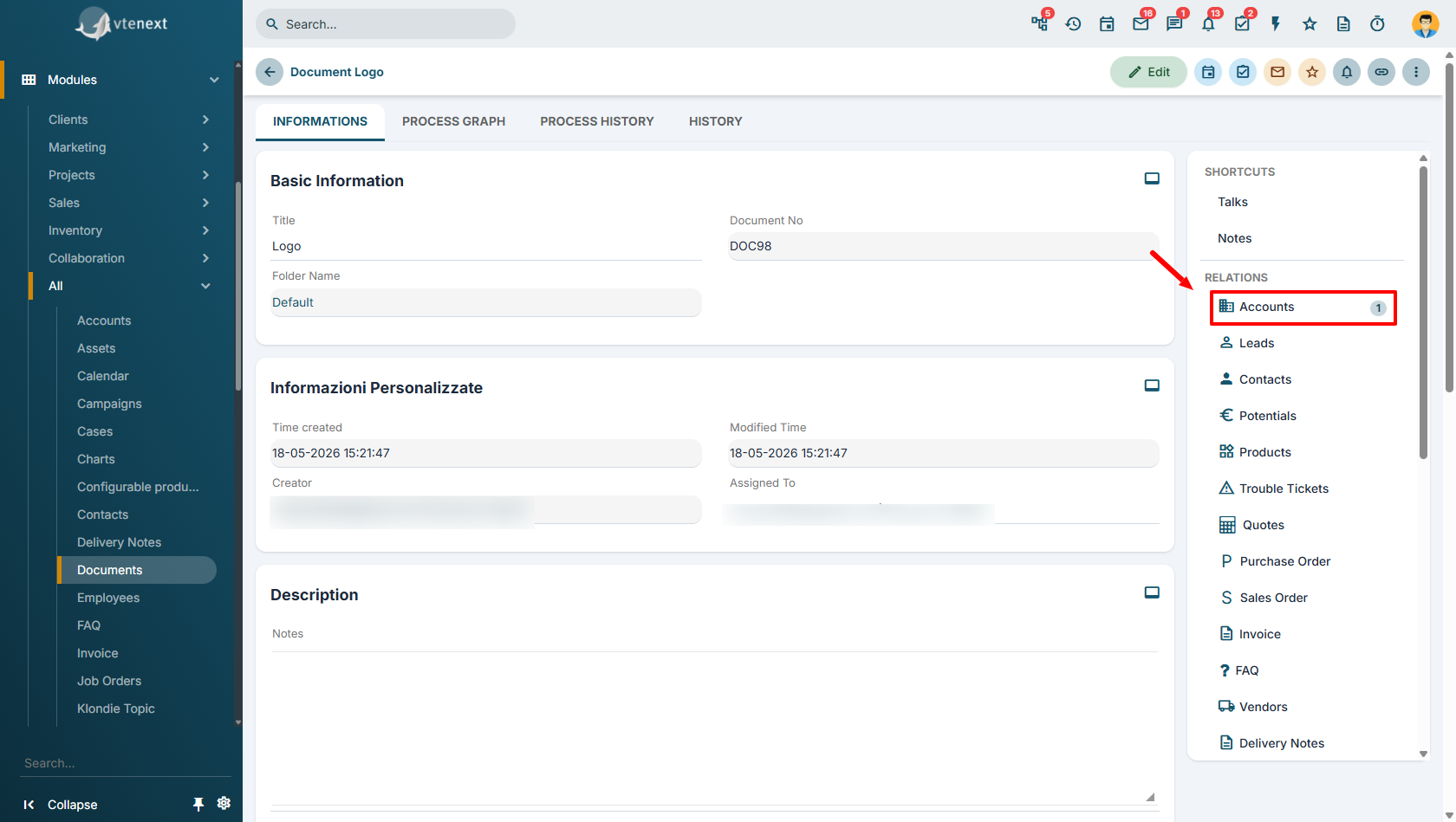
**7.** Added relations in the Document module

---

**Process’ Product block actions**

**1.** Copy line: it is possible to copy the product block from an inventory module to another, avoiding to use the SDK to report the product block from one entity to another.

**2.** Cycle product block rows and for each one row: create entities/enter rows/delate rows/send emails/sending notifications. It is furthermore possible to cycle the information of a product block in a table field and vice versa.

**3.** Add line from static/dynamic data directly in the products block. The function is similar to the one performed in a table field.

**Message module**

**1.** Scheduled email sending: it is possible to postpone the sending of an email deciding the new time and date.

![ehHCompose.png](https://usermanual.vtenext.com/uploads/images/gallery/2020-05-May/scaled-840-0/ehHCompose.png)

 **2.** Creation of contacts in the CRM for unknown email addresses: when responding to an email that contains an unknown address vtenext automatically creates a new contact

**3.** Messages Out of office reply

**4.** imap parameters and PEC option in mail converter: from mail converter it is possible to define a PEC email address and in the way the ticket will be created with the original mail, that is to say the one contained in the .eml attached file

**5.** Unified folds for different email addresses

![Folders_Messages_VTENEXT_20_04.png](https://usermanual.vtenext.com/uploads/images/gallery/2020-05-May/scaled-840-0/Folders_Messages_VTENEXT_20_04.png)

---

**General / CORE / Performance**

**1.** RabbitMQ support. To manage tails and obtaining immediate response when saving the record

**2.** Global cache for vte\_field and workflow. We added caches for some frequently used tables like vte\_field and the workflows on, to avoid repeated readings of the same data

**3.** OWASP top 10 compliant. We added the anti-CSRF according to the OWASP standard

**4.** Variants of SKU products. Using the new module configurable Products it is possible to define a new generic product with variables attributes   
es. T-shirt with Size attribute (XS/S/M/L/XL) or Colour (Red, Green, Yellow)  
Every variant of the product is univocally defined by a SKU code (stock keeping unit)

**5.** Next theme softening

![](https://usermanual.vtenext.com/uploads/images/gallery/2020-05-May/scaled-840-0/image-1589461155771.png)

![](https://usermanual.vtenext.com/uploads/images/gallery/2020-05-May/scaled-840-0/image-1589461172514.png)

![](https://usermanual.vtenext.com/uploads/images/gallery/2020-05-May/scaled-840-0/image-1589461179570.png)

**6.** Editor drag and drop newletter/email templates

![](https://usermanual.vtenext.com/uploads/images/gallery/2020-05-May/scaled-840-0/image-1589461225019.png)

![](https://usermanual.vtenext.com/uploads/images/gallery/2020-05-May/scaled-840-0/image-1589461235014.png)

 **7.** Activation of non-contextual licenses

**8.** Ubuntu 20.04 LTS support (php 7.4/mysql8)

---

**Sync connector**

Standard connectors available for the following systems:

- Hubspot®:  
    Modules: 'Users', 'Accounts', 'Contacts', 'Potentials','HelpDesk', 'Targets','Targets\_Contacts' (to have contacts related to the target).  
    Direction: all bidirectional, except for her users that is monodirectional from hubspot to vtenext
- Jira®:  
    Modules: 'Users', 'ProjectPlan', 'ProjectTask', 'HelpDesk', 'TicketComments'  
    Direction: all bidirectional, except for her users that is monodirectional from Jira to vtenext
- SuiteCRM®:  
    Modules: 'Users', 'Leads', 'Accounts', 'Contacts', 'Potentials', 'Campaigns', 'HelpDesk', 'Products'  
    Direction: all bidirectional, except for her users that is monodirectional from SuiteCRM to vtenext

All synchronization are in Beta version, therefore some fields and values may not be supported.

---

**Klondike connector**

Plugin available in settings to connect vtenext with the Machine Learning engine Klondike:

• Process discovery agents: analyses and identifies which are the commonly used processes in vtenext. Once discovered can be imported in the Process Manager to be further developed  
• Classification manager: uses AI to guess the value of a field. Example: when creating a ticket the Category is guesses by analysing title and description.

[![TeAKlondike_VTENEXT_20_04.png](https://usermanual.vtenext.com/uploads/images/gallery/2020-06-Jun/scaled-840-0/TeAKlondike_VTENEXT_20_04.png)](https://usermanual.vtenext.com/uploads/images/gallery/2020-06-Jun/TeAKlondike_VTENEXT_20_04.png)  
*Klondike from Settings*

*[![Klondike---Settings.png](https://usermanual.vtenext.com/uploads/images/gallery/2020-06-Jun/scaled-840-0/Klondike---Settings.png)](https://usermanual.vtenext.com/uploads/images/gallery/2020-06-Jun/Klondike---Settings.png)  
Classifier*

[![Klondike---Settings-2.png](https://usermanual.vtenext.com/uploads/images/gallery/2020-06-Jun/scaled-840-0/Klondike---Settings-2.png)](https://usermanual.vtenext.com/uploads/images/gallery/2020-06-Jun/Klondike---Settings-2.png)  
*Process discovery Agent*

[![Klondike---Settings-3.png](https://usermanual.vtenext.com/uploads/images/gallery/2020-06-Jun/scaled-840-0/Klondike---Settings-3.png)](https://usermanual.vtenext.com/uploads/images/gallery/2020-06-Jun/Klondike---Settings-3.png)  
*Process discovery*

[![](https://usermanual.vtenext.com/uploads/images/gallery/2020-05-May/scaled-840-0/image-1589461614949.png)](https://usermanual.vtenext.com/uploads/images/gallery/2020-05-May/scaled-840-0/image-1589461614949.png)  
*Process list*

---

**Projects Module**

A new module, Job Orders, has been created to contain all Project Tasks.

![Project_20_04.png](https://usermanual.vtenext.com/uploads/images/gallery/2020-05-May/scaled-840-0/Project_20_04.png)

**Job Orders mask**

![](https://usermanual.vtenext.com/uploads/images/gallery/2020-05-May/scaled-840-0/image-1589461744137.png)

**Project mask**

![](https://usermanual.vtenext.com/uploads/images/gallery/2020-05-May/scaled-840-0/image-1589461807954.png)

**Project Gantt**

![](https://usermanual.vtenext.com/uploads/images/gallery/2020-05-May/scaled-840-0/image-1589461835358.png)

**Operations in detail**

![](https://usermanual.vtenext.com/uploads/images/gallery/2020-05-May/scaled-840-0/image-1589461860536.png)

**Calendar for the resources involved**

A resource view has been added to the calendar to help manage the team's weekly activities

[![Z3Ycalendario_risorse.jpg](https://usermanual.vtenext.com/uploads/images/gallery/2020-05-May/scaled-840-0/Z3Ycalendario_risorse.jpg)](https://usermanual.vtenext.com/uploads/images/gallery/2020-05-May/Z3Ycalendario_risorse.jpg)

**Final events tracking**

![](https://usermanual.vtenext.com/uploads/images/gallery/2020-05-May/scaled-840-0/image-1589462177855.png)

In project task is now available the new fields block “Budget Information” to deliver Project, Pack or Consumptive services, the worked hours will be scaled using the activity tracking system.

**Order report example**

![](https://usermanual.vtenext.com/uploads/images/gallery/2020-05-May/scaled-840-0/image-1589462217759.png)

**Example of project execution process**

![](https://usermanual.vtenext.com/uploads/images/gallery/2020-05-May/scaled-840-0/image-1589462246336.png)

# vtenext 21.01 release notes

**General improvements**

<span lang="en-GB">**1.** European national holidays support on Calendars.</span>

<span lang="en-GB">[![User-calendar-VTENEXT-21-01.png](https://usermanual.vtenext.com/uploads/images/gallery/2021-01-Jan/scaled-840-0/User-calendar-VTENEXT-21-01.png)](https://usermanual.vtenext.com/uploads/images/gallery/2021-01-Jan/User-calendar-VTENEXT-21-01.png)</span>

<span lang="en-GB">**2.** Improved centralized audit trial and activities export.</span>

<span lang="en-GB">[![Settings-VTENEXT-21-01.png](https://usermanual.vtenext.com/uploads/images/gallery/2021-01-Jan/scaled-840-0/Settings-VTENEXT-21-01.png)](https://usermanual.vtenext.com/uploads/images/gallery/2021-01-Jan/Settings-VTENEXT-21-01.png)  
*Audit Trails view, located in settings*</span>

<span lang="en-GB">**3.** Centralized email Signature with possibility to differentiate it according to the Business Unit.</span>

<span lang="en-GB">[![usersignmail.jpg](https://usermanual.vtenext.com/uploads/images/gallery/2021-01-Jan/scaled-840-0/usersignmail.jpg)](https://usermanual.vtenext.com/uploads/images/gallery/2021-01-Jan/usersignmail.jpg)</span>

<span lang="en-GB">**4.** New “Bookme” feature in email signature. The user can define the available time slots in its calendar, adding a book me event type, the external users will so be able to book an appointment. The Book me box in the email module allows the user to enable/disable the feature.</span>

*<span lang="en-GB">[![booke_user.png](https://usermanual.vtenext.com/uploads/images/gallery/2021-01-Jan/scaled-840-0/booke_user.png)](https://usermanual.vtenext.com/uploads/images/gallery/2021-01-Jan/booke_user.png)  
</span>*

*<span lang="en-GB">User settings view</span>*

*<span lang="en-GB">[![book_email.png](https://usermanual.vtenext.com/uploads/images/gallery/2021-01-Jan/scaled-840-0/book_email.png)](https://usermanual.vtenext.com/uploads/images/gallery/2021-01-Jan/book_email.png)  
</span>*

*<span lang="en-GB">Email composer view</span>*

<span lang="en-GB">**5.** Temporary document saving uploaded on the database if the filesystem is not available or in read only mode (good for NAS/web storage style)</span>

<span lang="en-GB">**6.** Office365 OAuth2 for Imap mail</span>

<span lang="en-GB">**7.** AutoDetect of external HTML links for calendar events: largely used by online meeting platform invitations (eg. Zoom, GoToMeeting, etc.). This new feature allows the possibility to report the meeting link directly in the calendar event </span>

<span lang="en-GB">**8.** Activities ran in background: activities that used to take a lot of time, like the telemarketing records’ creation, are now ran in background in order to avoid the time out</span>

<span lang="en-GB">**9.** The data import now supports the product variants, introduced in vtenext previous release. In this way the product import, from ERPs or other platforms, is facilitated.</span>

<span lang="en-GB">**10.** Bug fixing.</span>

---

**<span lang="en-GB">Processes</span>**

<span lang="en-GB">**1.** The product variants are now available in the Process Maker</span>

<span lang="en-GB">**2.** It is possible to cycle the records related to another record like as if it was a table field</span>

<span lang="en-GB">**3.** It is possible to start a process when a record, N a N related to another record, is related (e.g. a process can start when a Contact is related to an Account)</span>

<span lang="en-GB">**4.** The Emails sent from the process are now automatically related to the record </span>

<span lang="en-GB">**5.** All the documents linked to a record can be sent via Email automatically by the Process</span>

<span lang="en-GB">**6.** Emails are transferred from a record to another, via process, in a simplified manner</span>

<span lang="en-GB">**7.** The Process Helper allows the display of documents linked to the parent record</span>

<span lang="en-GB">**8.** From this release on it is not possible to create Workflows. The module will still be available in read only mode.</span>

---

**<span lang="en-GB">Synchronization</span>**

<span lang="en-GB">**1.** In the new release are now available new types of integrations with external platforms.  
</span><span lang="en-GB">Already existing integrations: </span>

- - <span lang="en-GB">Hubspot</span>
    - <span lang="en-GB">Salesforce</span>
    - <span lang="en-GB">SuiteCRM</span>
    - <span lang="en-GB">Jira</span>
    - <span lang="en-GB">vtiger</span>

<span lang="en-GB">**2.** Additional integrated modules: </span>

- - <span lang="en-GB">Accounts</span>
    - <span lang="en-GB">Products</span>
    - <span lang="en-GB">Currency</span>
    - <span lang="en-GB">Sales orders</span>
    - <span lang="en-GB">Taxation</span>

<span lang="en-GB">**3.** The synchronization also involves the following new ecommerce: </span>

- - <span lang="en-GB">Magento</span>
    - <span lang="en-GB">PrestaShop</span>
    - <span lang="en-GB">Shopify</span>
    - <span lang="en-GB">WooCommerce</span>

---

<span lang="en-GB">**Elastic Search**  
  
With the 21.01 release the new feature Elastic Search is introduced to all vtenext modules. It allows to display the search results in a faster manner. </span>

# vtenext 21.10.1 Release Note

NEW add Mexico timezones  
NEW add support to check european tax numbers  
NEW solar/working days in processes date operation  
NEW added support for PDFMaker custom functions to email template fields  
NEW possibility to upload images for uitype 209  
NEW button to sort picklist values  
NEW attach the file when sending email from documents  
NEW infrastructure to support fast csv report export  
NEW vteprop flag to disable all outbound communications  
NEW script to quickly change color of vte  
NEW clickable location in calendar

# vtenext 22.05 Release Note

Here are the news of the new release:

- Support for the new app Wilson for vtenext
- vte prop for default tax type in inventory modules
- Global support for oauth2 clients
- OAuth2 IMAP support for Office365 in all subsystems
- Alerts about Google OAuth2
- timezone support for bookme
- new logic for the "Automatic" selection of bookme events
- connector for ZenDesk
- modlights (table fields) enabled in reports

# vtenext 23.08 Release Note

- **New Customer Portal**
    
    It's possible to configure the customer portal with customized profiles for each client, creating personalized homepages with buttons and functions tailored to each portal user. Additionally, you can publish any module present in vtenext, including custom ones. The new Customer Portal is responsive.

[![image-1692884836469.png](https://usermanual.vtenext.com/uploads/images/gallery/2023-08/scaled-1680-/image-1692884836469.png)](https://usermanual.vtenext.com/uploads/images/gallery/2023-08/image-1692884836469.png)

*User Portal Profile Details*

[![Settings - VTENEXT 23.08 (1).png](https://usermanual.vtenext.com/uploads/images/gallery/2023-09/scaled-1680-/settings-vtenext-23-08-1.png)](https://usermanual.vtenext.com/uploads/images/gallery/2023-09/settings-vtenext-23-08-1.png)

*Button configuration details for portal homepage*

[![Home - Customer Portal (1).png](https://usermanual.vtenext.com/uploads/images/gallery/2023-09/scaled-1680-/home-customer-portal-1.png)](https://usermanual.vtenext.com/uploads/images/gallery/2023-09/home-customer-portal-1.png)

[![Ticket details - Customer Portal.png](https://usermanual.vtenext.com/uploads/images/gallery/2023-09/scaled-1680-/ticket-details-customer-portal.png)](https://usermanual.vtenext.com/uploads/images/gallery/2023-09/ticket-details-customer-portal.png)

*Interface details for new customer portal*

- **Two-Factor Authentication for Users**:   
    From user preferences, it is possible to decide how to access vtenext by enabling two-factor authentication either through the Wilson app or via email.

[![Screenshot 2023-08-24 125005.png](https://usermanual.vtenext.com/uploads/images/gallery/2023-08/scaled-1680-/screenshot-2023-08-24-125005.png)](https://usermanual.vtenext.com/uploads/images/gallery/2023-08/screenshot-2023-08-24-125005.png)

*User Preferences for Two-Factor Authentication Activation*

[![User - Administrator [1] - VTENEXT 23.08 (1).png](https://usermanual.vtenext.com/uploads/images/gallery/2023-08/scaled-1680-/3dFuser-administrator-1-vtenext-23-08-1.png)](https://usermanual.vtenext.com/uploads/images/gallery/2023-08/3dFuser-administrator-1-vtenext-23-08-1.png)

*Details for Two-Factor Authentication PIN Entry*

- **Integration with Zapier**:   
    From the vtenext settings, it is possible to add a synchronization with Zapier to the Synchronizations section. All the configuration will be done on Zapier first, and then transition to vtenext to create a process that allows Zapier to interact with the CRM.

[![image-1692352130455.png](https://usermanual.vtenext.com/uploads/images/gallery/2023-08/scaled-1680-/image-1692352130455.png)](https://usermanual.vtenext.com/uploads/images/gallery/2023-08/image-1692352130455.png)

*Configuration Screen Details for Zapier*

- **New Lead Conversion**:   
    An updated and more functional version of lead conversion has been introduced. Now, everything is based on an editable process, and it will be possible to independently manage the fields to be completed during the conversion.

[![Lead - Davis Jennifer [LEA6] - VTENEXT 23.08.png](https://usermanual.vtenext.com/uploads/images/gallery/2023-08/scaled-1680-/lead-davis-jennifer-lea6-vtenext-23-08.png)](https://usermanual.vtenext.com/uploads/images/gallery/2023-08/lead-davis-jennifer-lea6-vtenext-23-08.png)

*New button for lead conversion.*

[![Lead - Davis Jennifer [LEA6] - VTENEXT 23.08 (3).png](https://usermanual.vtenext.com/uploads/images/gallery/2023-08/scaled-1680-/lead-davis-jennifer-lea6-vtenext-23-08-3.png)](https://usermanual.vtenext.com/uploads/images/gallery/2023-08/lead-davis-jennifer-lea6-vtenext-23-08-3.png)

*Furthermore, during the conversion, it will be possible to choose whether to link the data to an existing record.*


- **Customizing CRM Logos and Backgrounds:**

**[![1 (2).png](https://usermanual.vtenext.com/uploads/images/gallery/2023-09/scaled-1680-/1-2.png)](https://usermanual.vtenext.com/uploads/images/gallery/2023-09/1-2.png)**

*Setting a logo for the Login page*

*[![2 (2).png](https://usermanual.vtenext.com/uploads/images/gallery/2023-09/scaled-1680-/2-2.png)](https://usermanual.vtenext.com/uploads/images/gallery/2023-09/2-2.png)*

*Setting the logo for the internal left sidebar in vtenext*

*[![3 (2).png](https://usermanual.vtenext.com/uploads/images/gallery/2023-09/scaled-1680-/3-2.png)](https://usermanual.vtenext.com/uploads/images/gallery/2023-09/3-2.png)*

*Setting a logo for the login page of the new customer portal*

*[![4 (2).png](https://usermanual.vtenext.com/uploads/images/gallery/2023-09/scaled-1680-/4-2.png)](https://usermanual.vtenext.com/uploads/images/gallery/2023-09/4-2.png)*

*Setting a logo for the internal left sidebar of the new customer portal*

*[![5 (2).png](https://usermanual.vtenext.com/uploads/images/gallery/2023-09/scaled-1680-/5-2.png)](https://usermanual.vtenext.com/uploads/images/gallery/2023-09/5-2.png)*

*Setting the background image for the login page of vtenext*

- **Assistance Request:** This new feature, available in every user preferences, allows the creation of temporary credentials to be provided to vtenext Customer Support when necessary (e.g., during the investigation of a reported issue via a ticket, someone from support requests access credentials for vtenext).
- **Leave a Conversation:** The ability to click on the "ABANDON" button to exit a conversation one no longer wishes to follow.
- **New Calendar Features:** The ability to choose whether to duplicate or simply move an Event by dragging it. Practical shortcuts have also been added through button combination presses.
- **Mark as Spam:** In the Messages module, the option to add emails to spam more quickly has been added.
- **External Dynamic Forms (BPMN):** With this feature, it is possible to send external requests to vtenext and collect data, consents, or other information through dynamic forms created with the process engine.

**WILSON APP**

- **Push Notifications**:   
    For the Wilson App, push notifications have been introduced. It will be possible to activate them from the web and receive alerts whenever an email, a conversation, or any type of notification arrives. All of this can be configured through the settings available on the App.

[![12.png](https://usermanual.vtenext.com/uploads/images/gallery/2023-08/scaled-1680-/12.png)](https://usermanual.vtenext.com/uploads/images/gallery/2023-08/12.png)

[![13.png](https://usermanual.vtenext.com/uploads/images/gallery/2023-08/scaled-1680-/13.png)](https://usermanual.vtenext.com/uploads/images/gallery/2023-08/13.png)

- **Biometric Fingerprint Access**:   
    It is possible to add biometric authentication for accessing the App through fingerprint recognition.

[![17.png](https://usermanual.vtenext.com/uploads/images/gallery/2023-08/scaled-1680-/17.png)](https://usermanual.vtenext.com/uploads/images/gallery/2023-08/17.png)

# vtenext 24.08 Release Note

#### **New Web Features**

- **Bookme:** In the user preferences, a new option has been added to easily copy the link to your personal calendar. In the previous version, the link was generated directly within the email composition. This update provides greater convenience for sharing.  
      
    [![image.png](https://usermanual.vtenext.com/uploads/images/gallery/2024-09/scaled-1680-/Imhimage.png)](https://usermanual.vtenext.com/uploads/images/gallery/2024-09/Imhimage.png)
- **Check Business Portal login:** It is now possible to unlock Portal users who have been blocked by the system after too many failed login attempts.  
      
    [![image.png](https://usermanual.vtenext.com/uploads/images/gallery/2024-09/scaled-1680-/9bJimage.png)](https://usermanual.vtenext.com/uploads/images/gallery/2024-09/9bJimage.png)
- **Report Graph Label Sorting:** It is now possible to manage the sorting of labels in report graphs. This feature can be found directly in the graph configuration, under the Data Sorting option.  
      
    [![image.png](https://usermanual.vtenext.com/uploads/images/gallery/2024-09/scaled-1680-/EwQimage.png)](https://usermanual.vtenext.com/uploads/images/gallery/2024-09/EwQimage.png)
- **Area Search Settings:** A new menu item has been added to the left menu for quick access to manage the CRM’s search areas.
    
      
    [![image.png](https://usermanual.vtenext.com/uploads/images/gallery/2024-09/scaled-1680-/M6simage.png)](https://usermanual.vtenext.com/uploads/images/gallery/2024-09/M6simage.png)
- **User Search in Calendar Preferences:** User search fields have been added in the user preferences, making it easier to configure and share the calendar when dealing with a large number of users.
    
    [![image.png](https://usermanual.vtenext.com/uploads/images/gallery/2024-09/scaled-1680-/XR5image.png)](https://usermanual.vtenext.com/uploads/images/gallery/2024-09/XR5image.png)
- **Share Sender:** In the Messages module, only the admin user has the ability to configure an email account and flag a field named "Share Sender." This function allows for a shared outgoing mailbox for all users, without needing to configure it for each individual user. While the inbox for this mailbox will not be visible to users, they will still be able to use the shared email account as the sender when sending emails from the Messages module.  
      
    [![image.png](https://usermanual.vtenext.com/uploads/images/gallery/2024-09/scaled-1680-/9FVimage.png)](https://usermanual.vtenext.com/uploads/images/gallery/2024-09/9FVimage.png)
- **UITYPE10 Fields (relation fields) from Layout Editor:** The ability to add relation fields directly from the layout editor has been introduced. This allows you to add all necessary relationships to each module as needed. However, this feature has a limitation: it is not possible to add two relation fields to the same module.  
      
    [![image.png](https://usermanual.vtenext.com/uploads/images/gallery/2024-09/scaled-1680-/sO2image.png)](https://usermanual.vtenext.com/uploads/images/gallery/2024-09/sO2image.png)
- **Read-only Fields from Layout Editor:** From the settings &gt; layout editor of a module, it is now possible to set a field to read/write, read-only, or hidden by clicking on the pencil icon  
      
    [![image.png](https://usermanual.vtenext.com/uploads/images/gallery/2024-09/scaled-1680-/blgimage.png)](https://usermanual.vtenext.com/uploads/images/gallery/2024-09/blgimage.png)
- **Tooltips on Fields:** Also from the layout editor of a module, it is possible to add a tooltip for each field, which is a small help text to guide the user on how to fill in or use that specific field.  
      
    [![image.png](https://usermanual.vtenext.com/uploads/images/gallery/2024-09/scaled-1680-/0muimage.png)](https://usermanual.vtenext.com/uploads/images/gallery/2024-09/0muimage.png)
    
    <div class="flex-shrink-0 flex flex-col relative items-end"><div><div class="pt-0">  
    </div></div></div>
- **Improved Calendar Mass-Edit:** It is now possible to perform mass edits on Common Fields in the Calendar, or specifically on Events or Tasks, thereby increasing productivity.
    
    [![image.png](https://usermanual.vtenext.com/uploads/images/gallery/2024-09/scaled-1680-/qNcimage.png)](https://usermanual.vtenext.com/uploads/images/gallery/2024-09/qNcimage.png)
- **GPT Services:** The services we offer are: SUMMARIES, TEXT PROCESSING, DIALOGUE WITH KLONDIE. For example, we can request summaries through a ticket when we are faced with a large amount of information (in the description, comments, etc.) and need a summary to understand the issue (with the possibility of updating the requested summary when there are new details or comments in the ticket itself).  
      
    [![image.png](https://usermanual.vtenext.com/uploads/images/gallery/2024-09/scaled-1680-/jnqimage.png)](https://usermanual.vtenext.com/uploads/images/gallery/2024-09/jnqimage.png)
    
    [![image.png](https://usermanual.vtenext.com/uploads/images/gallery/2024-09/scaled-1680-/ZR9image.png)](https://usermanual.vtenext.com/uploads/images/gallery/2024-09/ZR9image.png)
    
      
    The summary is also available in the message module and summarizes the entire thread.
    
    <div class="mt-1 flex gap-3 empty:hidden -ml-2">  
    </div>[![image.png](https://usermanual.vtenext.com/uploads/images/gallery/2024-09/scaled-1680-/HgJimage.png)](https://usermanual.vtenext.com/uploads/images/gallery/2024-09/HgJimage.png)


    Also in the Messages module, it’s possible to have a text processed by the artificial intelligence that meets specific characteristics. Just provide basic instructions on what you want to communicate, choose the type of text the AI should write, and you’re all set.
    
    [![image.png](https://usermanual.vtenext.com/uploads/images/gallery/2024-09/scaled-1680-/S3Eimage.png)](https://usermanual.vtenext.com/uploads/images/gallery/2024-09/S3Eimage.png)
    
      
    This function is also available in the Conversations module.
    
    [![image.png](https://usermanual.vtenext.com/uploads/images/gallery/2024-09/scaled-1680-/gg4image.png)](https://usermanual.vtenext.com/uploads/images/gallery/2024-09/gg4image.png)
    
      
    From the Conversations module, it is also possible to use Klondie as a Co-Pilot in various modes: general inquiries (like CHAT GPT), internal inquiries, for example, which client has generated the most revenue (for which a specific model will need to be created), and inquiries based on manuals (for instance, asking Klondie how to convert a lead or create a quote, and it will provide an answer based on this online manual or other client-specific sites and manuals).
    
    [![image.png](https://usermanual.vtenext.com/uploads/images/gallery/2024-09/scaled-1680-/zg2image.png)](https://usermanual.vtenext.com/uploads/images/gallery/2024-09/zg2image.png)
    
    [![image.png](https://usermanual.vtenext.com/uploads/images/gallery/2024-09/scaled-1680-/Bo4image.png)](https://usermanual.vtenext.com/uploads/images/gallery/2024-09/Bo4image.png)
    
      
    [![image.png](https://usermanual.vtenext.com/uploads/images/gallery/2024-09/scaled-1680-/9Uhimage.png)](https://usermanual.vtenext.com/uploads/images/gallery/2024-09/9Uhimage.png)
- **Icons on Modules (standard and new):** By running a script from code, you can easily add the desired icons to existing modules or to custom ones created through the interface.
    
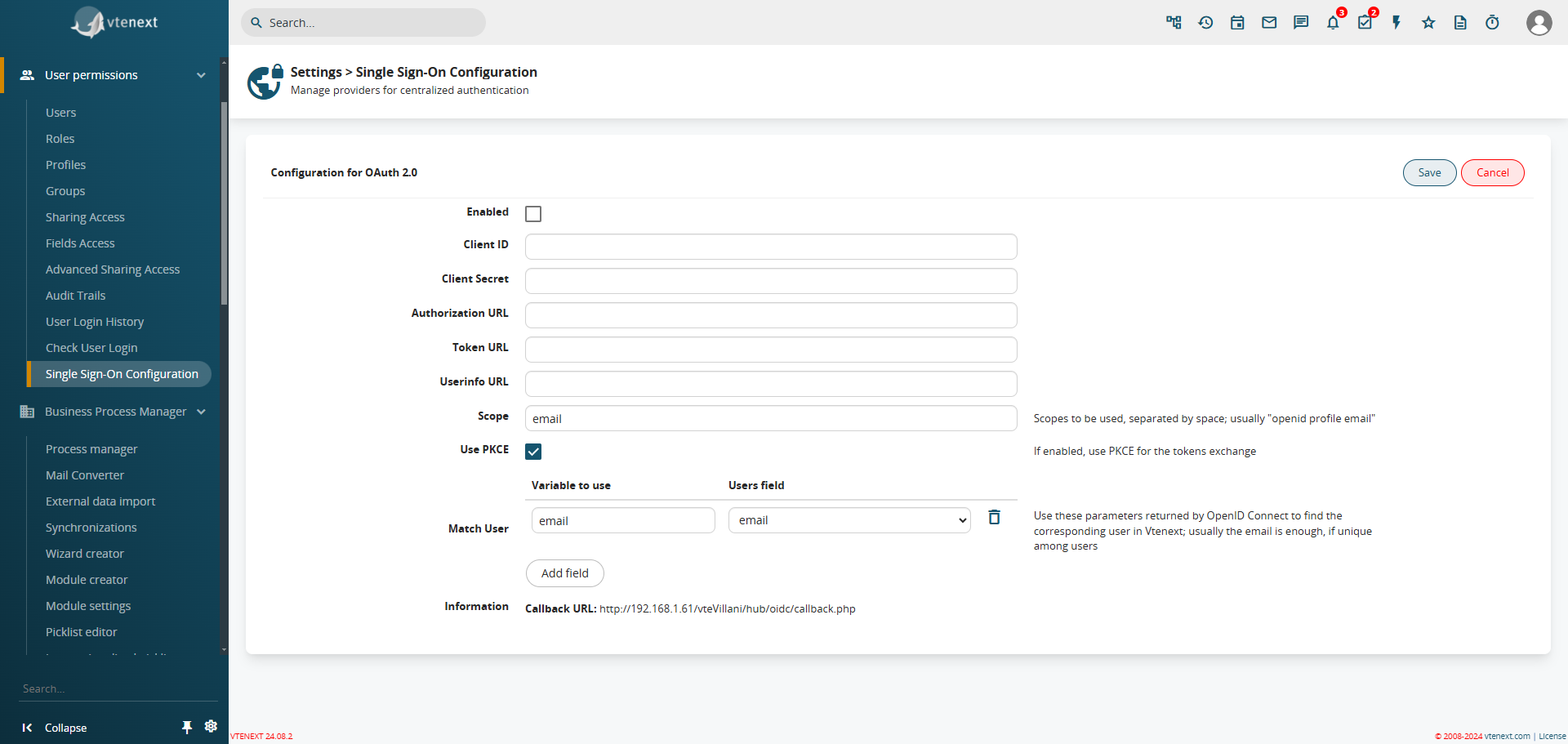
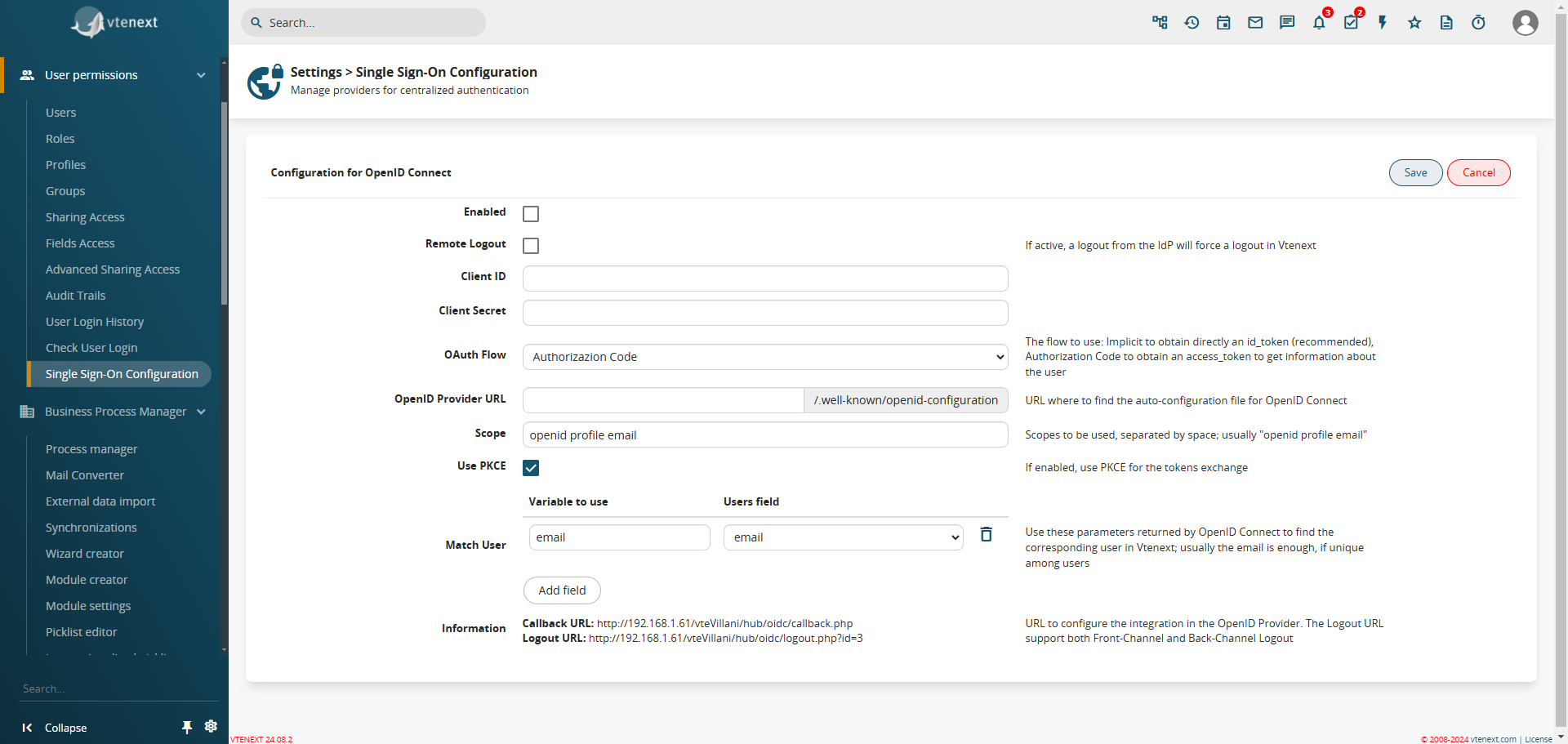
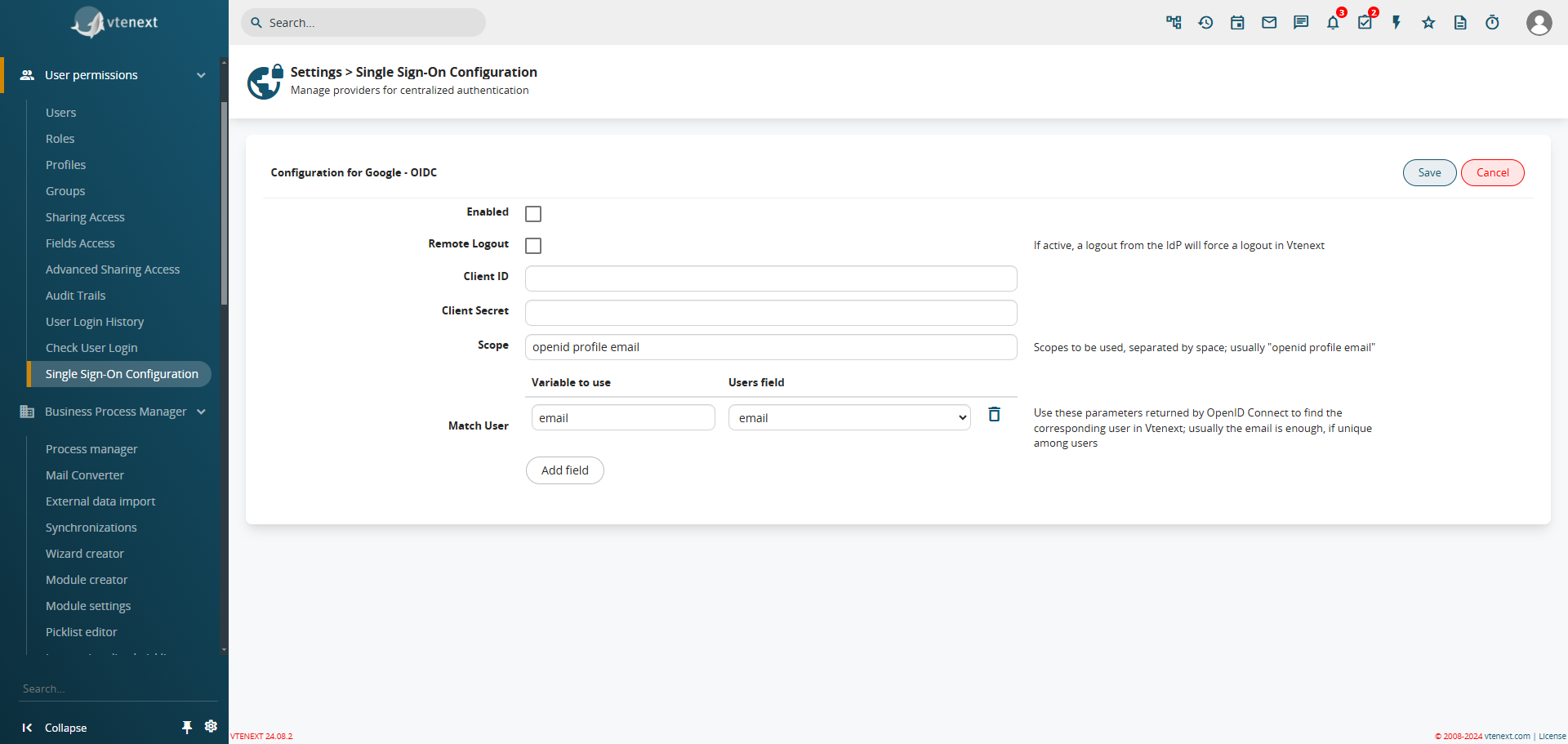
    **OAuth2 Server:** Ability to configure vtenext as an authentication server.
    
    **Conditional Fields on the Business Portal:** Conditional fields are also available directly on the Client Portal and work exactly as they do in vte (with the same configuration done directly on the CRM admin side).
    
    **FIX:**
    
    
    - Improved compatibility with the Users Resources module (now, if invited to a calendar, they also receive the ICS invitation via email).
    - When the Mail Converter receives an email and links it to an existing ticket, it now allows for the initiation of a process.
    - When the Mail Converter links a customer's reply to a ticket, the Comments area now displays a few lines followed by a "view all" button that allows you to see the rest of the email text. This improves visibility and reduces scrolling in comments.
    - Added a relationship between the Visit Reports module and Documents.
    - Added the ability to insert Documents on the portal as External Links in addition to attachments.
    - The product price in Purchase Orders is now based on the Unit Cost field rather than the Unit Price field (this is the default in new installations, while in updated versions the old management remains and activation must be requested through the customer portal).
    - It is now possible to modify the parameters present in the headers of an external webservice (modify, add, delete).
    - OAuth2 fix for Office365/Outlook (prevents timeout of unnecessary folder synchronization).

#### **New Features in Processes:**

- **New Condition:** In processes, a new condition "has changed from" has been added in addition to the previously available "has changed to," as shown in the following image.  
      
    [![image.png](https://usermanual.vtenext.com/uploads/images/gallery/2024-09/scaled-1680-/6Tiimage.png)](https://usermanual.vtenext.com/uploads/images/gallery/2024-09/6Tiimage.png)  
    Naturally, when choosing this option, it will be possible to specify the value of the change, i.e., it has changed from value X to value Y.
    
    [![image.png](https://usermanual.vtenext.com/uploads/images/gallery/2024-09/scaled-1680-/cwtimage.png)](https://usermanual.vtenext.com/uploads/images/gallery/2024-09/cwtimage.png)
- **Update Dynamic Forms:** In dynamic forms within processes, you can now update fields in related modules, including custom modules. The same procedure applies to the standard "Link Entities" function, allowing you to link entities through dynamic forms.  
      
    [![image.png](https://usermanual.vtenext.com/uploads/images/gallery/2024-09/scaled-1680-/2ljimage.png)](https://usermanual.vtenext.com/uploads/images/gallery/2024-09/2ljimage.png)
- **Zoom:** You can now zoom in and out on the process diagram by using the mouse scroll wheel (forward and backward). This feature is available not only in the settings but also in the "Process Chart" tab present in each module.  
      
    [![image.png](https://usermanual.vtenext.com/uploads/images/gallery/2024-09/scaled-1680-/frhimage.png)](https://usermanual.vtenext.com/uploads/images/gallery/2024-09/frhimage.png)
- **Highlighted Path:** Within the "Process Chart" tab in the modules, you can now visualize the path the process has followed, thanks to a yellow highlight (yellow outline) around the various tasks involved.  
      
    [![image.png](https://usermanual.vtenext.com/uploads/images/gallery/2024-09/scaled-1680-/04vimage.png)](https://usermanual.vtenext.com/uploads/images/gallery/2024-09/04vimage.png)
    
      
    Additionally, by clicking on a process task and selecting "Process Helper," you'll find all the details of the fields involved in that process, along with their current values.  
    [![image.png](https://usermanual.vtenext.com/uploads/images/gallery/2024-09/scaled-1680-/Uewimage.png)](https://usermanual.vtenext.com/uploads/images/gallery/2024-09/Uewimage.png)
- **Action on Dynamic Forms:** It is now possible to create a new action on a dynamic form and call it from anywhere in a process. This function is useful, for example, to update the values of a specific support field and then use it in other fields. Instead of creating placeholder fields, you can use a hidden dynamic form that can be called from anywhere.  
      
    [![image.png](https://usermanual.vtenext.com/uploads/images/gallery/2024-09/scaled-1680-/9vtimage.png)](https://usermanual.vtenext.com/uploads/images/gallery/2024-09/9vtimage.png)
- **Add Comment to Ticket:** A new SDK function allows you to configure certain parameters to add comments to a ticket via a process. You can include various parameters and automations (such as comment, CRM user, portal user, response email sending, etc.).  
      
    [![image.png](https://usermanual.vtenext.com/uploads/images/gallery/2024-09/scaled-1680-/GC9image.png)](https://usermanual.vtenext.com/uploads/images/gallery/2024-09/GC9image.png)
    
    <div class="flex-shrink-0 flex flex-col relative items-end"><div><div class="pt-0">  
    </div></div></div>
- **Transfer Relationships in Table Fields:** When selecting this type of action in a process, you will also find table fields among the available modules to choose from.
    
      
    [![image.png](https://usermanual.vtenext.com/uploads/images/gallery/2024-09/scaled-1680-/tffimage.png)](https://usermanual.vtenext.com/uploads/images/gallery/2024-09/tffimage.png)
- **New Mathematical Operations:** In processes, you can now handle not just addition but also subtraction, multiplication, and division.
- **FIX:**
    
    
    - **Improved Subprocess Management:** In a subprocess task, you can now select only processes that have "initial condition" set to the function "on subprocess launch." Additionally, the main process will not continue during the execution of the subprocess until the subprocess reaches the end cycle task.
    - **Overwrite Headers in External Webservices:** You can now overwrite headers in external webservices by calling them from a process.


#### **New Features in Mobile APP**

- - **Filters for Mobile:** Both on the web and in the app, you can now set filters for mobile by either editing the filter itself or using the "duplicate for mobile" function.  
          
        [![image.png](https://usermanual.vtenext.com/uploads/images/gallery/2024-09/scaled-1680-/6zcimage.png)](https://usermanual.vtenext.com/uploads/images/gallery/2024-09/6zcimage.png)
        
        [![image.png](https://usermanual.vtenext.com/uploads/images/gallery/2024-09/scaled-1680-/ufeimage.png)](https://usermanual.vtenext.com/uploads/images/gallery/2024-09/ufeimage.png)
    - **Mobile Profiles:** From the Wilson app settings, available in the vtenext settings, you can now create new mobile profiles to differentiate views, similar to how it is done for the web.  
          
        [![image.png](https://usermanual.vtenext.com/uploads/images/gallery/2024-09/scaled-1680-/4izimage.png)](https://usermanual.vtenext.com/uploads/images/gallery/2024-09/4izimage.png)
    - **Mobile Scans:** Thanks to NFC **(Near Field Communication)** technology, users can scan tags and import information about the content and geolocation of the object.  
        [![image.png](https://usermanual.vtenext.com/uploads/images/gallery/2024-10/scaled-1680-/0ooimage.png)](https://usermanual.vtenext.com/uploads/images/gallery/2024-10/0ooimage.png)

# vtenext 25.02 Release Note

**Cases Module**

The **Cases** module is designed to manage reports, issues, and internal requests within the company, enabling a structured and traceable workflow. Here are the main features and functionalities of the **Cases** module, which specifically handles internal cases and subcases:

- **Case Creation and Management**
- **Subcase Management**
- **Workflow and Automation**
- **Communication and Collaboration**
- **Reporting and Analysis**
- **Integration with Other CRM Modules**

A well-structured **Cases** module improves operational efficiency, reduces request handling time, and increases transparency within the company.

[![image.png](https://usermanual.vtenext.com/uploads/images/gallery/2025-02/scaled-1680-/PEaimage.png)](https://usermanual.vtenext.com/uploads/images/gallery/2025-02/PEaimage.png)

*How the Cases Module Appears and the Display of Subcases Already Available in the List View*

**Relations Navigator** *(Expandable List View)*

As already seen in the Cases module, an additional function has been introduced in the filters: the expansion of list views. This feature allows related module views to be propagated within a filter. For example, in a Company record, you can directly see all linked Contacts from the filter. This function is available for all CRM filters.

[![image.png](https://usermanual.vtenext.com/uploads/images/gallery/2025-02/scaled-1680-/CNKimage.png)](https://usermanual.vtenext.com/uploads/images/gallery/2025-02/CNKimage.png)

*In the filter settings, the Relations Navigator configuration is available*

**Field Coloring in List View**

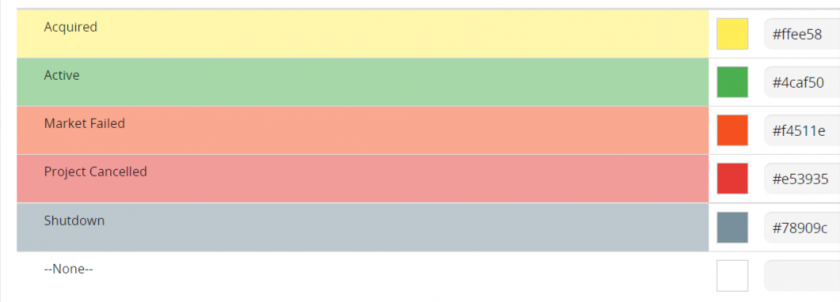
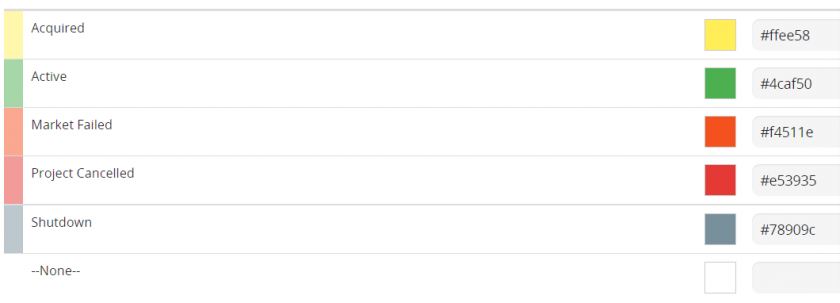
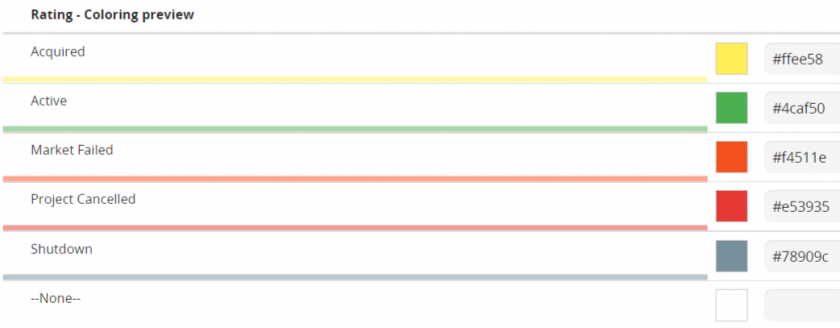
From **SETTINGS &gt; LIST VIEW COLORING**, the **Field Coloring** option is available. This feature allows you to apply colors to specific fields in the list view, such as the status of a Ticket or a Case, improving visibility and usability.

[![image.png](https://usermanual.vtenext.com/uploads/images/gallery/2025-02/scaled-1680-/Ottimage.png)](https://usermanual.vtenext.com/uploads/images/gallery/2025-02/Ottimage.png)

*Configuration View from Settings*

[![image.png](https://usermanual.vtenext.com/uploads/images/gallery/2025-02/scaled-1680-/Jz7image.png)](https://usermanual.vtenext.com/uploads/images/gallery/2025-02/Jz7image.png)

*Colored Field View in List*

**Progress Bar**

A new field type, **uitype 1024**, has been introduced as a progress bar. This feature can only be enabled and configured via code. A pre-installed progress bar is available in the **Cases module**, which automatically calculates and updates the percentage of **Closed Subcases**.

[![image.png](https://usermanual.vtenext.com/uploads/images/gallery/2025-02/scaled-1680-/Xxpimage.png)](https://usermanual.vtenext.com/uploads/images/gallery/2025-02/Xxpimage.png)

*Detailed View of the Progress Bar Field*

**Preinstalled Processes for Case Management**

The update includes two new processes to automate the management of the Case module.

[![image.png](https://usermanual.vtenext.com/uploads/images/gallery/2025-02/scaled-1680-/mxpimage.png)](https://usermanual.vtenext.com/uploads/images/gallery/2025-02/mxpimage.png)

*"Set Alert Date" is the process that automatically sets the alert expiration date to 5 days from today's date (considering that the case is being created today) if left empty during the creation of a Case.*

[![image.png](https://usermanual.vtenext.com/uploads/images/gallery/2025-02/scaled-1680-/Ewfimage.png)](https://usermanual.vtenext.com/uploads/images/gallery/2025-02/Ewfimage.png)

*"Expiration Management" is the process that checks the dates, and one day before the expiration date, sets the case status to "expiring" or "expired."*

**Field Mapping of the Products Block**

In the configuration of the products block in the layout editor, it is possible to define the mapping of custom fields to inherit values from another module.  
For example, in the products block of quotes, if a "Partner Discount" field has been created and you want this field to be populated into a custom field named "First-Level Discount" in the products block of the sales order upon its generation, you will be able to manage this function through processes.  
The mapping is not applied upon saving (as with formulas) but is simply pre-filled during creation. It is automatically applied in the "Copy products block" action of the processes.

**Invite Leads and Emails to the Calendar**

This feature allows you to invite Leads and Emails directly to Calendar Events. The Leads and Emails will receive an email notification, which they can accept or decline, and their response will be visible directly in the calendar event.

[![image.png](https://usermanual.vtenext.com/uploads/images/gallery/2025-02/scaled-1680-/crRimage.png)](https://usermanual.vtenext.com/uploads/images/gallery/2025-02/crRimage.png)

*Note the dropdown menu for invitations, now with the new selectable entities*

**Two-Factor Authentication (2FA) in the Business Portal**

Two-factor authentication has been implemented on the customer portal, achievable via email. Through the SDK, other types of authentication (e.g., SMS) can be implemented. The Portal Contact who has activated this feature will need to enter the code received via email to access the portal.

[![image.png](https://usermanual.vtenext.com/uploads/images/gallery/2025-02/scaled-1680-/hcqimage.png)](https://usermanual.vtenext.com/uploads/images/gallery/2025-02/hcqimage.png)

# 2 First steps: how to browse vtenext

# 2 First steps: how to browse vtenext

This section consists in a brief introduction to vtenext for those who are accessing the system for the first time. The goal is to provide to the user with the basic knowledge to become familiar with this tool, which is designed to be intuitive and easy to use.

The following basic horizontal tools will be illustrated:

**Login:** how to access vtenext;  
**Home Page:** personal splash screen;  
**Navigation:** menus and icons;  
**Search functions:** simple and advanced search, in each module and global;  
**Modules and records:** what they are and how they are structured;  
**User preferences:** personal information, notifications and more.

[![image.png](https://usermanual.vtenext.com/uploads/images/gallery/2026-06/scaled-1680-/MQSimage.png)](https://usermanual.vtenext.com/uploads/images/gallery/2026-06/MQSimage.png)

[![image.png](https://usermanual.vtenext.com/uploads/images/gallery/2026-06/scaled-1680-/URuimage.png)](https://usermanual.vtenext.com/uploads/images/gallery/2026-06/URuimage.png)

[![image.png](https://usermanual.vtenext.com/uploads/images/gallery/2026-06/scaled-1680-/uzhimage.png)](https://usermanual.vtenext.com/uploads/images/gallery/2026-06/uzhimage.png)

# 2.1 System login

To login to vtenext enter your user credentials in the system login page and click on the Login button:

[![image.png](https://usermanual.vtenext.com/uploads/images/gallery/2026-06/scaled-1680-/cShimage.png)](https://usermanual.vtenext.com/uploads/images/gallery/2026-06/cShimage.png)

Most browsers can save your “User name” and “Password” credentials to speed up the login process. For data security reasons we recommend not allowing the browser to save your user credentials, especially if you are using a shared computer or a notebook at risk of loss or theft.

The chosen password must comply with the following rules in accordance with the data protection act

- At least eight characters;
- Must not contain the username or name and surname of the user;
- Must be changed every three months;

Users can reset their password independently using the **“Forgot your password?”** link. The password must be reset within 24 hours, otherwise the request must be repeated by clicking on the link again.

**N.B.:** the password reset procedure sends access credentials to the email address with which the user is registered in vtenext. Note that the password reset email may end up in your spam folder. Admin users can update the user password at any time from the settings menu without having to perform the procedure described above.

[![image.png](https://usermanual.vtenext.com/uploads/images/gallery/2026-06/scaled-1680-/BpNimage.png)](https://usermanual.vtenext.com/uploads/images/gallery/2026-06/BpNimage.png)

**Warning!** After 5 consecutive unsuccessful login attempts (incorrect username or password) a system security function will block the IP address from which the user is attempting to gain access, thus preventing any further attempts. The vtenext user concerned will also receive a notification email.

If the user ignores the email and continues with login attempts, (via web, web service or from ActiveSync for mobile), after 100 unsuccessful login attempts the source IP address will be blacklisted.

The Admin user can go to Settings &gt; Users login control and reset correct operation by clicking on the “Return to Whitelist” link

# 2.1.1 User session duration

The duration of the user session in vtenext depends mainly on the php session, that is on a parameter that is configured in the server where the crm is installed.  
In the login page there is a flag field called "stay connected" and once active, the session time is managed on the application side.

The session duration with this function active is one month while in standard, i.e. not flagging the aforementioned field, the duration depends on the operating system installed on the server hosting the crm. For example, Ubuntu (installed in the cloud / onsite which we recommend) the session lasts about 30 minutes.

Finally, it is good to consider that the rules of simultaneous connections per user are always valid: with the same user it is possible to log in at most, in 2 browsers at the same time. If you try to enter the crm with a third browser, one of the other two will automatically be disconnected.

[![user.png](https://usermanual.vtenext.com/uploads/images/gallery/2022-05/scaled-1680-/user.png)](https://usermanual.vtenext.com/uploads/images/gallery/2022-05/user.png)

# 2.2 Home

When the user logs in to the CRM the user-specific home page can be displayed (this setting is editable by individual users in User Preferences).

[![image.png](https://usermanual.vtenext.com/uploads/images/gallery/2026-06/scaled-1680-/V8rimage.png)](https://usermanual.vtenext.com/uploads/images/gallery/2026-06/V8rimage.png)

The Home page is composed of a set of elements (dashboards) that retrieve information from vtenext. The dashboards can be composed of:

- filters from modules
- RSS to receive feeds from your favourite channel
- the graphics from reports
- windows that allow you to view websites

The configuration is at the discretion of the user, who can enable default elements or create new ones. Each user must create his/her own dashboards, which cannot be made public. To enable or disable a preset dashboard click on the [![2_2-Home-settings.PNG](https://usermanual.vtenext.com/uploads/images/gallery/2021-09-Sep/scaled-840-0/2_2-Home-settings.PNG)](https://usermanual.vtenext.com/uploads/images/gallery/2021-09-Sep/2_2-Home-settings.PNG) icon to access “my preferences”.

**<span style="color: #ff0000;">ATTENTION:</span> home graphics have a 24h cache memory so they DON'T refresh everytime the hompage is refreshed.**

**The following is a list of the available blocks (which can be activated from "User preferences"):**

<table border="1" cellpadding="0" cellspacing="0" class="t1" id="bkmrk-my-files-%C2%A0-cartella" style="border-color: rgb(255, 255, 255); background-color: rgb(235, 247, 255); width: 100%; border-collapse: collapse; border-width: 1px; border-spacing: 0px;"><tbody><tr style="height: 85px;"><td style="width: 23.0067%; height: 85px; vertical-align: middle;" valign="middle">**News and Manual**

</td><td style="width: 76.6551%; height: 85px; vertical-align: middle;" valign="top">The latest vtenext updates box and a link to the Online Manual

</td></tr></tbody></table>

**N.B.: My files has been eliminated from the Homepage**, all present files were moved in the folder "My private files" inside the module Documents.

To create a new customised element click on [![2_2-Home-Aggiungi-finestra.PNG](https://usermanual.vtenext.com/uploads/images/gallery/2021-09-Sep/scaled-840-0/2_2-Home-Aggiungi-finestra.PNG)](https://usermanual.vtenext.com/uploads/images/gallery/2021-09-Sep/2_2-Home-Aggiungi-finestra.PNG) and choose the type of element to add.

[![home2eng.jpg](https://usermanual.vtenext.com/uploads/images/gallery/2024-03/home2eng.jpg)](https://usermanual.vtenext.com/uploads/images/gallery/2021-09-Sep/2_2-Home-_3.png)

For example, if you wish to add a new Module, you will be presented with a screen similar to the following:

[![2_2-Home-4.PNG](https://usermanual.vtenext.com/uploads/images/gallery/2021-09-Sep/scaled-840-0/2_2-Home-4.PNG)](https://usermanual.vtenext.com/uploads/images/gallery/2021-09-Sep/2_2-Home-4.PNG)

You must enter a title for this new window (e.g. All companies), indicate the number of elements to display (e.g. 10), which filter to use for displaying that dashboard (e.g. All filter) and finally, establish which fields are to be displayed, with a maximum of 2 (e.g. Company Name and Phone number).

The result of this configuration can be seen in the following screen:

[![2_2-Home_5.png](https://usermanual.vtenext.com/uploads/images/gallery/2021-09-Sep/scaled-840-0/2_2-Home_5.png)](https://usermanual.vtenext.com/uploads/images/gallery/2021-09-Sep/2_2-Home_5.png)

The order of the boxes can be changed by dragging them to the required position with the mouse.

# 2.3 Navigation methods: menus

The navigation within vtenext is guided from two menus positioned on the left and right of the screen. It is composed of two different toolbars illustrated below:

<table border="1" id="bkmrk-the-dark-blue-naviga" style="border-collapse: collapse; width: 99.7528%; height: 1306px;"><tbody><tr><td style="width: 33.0655%;">[![2_3_Navigation-methods-menus_3.png](https://usermanual.vtenext.com/uploads/images/gallery/2021-09-Sep/scaled-840-0/2_3_Navigation-methods-menus_3.png)](https://usermanual.vtenext.com/uploads/images/gallery/2021-09-Sep/2_3_Navigation-methods-menus_3.png)</td><td style="width: 66.9345%; vertical-align: top;">The dark blue navigation bar provides access to all vtenext active modules. Depending on the theme chosen in “my preferences”, the layout of menus and colours may differ, with the related functions.  
  
A module is a container of files of a specific category and hence the set of CRM information subdivided by type. Not all the available modules are immediately displayed on the dark blue toolbar, but they are listed under the specific Modules heading. The admin user can choose the order of menu items from the menu settings.

---

 In the case of admin, on the bottom of the left bar , will be available a cogwheel to enter into the system settings.  
  
  
[![2_3-Navigation-methods-menus_2.png](https://usermanual.vtenext.com/uploads/images/gallery/2021-09-Sep/scaled-840-0/2_3-Navigation-methods-menus_2.png)](https://usermanual.vtenext.com/uploads/images/gallery/2021-09-Sep/2_3-Navigation-methods-menus_2.png)

</td></tr><tr><td colspan="2" style="width: 33.0655%;">[![2_3_Navigation-methods-menus_4_.PNG](https://usermanual.vtenext.com/uploads/images/gallery/2021-09-Sep/scaled-840-0/2_3_Navigation-methods-menus_4_.PNG)](https://usermanual.vtenext.com/uploads/images/gallery/2021-09-Sep/2_3_Navigation-methods-menus_4_.PNG)

Within the bar on the top of screen horizontally there are a series of fixed icons dedicated to commonly used functions, that are notifications of the main modules, like, Messages, Talks, Processes etc.  
[![2_3-Navigation-methods-menus_5_2.png](https://usermanual.vtenext.com/uploads/images/gallery/2021-11-Nov/scaled-840-0/2_3-Navigation-methods-menus_5_2.png)](https://usermanual.vtenext.com/uploads/images/gallery/2021-11-Nov/2_3-Navigation-methods-menus_5_2.png)  
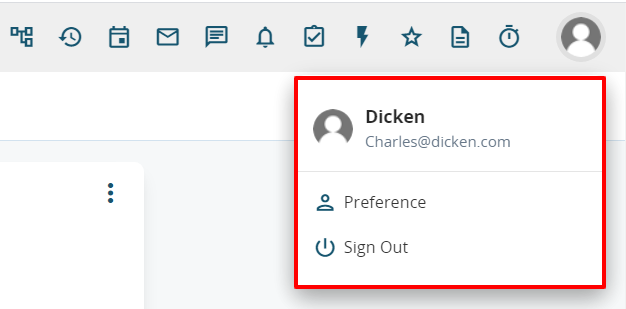
The icon/thumbnail of the user, providing access to preferences and to the logout procedure, is displayed at the top right.

</td></tr></tbody></table>

# 2.3.1 Global Search

The global search function, located in the first place on the right-hand toolbar, allows interrogation related to words within the system. The search can be carried out either in the module in which you are currently working, in all modules, or in only part of the modules (by macro-areas).

After typing the text to search press the button of the function to be interrogated. A mask with various search options is displayed. The concept of macro-area includes all the modules related to the main business processes. Obviously, some modules have (or can have) a horizontal function.

The search macro-areas can be directly customised by individual users by clicking on **“Areas search settings”**, which is on the bottom right in the areas summary window. The search results are displayed in a new browser tab and presented with an overview in order to make the relations existing among the subjects clearer.

[![image.png](https://usermanual.vtenext.com/uploads/images/gallery/2026-06/scaled-1680-/Hecimage.png)](https://usermanual.vtenext.com/uploads/images/gallery/2026-06/Hecimage.png)

*Available link to customise areas*

For ease of configuration, you can find the **Search Area Settings** option also on the left-hand menu bar.

[![image.png](https://usermanual.vtenext.com/uploads/images/gallery/2024-09/scaled-1680-/HlZimage.png)](https://usermanual.vtenext.com/uploads/images/gallery/2024-09/HlZimage.png)

The changes made in the search macro-areas will be applied to all the users.

[![2.3.1 Global Search_2.png](https://usermanual.vtenext.com/uploads/images/gallery/2022-10/scaled-1680-/2-3-1-global-search-2.png)](https://usermanual.vtenext.com/uploads/images/gallery/2022-10/2-3-1-global-search-2.png)

**If the entered text cannot be found by any of the filters set by the user, no search results will be produced. For example, if you search for an email address and the field is not present in any column of any filter, vtenext will not find the entered value.**  
  
We therefore suggest creating a filter in the records with the Email field inserted in the choice of columns.  
  
Furthermore, the entered text is not searched in linked fields.

[![image.png](https://usermanual.vtenext.com/uploads/images/gallery/2026-06/scaled-1680-/6uHimage.png)](https://usermanual.vtenext.com/uploads/images/gallery/2026-06/6uHimage.png)

# 2.3.2 Fixed Icons

<table border="1" cellpadding="5" cellspacing="5" class="align-center" id="bkmrk-processi%3A-cliccando-" style="height: 745px; width: 100%; border-collapse: collapse; vertical-align: middle; background-color: #ebf7ff;"><tbody><tr style="height: 47px;"><td style="width: 5.92593%; height: 46px;">![](https://usermanual.vtenext.com/uploads/images/gallery/2021-09-Sep/scaled-840-0/image-1632480309699.png)</td><td class="align-left" style="width: 94.0741%; height: 46px; vertical-align: top;">**Processes:** clicking on this icon gives access to the detailed view of all processes implemented in the CRM.</td></tr><tr style="height: 65px;"><td style="width: 5.92593%; height: 65px;">![](https://usermanual.vtenext.com/uploads/images/gallery/2021-09-Sep/scaled-840-0/image-1632480416417.png)</td><td class="align-left" style="width: 94.0741%; height: 65px; vertical-align: top;">**Last viewed:** by clicking on this icon you can visualize the user’s lists consulted recently.</td></tr><tr style="height: 83px;"><td style="width: 5.92593%; height: 83px;">![](https://usermanual.vtenext.com/uploads/images/gallery/2021-09-Sep/scaled-840-0/image-1632480465378.png)</td><td class="align-left" style="width: 94.0741%; height: 83px; vertical-align: top;">**Calendar:** Access to a simplified mini-calendar which allows, at a glance, to visualize all (open and closed) the pre-set commitments in the chosen month. Laterally it is reported the list of all the upcoming events.</td></tr><tr style="height: 83px;"><td style="width: 5.92593%; height: 83px;">![](https://usermanual.vtenext.com/uploads/images/gallery/2021-09-Sep/scaled-840-0/image-1632480717267.png)</td><td class="align-left" style="width: 94.0741%; height: 83px; vertical-align: top;">**Messages:** Direct access to the Messages module and to the composition of a new email. The icon will show, in case of new emails, a number in the upper right corresponding to the number of not read messages.</td></tr><tr style="height: 64px;"><td style="width: 5.92593%; height: 64px;">![](https://usermanual.vtenext.com/uploads/images/gallery/2021-09-Sep/scaled-840-0/image-1632480808558.png)</td><td class="align-left" style="width: 94.0741%; height: 64px; vertical-align: top;">**Talks:** Solution for the handling of information exchanges among the users. Every talk can be published to one or more users. Furthermore it can be related to every other elements of the CRM.</td></tr><tr style="height: 64px;"><td style="width: 5.92593%; height: 64px;">![](https://usermanual.vtenext.com/uploads/images/gallery/2021-09-Sep/scaled-840-0/image-1632480862824.png)</td><td class="align-left" style="width: 94.0741%; height: 64px; vertical-align: top;">**Notifications:** Functionality with the purpose of updating users on issues and data of their interest. The system allows to mark as read or not read the notification, even in massive form. The notifications of invitations or activities allow to accept or not them without positioning on the related reference.

</td></tr><tr style="height: 47px;"><td style="width: 5.92593%; height: 47px;">![](https://usermanual.vtenext.com/uploads/images/gallery/2021-09-Sep/scaled-840-0/image-1632480896868.png)</td><td class="align-left" style="width: 94.0741%; height: 47px; vertical-align: top;">**Tasks:** Direct access to the expiring tasks with the possibilities to create new ones.</td></tr><tr style="height: 82px;"><td class="align-left" style="width: 5.92593%; height: 82px;">![](https://usermanual.vtenext.com/uploads/images/gallery/2021-09-Sep/scaled-840-0/image-1632481265799.png)</td><td class="align-left" style="width: 94.0741%; height: 82px; vertical-align: top;">**Quick Creation:** it allows, in any point, to create a new entity (Account, Contact, Event, Lead, Vendor, Task, Document, Ticket and Potential). By clicking on this entity, a new browser tab containing the creation mask will open.</td></tr><tr style="height: 99px;"><td style="width: 5.92593%; height: 99px;">![](https://usermanual.vtenext.com/uploads/images/gallery/2021-09-Sep/scaled-840-0/image-1632481114061.png)</td><td class="align-left" style="width: 94.0741%; height: 99px; vertical-align: top;">**Favorites:** Quick access to the customers lists through the icon favorites (star). Each user can define his/her own list and modify it constantly. If you want a customer record to appear among the Favorites, it is necessary to turn on the star with a click on the mouse from the detail view. If you don’t want a customer record to appear among the Favorites, turn off the star with a click on the mouse from the detail view.

</td></tr><tr style="height: 64px;"><td style="width: 5.92593%; height: 64px;">![](https://usermanual.vtenext.com/uploads/images/gallery/2021-09-Sep/scaled-840-0/image-1632481150987.png)</td><td class="align-left" style="width: 94.0741%; height: 64px; vertical-align: top;">**Notes:** A panel in which there are summarized all the notes created by the user opens. There is also the possibility to compose new ones and to convert every note in other CRM objects.</td></tr><tr style="height: 48px;"><td style="width: 5.92593%; height: 48px;">![](https://usermanual.vtenext.com/uploads/images/gallery/2021-09-Sep/scaled-840-0/image-1632481233598.png)</td><td class="align-left" style="width: 94.0741%; height: 48px; vertical-align: top;">**Tracking:** accesses the screen that displays the trackings in progress and paused.</td></tr></tbody></table>

# 2.3.3 Contextual Icons

The button[![2_3_3-Contextual-Icons_create.PNG](https://usermanual.vtenext.com/uploads/images/gallery/2021-09-Sep/scaled-840-0/2_3_3-Contextual-Icons_create.PNG)](https://usermanual.vtenext.com/uploads/images/gallery/2021-09-Sep/2_3_3-Contextual-Icons_create.PNG) is used to create a new entity in the module in which you are currently positioned.

While clicking on ![2_3_3-Contextual-Icons_Other.PNG](https://usermanual.vtenext.com/uploads/images/gallery/2021-09-Sep/scaled-840-0/2_3_3-Contextual-Icons_Other.PNG)allows to enter in a sub-menu with the following options:[![2_3_3-Contextual-Icons_Other_details.png](https://usermanual.vtenext.com/uploads/images/gallery/2021-09-Sep/scaled-840-0/2_3_3-Contextual-Icons_Other_details.png)](https://usermanual.vtenext.com/uploads/images/gallery/2021-09-Sep/2_3_3-Contextual-Icons_Other_details.png)

- **Delete:** it allows to delete all selected records in the list
- **Mass Edit** it allows to edit massively all the selected records
- **Mail:** it allows to send mail massively to the select records in the list (it is suggested for a small number of mail, maximum 20 mail address. For a more consistent number of mail is suggested to use the Newsletter module.)
- **FAX:** it allows to send fax massively to the selected records in the list (this function works only if your crm is connected with a fax service)
- **SMS:** it allows to send sms massively to the selected records in the list (this function works only if your crm is connected with a sms service)
- **Select all:** it allows to select all the records available in all the pages of the module (not only the ones displayed in the first page or in the current page)
- **Geolocalization:** it allows to localize in the google map the geographic positions of the selected records.
- **Import** it allows to import data into the CRM from .csv format files (comma separated values).
- **Export:** it allows to export data from the CRM in .csv format files (comma separated values).
- **Find duplicates**: it allows to check for the presence of duplicates based on parametrizable research criteria. In addition it is possible to save the desired fields mapping to prevent duplicates in the creation of new records. The fields mapped, are considered by the CRM with an "and" option (if we map the field Email, the system will check the creation of duplicates only for that field but if we map the fields Name + Email, the duplicate will be detected only if both the fields already exist in a module)

[![2_3_3-Contextual-Icons_cogwheel.PNG](https://usermanual.vtenext.com/uploads/images/gallery/2021-09-Sep/scaled-840-0/2_3_3-Contextual-Icons_cogwheel.PNG)](https://usermanual.vtenext.com/uploads/images/gallery/2021-09-Sep/2_3_3-Contextual-Icons_cogwheel.PNG)Clicking on the cogwheel in the upper left part of the screen, it is possible to enter in the following sub-menu:

**Configure page**: it allows to enter in the property of the module to change the layout.  
**Advanced (available only if the user is a system administrator):** it allows to modify the settings (Layout editor, picklist, etc.) of the module where we are.

Use the **“Add tab”** button to access the following sub-menus:

- **New simple tab:** click to insert a new view with a wizard or charts;
- **New list tab:** click to add another view linked to an existing filter;
- **New tab with report:** click to view an existing report in related to the module in question (e.g. if the report is entered in the Contacts module the results of a report created for this Module can be entered and viewed).

[![2_3_3-Contextual-Icons_1.PNG](https://usermanual.vtenext.com/uploads/images/gallery/2021-09-Sep/scaled-840-0/2_3_3-Contextual-Icons_1.PNG)](https://usermanual.vtenext.com/uploads/images/gallery/2021-09-Sep/2_3_3-Contextual-Icons_1.PNG)

*1 - Click on the blu cogwheel related to page settings.*

[![2_3_3-Contextual-Icons_2.png](https://usermanual.vtenext.com/uploads/images/gallery/2021-09-Sep/scaled-840-0/2_3_3-Contextual-Icons_2.png)](https://usermanual.vtenext.com/uploads/images/gallery/2021-09-Sep/2_3_3-Contextual-Icons_2.png)

*2 - Click on "Configure page"*

![2_3_3-Contextual-Icons_3.PNG](https://usermanual.vtenext.com/uploads/images/gallery/2021-09-Sep/scaled-840-0/2_3_3-Contextual-Icons_3.PNG)

*3 - Lastly click on "Add tab" to finalize the configuration and in the end click on DONE*

# 2.4 Search in module

To find a term in a specific module, press the icon search.

[![Search-button.png](https://usermanual.vtenext.com/uploads/images/gallery/2021-10-Oct/scaled-840-0/Search-button.png)](https://usermanual.vtenext.com/uploads/images/gallery/2021-10-Oct/Search-button.png)

The research result is temporary, in fact it is cleared when the page is closed or updated. To perform researches that can be saved and retrieved please refer to the Filters function.

**1. Search box on the left above the view filters.**

[![2_4-Search-in-module_1.png](https://usermanual.vtenext.com/uploads/images/gallery/2021-10-Oct/scaled-840-0/2_4-Search-in-module_1.png)](https://usermanual.vtenext.com/uploads/images/gallery/2021-10-Oct/2_4-Search-in-module_1.png)

The research is always performed among the fields displayed by the applied filter (table header) and the records that fall within it (see Filters).

[![2_4-Search-in-module_2.png](https://usermanual.vtenext.com/uploads/images/gallery/2021-10-Oct/scaled-840-0/2_4-Search-in-module_2.png)](https://usermanual.vtenext.com/uploads/images/gallery/2021-10-Oct/2_4-Search-in-module_2.png)

If you wish to research in fields that are not included in the filter, click on advanced search (available in all record modules, not available from the Home module).

[![2_4-Search-in-module_3.png](https://usermanual.vtenext.com/uploads/images/gallery/2021-10-Oct/scaled-840-0/2_4-Search-in-module_3.png)](https://usermanual.vtenext.com/uploads/images/gallery/2021-10-Oct/2_4-Search-in-module_3.png)

From the advanced research function you can:

- select any field of the module
- specify several search conditions and link them to the inclusive operator “and”, choosing “Corresponds to all following”, or the exclusive operator “or” by choosing “Corresponds to at least one of the following”.

The research will always be performed among the records of the applied filter.

**2. Search boxes above the filter columns.**

![](https://usermanual.vtenext.com/uploads/images/gallery/2019-07-Jul/scaled-840-0/image-1564565827016.png)

In this case the search makes it possible to enter elements above the reference columns in order to obtain a temporary and immediate result. For example, in the Trouble Tickets Module you can have all Open and Urgent Priority status tickets among the results of your search.

# 2.5 Modules structure

The application is structured according to relations between the various modules, based on the process logic. Each module offers the following access views:

**1. List view:** proposes the list of data (files) present in the module.

[![Aziende_.png](https://usermanual.vtenext.com/uploads/images/gallery/2021-10-Oct/scaled-840-0/Aziende_.png)](https://usermanual.vtenext.com/uploads/images/gallery/2021-10-Oct/Aziende_.png)

Possible actions from this view are:

<table border="1" cellpadding="5" cellspacing="0" class="t1" id="bkmrk-elimina-cancella-uno" style="width: 100%; background-color: #ebf7ff;"><tbody><tr><td class="td1" style="width: 22.2222%; vertical-align: middle;" valign="top">**Delete**

</td><td class="td1" style="width: 77.6543%; vertical-align: middle;" valign="top">Deletes one or more records by ticking the box at the beginning of the line.

</td></tr><tr><td class="td1" style="width: 22.2222%; vertical-align: middle;" valign="top">**Mass Edit**

</td><td class="td1" style="width: 77.6543%; vertical-align: middle;" valign="top">To modify the data of one or more selected records.

</td></tr><tr><td class="td1" style="width: 22.2222%; vertical-align: middle;" valign="top">**Email**

</td><td class="td1" style="width: 77.6543%; vertical-align: middle;" valign="top">To send emails in a massive way.

</td></tr><tr><td class="td1" style="width: 22.2222%; vertical-align: middle;" valign="top">**Fax**

</td><td class="td1" style="width: 77.6543%; vertical-align: middle;" valign="top">To send fax in a massive way.

</td></tr><tr><td class="td1" style="width: 22.2222%; vertical-align: middle;" valign="top">**SMS**

</td><td class="td1" style="width: 77.6543%; vertical-align: middle;" valign="top">To send SMS in a massive way.

</td></tr><tr><td class="td1" style="width: 22.2222%; vertical-align: middle;" valign="top">**Select all/deselect all**

</td><td class="td1" style="width: 77.6543%; vertical-align: middle;" valign="top">To select/deselect all the records in the filter (in all the pages, not only the  
displayed ones).

</td></tr><tr><td class="td1" style="width: 22.2222%; vertical-align: middle;" valign="top">**Filter**

</td><td class="td1" style="width: 77.6543%; vertical-align: middle;" valign="top">To define the active view on modules (see Filter chapter).

</td></tr><tr><td class="td1" style="width: 22.2222%; vertical-align: middle;" valign="top">**Assigned to**

</td><td class="td1" style="width: 77.6543%; vertical-align: middle;" valign="top">To quickly filter records according to the assigned user.

</td></tr></tbody></table>

The button CREATE is used to add a new empty record to the current module.

**Note.** The Calendar, Report and Documents modules have an alternative view by default. The List button switches to list view.

[![2_5-Modules-structure_2.png](https://usermanual.vtenext.com/uploads/images/gallery/2021-11-Nov/scaled-840-0/2_5-Modules-structure_2.png)](https://usermanual.vtenext.com/uploads/images/gallery/2021-11-Nov/2_5-Modules-structure_2.png)

[![2_5-Modules-structure_3.png](https://usermanual.vtenext.com/uploads/images/gallery/2021-11-Nov/scaled-840-0/2_5-Modules-structure_3.png)](https://usermanual.vtenext.com/uploads/images/gallery/2021-11-Nov/2_5-Modules-structure_3.png)

**2. Kanban View: columns view.**

[![image.png](https://usermanual.vtenext.com/uploads/images/gallery/2024-11/scaled-1680-/BaRimage.png)](https://usermanual.vtenext.com/uploads/images/gallery/2024-11/BaRimage.png)

It allows you to operate on a picklist value within the entity, set within the selected filter. The modification will be made simply by dragging the record from one column to another without needing to open each item individually. If the chosen picklist values are associated with view coloring (**Chapter 17.13 View Coloring for Lists**), the columns in the Kanban view will also be identified by these colors.

This type of display is configured by editing a filter and selecting the "**Kanban Configuration**" tab, as explained in **Chapter 2.6.1 Creating a Filter**.

[![Modules-structure_1.png](https://usermanual.vtenext.com/uploads/images/gallery/2021-11-Nov/scaled-840-0/Modules-structure_1.png)](https://usermanual.vtenext.com/uploads/images/gallery/2021-11-Nov/Modules-structure_1.png)

**Note.** In general, there is only one field that makes it possible to access a detailed summary window on the right (e.g. Trouble Ticket title in Trouble Tickets module), recognisable by the link style formatting (blue text, bold and underlined on mouse-over).

**3. Detail view:** corresponds to the tab. To gain access, click on the record name.

[![Record-structure_1.png](https://usermanual.vtenext.com/uploads/images/gallery/2021-11-Nov/scaled-840-0/Record-structure_1.png)](https://usermanual.vtenext.com/uploads/images/gallery/2021-11-Nov/Record-structure_1.png)

# 2.5.1 Record structure (detail view)

[![Record-structure_1.png](https://usermanual.vtenext.com/uploads/images/gallery/2021-11-Nov/scaled-840-0/Record-structure_1.png)](https://usermanual.vtenext.com/uploads/images/gallery/2021-11-Nov/Record-structure_1.png)

**1. Relations with other modules:** positioned on the right of the screen, this function summarises all the relations with other modules of the record in which you are operating by indicating the numbers of related elements. To display a related module click on its name. The admin user can change the order of items, decreasing in accordance with the number of Relations, by means of Modules manager &gt; Layout editor.

[![Record-structure_2.png](https://usermanual.vtenext.com/uploads/images/gallery/2021-11-Nov/scaled-840-0/Record-structure_2.png)](https://usermanual.vtenext.com/uploads/images/gallery/2021-11-Nov/Record-structure_2.png)

For example, clicking on Contacts produces the following view:  
  
[![Record-structure_3.png](https://usermanual.vtenext.com/uploads/images/gallery/2021-11-Nov/scaled-840-0/Record-structure_3.png)](https://usermanual.vtenext.com/uploads/images/gallery/2021-11-Nov/Record-structure_3.png)

To create a record of the selected module, in relation to the currently active tab, click “Add“ in the relations box.

**Manage Relationships with other modules**

All related modules, have default columns that may be changed using interface. Going to Settings &gt; Module settings &gt; Interessed Modue ( es. Accounts) &gt; Layout Editor &gt; **Relations Management ( button on the top right part of the screen)**. It will be possible, using interface, to manage the relation with each module choosing the columns and the order of each element.

[![Record-structure_4.png](https://usermanual.vtenext.com/uploads/images/gallery/2021-11-Nov/scaled-840-0/Record-structure_4.png)](https://usermanual.vtenext.com/uploads/images/gallery/2021-11-Nov/Record-structure_4.png)

*Screen that shows how relations of one module can be manage by the user.*

In the relationship management section, it is possible to specify, for each related module, the field to use for sorting records, as well as the corresponding sort order (ascending or descending).

[![image.png](https://usermanual.vtenext.com/uploads/images/gallery/2026-02/scaled-1680-/UlMimage.png)](https://usermanual.vtenext.com/uploads/images/gallery/2026-02/UlMimage.png)

**Examples of related modules are shown below.**

Planned calendar activities

[![Record-structure_5.png](https://usermanual.vtenext.com/uploads/images/gallery/2021-11-Nov/scaled-840-0/Record-structure_5.png)](https://usermanual.vtenext.com/uploads/images/gallery/2021-11-Nov/Record-structure_5.png)

Quotes

[![Record-structure_6.png](https://usermanual.vtenext.com/uploads/images/gallery/2021-11-Nov/scaled-840-0/Record-structure_6.png)](https://usermanual.vtenext.com/uploads/images/gallery/2021-11-Nov/Record-structure_6.png)

Contacts

[![Record-structure_7.png](https://usermanual.vtenext.com/uploads/images/gallery/2021-11-Nov/scaled-840-0/Record-structure_7.png)](https://usermanual.vtenext.com/uploads/images/gallery/2021-11-Nov/Record-structure_7.png)

By default, the relations menu proposes all the existing modules related to the module you are manage.  
Certain actions available in the module are accessible by clicking the “Other” button.[![image-1632486265177.png](https://usermanual.vtenext.com/uploads/images/gallery/2021-09-Sep/scaled-840-0/image-1632486265177.png)](https://usermanual.vtenext.com/uploads/images/gallery/2021-09-Sep/image-1632486265177.png)

The actions are partly general and partly contextual. For example, the **Convert Lead** option is only present in the **Leads** module.

Finally, below we provide a list of standard icons located at the top right of the page before the “Other” button:

<table border="1" class="align-center" id="bkmrk-edit-add-event-new-t" style="border-collapse: collapse; width: 39.3827%; height: 574px;"><tbody><tr><td class="align-center" style="width: 12.0932%;">![](https://usermanual.vtenext.com/uploads/images/gallery/2021-09-Sep/scaled-840-0/image-1632494400666.png)

</td><td class="align-left" style="width: 20.7463%; vertical-align: middle;">- Edit</td></tr><tr><td style="width: 12.0932%;">![](https://usermanual.vtenext.com/uploads/images/gallery/2021-09-Sep/scaled-840-0/image-1632494466901.png)

</td><td class="align-left" style="width: 20.7463%; vertical-align: middle;">- Tracking</td></tr><tr><td class="align-center" style="width: 12.0932%;">![](https://usermanual.vtenext.com/uploads/images/gallery/2021-09-Sep/scaled-840-0/image-1632494497599.png)

</td><td class="align-left" style="width: 20.7463%; vertical-align: middle;">- Add Event</td></tr><tr><td class="align-center" style="width: 12.0932%;">![](https://usermanual.vtenext.com/uploads/images/gallery/2021-09-Sep/scaled-840-0/image-1632494519195.png)

</td><td class="align-left" style="width: 20.7463%; vertical-align: middle;">- New Task</td></tr><tr><td class="align-center" style="width: 12.0932%;">![](https://usermanual.vtenext.com/uploads/images/gallery/2021-09-Sep/scaled-840-0/image-1632494546676.png)

</td><td class="align-left" style="width: 20.7463%; vertical-align: middle;">- Link new email</td></tr><tr><td class="align-center" style="width: 12.0932%;">![](https://usermanual.vtenext.com/uploads/images/gallery/2021-09-Sep/scaled-840-0/image-1632494584594.png)

</td><td class="align-left" style="width: 20.7463%; vertical-align: middle;">- Favourite</td></tr><tr><td class="align-center" style="width: 12.0932%;">![](https://usermanual.vtenext.com/uploads/images/gallery/2021-09-Sep/scaled-840-0/image-1632494611867.png)

</td><td class="align-left" style="width: 20.7463%; vertical-align: middle;">- Notify me of changes</td></tr><tr><td class="align-center" style="width: 12.0932%;">![](https://usermanual.vtenext.com/uploads/images/gallery/2021-09-Sep/scaled-840-0/image-1632494640158.png)

</td><td class="align-left" style="width: 20.7463%; vertical-align: middle;">- Link</td></tr><tr><td style="width: 12.0932%;">![](https://usermanual.vtenext.com/uploads/images/gallery/2021-09-Sep/scaled-840-0/image-1632494662345.png)

</td><td class="align-left" style="width: 20.7463%; vertical-align: middle;">- Other</td></tr></tbody></table>

# 2.5.2 Quick look relations

In the list view and in the detail view, the CRM allows you to preview several summary items of a related entity (in accordance with the access credentials of the profiles linked to the individual user).

![](https://usermanual.vtenext.com/uploads/images/gallery/2019-09-Sep/scaled-840-0/image-1569576778710.png)

**N.B.** The visible fields inside the Relational Quick look is not editable by the user.

# 2.5.3 Preview and Shortcut Buttons in List View

In module lists, the **Preview** button has been introduced on the left side of each row. This button opens a half-page panel, allowing you to view a preview of the record and also update it by pressing the **Edit** button. It is possible to restore the previous behavior by changing the properties **layout.listview.preview** and **layout.listview.fast\_edit**.

[![image.png](https://usermanual.vtenext.com/uploads/images/gallery/2026-02/scaled-1680-/wHtimage.png)](https://usermanual.vtenext.com/uploads/images/gallery/2026-02/wHtimage.png)  
*Record preview display directly in list view*

# 2.6 Filters

The filters facilitate CRM search activities. Setting up a filter means creating a search system that can be retrieved whenever necessary. Any customised fields you have created in the vtenext modules can also be used as filters for the creation of lists. You will therefore be able to generate ad-hoc search engines.

[![image.png](https://usermanual.vtenext.com/uploads/images/gallery/2024-10/scaled-1680-/jZXimage.png)](https://usermanual.vtenext.com/uploads/images/gallery/2024-10/jZXimage.png)

[![Filters_2.png](https://usermanual.vtenext.com/uploads/images/gallery/2021-11-Nov/scaled-840-0/Filters_2.png)](https://usermanual.vtenext.com/uploads/images/gallery/2021-11-Nov/Filters_2.png)

The lists can be used to customise the display of data based on the needs of each user. The lists defined in vtenext can be used by the person who created them and also shared with other vtenext users.

# 2.6.1 How to create a Filter (standard filters, advanced filters, filters based on report, kanban)

The following section explains how to create a customised filter starting from a list of accounts. This procedure can be applied to all the other modules.

**Configuration parameters:**

- columns content (filter fields displayed)
- any time interval in which the data were created or changed
- search operators including “and”, “or”, “contains”, “does not contain” etc.

To create a new filter, click on **NEW** from the cogwheel icon alongside the Filter.

[![image.png](https://usermanual.vtenext.com/uploads/images/gallery/2024-10/scaled-1680-/aApimage.png)](https://usermanual.vtenext.com/uploads/images/gallery/2024-10/aApimage.png)

[![image.png](https://usermanual.vtenext.com/uploads/images/gallery/2024-10/scaled-1680-/7XVimage.png)](https://usermanual.vtenext.com/uploads/images/gallery/2024-10/7XVimage.png)

From this screen you can create your customised list.

<table border="1" cellpadding="0" cellspacing="0" class="t1" id="bkmrk-imposta-come-default" style="width: 100%; background-color: #ebf7ff;"><tbody><tr style="height: 37px;"><td class="td1" style="width: 195px; height: 37px; vertical-align: middle;" valign="middle">**Set as Default**

</td><td class="td2" style="width: 614px; height: 37px; vertical-align: middle;" valign="middle">If you want to apply the filter automatically every time you open the module

</td></tr><tr style="height: 109px;"><td class="td1" style="width: 195px; height: 109px; vertical-align: middle;" valign="middle">**Set as public**

</td><td class="td2" style="width: 614px; height: 109px; vertical-align: middle;" valign="middle">Option to make the filter public. It must be previously agreed by an admin user in order to be displayed and used by all the other users.  
Note: remember that the filters, even if they are not public, are visible according the users roles (ex: the sales manager can see all the filters created by area manager/sellers

</td></tr><tr><td style="width: 195px; vertical-align: middle;">**Set for Mobile App**

</td><td style="width: 614px; vertical-align: middle;">Select this option if you want to make that filter available on the Wilson Mobile App as well

</td></tr></tbody></table>

**N.B.** The public filter must be approved in advance by an user with the right of Administrator so that it can be visualized and be used by all users.

[![image.png](https://usermanual.vtenext.com/uploads/images/gallery/2024-10/scaled-1680-/a11image.png)](https://usermanual.vtenext.com/uploads/images/gallery/2024-10/a11image.png)

**Standard Filters**

<table border="1" cellpadding="0" cellspacing="0" class="t1" id="bkmrk-%C2%A0-seleziona-colonna" style="width: 100%; background-color: #ebf7ff;"><tbody><tr style="height: 37px;"><td class="td1" style="width: 195px; height: 37px; vertical-align: middle;" valign="middle">**Select Column**

</td><td class="td2" style="width: 614px; height: 37px; vertical-align: middle;" valign="middle">Select a Date type field to make a time selection.

</td></tr><tr style="height: 29px;"><td class="td1" style="width: 195px; height: 29px; vertical-align: middle;" valign="middle">**Select duration**

</td><td class="td2" style="width: 614px; height: 29px; vertical-align: middle;" valign="middle">It allows to set a customized or pre-estabilished time frame related to the field you’ve chosen in “Select"

</td></tr><tr style="height: 10px;"><td class="td1" style="width: 195px; height: 10px; vertical-align: middle;" valign="middle">**Starting/ Ending date**

</td><td class="td2" style="width: 614px; height: 10px; vertical-align: middle;" valign="middle">They are automatically set through the option “Select duration”, except for the personalized option

</td></tr><tr style="height: 10px;"><td class="td1" style="width: 195px; height: 10px; vertical-align: middle;" valign="middle">**Order initially for**

</td><td class="td2" style="width: 614px; height: 10px; vertical-align: middle;" valign="middle">It allows organize the data in ascending or discending order.

</td></tr></tbody></table>

[![How-to-create-a-Filter_4.png](https://usermanual.vtenext.com/uploads/images/gallery/2021-11-Nov/scaled-840-0/How-to-create-a-Filter_4.png)](https://usermanual.vtenext.com/uploads/images/gallery/2021-11-Nov/How-to-create-a-Filter_4.png)

In the **Advanced Filters** section you can define certain selection criteria that are not based on the timeline (all other fields: drop-down menu, free text, number, etc.).

**Caution: The “equals” and “contains” operators differ as follows:**  
**EQUALS:** performs a character by character check. The field value must be exactly the same as the term of comparison contained in the filter, including upper case and lower case letters.  
**CONTAINS:** this is a less restrictive check than “equals”, where the field value must contain the text string specified in the term of comparison.

**Example:**![](https://usermanual.vtenext.com/uploads/images/gallery/2019-07-Jul/scaled-840-0/image-1564567760122.png)In the **Filters Based on Reports** section you can extend the filter functions by means of a Report (for use of the Report module refer to section 13.1):

[![How-to-create-a-Filter_5.png](https://usermanual.vtenext.com/uploads/images/gallery/2021-11-Nov/scaled-840-0/How-to-create-a-Filter_5.png)](https://usermanual.vtenext.com/uploads/images/gallery/2021-11-Nov/How-to-create-a-Filter_5.png)

By means of this setting you can link to the filter the conditions set and columns selected previously in the Report.

Finally, in the "**Kanban Configuration**" tab, you can set up a column view that allows sorting by a chosen variable (typically a dropdown menu) and drag and drop a record from one value to another.

For example, if you want to view companies by the "industry" field in Kanban mode, this configuration is required. When creating or editing a filter, click on "Kanban Configuration" and then on the "**Add Column**" button on the right.

[![image.png](https://usermanual.vtenext.com/uploads/images/gallery/2024-11/scaled-1680-/HJPimage.png)](https://usermanual.vtenext.com/uploads/images/gallery/2024-11/HJPimage.png)

You can then begin the configuration by adding a column for each item you want to group. In this example, the "Industry" field in the "Companies" module has been chosen, and the configuration is as follows:

[![image.png](https://usermanual.vtenext.com/uploads/images/gallery/2024-11/scaled-1680-/2Mfimage.png)](https://usermanual.vtenext.com/uploads/images/gallery/2024-11/2Mfimage.png)

<table border="1" cellpadding="0" cellspacing="0" class="t1" id="bkmrk-etichetta-serve-per-" style="width: 100%; background-color: #ebf7ff;"><tbody><tr><td class="td1" style="width: 24.1015%;" valign="middle">**Label**

</td><td class="td2" style="width: 75.8888%;" valign="middle">This is used to give a name to the column header (e.g., "Financial Sector")

</td></tr><tr><td class="td1" style="width: 24.1015%;" valign="middle">**Condition**

</td><td class="td2" style="width: 75.8888%;" valign="middle">This step determines which records will be displayed in that column based on a condition (e.g., the "Sector" field is EQUAL to "Financial")

</td></tr><tr><td class="td1" style="width: 24.1015%;" valign="middle">**Enable drag here**

</td><td class="td2" style="width: 75.8888%;" valign="middle">This option enables the "drag here" functionality, allowing records to be moved into that specific Kanban column

</td></tr><tr><td class="td1" style="width: 24.1015%;" valign="middle">**Action**

</td><td class="td2" style="width: 75.8888%;" valign="middle">This option allows the configuration following the "drag here" action, meaning that when a record is moved into that column, the value of the dropdown field (in our example, the "sector" field) will change from one value (X) to the value selected for the column (in this case, Financial</td></tr></tbody></table>

# 2.6.2 Relationship Navigator (Expandable List View)

During the creation of a filter, by scrolling to the bottom of the configuration page, you can set the expansion of list views. With this feature, you can propagate the view of related modules within a filter. For example, in a **Company** filter, you can already see all the **Contacts** associated, or in the **Customer Support** module, you can see all the **Tracking Activities** and all the **Interventions** linked.

This function is available for all standard and custom CRM modules.

[![image.png](https://usermanual.vtenext.com/uploads/images/gallery/2025-03/scaled-1680-/tlTimage.png)](https://usermanual.vtenext.com/uploads/images/gallery/2025-03/tlTimage.png)

In the example shown in the image above, by modifying the **All** filter (though it is also possible to perform this operation by creating a new filter), you can see that the **Calendar Activities**, **Documents**, and **Services** modules were selected as **navigable relationship modules** directly from the list view of the filter.

# 2.7 Users preferences

[![User-Preferences_1.png](https://usermanual.vtenext.com/uploads/images/gallery/2021-11-Nov/scaled-840-0/User-Preferences_1.png)](https://usermanual.vtenext.com/uploads/images/gallery/2021-11-Nov/User-Preferences_1.png)

To access user settings click on the icon of your personal avatar and then click on **PREFERENCES**.  
The page appears as shown below:

**User login and role**

[![User---Cavallari.png](https://usermanual.vtenext.com/uploads/images/gallery/2021-11-Nov/scaled-840-0/User---Cavallari.png)](https://usermanual.vtenext.com/uploads/images/gallery/2021-11-Nov/User---Cavallari.png)

**This box is used to:**

- change the **password**;
- configure access via **LDAP** (only if available in the company and only for on-premise installations);
- select **currency type**;
- select an **interface language**;
- choose **time zone**;
- **notification settings** for the various modules;
- choose whether or not to **receive notifications** and the method email/vtenext;
- choose **vtenext graphic** mode: softed or next.

From version 19.10 you can select **"Dark Mode”** by accessing User Preferences and ticking the field of the same name. **This option is available exclusively for the next mode**.

**Example of Homepage with Dark Mode selected.**

[![User-Prefernces_3.png](https://usermanual.vtenext.com/uploads/images/gallery/2021-11-Nov/scaled-840-0/User-Prefernces_3.png)](https://usermanual.vtenext.com/uploads/images/gallery/2021-11-Nov/User-Prefernces_3.png)

**More information**

[![user_more_informations.png](https://usermanual.vtenext.com/uploads/images/gallery/2021-03-Mar/scaled-840-0/user_more_informations.png)](https://usermanual.vtenext.com/uploads/images/gallery/2021-03-Mar/user_more_informations.png)

**This block is useful for:**

- Insert all users personal data, as his/her **Title** ( Director, Manager, etc..), **Telephone** number, **Mobile** number, etc;
- The field **Reports to**, indicates which is the head of that person;
- **Internal Email Compose**r: if enable, allows use of the vtenext internal email composer. When disabled, the default mail client will open.
- Choose how numbers and decimals should be displayed, through the fields **Decimal point separator Thousands separator Deciaml places** (**WARNING**: all changes made in this area are applied in all the crm, so all the numeric/ currency fields will be displayed with that logic);

**User Address**

[![](https://usermanual.vtenext.com/uploads/images/gallery/2021-03-Mar/scaled-840-0/image-1616170898423.png)](https://usermanual.vtenext.com/uploads/images/gallery/2021-03-Mar/scaled-840-0/image-1616170898423.png)

**User photo**

Allows a user photo and thumbnail (avatar) to be set. Once you have uploaded the photo, save your changes. Now return to point 4, click on Photo on the right, crop the photo to the square format and save.

- set a thumbnail function to allow immediate recognition of the user;
- change the access module after login (Default module);

[![User-Prefernces_4.png](https://usermanual.vtenext.com/uploads/images/gallery/2021-11-Nov/scaled-840-0/User-Prefernces_4.png)](https://usermanual.vtenext.com/uploads/images/gallery/2021-11-Nov/User-Prefernces_4.png)

**Calendar configuration**

[![calendar_configuration.png](https://usermanual.vtenext.com/uploads/images/gallery/2021-03-Mar/scaled-840-0/calendar_configuration.png)](https://usermanual.vtenext.com/uploads/images/gallery/2021-03-Mar/calendar_configuration.png)

**Asterisk configuration**

[![](https://usermanual.vtenext.com/uploads/images/gallery/2021-03-Mar/scaled-840-0/image-1616171233634.png)](https://usermanual.vtenext.com/uploads/images/gallery/2021-03-Mar/scaled-840-0/image-1616171233634.png)

<table border="2" cellpadding="0" cellspacing="0" class="t1" id="bkmrk-%C2%A0-estensione-asteri" style="width: 100%;"><tbody><tr><td class="td1" style="width: 201px; vertical-align: middle;" valign="middle">**Asterisk plugin**

</td><td class="td1" style="width: 608px;" valign="middle">If vtenext is integrated with an Asterisk switchboard, indicate here your own internal telephone (es: SIP/111).

</td></tr><tr><td class="td1" style="width: 201px; vertical-align: middle;" valign="middle">**Receive Incoming Calls**

</td><td class="td1" style="width: 608px;" valign="middle">Tick this option to enable incoming calls recognition.

</td></tr></tbody></table>

**REST webservice configuration**

**Access key ID token** which through webservices indentifies automatically the password associated to the user.

[![User - Administrator [1] - VTENEXT 23.08.png](https://usermanual.vtenext.com/uploads/images/gallery/2023-08/scaled-1680-/user-administrator-1-vtenext-23-08.png)](https://usermanual.vtenext.com/uploads/images/gallery/2023-08/user-administrator-1-vtenext-23-08.png)

Because of the sensitive information held by that field, it requires the user password to be unlocked. Once the field is unlocked it is possible to regenerate the token by clicking the "Rigenerate" button. Through the picklist "Access key validity" you can define the behavior ok the tocken.

These are the values selectable on the picklist:

<table border="1" cellpadding="0" cellspacing="0" class="t1" id="bkmrk-nome%2Fcognome-nome-e-" style="height: 105px; width: 100%; background-color: #ebf7ff;"><tbody><tr style="height: 35px;"><td class="td1" style="width: 346.15px; height: 35px;" valign="top">**Static**

</td><td class="td1" style="width: 463.21px; height: 35px;" valign="top">the access key remains unchanged forever

</td></tr><tr style="height: 35px;"><td class="td1" style="width: 346.15px; height: 35px;" valign="top">**Automatically update on password change**

</td><td class="td1" style="width: 463.21px; height: 35px;" valign="top">the access key is recalculated every time you change the password

</td></tr><tr style="height: 35px;"><td class="td1" style="width: 346.15px; height: 35px;" valign="top">**Disabled**

</td><td class="td1" style="width: 463.21px; height: 35px;" valign="top">the access key does not allow any web service access</td></tr></tbody></table>

**PAY ATTIENTION: Once the token is regenerated you must login again in Wilson App**

[![User - Administrator [1] - VTENEXT 23.08 (1).png](https://usermanual.vtenext.com/uploads/images/gallery/2023-08/scaled-1680-/user-administrator-1-vtenext-23-08-1.png)](https://usermanual.vtenext.com/uploads/images/gallery/2023-08/user-administrator-1-vtenext-23-08-1.png)

*Screen obtained by clicking on "VIEW" in the Access Key field*

*[![User - Administrator [1] - VTENEXT 23.08 (2).png](https://usermanual.vtenext.com/uploads/images/gallery/2023-08/scaled-1680-/user-administrator-1-vtenext-23-08-2.png)](https://usermanual.vtenext.com/uploads/images/gallery/2023-08/user-administrator-1-vtenext-23-08-2.png)*

*Screen obtained after entering the password. Notice the remaining time to regenerate the Access Key and the "Recalculate Now" button.*

**Advanced user option - Web service Access Key**

[![](https://usermanual.vtenext.com/uploads/images/gallery/2021-03-Mar/scaled-840-0/image-1616171506621.png)](https://usermanual.vtenext.com/uploads/images/gallery/2021-03-Mar/scaled-840-0/image-1616171506621.png)

**Identification Token**: uses the web service to identify the user password automatically associated with user creation

[![](https://usermanual.vtenext.com/uploads/images/gallery/2021-03-Mar/scaled-840-0/image-1616171609456.png)](https://usermanual.vtenext.com/uploads/images/gallery/2021-03-Mar/scaled-840-0/image-1616171609456.png)

**Notiﬁcations:** makes it possible to define which notifications you wish to receive based on the specified module, with the exception of those defined by the profile rules.

![](https://usermanual.vtenext.com/uploads/images/gallery/2019-07-Jul/scaled-840-0/image-1564568457030.png)

**My groups**  
Shows the groups in which you are a member as defined by the admin user.

[![](https://usermanual.vtenext.com/uploads/images/gallery/2021-03-Mar/scaled-840-0/image-1616172050152.png)](https://usermanual.vtenext.com/uploads/images/gallery/2021-03-Mar/scaled-840-0/image-1616172050152.png)

**Login History** To check access events

[![Users-preferences_5.png](https://usermanual.vtenext.com/uploads/images/gallery/2021-11-Nov/scaled-840-0/Users-preferences_5.png)](https://usermanual.vtenext.com/uploads/images/gallery/2021-11-Nov/Users-preferences_5.png)

The OTHER button, which provides access to additional user options, is located at the top right, next to the edit button.

[![User-prefernces-6.png](https://usermanual.vtenext.com/uploads/images/gallery/2021-11-Nov/scaled-840-0/User-prefernces-6.png)](https://usermanual.vtenext.com/uploads/images/gallery/2021-11-Nov/User-prefernces-6.png)

- See user control: see **chapter 16.8**
- Duplicate: allows the user to be duplicated, inheriting all configurations
- Delete remote data: used to delete remote data in the App connected to the specific user. In practice, this function forces a user logout and deletes cached data.
- Delete: remove user.

# 2.7.1 Request Remote Support

[![User - Administrator [1] - VTENEXT 23.08.png](https://usermanual.vtenext.com/uploads/images/gallery/2023-08/scaled-1680-/mZsuser-administrator-1-vtenext-23-08.png)](https://usermanual.vtenext.com/uploads/images/gallery/2023-08/mZsuser-administrator-1-vtenext-23-08.png)

The button **Request Remote Support** is used to create temporary credentials that must be provided to the vtenext HelpDesk if needed.

Clicking that button makes this pop-up appear:

[![User - Administrator [1] - VTENEXT 23.08 (1).png](https://usermanual.vtenext.com/uploads/images/gallery/2023-08/scaled-1680-/jHiuser-administrator-1-vtenext-23-08-1.png)](https://usermanual.vtenext.com/uploads/images/gallery/2023-08/jHiuser-administrator-1-vtenext-23-08-1.png)

Here you can select the duration of the validity of these credentials and you can also choose to disable the modules Conversations and Messages for this temporary user. This function is provided to protect your privacy. Once you are done you have to click the Confirm button in the bottom-right pop-up side. After this, a new pop-up will appear. From that new pop-up you can copy your temporary credentials and provide them to the HelpDesk.

[![User - Administrator [1] - VTENEXT 23.08 (2).png](https://usermanual.vtenext.com/uploads/images/gallery/2023-08/scaled-1680-/6y3user-administrator-1-vtenext-23-08-2.png)](https://usermanual.vtenext.com/uploads/images/gallery/2023-08/6y3user-administrator-1-vtenext-23-08-2.png)

Notice that once you have closed the pop-up, the temporary credentials will not be recoverable. So, if you don't copy the credentials before closing the pop-up you need to Regenerate credentials. Infact, if you click again the button "Request Remote Support" and the latest credentials created are still valid, this pop-up will appear:

[![User - Administrator [1] - VTENEXT 23.08 (3).png](https://usermanual.vtenext.com/uploads/images/gallery/2023-08/scaled-1680-/user-administrator-1-vtenext-23-08-3.png)](https://usermanual.vtenext.com/uploads/images/gallery/2023-08/user-administrator-1-vtenext-23-08-3.png)

As you can easily see, you can **revoke the credentials** or you can **regenerate new temporary credentials**.

# 2.7.2 Two-factor Authentication (2FA)

[![Screenshot 2023-08-24 125005.png](https://usermanual.vtenext.com/uploads/images/gallery/2023-08/scaled-1680-/screenshot-2023-08-24-125005.png)](https://usermanual.vtenext.com/uploads/images/gallery/2023-08/screenshot-2023-08-24-125005.png)

In the User Preferences you can activate the Two-factor Authentication. It can be:

- **Not active**;
- **With Wilson app**: in this case, to authenticate in vtenext you must consent it from the app;
- **With email**: n this case, to authenticate in vtenext you must consent it from an email **(with this authentication way you will not be able to access to Wilson App)**

**WITH WILSON APP**

If you select this 2FA way a pop-up appears in which a PIN code is required. The PIN code must be composed between 4 and 8 digits.

[![User - Administrator [1] - VTENEXT 23.08.png](https://usermanual.vtenext.com/uploads/images/gallery/2023-08/scaled-1680-/yH9user-administrator-1-vtenext-23-08.png)](https://usermanual.vtenext.com/uploads/images/gallery/2023-08/yH9user-administrator-1-vtenext-23-08.png)

Once clicked the button "Next" you will be asked to type again the PIN code:

[![User - Administrator [1] - VTENEXT 23.08 (1).png](https://usermanual.vtenext.com/uploads/images/gallery/2023-08/scaled-1680-/3dFuser-administrator-1-vtenext-23-08-1.png)](https://usermanual.vtenext.com/uploads/images/gallery/2023-08/3dFuser-administrator-1-vtenext-23-08-1.png)

After clicking the "Save" button is clicked, the 2FA will be ACTIVE. After this, once you try to login in Wilson App you must type the PIN code that you have just created.

[![screenshot-1692880705105.png](https://usermanual.vtenext.com/uploads/images/gallery/2023-08/scaled-1680-/screenshot-1692880705105.png)](https://usermanual.vtenext.com/uploads/images/gallery/2023-08/screenshot-1692880705105.png)

But there is more: if the 2FA is activeted and you want to login via Web you must insert your credentials (as usually) and after that you need to type a Security Code. This security code will be sent by push notification. This is what you will see after opening the notification:

[![Users - VTENEXT 23.08.png](https://usermanual.vtenext.com/uploads/images/gallery/2023-08/scaled-1680-/users-vtenext-23-08.png)](https://usermanual.vtenext.com/uploads/images/gallery/2023-08/users-vtenext-23-08.png)  
  
*Screen for entering the security code provided by the Wilson app*

[![screenshot-1692879148904.png](https://usermanual.vtenext.com/uploads/images/gallery/2023-08/scaled-1680-/screenshot-1692879148904.png)](https://usermanual.vtenext.com/uploads/images/gallery/2023-08/screenshot-1692879148904.png)

*Screen of the Wilson app providing a security code valid for 60 seconds*

**WITH EMAIL**

Once you select "With email" a pop-up will appear in which you are asked to insert your password.

The next pop-up will inform you that everytime you want to login you will recieve an email with a code that you have to insert in the login page.

[![attivazione 2fa.png](https://usermanual.vtenext.com/uploads/images/gallery/2023-08/scaled-1680-/attivazione-2fa.png)](https://usermanual.vtenext.com/uploads/images/gallery/2023-08/attivazione-2fa.png)

Contextually, this email will be sent to the user (the email template is editable):

[![email conferma.png](https://usermanual.vtenext.com/uploads/images/gallery/2023-08/scaled-1680-/email-conferma.png)](https://usermanual.vtenext.com/uploads/images/gallery/2023-08/email-conferma.png)

So, everytime you want to login via Web you will see this page in which you have to insert the security code recieved by the email:

[![autenticazione email.png](https://usermanual.vtenext.com/uploads/images/gallery/2023-08/scaled-1680-/autenticazione-email.png)](https://usermanual.vtenext.com/uploads/images/gallery/2023-08/autenticazione-email.png)

Here it is the template email of the security code (the email template is editable).

[![email codice.png](https://usermanual.vtenext.com/uploads/images/gallery/2023-08/scaled-1680-/email-codice.png)](https://usermanual.vtenext.com/uploads/images/gallery/2023-08/email-codice.png)

**DEACTIVATION / CHANGE OF WAY TO AUTHENTICATE**

If the 2FA is active and you want to change the way you authenticate or disable it you will be asked to type your user password and the security code which will be sent you via Wilson or Email (it depends on the 2FA you have activated)

[![cambio 2fa.png](https://usermanual.vtenext.com/uploads/images/gallery/2023-08/scaled-1680-/cambio-2fa.png)](https://usermanual.vtenext.com/uploads/images/gallery/2023-08/cambio-2fa.png)

*Screen for deactivating/changing two-factor authentication*

# 2.8 Access privileges

The access privileges associated with the user and used to access vtenext are defined by the admin user.  
Based on the selected modules, the following permissions can be granted to a vtenext user:

- view;
- create or edit;
- delete;
- import/export data.

**N.B.** To depeen your knowledge we suggest reading the chapter 16.1.1 Create new profile.

The admin user can change all the basic settings of vtenext. The core of the CRM is represented by the customer lists. Before creating customer lists it is essential:

to understand how to create processes (purchase, sale, assistance, etc.) with vtenext; to set up the layout and user privileges on the admin side.

The following pages illustrate how to manage macro-areas and the main processes in vtenext. The final chapters contain a detailed explanation of the advanced settings that can be handled only by the Admin user.

# 3 Customers records and basic data management

# 3 Customers records and basic data management

vtenext identifies 4 types of customer records:

- **Leads:** potential customers;
- **Accounts:** acquired customers or customers in negotiations, defined by name (including ex-customers, partners, distributors…);
- **Contacts:** people with whom you have commercial relations (company handlers, private customers, partners…);
- **Vendors:** companies that supply goods and services.

This chapter illustrates the customer list modules, which are of central importance for all the other activities managed by vtenext, the basic data management functions available in the majority of the modules (mass edit, duplicate, import/export), and geolocation.

<table border="1" id="bkmrk-" style="border-collapse: collapse; width: 100%;"><tbody><tr><td style="width: 50%;">[![Accounts---Customers-records-and-basic-data-management.png](https://usermanual.vtenext.com/uploads/images/gallery/2021-11-Nov/scaled-840-0/Accounts---Customers-records-and-basic-data-management.png)](https://usermanual.vtenext.com/uploads/images/gallery/2021-11-Nov/Accounts---Customers-records-and-basic-data-management.png)</td><td style="width: 50%;">[![Contacts---Customers-records-and-basic-data-management.png](https://usermanual.vtenext.com/uploads/images/gallery/2021-11-Nov/scaled-840-0/Contacts---Customers-records-and-basic-data-management.png)](https://usermanual.vtenext.com/uploads/images/gallery/2021-11-Nov/Contacts---Customers-records-and-basic-data-management.png)</td></tr><tr><td style="width: 50%;">[![Vendors---Customers-records-and-basic-data-management.png](https://usermanual.vtenext.com/uploads/images/gallery/2021-11-Nov/scaled-840-0/Vendors---Customers-records-and-basic-data-management.png)](https://usermanual.vtenext.com/uploads/images/gallery/2021-11-Nov/Vendors---Customers-records-and-basic-data-management.png)</td><td style="width: 50%;">[![Leads---Customers-records-and-basic-data-management.png](https://usermanual.vtenext.com/uploads/images/gallery/2021-11-Nov/scaled-840-0/Leads---Customers-records-and-basic-data-management.png)](https://usermanual.vtenext.com/uploads/images/gallery/2021-11-Nov/Leads---Customers-records-and-basic-data-management.png)</td></tr></tbody></table>

# 3.1 Leads

A lead is a potential customer whose interest in the products or services offered by your company is to be investigated. To aid understanding of the concept of lead, imagine a business card you picked up during a marketing campaign. The lead in question will then attract a series of sales activities that will likely culminate in the opening of commercial negotiations.

*What kind of data can you save for each lead?*

Just like a conventional business card, you can write the data of the physical reference person and the company for which they work or that they represent.

*Where do leads come from?*

You can collect leads from marketing activities such as exhibitions, sales campaigns, fairs, advertising, presentations, from your own website via webforms (see specific chapter), acquired lists, etc.

It’s important to know where each lead comes from in order to perform continual assessments and answer questions.

**Example:**

- which channel generates the most leads?
- which channels produce profitable leads (meaning leads that graduate to become sales opportunities)?
- what is the ROI of a given trade event?
- how many leads have you collected and how many of them are sufficiently interesting to open an opportunity?
- on which channels is it worth making investments to boost your business?

[![Leads-view-list-.png](https://usermanual.vtenext.com/uploads/images/gallery/2021-11-Nov/scaled-840-0/Leads-view-list-.png)](https://usermanual.vtenext.com/uploads/images/gallery/2021-11-Nov/Leads-view-list-.png)

# 3.1.1 Lead creation

**Creating a new lead:** to create a new record, access the LEADS module and click on the button [![image-1632486194895.png](https://usermanual.vtenext.com/uploads/images/gallery/2021-09-Sep/scaled-840-0/image-1632486194895.png)](https://usermanual.vtenext.com/uploads/images/gallery/2021-09-Sep/image-1632486194895.png)

[![Leads-view-list-.png](https://usermanual.vtenext.com/uploads/images/gallery/2021-11-Nov/scaled-840-0/Leads-view-list-.png)](https://usermanual.vtenext.com/uploads/images/gallery/2021-11-Nov/Leads-view-list-.png)

The lead creation window will appear:

[![Creating-Lead--2-.png](https://usermanual.vtenext.com/uploads/images/gallery/2021-11-Nov/scaled-840-0/Creating-Lead--2-.png)](https://usermanual.vtenext.com/uploads/images/gallery/2021-11-Nov/Creating-Lead--2-.png)

**Example of key record fields:**

<table border="1" cellpadding="5" cellspacing="0" class="align-center" id="bkmrk-name%2Fsurname-name-an" style="width: 100%;" width="100%"><colgroup> <col width="128"></col> <col width="517"></col> </colgroup><tbody><tr style="height: 37px;" valign="top"><td bgcolor="#ebf6ff" class="align-left" height="11" style="background: #ebf6ff; height: 37px; width: 11.7285%; vertical-align: middle;">**Name/Surname**

</td><td bgcolor="#ebf6ff" class="align-left" style="background: #ebf6ff; height: 37px; width: 88.1481%; vertical-align: middle;">Name and surname of the contact person.

</td></tr><tr style="height: 37px;" valign="top"><td bgcolor="#ebf6ff" class="align-left" height="12" style="background: #ebf6ff; height: 37px; width: 11.7285%; vertical-align: middle;">**Company**</td><td bgcolor="#ebf6ff" class="align-left" style="background: #ebf6ff; height: 37px; width: 88.1481%; vertical-align: middle;">Company name in which person is employed or that he/she represents.

</td></tr><tr style="height: 37px;" valign="top"><td bgcolor="#ebf6ff" class="align-left" height="12" style="background: #ebf6ff; height: 37px; width: 11.7285%; vertical-align: middle;">**Title**</td><td bgcolor="#ebf6ff" class="align-left" style="background: #ebf6ff; height: 37px; width: 88.1481%; vertical-align: middle;">Role of the contact person (Proprietor, Sales Manager, CEO).

</td></tr><tr style="height: 37px;" valign="top"><td bgcolor="#ebf6ff" class="align-left" style="background: #ebf6ff; height: 37px; width: 11.7285%; vertical-align: middle;">**Lead source**

</td><td bgcolor="#ebf6ff" class="align-left" style="background: #ebf6ff; height: 37px; width: 88.1481%; vertical-align: middle;">Channel through which the lead was obtained.

</td></tr><tr><td class="align-left" style="background: #ebf6ff; width: 11.7285%; vertical-align: middle;">**Assigned to**

</td><td class="align-left" style="background: #ebf6ff; width: 88.1481%; vertical-align: middle;">User or group of users assigned to the lead management; the new lead is first assigned to the user who created it, but a different user can be chosen if required.

</td></tr></tbody></table>

The fields highlighted in light blue are required. The CRM admin user can change the obligatory attributes (except for some fundamental fields such as Surname), create new fields, change drop-down menu values (such as Lead Source) and more besides. For more on this topic refer to chapter 16.7 concerning the Layout Editor.

Once the lead has been saved and the detail view opened, you can start managing the related marketing activities:

- emails sent or linked to the lead file;
- calendar activities (events and/or to-dos);
- newsletter campaigns (the lead will be part of the target involved in the campaign) or telemarketing campaigns (saleable separately);
- documents.

**ANONYMIZE:** in the new release, clicking on the “Other” button provides access to the “Anonymize” option. This feature has been created to manage leads according to GDPR rules. Anonymized Leads and Contacts cannot be restored.

# 3.1.2 Lead conversion

A show of interest from the lead in relation to your proposal corresponds to the opening of a commercial negotiation. Before the offer is generated, the lead must be converted into:

- **a Contact** with the data of the physical person (name, surname, email, mobile phone…)
- **an Account** containing the company name (VAT number, registered office, sector…) \[optional\]
- **a sale Opportunity**, i.e. the negotiation (amount, closing date…) \[optional\]

[![Lead - Davis Jennifer [LEA6] - VTENEXT 23.08.png](https://usermanual.vtenext.com/uploads/images/gallery/2023-08/scaled-1680-/lead-davis-jennifer-lea6-vtenext-23-08.png)](https://usermanual.vtenext.com/uploads/images/gallery/2023-08/lead-davis-jennifer-lea6-vtenext-23-08.png)

By clicking the "Convert Lead" button which is located in the upper-right side of every lead detail view a process you be lauched. This process allows the user to choose which entity have to bre created and you can also add every information you need before converting the lead.

[![Lead - Davis Jennifer [LEA6] - VTENEXT 23.08 (1).png](https://usermanual.vtenext.com/uploads/images/gallery/2023-08/scaled-1680-/lead-davis-jennifer-lea6-vtenext-23-08-1.png)](https://usermanual.vtenext.com/uploads/images/gallery/2023-08/lead-davis-jennifer-lea6-vtenext-23-08-1.png)

To open the converting pop-up you need to click the button "Edit" located in the green banner.

[![Lead - Davis Jennifer [LEA6] - VTENEXT 23.08 (2).png](https://usermanual.vtenext.com/uploads/images/gallery/2023-08/scaled-1680-/lead-davis-jennifer-lea6-vtenext-23-08-2.png)](https://usermanual.vtenext.com/uploads/images/gallery/2023-08/lead-davis-jennifer-lea6-vtenext-23-08-2.png)

For each of the three blocks (**Account Information**, **Contact information** and **Potential information**) you can choose if create the entity or not. Also, for the Account information you can select an **existing account** so the contact and potential you are creating will be linked to that account instead of creating a new one

[![Lead - Davis Jennifer [LEA6] - VTENEXT 23.08 (3).png](https://usermanual.vtenext.com/uploads/images/gallery/2023-08/scaled-1680-/lead-davis-jennifer-lea6-vtenext-23-08-3.png)](https://usermanual.vtenext.com/uploads/images/gallery/2023-08/lead-davis-jennifer-lea6-vtenext-23-08-3.png)

**PAY ATTENTION: The profiles limitation (talking about the accounts, contacts and potentials fields) are valid also in this process.**

[![Lead - Davis Jennifer [LEA6] - VTENEXT 23.08 (4).png](https://usermanual.vtenext.com/uploads/images/gallery/2023-08/scaled-1680-/lead-davis-jennifer-lea6-vtenext-23-08-4.png)](https://usermanual.vtenext.com/uploads/images/gallery/2023-08/lead-davis-jennifer-lea6-vtenext-23-08-4.png)

All information previously collected for the Lead will be available, after conversion, in the Contacts, Accounts, and/or Potential Modules, based on their contents and the mapping defined during the configuration phase. (Please view chapter **3.1.3 Lead Conversion Process**)

# 3.1.3 Lead Conversion Process

If you go to Settings -&gt; Process Manager you can find the new Lead Conversion Process which can be edited as you wish to make it more useful.

[![VTENEXT 23.08.png](https://usermanual.vtenext.com/uploads/images/gallery/2023-08/scaled-1680-/vtenext-23-08.png)](https://usermanual.vtenext.com/uploads/images/gallery/2023-08/vtenext-23-08.png)

# 3.2 Accounts

The accounts module contains the records concerning the corporate titles of:

- **Customers**;
- **Potential customers** with a potential and a quote already created and related;
- **Others**: partners, resellers, distributors, partners, other sites, etc.

It is preferable to create a new company from a lead as described above; however it may sometimes be necessary to add a new account directly. In this case, always click on the [![image-1620377366298.png](https://usermanual.vtenext.com/uploads/images/gallery/2021-05-May/scaled-840-0/image-1620377366298.png)](https://usermanual.vtenext.com/uploads/images/gallery/2021-05-May/image-1620377366298.png) button.

[![3_2-Accounts_1_.png](https://usermanual.vtenext.com/uploads/images/gallery/2021-11-Nov/scaled-840-0/3_2-Accounts_1_.png)](https://usermanual.vtenext.com/uploads/images/gallery/2021-11-Nov/3_2-Accounts_1_.png)

The fields logic is as described for the Leads module. A selection of the main fields in Accounts is shown below:

<table border="1" cellpadding="0" cellspacing="0" class="t1" id="bkmrk-nome-azienda-nome-de" style="width: 100%; background-color: #ebf7ff;"><tbody><tr style="height: 35px;"><td class="td1" style="width: 20.9877%; height: 35px; vertical-align: middle;" valign="top">**Account Name**

</td><td class="td1" style="width: 78.8889%; height: 35px; vertical-align: middle;" valign="top">Business name.

</td></tr><tr style="height: 59px;"><td class="td1" style="width: 20.9877%; height: 59px; vertical-align: middle;" valign="top">**Member of**

</td><td class="td1" style="width: 78.8889%; height: 59px; vertical-align: middle;" valign="top">Manages a hierarchy between companies by interrelating the account being created with another account present in the CRM.

</td></tr><tr style="height: 59px;"><td class="td1" style="width: 20.9877%; height: 59px; vertical-align: middle;" valign="top">**External Code**

</td><td class="td1" style="width: 78.8889%; height: 59px; vertical-align: middle;" valign="top">Indicates the customer code of the company on another system (e.g. generated by an ERP application). This field is subject to a uniqueness check.

</td></tr><tr style="height: 35px;"><td class="td1" style="width: 20.9877%; height: 35px; vertical-align: middle;" valign="top">**Assigned to**

</td><td class="td1" style="width: 78.8889%; height: 35px; vertical-align: middle;" valign="top">User or group of users that manage the account.

</td></tr><tr><td style="width: 20.9877%; vertical-align: middle;">**Lock Automatic Emails**

</td><td style="width: 78.8889%; vertical-align: middle;">Allows you to not send notifications of opening and ticket management to the email linked to the company

</td></tr></tbody></table>

The **Member of** field makes it possible to create hierarchical relationships among account records in the event that:

- there is a group of accounts with a parent company and N subordinate accounts;
- there is an account with a registered office and N operating sites;
- the invoicing customer is related to the target customer.

[![hhY3_2-Accounts_1.png](https://usermanual.vtenext.com/uploads/images/gallery/2021-11-Nov/scaled-840-0/hhY3_2-Accounts_1.png)](https://usermanual.vtenext.com/uploads/images/gallery/2021-11-Nov/hhY3_2-Accounts_1.png)

In this case, the hierarchy of companies is represented by means of a simple diagram at the bottom of the record. In the example shown in the diagram, ARCA S.S.D.A.R.L. is part of the 3Mb S:R:L: Mec Store group. By means of the links, you can open the records of the various accounts.

The **External Code** field typically contains the code associated with the account imported from the management system connected to the crm. Its behaviour is determined in two stages.

When the **code is not present** **in the crm**, a popup notification saying “No accounts with that external code were found. Do you want to save the external code anyway?” appears.  
If at this point you decide to save, in case of “Account creation”, the Client entity will be created, while in case of “existing Account modification”, only the External Code field will be updated.

[![3_2-Accounts-_2.png](https://usermanual.vtenext.com/uploads/images/gallery/2021-11-Nov/scaled-840-0/3_2-Accounts-_2.png)](https://usermanual.vtenext.com/uploads/images/gallery/2021-11-Nov/3_2-Accounts-_2.png)

When instead **the code is present in the crm**, a different popup saying “There is already an account with the same code assigned to other users. So you can’t merge it” appears. In this case, there is no possibility to create or to modify an Account in order to avoid doubles coming either from data imported by the connected management system, or incorrect typing.

[![3_2-Accounts-_3.png](https://usermanual.vtenext.com/uploads/images/gallery/2021-11-Nov/scaled-840-0/3_2-Accounts-_3.png)](https://usermanual.vtenext.com/uploads/images/gallery/2021-11-Nov/3_2-Accounts-_3.png)

# 3.3 Contacts

Contacts contains the lists of the physical persons with whom relations have been established:

- account contact persons (customers, partners, or other type);
- private customers (or potentials) who generally come from a lead conversion;
- vendor contact persons.

[![3.3 [1].png](https://usermanual.vtenext.com/uploads/images/gallery/2022-06/scaled-1680-/3-3-1.png)](https://usermanual.vtenext.com/uploads/images/gallery/2022-06/3-3-1.png)

It is preferable to create a new contact from a lead as described above; however it may sometimes be necessary to add a new contact directly. In this case, always click on the [![create_button.png](https://usermanual.vtenext.com/uploads/images/gallery/2020-05-May/scaled-840-0/create_button.png)](https://usermanual.vtenext.com/uploads/images/gallery/2020-05-May/create_button.png) button

[![3.3 [2].png](https://usermanual.vtenext.com/uploads/images/gallery/2022-06/scaled-1680-/3-3-2.png)](https://usermanual.vtenext.com/uploads/images/gallery/2022-06/3-3-2.png)

**Below some relevant fields in Contacts:**

<table border="1" cellpadding="0" cellspacing="0" class="t1" id="bkmrk-riporta-a-collegamen" style="width: 100%; background-color: #ebf7ff;"><tbody><tr><td class="td1" style="width: 26.6666%; vertical-align: middle;" valign="top">**Report to**

</td><td class="td1" style="width: 73.2099%; vertical-align: middle;" valign="top">Link to another contact, e.g. superior in the company.

</td></tr><tr><td class="td1" style="width: 26.6666%; vertical-align: middle;" valign="top">**Do Not Call**

</td><td class="td1" style="width: 73.2099%; vertical-align: middle;" valign="top">Tick the flag if you want the contact to not be called; this is for simple information purposes and is not linked to automatic functions or blocks.

</td></tr><tr><td class="td1" style="width: 26.6666%; vertical-align: middle;" valign="top">**User Portal**

</td><td class="td1" style="width: 73.2099%; vertical-align: middle;" valign="top">Enables the contact to access the vtenext Customer Portal (see dedicated chapter): when the contact is saved, the system will send an email with the credentials.

</td></tr><tr><td class="td1" style="width: 26.6666%; vertical-align: middle;" valign="top">**Support Start and End Date**

</td><td class="td1" style="width: 73.2099%; vertical-align: middle;" valign="top">Defines the vtenext Customer Portal access expiry date.

</td></tr><tr><td style="width: 26.6666%; vertical-align: middle;">**Lock Automatic Emails**

</td><td style="width: 73.2099%; vertical-align: middle;">Allows you to not send notifications of opening and ticket management to the email linked to the contact

</td></tr></tbody></table>

vtenext is equipped with a parallel customer service tool called Customer Portal.

![](https://usermanual.vtenext.com/uploads/images/gallery/2019-07-Jul/scaled-840-0/image-1564575479754.png)

Provides contacts with limited access to Trouble Ticket functions: opening of new Tickets, sharing documents, etc.  
To change the template of the email used to send the credentials, go to Settings &gt; Email template &gt; Registration and access data.

**ANONYMIZE:** in the new release, clicking on the “Other” button provides access to the “Anonymize” option. This feature has been created to manage leads according to GDPR rules. Anonymized Leads and Contacts cannot be restored.

# 3.4 Vendors

The Vendors module contains the business name records that correspond to companies that supply goods and services.

[![3.4 [1].png](https://usermanual.vtenext.com/uploads/images/gallery/2022-06/scaled-1680-/3-4-1.png)](https://usermanual.vtenext.com/uploads/images/gallery/2022-06/3-4-1.png)

You can add a new vendor with the ![](https://usermanual.vtenext.com/uploads/images/gallery/2021-05-May/scaled-840-0/image-1620377366298.png) button.

[![3.4 [2].png](https://usermanual.vtenext.com/uploads/images/gallery/2022-06/scaled-1680-/3-4-2.png)](https://usermanual.vtenext.com/uploads/images/gallery/2022-06/3-4-2.png)

**Here are some relevant fields for Vendors:**

<table border="1" cellpadding="0" cellspacing="0" class="t1" id="bkmrk-nome-fornitore-nome-" style="width: 100%; background-color: #ebf7ff;"><tbody><tr style="height: 37px;"><td class="td1" style="width: 160px; vertical-align: middle; height: 37px;" valign="top">**Vendor name**

</td><td class="td1" style="width: 649.091px; vertical-align: middle; height: 37px;" valign="top">Business name.

</td></tr><tr style="height: 61px;"><td class="td1" style="width: 160px; vertical-align: middle; height: 61px;" valign="top">**GL Account**

</td><td class="td1" style="width: 649.091px; vertical-align: middle; height: 61px;" valign="top">Allows classification of vendors by macro-sectors according to the GL account code used by the departments.

</td></tr></tbody></table>

Vendors module is related to Contacts module, just like the Accounts module (1 to N).

# 3.5 How to import and export records

If authorised by admin, you will find two specific buttons for data Import/Export in the vtenext Leads, Contacts, Accounts and Vendors modules.

- Import data;
- How format CSV file before upload;
- Export data;
- Manage duplicate record within a module;
- Save import data Mapping.

[![How to import and export records.png](https://usermanual.vtenext.com/uploads/images/gallery/2021-12/scaled-1680-/how-to-import-and-export-records.png)](https://usermanual.vtenext.com/uploads/images/gallery/2021-12/how-to-import-and-export-records.png)

# 3.5.1 Imports

In all modules that involve master data, is possible to import data from CSV files, clicking on the button Other and then the button Import. The import is available in list view of the module.

[![3_5_1-Imports_eng.png](https://usermanual.vtenext.com/uploads/images/gallery/2021-12-Dec/scaled-840-0/3_5_1-Imports_eng.png)](https://usermanual.vtenext.com/uploads/images/gallery/2021-12-Dec/3_5_1-Imports_eng.png)

Before uploading new data through the importation procedure, always:

- Check the match between column names in the csv files and the ones in vtenext;
- Perform a duplicates check according to the data already in vtenext.

**Warning!** It is advisable to import files of up to 950 lines. If your databases has more lines, divide it into different files. This is a safety measure to avoid server overloads.

**How to import:**

**STEP 1:** Select the previously set csv file;

**STEP 2:** Specify the file type, the character encoding, the delimiter and whether it contains the column header in the first line. (We recommend maintaining the proposed settings).;

**STEP 3:** Select the mode for managing possible duplicate records between csv and vtenext from among the following modes present in the screen;

[![3_5_1-Imports_2.png](https://usermanual.vtenext.com/uploads/images/gallery/2021-12-Dec/scaled-840-0/3_5_1-Imports_2.png)](https://usermanual.vtenext.com/uploads/images/gallery/2021-12-Dec/3_5_1-Imports_2.png)

<table border="1" cellpadding="0" cellspacing="0" class="t1" id="bkmrk-nome-cognome-societ%C3" style="background-color: rgb(235, 247, 255); border-collapse: collapse; width: 101.429%; border-width: 1px; border-spacing: 0px; height: 182.406px;"><tbody><tr style="height: 37px;"><td class="td1" style="height: 37px; width: 14.1836%; vertical-align: middle;" valign="top">**Ignore**

</td><td class="td1" style="height: 37px; width: 85.8164%; vertical-align: middle;" valign="top">the records present in vtenext will be maintained and the csv file data will not be imported;

</td></tr><tr style="height: 46.5938px;"><td class="td1" style="height: 46.5938px; width: 14.1836%; vertical-align: middle;" valign="top">**Replace**

</td><td class="td1" style="height: 46.5938px; width: 85.8164%; vertical-align: middle;" valign="top">the records present in vtenext will be deleted and new records will be created corresponding to those of the csv file.

</td></tr><tr style="height: 63.3906px;"><td class="td1" style="height: 63.3906px; width: 14.1836%; vertical-align: middle;" valign="top">**Update**

</td><td class="td1" style="height: 63.3906px; width: 85.8164%; vertical-align: middle;" valign="top">it includes an update of the records so that if a field in the CSV file is mapped, it is taken into account for the update and modified accordingly. Therefore, if the target field in the CRM is empty, it will be filled in; if the field in the CRM already contains a value, it will be updated with the new value from the CSV file.

</td></tr><tr style="height: 35.422px;"><td style="width: 14.1836%; height: 35.422px; vertical-align: middle;">**Default Value**

</td><td style="width: 85.8164%; height: 35.422px; vertical-align: middle;">priority is given to the values to be imported from the CSV. Once those fields are mapped, the system checks all the record fields and applies the default value only if:

1. the value previously present in the record is empty
2. the field has not already been populated by the CSV import
3. the default value is not empty

</td></tr></tbody></table>

Next, define the fields that will constitute the duplicates recognition key. A practical example is given below.  
vtenext contains the following leads:

<table border="1" cellpadding="0" cellspacing="0" class="t1" id="bkmrk-name-surname-account" style="background-color: rgb(235, 247, 255); border-collapse: collapse; width: 100%; border-width: 1px; border-spacing: 0px; height: 95px;"><tbody><tr style="height: 37px;"><td class="td1" style="height: 37px; width: 67px;" valign="top">**Name**

</td><td class="td1" style="height: 37px; width: 85px;" valign="top">**Surname**

</td><td class="td1" style="height: 37px; width: 80px;" valign="top">**Account**

</td><td class="td1" style="height: 37px; width: 136px;" valign="top">**Email**

</td><td class="td1" style="height: 37px; width: 124px;" valign="top">**Creation Date**

</td><td class="td1" style="height: 37px; width: 164px;" valign="top">**Relations**

</td></tr><tr style="height: 37px;"><td class="td1" style="height: 37px; width: 67px;" valign="top">Giorgio

</td><td class="td1" style="height: 37px; width: 85px;" valign="top">Rossi

</td><td class="td1" style="height: 37px; width: 80px;" valign="top">Rossi SPA

</td><td class="td1" style="height: 37px; width: 136px;" valign="top">grossi@rossispa.it

</td><td class="td1" style="height: 37px; width: 124px;" valign="top">01.01.2018

</td><td class="td1" style="height: 37px; width: 164px;" valign="top">1 calendar activity

</td></tr><tr style="height: 21px;"><td class="td1" style="height: 21px; width: 67px;" valign="top">Giorgio

</td><td class="td1" style="height: 21px; width: 85px;" valign="top">Rossi

</td><td class="td1" style="height: 21px; width: 80px;" valign="top">Rossi SPA

</td><td class="td1" style="height: 21px; width: 136px;" valign="top">grossi@rossispa.it

</td><td class="td1" style="height: 21px; width: 124px;" valign="top">02.12.2018

</td><td class="td1" style="height: 21px; width: 164px;" valign="top">1 Email

</td></tr></tbody></table>

A data import from a csv file containing the following record is carried out 03-12-2018, mapping the name, surname and company.

<table border="1" cellpadding="0" cellspacing="0" class="t1" id="bkmrk-nome-cognome-societ%C3-0" style="background-color: rgb(235, 247, 255); border-collapse: collapse; width: 100%; border-width: 1px; border-spacing: 0px;"><tbody><tr><td class="td1" style="width: 65.4545px;" valign="top">**Name**

</td><td class="td1" style="width: 87.2727px;" valign="top">**Surname**

</td><td class="td1" style="width: 85.4545px;" valign="top">**Account**

</td><td class="td1" style="width: 141.818px;" valign="top">**Email**

</td><td class="td1" style="width: 106.364px;" valign="top">**Phone**

</td></tr><tr><td class="td1" style="width: 65.4545px;" valign="top">Giorgio

</td><td class="td1" style="width: 87.2727px;" valign="top">Rossi

</td><td class="td1" style="width: 85.4545px;" valign="top">Rossi SPA

</td><td class="td1" style="width: 141.818px;" valign="top">grossi@rossispa.it

</td><td class="td1" style="width: 106.364px;" valign="top">3331234567

</td></tr></tbody></table>

**Option 1:** management of duplicates by means of the Skip (**Ignore**) option.  
The situation remains unchanged:

<table border="1" cellpadding="0" cellspacing="0" class="t1" id="bkmrk-nome-cognome-societ%C3-1" style="background-color: rgb(235, 247, 255); border-collapse: collapse; width: 100%; border-width: 1px; border-spacing: 0px;"><tbody><tr><td class="td1" style="width: 13.5876%;" valign="top">**Nome**

</td><td class="td1" style="width: 17.9972%;" valign="top">**Surname**

</td><td class="td1" style="width: 17.5213%;" valign="top">**Account**

</td><td class="td1" style="width: 17.64%;" valign="top">**Email**

</td><td class="td1" style="width: 16.6865%;" valign="top">**Creation Date**

</td><td class="td1" style="width: 16.6865%;" valign="top">**Relations**

</td></tr><tr><td class="td1" style="width: 13.5876%;" valign="top">Giorgio

</td><td class="td1" style="width: 17.9972%;" valign="top">Rossi

</td><td class="td1" style="width: 17.5213%;" valign="top">Rossi SPA

</td><td class="td1" style="width: 17.64%;" valign="top">grossi@rossispa.it

</td><td class="td1" style="width: 16.6865%;" valign="top">01.12.2018

</td><td class="td1" style="width: 16.6865%;" valign="top">1 calendar activity

</td></tr><tr><td class="td1" style="width: 13.5876%;" valign="top">Giorgio

</td><td class="td1" style="width: 17.9972%;" valign="top">Rossi

</td><td class="td1" style="width: 17.5213%;" valign="top">Rossi SPA

</td><td class="td1" style="width: 17.64%;" valign="top">grossi@rossispa.it

</td><td class="td1" style="width: 16.6865%;" valign="top">02.12.2018

</td><td class="td1" style="width: 16.6865%;" valign="top">1 Email

</td></tr></tbody></table>

**Option 2:** duplicates management by means of the Replace option.  
The records in vtenext are deleted and the csv file data remain valid:

<table border="1" cellpadding="0" cellspacing="0" class="t1" id="bkmrk-nome-cognome-societ%C3-2" style="background-color: rgb(235, 247, 255); border-collapse: collapse; width: 100%; border-width: 1px; border-spacing: 0px; height: 49.3907px;"><tbody><tr style="height: 29.7969px;"><td class="td1" style="width: 13.826%; height: 29.7969px;" valign="top">**Name**

</td><td class="td1" style="width: 14.3027%; height: 29.7969px;" valign="top">**Surname**

</td><td class="td1" style="width: 14.7795%; height: 29.7969px;" valign="top">**Account**

</td><td class="td1" style="width: 15.6138%; height: 29.7969px;" valign="top">**Email**

</td><td class="td1" style="width: 12.7533%; height: 29.7969px;" valign="top">**Phone**

</td><td class="td1" style="width: 14.3101%; height: 29.7969px;" valign="top">**Creation Date**

</td><td style="width: 14.5337%; height: 29.7969px;">**Relations**

</td></tr><tr style="height: 19.5938px;"><td class="td1" style="width: 13.826%; height: 19.5938px;" valign="top">Giorgio

</td><td class="td1" style="width: 14.3027%; height: 19.5938px;" valign="top">Rossi

</td><td class="td1" style="width: 14.7795%; height: 19.5938px;" valign="top">Rossi SPA

</td><td class="td1" style="width: 15.6138%; height: 19.5938px;" valign="top">grossi@rossispa.it

</td><td class="td1" style="width: 12.7533%; height: 19.5938px;" valign="top">3331234567

</td><td class="td1" style="width: 14.3101%; height: 19.5938px;" valign="top">03.12.2018

</td><td style="width: 14.5337%; height: 19.5938px;">No

</td></tr></tbody></table>

**Option 3:** duplicates management by means of the Update option.  
Among duplicated records in vtenext the most recent record is kept and merged with the csv file record:

<table border="1" cellpadding="0" cellspacing="0" class="t1" id="bkmrk-nome-cognome-societ%C3-3" style="background-color: rgb(235, 247, 255); border-collapse: collapse; width: 100%; border-width: 1px; border-spacing: 0px;"><tbody><tr><td class="td1" style="width: 14.3027%;" valign="top">**Name**

</td><td class="td1" style="width: 14.3027%;" valign="top">**Surname**

</td><td class="td1" style="width: 14.3027%;" valign="top">**Account**

</td><td class="td1" style="width: 15.4932%;" valign="top">**Email**

</td><td class="td1" style="width: 13.1123%;" valign="top">**Phone**

</td><td class="td1" style="width: 14.3027%;" valign="top">**Creation Date**

</td><td class="td1" style="width: 14.3027%;" valign="top">**Relations**

</td></tr><tr><td class="td1" style="width: 14.3027%;" valign="top">Giorgio

</td><td class="td1" style="width: 14.3027%;" valign="top">Rossi

</td><td class="td1" style="width: 14.3027%;" valign="top">Rossi SPA

</td><td class="td1" style="width: 15.4932%;" valign="top">grossi@rossispa.it

</td><td class="td1" style="width: 13.1123%;" valign="top">3331234567

</td><td class="td1" style="width: 14.3027%;" valign="top">03.01.2018

</td><td class="td1" style="width: 14.3027%;" valign="top">1 Email

</td></tr></tbody></table>

Proceeding with the NEXT button, you must now map your data according to the vtenext fields (whether standard fields or customised fields).

[![3_5_1-Imports_3_eng.png](https://usermanual.vtenext.com/uploads/images/gallery/2021-12-Dec/scaled-840-0/3_5_1-Imports_3_eng.png)](https://usermanual.vtenext.com/uploads/images/gallery/2021-12-Dec/3_5_1-Imports_3_eng.png)

<table border="1" cellpadding="0" cellspacing="0" class="t1" id="bkmrk-campo-crm-propone-i-" style="height: 70px; background-color: #ebf7ff;"><tbody><tr style="height: 35px;"><td class="td1" style="height: 35px; width: 136.364px;" valign="top">**CRM field**

</td><td class="td1" style="height: 35px; width: 592.727px;" valign="top">Proposes the standard and customised fields in the module in which you are working.

</td></tr><tr style="height: 35px;"><td class="td1" style="height: 35px; width: 136.364px;" valign="top">**Default Value**

</td><td class="td1" style="height: 35px; width: 592.727px;" valign="top">You can define the default value to set if the cell is empty in the csv file.

</td></tr></tbody></table>

**Note.** To carry out multiple imports, you can save the mappings for a future use by flagging “Save as Customised mapping” and assigning a name. In future imports the Mapping will be available in the upper right in the popup menu.  
Once you have finished mapping, click on Import to transfer your data to vtenext. In the last step the result of the importation will be shown.

**Order to be respected in importing data related to other modules.**  
In case we have to import data that has relations with other modules, for examples accounts and contacts, we will import firstly the data of the module with the relation 1-N ( an account has N contacts) and then the data with the relation N -1 ( N contacts for each account) during the importing process we will associate contacts and accounts.

# 3.5.2 How to format the CSV file

Data must be in ASCII format with values separated by commas or semi-colons. The csv format is frequently used to exchange data between the various applications.

If you wish to import data, they must be formatted in accordance with the following rules:

- **All comma separated** fields must be between quotation marks;
- You must include **all required fields** in the CRM (e.g. Surname and Company in the case of Leads); Fields with dashes, file extensions or justification spaces are not allowed;
- Fields containing **quotation marks cause problems**. If you wish to use them they must be enclosed between round brackets;
- To import **date type fields you can choose the format**;
- To import values ​​into **standard picklist**, just enter the value in the cell and it will be imported. If this value is not present in the crm picklist, it will be added automatically, while if it is written in the same way both in the crm and in the CSV file, it will be connected normally;
- To import values in **multi-selection picklists** use the format: value1 \[##\] value2 \[##\] value3. (spaces and brackets included);
- The field headers must be in the first line of the csv file;
- When related fields are imported (e.g. the Contact who is connected to his Company), the CSV file must be formatted in a particular way, with a string to be able to connect said Contacts (or other module), with your Company (or other module whose main name must be written in the same way as it was entered in vtenext):

<table border="1" id="bkmrk-nome-cognome-nome-az" style="width: 100%; background-color: #ebf7ff;"><tbody><tr><td style="width: 25%;">**Name**</td><td style="width: 25%;">**Surname**</td><td style="width: 50%;">**Account Name**</td></tr><tr><td style="width: 20.9876%;">Lynda</td><td style="width: 20.6173%;">Carter</td><td style="width: 58.2716%;">Accounts::::Wonder LTD</td></tr></tbody></table>

Below we will list all the names to correctly set the related fields on the CSV file:

<table border="1" id="bkmrk-nome-modulo-nome-str" style="width: 100%; background-color: #ebf7ff;"><tbody><tr><td style="background-color: #efd5d5;">**Modulo Name**</td><td>**Prefix Name**</td><td style="background-color: #efd5d5;">**Modulo Name**</td><td>**Prefix Name**</td></tr><tr><td style="background-color: #efd5d5;">Accounts</td><td>Accounts::::</td><td style="background-color: #efd5d5;">Assets</td><td>Assets::::</td></tr><tr><td style="background-color: #efd5d5;">Calendar</td><td>Calendar::::</td><td style="background-color: #efd5d5;">Campaigns</td><td>Campaigns::::</td></tr><tr><td style="background-color: #efd5d5;">Contacts</td><td>Contacts::::</td><td style="background-color: #efd5d5;">DDT</td><td>Ddt::::</td></tr><tr><td style="background-color: #efd5d5;">Documents</td><td>Documents::::</td><td style="background-color: #efd5d5;">Employees</td><td>Employees::::</td></tr><tr><td style="background-color: #efd5d5;">FAQ</td><td>Faq::::</td><td style="background-color: #efd5d5;">Trouble tickets</td><td>HelpDesk::::</td></tr><tr><td style="background-color: #efd5d5;">Invoice</td><td>Invoice::::</td><td style="background-color: #efd5d5;">Job Orders</td><td>JobOrder::::</td></tr><tr><td style="background-color: #efd5d5;">Leads</td><td>Leads::::</td><td style="background-color: #efd5d5;">Potentials</td><td>Potentials::::</td></tr><tr><td style="background-color: #efd5d5;">Product lines</td><td>ProductLines::::</td><td style="background-color: #efd5d5;">Products</td><td>Products::::</td></tr><tr><td style="background-color: #efd5d5;">Project Milestones</td><td>ProjectMilestone::::</td><td style="background-color: #efd5d5;">Projects</td><td>ProjectPlan::::</td></tr><tr><td style="background-color: #efd5d5;">Project Tasks</td><td>ProjectTask::::</td><td style="background-color: #efd5d5;">Quotes</td><td>Quotes::::</td></tr><tr><td style="background-color: #efd5d5;">Purchase Order</td><td>PurchaseOrder::::</td><td style="background-color: #efd5d5;"> </td><td> </td></tr><tr><td style="background-color: #efd5d5;">Sales Order</td><td>SalesOrder::::</td><td style="background-color: #efd5d5;">Service Contracts</td><td>ServiceContracts::::</td></tr><tr><td style="background-color: #efd5d5;">Services</td><td>Services::::</td><td style="background-color: #efd5d5;">Timecards</td><td>Timecards::::</td></tr><tr><td style="background-color: #efd5d5;">Vendors</td><td>Vendors::::</td><td style="background-color: #efd5d5;">Visit Report</td><td>Visitreport::::</td></tr></tbody></table>

The figure shows an example of a file for importing a lead. Each line represents a data set.

![](https://usermanual.vtenext.com/uploads/images/gallery/2019-04-Apr/scaled-840-0/image-1555407224745.png)

![](https://usermanual.vtenext.com/uploads/images/gallery/2019-04-Apr/scaled-840-0/image-1555407230923.png)

If you want to import contact data from your office application, ensure they are correctly formatted. Whenever you use MS Outlook proceed as explained below:

**1. Check data format**

In most cases the data must be checked and manually edited before importation. This is an important operation to ensure all the information is correctly formatted.

Now proceed as follows:

- Export the contacts from Outlook in Excel format; Launch Excel and open the file;
- Check all special characters such as comas, dots, semicolons, and quotation marks and replace any that give rise to problems, e.g. with a blank space;
- Check columns containing the compulsory fields, making sure that every single value is present in the different lines;
- Remove the initial column, if present, and all other columns that are not needed in vtenext, in order to streamline the importation process;
- Make sure the information you intend to use is present, because subsequent removal of mistakes in vtenext may require additional work.

**2. Save the file in CSV format (DELIMITED BY THE LIST SEPARATOR)** From your Excel program (or similar), is possible to export (File + Save with name) in CSV format (comma separeted values) and save with this configuration. The file will be ready to be imported in the crm.

# 3.5.3 Export

The export process allows the records to be saved in a csv file. Click on the icon to open a menu in which the export criteria can be selected.

[![image.png](https://usermanual.vtenext.com/uploads/images/gallery/2026-02/scaled-1680-/hrVimage.png)](https://usermanual.vtenext.com/uploads/images/gallery/2026-02/hrVimage.png)

**Export Search Criteria Records:**

<table border="1" cellpadding="0" cellspacing="0" class="t1" id="bkmrk-export-dei-risultati" style="width: 100%; background-color: rgb(235, 247, 255); height: 129.188px;"><tbody><tr style="height: 29.7969px;"><td class="td1" style="width: 241px; vertical-align: middle; height: 29.7969px;" valign="top">**Export with search records**

</td><td class="td1" style="width: 565px; vertical-align: middle; height: 29.7969px;" valign="top">Export only records returned in search results

</td></tr><tr style="height: 29.7969px;"><td class="td1" style="width: 241px; vertical-align: middle; height: 29.7969px;" valign="top">**Export without search records**

</td><td class="td1" style="width: 565px; vertical-align: middle; height: 29.7969px;" valign="top">Export all records irrespective of search results

</td></tr></tbody></table>

**Export Records Types:**

<table border="1" cellpadding="0" cellspacing="0" class="t1" id="bkmrk-export-all-data-expo" style="width: 100%; background-color: rgb(235, 247, 255); height: 129.188px;"><tbody><tr style="height: 10px;"><td style="width: 241px; vertical-align: middle; height: 10px;">**Export all data**

</td><td style="width: 565px; vertical-align: middle; height: 10px;">Export all records

</td></tr><tr style="height: 29.7969px;"><td style="width: 241px; vertical-align: middle; height: 29.7969px;">**Export data in current page**

</td><td style="width: 565px; vertical-align: middle; height: 29.7969px;">Export records shown in current page

</td></tr><tr style="height: 29.7969px;"><td style="width: 241px; vertical-align: middle; height: 29.7969px;">**Export selected records**

</td><td style="width: 565px; vertical-align: middle; height: 29.7969px;">Export only flagged records

</td></tr></tbody></table>

**Formatting Options:**

<table border="1" cellpadding="0" cellspacing="0" class="t1" id="bkmrk-default-%281000.5496%29-" style="width: 100%; background-color: rgb(235, 247, 255); height: 119.188px;"><tbody><tr style="height: 29.7969px;"><td class="td1" style="width: 241px; vertical-align: middle; height: 29.7969px;" valign="top">**Default (1000.5496)**

</td><td class="td1" style="width: 565px; vertical-align: middle; height: 29.7969px;" valign="top">With dot as the decimal separator

</td></tr><tr style="height: 29.7969px;"><td class="td1" style="width: 241px; vertical-align: middle; height: 29.7969px;" valign="top">**Italian (1000,550)**

</td><td class="td1" style="width: 565px; vertical-align: middle; height: 29.7969px;" valign="top">With comma as the decimal separator

</td></tr><tr style="height: 29.7969px;"><td style="width: 241px; vertical-align: middle; height: 29.7969px;">**English (1,000.550)**

</td><td style="width: 565px; vertical-align: middle; height: 29.7969px;">With comma as the thousands separator and dot as the decimal separator

</td></tr><tr style="height: 29.7969px;"><td style="width: 241px; vertical-align: middle; height: 29.7969px;">**User (1000.55)**

</td><td style="width: 565px; vertical-align: middle; height: 29.7969px;">According to user settings

</td></tr></tbody></table>

When you click on “Export” the browser will prompt you to save the data on your computer.

# 3.5.4 Checking duplicates in a module

You can check for the presence of duplicates in a module by means of a wizard.

To launch the duplicates check click on Other and Find duplicates in the module in question, then enter the key fields to find the duplicates (including customised fields).  
  
Start the duplicates search procedure by clicking **OTHER &gt; FIND DUPLICATES** button.

[![Checking duplicates in a module.png](https://usermanual.vtenext.com/uploads/images/gallery/2021-12/scaled-1680-/checking-duplicates-in-a-module.png)](https://usermanual.vtenext.com/uploads/images/gallery/2021-12/checking-duplicates-in-a-module.png)

[![Checking duplicates in a module_2.png](https://usermanual.vtenext.com/uploads/images/gallery/2021-12/scaled-1680-/checking-duplicates-in-a-module-2.png)](https://usermanual.vtenext.com/uploads/images/gallery/2021-12/checking-duplicates-in-a-module-2.png)

[![Checking duplicates in a module_3.png](https://usermanual.vtenext.com/uploads/images/gallery/2021-12/scaled-1680-/checking-duplicates-in-a-module-3.png)](https://usermanual.vtenext.com/uploads/images/gallery/2021-12/checking-duplicates-in-a-module-3.png)

Duplicate records can be merged using the Merge button. You can merge up to three duplicate records at a time.  
  
See the screenshot below for details on how to validate and merge duplicate records by selecting the required values field by field.

[![Checking duplicates in a module_4.png](https://usermanual.vtenext.com/uploads/images/gallery/2021-12/scaled-1680-/checking-duplicates-in-a-module-4.png)](https://usermanual.vtenext.com/uploads/images/gallery/2021-12/checking-duplicates-in-a-module-4.png)

**Note:**

- the selected record will be the file that is saved following the merge;
- following the merge, the saved record will contain the merged relations;
- the records merge operation can be enabled or disabled in User profiles.

[See the next paragraph, relating to the **SAVE FIELD MAPPING** button](https://usermanual.vtenext.com/books/user-manual-vtenext-2101/page/355-save-mapping) which allows you to check the data during insertion to avoid entering existing personal data.

# 3.5.5 Save Mapping

All users can perform a uniqueness check on each module by means of the "Find Duplicates” button when creating new records.

Define the set of fields to be matched and then click on Save Mapping.

[![Checking duplicates in a module_2.png](https://usermanual.vtenext.com/uploads/images/gallery/2021-12/scaled-1680-/checking-duplicates-in-a-module-2.png)](https://usermanual.vtenext.com/uploads/images/gallery/2021-12/checking-duplicates-in-a-module-2.png)

At this point, whenever you attempt to edit an existing record or create a new one, the system will check for the existence of a record with the same combination of fields, alerting you to the presence of duplicates. For example, if the Email field is selected for matching, the warning shown in the following screenshot will be displayed.

[![Save-Mapping_1.png](https://usermanual.vtenext.com/uploads/images/gallery/2021-12/scaled-1680-/save-mapping-1.png)](https://usermanual.vtenext.com/uploads/images/gallery/2021-12/save-mapping-1.png)

# 3.6 Mass Edit

The **Mass Edit** function is useful for rapid updating of fields in one or more selected records.

For example, if you create a customised field in Leads and you want to edit it across multiple names, this can be done without having to update the individual records.

**The screenshot shows an update of several records selected in the Leads module.**

[![Mass Edit_1.png](https://usermanual.vtenext.com/uploads/images/gallery/2021-12/scaled-1680-/mass-edit-1.png)](https://usermanual.vtenext.com/uploads/images/gallery/2021-12/mass-edit-1.png)

Click on **OTHER &gt; MASS EDIT**

[![Mass_Edit_3.png](https://usermanual.vtenext.com/uploads/images/gallery/2021-12/scaled-1680-/mass-edit-3.png)](https://usermanual.vtenext.com/uploads/images/gallery/2021-12/mass-edit-3.png)

Then choose the field/fields for massive editing.

[![Mass_Edit_4.png](https://usermanual.vtenext.com/uploads/images/gallery/2021-12/scaled-1680-/mass-edit-4.png)](https://usermanual.vtenext.com/uploads/images/gallery/2021-12/mass-edit-4.png)Mass Edit is available in all vtenext modules under the Other button. The mass edit function is not however applicable to all fields. Among the editable fields, the CRM admin user can enable/disable the availability of effectively editable fields in the mass editing panel using the Layout Editor (see dedicated chapter).

[![Mass_Edit_5.png](https://usermanual.vtenext.com/uploads/images/gallery/2021-12/scaled-1680-/mass-edit-5.png)](https://usermanual.vtenext.com/uploads/images/gallery/2021-12/mass-edit-5.png)

# 4 Calendar and Activities

# 4 Calendar and Activities

The vtenext calendar allows you to award a priority to your activities, specifying the users or contacts involved and the subject connected to the activity.

A simple click is sufficient to access the related content, postpone an activity that you have been unable to start, or close an activity.

Furthermore, the calendar of each user can be shared with the calendars of the other users.

**vtenext offers two different activity types:**

- **Event:** activities with clearly defined start/end times, which may involve other users or contacts. There are also some default events that are in turn classified in accordance with the activity type (call, meeting, etc.).
- **To-do:** defines a personal activity to carry out over one or more days without any hourly restrictions. To-dos are similar to personal memos.

vtenext allows you to keep track of activities by providing suitable tools to manage the entire corporate organisation efficiently.

The Calendar module appears as shown below:

[![4 [1].PNG](https://usermanual.vtenext.com/uploads/images/gallery/2022-06/scaled-1680-/4-1.PNG)](https://usermanual.vtenext.com/uploads/images/gallery/2022-06/4-1.PNG)

*Week view*

[![4 [2].PNG](https://usermanual.vtenext.com/uploads/images/gallery/2022-06/scaled-1680-/4-2.PNG)](https://usermanual.vtenext.com/uploads/images/gallery/2022-06/4-2.PNG)

*Month view*

[![4 [3].png](https://usermanual.vtenext.com/uploads/images/gallery/2022-06/scaled-1680-/4-3.png)](https://usermanual.vtenext.com/uploads/images/gallery/2022-06/4-3.png)

*Day view*

- The menu at the top left allows you to choose the view type (Day, Week, Month, List and Geolocation);
- The large central section shows the calendar (display of events/to-dos, drag an event to shift it in time, click for rapid creation of a new event/to-do, click to view the event details, click to file the event in completed status);
- The right side of the page contains a list showing users with whom the event can be shared. When you enable one or more users their agenda will be displayed on top of yours;
- The “Show/Hide Completed To-dos” button (upper left) allows you to enable or disable the display of completed to-dos; furthermore, by clicking on the toolbar you can expand the to-dos display area;
- the item **HOLIDAYS**, in the user list on the right of the calendar (day / week / month view) has been inserted to explain to the user that the gray color indicates holidays, like a legend. For this reason, the field is disabled (not clickable also with the admin user).

[![4 [4].png](https://usermanual.vtenext.com/uploads/images/gallery/2022-06/scaled-1680-/4-4.png)](https://usermanual.vtenext.com/uploads/images/gallery/2022-06/4-4.png)

**“List view”** mode allows you to work in the calendar using the same search, filter, and mass edit tools and so forth provided for all the other modules.

[![4 [5].png](https://usermanual.vtenext.com/uploads/images/gallery/2022-06/scaled-1680-/4-5.png)](https://usermanual.vtenext.com/uploads/images/gallery/2022-06/4-5.png)

From 20.04 version, is also available events displayed by Resources.  
This setting improves the user's visibility of the weekly activities planned by his team. Every user can select other users who shared the calendar with each other (see User Preferences).  
The list of users is displayed based on the role scale set by the administrator.

[![4 [6].png](https://usermanual.vtenext.com/uploads/images/gallery/2022-06/scaled-1680-/4-6.png)](https://usermanual.vtenext.com/uploads/images/gallery/2022-06/4-6.png)

*Resources view*

[![4 [7].png](https://usermanual.vtenext.com/uploads/images/gallery/2022-06/scaled-1680-/4-7.png)](https://usermanual.vtenext.com/uploads/images/gallery/2022-06/4-7.png)

*Select Resources view*

By clicking on the **SELECT RESOURCES** button, on the top left, a pop-up will open. It will allow us to select the available resources according to the aforementioned rules.

# 4.1 Add a calendar event

In the Calendar module you can click the green **create** button or click on the agenda area, dragging the mouse in accordance with the event duration (drag &amp; drop).

[![Add a calendar event.png](https://usermanual.vtenext.com/uploads/images/gallery/2021-12/scaled-1680-/add-a-calendar-event.png)](https://usermanual.vtenext.com/uploads/images/gallery/2021-12/add-a-calendar-event.png)

<table border="1" cellpadding="0" cellspacing="0" class="t1" id="bkmrk-tipo-attivit%C3%A0-selez" style="width: 100%; background-color: #ebf7ff;"><tbody><tr><td class="td1" style="width: 185.455px; vertical-align: middle;" valign="top">**Activity Type**

</td><td class="td1" style="width: 623.636px; vertical-align: middle;" valign="top">Select Call, Meeting or other customised values

</td></tr><tr><td class="td1" style="width: 185.455px; vertical-align: middle;" valign="top">**Visibility**

</td><td class="td1" style="width: 623.636px; vertical-align: middle;" valign="top">Classify an event as Public, Private or Standard

</td></tr><tr><td class="td1" style="width: 185.455px; vertical-align: middle;" valign="top">**Subject**

</td><td class="td1" style="width: 623.636px; vertical-align: middle;" valign="top">Enter a name (title) for the event

</td></tr><tr><td class="td1" style="width: 185.455px; vertical-align: middle;" valign="top">**Description**

</td><td class="td1" style="width: 623.636px; vertical-align: middle;" valign="top">You can add a brief description of the event

</td></tr><tr><td class="td1" style="width: 185.455px; vertical-align: middle;" valign="top">**Status**

</td><td class="td1" style="width: 623.636px; vertical-align: middle;" valign="top">Status is Planned by default. Defines the state of completion of the project

</td></tr><tr><td style="width: 185.455px; vertical-align: middle;">**Priority**

</td><td style="width: 623.636px; vertical-align: middle;">Set a priority level

</td></tr><tr><td style="width: 185.455px; vertical-align: middle;">**Assigned to**

</td><td style="width: 623.636px; vertical-align: middle;">Events are assigned by default to the person who creates them, but this can be changed if necessary

</td></tr><tr><td style="width: 185.455px; vertical-align: middle;">**"Event starts at” and  
“Event ends on”**

</td><td style="width: 623.636px; vertical-align: middle;">Each event has a start and end; events can last one or more days

</td></tr><tr><td style="width: 185.455px; vertical-align: middle;">**All day**

</td><td style="width: 623.636px; vertical-align: middle;">Select if the event lasts all day. By default it has 24 hous and it is placed at the top, in the Task section.

</td></tr></tbody></table>

Since events can be linked to CRM objects, they can be created also by starting from the object in question (see "Linked to" function).

---

**Linked to**

An event can be linked to standard and customised entities (generated by modules creation in Settings) within vtenext. Note that the contacts module is separate from the rest, allowing you to connect one or more contacts to the event.

![](https://usermanual.vtenext.com/uploads/images/gallery/2019-07-Jul/scaled-840-0/image-1564579801392.png)

**Warning!**

**1)** The following modules cannot be linked to the calendar: Documents, Reports, Services, Products, Product lines, Newsletters, Targets, Delivery Notes, Price Books, FAQs, PDF Creator, Installations, Timecards, Processes, Contract Services.

**2)** The relation between an event and the messages module is available only starting from the single email and not vice versa. This does not require the “linked” field to be filled in, but rather a copy of the body of the email in the “description” field.

![](https://usermanual.vtenext.com/uploads/images/gallery/2019-07-Jul/scaled-840-0/image-1564579865440.png)

---

**Invite (free or busy)**

You can invite other users, contacts, leads, and email addresses to the event you are creating.

Contacts, leads, and email addresses will receive a notification email with the event details and the option to indicate whether they will attend or not.

Users will receive a **vtenext notification** (in the Notifications panel) and, by accessing the event in the CRM, they can indicate their participation (**yes/no**) and see the event in their agenda as if it were assigned to them.

[![image.png](https://usermanual.vtenext.com/uploads/images/gallery/2025-03/scaled-1680-/g45image.png)](https://usermanual.vtenext.com/uploads/images/gallery/2025-03/g45image.png)

You can also **search for event invitees directly by their email address**. So, if you choose to invite a User, a Contact, or a Lead (excluding plain Email entries, which already work that way), you can find them simply by typing their email address.

[![image.png](https://usermanual.vtenext.com/uploads/images/gallery/2026-02/scaled-1680-/Uiwimage.png)](https://usermanual.vtenext.com/uploads/images/gallery/2026-02/Uiwimage.png)

When a user invites another user to an event, the invited user will receive a notification informing them whether they are **free or busy** during that specific time slot, allowing them to easily accept or decline the invitation.

[![image.png](https://usermanual.vtenext.com/uploads/images/gallery/2024-11/scaled-1680-/s7Bimage.png)](https://usermanual.vtenext.com/uploads/images/gallery/2024-11/s7Bimage.png)

*In this screen, you can see that the invited user appears as available and can choose to join the event without needing to check their calendar appointments*

[![image.png](https://usermanual.vtenext.com/uploads/images/gallery/2024-11/scaled-1680-/OUfimage.png)](https://usermanual.vtenext.com/uploads/images/gallery/2024-11/OUfimage.png)

*In this screen, it is clearly visible that the invited user is marked as busy, and the CRM notifies, with a clickable link, what the user is already scheduled for in the calendar*

**Attention!** To send notification emails, the related job needs to be scheduled in the cron of the vtenext server. For more details, refer to the **CRONJOB** – Scheduled Processes chapter.

---

**Reminder**<button aria-expanded="false" aria-haspopup="menu" class="cursor-pointer h-[30px] rounded-md px-1 text-token-text-secondary hover:bg-token-main-surface-secondary" data-state="closed" id="bkmrk--15" type="button"></button>

![](https://usermanual.vtenext.com/uploads/images/gallery/2019-07-Jul/scaled-840-0/image-1564580053651.png)

Provides the facility to schedule an automatic memo (in the form of an email or notification) to be sent to all the participants. You can decide how many days/hours/minutes before the event to send the notification.

**Warning!** To send notification emails you must schedule the job in question in the vtenext server cron; for more details refer to the chapter **CRONJOB** – Processes to plan.

---

**Repeat**

Allows you to schedule events that are repeated regularly, establishing the frequency. When the settings are saved the system will create the “copy” events, which are independent from one another.

![](https://usermanual.vtenext.com/uploads/images/gallery/2019-07-Jul/scaled-840-0/image-1564580114246.png)

# 4.1.1 Edit and Duplicate an Event

You have two ways to edit or duplicate an event:

**BY DRAGGING**

[![Calendar - VTENEXT 23.08.png](https://usermanual.vtenext.com/uploads/images/gallery/2023-08/scaled-1680-/calendar-vtenext-23-08.png)](https://usermanual.vtenext.com/uploads/images/gallery/2023-08/calendar-vtenext-23-08.png)

If you drag an event to a different hour or day a pop-up appears. In this pop-up you can choose 3 actions:

- **MOVE**: moves the event into the new position (day and hour)- **SHIFT + MOUSE**
- **DUPLICATE**: duplicates the event into the new position (day and hours) - **CTRL + MOUSE**
- **CANCEL**: cancels the action (nothing changes, the event **will not** be deleted)

**BY CLICKING THE EVENT**

[![Calendar - VTENEXT 23.08 (1).png](https://usermanual.vtenext.com/uploads/images/gallery/2023-08/scaled-1680-/calendar-vtenext-23-08-1.png)](https://usermanual.vtenext.com/uploads/images/gallery/2023-08/calendar-vtenext-23-08-1.png)

If you click the event the calendar pop-up appears. Here you can edit the values clicking the "**Edit**" button. Also, now ou can duplicate the event with the new "**Duplicate**" button.

# 4.2 To-Dos

To-dos are always assigned to a user or a group of users; it is not however possible to invite other users or link more than one contact. The to-do can be transferred to another user by changing the assignee.

The input procedures are the same as for the events: from the related object, from the Calendar module graphic interface, or using the CREATE button.

[![To-Dos_1.png](https://usermanual.vtenext.com/uploads/images/gallery/2021-12/scaled-1680-/to-dos-1.png)](https://usermanual.vtenext.com/uploads/images/gallery/2021-12/to-dos-1.png)

<table border="1" cellpadding="0" cellspacing="0" class="t1" id="bkmrk-soggetto-inserire-un" style="width: 100%; background-color: #ebf7ff;"><tbody><tr style="height: 35px;"><td class="td1" style="height: 35px; width: 215px; vertical-align: middle;" valign="top">**Subject**

</td><td class="td1" style="height: 35px; width: 594px; vertical-align: middle;" valign="top">Enter a name (title) for the to-do

</td></tr><tr style="height: 35px;"><td class="td1" style="height: 35px; width: 215px; vertical-align: middle;" valign="top">**Priority**

</td><td class="td1" style="height: 35px; width: 594px; vertical-align: middle;" valign="top">Set a priority level

</td></tr><tr style="height: 35px;"><td class="td1" style="height: 35px; width: 215px; vertical-align: middle;" valign="top">**Description**

</td><td class="td1" style="height: 35px; width: 594px; vertical-align: middle;" valign="top">Add a short description to the to-do

</td></tr><tr style="height: 35px;"><td class="td1" style="height: 35px; width: 215px; vertical-align: middle;" valign="top">**Status**

</td><td class="td1" style="height: 35px; width: 594px; vertical-align: middle;" valign="top">By default the status is “not started”; the value can be changed if necessary

</td></tr><tr style="height: 59px;"><td class="td1" style="height: 59px; width: 215px; vertical-align: middle;" valign="top">**Assigned to**

</td><td class="td1" style="height: 59px; width: 594px; vertical-align: middle;" valign="top">By default, the user who creates the task is the assignee, with the facility to change the user if necessary

</td></tr><tr style="height: 59px;"><td class="td1" style="height: 41px; width: 215px; vertical-align: middle;" valign="top">**Time &amp; Date and Due Date**

</td><td class="td1" style="height: 41px; width: 594px; vertical-align: middle;" valign="top">Each to-do has a start and end and it can proceed also over several days

</td></tr></tbody></table>

The to-dos to be completed are displayed in the upper area of the calendar.

![](https://usermanual.vtenext.com/uploads/images/gallery/2019-07-Jul/scaled-840-0/image-1564580405274.png)

You can view the list of open to-dos from any point of vtenext by clicking on the icon in the menu on the right side.

[![To-Dos_2.png](https://usermanual.vtenext.com/uploads/images/gallery/2021-12/scaled-1680-/to-dos-2.png)](https://usermanual.vtenext.com/uploads/images/gallery/2021-12/to-dos-2.png)

# 4.3 Shared Calendar and preferences

The user can set up several fields from the calendar settings icon![](https://usermanual.vtenext.com/uploads/images/gallery/2021-12-Dec/scaled-840-0/image-1638891885150.png) (accessible also from User Preferences):

<table border="1" cellpadding="0" cellspacing="0" class="t1" id="bkmrk-vista-calendario-di-" style="width: 100%; background-color: #ebf7ff;"><tbody><tr style="height: 59px;"><td class="td1" style="height: 40px; width: 35.0618%; vertical-align: middle;" valign="top">**Default Calendar View**

</td><td class="td1" style="height: 40px; width: 64.8148%; vertical-align: middle;" valign="top">Defines the default calendar view (daily, weekly, etc.)

</td></tr><tr style="height: 35px;"><td class="td1" style="height: 35px; width: 35.0618%; vertical-align: middle;" valign="top">**Date Format**

</td><td class="td1" style="height: 35px; width: 64.8148%; vertical-align: middle;" valign="top">The user selects the date format

</td></tr><tr style="height: 35px;"><td class="td1" style="height: 35px; width: 35.0618%; vertical-align: middle;" valign="top">**Reminder Interval**

</td><td class="td1" style="height: 35px; width: 64.8148%; vertical-align: middle;" valign="top">Frequency for activities reminders check by means of pop-ups

</td></tr><tr style="height: 59px;"><td class="td1" style="height: 40px; width: 35.0618%; vertical-align: middle;" valign="top">**Day starts at**

</td><td class="td1" style="height: 40px; width: 64.8148%; vertical-align: middle;" valign="top">Defines the starting time of the working day (this will be the first time available in the calendar to fix events)

</td></tr><tr><td style="width: 35.0618%; vertical-align: middle;">**Disable Sunday in week view**

</td><td style="width: 64.8148%; vertical-align: middle;">Allows you to disable the display of Sunday, when the calendar is set as a "Week" view

</td></tr><tr><td style="width: 35.0618%; vertical-align: middle;">**First day of week**

</td><td style="width: 64.8148%; vertical-align: middle;">You can choose whether the week starts on Monday or Sunday

</td></tr><tr><td style="width: 35.0618%; vertical-align: middle;">**Share calendar with**

</td><td style="width: 64.8148%; vertical-align: middle;">Allows you to choose which users to share your calendar with

</td></tr><tr><td style="width: 35.0618%; vertical-align: middle;">**Share calendar with (only occupation)**

</td><td style="width: 64.8148%; vertical-align: middle;">Allows you to choose which users to share the calendar of the user you are configuring with, assuming that it is, for example, an object such as a company car or a meeting room

</td></tr><tr><td style="width: 35.0618%; vertical-align: middle;">**Show calendar users**

</td><td style="width: 64.8148%; vertical-align: middle;">Allows you to activate the calendar display of all those users who, in the "Share Calendar with" option, have decided to select our user (or the current user for whom the configuration is being made)

</td></tr><tr><td style="width: 35.0618%; vertical-align: middle;">**Holiday Countries**

</td><td style="width: 64.8148%; vertical-align: middle;">Makes it possible to display national holidays on the calendar for the selected Country (European countries)

</td></tr></tbody></table>

[![image.png](https://usermanual.vtenext.com/uploads/images/gallery/2024-09/scaled-1680-/L0Kimage.png)](https://usermanual.vtenext.com/uploads/images/gallery/2024-09/L0Kimage.png)

If the admin user has set the calendar as public, all users can share their agenda with the other users, thus allowing total or partial visibility depending on user privileges (for details of privileges refer to the next section). If shared, the agendas of other users appear in the right-hand column of the calendar, each shown in its own automatically assigned colour. Please note that above each user list, there is a **search field that makes it easier to select users**.

[![4.3 [2].png](https://usermanual.vtenext.com/uploads/images/gallery/2022-06/scaled-1680-/4-3-2.png)](https://usermanual.vtenext.com/uploads/images/gallery/2022-06/4-3-2.png)

**Example:** Agent 1 and Agent 2 users need to share their agendas. From Calendar preferences, “Share Calendar with” section, Agent 1 must select the Agent 2 user:

[![image.png](https://usermanual.vtenext.com/uploads/images/gallery/2024-09/scaled-1680-/Zzaimage.png)](https://usermanual.vtenext.com/uploads/images/gallery/2024-09/Zzaimage.png)

Now Agent 2 accesses his/her own preferences and enables Agent 1 in the “Show User Calendar” section:

[![image.png](https://usermanual.vtenext.com/uploads/images/gallery/2024-09/scaled-1680-/t7zimage.png)](https://usermanual.vtenext.com/uploads/images/gallery/2024-09/t7zimage.png)

Agent 2 can now see the calendar and assign activities to Agent 1. Agent 2 in turn can use the same procedure to share its calendar with Agent 1 and allow Agent 1 to view the contents and assign activities.

In addition, two new functions, which will be described below, have been added to the calendar as from vtenext version 19.10.

**Sharing with occupation (from version 19.10)**  
An additional block for sharing has been added to the user page:

[![image.png](https://usermanual.vtenext.com/uploads/images/gallery/2024-09/scaled-1680-/ghiimage.png)](https://usermanual.vtenext.com/uploads/images/gallery/2024-09/ghiimage.png)

Users with this type of sharing option will be able to view exclusively the occupation and not the content of the events, as though they were all personal, with the exception of Public events, which are always visible to all:

[![calendar_single_day.png](https://usermanual.vtenext.com/uploads/images/gallery/2021-03-Mar/scaled-840-0/calendar_single_day.png)](https://usermanual.vtenext.com/uploads/images/gallery/2021-03-Mar/calendar_single_day.png)

**Organiser Field (from version 19.10)**

[![4.3 [7].png](https://usermanual.vtenext.com/uploads/images/gallery/2022-06/scaled-1680-/4-3-7.png)](https://usermanual.vtenext.com/uploads/images/gallery/2022-06/4-3-7.png)

In event creation, this field assumes the value of the assignee, however it may occur that external plugins set it to different values. It may contain a vte user, a contact or a free email address.

**There are 2 operational changes:**  
• If a user is invited to an event assigned to others, and the organiser coincides with himself/herself\*, then the event in question is as though it had been assigned to himself/herself, with all the required privileges (edit/delete).  
• If a user is invited to an event (its own event or a third party event), and the organiser does not coincide\*, this user can only view the record and cannot edit/delete it, irrespective of the hierarchy of roles (in the case of an event assigned to himself/herself but not editable, this function is used to manage invitations from users external to the system)

\* the match between organiser and current user is:  
if the organiser is a user, a check is performed to ensure the user is the same  
if the organiser is a contact, a check is performed to establish whether the contact email is the same as the user's email  
if it is a free address, a check is performed to establish whether this email address is the same as the user’s email

**N.B.:** In the case of events with contact or email organiser, the prohibition of changing the record can be easily overcome by changing the contact or entering your own email address, or yourself, once again changing the email address.

**Reminder Interval**  
If you have set a reminder interval in preferences (1 minute minimum), you can set it up so that the CRM generates an alert whenever an event or task is about to occur. The pop-up screen offers several functions:

[![4.3 [8].png](https://usermanual.vtenext.com/uploads/images/gallery/2022-06/scaled-1680-/4-3-8.png)](https://usermanual.vtenext.com/uploads/images/gallery/2022-06/4-3-8.png)

- **Close Activity:** to close an activity directly without necessarily entering from the calendar module
- **Open:** to open the event/task of the specific calendar
- **Dismiss:** to instruct the CRM to no longer generate alerts for a specific event/task
- **Dismiss All:** snooze function that makes it possible to set alerts, again via pop-up, based on the previously defined time interval
- **Snooze All:** to instruct the CRM to stop reminding us of the events/tasks present in this specific pop-up

# 4.4 Shared calendar access and events visibility

To manage privileges to view and edit the calendar it is essential to know the Sharing Access (from the Settings menu) and visibility of the event.

[![4.4 [1].PNG](https://usermanual.vtenext.com/uploads/images/gallery/2022-06/scaled-1680-/4-4-1.PNG)](https://usermanual.vtenext.com/uploads/images/gallery/2022-06/4-4-1.PNG)

In Settings &gt; Sharing Access there are various possible configurations for the Calendar (explained below with examples):

- Private (follows hierarchy of roles);
- Public: Read Only;
- Public: Read, Create/Edit;
- Public: Read, Create/Edit, Delete.

[![4.4 [2].PNG](https://usermanual.vtenext.com/uploads/images/gallery/2022-06/scaled-1680-/4-4-2.PNG)](https://usermanual.vtenext.com/uploads/images/gallery/2022-06/4-4-2.PNG)

The combination of settings for Sharing Access, visibility of the single event and hierarchical roles, establishes the events visibility and editing privileges for the individual user.

The following are examples of behaviour in accordance with different combinations. The following hierarchy is considered in the example:

- the Manager role belongs to a Manager user
- the Sales role belongs to the two users Agent 1 and Agent 2 According to this hierarchy (for details refer to the Roles chapter):
- a Manager can view the data assigned to its own position and to the Sales Users;
- Sales Users can view their own data

![](https://usermanual.vtenext.com/uploads/images/gallery/2019-07-Jul/scaled-840-0/image-1564581243645.png)

**Public Calendar: Read only**

<table border="1" cellpadding="0" cellspacing="0" class="t1 align-center" id="bkmrk-assegnatario-evento-" style="width: 100%; background-color: #ebf7ff;"><tbody><tr><td class="td1" style="width: 146.364px;" valign="top">**Event assigned to**

</td><td class="td1" style="width: 115.455px;" valign="top">**Event visibility**

</td><td class="td1" style="width: 158.182px;" valign="top">**What assignee sees/does**

</td><td class="td1" style="width: 234.545px;" valign="top">**User**

</td></tr><tr><td class="td1" rowspan="3" style="width: 146.364px;" valign="top">MANAGER  
(higher)

</td><td class="td1" style="width: 115.455px;" valign="top">Standard

</td><td class="td1" style="width: 158.182px;" valign="top">Read Only

</td><td class="td1" rowspan="3" style="width: 234.545px;" valign="top">AGENTS  
(inferior)

</td></tr><tr><td class="td1" style="width: 115.455px;" valign="top">Private

</td><td class="td1" style="width: 158.182px;" valign="top">Only resource commitment

</td></tr><tr><td class="td1" style="width: 115.455px;" valign="top">Public

</td><td class="td1" style="width: 158.182px;" valign="top">Read/Edit/Delete

</td></tr></tbody></table>

<table border="1" cellpadding="0" cellspacing="0" class="t1 align-center" id="bkmrk-event-assigned-to-ev" style="width: 100%; background-color: #ebf7ff;"><tbody><tr><td class="td1" style="width: 146.364px;" valign="top">**Event assigned to**

</td><td class="td1" style="width: 115.455px;" valign="top">**Event visibility**

</td><td class="td1" style="width: 158.182px;" valign="top">**What assignee sees/does**

</td><td class="td1" style="width: 234.545px;" valign="top">**User**

</td></tr><tr><td class="td1" rowspan="3" style="width: 146.364px;" valign="top">AGENT 1  
(same role)

</td><td class="td1" style="width: 115.455px;" valign="top">Standard

</td><td class="td1" style="width: 158.182px;" valign="top">Read Only

</td><td class="td1" rowspan="3" style="width: 234.545px;" valign="top">AGENT 2  
(equal role)

</td></tr><tr><td class="td1" style="width: 115.455px;" valign="top">Private

</td><td class="td1" style="width: 158.182px;" valign="top">Only resource commitment

</td></tr><tr><td class="td1" style="width: 115.455px;" valign="top">Public

</td><td class="td1" style="width: 158.182px;" valign="top">Read/Edit/Delete

</td></tr></tbody></table>

<table border="1" cellpadding="0" cellspacing="0" class="t1 align-center" id="bkmrk-event-assigned-to-ev-0" style="height: 196px; width: 100%; background-color: #ebf7ff;"><tbody><tr style="height: 61px;"><td class="td1" style="width: 147px; height: 61px;" valign="top">**Event assigned to**

</td><td class="td1" style="width: 116px; height: 61px;" valign="top">**Event visibility**

</td><td class="td1" style="width: 158px; height: 61px;" valign="top">**What assignee sees/does**

</td><td class="td1" style="width: 234px; height: 61px;" valign="top">**User**

</td></tr><tr style="height: 37px;"><td class="td1" rowspan="3" style="width: 147px; height: 135px;" valign="top">AGENT 1  
(lower)

</td><td class="td1" style="width: 116px; height: 37px;" valign="top">Standard

</td><td class="td1" style="width: 158px; height: 37px;" valign="top">Read Only

</td><td class="td1" rowspan="3" style="width: 234px; height: 135px;" valign="top">MANAGER  
(superior)

</td></tr><tr style="height: 61px;"><td class="td1" style="width: 116px; height: 61px;" valign="top">Private

</td><td class="td1" style="width: 158px; height: 61px;" valign="top">Only resource commitment

</td></tr><tr style="height: 37px;"><td class="td1" style="width: 116px; height: 37px;" valign="top">Public

</td><td class="td1" style="width: 158px; height: 37px;" valign="top">Read/Edit/Delete

</td></tr></tbody></table>

 **Public Calendar: Read, Create / Edit**

<table border="1" cellpadding="0" cellspacing="0" class="t1 align-center" id="bkmrk-event-assigned-to-ev-1" style="height: 192px; width: 100%; background-color: #ebf7ff;"><tbody><tr style="height: 60px;"><td class="td1" style="width: 146.463px; height: 60px;" valign="top">**Event assignee**

</td><td class="td1" style="width: 115.526px; height: 60px;" valign="top">**Event visibility**

</td><td class="td1" style="width: 158.281px; height: 60px;" valign="top">**What assignee sees/does**

</td><td class="td1" style="width: 234.73px; height: 60px;" valign="top">**User**

</td></tr><tr style="height: 36px;"><td class="td1" rowspan="3" style="width: 146.463px; height: 132px;" valign="top">MANAGER  
(higher)

</td><td class="td1" style="width: 115.526px; height: 36px;" valign="top">Standard

</td><td class="td1" style="width: 158.281px; height: 36px;" valign="top">Read Only

</td><td class="td1" rowspan="3" style="width: 234.73px; height: 132px;" valign="top">AGENTS  
(inferior)

</td></tr><tr style="height: 60px;"><td class="td1" style="width: 115.526px; height: 60px;" valign="top">Private

</td><td class="td1" style="width: 158.281px; height: 60px;" valign="top">Only resource commitment

</td></tr><tr style="height: 36px;"><td class="td1" style="width: 115.526px; height: 36px;" valign="top">Public

</td><td class="td1" style="width: 158.281px; height: 36px;" valign="top">Read/Edit/Delete

</td></tr></tbody></table>

<table border="1" cellpadding="0" cellspacing="0" class="t1 align-center" id="bkmrk-event-assigned-to-ev-2" style="height: 196px; width: 100%; background-color: #ebf7ff;"><tbody><tr style="height: 61px;"><td class="td1" style="width: 147px; height: 61px;" valign="top">**Event assignee**

</td><td class="td1" style="width: 116px; height: 61px;" valign="top">**Event visibility**

</td><td class="td1" style="width: 158px; height: 61px;" valign="top">**What assignee sees/does**

</td><td class="td1" style="width: 234px; height: 61px;" valign="top">**User**

</td></tr><tr style="height: 37px;"><td class="td1" rowspan="3" style="width: 147px; height: 135px;" valign="top">AGENT 1  
(same role)

</td><td class="td1" style="width: 116px; height: 37px;" valign="top">Standard

</td><td class="td1" style="width: 158px; height: 37px;" valign="top">Read Only

</td><td class="td1" rowspan="3" style="width: 234px; height: 135px;" valign="top">AGENT 2  
(equal role)

</td></tr><tr style="height: 61px;"><td class="td1" style="width: 116px; height: 61px;" valign="top">Private

</td><td class="td1" style="width: 158px; height: 61px;" valign="top">Only resource commitment

</td></tr><tr style="height: 37px;"><td class="td1" style="width: 116px; height: 37px;" valign="top">Public

</td><td class="td1" style="width: 158px; height: 37px;" valign="top">Read/Edit/Delete

</td></tr></tbody></table>

<table border="1" cellpadding="0" cellspacing="0" class="t1 align-center" id="bkmrk-event-assigned-to-ev-3" style="width: 100%; background-color: #ebf7ff;"><tbody><tr><td class="td1" style="width: 146.435px;" valign="top">**Event assignee**

</td><td class="td1" style="width: 115.355px;" valign="top">**Event visibility**

</td><td class="td1" style="width: 158.48px;" valign="top">**What assignee sees/does**

</td><td class="td1" style="width: 234.73px;" valign="top">**User**

</td></tr><tr><td class="td1" rowspan="3" style="width: 146.435px;" valign="top">AGENT 1  
(lower)

</td><td class="td1" style="width: 115.355px;" valign="top">Standard

</td><td class="td1" style="width: 158.48px;" valign="top">Read Only

</td><td class="td1" rowspan="3" style="width: 234.73px;" valign="top">MANAGER  
(superior)

</td></tr><tr><td class="td1" style="width: 115.355px;" valign="top">Private

</td><td class="td1" style="width: 158.48px;" valign="top">Only resource commitment

</td></tr><tr><td class="td1" style="width: 115.355px;" valign="top">Public

</td><td class="td1" style="width: 158.48px;" valign="top">Read/Edit/Delete

</td></tr></tbody></table>

**Public Calendar: Read, Create / Edit, Delete**

<table border="1" cellpadding="0" cellspacing="0" class="t1 align-center" id="bkmrk-event-assigned-to-ev-4" style="width: 100%; background-color: #ebf7ff;"><tbody><tr><td class="td1" style="width: 146.364px;" valign="top">**Event assignee**

</td><td class="td1" style="width: 115.455px;" valign="top">**Event visibility**

</td><td class="td1" style="width: 158.182px;" valign="top">**What assignee sees/does**

</td><td class="td1" style="width: 234.545px;" valign="top">**User**

</td></tr><tr><td class="td1" rowspan="3" style="width: 146.364px;" valign="top">MANAGER  
(higher)

</td><td class="td1" style="width: 115.455px;" valign="top">Standard

</td><td class="td1" style="width: 158.182px;" valign="top">Read Only

</td><td class="td1" rowspan="3" style="width: 234.545px;" valign="top">AGENTS  
(inferior)

</td></tr><tr><td class="td1" style="width: 115.455px;" valign="top">Private

</td><td class="td1" style="width: 158.182px;" valign="top">Only resource commitment

</td></tr><tr><td class="td1" style="width: 115.455px;" valign="top">Public

</td><td class="td1" style="width: 158.182px;" valign="top">Read/Edit/Delete

</td></tr></tbody></table>

<table border="1" cellpadding="0" cellspacing="0" class="t1 align-center" id="bkmrk-event-assigned-to-ev-5" style="width: 100%; background-color: #ebf7ff;"><tbody><tr><td class="td1" style="width: 146.364px;" valign="top">**Event assignee**

</td><td class="td1" style="width: 115.455px;" valign="top">**Event visibility**

</td><td class="td1" style="width: 158.182px;" valign="top">**What assignee sees/does**

</td><td class="td1" style="width: 234.545px;" valign="top">**User**

</td></tr><tr><td class="td1" rowspan="3" style="width: 146.364px;" valign="top">AGENT 1  
(same role)

</td><td class="td1" style="width: 115.455px;" valign="top">Standard

</td><td class="td1" style="width: 158.182px;" valign="top">Read Only

</td><td class="td1" rowspan="3" style="width: 234.545px;" valign="top">AGENT 2  
(equal role)

</td></tr><tr><td class="td1" style="width: 115.455px;" valign="top">Private

</td><td class="td1" style="width: 158.182px;" valign="top">Only resource commitment

</td></tr><tr><td class="td1" style="width: 115.455px;" valign="top">Public

</td><td class="td1" style="width: 158.182px;" valign="top">Read/Edit/Delete

</td></tr></tbody></table>

<table border="1" cellpadding="0" cellspacing="0" class="t1 align-center" id="bkmrk-event-assigned-to-ev-6" style="width: 100%; background-color: #ebf7ff;"><tbody><tr><td class="td1" style="width: 146.364px;" valign="top">**Event assignee**

</td><td class="td1" style="width: 115.455px;" valign="top">**Event visibility**

</td><td class="td1" style="width: 158.182px;" valign="top">**What assignee sees/does**

</td><td class="td1" style="width: 234.545px;" valign="top">**User**

</td></tr><tr><td class="td1" rowspan="3" style="width: 146.364px;" valign="top">AGENT 1  
(lower)

</td><td class="td1" style="width: 115.455px;" valign="top">Standard

</td><td class="td1" style="width: 158.182px;" valign="top">Read Only

</td><td class="td1" rowspan="3" style="width: 234.545px;" valign="top">MANAGER  
(superior)

</td></tr><tr><td class="td1" style="width: 115.455px;" valign="top">Private

</td><td class="td1" style="width: 158.182px;" valign="top">Only resource commitment

</td></tr><tr><td class="td1" style="width: 115.455px;" valign="top">Public

</td><td class="td1" style="width: 158.182px;" valign="top">Read/Edit/Delete

</td></tr></tbody></table>

**Private calendar**

<table border="1" cellpadding="0" cellspacing="0" class="t1 align-center" id="bkmrk-event-assigned-to-ev-7" style="width: 100%; background-color: #ebf7ff;"><tbody><tr><td class="td1" style="width: 146.364px;" valign="top">**Event assignee**

</td><td class="td1" style="width: 115.455px;" valign="top">**Event visibility**

</td><td class="td1" style="width: 158.182px;" valign="top">**What assignee sees/does**

</td><td class="td1" style="width: 234.545px;" valign="top">**User**

</td></tr><tr><td class="td1" rowspan="3" style="width: 146.364px;" valign="top">MANAGER  
(higher)

</td><td class="td1" style="width: 115.455px;" valign="top">Standard

</td><td class="td1" style="width: 158.182px;" valign="top">Read Only

</td><td class="td1" rowspan="3" style="width: 234.545px;" valign="top">AGENTS  
(inferior)

</td></tr><tr><td class="td1" style="width: 115.455px;" valign="top">Private

</td><td class="td1" style="width: 158.182px;" valign="top">Only resource commitment

</td></tr><tr><td class="td1" style="width: 115.455px;" valign="top">Public

</td><td class="td1" style="width: 158.182px;" valign="top">Read/Edit/Delete

</td></tr></tbody></table>

<table border="1" cellpadding="0" cellspacing="0" class="t1 align-center" id="bkmrk-event-assigned-to-ev-8" style="height: 196px; width: 100%; background-color: #ebf7ff;"><tbody><tr style="height: 61px;"><td class="td1" style="width: 147px; height: 61px;" valign="top">**Event assignee**

</td><td class="td1" style="width: 116px; height: 61px;" valign="top">**Event visibility**

</td><td class="td1" style="width: 158px; height: 61px;" valign="top">**What assignee sees/does**

</td><td class="td1" style="width: 234px; height: 61px;" valign="top">**User**

</td></tr><tr style="height: 37px;"><td class="td1" rowspan="3" style="width: 147px; height: 135px;" valign="top">AGENT 1  
(same role)

</td><td class="td1" style="width: 116px; height: 37px;" valign="top">Standard

</td><td class="td1" style="width: 158px; height: 37px;" valign="top">Read Only

</td><td class="td1" rowspan="3" style="width: 234px; height: 135px;" valign="top">AGENT 2  
(equal role)

</td></tr><tr style="height: 61px;"><td class="td1" style="width: 116px; height: 61px;" valign="top">Private

</td><td class="td1" style="width: 158px; height: 61px;" valign="top">Only resource commitment

</td></tr><tr style="height: 37px;"><td class="td1" style="width: 116px; height: 37px;" valign="top">Public

</td><td class="td1" style="width: 158px; height: 37px;" valign="top">Read/Edit/Delete

</td></tr></tbody></table>

<table border="1" cellpadding="0" cellspacing="0" class="t1 align-center" id="bkmrk-event-assigned-to-ev-9" style="width: 100%; background-color: #ebf7ff;"><tbody><tr><td class="td1" style="width: 146.364px;" valign="top">**Event assignee**

</td><td class="td1" style="width: 115.455px;" valign="top">**Event visibility**

</td><td class="td1" style="width: 158.182px;" valign="top">**What assignee sees/does**

</td><td class="td1" style="width: 234.545px;" valign="top">**User**

</td></tr><tr><td class="td1" rowspan="3" style="width: 146.364px;" valign="top">AGENT 1  
(lower)

</td><td class="td1" style="width: 115.455px;" valign="top">Standard

</td><td class="td1" style="width: 158.182px;" valign="top">Read Only

</td><td class="td1" rowspan="3" style="width: 234.545px;" valign="top">MANAGER  
(superior)

</td></tr><tr><td class="td1" style="width: 115.455px;" valign="top">Private

</td><td class="td1" style="width: 158.182px;" valign="top">Only resource commitment

</td></tr><tr><td class="td1" style="width: 115.455px;" valign="top">Public

</td><td class="td1" style="width: 158.182px;" valign="top">Read/Edit/Delete

</td></tr></tbody></table>

**General rules for private calendar:**

<table border="1" cellpadding="0" cellspacing="0" class="t1 align-center" id="bkmrk-visibilit%C3%A0-evento-g" style="height: 168px; width: 100%; background-color: #ebf7ff;"><tbody><tr style="height: 60px;"><td class="td1" style="width: 151.989px; height: 60px;" valign="top">**Event visibility**

</td><td class="td1" style="width: 117.997px; height: 60px;" valign="top">**Users see the event**

</td><td class="td1" style="width: 158.991px; height: 60px;" valign="top">**Users see the content**

</td><td class="td1" style="width: 230px; height: 60px;" valign="top">**Users edit/delete**

</td></tr><tr style="height: 36px;"><td class="td1" style="width: 151.989px; height: 36px;" valign="top">Public

</td><td class="td1" style="width: 117.997px; height: 36px;" valign="top">yes

</td><td class="td1" style="width: 158.991px; height: 36px;" valign="top">yes

</td><td class="td1" style="width: 230px; height: 36px;" valign="top">yes

</td></tr><tr style="height: 36px;"><td class="td1" style="width: 151.989px; height: 36px;" valign="top">Standard

</td><td class="td1" style="width: 117.997px; height: 36px;" valign="top">yes

</td><td class="td1" style="width: 158.991px; height: 36px;" valign="top">yes

</td><td class="td1" style="width: 230px; height: 36px;" valign="top">according to position hierarchy

</td></tr><tr style="height: 36px;"><td class="td1" style="width: 151.989px; height: 36px;" valign="top">Private

</td><td class="td1" style="width: 117.997px; height: 36px;" valign="top">yes

</td><td class="td1" style="width: 158.991px; height: 36px;" valign="top">no

</td><td class="td1" style="width: 230px; height: 36px;" valign="top">no

</td></tr></tbody></table>

# 4.5 Import and export activities

To import or export Activities between vtenext and other applications, the standard iCalendar format is available (.ics extension).

To export the activities of the vtenext calendar, you must display it in list mode, select the records to be exported, press ,.the export button and choose the filename. Likewise, to import records from the external iCalendar file, press the import button and follow the procedure.  
  
[![Import and export activities.png](https://usermanual.vtenext.com/uploads/images/gallery/2021-12/scaled-1680-/import-and-export-activities.png)](https://usermanual.vtenext.com/uploads/images/gallery/2021-12/import-and-export-activities.png)

As an alternative to export / import in iCalendar format, vtenext supplies a series of integrations with very common systems:

- Synchronisation via Active Sync protocol (extra module);
- Synchronisation with Exchange calendar (extra module);
- Synchronisation with GCalendar (extra module);
- Synchronisation with Zimbra (extra module);
- Synchronisation with Outlook and Thunderbird via plugin.

# 4.6 Book me - Make an appointment

Version 21.01 onward includes the new Book me function to make appointments based on the calendar slots made available by crm users. Let’s take a look at how it works and how to configure this new feature properly.

A new block entitled **Book me configuration** has been added to user preferences.

[![image.png](https://usermanual.vtenext.com/uploads/images/gallery/2024-09/scaled-1680-/I5Pimage.png)](https://usermanual.vtenext.com/uploads/images/gallery/2024-09/I5Pimage.png)

*View of Book me configuration*

<table border="1" cellpadding="0" cellspacing="0" class="t1" id="bkmrk-vista-calendario-di-" style="width: 100%; background-color: #ebf7ff;"><tbody><tr style="height: 85px;"><td class="td1" style="width: 238px; height: 85px;" valign="top">**Enable Book me**

</td><td class="td1" style="width: 581px; height: 85px;" valign="top">enable/disable the calendar booking function when compiling a new email. This function enables a flag in the email composer and makes it possible to use / not use this function with the recipients of the email in question

</td></tr><tr style="height: 61px;"><td class="td1" style="width: 238px; height: 61px;" valign="top">**Events selection mode**

</td><td class="td1" style="width: 581px; height: 61px;" valign="top">defines event selection mode: semiautomatic, automatic, or manual (as illustrated below)

</td></tr><tr style="height: 37px;"><td class="td1" style="width: 238px; height: 37px;" valign="top">**Event duration**

</td><td class="td1" style="width: 581px; height: 37px;" valign="top">allows you to set the duration of the event

</td></tr><tr style="height: 61px;"><td class="td1" style="width: 238px; height: 61px;" valign="top">**Minimum time between events**

</td><td class="td1" style="width: 581px; height: 61px;" valign="top">defines the minimum time that must exist between one event and another (only in automatic mode)

</td></tr><tr style="height: 61px;"><td style="width: 238px; height: 10px;">**Email compilation default**

</td><td style="width: 581px; height: 10px;">determines if the Book me flag in the email compose popup is enabled by default. This involves the automatic insertion of the Book me link in the signature

</td></tr><tr><td style="width: 238px;">**Book me url**

</td><td style="width: 581px;">it allows you to easily copy and paste the direct link to your calendar and share it

</td></tr></tbody></table>

**Semiautomatic mode** Semiautomatic mode selects **"Free for appointment"** type events and subdivides them into booking slots that will have the duration set in the **"Event duration"** field in user settings. The time slots available are: 15 minutes, 30 minutes, 1 hour, and 2 hours.

[![4.6 [2].png](https://usermanual.vtenext.com/uploads/images/gallery/2022-06/scaled-1680-/4-6-2.png)](https://usermanual.vtenext.com/uploads/images/gallery/2022-06/4-6-2.png)

**Automatic mode**  
Automatic mode finds spaces between events having the duration set in the **"Minimum time between events"** field and subdivides them into booking slots with the time set in the **"Event duration"** field in user settings. The time slots available are: 15 minutes, 30 minutes, 1 hour, and 2 hours.

**Manual mode**  
Manual mode selects **"Free for appointment"** type events and uses the entire event duration for the booking space.  
By default, the Book me function is disabled for all users. Once the specific flag is checked in user preferences, a booking link can be sent by compiling an email from the Messages module.

[![bookme_compose.png](https://usermanual.vtenext.com/uploads/images/gallery/2021-03-Mar/scaled-840-0/bookme_compose.png)](https://usermanual.vtenext.com/uploads/images/gallery/2021-03-Mar/bookme_compose.png)

*View of the Book me function from the email compilation window*

**Operating cycle**  
When a user sets semiautomatic mode, he/she creates a "Free for booking" type event, and an event will appear in the calendar as shown in the next image:

![](https://usermanual.vtenext.com/uploads/images/gallery/2021-03-Mar/scaled-840-0/image-1615371235484.png)

The user will then send an email with a "Book me" link as shown previously. When the recipient clicks on the link, he/she will access a dialog box in which to first select the date (if there is more than one date available) and then the preferred time slot as determined by the preferences set by the user in the **Event duration field**.

[![Book-an-appointment-Book-me.png](https://usermanual.vtenext.com/uploads/images/gallery/2021-03-Mar/scaled-840-0/Book-an-appointment-Book-me.png)](https://usermanual.vtenext.com/uploads/images/gallery/2021-03-Mar/Book-an-appointment-Book-me.png)

*View of date selection window*

*[![Book-an-appointment-Book-me2.png](https://usermanual.vtenext.com/uploads/images/gallery/2021-03-Mar/scaled-840-0/Book-an-appointment-Book-me2.png)](https://usermanual.vtenext.com/uploads/images/gallery/2021-03-Mar/Book-an-appointment-Book-me2.png)*

*View of time slot selection window*

[![Book-an-appointment-Book-me3.png](https://usermanual.vtenext.com/uploads/images/gallery/2021-03-Mar/scaled-840-0/Book-an-appointment-Book-me3.png)](https://usermanual.vtenext.com/uploads/images/gallery/2021-03-Mar/Book-an-appointment-Book-me3.png)

*View of customer data input and booking confirmation*

[![Book-an-appointment-Book-me4.png](https://usermanual.vtenext.com/uploads/images/gallery/2021-03-Mar/scaled-840-0/Book-an-appointment-Book-me4.png)](https://usermanual.vtenext.com/uploads/images/gallery/2021-03-Mar/Book-an-appointment-Book-me4.png)

*Once you click on CONFIRM, the page will produce an alert that shows whether or not the operation was successful.*

In this page note that **it was not possible to send the confirmation**. It is therefore essential for the mail server to be correctly configured in the crm, in SETTINGS &gt; MAIL SERVER.

**N.B.:** to check the mail server configuration, refer to chapter [5.1 Outgoing mail configuration (SMTP)](https://usermanual.vtenext.com/books/user-manual-vtenext-2101/page/51-outbound-mail-configuration-%28smtp%29).

**Caution:** bookings are accepted for days after the current day. The calendar also sets the basic language to the language selected in user preferences!

On the crm user side, when a customer makes a booking, he/she receives a notification from the system with details of the event (which will be clickable and visible on the system).

**PAY ATTENTION:**

**When you send an email with the book me link, the customer won't be able to see the slots of the current day. So it is useless to create any Free for appointment events in the current day of work. Also, the language of the book me portal is the same of the language that the user has set in its preferences!**

![](https://usermanual.vtenext.com/uploads/images/gallery/2021-03-Mar/scaled-840-0/image-1615373417590.png)

*View of crm notification with booking configuration*

Conversely, the customer will receive an email with details of the booking made and a link to cancel the booking.

![](https://usermanual.vtenext.com/uploads/images/gallery/2021-03-Mar/scaled-840-0/image-1615373983078.png)

*View of the email received by the customers with booking confirmation, and option to cancel it*

If the customer decides to click on Cancel your booking, a window will open in their browser with the following page to confirm booking cancellation:

[![Book-an-appointment-Book-me5.png](https://usermanual.vtenext.com/uploads/images/gallery/2021-03-Mar/scaled-840-0/Book-an-appointment-Book-me5.png)](https://usermanual.vtenext.com/uploads/images/gallery/2021-03-Mar/Book-an-appointment-Book-me5.png)

*View of cancellation page (customer browser)*

Once the customer user has clicked on the YES, CANCEL BOOKING button, a confirmation page will be displayed, as shown below:

[![Book-an-appointment-Book-me6.png](https://usermanual.vtenext.com/uploads/images/gallery/2021-03-Mar/scaled-840-0/Book-an-appointment-Book-me6.png)](https://usermanual.vtenext.com/uploads/images/gallery/2021-03-Mar/Book-an-appointment-Book-me6.png)

*View of cancellation confirmation (customer browser)*

Simultaneously a notification is sent also to the crm user, informing him/her of the cancelled booking. Automatically, also the calendar slot will revert to free!

![](https://usermanual.vtenext.com/uploads/images/gallery/2021-03-Mar/scaled-840-0/image-1615374301373.png)

*View of booking cancellation notification*

# 5 Personal communication tools

# 5 Personal communication tools

The main purpose of a CRM system is management of customer relationships, in regard to which communication tools take on a role of critical importance. vtenext offers different kinds of tools to manage communication towards customers (existing or potential) and towards your work team, distinguishing between personal communications and marketing communications.

This chapter describes the tools used for personal communications:

- **Messages Module Email Template**
- **Talks Module**
- **Notifications Module**
- **Notes Module**
- **Documents Module**

In particular the Messages that allow the transmission of individual emails or emails to a limited number of recipients in which each message is linked to the recipient's record.

# 5.1 Outbound mail configuration (SMTP)

To activate the transmission of emails from CRM, fill in the SMTP server data in Settings &gt; Mail server &gt; Simple Mail Transfer Protocol (SMTP).

[![5.1 [1].png](https://usermanual.vtenext.com/uploads/images/gallery/2022-06/scaled-1680-/5-1-1.png)](https://usermanual.vtenext.com/uploads/images/gallery/2022-06/5-1-1.png)

<table border="1" cellpadding="0" cellspacing="0" class="t1" id="bkmrk-account-scegliere-il" style="width: 100%; background-color: #ebf7ff;"><tbody><tr><td class="td1" style="width: 23.3622%; vertical-align: middle;" valign="top">**Account**

</td><td class="td1" style="width: 76.6378%; vertical-align: middle;" valign="top">choose the server type from among the ones on the list; if your mail server type is not included choose CUSTOM. Warning! If you use Gmail may not be possible to send email from addresses other than the one shown in this page.

</td></tr><tr><td class="td1" style="width: 23.3622%; vertical-align: middle;" valign="top">**Server Name**

</td><td class="td1" style="width: 76.6378%; vertical-align: middle;" valign="top">mail server address for SMTP access

</td></tr><tr><td class="td1" style="width: 23.3622%; vertical-align: middle;" valign="top">**Port**

</td><td class="td1" style="width: 76.6378%; vertical-align: middle;" valign="top">indicate the port; the system proposes the default port

</td></tr><tr><td class="td1" style="width: 23.3622%; vertical-align: middle;" valign="top">**User Name**

</td><td class="td1" style="width: 76.6378%; vertical-align: middle;" valign="top">indicate the account to log on to the mail server; usually the same as the complete email address.  
**Warning:** for a proper configuration, the username ( mail address), must match with the mail address of the admin user. For this reason it should be modified ( eventually just for the initial configuration) , the email address with the one set in the admin Preference.

</td></tr><tr><td class="td1" style="width: 23.3622%; vertical-align: middle;" valign="top">**Password**

</td><td class="td1" style="width: 76.6378%; vertical-align: middle;" valign="top">access password associated with the account

</td></tr><tr><td class="td1" style="width: 23.3622%; vertical-align: middle;" valign="top">**Requires Authentication**

</td><td class="td1" style="width: 76.6378%; vertical-align: middle;" valign="top">Yes/No

**Warning:** if you are configuring an email server with Office 365, you need to enable the SMTP Authentication option for the specific user on the Office 365 server side before proceeding with the configuration on vtenext.

More informations, can be found here:

[https://learn.microsoft.com/en-us/exchange/clients-and-mobile-in-exchange-online/authenticated-client-smtp-submission](https://learn.microsoft.com/en-us/exchange/clients-and-mobile-in-exchange-online/authenticated-client-smtp-submission)

</td></tr></tbody></table>

When you save the data the system will test the entered data, sending a mail to the admin user and an error message will be displayed if it was not possible to send the email (see example in figure).

![](https://usermanual.vtenext.com/uploads/images/gallery/2019-08-Aug/scaled-840-0/image-1566468734482.png)

The main causes that occurs in configuration errors in the smtp server are the following:

- difference between the email in user preferences (visible in USER PREFERENCES under the avatar in the top right corner) and the email actually specified within the SMTP configuration. It is important to remember that the SMTP username (email address) must match the email address of the admin user. For this reason, the email address configured in the admin user's preferences should be changed (even if only for the configuration);
- wrong server name;
- wrong port number;
- wrong password we remember as mentioned above to use the email password.

The SMTP server is used not only for personal mail in the Messages module (optional, as a different SMTP can be set for each mailbox directly in the Messages module) but also for sending emails and notifications through processes. However, for Newsletters, there is a dedicated configuration, for which it is recommended to read ***Chapter 6.2.3 Newsletter Configuration (SMTP)***.

**N.B.:** the mail servers on protected SSL port must be specified with the server name ssl://servername (e.g. ssl://smtps.aruba.it).

# 5.2 Messages Module

The vtenext Messages module uses the **IMAP email account**. You can work on emails through vtenext as if you were working on the server, namely without any downloading of emails to a folder. Any operations that you do in the messages module will be carried out directly on the server: the new folder creation in vtenext corresponds to the creation of a new folder on the email server, deletion of an email in “Messages” corresponds to deletion of the message from the server, etc. Therefore, a copy of the email not created unlike the customary procedure for Outlook/ Thunderbird clients that connect to the mail server in POP3 mode. The emails will therefore continue to be physically resident on the mail server.

In addition to IMAP main account, it's possible to configure secondary accounts in IMAP or POP3 mode. It is also possible to configure **PEC mailboxes**. **Multiple SMTPs** can also be set, which can be associated with a single email account within the message module.

[![5.2 [1].png](https://usermanual.vtenext.com/uploads/images/gallery/2022-06/scaled-1680-/5-2-1.png)](https://usermanual.vtenext.com/uploads/images/gallery/2022-06/5-2-1.png)

# 5.2.1 IMAP configuration and folders

To proceed with the email configuration you need to open the module Messages:

[![Messages - VTENEXT 23.08.png](https://usermanual.vtenext.com/uploads/images/gallery/2023-08/scaled-1680-/messages-vtenext-23-08.png)](https://usermanual.vtenext.com/uploads/images/gallery/2023-08/messages-vtenext-23-08.png)

First of all you need to click the "Configure" button (only the first time). Once you have set the SMTP server (see above), the IMAP server can be set up here or directly from the Messages module of each user through the cogwheel icon &gt; Account.  
Each user will be able to manage multiple mailboxes, both on servers configured in the Admin Settings and on other servers.

<table border="1" cellpadding="7" cellspacing="0" class="t1" id="bkmrk-nome-scegliere-il-ti" style="width: 100%; background-color: rgb(235, 247, 255); height: 1073.94px;"><tbody><tr style="height: 37px;"><td class="td1" style="height: 37px; width: 22.8677%; vertical-align: middle;" valign="top">**Account**

</td><td class="td1" style="height: 37px; width: 77.1323%; vertical-align: middle;" valign="top">Select the account type from the options provided or choose Custom

</td></tr><tr style="height: 35.3906px;"><td style="width: 22.8677%; vertical-align: middle; height: 35.3906px;">**Username**

</td><td style="width: 77.1323%; vertical-align: middle; height: 35.3906px;">Email address of the mail server for access via IMAP

</td></tr><tr style="height: 35.3906px;"><td style="width: 22.8677%; vertical-align: middle; height: 35.3906px;">**Authentication Method**

</td><td style="width: 77.1323%; vertical-align: middle; height: 35.3906px;">You can choose whether the authentication is done via Password or OAuth2

</td></tr><tr style="height: 35.3906px;"><td style="width: 22.8677%; vertical-align: middle; height: 35.3906px;">**Email**

</td><td style="width: 77.1323%; vertical-align: middle; height: 35.3906px;">To enter the email address (optional, and it auto-fills upon saving by copying the Username if left blank)

</td></tr><tr style="height: 35.3906px;"><td style="width: 22.8677%; vertical-align: middle; height: 35.3906px;">**Password**

</td><td style="width: 77.1323%; vertical-align: middle; height: 35.3906px;">If the Password option is selected in Authentication Method, this field will be used to enter the password for your email account

</td></tr><tr style="height: 35.3906px;"><td style="width: 22.8677%; vertical-align: middle; height: 35.3906px;">**Description**

</td><td style="width: 77.1323%; vertical-align: middle; height: 35.3906px;">To enter a description of the email account (optional, and it auto-fills upon saving by copying the Username if left blank)

</td></tr><tr style="height: 35.3906px;"><td style="width: 22.8677%; vertical-align: middle; height: 35.3906px;">**Main**

</td><td style="width: 77.1323%; vertical-align: middle; height: 35.3906px;">It is used to determine the primary email address for sending emails (in case multiple accounts are configured in the Messages module)

</td></tr><tr style="height: 35.3906px;"><td style="width: 22.8677%; vertical-align: middle; height: 35.3906px;">**Share sender**

</td><td style="width: 77.1323%; vertical-align: middle; height: 35.3906px;">It allows configuring a shared mailbox with all users (this configuration is only allowed for the admin user, and the mailbox is shared solely as a sending email address, not for receiving)

</td></tr><tr style="height: 35.3906px;"><td colspan="2" style="vertical-align: middle; width: 100%; height: 35.3906px;">**Mail Server Settings (IMAP)**

</td></tr><tr style="height: 37px;"><td class="td1" style="height: 37px; width: 22.8677%; vertical-align: middle;" valign="top">**Server name**

</td><td class="td1" style="height: 37px; width: 77.1323%; vertical-align: middle;" valign="top">This field should be filled in with the server name details provided by your Maintainer (e.g., Aruba). For example, you would enter **imaps.aruba.it** if Aruba is your Maintainer, as an example

</td></tr><tr style="height: 37px;"><td class="td1" style="height: 37px; width: 22.8677%; vertical-align: middle;" valign="top">**Port**

</td><td class="td1" style="height: 37px; width: 77.1323%; vertical-align: middle;" valign="top">It is used to enter the port number that the email account connects to for incoming mail</td></tr><tr style="height: 35.3906px;"><td style="width: 22.8677%; vertical-align: middle; height: 35.3906px;">**SSL/TLS**

</td><td style="width: 77.1323%; vertical-align: middle; height: 35.3906px;"><span style="font-family: -apple-system, BlinkMacSystemFont, 'Segoe UI', Oxygen, Ubuntu, Roboto, Cantarell, 'Fira Sans', 'Droid Sans', 'Helvetica Neue', sans-serif; font-size: 14px; font-style: normal; font-variant-ligatures: normal; font-variant-caps: normal; font-weight: 400;">SSL/TLS if present</span>

</td></tr><tr style="height: 37px;"><td class="td1" style="height: 37px; width: 22.8677%; vertical-align: middle;" valign="top">**Domain**

</td><td class="td1" style="height: 37px; width: 77.1323%; vertical-align: middle;" valign="top">specify the domain, for example company.com

</td></tr><tr style="height: 35.3906px;"><td colspan="2" style="vertical-align: middle; width: 100%; height: 35.3906px;">**Mail Server Settings (SMTP)**

</td></tr><tr style="height: 35.3906px;"><td style="width: 22.8677%; vertical-align: middle; height: 35.3906px;">**SMTP server**

</td><td style="width: 77.1323%; vertical-align: middle; height: 35.3906px;">Select the type of account from the options provided or choose Custom

</td></tr><tr style="height: 35.3906px;"><td style="width: 22.8677%; vertical-align: middle; height: 35.3906px;">**Server Name**

</td><td style="width: 77.1323%; vertical-align: middle; height: 35.3906px;">This field should be filled in with the server name details provided by your Maintainer (e.g., Aruba). For example, you would enter **ssl://smtps.aruba.it** if Aruba is your Maintainer, as an example

</td></tr><tr style="height: 35.3906px;"><td style="width: 22.8677%; vertical-align: middle; height: 35.3906px;">**Port**

</td><td style="width: 77.1323%; vertical-align: middle; height: 35.3906px;">It is used to enter the port number that the email account connects to for outgoing mail

</td></tr><tr style="height: 35.3906px;"><td style="width: 22.8677%; vertical-align: middle; height: 35.3906px;">**Username**

</td><td style="width: 77.1323%;">indirizzo mail del server di posta per l’accesso via SMTP

</td></tr><tr style="height: 35.3906px;"><td style="width: 22.8677%; vertical-align: middle; height: 35.3906px;">**Password**

</td><td style="width: 77.1323%;">It is used to enter the password for your email account for SMTP authentication (typically, the password is the same as the one used to access the email account)</td></tr><tr style="height: 35.3906px;"><td style="width: 22.8677%; vertical-align: middle; height: 35.3906px;">**Requires Authentication?**

</td><td style="width: 77.1323%; vertical-align: middle; height: 35.3906px;">To determine whether the server requires authentication for outgoing mail

</td></tr><tr style="height: 80.1719px;"><td class="td1" style="height: 80.1719px; width: 22.8677%; vertical-align: middle;" valign="top">**Signature template**

</td><td class="td1" style="height: 80.1719px; width: 77.1323%; vertical-align: middle;" valign="top">selecting "Custom" makes it possible to enter text, images, and links as a personal signature at the foot of email messages, while selecting "Company Name" (Acme, in the example) allows the signature configured in settings to be used. This new function is called "Centralized signature" *(see section 5.2.1.1 Set Up Centralized Signature)*

</td></tr><tr style="height: 35.3906px;"><td colspan="2" style="vertical-align: middle; width: 100%; height: 35.3906px;">**Other Settings**

</td></tr><tr><td style="width: 22.8677%; vertical-align: middle;">**Account**

</td><td style="width: 77.1323%; vertical-align: middle;">It allows you to access the configuration of new email accounts (in the Messages module, you can configure as many email accounts as you wish)

</td></tr><tr style="height: 35.3906px;"><td style="width: 22.8677%; vertical-align: middle; height: 35.3906px;">**Folders**

</td><td style="width: 77.1323%; vertical-align: middle; height: 35.3906px;">You can access the configuration of the email account folders, correctly matching them with the folders required by the CRM view: INBOX, DRAFTS, SENT, SPAM, TRASH

</td></tr><tr style="height: 102.562px;"><td style="width: 22.8677%; vertical-align: middle; height: 102.562px;">**Layout**

</td><td style="width: 77.1323%; vertical-align: middle; height: 102.562px;">it allows to set the email layout choosing between the following configurations:  
\- show previw description in message list;

\- enable thread view;

\- merge account folders.

</td></tr><tr style="height: 35.3906px;"><td style="width: 22.8677%; vertical-align: middle; height: 35.3906px;">**Filters**

</td><td style="width: 77.1323%; vertical-align: middle; height: 35.3906px;">it allows to create rules to move mail within folders of the selected account

</td></tr><tr style="height: 35.3906px;"><td style="width: 22.8677%; vertical-align: middle; height: 35.3906px;">**POP3**

</td><td style="width: 77.1323%; vertical-align: middle; height: 35.3906px;">it allows to manage mail coming from pop3 mailbox directly within the account created.

</td></tr><tr style="height: 35.3906px;"><td style="width: 22.8677%; vertical-align: middle; height: 35.3906px;">**Out of office**

</td><td style="width: 77.1323%; vertical-align: middle; height: 35.3906px;">it allows to apply rules to send automatically email.

</td></tr></tbody></table>

In this pop-up you can select the kind of account you are configurating. Here you can see every selectable value:

[![Screenshot 2023-08-24 152217.png](https://usermanual.vtenext.com/uploads/images/gallery/2023-08/scaled-1680-/screenshot-2023-08-24-152217.png)](https://usermanual.vtenext.com/uploads/images/gallery/2023-08/screenshot-2023-08-24-152217.png)

[![image.png](https://usermanual.vtenext.com/uploads/images/gallery/2024-09/scaled-1680-/MXbimage.png)](https://usermanual.vtenext.com/uploads/images/gallery/2024-09/MXbimage.png)

<table border="1" cellpadding="0" cellspacing="0" class="t1" id="bkmrk-gmail-per-la-quale-%C3%A8" style="width: 100%; background-color: #ebf7ff; height: 128px;"><tbody><tr style="height: 36px;"><td class="td1" style="width: 18.5185%; vertical-align: middle; height: 20px;" valign="top">**Gmail**

</td><td class="td1" style="width: 81.358%; vertical-align: middle; height: 20px;" valign="top">Selecting Gmail the window will be like this:

[![Messages - VTENEXT 23.08 (2).png](https://usermanual.vtenext.com/uploads/images/gallery/2023-08/scaled-1680-/messages-vtenext-23-08-2.png)](https://usermanual.vtenext.com/uploads/images/gallery/2023-08/messages-vtenext-23-08-2.png)
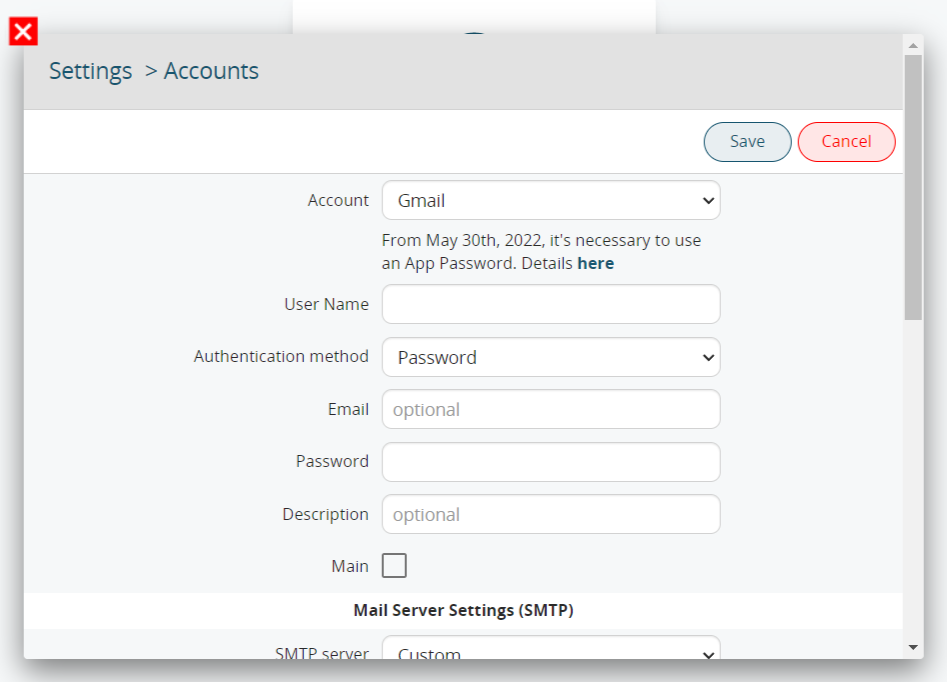
As you can see right after the field:

**From May 30th, 2022, it's necessary to use an App Password. [Details here](https://support.google.com/mail/answer/185833?hl=en)**

This action must be done in order to complete the configuration.

Additionally, **two-factor authentication (OAuth2)** is also supported for **Google Workspace** users. In this case, it will be necessary to request the activation of advanced settings for the dedicated OAuth2 configuration. &gt; We would like to clarify that this dedicated OAuth2 configuration **does not work for free Gmail accounts**.

</td></tr><tr style="height: 36px;"><td class="td1" style="width: 18.5185%; vertical-align: middle; height: 36px;" valign="top">**Microsoft Office365**

</td><td class="td1" style="width: 81.358%; vertical-align: middle; height: 36px;" valign="top">Here you need to provide username and password.

**PAY ATTENTION**: if the Outlook Authentication is made by OAuth2 **you must not use a custom imap account but the standard one**. We remind you that the **IMAP Office365 is listening to the port 993** (do not use the 443).

</td></tr><tr style="height: 36px;"><td class="td1" style="width: 18.5185%; vertical-align: middle; height: 36px;" valign="top">**Yahoo!**

</td><td class="td1" style="width: 81.358%; vertical-align: middle; height: 36px;" valign="top">You just need to type username and password.

</td></tr><tr style="height: 36px;"><td class="td1" style="width: 18.5185%; vertical-align: middle; height: 36px;" valign="top">**Custom**

</td><td class="td1" style="width: 81.358%; vertical-align: middle; height: 36px;" valign="top">Here you can configurate completly every connection parameter (IMAP, SMTP, ports)

</td></tr></tbody></table>

[![Messages - VTENEXT 23.08 (3).png](https://usermanual.vtenext.com/uploads/images/gallery/2023-08/scaled-1680-/messages-vtenext-23-08-3.png)](https://usermanual.vtenext.com/uploads/images/gallery/2023-08/messages-vtenext-23-08-3.png)

[![messages-signature-VTENEXT-21-01.png](https://usermanual.vtenext.com/uploads/images/gallery/2021-03-Mar/scaled-840-0/messages-signature-VTENEXT-21-01.png)](https://usermanual.vtenext.com/uploads/images/gallery/2021-03-Mar/messages-signature-VTENEXT-21-01.png)

After having entered the access credentials, set up the main folders for incoming emails, sent emails, drafts, bin and spam.  
The user can change the layout at any time by accessing Folders from the Messages module ![](https://usermanual.vtenext.com/uploads/images/gallery/2020-05-May/scaled-840-0/image-1588690835334.png)

[![Messages_VTENEXT_20_04_folders.png](https://usermanual.vtenext.com/uploads/images/gallery/2020-07-Jul/scaled-840-0/Messages_VTENEXT_20_04_folders.png)](https://usermanual.vtenext.com/uploads/images/gallery/2020-07-Jul/Messages_VTENEXT_20_04_folders.png)

Once the configuration, of one or more accounts is ended, you can find in the Message module the list of the folders (standard and special) divided for each account or in a unified version.  
This allows the user to display, for example, all the incoming emails from different addresses in one single folder.

**Special folders**

There are two special folders in the folders list:

- **Shared:** contains emails that other users have shared with you via a conversation (see below);
- **Imported:** contains all the Messages that are not included in any of the user's IMAP accounts for various reasons, but are linked to a vtenext record;
- **Flagged:** contains emails marked ![](https://usermanual.vtenext.com/uploads/images/gallery/2019-04-Apr/scaled-840-0/image-1555409176178.png)
- **Scheduled:** contains all the scheduled messages that have to be sent, according to the chosen time and date.

[![IMAP configuration and folders.png](https://usermanual.vtenext.com/uploads/images/gallery/2022-01/scaled-1680-/imap-configuration-and-folders.png)](https://usermanual.vtenext.com/uploads/images/gallery/2022-01/imap-configuration-and-folders.png)

Below examples of PEC email configuration:  
  
**PEC Aruba**

<table border="1" cellpadding="7" cellspacing="0" class="t1" id="bkmrk-name-choose-the-cust" style="width: 99.8765%; background-color: #ebf7ff;"><tbody><tr style="height: 37px;"><td class="td1" style="height: 37px; width: 14.5679%; vertical-align: middle;" valign="top">**Name**

</td><td class="td1" style="height: 37px; width: 85.3086%; vertical-align: middle;" valign="top">Choose the Custom option

</td></tr><tr style="height: 37px;"><td class="td1" style="height: 37px; width: 14.5679%; vertical-align: middle;" valign="top">**Server**

</td><td class="td1" style="height: 37px; width: 85.3086%; vertical-align: middle;" valign="top">IMAP: imaps.pec.aruba.it  
SMTP:smtps.pec.aruba.it

</td></tr><tr style="height: 37px;"><td class="td1" style="height: 37px; width: 14.5679%; vertical-align: middle;" valign="top">**Port**

</td><td class="td1" style="width: 85.3086%;" valign="top">IMAP: 993  
SMTP: 587  
  
SSL/TLS if present

</td></tr></tbody></table>

**PEC Legailmail**

<table border="1" cellpadding="7" cellspacing="0" class="t1" id="bkmrk-name-choose-the-cust-0" style="width: 100%; background-color: #ebf7ff; height: 148px;"><tbody><tr style="height: 37px;"><td class="td1" style="height: 37px; width: 86px; vertical-align: middle;" valign="top">**Name**

</td><td class="td1" style="height: 37px; width: 504px; vertical-align: middle;" valign="top">Choose the Custom option

</td></tr><tr style="height: 37px;"><td class="td1" style="height: 37px; width: 86px; vertical-align: middle;" valign="top">**Server**

</td><td class="td1" style="height: 37px; width: 504px; vertical-align: middle;" valign="top">IMAP: mbox.cert.legalmail.it  
SMTP: sendm.cert.legalmail.it

</td></tr><tr style="height: 37px;"><td class="td1" style="height: 37px; width: 86px; vertical-align: middle;" valign="top">**Port**

</td><td class="td1" style="height: 37px; width: 504px; vertical-align: middle;" valign="top">IMAP: 993  
SMTP: 465  
  
SSL/TLS if present

</td></tr></tbody></table>

# 5.2.1.1 Set Centralized Signature

The Centralized Signature makes it possible to set a default signature, identical for all crm users, with the same graphic layout and characteristics. Go to SETTINGS &gt; OTHER SETTINGS &gt; COMPANY DETAILS and scroll down to the bottom of the page to find the "Signature" options.

[![5.2.1.1 [1].png](https://usermanual.vtenext.com/uploads/images/gallery/2022-06/scaled-1680-/5-2-1-1-1.png)](https://usermanual.vtenext.com/uploads/images/gallery/2022-06/5-2-1-1-1.png)

*Company Details Page with the options for Signature in messages*

Clicking on the EDIT button at the top right makes it possible to configure the centralized signature, using all the variables provided. The variables refer to user details and various custom input fields, e.g. for input of the current date.

[![5.2.1.1 [2].PNG](https://usermanual.vtenext.com/uploads/images/gallery/2022-06/scaled-1680-/5-2-1-1-2.PNG)](https://usermanual.vtenext.com/uploads/images/gallery/2022-06/5-2-1-1-2.PNG)

*View of variables available and composition of the Centralized Signature*

# 5.2.2 Writing and reading emails

There are three equivalent options to send an email, e.g. to a contact:

1\. clicking on the email address shown in the record or in any vtenext page;  
2\. clicking on the icon in the light blue toolbar, selecting Write  
3\. from the Messages module interface, clicking on![](https://usermanual.vtenext.com/uploads/images/gallery/2019-07-Jul/scaled-840-0/image-1564585918062.png)

[![5.2.2 Writing and reading emails_1.png](https://usermanual.vtenext.com/uploads/images/gallery/2022-09/scaled-1680-/5-2-2-writing-and-reading-emails-1.png)](https://usermanual.vtenext.com/uploads/images/gallery/2022-09/5-2-2-writing-and-reading-emails-1.png)

All three options lead to the same New Email page.

<table border="1" cellpadding="0" cellspacing="0" class="t1" id="bkmrk-a-va-inserito-l%E2%80%99in" style="width: 100%; background-color: #ebf7ff;"><tbody><tr><td class="td1" style="width: 128.182px; vertical-align: middle;" valign="top">**To**

</td><td class="td1" style="width: 680.909px; vertical-align: middle;" valign="top">The recipient email address must be entered; you can write the email address or select it from the list (Leads, Accounts, Contacts, Vendors and Users)

</td></tr><tr><td class="td1" style="width: 128.182px; vertical-align: middle;" valign="top">**CC**

</td><td class="td1" style="width: 680.909px; vertical-align: middle;" valign="top">Carbon Copy: you can enter the address of recipients who are to receive a copy of the email

</td></tr><tr><td class="td1" style="width: 128.182px; vertical-align: middle;" valign="top">**Add BCC**

</td><td class="td1" style="width: 680.909px; vertical-align: middle;" valign="top">The copy to email addresses added with BCC will not be visible to the other recipients

</td></tr><tr><td class="td1" style="width: 128.182px; vertical-align: middle;" valign="top">**Subject**

</td><td class="td1" style="width: 680.909px; vertical-align: middle;" valign="top">The subject of your email

</td></tr></tbody></table>

<table border="1" cellpadding="0" cellspacing="0" class="t1" id="bkmrk-allegati-potete-aggi" style="width: 100%; background-color: #ebf7ff;"><tbody><tr style="height: 61px;"><td class="td1" style="width: 128px; height: 61px; vertical-align: middle;" valign="top">**Attachments**

</td><td class="td1" style="width: 681px; vertical-align: middle; height: 61px;" valign="top">You can add attachments to the email by means of the Add file function or by dragging the file to the drop area

**N.B.** when an email is sent from a detail view of a Document (from within the registry, click on the related of the Messages and then click on New Message), any attachments of that email are linked in the Documents related to that same registry

</td></tr><tr style="height: 85px;"><td class="td1" style="width: 128px; height: 85px; vertical-align: middle;" valign="top">**Send method**

</td><td class="td1" style="width: 681px; vertical-align: middle; height: 85px;" valign="top">Single: send a single mail with all visible recipients in the “to” field  
Multiple: send a separate email to each recipient in the “to” field, without showing the recipients’ names or email addresses

</td></tr><tr style="height: 61px;"><td class="td1" style="width: 128px; height: 61px; vertical-align: middle;" valign="top">**Select email Template**

</td><td class="td1" style="width: 681px; vertical-align: middle; height: 61px;" valign="top">Select one of the available templates saved in Settings &gt; Email templates  
<span style="color: rgb(224, 62, 45);">**WARNING:** When an email template is selected, the **Sending Method** automatically switches from **SINGLE** to **MULTIPLE**.</span>

</td></tr><tr style="height: 37px;"><td class="td1" style="width: 128px; height: 37px; vertical-align: middle;" valign="top">**Send**

</td><td class="td1" style="width: 681px; vertical-align: middle; height: 37px;" valign="top">Sends the email

</td></tr><tr style="height: 37px;"><td class="td1" style="width: 128px; height: 37px; vertical-align: middle;" valign="top">**Save draft**

</td><td class="td1" style="width: 681px; vertical-align: middle; height: 37px;" valign="top">Forces a save of your draft (also occurs automatically)

</td></tr></tbody></table>

The account view mask is divided into three parts:

[![5.2.2 Writing and reading emails_2.png](https://usermanual.vtenext.com/uploads/images/gallery/2022-09/scaled-1680-/5-2-2-writing-and-reading-emails-2.png)](https://usermanual.vtenext.com/uploads/images/gallery/2022-09/5-2-2-writing-and-reading-emails-2.png)

<table border="1" cellpadding="0" cellspacing="0" class="t1" id="bkmrk-1%C2%B0-colonna%3A-2%C2%B0-col" style="width: 100%; background-color: #ebf7ff;"><tbody><tr><td class="td1" style="width: 217px;" valign="top">**1° column:**

</td><td class="td1" style="width: 446px;" valign="top">**2° column:**

</td><td class="td1" style="width: 146px;" valign="top">**3° column:**

</td></tr><tr><td class="td1" style="width: 217px; vertical-align: middle;" valign="top">Email list, or

</td><td class="td1" style="width: 446px; vertical-align: middle;" valign="top">Sender’s data

</td><td class="td1" style="width: 146px; vertical-align: middle;" valign="top">Operations and links available for the email

</td></tr><tr><td class="td1" style="width: 217px; vertical-align: middle;" valign="top">Folders list by clicking on the Folders button, or

</td><td class="td1" style="width: 446px; vertical-align: middle;" valign="top">Body of the email

</td></tr><tr><td class="td1" style="width: 217px; vertical-align: middle;" valign="top">Accounts list, clicking on the Mailboxes button (shown only if more than one account is configured)

</td><td class="td1" style="width: 446px; vertical-align: middle;" valign="top">Attachments

</td></tr></tbody></table>

**N.B.:** Starting with the version 20.04 every time a user answers to an email and the recipient's address is not a record in the CRM a new contact is automatically created.

**Programmed transmission of an email from the Messages module**

From version 19.10, you can program an email to be sent at a later time. In the compose screen, after having entered the subject, the body and the recipient(s), you can click on the arrow located next to the Send button.

[![Compose.png](https://usermanual.vtenext.com/uploads/images/gallery/2020-07-Jul/scaled-840-0/Compose.png)](https://usermanual.vtenext.com/uploads/images/gallery/2020-07-Jul/Compose.png)

This will open a menu item labelled “Program send”.

[![Compose_send.png](https://usermanual.vtenext.com/uploads/images/gallery/2020-07-Jul/scaled-840-0/Compose_send.png)](https://usermanual.vtenext.com/uploads/images/gallery/2020-07-Jul/Compose_send.png)

Selecting this option will open a popup with the facility to set the date and time for sending the email in question (choose one of the preset options or click on “other” to configure the exact time and date to send the email).

[![schedule_sending.png](https://usermanual.vtenext.com/uploads/images/gallery/2020-07-Jul/scaled-840-0/schedule_sending.png)](https://usermanual.vtenext.com/uploads/images/gallery/2020-07-Jul/schedule_sending.png)

Once the email has been programmed, the following functions can be used:

<table border="1" id="bkmrk-invia-ora%3A-permette-" style="width: 100%;"><tbody><tr><td class="align-center" style="width: 11.1111%;">[![invia_ora.png](https://usermanual.vtenext.com/uploads/images/gallery/2020-05-May/scaled-840-0/invia_ora.png)](https://usermanual.vtenext.com/uploads/images/gallery/2020-05-May/invia_ora.png)</td><td style="width: 88.7654%; vertical-align: middle;">**Send now:** send the programmed email immediately</td></tr><tr><td class="align-center" style="width: 11.1111%;">[![riprogramma_invio.png](https://usermanual.vtenext.com/uploads/images/gallery/2020-05-May/scaled-840-0/riprogramma_invio.png)](https://usermanual.vtenext.com/uploads/images/gallery/2020-05-May/riprogramma_invio.png)</td><td style="width: 88.7654%; vertical-align: middle;">**Scheduled sending:** reschedule the previously set sending</td></tr><tr><td class="align-center" style="width: 11.1111%;">[![elimina_programmazione_invio.png](https://usermanual.vtenext.com/uploads/images/gallery/2020-05-May/scaled-840-0/elimina_programmazione_invio.png)](https://usermanual.vtenext.com/uploads/images/gallery/2020-05-May/elimina_programmazione_invio.png)</td><td style="width: 88.7654%; vertical-align: middle;">**Delete:** delete the programmed email permanently</td></tr></tbody></table>

To view the functions mentioned above, simply go to the dedicated folder from the message module ([see chapter 5.2.1](https://usermanual.vtenext.com/books/user-manual-vtenext-2308/page/521-imap-configuration-and-folders))

**N.B.:** Once the sending date and time have been reached, the email will disappear from the scheduled list.

# 5.2.3 Email Functions

<table border="1" id="bkmrk-per-scrivere-una-nuo" style="border-collapse: collapse; width: 100%; height: 571px;"><tbody><tr style="height: 35px;"><td style="width: 22.8556%; height: 35px;">[![Compose Button.png](https://usermanual.vtenext.com/uploads/images/gallery/2021-12/scaled-1680-/compose-button.png)](https://usermanual.vtenext.com/uploads/images/gallery/2021-12/compose-button.png)

</td><td class="td1" style="width: 77.1444%; height: 35px; vertical-align: middle;" valign="top">Compose a new email.

</td></tr><tr style="height: 29px;"><td style="width: 22.8556%; height: 29px;">[![Update Button.png](https://usermanual.vtenext.com/uploads/images/gallery/2021-12/scaled-1680-/update-button.png)](https://usermanual.vtenext.com/uploads/images/gallery/2021-12/update-button.png)

</td><td class="td1" style="width: 77.1444%; height: 29px; vertical-align: middle;" valign="top">Download emails from the email server

</td></tr><tr style="height: 29px;"><td style="width: 22.8556%; height: 29px;">[![image-1638891885150.png](https://usermanual.vtenext.com/uploads/images/gallery/2021-12-Dec/scaled-840-0/image-1638891885150.png)](https://usermanual.vtenext.com/uploads/images/gallery/2021-12-Dec/image-1638891885150.png)

</td><td class="td1" style="width: 77.1444%; height: 29px; vertical-align: middle;" valign="top">Messages module settings (user's personal settings)

</td></tr><tr style="height: 29px;"><td style="width: 22.8556%; height: 29px;">![](https://usermanual.vtenext.com/uploads/images/gallery/2021-12-Dec/scaled-840-0/image-1638894852003.png)

</td><td class="td1" style="width: 77.1444%; height: 29px; vertical-align: middle;" valign="top">Mark message as read/unread

</td></tr><tr style="height: 29px;"><td style="width: 22.8556%; height: 29px;">[![image-1638893786732.png](https://usermanual.vtenext.com/uploads/images/gallery/2021-12-Dec/scaled-840-0/image-1638893786732.png)](https://usermanual.vtenext.com/uploads/images/gallery/2021-12-Dec/image-1638893786732.png)

</td><td class="td1" style="width: 77.1444%; height: 29px; vertical-align: middle;" valign="top">Mark message as important

</td></tr><tr style="height: 29px;"><td style="width: 22.8556%; height: 29px;">![](https://usermanual.vtenext.com/uploads/images/gallery/2021-12-Dec/scaled-840-0/image-1638894887037.png)

</td><td class="td1" style="width: 77.1444%; vertical-align: middle; height: 29px;" valign="top">Move email to another folder

</td></tr><tr style="height: 29px;"><td style="width: 22.8556%; height: 29px;">![](https://usermanual.vtenext.com/uploads/images/gallery/2021-12-Dec/scaled-840-0/image-1638894900616.png)

</td><td class="td1" style="width: 77.1444%; vertical-align: middle; height: 29px;" valign="top">Mark as spam (the email is moved to the Spam Folder)

</td></tr><tr style="height: 29px;"><td style="width: 22.8556%; height: 29px;">[![image-1638894541297.png](https://usermanual.vtenext.com/uploads/images/gallery/2021-12-Dec/scaled-840-0/image-1638894541297.png)](https://usermanual.vtenext.com/uploads/images/gallery/2021-12-Dec/image-1638894541297.png)

</td><td class="td1" style="width: 77.1444%; vertical-align: middle; height: 29px;" valign="top">Delete email (the email is moved to the bin)

</td></tr><tr style="height: 29px;"><td class="align-center" style="width: 22.8556%; height: 29px; vertical-align: middle;">[![Email Functions_.png](https://usermanual.vtenext.com/uploads/images/gallery/2022-01/scaled-1680-/email-functions.png)](https://usermanual.vtenext.com/uploads/images/gallery/2022-01/email-functions.png)

</td><td class="td1" style="width: 77.1444%; vertical-align: middle; height: 29px;" valign="top">[![Email Functions_2.png](https://usermanual.vtenext.com/uploads/images/gallery/2022-01/scaled-1680-/email-functions-2.png)](https://usermanual.vtenext.com/uploads/images/gallery/2022-01/email-functions-2.png)  
Search in emails (simple, including subfolders, including all accounts, or advanced)\*

</td></tr><tr style="height: 37px;"><td class="td1" style="width: 22.8556%; height: 37px;" valign="top">**Create Event/to-dos**

</td><td class="td1" style="width: 77.1444%; vertical-align: middle; height: 37px;" valign="top">Create calendar activity from the email

</td></tr><tr style="height: 37px;"><td class="td1" style="width: 22.8556%; height: 37px;" valign="top">**Link**

</td><td class="td1" style="width: 77.1444%; vertical-align: middle; height: 37px;" valign="top">Link the email to an object in vtenext

</td></tr><tr style="height: 37px;"><td class="td1" style="width: 22.8556%; height: 37px;" valign="top">**Translate**

</td><td class="td1" style="width: 77.1444%; vertical-align: middle; height: 37px;" valign="top">Open Google Translate for instant translation of the body of the email

</td></tr><tr style="height: 37px;"><td class="td1" style="width: 22.8556%; height: 37px;" valign="top">**Download attachments**

</td><td class="td1" style="width: 77.1444%; vertical-align: middle; height: 37px;" valign="top">Download a single zip file containing the attachments, if more than one

</td></tr><tr style="height: 39px;"><td style="width: 22.8556%; height: 39px;">![](https://usermanual.vtenext.com/uploads/images/gallery/2021-12-Dec/scaled-840-0/image-1638895195763.png)

</td><td class="td1" style="width: 77.1444%; vertical-align: middle; height: 39px;" valign="top">Download attachment

</td></tr><tr style="height: 40px;"><td style="width: 22.8556%; height: 40px;">![](https://usermanual.vtenext.com/uploads/images/gallery/2021-12-Dec/scaled-840-0/image-1638895529334.png)

</td><td class="td1" style="width: 77.1444%; vertical-align: middle; height: 40px;" valign="top">File attachment as a CRM document / View document tab

</td></tr><tr style="height: 40px;"><td style="width: 22.8556%; height: 40px;">![](https://usermanual.vtenext.com/uploads/images/gallery/2021-12-Dec/scaled-840-0/image-1638895553775.png)

</td><td class="td1" style="width: 77.1444%; vertical-align: middle; height: 40px;" valign="top">Link document to an object in vtenext

</td></tr><tr style="height: 37px;"><td style="width: 22.8556%; height: 37px;">![](https://usermanual.vtenext.com/uploads/images/gallery/2021-12-Dec/scaled-840-0/image-1638895582910.png)

</td><td class="td1" style="width: 77.1444%; vertical-align: middle; height: 37px;" valign="top">Open attachment preview (supported extensions: odt, pdf and common image formats)

</td></tr></tbody></table>

Emails can be linked to CRM modules by means of the Link function:

[![Email Functions_3.png](https://usermanual.vtenext.com/uploads/images/gallery/2022-01/scaled-1680-/email-functions-3.png)](https://usermanual.vtenext.com/uploads/images/gallery/2022-01/email-functions-3.png)

<span style="font-family: -apple-system, BlinkMacSystemFont, 'Segoe UI', Oxygen, Ubuntu, Roboto, Cantarell, 'Fira Sans', 'Droid Sans', 'Helvetica Neue', sans-serif; font-size: 15px; font-style: normal; font-variant-ligatures: normal; font-variant-caps: normal; font-weight: 400;">Through the “Link” function it is possible to relate the emails to the CRM modules:</span>

[![image.png](https://usermanual.vtenext.com/uploads/images/gallery/2024-11/scaled-1680-/R2Zimage.png)](https://usermanual.vtenext.com/uploads/images/gallery/2024-11/R2Zimage.png)

The system suggests possible links automatically based on the sender's email address. You can edit the “Filter” item to extend to search also to include results beyond the suggested ones. The “Recents” button, which is accessible from the “create and link” function, allows you to access the modules most recently visited.

If you can’t find a match with an existing element, you can create a new record (for example a new account) by means of the “Create” button.

Once the connection has been made, it will be highlighted with the symbol ![](https://usermanual.vtenext.com/uploads/images/gallery/2019-04-Apr/scaled-840-0/image-1555409775190.png), which will be visible both in the email list view and in the email detail with an indication of the linked record.

[![Email Functions_6.png](https://usermanual.vtenext.com/uploads/images/gallery/2022-01/scaled-1680-/email-functions-6.png)](https://usermanual.vtenext.com/uploads/images/gallery/2022-01/email-functions-6.png)

Linked emails will be also visible in the records, via Relations &gt; Messages. Visibility of emails is subject to the Sharing Access configuration (Linked Messages module item).

**Display the folders in the email inbox.**

To view all the folders of an email inbox, simply click on the arrow located at the top left of the Messages Module, as shown in the following image.

[![Messages - VTENEXT 23.08.png](https://usermanual.vtenext.com/uploads/images/gallery/2023-08/scaled-1680-/cSxmessages-vtenext-23-08.png)](https://usermanual.vtenext.com/uploads/images/gallery/2023-08/cSxmessages-vtenext-23-08.png)

After that, the complete list of available folders, previously created either directly from the browser or from another email client, will appear.

[![Messages - VTENEXT 23.08 (1).png](https://usermanual.vtenext.com/uploads/images/gallery/2023-08/scaled-1680-/S3Lmessages-vtenext-23-08-1.png)](https://usermanual.vtenext.com/uploads/images/gallery/2023-08/S3Lmessages-vtenext-23-08-1.png)

The "UNSEEN" email folder has been added to the list of folders for convenient searching and access to emails.

[![image-1701859221094.png](https://usermanual.vtenext.com/uploads/images/gallery/2023-12/scaled-1680-/image-1701859221094.png)](https://usermanual.vtenext.com/uploads/images/gallery/2023-12/image-1701859221094.png)

**Mark all emails as read.**

To mark all emails as read, it is essential to follow these simple steps:

1\. From the left column of the Message module, click on the edit icon (pencil) as indicated in the image below.

[![Messages - VTENEXT 23.08 (2).png](https://usermanual.vtenext.com/uploads/images/gallery/2023-08/scaled-1680-/yonmessages-vtenext-23-08-2.png)](https://usermanual.vtenext.com/uploads/images/gallery/2023-08/yonmessages-vtenext-23-08-2.png)

2\. Finally, select all the emails you wish to mark as READ and click on the MARK AS READ icon, as indicated in the image below.

[![Messages - VTENEXT 23.08 (3).png](https://usermanual.vtenext.com/uploads/images/gallery/2023-08/scaled-1680-/mfKmessages-vtenext-23-08-3.png)](https://usermanual.vtenext.com/uploads/images/gallery/2023-08/mfKmessages-vtenext-23-08-3.png)

Using the same method, you can also bulk mark emails as SPAM/JUNK by clicking on the flame icon, as shown in the image below.

[![Messages - VTENEXT 23.08 (4).png](https://usermanual.vtenext.com/uploads/images/gallery/2023-08/scaled-1680-/messages-vtenext-23-08-4.png)](https://usermanual.vtenext.com/uploads/images/gallery/2023-08/messages-vtenext-23-08-4.png)

**\*Email search**

[![image.png](https://usermanual.vtenext.com/uploads/images/gallery/2024-12/scaled-1680-/Iacimage.png)](https://usermanual.vtenext.com/uploads/images/gallery/2024-12/Iacimage.png)

*When clicking on the SEARCH area in the top left, this screen appears*

[![image.png](https://usermanual.vtenext.com/uploads/images/gallery/2024-12/scaled-1680-/PWLimage.png)](https://usermanual.vtenext.com/uploads/images/gallery/2024-12/PWLimage.png)

*When clicking on Advanced Search, this set of options appears*

It is possible to search Messages using the dedicated SEARCH function located at the top left. Searches can be conducted in various ways:

- **Include Subfolders:** Allows searching within the subfolders of the same email account.
- **Search Across All Accounts:** Enables searching in other email accounts if they are configured (note that each user can have multiple email accounts configured in their Messages module).
- **Advanced Search:** Provides a set of options for precise email searches. You can search by Subject, Sender, Recipients, Body, Date, or filter between read and unread messages.

# 5.2.4 Emails Sharing

To share an email with another user, simply open a conversation on the email concerned. The “Conversations” tool (see specific chapter) is located at the bottom of the page, under the body of the email.

Emails shared by means of a Conversation are flagged with the symbol ![](https://usermanual.vtenext.com/uploads/images/gallery/2021-12-Dec/scaled-840-0/image-1639412825036.png) . The user who receives the conversation can view the email in the “Shared” folder.

Conversations allow you to make the mail visible to a colleague who has not received the message directly (allowing your colleague to perform the usual actions of reply, forward, etc., and also view any links between the email and CRM objects). This allows a significant reduction in the volume of internal email traffic.

# 5.2.5 .ics support for calendar

Attachments in .ics format are identified as invitations to attend an appointment and they create a pre-linked calendar event. The recipient can specify his/her intention of participating/not participating in the event. The message interface appears as shown below:

[![ics support for calendar.png](https://usermanual.vtenext.com/uploads/images/gallery/2022-01/scaled-1680-/ics-support-for-calendar.png)](https://usermanual.vtenext.com/uploads/images/gallery/2022-01/ics-support-for-calendar.png)

# 5.2.6 Other Settings of Messages Module

[![Messages_settings.png](https://usermanual.vtenext.com/uploads/images/gallery/2020-06-Jun/scaled-840-0/Messages_settings.png)](https://usermanual.vtenext.com/uploads/images/gallery/2020-06-Jun/Messages_settings.png)

- **Layout:** change the emails list layout
- **Filters:** set up filter rules for automatic transfer of emails into folders
- **POP3**: set up a secondary account in POP3 mode

**Warning!** Once a secondary account has been configured in POP3 mode, a copy of the secondary account emails will be created on the email server of the main account. The main account mailbox may therefore tend to run out of storage space.

---

**Out of Office**

From version 19.10 an automatic “Out of Office” notification can be set, in order to respond to emails informing the sender of your out of office status. Clicking on [![image-1653475214405.png](https://usermanual.vtenext.com/uploads/images/gallery/2022-05/scaled-1680-/image-1653475214405.png)](https://usermanual.vtenext.com/uploads/images/gallery/2022-05/image-1653475214405.png)from the Messages module allows you to access this function, by means of the specific item of the same name. An additional window will open in which you can Enable or Disable this function and set the automatic replay message text.

[![image.png](https://usermanual.vtenext.com/uploads/images/gallery/2024-11/scaled-1680-/sy5image.png)](https://usermanual.vtenext.com/uploads/images/gallery/2024-11/sy5image.png)

*Out of Office Activation Screen with Customizable Auto-Reply Message for Email*

[![image.png](https://usermanual.vtenext.com/uploads/images/gallery/2024-11/scaled-1680-/Cztimage.png)](https://usermanual.vtenext.com/uploads/images/gallery/2024-11/Cztimage.png)

*Out of Office Configuration Screen to Set the Time Frame for Automatic Email Responses*

The **“Out of Office”** feature has also been extended to the Conversations module, so that when a user is unavailable for a certain period, if they are involved in a conversation, a warning message will appear indicating their absence:

[![image.png](https://usermanual.vtenext.com/uploads/images/gallery/2026-02/scaled-1680-/fspimage.png)](https://usermanual.vtenext.com/uploads/images/gallery/2026-02/fspimage.png)

---

**Pause push notifications on Wilson**

It is also possible to pause Wilson app push notifications when an 'Out of Office' interval is set. By activating the specific checkbox shown in the image, app notifications will no longer be delivered during the designated period.

[![image.png](https://usermanual.vtenext.com/uploads/images/gallery/2024-11/scaled-1680-/bXqimage.png)](https://usermanual.vtenext.com/uploads/images/gallery/2024-11/bXqimage.png)

# 5.2.7 Mass email

A mass mailing tool is available send an email to multiple recipients (20 max) in a single shot. Select the email recipients from the list view of the desired module, e.g. Leads, then click on the button [![2_3_3-Contextual-Icons_Other.PNG](https://usermanual.vtenext.com/uploads/images/gallery/2021-09-Sep/scaled-1680-/2_3_3-Contextual-Icons_Other.PNG)](https://usermanual.vtenext.com/uploads/images/gallery/2021-09-Sep/2_3_3-Contextual-Icons_Other.PNG) followed by Email, located above the records list.

[![Mass mail_1.png](https://usermanual.vtenext.com/uploads/images/gallery/2022-01/scaled-1680-/mass-mail-1.png)](https://usermanual.vtenext.com/uploads/images/gallery/2022-01/mass-mail-1.png)

The system prompts you to choose one or more of the email type fields available in the record (can be Email address, Other email address, Yahoo ID).

[![Mass email_2.png](https://usermanual.vtenext.com/uploads/images/gallery/2022-01/scaled-1680-/mass-email-2.png)](https://usermanual.vtenext.com/uploads/images/gallery/2022-01/mass-email-2.png)

The new email composition window will then appear. The email addresses in the chosen fields will be set as recipients (“To” field).

Before sending the email check the “Sending Method”, setting it to Multiple in order to keep recipients hidden (recipients will only see their own address).

![](https://usermanual.vtenext.com/uploads/images/gallery/2019-08-Aug/scaled-840-0/image-1564646605761.png)

# 5.3 Email Templates

The vtenext admin user can make email templates available to other users for use for single emails and for newsletters. The general characteristics of email templates applicable to both mails and newsletters are described below, while specific functions concerning emails are shown in the subsequent sections.

To create a new Email template go to **Settings &gt; Customer Tools &gt;Template Email**.

[![Email Templates_1.png](https://usermanual.vtenext.com/uploads/images/gallery/2022-01/scaled-1680-/email-templates-1.png)](https://usermanual.vtenext.com/uploads/images/gallery/2022-01/email-templates-1.png)

The email templates configuration mask contains an initial internal information section and a second section (grey box) composed of the body of the email and the data visible to the recipients.

[![Email Templates_2.png](https://usermanual.vtenext.com/uploads/images/gallery/2022-01/scaled-1680-/email-templates-2.png)](https://usermanual.vtenext.com/uploads/images/gallery/2022-01/email-templates-2.png)

<table border="1" cellpadding="0" cellspacing="0" class="t1" id="bkmrk-nome-nome-del-templa" style="width: 100%; background-color: #ebf7ff;"><tbody><tr style="height: 37px;"><td class="td1" style="width: 124px; height: 37px; vertical-align: middle;" valign="top">**Name**

</td><td class="td1" style="width: 685px; height: 37px; vertical-align: middle;" valign="top">Template name

</td></tr><tr style="height: 37px;"><td class="td1" style="width: 124px; height: 37px; vertical-align: middle;" valign="top">**Description**

</td><td class="td1" style="width: 685px; height: 37px; vertical-align: middle;" valign="top">Template description (optional)

</td></tr><tr style="height: 61px;"><td class="td1" style="width: 124px; height: 61px; vertical-align: middle;" valign="top">**Folder**

</td><td class="td1" style="width: 685px; height: 61px; vertical-align: middle;" valign="top">Public: the template is available to all   
Personal users: only the template is available only to admin users

</td></tr><tr style="height: 37px;"><td class="td1" style="width: 124px; height: 37px; vertical-align: middle;" valign="top">**Type**

</td><td class="td1" style="width: 685px; height: 37px; vertical-align: middle;" valign="top">Email: templates available for emails (Messages Module)   
Newsletter: templates available for the Newsletters module

</td></tr><tr style="height: 37px;"><td class="td1" style="width: 124px; height: 37px; vertical-align: middle;" valign="top">**Subject**

</td><td class="td1" style="width: 685px; height: 37px; vertical-align: middle;" valign="top">Email subject

</td></tr><tr style="height: 37px;"><td class="td1" style="width: 124px; height: 37px; vertical-align: middle;" valign="top">**Message**

</td><td class="td1" style="width: 685px; height: 37px; vertical-align: middle;" valign="top">Body of the email

</td></tr></tbody></table>

**Note.** If a template contains variables related to leads and is set to contacts, the variables will be displayed but not completed. We suggest creating two different templates with different variables, one for the Leads module and one for Contacts. Note that it is helpful to inform users of the module for which the template is available, providing the information in the Description, for example.  
  
**N.B.** For additional information on new newsletter editor refer to the chapter**[ 6.1.6 New Newsletter editor](https://usermanual.vtenext.com/books/user-manual-vtenext-2308/page/616-new-newsletter-editor).**

# 5.4 Talks Module

vtenext proposes an alternative solution to manage the exchange of information within your organisation, avoiding the transmission of emails or paper notes that cannot be tracked.

To open the Talks module click the icon [![5_4-Modulo-Conve.png](https://usermanual.vtenext.com/uploads/images/gallery/2021-10-Oct/scaled-840-0/5_4-Modulo-Conve.png)](https://usermanual.vtenext.com/uploads/images/gallery/2021-10-Oct/5_4-Modulo-Conve.png) on the right-hand toolbar.

[![5_4-Conversation-module_1.png](https://usermanual.vtenext.com/uploads/images/gallery/2021-10-Oct/scaled-840-0/5_4-Conversation-module_1.png)](https://usermanual.vtenext.com/uploads/images/gallery/2021-10-Oct/5_4-Conversation-module_1.png)

The screen presents at its center, the welcome greeting for the logged user, this area wil be used to show all the conversations linked to a specific topic.

On the left part of the screen we find the list of all the active conversations, subdivided by four tabs:

<table border="1" cellpadding="0" cellspacing="0" class="t1" id="bkmrk-my-files-%C2%A0-cartella" style="height: 172px; background-color: #ebf7ff;"><tbody><tr style="height: 37px;"><td class="td1" style="height: 37px; width: 88px;" valign="middle">**All**

</td><td class="td2" style="height: 37px; width: 720px;" valign="top">All the active conversations, read and unread, presents in the crm that involve the user

</td></tr><tr style="height: 37px;"><td class="td2" style="height: 37px; width: 88px;" valign="middle">**Channel**

</td><td class="td2" style="height: 37px; width: 720px;" valign="top">Is possible to create group to talk with the collegues, for examples of the same department

</td></tr><tr style="height: 37px;"><td class="td2" style="height: 37px; width: 88px;" valign="middle">**Direct**

</td><td class="td2" style="height: 37px; width: 720px;" valign="top">Conversations where is involved the user which is logged in

</td></tr><tr style="height: 61px;"><td class="td2" style="height: 61px; width: 88px;" valign="middle">**Pinned**

</td><td class="td2" style="height: 61px; width: 720px;" valign="top">Is possible to pin a conversation, that is tick as important to maintain in this area to reach them easily

</td></tr></tbody></table>

To start a Talk, click on the button [![image-1633353298498.png](https://usermanual.vtenext.com/uploads/images/gallery/2021-10-Oct/scaled-840-0/image-1633353298498.png)](https://usermanual.vtenext.com/uploads/images/gallery/2021-10-Oct/image-1633353298498.png)and select whether to publish the Conversation to:

- **All CRM users**
- **Specific users** (it is possible to add users later as well)
- **User groups** available in the CRM

[![image.png](https://usermanual.vtenext.com/uploads/images/gallery/2026-02/scaled-1680-/7e6image.png)](https://usermanual.vtenext.com/uploads/images/gallery/2026-02/7e6image.png)*Option to choose whether to publish a conversation to Users or Groups*

[![image.png](https://usermanual.vtenext.com/uploads/images/gallery/2026-02/scaled-1680-/ejMimage.png)](https://usermanual.vtenext.com/uploads/images/gallery/2026-02/ejMimage.png)

[![image.png](https://usermanual.vtenext.com/uploads/images/gallery/2026-02/scaled-1680-/F0pimage.png)](https://usermanual.vtenext.com/uploads/images/gallery/2026-02/F0pimage.png)*Please note that an avatar image has been added to user auto-complete fields (for example, in conversations)*

Other participants can be added to Conversations already in progress by means of the icon next to the name of the user to whom you are talking [![image-1633358987387.png](https://usermanual.vtenext.com/uploads/images/gallery/2021-10-Oct/scaled-840-0/image-1633358987387.png)](https://usermanual.vtenext.com/uploads/images/gallery/2021-10-Oct/image-1633358987387.png).The newly contacted user can view the entire Conversation from the beginning.

To start a Talk on a specific topic, like for an example, use the dedicated Talks tool at the foot of the page in the concerned record.

Once the Conversation text has been entered into the “Start new conversation” field, click the “Public” button and select .

[![5_4-Conversation-module_3.png](https://usermanual.vtenext.com/uploads/images/gallery/2021-10-Oct/scaled-840-0/5_4-Conversation-module_3.png)](https://usermanual.vtenext.com/uploads/images/gallery/2021-10-Oct/5_4-Conversation-module_3.png)

In this way the conversation will be interrelated with the subject in which you are currently located. For users who receive the conversation, the subject can be clicked to access it (assuming the user has the required access credentials in accordance with his/her profile). The conversation will also be listed at the bottom of the record.

Like any self-respecting chat the talks module has a set of emoj available for a greater comunication experience.

[![emoji.png](https://usermanual.vtenext.com/uploads/images/gallery/2021-11-Nov/scaled-840-0/emoji.png)](https://usermanual.vtenext.com/uploads/images/gallery/2021-11-Nov/emoji.png)

From an already started conversation, clicking on the button with three dots, is possible to enter in a a menu with three options: **Ping, create or link, send file.**

[![5_4-Conversation-module_4.png](https://usermanual.vtenext.com/uploads/images/gallery/2021-10-Oct/scaled-840-0/5_4-Conversation-module_4.png)](https://usermanual.vtenext.com/uploads/images/gallery/2021-10-Oct/5_4-Conversation-module_4.png)

<table border="1" cellpadding="0" cellspacing="0" class="t1" id="bkmrk-ping-permette-di-pin" style="background-color: #ebf7ff;"><tbody><tr><td class="td1" style="width: 118px;" valign="middle">**Ping**

</td><td class="td2" style="width: 691px;" valign="top">Allows to ping a conversation, which is a request for a response to the people involved in that conversation (when is pressed the button will be displayed the word "Ping")

[![Ping_conversazione_VTENEXT-21-09.png](https://usermanual.vtenext.com/uploads/images/gallery/2021-10-Oct/scaled-840-0/Ping_conversazione_VTENEXT-21-09.png)](https://usermanual.vtenext.com/uploads/images/gallery/2021-10-Oct/Ping_conversazione_VTENEXT-21-09.png)
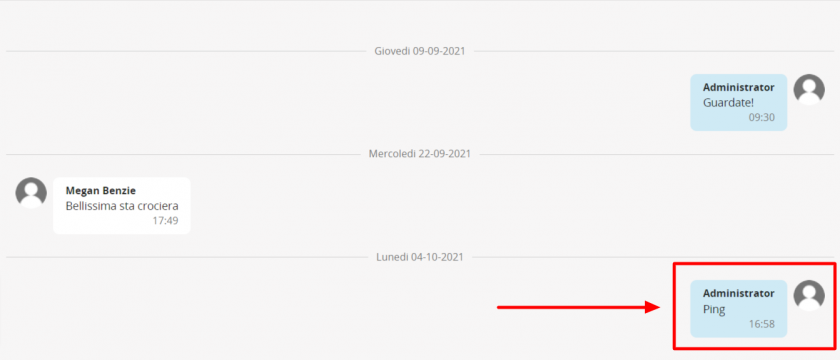
</td></tr><tr><td class="td2" style="width: 118px;" valign="middle">**Create or link**

</td><td class="td2" style="width: 691px;" valign="top">Is possible to create or link a module to the current conversation

[![5_4-Conversation-module_9.png](https://usermanual.vtenext.com/uploads/images/gallery/2021-10-Oct/scaled-840-0/5_4-Conversation-module_9.png)](https://usermanual.vtenext.com/uploads/images/gallery/2021-10-Oct/5_4-Conversation-module_9.png)
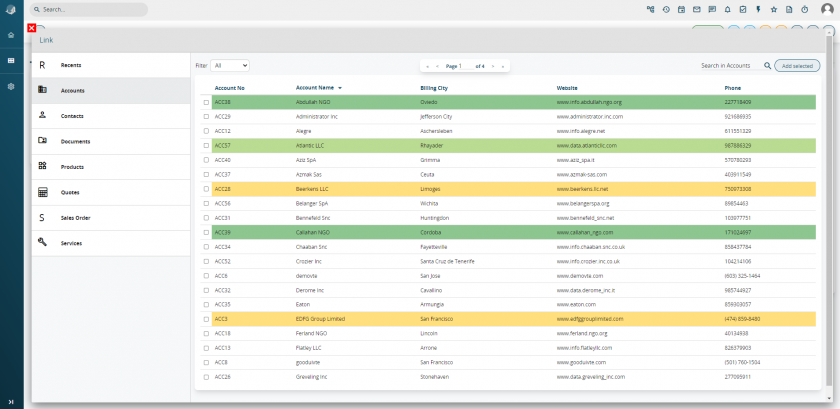
</td></tr><tr><td class="td2" style="width: 118px;" valign="middle">**Send file**

</td><td class="td2" style="width: 691px;" valign="top">Is possible to send file that will be linked only with the current conversation  
[![5_4-Conversation-module_5.png](https://usermanual.vtenext.com/uploads/images/gallery/2021-10-Oct/scaled-840-0/5_4-Conversation-module_5.png)](https://usermanual.vtenext.com/uploads/images/gallery/2021-10-Oct/5_4-Conversation-module_5.png)
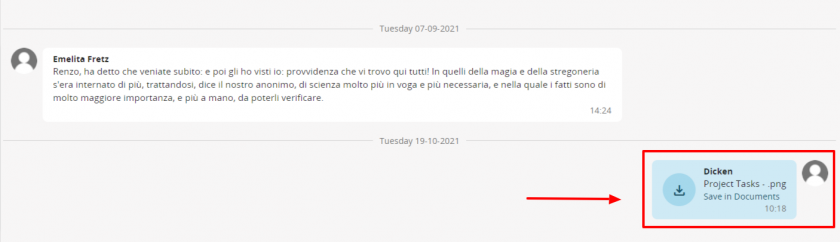
</td></tr></tbody></table>

**Warning!**<span style="text-align: justify;"> A conversation can be linked to only one entity.</span>

<span style="text-align: justify;">Whenever a user writes a new conversation or replies to a conversation already in progress in which you are participating, you will receive a notification on the icon.[![Notifica_Conversazione-VTENEXT-21-09.png](https://usermanual.vtenext.com/uploads/images/gallery/2021-10-Oct/scaled-840-0/Notifica_Conversazione-VTENEXT-21-09.png)](https://usermanual.vtenext.com/uploads/images/gallery/2021-10-Oct/Notifica_Conversazione-VTENEXT-21-09.png)</span>

<span style="text-align: justify;">**Search in Talks**</span>

<span style="text-align: justify;">You can perform searches in Talks module by means of the specific command located in the window at the top right. The search does not include words inserted in linked elements.</span>

[![5_4-Conversation-module_6.png](https://usermanual.vtenext.com/uploads/images/gallery/2021-10-Oct/scaled-840-0/5_4-Conversation-module_6.png)](https://usermanual.vtenext.com/uploads/images/gallery/2021-10-Oct/5_4-Conversation-module_6.png)

**Delete comment**

Users can delete their comments published in conversations by means of the X button shown on the right. This action will also remove all comments posted in reply to the deleted comment.

**Warning:** the primary conversation can be deleted only by the person who created it. **In addition the conversation or comment can't be removed after 24 hours.**

[![5_4-Conversation-module_7.png](https://usermanual.vtenext.com/uploads/images/gallery/2021-10-Oct/scaled-840-0/5_4-Conversation-module_7.png)](https://usermanual.vtenext.com/uploads/images/gallery/2021-10-Oct/5_4-Conversation-module_7.png)

**Public and generic Talks**

Not all users can be enabled to conduct public conversations (addressed to all users) or generic conversations (unrelated to vtenext subjects).

From the user tab, the CRM administrator defines whether or not to enable the user for public or generic conversations.

[![5_4-Conversation-module_8.png](https://usermanual.vtenext.com/uploads/images/gallery/2021-10-Oct/scaled-840-0/5_4-Conversation-module_8.png)](https://usermanual.vtenext.com/uploads/images/gallery/2021-10-Oct/5_4-Conversation-module_8.png)

**Leave a Conversation**

When a user is part of a conversation he/she didn't initiate, he/she can choose to leave it if it's no longer of interest to it or if they're not interested in that topic. To do so, simply click on the X button at the top right of that same Conversation, as shown in the following image.

[![Conversazioni - VTENEXT 23.08.png](https://usermanual.vtenext.com/uploads/images/gallery/2023-08/scaled-1680-/conversazioni-vtenext-23-08.png)](https://usermanual.vtenext.com/uploads/images/gallery/2023-08/conversazioni-vtenext-23-08.png)

# 5.5 Notification Module

vtenext keep users informed of the data of interest by means of the Notifications tool.  
  
Each user can define the following details from the Preferences tab:

- notification method: Email/vtenext (“Notify me via” field);
- frequency of unread notifications summary emails since the latest click on the globe icon, selecting the time frame from the preset values (“Notifications summary” field);
- the topics for which you require notification (module notification Settings), selecting updates for creation and/or editing for each module.

**Warning!** Notifications of the Modules Notification Settings are related to the functions assigned to the user. This means you will receive a notification whenever a different user creates/edits a record assigned to you.

To display notifications click on ![](https://usermanual.vtenext.com/uploads/images/gallery/2021-12-Dec/scaled-840-0/image-1639469870577.png) Unread notifications are shown by means of a red number. To mark a notification as read, click on the notification as shown in the figure:

[![Notification Module_1.png](https://usermanual.vtenext.com/uploads/images/gallery/2022-01/scaled-1680-/notification-module-1.png)](https://usermanual.vtenext.com/uploads/images/gallery/2022-01/notification-module-1.png)You can also receive notifications on records assigned to other users or on updating of a filter, by selecting the bell icon alongside the list of filters or in each record.

[![Notification Module_2.png](https://usermanual.vtenext.com/uploads/images/gallery/2022-01/scaled-1680-/notification-module-2.png)](https://usermanual.vtenext.com/uploads/images/gallery/2022-01/notification-module-2.png)

![](https://usermanual.vtenext.com/uploads/images/gallery/2021-12-Dec/scaled-840-0/image-1639470933091.png) Notification disabled on record/filter

![](https://usermanual.vtenext.com/uploads/images/gallery/2021-12-Dec/scaled-840-0/image-1639470964039.png) Notification enabled on record/filter

**Example of use of notification on filter:** receive an alert when a new Trouble Ticket enters the “Urgent Requests” filter (filter based on a priority class).

The ability to enable and receive desktop notifications will be implemented from version 19.10. Whenever a new conversation or a new email is received, the notifications will alert you with popups at the bottom right of your preferred browser.

<table border="0" class="align-center" id="bkmrk--1" style="width: 100%; border-collapse: collapse;"><tbody><tr><td style="width: 50%;">[![notifica_messaggio_vtenext.png](https://usermanual.vtenext.com/uploads/images/gallery/2019-10-Oct/scaled-840-0/notifica_messaggio_vtenext.png)](https://usermanual.vtenext.com/uploads/images/gallery/2019-10-Oct/notifica_messaggio_vtenext.png)</td><td style="width: 50%;">[![notifica_conversazione_vtenext.png](https://usermanual.vtenext.com/uploads/images/gallery/2019-10-Oct/scaled-840-0/notifica_conversazione_vtenext.png)](https://usermanual.vtenext.com/uploads/images/gallery/2019-10-Oct/notifica_conversazione_vtenext.png)</td></tr></tbody></table>

**N.B.: to enable browser notifications, refer to the official online guide for Chrome, Firefox or any other browser used on your computer. Notifications are not displayed if we are using Http protocol to reach the crm.**

# 5.5.1 vtenext version update notification

From version 19.10 you can receive a notification from the CRM when a new vtenext version update is available.

[![upgrade.png](https://usermanual.vtenext.com/uploads/images/gallery/2020-05-May/scaled-840-0/upgrade.png)](https://usermanual.vtenext.com/uploads/images/gallery/2020-05-May/upgrade.png)

Clicking on the update details will open a dedicated page that allows you to plan or postpone the vtenext update.

![](https://usermanual.vtenext.com/uploads/images/gallery/2020-05-May/scaled-840-0/image-1589204637545.png)

**Plan Update**

Click on PLAN UPDATE to display the following window in which you can select the DATE and TIME of the update, the users to alert when the updated is completed, and the contents of the email sent by the system automatically:

![](https://usermanual.vtenext.com/uploads/images/gallery/2020-05-May/scaled-840-0/image-1589204670246.png)

Click on the PLAN button at the top right of the page to set the date and time when the system is to auto-install the update.

**Remind me**

This function is used receive an update available reminder from the CRM at a later date.  
The options are:

- 4 hours
- Tomorrow
- Next week

![](https://usermanual.vtenext.com/uploads/images/gallery/2020-05-May/scaled-840-0/image-1589204736707.png)

Once you have decided when you wish to be alerted, the following screen page will be displayed:

**N.B.:** note that even if it has been read, the notification is not removed from the notifications log and if a new attempt is made to access the record it will not be possible to view or edit the choices made previously. The screen page will thus be similar to the screen shown below.

![](https://usermanual.vtenext.com/uploads/images/gallery/2020-05-May/scaled-840-0/image-1589204781912.png)

# 5.6 Documents

vtenext features a simple but invaluable documents manager.

Documents manager main characteristics:

- Store file type documents (uploaded locally) or links (url from the web);
- Create folders to store documents digitally;
- Assign documents to the user responsible for managing them: e.g., if the module is set as private, each individual users can view only the documents assigned to their name;
- Share documents without sending them by email, by means of the download link;
- Share and provide read/write access to third parties without a vtenext account for revision purposes by means of a special authorisation token;
- Monitor the number of document downloads.

The documents display is arranged in folders or in list mode (List button). Folders can be created (Add Folder) and removed (Delete folders selected with flags).

**Allowed file types:** the document management system allows uploading the most commonly used document types and extensions, such as PDF, XLS, DOC, JPG, PNG, ZIP, etc. Files of type **EXE** are not allowed. **HTML** files are also not allowed as-is: they may be uploaded but are automatically converted into **TXT** files to prevent the execution of embedded code such as JavaScript or similar.

By default, vtenext have two folders loaded:

1. **DEFAULT:** example folder that allows you to upload your first files
2. **MESSAGE ATTACHMENTS:** which automatically collects all the attachments of the emails connected to the various entities or modules of the crm. For example, if an email is linked from the Messages module to a Contact, the attachment present will turn into a document that we will find directly linked to that same Contact and within this folder.
3. **MY PRIVATE FILES:** collects all files that were previously located in the folder MY FILES present in the homepage.

**N.B.:** folders containing documents cannot be deleted. First remove all the contents and then you will be able to delete the folder.

[![5_6-Documents_1.png](https://usermanual.vtenext.com/uploads/images/gallery/2021-12-Dec/scaled-840-0/5_6-Documents_1.png)](https://usermanual.vtenext.com/uploads/images/gallery/2021-12-Dec/5_6-Documents_1.png)

Folder list present by default in the module Documents.

[![5_6-Documents_2.png](https://usermanual.vtenext.com/uploads/images/gallery/2021-12-Dec/scaled-840-0/5_6-Documents_2.png)](https://usermanual.vtenext.com/uploads/images/gallery/2021-12-Dec/5_6-Documents_2.png)

Clicking on the folder (in the example it was chosen the default folder), we can note that within this folder there is a sub- folder.

[![5_6-Documents_3.png](https://usermanual.vtenext.com/uploads/images/gallery/2021-12-Dec/scaled-840-0/5_6-Documents_3.png)](https://usermanual.vtenext.com/uploads/images/gallery/2021-12-Dec/5_6-Documents_3.png)

Finally, within the sub-folder there can be other files and sub-folders that can create a infinite structure. Note the path present in the head of the module.

[![5_6-Documents_4.png](https://usermanual.vtenext.com/uploads/images/gallery/2021-12-Dec/scaled-840-0/5_6-Documents_4.png)](https://usermanual.vtenext.com/uploads/images/gallery/2021-12-Dec/5_6-Documents_4.png)

For each folder or sub-folder, it will be possible to create a new folder, create a new document, or directly upload a file in the active folder.

[![image.png](https://usermanual.vtenext.com/uploads/images/gallery/2024-11/scaled-1680-/KG6image.png)](https://usermanual.vtenext.com/uploads/images/gallery/2024-11/KG6image.png)

By clicking on the three dots next to the name of each Folder or Subfolder **(except for the three standard ones named Default, Message attachments, and My private files)**, an options menu will open:

<table border="1" cellpadding="0" cellspacing="0" class="t1" id="bkmrk-nome-scegliere-il-ti" style="width: 100%; background-color: #ebf7ff;"><tbody><tr style="height: 36px;"><td class="td1" style="width: 18.9054%; vertical-align: middle; height: 36px;" valign="top">**Edit**

</td><td class="td1" style="width: 81.0946%; vertical-align: middle; height: 36px;" valign="top">to rename the folder or enable its display on the Customer Portal. In the popup screen that appears, you can choose a new name for the folder or decide whether to activate it on the Customer Portal, specifying which profiles can view this folder.

**Note**: if it is possible to create/modify documents for a profile, in the "portal active" folders it will be possible to create and modify all the files contained by all the contacts of that profile.

[![image.png](https://usermanual.vtenext.com/uploads/images/gallery/2024-11/scaled-1680-/tAQimage.png)](https://usermanual.vtenext.com/uploads/images/gallery/2024-11/tAQimage.png)
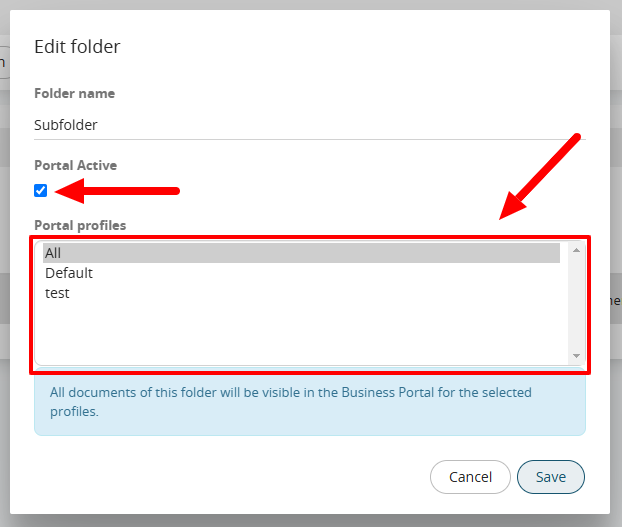
</td></tr><tr style="height: 36px;"><td class="td1" style="width: 18.9054%; vertical-align: middle; height: 36px;" valign="top">**Move in**

</td><td class="td1" style="width: 81.0946%; vertical-align: middle; height: 36px;" valign="top">to move the folder to another level, you’ll need to select the new folder/level where the folder will be relocated

</td></tr><tr><td style="width: 18.9054%; vertical-align: middle;">**Copy in**

</td><td style="width: 81.0946%; vertical-align: middle;">to duplicate the folder and its contents into another folder, you’ll need to select the new folder/level where the duplication will be made

</td></tr><tr><td style="width: 18.9054%; vertical-align: middle;">**Delete**

</td><td style="width: 81.0946%; vertical-align: middle;">to delete the folder and its contents

</td></tr></tbody></table>

When a user clicks on Create Document it will be possible to access the following screen:  
  
[![5_6-Documents_6.png](https://usermanual.vtenext.com/uploads/images/gallery/2021-12-Dec/scaled-840-0/5_6-Documents_6.png)](https://usermanual.vtenext.com/uploads/images/gallery/2021-12-Dec/5_6-Documents_6.png)

In addition to the essential information it must be added other fields as shown in the previous image.  
The “Attachment type” field offers the following options:

- **FILE:** upload a file from your computer to the CRM (upload); the file will be saved in the vtenext folders.
- **URL:** indicate a link to the file position (the file will not be saved in the vtenext folders)

The "Visible on Portal" or "Portal Active" field allows the uploaded document to be viewed by authorized contacts within the Customer Portal (see dedicated chapter). Always remember to check that the folder containing the document is also visible on the portal, as explained in this chapter.

**Download All Attachments Function**

Starting from version 22.05.1, a button has been added in the related Documents section within CRM records, allowing users to download all related documents in a single zip file.

[![image.png](https://usermanual.vtenext.com/uploads/images/gallery/2024-11/scaled-1680-/Rosimage.png)](https://usermanual.vtenext.com/uploads/images/gallery/2024-11/Rosimage.png)

# 5.6.1 Documents revision and sharing

Document revisions can be managed by means of the “Add Revision” button in the OTHER tab.

[![Documents revision and sharing_1.png](https://usermanual.vtenext.com/uploads/images/gallery/2022-01/scaled-1680-/documents-revision-and-sharing-1.png)](https://usermanual.vtenext.com/uploads/images/gallery/2022-01/documents-revision-and-sharing-1.png)

[![Documents revision and sharing2.png](https://usermanual.vtenext.com/uploads/images/gallery/2022-01/scaled-1680-/documents-revision-and-sharing2.png)](https://usermanual.vtenext.com/uploads/images/gallery/2022-01/documents-revision-and-sharing2.png)

Once the revision is created, the list of previous versions will be available in the OTHER tab.

[![Documents revision and sharing_3_.png](https://usermanual.vtenext.com/uploads/images/gallery/2022-01/scaled-1680-/documents-revision-and-sharing-3.png)](https://usermanual.vtenext.com/uploads/images/gallery/2022-01/documents-revision-and-sharing-3.png)

To share a document click on “Share Document” to send a link by email.

[![Documents revision and sharing_4.png](https://usermanual.vtenext.com/uploads/images/gallery/2022-01/scaled-1680-/documents-revision-and-sharing-4.png)](https://usermanual.vtenext.com/uploads/images/gallery/2022-01/documents-revision-and-sharing-4.png)

The compose new message window will open with a pre-compiled text and the link required to access the file. The link remains valid for 5 days before being disabled. Any of your contacts lacking a vtenext account can thus access the document.

# 5.6.2 Create new document from related list

Opening DOCUMENTS in a CRM entity makes it possible to upload one or more files using drag and drop. The system will present a popup that allows you to choose the upload method: individual files or single file in .zip format. The next step allows the user to change the name of the document, choose the destination folder and add an optional description.

Two checkboxes allow the user to select whether or not the document is active and visible on the Customer Portal.

![](https://usermanual.vtenext.com/uploads/images/gallery/2019-08-Aug/scaled-840-0/image-1566469009904.png)

[![5.6.2 [2].png](https://usermanual.vtenext.com/uploads/images/gallery/2022-06/scaled-1680-/5-6-2-2.png)](https://usermanual.vtenext.com/uploads/images/gallery/2022-06/5-6-2-2.png)

# 5.7 Notes

Notes can be found in the vtenext records, located at the bottom left (available in most modules), and on the main management panel, which is accessible from the icon on the light blue toolbar.

The following options are available from the record:

- Make a temporary note, which will be already linked to the record;
- Browse previous/subsequent notes (always related to the record in question);
- Convert the note into an evolved CRM object (e.g. if a customer note gives rise to a potential, it can be converted without having to re-input the same information).

These notes can be viewed with two modes: List or Slider.

[![(1)5.7.png](https://usermanual.vtenext.com/uploads/images/gallery/2023-03/scaled-1680-/15-7.png)](https://usermanual.vtenext.com/uploads/images/gallery/2023-03/15-7.png)

Visibility of Notes in the record is regulated by Sharing Access:

- Personal: notes can be accessed only by the author;
- Public: notes can be in read-only mode by whoever has access to the record.

**Warning!** The note contents cannot be filtered using the module’s Filter function, nor can they be displayed as a column in the list view or tracked by means of the global search function. This is a personal tool that is independent with respect to the data entered in the record.

The main Notes page also allows the following actions:

- Browse through all the notes generated by the user in the CRM;
- Perform searches;
- Write notes that are not related to any particular object. The notes will remain private, meaning they cannot be viewed by other users.

[![Notes.png](https://usermanual.vtenext.com/uploads/images/gallery/2022-01/scaled-1680-/notes.png)](https://usermanual.vtenext.com/uploads/images/gallery/2022-01/notes.png)

# 6 Marketing Communication Tools - Newsletters

# 6 Marketing Communication Tools

vtenext contains various tools for mass communications:

- Newsletter Campaigns 
    - Step 1: Campaign
    - Step 2: Target
    - Step 3: Newsletter
- Common variables to the target
- Wizard “Create Newsletter”
- Email Sending Statistics and more
- Manual management of unsubscriptions<svg class="svg-icon" data-icon="page" viewbox="0 0 24 24" xmlns="http://www.w3.org/2000/svg"></svg>
- Requirements and settings for the use of the Newsletter module
- SMS Module
- FAX Module

# 6.1 Newsletter Campaigns

The Newsletter module, integrated with the “Campaigns” module, is the vtenext solution for management of mass mailing of newsletters to accounts, contacts and leads towards an unlimited target of recipients for campaigns.

In addition to sending marketing campaigns, this module allows you to track all movements related to single newsletters, with statistics for email openings and clicks on links for each campaign, etc.

In general, a newsletter is contained in a campaign and a campaign contains all the newsletters that are sent though time. Campaigns therefore make it possible to segment this marketing activity, calibrating transmissions based on objectives and targets.

**There are two possible ways of creating a new newsletter with vtenext:**

**A. Wizard:** the “Newsletter Wizard” button, that can be found in the Newsletters and Campaigns modules, facilitates the creation of a new campaign ([see chapter 6.1.5](https://usermanual.vtenext.com/books/user-manual-vtenext-2308/page/615-create-newsletter-wizard)).

[![Newsletter_wizard-VTENEXT-20-04.png](https://usermanual.vtenext.com/uploads/images/gallery/2020-07-Jul/scaled-840-0/Newsletter_wizard-VTENEXT-20-04.png)](https://usermanual.vtenext.com/uploads/images/gallery/2020-07-Jul/Newsletter_wizard-VTENEXT-20-04.png)

**B. Manual procedure:** consisting in the execution of the steps of the procedure without the wizard and in the extended version. Makes it possible to understand the logic of the Campaign-Target-Newsletter relations underlying the transmission; we therefore recommend using this method initially, and then exploiting the wizard shortcut once you have understood the logic.

Below, we examine the 3 steps in detail.

**Step 1:** Create a campaign or access an existing campaign.  
**Step 2:** Define the campaign Target recipients.  
**Step 3:** Define the email template for the newsletter.

**Warning!** The manual procedure is recommended when you need to create another newsletter within the same campaign.

# 6.1.1 Step 1: Campaign

[![Step_1_Campaign.png](https://usermanual.vtenext.com/uploads/images/gallery/2022-01/scaled-1680-/step-1-campaign.png)](https://usermanual.vtenext.com/uploads/images/gallery/2022-01/step-1-campaign.png)

In order to create a regular newsletters (e.g. with weekly frequency) addressed to a specific target in your database, you must first create a new campaign that will act as the newsletters “container”.

Note that “Campaigns” is a horizontal module that can be used also for other kinds of campaigns, such as telemarketing or events.

Create a new record from Campaigns with the CREATE button

Most of the fields shown are optional. If you are creating a newsletter-type campaign, fields like Revenue, Budget and Costs are less relevant (so you can omit them) compared, for example, to a trade show type campaign.

<table border="1" cellpadding="0" cellspacing="0" class="t1" id="bkmrk-nome-della-campagna-" style="width: 100%; background-color: #ebf7ff;"><tbody><tr style="height: 37px;"><td class="td1" style="width: 152px; height: 37px; vertical-align: middle;" valign="top">**Campaign Name**

</td><td class="td1" style="width: 656px; height: 37px; vertical-align: middle;" valign="top">Choose a name based on the objective

</td></tr><tr style="height: 37px;"><td class="td1" style="width: 152px; height: 37px; vertical-align: middle;" valign="top">**Campaign Type**

</td><td class="td1" style="width: 656px; height: 37px; vertical-align: middle;" valign="top">Choose the campaign type from the picklist (admin-editable values)

</td></tr><tr style="height: 37px;"><td class="td1" style="width: 152px; height: 37px; vertical-align: middle;" valign="top">**Product**

</td><td class="td1" style="width: 656px; height: 37px; vertical-align: middle;" valign="top">Select a product from the CRM and link it to the campaign, if relevant

</td></tr><tr style="height: 37px;"><td class="td1" style="width: 152px; height: 37px; vertical-align: middle;" valign="top">**Campaign Status**

</td><td class="td1" style="width: 656px; height: 37px; vertical-align: middle;" valign="top">Select the status (list can be changed by the administrator)

</td></tr></tbody></table>

<table border="1" cellpadding="0" cellspacing="0" class="t1" id="bkmrk-100-data-di-chiusura" style="width: 100%; background-color: #ebf7ff;"><tbody><tr style="height: 37px;"><td class="td1" style="width: 153px; height: 37px; vertical-align: middle;" valign="top">**Expected Close Date**

</td><td class="td1" style="width: 656px; height: 37px; vertical-align: middle;" valign="top">Date on which campaign will be ended

</td></tr><tr style="height: 37px;"><td class="td1" style="width: 153px; height: 37px; vertical-align: middle;" valign="top">**Expected Revenue**

</td><td class="td1" style="width: 656px; height: 37px; vertical-align: middle;" valign="top">Amount of profit expected to be generated by the campaign

</td></tr><tr style="height: 37px;"><td class="td1" style="width: 153px; height: 37px; vertical-align: middle;" valign="top">**Budget Cost**

</td><td class="td1" style="width: 656px; height: 37px; vertical-align: middle;" valign="top">Costs incurred for the campaign (indicated e.g. for trade show type campaigns)

</td></tr><tr style="height: 61px;"><td class="td1" style="width: 153px; height: 61px; vertical-align: middle;" valign="top">**Assigned to**

</td><td class="td1" style="width: 656px; height: 61px; vertical-align: middle;" valign="top">User or group responsible for campaign management

</td></tr><tr style="height: 37px;"><td class="td1" style="width: 153px; height: 37px; vertical-align: middle;" valign="top">**Target**

</td><td class="td1" style="width: 656px; height: 37px; vertical-align: middle;" valign="top">Describe target to which the campaign is addressed (Information text field)

</td></tr></tbody></table>

# 6.1.2 Step 2: Target

At this point the campaign recipients target must be defined, associating Targets and Campaigns. In the campaign tab, select the Target module and then Add Target in the Relations menu. If the target has already been created, use Select Target to select it.  
**N.B.:** you can add more than one.

[![Targets_1.png](https://usermanual.vtenext.com/uploads/images/gallery/2022-01/scaled-1680-/targets-1.png)](https://usermanual.vtenext.com/uploads/images/gallery/2022-01/targets-1.png)

The target is composed of lists of names, a set of accounts, contacts and/or leads (also of other targets). The names are loaded either individually (with single name search) or by means of filters.

[![targets_2.png](https://usermanual.vtenext.com/uploads/images/gallery/2022-01/scaled-1680-/targets-2.png)](https://usermanual.vtenext.com/uploads/images/gallery/2022-01/targets-2.png)

Choose the module concerned in the relations menu, select the filter from the drop-down menu and click Load List.  
The filter must be already available (e.g.: Filter Customers in Foreign Companies) and then used as a target.

[![targets_3.png](https://usermanual.vtenext.com/uploads/images/gallery/2022-01/scaled-1680-/targets-3.png)](https://usermanual.vtenext.com/uploads/images/gallery/2022-01/targets-3.png)

In the example in the above figure, the target includes 498 accounts, 2 contacts and 0 leads. The campaign, which involves sending a newsletter in our case, will be addressed to this set of recipients.

**N.B.:** With this new function it is no longer necessary to reload a target in order to manage a newsletter. The target will be updated automatically in two ways (user selectable):

- **Incremental:** names are added to the target based on the initial filter. Does not take into account filter variations that result in record exclusions;
- **Synchronised:** varies upward and downward based on the filter.

***This update will occur automatically every 6 hours thanks to a cron that allows you to reload the records to the target automatically. In addition, automatic synchronisation is performed when the Newsletter is sent, or when the user decides to click on the Send Email button.* *Updating targets while cron is running will not trigger any processes that occur on the Target's relationship to Accounts, Contacts or Leads.***

If the Target is set to **Target Type = Dynamic and Synchronisation Type = Synchronised**, in the Accounts, Contacts and Leads relationships, the **Add** and **Select** buttons of the relative entities will not be available.

[![image.png](https://usermanual.vtenext.com/uploads/images/gallery/2025-02/scaled-1680-/9crimage.png)](https://usermanual.vtenext.com/uploads/images/gallery/2025-02/9crimage.png)

*Note the absence of the ADD and SELECT buttons in the related items.*

When choosing to create a DYNAMIC Target, in the **DYNAMIC FILTERS** tab within the Target itself, it will be possible to see which filters are dynamically involved for the various modules. In the example shown below, we can see that there are two filters, one for Contacts and one for Companies.

[![image.png](https://usermanual.vtenext.com/uploads/images/gallery/2025-02/scaled-1680-/5spimage.png)](https://usermanual.vtenext.com/uploads/images/gallery/2025-02/5spimage.png)

<span style="color: rgb(224, 62, 45);">**It is important to remember that the target will only load records where the "Receives newsletter" field is set to yes (active flag).**</span>

**Note.** The Newsletter module can manage duplicated email addresses avoiding repeat sends to the same email address. Therefore, if the target includes an account and a contact associated with the same email address, the newsletter will be sent only once, and no manual clean-up operations will be necessary.

The targets can be nested and included, exclusively in order to group specific customers together. For example, you can create an Italy target (parent target) containing a target for each Italian region (included targets). When you send the newsletter, it is sent to all recipients indiscriminately. The function is display only.

[![targets_4.png](https://usermanual.vtenext.com/uploads/images/gallery/2022-01/scaled-1680-/targets-4.png)](https://usermanual.vtenext.com/uploads/images/gallery/2022-01/targets-4.png)

# 6.1.3 Step 3: Newsletter

Return to the campaign record and, through the “Relations” menu, choose the Newsletter module then choose Add Newsletter. A new newsletter tab will be created.

<table border="1" cellpadding="0" cellspacing="0" class="t1" id="bkmrk-nome-newsletter-inse" style="width: 100%; background-color: #ebf7ff;"><tbody><tr><td class="td1" style="width: 24.0741%; vertical-align: middle;" valign="top">**Newsletter Name**

</td><td class="td1" style="width: 75.8025%; vertical-align: middle;" valign="top">Choose a name that is connected to the newsletter objective (the name remains internal to vtenext)

</td></tr><tr><td class="td1" style="width: 24.0741%; vertical-align: middle;" valign="top">**Campaign**

</td><td class="td1" style="width: 75.8025%; vertical-align: middle;" valign="top">This field is filled in with a connection to the “parent” campaign

</td></tr><tr><td class="td1" style="width: 24.0741%; vertical-align: middle;" valign="top">**Date scheduled**

</td><td class="td1" style="width: 75.8025%; vertical-align: middle;" valign="top">Schedule the date on which the newsletter is to be sent out

</td></tr><tr><td class="td1" style="width: 24.0741%; vertical-align: middle;" valign="top">**Newsletter sending hour**

</td><td class="td1" style="width: 75.8025%; vertical-align: middle;" valign="top">Schedule the time when the newsletter will be sent out

</td></tr><tr><td class="td1" style="width: 24.0741%; vertical-align: middle;" valign="top">**From Name**

</td><td class="td1" style="width: 75.8025%; vertical-align: middle;" valign="top">Name of the sender, which will be visible to the recipients

</td></tr><tr><td class="td1" style="width: 24.0741%; vertical-align: middle;" valign="top">**From Address**

</td><td class="td1" style="width: 75.8025%; vertical-align: middle;" valign="top">The newsletter will appear to recipients as having been sent from the indicated address, to which they can send replies (we suggest using an existing and monitored address)

</td></tr><tr><td class="td1" style="width: 24.0741%; vertical-align: middle;" valign="top">**Scheduled**

</td><td class="td1" style="width: 75.8025%; vertical-align: middle;" valign="top">The default field is set with the value “No”. It will automatically switch to “Yes” when you give the order to send. Therefore No identifies a newsletter created but not scheduled / sent, while Yes indicates a scheduled / sent newsletter.

</td></tr></tbody></table>

[![Newsletter_1.png](https://usermanual.vtenext.com/uploads/images/gallery/2022-01/scaled-1680-/newsletter-1.png)](https://usermanual.vtenext.com/uploads/images/gallery/2022-01/newsletter-1.png)

You must now associate a template with the newsletter, subsequently defining the contents that your target will receive in the mailbox. Use the “Select an Email template” panel located in the “Other” menu.

[![Newsletter_2.png](https://usermanual.vtenext.com/uploads/images/gallery/2022-01/scaled-1680-/newsletter-2.png)](https://usermanual.vtenext.com/uploads/images/gallery/2022-01/newsletter-2.png)

<table border="1" id="bkmrk-selezionare-un-templ" style="height: 267px; width: 100%; border-collapse: collapse; background-color: #ebf7ff;"><tbody><tr style="height: 35px;"><td style="width: 23.4568%; height: 35px; vertical-align: middle;">![](https://usermanual.vtenext.com/uploads/images/gallery/2021-12-Dec/scaled-840-0/image-1639576305824.png)

</td><td class="td1" style="width: 76.5432%; height: 35px; vertical-align: middle;" valign="top">select a template from among those present in the system

</td></tr><tr style="height: 29px;"><td style="width: 23.4568%; height: 10px; vertical-align: middle;">[![crea.png](https://usermanual.vtenext.com/uploads/images/gallery/2019-12-Dec/scaled-840-0/crea.png)](https://usermanual.vtenext.com/uploads/images/gallery/2019-12-Dec/crea.png)

</td><td class="td1" style="width: 76.5432%; vertical-align: middle; height: 10px;" valign="top">create new template

</td></tr><tr style="height: 29px;"><td style="width: 23.4568%; height: 29px; vertical-align: middle;">![](https://usermanual.vtenext.com/uploads/images/gallery/2021-12-Dec/scaled-840-0/image-1639576348188.png)

</td><td class="td1" style="width: 76.5432%; vertical-align: middle; height: 29px;" valign="top">edit the selected template

</td></tr><tr style="height: 52px;"><td class="td1" style="width: 23.4568%; vertical-align: middle; height: 52px;" valign="top">**[![Send Email.png](https://usermanual.vtenext.com/uploads/images/gallery/2022-01/scaled-1680-/send-email.png)](https://usermanual.vtenext.com/uploads/images/gallery/2022-01/send-email.png)**

</td><td class="td1" style="width: 76.5432%; vertical-align: middle; height: 52px;" valign="top">Send or schedule transmission in accordance with the Campaign-Target-Newsletter setting

</td></tr><tr style="height: 46px;"><td class="td1" style="width: 23.4568%; vertical-align: middle; height: 46px;" valign="top">[![Send test email.png](https://usermanual.vtenext.com/uploads/images/gallery/2022-01/scaled-1680-/send-test-email.png)](https://usermanual.vtenext.com/uploads/images/gallery/2022-01/send-test-email.png)

</td><td class="td1" style="width: 76.5432%; vertical-align: middle; height: 46px;" valign="top">a test of the newsletter is sent to the user’s email address (always recommended)

</td></tr><tr style="height: 48px;"><td class="td1" style="width: 23.4568%; vertical-align: middle; height: 48px;" valign="top">[![Preview email.png](https://usermanual.vtenext.com/uploads/images/gallery/2022-01/scaled-1680-/preview-email.png)](https://usermanual.vtenext.com/uploads/images/gallery/2022-01/preview-email.png)

</td><td class="td1" style="width: 76.5432%; vertical-align: middle; height: 48px;" valign="top">displays a template preview window (always recommended)

</td></tr><tr style="height: 47px;"><td style="width: 23.4568%; vertical-align: middle; height: 47px;">[![Stop sending.png](https://usermanual.vtenext.com/uploads/images/gallery/2022-01/scaled-1680-/stop-sending.png)](https://usermanual.vtenext.com/uploads/images/gallery/2022-01/stop-sending.png)

</td><td style="width: 76.5432%; vertical-align: middle; height: 47px;">It allows to stop sending newsletter

</td></tr></tbody></table>

[![image-1701857208061.png](https://usermanual.vtenext.com/uploads/images/gallery/2023-12/scaled-1680-/image-1701857208061.png)](https://usermanual.vtenext.com/uploads/images/gallery/2023-12/image-1701857208061.png)

Once the newsletter has been scheduled (the SEND button has been pressed), it is no longer possible to modify the template. To do so, you must interrupt the sending process. At that point, the Edit button (for modifying the template itself) reappears, and you can then resend it.

**Notes on sending.** Once you have clicked on “Send email” the newsletter is scheduled to be sent on the date and at the time indicated in the **Schedule Date** and **Schedule Time** fields (if these values are referred to the past the newsletter will be sent immediately), with the parameters entered in “Sender Name” and “Sender Address”. Once you have clicked the button the action **cannot be cancelled from the interface**.

**Warning!** To ensure the Newsletter sending operation is successful, you must configure cronjob on the server on which vtenext is installed. For more details, refer to the chapter CRONJOB – Processes to schedule.

---

**DUPLICATING A NEWSLETTER**

When a newsletter is duplicated, the link to the template used in the original newsletter is also maintained.  
Therefore, if any changes are made to the template of the duplicated newsletter, those changes will also affect the original newsletter.

If you want to make changes to the template only for that specific newsletter, you must use the **"Edit"** button found in the **"Template Preview"** block.  
This will create a **copy** of the template, and the changes will apply **only to this newsletter**.

[![image.png](https://usermanual.vtenext.com/uploads/images/gallery/2025-06/scaled-1680-/9zgimage.png)](https://usermanual.vtenext.com/uploads/images/gallery/2025-06/9zgimage.png)

On the other hand, if you use the **pencil icon** to edit the template from the **"Select an Email Template"** widget, you are editing the actual template itself, meaning that any changes will also be visible in other newsletters that use the same template.

[![image.png](https://usermanual.vtenext.com/uploads/images/gallery/2025-06/scaled-1680-/5q3image.png)](https://usermanual.vtenext.com/uploads/images/gallery/2025-06/5q3image.png)

# 6.1.4 Special variables in the newsletter template

Refer to the previous sections for the general template configuration instructions. There are special variables available for newsletter templates.

**Variables common to the target**

A single variable for mapping different fields according to the target.   
For example, with Name you can map:

- Account name for the Accounts recipients included in the target;
- Contact name and surname for the Contacts recipients included in the target;
- Leads name and surname for the Leads recipients included in the target.

How to insert a special variable: after taking a block of text, it is possible, by clicking inside it (double click), to insert the variables coming from the Lead, Companies, Contacts modules.  
The button “GDPR and Privacy” re-adresses the receiver to the Web App.

[![insert_variable_1.jpg](https://usermanual.vtenext.com/uploads/images/gallery/2020-07-Jul/scaled-840-0/insert_variable_1.jpg)](https://usermanual.vtenext.com/uploads/images/gallery/2020-07-Jul/insert_variable_1.jpg)

*Detail of the choice of the module for inserting the variable*

[![insert_variable_2.jpg](https://usermanual.vtenext.com/uploads/images/gallery/2020-07-Jul/scaled-840-0/insert_variable_2.jpg)](https://usermanual.vtenext.com/uploads/images/gallery/2020-07-Jul/insert_variable_2.jpg)

*Detail choice of the variable*

[![insert_variable_3.jpg](https://usermanual.vtenext.com/uploads/images/gallery/2020-07-Jul/scaled-840-0/insert_variable_3.jpg)](https://usermanual.vtenext.com/uploads/images/gallery/2020-07-Jul/insert_variable_3.jpg)

*By clicking on INSERT, the variable will be positioned where desired*

**Unsubscribe link**

To respect the right of the contact to stop receiving communications, an unsubscribe link must be inserted in the Newsletter template.

To insert the link, which is a special variable, go to the bottom of the email body and write a phrase such as: **“to stop receiving these messages, click”**.

**N.B.: in the "test email" this link does not work because it cannot recognize you as a target, so it will deliver a blank page.**

Position the cursor after the word “click”, leaving a space, then enter the variable as shown below:

[![unsubscription_link_1.jpg](https://usermanual.vtenext.com/uploads/images/gallery/2020-07-Jul/scaled-840-0/unsubscription_link_1.jpg)](https://usermanual.vtenext.com/uploads/images/gallery/2020-07-Jul/unsubscription_link_1.jpg)

[![unsubscription_link_2.jpg](https://usermanual.vtenext.com/uploads/images/gallery/2020-07-Jul/scaled-840-0/unsubscription_link_2.jpg)](https://usermanual.vtenext.com/uploads/images/gallery/2020-07-Jul/unsubscription_link_2.jpg)

The variable will still be shown in the template in its original state. Only the recipient, on receiving the email, will see the word “here” in place of the string (hence the wording will be “click here” and the word “here” will be clickable).

The recipient will be asked whether they wish to unsubscribe from all communications or only from this campaign newsletter (in this case it may occur, for example, that the user is still interested in receiving newsletters concerning a different topic, if the user's name is within the target of another campaign).

The button "Gdpr and Privacy Policy" refers the target recipient to [**the Web App**](https://usermanual.vtenext.com/books/user-manual-vtenext-2004/chapter/7-modulo-gdpr).

[![unsubscription_link_3.jpg](https://usermanual.vtenext.com/uploads/images/gallery/2020-07-Jul/scaled-840-0/unsubscription_link_3.jpg)](https://usermanual.vtenext.com/uploads/images/gallery/2020-07-Jul/unsubscription_link_3.jpg)

**Preview link**

We suggest inserting a special variable in the template, to be replaced with a link to view the newsletter as a web page. This is because some clients could restrict the display of newsletter elements (e.g. blocking images).

[![newsletter_preview.jpg](https://usermanual.vtenext.com/uploads/images/gallery/2020-07-Jul/scaled-840-0/newsletter_preview.jpg)](https://usermanual.vtenext.com/uploads/images/gallery/2020-07-Jul/newsletter_preview.jpg)

# 6.1.5 “Create Newsletter” wizard

As explained in section 6.1, the create/send procedure can be facilitated with the "Create Newsletter” wizard. In practice, the wizard proposes a 5-step procedure to create a newsletter.

[![Newsletter_wizard-VTENEXT-20-04.png](https://usermanual.vtenext.com/uploads/images/gallery/2020-07-Jul/scaled-840-0/Newsletter_wizard-VTENEXT-20-04.png)](https://usermanual.vtenext.com/uploads/images/gallery/2020-07-Jul/Newsletter_wizard-VTENEXT-20-04.png)

**Warning!** If you click the "Create Newsletter" button from the Campaign module list view, a new campaign will be created containing the new newsletter.

Steps of the newsletter wizard:

- **Select recipients:** select Target, Accounts, Contacts and/or Leads and filters available
- **Template:** choose one of the existing newsletter templates or create a new one
- **Newsletter data:** information concerning the newsletter transmission (Sender's Name and Address will be visible to recipients, Newsletter Name and Description are vtenext internal data. Note: the email subject is part of the template, step2)
- **Test Email:** display preview and send a test email. In the test email the preset fields will be mapped with the variables.   
    N.B. The unsubscribe link doesn't work in the test mail while the preview link works correctly.  
    <span style="color: rgb(224, 62, 45);">**WARNING:** At this very moment, when sending a test email, the CRM calculates the actual volume of emails to be sent. Therefore, it may take a few minutes, especially if the target consists of 20,000 emails or more.</span>
- **Schedule:** send immediately or schedule transmission for a future date / time

**N.B.** When a creating a newsletter using the Wizard you can create a new template or edit an existing one. If you opt for the latter solution, the template created can be used exclusively for the newsletter created with the wizard and not for other newsletters.

**Warning:** from vtenext 20.04 a **new newsletter editor composer** has been included.  
This tool combines different functionalities in order to help users building HTML templates without using code strings. It is a perfect solution to replace the common WYSIWYG editors, which are helpful to change contents but not fit to create HTML structures.

The CRM creates a copy of the original template with the changes made during the wizard, but it is not possible to retrieve the modified template to create other newsletters.

If a search is performed from SETTINGS &gt; EMAIL TEMPLATES, the only template available will always be the original or starting template.

[![newsletter-step1.png](https://usermanual.vtenext.com/uploads/images/gallery/2020-07-Jul/scaled-840-0/newsletter-step1.png)](https://usermanual.vtenext.com/uploads/images/gallery/2020-07-Jul/newsletter-step1.png)  
*Wizard Step 1 - Select recipients*

*[![newsletter-step2.png](https://usermanual.vtenext.com/uploads/images/gallery/2020-07-Jul/scaled-840-0/newsletter-step2.png)](https://usermanual.vtenext.com/uploads/images/gallery/2020-07-Jul/newsletter-step2.png)  
Wizard Step 2 - Template*

*[![newsletter-step3.png](https://usermanual.vtenext.com/uploads/images/gallery/2020-07-Jul/scaled-840-0/newsletter-step3.png)](https://usermanual.vtenext.com/uploads/images/gallery/2020-07-Jul/newsletter-step3.png)  
  
Wizard Step 3 - Newsletter data*

*[![newsletter-step4.png](https://usermanual.vtenext.com/uploads/images/gallery/2020-07-Jul/scaled-840-0/newsletter-step4.png)](https://usermanual.vtenext.com/uploads/images/gallery/2020-07-Jul/newsletter-step4.png)  
  
Wizard Step 4 - Test Email*

*[![newsletter-step5.png](https://usermanual.vtenext.com/uploads/images/gallery/2020-07-Jul/scaled-840-0/newsletter-step5.png)](https://usermanual.vtenext.com/uploads/images/gallery/2020-07-Jul/newsletter-step5.png)  
  
Wizard Step 5 - Schedule*

# 6.1.6 New Newsletter editor

From vtenext 20.04, a new newsletter editor is available and allows creating newsletter in a easier way. HTML code knowledge is not needed, all the elements needed can be managed using the drag and drop function.  
Here you can see the new tool:

[![6.1.6 [1].png](https://usermanual.vtenext.com/uploads/images/gallery/2022-06/scaled-1680-/6-1-6-1.png)](https://usermanual.vtenext.com/uploads/images/gallery/2022-06/6-1-6-1.png)

Here below you can find all the icons of the tools available:

<table border="1" id="bkmrk-%C2%A0-%C2%A0-%C2%A0-%C2%A0-%C2%A0-%C2%A0-%C2%A0" style="width: 100%; height: 2627px;"><tbody><tr style="height: 116px;"><td class="align-center" style="width: 136px; vertical-align: middle; height: 116px;">[<span style="color: #616161;">![newsletter_responsive_icons.png](https://usermanual.vtenext.com/uploads/images/gallery/2020-06-Jun/scaled-840-0/newsletter_responsive_icons.png)</span>](https://usermanual.vtenext.com/uploads/images/gallery/2020-06-Jun/newsletter_responsive_icons.png)</td><td style="width: 673px; vertical-align: middle; height: 116px;">Allows to test the preview choosing among:

- Desktop
- Tablet
- Mobile

</td></tr><tr style="height: 57px;"><td class="align-center" style="width: 136px; vertical-align: middle; height: 57px;">[<span style="color: #616161;">![newsletter_view_components.png](https://usermanual.vtenext.com/uploads/images/gallery/2020-06-Jun/scaled-840-0/newsletter_view_components.png)</span>](https://usermanual.vtenext.com/uploads/images/gallery/2020-06-Jun/newsletter_view_components.png)</td><td style="width: 673px; vertical-align: middle; height: 57px;">Allows to activate/deactivate the templates' construction lines</td></tr><tr style="height: 57px;"><td class="align-center" style="width: 136px; vertical-align: middle; height: 57px;">[<span style="color: #616161;">![newsletter_fullscreen.png](https://usermanual.vtenext.com/uploads/images/gallery/2020-06-Jun/scaled-840-0/newsletter_fullscreen.png)</span>](https://usermanual.vtenext.com/uploads/images/gallery/2020-06-Jun/newsletter_fullscreen.png)</td><td style="width: 673px; vertical-align: middle; height: 57px;">Allows to activate/deactivate the full screen display mode. This mode eases the construction of templates</td></tr><tr style="height: 56px;"><td class="align-center" style="width: 136px; vertical-align: middle; height: 56px;">[<span style="color: #616161;">![newsletter_view_code.png](https://usermanual.vtenext.com/uploads/images/gallery/2020-06-Jun/scaled-840-0/newsletter_view_code.png)</span>](https://usermanual.vtenext.com/uploads/images/gallery/2020-06-Jun/newsletter_view_code.png)</td><td style="width: 673px; vertical-align: middle; height: 56px;">Allows the HTML code visualization</td></tr><tr style="height: 57px;"><td class="align-center" style="width: 136px; vertical-align: middle; height: 57px;">[<span style="color: #616161;">![newsletter_import_template.png](https://usermanual.vtenext.com/uploads/images/gallery/2020-06-Jun/scaled-840-0/newsletter_import_template.png)</span>](https://usermanual.vtenext.com/uploads/images/gallery/2020-06-Jun/newsletter_import_template.png)</td><td style="width: 673px; vertical-align: middle; height: 57px;">Allows the template import by coping and pasting the source code</td></tr><tr style="height: 55px;"><td class="align-center" style="width: 136px; vertical-align: middle; height: 55px;">[<span style="color: #616161;">![newsletter_toggle_images.png](https://usermanual.vtenext.com/uploads/images/gallery/2020-06-Jun/scaled-840-0/newsletter_toggle_images.png)</span>](https://usermanual.vtenext.com/uploads/images/gallery/2020-06-Jun/newsletter_toggle_images.png)</td><td style="width: 673px; vertical-align: middle; height: 55px;">Allows to momentarily hide all the pictures in the template</td></tr><tr style="height: 54px;"><td class="align-center" style="width: 136px; vertical-align: middle; height: 54px;">[<span style="color: #616161;">![newsletter_edit_code.png](https://usermanual.vtenext.com/uploads/images/gallery/2020-06-Jun/scaled-840-0/newsletter_edit_code.png)</span>](https://usermanual.vtenext.com/uploads/images/gallery/2020-06-Jun/newsletter_edit_code.png)</td><td style="width: 673px; vertical-align: middle; height: 54px;">Allows to edit the source code</td></tr><tr style="height: 54px;"><td class="align-center" style="width: 136px; vertical-align: middle; height: 54px;">[<span style="color: #616161;">![newsletter_open_style_manager.png](https://usermanual.vtenext.com/uploads/images/gallery/2020-06-Jun/scaled-840-0/newsletter_open_style_manager.png)</span>](https://usermanual.vtenext.com/uploads/images/gallery/2020-06-Jun/newsletter_open_style_manager.png)</td><td style="width: 673px; vertical-align: middle; height: 54px;">After selecting an element in the newsletter template click on this icon to access all the editing options available (Size, Style, Decorations)</td></tr><tr style="height: 182px;"><td class="align-center" style="width: 136px; vertical-align: middle; height: 182px;">[<span style="color: #616161;">![neewsletter_settings.png](https://usermanual.vtenext.com/uploads/images/gallery/2020-06-Jun/scaled-840-0/neewsletter_settings.png)</span>](https://usermanual.vtenext.com/uploads/images/gallery/2020-06-Jun/neewsletter_settings.png)</td><td style="width: 673px; vertical-align: middle; height: 182px;">After selecting an element in the newsletter template click on this icon to access all the setting options available. The options change according to the selected element. Here below some examples:

- Text: ID e Title
- Link: Title, Href (Url), Target (Same window, Different window)
- Image: Alt
- ecc.

</td></tr><tr style="height: 57px;"><td class="align-center" style="width: 136px; vertical-align: middle; height: 57px;">[<span style="color: #616161;">![newsletter_open_layer_manager.png](https://usermanual.vtenext.com/uploads/images/gallery/2020-06-Jun/scaled-840-0/newsletter_open_layer_manager.png)</span>](https://usermanual.vtenext.com/uploads/images/gallery/2020-06-Jun/newsletter_open_layer_manager.png)</td><td style="width: 673px; vertical-align: middle; height: 57px;">Allows to display the layers on where the template is built. In this way the user can easily switch from one div to another.</td></tr><tr style="height: 57px;"><td class="align-center" style="width: 136px; vertical-align: middle; height: 57px;">[<span style="color: #616161;">![newsletter_open_blocks.png](https://usermanual.vtenext.com/uploads/images/gallery/2020-06-Jun/scaled-840-0/newsletter_open_blocks.png)</span>](https://usermanual.vtenext.com/uploads/images/gallery/2020-06-Jun/newsletter_open_blocks.png)</td><td style="width: 673px; vertical-align: middle; height: 57px;">Activates the display of all the blocks and elements available to build the template</td></tr><tr style="height: 85px;"><td class="align-center" colspan="2" style="width: 809px; vertical-align: middle; height: 85px;">Available blocks

</td></tr><tr style="height: 104px;"><td class="align-center" style="width: 136px; vertical-align: middle; height: 104px;">[<span style="color: #616161;">![newsletter_1_section.png](https://usermanual.vtenext.com/uploads/images/gallery/2020-06-Jun/scaled-840-0/newsletter_1_section.png)</span>](https://usermanual.vtenext.com/uploads/images/gallery/2020-06-Jun/newsletter_1_section.png)</td><td style="width: 673px; vertical-align: middle; height: 104px;">Adds a tab with a cell</td></tr><tr style="height: 93px;"><td class="align-center" style="width: 136px; vertical-align: middle; height: 93px;">[<span style="color: #616161;">![newsletter_1_2_section.png](https://usermanual.vtenext.com/uploads/images/gallery/2020-06-Jun/scaled-840-0/newsletter_1_2_section.png)</span>](https://usermanual.vtenext.com/uploads/images/gallery/2020-06-Jun/newsletter_1_2_section.png)</td><td style="width: 673px; vertical-align: middle; height: 93px;">Adds a tab with two cells vertically divided</td></tr><tr style="height: 96px;"><td class="align-center" style="width: 136px; vertical-align: middle; height: 96px;">[<span style="color: #616161;">![newsletter_1_3_section.png](https://usermanual.vtenext.com/uploads/images/gallery/2020-06-Jun/scaled-840-0/newsletter_1_3_section.png)</span>](https://usermanual.vtenext.com/uploads/images/gallery/2020-06-Jun/newsletter_1_3_section.png)</td><td style="width: 673px; vertical-align: middle; height: 96px;">Adds a tab with three cells vertically divided</td></tr><tr style="height: 100px;"><td class="align-center" style="width: 136px; vertical-align: middle; height: 100px;">[<span style="color: #616161;">![newsletter_3_7_section.png](https://usermanual.vtenext.com/uploads/images/gallery/2020-06-Jun/scaled-840-0/newsletter_3_7_section.png)</span>](https://usermanual.vtenext.com/uploads/images/gallery/2020-06-Jun/newsletter_3_7_section.png)</td><td style="width: 673px; vertical-align: middle; height: 100px;">Inserts a tab with two cells vertically divided, 25% on the left and 75% on the right</td></tr><tr style="height: 97px;"><td class="align-center" style="width: 136px; vertical-align: middle; height: 97px;">[<span style="color: #616161;">![newsletter_button.png](https://usermanual.vtenext.com/uploads/images/gallery/2020-06-Jun/scaled-840-0/newsletter_button.png)</span>](https://usermanual.vtenext.com/uploads/images/gallery/2020-06-Jun/newsletter_button.png)</td><td style="width: 673px; vertical-align: middle; height: 97px;">Adds a button with the possibility of generating a link and changing its title</td></tr><tr style="height: 103px;"><td class="align-center" style="width: 136px; vertical-align: middle; height: 103px;">[<span style="color: #616161;">![newsletter_divider.png](https://usermanual.vtenext.com/uploads/images/gallery/2020-06-Jun/scaled-840-0/newsletter_divider.png)</span>](https://usermanual.vtenext.com/uploads/images/gallery/2020-06-Jun/newsletter_divider.png)</td><td style="width: 673px; vertical-align: middle; height: 103px;">Adds an horizontal division line</td></tr><tr style="height: 105px;"><td class="align-center" style="width: 136px; vertical-align: middle; height: 105px;">[<span style="color: #616161;">![newsletter_text.png](https://usermanual.vtenext.com/uploads/images/gallery/2020-06-Jun/scaled-840-0/newsletter_text.png)</span>](https://usermanual.vtenext.com/uploads/images/gallery/2020-06-Jun/newsletter_text.png)</td><td style="width: 673px; vertical-align: middle; height: 105px;">Tool to add a text block, text can be formatted only by diversifying the blocks (each block can have only one format)</td></tr><tr style="height: 109px;"><td class="align-center" style="width: 136px; vertical-align: middle; height: 109px;">[<span style="color: #616161;">![newsletter_text_section.png](https://usermanual.vtenext.com/uploads/images/gallery/2020-06-Jun/scaled-840-0/newsletter_text_section.png)</span>](https://usermanual.vtenext.com/uploads/images/gallery/2020-06-Jun/newsletter_text_section.png)</td><td style="width: 673px; vertical-align: middle; height: 109px;">Tool to insert a text area</td></tr><tr style="height: 109px;"><td class="align-center" style="width: 136px; vertical-align: middle; height: 109px;">[<span style="color: #616161;">![newsletter_image.png](https://usermanual.vtenext.com/uploads/images/gallery/2020-06-Jun/scaled-840-0/newsletter_image.png)</span>](https://usermanual.vtenext.com/uploads/images/gallery/2020-06-Jun/newsletter_image.png)</td><td style="width: 673px; vertical-align: middle; height: 109px;">Allows to insert an image, uploading it from the computer or linking the URL</td></tr><tr style="height: 106px;"><td class="align-center" style="width: 136px; vertical-align: middle; height: 106px;">[<span style="color: #616161;">![newsletter_quote.png](https://usermanual.vtenext.com/uploads/images/gallery/2020-06-Jun/scaled-840-0/newsletter_quote.png)</span>](https://usermanual.vtenext.com/uploads/images/gallery/2020-06-Jun/newsletter_quote.png)</td><td style="width: 673px; vertical-align: middle; height: 106px;">Allows to insert a “quoted” text</td></tr><tr style="height: 103px;"><td class="align-center" style="width: 136px; vertical-align: middle; height: 103px;">[<span style="color: #616161;">![newsletter_link.png](https://usermanual.vtenext.com/uploads/images/gallery/2020-06-Jun/scaled-840-0/newsletter_link.png)</span>](https://usermanual.vtenext.com/uploads/images/gallery/2020-06-Jun/newsletter_link.png)</td><td style="width: 673px; vertical-align: middle; height: 103px;">Allows to insert a link. Once this tool is selected click on the settings icon to set the link’s URL</td></tr><tr style="height: 99px;"><td class="align-center" style="width: 136px; vertical-align: middle; height: 99px;">[<span style="color: #616161;">![newsletter_link_block.png](https://usermanual.vtenext.com/uploads/images/gallery/2020-06-Jun/scaled-840-0/newsletter_link_block.png)</span>](https://usermanual.vtenext.com/uploads/images/gallery/2020-06-Jun/newsletter_link_block.png)</td><td style="width: 673px; vertical-align: middle; height: 99px;">Allows you to set an area, where you can insert an image that will have to be linked, for example, to your website</td></tr><tr style="height: 101px;"><td class="align-center" style="width: 136px; vertical-align: middle; height: 101px;">[<span style="color: #616161;">![newsletter_ordered_list.png](https://usermanual.vtenext.com/uploads/images/gallery/2020-06-Jun/scaled-840-0/newsletter_ordered_list.png)</span>](https://usermanual.vtenext.com/uploads/images/gallery/2020-06-Jun/newsletter_ordered_list.png)</td><td style="width: 673px; vertical-align: middle; height: 101px;">Tool to create a numbered list</td></tr><tr style="height: 104px;"><td class="align-center" style="width: 136px; vertical-align: middle; height: 104px;">[<span style="color: #616161;">![newsletter_unordered_list.png](https://usermanual.vtenext.com/uploads/images/gallery/2020-06-Jun/scaled-840-0/newsletter_unordered_list.png)</span>](https://usermanual.vtenext.com/uploads/images/gallery/2020-06-Jun/newsletter_unordered_list.png)</td><td style="width: 673px; vertical-align: middle; height: 104px;">Tool to create a bullet list</td></tr><tr style="height: 107px;"><td class="align-center" style="width: 136px; vertical-align: middle; height: 107px;">[<span style="color: #616161;">![newsletter_unsubscription_link.png](https://usermanual.vtenext.com/uploads/images/gallery/2020-06-Jun/scaled-840-0/newsletter_unsubscription_link.png)</span>](https://usermanual.vtenext.com/uploads/images/gallery/2020-06-Jun/newsletter_unsubscription_link.png)</td><td style="width: 673px; vertical-align: middle; height: 107px;">Allows to insert the unsubscription link</td></tr><tr style="height: 109px;"><td class="align-center" style="width: 136px; vertical-align: middle; height: 109px;">[<span style="color: #616161;">![newsletter_preview_link.png](https://usermanual.vtenext.com/uploads/images/gallery/2020-06-Jun/scaled-840-0/newsletter_preview_link.png)</span>](https://usermanual.vtenext.com/uploads/images/gallery/2020-06-Jun/newsletter_preview_link.png)</td><td style="width: 673px; vertical-align: middle; height: 109px;">Allows to insert the preview link</td></tr><tr style="height: 95px;"><td class="align-center" style="width: 136px; vertical-align: middle; height: 95px;">[<span style="color: #616161;">![newsletter_spacer_block.png](https://usermanual.vtenext.com/uploads/images/gallery/2020-06-Jun/scaled-840-0/newsletter_spacer_block.png)</span>](https://usermanual.vtenext.com/uploads/images/gallery/2020-06-Jun/newsletter_spacer_block.png)</td><td style="width: 673px; vertical-align: middle; height: 95px;">Tool to insert a space, among the newsletter’s elements</td></tr></tbody></table>

# 6.1.7 Newsletter Template Creation

Now we will learn how to create a new Newsletter Template by using the drag&amp;drop editor. Accessing the editor, at the top right we will find the edit / action buttons, while the right column will change according to the selection made on the previously indicated buttons. By default, we find all the blocks with the elements available to create a new template (see following image).

[![6.1.7 [1].png](https://usermanual.vtenext.com/uploads/images/gallery/2022-06/scaled-1680-/6-1-7-1.png)](https://usermanual.vtenext.com/uploads/images/gallery/2022-06/6-1-7-1.png)

Use the button to create **1 section** by dragging it into the workspace (white space in the centre of the screen).

[![6.1.7 [2].png](https://usermanual.vtenext.com/uploads/images/gallery/2022-06/scaled-1680-/6-1-7-2.png)](https://usermanual.vtenext.com/uploads/images/gallery/2022-06/6-1-7-2.png)

At this point it is possible to insert an element inside this cell, like for example a logo or a block of text. We proceed with the insertion of the image of a company logo, dragging the **Image button** in the space previously created.

[![6.1.7 [3].png](https://usermanual.vtenext.com/uploads/images/gallery/2022-06/scaled-1680-/6-1-7-3.png)](https://usermanual.vtenext.com/uploads/images/gallery/2022-06/6-1-7-3.png)

Select the image to upload on the pc or paste the absolute URL near the button **Add Image**.

[![6.1.7 [4].png](https://usermanual.vtenext.com/uploads/images/gallery/2022-06/scaled-1680-/6-1-7-4.png)](https://usermanual.vtenext.com/uploads/images/gallery/2022-06/6-1-7-4.png)

Now you can manage length and height in order for the image to be responsive. It is best to click on the image to make it active and then click on the icon to **Manage Styles ![newsletter_open_style_manager.png](https://usermanual.vtenext.com/uploads/images/gallery/2020-06-Jun/scaled-840-0/newsletter_open_style_manager.png)** and provide a **percentage size for the lenght** (eg. 30%) while leaving all the other dimensions in **Auto**.  
In this way the image size will auto adapt into each device (you can test it by acting on the icons ![newsletter_responsive_icons.png](https://usermanual.vtenext.com/uploads/images/gallery/2020-06-Jun/scaled-840-0/newsletter_responsive_icons.png)).

[![6.1.7 [5].png](https://usermanual.vtenext.com/uploads/images/gallery/2022-06/scaled-1680-/6-1-7-5.png)](https://usermanual.vtenext.com/uploads/images/gallery/2022-06/6-1-7-5.png)

By clicking on the icon that allows to go black to the complete blocks ![newsletter_open_blocks.png](https://usermanual.vtenext.com/uploads/images/gallery/2020-06-Jun/scaled-840-0/newsletter_open_blocks.png) list we can continue the creation of our example template by adding a list of elements that could useful to use the combo image/text. Now select the button **Open Blocks** and drag it on the work area.

[![6.1.7 [6].png](https://usermanual.vtenext.com/uploads/images/gallery/2022-06/scaled-1680-/6-1-7-6.png)](https://usermanual.vtenext.com/uploads/images/gallery/2022-06/6-1-7-6.png)

In this way, two lines will be created containing images and text, which can be **modified as desired as previously seen**. By clicking on the icon **Open style manager** ![newsletter_open_style_manager.png](https://usermanual.vtenext.com/uploads/images/gallery/2020-06-Jun/scaled-840-0/newsletter_open_style_manager.png) it will be possible to manage the text style.

Attention! Each text block can have only one format. So, taking as an example the two lines previously created, I can decide what are the dimensions and the font for the titles and for the pure texts, but if I decide that for the first title (Supercar in the example) I want to put the Arial font and size H1, the second title will also change accordingly (Old School in the example). The same will happen for the texts in the cell below.

Now insert a block text dragging the text button ![newsletter_text.png](https://usermanual.vtenext.com/uploads/images/gallery/2020-06-Jun/scaled-840-0/newsletter_text.png) in the work area and write the desired text.

[![6.1.7 [7].png](https://usermanual.vtenext.com/uploads/images/gallery/2022-06/scaled-1680-/6-1-7-7.png)](https://usermanual.vtenext.com/uploads/images/gallery/2022-06/6-1-7-7.png)

Now let’s suppose we want to create a link for a portion of the text previously created, just select it and click on the link icon that will appear in the toolbar.

[![6.1.7 [8].png](https://usermanual.vtenext.com/uploads/images/gallery/2022-06/scaled-1680-/6-1-7-8.png)](https://usermanual.vtenext.com/uploads/images/gallery/2022-06/6-1-7-8.png)

In the end we add the preview and the unsubscription links. By dragging and placing the two buttons we can complete the configuration of our template.

In the example image we can see how to insert the unsubscription link.

[![6.1.7 [9].png](https://usermanual.vtenext.com/uploads/images/gallery/2022-06/scaled-1680-/6-1-7-9.png)](https://usermanual.vtenext.com/uploads/images/gallery/2022-06/6-1-7-9.png)

That’s all. You can add, remove, arrange all the newsletter components by using your new tools. In addition you can also add a pre created HTML code, designed by your marketing department or downloaded by the internet by using the button ![newsletter_import_template.png](https://usermanual.vtenext.com/uploads/images/gallery/2020-06-Jun/scaled-840-0/newsletter_import_template.png).

# 6.1.8 Common Email Display Issues with Outlook

Even though email templates created in vtenext are designed to be displayed correctly on all email clients, some display issues may arise when a user opens an HTML email in Outlook, particularly in versions 2007, 2010, or 2013. **This occurs because these versions of Outlook use Microsoft Word to render emails**, offering limited support for HTML and CSS.

Let's analyze the most common display issues faced by Outlook users and provide suggestions to resolve them.

**Common Display Issues in Outlook and Tips for Fixing Them**

1. **Margins Not Displayed**  
    All versions of Outlook (except Outlook.com) and Gmail do not support margins. It is preferable to use padding to create space around content blocks. Padding is supported by all versions of Outlook and other major email providers. However, this may compress the content on mobile devices.
2. **Inconsistent Line Height** Outlook 2007, 2010, 2013, and Office 365 do not consistently support line height. Some versions accept a percentage value (e.g., 140%), while others only accept integer values (e.g., 4). If you're manually writing the CSS, it is advisable to specify both values. With the drag-and-drop editor, this setting is automatically applied.
3. **Image Distortion** Outlook does not properly resize images with widths greater than 1000 pixels, displaying them at their original size and distorting the layout. It is recommended to use images between 400 and 650 pixels wide. In the email designer, images are automatically resized up to 1300 pixels in width.
4. **Non-Animated GIFs** Animated GIFs are supported by Outlook 365 (desktop and mobile) and Outlook.com, but versions 2007, 2010, and 2013 will only display the first frame. Ensure that the most important part of the GIF (such as offers or CTAs) is included in the first frame.
5. **Button Duplication** Some email services, like Gmail and Apple Mail, handle buttons via standard CSS, but Outlook uses a different system. A fix has been implemented to ensure that Outlook renders buttons correctly. However, if the email is forwarded or redirected, this may cause button duplication. A solution is to create an image of the button and insert a link.
6. **Background Image Not Displayed** Background images may not appear in some versions of Outlook. It is advisable to set a fallback color. This applies to both HTML emails and those created with the email designer.
7. **Text Alignment** Outlook does not support justified text alignment. Unfortunately, there is no solution to force Outlook to support this feature. The email designer, launched in 2022, does not include the option to justify text, so there are no issues in this case.
8. **Text Breaks in Buttons** If text in buttons breaks onto multiple lines, it is due to a rendering issue in Outlook. You can increase the padding to prevent this issue or use a button image.
9. **Incorrect Font in Buttons** Outlook may replace the button's font with Times New Roman due to extra spaces at the beginning or end of the text. Removing these spaces resolves the issue. Alternatively, you can create a new button or use an image.
10. **Unclickable Links** In some versions of Outlook (2007 and 2013), links next to images in the same text block may not be clickable. It is recommended to remove images from the text block and place them in a separate image block to avoid this issue.

# 6.2 Email Sending Statistics and more

Once the sending is completed, within the Campaigns module you can access the **Statistics** tab to view a summary chart of the statistics and the detailed data for each metric.

<span style="color: rgb(224, 62, 45);">**IMPORTANT:**</span> vtenext inserts an image into newsletters that is used to notify our system that the email has been successfully opened, allowing the opening to be counted in the statistics. Some servers, where services such as **Libraesva Email Security** or similar are active, completely block this image. This results in the newsletter opening not being recorded.

We are aware that, for this reason, the tracking system is not 100% reliable, and it is currently not possible to work around this scenario (which is, however, relatively uncommon). We would also like to point out that this limitation is present in other newsletter services as well, which use the same method we do (now considered an industry standard).

Initially, you will see a **donut chart**, which allows you to immediately view some interesting statistics about the sent newsletter:

[![image.png](https://usermanual.vtenext.com/uploads/images/gallery/2025-12/scaled-1680-/4rmimage.png)](https://usermanual.vtenext.com/uploads/images/gallery/2025-12/4rmimage.png)

<table border="1" cellpadding="0" cellspacing="0" class="t1" id="bkmrk-email-in-coda-email-" style="width: 100%; border-collapse: collapse; border-width: 1px; border-spacing: 0px; background-color: rgb(235, 247, 255);"><tbody><tr><td class="td1" style="width: 18.2373%;" valign="top">**Emails Sent**</td><td class="td1" style="width: 81.7627%;" valign="top">color-coded breakdown between **Delivered Emails**, **Bounced Emails**, and **Failed Emails**, where you can see the number of emails that were actually delivered, along with the number of bounced and failed emails.

</td></tr><tr><td class="td1" style="width: 18.2373%;" valign="top">**Emails Opened**

</td><td class="td1" style="width: 81.7627%;" valign="top">color-coded breakdown between **Opened Emails** and **Unopened Emails**.

</td></tr><tr><td class="td1" style="width: 18.2373%;" valign="top">**Unsubscribed Emails**

</td><td class="td1" style="width: 81.7627%;" valign="top">color-coded breakdown between **Unsubscribed Emails**, meaning all email addresses that unsubscribed by clicking the appropriate link, and **Emails**, meaning the remaining email addresses that have not unsubscribed.

</td></tr><tr><td class="td1" style="width: 18.2373%;" valign="top">**Email Clicks**

</td><td class="td1" style="width: 81.7627%;" valign="top"><div class="flex flex-col text-sm pb-25"><article class="text-token-text-primary w-full focus:outline-none [--shadow-height:45px] has-data-writing-block:pointer-events-none has-data-writing-block:-mt-(--shadow-height) has-data-writing-block:pt-(--shadow-height) [&:has([data-writing-block])>*]:pointer-events-auto scroll-mt-[calc(var(--header-height)+min(200px,max(70px,20svh)))]" data-scroll-anchor="true" data-testid="conversation-turn-356" data-turn="assistant" data-turn-id="698925a5-3194-4aff-a282-f7ce75d2dad9" dir="auto" tabindex="-1">color-coded breakdown between **Email Clicks**, meaning all email addresses that clicked on at least one link, and **Emails**, meaning the remaining email addresses that have not clicked on any links in the received newsletter.

</article></div></td></tr></tbody></table>

By hovering the mouse over each individual slice, you can view a tooltip showing the value represented by that specific portion of the statistics.

Below the donut chart, there is a horizontal bar chart displaying the same statistics, presented in a different format so they can be interpreted in an alternative way (each user can choose how they prefer to read their statistics).

Below the horizontal bar chart, you will find the individual blocks, which allow you to view the list of emails by status. From each of these blocks, you can create new Targets using the **“Create Target”** button, or export the names to an Excel file using the **“Export List”** button.

Finally, in the statistics section, thanks to the filter called **“Filter by Newsletter”** located at the top right, it is possible to access the statistics for the overall campaign (which therefore consider all newsletters associated with the campaign) or for a specific newsletter.

[![image.png](https://usermanual.vtenext.com/uploads/images/gallery/2025-12/scaled-1680-/Vnlimage.png)](https://usermanual.vtenext.com/uploads/images/gallery/2025-12/Vnlimage.png)

<table border="1" cellpadding="0" cellspacing="0" class="t1" id="bkmrk-message-queue-emails" style="width: 100%; background-color: #ebf7ff;"><tbody><tr style="height: 37px;"><td class="td1" style="width: 156px; vertical-align: middle; height: 37px;" valign="top">**Message Queue**

</td><td class="td1" style="width: 653px; vertical-align: middle; height: 37px;" valign="top">emails that have not yet been sent (when sending is complete, this column must be blank)

</td></tr><tr style="height: 37px;"><td class="td1" style="width: 156px; vertical-align: middle; height: 37px;" valign="top">**Sent messages**

</td><td class="td1" style="width: 653px; vertical-align: middle; height: 37px;" valign="top">correctly sent and received emails

</td></tr><tr style="height: 61px;"><td class="td1" style="width: 156px; vertical-align: middle; height: 61px;" valign="top">**Viewed Messages**

</td><td class="td1" style="width: 653px; vertical-align: middle; height: 61px;" valign="top">for each opened email: number of times the email has been opened, date and time of first and latest opening, link to recipient’s record

</td></tr><tr style="height: 61px;"><td class="td1" style="width: 156px; vertical-align: middle; height: 61px;" valign="top">**Tracked Link**

</td><td class="td1" style="width: 653px; vertical-align: middle; height: 61px;" valign="top">if there are any links in the body of the email, the system tracks the number of clicks by each recipient for each link

</td></tr><tr style="height: 37px;"><td class="td1" style="width: 156px; vertical-align: middle; height: 37px;" valign="top">**Unsubscribes**

</td><td class="td1" style="width: 653px; vertical-align: middle; height: 37px;" valign="top">recipients who clicked the unsubscribe link

</td></tr><tr style="height: 37px;"><td class="td1" style="width: 156px; vertical-align: middle; height: 37px;" valign="top">**Bounced Messages**

</td><td class="td1" style="width: 653px; vertical-align: middle; height: 37px;" valign="top">emails sent but not received by the recipient (due to unresponsive server, full mailbox…)

</td></tr><tr><td style="width: 156px; vertical-align: middle;">**Email failed**

</td><td style="width: 653px; vertical-align: middle;">email that have not been sent (probably due to the address error)

</td></tr><tr><td style="width: 156px; vertical-align: middle;">**Suppression List**

</td><td style="width: 653px; vertical-align: middle;">email addresses unsubscribed from the specific campaign

</td></tr></tbody></table>

**N.B.: bounces are processed once a day via a cron job.**

# 6.2.1 Manual unsubscriptions management

You can decide manually to send or not send newsletters to a single Contact, Account and/or Lead by means of the “Receive Newsletter” field (enabled by default). In this manner, no further newsletter campaigns will be sent to the email address in question.

[![Manual unsubscriptions management_2.png](https://usermanual.vtenext.com/uploads/images/gallery/2022-01/scaled-1680-/manual-unsubscriptions-management-2.png)](https://usermanual.vtenext.com/uploads/images/gallery/2022-01/manual-unsubscriptions-management-2.png)

Alternatively, by means of the OTHER button located at the top right of each record detail view, you can click on the DISABLE NEWSLETTER RECEPTION button.

[![Manual unsubscriptions management_1.png](https://usermanual.vtenext.com/uploads/images/gallery/2022-01/scaled-1680-/manual-unsubscriptions-management-1.png)](https://usermanual.vtenext.com/uploads/images/gallery/2022-01/manual-unsubscriptions-management-1.png)

# 6.2.2 Requirements and settings for use of the Newsletter module

For correct use of the Newsletter module the following requirements must be met, or the following configuration must be applied:

**vtenext must be public** (accessible via Internet): this requirement guarantees correct tracking of the opening of emails and clicks on the links they contain. Make sure the variable  
$site\_URL of the file /htdocs/conﬁg.inc.php is set to the vtenext public address.

Example: $site\_URL = ‘https://crm.dominioazienda.it’;

**Configuration of email address for Bounces:**

Bounces are invalid email addresses to which Newsletter sending has failed. A dedicated email address is needed for the management of bounced messages, using the company mail domain, i.e. the domain show in Settings &gt; Mail server &gt; SMTP.

**Warning!** If the domain is different there’s a risk that the emails sent from the Newsletter module are marked as spam.

# 6.2.3 Newsletter Configuration (SMTP)

From Settings &gt; Other Settings, is possible to access the newsletter configuration page, which allows, interface side, to configure a dedicated SMTP for mass mailing with marketing purpose.

[![6_2_3-Newsletter-Configuration.png](https://usermanual.vtenext.com/uploads/images/gallery/2021-12-Dec/scaled-840-0/6_2_3-Newsletter-Configuration.png)](https://usermanual.vtenext.com/uploads/images/gallery/2021-12-Dec/6_2_3-Newsletter-Configuration.png)

*Configuration interface of the dedicated SMTP for Newsletter*

[![6_2_3-Newsletter-Configuration_2.png](https://usermanual.vtenext.com/uploads/images/gallery/2021-12-Dec/scaled-840-0/6_2_3-Newsletter-Configuration_2.png)](https://usermanual.vtenext.com/uploads/images/gallery/2021-12-Dec/6_2_3-Newsletter-Configuration_2.png)*Editing dedicated SMTP for Newsletter*

Clicking on Edit, is possible to set a series of parameters to configure a dedicated SMTP to send Newsletter, below parameters details:

<table border="1" cellpadding="0" cellspacing="0" class="t1" id="bkmrk-nome%2Fcognome-nome-e-" style="width: 100%; background-color: rgb(235, 247, 255); height: 588.344px;"><tbody><tr style="height: 29.7969px;"><td class="td1" style="width: 28.642%; height: 29.7969px;" valign="top">**Server name**

</td><td class="td1" style="width: 71.2345%; height: 29.7969px;" valign="top">es. smtp.nomedominio.it

</td></tr><tr style="height: 29.7969px;"><td class="td1" style="width: 28.642%; height: 29.7969px;" valign="top">**Port**

</td><td class="td1" style="width: 71.2345%; height: 29.7969px;" valign="top">The SMTP server port to use for sending emails es. 465

</td></tr><tr style="height: 46.5938px;"><td class="td1" style="width: 28.642%; height: 46.5938px;" valign="top">**User name**

</td><td class="td1" style="width: 71.2345%; height: 46.5938px;" valign="top">The username for the account used to send emails linked to the particular SMTP with relay rights on all inbox

</td></tr><tr style="height: 29.7969px;"><td class="td1" style="width: 28.642%; height: 29.7969px;" valign="top">**Password**

</td><td class="td1" style="width: 71.2345%; height: 29.7969px;" valign="top">The password for the account used to send emails

</td></tr><tr style="height: 29.7969px;"><td class="td1" style="width: 28.642%; height: 29.7969px;" valign="top">**Requires Authentication**

</td><td class="td1" style="width: 71.2345%; height: 29.7969px;" valign="top">Check if the server needs authentication for the login</td></tr><tr style="height: 29.7969px;"><td style="width: 28.642%; height: 29.7969px;">**Send rate**

</td><td style="width: 71.2345%; height: 29.7969px;">Maximum number of email sent daily </td></tr><tr style="height: 46.5938px;"><td style="width: 28.642%; height: 46.5938px;">**Address exclusion policy**

</td><td style="width: 71.2345%; height: 46.5938px;">**Campaigns:** it excludes only the unsuscribe people of that campaign   
**Global:** it excludes all unscribe people of the crm</td></tr><tr style="height: 346.172px;"><td style="width: 28.642%; height: 346.172px;">**Bounce settings IMAP**

</td><td style="width: 71.2345%; height: 346.172px;">All the settings for the bounce inbox. In that folder will be directed the bounced emails, that are emails which even if have been set correctly, they are blocked and sent back to the sender. Thanks to the configuration of this inbox all the bouced emails will be located in that inbox without clogging the sender.

In this configuration, the following information must be entered:

- **Server Name**: required to configure the mailbox
- **Port**: the one recommended by the provider
- **Username**: corresponds to the email address you want to configure for bounce handling
- **Password**: the password of the email account specified in the previous step
- **SSL/TLS**: the option recommended by the provider
- **Bounce address**: simply repeat the address entered in the Username field
- **Folder to monitor**: once the username and password are entered and you click the contextual icon next to this field, the page will briefly reload to attempt to retrieve the folders available on the server for that mailbox. You must then select the **INBOX** folder (i.e., Incoming Mail)
- **Bounce threshold**: defines the maximum number of bounced emails after which an address is automatically classified as unreachable. Once an address is considered unreachable, it is removed from the newsletter and added to the **suppressed addresses list** (not to the unsubscribe list)

</td></tr></tbody></table>

<span style="color: rgb(224, 62, 45);">**WARNING:** when configuring a mail server for sending newsletters, it is recommended to use a service dedicated specifically to this purpose. The use of other traditional or free systems, such as Office 365 or Gmail email accounts, is not prohibited. However, please note that with these free services, sending will always be limited by their free usage constraints (in the examples mentioned, this is 500 emails per day).</span>

# 6.2.4 Attachments in Newsletters

Currently, sending newsletters that include attachments is not supported and is generally strongly discouraged. The reason is both technical and operational: each attachment would be replicated a large number of times within the outgoing mail queues and later in the sent folders, multiplying for every actual recipient. This process results in significant and unnecessary use of mail server storage, with potential impacts on performance and service stability.

There is, however, a more efficient and professional solution. The file can be uploaded to an online repository (for example, a folder on your website or a dedicated area), making it accessible via a public link. Within the newsletter template, you can then insert a button or direct link to the file, allowing recipients to download it with a simple click.

This approach eliminates the issues related to attachment handling and also provides a strategic advantage: it allows you to track how many users actually downloaded the document and how often, thanks to the statistics provided by the newsletter system.

[![image.png](https://usermanual.vtenext.com/uploads/images/gallery/2026-01/scaled-1680-/li4image.png)](https://usermanual.vtenext.com/uploads/images/gallery/2026-01/li4image.png)

# 6.3 SMS Module

vtenext can be enabled to send SMS text messages. To configure the transmission of SMS messages, login in as an Admin user and go to Settings &gt; Outbound SMS server.

To enable the transmission of SMS messages from vtenext you need to set up an email-to-sms service. This service can be requested from your mobile communications provider or by contacting vtenext partners. Once the service has been set up you can define the email addresses authorised to use the service.

In general, to send an SMS from the email function simply send an email to a recipient address with the following structure:

country code and callee number @ service provider domain.it/ com/…

To use the service directly from the recipient record (lead or contact), click SEND SMS in the green OTHER tab: the system automatically composes the recipient’s email address without the user being aware or being able to view this operation.

In summary, to set an SMS message you must specify the following information in vtenext:

- data of the mailbox enabled to send SMS messages;
- country code;
- SMS service provider domain.

<table border="1" cellpadding="0" cellspacing="0" class="t1" id="bkmrk-nome-del-server-va-i" style="width: 100%; background-color: #ebf7ff;"><tbody><tr><td class="td1" style="width: 258.182px; vertical-align: middle;" valign="top">**Server Name**

</td><td class="td1" style="width: 550.909px; vertical-align: middle;" valign="top">Specify the outbound email server address referred to the mailbox enabled for sending SMS messages

</td></tr><tr><td class="td1" style="width: 258.182px; vertical-align: middle;" valign="top">**User Name**

</td><td class="td1" style="width: 550.909px; vertical-align: middle;" valign="top">Login to access the mailbox

</td></tr><tr><td class="td1" style="width: 258.182px; vertical-align: middle;" valign="top">**Password**

</td><td class="td1" style="width: 550.909px; vertical-align: middle;" valign="top">Password associated with the mailbox

</td></tr><tr><td class="td1" style="width: 258.182px; vertical-align: middle;" valign="top">**Requires Authentication?**

</td><td class="td1" style="width: 550.909px; vertical-align: middle;" valign="top">Specify Yes/No depending on the characteristics of the email server (generally Yes)

</td></tr><tr><td class="td1" style="width: 258.182px; vertical-align: middle;" valign="top">**Domain to apply to SMS numbers**

</td><td class="td1" style="width: 550.909px; vertical-align: middle;" valign="top">This info is supplied by the SMS service provider

</td></tr></tbody></table>

<table border="1" cellpadding="0" cellspacing="0" class="t1" id="bkmrk-account-del-servizio" style="width: 100%; background-color: #ebf7ff;"><tbody><tr><td class="td1" style="width: 251.818px; vertical-align: middle;" valign="top">**SMS service account**

</td><td class="td1" style="width: 555.455px; vertical-align: middle;" valign="top">State the account name for the SMS service; this information is supplied by the SMS service provider

</td></tr><tr><td class="td1" style="width: 251.818px; vertical-align: middle;" valign="top">**Code to apply to SMS numbers**

</td><td class="td1" style="width: 555.455px; vertical-align: middle;" valign="top">Specify the country code (39 for Italy)

</td></tr><tr><td class="td1" style="width: 251.818px; vertical-align: middle;" valign="top">**Name displayed in the SMS message**

</td><td class="td1" style="width: 555.455px; vertical-align: middle;" valign="top">This function depends on the service provider - it might not be enabled

</td></tr></tbody></table>

![](https://usermanual.vtenext.com/uploads/images/gallery/2019-08-Aug/scaled-840-0/image-1564666096445.png)

Server name \* = It may be necessary to add the port (e.g. mail.miodominio.it:port) SMS service account \* = It may be necessary to use the email address entered in the Username field.

(es. box.enable@mydomain.com)

# 6.4 FAX Module

vtenext can be enabled to send faxes. To configure the transmission of Fax messages login as an Admin user and go to Settings &gt; Outbound Fax server.

To enable the transmission of faxes from vtenext you need to set up an email-to-fax service. This service can be requested from your mobile communications provider or by contacting vtenext partners.

Once the service has been set up you can define the email addresses authorised to send faxes (faxes can only be sent from authorised email addresses). To send a fax from the email function simply send a mail to an address with the following structure:

country code and callee number @ service provider domain . it/ com/…

The following must therefore be indicated in vtenext:

- Data of the mailbox enabled to send Faxes
- Country Code
- Fax service provider domain

<table border="1" cellpadding="0" cellspacing="0" class="t1" id="bkmrk-nome-del-server-va-i" style="width: 100%; background-color: #ebf7ff;"><tbody><tr style="height: 37px;"><td class="td1" style="width: 34.0741%; height: 37px; vertical-align: middle;" valign="top">**Server Name**

</td><td class="td1" style="width: 65.8024%; height: 37px; vertical-align: middle;" valign="top">Specify the outbound email server address referred to the mailbox enabled for sending faxes

</td></tr><tr style="height: 37px;"><td class="td1" style="width: 34.0741%; height: 37px; vertical-align: middle;" valign="top">**User Name**

</td><td class="td1" style="width: 65.8024%; height: 37px; vertical-align: middle;" valign="top">Login to access the mailbox

</td></tr><tr style="height: 37px;"><td class="td1" style="width: 34.0741%; height: 37px; vertical-align: middle;" valign="top">**Password**

</td><td class="td1" style="width: 65.8024%; height: 37px; vertical-align: middle;" valign="top">Password associated with the mailbox

</td></tr><tr style="height: 37px;"><td class="td1" style="width: 34.0741%; height: 37px; vertical-align: middle;" valign="top">**Requires Authentication?**

</td><td class="td1" style="width: 65.8024%; height: 37px; vertical-align: middle;" valign="top">Specify Yes/No depending on the characteristics of the email server (generally Yes)

</td></tr><tr style="height: 41px;"><td class="td1" style="width: 34.0741%; height: 41px; vertical-align: middle;" valign="top">**Domain to apply to fax numbers**

</td><td class="td1" style="width: 65.8024%; height: 41px; vertical-align: middle;" valign="top">This information is supplied by the fax service provider

</td></tr><tr style="height: 39px;"><td class="td1" style="width: 34.0741%; height: 39px; vertical-align: middle;" valign="top">**Fax service account**

</td><td class="td1" style="width: 65.8024%; height: 39px; vertical-align: middle;" valign="top">State the account name for the fax service; this information is supplied by the fax service provider

</td></tr><tr style="height: 40px;"><td class="td1" style="width: 34.0741%; height: 40px; vertical-align: middle;" valign="top">**Code to apply to fax numbers**

</td><td class="td1" style="width: 65.8024%; height: 40px; vertical-align: middle;" valign="top">Specify the country code (39 for Italy)

</td></tr><tr style="height: 39px;"><td class="td1" style="width: 34.0741%; height: 39px; vertical-align: middle;" valign="top">**Name displayed in the fax message**

</td><td class="td1" style="width: 65.8024%; height: 39px; vertical-align: middle;" valign="top">his function depends on the service provider - it might not be enabled

</td></tr></tbody></table>

![](https://usermanual.vtenext.com/uploads/images/gallery/2019-08-Aug/scaled-840-0/image-1564666460397.png)

# 7 Module GDPR

# 7. vtenext GDPR Web App

The vtenext GDPR APP is a self-service tool for personal data management by customers.

To allow customers to use this tool, a campaign must be created in vtenext for contacts and leads, with an invitation to access the Web App.

![](https://usermanual.vtenext.com/uploads/images/gallery/2019-08-Aug/scaled-840-0/image-1564666864956.png)![](https://usermanual.vtenext.com/uploads/images/gallery/2019-08-Aug/scaled-840-0/image-1564666871844.png)

Each contact in the CRM will be able to use the vtenext GDPR App and, after registering and confirming the account, will be able to use all the functions.

The contact can **edit his/her data, give consent for processing** and for profiling operations or **remove his/her details from the databases**. Contacts can also manage any duplicates simply by selecting the main entity to be considered and, automatically, all the data present in the duplicate fields will populate the chosen profile.

The operations performed on the app by the contact and confirmed by means of a link received with a notification email will be updated in real time in the CRM and on the databases of connected systems (ERP, HR applications, etc.)

# 7.1 How to create contact campaigns

**Requirements:**  
Use vtenext 19.10, making sure the system is configured for sending emails

**1)** Firstly you must check the GDPR settings by clicking on Settings:

[![How to create contact campaigns_1.png](https://usermanual.vtenext.com/uploads/images/gallery/2022-01/scaled-1680-/how-to-create-contact-campaigns-1.png)](https://usermanual.vtenext.com/uploads/images/gallery/2022-01/how-to-create-contact-campaigns-1.png)

<span class="s1">**2)** Click on the ‘Customer tools’ menu and then on the ‘GDPR’ section</span>

[![How to create contact campaigns_2.png](https://usermanual.vtenext.com/uploads/images/gallery/2022-01/scaled-1680-/how-to-create-contact-campaigns-2.png)](https://usermanual.vtenext.com/uploads/images/gallery/2022-01/how-to-create-contact-campaigns-2.png)

<span class="s1">**3)** At this point all the GDPR app settings are shown, divided into blocks:</span>

- <span class="s1">**Webservice** – The Webservice endpoint (the CRM URL), Webservice username, default language, and default logo to be displayed in the app are specified</span>
- <span class="s1">**Template** – The templates are selected for various requirements (support, access, confirmation, changes)</span>
- <span class="s1">**Privacy Policy** – To specify a customised privacy policy</span>

[![image.png](https://usermanual.vtenext.com/uploads/images/gallery/2025-09/scaled-1680-/Ze5image.png)](https://usermanual.vtenext.com/uploads/images/gallery/2025-09/Ze5image.png)

<span class="s1">**4)** Click on "EDIT" to change the stored parameters. This screen shows the first block (Webservice)</span>

[![image.png](https://usermanual.vtenext.com/uploads/images/gallery/2025-09/scaled-1680-/f14image.png)](https://usermanual.vtenext.com/uploads/images/gallery/2025-09/f14image.png)

<span class="s1">**5)** As already mentioned, you can select different templates in this block (Template) to use for support requests, contact logins, contact update confirmation and contact data update notification.</span>

[![How to create contact campaigns_5.png](https://usermanual.vtenext.com/uploads/images/gallery/2022-01/scaled-1680-/how-to-create-contact-campaigns-5.png)](https://usermanual.vtenext.com/uploads/images/gallery/2022-01/how-to-create-contact-campaigns-5.png)

<span class="s1">**6)** The company's privacy policy is defined in the last block (Privacy Policy); the fields are pre-compiled with a default privacy policy. Make sure the default policy is consistent with your company privacy policy. You can insert images, tables, text, etc.</span>

[![How to create contact campaigns_6.png](https://usermanual.vtenext.com/uploads/images/gallery/2022-01/scaled-1680-/how-to-create-contact-campaigns-6.png)](https://usermanual.vtenext.com/uploads/images/gallery/2022-01/how-to-create-contact-campaigns-6.png)

<span class="s1">**7)** At this point, a new Campaign will be created for transmission of a subsequent informative newsletter concerning the GDPR. Click on the **+CREATE** button</span>

[![How to create contact campaigns_7.png](https://usermanual.vtenext.com/uploads/images/gallery/2022-01/scaled-1680-/how-to-create-contact-campaigns-7.png)](https://usermanual.vtenext.com/uploads/images/gallery/2022-01/how-to-create-contact-campaigns-7.png)

<span class="s1">**8)** When creating the campaign the type must be selected (GDPR in this case). Now save the settings</span>

[![How to create contact campaigns_8.png](https://usermanual.vtenext.com/uploads/images/gallery/2022-01/scaled-1680-/how-to-create-contact-campaigns-8.png)](https://usermanual.vtenext.com/uploads/images/gallery/2022-01/how-to-create-contact-campaigns-8.png)

<span class="s1">**9)** This will therefore become the new Campaign you have just created</span>

[![How to create contact campaigns_9.png](https://usermanual.vtenext.com/uploads/images/gallery/2022-01/scaled-1680-/how-to-create-contact-campaigns-9.png)](https://usermanual.vtenext.com/uploads/images/gallery/2022-01/how-to-create-contact-campaigns-9.png)

<span class="s1">**10)** Now, you must create a new Target to link contacts to the campaign. This can be done from the Target module or directly by clicking on the TARGET relation shown in the details of the CAMPAIGN you have just created and clicking on ADD TARGET</span>

[![How to create contact campaigns_10.png](https://usermanual.vtenext.com/uploads/images/gallery/2022-01/scaled-1680-/how-to-create-contact-campaigns-10.png)](https://usermanual.vtenext.com/uploads/images/gallery/2022-01/how-to-create-contact-campaigns-10.png)

<span class="s1">**11)** The required fields must be defined and then the information must be saved</span>

[![How to create contact campaigns_11.png](https://usermanual.vtenext.com/uploads/images/gallery/2022-01/scaled-1680-/how-to-create-contact-campaigns-11.png)](https://usermanual.vtenext.com/uploads/images/gallery/2022-01/how-to-create-contact-campaigns-11.png)

<span class="s1">**12)** Once saved, click on Contacts from the Related List alongside to select the contacts. Select a filter and click on "LOAD LIST"</span>

[![How to create contact campaigns_12.png](https://usermanual.vtenext.com/uploads/images/gallery/2022-01/scaled-1680-/how-to-create-contact-campaigns-12.png)](https://usermanual.vtenext.com/uploads/images/gallery/2022-01/how-to-create-contact-campaigns-12.png)

<span class="s1">**13)** If you decided to create the Target directly from its module at point 10), you must remember to link it to the previously created campaign. To do this, simply enter the Campaign</span>

[![How to create contact campaigns_13.png](https://usermanual.vtenext.com/uploads/images/gallery/2022-01/scaled-1680-/how-to-create-contact-campaigns-13.png)](https://usermanual.vtenext.com/uploads/images/gallery/2022-01/how-to-create-contact-campaigns-13.png)

<span class="s1">**14)** A popup will now open showing a list of the Targets present in the system. Select the Target you have just created, in this case GDPR Target, then click on ‘ADD SELECTED’</span>

[![How to create contact campaigns_14.png](https://usermanual.vtenext.com/uploads/images/gallery/2022-01/scaled-1680-/how-to-create-contact-campaigns-14.png)](https://usermanual.vtenext.com/uploads/images/gallery/2022-01/how-to-create-contact-campaigns-14.png)

<span class="s1">**15)** At this point the Campaign is related to a target, which is in turn related to Contacts. You can now create a Newsletter to send the communication. From the campaign Related List click on Newsletter and then on ADD NEWSLETTER</span>

[![How to create contact campaigns_15.png](https://usermanual.vtenext.com/uploads/images/gallery/2022-01/scaled-1680-/how-to-create-contact-campaigns-15.png)](https://usermanual.vtenext.com/uploads/images/gallery/2022-01/how-to-create-contact-campaigns-15.png)

<span class="s1">**16)** Proceed by filling in the necessary fields, specifying name, language, sender’s name and email address with which the newsletter will be sent. Once saved, go to the Newsletter Details to select an Email Template as described in the next screen</span>

[![How to create contact campaigns_16.png](https://usermanual.vtenext.com/uploads/images/gallery/2022-01/scaled-1680-/how-to-create-contact-campaigns-16.png)](https://usermanual.vtenext.com/uploads/images/gallery/2022-01/how-to-create-contact-campaigns-16.png)

<span class="s1">**17)** From ‘Other’ icon, click on the symbol to select a Template Email.</span>

[![How to create contact campaigns_17.png](https://usermanual.vtenext.com/uploads/images/gallery/2022-01/scaled-1680-/how-to-create-contact-campaigns-17.png)](https://usermanual.vtenext.com/uploads/images/gallery/2022-01/how-to-create-contact-campaigns-17.png)

**Make sure the variable is present in the template**

[![How to create contact campaigns_21.png](https://usermanual.vtenext.com/uploads/images/gallery/2022-01/scaled-1680-/how-to-create-contact-campaigns-21.png)](https://usermanual.vtenext.com/uploads/images/gallery/2022-01/how-to-create-contact-campaigns-21.png)

The variable is inserted in a link that can be associated with the following elements:

- **Button**
- **Image**
- **Text**

When the user choose the selected element, in the GDPR template above has been selected the button, paste the variable through the setting option within the Href field.

[![How to create contact campaigns_22.png](https://usermanual.vtenext.com/uploads/images/gallery/2022-01/scaled-1680-/how-to-create-contact-campaigns-22.png)](https://usermanual.vtenext.com/uploads/images/gallery/2022-01/how-to-create-contact-campaigns-22.png)

<span class="s1">**18)** Select the Template you have just created or the default template entitled "GDPR – Default newsletter  
– IT", which contains the link required for the various procedures</span>

[![How to create contact campaigns_18.png](https://usermanual.vtenext.com/uploads/images/gallery/2022-01/scaled-1680-/how-to-create-contact-campaigns-18.png)](https://usermanual.vtenext.com/uploads/images/gallery/2022-01/how-to-create-contact-campaigns-18.png)

<span class="s1">**19)** At this point you can click on Send Email to plan the Newsletter to be sent at a scheduled time. Once it has been clicked, the ‘Scheduled’ field will be changed as shown below</span>

[![How to create contact campaigns_19.png](https://usermanual.vtenext.com/uploads/images/gallery/2022-01/scaled-1680-/how-to-create-contact-campaigns-19.png)](https://usermanual.vtenext.com/uploads/images/gallery/2022-01/how-to-create-contact-campaigns-19.png)

<span class="s1">**20)** Once the email has been sent to the contact, several fields of the contact record will be updated, namely the newsletter sending date ‘GDPR sending date’</span>

[![How to create contact campaigns_20.png](https://usermanual.vtenext.com/uploads/images/gallery/2022-01/scaled-1680-/how-to-create-contact-campaigns-20.png)](https://usermanual.vtenext.com/uploads/images/gallery/2022-01/how-to-create-contact-campaigns-20.png)

<span class="s1">**21)** The contact will receive an email with a verification link. When the link is clicked, an App confirmation page will open. The recipient can tick his/her data security preferences only after completing the access. The associated values will be updated in the contact record</span>

![](https://usermanual.vtenext.com/uploads/images/gallery/2019-08-Aug/scaled-840-0/image-1564669529168.png)

# 7.2 The App in detail

**Process start email**  
A pre-compiled email template introduces the requirement to confirm your choices concerning personal data processing.

![](https://usermanual.vtenext.com/uploads/images/gallery/2019-08-Aug/scaled-840-0/image-1564669675114.png)

 **1 Welcome landing page**  
A simple online form is provided for verification of the effective possession of the mailbox in question.

![](https://usermanual.vtenext.com/uploads/images/gallery/2019-08-Aug/scaled-840-0/image-1564669729863.png)

 **2 Sent Confirmation**  
Message mail has been sent.

![](https://usermanual.vtenext.com/uploads/images/gallery/2019-08-Aug/scaled-840-0/image-1564669751835.png)

 **3 Accept privacy policy**  
The functions provided by the app become available only once the privacy policy has been accepted.

![](https://usermanual.vtenext.com/uploads/images/gallery/2019-08-Aug/scaled-840-0/image-1564669843469.png)

 **4 Separate “Granular” Consent**  
Profiling or data processing options can be confirmed individually.

![](https://usermanual.vtenext.com/uploads/images/gallery/2019-08-Aug/scaled-840-0/image-1564669867569.png)

 **5 Merge contacts**  
The app offers the facility to merge different contacts associated with the same email address.

![](https://usermanual.vtenext.com/uploads/images/gallery/2019-08-Aug/scaled-840-0/image-1564669895013.png)

**6 Update your data**  
The customer can consult or update his/her personal data completely independently.

![](https://usermanual.vtenext.com/uploads/images/gallery/2019-08-Aug/scaled-840-0/image-1564669915684.png)

 **7 Right to anonymity**  
Deleting personal data makes the contact anonymous, keeping the information supplied for commercial purposes.

![](https://usermanual.vtenext.com/uploads/images/gallery/2019-08-Aug/scaled-840-0/image-1564669939281.png)

 **8 Data portability**  
The contact can download his/her data in portable CSV format.

![](https://usermanual.vtenext.com/uploads/images/gallery/2019-08-Aug/scaled-840-0/image-1564669987992.png)

**9 Something wrong?**  
A request information form is set up to send an email to the "Sender Email" address in Settings &gt; GDPR, using the "Support Request Template."

![](https://usermanual.vtenext.com/uploads/images/gallery/2019-08-Aug/scaled-840-0/image-1564670013371.png)

**10 Data always under control**  
The app functions therefore make it possible to manage data processing in self-service mode. Using vtenext as a HUB to collect information from external sources such as ERP, Ecommerce, Mailing Tools, Lead Collection Forms, guarantees unified management of the GDPR and independent maintenance of collected data and consent forms.

![](https://usermanual.vtenext.com/uploads/images/gallery/2019-08-Aug/scaled-840-0/image-1564670031814.png)

##### The app can also be used in the desktop version

![](https://usermanual.vtenext.com/uploads/images/gallery/2019-08-Aug/scaled-840-0/image-1564670056740.png)

![](https://usermanual.vtenext.com/uploads/images/gallery/2019-08-Aug/scaled-840-0/image-1564670061433.png)

![](https://usermanual.vtenext.com/uploads/images/gallery/2019-08-Aug/scaled-840-0/image-1564670067248.png)

**vtenext GDPR KIT**  
To guarantee correct management of the operations and processes connected to the GDPR directive, vtenext  
has developed the **GDPR KIT**: a complete solution that includes an additional module for vtenext, structured in the two sections **“Processing Register”** and **“Assumption Kit”**.

# 8 Inventory: products, services and price books

# 8 Inventory: products, services and price books

To manage the sales process via vtenext, first you must define the products/services catalogue, then the specific price books and product lines. These actions make it possible to manage diversified sales activities, customer types that require price diversification, and the vendors purchasing cycle.

As for the other vtenext modules, to create a product simply click on the[![create_button.png](https://usermanual.vtenext.com/uploads/images/gallery/2020-05-May/scaled-840-0/create_button.png)](https://usermanual.vtenext.com/uploads/images/gallery/2020-05-May/create_button.png) icon in the module.

[![8 [1].png](https://usermanual.vtenext.com/uploads/images/gallery/2022-06/scaled-1680-/8-1.png)](https://usermanual.vtenext.com/uploads/images/gallery/2022-06/8-1.png)

**Key fields:**

<table border="1" cellpadding="0" cellspacing="0" class="t1" id="bkmrk-nome-prodotto-denomi" style="width: 100%; background-color: #ebf7ff; height: 172px;"><tbody><tr style="height: 37px;"><td class="td1" style="width: 147.273px; vertical-align: middle; height: 37px;" valign="top">**Product Name**

</td><td class="td1" style="width: 661.818px; vertical-align: middle; height: 37px;" valign="top">Name of product

</td></tr><tr style="height: 37px;"><td class="td1" style="width: 147.273px; vertical-align: middle; height: 37px;" valign="top">**Product Code**

</td><td class="td1" style="width: 661.818px; vertical-align: middle; height: 37px;" valign="top">This value appears in Quotes, Sales Orders, Invoices and Delivery Notes

</td></tr><tr style="height: 37px;"><td class="td1" style="width: 147.273px; vertical-align: middle; height: 37px;" valign="top">**Vendor**

</td><td class="td1" style="width: 661.818px; vertical-align: middle; height: 37px;" valign="top">Allows the product vendor record to be linked

</td></tr><tr style="height: 61px;"><td class="td1" style="width: 147.273px; vertical-align: middle; height: 61px;" valign="top">**Product active**

</td><td class="td1" style="width: 661.818px; vertical-align: middle; height: 61px;" valign="top">If active, the product is available for sale (this means that inactive products cannot be entered in quotes, orders, etc.)

</td></tr></tbody></table>

<table border="1" cellpadding="0" cellspacing="0" class="t1" id="bkmrk-prezzo-unitario-prez" style="width: 100%; background-color: #ebf7ff;"><tbody><tr><td class="td1" style="width: 18.1481%; vertical-align: middle;" valign="top">**Unit Price**

</td><td class="td1" style="width: 81.7285%; vertical-align: middle;" valign="top">Unit sale price, proposed in the quote, order, etc.

</td></tr><tr><td class="td1" style="width: 18.1481%; vertical-align: middle;" valign="top">**Unit Cost**

</td><td class="td1" style="width: 81.7285%; vertical-align: middle;" valign="top">Purchase cost

</td></tr><tr><td class="td1" style="width: 18.1481%; vertical-align: middle;" valign="top">**Quantity in Stock**

</td><td class="td1" style="width: 81.7285%; vertical-align: middle;" valign="top">Quantity in stock; this value is decreased on creation of an Invoice and increased on creation of a Purchase Order (in Status = Shipment Received)

</td></tr><tr><td class="td1" style="width: 18.1481%; vertical-align: middle;" valign="top">**Reorder Level**

</td><td class="td1" style="width: 81.7285%; vertical-align: middle;" valign="top">Quantity threshold that triggers a reorder request (by default, it sends an internal notification to the product’s assignee, as shown in the image)  
[![2025-10-27 17.02.38 image.png](https://usermanual.vtenext.com/uploads/images/gallery/2025-10/scaled-1680-/2025-10-27-17-02-38-image.png)](https://usermanual.vtenext.com/uploads/images/gallery/2025-10/2025-10-27-17-02-38-image.png)

</td></tr></tbody></table>

In Pricing Information you can also enter tax and tax percentage, these parameters however requiring an administrator side setting.

- Taxes are defined in Settings &gt; Tax calculation
- Currencies must be defined in Settings &gt; Currency

[![8 [2].png](https://usermanual.vtenext.com/uploads/images/gallery/2022-06/scaled-1680-/8-2.png)](https://usermanual.vtenext.com/uploads/images/gallery/2022-06/8-2.png)

# 8.1.1 Products bundle

You can create and manage product bundles by defining parent-child type inter-product relationships. Product bundles are useful when managing complex products, meaning “parent” products composed of multiple single “child” products.

For example: a fully assembled computer could be classified as a single product because it can be sold ready and assembled by your organisation. Frequently however, it is the customer who wishes to choose the components, in which case a bundle of products must be defined.

The relations menu in the product record contains the Bundle Products (single products) box and the Parent Product Box (showing the main product to which the current product relates). This hierarchy is used to create quotes, sales orders and purchase orders.

To create a bundle you need to access the parent product record and, in Product Bundle, select Add (to create a new product) or Select (to link a product already present in the database).

[![8.1.1 [1].png](https://usermanual.vtenext.com/uploads/images/gallery/2022-06/scaled-1680-/8-1-1-1.png)](https://usermanual.vtenext.com/uploads/images/gallery/2022-06/8-1-1-1.png)

The parent product will appear in the child product record as shown in the figure:

[![8.1.1 [2].png](https://usermanual.vtenext.com/uploads/images/gallery/2022-06/scaled-1680-/8-1-1-2.png)](https://usermanual.vtenext.com/uploads/images/gallery/2022-06/8-1-1-2.png)

**Warning!** The price of the parent product is not equivalent to the sum of the prices of the child products because the single prices are defined freely.

# 8.1.2 Configurable products and product variants

From vtenext 20.04 it is possible to manage product variants with the new module **Configurable Products**. By following the logics of a normal e-commerce we can manage father products and the related variants. Let’s make an example to better understand this function.

<table border="1" cellpadding="0" cellspacing="0" class="t1" id="bkmrk-nome%2Fcognome-nome-e-" style="width: 162.999%;"><tbody><tr><td class="td1" style="width: 46.3162%; vertical-align: middle;" valign="top">**Product Name**

</td><td class="td1" style="width: 56.9216%; vertical-align: middle;" valign="top">**Features names**

</td><td style="width: 59.7612%; vertical-align: middle;">**<span style="font-family: -apple-system, BlinkMacSystemFont, 'Segoe UI', Oxygen, Ubuntu, Roboto, Cantarell, 'Fira Sans', 'Droid Sans', 'Helvetica Neue', sans-serif; font-size: 15px; font-style: normal; font-variant-ligatures: normal; font-variant-caps: normal;">Possible values</span>**

</td></tr><tr><td class="td1" rowspan="2" style="width: 46.3162%; vertical-align: middle;" valign="top">**iPhone**

</td><td class="td1" style="width: 56.9216%; vertical-align: middle;" valign="top">Memory

</td><td style="width: 59.7612%; vertical-align: middle;">32Gb, 64Gb, 128Gb

</td></tr><tr><td style="width: 56.9216%; vertical-align: middle;">Color

</td><td style="width: 59.7612%; vertical-align: middle;">Black, White, Gold

</td></tr><tr><td class="td1" rowspan="2" style="width: 46.3162%; vertical-align: middle;" valign="top">**T-Shirt**

</td><td class="td1" style="width: 56.9216%; vertical-align: middle;" valign="top">Size</td><td style="width: 59.7612%; vertical-align: middle;">S, M, L, XL, XXL</td></tr><tr><td style="width: 56.9216%; vertical-align: middle;">Color</td><td style="width: 59.7612%; vertical-align: middle;">White, Red, Green</td></tr></tbody></table>

For each father product it is possible to create infinite variations. Let’s see how:

[![8.1.2 [1].png](https://usermanual.vtenext.com/uploads/images/gallery/2022-06/scaled-1680-/8-1-2-1.png)](https://usermanual.vtenext.com/uploads/images/gallery/2022-06/8-1-2-1.png)

*Creation of a Configurable Product with Variants*

[![8.1.2 [2].png](https://usermanual.vtenext.com/uploads/images/gallery/2022-06/scaled-1680-/8-1-2-2.png)](https://usermanual.vtenext.com/uploads/images/gallery/2022-06/8-1-2-2.png)

*Detail of a configurable product with values*

In the end a product will have to be created (from the vtenext standard **Products** module), and then we can select the pre set variables as shown in the image below. The product’s name, for example iPhone 32Gb, and the selected variables will be Memory 32Gb and Color Black.  
Moreover, it will be possible to add a **SKU** (Stock Keeping Unit) code for the product. This identification code of a warehouse-managed item is usually assigned to a product in order to identify it.

[![8.1.2 [3].png](https://usermanual.vtenext.com/uploads/images/gallery/2022-06/scaled-1680-/8-1-2-3.png)](https://usermanual.vtenext.com/uploads/images/gallery/2022-06/8-1-2-3.png)

*Detail product with variant information set*

When a new quote is filled in it will be possible to create a new iPhone product, like we can see in the example, this will allow us to search all the possible variants. Note that, from the quote module, the research of products with variants works only if at least a product with the related variant exists.

*[![8.1.2 [4].png](https://usermanual.vtenext.com/uploads/images/gallery/2022-06/scaled-1680-/8-1-2-4.png)](https://usermanual.vtenext.com/uploads/images/gallery/2022-06/8-1-2-4.png)*

*Detail of research of products with variants in the quote module*

*[![8.1.2 [5].png](https://usermanual.vtenext.com/uploads/images/gallery/2022-06/scaled-1680-/8-1-2-5.png)](https://usermanual.vtenext.com/uploads/images/gallery/2022-06/8-1-2-5.png)*

*Detail of selected product in the quote module: variants are inserted in the product description*

# 8.2 Product Lines

A product Line combines a group of products that meet the same type of needs. In simple terms, a product line can be a goods category, such as Hardware, Software, or Services.

vtenext allows you to create such groups using the Product Line module. The record for the line includes a name, an assignee user, a description and an **Annual Budget**. This budget, which must be set year by year, constitutes a profit program estimate for the product group in question.

The Products option in the Relations menu can be used to access a list of all the products associated with the line in question and to add new ones.

[![8.2 [1].png](https://usermanual.vtenext.com/uploads/images/gallery/2022-06/scaled-1680-/8-2-1.png)](https://usermanual.vtenext.com/uploads/images/gallery/2022-06/8-2-1.png)

The product lines module produce the statistics present within each linked potentials in addition it generates the statistics within Budget tab linked to all the existing potentials in the CRM.  
For more information regards the impact of the product lines is suggested to read the chapter **9.4 Budget.**

# 8.3 Services

Like the Products module, designed to distinguish the catalogue of physical products in the inventory, the Services module distinguishes services such as training and assistance packages, defined by a duration (hours, days, years).

Key fields of the Services record:

<table border="1" cellpadding="0" cellspacing="0" class="t1" id="bkmrk-nome-servizio-nome-d" style="width: 100%; background-color: #ebf7ff;"><tbody><tr><td class="td1" style="width: 30.7408%; vertical-align: middle;" valign="top">**Service Name**

</td><td class="td1" style="width: 69.1358%; vertical-align: middle;" valign="top">Name of the service

</td></tr><tr><td class="td1" style="width: 30.7408%; vertical-align: middle;" valign="top">**Usage Unit and Number of Units**

</td><td class="td1" style="width: 69.1358%; vertical-align: middle;" valign="top">State the unit of measurement of the service and the number of units

</td></tr><tr><td class="td1" style="width: 30.7408%; vertical-align: middle;" valign="top">**Active**

</td><td class="td1" style="width: 69.1358%; vertical-align: middle;" valign="top">Active means available for sale (this means that inactive services cannot be entered in quotes, orders, etc.)

</td></tr></tbody></table>

[![8.3 [1].png](https://usermanual.vtenext.com/uploads/images/gallery/2022-06/scaled-1680-/8-3-1.png)](https://usermanual.vtenext.com/uploads/images/gallery/2022-06/8-3-1.png)

Taxes are treated with the same configuration as that described for the Products module.

# 8.4 Price Books

<span style="color: #616161;">The function of a price book is to collect a set of products whose price changes compared to the unit price, defined in the product record. To create a price book, click on </span>[![create_button.png](https://usermanual.vtenext.com/uploads/images/gallery/2020-05-May/scaled-840-0/create_button.png)](https://usermanual.vtenext.com/uploads/images/gallery/2020-05-May/create_button.png).

[![8.4 [1].png](https://usermanual.vtenext.com/uploads/images/gallery/2022-06/scaled-1680-/8-4-1.png)](https://usermanual.vtenext.com/uploads/images/gallery/2022-06/8-4-1.png)

<span style="color: #616161;">To avoid confusion, the Price Book must be given a unique name. The program also allows the insertion of a description for possible future reference. Refer to the information given for the Products and Services modules in relation to the relevant fields.</span>

[![8.4 [2].png](https://usermanual.vtenext.com/uploads/images/gallery/2022-06/scaled-1680-/8-4-2.png)](https://usermanual.vtenext.com/uploads/images/gallery/2022-06/8-4-2.png)

[![8.4 [3].png](https://usermanual.vtenext.com/uploads/images/gallery/2022-06/scaled-1680-/8-4-3.png)](https://usermanual.vtenext.com/uploads/images/gallery/2022-06/8-4-3.png)

Once you have associated a product/ service to a price list, you can retrieve the price list when you are filling out invoices, quotations and sale orders.

[![8.4 [4].png](https://usermanual.vtenext.com/uploads/images/gallery/2022-06/scaled-1680-/8-4-4.png)](https://usermanual.vtenext.com/uploads/images/gallery/2022-06/8-4-4.png)

By clicking the icon ![](https://usermanual.vtenext.com/uploads/images/gallery/2019-04-Apr/scaled-840-0/image-1555419575410.png), on on every product line, it is possible to display the list of the price books which includes the product and select the desired one.

# 8.5 Products and Services Import/ Export

With the export and import functions, you can exchange vtenext data with a large number of third-party programs. All product/service data can be exported or imported in .csv format. For details on the import/export procedure, please refer to the relevant chapter.

[![8.5 [1].PNG](https://usermanual.vtenext.com/uploads/images/gallery/2022-06/scaled-1680-/8-5-1.PNG)](https://usermanual.vtenext.com/uploads/images/gallery/2022-06/8-5-1.PNG)

# 8.6 Inventory : Terms & Conditions

You can reach this option from Settings &gt; Other settings &gt; Inventory: Terms and conditions. It allows you to formulate the terms of sale which will automatically appear each time a quote is filled in.

![](https://usermanual.vtenext.com/uploads/images/gallery/2019-08-Aug/scaled-840-0/image-1565343282363.png)

# 9 Sales: from the potentials to the invoice

# 9 Sales: from the potentials to invoice

The main modules and processes involved in the pre-sales, sales and after-sales phases are:

- Leads
- Potentials
- Quotes
- Sales and Purchase Orders
- Invoices
- HelpDesk and FAQs

What are normally defined as marketing lists (from websites, word-of-mouth, fairs or various suppliers) are managed with the Leads module. As explained in the first part of this manual, the sales person who manages the lead will convert it into a customer (company and/or contact) only after the expression of real interest.  
  
With this method, it is possible to keep a clear distinction between activities for potential customers and those for customers that have already acquired or are under negotiation. All commercial activities proper are therefore carried out on Accounts and/or Contacts. You will find many connection possibilities from the company/contact reports menu as all CRM revolves around the customer.  
  
Let us now look at the business and administrative processes in detail: Potential, Quote, Sales Order, Invoice.

# 9.1 Potentials

A potential is established if there is a real interest in your products/services from both potential and current customers, opening up a negotiation process. If it is not created automatically through conversion (see the section on Leads), you can subsequently add the potential to the Company to which it is addressed, through the relations menu.

The potential is the container of the negotiation and all the information, documents and communication between you and the customer strictly related to the individual negotiation.

In addition, the tool has commercial forecast and report objectives that should not be overlooked (e.g. the Budget tool available for this purpose). The option of customising the registry by modifying the fields through Layout Editor also applies to Potentials, as for all the vtenext modules.

[![9.1 [1].png](https://usermanual.vtenext.com/uploads/images/gallery/2022-06/scaled-1680-/tdL9-1-1.png)](https://usermanual.vtenext.com/uploads/images/gallery/2022-06/tdL9-1-1.png)

<table border="1" cellpadding="0" cellspacing="0" class="t1" id="bkmrk-nome-opportunit%C3%A0-no" style="width: 100%; background-color: rgb(235, 247, 255); height: 411.75px;"><tbody><tr style="height: 29.7969px;"><td class="td1" style="width: 173.636px; vertical-align: middle; height: 29.7969px;" valign="top">**Potential Name**

</td><td class="td1" style="width: 632.727px; vertical-align: middle; height: 29.7969px;" valign="top">Name of the potential

</td></tr><tr style="height: 96.9844px;"><td class="td1" style="width: 173.636px; vertical-align: middle; height: 96.9844px;" valign="top">**Amount (€)**

</td><td class="td1" style="width: 632.727px; vertical-align: middle; height: 96.9844px;" valign="top">Useful for anyone wishing to make predictions about the value of open potentials, even though the initial value may be indicative. It is self-calculated at the time of linking with a quote if product lines have been organised

<span style="color: rgb(224, 62, 45);">**Warning: by default, the Amount field is updated only if the related quote is in “Created” or “Delivered” status**</span>

</td></tr><tr style="height: 29.7969px;"><td class="td1" style="width: 173.636px; vertical-align: middle; height: 29.7969px;" valign="top">**Account name**

</td><td class="td1" style="width: 632.727px; vertical-align: middle; height: 29.7969px;" valign="top">Link to the customer company present in the CRM

</td></tr><tr style="height: 29.7969px;"><td class="td1" style="width: 173.636px; vertical-align: middle; height: 29.7969px;" valign="top">**Expected Close Date**

</td><td class="td1" style="width: 632.727px; vertical-align: middle; height: 29.7969px;" valign="top">Expected date of conclusion of the deal

</td></tr><tr style="height: 29.7969px;"><td class="td1" style="width: 173.636px; vertical-align: middle; height: 29.7969px;" valign="top">**Type**

</td><td class="td1" style="width: 632.727px; vertical-align: middle; height: 29.7969px;" valign="top">Allows for cataloguing between existing and new business

</td></tr><tr style="height: 29.7969px;"><td class="td1" style="width: 173.636px; vertical-align: middle; height: 29.7969px;" valign="top">**Next Step**

</td><td class="td1" style="width: 632.727px; vertical-align: middle; height: 29.7969px;" valign="top">The next step in the negotiation

</td></tr><tr style="height: 29.7969px;"><td class="td1" style="width: 173.636px; vertical-align: middle; height: 29.7969px;" valign="top">**Lead Source**

</td><td class="td1" style="width: 632.727px; vertical-align: middle; height: 29.7969px;" valign="top">Reports the origin of the lead, in the event that the potential arises from a lead conversion

</td></tr><tr style="height: 29.7969px;"><td class="td1" style="width: 173.636px; vertical-align: middle; height: 29.7969px;" valign="top">**Sales Stage**

</td><td class="td1" style="width: 632.727px; vertical-align: middle; height: 29.7969px;" valign="top">Important to know the state of progress of the negotiation

</td></tr><tr style="height: 29.7969px;"><td class="td1" style="width: 173.636px; vertical-align: middle; height: 29.7969px;" valign="top">**Assigned to**

</td><td class="td1" style="width: 632.727px; vertical-align: middle; height: 29.7969px;" valign="top">By default, assigned to the user who creates it. Identifies the salesperson who manages the negotiation

</td></tr><tr style="height: 46.5938px;"><td class="td1" style="width: 173.636px; vertical-align: middle; height: 46.5938px;" valign="top">**Probability (%)**

</td><td class="td1" style="width: 632.727px; vertical-align: middle; height: 46.5938px;" valign="top">Probability of success of the negotiation which, multiplied by the amount, makes it possible to obtain a plausible forecast of the value of the single potential

</td></tr><tr style="height: 29.7969px;"><td class="td1" style="width: 173.636px; vertical-align: middle; height: 29.7969px;" valign="top">**Campaign Source**

</td><td class="td1" style="width: 632.727px; vertical-align: middle; height: 29.7969px;" valign="top">If the source is an ongoing or completed campaign, you can link it

</td></tr></tbody></table>

Potentials can also be exported and imported via .csv (see relevant chapter).

Within the Opportunity, there are also three important **TABS** that should be taken into consideration, as they provide a broader range of information:

<table border="1" cellpadding="0" cellspacing="0" class="t1" id="bkmrk-actors-actors-are-th" style="width: 100%; background-color: rgb(235, 247, 255); height: 122.984px;"><tbody><tr style="height: 29.7969px;"><td style="width: 173.636px; height: 29.7969px; vertical-align: top;" valign="top">**Players**

</td><td class="td1" style="width: 632.727px; vertical-align: middle; height: 29.7969px;" valign="top">**Players** are the Contacts and Companies involved in the specific Opportunity.

The Contacts can be:

**- Contacts from the Main Company**: that is, individuals directly linked to the commercial project and thus to the company we are targeting.

**- Other Contacts**: individuals who may not be part of the main company but are still involved in the commercial project (e.g. external technicians).

  
The Companies can be:

**- Partners**: companies collaborating with the main company, where the *Type* field has been set to "Partner".

**- Competitors**: companies that are competitors of the main company, where the *Type* field has been set to "Competitor"

[![image.png](https://usermanual.vtenext.com/uploads/images/gallery/2025-06/scaled-1680-/OhDimage.png)](https://usermanual.vtenext.com/uploads/images/gallery/2025-06/OhDimage.png)
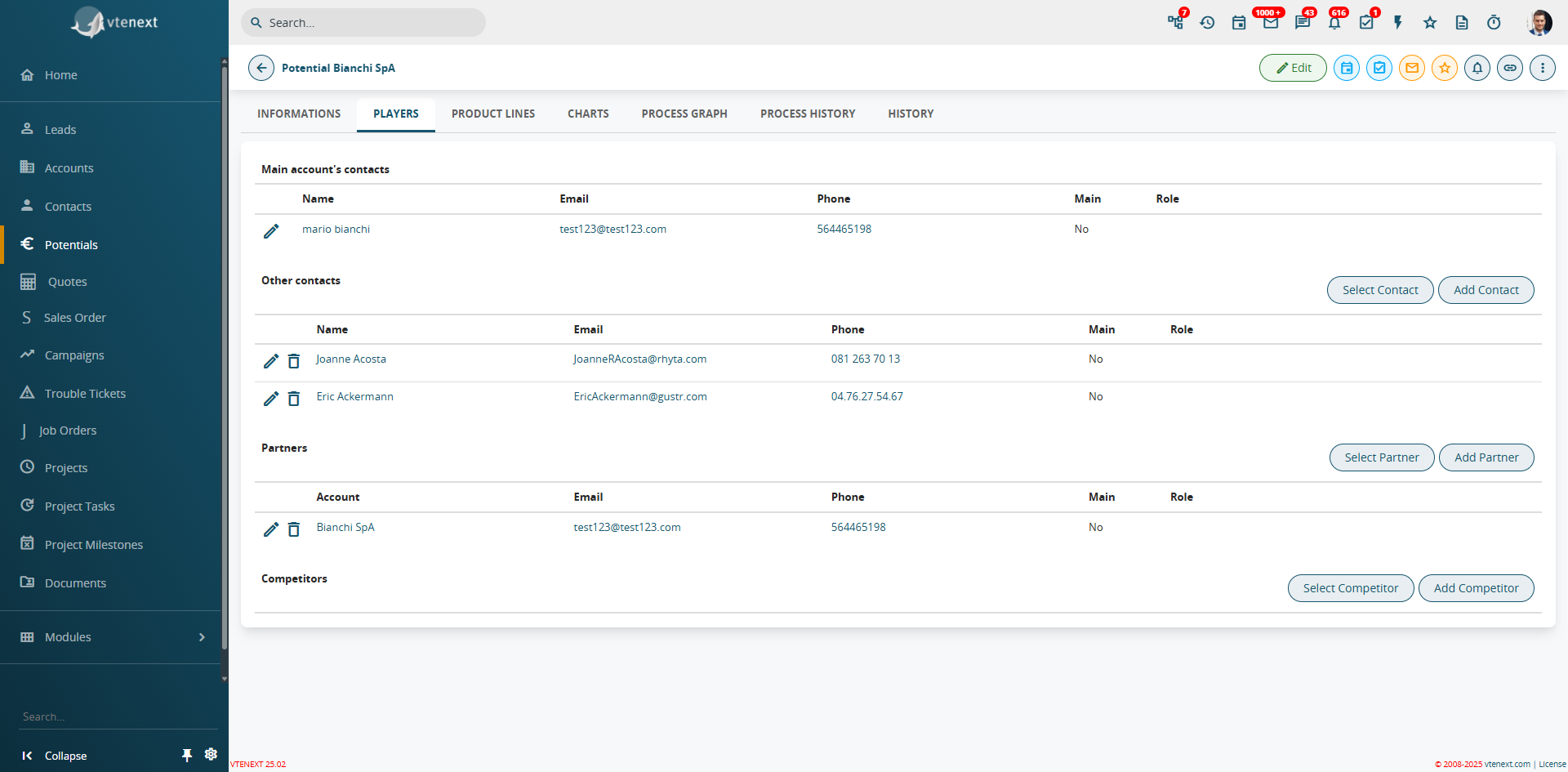
</td></tr><tr style="height: 63.3906px;"><td class="td1" style="width: 173.636px; height: 63.3906px; vertical-align: top;" valign="top">**Product Lines**

</td><td class="td1" style="width: 632.727px; vertical-align: middle; height: 63.3906px;" valign="top">**Product Lines** are used to define an annual **Budget** that each specific line must achieve. Thanks to a custom report in the Opportunities module, it is possible to monitor the **Budget Delta** that still needs to be reached. See also the dedicated chapter (***Chapter 8.2 – Product Lines***)

[![image.png](https://usermanual.vtenext.com/uploads/images/gallery/2025-06/scaled-1680-/m0eimage.png)](https://usermanual.vtenext.com/uploads/images/gallery/2025-06/m0eimage.png)
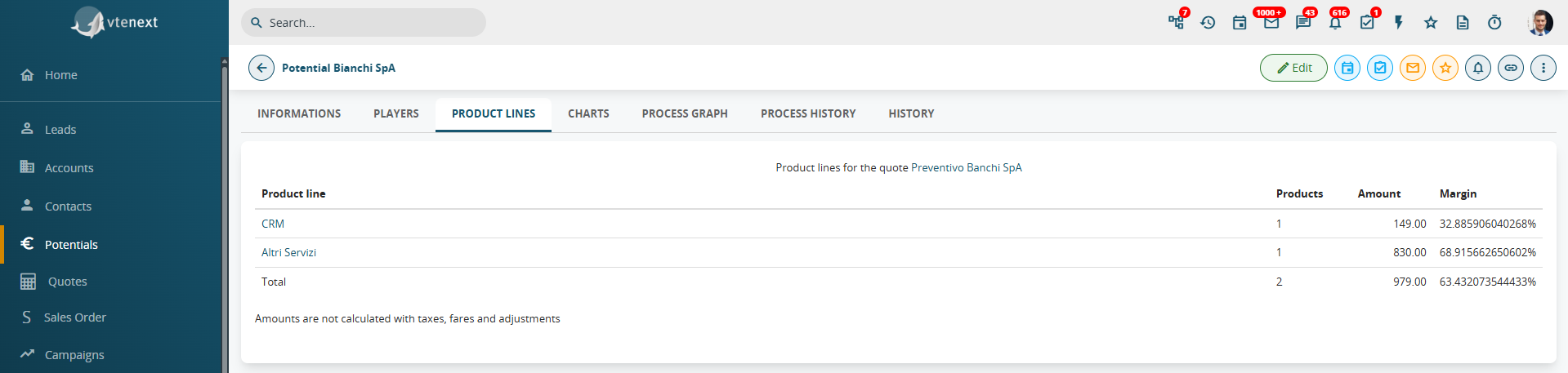
</td></tr><tr style="height: 29.7969px;"><td class="td1" style="width: 173.636px; height: 29.7969px; vertical-align: top;" valign="top">**Charts**

</td><td class="td1" style="width: 632.727px; vertical-align: middle; height: 29.7969px;" valign="top">**Charts** allow you to visualize the historical trend of all the amounts related to that specific opportunity.  
Each time a quote is created and/or revised, the *Amount* field in the opportunity is updated accordingly.  
This operation feeds the chart and makes the trend readable through a bar graph.

To the right of this chart, there is also a **pie chart** showing the distribution of product lines, which helps in understanding the percentage contribution of each individual line to the total

[![image.png](https://usermanual.vtenext.com/uploads/images/gallery/2025-06/scaled-1680-/9WSimage.png)](https://usermanual.vtenext.com/uploads/images/gallery/2025-06/9WSimage.png)
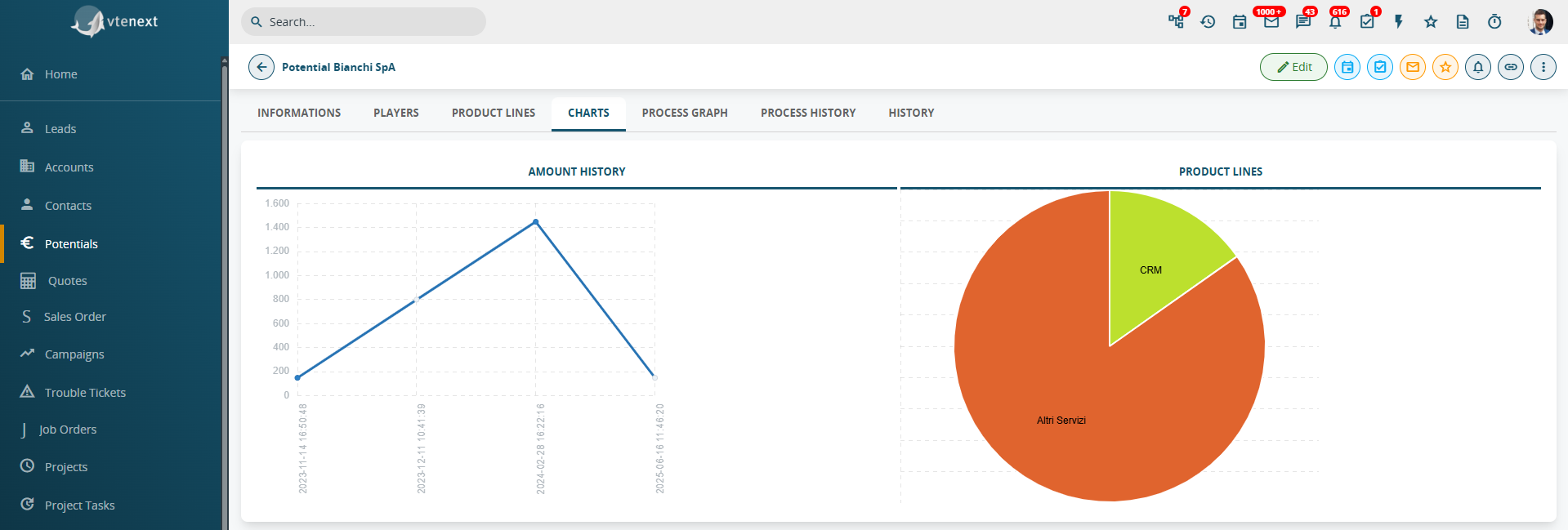
</td></tr></tbody></table>

# 9.2 Quotes

You can create a new quote through the reports and Add Quote menu from the potential, company or contact registry.  
  
**NB.**: a quote cannot be created starting from a lead**.**   
Alternatively, you can create a new quote from the Quotes module using[![image-1645108836389.png](https://usermanual.vtenext.com/uploads/images/gallery/2022-02/scaled-1680-/image-1645108836389.png), ](https://usermanual.vtenext.com/uploads/images/gallery/2022-02/image-1645108836389.png)entering the links to the customer manually.

<table border="1" cellpadding="0" cellspacing="0" class="t1" id="bkmrk-soggetto-e%E2%80%99-consig" style="width: 100%; background-color: #ebf7ff;"><tbody><tr style="height: 35px;"><td class="td1" style="width: 156px; height: 35px; vertical-align: middle;" valign="top">**Subject**

</td><td class="td1" style="width: 653px; height: 35px; vertical-align: middle;" valign="top">It is recommended that the name of the company and/or the project be mentioned to facilitate searches

</td></tr><tr style="height: 35px;"><td class="td1" style="width: 156px; height: 35px; vertical-align: middle;" valign="top">**Potential name**

</td><td class="td1" style="width: 653px; height: 35px; vertical-align: middle;" valign="top">Link field of the quote to the relevant business potential

</td></tr><tr style="height: 59px;"><td class="td1" style="width: 156px; height: 59px; vertical-align: middle;" valign="top">**Quote Stage**

</td><td class="td1" style="width: 653px; height: 59px; vertical-align: middle;" valign="top">Important for knowing the state of progress of the negotiation. The statuses can be freely set by the system administrator

</td></tr><tr style="height: 35px;"><td class="td1" style="width: 156px; height: 35px; vertical-align: middle;" valign="top">**Valid Till**

</td><td class="td1" style="width: 653px; height: 35px; vertical-align: middle;" valign="top">Expiry date of the offer

</td></tr><tr style="height: 59px;"><td class="td1" style="width: 156px; height: 45px; vertical-align: middle;" valign="top">**Contact Name**

</td><td class="td1" style="width: 653px; height: 45px; vertical-align: middle;" valign="top">Connection with the contact person (equivalent to "for the attention of")

</td></tr><tr style="height: 82px;"><td class="td1" style="width: 156px; height: 82px; vertical-align: middle;" valign="top">**Inventory Manager**

</td><td class="td1" style="width: 653px; height: 82px; vertical-align: middle;" valign="top">The choice of an inventory manager does not involve automatisms, it is a field of view only

</td></tr><tr style="height: 35px;"><td class="td1" style="width: 156px; height: 35px; vertical-align: middle;" valign="top">**Account Name**

</td><td class="td1" style="width: 653px; height: 35px; vertical-align: middle;" valign="top">Connection with the client company to which the quote refers

</td></tr><tr style="height: 35px;"><td class="td1" style="width: 156px; height: 35px; vertical-align: middle;" valign="top">**Assigned to**

</td><td class="td1" style="width: 653px; height: 35px; vertical-align: middle;" valign="top">The CRM user who is managing the quote, by default the person creating it

</td></tr></tbody></table>

  
[![9.2 [1].png](https://usermanual.vtenext.com/uploads/images/gallery/2022-06/scaled-1680-/V0k9-2-1.png)](https://usermanual.vtenext.com/uploads/images/gallery/2022-06/V0k9-2-1.png)

The second part of the data sheet shows the product/service lines. You can enter your product by filling in the appropriate section.

For Quotes, vtenext considers all types of taxes and discounts that may be applied to product and service offerings, including local, state or federal taxes as well as special taxes. These taxes can be calculated on each product/service or on the total document.  
Before selecting the product/service, you should decide which mode to use for taxation.  
The figure below shows an example for inputting the details of products calculated with the individual mode.

In the figure below you can see the details of insertion with the Group mode. Here the total taxes are calculated after the insertion of all the products.

[![9.2 [2].png](https://usermanual.vtenext.com/uploads/images/gallery/2022-06/scaled-1680-/hRY9-2-2.png)](https://usermanual.vtenext.com/uploads/images/gallery/2022-06/hRY9-2-2.png)

In the picture below you can see the detail of the insertion with the “Group” modality. Here the amount of the taxes is calculated after having inserted all the products .

[![9.2 [3].png](https://usermanual.vtenext.com/uploads/images/gallery/2022-06/scaled-1680-/sXR9-2-3.png)](https://usermanual.vtenext.com/uploads/images/gallery/2022-06/sXR9-2-3.png)

<span style="color: rgb(224, 62, 45);">**ATTENTION**</span>: the products block will always be at the bottom of the page even if you move it with the layout editor.

<table border="1" cellpadding="0" cellspacing="0" class="t1" id="bkmrk-prodotti-selezionare" style="width: 100%; background-color: #ebf7ff;"><tbody><tr><td class="td1" style="width: 188px; vertical-align: middle;" valign="top">**Products**

</td><td class="td1" style="width: 620px; vertical-align: middle;" valign="top">Select the desired product or service. You can add a comment for each single product offered

</td></tr><tr><td class="td1" style="width: 188px; vertical-align: middle;" valign="top">**Quantity In Stock**

</td><td class="td1" style="width: 620px; vertical-align: middle;" valign="top">After selecting a product, you will see here the current stock quantity uploaded automatically

</td></tr><tr><td class="td1" style="width: 188px; vertical-align: middle;" valign="top">**Quantity**

</td><td class="td1" style="width: 620px; vertical-align: middle;" valign="top">Quantity per item per single offer

</td></tr><tr><td class="td1" style="width: 188px; vertical-align: middle;" valign="top">**Unit Price**

</td><td class="td1" style="width: 620px; vertical-align: middle;" valign="top">It is displayed as set out in the product data sheet

</td></tr><tr><td class="td1" style="width: 188px; vertical-align: middle;" valign="top">**List Price**

</td><td class="td1" style="width: 620px; vertical-align: middle;" valign="top">You can use the Price List icon to select a different price from the price list; the price lists containing the product will be proposed

</td></tr></tbody></table>

<table border="1" cellpadding="0" cellspacing="0" class="t1" id="bkmrk-sconto-potete-sconta" style="width: 100%; background-color: #ebf7ff;"><tbody><tr><td class="td1" style="width: 188px; vertical-align: middle;" valign="top">**Discount**

</td><td class="td1" style="width: 619px; vertical-align: middle;" valign="top">You can discount per product line and/or in total, expressed as a percentage of the list price or a precise figure. In the case of %, it is possible to indicate several discounts in sequence by separating the percentages with ![](https://usermanual.vtenext.com/uploads/images/gallery/2019-04-Apr/scaled-840-0/image-1555510804899.png)

</td></tr><tr><td class="td1" style="width: 188px; vertical-align: middle;" valign="top">**Tax**

</td><td class="td1" style="width: 619px; vertical-align: middle;" valign="top">vtenext calculates taxes based on the information set out in the product data sheet. It is possible to change the tax without changing the product catalogue entry. You can display one tax per line or in total

</td></tr><tr><td class="td1" style="width: 188px; vertical-align: middle;" valign="top">**Margin**

</td><td class="td1" style="width: 619px; vertical-align: middle;" valign="top">Calculated automatically: it’s the ratio between profit (list price - product cost) and list price

</td></tr><tr><td class="td1" style="width: 188px; vertical-align: middle;" valign="top">**Shipping charges**

</td><td class="td1" style="width: 619px; vertical-align: middle;" valign="top">You can add additional shipping and handling fees

</td></tr><tr><td class="td1" style="width: 188px; vertical-align: middle;" valign="top">**Tax on shipping charges**

</td><td class="td1" style="width: 619px; vertical-align: middle;" valign="top">You can add additional taxes on shipping and handling fees

</td></tr><tr><td class="td1" style="width: 188px; vertical-align: middle;" valign="top">**Adjustment**

</td><td class="td1" style="width: 619px; vertical-align: middle;" valign="top">Rounding the final value upwards or downwards

</td></tr></tbody></table>

Once you have saved the quote, you can create or send the relevant PDF using the functions provided by the PDF Maker module panel in the Other menu, at the top right.

For more information on the PDF Maker module and printing, please refer to the relevant chapter.

You can use the reports menu to specifically link communication with your customer (Messages), appointments (Activities), the scan of the quote with changes that the customer asks you to make (Documents), and so on, to the quote.

# 9.3 Sales orders

The potential can be considered as obtained when the order confirmation arrives. The order, however, may change from the initial proposed quote. vtenext gives you the option of keeping track of these differences. By default, the Generate Sales Order button from the Other menu of the quote sheet allows you to create the order by transferring the contents of the quote and making any changes.

[![SalesOrder.png](https://usermanual.vtenext.com/uploads/images/gallery/2022-02/scaled-1680-/salesorder.png)](https://usermanual.vtenext.com/uploads/images/gallery/2022-02/salesorder.png)

<table border="1" cellpadding="0" cellspacing="0" class="t1" id="bkmrk-soggetto-suggeriamo-" style="width: 100%; background-color: #ebf7ff;"><tbody><tr style="height: 61px;"><td class="td1" style="width: 153px; height: 61px; vertical-align: middle;" valign="top">**Subject**

</td><td class="td1" style="width: 656px; height: 61px; vertical-align: middle;" valign="top">We recommend including the reference to the company and/or potential to facilitate any future search of the order

</td></tr><tr style="height: 37px;"><td class="td1" style="width: 153px; height: 37px; vertical-align: middle;" valign="top">**Potential Name**

</td><td class="td1" style="width: 656px; height: 37px; vertical-align: middle;" valign="top">Link between the order and relevant potential

</td></tr><tr style="height: 37px;"><td class="td1" style="width: 153px; height: 37px; vertical-align: middle;" valign="top">**Customer Number**

</td><td class="td1" style="width: 656px; height: 37px; vertical-align: middle;" valign="top">If you use customer number codes, you can enter the one relating to the order here

</td></tr><tr style="height: 37px;"><td class="td1" style="width: 153px; height: 37px; vertical-align: middle;" valign="top">**Quote Name**

</td><td class="td1" style="width: 656px; height: 37px; vertical-align: middle;" valign="top">Link to the quote that originated the order

</td></tr><tr style="height: 37px;"><td class="td1" style="width: 153px; height: 37px; vertical-align: middle;" valign="top">**Purchase Order**

</td><td class="td1" style="width: 656px; height: 37px; vertical-align: middle;" valign="top">If the customer sends you a reference to their purchase order, you can enter it here

</td></tr><tr style="height: 37px;"><td class="td1" style="width: 153px; height: 37px; vertical-align: middle;" valign="top">**Contact Name**

</td><td class="td1" style="width: 656px; height: 37px; vertical-align: middle;" valign="top">Connection with the customer contact (person you deal with)

</td></tr><tr style="height: 37px;"><td class="td1" style="width: 153px; height: 37px; vertical-align: middle;" valign="top">**Due Date**

</td><td class="td1" style="width: 656px; height: 37px; vertical-align: middle;" valign="top">Order due date

</td></tr><tr style="height: 37px;"><td class="td1" style="width: 153px; height: 37px; vertical-align: middle;" valign="top">**Carrier**

</td><td class="td1" style="width: 656px; height: 37px; vertical-align: middle;" valign="top">You can indicate the carrier that will make the delivery

</td></tr></tbody></table>

<table border="1" cellpadding="0" cellspacing="0" class="t1" id="bkmrk-stato-importante-per" style="width: 100%; background-color: #ebf7ff;"><tbody><tr style="height: 37px;"><td class="td1" style="height: 37px; width: 153px; vertical-align: middle;" valign="top">**Status**

</td><td class="td1" style="height: 37px; width: 646px; vertical-align: middle;" valign="top">Important for knowing the state of progress of the order. The statuses can be freely set by the system administrator

</td></tr><tr style="height: 37px;"><td class="td1" style="height: 37px; width: 153px; vertical-align: middle;" valign="top">**Excise Duty**

</td><td class="td1" style="height: 37px; width: 646px; vertical-align: middle;" valign="top">Special taxes or other costs

</td></tr><tr style="height: 37px;"><td class="td1" style="height: 37px; width: 153px; vertical-align: middle;" valign="top">**Account Name**

</td><td class="td1" style="height: 37px; width: 646px; vertical-align: middle;" valign="top">Connection with the customer company to whom the order refers

</td></tr><tr style="height: 37px;"><td class="td1" style="height: 37px; width: 153px; vertical-align: middle;" valign="top">**Sales Commission**

</td><td class="td1" style="height: 37px; width: 646px; vertical-align: middle;" valign="top">Any commissions

</td></tr><tr style="height: 43px;"><td class="td1" style="height: 43px; width: 153px; vertical-align: middle;" valign="top">**Assigned to**

</td><td class="td1" style="height: 43px; width: 646px; vertical-align: middle;" valign="top">The CRM user who is managing the order, by default the person creating it

</td></tr><tr><td style="width: 153px; vertical-align: middle;">**PBlockRO**

</td><td style="width: 646px; vertical-align: middle;">For the Sales Orders module (this field is available only in this module), the **"PBlockRO"** field is available. It can be activated via a process and then managed through conditional fields so that, if checked, it will hide the product block when editing the Sales Order itself.

</td></tr></tbody></table>

# 9.3.1 Recurring billing from Sales Order

It is possible to activate the automatic generation of invoices from the sales order through the options in the Recurring Billing Information block.

[![9.3.1 [1].png](https://usermanual.vtenext.com/uploads/images/gallery/2022-06/scaled-1680-/kNq9-3-1-1.png)](https://usermanual.vtenext.com/uploads/images/gallery/2022-06/kNq9-3-1-1.png)

<table border="1" cellpadding="0" cellspacing="0" class="t1" id="bkmrk-abilita-ricorrenza-s" style="width: 100%; background-color: #ebf7ff;"><tbody><tr><td class="td1" style="width: 152px; vertical-align: middle;" valign="top">**Enable Recurring**

</td><td class="td1" style="width: 647px; vertical-align: middle;" valign="top">Tick to enable automatic invoice generation from the sales order, after creating the first invoice

</td></tr><tr><td class="td1" style="width: 152px; vertical-align: middle;" valign="top">**Frequency**

</td><td class="td1" style="width: 647px; vertical-align: middle;" valign="top">Daily, weekly, monthly

</td></tr><tr><td class="td1" style="width: 152px; vertical-align: middle;" valign="top">**Start Period**

</td><td class="td1" style="width: 647px; vertical-align: middle;" valign="top">When the recurring billing will start

</td></tr><tr><td class="td1" style="width: 152px; vertical-align: middle;" valign="top">**End Date**

</td><td class="td1" style="width: 647px; vertical-align: middle;" valign="top">When the recurring billing will end

</td></tr><tr><td class="td1" style="width: 152px; vertical-align: middle;" valign="top">**Payment Duration**

</td><td class="td1" style="width: 647px; vertical-align: middle;" valign="top">Indicate duration

</td></tr><tr><td class="td1" style="width: 152px; vertical-align: middle;" valign="top">**Invoice Status**

</td><td class="td1" style="width: 647px; vertical-align: middle;" valign="top">The status that auto-generated invoices will assume by default

</td></tr></tbody></table>

**Warning!** For recurring billing it is necessary to enable the CRON of the server on which vtenext is installed! See the relevant paragraph: CRONJOB – Processes to plan.

# 9.4 Budget

The Potentials module shows information relating to their progress in relation to other linked items. The Budget module is navigable through the tabs shown in the figure:

[![9.4 [1].png](https://usermanual.vtenext.com/uploads/images/gallery/2022-06/scaled-1680-/ODk9-4-1.png)](https://usermanual.vtenext.com/uploads/images/gallery/2022-06/ODk9-4-1.png)

The Information tab directly relates to the potential, while other data sheets relate to the Budget.

- **Players:** if inserted, they are data related to contacts, partners and competitors, useful for the negotiation phase.They can be added as new or selected if already present in CRM, and can be profiled according to their role in the negotiation
- **Other contacts**: if inserted, they are the contacts (also of different companies) linked to the potential
- **Partners:** if inserted, they are the companies that have a partnership relationship with the sales potential company
- **Competitors:** if entered, they represent one or more competitors (Companies with field Type = Competitor) linked to the sales potential. Also in this case, they can be selected from the CRM database or added as new

[![9_4 Budget_2.png](https://usermanual.vtenext.com/uploads/images/gallery/2022-02/scaled-1680-/9-4-budget-2.png)](https://usermanual.vtenext.com/uploads/images/gallery/2022-02/9-4-budget-2.png)

**Product lines:** information on amounts and profit margins organised by product lines. The products are those included in the related sales order or quote, grouped as set out in the Product Lines module. The amount is the sum of the economic values of all the products present in the potential belonging to a given line. The margin is calculated, again per line, based on the difference between the sales price of the product and its cost. The margin is expressed as a percentage and is calculated by making a weighted average of the products present in the line. The formula used to calculate the margin is: \[SUM(prices) - SUM(costs)\] / SUM(prices)\]. The cost of each product must be defined in the relevant data sheet via the Unit cost field.

[![9_4 Budget_3.png](https://usermanual.vtenext.com/uploads/images/gallery/2022-02/scaled-1680-/9-4-budget-3.png)](https://usermanual.vtenext.com/uploads/images/gallery/2022-02/9-4-budget-3.png)

**Charts:** show the historical amounts of the different deals made through the sales potential.  
vtenext also provides general budget management features based on the information contained in Potentials, Products, Product Lines, Quotes **(for quotes, only those in the "Created" or "Delivered" status are considered)**. Some values in these modules will feed the Budget by Product Line report contained in the Budget folder in the Reports module.

You can access them directly by clicking on the "Budget" button in the Potentials menu.

[![9.4 [4].png](https://usermanual.vtenext.com/uploads/images/gallery/2022-06/scaled-1680-/9-4-4.png)](https://usermanual.vtenext.com/uploads/images/gallery/2022-06/9-4-4.png)

This report allows you to have an immediate view of your business situation, organised by period of time.  
You can navigate the data by year, half-year, quarter or month. The following data are presented:

- **Budget:** information established in the Yearly Budget field contained within the sections of the Product Lines module
- **Best:** sum of the amounts of potentials that have at least 70% probability of closure
- **Forecast:** sum of the amounts of potentials that have at least 80% probability of closure
- **Worst:** sum of the amounts of potentials that have at least 90% probability of closure
- **Closed orders:** sum of the amount of closed sales orders
- **Budget Delta:** the difference between the budget established in the relative product line and the amount of sales orders, always relative to the same product line. In essence, it expresses what remains to be done to achieve the planned budget.

By default, the report presents information organised by product line. It is, however, also possible to organise it by user assignee of the potential.

**Summing up briefly**

The Best, Forecast, Worst columns are then counted based on the% chance of closing the opportunity. To be counted in the "Best" column, the opportunity must have a probability of at least 70% closing, to be counted in the "Forecast" column, at least 80% and to appear in the "Worst" column, it must be at least 90%.

# 9.5 Invoices

The billing module is useful for managing the administrative part in vtenext (amounts to be paid, closed invoices, outstanding invoices) and keeping all the customer history in one platform.

The module can be used independently from the Quotes module. Companies often prepare very accurate quotes with long product descriptions, while invoices are almost always summary descriptions indicating amounts and payment methods.

The Create Invoice button from the sales order or quote master (Other menu) will open with the invoice already attached, proposing the same content.

[![9_5 Invoices.png](https://usermanual.vtenext.com/uploads/images/gallery/2022-02/scaled-1680-/9-5-invoices.png)](https://usermanual.vtenext.com/uploads/images/gallery/2022-02/9-5-invoices.png)

<table border="1" cellpadding="0" cellspacing="0" class="t1" id="bkmrk-soggetto-nome-della-" style="width: 100%; background-color: #ebf7ff; height: 388px;" width="100%"><tbody><tr style="height: 35px;"><td class="td1" style="width: 164px; height: 35px; vertical-align: middle;" valign="top">**Subject**

</td><td class="td1" style="width: 657px; height: 35px; vertical-align: middle;" valign="top">Invoice name

</td></tr><tr style="height: 35px;"><td class="td1" style="width: 164px; height: 35px; vertical-align: middle;" valign="top">**Sales order**

</td><td class="td1" style="width: 657px; height: 35px; vertical-align: middle;" valign="top">Link field to the original sales order

</td></tr><tr style="height: 35px;"><td class="td1" style="width: 164px; height: 35px; vertical-align: middle;" valign="top">**Customer Number**

</td><td class="td1" style="width: 657px; height: 35px; vertical-align: middle;" valign="top">If the customer has an internal code

</td></tr><tr style="height: 35px;"><td class="td1" style="width: 164px; height: 35px; vertical-align: middle;" valign="top">**Invoice date**

</td><td class="td1" style="width: 657px; height: 35px; vertical-align: middle;" valign="top">Each invoice must have a date

</td></tr><tr style="height: 35px;"><td class="td1" style="width: 164px; height: 35px; vertical-align: middle;" valign="top">**Payment due date**

</td><td class="td1" style="width: 657px; height: 35px; vertical-align: middle;" valign="top">Due date for payment of this invoice

</td></tr><tr style="height: 35px;"><td class="td1" style="width: 164px; height: 35px; vertical-align: middle;" valign="top">**Purchase Order**

</td><td class="td1" style="width: 657px; height: 35px; vertical-align: middle;" valign="top">Reference to the customer's purchase order, if any

</td></tr><tr style="height: 35px;"><td class="td1" style="width: 164px; height: 35px; vertical-align: middle;" valign="top">**Manufacturing tax**

</td><td class="td1" style="width: 657px; height: 35px; vertical-align: middle;" valign="top">Information on manufacturing taxes

</td></tr><tr style="height: 35px;"><td class="td1" style="width: 164px; height: 35px; vertical-align: middle;" valign="top">**Sales Commissions**

</td><td class="td1" style="width: 657px; height: 35px; vertical-align: middle;" valign="top">Any sales commission

</td></tr><tr style="height: 35px;"><td class="td1" style="width: 164px; height: 35px; vertical-align: middle;" valign="top">**Account Name**

</td><td class="td1" style="width: 657px; height: 35px; vertical-align: middle;" valign="top">Link to the customer company

</td></tr><tr style="height: 59px;"><td class="td1" style="width: 164px; height: 38px; vertical-align: middle;" valign="top">**Status**

</td><td class="td1" style="width: 657px; height: 38px; vertical-align: middle;" valign="top">Important for knowing the state of progress of the invoice. The statuses can be freely set by the system administrator

</td></tr><tr style="height: 35px;"><td class="td1" style="width: 164px; height: 35px; vertical-align: middle;" valign="top">**Assigned to**

</td><td class="td1" style="width: 657px; height: 35px; vertical-align: middle;" valign="top">User who manages the invoice, by default the person creating it

</td></tr></tbody></table>

The invoice can be exported to PDF according to the available templates: see PDF Maker chapter.

# 9.6 Delivery Notes

The Delivery Notes module is used to manage transport documents and is the last step in the sales-administration cycle.

[![9_6_Delivery Notes.png](https://usermanual.vtenext.com/uploads/images/gallery/2022-02/scaled-1680-/9-6-delivery-notes.png)](https://usermanual.vtenext.com/uploads/images/gallery/2022-02/9-6-delivery-notes.png)

Enter the main fields and the products related to the shipment. It is possible to create a Delivery Note starting from a sales order through Create Delivery Note (Other menu); in this case all the data of the sales order will be reported in the Delivery Notes. For PDF printing of the Delivery Note, see the chapter dedicated to the PDF Maker module.

# 10 After-sales: trouble tickets and activity tracking

# 10 After-sales: trouble tickets and activity tracking

The after-sales phase is focused on customer support and requires:

- Managing any problems or customer requests about the products/services provided;
- Providing the customer with a tool for monitoring the progress of work on each request;
- Providing the sales department with an overview of the requests made by customers for each product/service offered;
- Managing the design phases after the sale (e.g. orders);
- Providing the technician with a tool for completing the intervention report.

The HelpDesk module is based on tickets. The ticket represents the request of a customer referring to a purchased product/service that can be associated with various other vtenext entities (Calendar, Accounts, etc.).  
  
For example:

- To issue a sold license, you can open a ticket that tracks the status and code;
- If a client has a service contract, you can open a one-year ticket to inform whoever is to manage it;
- If a client calls you with a complaint or a malfunction, you can open a ticket and assign it to a free technician who can intervene.

vtenext also offers a FAQ system in which a list of questions and answers for each product/service is available in order to provide guidelines and first level support.  
  
The most common tickets can be managed through the FAQ system.

# 10.1 Trouble Tickets

A ticket applies across different areas: in HelpDesk it is considered as a request by the client, but after the sale it can also be used for internal company requests (non-conformity management) and for project activities (Planning).

It is advisable, therefore, to provide for personalised fields to categorise the nature of the ticket. As always, to create a new ticket you can proceed with the button from the HelpDesk module, or with Add Ticket from the report menu of another module.

[![10_1_Trouble Tickets_2 .png](https://usermanual.vtenext.com/uploads/images/gallery/2022-02/scaled-1680-/10-1-trouble-tickets-2.png)](https://usermanual.vtenext.com/uploads/images/gallery/2022-02/10-1-trouble-tickets-2.png)

<table border="1" cellpadding="0" cellspacing="0" class="t1" id="bkmrk-priorit%C3%A0-personaliz" style="width: 100%; background-color: #ebf7ff;"><tbody><tr><td class="td1" style="width: 110px; vertical-align: middle;" valign="top">**Priority**

</td><td class="td1" style="width: 698px; vertical-align: middle;" valign="top">Customisable: usually on indication of the assistance service

</td></tr><tr><td class="td1" style="width: 110px; vertical-align: middle;" valign="top">**Severity**

</td><td class="td1" style="width: 698px; vertical-align: middle;" valign="top">Customisable: usually it is by indication of the sales person according to the customer's value

</td></tr><tr><td class="td1" style="width: 110px; vertical-align: middle;" valign="top">**Category**

</td><td class="td1" style="width: 698px; vertical-align: middle;" valign="top">Customisable: e.g. complaint, service under warranty or internal request

</td></tr><tr><td class="td1" style="width: 110px; vertical-align: middle;" valign="top">**Related to**

</td><td class="td1" style="width: 698px; vertical-align: middle;" valign="top">Link field with a customer data base (Accounts, Contacts, Leads)

</td></tr><tr><td class="td1" style="width: 110px; vertical-align: middle;" valign="top">**Status**

</td><td class="td1" style="width: 698px; vertical-align: middle;" valign="top">It is essential to know the progress of the ticket (statuses can be changed by the admin user)

</td></tr><tr><td class="td1" style="width: 110px; vertical-align: middle;" valign="top">**Hours**

</td><td class="td1" style="width: 698px; vertical-align: middle;" valign="top">Hours spent on the ticket; when a contract service is connected to the ticket (unit of hours), this value updates the progress of the contract (at ticket closure)

</td></tr><tr><td class="td1" style="width: 110px; vertical-align: middle;" valign="top">**Days**

</td><td class="td1" style="width: 698px; vertical-align: middle;" valign="top">Days used for the ticket; when a contract service is connected to the ticket (day unit), this value updates the progress of the contract (at ticket closure)

</td></tr><tr><td class="td1" style="width: 110px; vertical-align: middle;" valign="top">**Project**

</td><td class="td1" style="width: 698px; vertical-align: middle;" valign="top">Link to a planning sheet (project)

</td></tr><tr><td class="td1" style="width: 110px; vertical-align: middle;" valign="top">**Project task**

</td><td class="td1" style="width: 698px; vertical-align: middle;" valign="top">Connection to an operation sheet (project phase)

</td></tr></tbody></table>

Calendar, Documents and other links allow you to centralise the history of the ticket in the appropriate context, in order to rapidly find information in the future to deal with similar cases.  
Finally, it is possible to add the client's signature on the intervention report linked to the Ticket. To do this, simply log into vtenext APP and click on the signature icon in the Ticket module. Below is an example of an APP signature:

![](https://usermanual.vtenext.com/uploads/images/gallery/2019-04-Apr/scaled-840-0/image-1555420523899.png)

The signature will be saved and reported to the Ticket. It will be present both in the specific related list, visible from the browser, and will also be integrated in the PDF Maker template for printing the report.

Below you can see an example of signature visualisation via browser and also in the PDF produced by vtenext.

[![10.1 [2].png](https://usermanual.vtenext.com/uploads/images/gallery/2022-06/scaled-1680-/eHW10-1-2.png)](https://usermanual.vtenext.com/uploads/images/gallery/2022-06/eHW10-1-2.png)

[![10.1 [3].png](https://usermanual.vtenext.com/uploads/images/gallery/2022-06/scaled-1680-/Gtq10-1-3.png)](https://usermanual.vtenext.com/uploads/images/gallery/2022-06/Gtq10-1-3.png)

# 10.1.1 Service channels

The tickets can mainly come from three different communication channels:

**Phone:** the client calls your company to request support, in this case the ticket will be created by your operator manually on vtenext.

**Email:** you can dedicate an email address to the management of support requests (example: support@mydomain.com), by configuring the reading of the box in the HelpDesk module. All emails received in the inbox are transformed into vtenext tickets and sorted manually or automatically (according to workflow). The Mail Converter tool allows this. See the relevant chapter.

**Customer Portal:** the preferred channel of vtenext, an area reserved to customers where they will be able to open the tickets, which you will receive in real time in the HelpDesk module. You and the customer can have a conversation through comments. The Portal is not only a ticket acquisition channel but also a real management channel for communication with the customer that includes, in addition to the HelpDesk area, FAQs and a series of document-sharing options at the discretion of the admin user. See the relevant chapter for configuration.

# 10.2 Timecards

It is possible to associate resolution actions with the tickets. This is a second level of detail, if a ticket requires more actions for the problem to be resolved.

[![10_2_Timecard.png](https://usermanual.vtenext.com/uploads/images/gallery/2022-02/scaled-1680-/10-2-timecard.png)](https://usermanual.vtenext.com/uploads/images/gallery/2022-02/10-2-timecard.png)

<table border="1" cellpadding="0" cellspacing="0" class="t1" id="bkmrk-data-data-dell%E2%80%99int" style="width: 100%; background-color: #ebf7ff;"><tbody><tr><td class="td1" style="width: 144px; vertical-align: middle;" valign="top">**Date**

</td><td class="td1" style="width: 662px; vertical-align: middle;" valign="top">Date of intervention

</td></tr><tr><td class="td1" style="width: 144px; vertical-align: middle;" valign="top">**Assigned to**

</td><td class="td1" style="width: 662px; vertical-align: middle;" valign="top">User or group of users

</td></tr><tr><td class="td1" style="width: 144px; vertical-align: middle;" valign="top">**Unit number**

</td><td class="td1" style="width: 662px; vertical-align: middle;" valign="top">Number of units involved in the intervention

</td></tr><tr><td class="td1" style="width: 144px; vertical-align: middle;" valign="top">**Time**

</td><td class="td1" style="width: 662px; vertical-align: middle;" valign="top">Time spent

</td></tr><tr><td class="td1" style="width: 144px; vertical-align: middle;" valign="top">**Product**

</td><td class="td1" style="width: 662px; vertical-align: middle;" valign="top">Link to the product concerned

</td></tr><tr><td class="td1" style="width: 144px; vertical-align: middle;" valign="top">**Ticket**

</td><td class="td1" style="width: 662px; vertical-align: middle;" valign="top">Reference Ticket

</td></tr><tr><td class="td1" style="width: 144px; vertical-align: middle;" valign="top">**Create Timecard**

</td><td class="td1" style="width: 662px; vertical-align: middle;" valign="top">If active, it allows you to create a new Intervention upon saving

</td></tr><tr><td class="td1" style="width: 144px; vertical-align: middle;" valign="top">**Change Status**

</td><td class="td1" style="width: 662px; vertical-align: middle;" valign="top">Change reported ticket status

</td></tr><tr><td class="td1" style="width: 144px; vertical-align: middle;" valign="top">**Assign ticket to**

</td><td class="td1" style="width: 662px; vertical-align: middle;" valign="top">Allows you to reassign the reported ticket

</td></tr></tbody></table>

The sum of the duration of Interventions relating to any given ticket is shown in the Hours or Days field of the ticket.

# 10.3 SLA

The Service Level Agreement defines the level of efficiency that a company is committed to maintaining in regard to its customers with respect to the provision of a service. The efficiency of the support is measured not only in terms of effectiveness, i.e. the achievement of the objective, but also in terms of level of performance with which the objective is achieved.

SLAs are generally applied to assistance services and define the time taken to take charge of and resolve reported malfunctions. The timing varies according to the categorisation of the problem: for example, if the problem concerns a blockage in the production process, the expected SLA will be lower than the reporting of a non-blocking malfunction. In the first case, the company will have set an SLA of 4 hours, in the second of 12 hours.

The taking charge times consider time slots and working days. For example: the service is guaranteed between 8.00 and 18.00, 365 days/year; the blocking notification (which provides for a 4-hour SLA) is opened at 16.00 on 5 March, thus the expiry of the SLA will be at 10.00 the following day, 6 March.

In vtenext, the SLA functionality is integrated with the HelpDesk module, counting the time from the opening of the ticket to when a user takes charge of it.

It is displayed in the corresponding block:

[![10_3 SLA.png](https://usermanual.vtenext.com/uploads/images/gallery/2022-02/scaled-1680-/10-3-sla.png)](https://usermanual.vtenext.com/uploads/images/gallery/2022-02/10-3-sla.png)

<table border="1" cellpadding="0" cellspacing="0" class="t1" id="bkmrk-tempo-trascorso-temp" style="width: 100%; background-color: #ebf7ff;"><tbody><tr><td class="td1" style="width: 24.0741%; vertical-align: middle;" valign="top">**Time elapsed**

</td><td class="td1" style="width: 75.8025%; vertical-align: middle;" valign="top">Time elapsed since opening the ticket (as explained above)

</td></tr><tr><td class="td1" style="width: 24.0741%; vertical-align: middle;" valign="top">**Time remaining**

</td><td class="td1" style="width: 75.8025%; vertical-align: middle;" valign="top">Time still available before the expiry of the SLA

</td></tr><tr><td class="td1" style="width: 24.0741%; vertical-align: middle;" valign="top">**SLA start date**

</td><td class="td1" style="width: 75.8025%; vertical-align: middle;" valign="top">Date and time of counting start

</td></tr><tr><td class="td1" style="width: 24.0741%; vertical-align: middle;" valign="top">**SLA end date**

</td><td class="td1" style="width: 75.8025%; vertical-align: middle;" valign="top">Date and time when the SLA is expected to close

</td></tr><tr><td class="td1" style="width: 24.0741%; vertical-align: middle;" valign="top">**Update time**

</td><td class="td1" style="width: 75.8025%; vertical-align: middle;" valign="top">Date and time of the last update of the automatically recognised fields\*

</td></tr><tr><td class="td1" style="width: 24.0741%; vertical-align: middle;" valign="top">**SLA Estimated time**

</td><td class="td1" style="width: 75.8025%; vertical-align: middle;" valign="top">Time allocated to the ticket to resolve and close the problem

</td></tr><tr><td class="td1" style="width: 24.0741%; vertical-align: middle;" valign="top">**Due Date**

</td><td class="td1" style="width: 75.8025%; vertical-align: middle;" valign="top">The date of closure status is entered automatically

</td></tr><tr><td class="td1" style="width: 24.0741%; vertical-align: middle;" valign="top">**Due time**

</td><td class="td1" style="width: 75.8025%; vertical-align: middle;" valign="top">Time the ticket is closed

</td></tr><tr><td class="td1" style="width: 24.0741%; vertical-align: middle;" valign="top">**End SLA**

</td><td class="td1" style="width: 75.8025%; vertical-align: middle;" valign="top">Recognised if the count is completed

</td></tr><tr><td class="td1" style="width: 24.0741%; vertical-align: middle;" valign="top">**Idle Time Elapsed**

</td><td class="td1" style="width: 75.8025%; vertical-align: middle;" valign="top">Time spent in suspension (see below)

</td></tr><tr><td class="td1" style="width: 24.0741%; vertical-align: middle;" valign="top">**Out SLA Time Elapsed**

</td><td class="td1" style="width: 75.8025%; vertical-align: middle;" valign="top">Indicates how much time is being spent in excess of the guaranteed SLA

</td></tr><tr><td class="td1" style="width: 24.0741%; vertical-align: middle;" valign="top">**Reset SLA**

</td><td class="td1" style="width: 75.8025%; vertical-align: middle;" valign="top">Resets and restarts the count

</td></tr></tbody></table>

**Warning!** The frequency of the update depends on the SLA CRON configuration settings in the operating system. The default SLA CRON is disabled, so it must be activated for the module to work. See the relevant chapter: CRONJOB – Processes to be scheduled.

# 10.3.1 SLA configuration

To configure the SLA module, access the SLA.config.php file in the subfolder where the CRM modules/SLA is installed.

![](https://usermanual.vtenext.com/uploads/images/gallery/2019-08-Aug/scaled-840-0/image-1565103664359.png)

Then open the file with an editor (e.g. Notepad++):

![](https://usermanual.vtenext.com/uploads/images/gallery/2019-08-Aug/scaled-840-0/image-1564743129873.png)

The file allows you to define a series of settings related to the SLA count; details given below.

**Module and status field definition**

![](https://usermanual.vtenext.com/uploads/images/gallery/2019-08-Aug/scaled-840-0/image-1565104308624.png)

**Suspension statuses**

It is possible to define one or more statuses for which the SLA count is interrupted:

![](https://usermanual.vtenext.com/uploads/images/gallery/2019-08-Aug/scaled-840-0/image-1564743251661.png)

In the figure, the SLA count is suspended if the ticket is placed in "Wait For Response" status.

**Add a new status for suspension**

To add a new state:

(a) add a new line to the configuration file as shown in the figure:

![](https://usermanual.vtenext.com/uploads/images/gallery/2019-08-Aug/scaled-840-0/image-1564743302894.png)

(b) enter the value between quotation marks and then the comma as shown in the figure:

![](https://usermanual.vtenext.com/uploads/images/gallery/2019-08-Aug/scaled-840-0/image-1565104601993.png)

**Warning!** The configuration is case sensitive so pay attention to upper and lower cases!

![](https://usermanual.vtenext.com/uploads/images/gallery/2019-08-Aug/scaled-840-0/image-1564743374756.png)

**Warning!** For pre-configured and non-removable values, the value must be entered in English (access the CRM in English and view the values e.g. with the picklist editor):

![](https://usermanual.vtenext.com/uploads/images/gallery/2019-04-Apr/scaled-840-0/image-1555420873610.png)

**Warning!** For custom values entered through the Standard Picklist Editor, input exactly the value entered:

In the figure, the custom value entered is "Waiting for goods" (all custom values entered through the standard picklist editor remain unchanged even when accessing in different languages. In the example in the figure, the value entered in Italian remains unchanged even when accessing in English).

(c) save changes.

**Statuses for counting to the Deadline**

It is possible to define one or more statuses that cause an end to counting:

![](https://usermanual.vtenext.com/uploads/images/gallery/2019-08-Aug/scaled-840-0/image-1564747480735.png)

**Add a status for the Deadline**

To add a new status:

(a) add a new line to the configuration file as shown in the figure:

![](https://usermanual.vtenext.com/uploads/images/gallery/2019-08-Aug/scaled-840-0/image-1564747511526.png)

(b) enter the value between quotation marks and then the comma as shown in the figure:

![](https://usermanual.vtenext.com/uploads/images/gallery/2019-08-Aug/scaled-840-0/image-1565272915207.png)

(c) save the changes

**Due date and time**

It is possible to define whether the Due Date and Due Time fields should be automatically recognised.

![](https://usermanual.vtenext.com/uploads/images/gallery/2019-08-Aug/scaled-840-0/image-1564747579957.png)

If so, the Due Date and Due Time will be automatically recognised as soon as the Status of the ticket takes on one of the values defined in the Statuses section of the paragraph for Counting to the Deadline.  
If not, then Due Date and Due Time will have to be manually recognised.

**Time slots**

It is possible to define the time slot in which the service is to be considered active for each day of the week (therefore counted in the SLA calculation):

![](https://usermanual.vtenext.com/uploads/images/gallery/2019-08-Aug/scaled-840-0/image-1564747701553.png)

Let's look at the structure of a line in detail. Each line is made up of two time slots, one for the morning and the other for the afternoon; thus each time slot contains an indication of the start time and end time:

![](https://usermanual.vtenext.com/uploads/images/gallery/2019-08-Aug/scaled-840-0/image-1565345570014.png)

**Example 1 of modifying a time slot.** Let's suppose we want to change the Wednesday time slot: FROM 8.00-12.00 and 15.00-19.00 TO 8.00-13.00 and 14.30-18.30.

Let’s intervene on the line that corresponds to the day “Wednesday” :

![](https://usermanual.vtenext.com/uploads/images/gallery/2019-04-Apr/scaled-840-0/image-1555421028289.png)

We therefore modify the line that corresponds to Wednesday

the file is then saved.

**Example 2 of modifying a time slot.**   
Let’s suppose you want to set Saturday to work only in the morning time slot 8.00-12.00.

We therefore modify the line that corresponds to Saturday:

![](https://usermanual.vtenext.com/uploads/images/gallery/2019-04-Apr/scaled-840-0/image-1555421044153.png)

and we remove the code that refers to the afternoon time slot:

![](https://usermanual.vtenext.com/uploads/images/gallery/2019-04-Apr/scaled-840-0/image-1555421054364.png)

so:

![](https://usermanual.vtenext.com/uploads/images/gallery/2019-04-Apr/scaled-840-0/image-1555421063533.png)

and we save the file.

**Excluded days of the week**  
It is possible to define which days of the week can be completely excluded from the counts:

![](https://usermanual.vtenext.com/uploads/images/gallery/2019-04-Apr/scaled-840-0/image-1555421085028.png)

**Add a day to exclude**  
To add a day to exclude:

(a) add a new line as in the figure:

![](https://usermanual.vtenext.com/uploads/images/gallery/2019-04-Apr/scaled-840-0/image-1555421094740.png)

(b) indicate the sequence of the day followed by a comma:

![](https://usermanual.vtenext.com/uploads/images/gallery/2019-08-Aug/scaled-840-0/image-1565345680094.png)

Correspondence days and progressives:

<table border="2" cellpadding="0" cellspacing="0" class="t1" id="bkmrk-giorno-progressivo-d" style="background-color: #ebf7ff; height: 296px;"><tbody><tr style="height: 37px;"><td class="td1" style="height: 37px; width: 99px;" valign="top">**Days**

</td><td class="td1" style="height: 37px; width: 158px;" valign="top">**Progressive number**

</td></tr><tr style="height: 37px;"><td class="td1" style="height: 37px; width: 99px;" valign="top">**Sunday**

</td><td class="td1" style="height: 37px; width: 158px;" valign="top">0

</td></tr><tr style="height: 37px;"><td class="td1" style="height: 37px; width: 99px;" valign="top">**Monday**

</td><td class="td1" style="height: 37px; width: 158px;" valign="top">1

</td></tr><tr style="height: 37px;"><td class="td1" style="height: 37px; width: 99px;" valign="top">**Tuesday**

</td><td class="td1" style="height: 37px; width: 158px;" valign="top">2

</td></tr><tr style="height: 37px;"><td class="td1" style="height: 37px; width: 99px;" valign="top">**Wednesday**

</td><td class="td1" style="height: 37px; width: 158px;" valign="top">3

</td></tr><tr style="height: 37px;"><td class="td1" style="height: 37px; width: 99px;" valign="top">**Thursday**

</td><td class="td1" style="height: 37px; width: 158px;" valign="top">4

</td></tr><tr style="height: 37px;"><td class="td1" style="height: 37px; width: 99px;" valign="top">**Friday**

</td><td class="td1" style="height: 37px; width: 158px;" valign="top">5

</td></tr><tr style="height: 37px;"><td class="td1" style="height: 37px; width: 99px;" valign="top">**Saturday**

</td><td class="td1" style="height: 37px; width: 158px;" valign="top">6

</td></tr></tbody></table>

c) save the file.

**Holidays in the year**  
It is possible to define days in the year that should be excluded from the count (public holidays):

![](https://usermanual.vtenext.com/uploads/images/gallery/2019-04-Apr/scaled-840-0/image-1555421138734.png)

**Add a holiday**  
For example, let’s add a Patron Saint’s day and assume it is celebrated on 5 June:

(a) add a new line as in the figure:

![](https://usermanual.vtenext.com/uploads/images/gallery/2019-04-Apr/scaled-840-0/image-1555421148681.png)

(b) Indicate the day between quotation marks according to the 'gg-mm' pattern and then a comma as in the figure:

 ![](https://usermanual.vtenext.com/uploads/images/gallery/2019-08-Aug/scaled-840-0/image-1565346015431.png)

c) save the file.

**Special days**

It is possible to define special days. Special days may be: days in the year to be counted, although they are normally skipped; days with a different time window than normal:

![](https://usermanual.vtenext.com/uploads/images/gallery/2019-08-Aug/scaled-840-0/image-1564748714780.png)

**Addition of a special day:** Let’s suppose you want to define Christmas Eve as 8.00-12.00 and 14.00-16.00, then:

(a) add a new line as in the figure:

![](https://usermanual.vtenext.com/uploads/images/gallery/2019-08-Aug/scaled-840-0/image-1564750669954.png)

(b) then indicate the day and time slot in the format: 'gg-mm'=&gt;Array(Array("hh:mm", "hh:mm"), Array("hh:mm", "hh:mm")), in the example we will add the following line:

![](https://usermanual.vtenext.com/uploads/images/gallery/2019-08-Aug/scaled-840-0/image-1564750701293.png)

c) save the file.

**Calculated fields list** Do not change this section.

![](https://usermanual.vtenext.com/uploads/images/gallery/2019-08-Aug/scaled-840-0/image-1565346273214.png)

**SLA Estimated Time**  
The field SLA Estimated Time field must be valorised with the estimated SLA resolution time associated with the ticket:

![](https://usermanual.vtenext.com/uploads/images/gallery/2019-08-Aug/scaled-840-0/image-1564750885077.png)

**Warning!** During the insertion phase, the SLA Estimated Time must be stated with the value expressed in seconds:

[![10.3.1 SLA configuration_1.png](https://usermanual.vtenext.com/uploads/images/gallery/2022-10/scaled-1680-/10-3-1-sla-configuration-1.png)](https://usermanual.vtenext.com/uploads/images/gallery/2022-10/10-3-1-sla-configuration-1.png)

**Automatic reported SLA Estimated Time**  
It is possible to configure vtenext in such a way as to automatically complete the SLA Estimated Time field through Process manager.

Example:  
If the ticket is defined as blocking, then the SLA Estimated Time is 4 hours; otherwise it is 12 hours. We therefore create a Process that sets the SLA Estimated Time on the basis of the blocking Failure Flag by selecting:

1\. Move to Settings Business process Manager &gt; Process Manager and click on New in the top right corner of the screen.

2\. Insert a title and eventually a descprition alligned to the subject of the process, like in the followin example:

[![SLA 2.png](https://usermanual.vtenext.com/uploads/images/gallery/2022-10/scaled-1680-/sla-2.png)](https://usermanual.vtenext.com/uploads/images/gallery/2022-10/sla-2.png)

3\. Create a process that starts when the field priority is changed. The process has two different paths: urgent priority or other priorities. Now suppose that Urgent ticket set SLA to 4 hours instead other priorities set SLA to 12 hours;  
[![SLA 3.png](https://usermanual.vtenext.com/uploads/images/gallery/2022-10/scaled-1680-/sla-3.png)](https://usermanual.vtenext.com/uploads/images/gallery/2022-10/sla-3.png)4. Set up the condition inside the task "Change ticket staus" as described below:

[![SLA 4.png](https://usermanual.vtenext.com/uploads/images/gallery/2022-10/scaled-1680-/sla-4.png)](https://usermanual.vtenext.com/uploads/images/gallery/2022-10/sla-4.png)

5\. Now Set up the gateway to address the correct task if the process is urgent:

[![SLA 6.png](https://usermanual.vtenext.com/uploads/images/gallery/2022-10/scaled-1680-/sla-6.png)](https://usermanual.vtenext.com/uploads/images/gallery/2022-10/sla-6.png)  
  
6\. Lastly set up the two task "Urgent" and "Other priorities" in this way:

[![SLA 9.png](https://usermanual.vtenext.com/uploads/images/gallery/2022-10/scaled-1680-/sla-9.png)](https://usermanual.vtenext.com/uploads/images/gallery/2022-10/sla-9.png)

*Urgent priority, set the field SLA estimed time to 4 hours (that is 14400 seconds)*

[![SLA-8_ok.png](https://usermanual.vtenext.com/uploads/images/gallery/2022-10/scaled-1680-/sla-8-ok.png)](https://usermanual.vtenext.com/uploads/images/gallery/2022-10/sla-8-ok.png)

Other priorities, *set the field SLA estimed time to 12 hours (that is 43200 seconds)*

**Reset SLA**  
The SLA Reset Flag allows you to reset the counts in progress to zero and restart them when the SLA count is set.

![](https://usermanual.vtenext.com/uploads/images/gallery/2019-08-Aug/scaled-840-0/image-1564751168597.png)

Procedure:

1. flag the "Reset SLA" field to reset all counts to zero:  
      
    ![](https://usermanual.vtenext.com/uploads/images/gallery/2019-08-Aug/scaled-840-0/image-1564751221733.png)
2. then reload the page to view the new counts:  
      
    ![](https://usermanual.vtenext.com/uploads/images/gallery/2019-08-Aug/scaled-840-0/image-1565346788259.png)

# 10.4 Activity tracking

Tracking is useful for always storing and monitoring the time invested on your customers for any kind of activity. The tool is present in the Company, Contact, Ticket sheet and in email (Messages module), in the form of the Play, Pause and Stop buttons.

[![Activity Tracking 10_4_1.png](https://usermanual.vtenext.com/uploads/images/gallery/2022-02/scaled-1680-/activity-tracking-10-4-1.png)](https://usermanual.vtenext.com/uploads/images/gallery/2022-02/activity-tracking-10-4-1.png)[![10.4 [1].png](https://usermanual.vtenext.com/uploads/images/gallery/2022-06/scaled-1680-/t2V10-4-1.png)](https://usermanual.vtenext.com/uploads/images/gallery/2022-06/t2V10-4-1.png)

As soon as you start tracking, the system counts the time that elapses until it stops. It is also possible to pause the tracking so as not to count any suspensions.  
At the end, the creation of a calendar event (Track) or a linked event plus associated Ticket (Track and Ticket) is proposed. Activities created in this mode take on the Track type and can then be reported.

[![10.4 [2].png](https://usermanual.vtenext.com/uploads/images/gallery/2022-06/scaled-1680-/jk310-4-2.png)](https://usermanual.vtenext.com/uploads/images/gallery/2022-06/jk310-4-2.png)

The extension of time in the event made with the activity tracking may differ from the time actually spent in recording due to an rounding effect applied to the time recorded. Below list of all cases subject to this phenomenon:

- activity from 0 to 4 minutes will be rounded to 4 minutes;
- activity of 5 minutes are not rounded;
- activity from 6 to 10 minutes will be rounded to 10 minutes.

**Please note:** the tracking tool can only be activated for one entity at a time.

# 10.5 Services Contract

In vtenext there is the SERVICE CONTRACTS module dedicated to the management of a service sold to a customer, which tracks the provision of the service during the time provided for by the contract.  
For example, if you sell a 20-hour service package valid for 1 year, here you can create a package dedicated to the specific client by entering dates and total number of hours, and track the hours through linked tickets.

<table border="1" cellpadding="0" cellspacing="0" class="t1" id="bkmrk-campo-descrizione-cr" style="width: 100%; background-color: #ebf7ff;"><tbody><tr style="height: 35px;"><td class="td1 align-center" style="width: 124.545px; height: 35px; vertical-align: middle;" valign="top">**Field**

</td><td class="td1 align-center" style="width: 250px; height: 35px; vertical-align: middle;" valign="top">**Description**

</td><td class="td1 align-center" style="width: 430.909px; height: 35px; vertical-align: middle;" valign="top">**Insertion Criterion**

</td></tr><tr style="height: 59px;"><td class="td1" style="width: 124.545px; height: 59px; vertical-align: middle;" valign="top">**Due date**

</td><td class="td1" style="width: 250px; height: 59px; vertical-align: middle;" valign="top">End date of contract service

</td><td class="td1" style="width: 430.909px; height: 59px; vertical-align: middle;" valign="top">When the status is set on Complete, or when the units used reach or exceed the total units

</td></tr><tr style="height: 59px;"><td class="td1" style="width: 124.545px; height: 59px; vertical-align: middle;" valign="top">**Planned Duration**

</td><td class="td1" style="width: 250px; height: 59px; vertical-align: middle;" valign="top">Period in days in which the service is planned

</td><td class="td1" style="width: 430.909px; height: 59px; vertical-align: middle;" valign="top">When saving the record

</td></tr><tr style="height: 59px;"><td class="td1" style="width: 124.545px; height: 59px; vertical-align: middle;" valign="top">**Current Duration**

</td><td class="td1" style="width: 250px; height: 59px; vertical-align: middle;" valign="top">Actual period used (in days)

</td><td class="td1" style="width: 430.909px; height: 59px; vertical-align: middle;" valign="top">When saving the record or when the unit used is updated

</td></tr><tr style="height: 59px;"><td class="td1" style="width: 124.545px; height: 59px; vertical-align: middle;" valign="top">**Progress**

</td><td class="td1" style="width: 250px; height: 59px; vertical-align: middle;" valign="top">Percentage progress of the service

</td><td class="td1" style="width: 430.909px; height: 59px; vertical-align: middle;" valign="top">When saving the record or when the unit used is updated

</td></tr><tr style="height: 82px;"><td class="td1" style="width: 124.545px; height: 82px; vertical-align: middle;" valign="top">**Related to**

</td><td class="td1" style="width: 250px; height: 82px; vertical-align: middle;" valign="top">Connection to company or contact

</td><td class="td1" style="width: 430.909px; height: 82px; vertical-align: middle;" valign="top">Upon creation, manual if you create from scratch, auto-completed if you generate the service from a connected module. Priority is given to Accounts

</td></tr><tr style="height: 106px;"><td class="td1" style="width: 124.545px; height: 106px; vertical-align: middle;" valign="top">**Tracking unit**

</td><td class="td1" style="width: 250px; height: 106px; vertical-align: middle;" valign="top">Calculated on the basis of the units used

</td><td class="td1" style="width: 430.909px; height: 106px; vertical-align: middle;" valign="top">When the contract service is added from invoice, quote,  
sales/purchase order, the monitoring unit is the one used in the service on the product line

</td></tr><tr style="height: 59px;"><td class="td1" style="width: 124.545px; height: 59px; vertical-align: middle;" valign="top">**Total Units**

</td><td class="td1" style="width: 250px; height: 59px; vertical-align: middle;" valign="top">Number of units provided for in the contract

</td><td class="td1" style="width: 430.909px; height: 59px; vertical-align: middle;" valign="top">Automatically reports the value of the No. of units field of the connected service

</td></tr><tr style="height: 59px;"><td class="td1" style="width: 124.545px; height: 59px; vertical-align: middle;" valign="top">**Used Unit**

</td><td class="td1" style="width: 250px; height: 59px; vertical-align: middle;" valign="top">Number of units used so far

</td><td class="td1" style="width: 430.909px; height: 59px; vertical-align: middle;" valign="top">Scaled from the related tickets according to the time used on each ticket in closed state

</td></tr><tr style="height: 59px;"><td class="td1" style="width: 124.545px; height: 59px; vertical-align: middle;" valign="top">**Residual Units**

</td><td class="td1" style="width: 250px; height: 59px; vertical-align: middle;" valign="top">Difference between total units and used units

</td><td class="td1" style="width: 430.909px; height: 59px; vertical-align: middle;" valign="top">Self-generated

</td></tr></tbody></table>

[![Service Contract.png](https://usermanual.vtenext.com/uploads/images/gallery/2022-02/scaled-1680-/service-contract.png)](https://usermanual.vtenext.com/uploads/images/gallery/2022-02/service-contract.png)

# 10.6 Installations

Some companies need to associate a specific serial or registration number to a sold product. vtenext allows you to store this information in a special module that links customer and products. The Installations module allows you to track all the registration numbers that have been sold/hired to customers, while also monitoring the history of any assistance provided on the individual model.  
For example, today you sell a "Brand – Model X" boiler to a customer, and you file it away with serial number XYZ1234 that identifies the model and the location (room 1). Tomorrow the same customer buys another boiler from you, the "Brand – Model X" to be located in room 2. It will be stored among the installations related to the customer with the JKW8900 serial line.  
When the customer reports a fault in the first boiler, the ticket will be connected not only to the customer and to the generic product Boiler "Brand – Model X", but also to the serial XYZ1234.

An installation must necessarily be linked to:

- A product, with which the article in the catalogue is identified;
- A unique serial/registration number;
- A customer (company);
- An identification name (you can make it match the serial number in order to simplify any search);
- A status to distinguish active machines from decommissioned ones.

[![Asset_1.png](https://usermanual.vtenext.com/uploads/images/gallery/2022-02/scaled-1680-/asset-1.png)](https://usermanual.vtenext.com/uploads/images/gallery/2022-02/asset-1.png)

From the company registry, it will be possible to view, for example, the fleet of machines sold to the customer.

[![Asset_2.png](https://usermanual.vtenext.com/uploads/images/gallery/2022-02/scaled-1680-/asset-2.png)](https://usermanual.vtenext.com/uploads/images/gallery/2022-02/asset-2.png)

The historical assistance on the product will be visible from the installation data.

[![Asset_3.png](https://usermanual.vtenext.com/uploads/images/gallery/2022-02/scaled-1680-/asset-3.png)](https://usermanual.vtenext.com/uploads/images/gallery/2022-02/asset-3.png)

# 10.7 FAQs

FAQs (Frequently Asked Questions) refers to typical questions relating to the standard scenario, with answers that provide guidelines that can be consulted in a list. In vtenext they can be used:

As basic knowledge provided to your customer on a certain product, service or procedure, through the sharing of FAQs on the Customer Portal;

They can also be used to inform your employees about internal procedures and how to respond to the customer.

The FAQ tab includes fields for linking the question-answer to a product data sheet, categorising it by type and filtering its contents to a list (using Filters, also applicable on the FAQ module), for finding out the status (active or not active) of the question-answer, and more (customisable).

[![FAQ.png](https://usermanual.vtenext.com/uploads/images/gallery/2022-02/scaled-1680-/faq.png)](https://usermanual.vtenext.com/uploads/images/gallery/2022-02/faq.png)

[![FAQ_2 .png](https://usermanual.vtenext.com/uploads/images/gallery/2022-02/scaled-1680-/faq-2.png)](https://usermanual.vtenext.com/uploads/images/gallery/2022-02/faq-2.png)

**N.B.:** FAQs can be generated very quickly by directly converting a ticket into a FAQ. To do this, just enter details of a ticket, click on the OTHER button in the top right corner and then click on the CONVERT AS FAQ button (see figure below).

[![FAQ_3.png](https://usermanual.vtenext.com/uploads/images/gallery/2022-02/scaled-1680-/faq-3.png)](https://usermanual.vtenext.com/uploads/images/gallery/2022-02/faq-3.png)

# 11 Passive cycle: vendors and purchase orders

# 11 Passive cycle: vendors and purchase orders

vtenext allows you to manage the passive cycle through the modules:

- **Vendors**
- **Purchase Orders**

# 11.1 Vendors

In the same way as the Accounts registries, you can enter the vendor data sheets here that contain general contact information: name, email, telephone, site, accounting code, category, etc.

Again in this case, the Layout Editor permits the administrator user to customise the data fields.

[![Vendors_1.png](https://usermanual.vtenext.com/uploads/images/gallery/2022-03/scaled-1680-/vendors-1.png)](https://usermanual.vtenext.com/uploads/images/gallery/2022-03/vendors-1.png)

From the reports menu you can link the vendor to products, purchase orders, messages, calendar activities, etc.

The contact details will be linked via the Vendor Name field and this will distinguish vendor contacts from customer company contacts.

[![Vendors_2.png](https://usermanual.vtenext.com/uploads/images/gallery/2022-03/scaled-1680-/vendors-2.png)](https://usermanual.vtenext.com/uploads/images/gallery/2022-03/vendors-2.png)

**Warning!** Newsletters and targets are not related to the Vendors module.

# 11.2 Purchase Orders

Through Add Purchase Order from the reports menu of the supplier data sheet, you can attach a pre-filled order with the link to the supplier in question.

The rationale of the Purchase Order is the same as that of the Sales Order that has already been covered, with fewer options. This document can also be exported in PDF or other formats using the PDF Maker tool.

<table border="1" cellpadding="0" cellspacing="0" class="t1" id="bkmrk-soggetto-titolo-dell" style="width: 100%; background-color: #ebf7ff; height: 407px;"><tbody><tr style="height: 37px;"><td class="td1" style="width: 20.9877%; vertical-align: middle; height: 37px;" valign="top">**Subject**

</td><td class="td1" style="width: 78.8889%; vertical-align: middle; height: 37px;" valign="top">Order title

</td></tr><tr style="height: 37px;"><td class="td1" style="width: 20.9877%; vertical-align: middle; height: 37px;" valign="top">**Vendor Name**

</td><td class="td1" style="width: 78.8889%; vertical-align: middle; height: 37px;" valign="top">Link to the supplier registry present in vtenext

</td></tr><tr style="height: 37px;"><td class="td1" style="width: 20.9877%; vertical-align: middle; height: 37px;" valign="top">**Requisition No**

</td><td class="td1" style="width: 78.8889%; vertical-align: middle; height: 37px;" valign="top">If you use this code

</td></tr><tr style="height: 37px;"><td class="td1" style="width: 20.9877%; vertical-align: middle; height: 37px;" valign="top">**Tracking Number**

</td><td class="td1" style="width: 78.8889%; vertical-align: middle; height: 37px;" valign="top">If you have the identifier for tracking the shipment

</td></tr><tr style="height: 37px;"><td class="td1" style="width: 20.9877%; vertical-align: middle; height: 37px;" valign="top">**Contact Name**

</td><td class="td1" style="width: 78.8889%; vertical-align: middle; height: 37px;" valign="top">Connection to the order contact person

</td></tr><tr style="height: 37px;"><td class="td1" style="width: 20.9877%; vertical-align: middle; height: 37px;" valign="top">**Due Date**

</td><td class="td1" style="width: 78.8889%; vertical-align: middle; height: 37px;" valign="top">Order expiry date

</td></tr><tr style="height: 37px;"><td class="td1" style="width: 20.9877%; vertical-align: middle; height: 37px;" valign="top">**Carrier**

</td><td class="td1" style="width: 78.8889%; vertical-align: middle; height: 37px;" valign="top">Carrier who will make the shipment

</td></tr><tr style="height: 37px;"><td class="td1" style="width: 20.9877%; vertical-align: middle; height: 37px;" valign="top">**Sales Commission**

</td><td class="td1" style="width: 78.8889%; vertical-align: middle; height: 37px;" valign="top">If applied

</td></tr><tr style="height: 37px;"><td class="td1" style="width: 20.9877%; vertical-align: middle; height: 37px;" valign="top">**Excise Duty**

</td><td class="td1" style="width: 78.8889%; vertical-align: middle; height: 37px;" valign="top">Information on taxes, if applied

</td></tr><tr style="height: 37px;"><td class="td1" style="width: 20.9877%; vertical-align: middle; height: 37px;" valign="top">**Status**

</td><td class="td1" style="width: 78.8889%; vertical-align: middle; height: 37px;" valign="top">Important for knowing the state of progress of this delivery

</td></tr><tr style="height: 37px;"><td class="td1" style="width: 20.9877%; vertical-align: middle; height: 37px;" valign="top">**Assigned**

</td><td class="td1" style="width: 78.8889%; vertical-align: middle; height: 37px;" valign="top">User of vtenext that manages the order

</td></tr></tbody></table>

[![Purchase Order.png](https://usermanual.vtenext.com/uploads/images/gallery/2022-03/scaled-1680-/purchase-order.png)](https://usermanual.vtenext.com/uploads/images/gallery/2022-03/purchase-order.png)

For the product line compilation, see the details in Sales Orders section.

**Received Shipment**  
Once the Status = Received Shipment has been set, the system will automatically update the stock of the products: the quantity indicated in the purchase order will be added to current stock. The stock of a product is indicated in the Quantity in Stock field in the product data sheet.

# 12 Projects and orders management

# 12 Projects and Job Orders management

Project management in vtenext is organised over four modules:

- **Job Orders**
- **Projects**
- **Project Tasks**
- **Project Milestones**
- **Tickets** (cross-area use of the HelpDesk module)

# 12.1 Job Orders

From vtenext 20.04 the new module Job Orders is now available. The module is linked to the Project Plans one. In this way more than one project plan can related to the same Job Order.

[![12.1 [1].png](https://usermanual.vtenext.com/uploads/images/gallery/2022-06/scaled-1680-/vnu12-1-1.png)](https://usermanual.vtenext.com/uploads/images/gallery/2022-06/vnu12-1-1.png)

*Job Order detail*

[![12.1 [2].png](https://usermanual.vtenext.com/uploads/images/gallery/2022-06/scaled-1680-/Bwo12-1-2.png)](https://usermanual.vtenext.com/uploads/images/gallery/2022-06/Bwo12-1-2.png)

*Project Plan detail with related Job Order*

**N.B.:** it is possible to link an existing Job Order from the Project Plan module but it is not possible to choose an existing Project Plan from the Job Order record.

# 12.2 Projects

To create a new project, access the module and press the button![create_button.png](https://usermanual.vtenext.com/uploads/images/gallery/2020-05-May/scaled-840-0/create_button.png)

[![Projects.png](https://usermanual.vtenext.com/uploads/images/gallery/2022-03/scaled-1680-/projects.png)](https://usermanual.vtenext.com/uploads/images/gallery/2022-03/projects.png)

**Key fields:**

<table border="1" cellpadding="0" cellspacing="0" class="t1" id="bkmrk-collegato-a-collegam" style="width: 100%; background-color: #ebf7ff;"><tbody><tr style="height: 59px;"><td class="td1" style="width: 140px; height: 59px; vertical-align: middle;" valign="top">**Related to**

</td><td class="td1" style="width: 669.091px; height: 59px; vertical-align: middle;" valign="top">Link to the customers’ registry (Accounts/Contacts) present in vtenext, if the project relates to the customer. If it is an internal project, it can be left empty

</td></tr><tr style="height: 35px;"><td class="td1" style="width: 140px; height: 35px; vertical-align: middle;" valign="top">**Type**

</td><td class="td1" style="width: 669.091px; height: 35px; vertical-align: middle;" valign="top">Customisable according to the types of projects in use in your company

</td></tr><tr style="height: 35px;"><td class="td1" style="width: 140px; height: 35px; vertical-align: middle;" valign="top">**Progress**

</td><td class="td1" style="width: 669.091px; height: 35px; vertical-align: middle;" valign="top">Percentage value of project progress

</td></tr><tr style="height: 35px;"><td class="td1" style="width: 140px; height: 35px; vertical-align: middle;" valign="top">**Status**

</td><td class="td1" style="width: 669.091px; height: 35px; vertical-align: middle;" valign="top">Important for knowing the state of progress of the project

</td></tr></tbody></table>

In the "Progress Chart" tab you can view a Gantt chart of the project (see below, when we will link Project Tasks and Project Milestones).

[![Project_2.png](https://usermanual.vtenext.com/uploads/images/gallery/2022-03/scaled-1680-/project-2.png)](https://usermanual.vtenext.com/uploads/images/gallery/2022-03/project-2.png)

**Duplication of a Project**

When duplicating a Schedule that contains one or more related Operations, it will be duplicated along with all its associated Operations and Deadlines.

# 12.3 Project Tasks

Operations comprise the internal phases of the planning that, once completed, lead to the conclusion of the project.

[![12.3 [1].png](https://usermanual.vtenext.com/uploads/images/gallery/2022-06/scaled-1680-/fr312-3-1.png)](https://usermanual.vtenext.com/uploads/images/gallery/2022-06/fr312-3-1.png)

The user assignee of the operation will be able to update the state of progress of the activity through the Progress and Hours spent fields.

The report will provide an overview of the progress of the planning, both through the list of operations and the Gantt diagram. The colours of the Operations bars in the graph corresponds to the colours chosen for the "Priority" field (drop-down menu), managed directly from Settings&gt;Colouring View by List.

Within the coloured bar, an additional darker coloured bar shows the progress status (based on the Progress field).

[![12.3 [2].PNG](https://usermanual.vtenext.com/uploads/images/gallery/2022-06/scaled-1680-/QMs12-3-2.PNG)](https://usermanual.vtenext.com/uploads/images/gallery/2022-06/QMs12-3-2.PNG)

*Progress detail*

[![12.3 [3].png](https://usermanual.vtenext.com/uploads/images/gallery/2022-06/scaled-1680-/lPs12-3-3.png)](https://usermanual.vtenext.com/uploads/images/gallery/2022-06/lPs12-3-3.png)

*Example of a Planning Chart with multiple Operations*

**Complete list of available fields and their functions:**

<table border="1" id="bkmrk-nome-operazione-camp" style="width: 100%; border-collapse: collapse; border-width: 1px; background-color: rgb(235, 247, 255);"><colgroup><col style="width: 28.838%;"></col><col style="width: 71.162%;"></col></colgroup><tbody><tr><td style="vertical-align: middle;">****Operation Name****</td><td>Field to enter the name of the Operation</td></tr><tr><td style="vertical-align: middle;">**Operation Number**</td><td>Automatic progressive numbering, filled in when saving</td></tr><tr><td style="vertical-align: middle;">**Priority**</td><td>Determines the priority of the specific Operation and possibly the color of the bar shown in the GANTT chart, if configured in *Settings &gt; List View Coloring* for this field</td></tr><tr><td style="vertical-align: middle;">**Type**</td><td>Dropdown menu with preset, editable values</td></tr><tr><td style="vertical-align: middle;">**Related to**</td><td>The related Project can be found here</td></tr><tr><td style="vertical-align: middle;">**Sales Order**</td><td>The related Sales Order can be found here</td></tr><tr><td style="vertical-align: middle;">**Progress**</td><td>Dropdown menu with preset, editable values</td></tr><tr><td style="vertical-align: middle;">**Ore Lavorate**</td><td>Free input field</td></tr><tr><td style="vertical-align: middle;">**Start Date**</td><td>Sets the start date (important for calculating the expected duration and therefore for the correct display of the GANTT chart)</td></tr><tr><td style="vertical-align: middle;">**End Date**</td><td>Sets the end date (important for calculating the expected duration and therefore for the correct display of the GANTT chart)</td></tr><tr><td style="vertical-align: middle;">**Auto Calculation of Expected Duration**</td><td>By flagging this field, the expected duration is automatically filled in, calculating it in “days” based on the values entered in the Start Date and End Date fields.  
<span style="color: rgb(224, 62, 45);">**WARNING:** if this is not done, the GANTT chart will not correctly display the expected time span for individual operations</span></td></tr><tr><td style="vertical-align: middle;">**Expected Duration**</td><td>Field automatically filled as a result of the previous point</td></tr><tr><td style="vertical-align: middle;">**Description**</td><td>Free description field</td></tr></tbody></table>

**Hours/Budget Management in Operations**

From vtenext 20.04 in the module Project Task we can find the new field “Budget Information” in order to split the service delivery among Project, Pack and Consumptive.

**Possible configurations:**

<table border="1" id="bkmrk-project-within-a-pro" style="border-collapse: collapse; width: 100%;"><tbody><tr><td style="width: 16.4198%; vertical-align: middle;">**Project**</td><td style="width: 83.5802%; vertical-align: middle;">Within a project operation, vtenext, counts the foreseen hours according to the Sales Price of the Product/Service sold, dividing it by Price per day reported on the Company record.   
The automatic compleation of the fields: Used Hours, Used Budget and Residual Budget take place when an event is closed setting the value “Held” in the field status. Events must be linked directly to projects task as well as tickets that have been linked to projects task.</td></tr><tr><td style="width: 16.4198%; vertical-align: middle;">**Pack**</td><td style="width: 83.5802%; vertical-align: middle;">The Operation Pack allows to count a total of sold hours per Product/Service within the field Package Hours.The automatic reduction of Used hours and Residual Hours happen when an event is closed setting the value Held” in the field status. Events must be linked directly to projects task as well as tickets that have been linked to projects task.</td></tr><tr><td style="width: 16.4198%; vertical-align: middle;">**Consumptive**</td><td style="width: 83.5802%; vertical-align: middle;">Consumptive operation will count the Used Hours and the Used Budget according to the related tasks or tickets. It will automatically insert the number of hours that have to be invoiced, which will vary from the value set manually from the users in the field Invoiced Hours, when an event is closed setting the value "Held” in the field status. Events must be linked directly to projects task as well as tickets that have been linked to projects task.</td></tr></tbody></table>

Within the new section called “ Budget information” there is an automatism which associate each selected service type ( Project,Package and Comsumptive) to an action of adding/reducing hours inside the reserved fields in the section. The necessary condition to enable the automatism, as above described, is to add a linked event to the project task or alternatively to add an event to a ticket which is linked to the project task in the following ways:

- create an event using the activity tracking tool (play button at the top right of screen);
- create an event by pressing the calendar icon at the top right of screen;
- create an event by selecting the calendar relation on the right part of the screen.

[![12.3 [4].png](https://usermanual.vtenext.com/uploads/images/gallery/2022-06/scaled-1680-/OAn12-3-4.png)](https://usermanual.vtenext.com/uploads/images/gallery/2022-06/OAn12-3-4.png)

*Daily cost field in the Account module*

[![12.3 [5].png](https://usermanual.vtenext.com/uploads/images/gallery/2022-06/scaled-1680-/gEX12-3-5.png)](https://usermanual.vtenext.com/uploads/images/gallery/2022-06/gEX12-3-5.png)

*Detail Project with Project Budget*

[![12.3 [6].png](https://usermanual.vtenext.com/uploads/images/gallery/2022-06/scaled-1680-/E1p12-3-6.png)](https://usermanual.vtenext.com/uploads/images/gallery/2022-06/E1p12-3-6.png)

*Detail Project with Pack Budget*

[![12.3 [7].png](https://usermanual.vtenext.com/uploads/images/gallery/2022-06/scaled-1680-/Ia412-3-7.png)](https://usermanual.vtenext.com/uploads/images/gallery/2022-06/Ia412-3-7.png)

*Detail Project with Consumptive Budget*

**N.B.** As the type of Service Delivery varies, vtenext does not recalculate the hours previously used.

# 12.4 Project Milestones and Progress Chart

Project Milestones represent the end points of planning steps. In the graph they are represented by a dot on the indicated day.

[![12.4 [1].png](https://usermanual.vtenext.com/uploads/images/gallery/2022-06/scaled-1680-/mjQ12-4-1.png)](https://usermanual.vtenext.com/uploads/images/gallery/2022-06/mjQ12-4-1.png)

It is also possible to change the colour of the bars in the graph in SETTINGS &gt; LISTVIEW COLOURS.

[![12.4 [2].png](https://usermanual.vtenext.com/uploads/images/gallery/2022-06/scaled-1680-/ioW12-4-2.png)](https://usermanual.vtenext.com/uploads/images/gallery/2022-06/ioW12-4-2.png)

By selecting the Project Tasks module, and changing the colour linked to the value in the TYPE drop-down menu, you can obtain a result as follows:

[![12.4 [3].png](https://usermanual.vtenext.com/uploads/images/gallery/2022-06/scaled-1680-/osO12-4-3.png)](https://usermanual.vtenext.com/uploads/images/gallery/2022-06/osO12-4-3.png)

# 12.5 Tickets

A further level of detail, under Project Tasks, relates to tickets.  
To use tickets as project activities, it is a good idea to categorise them in order to distinguish them from tickets relating to assistance (you just need to use the Category field).

**Warning:** tickets related to planning are not displayed in the Gantt chart.

**An example of use:**  
For the customer, MARIO ROSSI, I plan a project for the "Brand – Model X" boiler. For the installation and testing of the boiler, I will have to carry out some activities that will have to be counted in a service package sold together with the product. The activities will be included in the two tickets, linked to the specific Operation and Planning of Mario Rossi's Boiler.

They will also be related to the contracted service package (in turn linked to a customer order), in order to deduct the actual hours related to the activities/tickets.

In addition to the manual creation of the ticket for a planned activity, as explained earlier in the manual, you have the option of taking advantage of the tracking of daily or extraordinary activities, further automating the process. For example: the customer sends you an email with the requests to be evaluated. You decide to work on them immediately within the project; you press the Play button on the tracking so that the system starts to count, and then you create a ticket at the end.

# 13 Reports and charts

# 13 Reports and charts

Through Reports and Charts, you can examine the data in vtenext and extrapolate them from different points of view.

- [Reports](https://usermanual.vtenext.com/books/user-manual-vtenext-1910/page/131-reports)
- [Charts](https://usermanual.vtenext.com/books/user-manual-vtenext-1910/page/132-charts)

First of all, you have to identify the type of data extraction you want (i.e.: what do you want to obtain?) and, from there, build a report.

*[![13 [1].png](https://usermanual.vtenext.com/uploads/images/gallery/2022-06/scaled-1680-/rww13-1.png)](https://usermanual.vtenext.com/uploads/images/gallery/2022-06/rww13-1.png)Report Details*

[![13 [2].png](https://usermanual.vtenext.com/uploads/images/gallery/2022-06/scaled-1680-/GMK13-2.png)](https://usermanual.vtenext.com/uploads/images/gallery/2022-06/GMK13-2.png)

*Summary Report*

[![13 [3].png](https://usermanual.vtenext.com/uploads/images/gallery/2022-06/scaled-1680-/BHP13-3.png)](https://usermanual.vtenext.com/uploads/images/gallery/2022-06/BHP13-3.png)

*Report Chart*

# 13.1 Reports

Reports are organised in folders. You can create new ones and delete them (only empty folders can be deleted), and also switch to list view via the List button.

  
To create a new report, click on the button from the Reports module [![image.png](https://usermanual.vtenext.com/uploads/images/gallery/2026-06/scaled-1680-/xn7image.png)](https://usermanual.vtenext.com/uploads/images/gallery/2026-06/xn7image.png)

[![image.png](https://usermanual.vtenext.com/uploads/images/gallery/2026-06/scaled-1680-/EEHimage.png)](https://usermanual.vtenext.com/uploads/images/gallery/2026-06/EEHimage.png)Once you click the button, a wizard opens up with an 10-step guided procedure that will allow you to make the report intuitively.

[![image.png](https://usermanual.vtenext.com/uploads/images/gallery/2026-06/scaled-1680-/A6Gimage.png)](https://usermanual.vtenext.com/uploads/images/gallery/2026-06/A6Gimage.png)  
For example, you want to create a report on the Sales Orders module that only displays orders from IT companies. In this case the main data to be displayed are the orders, while the companies are involved only if they meet a condition (sector)

<table class="t1" id="bkmrk-passo-1-dettagli-rep" style="width: 100%; background-color: #ebf7ff;"><tbody><tr><td class="td1" style="width: 16.9136%; vertical-align: middle;">**STEP 1**

</td><td class="td1" style="width: 82.963%; vertical-align: middle;">**Report Details:**  
Give a name to the report (so that, in the future, even at first glance, you will understand its contents), choose the main module, a destination folder and a description (optional). You can also create a new folder by clicking the button +.

</td></tr><tr><td class="td1" style="width: 16.9136%; vertical-align: middle;">**STEP 2**

</td><td class="td1" style="width: 82.963%; vertical-align: middle;">**Report Type:**  
Choose the report format to display it the way you prefer.  
Tabulation involves the extraction of the expected results with a standard of all completed cells. Summary allows you to indicate grouping criteria for the data, so as to avoid displaying duplicate fields and thereby making it easier to read. It also allows you to create graphs from the report.  
For example, you want to view orders grouped by customer, i.e.: when there are two order lines for the same customer, the customer's name will group the two lines and will only be reported once.

</td></tr><tr><td class="td1" style="width: 16.9136%; vertical-align: middle;">**STEP 3**

</td><td class="td1" style="width: 82.963%; vertical-align: middle;">**Time filter:**  
Choose the time filter to apply to your report. The first drop-down menu line allows you to choose the module to refer to. Starting from the main module previously chosen, it is possible, moving through the various links between the modules, to choose the data of any one of them. In the second line, on the other hand, you choose the field (belonging to the module just chosen) to be used as the subject for the time criterion specified in the "Select Time" picklist. In this menu there are numerous time options, including "Custom", which allows you to filter data for a period of time specified by you.  
In this example, we want to see the records that have been created ("Time created" column) in the "Sales Orders" module in the last 30 days (as defined in "Select Time").

</td></tr><tr><td class="td1" style="width: 16.9136%; vertical-align: middle;">**STEP 4**

</td><td class="td1" style="width: 82.963%; vertical-align: middle;">**Advanced Filters:**  
Choose the advanced filters to apply to your report.  
As in the previous point, the first line is used to define which module fields you are interested in comparing. In our example, select Accounts because we need to filter by industry. Then once you have chosen the module field (in the "Field” picklist), choose which condition to use to compare the record and the data you are interested in.  
The options "is equal to", "not equal to", "starts with", "ends with", "contains" and "does not contain" are available. When you enter a value in the text type field on the right, you can use these options to make comparisons between the contents of the record and the data of your choice (also taken from other modules, with the button). It is also possible to make more comparisons and more groups of filters using the New condition and New group buttons, also using different fields from different modules.

</td></tr><tr><td class="td1" style="width: 16.9136%; vertical-align: middle;">**STEP 5**

</td><td class="td1" style="width: 82.963%; vertical-align: middle;">**Top-down clusters:**  
It allows the creation of clusters to further segment the results, both in the summary tab and within the graphs, and also allows you to set the colour for the latter. By choosing "add segment", you will be able to access a screen where you can choose the name and colour of the individual segment. Repeat this operation by completing the selection of all desired segments.  
**N.B.: the top-sown cluster does not duplicate the results but only rearranges them. If a record has a link for both segment A and B, it will only be shown in the segment A.**

</td></tr><tr><td class="td1" style="width: 16.9136%; vertical-align: middle;">**STEP 6**

</td><td class="td1" style="width: 82.963%; vertical-align: middle;">**Select Columns:**  
Select the fields to be displayed in the report columns, using the same picklists used in the previous steps. You can then sort them by dragging them left or right with the mouse, and group the results for a specific field (or even more than one) by clicking on the "Group by this field" checkbox which is contained within each field.  
Enabling View Report, a tab will appear with a count of the number of records according to the grouping.  
Warning! If you want to create a graph from the report, you must indicate only one grouping criterion, otherwise the final result may differ from expectations.

</td></tr><tr><td class="td1" style="width: 16.9136%; vertical-align: middle;">**STEP 7**

</td><td class="td1" style="width: 82.963%; vertical-align: middle;">**Calculations:**  
Select the desired calculations for the numeric or currency fields: maximum, minimum, average and sum are available. The Summary flag allows you to see the calculation entry according to the choice in step 6.  
Through the Add total button you can add other numeric fields contained in the selected modules.

</td></tr><tr><td class="td1" style="width: 16.9136%; vertical-align: middle;">**STEP 8**

</td><td class="td1" style="width: 82.963%; vertical-align: middle;">**Sharing:**  
Select sharing type: Private (the report will be visible only to the user), Public (the report will be visible to all users) or Shared (allows you to choose which users to share the report with).  
Warning! What is shared is not the content of the report, the display of which depends on the user's data access permissions, but the structure of the report, i.e. the series of settings (fields, filter rules, etc.). If a user to whom the report has not been shared enters the Reports modules, they will simply not find it.

</td></tr><tr><td class="td1" style="width: 16.9136%; vertical-align: middle;">**STEP 9**

</td><td class="td1" style="width: 82.963%; vertical-align: middle;">**Charts:**  
By clicking, or leaving empty, the flag that appears, you can choose whether to generate a graph for the report you are creating. If selected, a number of options will appear for customising the appearance of the chart. These functions are described in the next paragraph.

</td></tr><tr><td class="td1" style="width: 16.9136%; vertical-align: middle;">**STEP 10**

</td><td class="td1" style="width: 82.963%; vertical-align: middle;">**Scheduled execution (admin users only):**  
This function makes it possible to schedule the execution of the report and send it automatically to the chosen recipients. It is possible to program the frequency of sending, the file format and obviously all the desired recipients, selectable only from the list of CRM users or groups.

Starting from version 26.04, two new options are available for scheduled reports:

- Exclude report delivery on public holidays.
- Prevent report delivery when no records match the report criteria.

These features help reduce unnecessary communications and make automated report distribution more efficient.

[![Screenshot_20260617_075343.png](https://usermanual.vtenext.com/uploads/images/gallery/2026-06/scaled-1680-/screenshot-20260617-075343.png)](https://usermanual.vtenext.com/uploads/images/gallery/2026-06/screenshot-20260617-075343.png)
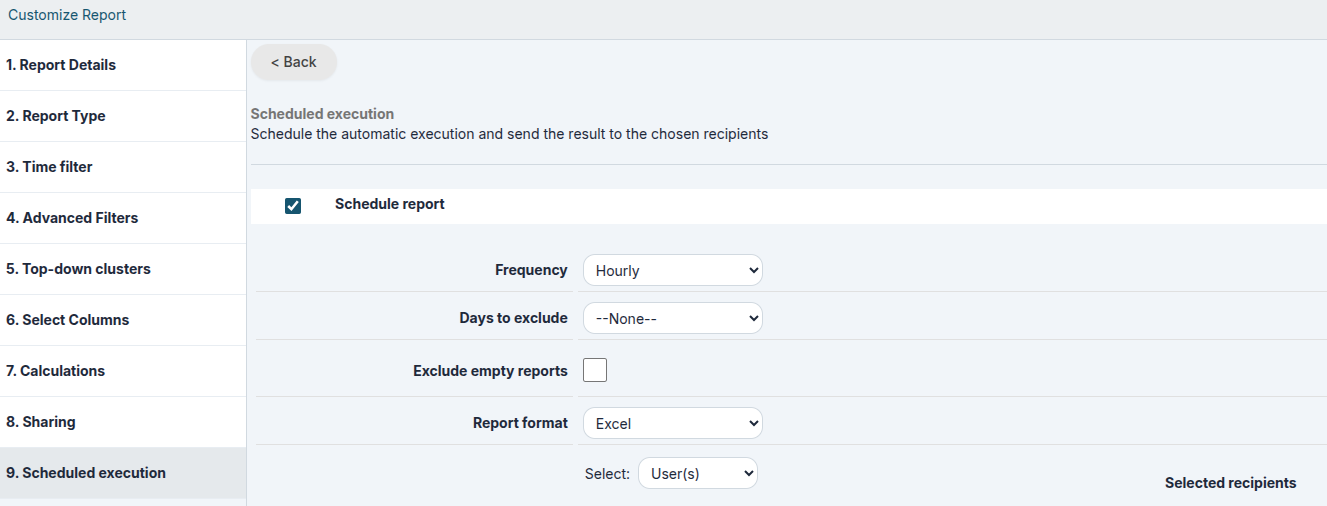
<span style="color: rgb(224,62,45);">**Warning:** If you decide to use this function, the CRM will send a report displaying all the records it contains, without considering roles or profiles set in the CRM or the type of report sharing previously selected.</span>

</td></tr></tbody></table>

At the end of the wizard, you will be able to view the report. Below are the functions available on the screen.

<table class="t1" id="bkmrk-tab-riassuntivo-visi" style="width: 100%; background-color: #ebf7ff;"><tbody><tr><td class="td1" style="width: 138px; vertical-align: middle;">**Summary Tab**

</td><td class="td1" style="width: 670px; vertical-align: middle;">Visible only if the report is of the Summary type (step 2), it displays report information (counts and calculations divided according to grouping criteria)

</td></tr><tr><td class="td1" style="width: 138px; vertical-align: middle;">**Report Tab**

</td><td class="td1" style="width: 670px; vertical-align: middle;">Table with the results of the report

</td></tr><tr><td class="td1" style="width: 138px; vertical-align: middle;">**Charts Tab**

</td><td class="td1" style="width: 670px; vertical-align: middle;">Visible only if set in step 8, it shows the chart based on the report

</td></tr><tr><td class="td1" style="width: 138px; vertical-align: middle;">**Time Interval**

</td><td class="td1" style="width: 670px; vertical-align: middle;">Apply a time-based filter (temporary field, cannot be saved)

</td></tr><tr><td class="td1" style="width: 138px; vertical-align: middle;">**Edit Button**

</td><td class="td1" style="width: 670px; vertical-align: middle;">To edit the Report by repeating the previous steps

</td></tr><tr><td class="td1" style="width: 138px; vertical-align: middle;">**Create Chart**

</td><td class="td1" style="width: 670px; vertical-align: middle;">Generate a new chart relating to the report

</td></tr><tr><td class="td1" style="width: 138px; vertical-align: middle;">**Duplicate**

</td><td class="td1" style="width: 670px; vertical-align: middle;">Opens the wizard to save a new report, starting from the settings of the previous one

</td></tr><tr><td class="td1" style="width: 138px; vertical-align: middle;">**Export in PDF**

</td><td class="td1" style="width: 670px; vertical-align: middle;">Export the total report in PDF format

</td></tr><tr><td class="td1" style="width: 138px; vertical-align: middle;">**Export in Excel**

</td><td class="td1" style="width: 670px; vertical-align: middle;">Export the total report in Excel format

</td></tr><tr><td class="td1" style="width: 138px; vertical-align: middle;">**Print**

</td><td class="td1" style="width: 670px; vertical-align: middle;">Print the total report directly

</td></tr></tbody></table>

[![image.png](https://usermanual.vtenext.com/uploads/images/gallery/2026-06/scaled-1680-/IUCimage.png)](https://usermanual.vtenext.com/uploads/images/gallery/2026-06/IUCimage.png)

# 13.1.1 Basic Report Example

In this chapter, we will create a report using data from a single module, applying filters and aggregations to the displayed information.

<span style="text-decoration: underline;">The examples provided in this document are intended solely for illustrative purposes and are not necessarily representative of real-world scenarios. Each company and project has its own specific characteristics, data structures, and objectives, making it impossible to define practical examples that fit every operational need.</span>  
<span style="text-decoration: underline;">Therefore, this guide is not intended to prescribe which fields should be used or how reports should be structured for a particular business context. Its purpose is solely to explain the features of the Reports module and demonstrate the main ways in which the tool can be used.</span>

#####   
**Prerequisites**

Before creating a report, it is essential to have a good understanding of the available data structure. Otherwise, you risk designing a report without knowing whether a specific piece of information is actually stored in the CRM. It is also very important to know the exact field names and the modules in which the information is stored, as these elements are crucial when defining filters, aggregations, and data processing logic.

For example, it is important to know whether a filter is applied to a free-text field or a picklist field, since the methods used to search, group, and aggregate data may differ significantly.

A solid understanding of the data structure enables you to design more accurate reports and helps avoid subsequent revisions caused by missing information or incorrect interpretations of the available

##### **Report Requirements** 

The example report will be based on the Accounts module. Its purpose is to analyze the companies created during the current year, limiting the results to companies located in Italy and Poland, and belonging to the Engineering and Healthcare sectors.

This report is useful for the Sales department to monitor business performance in these two countries and within these specific industries.

The data will be aggregated using the following fields:

- Assigned To (the user responsible for the account record)
- Country (the country where the account is located)

Type (to analyze the types of companies created)

Let's get Started!

##### **Report Creation**

<span style="text-decoration: underline;">Step 1 - Report Details</span>

Create the report by entering a name that clearly and concisely describes its purpose or content.

Next, select the folder where you want to save the report in order to maintain proper organization of the reports available in the system.

In the **Description** field, it is recommended to provide a brief explanation of the logic used in the report, including information such as:

- the filters applied;
- the aggregations used;
- any specific conditions or calculation criteria.

Documenting this information makes the report easier to understand over time and allows other users to quickly grasp its purpose, logic, and functionality.

[![image.png](https://usermanual.vtenext.com/uploads/images/gallery/2026-06/scaled-1680-/pdaimage.png)](https://usermanual.vtenext.com/uploads/images/gallery/2026-06/pdaimage.png)

<span style="text-decoration: underline;">Step 2 - Report Type</span>

This topic will be covered in greater detail in Step 6 - Select Columns and later during the report analysis phase.

The goal is to better understand the differences between the two main report types:

- Tabular Report, which displays the details of individual records;
- Summary Report, which aggregates data based on the selected fields and provides summaries, counts, and statistics (available in the Summary tab).

<span style="text-decoration: underline;">Step 3 - Date Filter</span>

In this step, we configure the first filter condition based on a date field.

In our example, we select the Creation Date field and set its value to the dynamic filter Current Fiscal Year.  
Using dynamic values is particularly important because it allows the report to update automatically over time.

[![image.png](https://usermanual.vtenext.com/uploads/images/gallery/2026-06/scaled-1680-/ifYimage.png)](https://usermanual.vtenext.com/uploads/images/gallery/2026-06/ifYimage.png)

<span style="text-decoration: underline;">Step 4 - Advanced Filters</span>

Next, we will filter the data by creating two separate groups of conditions:

- Italian companies belonging to the Healthcare sector;
- Polish companies belonging to the Engineering sector.

To achieve this, create two distinct filter groups:

Group 1

- Country = Italy
- Industry = Healthcare

Group 2

- Country = Poland
- Industry = Engineering

The two groups must then be connected using the OR logical operator, since we want to include companies that meet either of the two conditions.

In other words, the report will display:

- all Italian companies in the Healthcare sector;
- all Polish companies in the Engineering sector.

Using condition groups makes it possible to create more advanced filters and correctly combine different criteria within the same report.

It is important to carefully choose the logical operator and filter condition based on the type of field being queried.

For text fields, where the same value may be entered in slightly different ways, it is generally recommended to use the Contains operator. This approach makes the filter more flexible and increases the likelihood of capturing all relevant records.

In contrast, for picklist fields, it is recommended to use the Equals operator, since the available values are predefined and stored consistently. In this case, using Equals provides more accurate and efficient results.

Choosing the appropriate filter operator is essential to obtain reliable results and avoid unintentionally excluding relevant data or including records that do not match the intended criteria.

[![image.png](https://usermanual.vtenext.com/uploads/images/gallery/2026-06/scaled-1680-/OOJimage.png)](https://usermanual.vtenext.com/uploads/images/gallery/2026-06/OOJimage.png)

<span style="text-decoration: underline;">Step 5 - Top-Down Segmentation</span>

For this report, it is not necessary to create any clusters, so this step can be skipped.

The cluster functionality will be explored in greater detail in the Advanced Reports section, where it becomes particularly useful for segmenting and classifying data according to more complex criteria.

<span style="text-decoration: underline;">Step 6 - Select Columns</span>

In this step, we select the columns that we want to display in the report.  
For this example, all columns will be selected from the Accounts module using the drop-down menu available in Step 6.

Once you have selected the desired fields, it is important to click the Add Selected button to include them in the list of report columns displayed in the lower section of the page.

The selected columns will determine which information is available for display, grouping, sorting, and aggregation within the report.

[![image.png](https://usermanual.vtenext.com/uploads/images/gallery/2026-06/scaled-1680-/oS3image.png)](https://usermanual.vtenext.com/uploads/images/gallery/2026-06/oS3image.png)

It is at this stage that one of the main differences between a Summary Report and a Tabular Report becomes apparent.

With a Summary Report, you can:

- aggregate data based on the selected fields;
- decide whether to include fields in the Summary tab;
- generate counts, totals, and grouped data views.

With a Tabular Report, these capabilities are not available.

A tabular report simply displays a list of records that match the defined criteria, without performing any data aggregation. In practice, the result is very similar to an export of filtered data, where each record is displayed individually.

For this reason, when the goal is to analyze trends, counts, or grouped information, a Summary Report is generally the preferred option. Conversely, when you need to view the complete details of individual records, a Tabular Report is the more appropriate choice.

*Example of column selection in Step 6 for a Tabular Report (no column aggregation available)*

[![image.png](https://usermanual.vtenext.com/uploads/images/gallery/2026-06/scaled-1680-/58bimage.png)](https://usermanual.vtenext.com/uploads/images/gallery/2026-06/58bimage.png)

 *Example of column selection for a Summary Report (with the ability to group data by a column and include it in the Summary tab)*

[![image.png](https://usermanual.vtenext.com/uploads/images/gallery/2026-06/scaled-1680-/fbJimage.png)](https://usermanual.vtenext.com/uploads/images/gallery/2026-06/fbJimage.png)

In this example, we aggregate the data by Assigned To in order to determine how many companies are managed by each user.

Next, we add a second level of aggregation based on the Country field to understand the geographical distribution of the companies assigned to each user.  
Finally, we introduce a third level of aggregation using the Type field, providing an additional classification of companies within each country.

The result is a hierarchical structure that allows us to analyze:

- how many companies are assigned to each user;
- how those companies are distributed across different countries;
- which customer types make up each group.

<span style="text-decoration: underline;">Step 7 - Calculations</span>

To gain a more comprehensive overview of the records included in the report, we can add the Revenue field and configure one or more aggregation metrics.

In this example, we will select the following metrics:

- Sum, to calculate the total revenue generated by the selected companies;
- Average, to determine the average revenue of the records included in the report;
- Minimum Value, to identify the company with the lowest revenue;
- Maximum Value, to identify the company with the highest revenue.

The final available option, the Summary flag, can only be used in Summary Reports. In a Tabular Report, this functionality is not available because this report type does not generate a Summary tab.

It is also important to note that the Summary tab can display only one metric at a time. Therefore, it is not possible to select multiple metrics and display them simultaneously within the Summary tab.

When multiple metrics are configured, you will need to switch between them individually to analyze each calculation.

[![image.png](https://usermanual.vtenext.com/uploads/images/gallery/2026-06/scaled-1680-/2Y5image.png)](https://usermanual.vtenext.com/uploads/images/gallery/2026-06/2Y5image.png)

<span style="text-decoration: underline;">Step 8 - Sharing</span>

In this example, we want the report to be visible to all users who have access to the reporting functionality. For this reason, we select the Public sharing option.

A public report can be viewed by all users who are authorized to access reports, without the need to assign specific permissions to individual users or groups.

If it is necessary to restrict the visibility of the report to specific users, groups, or roles, you can instead use one of the other sharing options provided by the system.

[![image.png](https://usermanual.vtenext.com/uploads/images/gallery/2026-06/scaled-1680-/2a8image.png)](https://usermanual.vtenext.com/uploads/images/gallery/2026-06/2a8image.png)

<span style="text-decoration: underline;">Step 9 - Charts</span>

This step is available only for Summary Reports.

To create a chart, the report must generate a Summary tab. If this tab is not available, the system will not have any aggregated data to display graphically.

As a result:

- Summary Report → allows charts to be generated from the aggregated data available in the Summary tab;
- Tabular Report → does not generate a Summary tab and therefore does not provide any charting capabilities.

A tabular report is designed exclusively to display or export detailed record information without performing any grouping or data aggregation. For this reason, it cannot generate graphical representations of the data.

[![image.png](https://usermanual.vtenext.com/uploads/images/gallery/2026-06/scaled-1680-/LlFimage.png)](https://usermanual.vtenext.com/uploads/images/gallery/2026-06/LlFimage.png)

<span style="text-decoration: underline;">Step 10 - Scheduled Execution</span>

In this example, we will not use the report scheduling feature.

Therefore, we can skip the configuration that allows the report to be automatically delivered in Excel, PDF, or both formats to one or more recipients.

[![image.png](https://usermanual.vtenext.com/uploads/images/gallery/2026-06/scaled-1680-/pmQimage.png)](https://usermanual.vtenext.com/uploads/images/gallery/2026-06/pmQimage.png)

*Report Results (Tabular View)*

[![image.png](https://usermanual.vtenext.com/uploads/images/gallery/2026-06/scaled-1680-/Lxvimage.png)](https://usermanual.vtenext.com/uploads/images/gallery/2026-06/Lxvimage.png)

In the Tabular Format, data is displayed following the order of the columns selected in Step 6 - Select Columns of the report configuration wizard.  
Unlike the summary view, this mode does not apply any grouping and does not calculate statistics or summaries. Records are simply displayed one after another, showing the detailed values requested.

For this reason, the Summary tab is not available in the tabular view, as no aggregations, counts, sums, averages, or other calculations are performed on the displayed data.  
  
*Report Results (Summary Report) - Report tab*

[![image.png](https://usermanual.vtenext.com/uploads/images/gallery/2026-06/scaled-1680-/VR7image.png)](https://usermanual.vtenext.com/uploads/images/gallery/2026-06/VR7image.png)

In this report, some values are intentionally not repeated. For example, in the second record, the value of the Assigned To field is not displayed because it is the same as in the previous record (giovanna.bianchi).

Data is presented in an aggregated form and grouped according to the criteria defined in the report. Starting from the first column, all companies assigned to the same user are displayed together. In this case, all companies assigned to Giovanna are shown first, followed by those assigned to other users.

Within each group, records are further aggregated according to the additional criteria defined in the report, namely:

- Country
- Type

*Report Results (Summary Report) – Summary Tab*

[![image.png](https://usermanual.vtenext.com/uploads/images/gallery/2026-06/scaled-1680-/olkimage.png)](https://usermanual.vtenext.com/uploads/images/gallery/2026-06/olkimage.png)

In the Summary Tab, for fields where the “Show Summary” flag has been enabled, it is possible to display a set of statistics related to the selected metric in the report (in this case, Revenue).

For each field selected in Step 6 - Select Columns, the system displays:

- number of records;
- sum of the selected metric;
- average value;
- minimum value;
- maximum value.

In the example shown, we can see that Francesco has 3 assigned companies, which generate a total revenue of €500. The average revenue is €166, the minimum value is €0, while the company with the highest revenue generates €400.

Continuing the analysis of the summary, we can see that companies are further aggregated according to the criteria defined in the report. For example, for the Country field, we find:

- 2 Italian companies, with their respective revenue details;
- 1 Polish company, also with its corresponding revenue.

As we move deeper into the aggregation levels, the two Italian companies are classified as Customer, while the Polish company is classified as Competitor.

<span style="color: rgb(224, 62, 45);">**Note:** If a Summary Report is created but no field has the “Show Summary” flag enabled in Step 6 - Select Columns, the Summary tab will not be displayed.  
</span><span style="color: rgb(224, 62, 45);">The system generates the summary only for fields where statistical calculations have been explicitly enabled. If no fields are configured for summary calculation, the report has no aggregated data to process and, as a result, the Summary tab is not shown.</span>

# 13.2 Charts

Once you have created a report you can generate a chart from it using the Create Graph button.

[![13.2 [1].png](https://usermanual.vtenext.com/uploads/images/gallery/2022-06/scaled-1680-/9E513-2-1.png)](https://usermanual.vtenext.com/uploads/images/gallery/2022-06/9E513-2-1.png)

[![13.2 [2].png](https://usermanual.vtenext.com/uploads/images/gallery/2022-06/scaled-1680-/jNZ13-2-2.png)](https://usermanual.vtenext.com/uploads/images/gallery/2022-06/jNZ13-2-2.png)

<table border="1" cellpadding="0" cellspacing="0" class="t1" id="bkmrk-tipo-cliccare-sul-ti" style="width: 100%; background-color: #ebf7ff;"><tbody><tr><td class="td1" style="width: 120px; vertical-align: middle;" valign="top">**Type**

</td><td class="td1" style="width: 577px; vertical-align: middle;" valign="top">Click on the type of chart you want: pie, histogram, bar …

</td></tr><tr><td class="td1" style="width: 120px; vertical-align: middle;" valign="top">**Chart Name**

</td><td class="td1" style="width: 577px; vertical-align: middle;" valign="top">Enter chart name

</td></tr><tr><td class="td1" style="width: 120px; vertical-align: middle;" valign="top">**Show Legend**

</td><td class="td1" style="width: 577px; vertical-align: middle;" valign="top">Activate to view the legend

</td></tr><tr><td class="td1" style="width: 120px; vertical-align: middle;" valign="top">**Show Labels**

</td><td class="td1" style="width: 577px; vertical-align: middle;" valign="top">Activate to display labels in the chart

</td></tr><tr><td class="td1" style="width: 120px; vertical-align: middle;" valign="top">**Show values**

</td><td class="td1" style="width: 577px; vertical-align: middle;" valign="top">Allows you to choose whether to display values (count) or percentages

</td></tr><tr><td class="td1" style="width: 120px; vertical-align: middle;" valign="top">**Folder Name**

</td><td class="td1" style="width: 577px; vertical-align: middle;" valign="top">The charts are organised in folders like documents

</td></tr><tr><td class="td1" style="width: 120px; vertical-align: middle;" valign="top">**Formula**

</td><td class="td1" style="width: 577px; vertical-align: middle;" valign="top">Allows you to choose whether to display the count, the sum, the average, the maximum or the minimum

</td></tr><tr><td class="td1" style="width: 120px; vertical-align: middle;" valign="top">**Palette**

</td><td class="td1" style="width: 577px; vertical-align: middle;" valign="top">Allows you to choose the colours of the chart, among predefined combinations

</td></tr><tr><td class="td1" style="width: 120px; vertical-align: middle;" valign="top">**Data Order**

</td><td class="td1" style="width: 577px; vertical-align: middle;" valign="top">Allows you to define data sorting; if not set, it depends on the grouping criteria defined in the report

</td></tr></tbody></table>

**Warning!** If the SHOW LABELS field is set to YES, the SHOW VALUES will not display any results.  
If the SHOW LABELS field is set to NO instead, with the SHOW VALUES set to either VALUES or PERCENTAGES, it will show you the data on a single slice of the pie chart.  
The graphs are available in the Charts module, organised into folders in the same way as with Reports.  
The charts can also be added to the user’s Home Page through the button (see relevant chapter) or in the custom tabs of the modules.

Once the report is saved, it will be possible to **edit the charts** directly from the "Charts" module in vtenext. On this page, you can modify the parameters previously selected, and only here, you can determine the **label sorting** by using the "Data Order" option. This is particularly useful if you need to sort values alphabetically or arrange numbers in ascending/descending order.

[![image.png](https://usermanual.vtenext.com/uploads/images/gallery/2024-09/scaled-1680-/RGaimage.png)](https://usermanual.vtenext.com/uploads/images/gallery/2024-09/RGaimage.png)

# 14 PDF Maker

# 14 PDF Maker

The PDF Maker module allows you to create PDF documents that are generated with the rationale of "printing and merging" the data contained in vtenext and in an export model.

[![14 [1].png](https://usermanual.vtenext.com/uploads/images/gallery/2022-06/scaled-1680-/RPL14-1.png)](https://usermanual.vtenext.com/uploads/images/gallery/2022-06/RPL14-1.png)

# 14.1 Create a PDF template

To create a new template for the PDF Maker module, click on the ADD TEMPLATE key or button on the right and indicate the name for the template and the reference module: the template will be available for the indicated module only. This means that we will find it in the PDF Print options only if it is located in that module. For example, if I create a template to print invitations to contacts, I will only find it inside a registry in the OTHER menu at the top right.

[![14.1 [1].png](https://usermanual.vtenext.com/uploads/images/gallery/2022-06/scaled-1680-/cO814-1-1.png)](https://usermanual.vtenext.com/uploads/images/gallery/2022-06/cO814-1-1.png)

The content of the template is organised into three different sections:

- Body: template body
- Header: repeats on every page
- Page footer: repeats on every page

[![14.1 [2].png](https://usermanual.vtenext.com/uploads/images/gallery/2022-06/scaled-1680-/A3V14-1-2.png)](https://usermanual.vtenext.com/uploads/images/gallery/2022-06/A3V14-1-2.png)

Within the three areas you can enter:

- Fixed text parts
- Variables: they are replaced with vtenext data when exporting the document in PDF format

**Fixed text**   
It is possible to insert fixed text inside the Header, Body or Footer by positioning the cursor and starting to write the content:

[![14.1 [3].png](https://usermanual.vtenext.com/uploads/images/gallery/2022-06/scaled-1680-/7u514-1-3.png)](https://usermanual.vtenext.com/uploads/images/gallery/2022-06/7u514-1-3.png)

**Variables**  
To insert variables, position the cursor at the point where you want to insert the variable, choose the type of variable to insert from the MODULE item above, and then click on Insert in the template:

[![14.1 [4].png](https://usermanual.vtenext.com/uploads/images/gallery/2022-06/scaled-1680-/pbg14-1-4.png)](https://usermanual.vtenext.com/uploads/images/gallery/2022-06/pbg14-1-4.png)

The system inserts a variable string that will be replaced with the value assumed by the field when the PDF is generated:

[![14.1 [5].png](https://usermanual.vtenext.com/uploads/images/gallery/2022-06/scaled-1680-/CFZ14-1-5.png)](https://usermanual.vtenext.com/uploads/images/gallery/2022-06/CFZ14-1-5.png)

Once the text has been entered, you can format fixed and variable text using the editor tools.  
All the fields on the main module (Module) to which the template has been associated are available in the linked drop-down menu.

It is possible to insert variables on modules related to the main module (Module) also. There are two types of variables:

- modules connected in a 1-to-1 relation with the main module: there is a field within the registry that refers to another vtenext module. Example: in the Quotes form, you will find the Company Name field linking to a company registry.

[![14.1 [6].png](https://usermanual.vtenext.com/uploads/images/gallery/2022-06/scaled-1680-/fLs14-1-6.png)](https://usermanual.vtenext.com/uploads/images/gallery/2022-06/fLs14-1-6.png)

- blocks connected with modules with 1-to-many relations with the main module: the module item is in the relations menu. Example: in the Quotes module, you can find the Sales Orders block, with numerous orders inside (you can generate a number of orders from one Quote).

[![14.1 [7].png](https://usermanual.vtenext.com/uploads/images/gallery/2022-06/scaled-1680-/kfa14-1-7.png)](https://usermanual.vtenext.com/uploads/images/gallery/2022-06/kfa14-1-7.png)

**Variables in 1-to-1 relations**

- a) position the cursor at the point where you want to insert the variable
- b) choose the related module
- c) choose a field to insert
- d) click on Insert in the template

**Variables in 1-to-many relations (connected blocks)**

- a) move the cursor to the point where you want to insert the variable
- b) click on the Insert button in the template under Related Blocks:

You can now select one of the already existing blocks (check that they refer to the module for which we are building the template) or start the wizard procedure to create a new block through Create Related Blocks:

[![14.1 [8].png](https://usermanual.vtenext.com/uploads/images/gallery/2022-06/scaled-1680-/RBs14-1-8.png)](https://usermanual.vtenext.com/uploads/images/gallery/2022-06/RBs14-1-8.png)

*Click on CREATE A RELATED BLOCK*

[![14.1 [9].png](https://usermanual.vtenext.com/uploads/images/gallery/2022-06/scaled-1680-/vnI14-1-9.png)](https://usermanual.vtenext.com/uploads/images/gallery/2022-06/vnI14-1-9.png)

*Choose the related module for which you want to view the data in PDF format*

[![14.1 [10].png](https://usermanual.vtenext.com/uploads/images/gallery/2022-06/scaled-1680-/JL114-1-10.png)](https://usermanual.vtenext.com/uploads/images/gallery/2022-06/JL114-1-10.png)

*Choose the fields you want to display (from the left-hand column, using the cursor, shift the fields into the right-hand column)*

[![14.1 [11].png](https://usermanual.vtenext.com/uploads/images/gallery/2022-06/scaled-1680-/f2k14-1-11.png)](https://usermanual.vtenext.com/uploads/images/gallery/2022-06/f2k14-1-11.png)

*If appropriate, set a filter to display the desired data (e.g.: all Sales Orders in Approved status)*

[![14.1 [12].png](https://usermanual.vtenext.com/uploads/images/gallery/2022-06/scaled-1680-/1wE14-1-12.png)](https://usermanual.vtenext.com/uploads/images/gallery/2022-06/1wE14-1-12.png)

*Refine the table as desired and name the block*

[![14.1 [13].png](https://usermanual.vtenext.com/uploads/images/gallery/2022-06/scaled-1680-/NaE14-1-13.png)](https://usermanual.vtenext.com/uploads/images/gallery/2022-06/NaE14-1-13.png)

*Once the configuration is finished, the result will be like the one shown in the figure*

**N.B.:** the "Table Fields" can be inserted in a PDF using the linked blocks.

# 14.1.1 Insert images in PDF

Press the Image button in the editor:

[![14.1.1 [1].png](https://usermanual.vtenext.com/uploads/images/gallery/2022-06/scaled-1680-/nB714-1-1-1.png)](https://usermanual.vtenext.com/uploads/images/gallery/2022-06/nB714-1-1-1.png)

<table border="1" id="bkmrk-url-inserire-l%E2%80%99url" style="width: 100%; border-collapse: collapse; background-color: #ebf7ff; height: 118px;"><tbody><tr style="height: 106px;"><td class="td1" style="width: 23.5803%; height: 33px; vertical-align: middle;" valign="top">**URL**

</td><td class="td1" style="width: 112.175%; height: 33px; vertical-align: middle;" valign="top">insert the URL of the image (if already present); if the URL is not already present, click Search on the server to upload an image

</td></tr><tr style="height: 59px;"><td class="td1" style="width: 23.5803%; height: 10px; vertical-align: middle;" valign="top">**Width / Height**

</td><td class="td1" style="width: 112.175%; height: 10px; vertical-align: middle;" valign="top">to change the image size in the template

</td></tr><tr style="height: 75px;"><td style="width: 23.5803%; height: 10px; vertical-align: middle;">**![](https://usermanual.vtenext.com/uploads/images/gallery/2019-04-Apr/scaled-840-0/image-1555424361560.png)**

</td><td class="td1" style="width: 112.175%; height: 10px; vertical-align: middle;" valign="top">blocks height-width proportions

</td></tr><tr style="height: 66px;"><td style="width: 23.5803%; height: 10px; vertical-align: middle;">**![](https://usermanual.vtenext.com/uploads/images/gallery/2019-04-Apr/scaled-840-0/image-1555424418824.png)**

</td><td class="td1" style="width: 112.175%; height: 10px; vertical-align: middle;" valign="top">resets the original size

</td></tr><tr style="height: 106px;"><td class="td1" style="width: 23.5803%; height: 10px; vertical-align: middle;" valign="top">**Border**

</td><td class="td1" style="width: 112.175%; height: 10px; vertical-align: middle;" valign="top">enter a numerical value in pixels corresponding to the thickness of the border for the image (blank for no border)

</td></tr><tr style="height: 10px;"><td class="td1" style="width: 23.5803%; height: 10px; vertical-align: middle;" valign="top">**HSpace / VSpace**

</td><td class="td1" style="width: 112.175%; height: 10px; vertical-align: middle;" valign="top">enter the coordinates for positioning the image with respect to the text base line (blank to set the default position, in line with the text)

</td></tr><tr style="height: 35px;"><td class="td1" style="width: 23.5803%; height: 35px; vertical-align: middle;" valign="top">**Alignment**

</td><td class="td1" style="width: 112.175%; height: 35px; vertical-align: middle;" valign="top">define the alignment of the text

</td></tr></tbody></table>

[![image-1569578004159.png](https://usermanual.vtenext.com/uploads/images/gallery/2022-06/scaled-1680-/image-1569578004159.png)](https://usermanual.vtenext.com/uploads/images/gallery/2022-06/image-1569578004159.png)

# 14.1.2 Insert tables in PDF

To create a table in the PDF Maker, simply use the appropriate function in the editor, which is highlighted in the following image:

[![14.1.2 [1].png](https://usermanual.vtenext.com/uploads/images/gallery/2022-06/scaled-1680-/vnn14-1-2-1.png)](https://usermanual.vtenext.com/uploads/images/gallery/2022-06/vnn14-1-2-1.png)

When the "table creation" icon is clicked, a dialog window will open that will allow us to enter the values of the specific table we want to create:

[![14.1.2 [2].png](https://usermanual.vtenext.com/uploads/images/gallery/2022-06/scaled-1680-/jbI14-1-2-2.png)](https://usermanual.vtenext.com/uploads/images/gallery/2022-06/jbI14-1-2-2.png)

<table border="1" cellpadding="0" cellspacing="0" class="t1" id="bkmrk-dimensione-bordo-met" style="width: 100%; background-color: #ebf7ff;"><tbody><tr><td class="td1" style="width: 19.0123%; vertical-align: middle;" valign="top">**Border dimension**

</td><td class="td1" style="width: 80.8642%; vertical-align: middle;" valign="top">put zero if you do not want to display the border

</td></tr><tr><td class="td1" style="width: 19.0123%; vertical-align: middle;" valign="top">**Cells spacing**

</td><td class="td1" style="width: 80.8642%; vertical-align: middle;" valign="top">space between cells

</td></tr><tr><td class="td1" style="width: 19.0123%; vertical-align: middle;" valign="top">**Cells Padding**

</td><td class="td1" style="width: 80.8642%; vertical-align: middle;" valign="top">space between the border of the cell and the beginning of the content (text)

</td></tr></tbody></table>

When you click OK, the table appears in the BODY tab of the editor.

[![14.1.2 [3].png](https://usermanual.vtenext.com/uploads/images/gallery/2022-06/scaled-1680-/CqQ14-1-2-3.png)](https://usermanual.vtenext.com/uploads/images/gallery/2022-06/CqQ14-1-2-3.png)

Right-click to change the properties of the table. You can also set properties solely for the cell where the cursor is located.

# 14.2 Products block within PDF templates

For the Quotes, Sales Orders, Purchase Orders and Invoices modules, you can insert the product block into the templates. There are predefined product block models that can be quickly inserted into the template.  
To insert a product block model, select the block type and press Insert in the template button. The table corresponding to the product block will be created. You can customise the block later as if you were working on a table. It is possible to create custom tables for the offer rows; the basic structure must be as follows:

- a row with the header of all the columns;
- a line with the #PRODUCTBLOC\_START# tag that marks the beginning of the portion that must be repeated for each line on offer;
- a line with line variables;
- a line with the #PRODUCTBLOC\_END# tag that marks the end of the portion that must be repeated for each line on offer.

<table border="1" cellpadding="0" cellspacing="0" class="t1" id="bkmrk-intestazione_1-intes" style="width: 100%; background-color: #ebf7ff;"><tbody><tr><td class="td1" style="width: 30.2469%;" valign="top">intestazione\_1

</td><td class="td1" style="width: 14.5679%;" valign="top">intestazione\_2

</td><td class="td1" style="width: 14.321%;" valign="top">intestazione\_3

</td><td class="td1" style="width: 13.8272%;" valign="top">intestazione\_4

</td><td class="td1" style="width: 12.716%;" valign="top">….

</td><td class="td1" style="width: 14.1976%;" valign="top">intestazione\_n

</td></tr><tr><td class="td1" style="width: 30.2469%;" valign="top">**\#PRODUCTBLOC\_START#**

</td></tr><tr><td class="td1" style="width: 30.2469%;" valign="top">variabile\_1

</td><td class="td1" style="width: 14.5679%;" valign="top">variabile\_2

</td><td class="td1" style="width: 14.321%;" valign="top">variabile\_3

</td><td class="td1" style="width: 13.8272%;" valign="top">variabile\_4

</td><td class="td1" style="width: 12.716%;" valign="top">variabile\_n

</td></tr><tr><td class="td1" style="width: 30.2469%;" valign="top">**\#PRODUCTBLOC\_END#**

</td></tr></tbody></table>

The start and end-block tags are found as variables in:

[![14.2 [1].PNG](https://usermanual.vtenext.com/uploads/images/gallery/2022-06/scaled-1680-/9Pc14-2-1.PNG)](https://usermanual.vtenext.com/uploads/images/gallery/2022-06/9Pc14-2-1.PNG)

It is possible to insert the variables of the product block through the functions available in the Product Block tab:

[![14.2 [2].png](https://usermanual.vtenext.com/uploads/images/gallery/2022-06/scaled-1680-/Wdp14-2-2.png)](https://usermanual.vtenext.com/uploads/images/gallery/2022-06/Wdp14-2-2.png)

# 14.3 Barcodes

It is possible to insert barcodes inside the template through the "Other information" Tab:

[![14.3 [1].png](https://usermanual.vtenext.com/uploads/images/gallery/2022-06/scaled-1680-/zZi14-3-1.png)](https://usermanual.vtenext.com/uploads/images/gallery/2022-06/zZi14-3-1.png)

It is possible to insert a fixed number or a variable within this string. The number or variable will be inserted instead of "YOURCODE":

Example of a result:

![](https://usermanual.vtenext.com/uploads/images/gallery/2019-08-Aug/scaled-840-0/image-1564993395604.png)

# 14.5 Export to PDF

To generate a PDF, access the main module registry (e.g.: Quotes) and click the Other button in the top right-hand corner. The PDF Maker panel for exporting the document will appear. Choose the desired model and press Export in PDF.

[![14.5 [1].png](https://usermanual.vtenext.com/uploads/images/gallery/2022-06/scaled-1680-/jTH14-5-1.png)](https://usermanual.vtenext.com/uploads/images/gallery/2022-06/jTH14-5-1.png)

At this point the system will generate the document.  
You can generate a PDF merge for multiple entities: select the entities from the list view and press PDF Export:

[![14.5 [2].PNG](https://usermanual.vtenext.com/uploads/images/gallery/2022-06/scaled-1680-/7NR14-5-2.PNG)](https://usermanual.vtenext.com/uploads/images/gallery/2022-06/7NR14-5-2.PNG)

Then choose the template for massive export:

[![14.5 [3].PNG](https://usermanual.vtenext.com/uploads/images/gallery/2022-06/scaled-1680-/0Rb14-5-3.PNG)](https://usermanual.vtenext.com/uploads/images/gallery/2022-06/0Rb14-5-3.PNG)

# 14.6 Products Images in PDF

In the product block models, you can also add thumbnails related to the images uploaded in the product sheet.

**[![14.6 [1].png](https://usermanual.vtenext.com/uploads/images/gallery/2022-06/scaled-1680-/14-6-1.png)](https://usermanual.vtenext.com/uploads/images/gallery/2022-06/14-6-1.png)**

**Warning!** The appropriate variable for the product image must be inserted in the template.

[![14.6 [2(1)].png](https://usermanual.vtenext.com/uploads/images/gallery/2022-06/scaled-1680-/14-6-21.png)](https://usermanual.vtenext.com/uploads/images/gallery/2022-06/14-6-21.png)  
[![14.6 [2(2)].png](https://usermanual.vtenext.com/uploads/images/gallery/2022-06/scaled-1680-/14-6-22.png)](https://usermanual.vtenext.com/uploads/images/gallery/2022-06/14-6-22.png)

The **$PRODUCTS\_IMAGENAME$** variable must be inserted between the **\#PRODUCTBLOC\_START#** and **\#PRODUCTBLOC\_END#** tags.  
In the PDF generation phase, click first on the Product Images item, choosing for each product the image to be inserted in the PDF (we can select the images that we intend to display in the PDF). It is possible to define the dimensions of the image in terms of width and height; if one of these two values is left empty, the system will resize the image proportionally to the specified size. If the two values are left blank, the image will be printed with its original size.  
**Warning!** It is not possible to associate images to services.

[![14.6 [3].png](https://usermanual.vtenext.com/uploads/images/gallery/2022-06/scaled-1680-/14-6-3.png)](https://usermanual.vtenext.com/uploads/images/gallery/2022-06/14-6-3.png)

*Select Product Images and Export to PDF*

[![14.6 [4].png](https://usermanual.vtenext.com/uploads/images/gallery/2022-06/scaled-1680-/14-6-4.png)](https://usermanual.vtenext.com/uploads/images/gallery/2022-06/14-6-4.png)

*Product Images selection window*

[![14.6 [5].png](https://usermanual.vtenext.com/uploads/images/gallery/2022-06/scaled-1680-/14-6-5.png)](https://usermanual.vtenext.com/uploads/images/gallery/2022-06/14-6-5.png)

*PDF exported with Product Images detail*

# 14.7 Custom Functions in PDF

It is possible to define custom functions for data processing within the PDF Maker. To add a custom function, place the PHP file with the function code inside the modules/PDFMaker/function folder; the file will be included automatically.  
The its4you.php function is inside the folder. Do not modify this file; any changes will be overwritten the next time you update the application.  
To add a custom function to your template, go to the More information tab and choose the desired function and then click Insert in the template:

[![14.7 [1].PNG](https://usermanual.vtenext.com/uploads/images/gallery/2022-06/scaled-1680-/Ipx14-7-1.PNG)](https://usermanual.vtenext.com/uploads/images/gallery/2022-06/Ipx14-7-1.PNG)

**Guide example: if-else:**

If you choose the if-else function, the following text will be added to the template: \[CUSTOMFUNCTION|its4you\_if|param1|comparator|param2|return1|return2|- CUSTOMFUNCTION\]

**Replace:**  
param1 – control range  
comparator – benchmark, possible values: = , != (different), &gt;, &lt; param2 – benchmark  
return1 – value to be displayed if the condition is verified  
return2 – value to be displayed if the condition is NOT verified

Let's see how to configure the function so that the final discount in the Quote will be printed only if not invalid:

**\[CUSTOMFUNCTION|its4you\_if|$TOTALDISCOUNT$|!=|0,00|Discount$TOTALDISCOUNT$ €||CUSTOMFUNCTION\]**

# 14.8 PDF file name

In the PDF Maker Settings tab, you can define the name of the output PDF file. This option allows you to define the file name according to your needs. It is possible to combine text strings, module variables and standard variables such as the template name, current date, etc.

[![14.8 [1].png](https://usermanual.vtenext.com/uploads/images/gallery/2022-06/scaled-1680-/c9v14-8-1.png)](https://usermanual.vtenext.com/uploads/images/gallery/2022-06/c9v14-8-1.png)

# 14.9 Export/Import PDF Template

You can import or export the templates of the PDF Maker module in XML format using the appropriate buttons.  
This feature is only available to CRM administrator users.

[![14.9 [1].PNG](https://usermanual.vtenext.com/uploads/images/gallery/2022-06/scaled-1680-/12b14-9-1.PNG)](https://usermanual.vtenext.com/uploads/images/gallery/2022-06/12b14-9-1.PNG)

# 14.10 Language Labels in PDF Maker

<article class="text-token-text-primary w-full focus:outline-none [--shadow-height:45px] has-data-writing-block:pointer-events-none has-data-writing-block:-mt-(--shadow-height) has-data-writing-block:pt-(--shadow-height) [&:has([data-writing-block])>*]:pointer-events-auto [content-visibility:auto] supports-[content-visibility:auto]:[contain-intrinsic-size:auto_100lvh] scroll-mt-[calc(var(--header-height)+min(200px,max(70px,20svh)))]" data-scroll-anchor="true" data-testid="conversation-turn-256" data-turn="assistant" data-turn-id="04c77c33-66e9-4e86-bd88-22785025fb7d" dir="auto" id="bkmrk-the-labels-feature-a" tabindex="-1">The **Labels** feature available in PDF Maker is very important if you want to manage PDFs in multiple languages.  
When you open a PDF template for editing (or during creation, it makes no difference), a tab called **Labels** appears at the top.  
Clicking on it takes you to the screen shown in the following image:

[![image.png](https://usermanual.vtenext.com/uploads/images/gallery/2025-10/scaled-1680-/TJ6image.png)](https://usermanual.vtenext.com/uploads/images/gallery/2025-10/TJ6image.png)

<article class="text-token-text-primary w-full focus:outline-none [--shadow-height:45px] has-data-writing-block:pointer-events-none has-data-writing-block:-mt-(--shadow-height) has-data-writing-block:pt-(--shadow-height) [&:has([data-writing-block])>*]:pointer-events-auto [content-visibility:auto] supports-[content-visibility:auto]:[contain-intrinsic-size:auto_100lvh] scroll-mt-[calc(var(--header-height)+min(200px,max(70px,20svh)))]" data-scroll-anchor="true" data-testid="conversation-turn-260" data-turn="assistant" data-turn-id="request-68868f76-ca70-8320-926d-480779b7a0e4-7" dir="auto" tabindex="-1">By analyzing it, you can see two main dropdown menus called **GENERAL LANGUAGE** and **MODULE LANGUAGE**. Let’s take a look at what they are used for:

<table border="1" cellpadding="0" cellspacing="0" class="t1" id="bkmrk-nome%2Fcognome-nome-e-" style="width: 100%; border-collapse: collapse; border-width: 1px; border-spacing: 0px; background-color: rgb(235, 247, 255);"><tbody><tr><td class="td1" style="width: 25.0194%;" valign="top">**General Language**

</td><td class="td1" style="width: 74.9806%;" valign="top">This section contains the label values from all CRM modules. Here you can find any type of label to quickly insert the desired entry. When the PDF is generated, the variable will automatically be translated into the selected language.

</td></tr><tr><td class="td1" style="width: 25.0194%;" valign="top">****Module Language****

</td><td class="td1" style="width: 74.9806%;" valign="top">This section contains the label values of the modules primarily involved in the configuration. For example, if you are creating a PDF for the **Quotes** module, you will have access not only to the labels of the fields within the Quote itself but also to those of related modules — such as **Account** or **Contact**.

</td></tr></tbody></table>

Let’s suppose you want to include the following values in your PDF:

**Company Name:** ELECTRO SpA  
**Phone:** 123456789

By selecting in the **MODULE LANGUAGE** dropdown first the value *Company Name* and then *Phone*, you can obtain the variables corresponding to their respective labels.  
Then, by returning to the **Properties** tab, you can locate the variables that define the actual field values (which the labels refer to).  
This will result in the following setup:

**%M\_Account Name%:** $QUOTES\_ACCOUNT\_ID$  
**%M\_LBL\_LIST\_PHONE%:** $R\_ACCOUNTS\_PHONE$

**PDF EXPORT IN LANGUAGE**

Finally, by going to the module for which the template was created and opening the desired record, you can export the PDF in the selected language.  
Simply click on the three dots at the top right (the **MORE** button), choose the template, select the language from the dropdown menu, and click **Export** or **Send by Email**.

[![image.png](https://usermanual.vtenext.com/uploads/images/gallery/2025-10/scaled-1680-/aBdimage.png)](https://usermanual.vtenext.com/uploads/images/gallery/2025-10/aBdimage.png)

</article></article>

# 15 Other Functions

# New Page


# 15.1 RSS

It is possible to provide constant and real time updates to all vtenext users through the RSS Feed links available on the web or specially created by the company. vtenext provides the option of choosing from a list of RSS feeds available for users and viewing every available article on the display.

Each RSS feed has a unique address similar to the web URL searched for on the Internet. To see an RSS feed, you must enter this address in vtenext.

[![image.png](https://usermanual.vtenext.com/uploads/images/gallery/2026-05/scaled-1680-/nFbimage.png)](https://usermanual.vtenext.com/uploads/images/gallery/2026-05/nFbimage.png)

# 15.2 My Sites

This area allows you to view websites of interest directly on vtenext. The system is also very useful for connecting to shipment tracking or communicating with web-based suppliers.

[![15.2 [1].png](https://usermanual.vtenext.com/uploads/images/gallery/2022-06/scaled-1680-/15-2-1.png)](https://usermanual.vtenext.com/uploads/images/gallery/2022-06/15-2-1.png)

# 15.3 License and number of users

The Copyright and the License icon is found on the bottom right-hand corner of all vtenext pages; by clicking on it, you can access a popup containing all the terms of use of the program’s Business license.

Since the 19.10 version, and only for **On-Site installations**, you can see how many users are available for that particular license and how many of them have been activated.

The **expiration date** of the installed license is also available in the same popup.

[![15.3 [2].png](https://usermanual.vtenext.com/uploads/images/gallery/2022-06/scaled-1680-/J5I15-3-2.png)](https://usermanual.vtenext.com/uploads/images/gallery/2022-06/J5I15-3-2.png)*License on Cloud*

[![15.3 [2].png](https://usermanual.vtenext.com/uploads/images/gallery/2022-06/scaled-1680-/15-3-2.png)](https://usermanual.vtenext.com/uploads/images/gallery/2022-06/15-3-2.png)  
*License On-Site*

# 15.4 Synchronizations

From vtenext settings the crm synchronization function can be accessed with other applications. The synchronizable platforms available are as follows:

- VTENEXT
- Hubspot
- Jira
- Magento
- PrestaShop
- Salesforce
- Shopify
- SuiteCRM
- vtiger
- WooCommerce
- Zapier
- ZenDesk

It is possible to **create multiple synchronizations for multiple systems at the same time**. By clicking the **ADD** button at the top right, you can choose which external system to configure and add all the ones you need.

[![image.png](https://usermanual.vtenext.com/uploads/images/gallery/2026-02/scaled-1680-/qWBimage.png)](https://usermanual.vtenext.com/uploads/images/gallery/2026-02/qWBimage.png)

The modules that can be synchronized, for each individual synchronization, differ depending on the platform selected. Below is a diagram that summarizes which modules can be synchronized. The supported versions are specified in parentheses.

<table border="1" cellpadding="0" cellspacing="0" class="t1" id="bkmrk-vista-calendario-di-" style="height: 293px; background-color: #ebf7ff; width: 809px;"><tbody><tr><td style="width: 337px;">**VTENEXT**</td><td style="width: 472px;">- HelpDesk
- Accounts
- Contacts
- FAQ
- Providers
- Assets
- Leads
- ProjectTask
- Potentials
- ProjectPlan
- Products
- Services
- TicketComments
- Users

<div class="flex-shrink-0 flex flex-col relative items-end"><div><div class="pt-0">  
</div></div></div>**Note:** This function is essential when linking two vtenext installations, for instance, **to synchronize the TEST environment with the PRODUCTION environment**.

<span style="color: rgb(224, 62, 45);">**Warning: The vte authentication password for synchronization with another vte must be defined using its access key and NOT the user’s login password**</span>

</td></tr><tr><td class="td1" style="width: 337px;" valign="top">**Hubspot (only cloud version)**

</td><td class="td1" style="width: 472px;" valign="top">- Trouble Ticket
- Accounts
- Contacts
- Potentials
- Targets
- Users

**<span style="color: #ff0000;">\*</span>**record deletions from Hubspot to vtenext are not covered

**N.B.** The "scopes". The crm indicates to insert the following "scopes":

[![image-1663685096632.png](https://usermanual.vtenext.com/uploads/images/gallery/2022-09/scaled-1680-/image-1663685096632.png)](https://usermanual.vtenext.com/uploads/images/gallery/2022-09/image-1663685096632.png)

<span style="color: #ff6600;">**ATTENTION:**</span> it is essential to select exactly those indicated, otherwise the synchronization will not work!

</td></tr><tr><td class="td1" style="width: 337px;" valign="top">**Salesforce**

</td><td class="td1" style="width: 472px;" valign="top">- Trouble Ticket
- Ticket Comments
- Ticket Attachments
- Emails
- Accounts
- Campaigns
- Contacts
- Installations
- Leads
- Potentials
- Products**<span style="color: #ff0000;">\*</span>**
- Users

</td></tr><tr><td class="td1" style="width: 337px;" valign="top">**SuiteCRM (only on-premise version)**

</td><td class="td1" style="width: 472px;" valign="top">- Trouble Ticket
- Accounts
- Campaigns
- Contacts
- Installations
- Leads
- Potentials
- Products**<span style="color: #ff0000;">\*</span>**
- Users

**<span style="color: #ff0000;">\*</span>**images are not imported

</td></tr><tr><td class="td1" style="width: 337px;" valign="top">**Jira (only cloud version)**

</td><td class="td1" style="width: 472px;" valign="top">- Trouble Ticket
- Project Tasks
- Projects
- Ticket Comments
- Users

</td></tr><tr><td style="width: 337px;">**vtiger (only cloud version)**

</td><td style="width: 472px;">- Trouble Ticket
- Accounts
- Contacts
- Vendors
- Installations
- Leads
- Potentials
- Products**<span style="color: #ff0000;">\*</span>**
- Services
- Users

**<span style="color: #ff0000;">\*</span>**images are not imported

</td></tr><tr><td style="width: 337px;">**Magento (only on-premise version 2.4.0)**

</td><td style="width: 472px;">- Accounts
- Currencies
- Sales Orders
- Products**<span style="color: #ff0000;">\*</span>**
- Configurable products
- Taxes

**<span style="color: #ff0000;">\*</span>**images are not imported

</td></tr><tr><td style="width: 337px;">**Prestashop (only on-premise version 1.7.6.7)**

</td><td style="width: 472px;">- Accounts
- Currencies
- Sales Orders
- Products**<span style="color: #ff0000;">\*</span>**
- Configurable products
- Taxes

**<span style="color: #ff0000;">\*</span>**images are not imported

</td></tr><tr><td style="width: 337px;">**Shopify (only cloud version 2019-20)**

</td><td style="width: 472px;">- Accounts
- Currencies
- Sales Orders
- Products**<span style="color: #ff0000;">\*</span>**
- Configurable products

**<span style="color: #ff0000;">\*</span>**images are not imported

**ATTENTION**: To synchronize Shopify products, it is necessary to also set up the **Configurable Products** module in the configuration.

</td></tr><tr><td style="width: 337px;">**WooCommerce (only on-premise version 4.4.0)**

</td><td style="width: 472px;">- Accounts
- Currencies
- Sales Orders
- Products**<span style="color: #ff0000;">\*</span>**
- Configurable products
- Taxes

**<span style="color: #ff0000;">\*</span>**images are not imported

</td></tr><tr><td style="width: 337px;">**Zapier**</td><td style="width: 472px;">**PAY ATTENTION: T**o properly set up the Zapier connector, it's essential to carefully read the ZAPIER MANUAL provided in Chapter 15.7.

FOTO

</td></tr><tr><td style="width: 337px;">**Zendesk**

</td><td style="width: 472px;">- Trouble Ticket
- Accounts
- Ticket Comments
- Ticket Attachments
- Users

</td></tr></tbody></table>

When accessing the configuration page from SETTINGS &gt; BUSINESS PROCESS MANAGER &gt; SYNCHRONIZATIONS the synchronization to be set and towards which system can be configured with a few simple steps. The page is identical to the page shown in the image below.

[![15.4 [1].png](https://usermanual.vtenext.com/uploads/images/gallery/2022-06/scaled-1680-/tCK15-4-1.png)](https://usermanual.vtenext.com/uploads/images/gallery/2022-06/tCK15-4-1.png)

*View of the synchronizations configuration page*

**Configuration**

1. The first required action is to choose the **External system** in the available drop-down menu
2. Specify the **Instance address** to which you wish to connect (where required)
3. Now choose the required synchronization modules from those available and take them to the **Selected modules** column by means of the right-pointing arrow
4. Once the operation in step 3 has been completed, a popup will open in which you can select the synchronization method for each of the selected modules (see example in the image below)  
      
    [![15.4 [2].PNG](https://usermanual.vtenext.com/uploads/images/gallery/2022-06/scaled-1680-/7LZ15-4-2.PNG)](https://usermanual.vtenext.com/uploads/images/gallery/2022-06/7LZ15-4-2.PNG)  
    *View of the synchronization configuration of the Trouble Ticket module selected in point 3*
5. Enter the authentication data, stating the authentication mechanism **Type**, **Username** and **Password** for login. By clicking on the ![](https://usermanual.vtenext.com/uploads/images/gallery/2021-03-Mar/scaled-840-0/image-1616147127331.png) icon it is possible to have further information to retrieve the data to be entered in the username and password that differ for each synchronizable platform.

[![image-1616160325840.png](https://usermanual.vtenext.com/uploads/images/gallery/2021-03-Mar/scaled-840-0/image-1616160325840.png)](https://usermanual.vtenext.com/uploads/images/gallery/2021-03-Mar/image-1616160325840.png)

**N.B.:** synchronization occurs in accordance with the interval set for the crons, which is every minute by default, but which can be subject to variation depending on the number of synchronizations set, other cron processes, and the machine workload.

# 15.5 Recycle Bin

The CRM includes a module called “Recycle Bin”, which allows users to restore deleted records from any module.  
Using the search bar located in the lower-left corner and typing “Recycle Bin”, you will be able to click the corresponding menu item to open it.

[![image.png](https://usermanual.vtenext.com/uploads/images/gallery/2026-05/scaled-1680-/urpimage.png)](https://usermanual.vtenext.com/uploads/images/gallery/2026-05/urpimage.png)

*Recycle Bin detail*

**How to restore a deleted record?**

First, in the upper-right menu, you must select the module from which the record was deleted (e.g., Accounts or Help Desk).

[![image.png](https://usermanual.vtenext.com/uploads/images/gallery/2026-05/scaled-1680-/9flimage.png)](https://usermanual.vtenext.com/uploads/images/gallery/2026-05/9flimage.png)

*Module selection from where restore the entities in detail*

Once you have selected the module, a list of deleted records will appear. From here, you can filter the available fields to search for the deleted item.

[![image.png](https://usermanual.vtenext.com/uploads/images/gallery/2026-05/scaled-1680-/jHlimage.png)](https://usermanual.vtenext.com/uploads/images/gallery/2026-05/jHlimage.png)

Here you can find several possibility:

[![image.png](https://usermanual.vtenext.com/uploads/images/gallery/2026-05/scaled-1680-/mlaimage.png)](https://usermanual.vtenext.com/uploads/images/gallery/2026-05/mlaimage.png)

1. By selecting manually different entities it is possible to restore them by clicking on the appropriate button placed in the upper left: **RESTORE**
2. It is possible to restore a single entity by clicking the button "Restore" placed on the row of the selected record.
3. By clicking **SELECT ALL** placed in the upper left you will select every removed record from the module you have chosen. Then, you can click on "Restore" to restore all the records. If you do this, you will be able to find those records by opening the module itself.
4. Eventually, by clicking **EMPTY RECYCLE BIN**, <span style="color: #ff6600;">**EVERY RECORD OF EVERY MODULE WILL BE REMOVED DEFINITELY!**</span>
5. <span style="color: rgb(52, 73, 94);">Clicking **DELETE SELECTED** will permanently delete only the selected records.</span>

# 15.6 Push Notifications

As soon as the version 23.08 is installed or updated, in the CRM's notification area, you will find the following notice:

*With this update, it's now possible to send push notifications to devices using the Wilson app. Each user can select the events to enable on their own device. If you want to provide this functionality to your users, click here to enable the service.*

Once you click the link, you will be directed to the SETTINGS &gt; OTHER SETTINGS &gt; PUSH NOTIFICATIONS area.

[![image-1692970370644.png](https://usermanual.vtenext.com/uploads/images/gallery/2023-08/scaled-1680-/image-1692970370644.png)](https://usermanual.vtenext.com/uploads/images/gallery/2023-08/image-1692970370644.png)

*Push Notifications Page in the vtenext Settings*

From this page, you can enable notifications for all CRM users by clicking the ACTIVATE button directly on the right side of the screen.

[![image-1692970414307.png](https://usermanual.vtenext.com/uploads/images/gallery/2023-08/scaled-1680-/image-1692970414307.png)](https://usermanual.vtenext.com/uploads/images/gallery/2023-08/image-1692970414307.png)

Once done, in the **AVAILABLE SERVICES** area, the **status** label will change from <span style="color: #ff0000;">**NOT AUTHENTICATED**</span> to <span style="color: #339966;">**AUTHENTICATED**</span>. Further down, you will find another section called **MOBILE DEVICES**, where you will see the list of all devices of users who have chosen to activate vtenext's push notifications from the **Wilson app (but we'll see that shortly)**.

So, once push notifications are activated, you will need to access the Wilson app and proceed as follows:

[![image-1693382802361.png](https://usermanual.vtenext.com/uploads/images/gallery/2023-08/scaled-1680-/image-1693382802361.png)](https://usermanual.vtenext.com/uploads/images/gallery/2023-08/image-1693382802361.png)

Firstly, Wilson will ask to ENABLE push notifications. Simply tap the ENABLE button to activate them. If you choose to enable them 'later', you can always do so from the app settings.

[![image-1693383125336.png](https://usermanual.vtenext.com/uploads/images/gallery/2023-08/scaled-1680-/image-1693383125336.png)](https://usermanual.vtenext.com/uploads/images/gallery/2023-08/image-1693383125336.png)

By clicking on ENABLE, the Wilson app will show us this screen, giving us the option to choose which notifications to enable. Specifically, you can enable notifications for:

<table border="1" cellpadding="0" cellspacing="0" class="t1" id="bkmrk-nome%2Fcognome-nome-e-" style="background-color: #ebf7ff; width: 809px;"><tbody><tr><td class="td1" style="width: 172px;" valign="top">**2FA**

</td><td class="td1" style="width: 637px;" valign="top">allows receiving notifications for two-factor authentication

</td></tr><tr><td class="td1" style="width: 172px;" valign="top">**Talks**

</td><td class="td1" style="width: 637px;" valign="top">enables receiving notifications for the Conversations module.

**CAUTION**: A notification won't be sent each time a new conversation is received; they are grouped.

</td></tr><tr><td class="td1" style="width: 172px;" valign="top">**Messages**

</td><td class="td1" style="width: 637px;" valign="top">enables receiving notifications for the Messages module.

**CAUTION**: A notification won't be sent for every new email received; they are grouped

</td></tr><tr><td class="td1" style="width: 172px;" valign="top">**Process Tasks**

</td><td class="td1" style="width: 637px;" valign="top">allows receiving notifications for process tasks involving the logged-in user

</td></tr><tr><td class="td1" style="width: 172px;" valign="top">**Event Reminders**

</td><td class="td1" style="width: 637px;" valign="top">enables receiving notifications for upcoming Events

</td></tr><tr><td style="width: 172px;">**Task Reminders**

</td><td style="width: 637px;">enables receiving notifications for upcoming Tasks

</td></tr><tr><td style="width: 172px;">**General CRM notifications**

</td><td style="width: 637px;">enables all generic CRM notifications **(by default, this option is disabled due to the potentially high number of push notifications it could generate)**

</td></tr></tbody></table>

[![image-1693383933097.png](https://usermanual.vtenext.com/uploads/images/gallery/2023-08/scaled-1680-/image-1693383933097.png)](https://usermanual.vtenext.com/uploads/images/gallery/2023-08/image-1693383933097.png)

Additionally, you can configure WHEN TO RECEIVE NOTIFICATIONS, with the following options:

<table border="1" cellpadding="0" cellspacing="0" class="t1" id="bkmrk-orario-personalizzat" style="background-color: #ebf7ff;"><tbody><tr><td class="td1" style="width: 172px;" valign="top">**Custom Schedule**

</td><td class="td1" style="width: 637px;" valign="top">allows receiving notifications during user-selected days and hours. For example, you can set to receive notifications from Monday to Friday, between 8:00 AM and 7:00 PM

</td></tr><tr><td class="td1" style="width: 172px;" valign="top">**Always**

</td><td class="td1" style="width: 637px;" valign="top">allows receiving app notifications at all times, any day of the week.

</td></tr></tbody></table>

[![image-1693383358762.png](https://usermanual.vtenext.com/uploads/images/gallery/2023-08/scaled-1680-/image-1693383358762.png)](https://usermanual.vtenext.com/uploads/images/gallery/2023-08/image-1693383358762.png)

Here's how the screen for choosing the custom schedule for receiving Wilson app notifications looks:

[![image-1693383529414.png](https://usermanual.vtenext.com/uploads/images/gallery/2023-08/scaled-1680-/image-1693383529414.png)](https://usermanual.vtenext.com/uploads/images/gallery/2023-08/image-1693383529414.png)

Finally, you can enable or disable the app's concurrent usage check. This feature allows vtenext to check if the user is using the app concurrently with the web client. You can set an idle time, so if the user is using the web client and is away from their workstation for a certain number of minutes, as determined by the idle time, they will start receiving notifications on their mobile device. If the web client continues to be used with this option active, push notifications will stop being sent to the mobile device.

[![image-1693383610835.png](https://usermanual.vtenext.com/uploads/images/gallery/2023-08/scaled-1680-/image-1693383610835.png)](https://usermanual.vtenext.com/uploads/images/gallery/2023-08/image-1693383610835.png)

And here is how the interface for selecting the idle time looks. The available options, determined in minutes, are: 5, 10, 15, 30, 60.

# 15.7 Synchronization with Zapier

Zapier is a product that allows end-users to integrate web applications and automate workflows. It enables the connection of various web applications through "ZAPs," which can be customized based on user needs. Zapier functions as a bridge between different applications, allowing the automation of business processes and saving valuable time.

The guide to create a Zapier integration is available here:

[https://usermanual.vtenext.com/books/creation-of-external-apps/chapter/zapier](https://usermanual.vtenext.com/books/creation-of-external-apps/chapter/zapier)

---

**Name of the fields in vtenext**


In the linked tutorial several internal field names of vtenext have been used. These names are not normally visible from the web interface, so a special page has been prepared, where all field names can be seen, to be used in integrations using the API.

To see them, go to **Settings** -&gt; **REST Webservices** and click on **Show**:

[![Screenshot_20240412_095750.png](https://usermanual.vtenext.com/uploads/images/gallery/2024-04/scaled-1680-/screenshot-20240412-095750.png)](https://usermanual.vtenext.com/uploads/images/gallery/2024-04/screenshot-20240412-095750.png)

A popup will open, showing the id of the modules and field names:

[![Screenshot_20240412_095814.png](https://usermanual.vtenext.com/uploads/images/gallery/2024-04/scaled-1680-/screenshot-20240412-095814.png)](https://usermanual.vtenext.com/uploads/images/gallery/2024-04/screenshot-20240412-095814.png)

# 15.8 Employees Module

The Employees module allows you to register your employees or co-workers, both internal and external, within vtenext. Every time a new user is created, a new collaborator profile is automatically generated.

The module can be managed like all the others, by modifying the picklist entries for "collaboration type" or by adding new fields as desired.

The default fields, such as First Name and Last Name, as well as all those present in the "User Information" section, cannot be modified through the module. Changes can only be made through "User Preferences." Any modifications made in the user preferences reflect within the Collaborators module.

A collaborator profile can be linked to one of the four profiles present in vtenext: Lead, Company, Contact, or Supplier.

[![image.png](https://usermanual.vtenext.com/uploads/images/gallery/2026-05/scaled-1680-/mrdimage.png)](https://usermanual.vtenext.com/uploads/images/gallery/2026-05/mrdimage.png)

A practical example of using this module could be to input personal evaluations for each collaborator into a field that's only visible to the Human Resources department (dedicated profile).

In this scenario, the Employees module in vtenext allows the HR team to maintain individual performance assessments for employees or co-workers. This information can be entered into a custom field within the module, specifically designed to store performance ratings or comments. The visibility of this field can be restricted to the HR profile only, ensuring that sensitive performance data is accessible only to authorized personnel.

By utilizing the Employees module in this manner, the company can effectively manage and monitor the performance of its workforce while maintaining data confidentiality and security.

# 15.9 Klondike Co-Pilot (Your Personal Assistant)

*(This plugin is sold separately)*

Klondike Co-Pilot is an advanced solution that enhances the capabilities of the vtenext CRM, offering automated and assisted support for managing business processes and customer interactions. This integration aims to improve operational efficiency, reduce human errors, and optimize workflow through intelligent automation and proactive assistance.

**Key Features**

- **Proactive Assistance**: Provides real-time suggestions while performing complex tasks, helping users make quick and informed decisions.
- **Artificial Intelligence**: Uses AI to analyze data and customer needs, optimizing responses to their requests.
- **Seamless Integration**: Integrates smoothly with vtenext and its main modules, ensuring a continuous workflow and synchronization of all shared customer information with all users.

**Where to Find Klondike Co-Pilot**

- **Trouble Tickets**: You can request a summary within a ticket when dealing with a large amount of information represented by the ticket's DESCRIPTION, COMMENTS, and NOTES. Klondike helps by summarizing all the relevant content (with the possibility to update the summary when new details, comments, or notes are added to the ticket).
    
    [![image.png](https://usermanual.vtenext.com/uploads/images/gallery/2024-09/scaled-1680-/uiyimage.png)](https://usermanual.vtenext.com/uploads/images/gallery/2024-09/uiyimage.png)
    
    [![image.png](https://usermanual.vtenext.com/uploads/images/gallery/2024-09/scaled-1680-/l1eimage.png)](https://usermanual.vtenext.com/uploads/images/gallery/2024-09/l1eimage.png)
- **Messages Module**: You can request a summary of an email or a series of threads in the same email to make them easier to understand, especially when dealing with long text or multiple responses. This function is very useful when involving another user in conversations, as it allows them to grasp the essence of the entire email exchange.
    
    [![image.png](https://usermanual.vtenext.com/uploads/images/gallery/2024-09/scaled-1680-/uUWimage.png)](https://usermanual.vtenext.com/uploads/images/gallery/2024-09/uUWimage.png)
    
    [![image.png](https://usermanual.vtenext.com/uploads/images/gallery/2024-09/scaled-1680-/G6eimage.png)](https://usermanual.vtenext.com/uploads/images/gallery/2024-09/G6eimage.png)
    
      
    Additionally, Klondike Co-Pilot can help users respond to emails by reformulating the content and constructing a coherent reply according to the chosen "character traits."
    
    [![image.png](https://usermanual.vtenext.com/uploads/images/gallery/2024-09/scaled-1680-/cjfimage.png)](https://usermanual.vtenext.com/uploads/images/gallery/2024-09/cjfimage.png)
    
      
    In the email composition popup, at the bottom right, there are two icons: a GEAR and a ROBOT. Clicking on the **gear** opens the "**Tone of Voice**" selection screen.
    
    [![image.png](https://usermanual.vtenext.com/uploads/images/gallery/2024-09/scaled-1680-/9AKimage.png)](https://usermanual.vtenext.com/uploads/images/gallery/2024-09/9AKimage.png)
    
      
    Once the selection is made and you click SAVE SETTINGS, Klondike Co-Pilot can act. To do so, simply select the text (or portion of text) you want to reformulate (after having written it) and finally click on the robot icon.  
      
    This will open a popup that will display the transliteration and reinterpretation done by Klondike, as shown below:
    
    [![image.png](https://usermanual.vtenext.com/uploads/images/gallery/2024-09/scaled-1680-/6nHimage.png)](https://usermanual.vtenext.com/uploads/images/gallery/2024-09/6nHimage.png)
    
      
    By clicking the APPLY button, the original text in the email body will be replaced with the one rewritten by Klondike Co-Pilot.

- **Conversations**: In the Conversations module, just like in the Messages module, Klondike can help respond to colleagues. You can choose a Tone of Voice, write what you intend to communicate, and let your personal assistant do the rest.  
      
    [![image.png](https://usermanual.vtenext.com/uploads/images/gallery/2024-10/scaled-1680-/image.png)](https://usermanual.vtenext.com/uploads/images/gallery/2024-10/image.png)  
    Of course, Conversations also have the summary processing feature, simplifying the reading of complex or long conversations for users.
    
    [![image.png](https://usermanual.vtenext.com/uploads/images/gallery/2024-10/scaled-1680-/FD4image.png)](https://usermanual.vtenext.com/uploads/images/gallery/2024-10/FD4image.png)
- **Co-Pilot** From the Conversations, you can request assistance from Klondike Co-Pilot in two ways (by selecting the Klondike user, which will appear in the list of available users to chat with):

1. **General inquiries (ChatGPT-style)**
2. **Internal document inquiries (e.g., an online manual)** [![image.png](https://usermanual.vtenext.com/uploads/images/gallery/2024-10/scaled-1680-/W1Eimage.png)](https://usermanual.vtenext.com/uploads/images/gallery/2024-10/W1Eimage.png)
    
    [![image.png](https://usermanual.vtenext.com/uploads/images/gallery/2024-10/scaled-1680-/uYuimage.png)](https://usermanual.vtenext.com/uploads/images/gallery/2024-10/uYuimage.png)

In case 1, you can ask general questions, either related to or beyond the current context, for personal information or customer assistance. Essentially, you can use the conversation as if it were ChatGPT, by selecting Klondike as the user.

In case 2, you can query Klondike to search within specific documents or online manuals that it is linked to. For example, the manual you are currently reading could be connected to Klondike in vte, allowing you to search chapters or topics directly through a conversation.

**Conclusion** Klondike Co-Pilot for vtenext represents a significant step forward in automating customer relationship management and business processes. With its ability to automate, analyze, and provide real-time support, this tool makes vtenext even more powerful and indispensable for companies aiming for efficiency and excellence in customer service.

# 15.10 External Applications

---

This functionality of vtenext, located in **Settings &gt; External Applications**, allows external services to connect to the CRM using the OAuth2 authorization protocol.

[![image.png](https://usermanual.vtenext.com/uploads/images/gallery/2026-05/scaled-1680-/7QTimage.png)](https://usermanual.vtenext.com/uploads/images/gallery/2026-05/7QTimage.png)

*Configuration page for External applications*

How does it work? External services, here called *External Applications*, connect to vtenext via REST API, passing a access\_token to authenticate. This token is provided by vte via the OAuth2 protocol, using one of the 2 avaialble flows. Let's see an example:

[![image.png](https://usermanual.vtenext.com/uploads/images/gallery/2024-11/scaled-1680-/t24image.png)](https://usermanual.vtenext.com/uploads/images/gallery/2024-11/t24image.png)

This flow is called **Client Credentials** and there are 3 parties:

1. Application (for example an ERP)
2. Authorization Server (in case of vtenext, it's the same as the point 3)
3. Resource Server, the server containing the data to be retrieved (vtenext in this case)

Briefly, the Application (eg: ERP reading Invoices), asks the Authorization Server the Access Token, sending the pair (Client ID, Secret Key) to authenticate itself. If the credentials are correct, an Access Token is given to the Application, that can be used to retrieve information from vtenext via REST API.

An example of REST API call with access token is:

```bash
curl -X POST '<VTE_URL>/restapi/v1/vtews/query' \
  -H 'Content-Type: application/json' \
  -H 'Authorization: Bearer <ACCESS_TOKEN>' \
  -d '{"query":"SELECT * FROM Invoice;"}'
```

The advantage of access tokens is that they have a limited time validity (usually 1 hour) and it's revokable server side, so it's possible to allow access to external apps in a controlled way, without providing them the main password. After the token expiration it's necessary to obtain a new one, repeating the procedure.

This flow is recommended for communication between 2 servers, without human intervention after the initial configuration

The second flow is called **Authorization Code** and it involves an additional party, called the User.

[![image.png](https://usermanual.vtenext.com/uploads/images/gallery/2024-11/scaled-1680-/VLlimage.png)](https://usermanual.vtenext.com/uploads/images/gallery/2024-11/VLlimage.png)

In this example, the Application that wants to connect to vtenext is, for example, Facebook, that needs to reads the user's Leads. The difference is that it's not Facebook directly that requires this data, but the user delegates Facebook to access his own data present in vtenext. The objective is then to provide Facebook with this data, without giving it the user's full credentials (password) to the system. So Facebook will ask the user to obtain an authorization code, exchanged then by Facebook with an access token, used then to retrieve the data. The access token can be used once only, or renewed automatically (if the user granted this type of access).

So, even though Facebook got access to Leads in vte, it never read the user password and after the expiration of the access token, it won't have access anymore.

This flow is recommended when the application needs to ask user's permission to access the data.

---

**General configuration**

[![image.png](https://usermanual.vtenext.com/uploads/images/gallery/2026-05/scaled-1680-/pJYimage.png)](https://usermanual.vtenext.com/uploads/images/gallery/2026-05/pJYimage.png)

At the beginning of the page, there are some general settings::

- Enable OAuth2 access: enable or disable globally the use of OAuth2 protocol. If disabled, no external app can use the REST API with an access token (standard authentication via access key is allowed)
- Allow users to view and change the secret key of apps associated to them: if active, non admin users can see and modify the secret key for applications linked to their user in the user's page
- Allow connections with admin users: if enabled, external apps can connect with an admin user

**Service Account Configuration**

[![image.png](https://usermanual.vtenext.com/uploads/images/gallery/2024-11/scaled-1680-/mkrimage.png)](https://usermanual.vtenext.com/uploads/images/gallery/2024-11/mkrimage.png)

*Click on the button ADD on the right*

[![image.png](https://usermanual.vtenext.com/uploads/images/gallery/2025-03/scaled-1680-/3fCimage.png)](https://usermanual.vtenext.com/uploads/images/gallery/2025-03/3fCimage.png)

1. Click on the **ADD** button on the right.
2. A wizard screen appears to guide the configuration process.
3. Select the **Client Type**, choosing between:
    
    
    - **Web or Mobile Application** (if access requires user login)
    - **Service Account** (if access occurs in the background between two servers)

To configure a **Client Credentials flow**, select:

- **Key Type** = Service Account
- **Secret Type** = Secret Key

Additional configuration fields will then appear:

**Configuration details:**

- **Name:** Assign a descriptive name to the configuration (e.g., connection to a management system).
- **Client ID &amp; Secret Key:** These are auto-generated.
- **Scope:** Define the level of API access (read-only, write-only, or read/write).
- **User Association:** All operations done in vte will be executed as this user. Of course, visibility rules apply according to role and profile configuration.

By providing the **Endpoints, Client ID, and Secret Key** to the external system’s technician, the connection can be finalized.

For **JWT signed authentication**, the Secret Key is not a simple string, but a cryptographic key in PEM or JWK format, generated only after saving the configuration.

[![image.png](https://usermanual.vtenext.com/uploads/images/gallery/2025-04/scaled-1680-/YeYimage.png)](https://usermanual.vtenext.com/uploads/images/gallery/2025-04/YeYimage.png)

**Web or Mobile Application Configuration**

[![image.png](https://usermanual.vtenext.com/uploads/images/gallery/2024-11/scaled-1680-/mkrimage.png)](https://usermanual.vtenext.com/uploads/images/gallery/2024-11/mkrimage.png)

*Click on the button ADD, on the right*

[![image.png](https://usermanual.vtenext.com/uploads/images/gallery/2025-04/scaled-1680-/v68image.png)](https://usermanual.vtenext.com/uploads/images/gallery/2025-04/v68image.png)

You are presented with the same wizard, but this time choose **Web or mobile application**. So we get the following:

[![image.png](https://usermanual.vtenext.com/uploads/images/gallery/2025-04/scaled-1680-/JF1image.png)](https://usermanual.vtenext.com/uploads/images/gallery/2025-04/JF1image.png)

**Application Type Options:**

- **Web Application:** For browser-based applications.
- **Native or Single Page App:** For mobile or native apps (same as Web Application, but the OAuth2 flow requires PKCE).

For a **Web Application**, the configuration follows a similar process to the Service Account setup:

- **Client ID &amp; Secret Key** are generated.
- Define the **Scope** (read-only, write-only, or read/write).

**Offline Access:**

By enabling **Offline Access**, together with the access token, a **refresh token** is returned, that can be used to automatically obtain a new access token after its expiration.

**Redirect URL Configuration:**

- After logging into vtenext, the User is redirected back to the requesting application (e.g., Facebook).
- Access control settings allow restricting access to **All Users** or **Selected Users/Groups**.

**Authorization Screen Customization:**

- The authorization request screen (e.g., "Facebook wants to access your vtenext data. Do you authorize?") can be customized with:
    
    
    - **Name**
    - **Description**
    - **Icon**

---

From the settings page, **Settings &gt; External Applications**, it's possible to see the list of registered applications and deactivate them or revoke all the active tokens:

[![image.png](https://usermanual.vtenext.com/uploads/images/gallery/2024-11/scaled-1680-/ukiimage.png)](https://usermanual.vtenext.com/uploads/images/gallery/2024-11/ukiimage.png)

In this list it's possible to see **Expired tokens.** In case of expired tokens the user will have to re-authenticate to obtain new ones. On the right some tools are present:

- ![image.png](https://usermanual.vtenext.com/uploads/images/gallery/2024-11/scaled-1680-/iwpimage.png) edit the configuration
- ![image.png](https://usermanual.vtenext.com/uploads/images/gallery/2024-11/scaled-1680-/4gPimage.png) revoke all access tokens
- ![image.png](https://usermanual.vtenext.com/uploads/images/gallery/2024-11/scaled-1680-/laiimage.png) remove the external application configuration

---

**Linked Applications in User Preferences**

[![image.png](https://usermanual.vtenext.com/uploads/images/gallery/2024-11/scaled-1680-/RcDimage.png)](https://usermanual.vtenext.com/uploads/images/gallery/2024-11/RcDimage.png)

In **User Preferences**, under **Linked Applications**, users can view all applications associated with their account.

- **View Configuration Details:** Users can see (but not modify) the configuration unless they are Admins.
- **Disable or Revoke Tokens:** Users can manually revoke access tokens.

# 15.11 Cases Module

The **Cases** module is designed to manage reports, issues, and internal requests within the company, enabling a structured and traceable workflow. Below are the main features and functionalities of the **CASES** module, which specifically handles internal cases and subcases:

- **Creation and Management of Cases**
- **Management of Subcases**
- **Progress Tracking**
- **Immediate View of Involved Subcases (or Other Modules)**
- **Processes and Automations**
- **Communication and Collaboration**
- **Reporting and Analysis**
- **Integration with Other CRM Modules**

A well-structured **CASES** module improves operational efficiency, reduces request handling time, and increases transparency within the company. It allows for the management of **CASES** and **SUBCASES** in a way that tracks percentage-based progress and sets reminders through pre-installed processes.

[![image.png](https://usermanual.vtenext.com/uploads/images/gallery/2026-05/scaled-1680-/jezimage.png)](https://usermanual.vtenext.com/uploads/images/gallery/2026-05/jezimage.png)

**Main Page View of the Cases Module**  
The interface allows expanding the list view to include related modules, a feature configurable through filters in **vtenext**.

Let’s examine the first **Case** in the list above. You can immediately notice an arrow on the left, which allows expanding the view. This function is called the **Relationship Navigator** and is explained in **Chapter 2.6.1 Creating a Filter**.

By clicking on this arrow, you can expand the view and access more information regarding, for example, related subcases. Each **Case** has a **status** and a **due date**. The number of **closed Subcases** determines the **progress percentage**. This automation is coded and cannot be modified from the interface.

[![image.png](https://usermanual.vtenext.com/uploads/images/gallery/2026-05/scaled-1680-/5Sximage.png)](https://usermanual.vtenext.com/uploads/images/gallery/2026-05/5Sximage.png)

In the example above, there are two **Subcases**, one of which is **Closed**, causing the progress bar to automatically update to **50%**. The progress bar is a **uitype 1024** field, which can only be activated and configured via code.

**Case Management Processes**

There are pre-installed processes that automatically manage **deadline alerts** and **status changes**, transitioning from "Due Soon" to "Expired." Let’s examine them in detail:

**Set Alert Date**

If the **Due Date** field of a **Case/Subcase** is not filled in at the time of creation, this process sets the due date to **5 days from the current date**, assuming that the case is being created at that moment.

[![image.png](https://usermanual.vtenext.com/uploads/images/gallery/2025-03/scaled-1680-/jzHimage.png)](https://usermanual.vtenext.com/uploads/images/gallery/2025-03/jzHimage.png)

**Expiration Management**

This process monitors the values in the **Due Date** fields of cases/subcases. **One day before the due date**, the process automatically updates the case’s status to either **"Due Soon"** or **"Expired"**, depending on the status change. In summary, the case/subcase status follows this pattern:

- **Not Expired**: When the due date is still far away.
- **Due Soon**: When there is only one day left before the due date.
- **Expired**: When the due date has been reached or exceeded.

If the due date is manually changed, the status will be automatically updated based on the described parameters.

[![image.png](https://usermanual.vtenext.com/uploads/images/gallery/2025-03/scaled-1680-/Nu9image.png)](https://usermanual.vtenext.com/uploads/images/gallery/2025-03/Nu9image.png)

# 16 Hierarchical roles and user profiling

# 16 Hierarchical roles and user profiling

You can access the **Check User Login** section using the Settings item, present in the menu of the avatar in the top right corner. Here you can define and customise vtenext users in order to guarantee data confidentiality, managing access and data use privileges.

Through the **Users, Roles, Profiles, Sharing Access, Advanced Sharing Access** and **Groups** items, you can define the users able to use only specific areas of vtenext. In our opinion it is useful to start defining the users (this is as the prerogative of the administrator user) only when you have decided which of the business processes you want to manage with vtenext and not before familiarising yourself with the system. User and access management is a powerful tool that provides a wide degree of versatility in the construction of the structure, also with CRM in Multi-company mode.

In addition, vtenext allows you to monitor use by tracking actions (**Audit Trails** tool), with the guarantee of always knowing "who did what" and set privileges accordingly.  
The management of security and access to information is based on the **Roles** system, which makes configuration simple, as it is not necessary to create a profile for each user, but simply to associate to one already present. The management of roles is fundamental in medium-large businesses in which we find dozens of users with different hierarchical roles.

**In particular it is useful for:**

- having a large number of people working with CRM simultaneously;
- checking the rights of modification, cancellation and reading;
- respecting the corporate organisational chart.

Through profiles and access levels, Roles allow you to profile vtenext users so that everyone can see only the information that is of interest to them, thus ensuring the confidentiality of data between users and the levels of the company organisation chart.

**TYPES OF USERS in vtenext**

1\. Standard user: has limited access and cannot access the Settings menu  
2\. Administrator user: is able to administrate all the entities of vtenext

Users, groups and their privileged access:

- Customise the user interface;
- Create communication archives;
- Change password, deactivate users and view login history;
- Manage profiles by assigning privileges to read, create/edit, delete vtenext data.

The correct order to proceed with the configuration of the company structure is as follows:

- Creation of Profiles;
- Creation of Roles, to which the Profiles are associated;
- Creation of Users, to whom the Roles are associated;
- Modification of user-role associations based on organisational needs;
- Creation of any groups.

# 16.1 Profiles

The profile defines the privileges of a user in regard to access to, and use of, vtenext modules and fields. The administrator, as instructed by company managers, must determine the operations that can be performed by the different users who will work on the CRM.

The following are established for each user by Profiles:

- which modules appear in their general menu;
- which modules they have full access to;
- which modules they have limited access to;
- which fields within a module the user will be able to see and/or modify and/or delete their content.

And more, on a scale of increasing detail.  
Below are the types of privileges shown on the screen:

[![image.png](https://usermanual.vtenext.com/uploads/images/gallery/2026-05/scaled-1680-/Pwlimage.png)](https://usermanual.vtenext.com/uploads/images/gallery/2026-05/Pwlimage.png)

Global Privileges:

- See All: the profile will have read access to all information in the CRM. This means that when the **SEE ALL** option is enabled, it overrides all other conditions. So, if a profile has this option active, the user can view all records in all modules, even if they are set to private shared access.
- Edit all: the profile will be able to edit all CRM information.
- Field Privileges: allows you to decide whether the user can create/view/modify/delete within the single module.
- Tools: allows you to decide on functions such as Export/Import Data, Convert Lead, Management of duplicates with merging.

[![image.png](https://usermanual.vtenext.com/uploads/images/gallery/2026-05/scaled-1680-/Pa3image.png)](https://usermanual.vtenext.com/uploads/images/gallery/2026-05/Pa3image.png)

When creating a new profile, you can start from the basic structure of an existing one by duplicating it, so as to not start from scratch. We suggest creating more limited profiles first and then proceed to the more open ones (adding new permissions each time).

**N<span style="font-family: '-apple-system', BlinkMacSystemFont, 'Segoe UI', Oxygen, Ubuntu, Roboto, Cantarell, 'Fira Sans', 'Droid Sans', 'Helvetica Neue', sans-serif; font-size: 15px; font-style: normal;">ote</span>.** The access privileges managed by Profiles refer to the vtenext layout, not to the "ownership" of the content.

If, for example, I have to set that Agent 1 does not see Agent 2's contacts, this type of management is performed by Roles and Sharing Access (see next paragraphs).

Since both agents work with the Contacts module, their profile (which will most likely be shared) will have the Contacts module enabled to read and at least create/edit.

# 16.1.1 Create new profile

**STEP 1:** Once on Settings &gt; Profiles, press New Profile:

[![image.png](https://usermanual.vtenext.com/uploads/images/gallery/2026-05/scaled-1680-/ZQCimage.png)](https://usermanual.vtenext.com/uploads/images/gallery/2026-05/ZQCimage.png)

**STEP 2:** in the configuration window for the new profile, enter the name, description if any, and the basic profile to start from.

[![image.png](https://usermanual.vtenext.com/uploads/images/gallery/2026-05/scaled-1680-/yFzimage.png)](https://usermanual.vtenext.com/uploads/images/gallery/2026-05/yFzimage.png)

**STEP 3:** Enter the access privileges in detail for each module:

[![image.png](https://usermanual.vtenext.com/uploads/images/gallery/2026-05/scaled-1680-/SjIimage.png)](https://usermanual.vtenext.com/uploads/images/gallery/2026-05/SjIimage.png)

[![image.png](https://usermanual.vtenext.com/uploads/images/gallery/2026-05/scaled-1680-/012image.png)](https://usermanual.vtenext.com/uploads/images/gallery/2026-05/012image.png)**Mobile App Profile:** it allows to create a profile for the mobile app. For each profiles created, as it happens with the web profiles, is possible to choose the modules and their utilization methods.  
Below important advices to set correctly a new profile:

- activate "touch" module for a correct use of the mobile app;
- after every single modification/creation of a new profile press "Recalculate" in the Shares Access area;
- after eventual modification/creation of a new profile please logout and login from the application.

**Warning!** The limitations imposed by the profile on the single module are secondary to those defined by the Module Manager (see relevant paragraph). That is: if the administrator user deactivates a module from the Module Manager, it will be "turned off" to all users/profiles/roles of the CRM, even if their profile is enabled. Vice versa, if the module is left active in the Module Manager, it is the user profile that determines the presence of limitations.  
In the same way, the Layout Editor "prevails" over the Profile when deactivating fields: if the Source field is deactivated by the administrator in the Layout Editor of the Leads module, no profile will be able to display it regardless of the relative tick in the box.

**Versioning:**  
All settings for modules, processes, roles and profiles can be saved, generating a version (e.g. v.1.0). Versions can be exported or imported to ensure a higher level of security during setup.

[![image.png](https://usermanual.vtenext.com/uploads/images/gallery/2026-05/scaled-1680-/DPRimage.png)](https://usermanual.vtenext.com/uploads/images/gallery/2026-05/DPRimage.png)

# 16.2 Roles

Roles underpin the entire security system, each of which is based on a profile. The administrator, following the profiles, must create roles that reflect the company's organisational levels.

If we establish, in fact, that the visibility of CRM data is controlled by a hierarchy (in Sharing Access), as is logical, higher roles will access the data assigned to lower roles, but not vice-versa. Two roles of equal standing will have no visibility between them.

The definition of the role hierarchy affects the visibility of records by one or more users in accordance with the rules described in the Sharing Access chapter.  
N.B.: All settings for modules, processes, roles and profiles can be saved, generating a version (e.g. v.1.0). Versions can be exported or imported to ensure a higher level of security during setup.

**Example:**

- The CEO can view the data assigned to himself, to the Manager and to Sales;
- The Manager can view the data assigned to himself and to Sales;
- Sales can only view their own data.

If the Sales role applies to 3 users, each of the 3 users within the role can view the data of the others.

[![image.png](https://usermanual.vtenext.com/uploads/images/gallery/2026-05/scaled-1680-/cY6image.png)](https://usermanual.vtenext.com/uploads/images/gallery/2026-05/cY6image.png)

Next to the role name, you will find icons to manage the hierarchical tree:

<table id="bkmrk-modificare-le-propri" style="width: 100%; border-collapse: collapse;"><tbody><tr style="height: 27px;"><td style="width: 16.9136%; height: 13px; vertical-align: middle;">![image-1555426030198.png](https://usermanual.vtenext.com/uploads/images/gallery/2019-04-Apr/scaled-840-0/image-1555426030198.png)

</td><td class="td1" style="width: 83.0864%; height: 13px; vertical-align: middle;">edit properties of the role

</td></tr><tr style="height: 29px;"><td style="width: 16.9136%; height: 29px; vertical-align: middle;">![image-1555426036877.png](https://usermanual.vtenext.com/uploads/images/gallery/2019-04-Apr/scaled-840-0/image-1555426036877.png)

</td><td class="td1" style="width: 83.0864%; height: 29px; vertical-align: middle;">add a subordinate role

</td></tr><tr style="height: 29px;"><td style="width: 16.9136%; height: 29px; vertical-align: middle;">![image-1555426041608.png](https://usermanual.vtenext.com/uploads/images/gallery/2019-04-Apr/scaled-840-0/image-1555426041608.png)

</td><td class="td1" style="width: 83.0864%; height: 29px; vertical-align: middle;">delete role

</td></tr><tr style="height: 29px;"><td style="width: 16.9136%; height: 29px; vertical-align: middle;">![image-1555426046489.png](https://usermanual.vtenext.com/uploads/images/gallery/2019-04-Apr/scaled-840-0/image-1555426046489.png)

</td><td class="td1" style="width: 83.0864%; height: 29px; vertical-align: middle;">shift the role above or below

</td></tr></tbody></table>

The creation of the new role looks like this:

[![image.png](https://usermanual.vtenext.com/uploads/images/gallery/2026-05/scaled-1680-/xy4image.png)](https://usermanual.vtenext.com/uploads/images/gallery/2026-05/xy4image.png)

1. Insert a name for the role
2. Link the desired profile to the role;
3. Link the profile for mobile access (app).

**Versioning:**  
All settings for the roles can be saved, generating a version (e.g. v.1.0). Versions can be exported or imported to ensure a higher level of security during setup.

[![image.png](https://usermanual.vtenext.com/uploads/images/gallery/2026-05/scaled-1680-/Mtiimage.png)](https://usermanual.vtenext.com/uploads/images/gallery/2026-05/Mtiimage.png)

# 16.3 Users

**From Settings &gt; Users** you can create and manage users, which are displayed in a list on the main screen. The user in vtenext corresponds to a person, provided with an email address and password, which they access to work on CRM.

[![image.png](https://usermanual.vtenext.com/uploads/images/gallery/2026-05/scaled-1680-/vBximage.png)](https://usermanual.vtenext.com/uploads/images/gallery/2026-05/vBximage.png)

Although simultaneous access by the same user from different locations is allowed, it is absolutely not recommended to use shared users, especially when working at the same time. This is because, in addition to being unable to trace the real owner of the data or the author of any changes (which is at odds with the philosophy of CRM itself), there is a risk of conflict and loss of information saving.

The user sheet is divided into sections and coincides with the User Preferences (to be referred to for the details of each section), except for the parts reserved for the administrator user, and are namely the following:

<table class="t1" id="bkmrk-nome-utente-ogni-ute" style="width: 100%; background-color: #ebf7ff;"><tbody><tr><td class="td1" style="width: 16.6667%; vertical-align: middle;">**User Name**

</td><td class="td1" style="width: 83.2099%; vertical-align: middle;">Each user has only one user name. Once created, it cannot be changed.  
N.B. Each user has the option to change their password.

</td></tr><tr><td class="td1" style="width: 16.6667%; vertical-align: middle;">**Login via LDAP**

</td><td class="td1" style="width: 83.2099%; vertical-align: middle;">Tick if the active directory is enabled on your server.  
Reference should be made to the LDAP Configuration chapter.

</td></tr><tr><td class="td1" style="width: 16.6667%; vertical-align: middle;">**Administrator**

</td><td class="td1" style="width: 83.2099%; vertical-align: middle;">Tick this box to provide the user with administrator privileges, regardless of their role.

</td></tr><tr><td class="td1" style="width: 16.6667%; vertical-align: middle;">**Status**

</td><td class="td1" style="width: 83.2099%; vertical-align: middle;">On / Off.   
The disabled user can no longer log in to vtenext.

</td></tr><tr><td class="td1" style="width: 16.6667%; vertical-align: middle;">**Role**

</td><td class="td1" style="width: 83.2099%; vertical-align: middle;">You can change the role of the user (the role must have already been created).

</td></tr></tbody></table>

**Warning!** In the cloud version the user name corresponds to the full email address.

Important tips for user creation and management:

- The use of characters such as - and / is not allowed for Login and Password;
- User Name and Password must be a combination of upper- or lower-case letters and numbers. The use of special characters (such as ä, ö, ü, ß, % etc.) is not permitted. Your password must not contain any terms related to your personal information. A good password is for example "Dhe4K39bz";
- The chosen password must comply with the following rules in accordance with the Data Protection Act (Law 196/2003):
- Must consist of at least 8 characters;
- Must be changed every 3 months (the system will automatically propose a password change every 3 months).
- The user can freely request a password reset, a process which will last a maximum of 24 hours, after which he/she will have to repeat the procedure by clicking on the "Forgot your password?" link again on the Login page;
- Beware of granting administrative privileges! The user will be able to see and change the CRM settings and all data;
- A user who no longer needs to work in CRM, but must remain present for historical reasons, can be deactivated via the appropriate entry in the customer screen (see above).
- The entities associated with them will still be available to other users, according to the hierarchy of roles.

You can also permanently delete a user: before deleting a user, the system will ask you which other user the data assignments should be transferred to.  
More information is available after saving the user data sheet:

[![image.png](https://usermanual.vtenext.com/uploads/images/gallery/2026-05/scaled-1680-/pQZimage.png)](https://usermanual.vtenext.com/uploads/images/gallery/2026-05/pQZimage.png)

- **Owner-based sharing rules:** Allows for permission to be granted to the user to access records assigned to another specific user. Expand the selection and select Add Privileges on the Module, then configure the rule. Example:

[![image.png](https://usermanual.vtenext.com/uploads/images/gallery/2026-05/scaled-1680-/ZoCimage.png)](https://usermanual.vtenext.com/uploads/images/gallery/2026-05/ZoCimage.png)

- **Filter-based sharing rules:** includes the list of Sharing Access Rules Advanced activities for the user (please refer to the relevant chapter);
- **My Groups:** list of groups that include the user;
- **Login History:** View the history of user logins.

When a new user is created in the CRM, all the data compiled in the creation screen are copied to the Employees Module. The module gives us the freedom to enter as many additional fields as we want and follows the standard rules already set out for all other CRM entities. No less important, if the CRM is furnished with the GDPR module, it also interacts with this module.

In essence, the Employees module allows you to treat the users of the CMR as if they formed a normal registry, separating it from the rest (Accounts, Contacts and Leads).

[![16.3 [4].png](https://usermanual.vtenext.com/uploads/images/gallery/2022-06/scaled-1680-/o7216-3-4.png)](https://usermanual.vtenext.com/uploads/images/gallery/2022-06/o7216-3-4.png)

# 16.3.1 How to replace one user with another

In a company, it can happen that a colleague decides to change jobs and therefore no longer be part of the team. What to do in these cases from the CRM perspective?

There are two possibilities:

- **Deactivate** the "old user" and create a new one. This way, all entities will remain assigned to the outgoing user.
- Choose to **replace** the "old user" with a completely new one, and consequently reassign all the relevant entities that belonged to the outgoing user directly to the new one.

If we decide to replace the user, how should we proceed? It's very simple, just follow the steps described below:

1. Deactivate the old user by changing the STATUS field from Active to Non-active.  
    [![image.png](https://usermanual.vtenext.com/uploads/images/gallery/2026-05/scaled-1680-/CB9image.png)](https://usermanual.vtenext.com/uploads/images/gallery/2026-05/CB9image.png)
2. Create a new user by clicking the CREATE button in SETTINGS &gt; USERS and following the familiar procedure.  
    [![image.png](https://usermanual.vtenext.com/uploads/images/gallery/2026-05/scaled-1680-/HoQimage.png)](https://usermanual.vtenext.com/uploads/images/gallery/2026-05/HoQimage.png)
3. Click on the DELETE button next to the name of the "old user." A dialogue window will appear asking us to make a choice: to which user do you want all the items previously assigned to the "old user" to be reassigned? In this case, using the dropdown menu, we will choose the name of the newly created user.  
    [![image.png](https://usermanual.vtenext.com/uploads/images/gallery/2026-05/scaled-1680-/8Kcimage.png)](https://usermanual.vtenext.com/uploads/images/gallery/2026-05/8Kcimage.png)
4. The user replacement process ends here; the CRM will take only a few seconds to reassign all the items to the new user.

# 16.4 Groups

Groups are effective tools for bringing together users who belong to the same team. They are used for data assignment.

For example, if a Ticket arrives from a customer, you assign it to a dedicated Ticket management group so that all those users can see it. The first free user will be the one to take charge of it by assigning it to him/herself. To view the list of groups and create new ones, go to Settings&gt; Groups

[![image.png](https://usermanual.vtenext.com/uploads/images/gallery/2026-05/scaled-1680-/fKbimage.png)](https://usermanual.vtenext.com/uploads/images/gallery/2026-05/fKbimage.png)

**IMPORTANT:** Groups can be composed of sets of: Users, Roles, Roles and Subordinates, other Groups.

[![image.png](https://usermanual.vtenext.com/uploads/images/gallery/2026-05/scaled-1680-/2mXimage.png)](https://usermanual.vtenext.com/uploads/images/gallery/2026-05/2mXimage.png)

# 16.5 Sharing Access

vtenext allows you to set the access privileges of the Roles, defining whether the content of the CRM is generally accessible (public) or with limitations. There are various degrees of limitation. The rules are divided into two blocks: general global access rules and custom rules. The general rules of access are valid as standard for all Roles, but at the same time it is possible to attribute exceptional rules to certain Roles only, in order to cover the most diverse needs of the different company structures.

In general, what you will do through Sharing Access is to tell the system which users (based on their hierarchical role) will be able to see and/or modify the data contained in the CRM, module by module.

**Warning!** After any changes to the shared rules, <span style="color: #ff0000;">**press the Recalculate button**</span> to verify the configuration as a whole, avoid conflicts and make the changes operational.

[![image.png](https://usermanual.vtenext.com/uploads/images/gallery/2026-05/scaled-1680-/3asimage.png)](https://usermanual.vtenext.com/uploads/images/gallery/2026-05/3asimage.png)The first thing to define is the Sharing Access rule for each of the modules. With what degree of freedom do you want the content of the modules to be accessible to users?

The most restrictive approach is private. When this sharing acess rule is applied to a module the visibility, creation, modification and deletion of records will follow the hierarchy that was defined inside the roles. In details the possible cases are shown below:

- users with the same roles will be able to see, modify and delete the records that were assigned to them, but they will not be able to make the same actions, mentioned previously, to the users with the same roles;
- users that have subordinates in hierarchy will be able to see, modify and delete their own records and the records of their subordinates.

The Public approach has 3 levels of decreasing restrictions, therefore some privileges (visibility and/or creation and/or modification and/or deletion) will no longer be based on hierarchical roles, but will be open.

<table class="t1" id="bkmrk-pubblico%3A-sola-lettu" style="width: 100%; background-color: #ebf7ff;"><tbody><tr style="height: 61px;"><td class="td1" style="width: 30.7408%; vertical-align: middle; height: 61px;">**Public: read only**

</td><td class="td1" style="width: 69.1357%; vertical-align: middle; height: 61px;">All users can access and view the module data. Only the assignee and users with a higher hierarchical role can publish, modify or delete data.

</td></tr><tr style="height: 61px;"><td class="td1" style="width: 30.7408%; vertical-align: middle; height: 61px;">**Public: read, create/edit**

</td><td class="td1" style="width: 69.1357%; vertical-align: middle; height: 61px;">All users can view, create and edit the module data. Only the assignee and users with a higher hierarchical role can delete data.

</td></tr><tr style="height: 61px;"><td class="td1" style="width: 30.7408%; vertical-align: middle; height: 61px;">**Pubblic: read, create/edit, delete**

</td><td class="td1" style="width: 69.1357%; vertical-align: middle; height: 61px;">All users can view, edit and delete data. With this setting the CRM is completely public.

</td></tr></tbody></table>

Keep in mind that the behaviour of some modules implies the same induced behaviour of connected modules. For example, if the Accounts module is set to Private, Quotes, Tickets, Sales Orders, Purchase Orders and Invoices will also be in Private mode.  
Messages and Notes allow you to set access privileges in a more systematic way. The sharing of the Calendar module differs in behaviour from the procedure of the other modules, and is analysed in detail in the relevant chapter. The sharing access settings cannot, therefore, be changed.

At the bottom of the Sharing Access panel, you can create exceptions to the permissions that you have defined so far, thus creating exceptions to the hierarchy of roles.

[![image.png](https://usermanual.vtenext.com/uploads/images/gallery/2026-05/scaled-1680-/RLsimage.png)](https://usermanual.vtenext.com/uploads/images/gallery/2026-05/RLsimage.png)

- Press Add privileges on the module for which you want to create an exception;
- Then select the entity owner role in Step 1;
- Select the role for which you want to extend visibility in Step 2;
- Then define the permission between Read Only or Read and Write;
- Enter the desired user tab and add the newly created rule in the "Owner-based sharing rules" menu item.

# 16.5.1 Global Access Rules

The first thing to define is the Sharing Access rule for each of the modules. With what degree of freedom do you want the content of the modules to be accessible to users?

The most restrictive approach is Private, which will strictly follow the hierarchical roles (for visibility, creation, modification and deletion).

The Public approach has 3 levels of decreasing restrictions, therefore some privileges (visibility and/or creation and/or modification and/or deletion) will no longer be based on hierarchical roles, but will be open.

<table border="1" cellpadding="0" cellspacing="0" class="t1" id="bkmrk-pubblico%3A-sola-lettu" style="width: 100%; background-color: #ebf7ff;"><tbody><tr><td class="td1" style="width: 30.7408%; vertical-align: middle;" valign="top">**Public: read only**

</td><td class="td1" style="width: 69.1357%; vertical-align: middle;" valign="top">All users can access and view the module data. Only the assignee and users with a higher hierarchical role can publish, modify or delete data.

</td></tr><tr><td class="td1" style="width: 30.7408%; vertical-align: middle;" valign="top">**Public: read, create/edit**

</td><td class="td1" style="width: 69.1357%; vertical-align: middle;" valign="top">All users can view, create and edit the module data. Only the assignee and users with a higher hierarchical role can delete data.

</td></tr><tr><td class="td1" style="width: 30.7408%; vertical-align: middle;" valign="top">**Pubblic: read, create/edit, delete**

</td><td class="td1" style="width: 69.1357%; vertical-align: middle;" valign="top">All users can view, edit and delete data. With this setting the CRM is completely public.

</td></tr></tbody></table>

Keep in mind that the behaviour of some modules implies the same induced behaviour of connected modules. For example, if the Accounts module is set to Private, Quotes, Tickets, Sales Orders, Purchase Orders and Invoices will also be in Private mode.

Messages and Notes allow you to set access privileges in a more systematic way. The sharing of the Calendar module differs in behaviour from the procedure of the other modules, and is analysed in detail in the relevant chapter. The sharing access settings cannot, therefore, be changed.

# 16.5.2 Custom Rules

At the bottom of the Sharing Access panel, you can create exceptions to the permissions that you have defined so far, thus creating exceptions to the hierarchy of roles.

[![image.png](https://usermanual.vtenext.com/uploads/images/gallery/2026-05/scaled-1680-/syWimage.png)](https://usermanual.vtenext.com/uploads/images/gallery/2026-05/syWimage.png)

- Press Add privileges on the module for which you want to create an exception;
- Then select the entity owner role in Step 1;
- Select the role for which you want to extend visibility in Step 2;
- Then define the permission between Read Only or Read and Write;
- Enter the desired user tab and add the newly created rule in the "Owner-based sharing rules" menu item.

# 16.6 Access Field

The available function is used to control the visibility of the fields in the various modules on the part of the entire organisation. You can use this function both to show and to hide selected fields. By default, all fields are considered visible. It is not possible to disable the mandatory fields of the modules.

[![image.png](https://usermanual.vtenext.com/uploads/images/gallery/2026-05/scaled-1680-/NIximage.png)](https://usermanual.vtenext.com/uploads/images/gallery/2026-05/NIximage.png)

**Warning!** The Access Fields rules prevail over the rules set by the Profiles except for the ADMIN user who will see them all, even if they are disabled.

# 16.7 Advanced Sharing Access

This allows you to extend data access permissions for a user on a specific module, based on rules defined according to the same logic as filters. Let's look at an example: the Milan Agent user must be able to access the Account registries (all of them, even those assigned to others) for the province of Milan.

**STEP 1:** Add a rule in the Accounts module, then configure the rule. In our example, on Accounts&amp;Contacts the rule will be a Province equal to Milan.

[![image.png](https://usermanual.vtenext.com/uploads/images/gallery/2026-05/scaled-1680-/POfimage.png)](https://usermanual.vtenext.com/uploads/images/gallery/2026-05/POfimage.png)**STEP 2:** from the user tab (Settings &gt; Users), link the rule with the Accounts and Contacts module and define the type of permission under "filter-based sharing rules"

[![image.png](https://usermanual.vtenext.com/uploads/images/gallery/2026-05/scaled-1680-/NE4image.png)](https://usermanual.vtenext.com/uploads/images/gallery/2026-05/NE4image.png)

**STEP 3:** Ater every single modification please <span style="color: #ff0000;">**press the button "Recalculate"**</span> to apply the changes made.

[![image.png](https://usermanual.vtenext.com/uploads/images/gallery/2026-05/scaled-1680-/2ikimage.png)](https://usermanual.vtenext.com/uploads/images/gallery/2026-05/2ikimage.png)**Note!** vtenext Community: it is allowed to create only one rule of advanced sharing access for module.

# 16.8 Audit Trails

The Audit Trails function allows the system administrator to know what a user has done in vtenext. You can enable/disable this control via the flag in the box, relative to the selected user.

This function has been improved from version 21.01, making it centralized, with the facility for granular extraction of all activities with complete details.

[![image.png](https://usermanual.vtenext.com/uploads/images/gallery/2026-05/scaled-1680-/MnQimage.png)](https://usermanual.vtenext.com/uploads/images/gallery/2026-05/MnQimage.png)

*User selection example*

[![image.png](https://usermanual.vtenext.com/uploads/images/gallery/2026-05/scaled-1680-/Kr7image.png)](https://usermanual.vtenext.com/uploads/images/gallery/2026-05/Kr7image.png)

*User activity detail view*

# 16.9 User Login History

As a vtenext administrator, you can monitor access to the system and view the history of each user.

[![image.png](https://usermanual.vtenext.com/uploads/images/gallery/2026-05/scaled-1680-/jgjimage.png)](https://usermanual.vtenext.com/uploads/images/gallery/2026-05/jgjimage.png)

# 16.10 Check User Login

Again, as an administrator user, you can view failed login attempts for each user and if they have been blocked (for example, if they have entered their password incorrectly more than 5 times), you can reactivate them by clicking on **"Add to whitelist"**.

[![image.png](https://usermanual.vtenext.com/uploads/images/gallery/2026-05/scaled-1680-/73Fimage.png)](https://usermanual.vtenext.com/uploads/images/gallery/2026-05/73Fimage.png)

# 17 vtenext customization: advanced settings

# 17 vtenext customization: advanced settings

Customisation features are very important because they guarantee the use of vtenext for a wide range of business processes. It is possible to design the data structure for the vtenext modules via easy-to-use web interfaces: for example, it will be you who will define the structure of your Leads, Contacts and Accounts archives or Trouble Ticket information.

The standard set-up of vtenext presents a wide range of modules that can be subsequently readapted to the needs of specific cases: you can add fields of any kind (text, number, percentage, etc.), compile drop-down menus with values decided by you, set conditions for a greater or lesser restrictive access to fields, set automatic action-reaction mechanisms, and much more.

We recommend that you customise your CRM by following these steps:

- Customise the layout of the modules according to the content you need to load (see Layout Editor);
- Define the lists using the Filters tool (please refer to it for further details) taking into account the custom fields introduced;
- Define (or redefine, if necessary) the access and security privileges of each user, also in the individual field (see Sharing Access, Roles and other tools involved);
- Introduce additional customisations (using the tools listed in this chapter), for example view colouring or workflows.

The tools to customise vtenext can be found in the Business Process Manager section of the General Settings menu:

<table border="1" id="bkmrk-genera-i-processi-ch" style="width: 100%; border-collapse: collapse; height: 244px;"><tbody><tr style="height: 83px;"><td style="width: 36.7901%; height: 10px; vertical-align: middle;">![](https://usermanual.vtenext.com/uploads/images/gallery/2019-08-Aug/scaled-840-0/image-1565000607167.png)

</td><td class="td1" style="width: 63.2099%; height: 10px; vertical-align: middle;" valign="top">Generates the processes that autonomously manage the data flow within the CRM

</td></tr><tr style="height: 84px;"><td style="width: 36.7901%; height: 10px; vertical-align: middle;">![](https://usermanual.vtenext.com/uploads/images/gallery/2019-08-Aug/scaled-840-0/image-1565000614242.png)

</td><td class="td1" style="width: 63.2099%; height: 10px; vertical-align: middle;" valign="top">Generates automatic actions in the CRM when predefined conditions occur (trigger &gt; action) - **Workflows are available read-only**.</td></tr><tr style="height: 98px;"><td style="width: 36.7901%; height: 10px; vertical-align: middle;">![](https://usermanual.vtenext.com/uploads/images/gallery/2019-08-Aug/scaled-840-0/image-1565000653857.png)

</td><td class="td1" style="width: 63.2099%; height: 10px; vertical-align: middle;" valign="top">Generates new wizards, which allow the creation and management of records, belonging to different modules and their relationships.

</td></tr><tr style="height: 99px;"><td style="width: 36.7901%; height: 10px; vertical-align: middle;">![](https://usermanual.vtenext.com/uploads/images/gallery/2019-08-Aug/scaled-840-0/image-1565000658387.png)

</td><td class="td1" style="width: 63.2099%; height: 10px; vertical-align: middle;" valign="top">Generates new modules, manages their content and relationships with other modules, with advanced SDK editing capabilities.

</td></tr><tr style="height: 100px;"><td style="width: 36.7901%; height: 10px; vertical-align: middle;">![](https://usermanual.vtenext.com/uploads/images/gallery/2019-08-Aug/scaled-840-0/image-1565000675105.png)

</td><td class="td1" style="width: 63.2099%; height: 10px; vertical-align: middle;" valign="top">Accesses the settings of all modules (including extra modules) to enable/disable them and change their layout

</td></tr><tr style="height: 111px;"><td style="width: 36.7901%; height: 10px; vertical-align: middle;">![](https://usermanual.vtenext.com/uploads/images/gallery/2019-08-Aug/scaled-840-0/image-1565000685457.png)

</td><td class="td1" style="width: 63.2099%; height: 10px; vertical-align: middle;" valign="top">Customises drop-down menus, to add, delete or overwrite values, change their order and visibility by roles</td></tr><tr style="height: 69px;"><td style="width: 36.7901%; height: 10px; vertical-align: middle;">![](https://usermanual.vtenext.com/uploads/images/gallery/2019-08-Aug/scaled-840-0/image-1565000690423.png)

</td><td class="td1" style="width: 63.2099%; height: 10px; vertical-align: middle;" valign="top">Manages multi-language drop-down menus

</td></tr><tr style="height: 82px;"><td style="width: 36.7901%; height: 10px; vertical-align: middle;">![](https://usermanual.vtenext.com/uploads/images/gallery/2019-08-Aug/scaled-840-0/image-1565000695850.png)

</td><td class="td1" style="width: 63.2099%; height: 10px; vertical-align: middle;" valign="top">Creates dependencies between drop-down menus: the choice in the second menu depends on the choice in the first menu

</td></tr><tr style="height: 75px;"><td style="width: 36.7901%; height: 10px; vertical-align: middle;">![](https://usermanual.vtenext.com/uploads/images/gallery/2019-08-Aug/scaled-840-0/image-1565000700518.png)

</td><td class="td1" style="width: 63.2099%; height: 10px; vertical-align: middle;" valign="top">Management of status changes of CRM items according to constraints and pre-defined authorisations on roles

</td></tr><tr style="height: 84px;"><td style="width: 36.7901%; height: 10px; vertical-align: middle;">![](https://usermanual.vtenext.com/uploads/images/gallery/2019-08-Aug/scaled-840-0/image-1565000716354.png)

</td><td class="td1" style="width: 63.2099%; height: 10px; vertical-align: middle;" valign="top">Controls the behaviour of fields (visibility, modification, etc.) on the basis of certain conditions

</td></tr><tr style="height: 75px;"><td style="width: 36.7901%; height: 10px; vertical-align: middle;">![](https://usermanual.vtenext.com/uploads/images/gallery/2019-08-Aug/scaled-840-0/image-1565000723883.png)

</td><td class="td1" style="width: 63.2099%; height: 10px; vertical-align: middle;" valign="top">Protects the values assumed in the fields

</td></tr><tr style="height: 72px;"><td style="width: 36.7901%; height: 10px; vertical-align: middle;">![](https://usermanual.vtenext.com/uploads/images/gallery/2019-08-Aug/scaled-840-0/image-1565000730892.png)

</td><td class="td1" style="width: 63.2099%; height: 10px; vertical-align: middle;" valign="top">Selects and orders the modules shown in the main navigation menu

</td></tr><tr style="height: 112px;"><td style="width: 36.7901%; height: 10px; vertical-align: middle;">![](https://usermanual.vtenext.com/uploads/images/gallery/2019-08-Aug/scaled-840-0/image-1565000808591.png)

</td><td class="td1" style="width: 63.2099%; height: 10px; vertical-align: middle;" valign="top">Assigns a colour to the data, based on the values of the picklist fields, which is displayed in the list view of the module, in the Kanban, in the related items and in the dashboards of the homepage. Warning! Only one picklist per module can be assigned to the colours.

</td></tr><tr style="height: 93px;"><td style="width: 36.7901%; height: 10px; vertical-align: middle;">![](https://usermanual.vtenext.com/uploads/images/gallery/2019-08-Aug/scaled-840-0/image-1565000738301.png)

</td><td class="td1" style="width: 63.2099%; height: 10px; vertical-align: middle;" valign="top">Reads one or more mailboxes and, when a condition occurs, activates automatic mail operations.</td></tr><tr style="height: 104px;"><td style="width: 36.7901%; height: 104px; vertical-align: middle;">![](https://usermanual.vtenext.com/uploads/images/gallery/2019-09-Sep/scaled-840-0/image-1569580047781.png)

</td><td class="td1" style="width: 63.2099%; height: 104px; vertical-align: middle;" valign="top">Imports data from CSV files or databases with the option to schedule the process and create advanced queries for data extraction  
**Warning!** This function is not available in the cloud version.

</td></tr></tbody></table>

# 17.1 Process Manager

The Process Manager is the tool that makes it possible to manage processes within a company, interpreting the drawings generated through a Business Process Model and the Notification tool (for example www.bpmn.io).

These tools represent all the automatic processes that will generate the company workflows in charts and diagrams, which will then be generated by the vtenext Process Manager.

For further information, please refer to the specific BPMN process manual.

[![button_go-to-the-process-manual.png](https://usermanual.vtenext.com/uploads/images/gallery/2025-09/scaled-1680-/button-go-to-the-process-manual.png)](https://usermanual.vtenext.com/books/business-process-manager-manual)

# 17.2 Workflow

The Workflow tool was replaced by the module processes (Process Manager). It is possible to see all the Workflow that were created, but is not possible to create new Workflow.

If an user try to click on New Workflow in the top right corner of the screen, the crm will show the following pop up:

[![image.png](https://usermanual.vtenext.com/uploads/images/gallery/2026-05/scaled-1680-/2sXimage.png)](https://usermanual.vtenext.com/uploads/images/gallery/2026-05/2sXimage.png)

*Workflow module has been replaced by Processes. Would you like to create a process?*

# 17.3 Status Manager

This tool makes it possible to implement flow logics in the management of information through the definition of rules for the change in value of a field Status.

**A practical example is given below.**

A quote must be approved by the sales manager before being delivered to the customer. The agent creates the offer, submits it to the manager, who may decide to approve it or not. The budget cycle will therefore be characterised by the following status steps:

![image-1565002592509.png](https://usermanual.vtenext.com/uploads/images/gallery/2019-08-Aug/scaled-840-0/image-1565002592509.png)

With the Status Manager it is possible to force the user to follow a predefined path, preventing them, for example, from delivering the quote if they have not received approval. This allows for greater control and exploitation of information, as well as making such approval cycles simpler to manage.  
In addition, the logics can be defined based on the roles involved in the flow. Let's suppose, for example:

- agents are authorised to create offers, request approval and, if received, deliver the offer to the customer (the enabled steps are highlighted in blue in the diagram below);
- the sales manager is authorised to approve offers (their steps are highlighted in red).

![image-1565002664350.png](https://usermanual.vtenext.com/uploads/images/gallery/2019-08-Aug/scaled-840-0/image-1565002664350.png)

Each step is stored in a history that accurately records the players involved and the actions carried out, allowing for monitoring of the progress of the flow.  
Let's see how to implement the above example (via the administrator user).

**STEP 1:** From Settings &gt; Standard Picklist Editor, set the Quote Status field with all necessary values: Created, Requested Approval, Not Approved, Approved, Delivered, Accepted, Rejected.

[![image.png](https://usermanual.vtenext.com/uploads/images/gallery/2026-05/scaled-1680-/z3eimage.png)](https://usermanual.vtenext.com/uploads/images/gallery/2026-05/z3eimage.png)

**STEP 2:** Go to Settings &gt; Status Manager, choose the Quotes module, then the Quote Status field, and click on "Enter in management".

[![image.png](https://usermanual.vtenext.com/uploads/images/gallery/2026-05/scaled-1680-/Ecnimage.png)](https://usermanual.vtenext.com/uploads/images/gallery/2026-05/Ecnimage.png)**Warning!** You can configure the Status Manager for only a single module field. If you try to activate the status manager on a second field, the system warns you that the operator is already active by turning the field they are actively working on in red.

**STEP 3:** Select the role through the relevant picklist. Keep in mind that the rules for change of status will apply to all users associated with this role.

[![image.png](https://usermanual.vtenext.com/uploads/images/gallery/2026-05/scaled-1680-/dXXimage.png)](https://usermanual.vtenext.com/uploads/images/gallery/2026-05/dXXimage.png)**STEP 4:** Once the role has been chosen, the table for configuring the rules for value changes appears.

[![image.png](https://usermanual.vtenext.com/uploads/images/gallery/2026-05/scaled-1680-/393image.png)](https://usermanual.vtenext.com/uploads/images/gallery/2026-05/393image.png)

First define the initial value that the field should take, when the selected role creates a new quote (each role may have different initial statuses). Then complete the configuration table with the status changes.

The table must be completed by line:  
the symbol ![image-1555427815531.png](https://usermanual.vtenext.com/uploads/images/gallery/2019-04-Apr/scaled-840-0/image-1555427815531.png)represents the current status

- activate the flag ![image-1555427828991.png](https://usermanual.vtenext.com/uploads/images/gallery/2019-04-Apr/scaled-840-0/image-1555427828991.png)at the allowed changes (from the current status to the destination status)
- deactivate the flag ![image-1555427843086.png](https://usermanual.vtenext.com/uploads/images/gallery/2019-04-Apr/scaled-840-0/image-1555427843086.png) at unauthorised changes

You can activate all status changes or deactivate all changes using the Select All and Deselect All buttons. In the examples below, the configuration is different for manager and agent.

[![image.png](https://usermanual.vtenext.com/uploads/images/gallery/2026-05/scaled-1680-/7ttimage.png)](https://usermanual.vtenext.com/uploads/images/gallery/2026-05/7ttimage.png)

(final configuration for Agent role)

[![image.png](https://usermanual.vtenext.com/uploads/images/gallery/2026-05/scaled-1680-/RoQimage.png)](https://usermanual.vtenext.com/uploads/images/gallery/2026-05/RoQimage.png)

(final configuration for Sales Manager role)

You can quickly copy a State Manager configuration for another role. After selecting the module, field and role you want to configure, select the role from which you want to copy the configuration and press Copy.

**Attention!** All roles must have a configured Status Manager.

**Example of agent side use**

The following is an example of utilising user-side CRM for the quote case, with Status Manager configured.

1. Creating New Quote. The new record will take on the Created status automatically and without the possibility of modification.
2. Changing the status. To change the field controlled by the Status Manager you must use the panel that is available inside the Other button on the right in the detail view.

[![image.png](https://usermanual.vtenext.com/uploads/images/gallery/2026-05/scaled-1680-/SZCimage.png)](https://usermanual.vtenext.com/uploads/images/gallery/2026-05/SZCimage.png)

The panel shows the list of possible steps for the user. To change status, click on the new status entry and enter a note if necessary:

[![image.png](https://usermanual.vtenext.com/uploads/images/gallery/2026-05/scaled-1680-/pbRimage.png)](https://usermanual.vtenext.com/uploads/images/gallery/2026-05/pbRimage.png)

3\. The Status History records each change in value.  
The standard field of the entity will therefore not be modifiable via picklists.

[![image.png](https://usermanual.vtenext.com/uploads/images/gallery/2026-05/scaled-1680-/0Wiimage.png)](https://usermanual.vtenext.com/uploads/images/gallery/2026-05/0Wiimage.png)

# 17.4 Conditionals

Conditionals allow you to define special permissions to access one or more fields of the same module when a condition defined within it occurs, with the same logic as advanced filters.

When a condition occurs:

- one or more fields are rendered hidden;
- one or more fields are rendered read-only;
- one or more fields are rendered visible and editable;
- one or more fields are rendered mandatory;
- a combination of the above points is created.

These rules can be defined for users who belong to a role, a branch of the hierarchy, or a user group.

**Examples of use.**

**a)** In your business activity three types of company are classified (Customers, Partners and Competitors) through the Type field present in the registry. You also need to define an additional specification for each type, by preparing the Specify Customer, Specify Partner and Specify Competitor fields.

You can configure Conditionals as follows:

- if the company is Type = Partner, display the Specify Partner field and hide the Specify Customer and Specify Competitor fields (so that users cannot fill them in incorrectly);
- if the company is Type = Competitor, display only the Specify Competitor field;
- if the company is Type = Customer, display only the Specify Customer field.

**b)** You have prepared two blocks of information in the registry, one for commercial management and one for technical management. You want to give traders access to technical information, but you do not want to give them permission to change it. Through Conditionals you can redefine the access permissions on the individual fields of the "Technical Information" block by setting them as visible but not changeable for the commercial role.

Let's look at how to create and configure the rules.

Again, only the administrator user can access Settings &gt; Conditionals.

[![image.png](https://usermanual.vtenext.com/uploads/images/gallery/2026-05/scaled-1680-/rlpimage.png)](https://usermanual.vtenext.com/uploads/images/gallery/2026-05/rlpimage.png)**STEP 1:** Configuration of the rules.

[![image.png](https://usermanual.vtenext.com/uploads/images/gallery/2026-05/scaled-1680-/HQaimage.png)](https://usermanual.vtenext.com/uploads/images/gallery/2026-05/HQaimage.png)

Enter the name of the rule as you like:

- select the module on which to apply the rule;
- indicate the role or group for which the rule must be valid (the rule will then be applied to all users belonging to that role or group).

The rule can be applied to:

- a specific role (e.g.: Role: Agent)
- a branch of the hierarchy (e.g.: Role and subordinates: Sales Manager)
- a specific group of users (e.g.: Team Marketing Group)

[![image.png](https://usermanual.vtenext.com/uploads/images/gallery/2026-05/scaled-1680-/7cpimage.png)](https://usermanual.vtenext.com/uploads/images/gallery/2026-05/7cpimage.png)

The “Except selected roles/groups” field allows you to define a rule that applies to all roles/groups except the selected ones.

[![image.png](https://usermanual.vtenext.com/uploads/images/gallery/2026-05/scaled-1680-/fLIimage.png)](https://usermanual.vtenext.com/uploads/images/gallery/2026-05/fLIimage.png)

Then enter the condition(s) that must be checked for the rule to be applied. Remember that you can define the rules only on the chosen module.

[![image.png](https://usermanual.vtenext.com/uploads/images/gallery/2026-05/scaled-1680-/upnimage.png)](https://usermanual.vtenext.com/uploads/images/gallery/2026-05/upnimage.png)It is possible to define multiple conditions (Add Condition): all conditions are linked with AND operator. To activate the rule all conditions must be met.  
For checkbox type fields (flag), enter 0 for "no" and 1 for "yes".

**STEP 2:** To access the field permissions configuration area, press Show. Then define the permissions for each field.

[![image.png](https://usermanual.vtenext.com/uploads/images/gallery/2026-05/scaled-1680-/Zhgimage.png)](https://usermanual.vtenext.com/uploads/images/gallery/2026-05/Zhgimage.png)

<table class="t1" id="bkmrk-gestito-intende-gest" style="width: 100%; background-color: #ebf7ff;"><tbody><tr><td class="td1" style="width: 119px; vertical-align: middle;">**Managed**

</td><td class="td1" style="width: 690px; vertical-align: middle;">Means managed by the rule, when it occurs. The fields that you do not have to manage should be left disabled; in conjunction with those to be managed, tick the box and proceed with the others. By enabling only this field, without the subsequent ones, the field will be hidden.

</td></tr><tr><td class="td1" style="width: 119px; vertical-align: middle;">**Read**

</td><td class="td1" style="width: 690px; vertical-align: middle;">By enable reading permissions, the field will be visible

</td></tr><tr><td class="td1" style="width: 119px; vertical-align: middle;">**Write**

</td><td class="td1" style="width: 690px; vertical-align: middle;">By enable writing permissions, the field will be editable

</td></tr><tr><td class="td1" style="width: 119px; vertical-align: middle;">**Mandatory**

</td><td class="td1" style="width: 690px; vertical-align: middle;">Makes the field mandatory (function active only in the event of combined use of Status Manager and Conditionals)

</td></tr></tbody></table>

**Configuration examples.**

Hide a Field (you set it to be managed but do not enable any of the other available permissions)

[![image.png](https://usermanual.vtenext.com/uploads/images/gallery/2026-05/scaled-1680-/UuDimage.png)](https://usermanual.vtenext.com/uploads/images/gallery/2026-05/UuDimage.png)

Make a field read-only (manage it and enable read-only permission)

[![image.png](https://usermanual.vtenext.com/uploads/images/gallery/2026-05/scaled-1680-/vWaimage.png)](https://usermanual.vtenext.com/uploads/images/gallery/2026-05/vWaimage.png)**Versioning:** All settings for Conditionals can be saved, generating a version (e.g. v.1.0). Versions can be exported or imported to ensure a higher level of security during setup.

**N.B.:** the conditional fields are not managed by the mobile app, so the configurations made are valid only for the web version.

# 17.5 Wizard Creator

The "Wizard Creator" function allows the administrator to create guided procedures (called wizards to be exact).

You can access this function through Settings &gt; Wizard Creator; you can create your own custom wizard following 4 simple steps as you can see in the following screens.

[![image.png](https://usermanual.vtenext.com/uploads/images/gallery/2026-05/scaled-1680-/ULVimage.png)](https://usermanual.vtenext.com/uploads/images/gallery/2026-05/ULVimage.png)

[![image.png](https://usermanual.vtenext.com/uploads/images/gallery/2026-05/scaled-1680-/ALiimage.png)](https://usermanual.vtenext.com/uploads/images/gallery/2026-05/ALiimage.png)

[![image.png](https://usermanual.vtenext.com/uploads/images/gallery/2026-05/scaled-1680-/Z3nimage.png)](https://usermanual.vtenext.com/uploads/images/gallery/2026-05/Z3nimage.png)

You will be able to view the created wizard at the end of the four steps.

[![image.png](https://usermanual.vtenext.com/uploads/images/gallery/2026-05/scaled-1680-/mM0image.png)](https://usermanual.vtenext.com/uploads/images/gallery/2026-05/mM0image.png)

<span style="color: #616161;"><span style="font-family: 'DejaVu Sans', serif;"><span style="font-size: medium;">Once saved, the Wizard can be inserted into a tab in the view by list of a module. In the specific example, a Wizard has been set up for creating technical support tickets. You then go to the specific module and click on the page configuration.</span></span></span>

[![image.png](https://usermanual.vtenext.com/uploads/images/gallery/2026-05/scaled-1680-/7fMimage.png)](https://usermanual.vtenext.com/uploads/images/gallery/2026-05/7fMimage.png)

<span style="color: #616161;"><span style="font-family: 'DejaVu Sans', serif;"><span style="font-size: medium;">Click on "New basic tab" and choose a name for this new view.</span></span></span>

[![image.png](https://usermanual.vtenext.com/uploads/images/gallery/2026-05/scaled-1680-/0Zqimage.png)](https://usermanual.vtenext.com/uploads/images/gallery/2026-05/0Zqimage.png)

[![image.png](https://usermanual.vtenext.com/uploads/images/gallery/2026-05/scaled-1680-/sFCimage.png)](https://usermanual.vtenext.com/uploads/images/gallery/2026-05/sFCimage.png)

When you click the "Create" button, a blank page will appear with the following sentence: “No widgets configured. Click here to create a new one.” This will allow us to choose the Wizard item from among the available options.

[![image.png](https://usermanual.vtenext.com/uploads/images/gallery/2026-05/scaled-1680-/w4Jimage.png)](https://usermanual.vtenext.com/uploads/images/gallery/2026-05/w4Jimage.png)

Once this is done, the CRM will ask us to choose the Wizard to display in the newly created tab.

[![image.png](https://usermanual.vtenext.com/uploads/images/gallery/2026-05/scaled-1680-/2wEimage.png)](https://usermanual.vtenext.com/uploads/images/gallery/2026-05/2wEimage.png)

By clicking on the "Save" button, we can obtain the result as shown below. Clearly, several Wizards and dashboards can be placed on the same page at the same time. This is to allow each user to choose how to configure their display.

[![image.png](https://usermanual.vtenext.com/uploads/images/gallery/2026-05/scaled-1680-/8TBimage.png)](https://usermanual.vtenext.com/uploads/images/gallery/2026-05/8TBimage.png)

  
Clicking on the "Create Ticket" button in the Wizard, a popup will appear, with the option of creating a ticket via a number of simple steps.

[![image.png](https://usermanual.vtenext.com/uploads/images/gallery/2026-05/scaled-1680-/BwTimage.png)](https://usermanual.vtenext.com/uploads/images/gallery/2026-05/BwTimage.png)

# 17.6 Modules Creator

This tool allows for the autonomous creation of entire modules integrated perfectly within the standard vtenext setup. Both basic (line header) and commercial (with product block) modules can be generated. Let's look at the step-by-step creation of a new, more advanced, module; in the example shown, we will create the Returns module. To start with the new module creation wizard, click on the Add button.

[![image.png](https://usermanual.vtenext.com/uploads/images/gallery/2026-05/scaled-1680-/ZvOimage.png)](https://usermanual.vtenext.com/uploads/images/gallery/2026-05/ZvOimage.png)

# 17.6.1 Create new module

**STEP 1:** Module information  
The explanation of the individual entries can be found next to the fields to be filled in. Other labels are automatically proposed by typing the name for the new module.

[![image.png](https://usermanual.vtenext.com/uploads/images/gallery/2026-05/scaled-1680-/k5iimage.png)](https://usermanual.vtenext.com/uploads/images/gallery/2026-05/k5iimage.png)

**STEP 2:** Blocks and fields  
Some of the functions of the Layout Editor (those for creating and moving fields) allow you to fill in the module with the necessary content (Please also refer to **Chapter 17.7 Layout Editor** to see all the available fields and their functionalities). Here, however, it is also possible to add relationship fields with other modules via the icon.

[![image.png](https://usermanual.vtenext.com/uploads/images/gallery/2026-05/scaled-1680-/Q5rimage.png)](https://usermanual.vtenext.com/uploads/images/gallery/2026-05/Q5rimage.png)

In field creation, it is now also possible to configure the field name (at database level), allowing you to assign a custom and more descriptive name than the default *vcf\_\**.

[![image.png](https://usermanual.vtenext.com/uploads/images/gallery/2026-05/scaled-1680-/CJ2image.png)](https://usermanual.vtenext.com/uploads/images/gallery/2026-05/CJ2image.png)

The relationship field allows you to hook a record of the chosen module. In the example, our return can be linked to a sales order in the system; the type of relationship is N to 1 (the return is linked to 1 order only; the order can be linked to several returns).  
The result in the returns module will be as follows:

[![image.png](https://usermanual.vtenext.com/uploads/images/gallery/2026-05/scaled-1680-/4hXimage.png)](https://usermanual.vtenext.com/uploads/images/gallery/2026-05/4hXimage.png)

**STEP 3:** Default filter

[![image.png](https://usermanual.vtenext.com/uploads/images/gallery/2026-05/scaled-1680-/fluimage.png)](https://usermanual.vtenext.com/uploads/images/gallery/2026-05/fluimage.png)

In the first part, you can set the display of the "All" filter by choosing the columns that most interest you (similar to when you create a new Filter on a module).  
In the second part, you can choose the Returns columns that will be displayed by a linked module.  
The result will be as follows:

[![image.png](https://usermanual.vtenext.com/uploads/images/gallery/2026-05/scaled-1680-/qSrimage.png)](https://usermanual.vtenext.com/uploads/images/gallery/2026-05/qSrimage.png)

**STEP 4:** Relations  
You will be shown the default present relations and those of type N to 1 created in the previous step. By clicking Add, you can create N to N type relations, i.e. through the relations menu. In our example, we want each return to be related to one or more suppliers, and vice versa. You can also add other N to 1 relations.

[![image.png](https://usermanual.vtenext.com/uploads/images/gallery/2026-05/scaled-1680-/oH7image.png)](https://usermanual.vtenext.com/uploads/images/gallery/2026-05/oH7image.png)

[![image.png](https://usermanual.vtenext.com/uploads/images/gallery/2026-05/scaled-1680-/mjCimage.png)](https://usermanual.vtenext.com/uploads/images/gallery/2026-05/mjCimage.png)

The result will be as follows:

[![image.png](https://usermanual.vtenext.com/uploads/images/gallery/2026-05/scaled-1680-/llgimage.png)](https://usermanual.vtenext.com/uploads/images/gallery/2026-05/llgimage.png)

**STEP 5:** Labels  
At this point you can translate all the module labels into the other languages installed in vtenext. If no changes are made, the new module will always appear in the language in which you are creating it (in our example, English).

[![image.png](https://usermanual.vtenext.com/uploads/images/gallery/2026-05/scaled-1680-/7NZimage.png)](https://usermanual.vtenext.com/uploads/images/gallery/2026-05/7NZimage.png)

**STEP 6:** Advanced  
Before launching the new module, you can define its main sharing privileges.

<table class="t1" id="bkmrk-accesso-condiviso-pr" style="width: 100%; background-color: #ebf7ff; height: 169px;"><tbody><tr style="height: 37px;"><td class="td1" style="width: 30.7407%; height: 37px; vertical-align: middle;">**Shared Access**

</td><td class="td1" style="width: 69.1358%; height: 37px; vertical-align: middle;">Private or public in various ways; see Sharing Access chapter

</td></tr><tr style="height: 21px;"><td class="td1" style="width: 30.7407%; height: 21px; vertical-align: middle;">**Enable Quick creation**

</td><td class="td1" style="width: 69.1358%; height: 21px; vertical-align: middle;">Makes the form available for Quick Creation, in the menu of the bar on the right

</td></tr><tr style="height: 37px;"><td class="td1" style="width: 30.7407%; height: 37px; vertical-align: middle;">**Enable Import**

</td><td class="td1" style="width: 69.1358%; height: 37px; vertical-align: middle;">Allows data to be imported from an external source (CSV file) into the module

</td></tr><tr style="height: 37px;"><td class="td1" style="width: 30.7407%; height: 37px; vertical-align: middle;">**Enable Export**

</td><td class="td1" style="width: 69.1358%; height: 37px; vertical-align: middle;">Allows you to export module data to CSV files

</td></tr><tr style="height: 37px;"><td class="td1" style="width: 30.7407%; height: 37px; vertical-align: middle;">**Enable Duplicate Management**

</td><td class="td1" style="width: 69.1358%; height: 37px; vertical-align: middle;">Allows verification of duplicate data within the module

</td></tr></tbody></table>

[![image.png](https://usermanual.vtenext.com/uploads/images/gallery/2026-05/scaled-1680-/43Wimage.png)](https://usermanual.vtenext.com/uploads/images/gallery/2026-05/43Wimage.png)

**INSTALL** Once the creation procedure is complete, your new module appears on the home screen accompanied by a series of icons. The module is not yet active: after creating it you need to install it so that it appears in the vtenext modules menu and can be used to interact with others.  
To activate the module, press the Play icon ![image-1555428553662.png](https://usermanual.vtenext.com/uploads/images/gallery/2019-04-Apr/scaled-840-0/image-1555428553662.png)  
The system will process the operation in a few moments.

[![image.png](https://usermanual.vtenext.com/uploads/images/gallery/2026-05/scaled-1680-/v1himage.png)](https://usermanual.vtenext.com/uploads/images/gallery/2026-05/v1himage.png)

# 17.6.2 Other functions on modules

**Unistall, import, export**

<table border="1" id="bkmrk-disinstalla-il-modul" style="width: 100%; border-collapse: collapse;"><tbody><tr style="height: 59px;"><td class="align-center" style="width: 12.0988%; height: 10px; vertical-align: middle;">![](https://usermanual.vtenext.com/uploads/images/gallery/2019-04-Apr/scaled-840-0/image-1555428683708.png)

</td><td class="td1" style="width: 87.9012%; height: 10px; vertical-align: middle;" valign="top">Uninstall the module: it will no longer be usable and the records contained within it will be removed

</td></tr><tr style="height: 82px;"><td class="align-center" style="width: 12.0988%; height: 28px; vertical-align: middle;">![](https://usermanual.vtenext.com/uploads/images/gallery/2019-04-Apr/scaled-840-0/image-1555428687729.png)

</td><td class="td1" style="width: 87.9012%; height: 28px; vertical-align: middle;" valign="top">Change the settings related to the module, repeating the previous steps. This function is only available if the module has not been previously uninstalled

</td></tr><tr style="height: 29px;"><td class="align-center" style="width: 12.0988%; height: 29px; vertical-align: middle;">![](https://usermanual.vtenext.com/uploads/images/gallery/2019-04-Apr/scaled-840-0/image-1555428693125.png)

</td><td class="td1" style="width: 87.9012%; height: 29px; vertical-align: middle;" valign="top">Export the XML format module (stored in RAR files)

</td></tr><tr style="height: 29px;"><td class="align-center" style="width: 12.0988%; height: 29px; vertical-align: middle;">![](https://usermanual.vtenext.com/uploads/images/gallery/2019-04-Apr/scaled-840-0/image-1555428698549.png)

</td><td class="td1" style="width: 87.9012%; height: 29px; vertical-align: middle;" valign="top">Delete the module permanently; before being deleted, a module in use must be uninstalled

</td></tr><tr style="height: 10px;"><td class="td1 align-center" style="width: 12.0988%; height: 10px; vertical-align: middle;" valign="top">[![import_button.png](https://usermanual.vtenext.com/uploads/images/gallery/2020-05-May/scaled-840-0/import_button.png)](https://usermanual.vtenext.com/uploads/images/gallery/2020-05-May/import_button.png)

</td><td class="td1" style="width: 87.9012%; height: 10px; vertical-align: middle;" valign="top">Import a module saved locally in XML format

</td></tr></tbody></table>

# 17.6.3 Import new language pack

The module manager allows you to import a new language package. The procedure below sets out the installation steps.

[![image.png](https://usermanual.vtenext.com/uploads/images/gallery/2026-05/scaled-1680-/hkEimage.png)](https://usermanual.vtenext.com/uploads/images/gallery/2026-05/hkEimage.png)

[![image.png](https://usermanual.vtenext.com/uploads/images/gallery/2026-05/scaled-1680-/mqeimage.png)](https://usermanual.vtenext.com/uploads/images/gallery/2026-05/mqeimage.png)

[![image.png](https://usermanual.vtenext.com/uploads/images/gallery/2026-05/scaled-1680-/SxCimage.png)](https://usermanual.vtenext.com/uploads/images/gallery/2026-05/SxCimage.png)

[![image.png](https://usermanual.vtenext.com/uploads/images/gallery/2026-05/scaled-1680-/OnZimage.png)](https://usermanual.vtenext.com/uploads/images/gallery/2026-05/OnZimage.png)

[![image.png](https://usermanual.vtenext.com/uploads/images/gallery/2026-05/scaled-1680-/eaIimage.png)](https://usermanual.vtenext.com/uploads/images/gallery/2026-05/eaIimage.png)

[![image.png](https://usermanual.vtenext.com/uploads/images/gallery/2026-05/scaled-1680-/Y6Gimage.png)](https://usermanual.vtenext.com/uploads/images/gallery/2026-05/Y6Gimage.png)

[![image.png](https://usermanual.vtenext.com/uploads/images/gallery/2026-05/scaled-1680-/dHlimage.png)](https://usermanual.vtenext.com/uploads/images/gallery/2026-05/dHlimage.png)

[![(7)17.6.3.png](https://usermanual.vtenext.com/uploads/images/gallery/2023-03/scaled-1680-/717-6-3.png)](https://usermanual.vtenext.com/uploads/images/gallery/2023-03/717-6-3.png)

The new language can be changed in the user preferences.

[![image.png](https://usermanual.vtenext.com/uploads/images/gallery/2026-05/scaled-1680-/bSyimage.png)](https://usermanual.vtenext.com/uploads/images/gallery/2026-05/bSyimage.png)

# 17.7 Layout editor

From Settings &gt; Business Process Manager &gt; Module name (es. Accounts) is possible to access to Layout Editor of any module.

[![image.png](https://usermanual.vtenext.com/uploads/images/gallery/2026-05/scaled-1680-/WVMimage.png)](https://usermanual.vtenext.com/uploads/images/gallery/2026-05/WVMimage.png)

<table class="t1 align-center" id="bkmrk-my-files-%C2%A0-cartella" style="width: 100%; background-color: rgb(235,247,255); border-collapse: collapse; border-width: 1px; border-spacing: 0px; height: 142.562px;"><tbody><tr style="height: 43.3906px;"><td class="td1" style="width: 10.754%; height: 43.3906px; vertical-align: middle;"> [![image.png](https://usermanual.vtenext.com/uploads/images/gallery/2024-11/scaled-1680-/aBKimage.png)](https://usermanual.vtenext.com/uploads/images/gallery/2024-11/aBKimage.png)

</td><td style="vertical-align: middle; height: 43.3906px;">Add custom fields to the module

</td></tr><tr style="height: 44.3906px;"><td class="td2" style="width: 10.754%; height: 44.3906px; vertical-align: middle;"> [![image.png](https://usermanual.vtenext.com/uploads/images/gallery/2024-11/scaled-1680-/Cegimage.png)](https://usermanual.vtenext.com/uploads/images/gallery/2024-11/Cegimage.png)

</td><td class="td2 align-left" style="width: 89.246%; height: 44.3906px; vertical-align: middle;">Move fields from another block to the block where the magnet is present

</td></tr><tr style="height: 19.3906px;"><td class="td2" style="width: 10.754%; height: 19.3906px; vertical-align: middle;">[![image.png](https://usermanual.vtenext.com/uploads/images/gallery/2024-11/scaled-1680-/xCuimage.png)](https://usermanual.vtenext.com/uploads/images/gallery/2024-11/xCuimage.png)

</td><td class="td2 align-left" style="width: 89.246%; height: 19.3906px; vertical-align: middle;">Display the fields that were hidden during the layout configuration

</td></tr><tr style="height: 35.3906px;"><td style="width: 10.754%; vertical-align: middle; height: 35.3906px;">[![image.png](https://usermanual.vtenext.com/uploads/images/gallery/2024-11/scaled-1680-/oPZimage.png)](https://usermanual.vtenext.com/uploads/images/gallery/2024-11/oPZimage.png)

</td><td style="width: 89.246%; vertical-align: middle; height: 35.3906px;">Use this icon to collapse the blocks. The blocks will appear closed, but if they contain fields, they will still be visible as blocks while hiding the fields they contain. Please note that a block without fields, visible in the Layout Editor, will be entirely hidden and invisible in the module detail view

</td></tr><tr><td style="width: 10.754%; vertical-align: middle;">[![image.png](https://usermanual.vtenext.com/uploads/images/gallery/2024-11/scaled-1680-/j1Bimage.png)](https://usermanual.vtenext.com/uploads/images/gallery/2024-11/j1Bimage.png)

</td><td style="width: 89.246%; vertical-align: middle;">It is used to move an entire block, along with its contents, from the tab where it is located to another tab that has been specifically created or already exists

</td></tr></tbody></table>

<span style="text-align: justify;">It is possible to move a field thanks to the drag&amp;drop function, both inside of a blocka and from one block to another one.  
</span>

[![image.png](https://usermanual.vtenext.com/uploads/images/gallery/2026-05/scaled-1680-/yG0image.png)](https://usermanual.vtenext.com/uploads/images/gallery/2026-05/yG0image.png)

**The layout editor allows you to:**

- add a custom field within a block
- change the positioning of a field
- edit properties of the field
- display the list of hidden fields, with the option of restoring them
- move fields in other blocks into one block
- add new blocks to the tab (a block is a set of fields, useful for keeping the tab tidy)
- block operations: move above/below, delete (only allowed if the block does not contain fields)
- sort the relationships (serves to define which relationships to keep in the single tab configurator)
- add a new tab with relative blocks and fields

**Versioning:** all settings for the modules can be saved, generating a version (e.g. v.1.0). Versions can be exported or imported to ensure a higher level of security during setup.

[![image.png](https://usermanual.vtenext.com/uploads/images/gallery/2026-05/scaled-1680-/Wrzimage.png)](https://usermanual.vtenext.com/uploads/images/gallery/2026-05/Wrzimage.png)

**Custom field types**  
The following are the specifications of the fields available during creation:

<table class="t1" id="bkmrk-text-it-is-a-field-t" style="width: 100%; background-color: rgb(235,247,255); height: 2265.2px;"><tbody><tr style="height: 85px;"><td class="td1" style="width: 29.1358%; height: 85px; vertical-align: middle;">**Text**

</td><td class="td1" style="width: 70.7407%; height: 85px; vertical-align: middle;">It is a field that can contain from 1 to 255 characters (letters and numbers). The desired length and the name to be given therefore need to be defined.</td></tr><tr style="height: 85px;"><td class="td1" style="width: 29.1358%; height: 85px; vertical-align: middle;">**Text Area**

</td><td class="td1" style="width: 70.7407%; height: 85px; vertical-align: middle;">Text field with pre-set dimensions, visual width equal to the card and with a maximum number of characters of 66,000 (letters and numbers)</td></tr><tr style="height: 85px;"><td class="td1" style="width: 29.1358%; height: 85px; vertical-align: middle;">**Number**

</td><td class="td1" style="width: 70.7407%; height: 85px; vertical-align: middle;">It is a field that can contain from 1 to 64 numbers (including decimals). The desired length, the name to be given and how many decimal places to enter and display therefore need to be defined.</td></tr><tr style="height: 85px;"><td class="td1" style="width: 29.1358%; height: 85px; vertical-align: middle;">**Percentage**

</td><td class="td1" style="width: 70.7407%; height: 85px; vertical-align: middle;">The name to be given to the field needs to be defined (it is recommended to insert the % symbol in the label, as a reminder). The field is purely numeric with the impossibility of exceeding 100%</td></tr><tr style="height: 85px;"><td class="td1" style="width: 29.1358%; height: 85px; vertical-align: middle;">**Currency**

</td><td class="td1" style="width: 70.7407%; height: 85px; vertical-align: middle;">The name to be given, the desired length and how many decimal places to enter and display need to be defined</td></tr><tr style="height: 85px;"><td class="td1" style="width: 29.1358%; height: 85px; vertical-align: middle;">**Date**

</td><td class="td1" style="width: 70.7407%; height: 85px; vertical-align: middle;">The name to be given needs to be defined. Activate the datapicker and autocomplete with today's date in the entity creation phase

<span style="color: rgb(224,62,45);">**ATTENTION:** The “standard” date fields are pre-filled with the current date when you open the record creation page in the module.</span>  
<span style="color: rgb(224,62,45);">However, for custom fields added after the module installation, this functionality is not available. When a module is created from Settings, the date fields defined before the installation are considered “standard.”</span>

</td></tr><tr style="height: 63.375px;"><td style="width: 29.1358%; vertical-align: middle; height: 63.375px;">**Hour**

</td><td style="width: 70.7407%; vertical-align: middle; height: 63.375px;">It allows for the creation of a time field, with the option to assign a name, and provides the ability to click on a clock icon to select the time directly from a clock face.</td></tr><tr style="height: 71.375px;"><td style="width: 29.1358%; vertical-align: middle; height: 71.375px;">**Datetime**

</td><td style="width: 70.7407%; vertical-align: middle; height: 71.375px;">It allows for the creation of a field that captures both the date and the full time. The format will be dd-mm-yyyy - hh:mm, with the option to assign a name.</td></tr><tr style="height: 85px;"><td class="td1" style="width: 29.1358%; height: 85px; vertical-align: middle;">**Email**

</td><td class="td1" style="width: 70.7407%; height: 85px; vertical-align: middle;">The name to be given needs to be defined. Once the email address is saved, if clicked, it will open the predefined composer window to create a new message</td></tr><tr style="height: 61px;"><td class="td1" style="width: 29.1358%; height: 61px; vertical-align: middle;">**Phone**

</td><td class="td1" style="width: 70.7407%; height: 61px; vertical-align: middle;">The name to be given needs to be defined. Once the number is saved, if the switchboard is configured, you will be able to use click-to-call</td></tr><tr style="height: 85px;"><td class="td1" style="width: 29.1358%; height: 85px; vertical-align: middle;">**URL**

</td><td class="td1" style="width: 70.7407%; height: 85px; vertical-align: middle;">The name to be given to the field needs to be defined. Once saved, the URL address allows you to open it in a new tab</td></tr><tr style="height: 85px;"><td class="td1" style="width: 29.1358%; height: 85px; vertical-align: middle;">**Check Box**

</td><td class="td1" style="width: 70.7407%; height: 85px; vertical-align: middle;">This is a YES/ NO flag field. The name to be given needs to be defined</td></tr><tr style="height: 85px;"><td class="td1" style="width: 29.1358%; height: 85px; vertical-align: middle;">**Picklist**

</td><td class="td1" style="width: 70.7407%; height: 85px; vertical-align: middle;">To create a drop-down menu with the fields of your interest.  
The name to be given to the field and to the values (one below the other) of the list needs to be defined</td></tr><tr style="height: 55px;"><td style="width: 29.1358%; height: 55px; vertical-align: middle;">**Skype**</td><td style="width: 70.7407%; height: 55px; vertical-align: middle;">Define the name to be attributed. Once the Skype ID is saved, it will open the chat directly with the ID setted.</td></tr><tr style="height: 109px;"><td class="td1" style="width: 29.1358%; height: 109px; vertical-align: middle;">**Combo multisection box**

</td><td class="td1" style="width: 70.7407%; height: 109px; vertical-align: middle;">To create a drop-down menu where, using the CTRL key, you can select multiple values. The name to be given to the field and to the values (one below the other) of the list needs to be defined</td></tr><tr style="height: 109px;"><td class="td1" style="width: 29.1358%; height: 109px; vertical-align: middle;">**Multilanguage Picklist**

</td><td class="td1" style="width: 70.7407%; height: 109px; vertical-align: middle;">To create drop-down menus, whose values will be available for translation into other languages. The name to be given to the field needs to be defined and then the values (with related translations) created through SETTINGS &gt; MULTI-LANGUAGE PICKLIST EDITOR</td></tr><tr style="height: 68.375px;"><td style="width: 29.1358%; vertical-align: middle; height: 68.375px;">**Skype**

</td><td style="width: 70.7407%; vertical-align: middle; height: 68.375px;"><div class="flex-shrink-0 flex flex-col relative items-end"><div><div class="pt-0"><div class="relative p-1 rounded-sm flex items-center justify-center bg-token-main-surface-primary text-token-text-primary h-8 w-8">It allows for a direct link with the Skype application, typically used to call the Skype contact entered in that field, with the option to assign a name.</div></div></div></div></td></tr><tr style="height: 71.375px;"><td style="width: 29.1358%; vertical-align: middle; height: 71.375px;">**Related to**

</td><td style="width: 70.7407%; vertical-align: middle; height: 71.375px;">It allows you to create a related field within a module, but it will not be possible to reference the same module multiple times or to reference itself (e.g., within a Support Ticket, it is not possible to link the Trouble Ticket module)</td></tr><tr style="height: 85px;"><td class="td1" style="width: 29.1358%; height: 85px; vertical-align: middle;">**User**

</td><td class="td1" style="width: 70.7407%; height: 85px; vertical-align: middle;">The name to be given needs to be defined. It is used to insert an additional link to the entity with a user</td></tr><tr style="height: 61px;"><td class="td1" style="width: 29.1358%; height: 61px; vertical-align: middle;">**User without filtering permits**

</td><td class="td1" style="width: 70.7407%; height: 61px; vertical-align: middle;">The name to be given needs to be defined. It is used to add a link between the entity and a user by bypassing roles and permissions</td></tr><tr style="height: 85px;"><td class="td1" style="width: 29.1358%; height: 85px; vertical-align: middle;">**User from filtered list**

</td><td class="td1" style="width: 70.7407%; height: 85px; vertical-align: middle;">The name to be given needs to be defined. It is used to add a link between the entity and one of the users defined upstream</td></tr><tr style="height: 85px;"><td class="td1" style="width: 29.1358%; height: 85px; vertical-align: middle;">**Group**

</td><td class="td1" style="width: 70.7407%; height: 85px; vertical-align: middle;">The name to be given needs to be defined. It will provide a drop-down menu with any available groups</td></tr><tr style="height: 85px;"><td class="td1" style="width: 29.1358%; height: 85px; vertical-align: middle;">**Button\***

</td><td class="td1" style="width: 70.7407%; height: 85px; vertical-align: middle;">Allows you to create a button that recalls a custom function. You need to enter the code during creation  
*\*see also 17.7.1 BUTTON field in vtenext*</td></tr><tr style="height: 102.562px;"><td class="td1" style="width: 29.1358%; height: 102.562px; vertical-align: middle;">**Table Field**

</td><td class="td1" style="width: 70.7407%; height: 102.562px; vertical-align: middle;">It allows you to create table fields, which permit you to insert lines with values of choice, recalling them from the modules or creating them specifically

**Note: For better usability of the table field, it is advisable not to exceed 60 rows during its use.**

</td></tr><tr style="height: 85px;"><td class="td1" style="width: 29.1358%; height: 85px; vertical-align: middle;">**Attach documents**

</td><td class="td1" style="width: 70.7407%; height: 85px; vertical-align: middle;">It allows you create a field for adding documents at the same time as creating an entity</td></tr><tr style="height: 66.375px;"><td style="width: 29.1358%; vertical-align: middle; height: 66.375px;">**Signature**

</td><td style="width: 70.7407%; vertical-align: middle; height: 66.375px;">It allows the creation of a signature field, to which a name can be assigned, and can be used both via the app and as a variable to be called in PDF Maker.</td></tr><tr style="height: 76.375px;"><td style="width: 29.1358%; vertical-align: middle; height: 76.375px;">**Rating**

</td><td style="width: 70.7407%; vertical-align: middle; height: 76.375px;">It allows the display of a rating system from 1 to 5 stars, to which a name can be assigned.</td></tr><tr style="height: 75.3906px;"><td style="width: 29.1358%; vertical-align: middle; height: 75.3906px;">**Media**

</td><td style="width: 70.7407%; vertical-align: middle; height: 75.3906px;">It allows the upload of images/videos/audio and displays a preview (if the connected source permits) in the detail view of a record. When filling in this type of field, it is also possible to specify a remote URL.  
<span style="color: rgb(224,62,45);">**ATTENTION:** The Media field uploads images into the CRM’s Documents folders. Therefore, if Folders or Documents are set to Private in Shared Access, any uploaded images will follow the same user permission rules</span>  
</td></tr></tbody></table>

**Add a custom field**

By clicking the + button on the right next to a block, you can add a field. After choosing one of the types mentioned above, you can assign a name to the field (label).

Then, by clicking the pencil icon next to that field, you can change certain properties:

- **Force permissions**: Default, Read-only, Hidden
- **Mandatory**: To make the field mandatory for all users
- **Active:** if the flag is removed, the field is hidden and can be reactivated using the crossed-eye icon located on the right side of each block (by clicking that icon, you can find all disabled fields and re-enable them).
- **Mass Edit**: To make it available for mass editing
- **Enable barcode scanning (Wilson App)**: This function allows using this field as a support for barcode scanning through the Wilson App
- **Help**: Allows you to display a question mark (?) next to the field. Hovering over it will show a suggestion on how to use that field. This suggestion should be written in the provided space.  
    <span style="color: rgb(224,62,45);">Note: These tooltips will automatically be available on the Business Portal once activated.</span>

[![image.png](https://usermanual.vtenext.com/uploads/images/gallery/2026-05/scaled-1680-/jrIimage.png)](https://usermanual.vtenext.com/uploads/images/gallery/2026-05/jrIimage.png)

*<span style="color: rgb(0,0,0);">Field property selection popup</span>*

[![image.png](https://usermanual.vtenext.com/uploads/images/gallery/2026-05/scaled-1680-/DyUimage.png)](https://usermanual.vtenext.com/uploads/images/gallery/2026-05/DyUimage.png)

*<span style="color: rgb(0,0,0);">Details of the "Force Permissions" dropdown menu</span>*

**Manage the columns/fields present in the relationships**

In the top right corner of the screen, has been added the button **RELATIONS MANAGEMENT.** This button allows to modify the relations columns present in the record details of all modules in the crm (For example. we are in the Accounts module, we can modify the columns present in Contacts, Potentials, Sales orders, etc.).

[![image.png](https://usermanual.vtenext.com/uploads/images/gallery/2026-05/scaled-1680-/EOHimage.png)](https://usermanual.vtenext.com/uploads/images/gallery/2026-05/EOHimage.png)

[![image.png](https://usermanual.vtenext.com/uploads/images/gallery/2026-05/scaled-1680-/UG1image.png)](https://usermanual.vtenext.com/uploads/images/gallery/2026-05/UG1image.png)

Lastly is possible to see a **Preview** of the screen based on a certain profile, this function allows to immediately verify if the configuration has be done correctly.

[![image.png](https://usermanual.vtenext.com/uploads/images/gallery/2026-05/scaled-1680-/glSimage.png)](https://usermanual.vtenext.com/uploads/images/gallery/2026-05/glSimage.png)

*Clicking on Preview, the system will open a pick list*

*[![image.png](https://usermanual.vtenext.com/uploads/images/gallery/2026-05/scaled-1680-/Fv8image.png)](https://usermanual.vtenext.com/uploads/images/gallery/2026-05/Fv8image.png)From the opened menu, it will be possible to choose from which profile see the screen preview*

*[![17_7-Layout-editor_8.png](https://usermanual.vtenext.com/uploads/images/gallery/2021-12-Dec/scaled-840-0/17_7-Layout-editor_8.png)](https://usermanual.vtenext.com/uploads/images/gallery/2021-12-Dec/17_7-Layout-editor_8.png)*

*If there will be no available users for the chosed profile, the crm will show the popup above*

[![image.png](https://usermanual.vtenext.com/uploads/images/gallery/2026-05/scaled-1680-/HAfimage.png)](https://usermanual.vtenext.com/uploads/images/gallery/2026-05/HAfimage.png)

*Example of screen preview*

---

**Layout Editor for Products block** There is also the possibility to modify the columns present in the product block in the module **Quote, Sales orders, Purchase order and Invoice.** The configuration, allows to vary the number of columns with customized fields ( for example unit of measurement, count per package, checkbox, description field or text fields, currency fields or numeric, etc.). The possibility to modify the columns in product block in addition allows, for each created field, to manage also new formulas, giving the possibility to go beyond the classic but however present, PxQ ( Price multiplied Quantity);

[![image.png](https://usermanual.vtenext.com/uploads/images/gallery/2026-05/scaled-1680-/XOyimage.png)](https://usermanual.vtenext.com/uploads/images/gallery/2026-05/XOyimage.png)

# 17.7.1 BUTTON field in vtenext

The button field, present in SETTINGS &gt; MODULE MANAGER &gt; MODULE NAME &gt; LAYOUT EDITOR, allows us to insert a custom JavaScript function. This gives us the option of creating an automatic process/action on certain fields in the CRM.

To illustrate this, we will give a simple example.

By clicking on a **CONTACT** button, we want the **CONTACT REQUEST** checkbox field to go from NO to YES (the field to become flagged).

Here's how to proceed:

\- Go to SETTINGS &gt; MODULES MANAGER &gt; **ACCOUNTS** &gt; LAYOUT EDITOR and create the control box field, called **CONTACT REQUEST**. Create also the button type field called **CONTACT**.  
\- At this point, in the button type field, we will find two variables to enter, in addition to the name that will appear as a label:

1. Click **confirm\_*fieldname*('Accounts')** - the name of the module we are operating in will be between inverted commas
2. Code:

```
var VTUtils = VTUtils || {
    saveField: function(module, crmid, fieldname, value, callback) {
        jQuery("#status").show();
        var data = "file=DetailViewAjax&module=" + module + "&action=" + module + "Ajax&record=" + crmid + "&recordid=" + crmid;
        data = data + "&fldName=" + fieldname + "&fieldValue=" + value + "&ajxaction=DETAILVIEW";
        
        jQuery.ajax({
            url: 'index.php',
            data: data,
            type: 'POST',
            success: function(response) {
                if (response.indexOf(":#:FAILURE") > -1) {
                    alert(alert_arr.ERROR_WHILE_EDITING);
                } else if (response.indexOf(":#:SUCCESS") > -1) {
                    if (typeof callback == 'function') callback();
                }
                jQuery("#status").hide();
            }
        });
    },
};

function confirm_fieldname(module){
    var url_string = window.location.href;
    var url = new URL(url_string);
    var record = url.searchParams.get("record");
    VTUtils.saveField(module, record, 'fieldname', '1', function() {
        location.reload();
    });
}
```

In the last part of the code, where **'fieldname'** appears, we will replace it directly with the name of the field we want to modify. To find the name of that field, simply use the "inspect" function on the Chrome browser (right mouse button) or "scan item" on the Firefox browser (right mouse button).  
Replace also **confirm\_*fieldname*** with the current fieldname even in the code and in the on click function.

Moving on, lastly, to the Accounts module, we will find the newly created button in the registry details. Pressing it, we'll see the **CONTACT REQUEST** flag field change from no to yes after a few moments.

# 17.7.2 Modules Manager and Layout Editor

[![image.png](https://usermanual.vtenext.com/uploads/images/gallery/2026-05/scaled-1680-/ws0image.png)](https://usermanual.vtenext.com/uploads/images/gallery/2026-05/ws0image.png)

The Modules Manager allows for the activation and deactivation of all modules within the CRM, both standard and custom. It also allows us to manage the updating, enabling, disabling and creation of modules in the CRM.

In the list of modules, the green flag means that the module is active as a general CRM setting.

To deactivate it and "turn it off" (acting on all users/profiles/roles except the administrator), just click on the flag and it turns into a red X.

The Layout Editor can be accessed via the gear icon and from the Module Manager.

- **Layout Editor:** creation of fields, addition of block and shifting of fields already inserted;
- **Mobile Layout:** configuration of the field layout for access via apps;
- **Field Formulas:** for calculation functions on custom fields;
- **Linked Picklist Editor:** Edits the links between picklists;
- **Standard Picklist Editor:** customises the picklist values in each module.

# 17.7.3 Table field

The **Table Field** in vtenext can serve various purposes, such as creating a list of items within an existing record. This type of field can consist of additional fields and variables.

[![image.png](https://usermanual.vtenext.com/uploads/images/gallery/2026-05/scaled-1680-/VIEimage.png)](https://usermanual.vtenext.com/uploads/images/gallery/2026-05/VIEimage.png)

*Navigate to **SETTINGS &gt; MODULE MANAGER &gt; LAYOUT EDITOR** for the selected module. Add a new custom field and choose the **TABLE FIELD** option.*

[![image.png](https://usermanual.vtenext.com/uploads/images/gallery/2026-05/scaled-1680-/bKlimage.png)](https://usermanual.vtenext.com/uploads/images/gallery/2026-05/bKlimage.png)

*On this page, you can define the fields that will make up the table. Below is a list of available field types (most of these are the same as those found in the layout editor for a standard module)*

<table class="t1" id="bkmrk-text-it-is-a-field-t" style="background-color: rgb(235,247,255); width: 100.238%; height: 1178.64px;"><tbody><tr style="height: 46.5938px;"><td class="td1" style="vertical-align: middle; width: 29.9166%; height: 46.5938px;">**Text**

</td><td class="td1" style="vertical-align: middle; width: 70.0834%; height: 46.5938px;">It is a field that can contain from 1 to 255 characters (letters and numbers). The desired length and the name to be given therefore need to be defined.</td></tr><tr style="height: 46.5938px;"><td class="td1" style="vertical-align: middle; width: 29.9166%; height: 46.5938px;">**Text Area**

</td><td class="td1" style="vertical-align: middle; width: 70.0834%; height: 46.5938px;">Text field with pre-set dimensions, visual width equal to the card and with a maximum number of characters of 66,000 (letters and numbers)</td></tr><tr style="height: 29.7969px;"><td class="td1" style="vertical-align: middle; width: 29.9166%; height: 29.7969px;">**Number**

</td><td class="td1" style="vertical-align: middle; width: 70.0834%; height: 29.7969px;">Contains up to 9 digits without decimals.</td></tr><tr style="height: 63.3906px;"><td style="vertical-align: middle; width: 29.9166%; height: 63.3906px;">**Number with Decimals**

</td><td style="vertical-align: middle; width: 70.0834%; height: 63.3906px;">It is a field that can contain from 1 to 64 numbers (including decimals). The desired length, the name to be given and how many decimal places to enter and display therefore need to be defined.</td></tr><tr style="height: 63.3906px;"><td class="td1" style="vertical-align: middle; width: 29.9166%; height: 63.3906px;">**Percentage**

</td><td class="td1" style="vertical-align: middle; width: 70.0834%; height: 63.3906px;">The name to be given to the field needs to be defined (it is recommended to insert the % symbol in the label, as a reminder). The field is purely numeric with the impossibility of exceeding 100%</td></tr><tr style="height: 46.5938px;"><td class="td1" style="vertical-align: middle; width: 29.9166%; height: 46.5938px;">**Currency**

</td><td class="td1" style="vertical-align: middle; width: 70.0834%; height: 46.5938px;">The name to be given, the desired length and how many decimal places to enter and display need to be defined</td></tr><tr style="height: 46.5938px;"><td class="td1" style="vertical-align: middle; width: 29.9166%; height: 46.5938px;">**Date**

</td><td class="td1" style="vertical-align: middle; width: 70.0834%; height: 46.5938px;">The name to be given needs to be defined. Activate the datapicker and autocomplete with today's date in the entity creation phase</td></tr><tr style="height: 46.5938px;"><td style="vertical-align: middle; width: 29.9166%; height: 46.5938px;">**Hour**

</td><td style="vertical-align: middle; width: 70.0834%; height: 46.5938px;">It allows for the creation of a time field, with the option to assign a name, and provides the ability to click on a clock icon to select the time directly from a clock face.</td></tr><tr style="height: 46.5938px;"><td style="vertical-align: middle; width: 29.9166%; height: 46.5938px;">**Datetime**

</td><td style="vertical-align: middle; width: 70.0834%; height: 46.5938px;">It allows for the creation of a field that captures both the date and the full time. The format will be dd-mm-yyyy - hh:mm, with the option to assign a name.</td></tr><tr style="height: 46.5938px;"><td class="td1" style="vertical-align: middle; width: 29.9166%; height: 46.5938px;">**Email**

</td><td class="td1" style="vertical-align: middle; width: 70.0834%; height: 46.5938px;">The name to be given needs to be defined. Once the email address is saved, if clicked, it will open the predefined composer window to create a new message</td></tr><tr style="height: 46.5938px;"><td class="td1" style="vertical-align: middle; width: 29.9166%; height: 46.5938px;">**Phone**

</td><td class="td1" style="vertical-align: middle; width: 70.0834%; height: 46.5938px;">The name to be given needs to be defined. Once the number is saved, if the switchboard is configured, you will be able to use click-to-call</td></tr><tr style="height: 46.5938px;"><td class="td1" style="vertical-align: middle; width: 29.9166%; height: 46.5938px;">**URL**

</td><td class="td1" style="vertical-align: middle; width: 70.0834%; height: 46.5938px;">The name to be given to the field needs to be defined. Once saved, the URL address allows you to open it in a new tab</td></tr><tr style="height: 29.7969px;"><td class="td1" style="vertical-align: middle; width: 29.9166%; height: 29.7969px;">**Check Box**

</td><td class="td1" style="vertical-align: middle; width: 70.0834%; height: 29.7969px;">This is a YES/ NO flag field. The name to be given needs to be defined</td></tr><tr style="height: 63.3906px;"><td class="td1" style="vertical-align: middle; width: 29.9166%; height: 63.3906px;">**Picklist**

</td><td class="td1" style="vertical-align: middle; width: 70.0834%; height: 63.3906px;">To create a drop-down menu with the fields of your interest.  
The name to be given to the field and to the values (one below the other) of the list needs to be defined</td></tr><tr style="height: 46.5938px;"><td style="vertical-align: middle; width: 29.9166%; height: 46.5938px;">**Skype**</td><td style="vertical-align: middle; width: 70.0834%; height: 46.5938px;">Define the name to be attributed. Once the Skype ID is saved, it will open the chat directly with the ID setted.</td></tr><tr style="height: 63.3906px;"><td class="td1" style="vertical-align: middle; width: 29.9166%; height: 63.3906px;">**Combo multisection box**

</td><td class="td1" style="vertical-align: middle; width: 70.0834%; height: 63.3906px;">To create a drop-down menu where, using the CTRL key, you can select multiple values. The name to be given to the field and to the values (one below the other) of the list needs to be defined</td></tr><tr style="height: 46.5938px;"><td style="vertical-align: middle; width: 29.9166%; height: 46.5938px;">**Skype**

</td><td style="vertical-align: middle; width: 70.0834%; height: 46.5938px;"><div class="flex-shrink-0 flex flex-col relative items-end"><div><div class="pt-0"><div class="relative p-1 rounded-sm flex items-center justify-center bg-token-main-surface-primary text-token-text-primary h-8 w-8">It allows for a direct link with the Skype application, typically used to call the Skype contact entered in that field, with the option to assign a name.</div></div></div></div></td></tr><tr style="height: 63.3906px;"><td style="vertical-align: middle; width: 29.9166%; height: 63.3906px;">**Related to**

</td><td style="vertical-align: middle; width: 70.0834%; height: 63.3906px;">It allows you to create a related field within a module, but it will not be possible to reference the same module multiple times or to reference itself (e.g., within a Support Ticket, it is not possible to link the Trouble Ticket module)</td></tr><tr style="height: 46.5938px;"><td class="td1" style="vertical-align: middle; width: 29.9166%; height: 46.5938px;">**User**

</td><td class="td1" style="vertical-align: middle; width: 70.0834%; height: 46.5938px;">The name to be given needs to be defined. It is used to insert an additional link to the entity with a user</td></tr><tr style="height: 46.5938px;"><td class="td1" style="vertical-align: middle; width: 29.9166%; height: 46.5938px;">**User without filtering permits**

</td><td class="td1" style="vertical-align: middle; width: 70.0834%; height: 46.5938px;">The name to be given needs to be defined. It is used to add a link between the entity and a user by bypassing roles and permissions</td></tr><tr style="height: 46.5938px;"><td class="td1" style="vertical-align: middle; width: 29.9166%; height: 46.5938px;">**User from filtered list**

</td><td class="td1" style="vertical-align: middle; width: 70.0834%; height: 46.5938px;">The name to be given needs to be defined. It is used to add a link between the entity and one of the users defined upstream</td></tr><tr style="height: 46.5938px;"><td class="td1" style="vertical-align: middle; width: 29.9166%; height: 46.5938px;">**Group**

</td><td class="td1" style="vertical-align: middle; width: 70.0834%; height: 46.5938px;">The name to be given needs to be defined. It will provide a drop-down menu with any available groups</td></tr><tr style="height: 39.7969px;"><td style="vertical-align: middle; width: 29.9166%; height: 39.7969px;">**Rating**

</td><td style="vertical-align: middle; width: 70.0834%; height: 39.7969px;">It allows the display of a rating system from 1 to 5 stars, to which a name can be assigned.</td></tr><tr style="height: 63.3906px;"><td style="vertical-align: middle; width: 29.9166%; height: 63.3906px;">**Media**

</td><td style="vertical-align: middle; width: 70.0834%; height: 63.3906px;">It allows the upload of images/videos/audio and displays a preview (if the connected source permits) in the detail view of a record. When filling in this type of field, it is also possible to specify a remote URL.</td></tr></tbody></table>

**Practical Example of a Table Field**

Imagine wanting to link car dealerships to a main headquarters for evaluation purposes. Instead of using the "Member Of" field, you can create a dedicated **Table Field**.

Example Configuration:

- **Media**: Upload the dealership's logo.
- **Related To**: Link the dealership to the correct company.
- **Rating**: Assign a rating to the specific dealership.

[![image.png](https://usermanual.vtenext.com/uploads/images/gallery/2026-05/scaled-1680-/eJ1image.png)](https://usermanual.vtenext.com/uploads/images/gallery/2026-05/eJ1image.png)

*The configuration screen for the **Table Field** would display the selected fields and their settings*

[![image.png](https://usermanual.vtenext.com/uploads/images/gallery/2026-05/scaled-1680-/l8nimage.png)](https://usermanual.vtenext.com/uploads/images/gallery/2026-05/l8nimage.png)

*In the detailed view of the main company record, the table field will show all the linked dealerships with their logos, associated companies, and ratings*

# 17.8 Standard Picklist Editor

It allows you to modify the content of Picklists, adding or modifying the values present, and assigning different views by role (i.e.: two users of different roles see different values of the same picklist).

[![image.png](https://usermanual.vtenext.com/uploads/images/gallery/2026-05/scaled-1680-/euKimage.png)](https://usermanual.vtenext.com/uploads/images/gallery/2026-05/euKimage.png)

1. select module
2. choose the picklist field
3. add values to the picklist. If the picklist is not a mandatory field, it is recommended to enter a first item which is neutral such as – select – to remind users to enter the drop-down menu and to prevent the first value entered being taken by default
4. edit picklist values
5. delete picklist values
6. use the "Assign" button to enable other roles to view a picklist value or to change the sorting of entries.

[![image.png](https://usermanual.vtenext.com/uploads/images/gallery/2026-05/scaled-1680-/QFUimage.png)](https://usermanual.vtenext.com/uploads/images/gallery/2026-05/QFUimage.png)

**Warning!** Some Picklist contents cannot be changed/deleted as they are set by default. Picklists are accessible from the Module Manager.

# 17.9 Multilingual Picklist Editor

It is necessary to configure multi-language drop-down menus when you have users accessing vtenext in a language other than Italian (the languages are available in User Preferences), and therefore must see the contents of the picklists translated, in addition to the labels. The picklists are accessible from the Module Manager.

Once the multi-language picklist fields have been created using the normal Layout Editor, the values must then be entered into the Multi-language Picklist Editor to be translated.

**N.B.: the multi-language picklist adds the value "Please Select" even if this field is not mandatory.**

[![image.png](https://usermanual.vtenext.com/uploads/images/gallery/2026-05/scaled-1680-/UPFimage.png)](https://usermanual.vtenext.com/uploads/images/gallery/2026-05/UPFimage.png)

Enter the values in the different languages:

[![17.9 [2].PNG](https://usermanual.vtenext.com/uploads/images/gallery/2022-06/scaled-1680-/Hak17-9-2.PNG)](https://usermanual.vtenext.com/uploads/images/gallery/2022-06/Hak17-9-2.PNG)

# 17.10 Linked picklist editor

Configuring Linked Picklist fields means establishing a dependency between the values of two drop-down menus.  
For example, the Invoice field will propose the content based on the previously selected value in the drop-down Status menu. To create a new link between two picklists from Settings &gt; Linked picklist editor, select the reference module and then indicate the pair of picklists to link.

[![image.png](https://usermanual.vtenext.com/uploads/images/gallery/2026-05/scaled-1680-/6CEimage.png)](https://usermanual.vtenext.com/uploads/images/gallery/2026-05/6CEimage.png)

Fill in the dependency matrix:

[![image.png](https://usermanual.vtenext.com/uploads/images/gallery/2026-05/scaled-1680-/U1Wimage.png)](https://usermanual.vtenext.com/uploads/images/gallery/2026-05/U1Wimage.png)

The first line (table header, in bold) shows the values of the first picklist. Below each value, you must activate the desired values for the second picklist in the respective column.  
For example, when you choose the Invoice value in the first picklist, the second picklist will propose the values you have activated in this matrix in the Status column.

**Note: Among the linked picklists, it is possible to select both standard picklists and multilingual picklists.**

# 17.11 Encrypted Field Editor

The encrypted field editor allows you to protect the content of a field by means of an access password. The user can only access the contents of the field after entering the password.

[![image.png](https://usermanual.vtenext.com/uploads/images/gallery/2026-05/scaled-1680-/fbHimage.png)](https://usermanual.vtenext.com/uploads/images/gallery/2026-05/fbHimage.png)

Choose the module and the field of interest and enter the password:

[![image.png](https://usermanual.vtenext.com/uploads/images/gallery/2026-05/scaled-1680-/LhNimage.png)](https://usermanual.vtenext.com/uploads/images/gallery/2026-05/LhNimage.png)

**Warning!** If you forget your password, the data CANNOT be recovered.

# 17.12 Menu Settings

[![image.png](https://usermanual.vtenext.com/uploads/images/gallery/2026-05/scaled-1680-/EtDimage.png)](https://usermanual.vtenext.com/uploads/images/gallery/2026-05/EtDimage.png)

This allows you to choose the main modules, and the order of items, of your CRM, which will be displayed directly in the left column.

[![image.png](https://usermanual.vtenext.com/uploads/images/gallery/2026-05/scaled-1680-/ZC9image.png)](https://usermanual.vtenext.com/uploads/images/gallery/2026-05/ZC9image.png)

# 17.13 List view colours

Allows for the application of custom colours of views by list, or related list, based on the value assumed by a picklist-type field or control box. **Note that only one field can be chosen per form.**

Furthemore is possible to choose the **style through which color records**, which are: Full row, Little block on the left or Thin line in the bottom of the record. Lastly is possible to adjust the color intensity, thanks to a slider that manage the percentage value.

How the list view color configuration appears in the settings:

<table class="t1" id="bkmrk-gestito-intende-gest"><tbody><tr><td class="td1" style="width: 28.889%; vertical-align: top;">**Full row**

</td><td class="td1" style="width: 70.9875%;">[![17_13-List-view-colours_1.png](https://usermanual.vtenext.com/uploads/images/gallery/2021-12-Dec/scaled-840-0/17_13-List-view-colours_1.png)](https://usermanual.vtenext.com/uploads/images/gallery/2021-12-Dec/17_13-List-view-colours_1.png)

</td></tr><tr><td class="td1" style="width: 28.889%; vertical-align: top;">**Little block on the left**

</td><td class="td1" style="width: 70.9875%;">[![17_13-List-view-colours_2.png](https://usermanual.vtenext.com/uploads/images/gallery/2021-12-Dec/scaled-840-0/17_13-List-view-colours_2.png)](https://usermanual.vtenext.com/uploads/images/gallery/2021-12-Dec/17_13-List-view-colours_2.png)

</td></tr><tr><td class="td1" style="width: 28.889%; vertical-align: top;">**Thin line**

</td><td class="td1" style="width: 70.9875%;">[![17_13-List-view-colours_3.png](https://usermanual.vtenext.com/uploads/images/gallery/2021-12-Dec/scaled-840-0/17_13-List-view-colours_3.png)](https://usermanual.vtenext.com/uploads/images/gallery/2021-12-Dec/17_13-List-view-colours_3.png)

</td></tr><tr><td style="width: 28.889%; vertical-align: top;">**Field**

</td><td style="width: 70.9875%;">[![17_13-List-view-colours_1.png](https://usermanual.vtenext.com/uploads/images/gallery/2021-12-Dec/scaled-840-0/17_13-List-view-colours_1.png)](https://usermanual.vtenext.com/uploads/images/gallery/2021-12-Dec/17_13-List-view-colours_1.png)

</td></tr></tbody></table>

For example, we want to view Accounts records with colour based on the **Rating field**.

[![image.png](https://usermanual.vtenext.com/uploads/images/gallery/2026-05/scaled-1680-/YShimage.png)](https://usermanual.vtenext.com/uploads/images/gallery/2026-05/YShimage.png)

*Edit page to change the color of the Accounts based on Rating field*

The coloring will be displayed on the **"All"** filter and on custom filters created for the module. Here’s how it appears:

[![image.png](https://usermanual.vtenext.com/uploads/images/gallery/2026-05/scaled-1680-/2u5image.png)](https://usermanual.vtenext.com/uploads/images/gallery/2026-05/2u5image.png)

*Full row Coloring*

[![image.png](https://usermanual.vtenext.com/uploads/images/gallery/2026-05/scaled-1680-/wvJimage.png)](https://usermanual.vtenext.com/uploads/images/gallery/2026-05/wvJimage.png)

*Little block on the left Coloring*

[![image.png](https://usermanual.vtenext.com/uploads/images/gallery/2026-05/scaled-1680-/7wwimage.png)](https://usermanual.vtenext.com/uploads/images/gallery/2026-05/7wwimage.png)

*Thin line Coloring*

[![image.png](https://usermanual.vtenext.com/uploads/images/gallery/2026-05/scaled-1680-/eXDimage.png)](https://usermanual.vtenext.com/uploads/images/gallery/2026-05/eXDimage.png)

*Field Coloring*

# 17.14 Field Formulas

Field Formulas are custom fields that handle simple calculations and generate the result directly in a specially created field. To start, simply go to Settings&gt; Desired Module (e.g. Accounts) and click on **"New Field Expression"**.

[![image.png](https://usermanual.vtenext.com/uploads/images/gallery/2026-05/scaled-1680-/C9Himage.png)](https://usermanual.vtenext.com/uploads/images/gallery/2026-05/C9Himage.png)

This wording will not be present unless we have previously created a field to use for the result. This will be clear because instead of the "New Expression Field" button, we'll find the words **"You need to add a string field or an entire Custom Field"**.  
Going to the Layout editor of the Accounts module, you can prepare the fields that are suitable for our purpose, for example, to calculate the total number of employees by adding the internal ones to external ones.

[![image.png](https://usermanual.vtenext.com/uploads/images/gallery/2026-05/scaled-1680-/w6Himage.png)](https://usermanual.vtenext.com/uploads/images/gallery/2026-05/w6Himage.png)

Then, from the Field Formulas, select the Target field (i.e. the field in which the total number of employees will be printed) and set the expression as follows (the fields chosen will be, in fact, Number of internal employees and Number of external employees):

[![image.png](https://usermanual.vtenext.com/uploads/images/gallery/2026-05/scaled-1680-/WJdimage.png)](https://usermanual.vtenext.com/uploads/images/gallery/2026-05/WJdimage.png)

<span style="color: rgb(224,62,45);">**Note:** The **Target Field can also be a hidden field**, allowing calculations to be managed without the need to create a dedicated tab or display any "support" calculated fields.</span>

In the Accounts module, the result will be as follows:

[![image.png](https://usermanual.vtenext.com/uploads/images/gallery/2026-05/scaled-1680-/Vzbimage.png)](https://usermanual.vtenext.com/uploads/images/gallery/2026-05/Vzbimage.png)

In the formulas you can use all algebraic operators: plus (+), minus (-), divided by (/), multiplied by (\*).  
It is also possible to configure If/Else controls following the structure:  
**if** condition **then** true\_case **else** false\_case **end** (In this case, you can use &gt;, &lt;, ==. The != operator is not allowed).

It is also possible, however, to make expressions with date type fields; there are two operators in particular:

[![image.png](https://usermanual.vtenext.com/uploads/images/gallery/2026-05/scaled-1680-/V0wimage.png)](https://usermanual.vtenext.com/uploads/images/gallery/2026-05/V0wimage.png)

**time\_diffdays:** gives the difference in days between two dates  
**time\_diff:** gives the difference in seconds between two dates.

**Note.** If only one parameter is entered in the time\_diff and time\_diffdays functions, the value returned in the Field Formula is the difference between the current date and the date entered in the parameter.  
For example, for custom field C, you want it to store the number of days since the last phone contact of the Company.

# 17.15 Mail Converter

The Mail Converter is a tool that allows you to read one or more mailboxes and, when a condition occurs on an email, to activate automatic operations such as archiving the email, linking it to a registry entity, or transforming the email into a Ticket in the HelpDesk module. From vtenext 20.04 it is possible to configure in the mail scanner function also certified mailboxes (PEC). Starting from version 22.05.1, it is possible to use two-factor authentication (OAuth2) for Office365 mailboxes.

**Warning:** Starting from version 24.xx, for all new installations or updated installations that do NOT yet have the Mail Converter configured, it is possible to trigger a process from the creation/update of a ticket. If a version of vtenext has been updated to 24.xx and there are already configurations on the Mail Converter, please open a ticket with vtenext technical support to enable this update function from the process.

[![image.png](https://usermanual.vtenext.com/uploads/images/gallery/2026-05/scaled-1680-/Llfimage.png)](https://usermanual.vtenext.com/uploads/images/gallery/2026-05/Llfimage.png)

Enter your new mailbox data.

[![17.15 [2].png](https://usermanual.vtenext.com/uploads/images/gallery/2022-06/scaled-1680-/prR17-15-2.png)](https://usermanual.vtenext.com/uploads/images/gallery/2022-06/prR17-15-2.png)

**N.B.:** if you want the Mail Converter to update the same ticket each time, linking the replies that arrive via email from the client, you need to insert the "Regex" variable in the subject line and both the "Update ticket" variable and the "Ticket ID" Comparison Key as an action(see image). Regex must be in first position, so that the CRM checks if a Ticket with that title already exists, in which case it updates it, or, if it is not present, creates a new one.

<table class="t1" id="bkmrk-scanner-nome-indicar" style="width: 100%; background-color: #ebf7ff; height: 569px;"><tbody><tr style="height: 10px;"><td class="td1" style="width: 178px; height: 54px; vertical-align: middle;">**Scanner Nome**

</td><td class="td1" style="width: 631px; height: 54px; vertical-align: middle;">Indicate the name, as preferred, to be given to the scanner

</td></tr><tr style="height: 10px;"><td class="td1" style="width: 178px; height: 54px; vertical-align: middle;">**Server Nome**

</td><td class="td1" style="width: 631px; height: 54px; vertical-align: middle;">Enter the address of the IMAP mail server, for example: mail.dominiocompany.it

</td></tr><tr style="height: 10px;"><td class="td1" style="width: 178px; height: 47px; vertical-align: middle;">**Protocol**

</td><td class="td1" style="width: 631px; height: 47px; vertical-align: middle;">Indicate IMAP4 or IMAP2

</td></tr><tr style="height: 10px;"><td class="td1" style="width: 178px; height: 49px; vertical-align: middle;">**User Name**

</td><td class="td1" style="width: 631px; height: 49px; vertical-align: middle;">Enter the User Name to access the inbox; it usually matches the email address

</td></tr><tr style="height: 10px;"><td class="td1" style="width: 178px; height: 49px; vertical-align: middle;">**Password**

</td><td class="td1" style="width: 631px; height: 49px; vertical-align: middle;">Enter the inbox access password

</td></tr><tr style="height: 10px;"><td class="td1" style="width: 178px; height: 50px; vertical-align: middle;">**SSL Type, SSL Method**

</td><td class="td1" style="width: 631px; height: 50px; vertical-align: middle;">Indicate the access security protocol information if required

</td></tr><tr style="height: 115px;"><td style="width: 178px; vertical-align: middle; height: 115px;">**Parameters**

</td><td style="width: 631px; vertical-align: middle; height: 115px;">It is used to configure advanced parameters for the imap connection, without using the code.  
Example:

- Parameter name: DISABLE\_AUTHENTICATOR
- Parameter value: PLAIN

</td></tr><tr style="height: 81px;"><td style="width: 178px; vertical-align: middle; height: 81px;">**PEC**

</td><td style="width: 631px; vertical-align: middle; height: 81px;">Indicate that the current email address is a PEC By enabling the flag. In this way the ticket will be created using the original email, that is the one contained in the attatched .eml file.

</td></tr><tr style="height: 10px;"><td class="td1" style="width: 178px; height: 50px; vertical-align: middle;">**Status**

</td><td class="td1" style="width: 631px; height: 50px; vertical-align: middle;">Enable = mailbox scan is active; Disable = mailbox scan is not active

</td></tr><tr style="height: 10px;"><td class="td1" style="width: 178px; height: 10px; vertical-align: middle;">**Find**

</td><td class="td1" style="width: 631px; height: 10px; vertical-align: middle;">Indicate if:

- All = all emails after the last scan
- Not read = only emails not read after last scan

</td></tr><tr style="height: 10px;"><td class="td1" style="width: 178px; height: 10px; vertical-align: middle;">**After Scanning**

</td><td class="td1" style="width: 631px; height: 10px; vertical-align: middle;">Allows you to indicate whether to change the status of the email after scanning:

- Empty = does not change the status
- Read = the email is marked as read

</td></tr></tbody></table>

**Warning!** The mailbox must be accessible in IMAP mode; you cannot configure access in POP3 mode.

After saving the mailbox data you can:

- Decide which folders in your inbox will be read, using the Select Folders button
- Configure the rules of the Mail Converter, using the Setup Rule button
- Manually launch the scan of the box, using the Scan Now button

[![17.15 [3].png](https://usermanual.vtenext.com/uploads/images/gallery/2022-06/scaled-1680-/LQN17-15-3.png)](https://usermanual.vtenext.com/uploads/images/gallery/2022-06/LQN17-15-3.png)

**Select Folders**  
Activate the flag at the folder to be scanned.

[![17.15 [4].png](https://usermanual.vtenext.com/uploads/images/gallery/2022-06/scaled-1680-/2OE17-15-4.png)](https://usermanual.vtenext.com/uploads/images/gallery/2022-06/2OE17-15-4.png)

**Setup Rule**  
Through the Setup Rule button, you can configure the actions to be taken after the email check. Click the Add Rule button on the right and then set the rule:

[![17.15 [5].PNG](https://usermanual.vtenext.com/uploads/images/gallery/2022-06/scaled-1680-/Coy17-15-5.PNG)](https://usermanual.vtenext.com/uploads/images/gallery/2022-06/Coy17-15-5.PNG)

<table class="t1" id="bkmrk-da-indicare-una-cond" style="width: 100%; background-color: #ebf7ff; height: 180px;"><tbody><tr style="height: 35px;"><td class="td1" style="width: 11.358%; height: 35px; vertical-align: middle;">**From**

</td><td class="td1" style="width: 88.5185%; height: 35px; vertical-align: middle;">Indicate a condition in the From field: (sender), if not present leave the field blank

</td></tr><tr style="height: 35px;"><td class="td1" style="width: 11.358%; height: 35px; vertical-align: middle;">**To**

</td><td class="td1" style="width: 88.5185%; height: 35px; vertical-align: middle;">Indicate a condition in the To field: (recipient), if not present leave the field blank

</td></tr><tr style="height: 35px;"><td class="td1" style="width: 11.358%; height: 35px; vertical-align: middle;">**Subject**

</td><td class="td1" style="width: 88.5185%; height: 35px; vertical-align: middle;">Indicate a condition in the Object field, if not present leave the field blank

</td></tr><tr style="height: 35px;"><td class="td1" style="width: 11.358%; height: 35px; vertical-align: middle;">**Body**

</td><td class="td1" style="width: 88.5185%; height: 35px; vertical-align: middle;">Indicate a condition in the body of the email, if not present leave the field blank

</td></tr><tr style="height: 106px;"><td class="td1" style="width: 11.358%; height: 10px; vertical-align: middle;">**Match**

</td><td class="td1" style="width: 88.5185%; height: 10px; vertical-align: middle;">Indicate:

- Any Condition: at least one condition must be true (OR)
- All conditions: all conditions must be true (AND)

</td></tr><tr style="height: 271px;"><td class="td1" style="width: 11.358%; height: 30px; vertical-align: middle;">**Action**

</td><td class="td1" style="width: 88.5185%; height: 30px; vertical-align: middle;">Indicate the action to be taken when conditions occur.

- Create a ticket: Create a ticket from an email, with the following features:
- Connected to: the Contact is inserted on the basis of the sender's email address; if not present it remains empty
- Title: subject matter of the email
- Description: body of the email
- Documents: any attachments to the email
- Update Ticket: update an existing ticket
- Add TO/ FROM: file the email by linking it to the Lead/Account/Contact registry with a check on the email address of the sender \[FROM\] or the recipient \[TO\] of the mail

</td></tr></tbody></table>

You can set multiple rules and define priorities using the arrows.

[![Settings-mailconverter-setuprules.png](https://usermanual.vtenext.com/uploads/images/gallery/2020-08-Aug/scaled-840-0/Settings-mailconverter-setuprules.png)](https://usermanual.vtenext.com/uploads/images/gallery/2020-08-Aug/Settings-mailconverter-setuprules.png)

**Logic:**

![image-1565086191542.png](https://usermanual.vtenext.com/uploads/images/gallery/2019-08-Aug/scaled-840-0/image-1565086191542.png)

**Scan Now**

You can manually launch the scan box by clicking the Scan Now button.

**Warning!** To activate the automatic check, you need to activate a job in the vtenext server. See the CRONJOB -– Processes to plan chapter.

**What happens to the Trouble Tickets module?**

At this point all the incoming emails of the preconfigured box for the Mail Converter, will go directly in the Trouble Tickets module. Note that the tickets created in this way are distinguished from those created directly in the CRM by the small flame icon, which allows us to mark that specific email as "spam" and consequently eliminate the ticket.

[![image.png](https://usermanual.vtenext.com/uploads/images/gallery/2026-05/scaled-1680-/Upgimage.png)](https://usermanual.vtenext.com/uploads/images/gallery/2026-05/Upgimage.png)

When we have to answer to one of those email the procedure is simple.   
In the button “Other”, present at the top right of each ticket record, there will be 3 new buttons:

[![image.png](https://usermanual.vtenext.com/uploads/images/gallery/2026-05/scaled-1680-/YOximage.png)](https://usermanual.vtenext.com/uploads/images/gallery/2026-05/YOximage.png)

<table class="t1" id="bkmrk-mark-as-unwanted-it-" style="width: 100%; background-color: #ebf7ff; height: 105px;"><tbody><tr style="height: 35px;"><td class="td1" style="width: 20.9875%; height: 35px; vertical-align: middle;">**Mark as Spam**

</td><td class="td1" style="width: 78.889%; height: 35px; vertical-align: middle;">In this way the email address of the sender will be put in spam. Furthermore, the ticket will be delated.

</td></tr><tr style="height: 35px;"><td class="td1" style="width: 20.9875%; height: 35px; vertical-align: middle;">**Answer by mail**

</td><td class="td1" style="width: 78.889%; height: 35px; vertical-align: middle;">It allows to reply to the email with the email address of the user that is carrying out that operation and not with the email set in the Mail Converter.

<span style="color: rgb(224,62,45);">**Note:** A new feature has been activated that allows, through code (so customers only need to submit a request on the vtenext support portal), the activation of the user's signature when replying using this function.</span>

</td></tr><tr style="height: 35px;"><td class="td1" style="width: 20.9875%; height: 35px; vertical-align: middle;">**Answer by Mail (Info)**

</td><td class="td1" style="width: 78.889%; height: 35px; vertical-align: middle;">It allows to reply to the customer directly with the email address set in the Mail Converter. In this way, we will be able to track the exchange of communications in the ticket.

<span style="color: rgb(224,62,45);">**Note:** A new feature has been activated that allows, through code (so customers only need to submit a request on the vtenext support portal), the activation of the thread for replies. In this case, the thread will consist of the last response received from the customer + the response the user provides to the customer.</span>

</td></tr></tbody></table>

It's possible to reply to a ticket through the comments system, the crm will send the reply via email exactly as it would by clicking on the "Reply via Mail (Info)" button (only for tickets generated by the Mail Converter).

**N.B.:** if you reply to the ticket with the "Reply via Mail" function, you exit from Mail Converter system. The question and answer will therefore be managed, in a personal way, between the customer's email address and the user's email address.

There is another way to massively mark as spam a group of emails (tickets). Go to the list view, tick the ticets you want to mark as spam, click on the button “Other”, and chose **“Mark as spam”**.

[![image.png](https://usermanual.vtenext.com/uploads/images/gallery/2026-05/scaled-1680-/v8simage.png)](https://usermanual.vtenext.com/uploads/images/gallery/2026-05/v8simage.png)

Within the Ticket record, there is a block called **Mail Information** that contains a set of fields related to senders and recipients that generate those tickets via the Mail Converter. Let’s look at them in detail:

<table class="t1" id="bkmrk-mittente-mail-l%27indi" style="width: 100%; background-color: rgb(235,247,255); height: 205.578px;"><tbody><tr style="height: 10px;"><td class="td1" style="width: 216px; height: 10px; vertical-align: middle;">**Mail From**

</td><td class="td1" style="width: 593px; height: 10px; vertical-align: middle;">the sender’s email address

</td></tr><tr style="height: 29.7969px;"><td class="td1" style="width: 216px; height: 29.7969px; vertical-align: middle;">**Mail To**

</td><td class="td1" style="width: 593px; height: 29.7969px; vertical-align: middle;">the recipient’s email address, i.e. the one configured in the Mail Converter

</td></tr><tr style="height: 29.7969px;"><td class="td1" style="width: 216px; height: 29.7969px; vertical-align: middle;">**Mail Cc**

</td><td class="td1" style="width: 593px; height: 29.7969px; vertical-align: middle;">any other addresses included in CC</td></tr><tr style="height: 29.7969px;"><td style="width: 216px; vertical-align: middle; height: 29.7969px;">**Mail Bcc**

</td><td style="width: 593px; vertical-align: middle; height: 29.7969px;">any other addresses included in BCC</td></tr><tr style="height: 29.7969px;"><td style="width: 216px; vertical-align: middle; height: 29.7969px;">**Vtenext From Name**

</td><td style="width: 593px; vertical-align: middle; height: 29.7969px;">the name of the vtenext sender linked to the email account (only if present)</td></tr><tr style="height: 29.7969px;"><td style="width: 216px; vertical-align: middle; height: 29.7969px;">**Mail Mittente vtenext**

</td><td style="width: 593px; vertical-align: middle; height: 29.7969px;">the vtenext sender’s email address, which may correspond either to the address used by the Mail Converter (if replying with the generic mailbox “Reply via mail INFO”), or to the user’s email address (if replying with the user mailbox “Reply via mail”)</td></tr><tr style="height: 46.5938px;"><td style="width: 216px; vertical-align: middle; height: 46.5938px;">**Data Mail**

</td><td style="width: 593px; vertical-align: middle; height: 46.5938px;">the exact date and time when the email generated the ticket (or when the email was delivered to the address configured in the Mail Converter)</td></tr></tbody></table>

[![image.png](https://usermanual.vtenext.com/uploads/images/gallery/2026-05/scaled-1680-/IMPimage.png)](https://usermanual.vtenext.com/uploads/images/gallery/2026-05/IMPimage.png)

**Mail Converter Management Examples**

<span style="color: rgb(224,62,45);">Intermediate configuration</span>

I need to import all emails from **info@example.it** and avoid importing emails that come from Aruba (or any other specific address or domain).

1. Configure the email from **SETTINGS &gt; MAIL CONVERTER**.
2. During **RULE SETUP**, enter the three rules that will control this configuration (in this order, from top to bottom):
    
    
    - If the **Sender (FROM)** contains `"@aruba.it"`, the **Action** is **"Do nothing"**.
    - If the **Subject** matches the Regex `"Ticket Id: ([0-9]+)"`, set **Match** to **"All conditions"**.
3. Manage the folders as usual (**INBOX** for incoming mail and **SPAM** for unwanted mail), and the configuration is complete.

<span style="color: rgb(224,62,45);">Advanced configuration</span>

I need to import all emails from **info@example.it<a class="decorated-link cursor-pointer"> </a>**send a **TICKET OPENING** email to the customer so they are notified, and make sure that if the customer replies using that opening email, the CRM does not create a duplicate (i.e. it does not open a new ticket).

1. Create a process that, upon creation of a Ticket with the field **Mail Converter Rule = Support** (or whatever name you give to your configuration), sends an email to the customer who opened the ticket. The template can be enriched with various details, such as the subject (which may contain the original Ticket title, the ticket number itself, and the **Ticket ID variable**, which is essential for automatically linking reply emails).  
      
    IMAGE
    
    *Configuration of the second task, that is, sending the ticket opening email to the customer. The email subject should be, for example: **Opening $1-ticket\_no - $1-ticket\_title - Ticket Id: $1-crmid***
    
    *Note that the **Ticket Id** has been added, which will generate the ticket ID in the email subject. This ID will be in the format **9x123456** (unlike the one generated by the Mail Converter, which will only be **123456**).*
2. Configure the email from **SETTINGS &gt; MAIL CONVERTER**.
3. During **RULE SETUP**, enter the three rules that will govern how this configuration works (in this order, from top to bottom).  
      
    IMAGE  
      
    ***Regex rule on the Subject, with 9x placed before the parentheses, and Match set to “All Conditions.”*** IMAGE  
      
    ***Standard Regex rule on the Subject with All Conditions set to “Matches.”*** IMAGE
    
    ***Any Condition set to the option “Matches” and Create Ticket as the Action.***
4. Manage the folders as usual (**INBOX** for incoming mail and **SPAM** for unwanted mail), and the configuration is complete here.

# 17.16 Data Import

This tool makes it possible to import data in vte (if the installation is on-site) from an external source, which can be both CSV (as already occurs through the standard import of master data) and database types.

You can schedule the process according to a certain time frequency and enter advanced queries for data extraction. Let's take a step-by-step look at the import procedure, using a database import case as an example. To configure a new import, press Add.

**N.B.:** For the import of modules that also have products within them (e.g. Sales Orders or Quotes), the procedure is different.

You need 3 different CSV files to import in the order described:

- A file containing the products inside the block with only the basic data.
- A file for the 'header' of the module containing the product block where only the data related to it will be inserted.
- A file containing essential data for the product block where you will need two identification fields to link the 'header' and the 'products' previously imported; in addition to these you will need, as mandatory, the fields: Product Name, Quantity and List Price.

**IMPORTANT:** In the corresponding modules of the first two files, a field must be created to be used for the connection between the two in the product block e.g. - external ID

After importing the first two files, remember to map the external ID as an identifier field; with the procedure described above, it will be possible to select 'product block' among the modules available (in the example below it is 'Sales Orders') by creating a third import.

At this point in the mapping of the 'product block' module, you need to set the two previous external IDs – created in the two modules and then inserted with the CSV – as connection fields.

In the event that there is a UI type 10 field with a connection to another entity in the CSV to be imported, the entity with the record connected to it must have been imported first and an external identification field mapped in the same way as previously described for the product block, in order for the UI type 10 field to be imported.

**How the import file looks like (for the product block of a Sales Order):**

The situation is the following. Suppose you have already imported all the products and therefore need to import the sales orders with related product lines. At this point it is sufficient to create a CSV file like the one shown in the example:

<table border="1" id="bkmrk-cod.-ordine-cod.-pro" style="width: 100%;"><tbody><tr style="height: 31px;"><td style="height: 31px; width: 102px;">**Order Num.**</td><td style="height: 31px; width: 117px;">**Product Num**</td><td style="height: 31px; width: 80px;">**Name**</td><td style="height: 31px; width: 131px;">**Descr.**</td><td class="align-center" style="height: 31px; width: 46px;">**Q.ty**</td><td class="align-center" style="height: 31px; width: 64px;">**Price**</td><td class="align-center" style="height: 31px; width: 66px;">**Disc.**</td><td class="align-center" style="height: 31px; width: 92px;">**Total row**</td></tr><tr style="height: 31px;"><td style="height: 31px; width: 102px;">SO10</td><td style="height: 31px; width: 117px;">PR07</td><td style="height: 31px; width: 80px;">TV</td><td style="height: 31px; width: 131px;">Model 123</td><td class="align-center" style="height: 31px; width: 46px;">2</td><td class="align-center" style="height: 31px; width: 64px;">350,00</td><td class="align-center" style="height: 31px; width: 66px;">0</td><td class="align-center" style="height: 31px; width: 92px;">700,00</td></tr><tr style="height: 31px;"><td style="height: 31px; width: 102px;">SO10</td><td style="height: 31px; width: 117px;">PR11</td><td style="height: 31px; width: 80px;">Mixer</td><td style="height: 31px; width: 131px;">Bland everything</td><td class="align-center" style="height: 31px; width: 46px;">1</td><td class="align-center" style="height: 31px; width: 64px;">90,00</td><td class="align-center" style="height: 31px; width: 66px;">15</td><td class="align-center" style="height: 31px; width: 92px;">75,00</td></tr></tbody></table>

The first row represents the header, that is the columns to be inserted and must contain all the fields that are present in the product block of the Sales Orders to be imported. Using the order number (first column) as import key, you can import in this way, tot rows of the same order. This procedure also works for other modules that contain a product block.

**N.B .: the Orders must be sequential in the CSV file. It is not possible to correctly import a CSV when Sales Orders are scattered between the lines of the file itself.**

<span style="color: #99cc00;">**CORRECT**</span>

<table border="1" id="bkmrk-cod.-ordine-cod.-pro-0" style="width: 100%;"><tbody><tr><td style="width: 14.9382%;">**Order Num.**</td><td style="width: 15.9259%;">**Product Num**</td><td style="width: 11.6049%;">**Name**</td><td style="width: 19.5061%;">**Descr.**</td><td class="align-center" style="width: 7.1605%;">**Q.ty**</td><td class="align-center" style="width: 9.8765%;">**Price**</td><td class="align-center" style="width: 9.13577%;">**Disc.**</td><td class="align-center" style="width: 12.5926%;">**Total row**</td></tr><tr><td style="width: 14.9382%;">SO10</td><td style="width: 15.9259%;">PR07</td><td style="width: 11.6049%;">TV</td><td style="width: 19.5061%;">Model 123</td><td class="align-center" style="width: 7.1605%;">2</td><td class="align-center" style="width: 9.8765%;">350,00</td><td class="align-center" style="width: 9.13577%;">0</td><td class="align-center" style="width: 12.5926%;">700,00</td></tr><tr><td style="width: 14.9382%;">SO10</td><td style="width: 15.9259%;">PR11</td><td style="width: 11.6049%;">Mixer</td><td style="width: 19.5061%;">Bland everything</td><td class="align-center" style="width: 7.1605%;">1</td><td class="align-center" style="width: 9.8765%;">90,00</td><td class="align-center" style="width: 9.13577%;">15</td><td class="align-center" style="width: 12.5926%;">75,00</td></tr><tr><td style="width: 14.9382%;">SO11</td><td style="width: 15.9259%;">PR05</td><td style="width: 11.6049%;">Computer</td><td style="width: 19.5061%;">Super PC</td><td class="align-center" style="width: 7.1605%;">1</td><td class="align-center" style="width: 9.8765%;">300,00</td><td class="align-center" style="width: 9.13577%;">50</td><td class="align-center" style="width: 12.5926%;">250,00</td></tr><tr><td style="width: 14.9382%;">SO11</td><td style="width: 15.9259%;">PR11</td><td style="width: 11.6049%;">Mixer</td><td style="width: 19.5061%;">Bland everything</td><td class="align-center" style="width: 7.1605%;">1</td><td class="align-center" style="width: 9.8765%;">25,00</td><td class="align-center" style="width: 9.13577%;">0</td><td class="align-center" style="width: 12.5926%;">25,00</td></tr></tbody></table>

<span style="color: #ff0000;">**NOT CORRECT**</span>

<table border="1" id="bkmrk-cod.-ordine-cod.-pro-1" style="width: 100%;"><tbody><tr><td style="width: 14.0515%;">**Order Num.**</td><td style="width: 14.9629%;">**Product Num**</td><td style="width: 11.0324%;">**Name**</td><td style="width: 18.4885%;">**Descr.**</td><td class="align-center" style="width: 6.68083%;">**Q.ty**</td><td class="align-center" style="width: 9.12713%;">**Price**</td><td class="align-center" style="width: 8.79493%;">**Disc.**</td><td class="align-center" style="width: 11.7096%;">**Total row**</td></tr><tr><td style="width: 14.0515%;">SO10</td><td style="width: 14.9629%;">PR07</td><td style="width: 11.0324%;">TV</td><td style="width: 18.4885%;">Model 123</td><td class="align-center" style="width: 6.68083%;">2</td><td class="align-center" style="width: 9.12713%;">350,00</td><td class="align-center" style="width: 8.79493%;">0</td><td class="align-center" style="width: 11.7096%;">700,00</td></tr><tr><td style="width: 14.0515%;">SO11</td><td style="width: 14.9629%;">PR05</td><td style="width: 11.0324%;">Computer</td><td style="width: 18.4885%;">Super PC</td><td class="align-center" style="width: 6.68083%;">1</td><td class="align-center" style="width: 9.12713%;">300,00</td><td class="align-center" style="width: 8.79493%;">50</td><td class="align-center" style="width: 11.7096%;">250,00</td></tr><tr><td style="width: 14.0515%;">SO10</td><td style="width: 14.9629%;">PR11</td><td style="width: 11.0324%;">Mixer</td><td style="width: 18.4885%;">Bland everything</td><td class="align-center" style="width: 6.68083%;">1</td><td class="align-center" style="width: 9.12713%;">90,00</td><td class="align-center" style="width: 8.79493%;">15</td><td class="align-center" style="width: 11.7096%;">75,00</td></tr><tr><td style="width: 14.0515%;">SO11</td><td style="width: 14.9629%;">PR11</td><td style="width: 11.0324%;">Mixer</td><td style="width: 18.4885%;">Bland everything</td><td class="align-center" style="width: 6.68083%;">1</td><td class="align-center" style="width: 9.12713%;">25,00</td><td class="align-center" style="width: 8.79493%;">0</td><td class="align-center" style="width: 11.7096%;">25,00</td></tr></tbody></table>

---

**STEP 1:** Module.   
Select the recipient module of the data.

[![17.16 [1].png](https://usermanual.vtenext.com/uploads/images/gallery/2022-06/scaled-1680-/VI017-16-1.png)](https://usermanual.vtenext.com/uploads/images/gallery/2022-06/VI017-16-1.png)

**STEP 2:** Data source   
Select the source type, whether CSV or database.

[![17.16 [2].png](https://usermanual.vtenext.com/uploads/images/gallery/2022-06/scaled-1680-/5j317-16-2.png)](https://usermanual.vtenext.com/uploads/images/gallery/2022-06/5j317-16-2.png)

**STEP 3:** Source parameters   
Compile the parameters of the server that contains the DB to make the connection.

[![17.16 [3].png](https://usermanual.vtenext.com/uploads/images/gallery/2022-06/scaled-1680-/pCP17-16-3.png)](https://usermanual.vtenext.com/uploads/images/gallery/2022-06/pCP17-16-3.png)

**STEP 4:** Source table   
Choose the source table contained in the database; if necessary, set an advanced data extraction query in the space below.

[![smth.png](https://usermanual.vtenext.com/uploads/images/gallery/2023-03/scaled-1680-/smth.png)](https://usermanual.vtenext.com/uploads/images/gallery/2023-03/smth.png)

![](https://usermanual.vtenext.com/uploads/images/gallery/2019-08-Aug/scaled-840-0/image-1565086629678.png)

**STEP 5:** Field mapping   
Similar to the standard CSV import procedure, it is necessary to map the data in the source table with the fields in vtenext, so that the information reaches its destination on the CRM in the correct field.  
You need to select the key field; you can also choose the format for some fields (e.g.: telephone format) or use simple formulas (e.g.: prefix code). Further down the screen, you can select the default fields in creation and editing.

<span style="color: rgb(224, 62, 45);">**Note:** it is also possible to map/import values into fields that have been hidden (using the permissions set in the Layout Editor).</span>

<span style="color: rgb(224, 62, 45);">**WARNING:** The "Time created", "Modified Time" and "Creator" fields do not accept null values, as they are auto-filled fields. We therefore recommend not mapping these system fields to avoid import issues.</span>

[![17.16 [5].png](https://usermanual.vtenext.com/uploads/images/gallery/2022-06/scaled-1680-/cJR17-16-5.png)](https://usermanual.vtenext.com/uploads/images/gallery/2022-06/cJR17-16-5.png)

**STEP 6:** Schedule import   
Schedule the process according to a regular interval.

[![17.16 [6].png](https://usermanual.vtenext.com/uploads/images/gallery/2022-06/scaled-1680-/hUX17-16-6.png)](https://usermanual.vtenext.com/uploads/images/gallery/2022-06/hUX17-16-6.png)

**STEP 7:** Notifications   
Define which user should receive the notification of data import.

[![17.16 [7].png](https://usermanual.vtenext.com/uploads/images/gallery/2022-06/scaled-1680-/1Uo17-16-7.png)](https://usermanual.vtenext.com/uploads/images/gallery/2022-06/1Uo17-16-7.png)

**How do you import configurable products from data importer?** 1. use the product module import as a basis  
2\. add a special interface field, called for example "configurable product name" to be used to create the parent configurable product  
3\. add special fields for product attributes always from the interface. In this way the import will make the "distinct" of the latter and will create the rows in the table field and it will be possible to map the attribute fields as very normal standard fields.

**Other actions**  
Once the import process has been created, the general menu of the Import Data tool shows the saved imports with information regarding the last/next start. You can take other actions.

<table border="1" id="bkmrk-importazione-abilita" style="width: 100%; border-collapse: collapse;"><tbody><tr><td style="width: 10.7407%; vertical-align: middle;">![](https://usermanual.vtenext.com/uploads/images/gallery/2019-04-Apr/scaled-840-0/image-1555430241248.png)

</td><td class="td1" style="width: 89.2593%; vertical-align: middle;" valign="top">Import enabled/disabled (to change, click on the icon)

</td></tr><tr><td style="width: 10.7407%; vertical-align: middle;">![](https://usermanual.vtenext.com/uploads/images/gallery/2019-04-Apr/scaled-840-0/image-1555430247732.png)

</td><td class="td1" style="width: 89.2593%; vertical-align: middle;" valign="top">Start import now

</td></tr><tr><td style="width: 10.7407%; vertical-align: middle;">![](https://usermanual.vtenext.com/uploads/images/gallery/2019-04-Apr/scaled-840-0/image-1555430252777.png)

</td><td class="td1" style="width: 89.2593%; vertical-align: middle;" valign="top">Changing the configuration (the previous steps are re-proposed)

</td></tr><tr><td style="width: 10.7407%; vertical-align: middle;">![](https://usermanual.vtenext.com/uploads/images/gallery/2019-04-Apr/scaled-840-0/image-1555430257460.png)

</td><td class="td1" style="width: 89.2593%; vertical-align: middle;" valign="top">Reading the last import report

</td></tr><tr><td style="width: 10.7407%; vertical-align: middle;">![](https://usermanual.vtenext.com/uploads/images/gallery/2019-04-Apr/scaled-840-0/image-1555430262285.png)

</td><td class="td1" style="width: 89.2593%; vertical-align: middle;" valign="top">Delete the Import

</td></tr></tbody></table>

# 17.17 Klondike A.I. connector

From vtenext 20.04 in settings is available the new additional plug in Klondike AI. It allows to connect vtenext with the modules of the machine learning engine Klondike:

- Process discovery agents: to analyse and discover the used processes within vtenext. Once discovered they can be imported in the Process Manager in order to be further developed
- Classification manager: uses Artificial Intelligence to guess the value of a field. Example: when creating a ticket its category is guessed by analysing Title and Description.

*Please contact the sales department to have more information to enable the plug in*

[![TeAKlondike_VTENEXT_20_04.png](https://usermanual.vtenext.com/uploads/images/gallery/2020-06-Jun/scaled-840-0/TeAKlondike_VTENEXT_20_04.png)](https://usermanual.vtenext.com/uploads/images/gallery/2020-06-Jun/TeAKlondike_VTENEXT_20_04.png)  
*Klondike settings*

*[![Klondike---Settings.png](https://usermanual.vtenext.com/uploads/images/gallery/2020-06-Jun/scaled-840-0/Klondike---Settings.png)](https://usermanual.vtenext.com/uploads/images/gallery/2020-06-Jun/Klondike---Settings.png)  
Classification*

[![Klondike---Classifier-detail.png](https://usermanual.vtenext.com/uploads/images/gallery/2020-08-Aug/scaled-840-0/Klondike---Classifier-detail.png)](https://usermanual.vtenext.com/uploads/images/gallery/2020-08-Aug/Klondike---Classifier-detail.png)

*Classification configuration detail*

*[![Klondike---Settings-2.png](https://usermanual.vtenext.com/uploads/images/gallery/2020-06-Jun/scaled-840-0/Klondike---Settings-2.png)](https://usermanual.vtenext.com/uploads/images/gallery/2020-06-Jun/Klondike---Settings-2.png)  
  
Process Discovery Agent*

[![Klondike---Process-Discovery-Agent-detail.png](https://usermanual.vtenext.com/uploads/images/gallery/2020-08-Aug/scaled-840-0/Klondike---Process-Discovery-Agent-detail.png)](https://usermanual.vtenext.com/uploads/images/gallery/2020-08-Aug/Klondike---Process-Discovery-Agent-detail.png)

*Process Discovery Agent configuration detail*

*[![Klondike---Settings-3.png](https://usermanual.vtenext.com/uploads/images/gallery/2020-06-Jun/scaled-840-0/Klondike---Settings-3.png)](https://usermanual.vtenext.com/uploads/images/gallery/2020-06-Jun/Klondike---Settings-3.png)  
List of managed Processes*

*[![image-1590677439829.png](https://usermanual.vtenext.com/uploads/images/gallery/2020-05-May/scaled-840-0/image-1590677439829.png)](https://usermanual.vtenext.com/uploads/images/gallery/2020-05-May/image-1590677439829.png)  
Examples of managed Processes*

# 18 Other vtenext Settings

# 18 Other vtenext Settings

You can define further settings within vtenext:

- **Template email**
- **Webforms**
- **Webform with GDPR fields**
- **Customer Portal**
- **How to enable the Customer portal**
- **Customer Portal interface**
- **GDPR module settings**
- **Account Details**
- **Server SoftPhone Settings**
- **Requirements and configurations**
- **LDAP**
- **Currencies**
- **Taxes Calculation**
- **Proxy Server**

# 18.1 Template email

<div class="relative z-1" id="bkmrk-as-for-the-newslette"><div class="z-1 relative md:sticky md:top-(--sticky-padding-top)" data-testid="writing-block-header-sticky-container"><div class="relative isolate flex w-full items-center justify-between gap-3 font-sans py-2.5 pe-3" data-testid="writing-block-header-surface"><div class="relative z-1 flex w-full items-center justify-between gap-3" data-writing-block-fullscreen-header-chrome="true" data-writing-block-fullscreen-header-layout="inline"><div class="flex grow gap-3 items-center"><div class="flex min-w-0 grow items-center self-start px-2"><div class="z-2 relative flex min-w-0 items-center self-start shrink-0" data-header-magic-edit-entrypoint-version="v1" data-testid="writing-block-header-magic-edit-entrypoint"></div></div></div><div class="flex shrink-0 items-center"><div class="flex items-center gap-1">As for the newsletter module, the admin user will be able to access the email template editor. An email template can be used for messages or newsletters and can be saved in either a public or private folder. Variables can also be added within the template.</div></div></div></div></div></div>[![image.png](https://usermanual.vtenext.com/uploads/images/gallery/2026-05/scaled-1680-/cOUimage.png)](https://usermanual.vtenext.com/uploads/images/gallery/2026-05/cOUimage.png)

# 18.2 Webforms

Through the vtenext Webforms tool it is possible to create a web form to embed in your website, for example the classic “Contact Us” form. The data entered in the webform will be automatically sent to the CRM into the selected destination module. Basically, you can create a Webform for almost all modules available in the CRM, including all custom modules created from **Settings &gt; Module Builder**. The only modules excluded from this feature are those that contain the product block, such as **Quotes, Sales Orders, Invoices, Purchase Orders, and DDTs**.

<span style="color: rgb(224, 62, 45);">**WARNING:** if you create a Webform for a module that contains mandatory related fields, those fields will prevent the form from submitting data. Therefore, those fields must be set as optional to allow the form to work properly.</span>  
<span style="color: rgb(224, 62, 45);">For example, in the Contacts module the related field **Account Name** might be mandatory. This field must be set as “not mandatory” from **Settings &gt; Module Manager &gt; Accounts &gt; Layout Editor** to ensure the form works correctly. If you still need that field to be mandatory, you can manage this through **User Profile permissions** instead.</span>

[![image.png](https://usermanual.vtenext.com/uploads/images/gallery/2026-02/scaled-1680-/7u2image.png)](https://usermanual.vtenext.com/uploads/images/gallery/2026-02/7u2image.png)  
*Warning that allows you to see whether there are mandatory related fields to be checked*

[![image.png](https://usermanual.vtenext.com/uploads/images/gallery/2026-02/scaled-1680-/pH5image.png)](https://usermanual.vtenext.com/uploads/images/gallery/2026-02/pH5image.png)*Main Webforms creation page*

[![image.png](https://usermanual.vtenext.com/uploads/images/gallery/2026-02/scaled-1680-/stvimage.png)](https://usermanual.vtenext.com/uploads/images/gallery/2026-02/stvimage.png)  
*Creating a Webform – note the ability to choose from the various modules available in the CRM*

It is also possible to enable the **“Find Duplicates”** function for the entries submitted through the related Webform. This function is directly linked to the saved mappings available in the duplicate management of the relevant module. For further information on this topic, see Chapter **“3.5.5 Save Mapping.”**

[![image.png](https://usermanual.vtenext.com/uploads/images/gallery/2026-02/scaled-1680-/z2kimage.png)](https://usermanual.vtenext.com/uploads/images/gallery/2026-02/z2kimage.png)  
*Find Duplicates during Webform submission*

To create a new webform, from Settings &gt; Webforms, click on the button [![image.png](https://usermanual.vtenext.com/uploads/images/gallery/2026-02/scaled-1680-/DHBimage.png)](https://usermanual.vtenext.com/uploads/images/gallery/2026-02/DHBimage.png)

[![18.2 [1].png](https://usermanual.vtenext.com/uploads/images/gallery/2022-06/scaled-1680-/4tp18-2-1.png)](https://usermanual.vtenext.com/uploads/images/gallery/2022-06/4tp18-2-1.png)

- Assigned to --&gt; vtenext user that will manage the lead
- Return URL --&gt; By clicking on the confirm of the webform, the user will be redirected to the address here indicated

Once you have created the form by selecting all the desired fields and determining which ones are mandatory, you can click on VIEW FORM at the top right to access a window that reveals the HTML code to copy and paste onto the desired website page (or landing page). This HTML code is not formatted and will need to be managed with CSS files by your webmaster.

**ATTENTION:** Any changes made to the web form fields in the CRM require that the HTML code be re-uploaded to the site.

**HOW TO RECEIVE NOTIFICATIONS UPON RECEIVING NEW LEADS.**

During the form creation process, it is necessary to choose the LEAD SOURCE field and determine the desired default source (e.g., WebSite). This field should be set as hidden. This way, you can create a filter in the lead module that filters leads coming from the WebSite source and set up the notification bell on that filter.

At this point, every time someone fills out the form on the site, a new lead will be automatically created and the CRM will notify you with a notification.

# 18.2.1 Webform with GDPR fields

GDPR fields have been enabled inside the webforms from version 18.12 onwards. For example, you can request Marketing Consent, Third-Party Consent, Profiling Consent, etc., and save the choice made with IP and date-time in the lead data sheet.

**Here are the configuration details:**  
The GDPR fields are grouped in blocks of three (view, date-time, IP).  
It is therefore necessary to set the information view fields as mandatory, to display the field in the webform as a picklist (YES/NO) and then force the user to make a choice. The date and IP fields must be hidden fields (so set the hidden flag to yes in the webform configuration).  
The following must be entered as default value in the date field:

**“<span lang="en-US">$(general : (\_\_VteMeta\_\_) date\_Y\_m\_d) $(general : (\_\_VteMeta\_\_) time”</span>**

The following must be entered as default value in the IP field

**“<span lang="en-US">$(general : (\_\_VteMeta\_\_) clientip”.</span>**

By doing so, the setting of the consent + date-time and IP of the request is obtained in the GDPR block.

[![18.2.1 [1].PNG](https://usermanual.vtenext.com/uploads/images/gallery/2022-06/scaled-1680-/RBt18-2-1-1.PNG)](https://usermanual.vtenext.com/uploads/images/gallery/2022-06/RBt18-2-1-1.PNG)

<table border="1" cellpadding="0" cellspacing="0" class="t1" id="bkmrk-assegnato-a-assegnat" style="width: 100%; background-color: #ebf7ff;"><tbody><tr><td class="td1" style="width: 141.818px; vertical-align: middle;" valign="top">**Assigned to**

</td><td class="td1" style="width: 667.273px; vertical-align: middle;" valign="top">Lead Recipient

</td></tr><tr><td class="td1" style="width: 141.818px; vertical-align: middle;" valign="top">**Return Url**

</td><td class="td1" style="width: 667.273px; vertical-align: middle;" valign="top">When the webform confirmation button is pressed, the user will be redirected to the address indicated here (for example, the thank you page)

</td></tr></tbody></table>

Once the webform has been created, click on the "Show Form" button to display the HTML code to be included inside your web page.

# 18.3 Customer Portal - Business Portal

It's possible to configure the functions of your customer portal through the 'Customer Portal' section within the settings.

In updated versions of vtenext (i.e., when transitioning from an old release to the current one), you will be able to choose via a dropdown menu which version of the portal to make available for your customers.

[![image-1702294773155.png](https://usermanual.vtenext.com/uploads/images/gallery/2023-12/scaled-1680-/image-1702294773155.png)](https://usermanual.vtenext.com/uploads/images/gallery/2023-12/image-1702294773155.png)

However, for new installations there won't be a choice, and you can only use the new Portal (Version 2).

**CUSTOMER PORTAL VERSION 1**

In Basic Settings, you can:

1\. choose which items (modules) should be active on the portal side;  
2\. define the order of the items;

**In Advanced Settings, you can further define**:  
the visibility of data through the option to View all records.

[![18.3 [1].png](https://usermanual.vtenext.com/uploads/images/gallery/2022-06/scaled-1680-/50R18-3-1.png)](https://usermanual.vtenext.com/uploads/images/gallery/2022-06/50R18-3-1.png)

- **Yes:** the customer displays both the data related to their contact details (tickets, documents, etc.) and the data related to the company registry to which they are linked
- **No:** the customer displays only the data related to their contact details and not those related to the company to which they are linked.

Through the Select user option **(a disabled user can also be chosen)**, it is possible to select a CRM user, also disabled, with a specific configuration of entries for the standard fields. The portal will display precisely those items in the available drop-down menus. When a Ticket is created by the Client Portal, it is assigned to this user. It is possible, however, to assign the Ticket to another CRM user. The assignee will receive an immediate email notification. This function is very useful for the management of active Tickets.

[![18.3 [2].png](https://usermanual.vtenext.com/uploads/images/gallery/2022-06/scaled-1680-/icN18-3-2.png)](https://usermanual.vtenext.com/uploads/images/gallery/2022-06/icN18-3-2.png)

Through the Select the email template option you can decide which email template the system should use to communicate portal access information.

**CUSTOMER PORTAL VERSION 2 (some functions are paid)**

The new version of the Customer Portal provides an entirely new experience for the accessing customer. It allows configuring interface views through the creation of dedicated Profiles, directly assigning them to individual Contacts from the CUSTOMER PORTAL INFORMATION section.

[![image.png](https://usermanual.vtenext.com/uploads/images/gallery/2026-05/scaled-1680-/z06image.png)](https://usermanual.vtenext.com/uploads/images/gallery/2026-05/z06image.png)

Now let's see how from the Customer Portal Settings, it's possible to create new Profiles **(this feature requires a fee)**. By selecting Version 2 of the Portal (where this option is applicable), the new profiles configuration or management page will appear.

[![image.png](https://usermanual.vtenext.com/uploads/images/gallery/2026-05/scaled-1680-/xnsimage.png)](https://usermanual.vtenext.com/uploads/images/gallery/2026-05/xnsimage.png)

By default, only the profile named **DEFAULT** is available, allowing users to start with a basic configuration. Many modules are deactivated by default in this profile. To activate all the desired modules, it is necessary to upgrade to the Business Portal version (sold separately). Let’s see how to create a custom profile.

By clicking on **NEW PROFILE** on the right side, you will access the creation page as shown in the following image:

[![image.png](https://usermanual.vtenext.com/uploads/images/gallery/2026-05/scaled-1680-/w3Himage.png)](https://usermanual.vtenext.com/uploads/images/gallery/2026-05/w3Himage.png)

The page resembles the one for creating standard user profiles, so you should essentially follow the same process – choose a name, a description, and select which profile to start from for the new configuration. Finally, click on NEXT at the bottom right.

Click this button to be redirected to the support ticket list.

[![image.png](https://usermanual.vtenext.com/uploads/images/gallery/2026-05/scaled-1680-/Mnzimage.png)](https://usermanual.vtenext.com/uploads/images/gallery/2026-05/Mnzimage.png)

On this page, you can configure several functions, which we'll summarize in the following table:

<table class="t1" id="bkmrk-nome-azienda-nome-de" style="background-color: rgb(235,247,255); width: 100%; border-collapse: collapse; border-width: 1px; border-spacing: 0px;"><tbody><tr><td class="td1" style="width: 196px;">**Owner**

</td><td class="td1" style="width: 613px;">You can select the CRM user to whom all records created from the portal will be directly assigned;

</td></tr><tr><td style="width: 196px;"></td><td style="width: 613px;"></td></tr><tr><td style="width: 196px;"></td><td style="width: 613px;"></td></tr><tr><td class="td1" style="width: 196px;">**Notifications**

</td><td class="td1" style="width: 613px;">It offers the possibility to select email templates, which can be customized through creation or modification using the dedicated EMAIL TEMPLATE section in SETTINGS, for exchanging information with the portal user. The options are:

- Template used for the portal registration email;
- Template used for the successful password change email;
- Template used for the password recovery email;
- Template used to notify the customer about the creation of a ticket;
- Template used to notify the customer about the ticket response;
- SMTP account for sending credentials (Default/Global)**\***;
- Sender mail;
- Sender name

**Default/Global\*  
Default:** If the user has a configured account in the Messages module, the system will use the server associated with it. If no account is configured, the system will use the server specified under Settings -&gt; Mail Server.

**Global:** The system will exclusively use the server configured under Settings -&gt; Mail Server.

</td></tr><tr><td class="td1" style="width: 196px;">**Home**

</td><td class="td1" style="width: 613px;">It allows configuring buttons for quick actions on the portal home page.

By clicking on ADD BUTTON on the right, you can enable a window from which to set:

- Button Title
- Button Description
- Button color
- Icon representing the button's function
- Action that allows choosing to link a module or trigger the creation of a record in a specific module

[![image.png](https://usermanual.vtenext.com/uploads/images/gallery/2026-05/scaled-1680-/amDimage.png)](https://usermanual.vtenext.com/uploads/images/gallery/2026-05/amDimage.png)
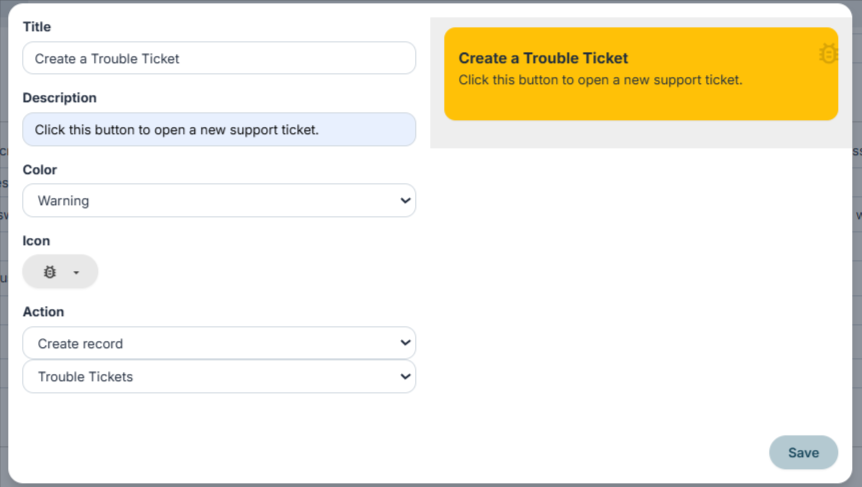
  
*Button Creation Screen*

[![image.png](https://usermanual.vtenext.com/uploads/images/gallery/2026-05/scaled-1680-/QzKimage.png)](https://usermanual.vtenext.com/uploads/images/gallery/2026-05/QzKimage.png)

  
*Button List Viewing Screen*

**The order of the buttons can be changed through drag-and-drop.**

</td></tr><tr><td style="width: 196px;">**Conditionals**

</td><td style="width: 613px;">It is possible to set up conditional fields for the Customer Portal, so that they work exactly like in the vte interface. When they are activated, the conditions will function properly on the portal as well. There are three ways to configure them:

- **Import from another portal profile**
- **Import from roles and groups**
- **Create a new rule directly on the portal (Add button)**

[![image.png](https://usermanual.vtenext.com/uploads/images/gallery/2026-05/scaled-1680-/lhHimage.png)](https://usermanual.vtenext.com/uploads/images/gallery/2026-05/lhHimage.png)

  
[![image.png](https://usermanual.vtenext.com/uploads/images/gallery/2024-10/scaled-1680-/1rXimage.png)](https://usermanual.vtenext.com/uploads/images/gallery/2024-10/1rXimage.png)

By clicking on **Import from another portal profile**, a popup will open, allowing you to select other existing profiles. Once you've selected the desired profile, you can click **Import** at the bottom right of the window to complete the process.

[![image.png](https://usermanual.vtenext.com/uploads/images/gallery/2024-10/scaled-1680-/A5Zimage.png)](https://usermanual.vtenext.com/uploads/images/gallery/2024-10/A5Zimage.png)
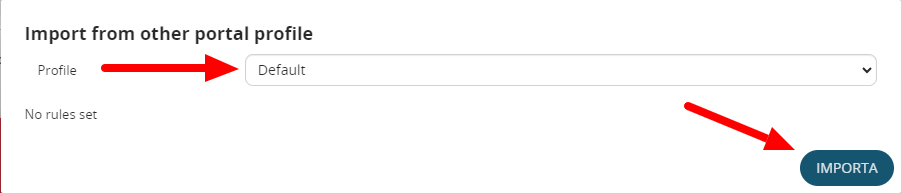
By clicking on **Import from roles and groups**, a popup will open, allowing you to select predefined rules for the CRM directly in the Conditional Fields section. For more details on this topic, refer to *Chapter 17.4 Conditional Fields*.

[![image.png](https://usermanual.vtenext.com/uploads/images/gallery/2024-10/scaled-1680-/kV4image.png)](https://usermanual.vtenext.com/uploads/images/gallery/2024-10/kV4image.png)
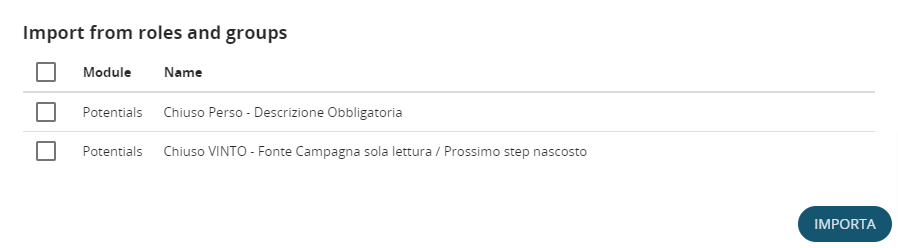
By clicking on **Add**, you can create a new rule for the portal's conditional fields, exclusive to the portal itself (it will not reflect in the CRM). The configuration follows the standard process explained in Chapter 17.4. In the example shown in the image below, you can see a rule where the company's profile becomes entirely read-only when the Status field takes the value Blocked.

[![image.png](https://usermanual.vtenext.com/uploads/images/gallery/2024-10/scaled-1680-/cz5image.png)](https://usermanual.vtenext.com/uploads/images/gallery/2024-10/cz5image.png)
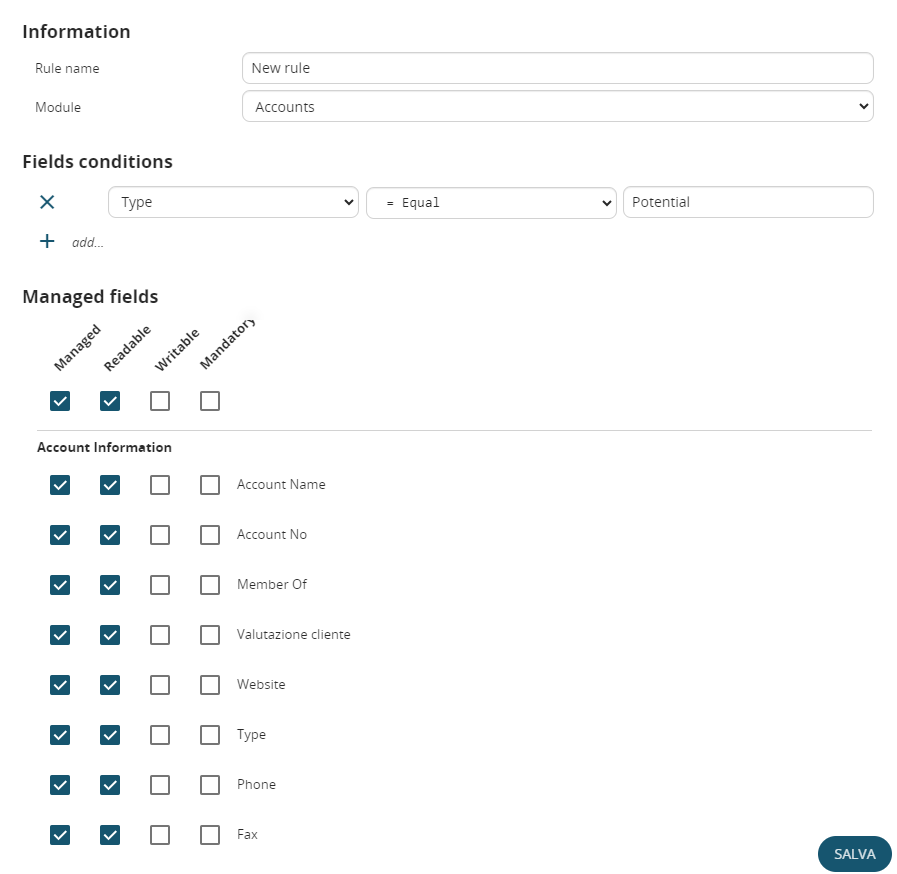
</td></tr><tr><td class="td1" style="width: 196px;">**Global Privileges**

</td><td class="td1" style="width: 613px;">It offers the possibility to configure all privileges for each individual user profile, determining what they can or cannot do or see through the customer portal. You can apply these settings to all modules of vtenext.

<span style="color: rgb(224,62,45);">**WARNING:** One particularity to note is that it is not possible to CREATE company records from the Business Portal. Therefore, even if the profile allows enabling the CREATE/EDIT flag, this function is actually disabled.</span>

<span style="color: rgb(224,62,45);">**FIELDS NOT DISPLAYED IN LIST:** a field that is set as not visible to the portal user through profile configuration cannot be added to the list fields. In fact, even if it can be selected during the configuration of the portal list view (for example, for Customer Support Tickets), when saving, that field is automatically removed (due to the profile configuration).</span>

</td></tr><tr><td style="width: 196px;">**Note on Custom Modules Created via Interface**

</td><td style="width: 613px;">When creating a **custom module**, in order for it to be added to the list of those supported by the Business Portal—and thus appear in the **portal profile management**—it must have at least one relationship linking it to either the Contacts module or the Companies module.  
This requirement has been added because permissions in the Business Portal are based on this type of relationship; if such a relationship is not present, the module will not be visible in the portal profile permissions.

</td></tr></tbody></table>

---

**Unlocking a portal user**

Just like CRM users, a portal user gets locked after five failed login attempts for security reasons. It is possible to unlock them through the settings in vtenext, by navigating to the **Check Business Portal login** section. On this page, you can view all blocked users and add them back to the whitelist, exactly as you would with a standard user.

[![image.png](https://usermanual.vtenext.com/uploads/images/gallery/2026-05/scaled-1680-/KFBimage.png)](https://usermanual.vtenext.com/uploads/images/gallery/2026-05/KFBimage.png)

# 18.3.1 Enabling the customer portal for a user

Only contacts present in vtenext can be enabled for the Customer Portal. Within the individual contact record, it's necessary to check the checkbox in the PORTAL USER section and input a start support date and an end date.

Upon enabling the checkbox, the system autonomously sends a message to the email address provided in the contact's email field, containing the credentials to access the Customer Portal. The specified dates determine the actual access period.

[![image.png](https://usermanual.vtenext.com/uploads/images/gallery/2026-05/scaled-1680-/DUKimage.png)](https://usermanual.vtenext.com/uploads/images/gallery/2026-05/DUKimage.png)Additionally, it will be necessary to choose the Profile that the specific Portal User will have for their usage and viewing. The Profile determines how each portal user sees their data and how they can interact with the available modules.

[![image.png](https://usermanual.vtenext.com/uploads/images/gallery/2026-05/scaled-1680-/CNJimage.png)](https://usermanual.vtenext.com/uploads/images/gallery/2026-05/CNJimage.png)

# 18.3.2 Customer Portal Interface

**INTERFACE VERSION 1**

Once they have entered their login details, your customer can first enter a new request for assistance and then access the entities that you have related to his contact card (only enabled modules) from the menu items on the left. Support requests by default provide for an email to be sent to the contact's email address, with the summary and ID of the ticket. Any subsequent comments will always be notified by email. Once you have dealt with the contact request, you can close the ticket (if satisfied with the result).

[![Customer_Portal_Login.png](https://usermanual.vtenext.com/uploads/images/gallery/2020-06-Jun/scaled-840-0/Customer_Portal_Login.png)](https://usermanual.vtenext.com/uploads/images/gallery/2020-06-Jun/Customer_Portal_Login.png)

[![Customer_Portal_Detail.png](https://usermanual.vtenext.com/uploads/images/gallery/2020-06-Jun/scaled-840-0/Customer_Portal_Detail.png)](https://usermanual.vtenext.com/uploads/images/gallery/2020-06-Jun/Customer_Portal_Detail.png)

**INTERFACE VERSION 2**

Based on the configurations made in Chapter 18.3 and 18.3.1, the Customer Portal can appear differently for each user who uses it. This is determined by the profile assigned to that specific user. The **portal language will be automatically selected** based on the default language set in the browser.

**ATTENTION: the v2 portal is responsive.**

[![Sign in - Customer Portal.png](https://usermanual.vtenext.com/uploads/images/gallery/2023-08/scaled-1680-/sign-in-customer-portal.png)](https://usermanual.vtenext.com/uploads/images/gallery/2023-08/sign-in-customer-portal.png)

*This image represents the Login page for the Customer Portal.*

[![Home - Customer Portal.png](https://usermanual.vtenext.com/uploads/images/gallery/2023-09/scaled-1680-/home-customer-portal.png)](https://usermanual.vtenext.com/uploads/images/gallery/2023-09/home-customer-portal.png)

*Upon the first access, the Customer Portal prompts you to change the password, so you can immediately set a different one from the system-generated default password.*

[![Home - Customer Portal (1).png](https://usermanual.vtenext.com/uploads/images/gallery/2023-09/scaled-1680-/home-customer-portal-1.png)](https://usermanual.vtenext.com/uploads/images/gallery/2023-09/home-customer-portal-1.png)

Here's how the portal interface looks once you've logged in:

- On the left, you will find all the modules that the user's profile allows them to access. For each module, the portal user can search among their records, create new records, and consult existing records;
- In the center, there are all the buttons that have been configured in the settings. These buttons facilitate a more user-friendly experience of the Portal;
- On the right, in addition to the LOGOUT button that allows quick logout from the platform, there is also a small button that activates full-screen mode;

[![Ticket details - Customer Portal.png](https://usermanual.vtenext.com/uploads/images/gallery/2023-09/scaled-1680-/ticket-details-customer-portal.png)](https://usermanual.vtenext.com/uploads/images/gallery/2023-09/ticket-details-customer-portal.png)

*Here's the interface for viewing an existing ticket. Notice the 'RETURN TO LIST' button on the left, which allows you to go back to the list view of all the customer's reports. The comments section has been placed at the top for easy access, while the area for uploading new Documents is located on the right, with the option to drag and drop them. Using the 'OK RESOLVED' button, the portal user can autonomously close the ticket. This type of display is repeated for other modules as well, with different field types*

[![Ticket details - Customer Portal (1).png](https://usermanual.vtenext.com/uploads/images/gallery/2023-09/scaled-1680-/ticket-details-customer-portal-1.png)](https://usermanual.vtenext.com/uploads/images/gallery/2023-09/ticket-details-customer-portal-1.png)

*Here's how the Comments section looks. In the center, you have the back-and-forth communication between the Portal User and Customer Support. In the top-right corner, the small blue background number (3) represents the number of Comments*

*In this screen, you can see the list of all the tickets in the Portal. With this view, you can search based on any of the displayed fields, matching multiple columns together, or perform a general search using the box in the top-right corner. This display pattern is repeated for other modules, with field types changing accordingly*

# 18.3.3  GDPR module settings

For privacy management, you can customise certain configurations, the templates proposed for communication through GDPR campaigns and the privacy policy of your company through the different features of the GDPR module.

[![image.png](https://usermanual.vtenext.com/uploads/images/gallery/2026-05/scaled-1680-/LiJimage.png)](https://usermanual.vtenext.com/uploads/images/gallery/2026-05/LiJimage.png)

[![18.3.3 [2].png](https://usermanual.vtenext.com/uploads/images/gallery/2022-06/scaled-1680-/MJp18-3-3-2.png)](https://usermanual.vtenext.com/uploads/images/gallery/2022-06/MJp18-3-3-2.png)

<table class="t1" id="bkmrk-nome-utente-ogni-ute" style="width: 100%; background-color: rgb(235,247,255); border-collapse: collapse; border-width: 1px; border-spacing: 0px; height: 506.969px;"><tbody><tr style="height: 35.3906px;"><td colspan="2" style="vertical-align: middle; width: 100.124%; height: 35.3906px;">**WEBSERVICE**

</td></tr><tr style="height: 36.5469px;"><td style="vertical-align: middle; width: 50.0618%; height: 36.5469px;">**Webservice endpoint**

</td><td style="height: 36.5469px; width: 50.0618%;"> </td></tr><tr style="height: 35.75px;"><td class="td1" style="width: 50.0618%; vertical-align: middle; height: 35.75px;">**Webservice username**

</td><td class="td1" style="width: 50.0618%; height: 35.75px;"></td></tr><tr style="height: 35.3906px;"><td class="td1" style="width: 50.0618%; vertical-align: middle; height: 35.3906px;">**Default language**

</td><td class="td1" style="width: 50.0618%; height: 35.3906px;"></td></tr><tr style="height: 35.3906px;"><td class="td1" style="width: 50.0618%; vertical-align: middle; height: 35.3906px;">**Default logo**

</td><td class="td1" style="width: 50.0618%; height: 35.3906px;"></td></tr><tr style="height: 10px;"><td class="td1" style="width: 50.0618%; vertical-align: middle; height: 10px;">**Sender name**

</td><td class="td1" style="width: 50.0618%; height: 10px;"></td></tr><tr style="height: 35.3906px;"><td style="width: 50.0618%; vertical-align: middle; height: 35.3906px;">**Sender email**

</td><td style="width: 50.0618%; height: 35.3906px;"></td></tr><tr style="height: 35.3906px;"><td style="width: 50.0618%; vertical-align: middle; height: 35.3906px;">**Number of waiting months for confirm**

</td><td style="width: 50.0618%; height: 35.3906px;"></td></tr><tr style="height: 35.3906px;"><td colspan="2" style="vertical-align: middle; width: 100.124%; height: 35.3906px;">**TEMPLATE**

</td></tr><tr style="height: 35.3906px;"><td style="width: 50.0618%; vertical-align: middle; height: 35.3906px;">**Support request Template**

</td><td style="width: 50.0618%; height: 35.3906px;"></td></tr><tr style="height: 35.3906px;"><td style="width: 50.0618%; vertical-align: middle; height: 35.3906px;">**Access Template**

</td><td style="width: 50.0618%; height: 35.3906px;"></td></tr><tr style="height: 35.3906px;"><td style="width: 50.0618%; vertical-align: middle; height: 35.3906px;">**Confirm update template**

</td><td style="width: 50.0618%; height: 35.3906px;"></td></tr><tr style="height: 35.3906px;"><td style="width: 50.0618%; vertical-align: middle; height: 35.3906px;">**Contact updated template**

</td><td style="width: 50.0618%; height: 35.3906px;"></td></tr><tr style="height: 35.375px;"><td class="align-center" colspan="2" style="vertical-align: middle; height: 35.375px; width: 100.124%;">**PRIVACY POLICY**</td></tr><tr style="height: 35.3906px;"><td style="width: 50.0618%; vertical-align: middle; height: 35.3906px;">**Description**

</td><td style="width: 50.0618%; height: 35.3906px;"></td></tr></tbody></table>

# 18.4 Account Details

In Company Details you can specify the details of your company.

[![image.png](https://usermanual.vtenext.com/uploads/images/gallery/2026-05/scaled-1680-/p37image.png)](https://usermanual.vtenext.com/uploads/images/gallery/2026-05/p37image.png)

This information can then be retrieved within the PDF Maker templates or Email or Newsletter for invoices, quotes, orders, etc. Make sure that the size of your company logo fits in the space available for it.

**N.B.:** The recommended size is 150x60 pixels. The logo must be uploaded in .png or .jpg format.

# 18.4.1 Logos and Backgrounds

In Settings, you will also find the section for 'Logos,' which allows us to change both the logos for the Access and Login pages, including their backgrounds, as well as the logo within the CRM, located at the top left.

As soon as you access this area, you will be able to:

[![image-1692885355681.png](https://usermanual.vtenext.com/uploads/images/gallery/2023-08/scaled-1680-/image-1692885355681.png)](https://usermanual.vtenext.com/uploads/images/gallery/2023-08/image-1692885355681.png)

**Change the Login Page Logo, recommended dimensions are 200 x 77 pixels.**

[![image-1692885330968.png](https://usermanual.vtenext.com/uploads/images/gallery/2023-08/scaled-1680-/image-1692885330968.png)](https://usermanual.vtenext.com/uploads/images/gallery/2023-08/image-1692885330968.png)

**Change the Logo (LIGHT THEME) within the CRM when the left menu is in collapsed mode, recommended dimensions are 32 x 32 pixels.**

[![image-1692885385920.png](https://usermanual.vtenext.com/uploads/images/gallery/2023-08/scaled-1680-/image-1692885385920.png)](https://usermanual.vtenext.com/uploads/images/gallery/2023-08/image-1692885385920.png)

**Change the Logo (DARK THEME) within the CRM when the left menu is in collapsed mode, recommended dimensions are 32 x 32 pixels.**

[![image-1692885428667.png](https://usermanual.vtenext.com/uploads/images/gallery/2023-08/scaled-1680-/image-1692885428667.png)](https://usermanual.vtenext.com/uploads/images/gallery/2023-08/image-1692885428667.png)

**Change the Logo (LIGHT THEME) within the CRM when the left menu is in expanded mode, recommended dimensions are 129 x 50 pixels.**

[![image-1692885531210.png](https://usermanual.vtenext.com/uploads/images/gallery/2023-08/scaled-1680-/image-1692885531210.png)](https://usermanual.vtenext.com/uploads/images/gallery/2023-08/image-1692885531210.png)

**Change the Login Page Logo for the Customer Portal, recommended dimensions are 200 x 77 pixels.**

[![image-1692885565191.png](https://usermanual.vtenext.com/uploads/images/gallery/2023-08/scaled-1680-/image-1692885565191.png)](https://usermanual.vtenext.com/uploads/images/gallery/2023-08/image-1692885565191.png)

**Change the Logo within the Customer Portal, when the left menu is in collapsed mode, recommended dimensions are   
32 x 32 pixels.**

[![image-1692885599156.png](https://usermanual.vtenext.com/uploads/images/gallery/2023-08/scaled-1680-/image-1692885599156.png)](https://usermanual.vtenext.com/uploads/images/gallery/2023-08/image-1692885599156.png)

**Change the Logo within the Customer Portal, when the left menu is in expanded mode, recommended dimensions are   
129 x 50 pixels.**

[![18.4.1 Logos and Backgrounds_final picture.png](https://usermanual.vtenext.com/uploads/images/gallery/2023-08/scaled-1680-/18-4-1-logos-and-backgrounds-final-picture.png)](https://usermanual.vtenext.com/uploads/images/gallery/2023-08/18-4-1-logos-and-backgrounds-final-picture.png)

**Furthermore, you can choose a background image for the Login Page, either from the system-provided options or uploaded directly by the admin user. Recommended size is 1920 x 1200 pixels. Changing the order of the image sequence can be done simply by dragging and dropping.**

For the Login Page backgrounds, you can choose the background selection mode, which can be:

- **Sequential**: displays the images in the same order as they were uploaded.
- **Random**: displays the uploaded images in a completely random order within this area.

[![image-1692885975572.png](https://usermanual.vtenext.com/uploads/images/gallery/2023-08/scaled-1680-/image-1692885975572.png)](https://usermanual.vtenext.com/uploads/images/gallery/2023-08/image-1692885975572.png)

# 18.5 Server SoftPhone Settings

vtenext can be integrated with Asterisk, an open source telephone PBX application that allows you to route phone calls. Asterisk is a free implementation of PBX software that offers the same features as other proprietary systems at a much lower cost and with greater flexibility.  
Today it is a benchmark within the sector; the full range of its contents and its reliability make it an ideal platform for a wide range of applications: it is used as a supporting element to create RTG/IP switchboards (PBXs able to use both traditional telephone lines and IP channels), Centrex systems (Virtual and centralised PBXs), Call Centre management applications and more.

**Features and objectives:**

1. Make phone calls by clicking on phone numbers directly from vtenext.
2. Receive notifications within vtenext with caller information when a call comes to the user. Notifications appear in the lower right corner of the screen.
3. View call history in the PBX Manager Module (Call Manager Module)
4. Associate the phone calls with the Contact/Account/Lead in the Activity History.
5. Set user extensions through the User Preferences data sheet.
6. Phone numbers format: you can save the number in vtenext in any format, with or without prefixes and also with SIP and PSTN if you use the character, to separate this prefix from the number itself.

**Note:** We do not recommend using special characters or hyphens in the phone/cell phone field.

---

**Requirements and configuration:**

- vtenext installed on the system
- Asterisk installed on the system.
- The server containing Asterisk and the one containing vtenext must be able to see each other online.
- You must have a valid Asterisk user extension and a VoIP phone configured with that extension.

When the Asterisk server is configured to function with vtenext, you must configure the vtenext settings to connect to Asterisk.

To enter Asterisk server settings, choose SoftPhone Server Settings:

[![image.png](https://usermanual.vtenext.com/uploads/images/gallery/2026-05/scaled-1680-/yCXimage.png)](https://usermanual.vtenext.com/uploads/images/gallery/2026-05/yCXimage.png)

Within User Preferences, point 6. Asterisk Configuration, you can associate the extension (internal) for the user:

[![image.png](https://usermanual.vtenext.com/uploads/images/gallery/2026-05/scaled-1680-/9Nhimage.png)](https://usermanual.vtenext.com/uploads/images/gallery/2026-05/9Nhimage.png)Receive Incoming Calls enables caller recognition for incoming calls. Once the incoming call has been answered, this option makes it possible to display a pop-up on the CRM screen, which appears at the bottom right with the caller's name and the link to access the details.  
If the caller's number is not present in vtenext, the popup proposes the creation of a lead, a contact or an account.

**Warning!** SoftPhone Server Settings is only available in “on-premise” vtenext solutions.

**Warning!** In order for caller recognition to be active, it is also necessary to activate the relevant CRON on the vtenext installation server. See CRONJOB – Processes to be planned chapter.

# 18.6 LDAP

<span style="color: rgb(224, 62, 45);">**WARNING: This feature has been added to the Single Sign-On configuration (refer to Chapter 18.11).**</span>

You can configure the LDAP server data in vtenext to synchronise user passwords. <span class="_fadeIn_m1hgl_8">Note </span><span class="_fadeIn_m1hgl_8">that </span><span class="_fadeIn_m1hgl_8">when </span><span class="_fadeIn_m1hgl_8">the </span><span class="_fadeIn_m1hgl_8">LDAP </span><span class="_fadeIn_m1hgl_8">authentication </span><span class="_fadeIn_m1hgl_8">method </span><span class="_fadeIn_m1hgl_8">is </span><span class="_fadeIn_m1hgl_8">used, </span>**<span class="_fadeIn_m1hgl_8">the </span><span class="_fadeIn_m1hgl_8">password </span><span class="_fadeIn_m1hgl_8">is </span><span class="_fadeIn_m1hgl_8">entirely </span><span class="_fadeIn_m1hgl_8">managed </span><span class="_fadeIn_m1hgl_8">by </span>**<span class="_fadeIn_m1hgl_8">**LDAP**, </span><span class="_fadeIn_m1hgl_8">and </span><span class="_fadeIn_m1hgl_8">therefore </span><span class="_fadeIn_m1hgl_8">the </span><span class="_fadeIn_m1hgl_8">standard </span><span class="_fadeIn_m1hgl_8">password </span><span class="_fadeIn_m1hgl_8">field </span><span class="_fadeIn_m1hgl_8">of </span><span class="_fadeIn_m1hgl_8">the </span><span class="_fadeIn_m1hgl_8">vtenext </span><span class="_fadeIn_m1hgl_8">user </span><span class="_fadeIn_m1hgl_8">is </span><span class="_fadeIn_m1hgl_8">hidden </span><span class="_fadeIn_m1hgl_8">because </span><span class="_fadeIn_m1hgl_8">it </span><span class="_fadeIn_m1hgl_8">is </span><span class="_fadeIn_m1hgl_8">not </span><span class="_fadeIn_m1hgl_8">used.</span>

For configuration from Settings, choose LDAP Server. Then fill in the LDAP server information as shown in the figure:

[![18.6 [1].png](https://usermanual.vtenext.com/uploads/images/gallery/2022-06/scaled-1680-/PLL18-6-1.png)](https://usermanual.vtenext.com/uploads/images/gallery/2022-06/PLL18-6-1.png)

When creating a user, you can search for the user once you have configured the LDAP server data:  
The connection with LDAP allows:

[![18.6 [2].png](https://usermanual.vtenext.com/uploads/images/gallery/2022-06/scaled-1680-/18-6-2.png)](https://usermanual.vtenext.com/uploads/images/gallery/2022-06/18-6-2.png)

- the pre-compilation of some user information (name, surname, email)
- the synchronisation of user access passwords

# 18.7 Currencies

It is possible to manage different types of currencies in the event there are users who have to draw up offers in a currency different from the one proposed by default by the system (Euro).  
From Settings &gt; Currencies you can view the currencies configured in the system and add new ones.

[![image.png](https://usermanual.vtenext.com/uploads/images/gallery/2026-05/scaled-1680-/rQaimage.png)](https://usermanual.vtenext.com/uploads/images/gallery/2026-05/rQaimage.png)

The following information is required to create a new currency:

<table class="t1" id="bkmrk-nome-della-valuta-il" style="width: 100%; background-color: #ebf7ff;"><tbody><tr><td class="td1" style="width: 17.1605%; vertical-align: middle;">**Currency Name**

</td><td class="td1" style="width: 82.716%; vertical-align: middle;">The name of the currency you want to manage, for example "USA, Dollars (USD)"

</td></tr><tr><td class="td1" style="width: 17.1605%; vertical-align: middle;">**Conversion Rate**

</td><td class="td1" style="width: 82.716%; vertical-align: middle;">The conversion rate must always be linked to the base currency of vtenext

</td></tr><tr><td class="td1" style="width: 17.1605%; vertical-align: middle;">**Status**

</td><td class="td1" style="width: 82.716%; vertical-align: middle;">Active/Inactive

</td></tr></tbody></table>

[![image.png](https://usermanual.vtenext.com/uploads/images/gallery/2026-05/scaled-1680-/Iz0image.png)](https://usermanual.vtenext.com/uploads/images/gallery/2026-05/Iz0image.png)

Once you have configured the currency, you can:

- create quotes, sales orders, invoices, DDT, and purchase orders with the new currencies.
- associate the default currency to each user through the Preferences data sheet. This setting will allow the user to view all currency type fields (e.g., the Invoiced field in the Account registry) in the currency chosen by default, according to the conversion rate indicated in the settings.

# 18.8 Tax Calculation

You can set the tax items to be used on Quotes, Orders, Invoices and Delivery Notes.

[![image.png](https://usermanual.vtenext.com/uploads/images/gallery/2026-05/scaled-1680-/tcnimage.png)](https://usermanual.vtenext.com/uploads/images/gallery/2026-05/tcnimage.png)

Negative tax values can also be managed, for example for the management of ENASARCO or withholding tax.

The calculation of taxes in Quotes, Orders, Invoices and Delivery Notes can be calculated per line or per group, depending on the setting chosen by the user when creating the document:

[![image.png](https://usermanual.vtenext.com/uploads/images/gallery/2026-05/scaled-1680-/BYLimage.png)](https://usermanual.vtenext.com/uploads/images/gallery/2026-05/BYLimage.png)

# 18.9 Proxy Server

If your company is using a proxy server to access the Internet, you can use the Proxy Server Settings menu, as shown in the figure.

[![18.9 [1].png](https://usermanual.vtenext.com/uploads/images/gallery/2022-06/scaled-1680-/6f918-9-1.png)](https://usermanual.vtenext.com/uploads/images/gallery/2022-06/6f918-9-1.png)

# 18.10 Internal REST Webservice Methods

These Web services allow you to do HTTP requests to the specified endpoints (VTE\_URL/restapi/v1/vtews/METHOD\_NAME).

The requests need POST method, basic authentication (you must set ‘Authentication basic’ into the header which is calculated through a function based on username\* and password\*) and their relative parameters.  
Each one method will give a JSON response with a status and the data or in case of error an error code and its relative message.

**Notes:**  
• The “id” parameter is always specified as ‘moduleid\* x recordid’ (ex: 2x313) moduleid\*: You can get the the moduleid from webservice ‘describe’ method (idPrefix)

**Headers:**   
• Authorization: Basic base64\_encode("username\*:password\*")  
• Content-Type : application/json  
  
username\* (VTE) password\* (User preferences’ Webservice Access Key)

Authorization Example:  
‘Basic ZmVkZXJpY28ucGVybGluOjB5cm5MRjNhS2RhMDZ2c3E=‘

  
**Requirements for Apache2:** • Activate apache rewrite module  
• Set AllowOverride All into the virtualhost file to the vte path folder.   
Example:

```
<Directory /var/www/html/VTE_FOLDER>
Options -Indexes +FollowSymLinks +MultiViews
AllowOverride All
Require all granted
</Directory>
```

**Requirements for Nginx + PHP FPM** As Nginx does not handle htaccess file, some special rewrites are needed in order to handle WS requests.  
Below an example of nginx conf file:

```
server {
	listen 80;

	root /var/www/vtenext/;
	
	autoindex off;
	
	index index.php index.html index.htm;

	# Make site accessible from http://localhost/
	
	server_name localhost;

	location / {
		# First attempt to serve request as file, then
		# as directory, then fall back to index.html
		try_files $uri $uri/ index.html;
	}

	# pass the PHP scripts to FastCGI server listening on 127.0.0.1:9000
	location ~ [^/]\.php(/|$) {
		include snippets/fastcgi-php.conf;
		
		# With php cgi alone:
		#fastcgi_pass 127.0.0.1:9000;
		
		# With php fpm:
		fastcgi_pass unix:/var/run/php/php7.0-fpm.sock;
		fastcgi_param SCRIPT_FILENAME $document_root$fastcgi_script_name;
	}

	# deny access to .htaccess files, if Apache's document root
	# concurs with nginx's one
	location ~ /\.ht {
		deny all;
	}
	
	# special folder handling, since .htaccess files are not supported
	
	# REST API
	
	location /restapi/v1 {
		rewrite ^(.+)/vtews/(.*)$ /restapi/v1/index.php/vtews/$2;
	}

    # Business Portal

    location /portal/v2 {
        rewrite ^\/portal\/v2\/(?!public)(.*)$ /portal/v2/public/$1;
    }
	
	# STORAGE
	
	location /storage {
		deny all;
		
		location /storage/uploads_emails_ {
			allow all;
		}
		
		location /storage/images_uploaded/ {
			allow all;
		}
		
		location ~* /storage/logo/.+\.(jpg|jpeg|png|gif)$ {
			allow all;
		}
		
		rewrite ^/storage/(.*)$ /getStorage.php?file=$1;
	}
	
	# PROTECTED FOLDERS
	
	location /logs {
		deny all;
	}
	
	location /plugins/dataimporter {
		deny all;
	}
	
	location /cache/sys {
		deny all;
	}
	
	location /cache/pdfmaker {
		deny all;
	}
	
	location /cache/import {
		deny all;
	}
	
	location /cache/session {
		deny all;
	}
	
	location /cache/pdf {
		deny all;
	}
	
	location /dataimport {
		deny all;
	}
	
	location /modules/VteSync/VteSyncLib/storage {
		deny all;
	}
	
	location /modules/Messages/src/attachment_tnef/plugins/attachment_tnef/class/ {
		deny all;
	}
	
	# SMARTOPTIMIZER
	
	# disabled by default, enable it if needed
	#location ~* \.(gif|jpe?g|png|swf|css|js|html?|xml|txt|ico)$ {
	#	rewrite ^(.*)$ /smartoptimizer/?$1;
	#}
}

```

**Web Service Methods:**

<div id="bkmrk-name-description-par"><table border="1" cellpadding="5" cellspacing="0" style="width: 100%;" width="100%"><colgroup> <col width="138"></col> <col width="162"></col> <col width="143"></col> <col width="201"></col> </colgroup><tbody><tr><td style="width: 24.1975%;" width="138">**Name**</td><td style="width: 22.4691%;" valign="top" width="162">**Description**</td><td style="width: 22.0988%;" valign="top" width="143">**Parameters**</td><td style="width: 31.1111%;" valign="top" width="201">**Response**</td></tr><tr><td bgcolor="#e0efd4" rowspan="2" style="background: #e0efd4; width: 24.1975%;" width="138">**create**</td><td bgcolor="#e0efd4" style="background: #e0efd4; width: 22.4691%;" valign="top" width="162">Create a record of the specified module</td><td bgcolor="#e0efd4" style="background: #e0efd4; width: 22.0988%;" valign="top" width="143">elementType (String)element (Encoded)</td><td bgcolor="#e0efd4" style="background: #e0efd4; width: 31.1111%;" valign="top" width="201">Return all fields and values of the created record</td></tr><tr><td bgcolor="#e0efd4" colspan="3" style="background: #e0efd4; width: 75.679%;" valign="top" width="522">Ex:**Url**: VTE\_URL/restapi/v1/vtews/create**Parameters**:   
{"elementType":"Accounts", "element":"{\\"accountname\\":\\"account1\\", \\"assigned\_user\_id\\":\\"19x1\\"}"}</td></tr><tr><td rowspan="2" style="width: 24.1975%;" width="138">**update**</td><td style="width: 22.4691%;" valign="top" width="162">Update the specified record</td><td style="width: 22.0988%;" valign="top" width="143">id (String)columns (Encoded)</td><td style="width: 31.1111%;" valign="top" width="201">Return all fields and values of the updated record</td></tr><tr><td colspan="3" style="width: 75.679%;" valign="top" width="522">Ex:**Url**: VTE\_URL/restapi/v1/vtews/update**Parameters**:   
{"id":"3x310", "columns":"{\\"accountname\\":\\"test fede postman\\"}"}</td></tr><tr><td bgcolor="#e0efd4" rowspan="2" style="background: #e0efd4; width: 24.1975%;" width="138">**revise**</td><td bgcolor="#e0efd4" style="background: #e0efd4; width: 22.4691%;" valign="top" width="162">Update the specified record. It’s different only for parameters, the result is the same</td><td bgcolor="#e0efd4" style="background: #e0efd4; width: 22.0988%;" valign="top" width="143">element (Encoded)</td><td bgcolor="#e0efd4" style="background: #e0efd4; width: 31.1111%;" valign="top" width="201">Return all fields and updated values</td></tr><tr><td bgcolor="#e0efd4" colspan="3" style="background: #e0efd4; width: 75.679%;" valign="top" width="522">Ex:**Url**: VTE\_URL//restapi/v1/vtews/revise**Parameters**: {"element":"{\\"id\\":\\"3x27\\",\\"employees\\":\\"5\\",\\"industry\\":\\"Banking\\"}"}</td></tr><tr><td bgcolor="#ffffff" rowspan="2" style="background: #ffffff; width: 24.1975%;" width="138">**retrieve**</td><td bgcolor="#ffffff" style="background: #ffffff; width: 22.4691%;" valign="top" width="162">Illustrate the fields of the specified record and their relative values</td><td bgcolor="#ffffff" style="background: #ffffff; width: 22.0988%;" valign="top" width="143">id (String)</td><td bgcolor="#ffffff" style="background: #ffffff; width: 31.1111%;" valign="top" width="201">Return all fields and values of the specified record</td></tr><tr><td bgcolor="#ffffff" colspan="3" style="background: #ffffff; width: 75.679%;" valign="top" width="522">Ex:**Url**: VTE\_URL/restapi/v1/vtews/retrieve**Parameters**:   
{"id":"3x310"}</td></tr><tr><td bgcolor="#e0efd4" rowspan="2" style="background: #e0efd4; width: 24.1975%;" width="138">**retrieveinventory**</td><td bgcolor="#e0efd4" style="background: #e0efd4; width: 22.4691%;" valign="top" width="162">Illustrate the fields of the specified inventory record, their relative values and the product block’s information</td><td bgcolor="#e0efd4" style="background: #e0efd4; width: 22.0988%;" valign="top" width="143">id (String)</td><td bgcolor="#e0efd4" style="background: #e0efd4; width: 31.1111%;" valign="top" width="201">Return all fields and values of the specified record and product’s block information</td></tr><tr><td bgcolor="#e0efd4" colspan="3" style="background: #e0efd4; width: 75.679%;" valign="top" width="522">Ex:**Url**: VTE\_URL//restapi/v1/vtews/retrieveinventory**Parameters**: {"id":"16x104"}</td></tr><tr><td bgcolor="#ffffff" rowspan="2" style="background: #ffffff; width: 24.1975%;" width="138">**delete**</td><td bgcolor="#ffffff" style="background: #ffffff; width: 22.4691%;" valign="top" width="162">Delete the specified record</td><td bgcolor="#ffffff" style="background: #ffffff; width: 22.0988%;" valign="top" width="143">id (String)</td><td bgcolor="#ffffff" style="background: #ffffff; width: 31.1111%;" valign="top" width="201">Return the request status (successful or not)</td></tr><tr><td bgcolor="#ffffff" colspan="3" style="background: #ffffff; width: 75.679%;" valign="top" width="522">Ex:**Url**: VTE\_URL//restapi/v1/vtews/delete**Parameters**:   
{"id":"3x306"}</td></tr><tr><td bgcolor="#e0efd4" rowspan="2" style="background: #e0efd4; width: 24.1975%;" width="138">**query**</td><td bgcolor="#e0efd4" style="background: #e0efd4; width: 22.4691%;" valign="top" width="162">Execute a query and return the result’s rows</td><td bgcolor="#e0efd4" style="background: #e0efd4; width: 22.0988%;" valign="top" width="143">query (String)</td><td bgcolor="#e0efd4" style="background: #e0efd4; width: 31.1111%;" valign="top" width="201">Return all rows of the executed query</td></tr><tr><td bgcolor="#e0efd4" colspan="3" style="background: #e0efd4; width: 75.679%;" valign="top" width="522">Ex:**Url**: VTE\_URL//restapi/v1/vtews/query**Parameters**: {"query":"SELECT \* FROM Accounts WHERE accountname like '%vte%';"}</td></tr><tr><td bgcolor="#ffffff" rowspan="2" style="background: #ffffff; width: 24.1975%;" width="138">**listtypes**</td><td bgcolor="#ffffff" style="background: #ffffff; width: 22.4691%;" valign="top" width="162">Describe each one module which contains uitype of the specified format</td><td bgcolor="#ffffff" style="background: #ffffff; width: 22.0988%;" valign="top" width="143">fieldTypeList (Encoded)</td><td bgcolor="#ffffff" style="background: #ffffff; width: 31.1111%;" valign="top" width="201">Return module information of the specified fieldtypes</td></tr><tr><td bgcolor="#ffffff" colspan="3" style="background: #ffffff; width: 75.679%;" valign="top" width="522">Ex:**Url**: VTE\_URL//restapi/v1/vtews/listtypes**Parameters**:{"fieldTypeList":"\[\\"integer\\",\\"file\\"\]"}</td></tr><tr><td bgcolor="#e0efd4" rowspan="2" style="background: #e0efd4; width: 24.1975%;" width="138">**describe**</td><td bgcolor="#e0efd4" style="background: #e0efd4; width: 22.4691%;" valign="top" width="162">Describe the specified module and their relative fields</td><td bgcolor="#e0efd4" style="background: #e0efd4; width: 22.0988%;" valign="top" width="143">elementType (String)</td><td bgcolor="#e0efd4" style="background: #e0efd4; width: 31.1111%;" valign="top" width="201">Return all module information and its fields properties(no hidden fields)</td></tr><tr><td bgcolor="#e0efd4" colspan="3" style="background: #e0efd4; width: 75.679%;" valign="top" width="522">Ex:**Url**: VTE\_URL//restapi/v1/vtews/describe**Parameters**: {"elementType":"Accounts"}</td></tr><tr><td bgcolor="#ffffff" rowspan="2" style="background: #ffffff; width: 24.1975%;" width="138">**describeall**</td><td bgcolor="#ffffff" style="background: #ffffff; width: 22.4691%;" valign="top" width="162">The describeall method is different from describe one because it shows hidden fields too</td><td bgcolor="#ffffff" style="background: #ffffff; width: 22.0988%;" valign="top" width="143">ElementType (Encoded)</td><td bgcolor="#ffffff" style="background: #ffffff; width: 31.1111%;" valign="top" width="201">Return all module information and its fields properties(hidden fields too)</td></tr><tr><td bgcolor="#ffffff" colspan="3" style="background: #ffffff; width: 75.679%;" valign="top" width="522">Ex:**Url**: VTE\_URL//restapi/v1/vtews/describeall**Parameters**: {"elementType":"Accounts"}</td></tr><tr><td bgcolor="#e0efd4" rowspan="2" style="background: #e0efd4; width: 24.1975%;" width="138">**getlabels**</td><td bgcolor="#e0efd4" style="background: #e0efd4; width: 22.4691%;" valign="top" width="162">Return all labels and translated ones of the specified module,language</td><td bgcolor="#e0efd4" style="background: #e0efd4; width: 22.0988%;" valign="top" width="143">username (String)language (String)module (String)</td><td bgcolor="#e0efd4" style="background: #e0efd4; width: 31.1111%;" valign="top" width="201">Return labels and translated ones of the specified module, language</td></tr><tr><td bgcolor="#e0efd4" colspan="3" style="background: #e0efd4; width: 75.679%;" valign="top" width="522">Ex:**Url**: VTE\_URL//restapi/v1/vtews/getlabels**Parameters**: {"username":"admin", "language":"it\_it", "module":"Accounts"}</td></tr><tr><td bgcolor="#ffffff" style="background: #ffffff; width: 24.1975%;" width="138">**getlangs**</td><td bgcolor="#ffffff" style="background: #ffffff; width: 22.4691%;" valign="top" width="162">Return all languages installed into the CRM</td><td bgcolor="#ffffff" style="background: #ffffff; width: 22.0988%;" valign="top" width="143"> </td><td bgcolor="#ffffff" style="background: #ffffff; width: 31.1111%;" valign="top" width="201">Return all CRM languages</td></tr><tr><td bgcolor="#e0efd4" rowspan="2" style="background: #e0efd4; width: 24.1975%;" width="138">**loginpwd**</td><td bgcolor="#e0efd4" style="background: #e0efd4; width: 22.4691%;" valign="top" width="162">Return user webservice access key if username and password are valid</td><td bgcolor="#e0efd4" style="background: #e0efd4; width: 22.0988%;" valign="top" width="143">username (String)password (String)</td><td bgcolor="#e0efd4" style="background: #e0efd4; width: 31.1111%;" valign="top" width="201">Return user webservice access key</td></tr><tr><td bgcolor="#e0efd4" colspan="3" style="background: #e0efd4; width: 75.679%;" valign="top" width="522">  
Ex:**Url**: VTE\_URL//restapi/v1/vtews/loginpwd**Parameters**: {"username":"admin","password":"123456789"}</td></tr><tr><td bgcolor="#ffffff" style="background: #ffffff; width: 24.1975%;" width="138">**getmenulist**</td><td bgcolor="#ffffff" style="background: #ffffff; width: 22.4691%;" valign="top" width="162">Return all modules information (visibility, tabid, name, sequence, ...)</td><td bgcolor="#ffffff" style="background: #ffffff; width: 22.0988%;" valign="top" width="143"> </td><td bgcolor="#ffffff" style="background: #ffffff; width: 31.1111%;" valign="top" width="201">Return modules information and properties</td></tr><tr><td bgcolor="#e0efd4" rowspan="2" style="background: #e0efd4; width: 24.1975%;" width="138">**oldoquery**</td><td bgcolor="#e0efd4" style="background: #e0efd4; width: 22.4691%;" valign="top" width="162">Return records that contain the searched value into specified module’s fields</td><td bgcolor="#e0efd4" style="background: #e0efd4; width: 22.0988%;" valign="top" width="143">module (String)search\_fields (Encoded)search\_value (String)</td><td bgcolor="#e0efd4" style="background: #e0efd4; width: 31.1111%;" valign="top" width="201">Return some record basic information where searched value is contained into the specified module’s fields</td></tr><tr><td bgcolor="#e0efd4" colspan="3" style="background: #e0efd4; width: 75.679%;" valign="top" width="522">Ex:**Url**: VTE\_URL//restapi/v1/vtews/oldoquery**Parameters**: {"module":"Accounts", "search\_fields":"\[\\"accountname\\", \\"website\\"\]", "search\_value":"vtenext"}</td></tr></tbody></table>

</div>  
Is possibile to register a new custom method with this SDK call:

**SDK::setRestOperation($rest\_name, $handler\_path, $function\_name, $parameters);**

*$rest\_name: method name called by REST webservice*  
*$handler\_path: file path where the funtion is defined*  
*$function\_name: defined function name*  
*$parameters: associative array with parameterName and parameterType*

Example

```PHP
SDK::setRestOperation('check_exists','modules/SDK/examples/RestApi/CustomRestApi.php','vtws_check_exists', array('id'=>'string'));

```

# 18.11 Single Sign-On

Single **Sign-On (SSO)** is an authentication mechanism that allows users to access multiple applications or services with a single set of login credentials (e.g., one username and password). Instead of authenticating separately for each service, the user logs in once and can then seamlessly access all applications that are part of the same ecosystem or trusted domain. This functionality is available starting from vtenext 24.08.2

By navigating to **Settings &gt; Single Sign-On Configuration**, you can view a series of preconfigured external providers (currently, no new providers can be added via the interface). These providers allow access to vtenext through the authentication configured for each of them.

[![image.png](https://usermanual.vtenext.com/uploads/images/gallery/2024-12/scaled-1680-/Hrgimage.png)](https://usermanual.vtenext.com/uploads/images/gallery/2024-12/Hrgimage.png)

*Single Sign-On Configuration Screen*

**vtenext provides the following Single Sign-On (SSO) providers:**

<table class="table table-hover" id="bkmrk-ldap-configura-il-se" style="width: 100%;" width="100%"><tbody><tr><td style="width: 26.9368%;">**LDAP**</td><td style="width: 73.0632%;">Configure the server to access via LDAP (LDAP configuration has been moved here)

[![image.png](https://usermanual.vtenext.com/uploads/images/gallery/2024-12/scaled-1680-/7MWimage.png)](https://usermanual.vtenext.com/uploads/images/gallery/2024-12/7MWimage.png)
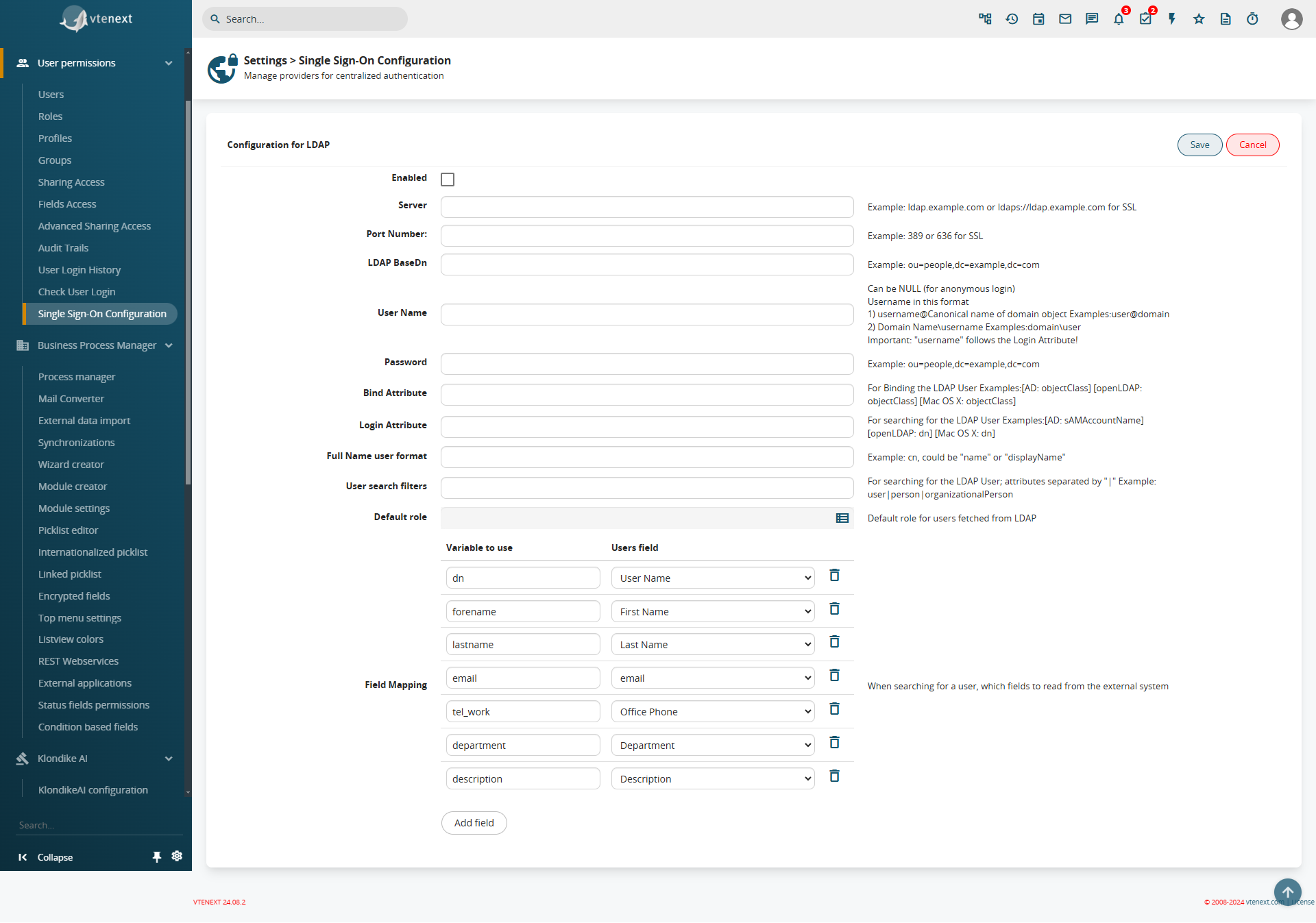
</td></tr><tr><td style="width: 26.9368%;">**OAuth 2.0**</td><td style="width: 73.0632%;">Login via OAuth 2.0

[![image.png](https://usermanual.vtenext.com/uploads/images/gallery/2024-12/scaled-1680-/6gNimage.png)](https://usermanual.vtenext.com/uploads/images/gallery/2024-12/6gNimage.png)

</td></tr><tr><td style="width: 26.9368%;">**OpenID Connect**</td><td style="width: 73.0632%;">Login via OpenID Connect

[![image.png](https://usermanual.vtenext.com/uploads/images/gallery/2024-12/scaled-1680-/CBcimage.png)](https://usermanual.vtenext.com/uploads/images/gallery/2024-12/CBcimage.png)

</td></tr><tr><td style="width: 26.9368%;">**SAML**</td><td style="width: 73.0632%;">Login via SAML 2.0 Protocol</td></tr><tr><td style="width: 26.9368%;">**Microsoft Azure - OIDC**</td><td style="width: 73.0632%;">Login via an Azure App with OpenID Connect

[![image.png](https://usermanual.vtenext.com/uploads/images/gallery/2024-12/scaled-1680-/3Sfimage.png)](https://usermanual.vtenext.com/uploads/images/gallery/2024-12/3Sfimage.png)
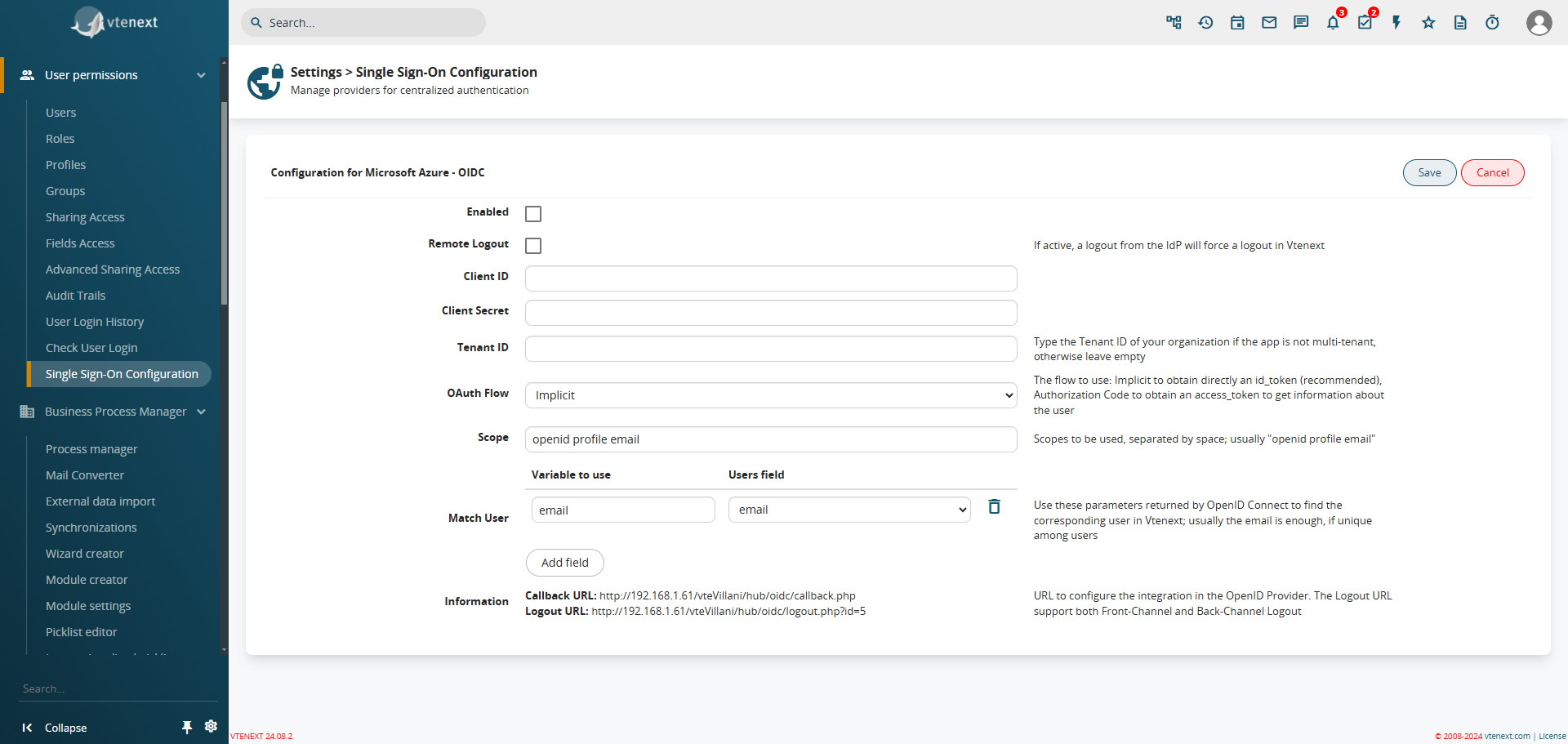
For information on how to create the app in Azure, please refer to the **[specific guide](https://usermanual.vtenext.com/books/creation-of-external-apps/page/oidc-openid-connect)**

</td></tr><tr><td style="width: 26.9368%;">**Microsoft Azure - SAML**</td><td style="width: 73.0632%;">Login via an Azure App with SAML

For information on how to create the app in Azure, please refer to the **[specific guide](https://usermanual.vtenext.com/books/creation-of-external-apps/page/saml)**

</td></tr><tr><td style="width: 26.9368%;">**Google - OIDC**</td><td style="width: 73.0632%;">Login via Google with OpenID Connect

[![image.png](https://usermanual.vtenext.com/uploads/images/gallery/2024-12/scaled-1680-/bYFimage.png)](https://usermanual.vtenext.com/uploads/images/gallery/2024-12/bYFimage.png)

</td></tr></tbody></table>

For all users, except the ADMIN user (this does not refer to users created after the admin and set as administrators, but only the superuser), it will be possible to select which type of authentication to use. In the dropdown list, only the configured and active authentications can be selected:

*User preferences with the option to choose the Single Sign-On.*

**How the Login Screen Changes**

[![image.png](https://usermanual.vtenext.com/uploads/images/gallery/2024-12/scaled-1680-/kxhimage.png)](https://usermanual.vtenext.com/uploads/images/gallery/2024-12/kxhimage.png)

We can notice that the login screen no longer includes the password field, as it will call the external authentication system that was previously configured (e.g., Google or Facebook). Once the login is completed in the external system, the user will return to vtenext already authenticated, or the password field will be activated to manually enter the password and log in.

[![image.png](https://usermanual.vtenext.com/uploads/images/gallery/2024-12/scaled-1680-/LsEimage.png)](https://usermanual.vtenext.com/uploads/images/gallery/2024-12/LsEimage.png)

**Single Sign-On also on Wilson**

Naturally, as soon as Single Sign-On is activated for a user, it also reflects on Wilson. The password field, in this case, is always disabled, and the system will always redirect to the chosen app for authentication, then return authenticated to Wilson.

[![image.png](https://usermanual.vtenext.com/uploads/images/gallery/2024-12/scaled-1680-/CPTimage.png)](https://usermanual.vtenext.com/uploads/images/gallery/2024-12/CPTimage.png)

# 19 Customise module numbering

# 19 Customise module numbering

Through this menu you can modify the sequence and the coding of the prefix of each entity present in the CRM. Once the two variables have been modified, we can update the missing records (i.e. without protocol) using the APPLY button.

**N.B.** Once the prefix of a module has been changed, records previously recognised with the old numbering cannot be updated with the replacement.

[![image.png](https://usermanual.vtenext.com/uploads/images/gallery/2026-05/scaled-1680-/6tSimage.png)](https://usermanual.vtenext.com/uploads/images/gallery/2026-05/6tSimage.png)

A practical example of the usage of the record numbering is surely the management of the current year in progressive number of Quotes and/or Sales Order. The year must be insert in the field PREFIX. In this way, every new record will have the year in its numbering. After that you can choose to set the START SEQUENCE to 0.

[![image.png](https://usermanual.vtenext.com/uploads/images/gallery/2026-05/scaled-1680-/z6himage.png)](https://usermanual.vtenext.com/uploads/images/gallery/2026-05/z6himage.png)

*Example of numbering with the current year in the Sales Order module*

[![image.png](https://usermanual.vtenext.com/uploads/images/gallery/2026-05/scaled-1680-/TWhimage.png)](https://usermanual.vtenext.com/uploads/images/gallery/2026-05/TWhimage.png)

*Example of numbering with the current year in the Quotes module*

# 20 System logs

# 20 System logs

Manages and displays the system logs of file or database type for modules:

[![image.png](https://usermanual.vtenext.com/uploads/images/gallery/2026-05/scaled-1680-/nKtimage.png)](https://usermanual.vtenext.com/uploads/images/gallery/2026-05/nKtimage.png)

# 21 CRONJOB – Processes to Plan

# 21 CRONJOB

For the correct functioning of the application, it is necessary to activate the jobs related to automatic processes in the cron/planning activities of the server on which vtenext is installed,   
The functions affected by this configuration are: workflow (email sending), recurring billing, import from SV files, Calendar reminders, notifications and reporting notifications, newsletters, Messages module, Mail Scanner and SLA.  
To activate the automatic operation, the following file must be inserted in the cron/planning:

1. **Windows** SchTasks /Create /SC MINUTE /mo 5 /TN "Scheduled vtenext19ce tasks" /TR "c:\\vtenext19ce\\htdocs\\cron\\RunCron.bat" /RU SYSTEM
2. **Linux** &lt;directoryVtenext&gt;/cron/RunCron.sh

The automatic processes related to the following functions will then be active:

- Workflow (sending email)
- Recurring billing (ref. Sales Orders form)
- Import from CSV file
- Calendar reminder (Warning tab within Events)  
       
    Notifications and notifications reporting (sending notifications by email and report of notifications)
- Newsletters
- Messages Module (automatic download of messages)

**The automatic processes relating to the following functions must, instead, be activated manually:**

- Mail Scanner
- SLA

Setting the column active = 1 in the vtenext\_cronjob database table.