15.10 External Applications
This functionality of vtenext, located in Settings > External Applications, allows external services to connect to the CRM using the OAuth2 authorization protocol.
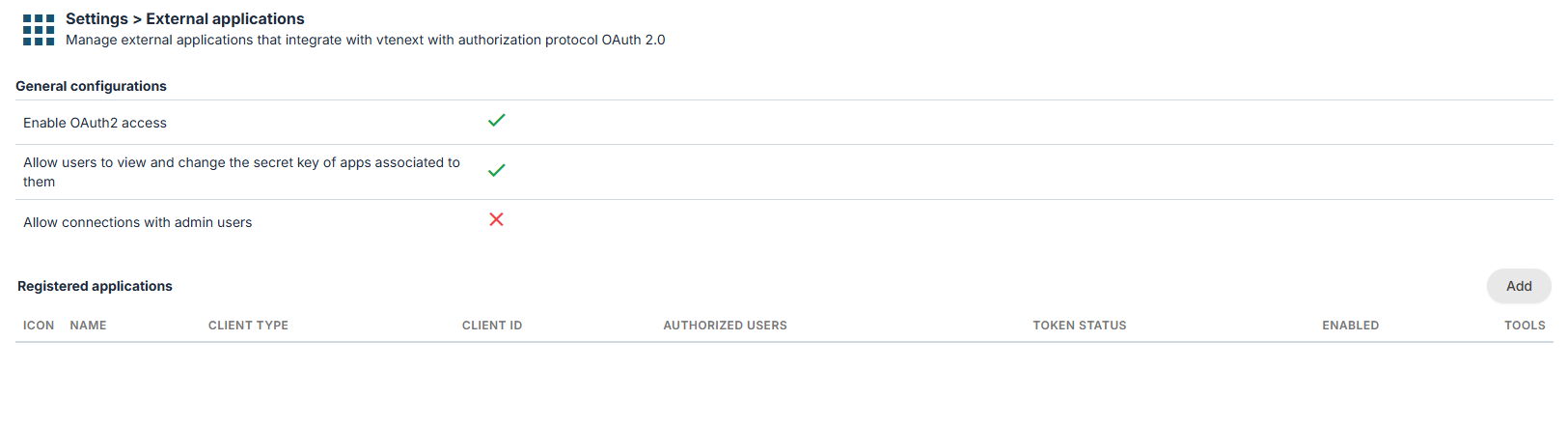
Configuration page for External applications
How does it work? External services, here called External Applications, connect to vtenext via REST API, passing a access_token to authenticate. This token is provided by vte via the OAuth2 protocol, using one of the 2 avaialble flows. Let's see an example:

This flow is called Client Credentials and there are 3 parties:
- Application (for example an ERP)
- Authorization Server (in case of vtenext, it's the same as the point 3)
- Resource Server, the server containing the data to be retrieved (vtenext in this case)
Briefly, the Application (eg: ERP reading Invoices), asks the Authorization Server the Access Token, sending the pair (Client ID, Secret Key) to authenticate itself. If the credentials are correct, an Access Token is given to the Application, that can be used to retrieve information from vtenext via REST API.
An example of REST API call with access token is:
curl -X POST '<VTE_URL>/restapi/v1/vtews/query' \
  -H 'Content-Type: application/json' \
  -H 'Authorization: Bearer <ACCESS_TOKEN>' \
  -d '{"query":"SELECT * FROM Invoice;"}'
The advantage of access tokens is that they have a limited time validity (usually 1 hour) and it's revokable server side, so it's possible to allow access to external apps in a controlled way, without providing them the main password. After the token expiration it's necessary to obtain a new one, repeating the procedure.
This flow is recommended for communication between 2 servers, without human intervention after the initial configuration
The second flow is called Authorization Code and it involves an additional party, called the User.

In this example, the Application that wants to connect to vtenext is, for example, Facebook, that needs to reads the user's Leads. The difference is that it's not Facebook directly that requires this data, but the user delegates Facebook to access his own data present in vtenext. The objective is then to provide Facebook with this data, without giving it the user's full credentials (password) to the system. So Facebook will ask the user to obtain an authorization code, exchanged then by Facebook with an access token, used then to retrieve the data. The access token can be used once only, or renewed automatically (if the user granted this type of access).
So, even though Facebook got access to Leads in vte, it never read the user password and after the expiration of the access token, it won't have access anymore.
This flow is recommended when the application needs to ask user's permission to access the data.
General configuration
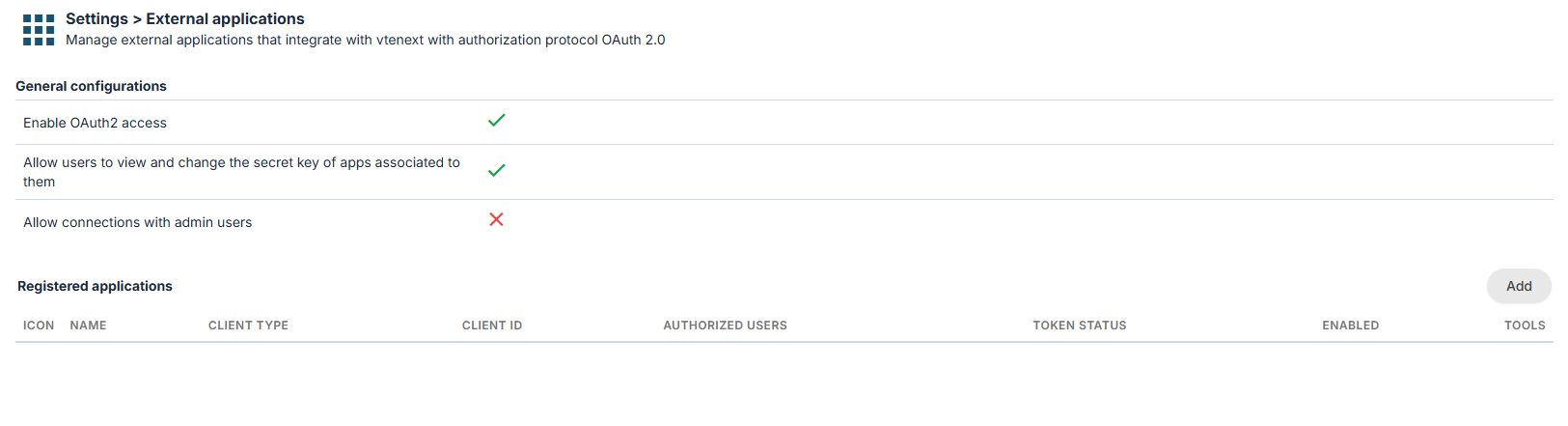
At the beginning of the page, there are some general settings::
- Enable OAuth2 access: enable or disable globally the use of OAuth2 protocol. If disabled, no external app can use the REST API with an access token (standard authentication via access key is allowed)
- Allow users to view and change the secret key of apps associated to them: if active, non admin users can see and modify the secret key for applications linked to their user in the user's page
- Allow connections with admin users: if enabled, external apps can connect with an admin user
Service Account Configuration
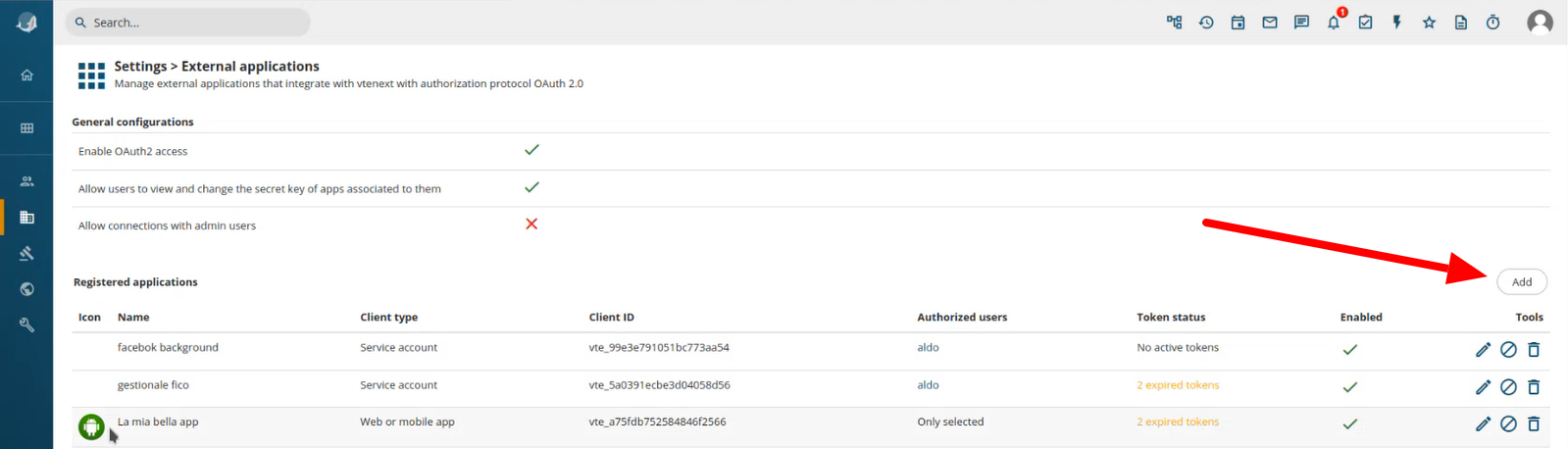
Click on the button ADD on the right
-
Click on the ADD button on the right.
-
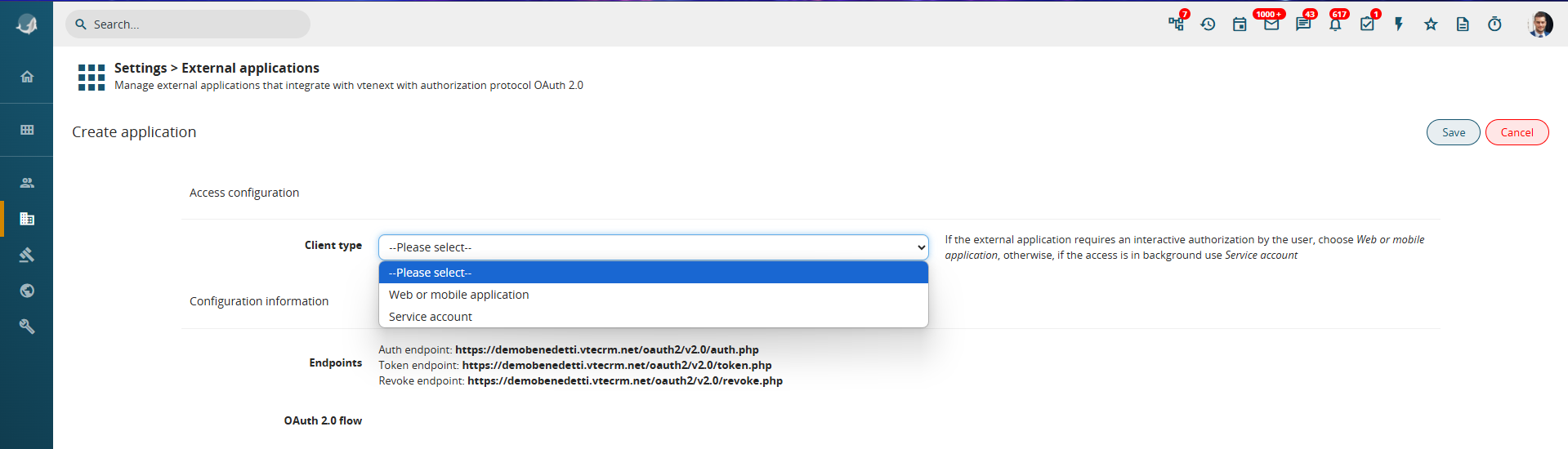
A wizard screen appears to guide the configuration process.
-
Select the Client Type, choosing between:
-
Web or Mobile Application (if access requires user login)
-
Service Account (if access occurs in the background between two servers)
-
To configure a Client Credentials flow, select:
-
Key Type = Service Account
-
Secret Type = Secret Key
Additional configuration fields will then appear:
Configuration details:
-
Name: Assign a descriptive name to the configuration (e.g., connection to a management system).
-
Client ID & Secret Key: These are auto-generated.
-
Scope: Define the level of API access (read-only, write-only, or read/write).
-
User Association: All operations done in vte will be executed as this user. Of course, visibility rules apply according to role and profile configuration.
By providing the Endpoints, Client ID, and Secret Key to the external system’s technician, the connection can be finalized.
For JWT signed authentication, the Secret Key is not a simple string, but a cryptographic key in PEM or JWK format, generated only after saving the configuration.
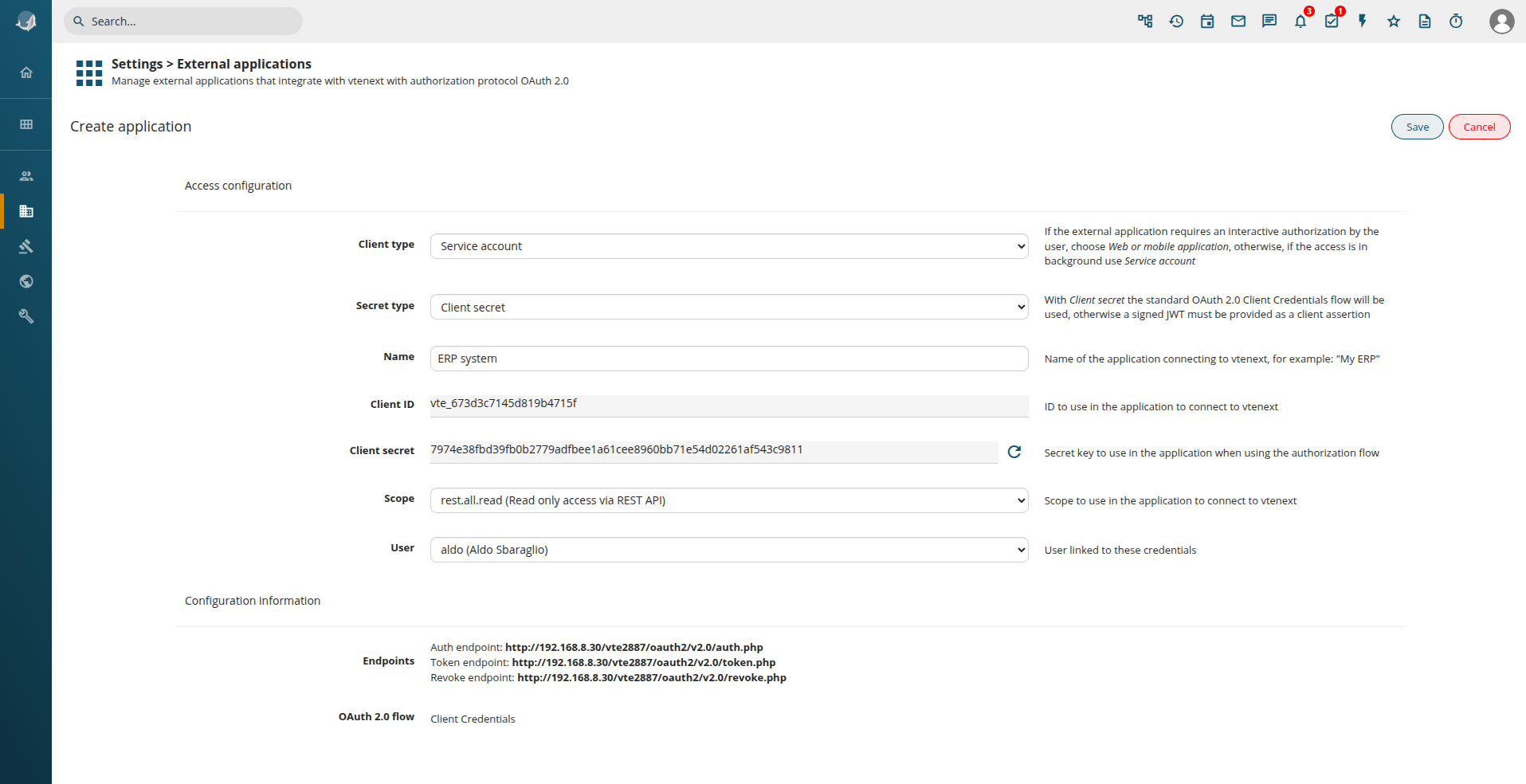
Web or Mobile Application Configuration
Click on the button ADD, on the right
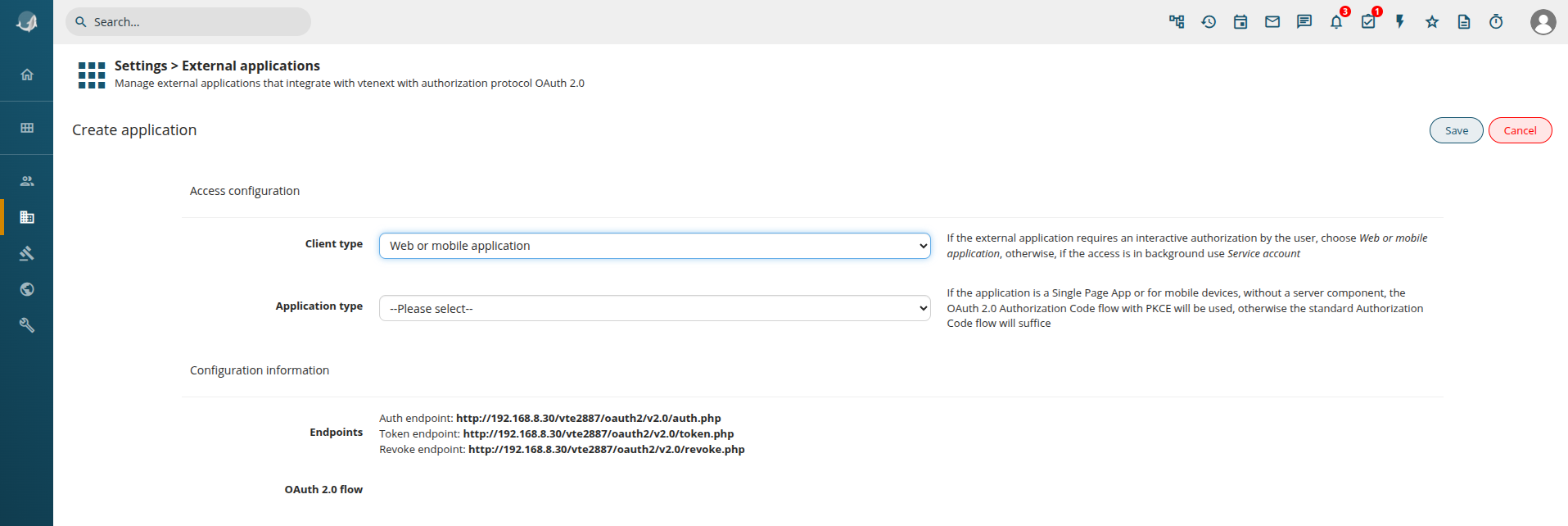
You are presented with the same wizard, but this time choose Web or mobile application. So we get the following:
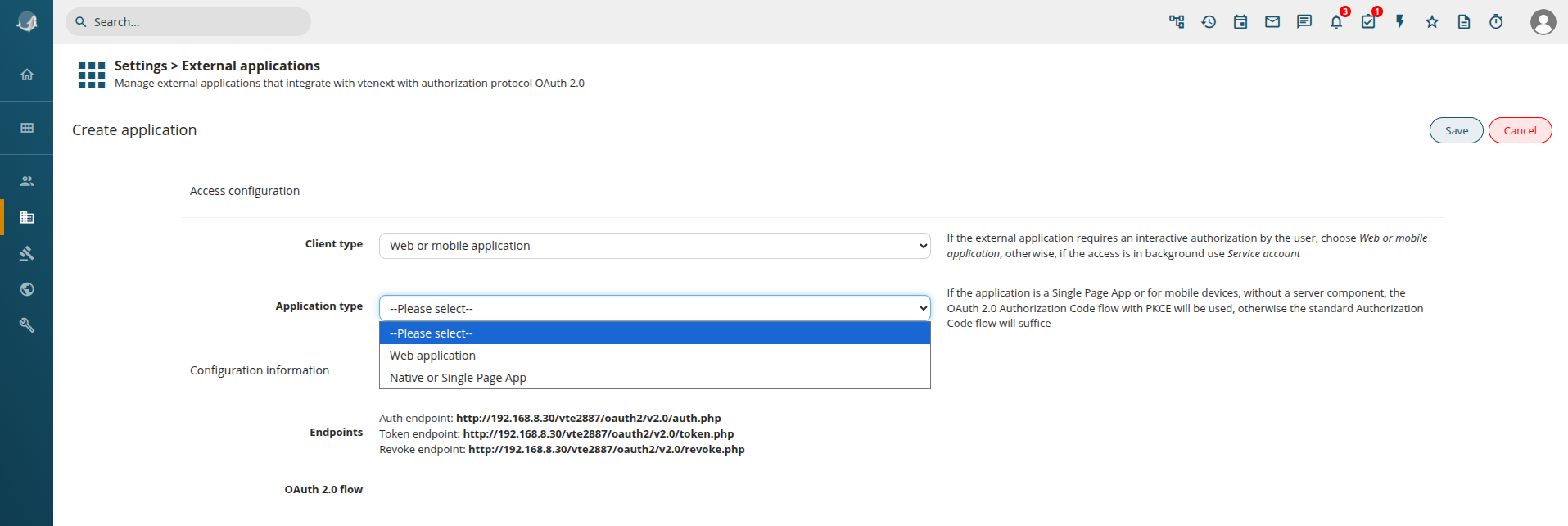
Application Type Options:
-
Web Application: For browser-based applications.
-
Native or Single Page App: For mobile or native apps (same as Web Application, but the OAuth2 flow requires PKCE).
For a Web Application, the configuration follows a similar process to the Service Account setup:
-
Client ID & Secret Key are generated.
-
Define the Scope (read-only, write-only, or read/write).
Offline Access:
By enabling Offline Access, together with the access token, a refresh token is returned, that can be used to automatically obtain a new access token after its expiration.
Redirect URL Configuration:
-
After logging into vtenext, the User is redirected back to the requesting application (e.g., Facebook).
-
Access control settings allow restricting access to All Users or Selected Users/Groups.
From the settings page, Settings > External Applications, it's possible to see the list of registered applications and deactivate them or revoke all the active tokens:
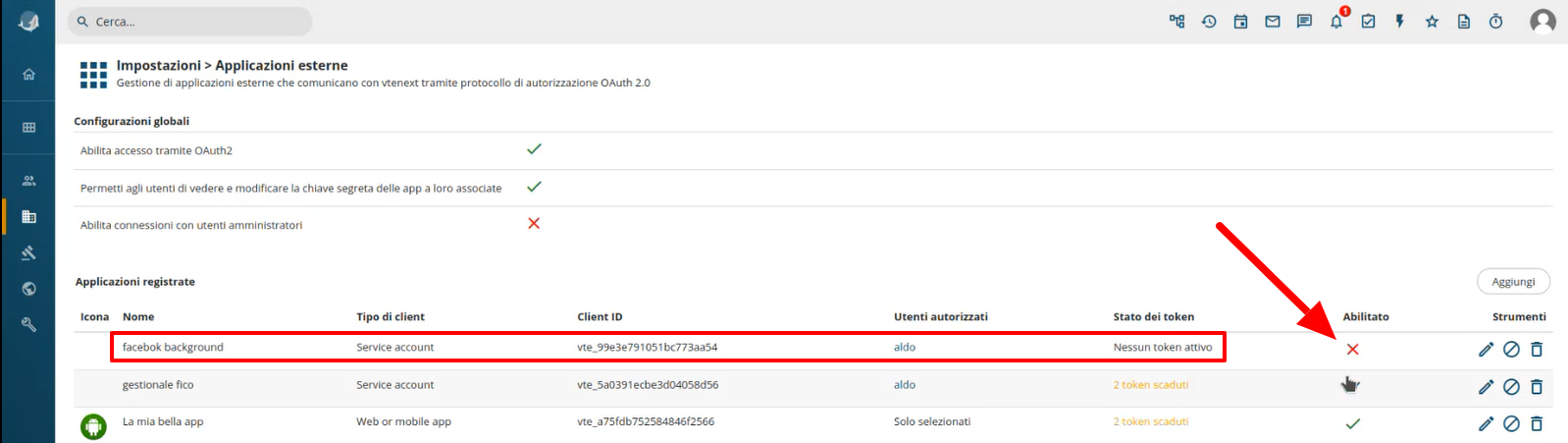
In this list it's possible to see Expired tokens. In case of expired tokens the user will have to re-authenticate to obtain new ones. On the right some tools are present:
-
 edit the configuration
 -
 revoke all access tokens
 -
 remove the external application configuration
Linked Applications in User Preferences

In User Preferences, under Linked Applications, users can view all applications associated with their account.
-
View Configuration Details: Users can see (but not modify) the configuration unless they are Admins.
-
Disable or Revoke Tokens: Users can manually revoke access tokens.