# 22.3 MCP Client

The **MCP Clients** section is used to connect vtenext to an external or internal MCP server, allowing it to retrieve and use the available tools within processes and agents. In practice, this section is where you configure how to reach the MCP server, how to authenticate, and how to keep the list of available tools up to date.

<p class="callout info">**In summary:** the **MCP client** does not publish functions externally. It performs the opposite operation: it connects to an **MCP server**, retrieves its tools, and makes them available within vtenext.</p>

### **When to use it**

- To connect vtenext to an already available MCP server.
- To use the tools exposed by an MCP server within processes and agents (see [AI Actions](https://usermanual.vtenext.com/books/manuale-dei-processi/chapter/3a-azioni-ai)).
- To keep the list of available tools synchronized over time.
- To quickly connect an MCP server created in the [MCP Servers](https://usermanual.vtenext.com/books/manuale-vtenext-2607/page/222-server-mcp) section.

### **The List View**

The list displays all previously configured **MCP clients**.

[![image.png](https://usermanual.vtenext.com/uploads/images/gallery/2026-07/scaled-1680-/d2ximage.png)](https://usermanual.vtenext.com/uploads/images/gallery/2026-07/d2ximage.png)
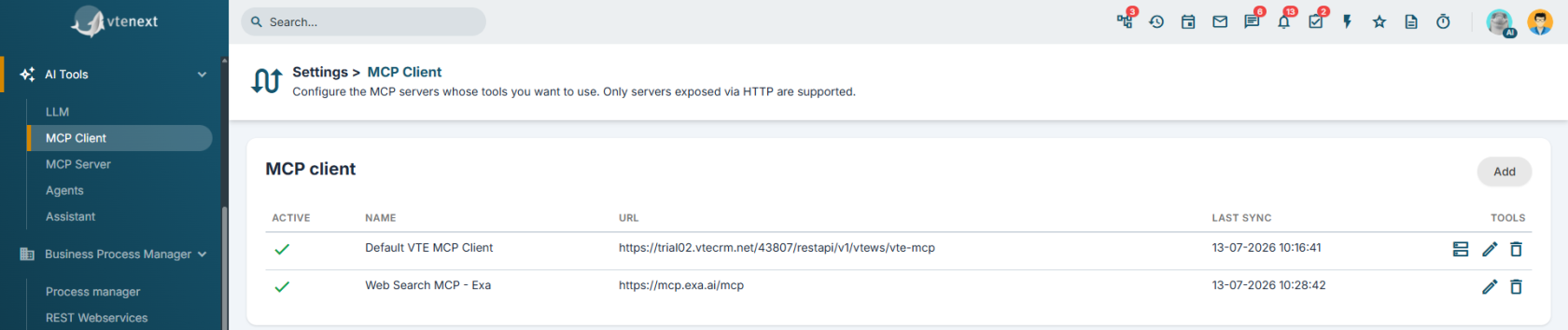
<table border="1" cellpadding="5" cellspacing="5" id="bkmrk-processi%3A-cliccando-" style="width: 100%; border-collapse: collapse; vertical-align: middle; background-color: rgb(235, 247, 255); height: 129.188px;"><tbody><tr style="height: 29.7969px;"><td style="width: 22.2897%; height: 29.7969px; vertical-align: middle;">**Active**

</td><td style="width: 77.7103%; height: 29.7969px; vertical-align: middle;">indicates whether the client is enabled</td></tr><tr style="height: 29.7969px;"><td style="width: 22.2897%; height: 29.7969px; vertical-align: middle;">**Name**

</td><td style="width: 77.7103%; height: 29.7969px; vertical-align: middle;">internal name used to identify the connection

</td></tr><tr style="height: 10px;"><td style="width: 22.2897%; height: 10px; vertical-align: middle;">**URL**

</td><td style="width: 77.7103%; height: 10px; vertical-align: middle;">address of the MCP server to which the client connects

</td></tr><tr style="height: 29.7969px;"><td style="width: 22.2897%; vertical-align: middle; height: 29.7969px;">**Last Synchronization**

</td><td style="width: 77.7103%; vertical-align: middle; height: 29.7969px;">shows when the tools were last synchronized, or indicates that the client has never been synchronized

</td></tr></tbody></table>

From the list, you can create a new client, edit it, or delete it. If the client is connected to an internal **MCP Server**, you can also directly open that server from the list.

### **Creating a New MCP Client**

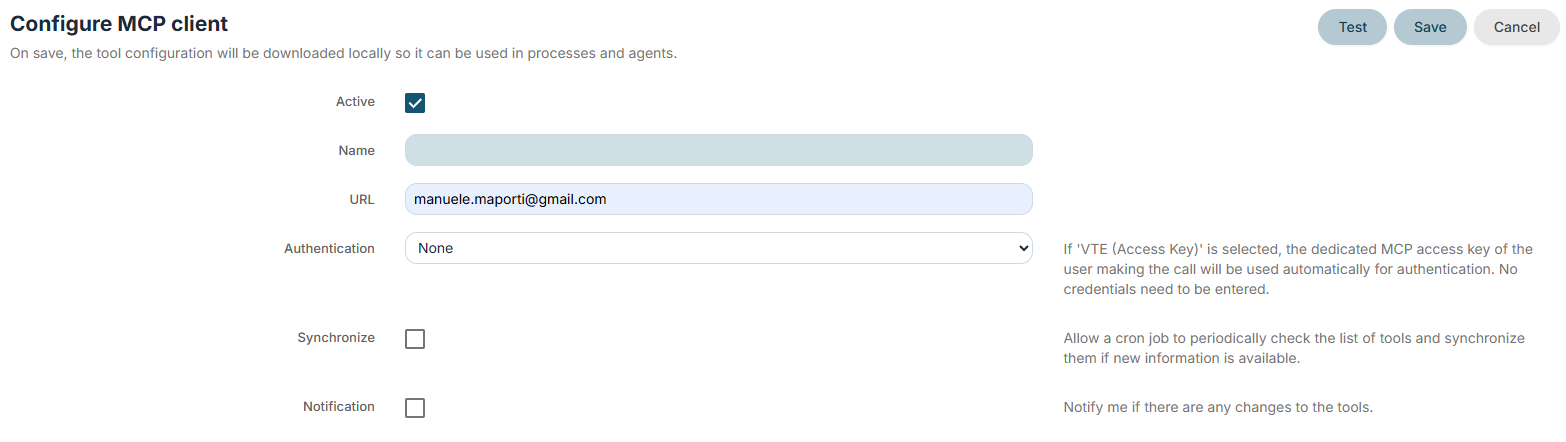
[![image.png](https://usermanual.vtenext.com/uploads/images/gallery/2026-07/scaled-1680-/woJimage.png)](https://usermanual.vtenext.com/uploads/images/gallery/2026-07/woJimage.png)

1. Open the **MCP Clients** section.
2. Click **Add**.
3. Enter an easily recognizable **Name**.
4. Enter the **URL** of the MCP server.
5. Choose the **Authentication** type.
6. Fill in the required credentials, if applicable.
7. Decide whether to enable **Periodic Synchronization**.
8. Enable **Notifications** if you want to be notified when tools change.
9. Save the configuration.

<p class="callout warning">**Important:** when saving, vtenext actually attempts to connect to the MCP server. If the connection fails, the configuration is not accepted.</p>

### **Configuration Parameters**

[![image.png](https://usermanual.vtenext.com/uploads/images/gallery/2026-07/scaled-1680-/aL2image.png)](https://usermanual.vtenext.com/uploads/images/gallery/2026-07/aL2image.png)

<table border="1" cellpadding="5" cellspacing="5" id="bkmrk-attivo-abilita-o-dis" style="width: 100%; border-collapse: collapse; vertical-align: middle; background-color: rgb(235, 247, 255); height: 129.188px;"><tbody><tr style="height: 29.7969px;"><td style="width: 22.2897%; height: 29.7969px; vertical-align: middle;">**Active**

</td><td style="width: 77.7103%; height: 29.7969px; vertical-align: middle;">enables or disables the client

</td></tr><tr style="height: 29.7969px;"><td style="width: 22.2897%; height: 29.7969px; vertical-align: middle;">**Name**

</td><td style="width: 77.7103%; height: 29.7969px; vertical-align: middle;">descriptive name of the connection

</td></tr><tr style="height: 10px;"><td style="width: 22.2897%; height: 10px; vertical-align: middle;">**URL**

</td><td style="width: 77.7103%; height: 10px; vertical-align: middle;">full address of the MCP server to connect to

</td></tr><tr style="height: 29.7969px;"><td style="width: 22.2897%; vertical-align: middle; height: 29.7969px;">**Authentication**

</td><td style="width: 77.7103%; vertical-align: middle; height: 29.7969px;">defines how the client authenticates with the MCP server

</td></tr><tr><td style="width: 22.2897%; vertical-align: middle;">**Username and Password**

</td><td style="width: 77.7103%; vertical-align: middle;">displayed when **Basic Authentication** is selected

</td></tr><tr><td style="width: 22.2897%; vertical-align: middle;">**API Key**

</td><td style="width: 77.7103%; vertical-align: middle;">displayed when **Bearer** or **X-API-Key** authentication is selected

</td></tr><tr><td style="width: 22.2897%; vertical-align: middle;">**Synchronize**

</td><td style="width: 77.7103%; vertical-align: middle;">allows a cron job to periodically check the available tools and update them when new ones are detected

</td></tr><tr><td style="width: 22.2897%; vertical-align: middle;">**Notification**

</td><td style="width: 77.7103%; vertical-align: middle;">sends a notification when synchronization detects changes in the server's tools

</td></tr></tbody></table>

### **How authentication works**

The selected authentication method changes the fields displayed in the configuration form.

<table border="1" cellpadding="5" cellspacing="5" id="bkmrk-nessuna-autenticazio" style="width: 100%; border-collapse: collapse; vertical-align: middle; background-color: rgb(235, 247, 255); height: 129.188px;"><tbody><tr style="height: 29.7969px;"><td style="width: 22.2897%; height: 29.7969px; vertical-align: middle;">****No Authentication****

</td><td style="width: 77.7103%; height: 29.7969px; vertical-align: middle;">no additional credentials are required</td></tr><tr style="height: 29.7969px;"><td style="width: 22.2897%; height: 29.7969px; vertical-align: middle;">**Basic**

</td><td style="width: 77.7103%; height: 29.7969px; vertical-align: middle;">you must enter a username and password

</td></tr><tr style="height: 10px;"><td style="width: 22.2897%; height: 10px; vertical-align: middle;">**Bearer**

</td><td style="width: 77.7103%; height: 10px; vertical-align: middle;">you must enter a token or API key

</td></tr><tr style="height: 29.7969px;"><td style="width: 22.2897%; vertical-align: middle; height: 29.7969px;">**X-API-Key**

</td><td style="width: 77.7103%; vertical-align: middle; height: 29.7969px;">you must enter the API key in the dedicated field

</td></tr><tr><td style="width: 22.2897%; vertical-align: middle;">**VTE (Access Key)**

</td><td style="width: 77.7103%; vertical-align: middle;">vtenext automatically uses the dedicated MCP access key of the user performing the call. No credentials need to be entered manually

</td></tr></tbody></table>

<p class="callout info">**When to use VTE (Access Key):** this option is particularly useful when the client points to an MCP Server exposed by vtenext, because it allows the system to manage authentication automatically.</p>

### **Connection Verification and Tool Mapping**

<div class="qMYqUG_convSearchResultHighlightRoot" id="bkmrk-the-client-screen-al" style="text-align: justify;"><div class="" data-is-intersecting="true" data-turn-id-container="ccf44c22-c77c-4910-b910-b63ac5b7d181"><section class="text-token-text-primary w-full focus:outline-none has-data-writing-block:pointer-events-none [&:has([data-writing-block])>*]:pointer-events-auto R6Vx5W_threadScrollVars scroll-mb-[calc(var(--scroll-root-safe-area-inset-bottom,0px)+var(--thread-response-height))] scroll-mt-[calc(var(--header-height)+min(200px,max(70px,20svh)))]" data-testid="conversation-turn-60" data-turn="assistant" data-turn-id="ccf44c22-c77c-4910-b910-b63ac5b7d181" data-turn-id-container="ccf44c22-c77c-4910-b910-b63ac5b7d181" dir="auto">The client screen also provides a verification function.

[![image.png](https://usermanual.vtenext.com/uploads/images/gallery/2026-07/scaled-1680-/T0Dimage.png)](https://usermanual.vtenext.com/uploads/images/gallery/2026-07/T0Dimage.png)

</section></div></div>[![image.png](https://usermanual.vtenext.com/uploads/images/gallery/2026-07/scaled-1680-/bYcimage.png)](https://usermanual.vtenext.com/uploads/images/gallery/2026-07/bYcimage.png)

*Call Result: RESULT*

[![image.png](https://usermanual.vtenext.com/uploads/images/gallery/2026-07/scaled-1680-/8wsimage.png)](https://usermanual.vtenext.com/uploads/images/gallery/2026-07/8wsimage.png)

*Call Result: HEADERS*

[![image.png](https://usermanual.vtenext.com/uploads/images/gallery/2026-07/scaled-1680-/RPSimage.png)](https://usermanual.vtenext.com/uploads/images/gallery/2026-07/RPSimage.png)

*Call Result: RESPONSE*

- The test button checks whether the MCP server responds correctly.
- If the result is successful, vtenext can retrieve the list of available tools.
- From the verification window, you can update the available tools section using the **Map Available Tools** command.

This verification is especially useful when configuring a new server or when you want to check that authentication is working correctly before the final save.

### **Available Tools**

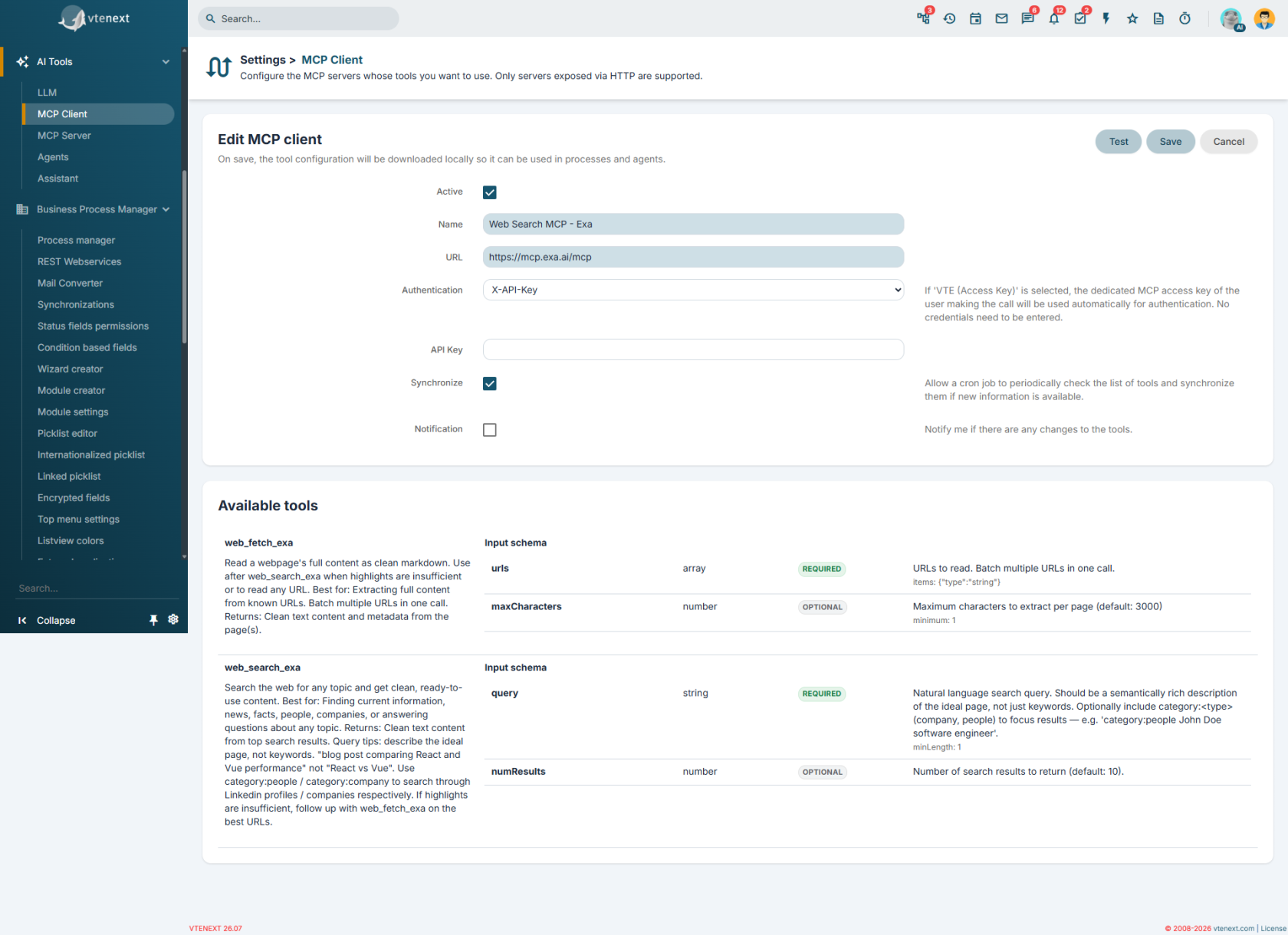
After saving, or after mapping from the verification window, vtenext displays the list of tools retrieved from the MCP server.

[![image.png](https://usermanual.vtenext.com/uploads/images/gallery/2026-07/scaled-1680-/q5pimage.png)](https://usermanual.vtenext.com/uploads/images/gallery/2026-07/q5pimage.png)

For each tool, you can view:

- tool name
- description
- input parameters
- required and optional fields
- structure of the returned output

This information is stored locally, so the tools can then be invoked within agents and processes without having to reinterpret the remote server structure each time.

### **Periodic Synchronization**

If you enable **Synchronize**, a scheduled process can periodically check whether new or modified tools are available on the MCP server.

- If changes are detected, the local tool configuration is updated.
- If no differences are found, the date of the last synchronization is updated anyway.
- If you have also enabled **Notification**, you will receive an alert when the set of tools changes.

<p class="callout warning">**Warning:** when tools change on the MCP server, it may be necessary to check any processes or agents that use them, especially if parameters or outputs have changed.</p>

### **Practical examples**

#### Example 1: Connecting to an external MCP server

You can configure an MCP client that points to an external server published by another system. In this case, enter the URL, the required authentication method, and then verify the available tools.

#### Example 2: Connecting to a vtenext MCP Server

If you have already created an MCP Server in the relevant section, you can connect the client to the same endpoint and use **VTE (Access Key)** authentication to simplify the configuration.

#### Example 3: Controlled tool updates

If the tools on the remote server may change over time, it is recommended to enable periodic synchronization and, if necessary, notifications as well, so that processes and agents remain aligned.

### **Web Search MCP - Exa**

vtenext also provides a preconfigured MCP client called **Web Search MCP - Exa**. This entry is created automatically but remains disabled until you decide to use it.

Exa is a web search service designed for AI agents. It allows real-time web searches, retrieval of content from specific web pages, and provides models with more up-to-date information compared to the knowledge already embedded within the model.

[![image.png](https://usermanual.vtenext.com/uploads/images/gallery/2026-07/scaled-1680-/Xg2image.png)](https://usermanual.vtenext.com/uploads/images/gallery/2026-07/Xg2image.png)
#### How to activate it

1. Open the **Web Search MCP - Exa** entry in the **MCP Clients** list.
2. Leave the preconfigured URL unchanged, as it points to Exa’s public MCP server.
3. Set or complete the **X-API-Key** authentication with the API key from your Exa account.
4. Enable the client.
5. Save and verify the available tools.

In this case, the authentication method expected by vtenext is **X-API-Key**, which is already selected in the initial client configuration.

#### Available Tools with Exa

The MCP server exposes the following tools:

- **web\_search\_exa:** performs web searches and returns content already prepared for use by the agent.
- **web\_fetch\_exa:** retrieves the full content of a web page starting from a known URL.

<p class="callout info">**When it can be useful:** Exa is particularly suitable when you want to provide agents and processes with access to up-to-date web searches, online page analysis, or the rapid collection of external information.</p>

For further details about the service and the features of the Exa MCP server, refer to the official website: [https://exa.ai/mcp](https://exa.ai/mcp).