# Wilson for vtenext App - User Manual

Wilson for vtenext enables you to work anywhere, just as if you were sitting in your office in front of a computer. The App connects to the VTE service (both Cloud and On Site) and offers direct operation on data to manage diary entries, contacts, potential customers, projects, and much more. With Wilson you do not even need the native smartphone/tablet instruments, like for example the calendar and address book.

# 1. Access and Homepage

<span style="color:#444444;"><span lang="en-gb">Wilson</span></span> <span style="color:#444444;"><span lang="en-gb">for</span></span> <span style="color:#444444;"><span lang="en-gb">vtenext</span></span> <span style="color:#444444;"><span lang="en-gb">allows you to work anywhere, just as if you were</span></span> <span style="color:#444444;"><span lang="en-gb">sitting in your office in front of a computer. The App connects to the vtenext service (both Cloud and On Site) and offers direct operation on data to manage</span></span><span style="color:#444444;"><span lang="en-gb"> diary entries</span></span><span style="color:#444444;"><span lang="en-gb">,</span></span><span style="color:#444444;"><span lang="en-gb"> contacts</span></span><span style="color:#444444;"><span lang="en-gb">,</span></span> <span style="color:#444444;"><span lang="en-gb">potential customers, projects, and much more. With Wilson for vtenext you do not even need the native smartphone/tablet instruments, like for example the calendar and address book.</span></span>

[![1-[1].PNG](https://usermanual.vtenext.com/uploads/images/gallery/2022-07/scaled-1680-/VDa1-1.PNG)](https://usermanual.vtenext.com/uploads/images/gallery/2022-07/VDa1-1.PNG)  
*Wilson for vtenext App Access window*

<span style="color:#444444;"><span lang="en-gb">Once the App is running on your mobile device, you see the screen illustrated above.</span></span> <span style="color:#444444;"><span lang="en-gb">You are asked to enter your username and password (the same as those for vtenext)</span></span> <span style="color:#444444;"><span lang="en-gb">and the address of the cloud</span></span><span style="color:#444444;"><span lang="en-gb"> service </span></span><span style="color:#444444;"><span lang="en-gb">(if you do not specify a protocol,</span></span> <span style="color:#444444;"><span lang="en-gb">https://</span></span><span style="color:#444444;"><span lang="en-gb"> is the default</span></span><span style="color:#444444;"><span lang="en-gb">).</span></span>

<span style="color:#444444;"><span lang="en-gb">After login the Homepage opens immediately, showing all the available modules with the same functions as the desktop version of vtenext. For more information about the purpose and content of each module,</span></span><span style="color:#444444;"><span lang="en-gb"> refer to the </span></span><span style="color:#444444;"><span lang="en-gb">vtenext manual at the website </span></span>[<span style="color:#0287d1;"><span lang="en-gb">www.vtenext.com</span></span>](http://www.vtenext.com/)<span style="color:#444444;"><span lang="en-gb">,</span></span> <span style="color:#444444;"><span lang="en-gb">or contact us at the e-mail address </span></span>[<span style="color:#0287d1;"><span lang="en-gb">info@vtenext.com</span></span>](mailto:info@vtenext.com)

[![screenshot-1693317372237.png](https://usermanual.vtenext.com/uploads/images/gallery/2023-08/scaled-1680-/screenshot-1693317372237.png)](https://usermanual.vtenext.com/uploads/images/gallery/2023-08/screenshot-1693317372237.png)

<span style="color:#444444;"><span lang="en-gb">Scrolling down from the initial screen reveals all the modules available in the CRM accessible by the user (according to their profile).</span></span> <span style="color:#444444;"><span lang="en-gb">Clicking on the three short lines at the lower right [![image-1657093758987.png](https://usermanual.vtenext.com/uploads/images/gallery/2022-07/scaled-1680-/image-1657093758987.png)](https://usermanual.vtenext.com/uploads/images/gallery/2022-07/image-1657093758987.png) gives access to other options and modules as shown in the following illustration.</span></span>

[![2.png](https://usermanual.vtenext.com/uploads/images/gallery/2023-08/scaled-1680-/2.png)](https://usermanual.vtenext.com/uploads/images/gallery/2023-08/2.png)

In the Homepage and other modules, three new functions have been added (visible in the tools section):

- Recent (last items viewed in the CRM)
- Favorites (all items marked as favorites with the star icon)
- Tracking (to view all ongoing tracking directly in the app)

<span style="color:#444444;"><span lang="en-gb">Also note the instrument bar at the bottom of every screen,</span></span><span style="color:#444444;"><span lang="en-gb"> functioning as follows</span></span><span style="color:#444444;"><span lang="en-gb">:</span></span>

<table class="align-center" id="bkmrk-%C2%A0-%C2%A0-%C2%A0-%C2%A0-%C2%A0" style="width:80%;border-collapse:collapse;"><tbody><tr style="height:29px;"><td class="align-center" style="width:9.50617%;height:29px;">[![image-1655711835132.png](https://usermanual.vtenext.com/uploads/images/gallery/2022-06/scaled-1680-/image-1655711835132.png)](https://usermanual.vtenext.com/uploads/images/gallery/2022-06/image-1655711835132.png)

</td><td style="width:90.4938%;height:29px;">Go to **Homepage**</td></tr><tr style="height:29px;"><td class="align-center" style="width:9.50617%;height:29px;">[![image-1655711732719.png](https://usermanual.vtenext.com/uploads/images/gallery/2022-06/scaled-1680-/image-1655711732719.png)](https://usermanual.vtenext.com/uploads/images/gallery/2022-06/image-1655711732719.png)

</td><td style="width:90.4938%;height:29px;">Display **Process** notifications</td></tr><tr style="height:29px;"><td class="align-center" style="width:9.50617%;height:29px;">[![image-1655711711408.png](https://usermanual.vtenext.com/uploads/images/gallery/2022-06/scaled-1680-/image-1655711711408.png)](https://usermanual.vtenext.com/uploads/images/gallery/2022-06/image-1655711711408.png)

</td><td style="width:90.4938%;height:29px;">See and reply to **Conversations**</td></tr><tr style="height:29px;"><td class="align-center" style="width:9.50617%;height:29px;">[![image-1655711687626.png](https://usermanual.vtenext.com/uploads/images/gallery/2022-06/scaled-1680-/image-1655711687626.png)](https://usermanual.vtenext.com/uploads/images/gallery/2022-06/image-1655711687626.png)

</td><td style="width:90.4938%;height:29px;">See and manage e-mail **Messages**</td></tr><tr style="height:29px;"><td class="align-center" style="width:9.50617%;height:29px;">[![image-1655711660696.png](https://usermanual.vtenext.com/uploads/images/gallery/2022-06/scaled-1680-/image-1655711660696.png)](https://usermanual.vtenext.com/uploads/images/gallery/2022-06/image-1655711660696.png)

</td><td style="width:90.4938%;height:29px;">Button for list of available **Modules**

</td></tr></tbody></table>

# 2. Instruments

# 2.1 Instrument Bar and Icons

<span style="color: #444444;"><span lang="en-GB">The instrument bar on every page of the App has the following icons.</span></span>

[![image-1657095650554.png](https://usermanual.vtenext.com/uploads/images/gallery/2022-07/scaled-1680-/image-1657095650554.png)](https://usermanual.vtenext.com/uploads/images/gallery/2022-07/image-1657095650554.png)

<span style="color: #444444;"><span lang="en-GB">Starting from the left:</span></span>

- <span style="color: #444444;"><span lang="en-GB">**Homepage:**</span></span> <span style="color: #444444;"><span lang="en-GB">to go to the initial page of the App.  
    </span></span>
- <span style="color: #444444;"><span lang="en-GB">**Processes:**</span></span> <span style="color: #444444;"><span lang="en-GB">to display processes underway requiring the attention of the user.  
    </span></span>
- <span style="color: #444444;"><span lang="en-GB">**Conversations:** </span></span><span style="color: #444444;"><span lang="en-GB">to open the module of the same name and reply to users as required (a notification indicates the number of unread conversations).  
    </span></span>
- <span style="color: #444444;"><span lang="en-GB">**Messages:** </span></span><span style="color: #444444;"><span lang="en-GB">to open the messages module and read your e-mail (the number of unread messages is indicated).  
    </span></span>
- <span style="color: #444444;"><span lang="en-GB">**Others:**</span></span> <span style="color: #444444;"><span lang="en-GB">to return to the page listing all modules.</span></span>

<span style="color: #444444;"><span lang="en-GB">Each module also includes a search field and the </span></span><span style="color: #444444;"><span lang="en-GB">+</span></span><span style="color: #444444;"><span lang="en-GB"> button to add a new record in the current module</span></span><span style="color: #444444;"><span lang="en-GB">.</span></span>

[![image-1657181186381.png](https://usermanual.vtenext.com/uploads/images/gallery/2022-07/scaled-1680-/image-1657181186381.png)](https://usermanual.vtenext.com/uploads/images/gallery/2022-07/image-1657181186381.png)

<span style="color: #444444;"><span lang="en-GB">Entering a module you might see the following icons at the top alongside the logo</span></span> <span style="color: #444444;"><span lang="en-GB">(starting from the left):</span></span>

[![image-1657180360305.png](https://usermanual.vtenext.com/uploads/images/gallery/2022-07/scaled-1680-/image-1657180360305.png)](https://usermanual.vtenext.com/uploads/images/gallery/2022-07/image-1657180360305.png)

- <span style="color: #444444;"><span lang="en-GB">**Settings:** </span></span><span style="color: #444444;"><span lang="en-GB">for accessing the settings for connecting the App to the Cloud</span></span> <span style="color: #444444;"><span lang="en-GB">or On</span></span> <span style="color: #444444;"><span lang="en-GB">Site CRM.</span></span>
- <span style="color: #444444;"><span lang="en-GB">**Exit:**</span></span> <span style="color: #444444;"><span lang="en-GB">to logout</span></span><span style="color: #444444;"><span lang="en-GB"> from the</span></span><span style="color: #444444;"><span lang="en-GB"> Wilson</span></span> <span style="color: #444444;"><span lang="en-GB">for</span></span> <span style="color: #444444;"><span lang="en-GB">vtenext mobile</span></span> <span style="color: #444444;"><span lang="en-GB">App.</span></span>

<span style="color: #444444;"><span lang="en-GB">In the list display mode,</span></span> <span style="color: #444444;"><span lang="en-GB">or when viewing the list of records within a module,</span></span><span style="color: #444444;"><span lang="en-GB"> there are other icons to help navigate and use the </span></span><span style="color: #444444;"><span lang="en-GB">App:</span></span>

<table border="1" id="bkmrk-nella-%E2%80%9Cvista-per-l" style="border-collapse: collapse; width: 100%; height: 316px;"><tbody><tr style="height: 60px;"><td style="width: 16.7901%; height: 60px;">[![2.1 [3].PNG](https://usermanual.vtenext.com/uploads/images/gallery/2022-06/scaled-1680-/2-1-3.PNG)](https://usermanual.vtenext.com/uploads/images/gallery/2022-06/2-1-3.PNG)</td><td class="align-left" style="width: 83.2099%; vertical-align: middle; height: 60px;">Gives access to the list of filters available for the present module</td></tr><tr style="height: 59px;"><td class="align-center" style="width: 16.7901%; height: 59px;">[![image-1657181257020.png](https://usermanual.vtenext.com/uploads/images/gallery/2022-07/scaled-1680-/image-1657181257020.png)](https://usermanual.vtenext.com/uploads/images/gallery/2022-07/image-1657181257020.png)

</td><td class="align-left" style="width: 83.2099%; height: 59px; vertical-align: middle;">Allows creation of a new record within the module</td></tr></tbody></table>

<span style="color: #444444;"><span lang="en-GB">Inside each card (Company,</span></span> <span style="color: #444444;"><span lang="en-GB">Contact,</span></span> <span style="color: #444444;"><span lang="en-GB">Lead,</span></span> <span style="color: #444444;"><span lang="en-GB">etc.)</span></span> <span style="color: #444444;"><span lang="en-GB">there is a series of icons that enable different actions:</span></span>

<table border="1" id="bkmrk-pulsante-presente-pe" style="border-collapse: collapse; width: 100%;"><tbody><tr><td class="align-center" style="width: 19.2593%; vertical-align: middle;">[![image-1655715688557.png](https://usermanual.vtenext.com/uploads/images/gallery/2022-06/scaled-1680-/image-1655715688557.png)](https://usermanual.vtenext.com/uploads/images/gallery/2022-06/image-1655715688557.png)

</td><td class="align-left" style="width: 91.7283%; vertical-align: middle;">Conversations regarding the displayed record</td></tr><tr><td class="align-center" style="width: 19.2593%; vertical-align: middle;">[![image-1655715742070.png](https://usermanual.vtenext.com/uploads/images/gallery/2022-06/scaled-1680-/image-1655715742070.png)](https://usermanual.vtenext.com/uploads/images/gallery/2022-06/image-1655715742070.png)

</td><td class="align-left" style="width: 91.7283%; vertical-align: middle;">Notes about the displayed record</td></tr><tr><td class="align-center" style="width: 19.2593%; vertical-align: middle;">[![image-1655715757376.png](https://usermanual.vtenext.com/uploads/images/gallery/2022-06/scaled-1680-/image-1655715757376.png)](https://usermanual.vtenext.com/uploads/images/gallery/2022-06/image-1655715757376.png)

</td><td class="align-left" style="width: 91.7283%; vertical-align: middle;">Calendar events involving the displayed record</td></tr><tr><td class="align-center" style="width: 19.2593%; vertical-align: middle;">[![image-1655715776765.png](https://usermanual.vtenext.com/uploads/images/gallery/2022-06/scaled-1680-/image-1655715776765.png)](https://usermanual.vtenext.com/uploads/images/gallery/2022-06/image-1655715776765.png)

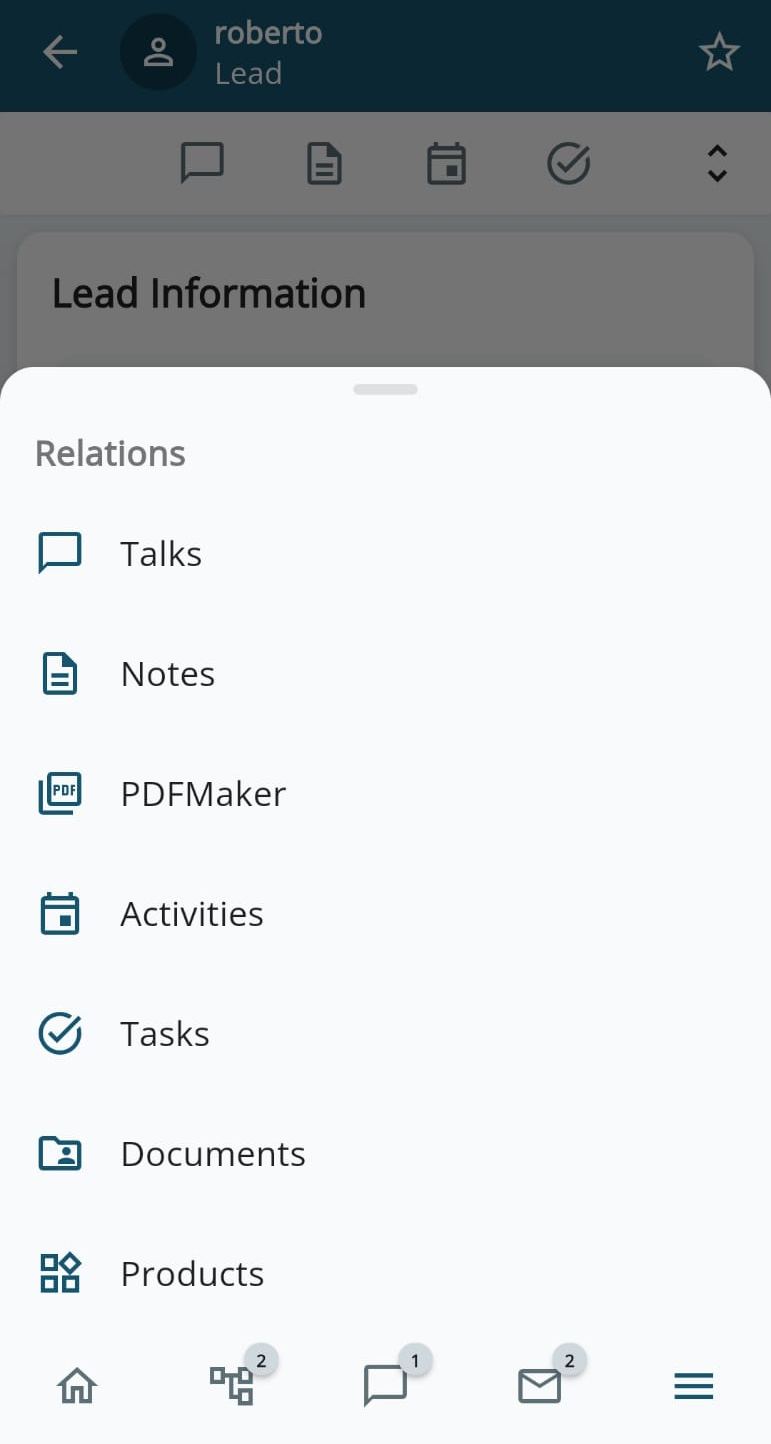
</td><td class="align-left" style="width: 91.7283%; vertical-align: middle;">Tasks involving the displayed record</td></tr><tr><td class="align-center" style="width: 19.2593%; vertical-align: middle;">[![2.1 [5].PNG](https://usermanual.vtenext.com/uploads/images/gallery/2022-06/scaled-1680-/2-1-5.PNG)](https://usermanual.vtenext.com/uploads/images/gallery/2022-06/2-1-5.PNG)</td><td class="align-left" style="width: 91.7283%; vertical-align: middle;">Access to the list of available relations in the displayed record

[![image-1657182106091.png](https://usermanual.vtenext.com/uploads/images/gallery/2022-07/scaled-1680-/image-1657182106091.png)](https://usermanual.vtenext.com/uploads/images/gallery/2022-07/image-1657182106091.png)
</td></tr><tr><td class="align-center" style="width: 19.2593%; vertical-align: middle;">[![image-1657181625809.png](https://usermanual.vtenext.com/uploads/images/gallery/2022-07/scaled-1680-/image-1657181625809.png)](https://usermanual.vtenext.com/uploads/images/gallery/2022-07/image-1657181625809.png)

</td><td style="width: 91.7283%; vertical-align: middle;">Allows modification of the displayed record</td></tr></tbody></table>

<span style="color: #444444;"><span lang="en-GB">The cards contain a number of fields that function as follows:</span></span>

[![image-1657181797918.png](https://usermanual.vtenext.com/uploads/images/gallery/2022-07/scaled-1680-/image-1657181797918.png)](https://usermanual.vtenext.com/uploads/images/gallery/2022-07/image-1657181797918.png) [![image-1655716570154.png](https://usermanual.vtenext.com/uploads/images/gallery/2022-06/scaled-1680-/image-1655716570154.png)](https://usermanual.vtenext.com/uploads/images/gallery/2022-06/image-1655716570154.png)

<span style="color: #444444;">“<span style="font-size: small;"><span style="font-family: Verdana, serif;"><span lang="en-GB">***Assigned to”*** </span></span></span><span style="font-family: Verdana, serif;"><span style="font-size: small;"><span lang="en-GB">*field*</span></span></span><span style="font-size: small;"><span lang="en-GB">*:*</span></span> <span style="font-size: small;"><span lang="en-GB">*it is possible to select/display the assignee of the item, in other words the CRM owner* </span></span><span style="font-family: Verdana, serif;"><span style="font-size: small;"><span lang="en-GB">***User or Group***</span></span></span> </span>

[![image-1657181981808.png](https://usermanual.vtenext.com/uploads/images/gallery/2022-07/scaled-1680-/image-1657181981808.png)](https://usermanual.vtenext.com/uploads/images/gallery/2022-07/image-1657181981808.png)

<span style="font-size: small;"><span style="color: #444444;"><span lang="en-GB">*Text field:*</span></span> <span style="color: #444444;"><span lang="en-GB">*for inserting a name,*</span></span> <span style="color: #444444;"><span lang="en-GB">*number,*</span></span><span style="color: #444444;"><span lang="en-GB"> *information*</span></span><span style="color: #444444;"><span lang="en-GB">*,*</span></span> <span style="color: #444444;"><span lang="en-GB">*etc.*</span></span></span>

[![image-1657182304360.png](https://usermanual.vtenext.com/uploads/images/gallery/2022-07/scaled-1680-/image-1657182304360.png)](https://usermanual.vtenext.com/uploads/images/gallery/2022-07/image-1657182304360.png)

<span style="font-size: small;"><span style="color: #444444;"><span lang="en-GB">*Pick-list*</span></span><span style="color: #444444;"><span lang="en-GB"> *field* </span></span><span style="color: #444444;"><span lang="en-GB">*(drop-down menu):*</span></span> <span style="color: #444444;"><span lang="en-GB">*allows selection of a single value from those in the list*</span></span></span>

[![image-1657182548882.png](https://usermanual.vtenext.com/uploads/images/gallery/2022-07/scaled-1680-/image-1657182548882.png)](https://usermanual.vtenext.com/uploads/images/gallery/2022-07/image-1657182548882.png)

<span style="font-size: small;"><span style="color: #444444;"><span lang="en-GB">*Field for selecting the date* </span></span></span>

[![image-1657182507478.png](https://usermanual.vtenext.com/uploads/images/gallery/2022-07/scaled-1680-/image-1657182507478.png)](https://usermanual.vtenext.com/uploads/images/gallery/2022-07/image-1657182507478.png)

<span style="font-size: small;"><span style="color: #444444;"><span lang="en-GB">*Text*</span></span> <span style="color: #444444;"><span lang="en-GB">*Area*</span></span><span style="color: #444444;"><span lang="en-GB"> *field*</span></span><span style="color: #444444;"><span lang="en-GB">*:*</span></span><span style="color: #444444;"><span lang="en-GB"> *allows, for example, an extended text description* </span></span></span>

# 2.2 NFC Function - Mobile Scans

**NFC (Near Field Communication)** is a short-range wireless communication technology that allows devices to exchange data when they are close to each other, typically within a range of about 4 cm. Here's how it works:

**Basic Principles:**

- **Short-range communication:** NFC devices, such as smartphones, card readers, or NFC tags, must be very close to each other to initiate data exchange.
- **Frequency:** NFC operates at 13.56 MHz, a frequency that allows for fast and secure information exchange over short distances.
- **Active and Passive Modes:**
    - In **active mode**, both devices generate an electromagnetic field to transmit data.
    - In **passive mode**, only one device generates the electromagnetic field (e.g., a smartphone), while the other device (e.g., an NFC tag) uses it to power itself and respond.

---

**How NFC works in vtenext**

---

To activate and use this feature, a few configuration steps are required. First, from vtenext's administration panel, go to **SETTINGS &gt; MODULE MANAGER &gt; COMPANIES** (or another relevant module), and add a related field to the **Mobile Scans** module.

[![image.png](https://usermanual.vtenext.com/uploads/images/gallery/2024-10/scaled-1680-/Skvimage.png)](https://usermanual.vtenext.com/uploads/images/gallery/2024-10/Skvimage.png)

This field will be immediately available on the **Wilson App**, and by clicking on it, the screen to scan the NFC tag with the mobile phone will be activated.

[![image.png](https://usermanual.vtenext.com/uploads/images/gallery/2024-10/scaled-1680-/8Giimage.png)](https://usermanual.vtenext.com/uploads/images/gallery/2024-10/8Giimage.png)  
*NFC scan field on the **Wilson App** to click on in order to activate the NFC tag acquisition.*

[![image.png](https://usermanual.vtenext.com/uploads/images/gallery/2024-10/scaled-1680-/EoCimage.png)](https://usermanual.vtenext.com/uploads/images/gallery/2024-10/EoCimage.png)

*NFC tag scanning startup screen*

[![image.png](https://usermanual.vtenext.com/uploads/images/gallery/2024-10/scaled-1680-/eyximage.png)](https://usermanual.vtenext.com/uploads/images/gallery/2024-10/eyximage.png)

*Screen dialog where the system prompts the user to bring the NFC tag closer for reading*

[![image.png](https://usermanual.vtenext.com/uploads/images/gallery/2024-10/scaled-1680-/Yf7image.png)](https://usermanual.vtenext.com/uploads/images/gallery/2024-10/Yf7image.png)

*The tag is captured, and a record is also written in the related field that was previously created*

[![image.png](https://usermanual.vtenext.com/uploads/images/gallery/2024-10/scaled-1680-/30Iimage.png)](https://usermanual.vtenext.com/uploads/images/gallery/2024-10/30Iimage.png)

*Here is the record as it appears in the related field after being scanned*

[![image.png](https://usermanual.vtenext.com/uploads/images/gallery/2024-10/scaled-1680-/dhYimage.png)](https://usermanual.vtenext.com/uploads/images/gallery/2024-10/dhYimage.png)

*Here is the scanned record in detail (Mobile Scan card as seen from the Wilson App)*

[![image.png](https://usermanual.vtenext.com/uploads/images/gallery/2024-10/scaled-1680-/cn6image.png)](https://usermanual.vtenext.com/uploads/images/gallery/2024-10/cn6image.png)

*Here is the scanned record in detail (Mobile Scan card as viewed from the vtenext web side)*

**Note: The NFC function is also available in the Processes module, allowing a process to be initiated from a scan.**

# 2.3 Barcode Scanning and QR Code Search

**Introduction**

The **barcode** is an information encoding system that uses a series of lines and spaces of varying widths to represent numerical or alphanumeric data. They are commonly used to identify products, facilitate the tracking of goods, and simplify business transactions.

The **QR code (Quick Response code)** is a type of two-dimensional barcode that can be quickly read by a device equipped with a camera, such as a smartphone. It was developed in Japan in the 1990s to track parts in manufacturing processes, but today it is used in a wide range of applications.

A QR code can contain information such as URLs, text, phone numbers, contact information, and more. When a user scans the QR code with a reading app, the device decodes the information contained in the code and can perform actions such as opening a website, saving a contact, or sending a message.

---

**How it works in vtenext**

---

**Barcode scanning**

By going to **SETTINGS &gt; MODULE MANAGER &gt; PRODUCTS &gt; LAYOUT EDITOR**, you can enable the barcode scanning function for the **PRODUCT NAME** field. This is clearly just an example; you can activate this feature on any text field. Therefore, you can create a text field, name it as you prefer, and enable the scanning option for that field.

[![image.png](https://usermanual.vtenext.com/uploads/images/gallery/2024-10/scaled-1680-/7Ndimage.png)](https://usermanual.vtenext.com/uploads/images/gallery/2024-10/7Ndimage.png)

*Screen of the Layout Editor (in the example of the Products module), with Barcode Scanning Enabled*

*Instantly in the Wilson App, the scanning symbol will be enabled directly in that field, and by pressing it, the camera will be activated to perform the scan*

[![image.png](https://usermanual.vtenext.com/uploads/images/gallery/2024-10/scaled-1680-/758image.png)](https://usermanual.vtenext.com/uploads/images/gallery/2024-10/758image.png)

*Note the scanning symbol present directly in the relevant field*

![image.png](https://usermanual.vtenext.com/uploads/images/gallery/2024-10/scaled-1680-/5pXimage.png)

*Acquisition screen, where you are asked to scan the barcode in the highlighted area*

[![image.png](https://usermanual.vtenext.com/uploads/images/gallery/2024-10/scaled-1680-/m56image.png)](https://usermanual.vtenext.com/uploads/images/gallery/2024-10/m56image.png)

*Screen highlighting the acquired code and notifying the user that a new barcode has been found*

---

**Search via QR Code**

*This function is available only upon specific client request.*

It is possible to activate a search via QR Code in vtenext. In practice, in any module, I can use the search engine of the Wilson App to scan a QR Code and search for the code associated with a record (e.g., a Lead, a Client, or a Product).

[![image.png](https://usermanual.vtenext.com/uploads/images/gallery/2024-10/scaled-1680-/vioimage.png)](https://usermanual.vtenext.com/uploads/images/gallery/2024-10/vioimage.png)

*Note that in the search area of the Wilson App, there is a symbol for scanning the QR Code, which will activate the camera to capture the code*

[![image.png](https://usermanual.vtenext.com/uploads/images/gallery/2024-10/scaled-1680-/xiSimage.png)](https://usermanual.vtenext.com/uploads/images/gallery/2024-10/xiSimage.png)

*Once the QR Code is framed, the CRM will perform the search and display the result on the mobile app*

# 2.4 Sorting and Filters

In the Wilson App, it is possible to manage the **sorting** of records and **filters**. Taking the Accounts module as an example, starting from the top left, you can see a button to view the **available filters**, a button to select the **assigned user** to display, and finally, the button for **sorting**.

[![image.png](https://usermanual.vtenext.com/uploads/images/gallery/2025-01/scaled-1680-/7iGimage.png)](https://usermanual.vtenext.com/uploads/images/gallery/2025-01/7iGimage.png)

---

**FILTERS**

By clicking the FILTERS button, you can, as mentioned, view the list of available filters (both created from the web and from the app), and you can also CREATE new ones directly in Wilson. For all filters, whether created from the web or the app, you can click the three dots on the right and select **DUPLICATE**.

Filters created from the Wilson App have a pencil-shaped icon next to the three dots, which allows you to edit the filter directly in the app. Filters created from the web cannot be edited in Wilson.

[![image.png](https://usermanual.vtenext.com/uploads/images/gallery/2025-01/scaled-1680-/xNaimage.png)](https://usermanual.vtenext.com/uploads/images/gallery/2025-01/xNaimage.png)

When the **DUPLICATE** or **EDIT** option is selected, the following screen appears:

[![image.png](https://usermanual.vtenext.com/uploads/images/gallery/2025-01/scaled-1680-/LDOimage.png) ](https://usermanual.vtenext.com/uploads/images/gallery/2025-01/LDOimage.png)[![image.png](https://usermanual.vtenext.com/uploads/images/gallery/2025-01/scaled-1680-/Ul3image.png) ](https://usermanual.vtenext.com/uploads/images/gallery/2025-01/Ul3image.png)[![image.png](https://usermanual.vtenext.com/uploads/images/gallery/2025-01/scaled-1680-/imHimage.png)](https://usermanual.vtenext.com/uploads/images/gallery/2025-01/imHimage.png)

On this screen, the following actions are possible:

- **View Name:** Rename or assign a name to your filter.
- **Set as Default:** Set the filter as the default for the Wilson app.
- **Select Fields to Display:** Choose which fields to display, add new ones, and rearrange their appearance order by dragging them.
- **Subtitle Display:** Decide whether to include a subtitle containing the previously selected fields. These fields can include or exclude their labels for better usability.
- **Initially Sort By:** Choose the sorting of a field in ascending or descending order.
- **Advanced Filters:** Define selection criteria for fields other than Date type (e.g., dropdown menus, free text, numbers, etc.).
- **Time Filter:** Select fields of the Date type, using either dynamic and customizable durations or static ones. You can choose from the dynamic options provided by the app or specify a static date range.

---

**SORTING**  
Sorting is achieved by clicking the corresponding "Sorting" button located in the top menu of the list view for a record.

[![image.png](https://usermanual.vtenext.com/uploads/images/gallery/2025-01/scaled-1680-/WVLimage.png)](https://usermanual.vtenext.com/uploads/images/gallery/2025-01/WVLimage.png)

A dropdown menu appears at the bottom of the screen, allowing you to select your sorting preference:

- **Most Recent:** To display records that have been recently managed.
- **Module Fields:** For example, in the Companies module, you can sort by fields such as Company Number, Company Name, Phone, Email, or Website.
- **Others:** Allows you to select additional fields from all those available in the specific module.
- **Reset:** Resets the view to the default display.

# 3. Modules

# 3.1 Calendar and Tasks

<span style="color: #444444;"><span lang="en-GB">These two modules are used to add activities and deadlines in the vtenext Calendar.</span></span> <span style="color: #444444;"><span lang="en-GB">Everything that is entered will appear within a few seconds in the same Calendar but web side.</span></span>

<span style="color: #444444;"><span lang="en-GB">When a new Calendar record is created it must be assigned to a user (yourself, or another vtenext user) and it can also be associated with a Contact and/or a Company.</span></span><span style="color: #444444;"><span lang="en-GB"> Other data is also required</span></span><span style="color: #444444;"><span lang="en-GB">:</span></span> <span style="color: #444444;"><span lang="en-GB">the date, start time,</span></span> <span style="color: #444444;"><span lang="en-GB">status,</span></span> <span style="color: #444444;"><span lang="en-GB">description, and all other information considered necessary.</span></span>

<span style="color: #444444;"><span lang="en-GB">In the left-hand column it is possible to navigate to other information (and modules) related to the activity just created.</span></span>

<span style="color: #444444;"><span lang="en-GB">The list of Tasks is displayed as follows when this item is clicked in the menu:</span></span>

[![3.1 [1].PNG](https://usermanual.vtenext.com/uploads/images/gallery/2022-07/scaled-1680-/3-1-1.PNG)](https://usermanual.vtenext.com/uploads/images/gallery/2022-07/3-1-1.PNG)

---

<span style="color: #444444;"><span lang="en-GB">Clicking on the icon</span></span><span style="font-size: small;"> </span>![image-1655717342208.png](https://usermanual.vtenext.com/uploads/images/gallery/2022-06/scaled-1680-/image-1655717342208.png) <span style="color: #444444;"><span lang="en-GB">allows selection of Calendar view modes:</span></span>

[![3.1 [4].PNG](https://usermanual.vtenext.com/uploads/images/gallery/2022-07/scaled-1680-/3-1-4.PNG)](https://usermanual.vtenext.com/uploads/images/gallery/2022-07/3-1-4.PNG) [![3.1 [5].PNG](https://usermanual.vtenext.com/uploads/images/gallery/2022-07/scaled-1680-/3-1-5.PNG)](https://usermanual.vtenext.com/uploads/images/gallery/2022-07/3-1-5.PNG)

<span style="color: #444444;"><span lang="en-GB">Clicking on the icon </span></span>![image-1655717436570.png](https://usermanual.vtenext.com/uploads/images/gallery/2022-06/scaled-1680-/image-1655717436570.png) <span style="color: #444444;"><span lang="en-GB">opens the list of available users (who have shared the Calendar with us):</span></span>

[![image-1657542838683.png](https://usermanual.vtenext.com/uploads/images/gallery/2022-07/scaled-1680-/image-1657542838683.png)](https://usermanual.vtenext.com/uploads/images/gallery/2022-07/image-1657542838683.png)

<span style="color: #444444;"><span lang="en-GB">This is how the Calendar appears, opened by clicking this item in the menu. It shows all the appointments for the selected day and their temporal sequence during the day</span></span><span style="color: #444444;"><span lang="en-GB">.</span></span> <span style="color: #444444;"><span lang="en-GB">You can change the view from “Day”</span></span> <span style="color: #444444;"><span lang="en-GB">to “Month”</span></span> <span style="color: #444444;"><span lang="en-GB">or view the details of a single task.</span></span>

<span style="font-family: Verdana, serif;"><span style="font-size: small;">[![3.1 [2].PNG](https://usermanual.vtenext.com/uploads/images/gallery/2022-07/scaled-1680-/3-1-2.PNG)](https://usermanual.vtenext.com/uploads/images/gallery/2022-07/3-1-2.PNG)  
*Day View*</span></span>

<span style="font-family: Verdana, serif;"><span style="font-size: small;">[![3.1 [3].PNG](https://usermanual.vtenext.com/uploads/images/gallery/2022-07/scaled-1680-/3-1-3.PNG)](https://usermanual.vtenext.com/uploads/images/gallery/2022-07/3-1-3.PNG)  
*Month View*</span></span>

# 3.2 Messages

<span style="color: #444444;"><span lang="en-GB">The Messages module allows you to read e-mails using the vtenext App.</span></span><span style="color: #444444;"><span lang="en-GB"> As soon as the module is opened a screen is displayed like the following:</span></span>

[![WhatsApp Image 2023-12-11 at 12.54.23.jpeg](https://usermanual.vtenext.com/uploads/images/gallery/2023-12/scaled-1680-/whatsapp-image-2023-12-11-at-12-54-23.jpeg)](https://usermanual.vtenext.com/uploads/images/gallery/2023-12/whatsapp-image-2023-12-11-at-12-54-23.jpeg)

<span style="font-size: small;"><span style="color: #444444;"><span lang="en-GB">This view shows a </span></span><span style="color: #444444;"><span lang="en-GB">**list of all folders available** </span></span><span style="color: #444444;"><span lang="en-GB">for the predefined mailbox and, below,</span></span> <span style="color: #444444;"><span lang="en-GB">you can choose among the configured </span></span><span style="color: #444444;"><span lang="en-GB">**Mailboxes**</span></span><span style="color: #444444;"><span lang="en-GB">.</span></span></span>

<span style="color: #444444;"><span lang="en-GB">Clicking the button </span></span>![image-1655718251904.png](https://usermanual.vtenext.com/uploads/images/gallery/2022-06/scaled-1680-/image-1655718251904.png) <span style="color: #444444;"><span lang="en-GB">opens a dialogue window for writing and sending a new e-mail.</span></span>

[![image-1657543486432.png](https://usermanual.vtenext.com/uploads/images/gallery/2022-07/scaled-1680-/image-1657543486432.png)](https://usermanual.vtenext.com/uploads/images/gallery/2022-07/image-1657543486432.png)

<span style="color: #444444;"><span lang="en-GB">Clicking on the </span></span><span style="color: #444444;"><span lang="en-GB">**Inbox**</span></span><span style="color: #444444;"><span lang="en-GB"> folder</span></span> <span style="color: #444444;"><span lang="en-GB">opens the following view with a list of all e-mails in arrival, both read and unread:</span></span>

[![image-1657543625527.png](https://usermanual.vtenext.com/uploads/images/gallery/2022-07/scaled-1680-/image-1657543625527.png)](https://usermanual.vtenext.com/uploads/images/gallery/2022-07/image-1657543625527.png)

In both the Inbox and other folders, you can search for emails by using the dedicated field in the header. It is also possible to enable the search in SUBFOLDERS or search ACROSS ALL ACCOUNTS by using the corresponding option button.

[![image.png](https://usermanual.vtenext.com/uploads/images/gallery/2024-12/scaled-1680-/Ge4image.png)](https://usermanual.vtenext.com/uploads/images/gallery/2024-12/Ge4image.png)

It is also possible to access the 'TO READ' folder to facilitate the use of emails even on mobile:

[![image-1702295984886.png](https://usermanual.vtenext.com/uploads/images/gallery/2023-12/scaled-1680-/image-1702295984886.png)](https://usermanual.vtenext.com/uploads/images/gallery/2023-12/image-1702295984886.png)

<span style="color: #444444;"><span lang="en-GB">Clicking on a specific incoming e-mail displays a screen like the following</span></span><span style="color: #444444;"><span lang="en-GB">:</span></span>

[![image-1655718664860.png](https://usermanual.vtenext.com/uploads/images/gallery/2022-06/scaled-1680-/image-1655718664860.png)](https://usermanual.vtenext.com/uploads/images/gallery/2022-06/image-1655718664860.png)

<span style="color: #444444;"><span lang="en-GB">Every e-mail can be associated with vtenext</span></span><span style="color: #444444;"><span lang="en-GB"> records </span></span><span style="color: #444444;"><span lang="en-GB">or can be the starting point for the creation of a new record. The available modules are displayed at the top of the e-mail message display, or by clicking on the icon </span></span>![2.1 [5].PNG](https://usermanual.vtenext.com/uploads/images/gallery/2022-06/scaled-1680-/2-1-5.PNG)

# 3.3 Leads

<span style="color: #444444;"><span lang="en-GB">The Leads</span></span><span style="color: #444444;"><span lang="en-GB"> module is displayed</span></span><span style="color: #444444;"><span lang="en-GB"> according to the filters available in the App, which are those defined in your user account via web.</span></span>

<span style="color: #444444;"><span lang="en-GB">It is therefore possible to choose how to display this list by clicking on the icon </span></span> ![2.1 [3].PNG](https://usermanual.vtenext.com/uploads/images/gallery/2022-06/scaled-1680-/2-1-3.PNG) <span style="color: #444444;"><span lang="en-GB">at the top right.</span></span>

[![3.3 [1].PNG](https://usermanual.vtenext.com/uploads/images/gallery/2022-07/scaled-1680-/3-3-1.PNG)](https://usermanual.vtenext.com/uploads/images/gallery/2022-07/3-3-1.PNG)  
<span style="font-size: small;"><span style="color: #444444;"><span lang="en-GB">*Filters available for the*</span></span> <span style="color: #444444;"><span lang="en-GB">*Leads module*</span></span></span>

[![3.3 [2].PNG](https://usermanual.vtenext.com/uploads/images/gallery/2022-07/scaled-1680-/3-3-2.PNG)](https://usermanual.vtenext.com/uploads/images/gallery/2022-07/3-3-2.PNG)  
<span style="font-size: small;"><span style="color: #444444;"><span lang="en-GB">*List of Leads*</span></span></span>

<span style="color: #444444;"><span lang="en-GB">This is how a Lead page is displayed once saved or when searched for within Wilson</span></span> <span style="color: #444444;"><span lang="en-GB">fo VTENEXT.</span></span>

[![3.png](https://usermanual.vtenext.com/uploads/images/gallery/2023-08/scaled-1680-/3.png)](https://usermanual.vtenext.com/uploads/images/gallery/2023-08/3.png)

*There's a '**Open Map**' button that allows you to open Google Maps and locate the Lead*

[![4.png](https://usermanual.vtenext.com/uploads/images/gallery/2023-08/scaled-1680-/4.png)](https://usermanual.vtenext.com/uploads/images/gallery/2023-08/4.png)

Here is how the lead detail page looks once you have saved or searched for it within VTECRM Mobile:

[![5.png](https://usermanual.vtenext.com/uploads/images/gallery/2023-08/scaled-1680-/5.png)](https://usermanual.vtenext.com/uploads/images/gallery/2023-08/5.png)

From the Leads module in the Wilson app, you can also perform conversion. Just click on the three dots at the top right, which are present in the details of the relevant record. A popup will appear with the option to **CONVERT LEAD**.

[![6.png](https://usermanual.vtenext.com/uploads/images/gallery/2023-08/scaled-1680-/6.png)](https://usermanual.vtenext.com/uploads/images/gallery/2023-08/6.png)

Once you click on **CONVERT LEAD**, the conversion page opens directly, giving you the option to choose what to convert the Lead into (Company - existing or new - Contact and/or Opportunity) and which fields to fill out.

[![7.png](https://usermanual.vtenext.com/uploads/images/gallery/2023-08/scaled-1680-/7.png)](https://usermanual.vtenext.com/uploads/images/gallery/2023-08/7.png)

<span style="color: #444444;"><span lang="en-GB">Logically, clicking on the icon</span></span>![2.1 [5].PNG](https://usermanual.vtenext.com/uploads/images/gallery/2022-06/scaled-1680-/2-1-5.PNG),<span style="color: #444444;"><span lang="en-GB">shows all the relations in the present record, and</span></span> <span style="color: #444444;"><span lang="en-GB">clicking on them opens the connected records.</span></span> <span style="color: #444444;"><span lang="en-GB">All the record details are shown in the center of the display.</span></span>

[![3.3 [4].PNG](https://usermanual.vtenext.com/uploads/images/gallery/2022-07/scaled-1680-/3-3-4.PNG)](https://usermanual.vtenext.com/uploads/images/gallery/2022-07/3-3-4.PNG)

<table border="1" id="bkmrk-schema-di-organizzaz" style="width: 100%; border-collapse: collapse;"><tbody><tr><td class="align-center" colspan="3" style="width: 33.3333%;">**Organizational layout of the modules related to Leads**</td></tr><tr><td class="align-center" style="width: 33.3333%;">Conversations</td><td class="align-center" style="width: 33.3333%;"><span style="font-family: -apple-system, BlinkMacSystemFont, 'Segoe UI', Oxygen, Ubuntu, Roboto, Cantarell, 'Fira Sans', 'Droid Sans', 'Helvetica Neue', sans-serif; font-size: 14px; font-style: normal; font-variant-ligatures: normal; font-variant-caps: normal; font-weight: 400;">Notes</span></td><td class="align-center" style="width: 33.3333%;">PDF Maker</td></tr><tr><td class="align-center" style="width: 33.3333%;">Activities (Calendar)</td><td class="align-center" style="width: 33.3333%;">Tasks (Calendar)</td><td class="align-center" style="width: 33.3333%;"><span style="font-family: -apple-system, BlinkMacSystemFont, 'Segoe UI', Oxygen, Ubuntu, Roboto, Cantarell, 'Fira Sans', 'Droid Sans', 'Helvetica Neue', sans-serif; font-size: 14px; font-style: normal; font-variant-ligatures: normal; font-variant-caps: normal; font-weight: 400;">Documents</span></td></tr><tr><td class="align-center" style="width: 33.3333%;">Products</td><td class="align-center" style="width: 33.3333%;">Services</td><td class="align-center" style="width: 33.3333%;"><span style="font-family: -apple-system, BlinkMacSystemFont, 'Segoe UI', Oxygen, Ubuntu, Roboto, Cantarell, 'Fira Sans', 'Droid Sans', 'Helvetica Neue', sans-serif; font-size: 14px; font-style: normal; font-variant-ligatures: normal; font-variant-caps: normal; font-weight: 400;">Messages</span></td></tr><tr><td class="align-center" style="width: 33.3333%;">Visit Reports</td><td class="align-center" style="width: 33.3333%;"><span style="font-family: -apple-system, BlinkMacSystemFont, 'Segoe UI', Oxygen, Ubuntu, Roboto, Cantarell, 'Fira Sans', 'Droid Sans', 'Helvetica Neue', sans-serif; font-size: 14px; font-style: normal; font-variant-ligatures: normal; font-variant-caps: normal; font-weight: 400;">Trouble Tickets</span></td><td class="align-center" style="width: 33.3333%;"><span style="font-family: -apple-system, BlinkMacSystemFont, 'Segoe UI', Oxygen, Ubuntu, Roboto, Cantarell, 'Fira Sans', 'Droid Sans', 'Helvetica Neue', sans-serif; font-size: 14px; font-style: normal; font-variant-ligatures: normal; font-variant-caps: normal; font-weight: 400;">Processes</span></td></tr></tbody></table>

# 3.4 Accounts

<span style="color: #444444;"><span lang="en-GB">As with the Leads, the Companies are also organized with filters and information cards (address,</span></span> <span style="color: #444444;"><span lang="en-GB">description, etc.). The relations menu at the top right gives access</span></span> <span style="color: #444444;"><span lang="en-GB">(and allows additions)</span></span> <span style="color: #444444;"><span lang="en-GB">to various correlated data items.</span></span>

<span style="color: #444444;"><span lang="en-GB">For example, from the Companies module it is possible to progress to the next stage of the sales cycle,</span></span><span style="color: #444444;"><span lang="en-GB"> creating a potential </span></span><span style="color: #444444;"><span lang="en-GB">automatically correlated with the account information.</span></span>

[![3.4 [1].PNG](https://usermanual.vtenext.com/uploads/images/gallery/2022-07/scaled-1680-/3-4-1.PNG)](https://usermanual.vtenext.com/uploads/images/gallery/2022-07/3-4-1.PNG)  
*List view showing filter applied App side (fields displayed below each record)*

[![3.4 [2].PNG](https://usermanual.vtenext.com/uploads/images/gallery/2022-07/scaled-1680-/3-4-2.PNG)](https://usermanual.vtenext.com/uploads/images/gallery/2022-07/3-4-2.PNG)

*Account detail view*

[![8.png](https://usermanual.vtenext.com/uploads/images/gallery/2023-08/scaled-1680-/8.png)](https://usermanual.vtenext.com/uploads/images/gallery/2023-08/8.png)

*There's a **'Open Map**' button that allows you to open Google Maps and locate the Account*

[![4.png](https://usermanual.vtenext.com/uploads/images/gallery/2023-08/scaled-1680-/4.png)](https://usermanual.vtenext.com/uploads/images/gallery/2023-08/4.png)

<table border="1" id="bkmrk-schema-di-organizzaz" style="border-collapse: collapse; width: 100%;"><tbody><tr><td class="align-center" colspan="3" style="width: 33.3333%;">**Organizational layout of the modules related to Companies**</td></tr><tr><td class="align-center" style="width: 33.3333%;">Conversations</td><td class="align-center" style="width: 33.3333%;"><span style="font-family: -apple-system, BlinkMacSystemFont, 'Segoe UI', Oxygen, Ubuntu, Roboto, Cantarell, 'Fira Sans', 'Droid Sans', 'Helvetica Neue', sans-serif; font-size: 14px; font-style: normal; font-variant-ligatures: normal; font-variant-caps: normal; font-weight: 400;">Notes</span></td><td class="align-center" style="width: 33.3333%;"><span style="font-family: -apple-system, BlinkMacSystemFont, 'Segoe UI', Oxygen, Ubuntu, Roboto, Cantarell, 'Fira Sans', 'Droid Sans', 'Helvetica Neue', sans-serif; font-size: 14px; font-style: normal; font-variant-ligatures: normal; font-variant-caps: normal; font-weight: 400;">PDF Maker</span></td></tr><tr><td class="align-center" style="width: 33.3333%;">Activities (Calendar)</td><td class="align-center" style="width: 33.3333%;">Tasks (Calendar)</td><td class="align-center" style="width: 33.3333%;"><span style="font-family: -apple-system, BlinkMacSystemFont, 'Segoe UI', Oxygen, Ubuntu, Roboto, Cantarell, 'Fira Sans', 'Droid Sans', 'Helvetica Neue', sans-serif; font-size: 14px; font-style: normal; font-variant-ligatures: normal; font-variant-caps: normal; font-weight: 400;">Products</span></td></tr><tr><td class="align-center" style="width: 33.3333%;"><span style="font-family: -apple-system, BlinkMacSystemFont, 'Segoe UI', Oxygen, Ubuntu, Roboto, Cantarell, 'Fira Sans', 'Droid Sans', 'Helvetica Neue', sans-serif; font-size: 14px; font-style: normal; font-variant-ligatures: normal; font-variant-caps: normal; font-weight: 400;">Contacts</span></td><td class="align-center" style="width: 33.3333%;"><span style="font-family: -apple-system, BlinkMacSystemFont, 'Segoe UI', Oxygen, Ubuntu, Roboto, Cantarell, 'Fira Sans', 'Droid Sans', 'Helvetica Neue', sans-serif; font-size: 14px; font-style: normal; font-variant-ligatures: normal; font-variant-caps: normal; font-weight: 400;">Messages</span></td><td class="align-center" style="width: 33.3333%;"><span style="font-family: -apple-system, BlinkMacSystemFont, 'Segoe UI', Oxygen, Ubuntu, Roboto, Cantarell, 'Fira Sans', 'Droid Sans', 'Helvetica Neue', sans-serif; font-size: 14px; font-style: normal; font-variant-ligatures: normal; font-variant-caps: normal; font-weight: 400;">Sales Order</span></td></tr><tr><td class="align-center" style="width: 33.3333%;"><span style="font-family: -apple-system, BlinkMacSystemFont, 'Segoe UI', Oxygen, Ubuntu, Roboto, Cantarell, 'Fira Sans', 'Droid Sans', 'Helvetica Neue', sans-serif; font-size: 14px; font-style: normal; font-variant-ligatures: normal; font-variant-caps: normal; font-weight: 400;">Trouble Tickets</span></td><td class="align-center" style="width: 33.3333%;"><span style="font-family: -apple-system, BlinkMacSystemFont, 'Segoe UI', Oxygen, Ubuntu, Roboto, Cantarell, 'Fira Sans', 'Droid Sans', 'Helvetica Neue', sans-serif; font-size: 14px; font-style: normal; font-variant-ligatures: normal; font-variant-caps: normal; font-weight: 400;">Potentials</span></td><td class="align-center" style="width: 33.3333%;"><span style="font-family: -apple-system, BlinkMacSystemFont, 'Segoe UI', Oxygen, Ubuntu, Roboto, Cantarell, 'Fira Sans', 'Droid Sans', 'Helvetica Neue', sans-serif; font-size: 14px; font-style: normal; font-variant-ligatures: normal; font-variant-caps: normal; font-weight: 400;">Quotes</span></td></tr><tr><td class="align-center" style="width: 33.3333%;"><span style="font-family: -apple-system, BlinkMacSystemFont, 'Segoe UI', Oxygen, Ubuntu, Roboto, Cantarell, 'Fira Sans', 'Droid Sans', 'Helvetica Neue', sans-serif; font-size: 14px; font-style: normal; font-variant-ligatures: normal; font-variant-caps: normal; font-weight: 400;">Services</span></td><td class="align-center" style="width: 33.3333%;">Documents</td><td class="align-center" style="width: 33.3333%;"><span style="font-family: -apple-system, BlinkMacSystemFont, 'Segoe UI', Oxygen, Ubuntu, Roboto, Cantarell, 'Fira Sans', 'Droid Sans', 'Helvetica Neue', sans-serif; font-size: 14px; font-style: normal; font-variant-ligatures: normal; font-variant-caps: normal; font-weight: 400;">Invoices</span></td></tr><tr><td class="align-center" style="width: 33.3333%;"><span style="font-family: -apple-system, BlinkMacSystemFont, 'Segoe UI', Oxygen, Ubuntu, Roboto, Cantarell, 'Fira Sans', 'Droid Sans', 'Helvetica Neue', sans-serif; font-size: 14px; font-style: normal; font-variant-ligatures: normal; font-variant-caps: normal; font-weight: 400;">Installations</span></td><td class="align-center" style="width: 33.3333%;"><span style="font-family: -apple-system, BlinkMacSystemFont, 'Segoe UI', Oxygen, Ubuntu, Roboto, Cantarell, 'Fira Sans', 'Droid Sans', 'Helvetica Neue', sans-serif; font-size: 14px; font-style: normal; font-variant-ligatures: normal; font-variant-caps: normal; font-weight: 400;">Projects</span></td><td class="align-center" style="width: 33.3333%;">Project Tasks</td></tr><tr><td class="align-center" style="width: 33.3333%;"><span style="font-family: -apple-system, BlinkMacSystemFont, 'Segoe UI', Oxygen, Ubuntu, Roboto, Cantarell, 'Fira Sans', 'Droid Sans', 'Helvetica Neue', sans-serif; font-size: 14px; font-style: normal; font-variant-ligatures: normal; font-variant-caps: normal; font-weight: 400;">Service Contracts</span></td><td class="align-center" style="width: 33.3333%;"><span style="font-family: -apple-system, BlinkMacSystemFont, 'Segoe UI', Oxygen, Ubuntu, Roboto, Cantarell, 'Fira Sans', 'Droid Sans', 'Helvetica Neue', sans-serif; font-size: 14px; font-style: normal; font-variant-ligatures: normal; font-variant-caps: normal; font-weight: 400;">Processes</span></td><td class="align-center" style="width: 33.3333%;"><span style="font-family: -apple-system, BlinkMacSystemFont, 'Segoe UI', Oxygen, Ubuntu, Roboto, Cantarell, 'Fira Sans', 'Droid Sans', 'Helvetica Neue', sans-serif; font-size: 14px; font-style: normal; font-variant-ligatures: normal; font-variant-caps: normal; font-weight: 400;">DDT</span></td></tr><tr><td class="align-center" style="width: 33.3333%;"><span style="font-family: -apple-system, BlinkMacSystemFont, 'Segoe UI', Oxygen, Ubuntu, Roboto, Cantarell, 'Fira Sans', 'Droid Sans', 'Helvetica Neue', sans-serif; font-size: 14px; font-style: normal; font-variant-ligatures: normal; font-variant-caps: normal; font-weight: 400;">Visit Reports</span></td><td class="align-center" style="width: 33.3333%;"> </td><td class="align-center" style="width: 33.3333%;"> </td></tr></tbody></table>

<span style="color: #444444;"><span lang="en-GB">You can also modify or eliminate the correlated data, for example (as in the figure) the Contact associated with the account. The arrow icon (top right) gives direct access to the Contacts page.</span></span>

<span style="color: #444444;"><span lang="en-GB">**N.B.:** </span></span><span style="color: #444444;"><span lang="en-GB">The order and presence of related items can be modified in the mobile editor layout (configurable web side).</span></span>

*[![3.4 [3].PNG](https://usermanual.vtenext.com/uploads/images/gallery/2022-07/scaled-1680-/3-4-3.PNG)](https://usermanual.vtenext.com/uploads/images/gallery/2022-07/3-4-3.PNG)  
Display of a Contact related to a Company*

# 3.5 Contacts

<span style="color: #444444;"><span lang="en-GB">As with Leads and Companies, Contacts are also organized with filters and information cards.</span></span> <span style="color: #444444;"><span lang="en-GB">The main Contact information includes the relation with the respective Company.</span></span> <span style="color: #444444;"><span lang="en-GB">The relations menu can be used to access (and add) correlated data.</span></span>

[![3.5 [1].PNG](https://usermanual.vtenext.com/uploads/images/gallery/2022-07/scaled-1680-/3-5-1.PNG)](https://usermanual.vtenext.com/uploads/images/gallery/2022-07/3-5-1.PNG)  
*Contact Detail view*

[![9.png](https://usermanual.vtenext.com/uploads/images/gallery/2023-08/scaled-1680-/9.png)](https://usermanual.vtenext.com/uploads/images/gallery/2023-08/9.png)

*There's a '**Open Map**' button that allows you to open Google Maps and locate the contact.*

[![4.png](https://usermanual.vtenext.com/uploads/images/gallery/2023-08/scaled-1680-/4.png)](https://usermanual.vtenext.com/uploads/images/gallery/2023-08/4.png)

<table border="1" id="bkmrk-schema-di-organizzaz" style="border-collapse: collapse; width: 100%; height: 267px;"><tbody><tr style="height: 29px;"><td class="align-center" colspan="3" style="width: 33.3333%; height: 29px;">**Organizational layout of related modules**</td></tr><tr style="height: 29px;"><td class="align-center" style="width: 33.3333%; height: 29px;"><span style="font-family: -apple-system, BlinkMacSystemFont, 'Segoe UI', Oxygen, Ubuntu, Roboto, Cantarell, 'Fira Sans', 'Droid Sans', 'Helvetica Neue', sans-serif; font-size: 14px; font-style: normal; font-variant-ligatures: normal; font-variant-caps: normal; font-weight: 400;">Conversations</span></td><td class="align-center" style="width: 33.3333%; height: 29px;"><span style="font-family: -apple-system, BlinkMacSystemFont, 'Segoe UI', Oxygen, Ubuntu, Roboto, Cantarell, 'Fira Sans', 'Droid Sans', 'Helvetica Neue', sans-serif; font-size: 14px; font-style: normal; font-variant-ligatures: normal; font-variant-caps: normal; font-weight: 400;">Notes</span></td><td class="align-center" style="width: 33.3333%; height: 29px;">Activities (Calendar)</td></tr><tr style="height: 29px;"><td class="align-center" style="width: 33.3333%; height: 29px;">Tasks (Calendar)</td><td class="align-center" style="width: 33.3333%; height: 29px;"><span style="font-family: -apple-system, BlinkMacSystemFont, 'Segoe UI', Oxygen, Ubuntu, Roboto, Cantarell, 'Fira Sans', 'Droid Sans', 'Helvetica Neue', sans-serif; font-size: 14px; font-style: normal; font-variant-ligatures: normal; font-variant-caps: normal; font-weight: 400;">Messages</span></td><td class="align-center" style="width: 33.3333%; height: 29px;"><span style="font-family: -apple-system, BlinkMacSystemFont, 'Segoe UI', Oxygen, Ubuntu, Roboto, Cantarell, 'Fira Sans', 'Droid Sans', 'Helvetica Neue', sans-serif; font-size: 14px; font-style: normal; font-variant-ligatures: normal; font-variant-caps: normal; font-weight: 400;">Potentials</span></td></tr><tr style="height: 29px;"><td class="align-center" style="width: 33.3333%; height: 29px;"><span style="font-family: -apple-system, BlinkMacSystemFont, 'Segoe UI', Oxygen, Ubuntu, Roboto, Cantarell, 'Fira Sans', 'Droid Sans', 'Helvetica Neue', sans-serif; font-size: 14px; font-style: normal; font-variant-ligatures: normal; font-variant-caps: normal; font-weight: 400;">Touble Tickets</span></td><td class="align-center" style="width: 33.3333%; height: 29px;"><span style="font-family: -apple-system, BlinkMacSystemFont, 'Segoe UI', Oxygen, Ubuntu, Roboto, Cantarell, 'Fira Sans', 'Droid Sans', 'Helvetica Neue', sans-serif; font-size: 14px; font-style: normal; font-variant-ligatures: normal; font-variant-caps: normal; font-weight: 400;">Quotes</span></td><td class="align-center" style="width: 33.3333%; height: 29px;"><span style="font-family: -apple-system, BlinkMacSystemFont, 'Segoe UI', Oxygen, Ubuntu, Roboto, Cantarell, 'Fira Sans', 'Droid Sans', 'Helvetica Neue', sans-serif; font-size: 14px; font-style: normal; font-variant-ligatures: normal; font-variant-caps: normal; font-weight: 400;">Purchase Orders</span></td></tr><tr style="height: 29px;"><td class="align-center" style="width: 33.3333%; height: 29px;"><span style="font-family: -apple-system, BlinkMacSystemFont, 'Segoe UI', Oxygen, Ubuntu, Roboto, Cantarell, 'Fira Sans', 'Droid Sans', 'Helvetica Neue', sans-serif; font-size: 14px; font-style: normal; font-variant-ligatures: normal; font-variant-caps: normal; font-weight: 400;">Sales Orders</span></td><td class="align-center" style="width: 33.3333%; height: 29px;"><span style="font-family: -apple-system, BlinkMacSystemFont, 'Segoe UI', Oxygen, Ubuntu, Roboto, Cantarell, 'Fira Sans', 'Droid Sans', 'Helvetica Neue', sans-serif; font-size: 14px; font-style: normal; font-variant-ligatures: normal; font-variant-caps: normal; font-weight: 400;">Products</span></td><td class="align-center" style="width: 33.3333%; height: 29px;"><span style="font-family: -apple-system, BlinkMacSystemFont, 'Segoe UI', Oxygen, Ubuntu, Roboto, Cantarell, 'Fira Sans', 'Droid Sans', 'Helvetica Neue', sans-serif; font-size: 14px; font-style: normal; font-variant-ligatures: normal; font-variant-caps: normal; font-weight: 400;">Documents</span></td></tr><tr style="height: 35px;"><td class="align-center" style="width: 33.3333%; height: 35px;"><span style="font-family: -apple-system, BlinkMacSystemFont, 'Segoe UI', Oxygen, Ubuntu, Roboto, Cantarell, 'Fira Sans', 'Droid Sans', 'Helvetica Neue', sans-serif; font-size: 14px; font-style: normal; font-variant-ligatures: normal; font-variant-caps: normal; font-weight: 400;">Invoices</span></td><td class="align-center" style="width: 33.3333%; height: 35px;"><span style="font-family: -apple-system, BlinkMacSystemFont, 'Segoe UI', Oxygen, Ubuntu, Roboto, Cantarell, 'Fira Sans', 'Droid Sans', 'Helvetica Neue', sans-serif; font-size: 14px; font-style: normal; font-variant-ligatures: normal; font-variant-caps: normal; font-weight: 400;">Services</span></td><td class="align-center" style="width: 33.3333%; height: 35px;"><span style="font-family: -apple-system, BlinkMacSystemFont, 'Segoe UI', Oxygen, Ubuntu, Roboto, Cantarell, 'Fira Sans', 'Droid Sans', 'Helvetica Neue', sans-serif; font-size: 14px; font-style: normal; font-variant-ligatures: normal; font-variant-caps: normal; font-weight: 400;">Service Contracts</span></td></tr><tr style="height: 29px;"><td class="align-center" style="width: 33.3333%; height: 29px;"><span style="font-family: -apple-system, BlinkMacSystemFont, 'Segoe UI', Oxygen, Ubuntu, Roboto, Cantarell, 'Fira Sans', 'Droid Sans', 'Helvetica Neue', sans-serif; font-size: 14px; font-style: normal; font-variant-ligatures: normal; font-variant-caps: normal; font-weight: 400;">Projects</span></td><td class="align-center" style="width: 33.3333%; height: 29px;"><span style="font-family: -apple-system, BlinkMacSystemFont, 'Segoe UI', Oxygen, Ubuntu, Roboto, Cantarell, 'Fira Sans', 'Droid Sans', 'Helvetica Neue', sans-serif; font-size: 14px; font-style: normal; font-variant-ligatures: normal; font-variant-caps: normal; font-weight: 400;">Processes</span></td><td class="align-center" style="width: 33.3333%; height: 29px;">Visit Reports</td></tr></tbody></table>

# 3.6 Potentials

<span style="color: #444444;"><span lang="en-GB">Potentials are starting points for negotiations. The module is organized with filters and information cards. Within the main information, a Potential must be correlated with a Company </span></span><span style="color: #444444;"><span lang="en-GB">/</span></span> <span style="color: #444444;"><span lang="en-GB">Contact</span></span> <span style="color: #444444;"><span lang="en-GB">(so that the commercial information flow is complete).</span></span>

<span style="color: #444444;"><span lang="en-GB">The relations menu gives access to the data of related modules. As usual, a relation can be added by pushing the relevant button</span></span> [![2.1 [8].PNG](https://usermanual.vtenext.com/uploads/images/gallery/2022-06/scaled-1680-/2-1-8.PNG)](https://usermanual.vtenext.com/uploads/images/gallery/2022-06/2-1-8.PNG). <span style="color: #444444;"><span lang="en-GB">For example,</span></span><span style="color: #444444;"><span lang="en-GB"> from a P</span></span><span style="color: #444444;"><span lang="en-GB">otential it is possible to progress to the next stage of the sales cycle by creating a Quotation, which is automatically correlated with the Potential</span></span> <span style="color: #444444;"><span lang="en-GB">/</span></span> <span style="color: #444444;"><span lang="en-GB">Account information.</span></span>

[![3.6 [1].PNG](https://usermanual.vtenext.com/uploads/images/gallery/2022-07/scaled-1680-/3-6-1.PNG)](https://usermanual.vtenext.com/uploads/images/gallery/2022-07/3-6-1.PNG)  
*Potential Detail*

*[![3.6 [2].PNG](https://usermanual.vtenext.com/uploads/images/gallery/2022-07/scaled-1680-/3-6-2.PNG)](https://usermanual.vtenext.com/uploads/images/gallery/2022-07/3-6-2.PNG)  
The image above shows a Quotation related to a Potential*

<table border="1" id="bkmrk-schema-di-organizzaz" style="border-collapse: collapse; width: 100%; height: 174px;"><tbody><tr style="height: 29px;"><td class="align-center" colspan="3" style="width: 33.3333%; height: 29px;">**Organizational layout of related modules**</td></tr><tr style="height: 29px;"><td class="align-center" style="width: 33.3333%; height: 29px;"><span style="font-family: -apple-system, BlinkMacSystemFont, 'Segoe UI', Oxygen, Ubuntu, Roboto, Cantarell, 'Fira Sans', 'Droid Sans', 'Helvetica Neue', sans-serif; font-size: 14px; font-style: normal; font-variant-ligatures: normal; font-variant-caps: normal; font-weight: 400;">Conversations</span></td><td class="align-center" style="width: 33.3333%; height: 29px;"><span style="font-family: -apple-system, BlinkMacSystemFont, 'Segoe UI', Oxygen, Ubuntu, Roboto, Cantarell, 'Fira Sans', 'Droid Sans', 'Helvetica Neue', sans-serif; font-size: 14px; font-style: normal; font-variant-ligatures: normal; font-variant-caps: normal; font-weight: 400;">Notes</span></td><td class="align-center" style="width: 33.3333%; height: 29px;">PDF Maker</td></tr><tr style="height: 29px;"><td class="align-center" style="width: 33.3333%; height: 29px;"><span style="font-family: -apple-system, BlinkMacSystemFont, 'Segoe UI', Oxygen, Ubuntu, Roboto, Cantarell, 'Fira Sans', 'Droid Sans', 'Helvetica Neue', sans-serif; font-size: 14px; font-style: normal; font-variant-ligatures: normal; font-variant-caps: normal; font-weight: 400;">Documents</span></td><td class="align-center" style="width: 33.3333%; height: 29px;">Activities (Calendar)</td><td class="align-center" style="width: 33.3333%; height: 29px;">Tasks (Calendar)</td></tr><tr style="height: 29px;"><td class="align-center" style="width: 33.3333%; height: 29px;">Products</td><td class="align-center" style="width: 33.3333%; height: 29px;"><span style="font-family: -apple-system, BlinkMacSystemFont, 'Segoe UI', Oxygen, Ubuntu, Roboto, Cantarell, 'Fira Sans', 'Droid Sans', 'Helvetica Neue', sans-serif; font-size: 14px; font-style: normal; font-variant-ligatures: normal; font-variant-caps: normal; font-weight: 400;">Contacts</span></td><td class="align-center" style="width: 33.3333%; height: 29px;">Quotes</td></tr><tr style="height: 29px;"><td class="align-center" style="width: 33.3333%; height: 29px;">Sales Orders</td><td class="align-center" style="width: 33.3333%; height: 29px;">Services</td><td class="align-center" style="width: 33.3333%; height: 29px;"><span style="font-family: -apple-system, BlinkMacSystemFont, 'Segoe UI', Oxygen, Ubuntu, Roboto, Cantarell, 'Fira Sans', 'Droid Sans', 'Helvetica Neue', sans-serif; font-size: 14px; font-style: normal; font-variant-ligatures: normal; font-variant-caps: normal; font-weight: 400;">Messages</span></td></tr><tr style="height: 29px;"><td class="align-center" style="width: 33.3333%; height: 29px;">Account</td><td class="align-center" style="width: 33.3333%; height: 29px;"><span style="font-family: -apple-system, BlinkMacSystemFont, 'Segoe UI', Oxygen, Ubuntu, Roboto, Cantarell, 'Fira Sans', 'Droid Sans', 'Helvetica Neue', sans-serif; font-size: 14px; font-style: normal; font-variant-ligatures: normal; font-variant-caps: normal; font-weight: 400;">Processes</span></td><td class="align-center" style="width: 33.3333%; height: 29px;"> </td></tr></tbody></table>

# 3.7 Quotes

<span style="color: #444444;"><span lang="en-GB">The Quotations module is again organized with filters and information cards (Customized Information, Address, Terms and Conditions, etc.). Within the main information a Quotation must be related to a Company and a Potential</span></span> <span style="color: #444444;"><span lang="en-GB">(so that the information flow is complete). The Quotation includes products and/or services to be added (+) along with quantity,</span></span> <span style="color: #444444;"><span lang="en-GB">price,</span></span> <span style="color: #444444;"><span lang="en-GB">discount,</span></span> <span style="color: #444444;"><span lang="en-GB">etc. </span></span><span style="color: #444444;"><span lang="en-GB">The relations menu gives access to (or addition of)</span></span> <span style="color: #444444;"><span lang="en-GB">correlated data.</span></span>

[![image-1655721493745.png](https://usermanual.vtenext.com/uploads/images/gallery/2022-06/scaled-1680-/image-1655721493745.png)](https://usermanual.vtenext.com/uploads/images/gallery/2022-06/image-1655721493745.png)

*Quote detail*

[![image-1655721639372.png](https://usermanual.vtenext.com/uploads/images/gallery/2022-06/scaled-1680-/image-1655721639372.png)](https://usermanual.vtenext.com/uploads/images/gallery/2022-06/image-1655721639372.png)*Products in a Quotation*

[![image-1655721865532.png](https://usermanual.vtenext.com/uploads/images/gallery/2022-06/scaled-1680-/image-1655721865532.png)](https://usermanual.vtenext.com/uploads/images/gallery/2022-06/image-1655721865532.png)

*Totals, Taxes, Discounts, and Shipping &amp; Handling Charges*

<table border="1" id="bkmrk-schema-di-organizzaz" style="border-collapse: collapse; width: 100%;"><tbody><tr><td class="align-center" colspan="3" style="width: 33.3333%;">**Organizational layout of related modules**</td></tr><tr><td class="align-center" style="width: 33.3333%;"><span style="font-family: -apple-system, BlinkMacSystemFont, 'Segoe UI', Oxygen, Ubuntu, Roboto, Cantarell, 'Fira Sans', 'Droid Sans', 'Helvetica Neue', sans-serif; font-size: 14px; font-style: normal; font-variant-ligatures: normal; font-variant-caps: normal; font-weight: 400;">Conversations</span></td><td class="align-center" style="width: 33.3333%;"><span style="font-family: -apple-system, BlinkMacSystemFont, 'Segoe UI', Oxygen, Ubuntu, Roboto, Cantarell, 'Fira Sans', 'Droid Sans', 'Helvetica Neue', sans-serif; font-size: 14px; font-style: normal; font-variant-ligatures: normal; font-variant-caps: normal; font-weight: 400;">Notes</span></td><td class="align-center" style="width: 33.3333%;"><span style="font-family: -apple-system, BlinkMacSystemFont, 'Segoe UI', Oxygen, Ubuntu, Roboto, Cantarell, 'Fira Sans', 'Droid Sans', 'Helvetica Neue', sans-serif; font-size: 14px; font-style: normal; font-variant-ligatures: normal; font-variant-caps: normal; font-weight: 400;">PDF Maker</span></td></tr><tr><td class="align-center" style="width: 33.3333%;"><span style="font-family: -apple-system, BlinkMacSystemFont, 'Segoe UI', Oxygen, Ubuntu, Roboto, Cantarell, 'Fira Sans', 'Droid Sans', 'Helvetica Neue', sans-serif; font-size: 14px; font-style: normal; font-variant-ligatures: normal; font-variant-caps: normal; font-weight: 400;">Messages</span></td><td class="align-center" style="width: 33.3333%;">Activities (Calendar)</td><td class="align-center" style="width: 33.3333%;">Tasks (Calendar)</td></tr><tr><td class="align-center" style="width: 33.3333%;"><span style="font-family: -apple-system, BlinkMacSystemFont, 'Segoe UI', Oxygen, Ubuntu, Roboto, Cantarell, 'Fira Sans', 'Droid Sans', 'Helvetica Neue', sans-serif; font-size: 14px; font-style: normal; font-variant-ligatures: normal; font-variant-caps: normal; font-weight: 400;">Sales Order</span></td><td class="align-center" style="width: 33.3333%;"><span style="font-family: -apple-system, BlinkMacSystemFont, 'Segoe UI', Oxygen, Ubuntu, Roboto, Cantarell, 'Fira Sans', 'Droid Sans', 'Helvetica Neue', sans-serif; font-size: 14px; font-style: normal; font-variant-ligatures: normal; font-variant-caps: normal; font-weight: 400;">Documents</span></td><td class="align-center" style="width: 33.3333%;"><span style="font-family: -apple-system, BlinkMacSystemFont, 'Segoe UI', Oxygen, Ubuntu, Roboto, Cantarell, 'Fira Sans', 'Droid Sans', 'Helvetica Neue', sans-serif; font-size: 14px; font-style: normal; font-variant-ligatures: normal; font-variant-caps: normal; font-weight: 400;">Processes</span></td></tr></tbody></table>

# 3.8 Sales Orders

<span style="color: #444444;"><span lang="en-GB">Sales Orders are also organized with filters and information cards.</span></span><span style="color: #444444;"><span lang="en-GB"> The main information must include a correlation between the Sales Order and </span></span><span style="color: #444444;"><span lang="en-GB">a Company/Contact, a Quotation, and also a Potential</span></span> <span style="color: #444444;"><span lang="en-GB">(so that the information flow is complete).  
</span></span><span style="color: #444444;"><span lang="en-GB">The relations menu can be used to access and add all correlated data for the modules that appear in the list</span></span><span style="color: #444444;"><span lang="en-GB">.</span></span> <span style="color: #444444;"><span lang="en-GB">For example,</span></span><span style="color: #444444;"><span lang="en-GB"> from a </span></span><span style="color: #444444;"><span lang="en-GB">Sales Order you can progress to the next stage in the sales cycle and create an Invoice.</span></span>

[![image-1655736507267.png](https://usermanual.vtenext.com/uploads/images/gallery/2022-06/scaled-1680-/image-1655736507267.png)](https://usermanual.vtenext.com/uploads/images/gallery/2022-06/image-1655736507267.png)

*Sales Order Detail*

[![image-1655736553250.png](https://usermanual.vtenext.com/uploads/images/gallery/2022-06/scaled-1680-/image-1655736553250.png)](https://usermanual.vtenext.com/uploads/images/gallery/2022-06/image-1655736553250.png)

*Products in a Sales Order*

[![image-1655736630706.png](https://usermanual.vtenext.com/uploads/images/gallery/2022-06/scaled-1680-/image-1655736630706.png)](https://usermanual.vtenext.com/uploads/images/gallery/2022-06/image-1655736630706.png)

*Sales Order Total, Taxes, Shipping &amp; Handling Charges, Discounts and Rounding off*

<table border="1" id="bkmrk-schema-di-organizzaz" style="border-collapse: collapse; width: 100%;"><tbody><tr><td class="align-center" colspan="3" style="width: 33.3333%;">**Organizational layout of related modules**</td></tr><tr><td class="align-center" style="width: 33.3333%;"><span style="font-family: -apple-system, BlinkMacSystemFont, 'Segoe UI', Oxygen, Ubuntu, Roboto, Cantarell, 'Fira Sans', 'Droid Sans', 'Helvetica Neue', sans-serif; font-size: 14px; font-style: normal; font-variant-ligatures: normal; font-variant-caps: normal; font-weight: 400;">Conversations</span></td><td class="align-center" style="width: 33.3333%;"><span style="font-family: -apple-system, BlinkMacSystemFont, 'Segoe UI', Oxygen, Ubuntu, Roboto, Cantarell, 'Fira Sans', 'Droid Sans', 'Helvetica Neue', sans-serif; font-size: 14px; font-style: normal; font-variant-ligatures: normal; font-variant-caps: normal; font-weight: 400;">Notes</span></td><td class="align-center" style="width: 33.3333%;"><span style="font-family: -apple-system, BlinkMacSystemFont, 'Segoe UI', Oxygen, Ubuntu, Roboto, Cantarell, 'Fira Sans', 'Droid Sans', 'Helvetica Neue', sans-serif; font-size: 14px; font-style: normal; font-variant-ligatures: normal; font-variant-caps: normal; font-weight: 400;">PDF Maker</span></td></tr><tr><td class="align-center" style="width: 33.3333%;"><span style="font-family: -apple-system, BlinkMacSystemFont, 'Segoe UI', Oxygen, Ubuntu, Roboto, Cantarell, 'Fira Sans', 'Droid Sans', 'Helvetica Neue', sans-serif; font-size: 14px; font-style: normal; font-variant-ligatures: normal; font-variant-caps: normal; font-weight: 400;">Invoices</span></td><td class="align-center" style="width: 33.3333%;"><span style="font-family: -apple-system, BlinkMacSystemFont, 'Segoe UI', Oxygen, Ubuntu, Roboto, Cantarell, 'Fira Sans', 'Droid Sans', 'Helvetica Neue', sans-serif; font-size: 14px; font-style: normal; font-variant-ligatures: normal; font-variant-caps: normal; font-weight: 400;">DDT</span></td><td class="align-center" style="width: 33.3333%;">Activities (Calendar)</td></tr><tr><td class="align-center" style="width: 33.3333%;">Tasks (Calendar)</td><td class="align-center" style="width: 33.3333%;"><span style="font-family: -apple-system, BlinkMacSystemFont, 'Segoe UI', Oxygen, Ubuntu, Roboto, Cantarell, 'Fira Sans', 'Droid Sans', 'Helvetica Neue', sans-serif; font-size: 14px; font-style: normal; font-variant-ligatures: normal; font-variant-caps: normal; font-weight: 400;">Documents</span></td><td class="align-center" style="width: 33.3333%;"><span style="font-family: -apple-system, BlinkMacSystemFont, 'Segoe UI', Oxygen, Ubuntu, Roboto, Cantarell, 'Fira Sans', 'Droid Sans', 'Helvetica Neue', sans-serif; font-size: 14px; font-style: normal; font-variant-ligatures: normal; font-variant-caps: normal; font-weight: 400;">Installations</span></td></tr><tr><td class="align-center" style="width: 33.3333%;"><span style="font-family: -apple-system, BlinkMacSystemFont, 'Segoe UI', Oxygen, Ubuntu, Roboto, Cantarell, 'Fira Sans', 'Droid Sans', 'Helvetica Neue', sans-serif; font-size: 14px; font-style: normal; font-variant-ligatures: normal; font-variant-caps: normal; font-weight: 400;">Project Tasks</span></td><td class="align-center" style="width: 33.3333%;"><span style="font-family: -apple-system, BlinkMacSystemFont, 'Segoe UI', Oxygen, Ubuntu, Roboto, Cantarell, 'Fira Sans', 'Droid Sans', 'Helvetica Neue', sans-serif; font-size: 14px; font-style: normal; font-variant-ligatures: normal; font-variant-caps: normal; font-weight: 400;">Service Contracts</span></td><td class="align-center" style="width: 33.3333%;"><span style="font-family: -apple-system, BlinkMacSystemFont, 'Segoe UI', Oxygen, Ubuntu, Roboto, Cantarell, 'Fira Sans', 'Droid Sans', 'Helvetica Neue', sans-serif; font-size: 14px; font-style: normal; font-variant-ligatures: normal; font-variant-caps: normal; font-weight: 400;">Messages</span></td></tr><tr><td class="align-center" style="width: 33.3333%;"><span style="font-family: -apple-system, BlinkMacSystemFont, 'Segoe UI', Oxygen, Ubuntu, Roboto, Cantarell, 'Fira Sans', 'Droid Sans', 'Helvetica Neue', sans-serif; font-size: 14px; font-style: normal; font-variant-ligatures: normal; font-variant-caps: normal; font-weight: 400;">Processes</span></td><td class="align-center" style="width: 33.3333%;"> </td><td class="align-center" style="width: 33.3333%;"> </td></tr></tbody></table>

# 3.9 Invoices

<span style="color: #444444;"><span lang="en-GB">Invoices are again organized with filters and information cards. Within the main information an Invoice</span></span> <span style="color: #444444;"><span lang="en-GB">must be correlated with a Company/Contact and also a Sales Order (so that the information flow is complete). </span></span><span style="color: #444444;"><span lang="en-GB">The relations menu gives access and enables addition of</span></span> <span style="color: #444444;"><span lang="en-GB">correlated data regarding the modules that appear in the list.</span></span>

[![image-1655736974819.png](https://usermanual.vtenext.com/uploads/images/gallery/2022-06/scaled-1680-/image-1655736974819.png)](https://usermanual.vtenext.com/uploads/images/gallery/2022-06/image-1655736974819.png)

*Invoice details*

[![image-1655737023315.png](https://usermanual.vtenext.com/uploads/images/gallery/2022-06/scaled-1680-/image-1655737023315.png)](https://usermanual.vtenext.com/uploads/images/gallery/2022-06/image-1655737023315.png)

*Products in an Invoice*

[![image-1655737080418.png](https://usermanual.vtenext.com/uploads/images/gallery/2022-06/scaled-1680-/image-1655737080418.png)](https://usermanual.vtenext.com/uploads/images/gallery/2022-06/image-1655737080418.png)

*Invoice Total, Discounts, Shipping &amp; Handling Charges, Rounding off*

<table border="1" id="bkmrk-schema-di-organizzaz" style="border-collapse: collapse; width: 100%; height: 203px;"><tbody><tr style="height: 29px;"><td class="align-center" colspan="3" style="width: 33.3333%; height: 29px;">**Organizational layout of related modules**</td></tr><tr style="height: 29px;"><td class="align-center" style="width: 33.3333%; height: 29px;"><span style="font-family: -apple-system, BlinkMacSystemFont, 'Segoe UI', Oxygen, Ubuntu, Roboto, Cantarell, 'Fira Sans', 'Droid Sans', 'Helvetica Neue', sans-serif; font-size: 14px; font-style: normal; font-variant-ligatures: normal; font-variant-caps: normal; font-weight: 400;">Conversations</span></td><td class="align-center" style="width: 33.3333%; height: 29px;"><span style="font-family: -apple-system, BlinkMacSystemFont, 'Segoe UI', Oxygen, Ubuntu, Roboto, Cantarell, 'Fira Sans', 'Droid Sans', 'Helvetica Neue', sans-serif; font-size: 14px; font-style: normal; font-variant-ligatures: normal; font-variant-caps: normal; font-weight: 400;">Notes</span></td><td class="align-center" style="width: 33.3333%; height: 29px;"><span style="font-family: -apple-system, BlinkMacSystemFont, 'Segoe UI', Oxygen, Ubuntu, Roboto, Cantarell, 'Fira Sans', 'Droid Sans', 'Helvetica Neue', sans-serif; font-size: 14px; font-style: normal; font-variant-ligatures: normal; font-variant-caps: normal; font-weight: 400;">PDF Maker</span></td></tr><tr style="height: 29px;"><td class="align-center" style="width: 33.3333%; height: 29px;">Activities (Calendar)</td><td class="align-center" style="width: 33.3333%; height: 29px;">Tasks (Calendar)</td><td class="align-center" style="width: 33.3333%; height: 29px;"><span style="font-family: -apple-system, BlinkMacSystemFont, 'Segoe UI', Oxygen, Ubuntu, Roboto, Cantarell, 'Fira Sans', 'Droid Sans', 'Helvetica Neue', sans-serif; font-size: 14px; font-style: normal; font-variant-ligatures: normal; font-variant-caps: normal; font-weight: 400;">Documents</span></td></tr><tr style="height: 29px;"><td class="align-center" style="width: 33.3333%; height: 29px;"><span style="font-family: -apple-system, BlinkMacSystemFont, 'Segoe UI', Oxygen, Ubuntu, Roboto, Cantarell, 'Fira Sans', 'Droid Sans', 'Helvetica Neue', sans-serif; font-size: 14px; font-style: normal; font-variant-ligatures: normal; font-variant-caps: normal; font-weight: 400;">DDT</span></td><td class="align-center" style="width: 33.3333%; height: 29px;"><span style="font-family: -apple-system, BlinkMacSystemFont, 'Segoe UI', Oxygen, Ubuntu, Roboto, Cantarell, 'Fira Sans', 'Droid Sans', 'Helvetica Neue', sans-serif; font-size: 14px; font-style: normal; font-variant-ligatures: normal; font-variant-caps: normal; font-weight: 400;">Installations</span></td><td class="align-center" style="width: 33.3333%; height: 29px;"><span style="font-family: -apple-system, BlinkMacSystemFont, 'Segoe UI', Oxygen, Ubuntu, Roboto, Cantarell, 'Fira Sans', 'Droid Sans', 'Helvetica Neue', sans-serif; font-size: 14px; font-style: normal; font-variant-ligatures: normal; font-variant-caps: normal; font-weight: 400;">Messages</span></td></tr><tr style="height: 29px;"><td class="align-center" style="width: 33.3333%; height: 29px;"><span style="font-family: -apple-system, BlinkMacSystemFont, 'Segoe UI', Oxygen, Ubuntu, Roboto, Cantarell, 'Fira Sans', 'Droid Sans', 'Helvetica Neue', sans-serif; font-size: 14px; font-style: normal; font-variant-ligatures: normal; font-variant-caps: normal; font-weight: 400;">Processes</span></td><td class="align-center" style="width: 33.3333%; height: 29px;"> </td><td class="align-center" style="width: 33.3333%; height: 29px;"> </td></tr></tbody></table>

# 3.10 Products

<span style="color: #444444;"><span lang="en-GB">In</span></span> <span style="color: #444444;"><span lang="en-GB">Wilson</span></span> <span style="color: #444444;"><span lang="en-GB">for</span></span> <span style="color: #444444;"><span lang="en-GB">vtenext the Products module only exists as a relation for other modules that use it,</span></span> <span style="color: #444444;"><span lang="en-GB">like Quotations,</span></span> <span style="color: #444444;"><span lang="en-GB">Sales Orders,</span></span> <span style="color: #444444;"><span lang="en-GB">Purchase Orders,</span></span> <span style="color: #444444;"><span lang="en-GB">Invoices,</span></span> <span style="color: #444444;"><span lang="en-GB">etc.</span></span>

<span style="color: #444444;">[![3.10 [1].PNG](https://usermanual.vtenext.com/uploads/images/gallery/2022-07/scaled-1680-/3-10-1.PNG)](https://usermanual.vtenext.com/uploads/images/gallery/2022-07/3-10-1.PNG)  
*Product description*  
</span>

# 3.11 Installations

<span style="color: #444444;"><span lang="en-GB">Installations are organized with filters and information cards. Within the main information an Installation must be related to a Product and a Company, and also requires a Serial Number. A connection is also required with a Sales Order and an Invoice (so that the information flow is complete).  
</span></span><span style="color: #444444;"><span lang="en-GB">The relations menu can be used to access and add all correlated data for the modules that appear in the list.</span></span>

[![3.11 [1].PNG](https://usermanual.vtenext.com/uploads/images/gallery/2022-07/scaled-1680-/3-11-1.PNG)](https://usermanual.vtenext.com/uploads/images/gallery/2022-07/3-11-1.PNG)  
*Installation details*

<table border="1" id="bkmrk-schema-di-organizzaz" style="border-collapse: collapse; width: 100%; height: 124px;"><tbody><tr style="height: 31px;"><td class="align-center" colspan="3" style="width: 33.3333%; height: 31px;">**Schema di organizzazione dei moduli relazionati**</td></tr><tr style="height: 31px;"><td class="align-center" style="width: 33.3333%; height: 31px;"><span style="font-family: -apple-system, BlinkMacSystemFont, 'Segoe UI', Oxygen, Ubuntu, Roboto, Cantarell, 'Fira Sans', 'Droid Sans', 'Helvetica Neue', sans-serif; font-size: 14px; font-style: normal; font-variant-ligatures: normal; font-variant-caps: normal; font-weight: 400;">Conversations</span></td><td class="align-center" style="width: 33.3333%; height: 31px;">Notes</td><td class="align-center" style="width: 33.3333%; height: 31px;"><span style="font-family: -apple-system, BlinkMacSystemFont, 'Segoe UI', Oxygen, Ubuntu, Roboto, Cantarell, 'Fira Sans', 'Droid Sans', 'Helvetica Neue', sans-serif; font-size: 14px; font-style: normal; font-variant-ligatures: normal; font-variant-caps: normal; font-weight: 400;">Trouble Tickets</span></td></tr><tr style="height: 31px;"><td class="align-center" style="width: 33.3333%; height: 31px;"><span style="font-family: -apple-system, BlinkMacSystemFont, 'Segoe UI', Oxygen, Ubuntu, Roboto, Cantarell, 'Fira Sans', 'Droid Sans', 'Helvetica Neue', sans-serif; font-size: 14px; font-style: normal; font-variant-ligatures: normal; font-variant-caps: normal; font-weight: 400;">Messages</span></td><td class="align-center" style="width: 33.3333%; height: 31px;">Documents</td><td class="align-center" style="width: 33.3333%; height: 31px;"><span style="font-family: -apple-system, BlinkMacSystemFont, 'Segoe UI', Oxygen, Ubuntu, Roboto, Cantarell, 'Fira Sans', 'Droid Sans', 'Helvetica Neue', sans-serif; font-size: 14px; font-style: normal; font-variant-ligatures: normal; font-variant-caps: normal; font-weight: 400;">Processes</span></td></tr></tbody></table>

# 3.12 Services

<span style="color: #444444;"><span lang="en-GB">This module contains the list of services that can be offered to customers.</span></span> <span style="color: #444444;"><span lang="en-GB">As in the Web version,</span></span> <span style="color: #444444;"><span lang="en-GB">they differ from Products only by including management of man hours,</span></span> <span style="color: #444444;"><span lang="en-GB">which is difficult to manage using the Products module.</span></span> <span style="color: #444444;"><span lang="en-GB">The relations menu can be used to access and possibly add data correlated with the related modules present.</span></span>

[![3.12 [1].PNG](https://usermanual.vtenext.com/uploads/images/gallery/2022-07/scaled-1680-/3-12-1.PNG)](https://usermanual.vtenext.com/uploads/images/gallery/2022-07/3-12-1.PNG)  
*Service detail*

<table border="1" id="bkmrk-schema-di-organizzaz" style="border-collapse: collapse; width: 100%; height: 203px;"><tbody><tr style="height: 29px;"><td class="align-center" colspan="3" style="width: 33.3333%; height: 29px;">**Organizational layout of related modules**</td></tr><tr style="height: 29px;"><td class="align-center" style="width: 33.3333%; height: 29px;">Conversations</td><td class="align-center" style="width: 33.3333%; height: 29px;">Notes</td><td class="align-center" style="width: 33.3333%; height: 29px;"><span style="font-family: -apple-system, BlinkMacSystemFont, 'Segoe UI', Oxygen, Ubuntu, Roboto, Cantarell, 'Fira Sans', 'Droid Sans', 'Helvetica Neue', sans-serif; font-size: 14px; font-style: normal; font-variant-ligatures: normal; font-variant-caps: normal; font-weight: 400;">Quotes</span></td></tr><tr style="height: 29px;"><td class="align-center" style="width: 33.3333%; height: 29px;"><span style="font-family: -apple-system, BlinkMacSystemFont, 'Segoe UI', Oxygen, Ubuntu, Roboto, Cantarell, 'Fira Sans', 'Droid Sans', 'Helvetica Neue', sans-serif; font-size: 14px; font-style: normal; font-variant-ligatures: normal; font-variant-caps: normal; font-weight: 400;">Sales Orders</span></td><td class="align-center" style="width: 33.3333%; height: 29px;"><span style="font-family: -apple-system, BlinkMacSystemFont, 'Segoe UI', Oxygen, Ubuntu, Roboto, Cantarell, 'Fira Sans', 'Droid Sans', 'Helvetica Neue', sans-serif; font-size: 14px; font-style: normal; font-variant-ligatures: normal; font-variant-caps: normal; font-weight: 400;">Invoices</span></td><td class="align-center" style="width: 33.3333%; height: 29px;"><span style="font-family: -apple-system, BlinkMacSystemFont, 'Segoe UI', Oxygen, Ubuntu, Roboto, Cantarell, 'Fira Sans', 'Droid Sans', 'Helvetica Neue', sans-serif; font-size: 14px; font-style: normal; font-variant-ligatures: normal; font-variant-caps: normal; font-weight: 400;">Accounts</span></td></tr><tr style="height: 29px;"><td class="align-center" style="width: 33.3333%; height: 29px;"><span style="font-family: -apple-system, BlinkMacSystemFont, 'Segoe UI', Oxygen, Ubuntu, Roboto, Cantarell, 'Fira Sans', 'Droid Sans', 'Helvetica Neue', sans-serif; font-size: 14px; font-style: normal; font-variant-ligatures: normal; font-variant-caps: normal; font-weight: 400;">Potentials</span></td><td class="align-center" style="width: 33.3333%; height: 29px;"><span style="font-family: -apple-system, BlinkMacSystemFont, 'Segoe UI', Oxygen, Ubuntu, Roboto, Cantarell, 'Fira Sans', 'Droid Sans', 'Helvetica Neue', sans-serif; font-size: 14px; font-style: normal; font-variant-ligatures: normal; font-variant-caps: normal; font-weight: 400;">Messages</span></td><td class="align-center" style="width: 33.3333%; height: 29px;"><span style="font-family: -apple-system, BlinkMacSystemFont, 'Segoe UI', Oxygen, Ubuntu, Roboto, Cantarell, 'Fira Sans', 'Droid Sans', 'Helvetica Neue', sans-serif; font-size: 14px; font-style: normal; font-variant-ligatures: normal; font-variant-caps: normal; font-weight: 400;">Trouble Tickets</span></td></tr><tr style="height: 29px;"><td class="align-center" style="width: 33.3333%; height: 29px;"><span style="font-family: -apple-system, BlinkMacSystemFont, 'Segoe UI', Oxygen, Ubuntu, Roboto, Cantarell, 'Fira Sans', 'Droid Sans', 'Helvetica Neue', sans-serif; font-size: 14px; font-style: normal; font-variant-ligatures: normal; font-variant-caps: normal; font-weight: 400;">Purchase Orders</span></td><td class="align-center" style="width: 33.3333%; height: 29px;"><span style="font-family: -apple-system, BlinkMacSystemFont, 'Segoe UI', Oxygen, Ubuntu, Roboto, Cantarell, 'Fira Sans', 'Droid Sans', 'Helvetica Neue', sans-serif; font-size: 14px; font-style: normal; font-variant-ligatures: normal; font-variant-caps: normal; font-weight: 400;">Leads</span></td><td class="align-center" style="width: 33.3333%; height: 29px;">Contacts</td></tr><tr style="height: 29px;"><td class="align-center" style="width: 33.3333%; height: 29px;"><span style="font-family: -apple-system, BlinkMacSystemFont, 'Segoe UI', Oxygen, Ubuntu, Roboto, Cantarell, 'Fira Sans', 'Droid Sans', 'Helvetica Neue', sans-serif; font-size: 14px; font-style: normal; font-variant-ligatures: normal; font-variant-caps: normal; font-weight: 400;">Documents</span></td><td class="align-center" style="width: 33.3333%; height: 29px;"><span style="font-family: -apple-system, BlinkMacSystemFont, 'Segoe UI', Oxygen, Ubuntu, Roboto, Cantarell, 'Fira Sans', 'Droid Sans', 'Helvetica Neue', sans-serif; font-size: 14px; font-style: normal; font-variant-ligatures: normal; font-variant-caps: normal; font-weight: 400;">Service Cotracts</span></td><td class="align-center" style="width: 33.3333%; height: 29px;">Processes</td></tr></tbody></table>

# 3.13 Service Contracts

<span style="color: #444444;"><span lang="en-GB">Service Contracts</span></span> <span style="color: #444444;"><span lang="en-GB">(services measured in hours/days) are organized with filters and information cards.</span></span> <span style="color: #444444;"><span lang="en-GB">They include direct relations with Companies, Sales Orders, and Services (so that the information flow is complete).</span></span>

[![3.13 [1].PNG](https://usermanual.vtenext.com/uploads/images/gallery/2022-07/scaled-1680-/3-13-1.PNG)](https://usermanual.vtenext.com/uploads/images/gallery/2022-07/3-13-1.PNG)  
*Service Contract detail*

<table border="1" id="bkmrk-schema-di-organizzaz" style="border-collapse: collapse; width: 100%;"><tbody><tr><td class="align-center" colspan="3" style="width: 33.3333%;">**Organizational layout of related modules**</td></tr><tr><td class="align-center" style="width: 33.3333%;"><span style="font-family: -apple-system, BlinkMacSystemFont, 'Segoe UI', Oxygen, Ubuntu, Roboto, Cantarell, 'Fira Sans', 'Droid Sans', 'Helvetica Neue', sans-serif; font-size: 14px; font-style: normal; font-variant-ligatures: normal; font-variant-caps: normal; font-weight: 400;">Conversations</span></td><td class="align-center" style="width: 33.3333%;"><span style="font-family: -apple-system, BlinkMacSystemFont, 'Segoe UI', Oxygen, Ubuntu, Roboto, Cantarell, 'Fira Sans', 'Droid Sans', 'Helvetica Neue', sans-serif; font-size: 14px; font-style: normal; font-variant-ligatures: normal; font-variant-caps: normal; font-weight: 400;">Notes</span></td><td class="align-center" style="width: 33.3333%;"><span style="font-family: -apple-system, BlinkMacSystemFont, 'Segoe UI', Oxygen, Ubuntu, Roboto, Cantarell, 'Fira Sans', 'Droid Sans', 'Helvetica Neue', sans-serif; font-size: 14px; font-style: normal; font-variant-ligatures: normal; font-variant-caps: normal; font-weight: 400;">Trouble Tickets</span></td></tr><tr><td class="align-center" style="width: 33.3333%;">Messages</td><td class="align-center" style="width: 33.3333%;"><span style="font-family: -apple-system, BlinkMacSystemFont, 'Segoe UI', Oxygen, Ubuntu, Roboto, Cantarell, 'Fira Sans', 'Droid Sans', 'Helvetica Neue', sans-serif; font-size: 14px; font-style: normal; font-variant-ligatures: normal; font-variant-caps: normal; font-weight: 400;">Documents</span></td><td class="align-center" style="width: 33.3333%;">Processes</td></tr></tbody></table>

# 3.14 Trouble Tickets

<span style="color: #444444;"><span lang="en-GB">The Help Desk module contains all the Trouble Tickets opened by customers or internally by the Technical Support staff.</span></span> <span style="color: #444444;"><span lang="en-GB">They can be related to Companies/Contacts,</span></span> <span style="color: #444444;"><span lang="en-GB">a Product,</span></span> <span style="color: #444444;"><span lang="en-GB">Project, or Project Activity.</span></span>

[![3.14 [1].PNG](https://usermanual.vtenext.com/uploads/images/gallery/2022-07/scaled-1680-/3-14-1.PNG)](https://usermanual.vtenext.com/uploads/images/gallery/2022-07/3-14-1.PNG)  
*Trouble Tickets detail*

<span style="color: #444444;"><span lang="en-GB">In a Ticket display view there is an area for signing by the customer. This serves for the creation of an Intervention Report that can be sent to the customer in PDF format, containing all the Ticket data including the signature (as shown below).</span></span>

[![image-1657553578664.png](https://usermanual.vtenext.com/uploads/images/gallery/2022-07/scaled-1680-/image-1657553578664.png)](https://usermanual.vtenext.com/uploads/images/gallery/2022-07/image-1657553578664.png)

*Ticket Signature detail*

[![3.14 [2].PNG](https://usermanual.vtenext.com/uploads/images/gallery/2022-06/scaled-1680-/3-14-2.PNG)](https://usermanual.vtenext.com/uploads/images/gallery/2022-06/3-14-2.PNG)  
*Ticket Signature Window detail*

<table border="1" id="bkmrk-schema-di-organizzaz" style="border-collapse: collapse; width: 100%; height: 232px;"><tbody><tr style="height: 29px;"><td class="align-center" colspan="3" style="width: 33.3333%; height: 29px;">**Organizational layout of related modules** </td></tr><tr style="height: 29px;"><td class="align-center" style="width: 33.3333%; height: 29px;">Comments</td><td class="align-center" style="width: 33.3333%; height: 29px;">Conversations</td><td class="align-center" style="width: 33.3333%; height: 29px;">Notes</td></tr><tr style="height: 29px;"><td class="align-center" style="width: 33.3333%; height: 29px;">PDF Maker</td><td class="align-center" style="width: 33.3333%; height: 29px;"><span style="font-family: -apple-system, BlinkMacSystemFont, 'Segoe UI', Oxygen, Ubuntu, Roboto, Cantarell, 'Fira Sans', 'Droid Sans', 'Helvetica Neue', sans-serif; font-size: 14px; font-style: normal; font-variant-ligatures: normal; font-variant-caps: normal; font-weight: 400;">Messages</span></td><td class="align-center" style="width: 33.3333%; height: 29px;">Activities (Calendar)</td></tr><tr style="height: 29px;"><td class="align-center" style="width: 33.3333%; height: 29px;">Tasks (Calendar)</td><td class="align-center" style="width: 33.3333%; height: 29px;"><span style="font-family: -apple-system, BlinkMacSystemFont, 'Segoe UI', Oxygen, Ubuntu, Roboto, Cantarell, 'Fira Sans', 'Droid Sans', 'Helvetica Neue', sans-serif; font-size: 14px; font-style: normal; font-variant-ligatures: normal; font-variant-caps: normal; font-weight: 400;">Documents</span></td><td class="align-center" style="width: 33.3333%; height: 29px;"><span style="font-family: -apple-system, BlinkMacSystemFont, 'Segoe UI', Oxygen, Ubuntu, Roboto, Cantarell, 'Fira Sans', 'Droid Sans', 'Helvetica Neue', sans-serif; font-size: 14px; font-style: normal; font-variant-ligatures: normal; font-variant-caps: normal; font-weight: 400;">Services</span></td></tr><tr style="height: 29px;"><td class="align-center" style="width: 33.3333%; height: 29px;"><span style="font-family: -apple-system, BlinkMacSystemFont, 'Segoe UI', Oxygen, Ubuntu, Roboto, Cantarell, 'Fira Sans', 'Droid Sans', 'Helvetica Neue', sans-serif; font-size: 14px; font-style: normal; font-variant-ligatures: normal; font-variant-caps: normal; font-weight: 400;">Service Contracts</span></td><td class="align-center" style="width: 33.3333%; height: 29px;"><span style="font-family: -apple-system, BlinkMacSystemFont, 'Segoe UI', Oxygen, Ubuntu, Roboto, Cantarell, 'Fira Sans', 'Droid Sans', 'Helvetica Neue', sans-serif; font-size: 14px; font-style: normal; font-variant-ligatures: normal; font-variant-caps: normal; font-weight: 400;">Installations</span></td><td class="align-center" style="width: 33.3333%; height: 29px;"><span style="font-family: -apple-system, BlinkMacSystemFont, 'Segoe UI', Oxygen, Ubuntu, Roboto, Cantarell, 'Fira Sans', 'Droid Sans', 'Helvetica Neue', sans-serif; font-size: 14px; font-style: normal; font-variant-ligatures: normal; font-variant-caps: normal; font-weight: 400;">Interventions</span></td></tr><tr style="height: 29px;"><td class="align-center" style="width: 33.3333%; height: 29px;"><span style="font-family: -apple-system, BlinkMacSystemFont, 'Segoe UI', Oxygen, Ubuntu, Roboto, Cantarell, 'Fira Sans', 'Droid Sans', 'Helvetica Neue', sans-serif; font-size: 14px; font-style: normal; font-variant-ligatures: normal; font-variant-caps: normal; font-weight: 400;">Processes</span></td><td class="align-center" style="width: 33.3333%; height: 29px;"> </td><td class="align-center" style="width: 33.3333%; height: 29px;"> </td></tr></tbody></table>

# 3.15 Projects

<span style="color: #444444;"><span lang="en-GB">Projects is the most appropriate place for managing a new project, checking its development, and coordinating resources.</span></span> <span style="color: #444444;"><span lang="en-GB">A Plan is typically linked to an Account</span></span> <span style="color: #444444;"><span lang="en-GB">and its Operations.</span></span>

[![3.15 [1].PNG](https://usermanual.vtenext.com/uploads/images/gallery/2022-07/scaled-1680-/3-15-1.PNG)](https://usermanual.vtenext.com/uploads/images/gallery/2022-07/3-15-1.PNG)  
*Project details*

[![3.15 [3].PNG](https://usermanual.vtenext.com/uploads/images/gallery/2022-07/scaled-1680-/3-15-3.PNG)](https://usermanual.vtenext.com/uploads/images/gallery/2022-07/3-15-3.PNG)  
*Operations related to a Plan*

<table border="1" id="bkmrk-schema-di-organizzaz" style="border-collapse: collapse; width: 100%;"><tbody><tr><td class="align-center" colspan="3" style="width: 33.3333%;">**Organizational layout of related modules**</td></tr><tr><td class="align-center" style="width: 33.3333%;">Conversations</td><td class="align-center" style="width: 33.3333%;">Notes</td><td class="align-center" style="width: 33.3333%;">Trouble Tickets</td></tr><tr><td class="align-center" style="width: 33.3333%;">Messages</td><td class="align-center" style="width: 33.3333%;">Project Tasks</td><td class="align-center" style="width: 33.3333%;">Milestones</td></tr><tr><td class="align-center" style="width: 33.3333%;">Documents</td><td class="align-center" style="width: 33.3333%;">Activities (Calendar)</td><td class="align-center" style="width: 33.3333%;">Tasks (Calendar)</td></tr><tr><td class="align-center" style="width: 33.3333%;"><span style="font-family: -apple-system, BlinkMacSystemFont, 'Segoe UI', Oxygen, Ubuntu, Roboto, Cantarell, 'Fira Sans', 'Droid Sans', 'Helvetica Neue', sans-serif; font-size: 14px; font-style: normal; font-variant-ligatures: normal; font-variant-caps: normal; font-weight: 400;">Processes</span></td><td class="align-center" style="width: 33.3333%;"> </td><td class="align-center" style="width: 33.3333%;"> </td></tr></tbody></table>

# 3.16 Project Tasks

<span style="color: #444444;"><span lang="en-GB">Project Tasks are part of a Plan and are important for establishing “who does what” within a project. Each operation contains information regarding a specific work process,</span></span><span style="color: #444444;"><span lang="en-GB"> including progress as a percentage</span></span><span style="color: #444444;"><span lang="en-GB"> of completion.</span></span> <span style="color: #444444;"><span lang="en-GB">This provides a clear overview for Plans.   
</span></span><span style="color: #444444;"><span lang="en-GB">Like the other modules, Operations is organized with filters and information cards.</span></span><span style="color: #444444;"><span lang="en-GB"> Within the main information a project activity must be correlated with </span></span><span style="color: #444444;"><span lang="en-GB">a Project and a Sales Order (so that the information flow is complete).</span></span>

[![3.16 [1].PNG](https://usermanual.vtenext.com/uploads/images/gallery/2022-07/scaled-1680-/3-16-1.PNG)](https://usermanual.vtenext.com/uploads/images/gallery/2022-07/3-16-1.PNG)  
*Project Task detail*

<table border="1" id="bkmrk-schema-di-organizzaz" style="border-collapse: collapse; width: 100%;"><tbody><tr><td class="align-center" colspan="3" style="width: 33.3333%;">**Organizational layout of related modules**</td></tr><tr><td class="align-center" style="width: 33.3333%;">Conversations</td><td class="align-center" style="width: 33.3333%;">Notes</td><td class="align-center" style="width: 33.3333%;">PDF Maker</td></tr><tr><td class="align-center" style="width: 33.3333%;">Activities (Calendar)</td><td class="align-center" style="width: 33.3333%;">Tasks (Calendar)</td><td class="align-center" style="width: 33.3333%;">Trouble Tickets</td></tr><tr><td class="align-center" style="width: 33.3333%;"><span style="font-family: -apple-system, BlinkMacSystemFont, 'Segoe UI', Oxygen, Ubuntu, Roboto, Cantarell, 'Fira Sans', 'Droid Sans', 'Helvetica Neue', sans-serif; font-size: 14px; font-style: normal; font-variant-ligatures: normal; font-variant-caps: normal; font-weight: 400;">Messages</span></td><td class="align-center" style="width: 33.3333%;"><span style="font-family: -apple-system, BlinkMacSystemFont, 'Segoe UI', Oxygen, Ubuntu, Roboto, Cantarell, 'Fira Sans', 'Droid Sans', 'Helvetica Neue', sans-serif; font-size: 14px; font-style: normal; font-variant-ligatures: normal; font-variant-caps: normal; font-weight: 400;">Documents</span></td><td class="align-center" style="width: 33.3333%;">Processes</td></tr></tbody></table>

# 3.17 Milestones

<span style="color: #444444;"><span lang="en-GB">Milestones are useful for managing project deadlines or daily/weekly/monthly/annual company Milestones. As in the other modules, Milestones</span></span> <span style="color: #444444;"><span lang="en-GB">are organized with filters and information cards and must be correlated with a project.</span></span>

[![3.17 [1].PNG](https://usermanual.vtenext.com/uploads/images/gallery/2022-07/scaled-1680-/3-17-1.PNG)](https://usermanual.vtenext.com/uploads/images/gallery/2022-07/3-17-1.PNG)  
*Milestone detail*

<table border="1" id="bkmrk-schema-di-organizzaz" style="border-collapse: collapse; width: 100%;"><tbody><tr><td class="align-center" colspan="3" style="width: 33.3333%;">**Organizational layout of related modules**</td></tr><tr><td class="align-center" style="width: 33.3333%;">Conversations</td><td class="align-center" style="width: 33.3333%;">Notes</td><td class="align-center" style="width: 33.3333%;"><span style="font-family: -apple-system, BlinkMacSystemFont, 'Segoe UI', Oxygen, Ubuntu, Roboto, Cantarell, 'Fira Sans', 'Droid Sans', 'Helvetica Neue', sans-serif; font-size: 14px; font-style: normal; font-variant-ligatures: normal; font-variant-caps: normal; font-weight: 400;">Messages</span></td></tr><tr><td class="align-center" style="width: 33.3333%;">Activities (Calendar)</td><td class="align-center" style="width: 33.3333%;">Tasks (Calendar)</td><td class="align-center" style="width: 33.3333%;">Processes</td></tr></tbody></table>

# 3.18 Vendors

<span style="color: #444444;"><span lang="en-GB">This module is for managing the purchasing cycle.</span></span> <span style="color: #444444;"><span lang="en-GB">Vendors are organized with filters and information cards (main information,</span></span> <span style="color: #444444;"><span lang="en-GB">address,</span></span> <span style="color: #444444;"><span lang="en-GB">notes,</span></span> <span style="color: #444444;"><span lang="en-GB">etc.).  
</span></span><span style="color: #444444;"><span lang="en-GB">The Purchase Orders module also appears within the Vendors module.</span></span> <span style="color: #444444;"><span lang="en-GB">This assists management of the purchasing cycle and shows profit margins on Products.</span></span>

[![image-1657555255808.png](https://usermanual.vtenext.com/uploads/images/gallery/2022-07/scaled-1680-/image-1657555255808.png)](https://usermanual.vtenext.com/uploads/images/gallery/2022-07/image-1657555255808.png)

*Vendor detail*

<table border="1" id="bkmrk-schema-di-organizzaz" style="border-collapse: collapse; width: 100%;"><tbody><tr><td class="align-center" colspan="3" style="width: 33.3333%;">**Organizational layout of related modules**</td></tr><tr><td class="align-center" style="width: 33.3333%;"><span style="font-family: -apple-system, BlinkMacSystemFont, 'Segoe UI', Oxygen, Ubuntu, Roboto, Cantarell, 'Fira Sans', 'Droid Sans', 'Helvetica Neue', sans-serif; font-size: 14px; font-style: normal; font-variant-ligatures: normal; font-variant-caps: normal; font-weight: 400;">Conversations</span></td><td class="align-center" style="width: 33.3333%;"><span style="font-family: -apple-system, BlinkMacSystemFont, 'Segoe UI', Oxygen, Ubuntu, Roboto, Cantarell, 'Fira Sans', 'Droid Sans', 'Helvetica Neue', sans-serif; font-size: 14px; font-style: normal; font-variant-ligatures: normal; font-variant-caps: normal; font-weight: 400;">Notes</span></td><td class="align-center" style="width: 33.3333%;"><span style="font-family: -apple-system, BlinkMacSystemFont, 'Segoe UI', Oxygen, Ubuntu, Roboto, Cantarell, 'Fira Sans', 'Droid Sans', 'Helvetica Neue', sans-serif; font-size: 14px; font-style: normal; font-variant-ligatures: normal; font-variant-caps: normal; font-weight: 400;">Contacts</span></td></tr><tr><td class="align-center" style="width: 33.3333%;"><span style="font-family: -apple-system, BlinkMacSystemFont, 'Segoe UI', Oxygen, Ubuntu, Roboto, Cantarell, 'Fira Sans', 'Droid Sans', 'Helvetica Neue', sans-serif; font-size: 14px; font-style: normal; font-variant-ligatures: normal; font-variant-caps: normal; font-weight: 400;">Documents</span></td><td class="align-center" style="width: 33.3333%;"><span style="font-family: -apple-system, BlinkMacSystemFont, 'Segoe UI', Oxygen, Ubuntu, Roboto, Cantarell, 'Fira Sans', 'Droid Sans', 'Helvetica Neue', sans-serif; font-size: 14px; font-style: normal; font-variant-ligatures: normal; font-variant-caps: normal; font-weight: 400;">Messages</span></td><td class="align-center" style="width: 33.3333%;">Products</td></tr><tr><td class="align-center" style="width: 33.3333%;">Purchase Orders</td><td class="align-center" style="width: 33.3333%;">Activities (Calendar)</td><td class="align-center" style="width: 33.3333%;">Tasks (Calendar)</td></tr><tr><td class="align-center" style="width: 33.3333%;">Projects</td><td class="align-center" style="width: 33.3333%;"><span style="font-family: -apple-system, BlinkMacSystemFont, 'Segoe UI', Oxygen, Ubuntu, Roboto, Cantarell, 'Fira Sans', 'Droid Sans', 'Helvetica Neue', sans-serif; font-size: 14px; font-style: normal; font-variant-ligatures: normal; font-variant-caps: normal; font-weight: 400;">Processes</span></td><td class="align-center" style="width: 33.3333%;"> </td></tr></tbody></table>

# 3.19 Purchase Orders

<span style="color: #444444;"><span lang="en-GB">Purchase Orders are again organized with filters and information cards (main information,</span></span> <span style="color: #444444;"><span lang="en-GB">address, terms and conditions, etc.). Within the main information, a Purchase Order must be related to a Vendor as part of the purchasing cycle.</span></span>

[![image-1657555535569.png](https://usermanual.vtenext.com/uploads/images/gallery/2022-07/scaled-1680-/image-1657555535569.png)](https://usermanual.vtenext.com/uploads/images/gallery/2022-07/image-1657555535569.png)

*Purchase Order detail*

[![image-1657555584532.png](https://usermanual.vtenext.com/uploads/images/gallery/2022-07/scaled-1680-/image-1657555584532.png)](https://usermanual.vtenext.com/uploads/images/gallery/2022-07/image-1657555584532.png)

*Products in Purchase Order*

<table border="1" id="bkmrk-schema-di-organizzaz" style="border-collapse: collapse; width: 100%; height: 174px;"><tbody><tr style="height: 29px;"><td class="align-center" colspan="3" style="width: 33.3333%; height: 29px;">**Organizational layout of related modules**</td></tr><tr style="height: 29px;"><td class="align-center" style="width: 33.3333%; height: 29px;"><span style="font-family: -apple-system, BlinkMacSystemFont, 'Segoe UI', Oxygen, Ubuntu, Roboto, Cantarell, 'Fira Sans', 'Droid Sans', 'Helvetica Neue', sans-serif; font-size: 14px; font-style: normal; font-variant-ligatures: normal; font-variant-caps: normal; font-weight: 400;">Conversations</span></td><td class="align-center" style="width: 33.3333%; height: 29px;"><span style="font-family: -apple-system, BlinkMacSystemFont, 'Segoe UI', Oxygen, Ubuntu, Roboto, Cantarell, 'Fira Sans', 'Droid Sans', 'Helvetica Neue', sans-serif; font-size: 14px; font-style: normal; font-variant-ligatures: normal; font-variant-caps: normal; font-weight: 400;">Notes</span></td><td class="align-center" style="width: 33.3333%; height: 29px;"><span style="font-family: -apple-system, BlinkMacSystemFont, 'Segoe UI', Oxygen, Ubuntu, Roboto, Cantarell, 'Fira Sans', 'Droid Sans', 'Helvetica Neue', sans-serif; font-size: 14px; font-style: normal; font-variant-ligatures: normal; font-variant-caps: normal; font-weight: 400;">PDF Maker</span></td></tr><tr style="height: 29px;"><td class="align-center" style="width: 33.3333%; height: 29px;">Activities (Calendar)</td><td class="align-center" style="width: 33.3333%; height: 29px;">Tasks (Calendar)</td><td class="align-center" style="width: 33.3333%; height: 29px;"><span style="font-family: -apple-system, BlinkMacSystemFont, 'Segoe UI', Oxygen, Ubuntu, Roboto, Cantarell, 'Fira Sans', 'Droid Sans', 'Helvetica Neue', sans-serif; font-size: 14px; font-style: normal; font-variant-ligatures: normal; font-variant-caps: normal; font-weight: 400;">Documents</span></td></tr><tr style="height: 29px;"><td class="align-center" style="width: 33.3333%; height: 29px;"><span style="font-family: -apple-system, BlinkMacSystemFont, 'Segoe UI', Oxygen, Ubuntu, Roboto, Cantarell, 'Fira Sans', 'Droid Sans', 'Helvetica Neue', sans-serif; font-size: 14px; font-style: normal; font-variant-ligatures: normal; font-variant-caps: normal; font-weight: 400;">Messages</span></td><td class="align-center" style="width: 33.3333%; height: 29px;"><span style="font-family: -apple-system, BlinkMacSystemFont, 'Segoe UI', Oxygen, Ubuntu, Roboto, Cantarell, 'Fira Sans', 'Droid Sans', 'Helvetica Neue', sans-serif; font-size: 14px; font-style: normal; font-variant-ligatures: normal; font-variant-caps: normal; font-weight: 400;">Processes</span></td><td class="align-center" style="width: 33.3333%; height: 29px;"> </td></tr></tbody></table>

# 3.20 Visit Reports

<span style="color: #444444;"><span lang="en-GB">This module is for managing visits to potential or established customers. As usual it is organized with filters and information cards, where it is possible to note down the details of a visit (main information,</span></span> <span style="color: #444444;"><span lang="en-GB">expenses,</span></span> <span style="color: #444444;"><span lang="en-GB">etc.).  
</span></span><span style="color: #444444;"><span lang="en-GB">It is also possible to send a PDF document to a potential customer with details of a completed visit. This provides the customer with a reminder of the visit.</span></span>

[![image-1657555927508.png](https://usermanual.vtenext.com/uploads/images/gallery/2022-07/scaled-1680-/image-1657555927508.png)](https://usermanual.vtenext.com/uploads/images/gallery/2022-07/image-1657555927508.png)

*Visit Reports detail*

<table border="1" id="bkmrk-schema-di-organizzaz" style="border-collapse: collapse; width: 100%;"><tbody><tr><td class="align-center" colspan="3" style="width: 33.3333%;">**Organizational layout of related modules** </td></tr><tr><td class="align-center" style="width: 33.3333%;"><span style="font-family: -apple-system, BlinkMacSystemFont, 'Segoe UI', Oxygen, Ubuntu, Roboto, Cantarell, 'Fira Sans', 'Droid Sans', 'Helvetica Neue', sans-serif; font-size: 14px; font-style: normal; font-variant-ligatures: normal; font-variant-caps: normal; font-weight: 400;">Conversations</span></td><td class="align-center" style="width: 33.3333%;"><span style="font-family: -apple-system, BlinkMacSystemFont, 'Segoe UI', Oxygen, Ubuntu, Roboto, Cantarell, 'Fira Sans', 'Droid Sans', 'Helvetica Neue', sans-serif; font-size: 14px; font-style: normal; font-variant-ligatures: normal; font-variant-caps: normal; font-weight: 400;">Notes</span></td><td class="align-center" style="width: 33.3333%;"><span style="font-family: -apple-system, BlinkMacSystemFont, 'Segoe UI', Oxygen, Ubuntu, Roboto, Cantarell, 'Fira Sans', 'Droid Sans', 'Helvetica Neue', sans-serif; font-size: 14px; font-style: normal; font-variant-ligatures: normal; font-variant-caps: normal; font-weight: 400;">Products</span></td></tr><tr><td class="align-center" style="width: 33.3333%;">Activities (Calendar)</td><td class="align-center" style="width: 33.3333%;">Tasks (Calendar)</td><td class="align-center" style="width: 33.3333%;"><span style="font-family: -apple-system, BlinkMacSystemFont, 'Segoe UI', Oxygen, Ubuntu, Roboto, Cantarell, 'Fira Sans', 'Droid Sans', 'Helvetica Neue', sans-serif; font-size: 14px; font-style: normal; font-variant-ligatures: normal; font-variant-caps: normal; font-weight: 400;">Messages</span></td></tr><tr><td class="align-center" style="width: 33.3333%;">PDF Maker</td><td class="align-center" style="width: 33.3333%;"><span style="font-family: -apple-system, BlinkMacSystemFont, 'Segoe UI', Oxygen, Ubuntu, Roboto, Cantarell, 'Fira Sans', 'Droid Sans', 'Helvetica Neue', sans-serif; font-size: 14px; font-style: normal; font-variant-ligatures: normal; font-variant-caps: normal; font-weight: 400;">Processes</span></td><td class="align-center" style="width: 33.3333%;"> </td></tr></tbody></table>

# 3.21 Delivery Notes

<span style="color: #444444;"><span lang="en-GB">Like all the VTENEXT modules, Delivery Notes are organized with filters and information cards.</span></span> <span style="color: #444444;"><span lang="en-GB">They must be related to a customer order and an account.</span></span>

[![image-1657556222956.png](https://usermanual.vtenext.com/uploads/images/gallery/2022-07/scaled-1680-/image-1657556222956.png)](https://usermanual.vtenext.com/uploads/images/gallery/2022-07/image-1657556222956.png)

*Delivery Notes detail*

[![image-1657556271909.png](https://usermanual.vtenext.com/uploads/images/gallery/2022-07/scaled-1680-/image-1657556271909.png)](https://usermanual.vtenext.com/uploads/images/gallery/2022-07/image-1657556271909.png)

*Products in a Delivery Note*

<table border="1" id="bkmrk-schema-di-organizzaz" style="border-collapse: collapse; width: 100%; height: 116px;"><tbody><tr style="height: 29px;"><td class="align-center" colspan="3" style="width: 99.9999%; height: 29px;">**Organizational layout of related modules**</td></tr><tr style="height: 29px;"><td class="align-center" style="width: 33.3333%; height: 29px;"><span style="font-family: -apple-system, BlinkMacSystemFont, 'Segoe UI', Oxygen, Ubuntu, Roboto, Cantarell, 'Fira Sans', 'Droid Sans', 'Helvetica Neue', sans-serif; font-size: 14px; font-style: normal; font-variant-ligatures: normal; font-variant-caps: normal; font-weight: 400;">Conversations</span></td><td class="align-center" style="width: 33.3333%; height: 29px;"><span style="font-family: -apple-system, BlinkMacSystemFont, 'Segoe UI', Oxygen, Ubuntu, Roboto, Cantarell, 'Fira Sans', 'Droid Sans', 'Helvetica Neue', sans-serif; font-size: 14px; font-style: normal; font-variant-ligatures: normal; font-variant-caps: normal; font-weight: 400;">Notes</span></td><td class="align-center" style="width: 33.3333%; height: 29px;"><span style="font-family: -apple-system, BlinkMacSystemFont, 'Segoe UI', Oxygen, Ubuntu, Roboto, Cantarell, 'Fira Sans', 'Droid Sans', 'Helvetica Neue', sans-serif; font-size: 14px; font-style: normal; font-variant-ligatures: normal; font-variant-caps: normal; font-weight: 400;">PDF Maker</span></td></tr><tr style="height: 29px;"><td class="align-center" style="width: 33.3333%; height: 29px;"><span style="font-family: -apple-system, BlinkMacSystemFont, 'Segoe UI', Oxygen, Ubuntu, Roboto, Cantarell, 'Fira Sans', 'Droid Sans', 'Helvetica Neue', sans-serif; font-size: 14px; font-style: normal; font-variant-ligatures: normal; font-variant-caps: normal; font-weight: 400;">Documents</span></td><td class="align-center" style="width: 33.3333%; height: 29px;"><span style="font-family: -apple-system, BlinkMacSystemFont, 'Segoe UI', Oxygen, Ubuntu, Roboto, Cantarell, 'Fira Sans', 'Droid Sans', 'Helvetica Neue', sans-serif; font-size: 14px; font-style: normal; font-variant-ligatures: normal; font-variant-caps: normal; font-weight: 400;">Invoices</span></td><td class="align-center" style="width: 33.3333%; height: 29px;"><span style="font-family: -apple-system, BlinkMacSystemFont, 'Segoe UI', Oxygen, Ubuntu, Roboto, Cantarell, 'Fira Sans', 'Droid Sans', 'Helvetica Neue', sans-serif; font-size: 14px; font-style: normal; font-variant-ligatures: normal; font-variant-caps: normal; font-weight: 400;">Messages</span></td></tr><tr style="height: 29px;"><td class="align-center" style="width: 33.3333%; height: 29px;"><span style="font-family: -apple-system, BlinkMacSystemFont, 'Segoe UI', Oxygen, Ubuntu, Roboto, Cantarell, 'Fira Sans', 'Droid Sans', 'Helvetica Neue', sans-serif; font-size: 14px; font-style: normal; font-variant-ligatures: normal; font-variant-caps: normal; font-weight: 400;">Processes</span></td><td class="align-center" style="width: 33.3333%; height: 29px;"> </td><td class="align-center" style="width: 33.3333%; height: 29px;"> </td></tr></tbody></table>

# 4. Conversations

# 4.1 Conversations

<span style="color: #444444;"><span lang="en-GB">Clicking on the relevant icon in the control bar at the bottom opens the Conversations</span></span><span style="color: #444444;"><span lang="en-GB"> panel as shown below</span></span><span style="color: #444444;"><span lang="en-GB">.</span></span>

[![image-1657804671344.png](https://usermanual.vtenext.com/uploads/images/gallery/2022-07/scaled-1680-/image-1657804671344.png)](https://usermanual.vtenext.com/uploads/images/gallery/2022-07/image-1657804671344.png)

*Active Conversations detail*

<span style="color: #444444;"><span lang="en-GB">The Conversations module allows you to exchange short </span></span><span style="color: #444444;"><span lang="en-GB">Messages</span></span><span style="color: #444444;"><span lang="en-GB"> with other </span></span><span style="color: #444444;"><span lang="en-GB">vtenext</span></span><span style="color: #444444;"><span lang="en-GB"> users </span></span><span style="color: #444444;"><span lang="en-GB">on specific subjects.</span></span> <span style="color: #444444;"><span lang="en-GB">Unread Conversations are highlighted with a darker color while those already read</span></span> <span style="color: #444444;"><span lang="en-GB">have lighter backgrounds</span></span><span style="color: #444444;"><span lang="en-GB">.</span></span>

<span style="color: #444444;"><span lang="en-GB">When you start a new Conversation</span></span><span style="color: #444444;"><span lang="en-GB"> or reply to an existing one, a screen opens as shown below</span></span><span style="color: #444444;"><span lang="en-GB">,</span></span><span style="color: #444444;"><span lang="en-GB"> where you can write and select user </span></span><span style="color: #444444;"><span lang="en-GB">recipients, as shown below.</span></span>

[![image-1657804728520.png](https://usermanual.vtenext.com/uploads/images/gallery/2022-07/scaled-1680-/image-1657804728520.png)](https://usermanual.vtenext.com/uploads/images/gallery/2022-07/image-1657804728520.png)

*Composing a Conversation*

<span style="color: #444444;"><span lang="en-GB">When users are selected the following window is displayed.</span></span> <span style="color: #444444;"><span lang="en-GB">A small pop-up</span></span> <span style="color: #444444;"><span lang="en-GB">indicates which users are available and those we have already selected.</span></span>

[![image-1657804775745.png](https://usermanual.vtenext.com/uploads/images/gallery/2022-07/scaled-1680-/image-1657804775745.png)](https://usermanual.vtenext.com/uploads/images/gallery/2022-07/image-1657804775745.png)

*Choice of user recipients*

<span style="color: #444444;"><span lang="en-GB">A Conversation can also be linked to a record. To do this, simply go to the relevant record page, select Conversations in related items, and add by pressing the + button.</span></span> <span style="color: #444444;"><span lang="en-GB">As usual, the conversation can be started addressed towards everyone, or only to certain specific users.</span></span>

# 5. Settings

# 5.1 Settings Overview

<span style="color: #444444;"><span lang="en-GB">The Settings page can be opened using the icon </span></span>![image-1655733952929.png](https://usermanual.vtenext.com/uploads/images/gallery/2022-06/scaled-1680-/image-1655733952929.png) <span style="color: #444444;"><span lang="en-GB">at the top right of the Home</span></span> <span style="color: #444444;"><span lang="en-GB">page,</span></span><span style="color: #444444;"><span lang="en-GB"> displaying the following information </span></span>

<span style="color: #ff0000;"><span lang="en-GB"><span style="color: #000000;">**General Settings**</span> (not editable)</span></span><span style="color: #444444;"><span lang="en-GB">:  
</span></span>- <span style="font-size: small;"><span lang="en-GB">**Web address:**</span></span> <span style="font-size: small;"><span lang="en-GB">to which the Wilson</span></span> <span style="font-size: small;"><span lang="en-GB">for</span></span> <span style="font-size: small;"><span lang="en-GB">vtenext mobile App connects;  
</span></span>- **Username:** <span style="font-size: small;"><span style="color: #444444;"><span lang="en-GB">identity of the user who accessed the App;  
</span></span></span><span style="font-size: small;"><span style="color: #444444;"><span lang="en-GB">**- Vtenext version:**</span></span> <span style="color: #444444;"><span lang="en-GB">the currently installed version</span></span> <span style="color: #444444;"><span lang="en-GB">of vtenext</span></span> <span style="color: #444444;"><span lang="en-GB">on your server or cloud;  
</span></span></span><span style="font-size: small;"><span lang="en-GB">**- App version:**</span></span> <span style="font-size: small;"><span lang="en-GB">the version currently in use of the Wilson</span></span> <span style="font-size: small;"><span lang="en-GB">for</span></span> <span style="font-size: small;"><span lang="en-GB">vtenext App;</span></span>

**Notifications**:   
\- **Receive push notifications**: enable or disable push notifications (only if they have been previously activated from the web settings);  
\- **Configure push notifications**: you can choose for which modules to receive notifications, set a customized time range to receive them, and choose whether to be simultaneously notified or not when using the web application;  
\- **Open settings**: to enable or block notifications and to activate or deactivate the notification badge on the mobile device;

**Two-factors Authentication (2FA):  
\- Biometrics:** enable or disable access to the app and other actions that can be performed with the app using fingerprint recognition instead of the device PIN;

[![10.png](https://usermanual.vtenext.com/uploads/images/gallery/2023-08/scaled-1680-/10.png)](https://usermanual.vtenext.com/uploads/images/gallery/2023-08/10.png)

*Settings detail view 1*

[![11.png](https://usermanual.vtenext.com/uploads/images/gallery/2023-08/scaled-1680-/11.png)](https://usermanual.vtenext.com/uploads/images/gallery/2023-08/11.png)

*Settings detail view 2*

# 5.2 Applying Changes

When customizations are applied in the CRM (server side), it is necessary to close and then reopen the App in order to see and changes (it is not necessary to Logout/Login).  
This mainly involves:

1. Changing privileges for modules / fields / profiles
2. Creation, modification, or cancellation of users / groups
3. Filter changes
4. Creation, renaming, cancellation, or modification of visibility of fields / blocks
5. Changes in relations between modules
6. Language changes

# 5.3 Push Notifications

When you first open the Wilson app, you will be asked whether to activate Push Notifications:

[![12.png](https://usermanual.vtenext.com/uploads/images/gallery/2023-08/scaled-1680-/12.png)](https://usermanual.vtenext.com/uploads/images/gallery/2023-08/12.png)

By enabling Push Notifications in the settings, you can configure for which modules these notifications will be delivered. By clicking on CONFIGURE PUSH NOTIFICATIONS in the settings, you can access the following page:

[![13.png](https://usermanual.vtenext.com/uploads/images/gallery/2023-08/scaled-1680-/13.png)](https://usermanual.vtenext.com/uploads/images/gallery/2023-08/13.png)

*Push notifications settings 1*

[![14.png](https://usermanual.vtenext.com/uploads/images/gallery/2023-08/scaled-1680-/14.png)](https://usermanual.vtenext.com/uploads/images/gallery/2023-08/14.png)

*Push notifications settings 2*

**ENABLE NOTIFICATIONS**

<table border="1" class="align-center" id="bkmrk-%C2%A0-%C2%A0-%C2%A0-%C2%A0-%C2%A0" style="height: 392px;"><tbody><tr style="height: 35px;"><td class="align-center" style="width: 296.76px; height: 35px;">**2FA**

</td><td class="align-left" style="width: 512.6px; height: 35px;">Enable two-factor authentication notifications</td></tr><tr style="height: 35px;"><td class="align-center" style="width: 296.76px; height: 35px;">**Talks**

</td><td class="align-left" style="width: 512.6px; height: 35px;">Enable conversation notifications</td></tr><tr style="height: 35px;"><td class="align-center" style="width: 296.76px; height: 35px;">**Messages**

</td><td class="align-left" style="width: 512.6px; height: 35px;">Enable email message notifications</td></tr><tr style="height: 35px;"><td class="align-center" style="width: 296.76px; height: 10px;">**Process Tasks**

</td><td class="align-left" style="width: 512.6px; height: 10px;">Enable notifications for process tasks involving the user</td></tr><tr style="height: 49px;"><td class="align-center" style="width: 296.76px; height: 10px;">**Event Reminders**

</td><td class="align-left" style="width: 512.6px; height: 10px;">Enable notifications for upcoming calendar events</td></tr><tr style="height: 35px;"><td class="align-center" style="width: 296.76px; height: 35px;">**Task Reminders**

</td><td class="align-left" style="width: 512.6px; height: 35px;">Enable notifications for upcoming calendar tasks</td></tr><tr style="height: 35px;"><td class="align-center" style="width: 296.76px; height: 35px;">General CRM Notifications

</td><td class="align-left" style="width: 512.6px; height: 35px;">Enable all general CRM notifications (those that can be read from the web by clicking the bell icon in the top right)</td></tr><tr style="height: 35px;"><td class="align-center" colspan="2" style="width: 809.36px; height: 35px;">**RECEIVE NOTIFICATIONS**

</td></tr><tr style="height: 35px;"><td class="align-center" style="width: 296.76px; height: 35px;">**Custom Schedule**</td><td class="align-left" style="width: 512.6px; height: 35px;">allows you to choose a custom schedule for receiving notifications (time and day)</td></tr><tr style="height: 35px;"><td class="align-center" style="width: 296.76px; height: 35px;">**Always**

</td><td class="align-left" style="width: 512.6px; height: 35px;">allows you to receive notifications at all times regardless of the day and time</td></tr><tr style="height: 35px;"><td class="align-center" colspan="2" style="width: 809.36px; height: 35px;">**ADVANCED**

</td></tr><tr style="height: 57px;"><td class="align-center" style="width: 296.76px; height: 57px;">**Check for concurrent usage**

</td><td class="align-left" style="width: 512.6px; height: 57px;">Push notifications are not sent if the user is concurrently using the web client</td></tr></tbody></table>

**METTERE IN PAUSA LE NOTIFICHE PUSH**

It is possible to temporarily stop Push Notifications in the Wilson app. By going into the app's SETTINGS, you can access the page that allows this configuration:

[![image.png](https://usermanual.vtenext.com/uploads/images/gallery/2024-11/scaled-1680-/vhsimage.png)](https://usermanual.vtenext.com/uploads/images/gallery/2024-11/vhsimage.png)

*Click on 'Pause Push Notifications' to access the configuration settings.*

[![image.png](https://usermanual.vtenext.com/uploads/images/gallery/2024-11/scaled-1680-/EYiimage.png)](https://usermanual.vtenext.com/uploads/images/gallery/2024-11/EYiimage.png)

On this page, starting from the top, you can see two buttons to pause notifications for **ONE HOUR** or for the **REST OF THE DAY**. Further down, there’s a list of currently **ACTIVE** pauses, which were previously set. At the bottom of the screen, there’s a **CREATE** button, which allows you to set up a customized notification pause.

[![image.png](https://usermanual.vtenext.com/uploads/images/gallery/2024-11/scaled-1680-/PYOimage.png)](https://usermanual.vtenext.com/uploads/images/gallery/2024-11/PYOimage.png)

*Custom Push Notification Interval Configuration Screen*

# 5.4 Two-factors Authentication

With the Wilson app, you can enable two-factor authentication by first configuring it in the user settings, as explained in Chapter **2.7.2 Two-Factor Authentication (2FA)**.

Two-factor authentication can be done in two ways:

- via device code sent by email (a 6-digit number to be entered when prompted)
- through biometric fingerprint or face registered on your mobile device

With active two-factor authentication (2FA), when accessing the Wilson app, an action will be required from the user

[![17.png](https://usermanual.vtenext.com/uploads/images/gallery/2023-08/scaled-1680-/17.png)](https://usermanual.vtenext.com/uploads/images/gallery/2023-08/17.png)

*As a first step, upon login, you will be asked whether to enable biometrics to avoid entering the 6-digit device code that is sent to the user's email address every time.*

[![15.png](https://usermanual.vtenext.com/uploads/images/gallery/2023-08/scaled-1680-/15.png)](https://usermanual.vtenext.com/uploads/images/gallery/2023-08/15.png)

*If you have chosen to **access the Wilson app with two-factor authentication** from user settings and fingerprint access has not been activated, this is the screen that will appear. In this screen, you need to enter the code that you chose during the activation of the function (ranging from 4 to 8 digits).*

[![16.png](https://usermanual.vtenext.com/uploads/images/gallery/2023-08/scaled-1680-/16.png)](https://usermanual.vtenext.com/uploads/images/gallery/2023-08/16.png)

*If fingerprint access has been activated from the app settings, this is the screen that appears. Click on **Biometric Access**, and the following screen will appear:*

*You will then be prompted to place your fingerprint on the sensor of your mobile device to complete the login.*

If you wish to reset the **PIN** for accessing the **Wilson App**, simply log in from the web interface, go to your **User Preferences**, click the **MORE** button at the top right, and then use the **CHANGE PIN** button, as shown in the figure.

[![image.png](https://usermanual.vtenext.com/uploads/images/gallery/2026-03/scaled-1680-/Lr0image.png)](https://usermanual.vtenext.com/uploads/images/gallery/2026-03/Lr0image.png)

# 5.5 Mobile Profiles

From the **vtenext** administration panel, it is possible to set up different profiles that will make work even smarter on the **Wilson Mobile App**. There is an administration interface for these profiles that allows you to precisely configure the type of display within the app.

By navigating to **SETTINGS &gt; WILSON APP**, the following screen will appear:

[![image.png](https://usermanual.vtenext.com/uploads/images/gallery/2024-10/scaled-1680-/9DOimage.png)](https://usermanual.vtenext.com/uploads/images/gallery/2024-10/9DOimage.png)

As you can see, there are two sections: one called **Mobile Profiles**, which will show us the list of profiles set up for the Wilson App, and the other, **Role Preview**, which will allow us to view the list of all users divided by role, with details of the mobile profile linked to them.

By clicking on the **New Profile** button in the top right corner, we will access the configuration, which follows the same procedure already explained in *Chapter 16.1.1 Creating a New Profile*.

[![image.png](https://usermanual.vtenext.com/uploads/images/gallery/2024-10/scaled-1680-/6BWimage.png)](https://usermanual.vtenext.com/uploads/images/gallery/2024-10/6BWimage.png)

**Enter the Mobile Profile name**, an optional description, and choose the base profile from which to start the configuration (in case a similar profile has already been set up). Finally, click on the **Next** button at the bottom right.

[![image.png](https://usermanual.vtenext.com/uploads/images/gallery/2024-10/scaled-1680-/E5wimage.png)](https://usermanual.vtenext.com/uploads/images/gallery/2024-10/E5wimage.png)

[![image.png](https://usermanual.vtenext.com/uploads/images/gallery/2024-10/scaled-1680-/EEnimage.png)](https://usermanual.vtenext.com/uploads/images/gallery/2024-10/EEnimage.png)

You will then be able to choose which modules to display, which ones to set as read-only, whether a user can create or delete records from that module, which fields are mandatory, and finally, decide which fields of each individual module will be visible from the mobile app.

[![image.png](https://usermanual.vtenext.com/uploads/images/gallery/2024-10/scaled-1680-/icJimage.png)](https://usermanual.vtenext.com/uploads/images/gallery/2024-10/icJimage.png)

Once saved, the mobile profile will be available in the list of profiles we initially saw. Now it is possible to assign that profile to a specific user. Simply go to **SETTINGS &gt; ROLES**, click on the desired profile (Agent profile for the example we're using), and modify it by selecting the mobile profile in the bottom left corner. Finally, click the **SAVE** button in the top right corner.

[![image.png](https://usermanual.vtenext.com/uploads/images/gallery/2024-10/scaled-1680-/H2rimage.png)](https://usermanual.vtenext.com/uploads/images/gallery/2024-10/H2rimage.png)

Finally, by returning to **SETTINGS &gt; APP WILSON**, it is possible to view the Agent's mobile profile connected to their role in the Role Preview section.

[![image.png](https://usermanual.vtenext.com/uploads/images/gallery/2024-10/scaled-1680-/DY2image.png)](https://usermanual.vtenext.com/uploads/images/gallery/2024-10/DY2image.png)

# 6. Global Research

<span style="color:#444444;"><span lang="en-gb">When it is necessary to search for a record across the entire CRM, start by clicking the magnifying glass icon at the top right </span></span>![image-1655736100372.png](https://usermanual.vtenext.com/uploads/images/gallery/2022-06/scaled-1680-/image-1655736100372.png). <span style="color:#444444;"><span lang="en-gb">This opens the screen shown below</span></span><span style="color:#444444;"><span lang="en-gb"> containing some options for refining the search</span></span><span style="color:#444444;"><span lang="en-gb">:</span></span>

1. Search entire CRM
2. Clients
3. Projects
4. Sales
5. Inventory
6. Collaborations
7. Others

[![6 [2].PNG](https://usermanual.vtenext.com/uploads/images/gallery/2022-07/scaled-1680-/6-2.PNG)](https://usermanual.vtenext.com/uploads/images/gallery/2022-07/6-2.PNG)

*Global Search detail*

How to run a Global Search?

- After typing a search key word, if the “Clients” button is clicked a pop-up opens containing the search results.
- Clicking on “Others” makes it possible to choose to search within other modules (e.g. Plans, Sales Orders, Potentials, Quotations, etc.).
- Pressing the “Search entire CRM” button searches the entire database.