# 3.1 Calendar and Tasks
These two modules are used to add activities and deadlines in the vtenext Calendar. Everything that is entered will appear within a few seconds in the same Calendar but web side.
When a new Calendar record is created it must be assigned to a user (yourself, or another vtenext user) and it can also be associated with a Contact and/or a Company. Other data is also required: the date, start time, status, description, and all other information considered necessary.
In the left-hand column it is possible to navigate to other information (and modules) related to the activity just created.
The list of Tasks is displayed as follows when this item is clicked in the menu:
[![3.1 [1].PNG](https://usermanual.vtenext.com/uploads/images/gallery/2022-07/scaled-1680-/3-1-1.PNG)](https://usermanual.vtenext.com/uploads/images/gallery/2022-07/3-1-1.PNG)
---
Clicking on the icon  allows selection of Calendar view modes:
[![3.1 [4].PNG](https://usermanual.vtenext.com/uploads/images/gallery/2022-07/scaled-1680-/3-1-4.PNG)](https://usermanual.vtenext.com/uploads/images/gallery/2022-07/3-1-4.PNG) [![3.1 [5].PNG](https://usermanual.vtenext.com/uploads/images/gallery/2022-07/scaled-1680-/3-1-5.PNG)](https://usermanual.vtenext.com/uploads/images/gallery/2022-07/3-1-5.PNG)
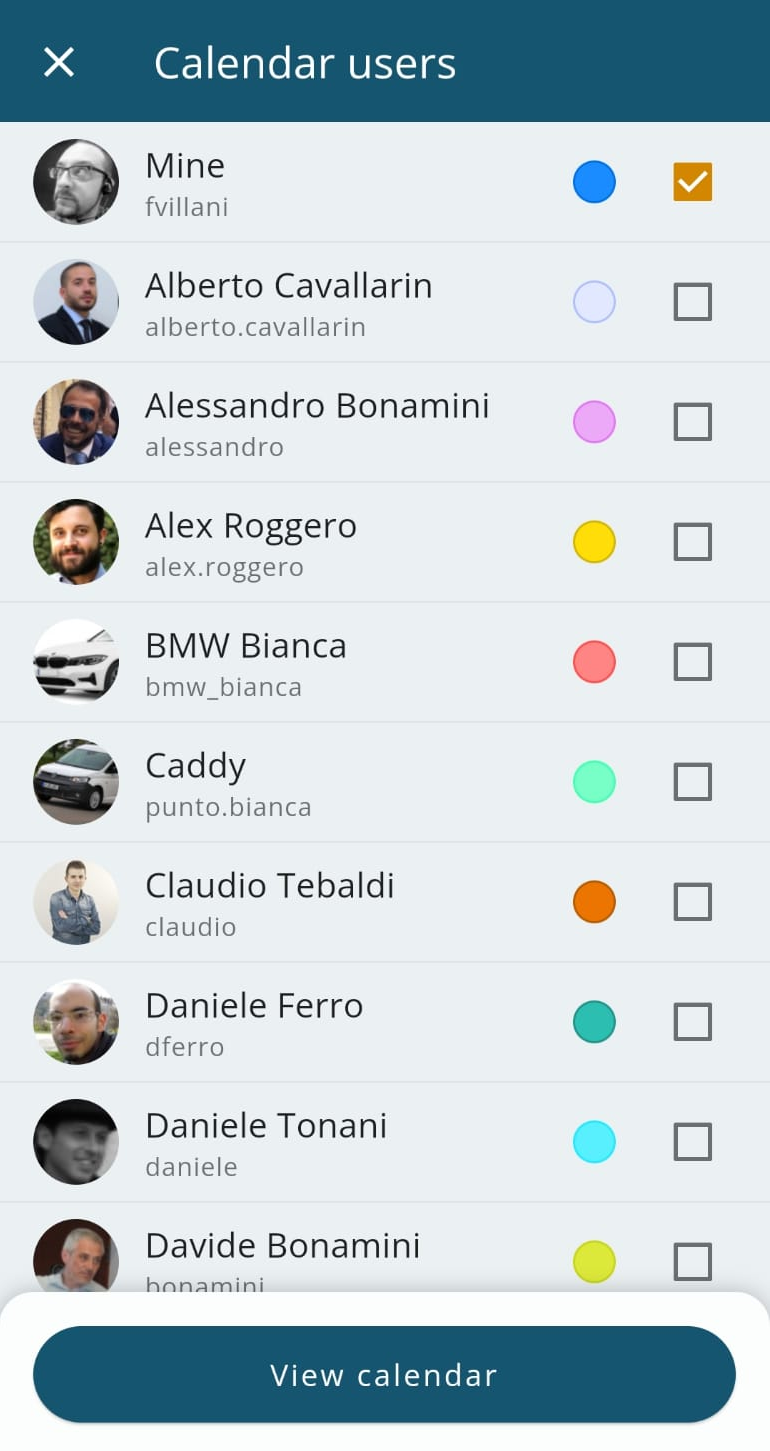
Clicking on the icon  opens the list of available users (who have shared the Calendar with us):
[](https://usermanual.vtenext.com/uploads/images/gallery/2022-07/image-1657542838683.png)
This is how the Calendar appears, opened by clicking this item in the menu. It shows all the appointments for the selected day and their temporal sequence during the day. You can change the view from “Day” to “Month” or view the details of a single task.
[![3.1 [2].PNG](https://usermanual.vtenext.com/uploads/images/gallery/2022-07/scaled-1680-/3-1-2.PNG)](https://usermanual.vtenext.com/uploads/images/gallery/2022-07/3-1-2.PNG)
*Day View*
[![3.1 [3].PNG](https://usermanual.vtenext.com/uploads/images/gallery/2022-07/scaled-1680-/3-1-3.PNG)](https://usermanual.vtenext.com/uploads/images/gallery/2022-07/3-1-3.PNG)
*Month View*