# 3.2 Messages

<span style="color: #444444;"><span lang="en-GB">The Messages module allows you to read e-mails using the vtenext App.</span></span><span style="color: #444444;"><span lang="en-GB"> As soon as the module is opened a screen is displayed like the following:</span></span>

[![WhatsApp Image 2023-12-11 at 12.54.23.jpeg](https://usermanual.vtenext.com/uploads/images/gallery/2023-12/scaled-1680-/whatsapp-image-2023-12-11-at-12-54-23.jpeg)](https://usermanual.vtenext.com/uploads/images/gallery/2023-12/whatsapp-image-2023-12-11-at-12-54-23.jpeg)

<span style="font-size: small;"><span style="color: #444444;"><span lang="en-GB">This view shows a </span></span><span style="color: #444444;"><span lang="en-GB">**list of all folders available** </span></span><span style="color: #444444;"><span lang="en-GB">for the predefined mailbox and, below,</span></span> <span style="color: #444444;"><span lang="en-GB">you can choose among the configured </span></span><span style="color: #444444;"><span lang="en-GB">**Mailboxes**</span></span><span style="color: #444444;"><span lang="en-GB">.</span></span></span>

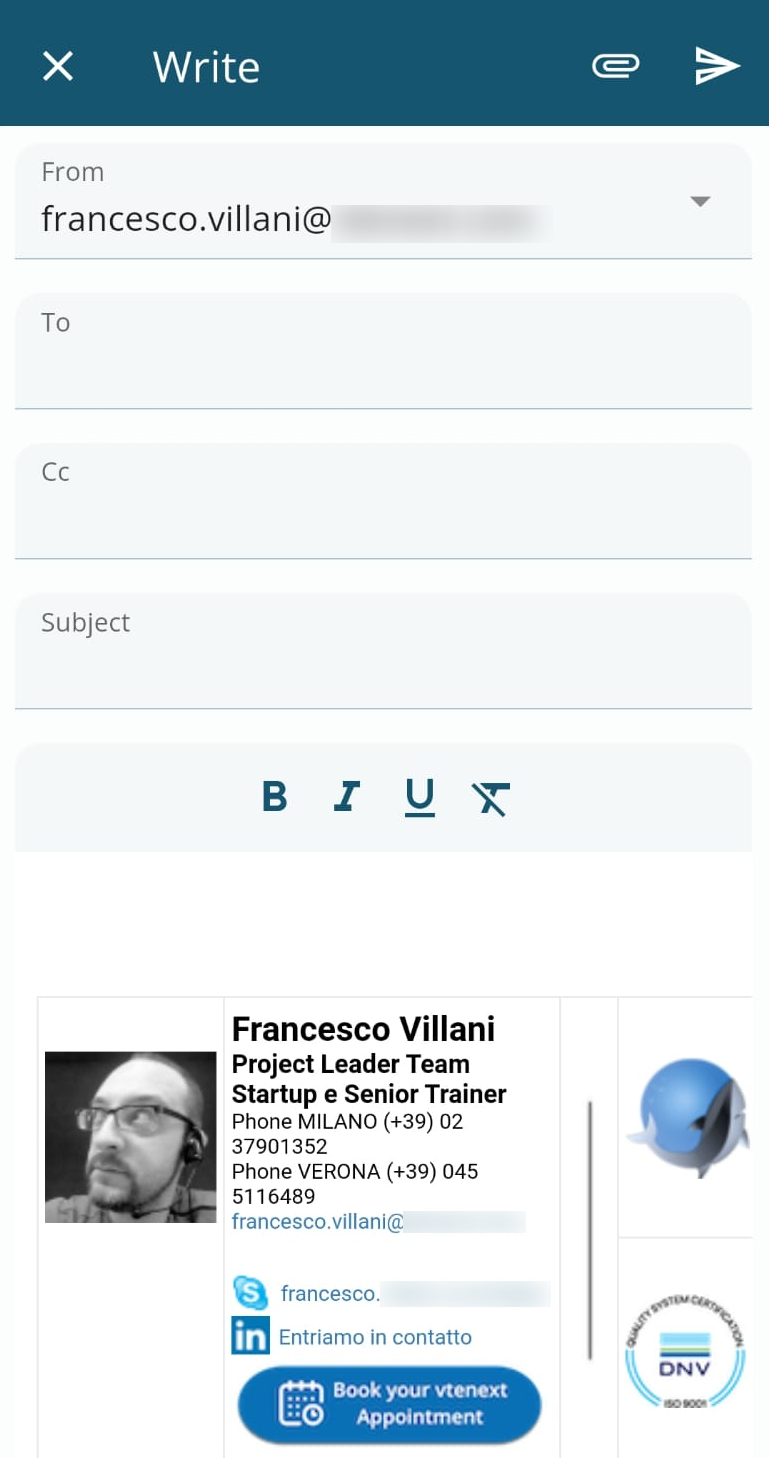
<span style="color: #444444;"><span lang="en-GB">Clicking the button </span></span>![image-1655718251904.png](https://usermanual.vtenext.com/uploads/images/gallery/2022-06/scaled-1680-/image-1655718251904.png) <span style="color: #444444;"><span lang="en-GB">opens a dialogue window for writing and sending a new e-mail.</span></span>

[![image-1657543486432.png](https://usermanual.vtenext.com/uploads/images/gallery/2022-07/scaled-1680-/image-1657543486432.png)](https://usermanual.vtenext.com/uploads/images/gallery/2022-07/image-1657543486432.png)

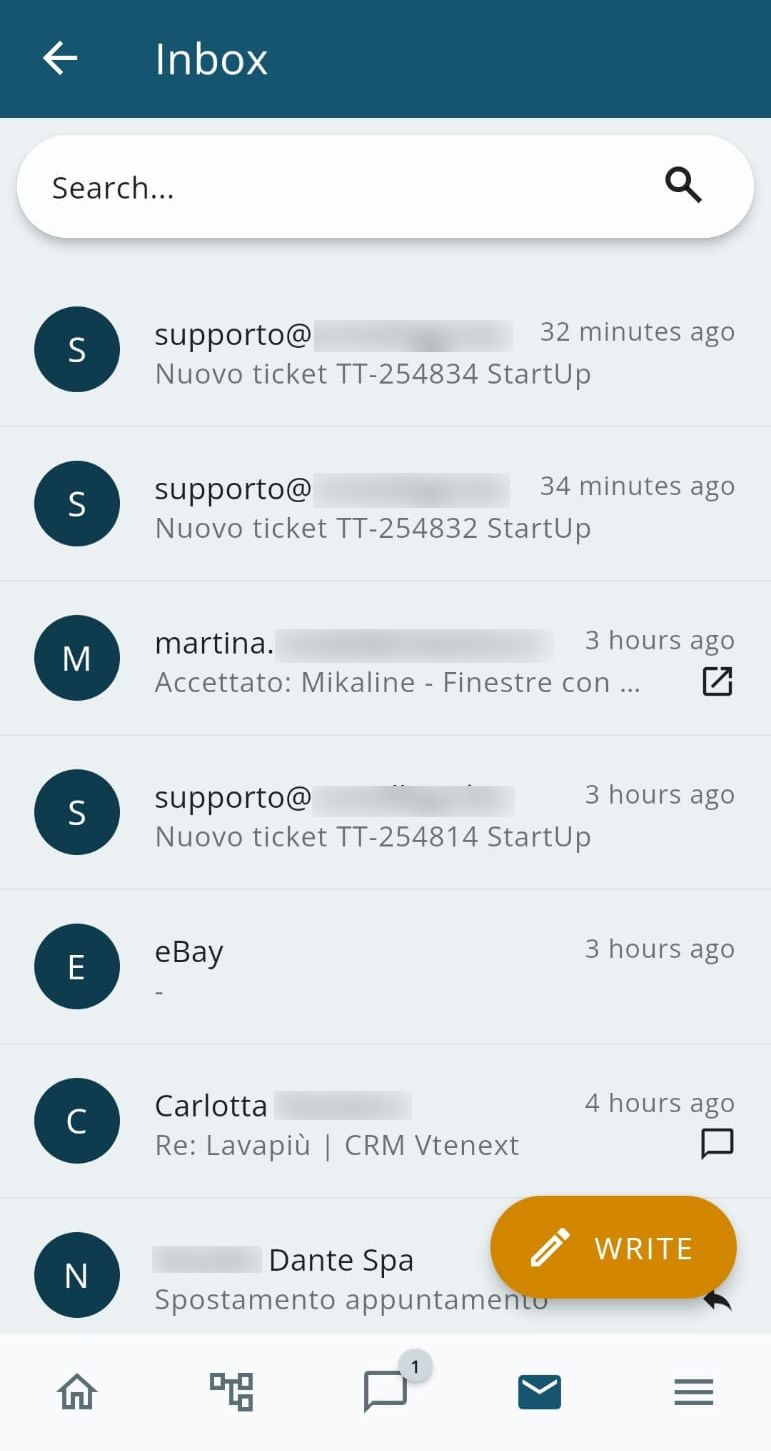
<span style="color: #444444;"><span lang="en-GB">Clicking on the </span></span><span style="color: #444444;"><span lang="en-GB">**Inbox**</span></span><span style="color: #444444;"><span lang="en-GB"> folder</span></span> <span style="color: #444444;"><span lang="en-GB">opens the following view with a list of all e-mails in arrival, both read and unread:</span></span>

[![image-1657543625527.png](https://usermanual.vtenext.com/uploads/images/gallery/2022-07/scaled-1680-/image-1657543625527.png)](https://usermanual.vtenext.com/uploads/images/gallery/2022-07/image-1657543625527.png)

In both the Inbox and other folders, you can search for emails by using the dedicated field in the header. It is also possible to enable the search in SUBFOLDERS or search ACROSS ALL ACCOUNTS by using the corresponding option button.

[![image.png](https://usermanual.vtenext.com/uploads/images/gallery/2024-12/scaled-1680-/Ge4image.png)](https://usermanual.vtenext.com/uploads/images/gallery/2024-12/Ge4image.png)

It is also possible to access the 'TO READ' folder to facilitate the use of emails even on mobile:

[![image-1702295984886.png](https://usermanual.vtenext.com/uploads/images/gallery/2023-12/scaled-1680-/image-1702295984886.png)](https://usermanual.vtenext.com/uploads/images/gallery/2023-12/image-1702295984886.png)
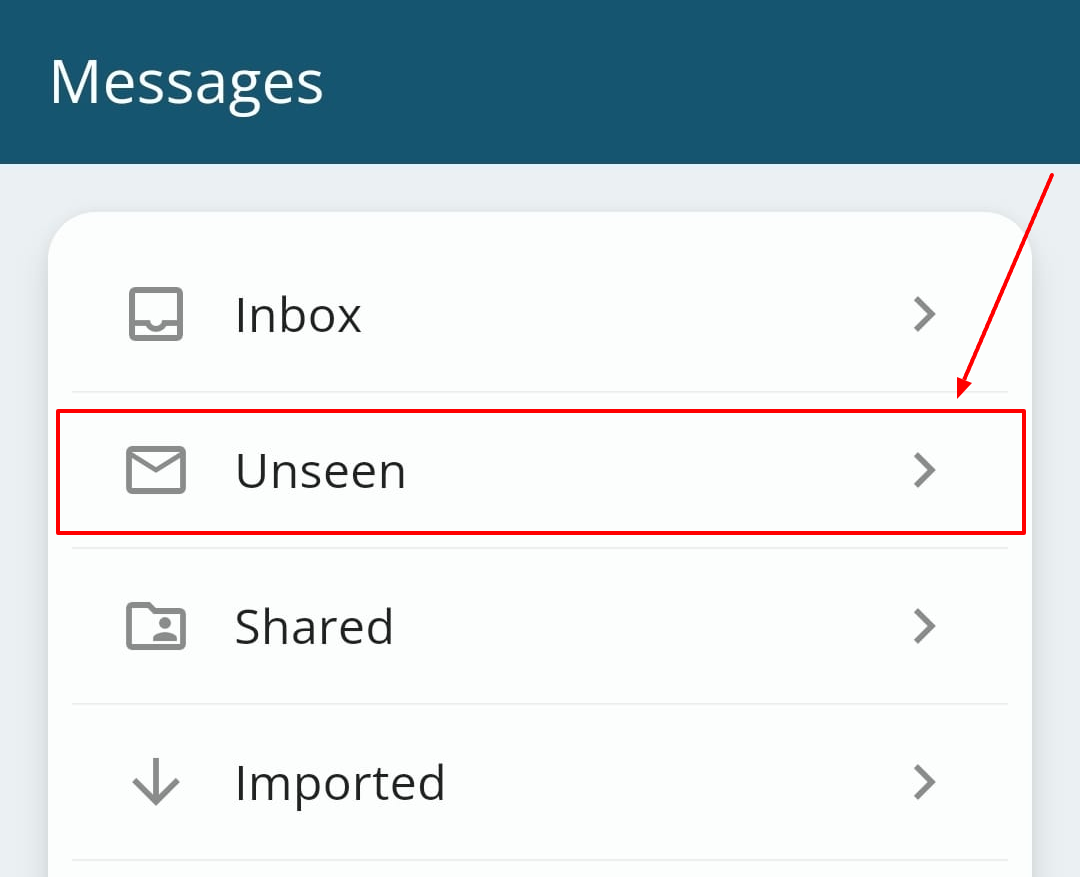
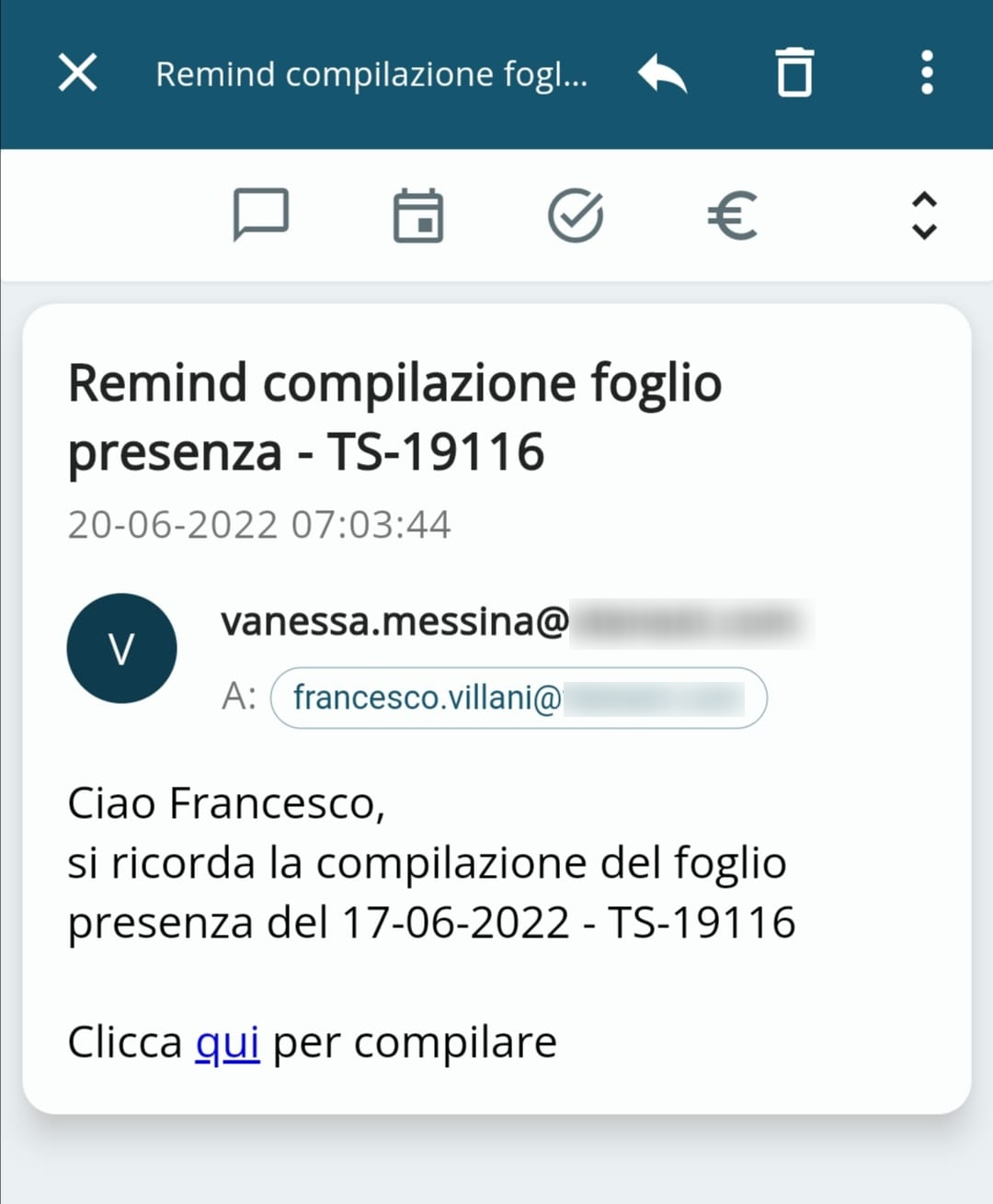
<span style="color: #444444;"><span lang="en-GB">Clicking on a specific incoming e-mail displays a screen like the following</span></span><span style="color: #444444;"><span lang="en-GB">:</span></span>

[![image-1655718664860.png](https://usermanual.vtenext.com/uploads/images/gallery/2022-06/scaled-1680-/image-1655718664860.png)](https://usermanual.vtenext.com/uploads/images/gallery/2022-06/image-1655718664860.png)

<span style="color: #444444;"><span lang="en-GB">Every e-mail can be associated with vtenext</span></span><span style="color: #444444;"><span lang="en-GB"> records </span></span><span style="color: #444444;"><span lang="en-GB">or can be the starting point for the creation of a new record. The available modules are displayed at the top of the e-mail message display, or by clicking on the icon </span></span>![2.1 [5].PNG](https://usermanual.vtenext.com/uploads/images/gallery/2022-06/scaled-1680-/2-1-5.PNG)