# 3.3 Leads

<span style="color: #444444;"><span lang="en-GB">The Leads</span></span><span style="color: #444444;"><span lang="en-GB"> module is displayed</span></span><span style="color: #444444;"><span lang="en-GB"> according to the filters available in the App, which are those defined in your user account via web.</span></span>

<span style="color: #444444;"><span lang="en-GB">It is therefore possible to choose how to display this list by clicking on the icon </span></span> ![2.1 [3].PNG](https://usermanual.vtenext.com/uploads/images/gallery/2022-06/scaled-1680-/2-1-3.PNG) <span style="color: #444444;"><span lang="en-GB">at the top right.</span></span>

[![3.3 [1].PNG](https://usermanual.vtenext.com/uploads/images/gallery/2022-07/scaled-1680-/3-3-1.PNG)](https://usermanual.vtenext.com/uploads/images/gallery/2022-07/3-3-1.PNG)  
<span style="font-size: small;"><span style="color: #444444;"><span lang="en-GB">*Filters available for the*</span></span> <span style="color: #444444;"><span lang="en-GB">*Leads module*</span></span></span>

[![3.3 [2].PNG](https://usermanual.vtenext.com/uploads/images/gallery/2022-07/scaled-1680-/3-3-2.PNG)](https://usermanual.vtenext.com/uploads/images/gallery/2022-07/3-3-2.PNG)  
<span style="font-size: small;"><span style="color: #444444;"><span lang="en-GB">*List of Leads*</span></span></span>

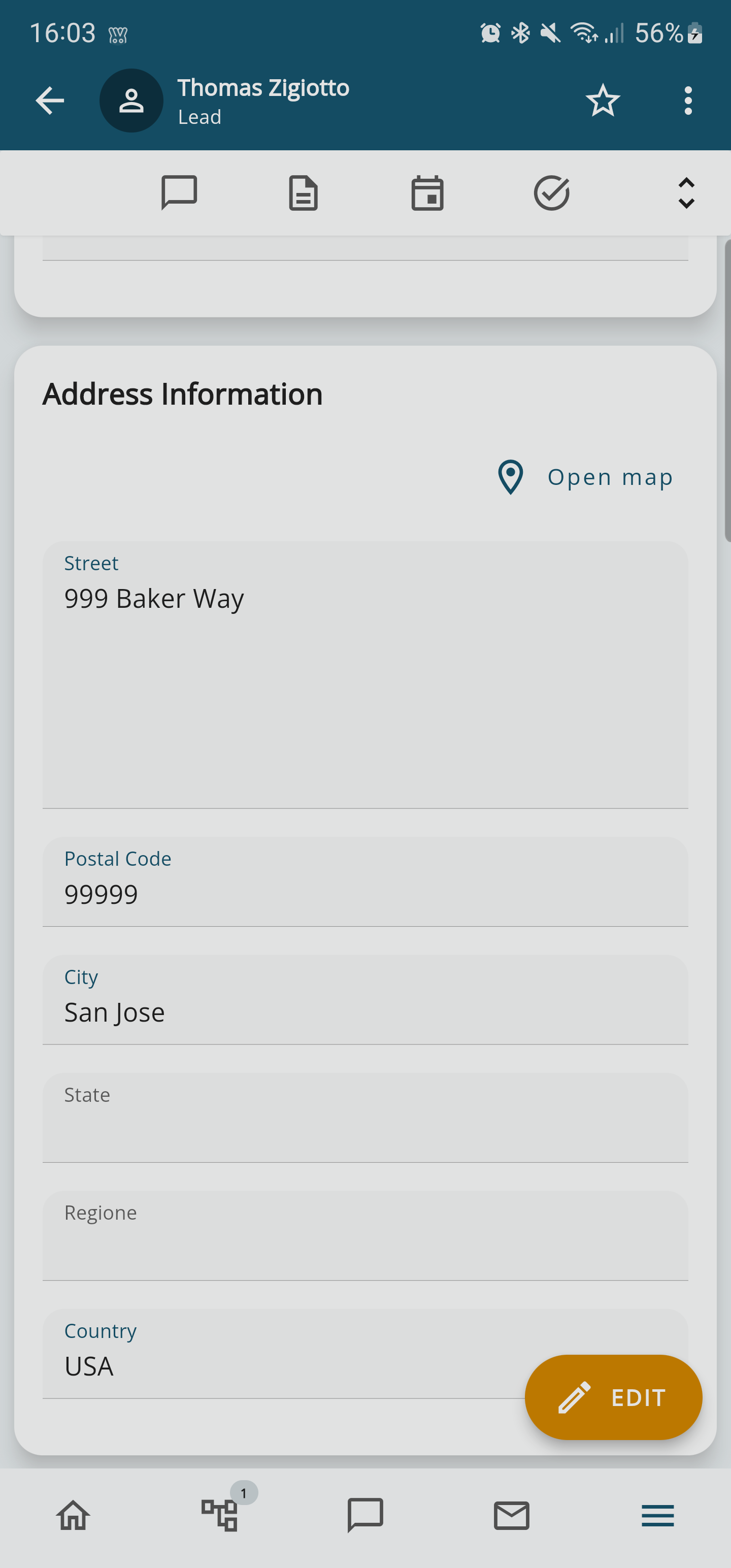
<span style="color: #444444;"><span lang="en-GB">This is how a Lead page is displayed once saved or when searched for within Wilson</span></span> <span style="color: #444444;"><span lang="en-GB">fo VTENEXT.</span></span>

[![3.png](https://usermanual.vtenext.com/uploads/images/gallery/2023-08/scaled-1680-/3.png)](https://usermanual.vtenext.com/uploads/images/gallery/2023-08/3.png)

*There's a '**Open Map**' button that allows you to open Google Maps and locate the Lead*

[![4.png](https://usermanual.vtenext.com/uploads/images/gallery/2023-08/scaled-1680-/4.png)](https://usermanual.vtenext.com/uploads/images/gallery/2023-08/4.png)
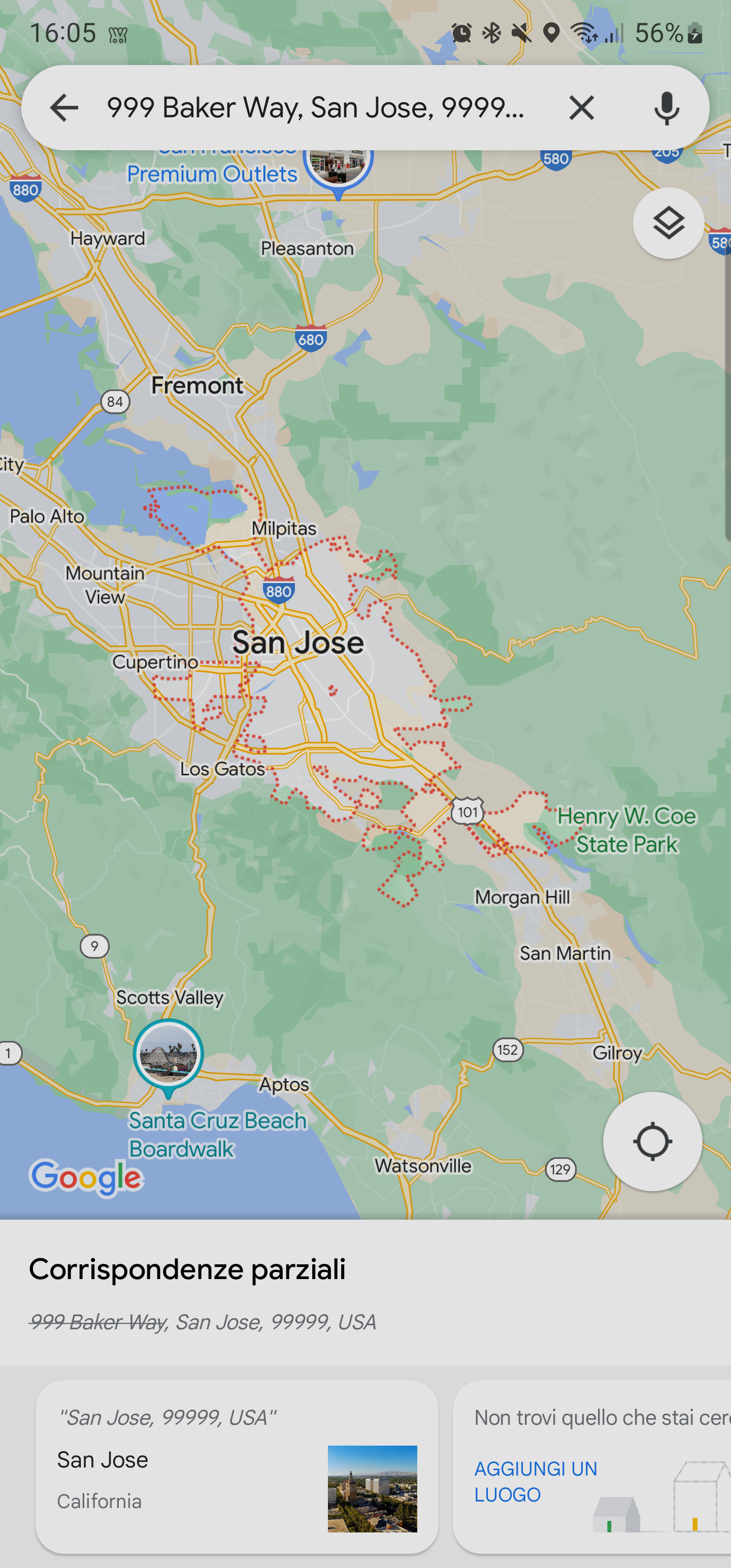
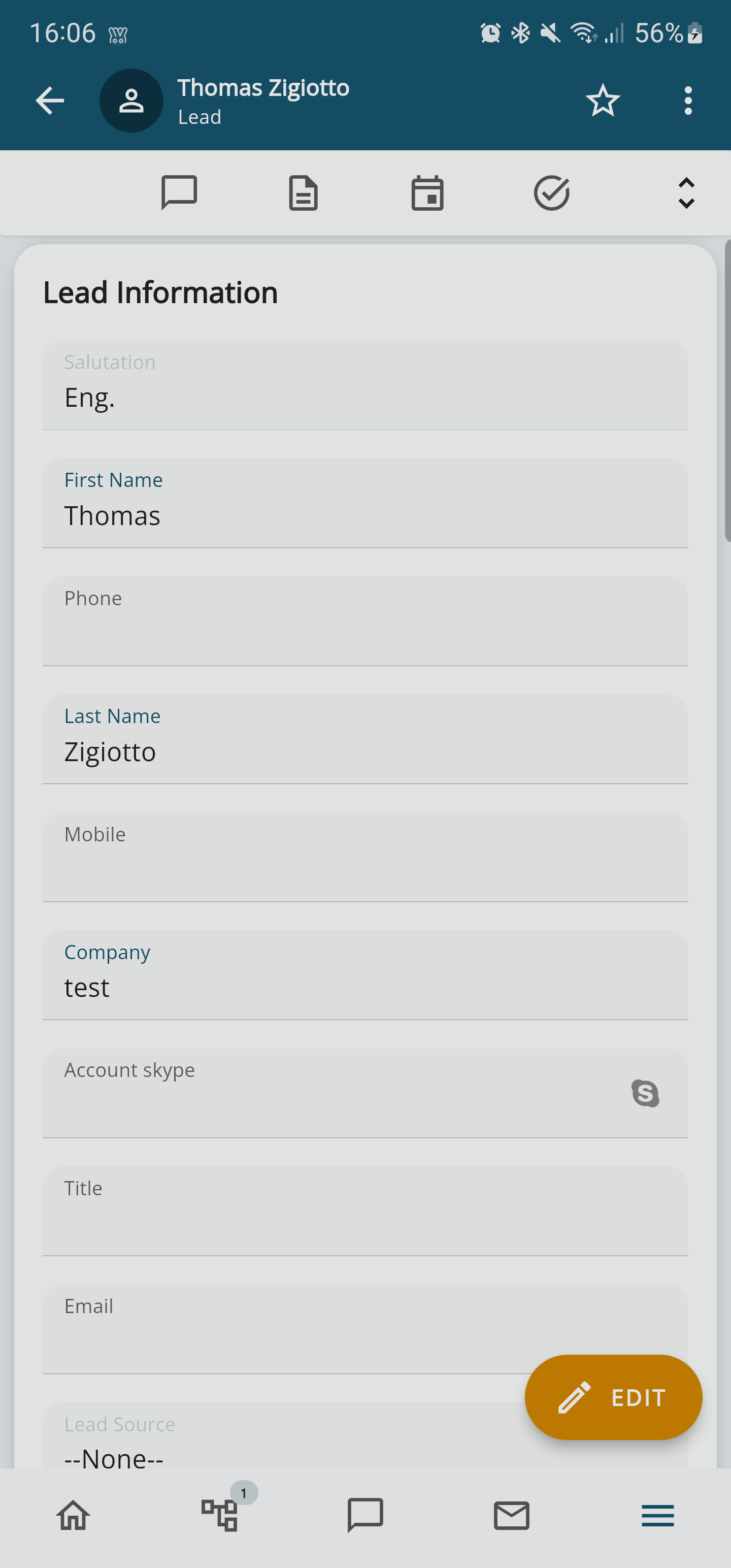
Here is how the lead detail page looks once you have saved or searched for it within VTECRM Mobile:

[![5.png](https://usermanual.vtenext.com/uploads/images/gallery/2023-08/scaled-1680-/5.png)](https://usermanual.vtenext.com/uploads/images/gallery/2023-08/5.png)
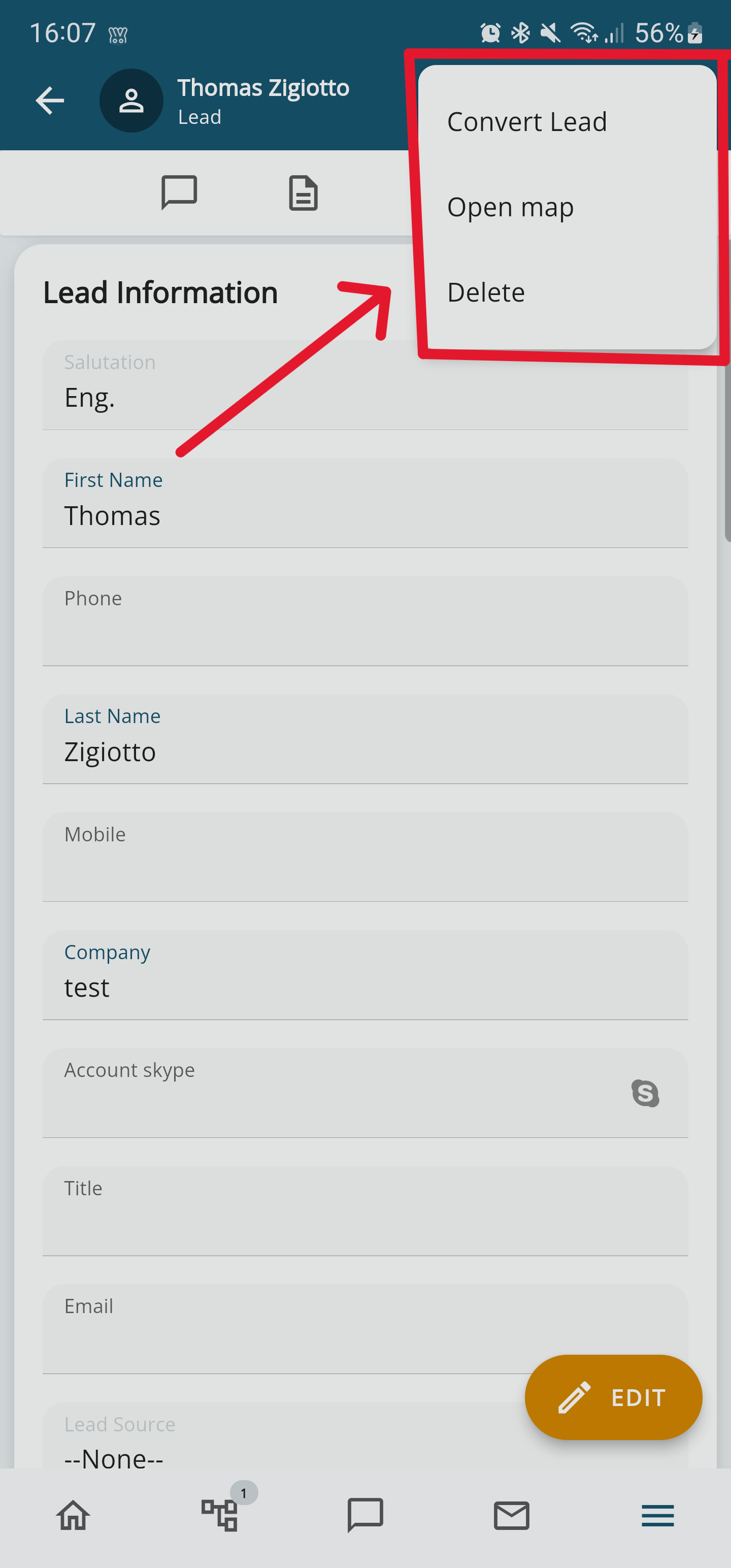
From the Leads module in the Wilson app, you can also perform conversion. Just click on the three dots at the top right, which are present in the details of the relevant record. A popup will appear with the option to **CONVERT LEAD**.

[![6.png](https://usermanual.vtenext.com/uploads/images/gallery/2023-08/scaled-1680-/6.png)](https://usermanual.vtenext.com/uploads/images/gallery/2023-08/6.png)
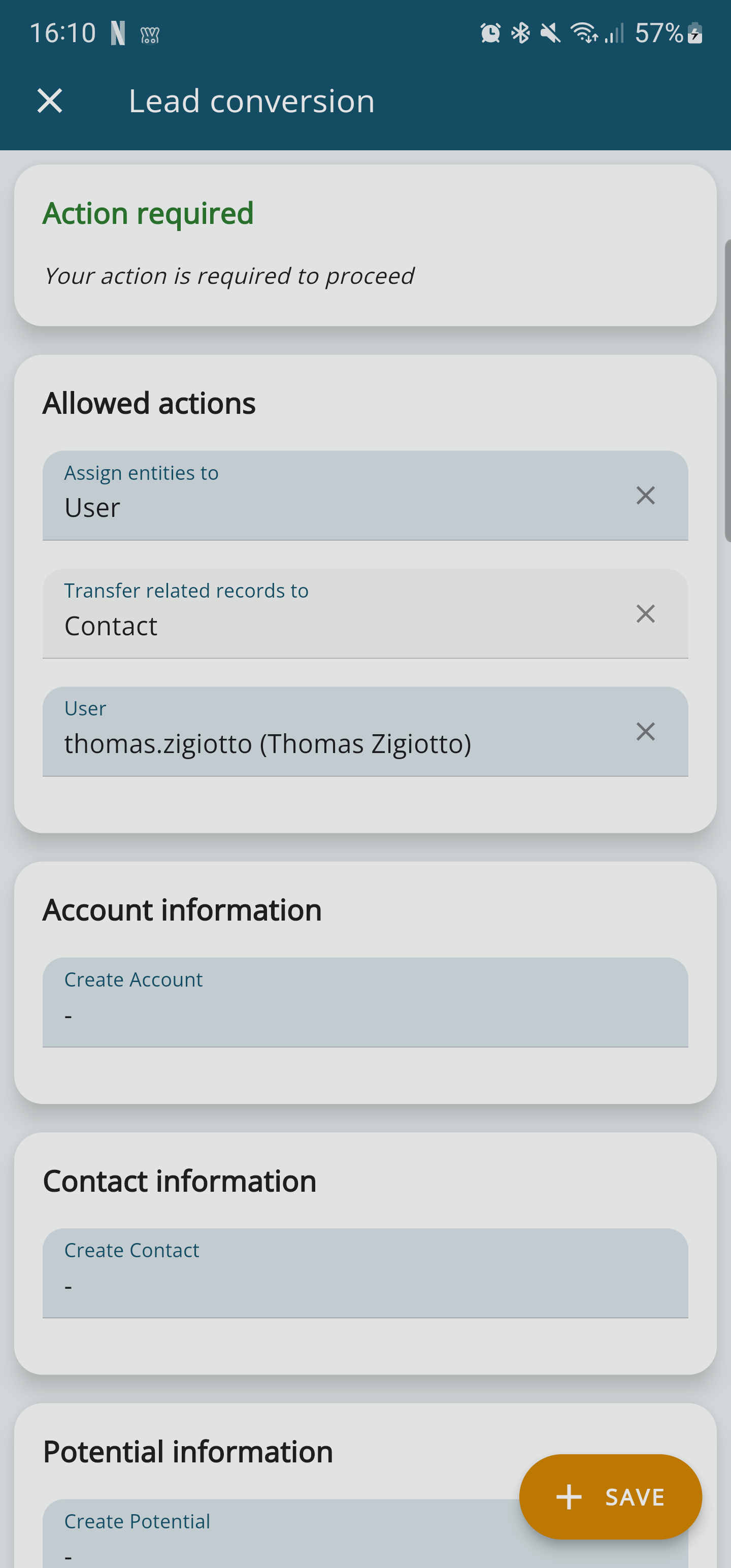
Once you click on **CONVERT LEAD**, the conversion page opens directly, giving you the option to choose what to convert the Lead into (Company - existing or new - Contact and/or Opportunity) and which fields to fill out.

[![7.png](https://usermanual.vtenext.com/uploads/images/gallery/2023-08/scaled-1680-/7.png)](https://usermanual.vtenext.com/uploads/images/gallery/2023-08/7.png)
<span style="color: #444444;"><span lang="en-GB">Logically, clicking on the icon</span></span>![2.1 [5].PNG](https://usermanual.vtenext.com/uploads/images/gallery/2022-06/scaled-1680-/2-1-5.PNG),<span style="color: #444444;"><span lang="en-GB">shows all the relations in the present record, and</span></span> <span style="color: #444444;"><span lang="en-GB">clicking on them opens the connected records.</span></span> <span style="color: #444444;"><span lang="en-GB">All the record details are shown in the center of the display.</span></span>

[![3.3 [4].PNG](https://usermanual.vtenext.com/uploads/images/gallery/2022-07/scaled-1680-/3-3-4.PNG)](https://usermanual.vtenext.com/uploads/images/gallery/2022-07/3-3-4.PNG)

<table border="1" id="bkmrk-schema-di-organizzaz" style="width: 100%; border-collapse: collapse;"><tbody><tr><td class="align-center" colspan="3" style="width: 33.3333%;">**Organizational layout of the modules related to Leads**</td></tr><tr><td class="align-center" style="width: 33.3333%;">Conversations</td><td class="align-center" style="width: 33.3333%;"><span style="font-family: -apple-system, BlinkMacSystemFont, 'Segoe UI', Oxygen, Ubuntu, Roboto, Cantarell, 'Fira Sans', 'Droid Sans', 'Helvetica Neue', sans-serif; font-size: 14px; font-style: normal; font-variant-ligatures: normal; font-variant-caps: normal; font-weight: 400;">Notes</span></td><td class="align-center" style="width: 33.3333%;">PDF Maker</td></tr><tr><td class="align-center" style="width: 33.3333%;">Activities (Calendar)</td><td class="align-center" style="width: 33.3333%;">Tasks (Calendar)</td><td class="align-center" style="width: 33.3333%;"><span style="font-family: -apple-system, BlinkMacSystemFont, 'Segoe UI', Oxygen, Ubuntu, Roboto, Cantarell, 'Fira Sans', 'Droid Sans', 'Helvetica Neue', sans-serif; font-size: 14px; font-style: normal; font-variant-ligatures: normal; font-variant-caps: normal; font-weight: 400;">Documents</span></td></tr><tr><td class="align-center" style="width: 33.3333%;">Products</td><td class="align-center" style="width: 33.3333%;">Services</td><td class="align-center" style="width: 33.3333%;"><span style="font-family: -apple-system, BlinkMacSystemFont, 'Segoe UI', Oxygen, Ubuntu, Roboto, Cantarell, 'Fira Sans', 'Droid Sans', 'Helvetica Neue', sans-serif; font-size: 14px; font-style: normal; font-variant-ligatures: normal; font-variant-caps: normal; font-weight: 400;">Messages</span></td></tr><tr><td class="align-center" style="width: 33.3333%;">Visit Reports</td><td class="align-center" style="width: 33.3333%;"><span style="font-family: -apple-system, BlinkMacSystemFont, 'Segoe UI', Oxygen, Ubuntu, Roboto, Cantarell, 'Fira Sans', 'Droid Sans', 'Helvetica Neue', sans-serif; font-size: 14px; font-style: normal; font-variant-ligatures: normal; font-variant-caps: normal; font-weight: 400;">Trouble Tickets</span></td><td class="align-center" style="width: 33.3333%;"><span style="font-family: -apple-system, BlinkMacSystemFont, 'Segoe UI', Oxygen, Ubuntu, Roboto, Cantarell, 'Fira Sans', 'Droid Sans', 'Helvetica Neue', sans-serif; font-size: 14px; font-style: normal; font-variant-ligatures: normal; font-variant-caps: normal; font-weight: 400;">Processes</span></td></tr></tbody></table>