
10.1 Insights into Using Table Fields in Processes
In order to be able to exploit its content within the processes, the system provides (in the "Select option" picklist) a dedicated section for each table field involved in the modules or dynamic forms associated with the process (Figure 1)
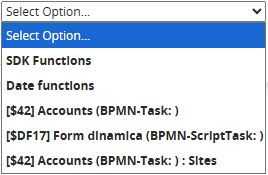
Figure 1
By clicking on a specific section, the system allows you to quickly select one of the columns present in the table field being examined (Figure 2)
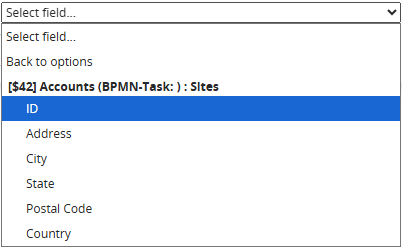
Figure 2
NOTE: the system automatically performs a filter based on the starting field from which you are consulting the "Select options" picklist, consequently it will only show the columns of the table field whose typology can be accepted by the starting field.
If, for example, inside the "Member of" field of the Company module you wanted to insert the content of the text type column "Address", the system will not make this column available, this is because it will only allow you to select the columns of the table field of the "Related to" type.
If there are no columns of this type, the system will not make the entire section of the table field available (Figure 3)3
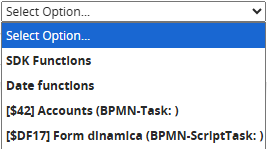
Figure 3
Alternatively, you can access the table field columns by selecting the section for the form where the table field is located and scrolling through the various available fields (Figure 4 and 5)
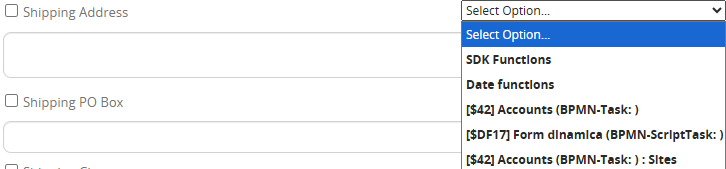
Figure 4
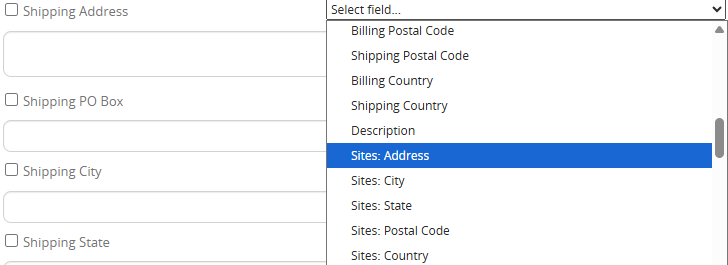
Figure 5
Once the column of the table field of interest has been selected, an additional picklist will be presented to the right of the "Select options" field, from which it will be possible to select one of the available items (Figure 6)
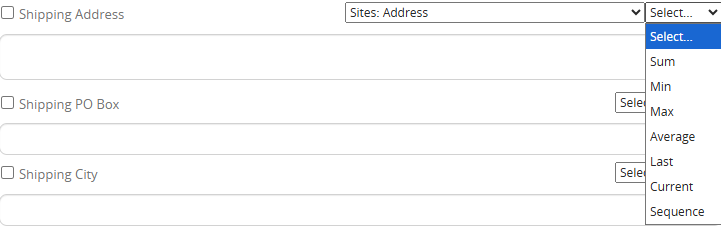
Figure 6
- "Sum"-> only for columns of the type Number, Currency and Percentage, allows you to obtain the sum of all the rows present in the table field concerned.
NOTE: this item will still be available for the other types of columns but, logically, will not produce any results.
- "Minimum"-> only for columns of the type Number, Currency and Percentage, allows you to obtain the lowest value among all the rows present in the table field concerned.
NOTE: this item will still be available for the other types of columns but, logically, will not produce any results.
-"Maximum"-> only for columns of the Number, Currency and Percentage type, allows you to obtain the highest value among all the rows in the table field concerned.
NOTE: this item will still be available for other column types but, logically, it will not produce any results.
-"Average"-> only for columns of the Number, Currency and Percentage type, allows you to obtain the average value among all the rows in the table field concerned.
NOTE: this item will still be available for other column types but, logically, it will not produce any results.
-"Last"-> allows you to obtain the value of the last row in the table field concerned.
-"Sequence"-> allows you to obtain the value of a specific row (if present) of the table field.
To indicate the exact number of the row, you will have to fill in the field that will be presented on the right and finally click on the dedicated button (Figure 7)

Figure 7
In the case where we want to take into consideration only a part of the rows present in the table field, we will necessarily have to use a row cycle action (for more information on how it works, see chapter 10.2 of the process manual)
This is because, if we do not perform a cycle on the table field, the system will always take into consideration ALL the rows present in the table field.
In fact, within a row cycle action, it will be possible to indicate conditions that will allow only the rows that satisfy them to be involved.
These conditions must be indicated in the "Field Conditions" section (Figure 8)

Figure 8
To use only the columns of the rows that are being cycled and that respect the conditions set, within the "Select" picklist available to the right of the "Select options" field it will be possible to select an additional item called "Current" (Figure 9)
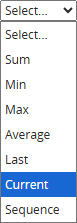
Figure 9
To better understand how it works, below is an example of a row cycling action on the "Locations" table field of the Company module (Figure 10) from which we want to create a record of the "Locations" custom module for each row having the value "IT" in the State column.

Figure 10
Inside the process we configure a cycle rows action and for each row it creates entities of the custom module "Locations" (Figure 11)

Figure 11
In the "Field Conditions" section we enter State = "IT" while in the "Module" section we select the "Location" item (Figure 12)
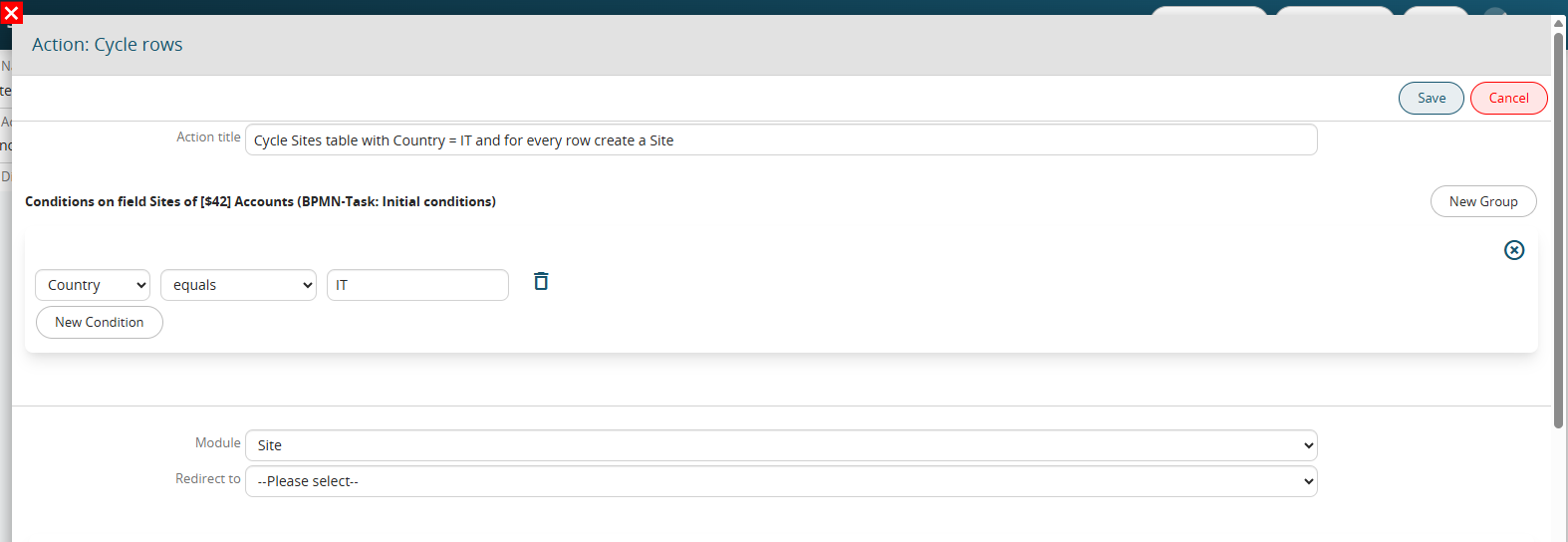
Figure 12
In the fields relating to the address of the Headquarters module, we insert the contents of the various columns, always selecting the "Current" item from the "Select" picklist available to the right of the "Select options" field (Figure 13)

Figure 13
Resuming Figure 10, as a final result we will obtain the creation of two total records of the Locations module, the first record corresponding to the first row and the second record corresponding to the third row.