
10.2 Partial sum of the rows of a table field involved in a loop
As anticipated in chapter 10.1, to perform the partial sum of the rows of a table field involved in a cycle, it is not possible to use the "Sum" item, since the system will always take into account ALL the rows present within the table field.
In fact, the "Sum" item is a variable available even if a cycle is not performed.
Its existence is aimed at easily obtaining the sum of all the rows of a table field without necessarily having to configure a row cycle action.
So, to get the desired result, you will have to configure a row cycle action and for each row "Update entity", in this way we will save the total inside a field of a module or a dynamic form (from version 24.08 onwards).
Once you have inserted the condition in the "Field conditions" section to involve only the interested rows in the cycle, in the entity update action you will have to use the SDK fieldAction Standard function "vte_sum()" (for more information see chapter 12.1) to add (at each cycle) the value of the current row to the content that is already present in the field in which you are saving the result.
ATTENTION! -> in the case in which you configure a process that is triggered recurringly, to get the correct result you must set an entity update action that empties the content of the field in which you want to save the result.
EXAMPLE OF USE
To better understand how it works, below is an example of a row cycling action on the "Participants" table field (Figure 1) of the Leads module from which we want to calculate the sum of the "Number" column only of the rows having the value "Reseller" in the "Type" column and save the result in the "Total Resellers" field (Figure 2)

Figura 1
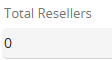
Figure 2
Inside the process we configure a cycle action rows and for each row update entities of the "Leads" module (Figure 3 and 4)

Figure 3
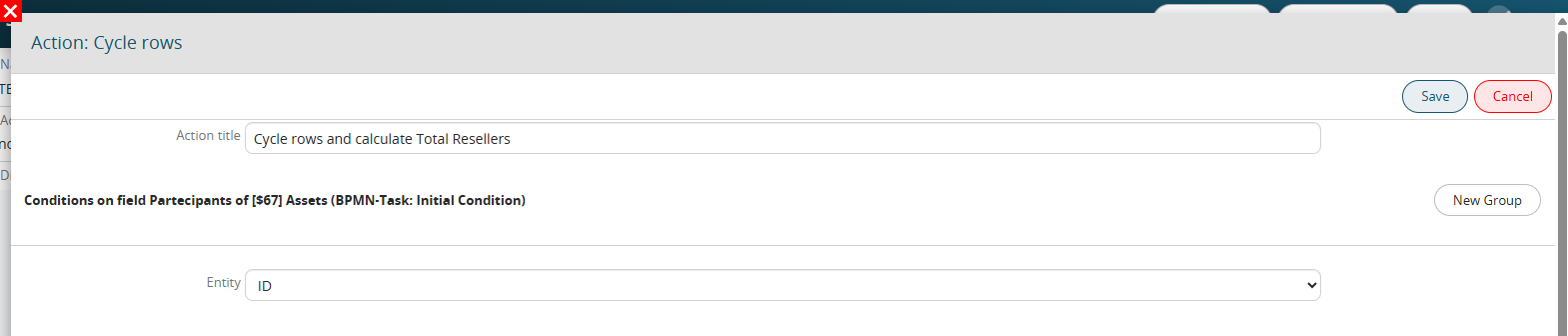
Figure 4
In the "Field Conditions" section, we enter "Type" = "Reseller" (Figure 5)

Figure 5
Inside the "Total Resellers" field we call up the interested SDK function through the "Option Selection" picklist and accessing the "SDK Functions" section (Figure 6)

Figure 6
As the first parameter we insert the variable that identifies the content of the "Total Resellers" field (Figure 7)
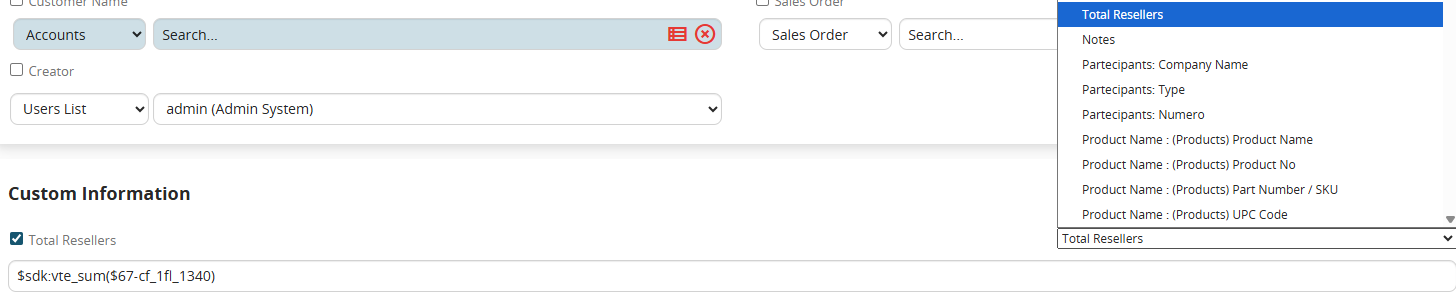
Figure 7
As a second parameter we insert the variable that identifies the current value of the "Number" column of the rows of the table field involved in the cycle (Figure 8)

Figure 8
Resuming Figures 1 and 2, as a final result we will obtain the sum of the "Number" column of the first and third row of the table field, which in our case corresponds to the value 8 (Figure 9)
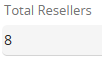
Figure 9