
1.5 Process Manager Section: General Description and List of Features
GENERAL DESCRIPTION
This section allows you to modify, create, import, and export BPMN processes.
It is composed of the following columns:
-
Name → represents the name of the process
-
Description → represents the description of the process
-
Sub-processes → indicates the list of any sub-processes linked to the current process
-
CRM Module → indicates the name of the main CRM module involved in the process, which forms the basis for the initial (starting) conditions of the process
-
Active → indicates whether the process is active (yes) or inactive (no)
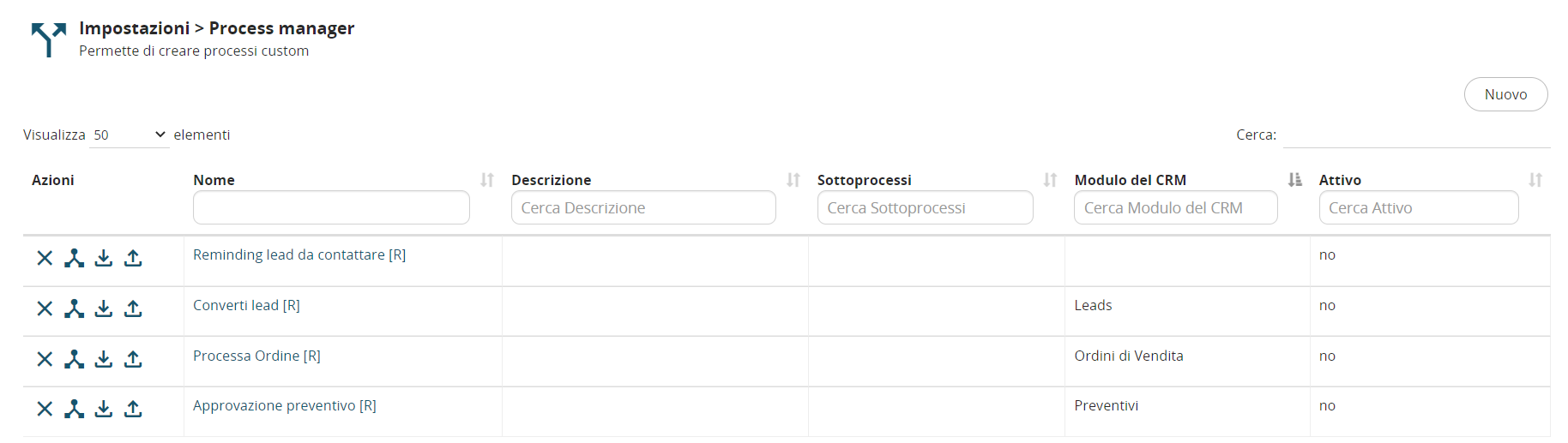
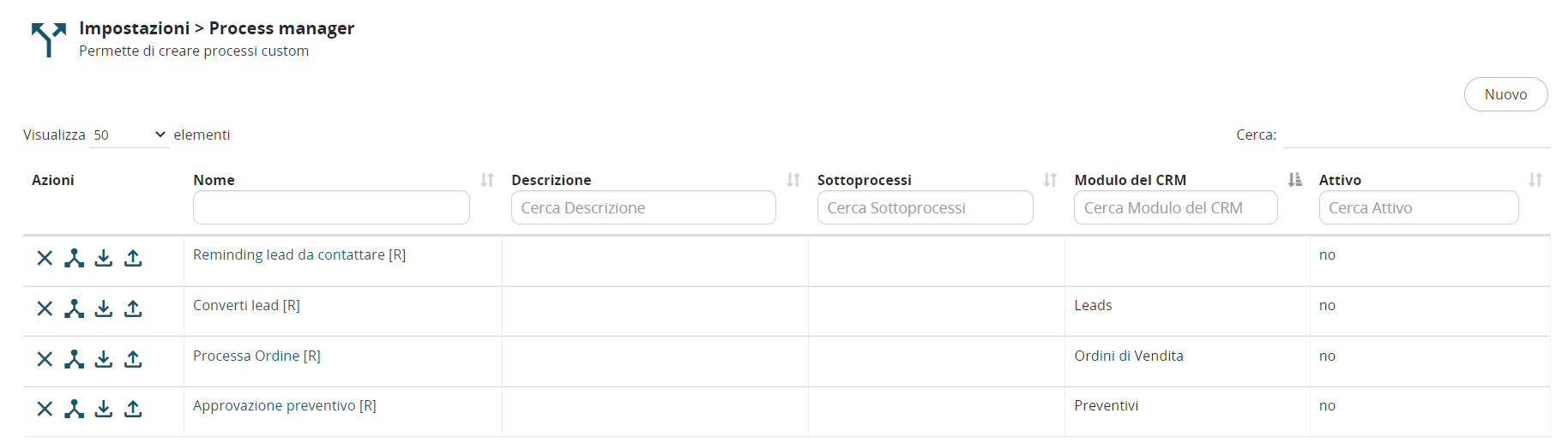
Accessing the Process Manager Section with the “Next” Theme
To access the Process Manager section with the “Next” theme enabled, follow these steps:
1) Click on the profile icon, then select “Settings”

2) In the left-hand menu, click on the “Business Process Manager” section, then select “Process Manager”

LIST OF FEATURES
Below is the list of main features:
Delete process
Export BPMN process
Export VTE BPMN process
Import VTE BPMN into an existing process
Create process
Import a new process from scratch
Delete Process
By clicking the button shown in the image, you can delete the selected process.

Export BPMN Process
By clicking the button shown in the image, you can export only the graphical structure of the process, excluding its configuration.

Export VTE BPMN Process
By clicking the button shown in the image, you can export the entire process (structure + configuration).

Import VTE BPMN into an Existing Process
By clicking the button shown in the image, you can import a new version of the selected process.

Create Process
To create a process, follow these steps:
1) Go to the Process Manager section (see the paragraph “Accessing the Process Manager Section with the Next Theme” or “Accessing the Process Manager Section with the Next22 Theme,” depending on the theme in use)
2) Click the NEW button located at the top right
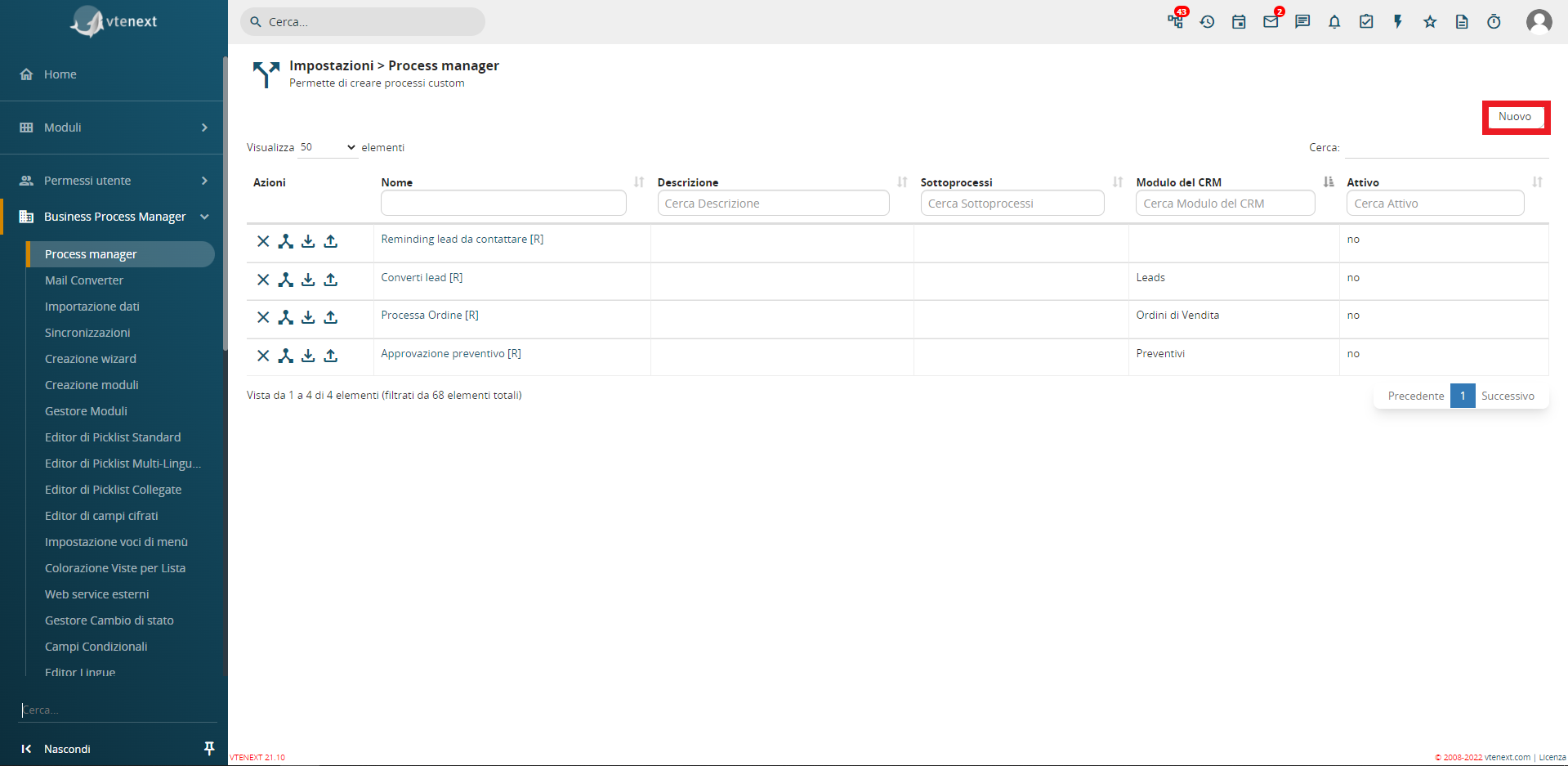
3) Enter a name, an optional description, and then click on “CREATE NEW”

Import a New Process from Scratch
To import existing processes, after navigating to the “Process Manager” section, follow these steps:
1) Click the NEW button located at the top right
2) Enter a name, an optional description, and then click on “Import”
