
12.14 SDK Action: Add comment to ticket
This SDK function allows you to generate a comment that will be inserted in the "Comments" section of the Customer Support module.
As the first parameter, you will need to pass the crmid of the ticket on which you want to add the comment.
As the second parameter, you will need to pass the text of the comment to be inserted.
As the third parameter, you will need to enter the id of the user or contact who will be the author of the comment.
If, as the third parameter, you pass the id of a crm user, as the fourth parameter you will need to pass the fixed item "user".
Instead, if, as the third parameter, you pass the id of a record of the Contacts module, as the fourth parameter you will need to pass the fixed item "customer".
As the fifth parameter, the fixed value "true" must be passed if you also want to send the automatic notification email containing the comment text and a direct link to quickly access the ticket details (as already happens by default to portal users when a CRM user writes a comment).
Otherwise, the fixed value "false" must be passed.
EXAMPLE OF USE
To better understand how it works, below is an example of using the SDK function Add comment to ticket() to automatically insert a comment containing the following text:
"Dear customer, we will take charge of your request as soon as possible."
Inside an Action Task we proceed with the configuration of an action of the "SDK Functions" type in which we call the SDK Add comment to ticket().
As the first parameter we pass the crmid of the ticket on which we want to add the comment, in our case $44-crmid (Figure 1)
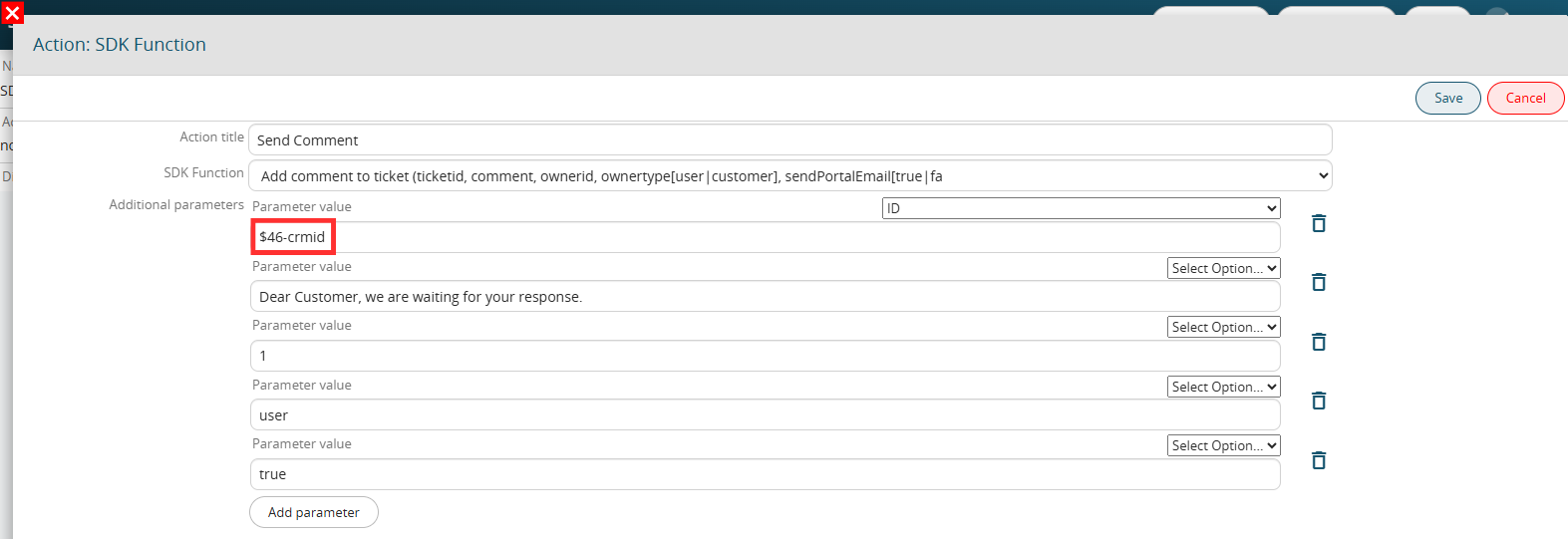
Figure 1 (click on the image for a higher graphic resolution)
As a second parameter we pass the text of the comment to be inserted, that is "Dear customer, we will take charge of your request as soon as possible." (Figure 2)
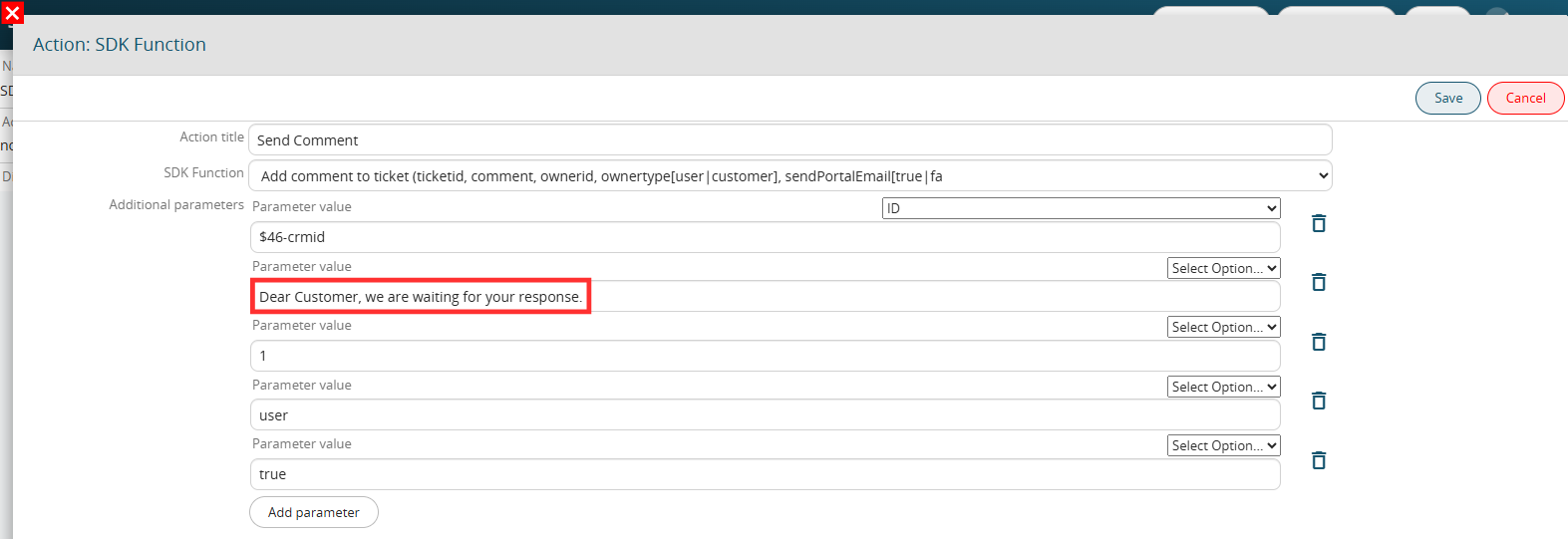
Figure 2 (click on the image for a higher graphic resolution)
As a third parameter we pass the fixed userid of the administrator user, in this way he will always appear as the author of the comment (Figure 3)
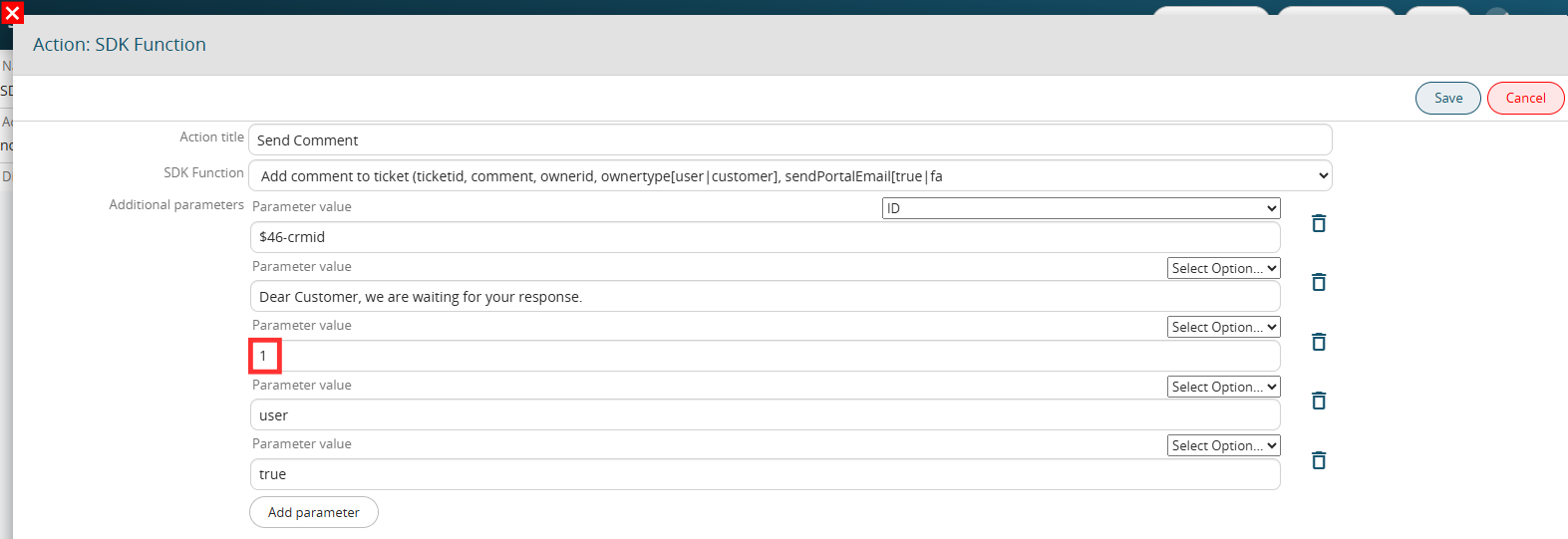
Figure 3 (click on the image for a higher graphic resolution)
As a fourth parameter we pass the fixed value "user" (Figure 4)
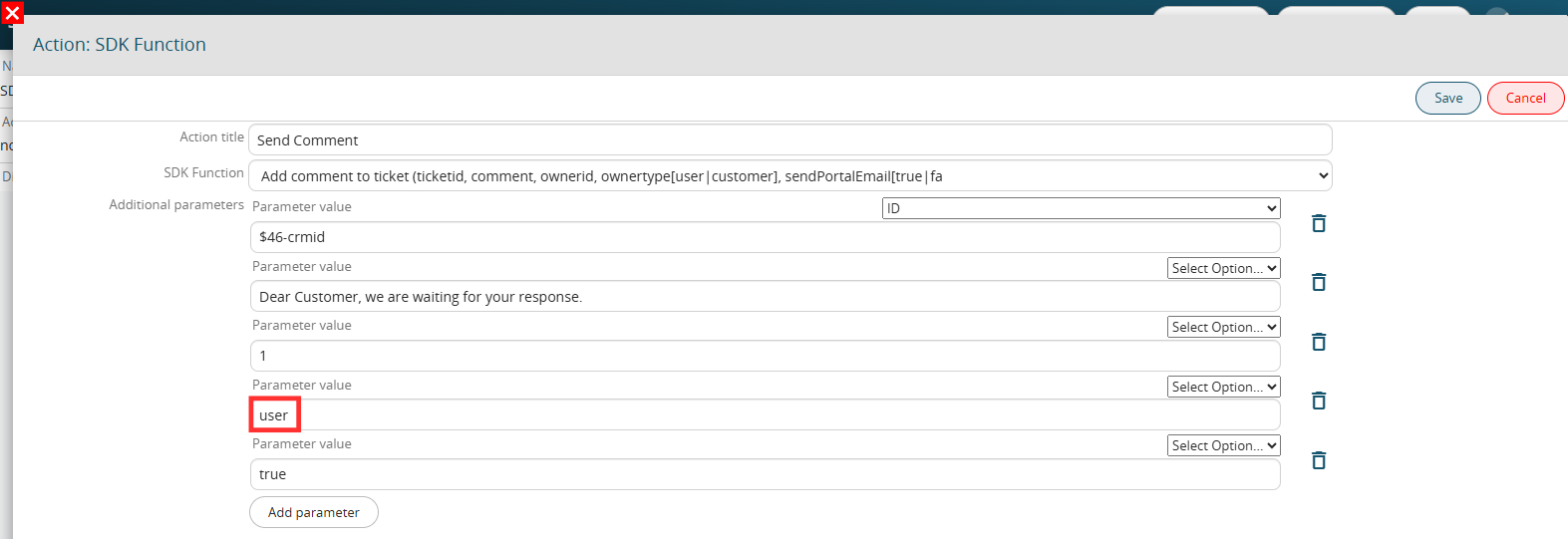
Figure 4 (click on the image for a higher graphic resolution)
As a fifth parameter we pass the fixed value "true" to send the automatic alert email to the contact with active portal user connected to the ticket (Figure 5)
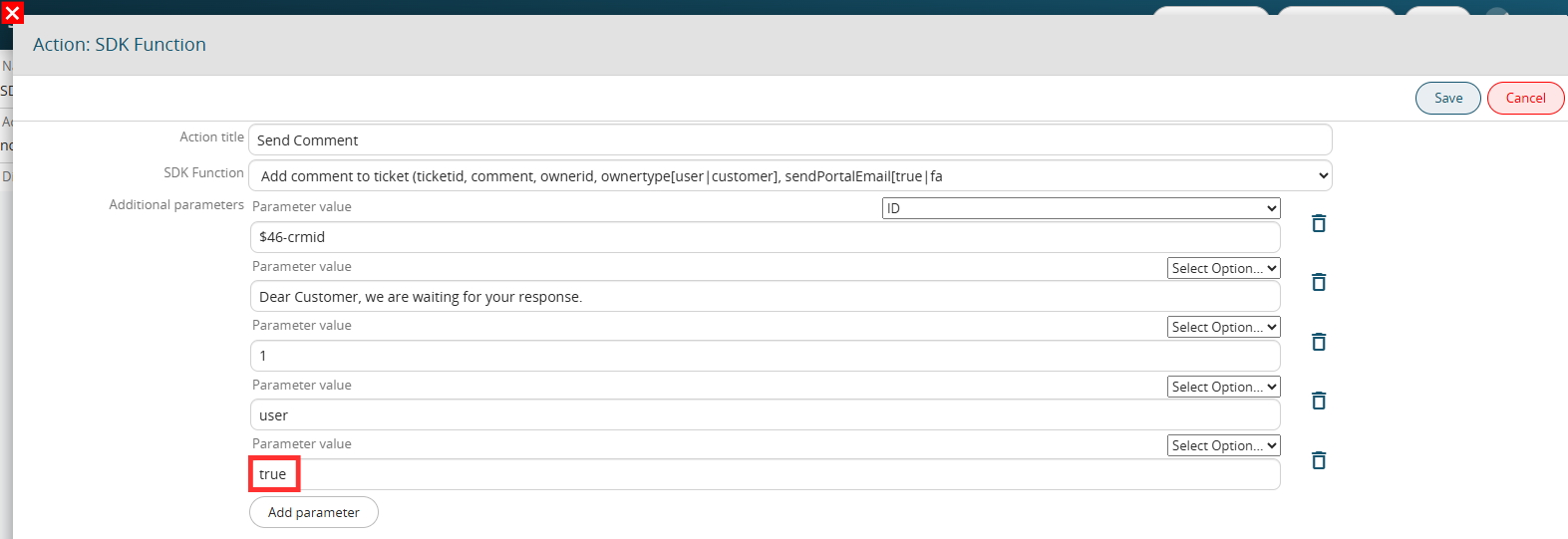
Figure 5 (click on the image for a higher graphic resolution)
The final result will be as shown in Figure 6

Figure 6 (click on the image for a higher graphic resolution)
The automatic email sent to the contact with active portal user linked to the ticket will be as shown in Figure 7
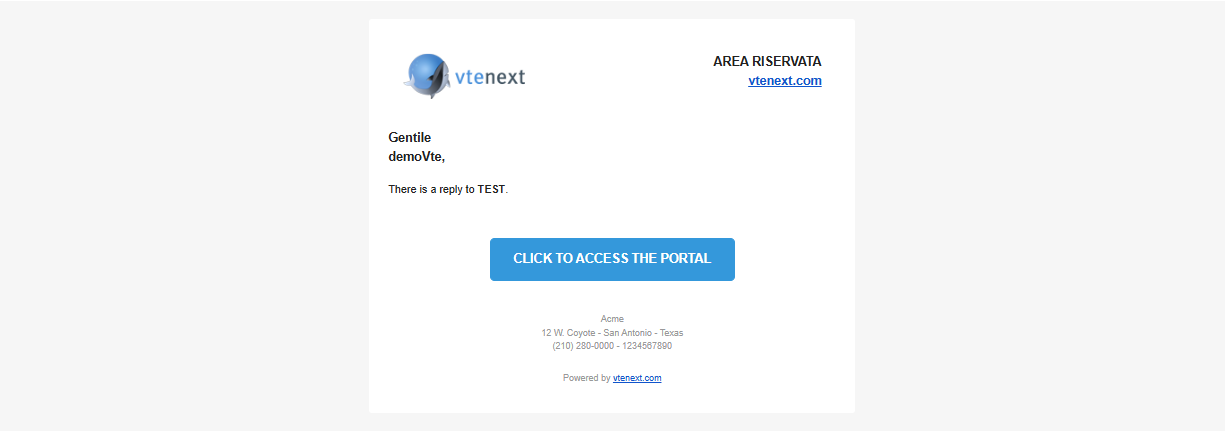
Figure 7 (click on the image for a higher graphic resolution)