
12.16 SDK Action: Update DynaForm table row
This SDK function allows you to update existing rows of a table field present on a dynamic form of a process helper.
The metaid must be passed as the first parameter, i.e. the ID that uniquely identifies a specific dynamic form within the process.
NOTE: the number must be passed without the DF prefix, so for example if the ID is DF9 you must enter only 9.
The second parameter must be passed as the Database name of the table field present on the dynamic form of the process helper.
The table sequence must be passed as the third parameter, i.e. the key parameter that is used to identify the rows to be updated.
As the fourth parameter, the name of the column of the table field that you want to update must be passed to the Database.
As the last parameter, the value that you want to insert into the column defined as the fourth parameter must be passed.
EXAMPLE OF USE
To better understand how it works, below is an example of using the SDK Update DynaForm table row() function to automatically update to "yes" the value of the "Processed" column for all rows of the "Operations" table field present on a dynamic form. (Figure 1)
Figure 1
Within an Action Task, we proceed with the configuration of a row cycle type action on the "Operations" table field and for each "SDK Functions" row in which we call the SDK Update DynaForm table row(). (Figure 2)

Figure 2
As the first parameter we insert the metaid, that is the ID that uniquely identifies a specific dynamic form within the process without the DF prefix, so in our case 3. (Figure 3)
As the second parameter we insert the Database name of the table field present on the dynamic form of the process helper, so in our case "vcf_8". (Figure 3)
As the third parameter we insert the current value of the "Sequence" variable, so in our case "$DF3-vcf_8::index:curr". (Figure 3)
As the fourth parameter we insert the Database name of the "Processed" column, so in our case "vcf_10". (Figure 3)
As the last parameter we insert the value "si" which in this case, since the "Processed" column is of the checkbox type, the Database corresponds to the value "1". (Figure 3)
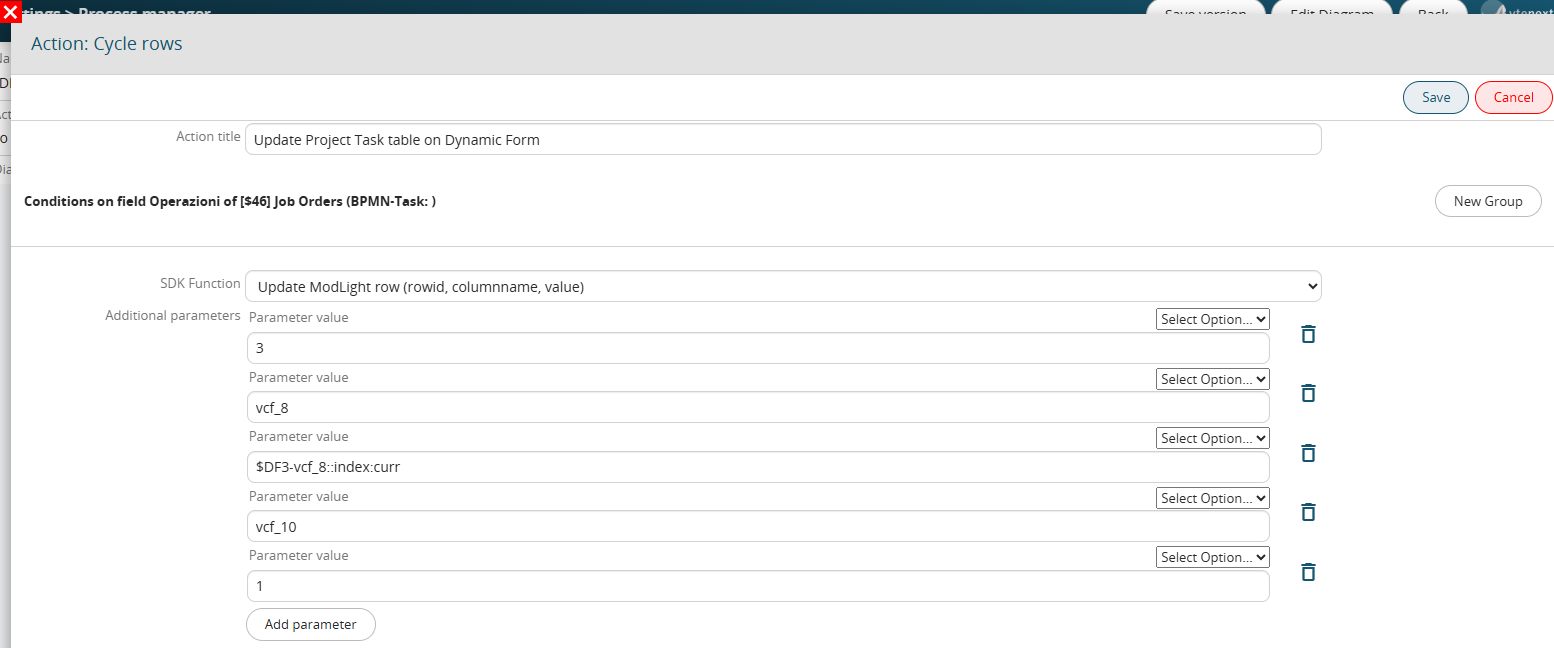
Figure 3