
12.5 SDK fieldAction: vte_json_column_fields
This SDK function allows you to generate a JSON code containing the labels and values of the 2 or more fields passed as parameters.
As the first parameter, you must pass the crmid of the record from which you want to extract the information, instead as subsequent parameters you must pass the "fieldname" of the fields to be included, or the names in which those fields are registered in the Database.
NOTE: even if in the description of the function it is indicated to pass the parameters following the id by inserting square brackets, the latter must not be inserted.
It is mainly used to format a subset of data in order to perform REST-type Web Service calls (always configurable by process through the dedicated standard action "Call External Web Service").
For more information on configuring API calls from the process, please refer to chapter 3.15 of the process manual.
EXAMPLE OF USE
To better understand how it works, below is an example of using the SDK function vte_json_column_fields() to generate a JSON code containing the following fields and values of an instance of the Customer Service module involved in the process:
Title
Status
Inside the dynamic form of a process helper, we proceed with the creation of a text area field called "Body JSON Format" in which the result of the function will be saved.
Then we call the interested SDK function through the "Option Selection" picklist and access the "SDK Functions" section (Figure 1)
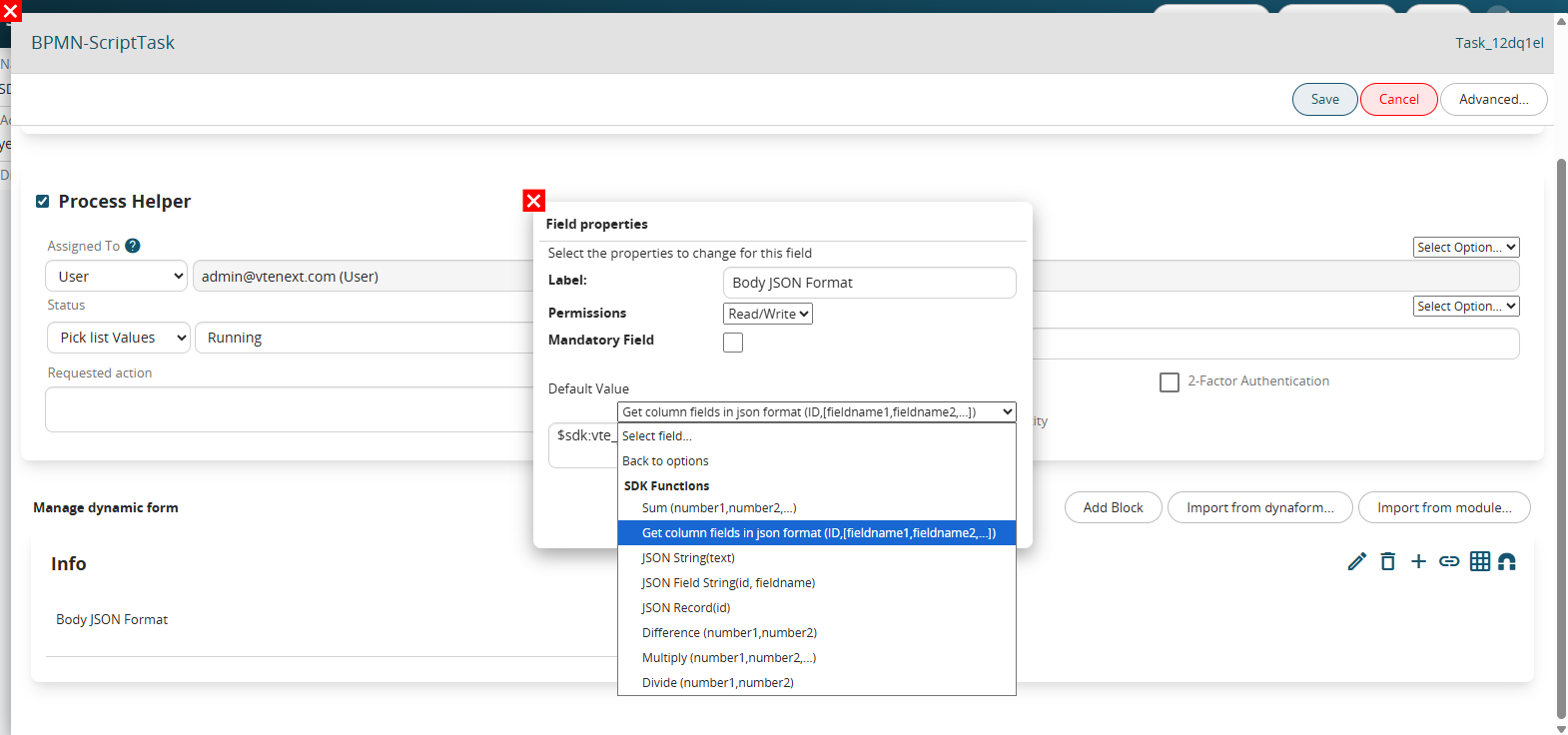
Figure 1
Finally we pass the parameters required by the function, all separated by commas.
Specifically, as the first parameter we insert the crmid of the record from which we want to extract the information, so in our case the ticket id. (Figure 2)
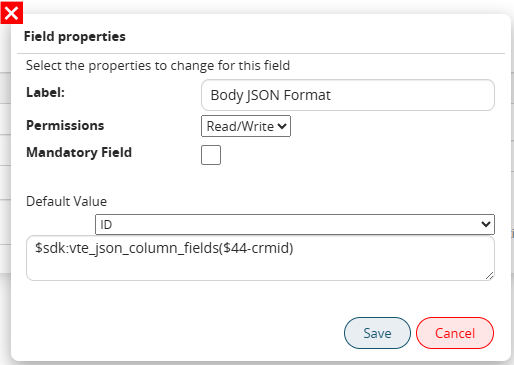
Figure 2
Instead, as subsequent parameters, we insert the "fieldnames" of the fields to be involved, that is, the names with which those fields are registered in the Database.
In our specific case, they will be "ticket_title", "ticketstatus" and "ticketpriorities". (Figure 3)
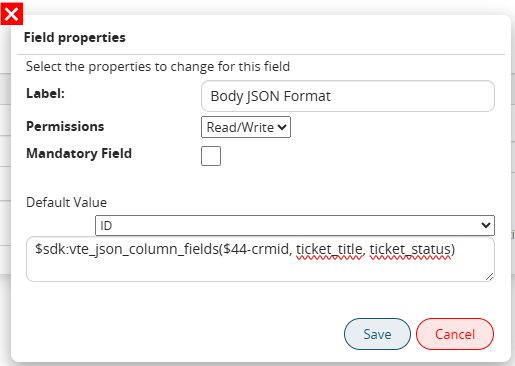
Figure 3
To easily obtain them, simply select the relevant field from the "Option Selection" picklist and delete the reference to the instance involved in the process, i.e. the metaid (Figure 4).
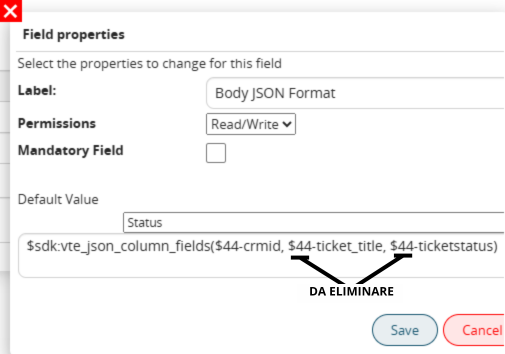
Figure 4
The generated JSON code will be as shown in Figure 5

Figure 5