
12.7 SDK fieldAction: vte_json_field_string
It is a function similar to vte_json_string(), in fact it allows you to convert a string in JSON format in the same way by managing compatibility with special characters, so as to format them correctly and avoid conflicts with it.
It is also mainly used to format strings in order to perform REST type Web Service calls (always configurable by process via the dedicated standard action "Call External Web Service") without encountering syntax errors on the JSON.
Specifically, if the string contains special characters used in JSON syntax such as double quotes ("), slash (/) and backslash (\), the function will automatically insert additional backslashes to prevent the JSON from generating an error.
For more information on configuring API calls from the process, please see chapter 3.15 of the process manual.
The real difference lies in the parameters that can be entered in input.
The first parameter is the crmid of the record from which you want to extract the information, while the second parameter is the "fieldname" of the field to be included, i.e. the name in which that field is registered in the database.
EXAMPLE OF USE
To better understand how it works, below is an example of using the SDK function vte_json_field_string() to format the "City (Invoicing)" field of an instance of the Company module involved in the process containing the following string in JSON code:
"Verona" (Figure 1)

Figure 1
The result will then be saved inside the "Description" field.
Inside an Action Task we proceed with the configuration of an Update Entity action involving the "Description" field.
Specifically, we are going to call the interested SDK function through the "Option Selection" picklist and accessing the "SDK Functions" section (Figure 2)
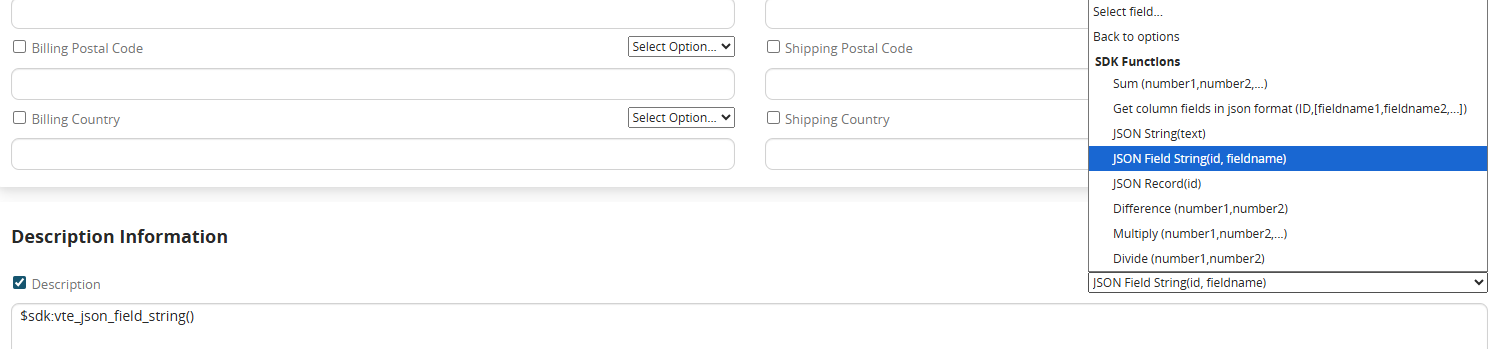
Figure 2 (click on the image for a higher graphic resolution)
Finally we pass the parameters required by the function, all separated by commas.
Specifically, as the first parameter we insert the crmid of the record from which we want to extract the information, so in our case the company id. (Figure 3)
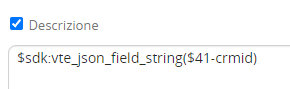
Figure 3
Instead, as a second parameter, we insert the "fieldname" of the field to be involved, or the name with which that field is registered in the Data Base.
In our specific case it will be "bill_city". (Figure 4)
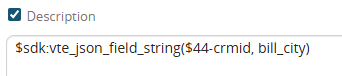
Figure 4
To easily obtain it, simply select the relevant field from the "Option Selection" picklist and delete the reference to the instance involved in the process, i.e. the metaid (Figure 5).
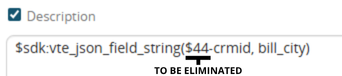
Figure 5
The result generated by the function will be as shown in Figure 6

Figure 6