
12.9 SDK fieldAction: Format Date
This SDK function allows you to convert any date passed as input into a specific format.
As the first parameter, you must pass the value of a field of a module or dynamic form containing the date you want to format, instead as the second parameter you must pass the format according to the following syntax:
day / month / year (complete) -> d-m-Y
Example: 25-10-2024
month / day / year (complete) -> m-d-Y
Example: 10-25-2024
year (complete) / month / day -> Y-m-d
Example: 2024-10-25
year (complete) / day / month -> Y-d-m
Example: 2024-25-10
day / month / year (partial) -> d-m-y
Example: 25-10-24
month / day / year(partial) -> m-d-y
Example: 10-25-24
year(partial) / month / day -> y-m-d
Example: 24-10-25
year(partial) / day / month -> y-d-m
Example: 24-25-10
day / month / year(complete) hours / minutes / seconds -> d-m-Y H:i:s
Example: 25-10-2024 16:32:20
month / day / year(complete) hours / minutes / seconds -> m-d-Y H:i:s
Example: 10-25-2024 16:32:20
year(complete) / month / day hours / minutes / seconds -> Y-m-d H:i:s
Example: 2024-10-25 16:32:20
year(full) / day / month hours / minutes / seconds -> Y-d-m H:i:s
Example: 2024-25-10 16:32:20
hours / minutes / seconds -> H:i:s
Example: 16:32:20
day only -> d
Example: 25
month only -> m
Example: 10
year(full) -> Y
Example: 2024
year(partial) -> y
Example: 24
hours only -> H
Example: 16
minutes only -> i
Example: 32
seconds only -> s
Example: 20
N.B: a partial result will not be manageable within date or datetime fields, this is because they only accept values with at least one day, month and year.
EXAMPLE OF USE
To better understand how it works, below is an example of using the SDK function formatDate() to format the value of the "Creation Period" field of an instance of the Companies module and save it within a field of a process helper.
Within the dynamic form we proceed with the creation of a date field called "Creation Date" in which the result of the function will be saved.
Then we call the interested SDK function through the "Option Selection" picklist and access the "Date Functions" section (Figure 1)
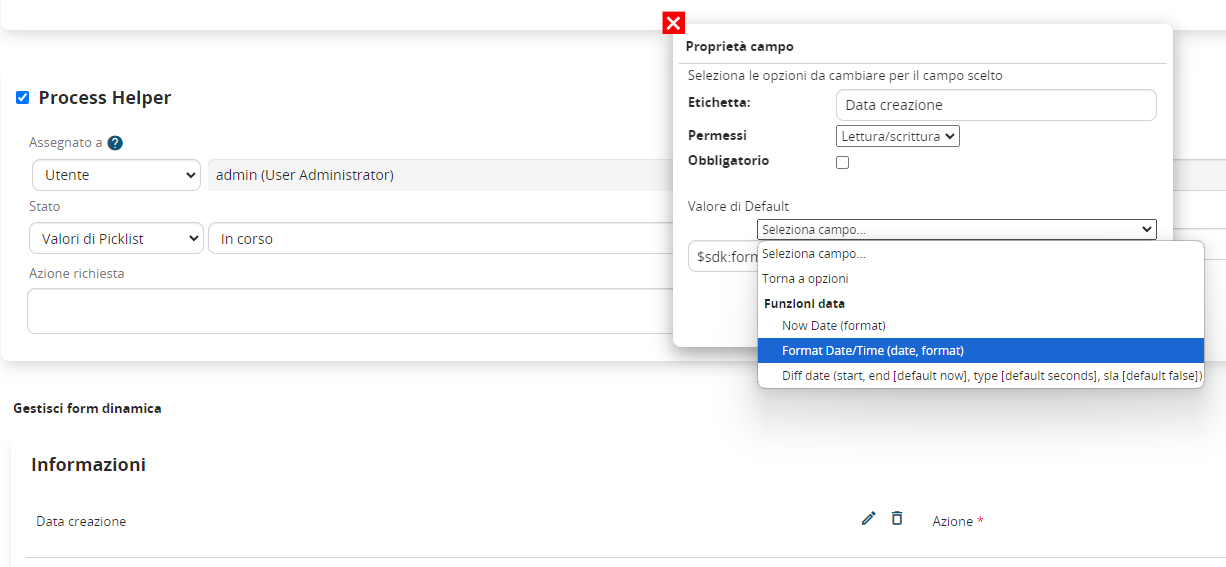
Figure 1
Finally we pass the parameters required by the function, all separated by commas.
Specifically, as the first parameter we insert the value of the "Creation Period" field (Figure 2)
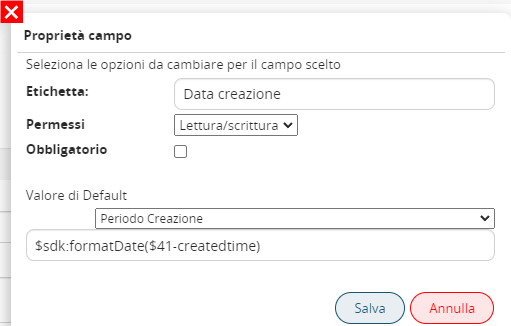
Figure 2
Instead, as a second parameter, we pass the format with which the function must return the date, so in our case d-m-Y (Figure 3)
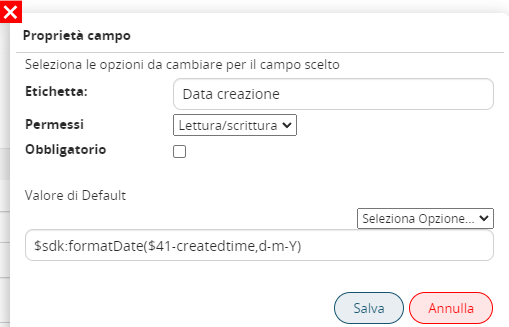
Figure 3
The result will be as shown in figure 4
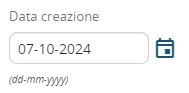
Figure 4