
1.3 Flowchart Configuration and Left Menu
FLOWCHART
To view the flowchart of an existing process, click on its name in the "Name" column of the "Process Manager" section. (Figure 1)
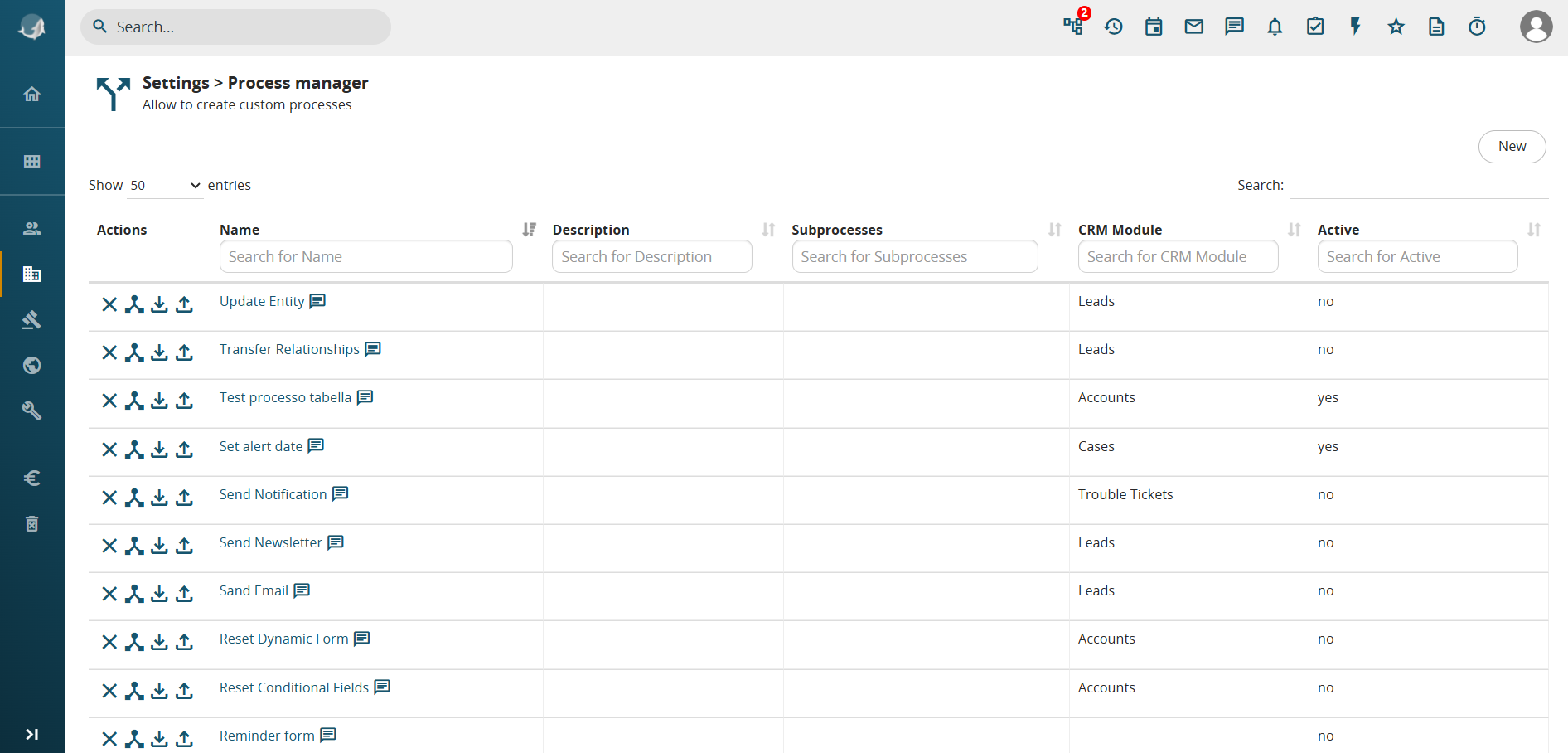
Figure 1
Within this section, you can configure all the elements included in the diagram by clicking directly on each one. (Figure 2 and Figure 3)
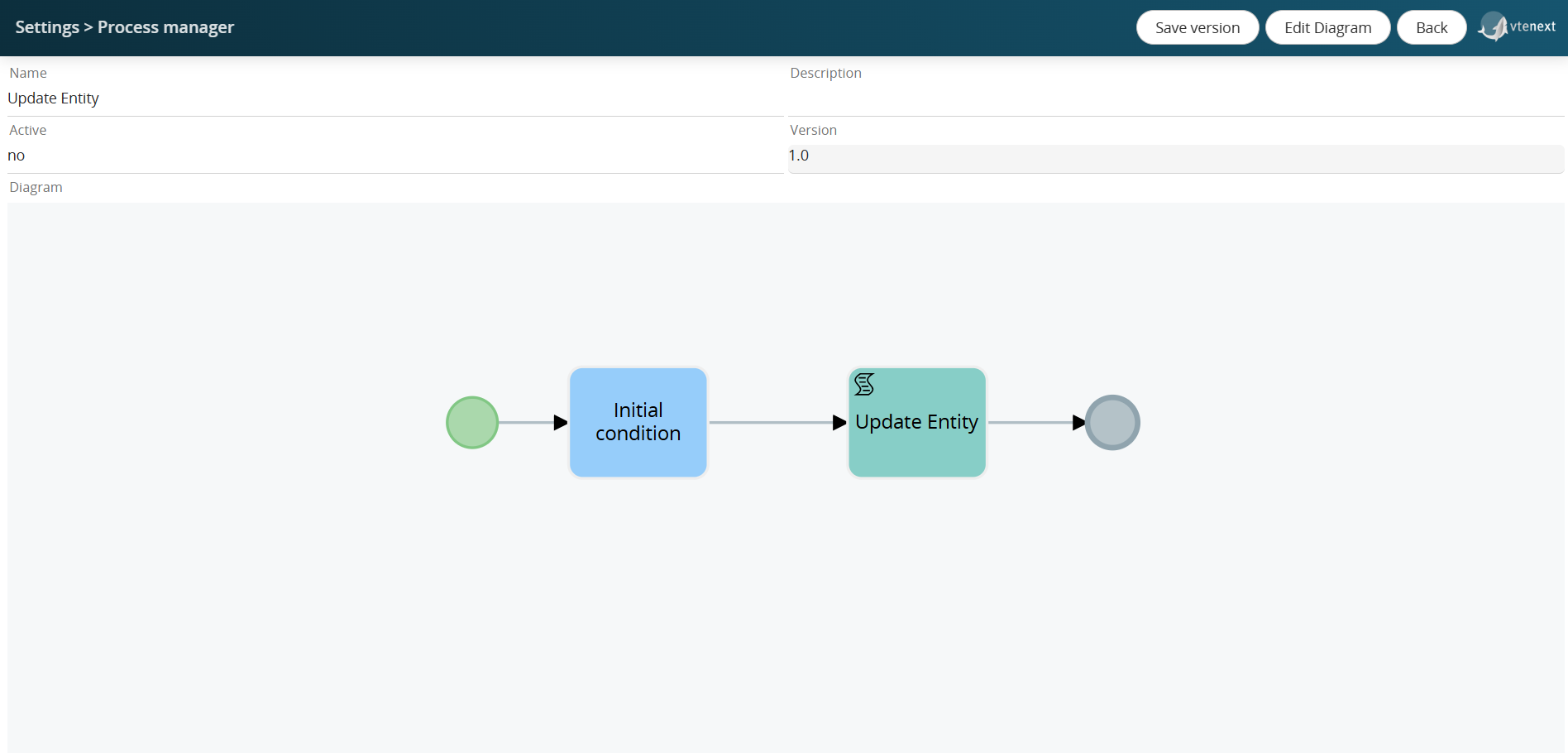
Figure 2
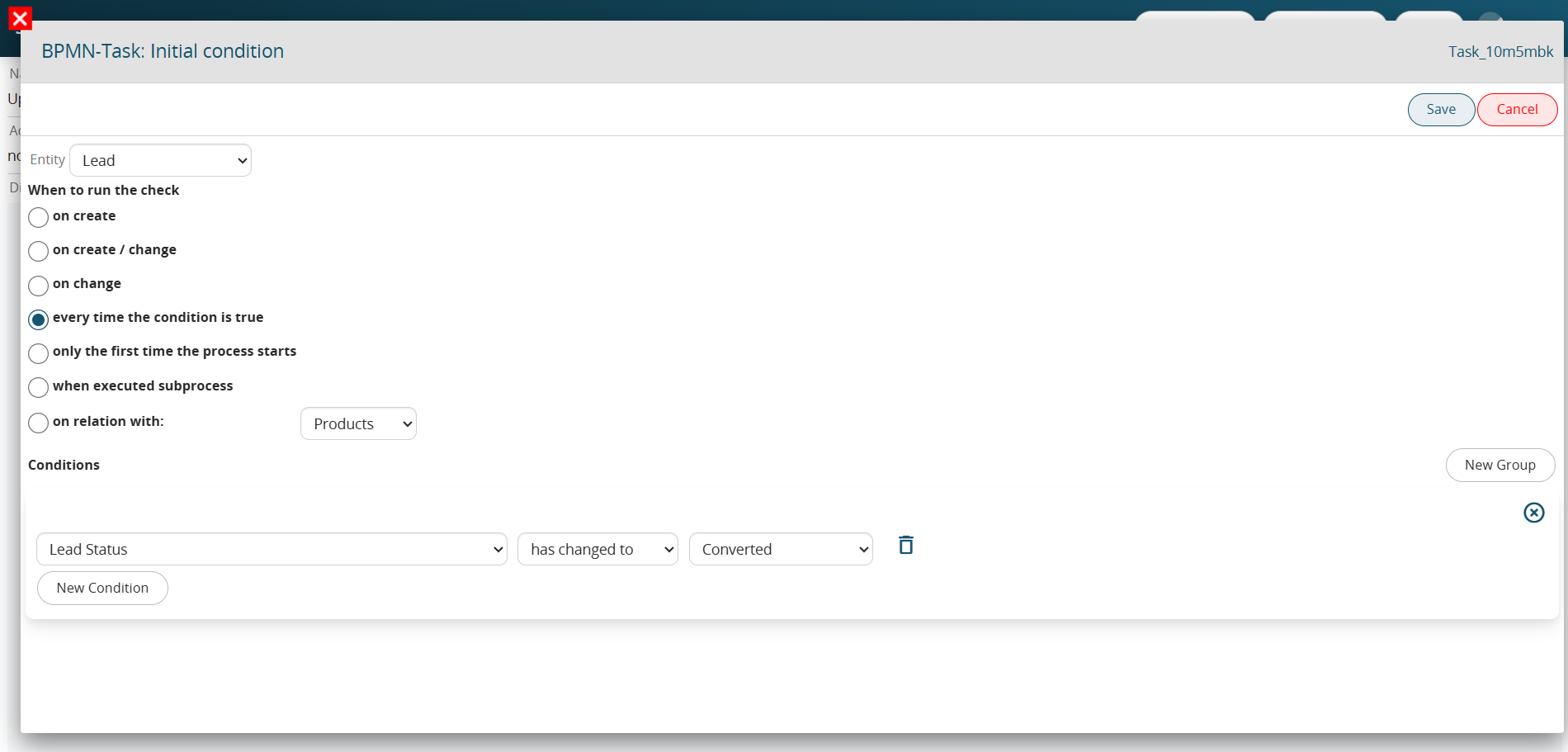
Figure 3
N.B.: The configuration of individual elements will be covered in subsequent chapters.
To make changes to the process diagram, click the "Edit Diagram" button. (Figure 4)
Figure 5
The elements used to construct the process diagram can also be quickly selected through a shortcut menu that becomes available by clicking on a specific element already involved. (Figure 6)
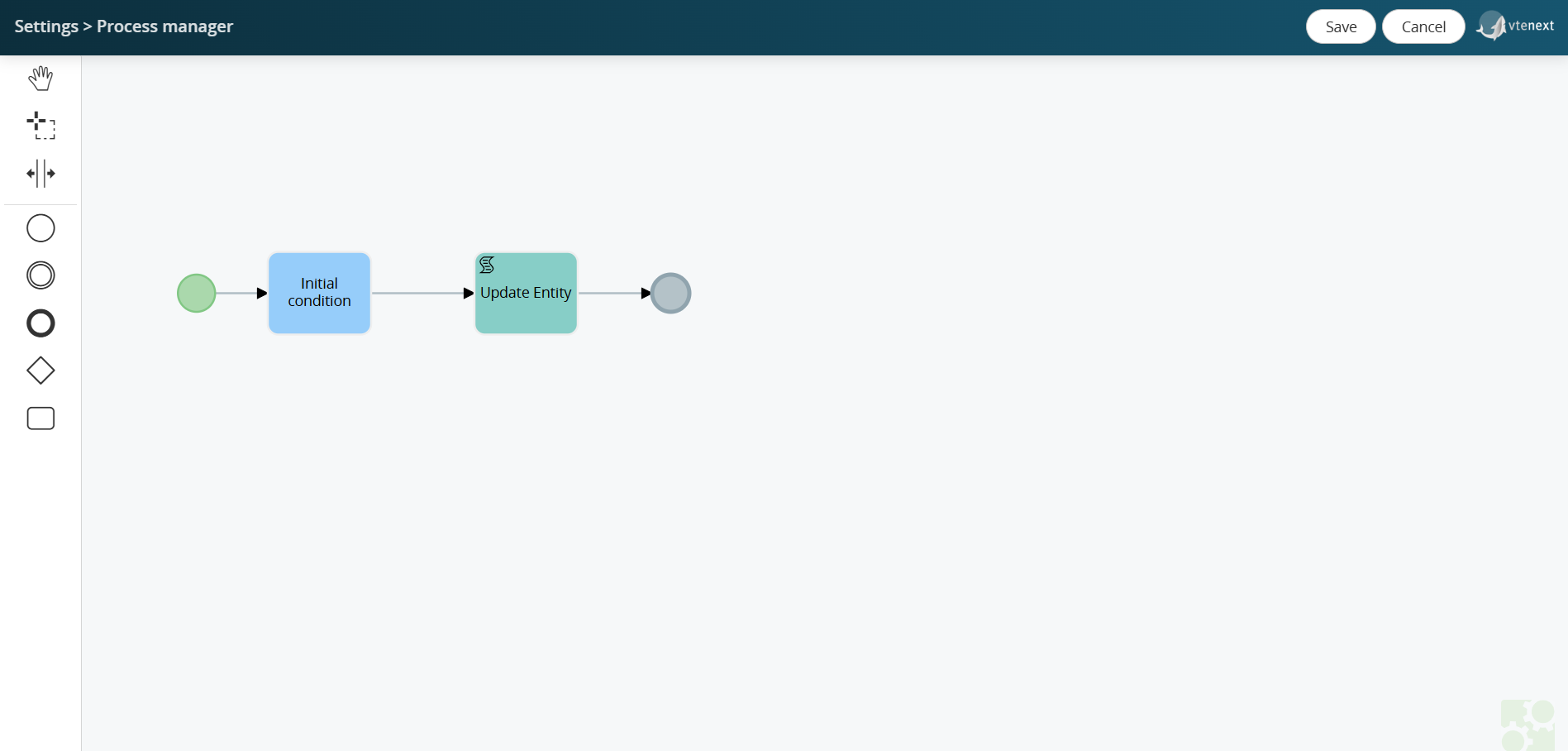
Figure 6
-
A quick selection of the main elements available for creating processes
-
A set of useful functions for the easy and organized creation of process flows
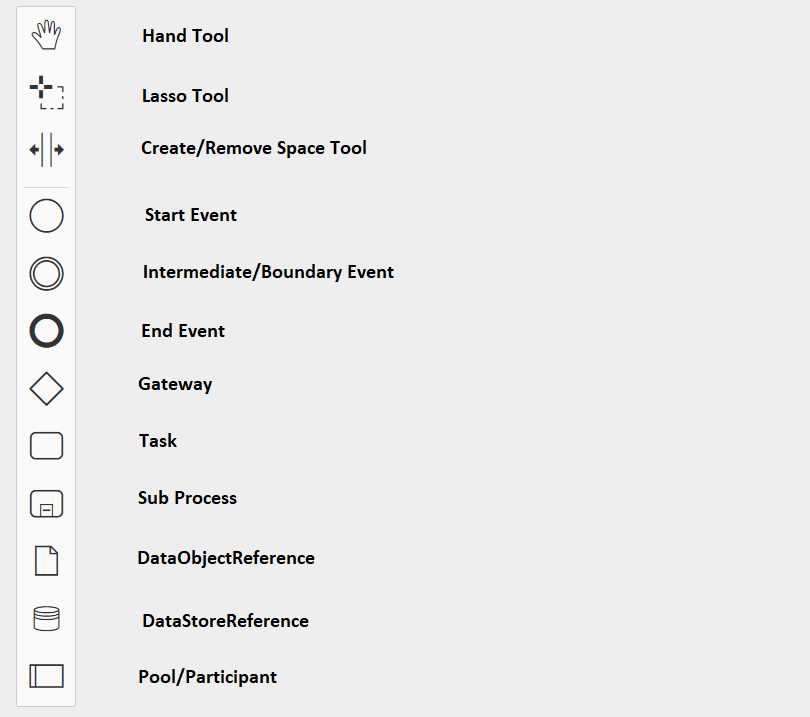
Hand Tool A useful tool for moving the view easily and efficiently.
Lasso Tool A useful tool for moving a group of tasks/elements at the same time, making the organization and structuring of the flow easier and faster.
Create/Remove Space Tool A useful tool for moving all tasks/elements at once, facilitating the easy and fast structuring of the flow.
Start Event Allows you to select and use the Start Event.
End Event Allows you to create and use the End Event.
Intermediate/Boundary Event Timer Allows you to create and use the Intermediate/Boundary Event.
Gateway Allows you to create and use Gateways.
Task Allows you to create and use Tasks.
Sub Process Allows you to create and use Sub Processes.
DataObjectReference This symbol allows for an action that is currently not yet implemented.
NOTE: As of version 24.08, it has been completely removed.
DataStoreReference This symbol allows for an action that is currently not yet implemented.
NOTE: As of version 24.08, it has been completely removed.
Pool/Participant
Allows you to create areas in which parts of the process flow can be inserted. New tasks/elements cannot be created or moved outside these areas. It is also possible to textually indicate the actors involved.
NOTE: As of version 24.08, it has been completely removed.