13.2 Example: Opportunity Management Process Configuration
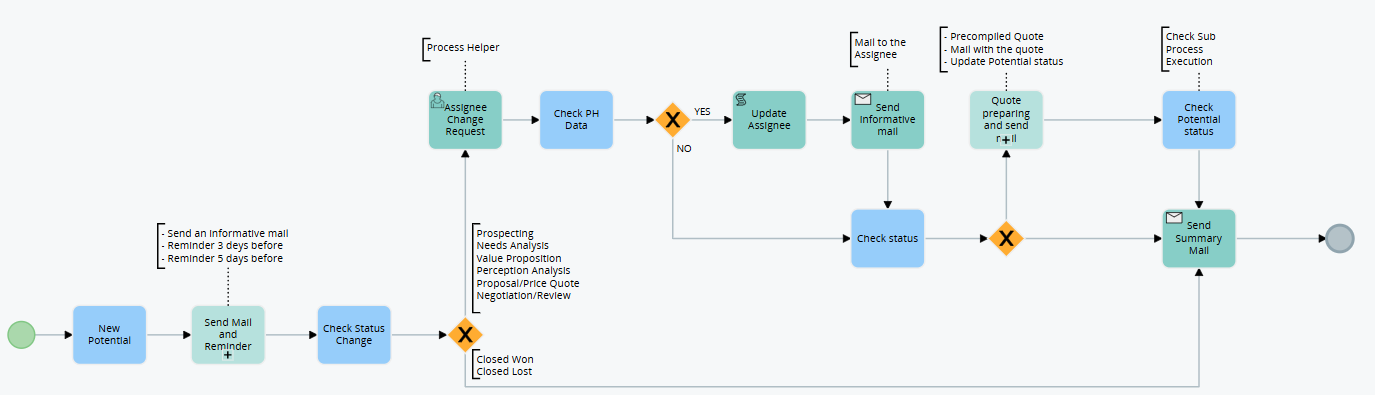
Main Process: Opportunity Management Process
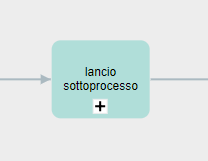
The SubProcess task is used to call other processes (subprocesses) and therefore simplify the logic of the main process.
In the case proposed below there are 2 SubProcesses:
1st Send a summary email to the assignee and create reminder events assigned to the same user.
2nd Create a pre-filled Quote (only if the previous conditions are true) and send it via email also updating the status of the Opportunity.

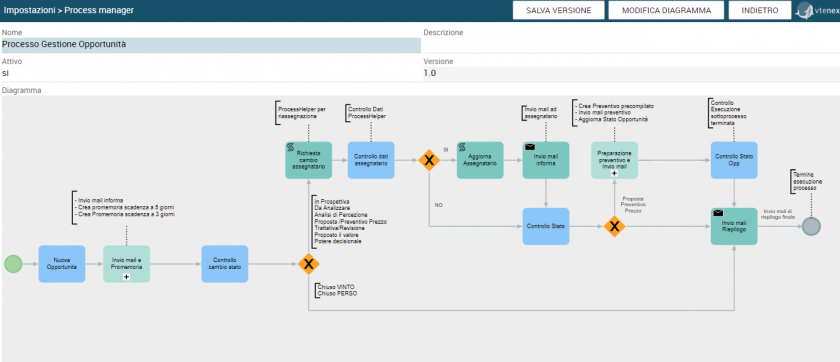
The screenshot shows the configured process.
The following process is activated when a new Opportunity is created and follows the flow for a possible reassignment and sales stage update.
To activate it, check the box “active” once the diagram and configuration are complete
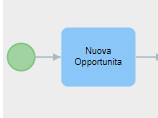
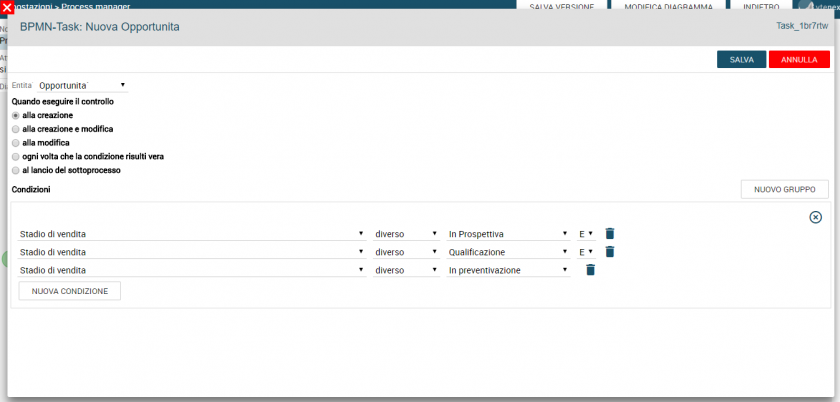
Here on the side, the first task has been filled in, which represents the initial condition to start the process. Therefore, the linked entity “Opportunity” is selected and on When to run the check “at creation”.
A Group of conditions is then specified to actually start the process, in this case that the Sales Stage is different from those indicated (“In Prospect”, “Qualification”, “In Estimate”)
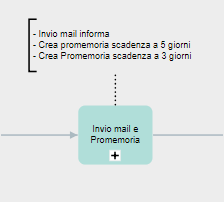
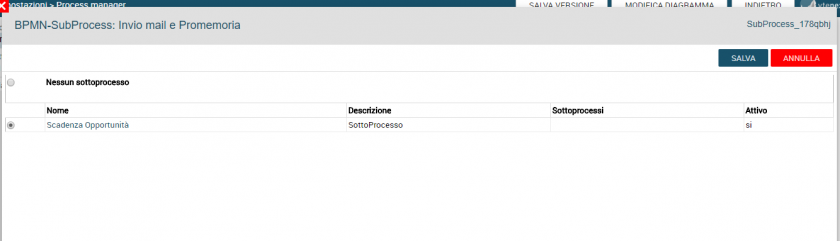
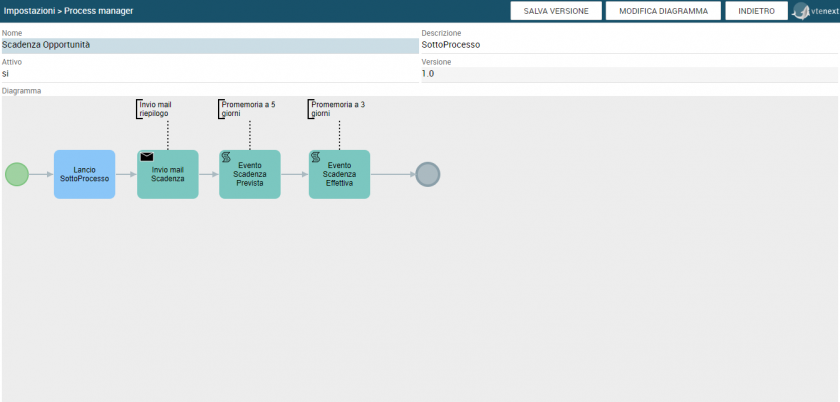
This task represents the call to another process (subprocess), which inside it executes its own execution flow. Therefore, it is necessary to choose which one to call from the proposed list. Inside it there will be a Task for sending emails to inform the opening of a new Opportunity and the creation of 2 reminders, one 5 days before the deadline, the other 3.
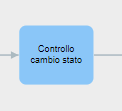
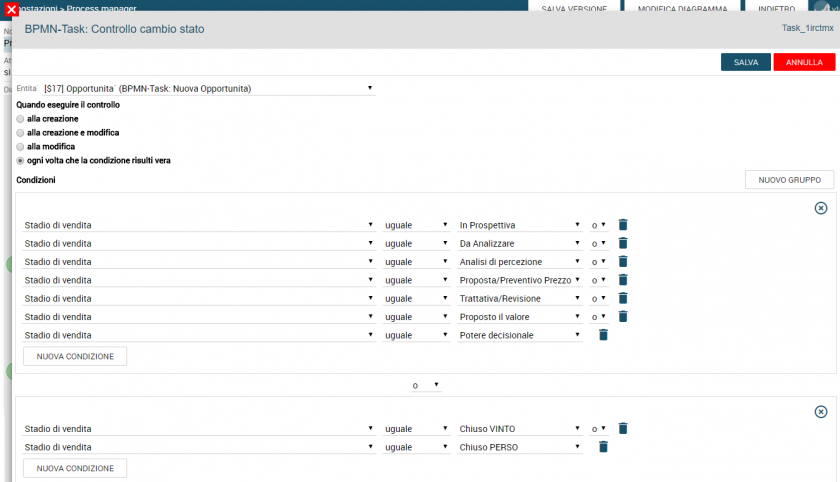
This task represents a check on the status of the opportunity (Sales Stage). The possible cases of the values to be managed are therefore defined. In this case, it is verified whether the value of this field has changed in one of these:
- In Perspective
- To be Analyzed
- Perception Analysis
- Proposal / Price Estimate
- Negotiation / Review
- Proposed value
- Decision-making power
OR
- Closed WON
- Closed LOST
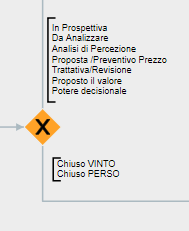
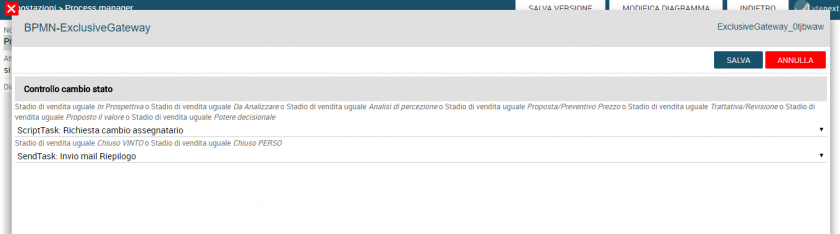
This task represents an Exclusive Gateway, which defines the possible flows based on the previously set conditions. In this case, if the Sales Stage is one of those described previously (In Prospect, To be Analyzed, Perception Analysis, Price Proposal/Estimate, Negotiation/Revision, Value Proposed, Decision-making Power), it continues to the next task called “Request for change of assignee”. Otherwise, if it is equal to “Closed WON” or “Closed LOST”, the execution continues towards the “Send Summary Email” Task.
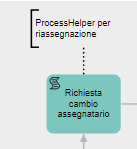
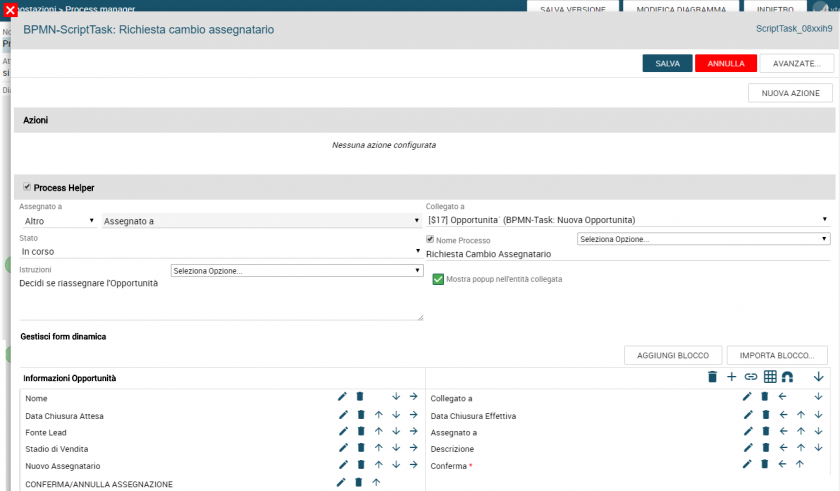
This task uses the so-called “ProcessHelper” which interfaces with the user and requires, as already defined, manual intervention. The “Show popup in the linked entity” box is flagged to make a window (dynamic form) appear with a set of read-only data as a summary and a user field from which it is possible to select the new assignee and a Button type field to change the value of the “Confirm” picklist. You must then confirm to proceed
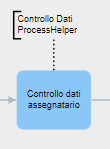
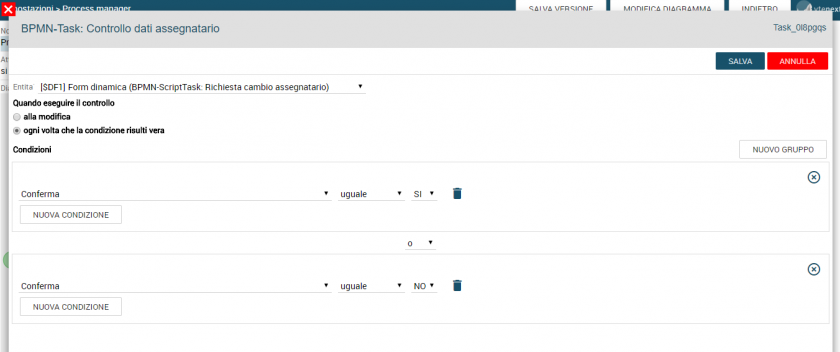
This Task verifies the ProcessHelper data. As already mentioned, a dynamic form displays summary fields and a confirmation picklist (YES/NO) for the new re-assignment.
Therefore, the confirmation field of the Dynamic Form is checked to verify that it has been set to “YES OR “NO”.
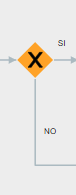
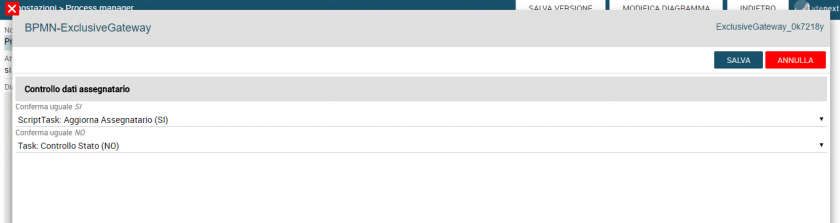
At this point, Exclusive Gateway, we assign the previously configured roads based on the response given in the Dynamic Form. If the user has confirmed (YES) proceeds with the reassignment of the Opportunity, otherwise (NO) we proceed directly to the Status control of the latter (Sales Stage).

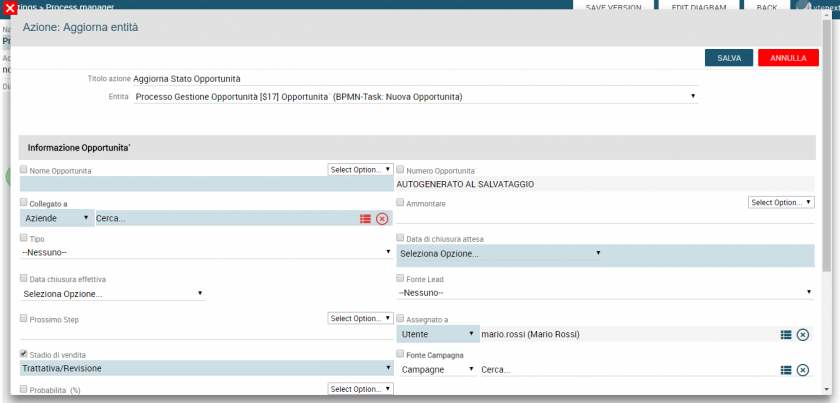
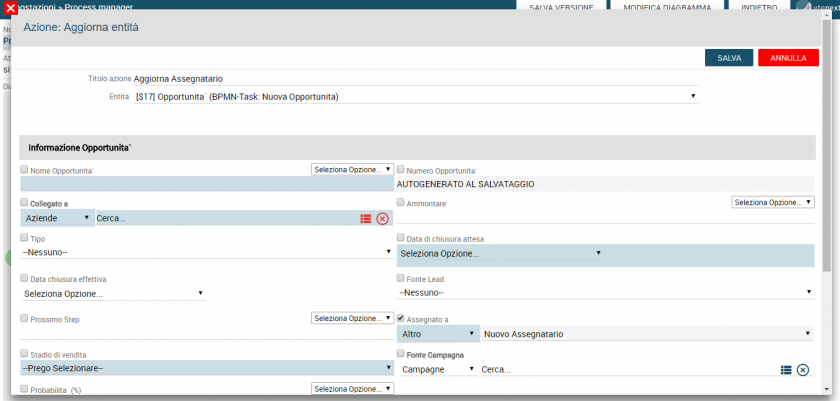
This task performs an update action. The previous user selected via the dynamic form is now set among the attributes of the opportunity in question. Therefore, a NEW ACTION is added - Update entity.
Select the Opportunity entity and modify the Assigned to field by taking the reference of the field present in the Dynamic Form, in our case "New Assignee".
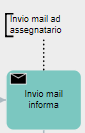
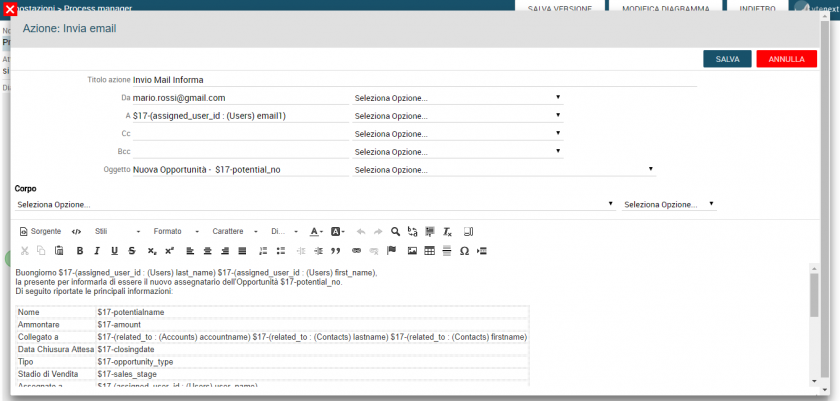
This task represents the sending of an information email to the new assignee of the Opportunity. This will then receive a small summary of the data relating to the latter.
The main fields sender, recipient, subject and body, necessary for sending the email, are then filled in.
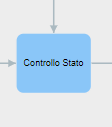
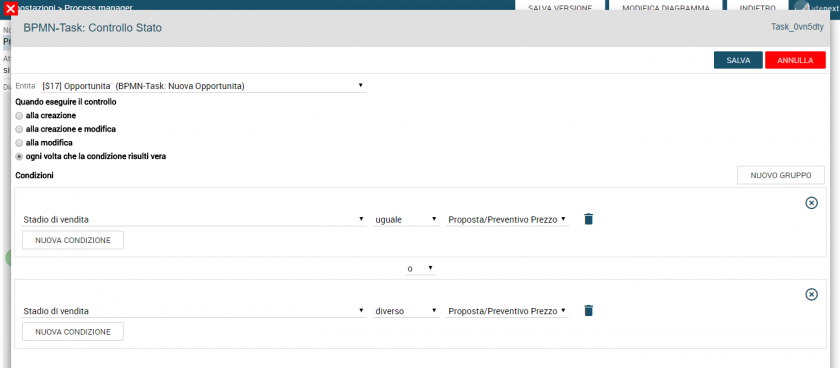
This task represents a second check on the opportunity status (Sales Stage).
The possible cases of the values to be managed are then defined. In this case, it is checked whether the sales stage is equal to “Proposal Quote/Price” or not.
If equal to this, it continues with the call to the “Pre-filled Quote” Sub-Process, otherwise it continues directly to the “Send Summary Email” Task.
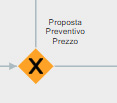
This task represents a further Exclusive Gateway, which defines the possible flows based on the previously set conditions. In this case, if the Sales Stage is “Estimate/Price Proposal”, it continues to the next task as mentioned, that is, to the call of the “Pre-filled Estimate” sub-process. Otherwise, it continues with sending emails.
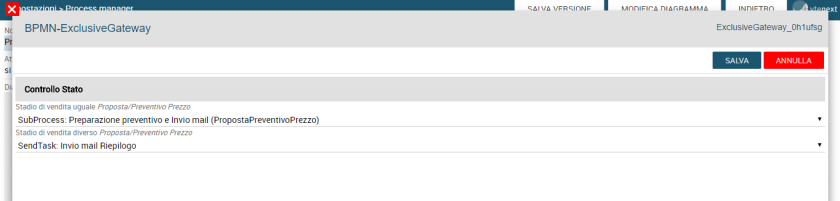
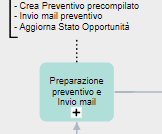
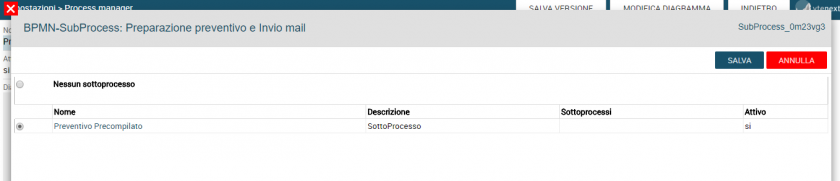
This task is a call to another sub-process, which will create a quote and when it is in the “Reviewed” state, will send the summary email and update the Sales Stage of the Opportunity.
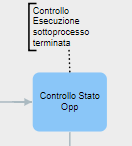
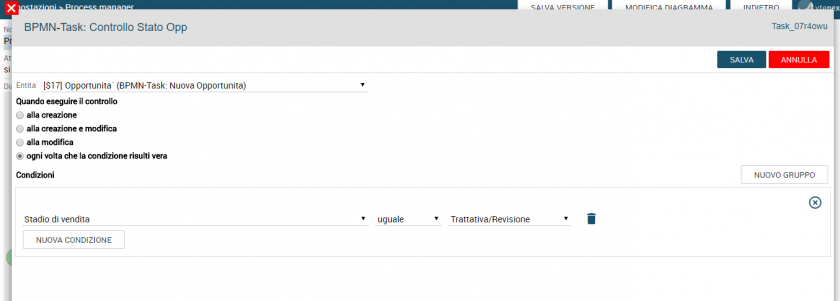
This task performs a control action on the Sales Stage of the Opportunity, to verify the complete and entire execution of the Sub-Process. If this is equal to “Negotiation/Review”, the flow continues with the next Task of sending the Final Summary email.
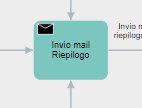
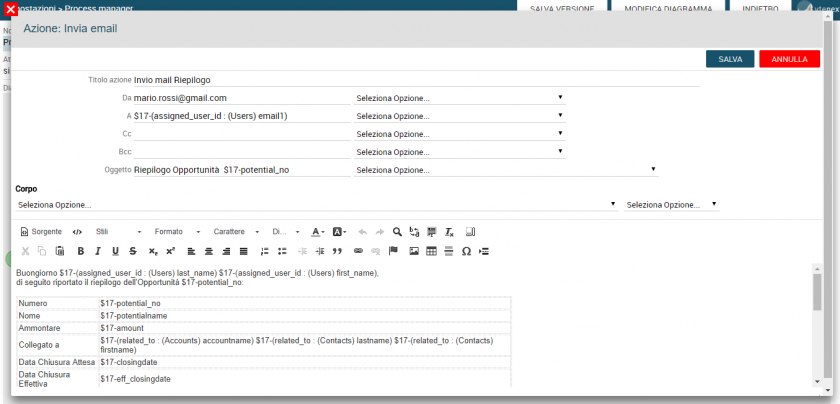
This task represents the last action, that is, a summary email to inform the assignee about the data relating to the Opportunity.
Therefore, click on NEW ACTION - Email Sending and insert the necessary fields. After this Task, you reach the end of the process, therefore towards the End Event.
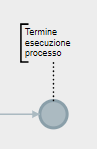
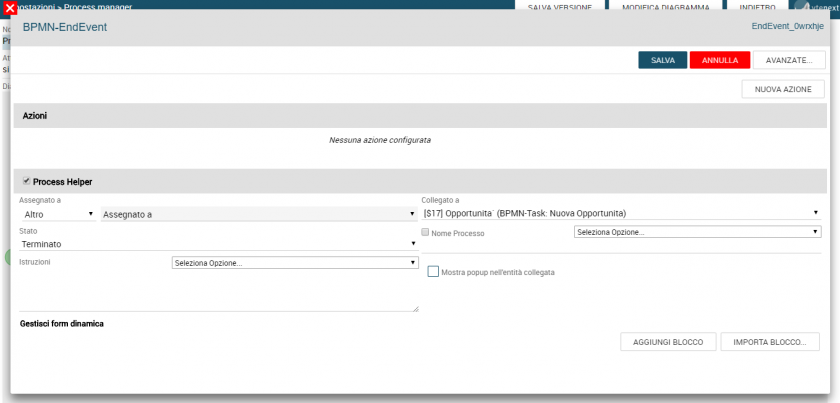
As mentioned, the process ends its execution at this node, i.e. the End Event. The “Opportunity” entity is connected and the status is set to “Terminated”.
Sub-Process: Opportunity Expiration
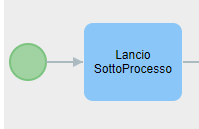
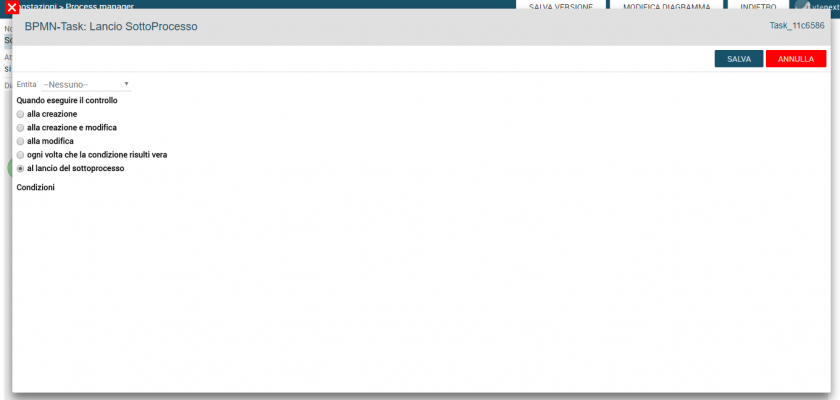
The Task represented is the initial Task for the launch of the Sub-Process. In fact, no entity is selected and in “When to execute the check” “at the launch of the sub-process” is selected.
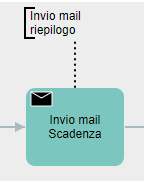
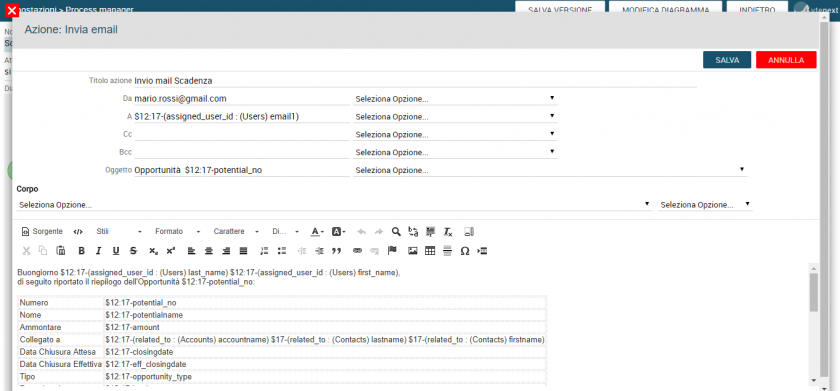
In this Task, the email sending is configured for the Opportunity assignee. A NEW ACTION is then configured - Email sending.
The main information is entered (sender, recipient, subject, body, ...).
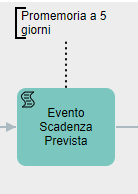
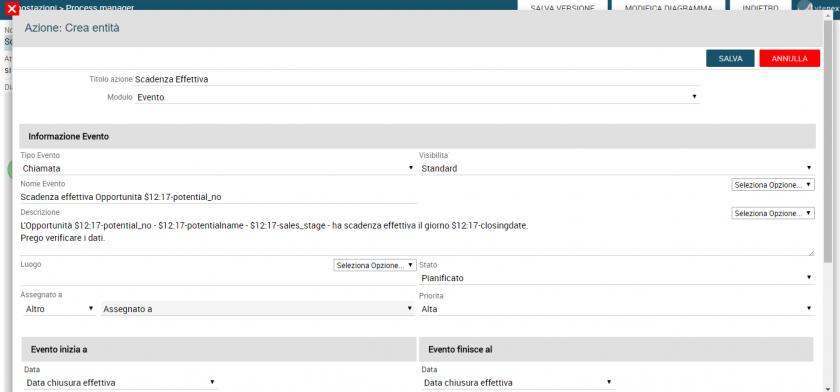
In the task described here on the side we see the creation of a reminder, or a calendar Event in view of the expected Deadline. In fact, this is planned 5 days from the “Expected Closing Date” entered in the Opportunity. Therefore, the various fields are filled in as desired and 5 days are subtracted from the indicated date.
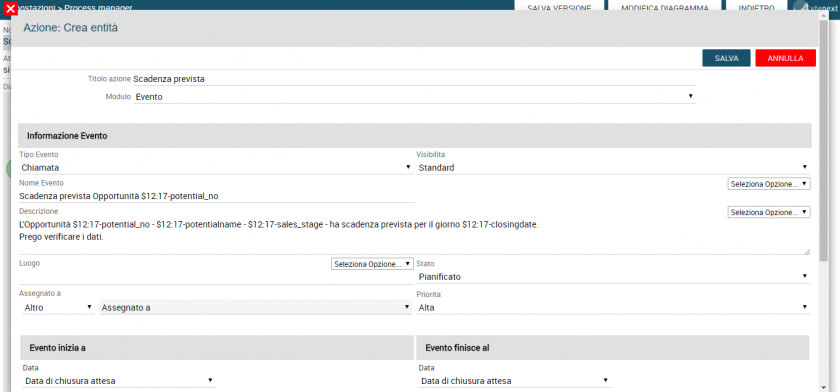
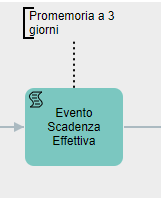
In this task we have the creation of a second reminder, that is, a Calendar Event in view of the Actual Deadline. This, unlike the first, is planned 3 days from the “Actual Closing Date” entered in the Opportunity.
Therefore, the various fields are filled in as desired and 3 days are subtracted from the indicated date.
Sub-Process: Pre-filled Quote
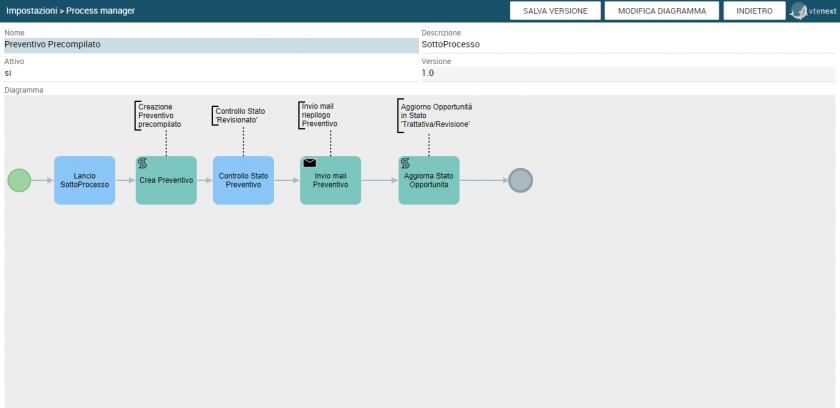
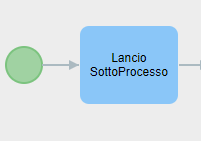
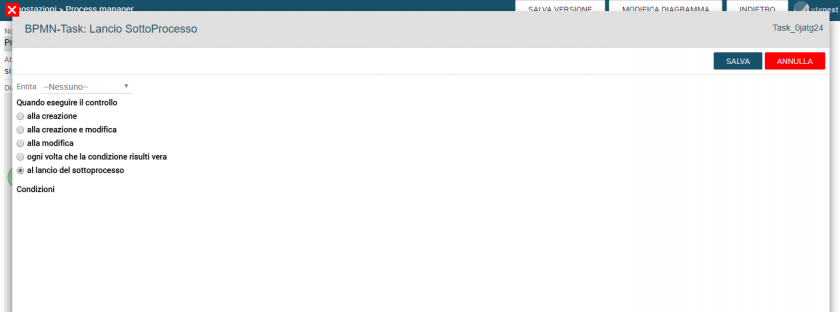
As in the previous Subprocess, also in this case we find the initial Task for the start. In fact, no entity is selected and on “When to execute the check” we select “at the start of the subprocess”.
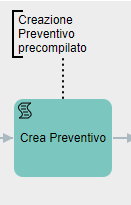
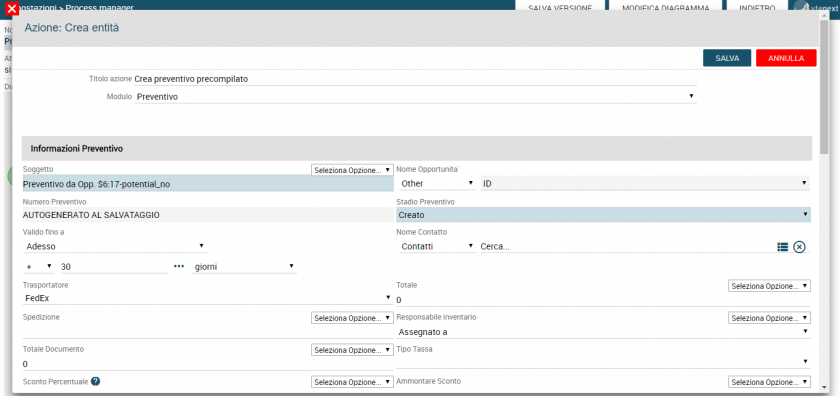
In this Task, a NEW ACTION - Create Entity is configured, selecting the “Quotes” module, so as to create a pre-filled one.
The title of the action is entered, the various fields also relating the Opportunity in question and setting the expiry date in 30 days.
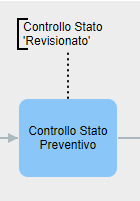
At this point the Subprocess blocks the execution flow on the Task described below.
In fact, it waits for the Preventive Stage of the previously created entity (in the “created” state) to pass to “Revised”. Only when this condition is true will the process continue.
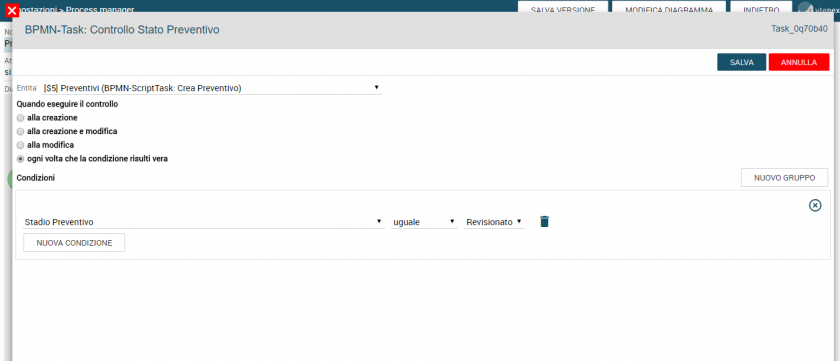
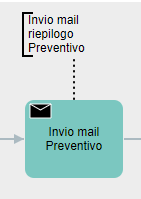
Once the value “Revised” is set as the Preventive Stage, the process continues and sends the details of this via email to the address of the related entity (Company or Contact) and to the assignee in copy.
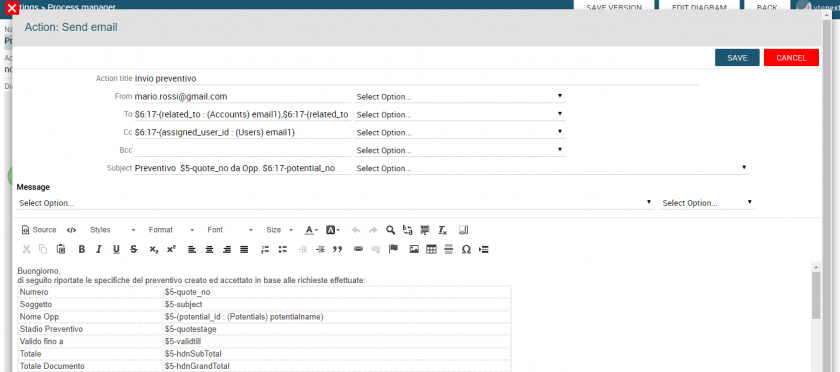
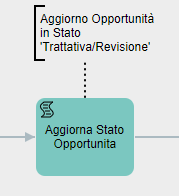
Once the Quote has been created, checked that the Status has changed to “Revised” and the email has been sent, we update the Sales Stage of the Opportunity to “Negotiation/Revision”.
At this point the execution of the Sub-process ends.