13.3 Example: Potential Management Process Activation
PROCESS ACTIVATION
At this point we have finished configuring the process and its sub-processes. Therefore, let's proceed with checking that they are working correctly.
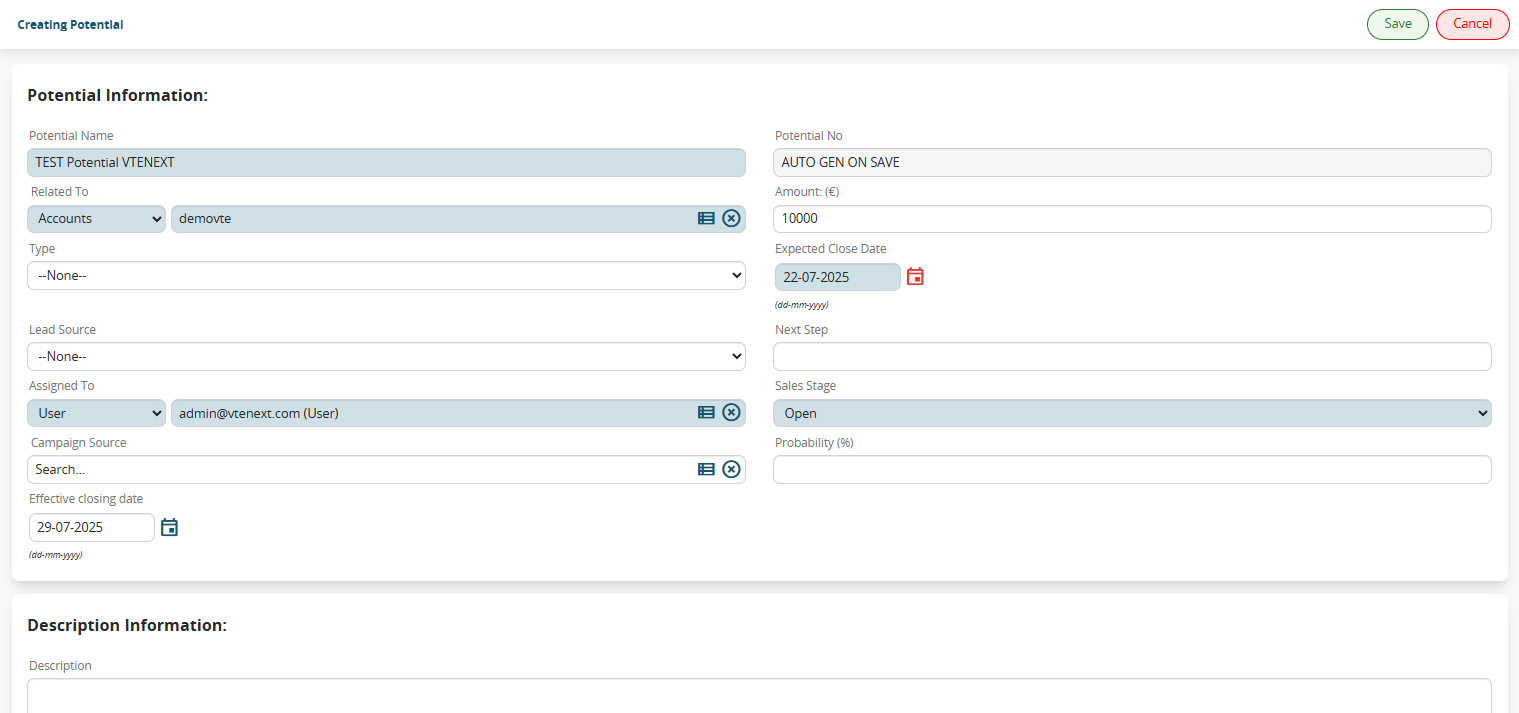
We then enter the creation of a New Opportunity. In this case, we set the Sales Stage to "Open".
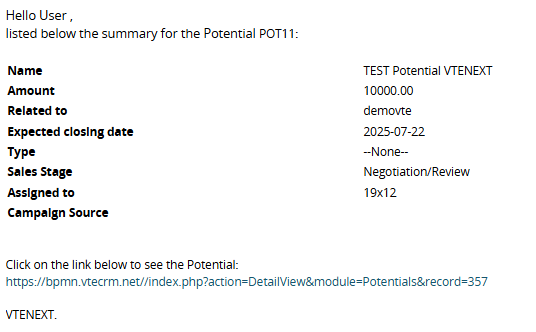
Once the Opportunity is saved, the assignee will receive an email summarizing the data.
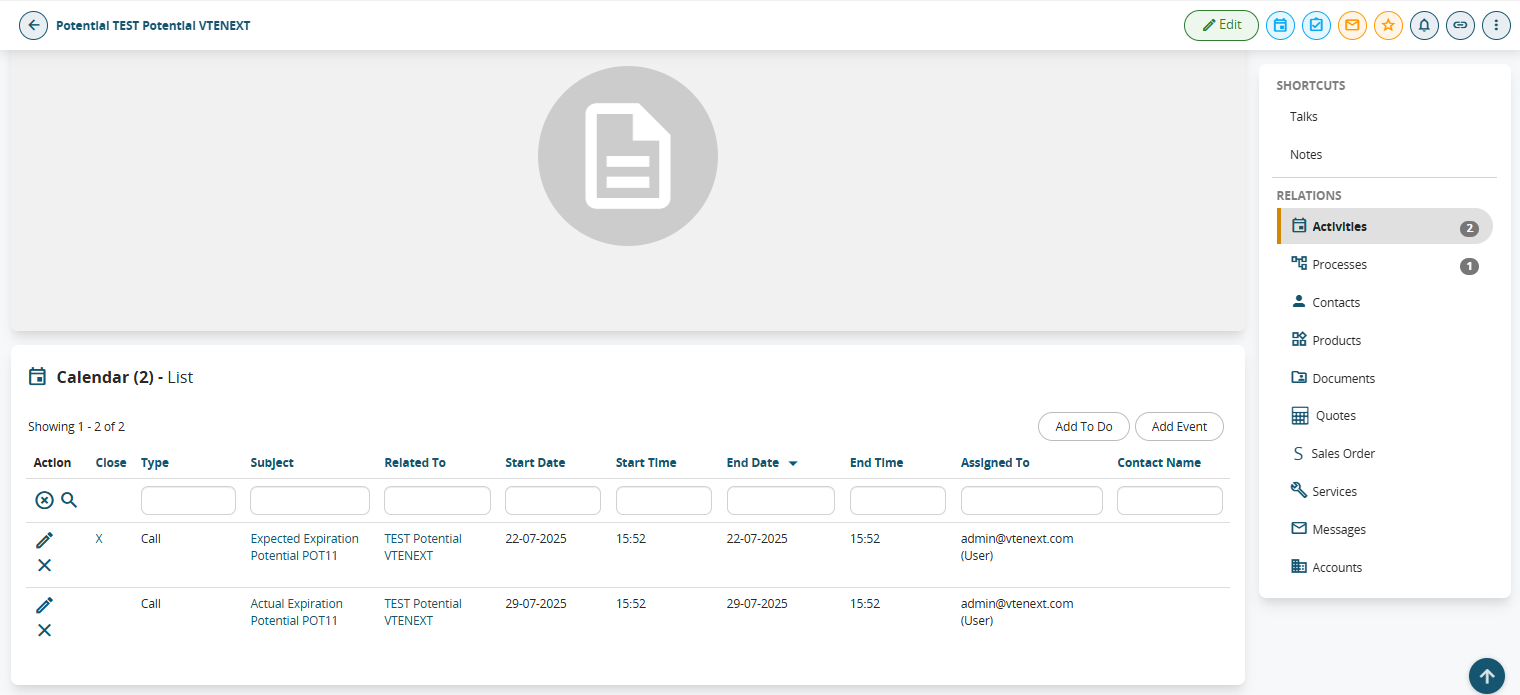
In addition, there will already be 2 related events, namely the deadlines, one 5 days from the Expected Closing Date and the other 3 days from the Actual End Date.
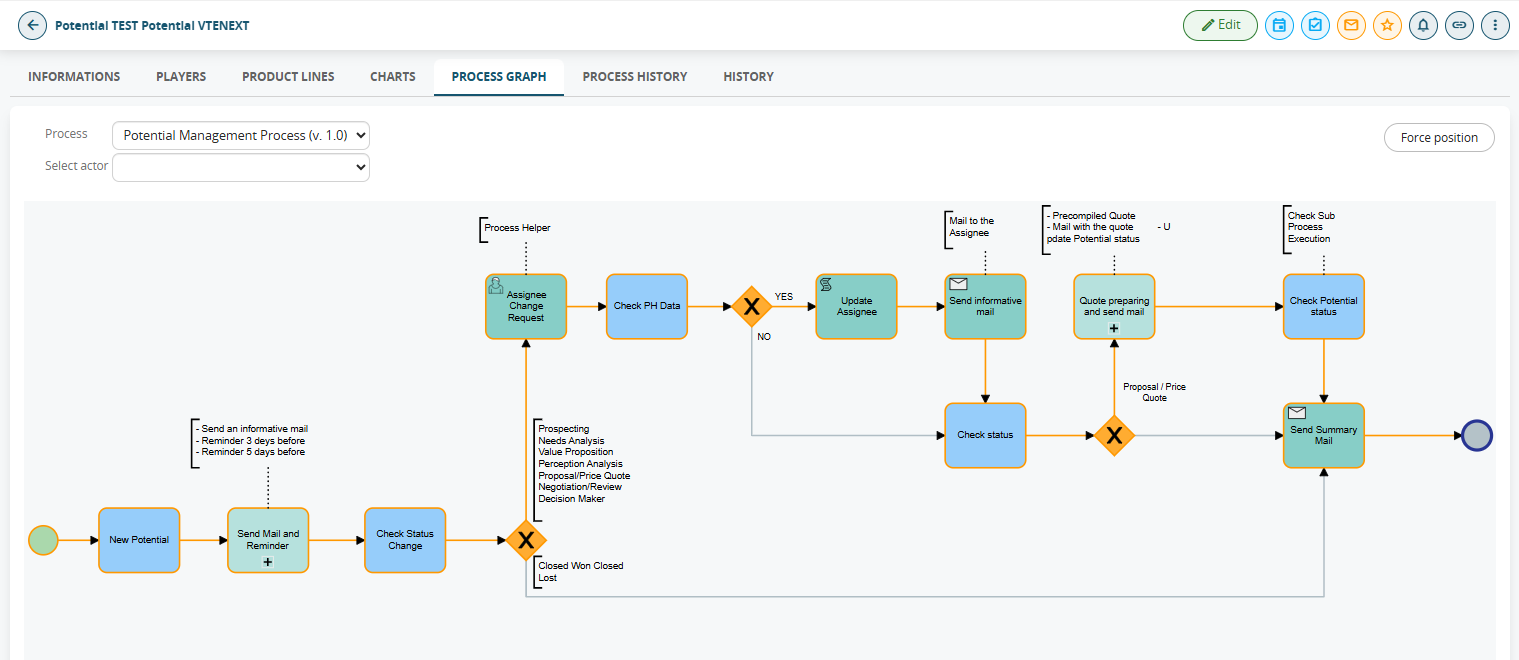
At this point the process has stopped and waits for the Sales Stage to change value to one of those previously configured.
In this case we set the value “Quote Proposal/Price”.
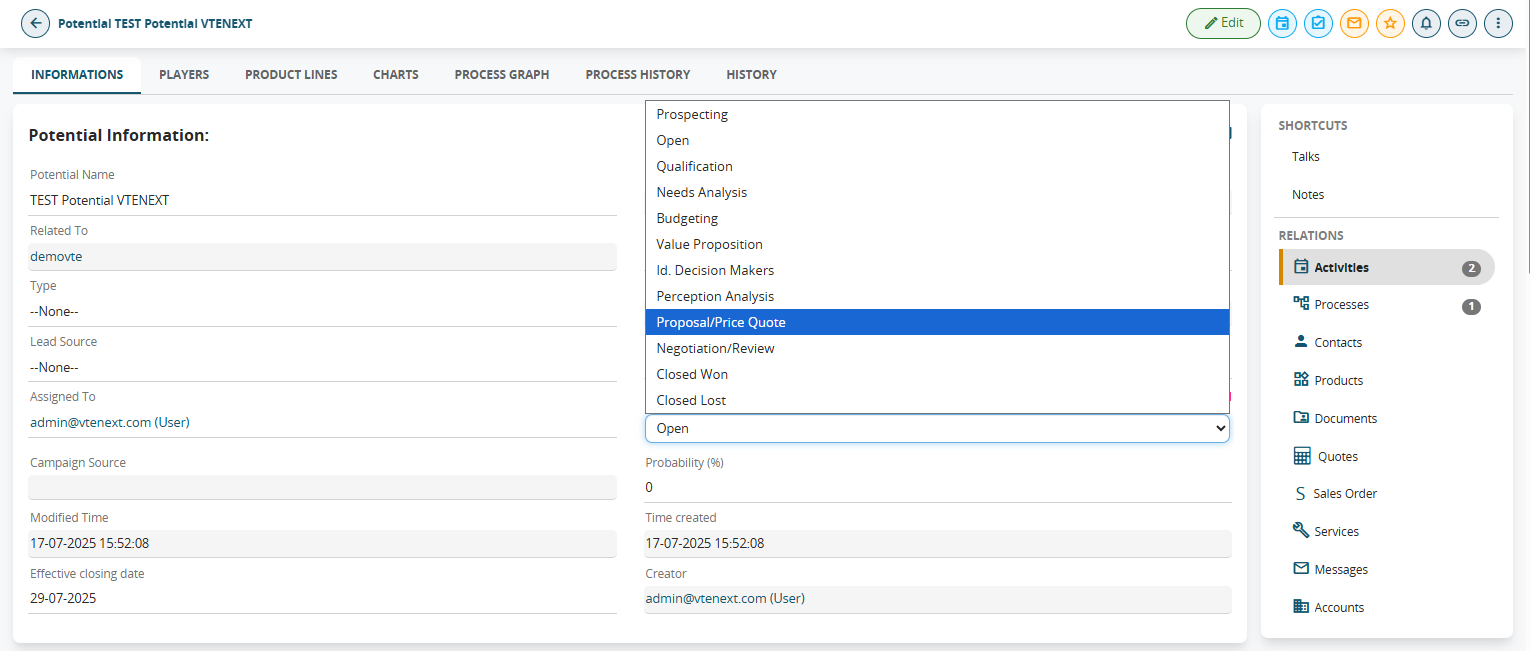
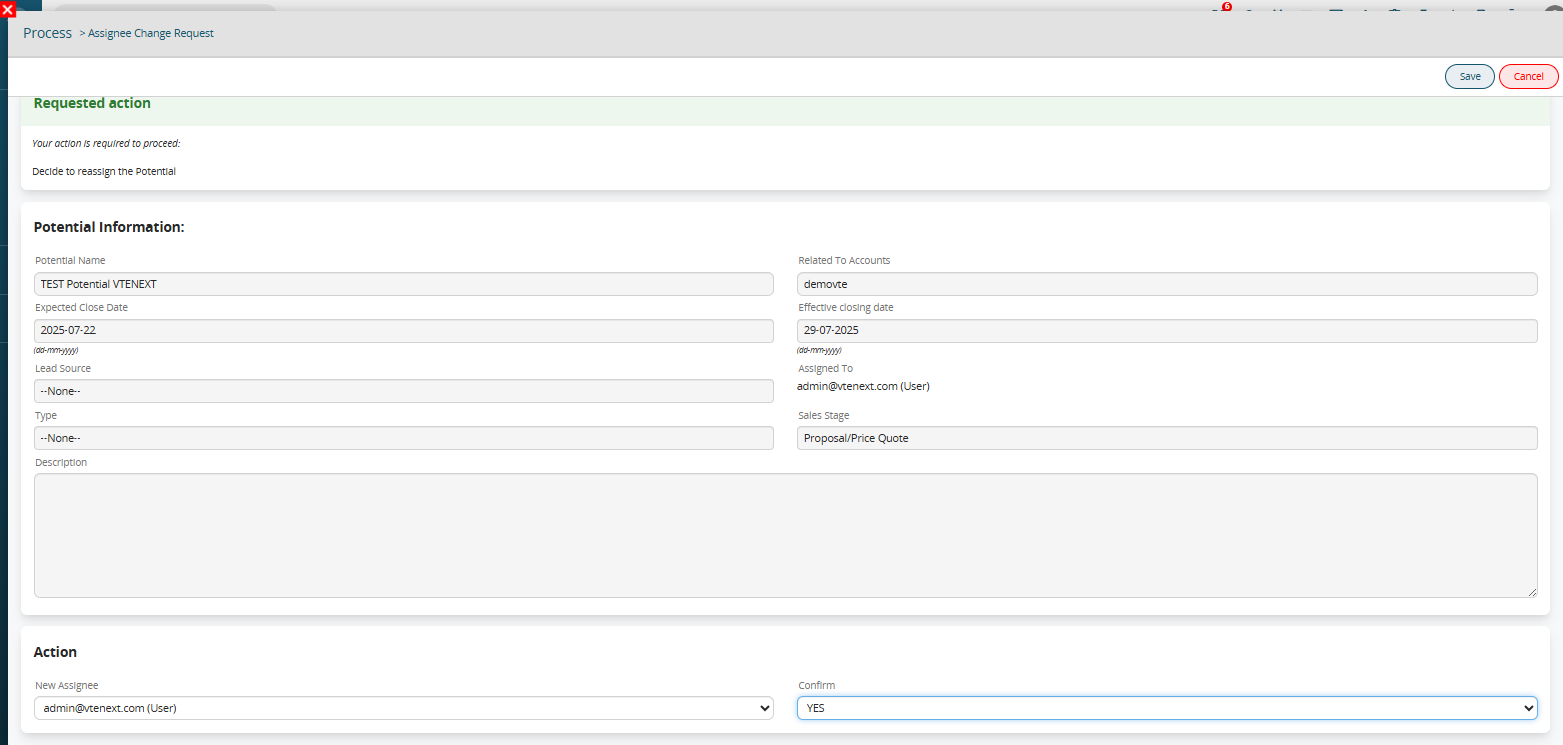
Once saved, a popup will appear to the assignee of the Opportunity with a summary of the read-only data and the possibility of reassigning it to another user.
Once the desired user has been selected, select the value “YES” from the picklist (you can click the “CONFIRM/CANCEL ASSIGNMENT” button to change the value of the same picklist to YES/NO) and proceed by clicking on SAVE.
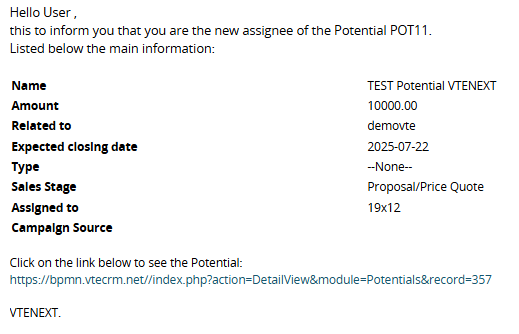
Once confirmed (selected the value “YES” in the popup, the assignee of the Opportunity is updated and will receive an email with the data and confirmation of acceptance.
From the reports we can already see that the email has been related and the estimate has been created, as the Sales Stage was “Proposal/Estimate Price”.
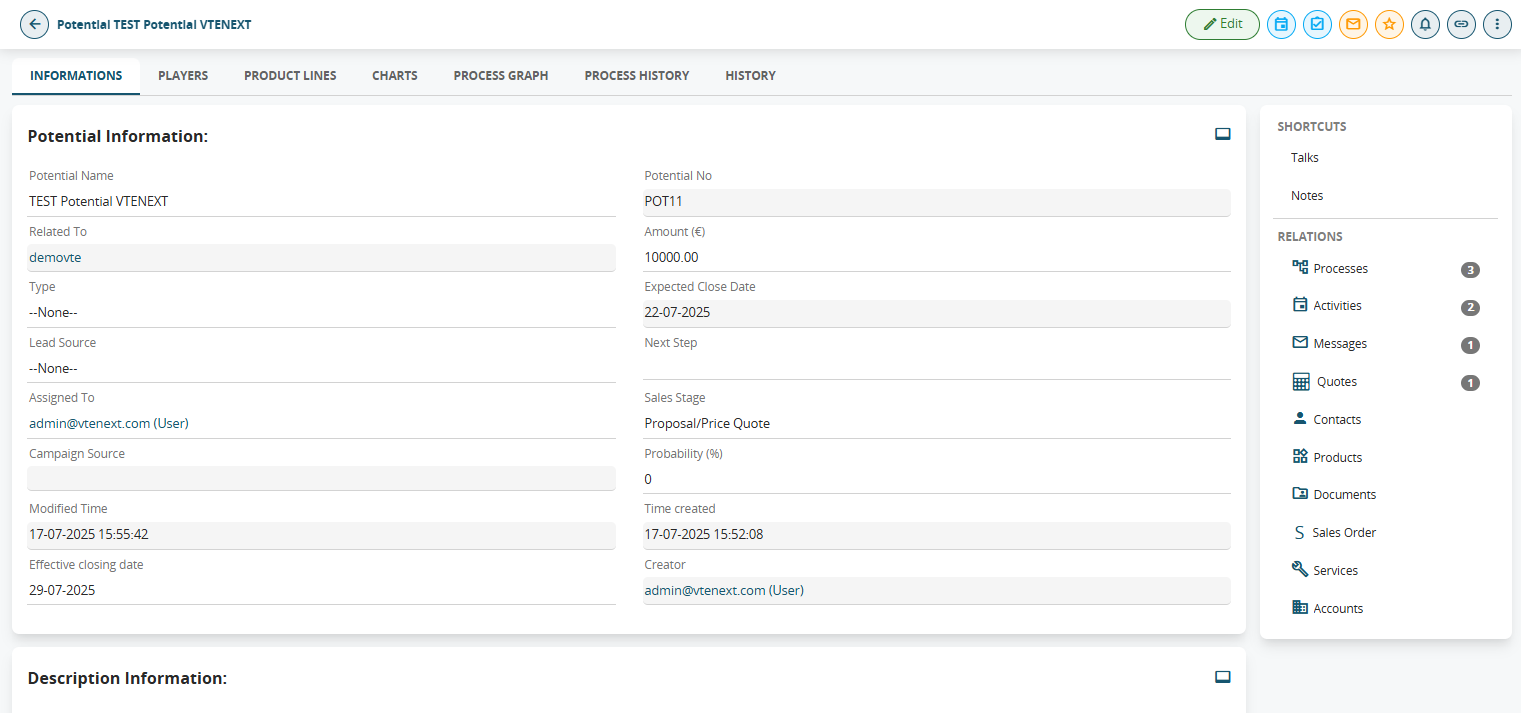
By analyzing the report we can see the details of the created Estimate.
At this point, we can go into detail, modify the data, insert products and change the Estimate stage to “Revised”.
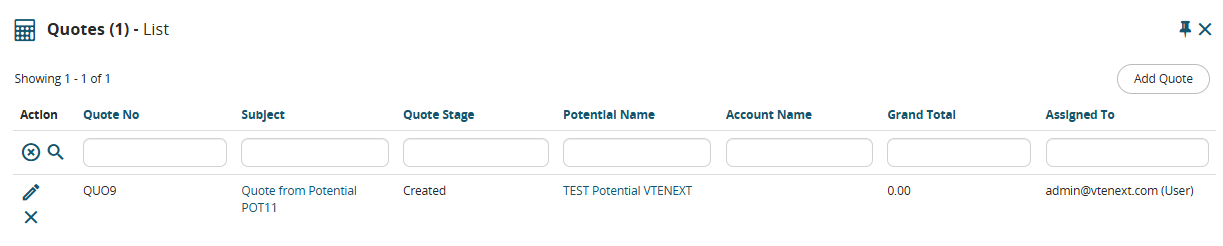
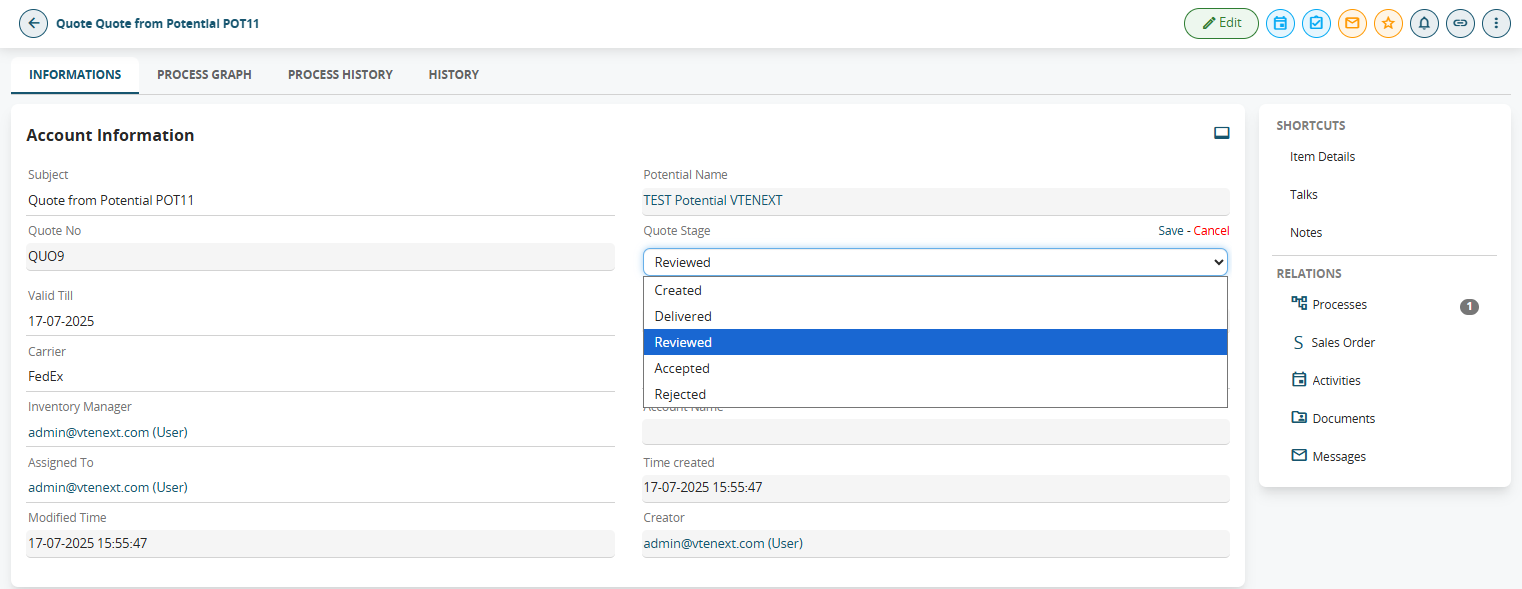
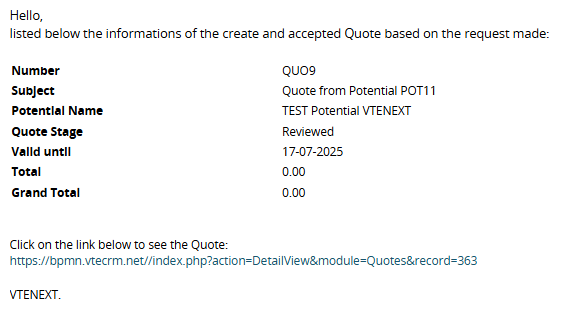
The process continues the flow and sends the email to the assignee containing the data of the Quote itself. In addition, the Sales Stage of the Opportunity is set to “Negotiation/Review”.
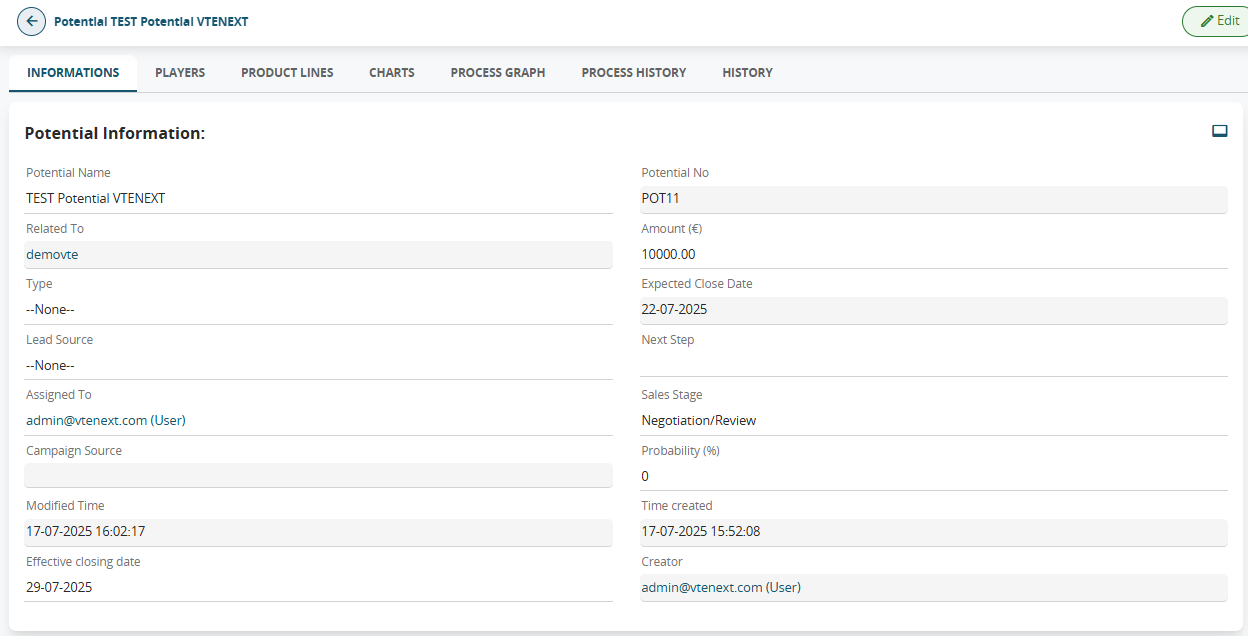
At this point, the assignee receives a final summary email with all the data of the Opportunity.
From the “Process Graph” tab we can see that the process has finished the execution flow.