
2.9 Comparison operators: Rules of use in initial condition tasks
Some comparison operators should be used carefully within the “Initial Condition” Tasks, i.e., those Conditional Tasks directly associated with the Start Event within which conditions are defined that allow the process to be triggered or not. (Figures 1 and 2).
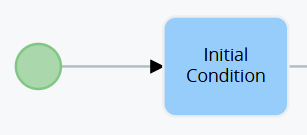
Figure 1
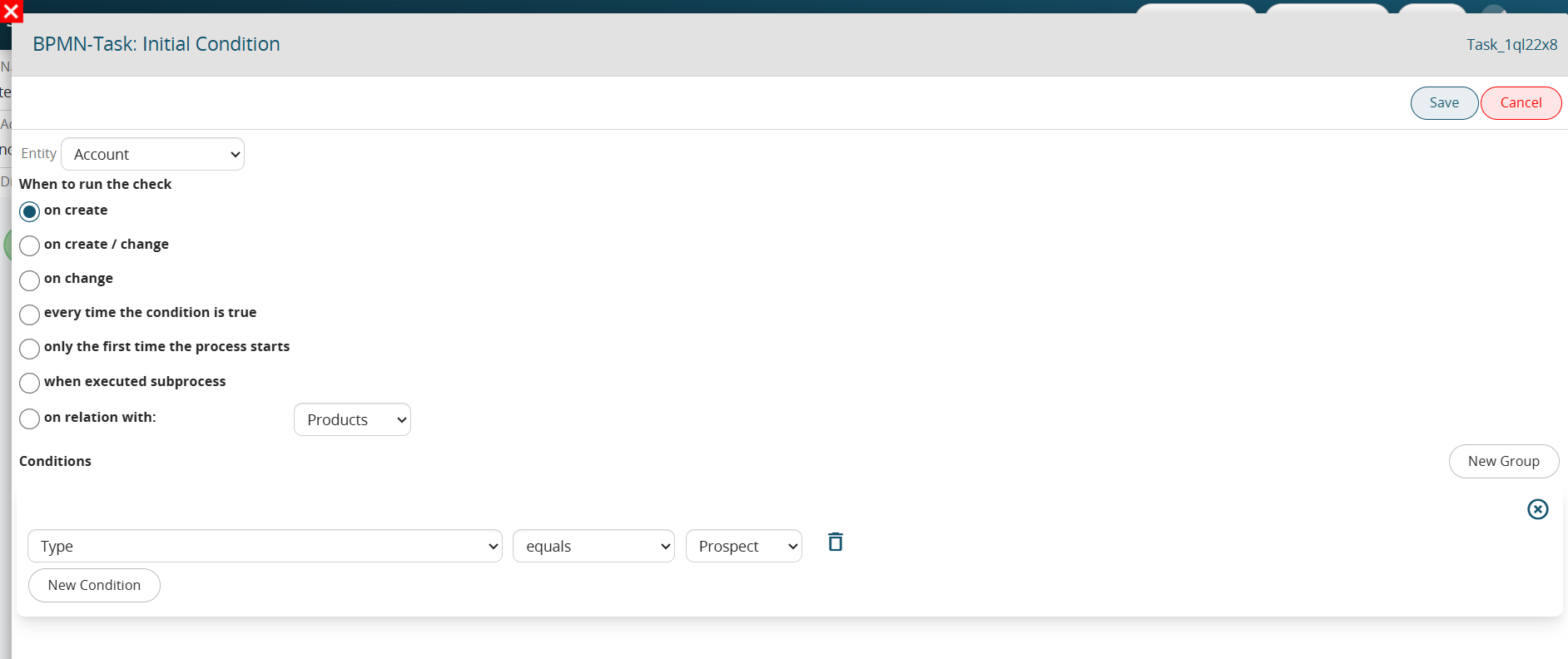
Figure 2 (click on the image for a higher graphic resolution)
Specifically, in the case where the “edit” phase is involved in the condition (thus selecting one of the following: “upon editing” , “upon creation and modification”, “whenever the condition turns out to be true”), the comparison operators “equal”, “different”, “contains”, “does not contain”, “starts with”, “ends with”, “greater than”, “greater than or equal”, “less than”, “less than or equal” cannot be used individually, because, there is a risk of creating loops, i.e., the unwanted and uncontrolled departure of multiple instances of the same process.
This is because, the comparison operators just mentioned simply look at whether the condition is verified or not, without taking into consideration in which specific save that condition first occurred.
To better understand how they work, Figure 3 shows an example of an Initial Condition Task that is NOT properly configured.
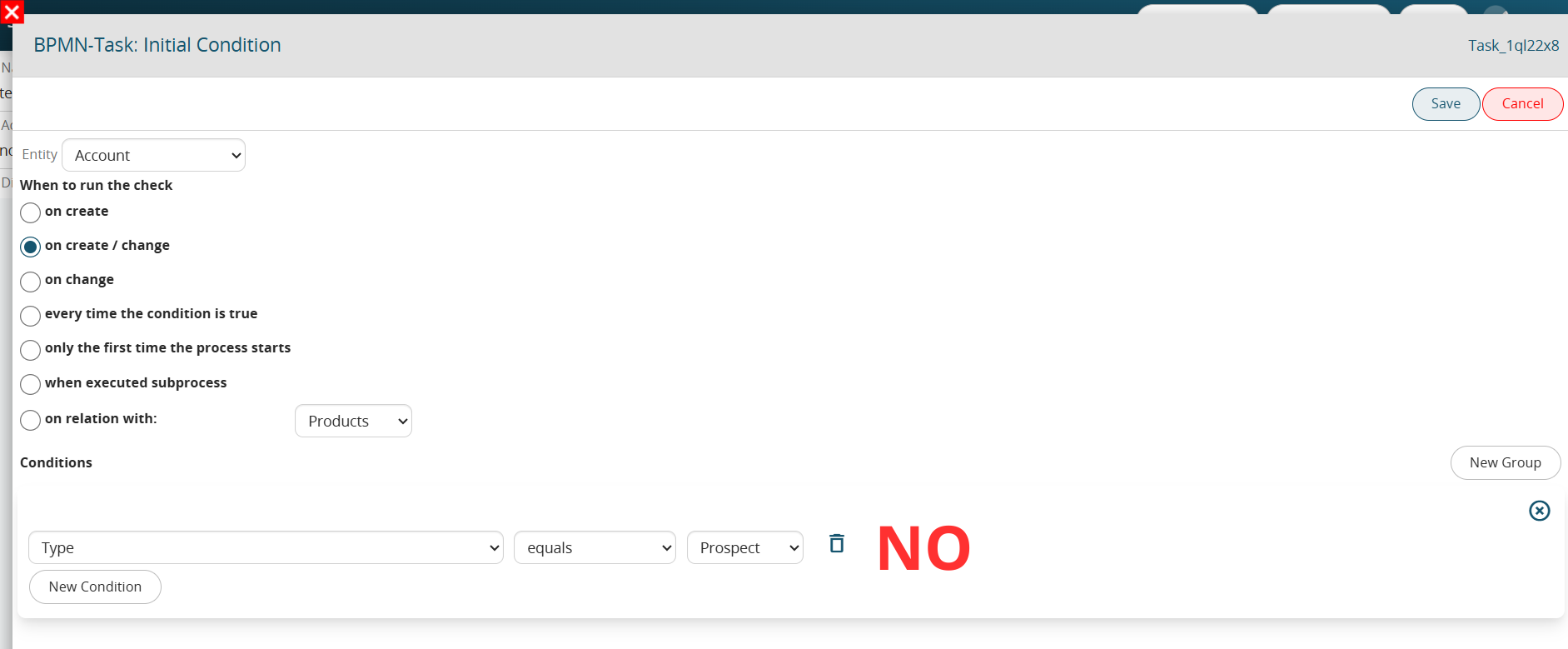
Figure 3 (click on image for higher graphic resolution).
The condition “Type” = “Potential” simply tests whether that field possesses that specific value.
By then setting this condition individually and involving editing (in this case by selecting “upon creation and editing”), the process will not only be triggered on the save where the “Type” is set to “Potential” but also on subsequent saves as long as the “Type” field retains that specific value.
Precisely to overcome this issue, the system provides the “has changed to” and “has changed from” comparison operators that allow the process to trigger only in the save in which the setting of that specific value occurred.
Thus, by configuring the process as shown in Figure 4, the process will only trigger on the save in which the value in “Potential” is set.
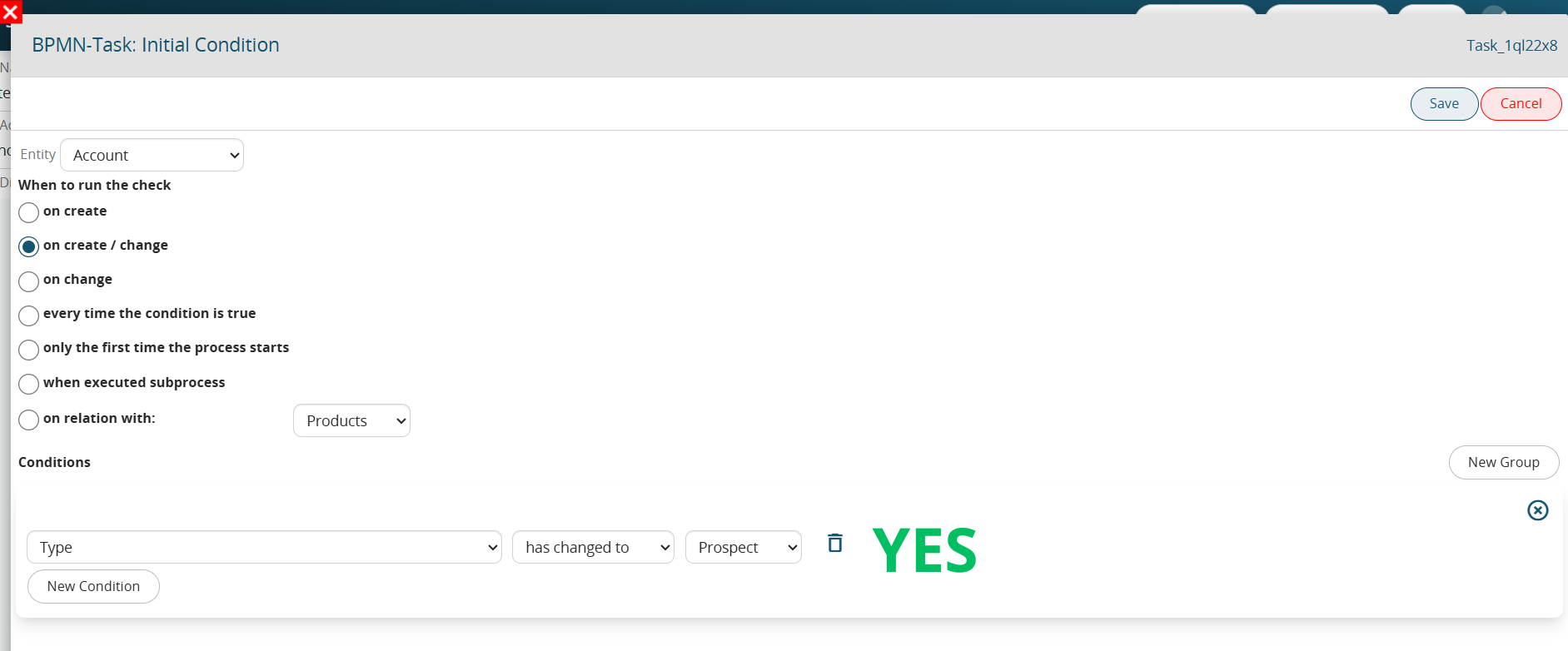
Figure 4 (click on image for higher graphic resolution)