
5.1 Block and field management
It allows the creation of real customized forms aimed at receiving and historicizing the data entered (in this case) by CRM or external users (Figure 1).
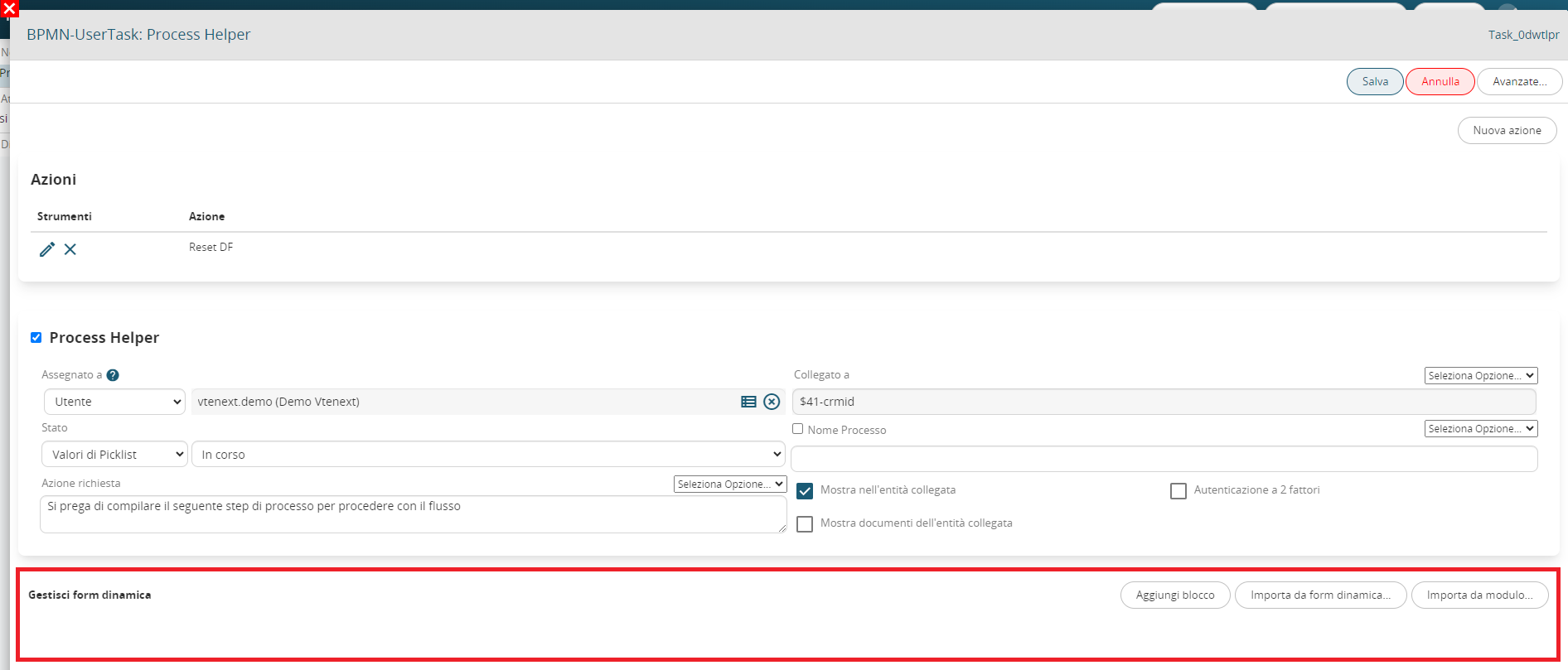
Figure 1
The configuration interface is identical to the Layout Editor section used for configuring modules (chapter 17.7 of the Vtenext general manual).
Using the “Add block” button, it will be possible to create a block, or the “base” within which individual fields or tables can be created (Figure 2).

Figure 2
Once a block has been created, a series of buttons will be made available to the right of the block name for creating/moving/deleting individual fields within it (Figure 3).

Figure 3
Specifically:

Figure 4

Figure 5
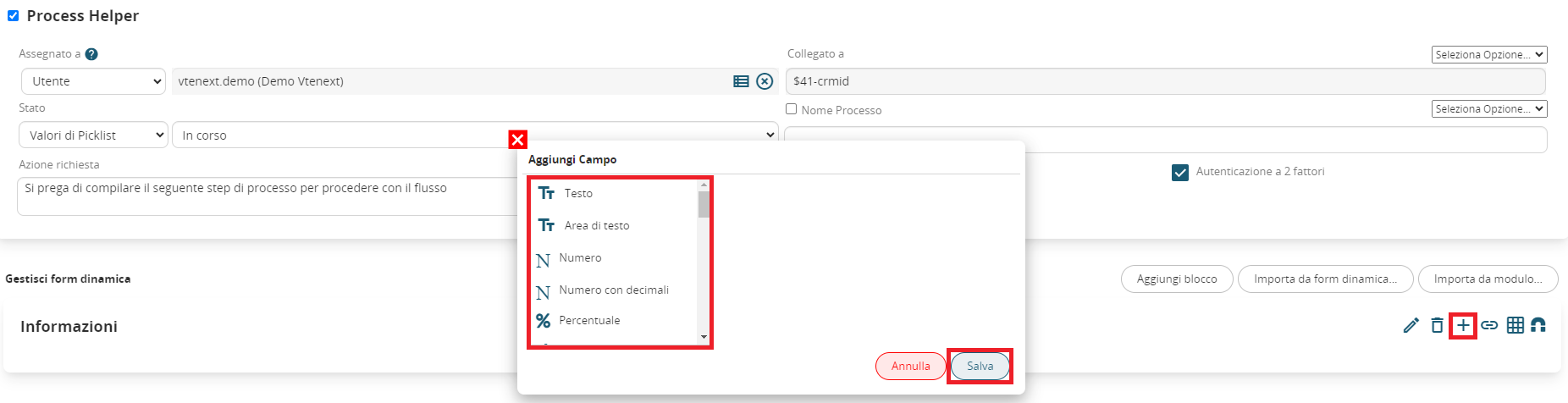
Figure 6
- Add relation field button → allows you to quickly create a field of the “Related to” type (Figure 7)
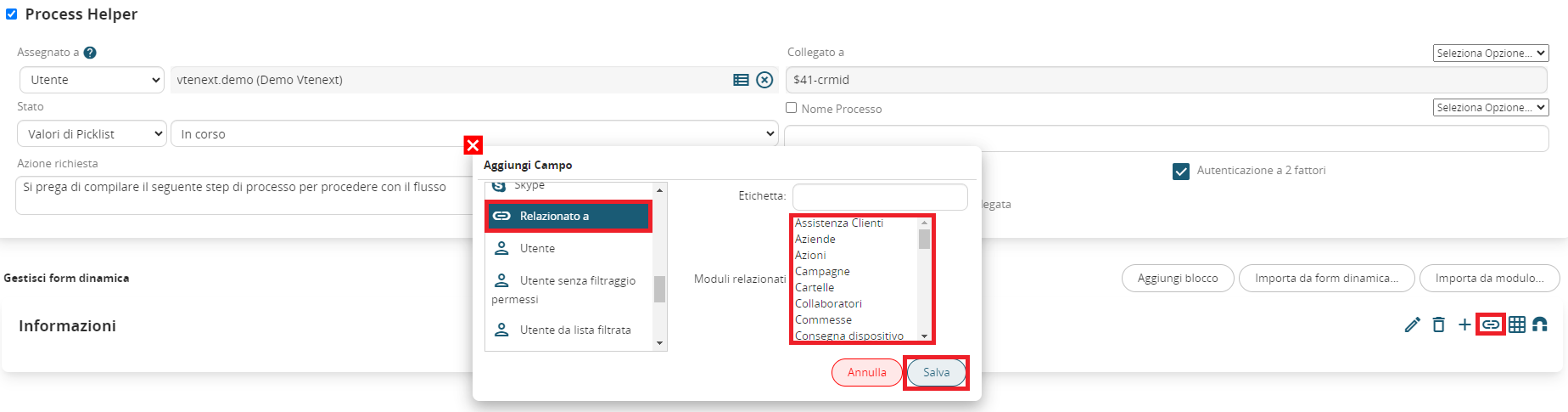
Figure 7
-Add Table Field Button → allows you to quickly create a table field (Figure 8 and 9)

Figure 8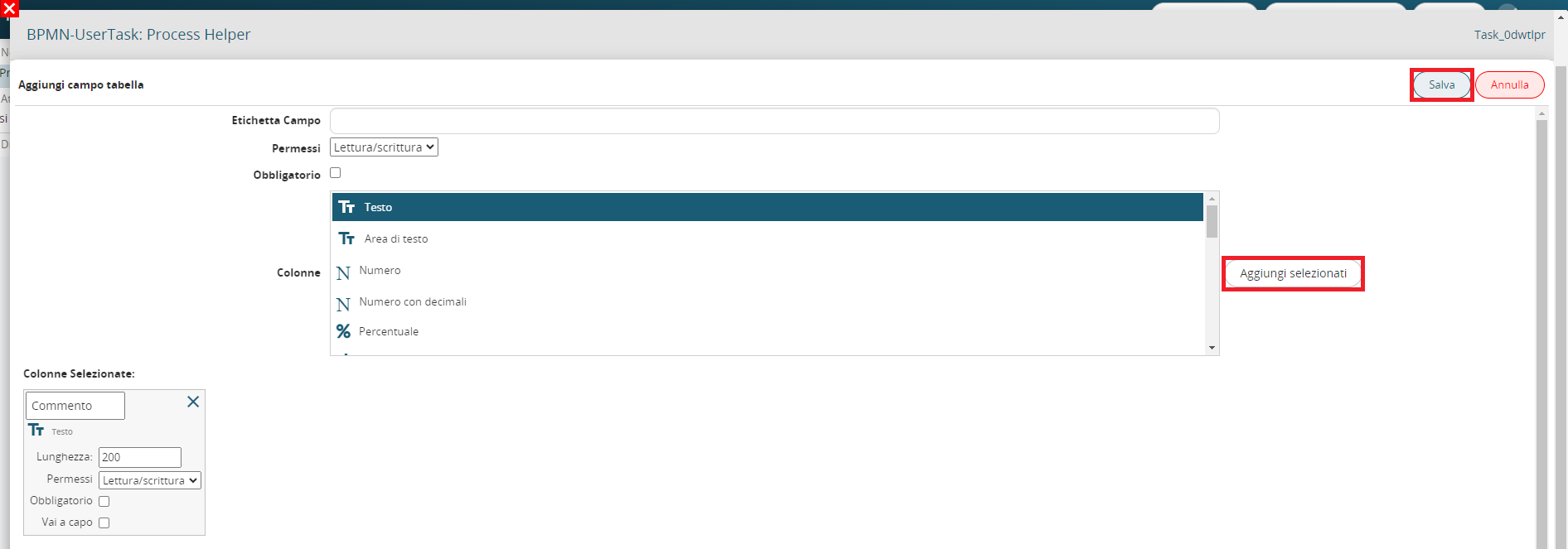
Figure 9

Figure 10