
5.5 Advanced Section
Tramite questa sezione è possibile impostare delle regole avanzate per gestire i permessi dei campi dei moduli/ form dinamiche coinvolte all’interno del processo.
Per accedervi si deve cliccare il pulsante “Avanzate” disponibile all’interno di una qualsiasi Action Task (Figura 1)
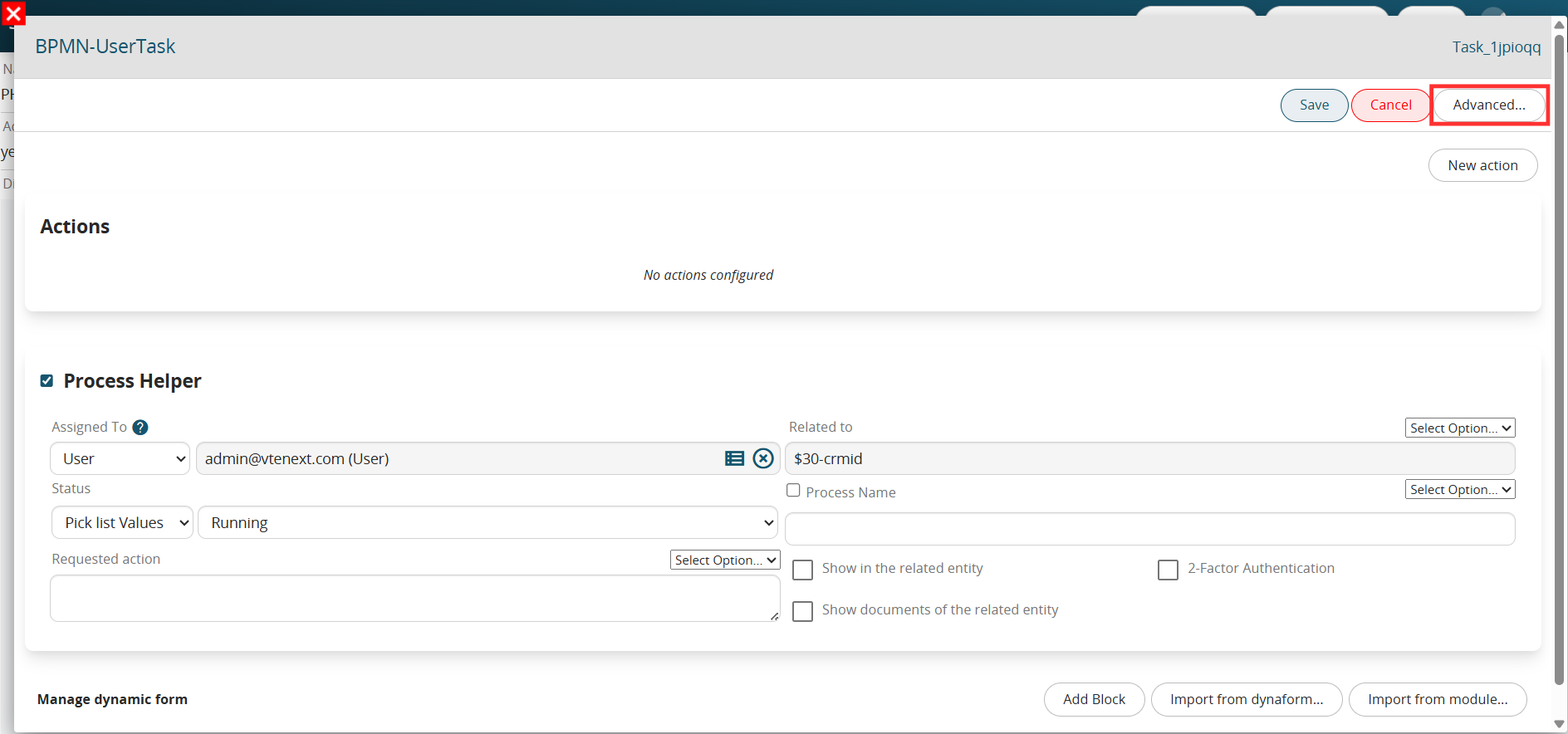
Figure 1
CONDITIONAL FIELDS (ON FORM)
Allows you to set up conditional field rules applicable to the instances of the forms involved in the process (Figure 2).
These rules will be valid only during the duration of the process, in fact once it is finished they will be automatically deactivated.
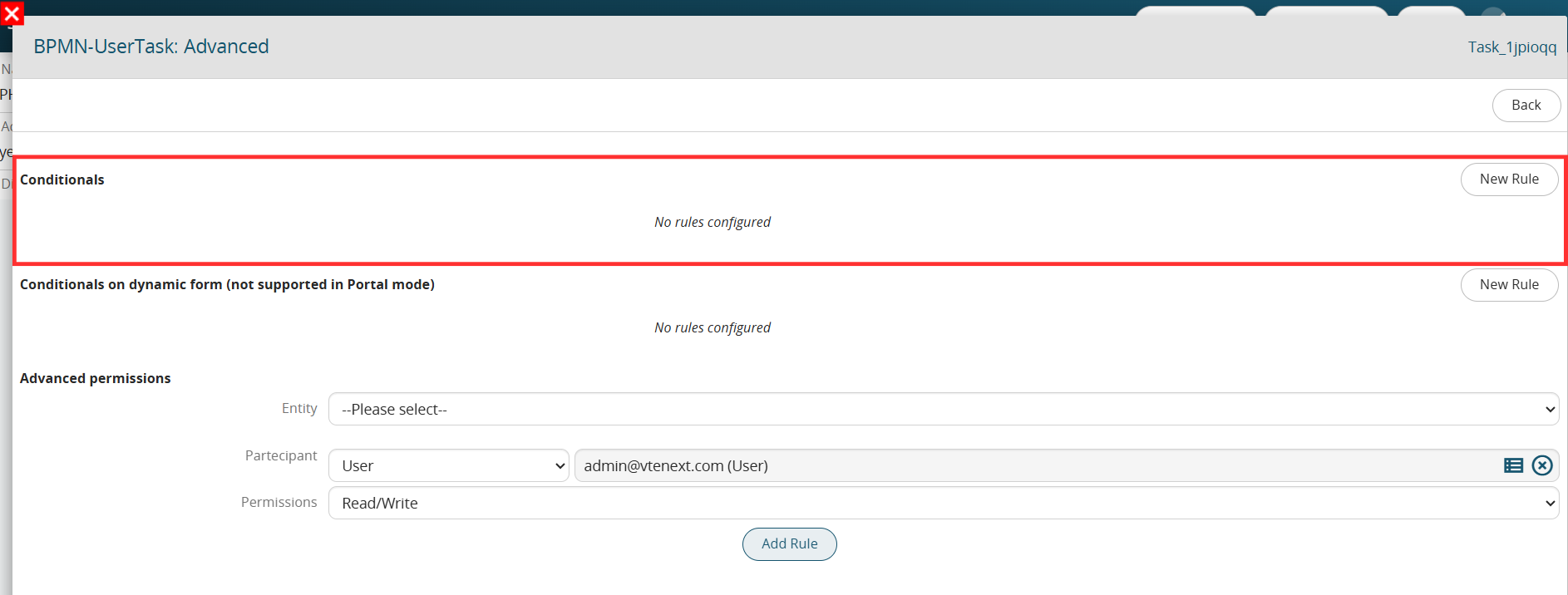
Figure 2
To proceed with the creation of a rule, you will have to click the “New Rule” button.
The system will ask you to enter a text description by filling in the “Rule” field.
You will then have to select the instance involved in the process, indicate any Roles or Groups to which to limit the application of the rule, enter a condition (which must occur for the rule to be activated) and finally enter the permissions on the fields involved (Figure 3).
For further information on the configuration of conditional fields, consult section 17.4 of the Vtenext general manual.
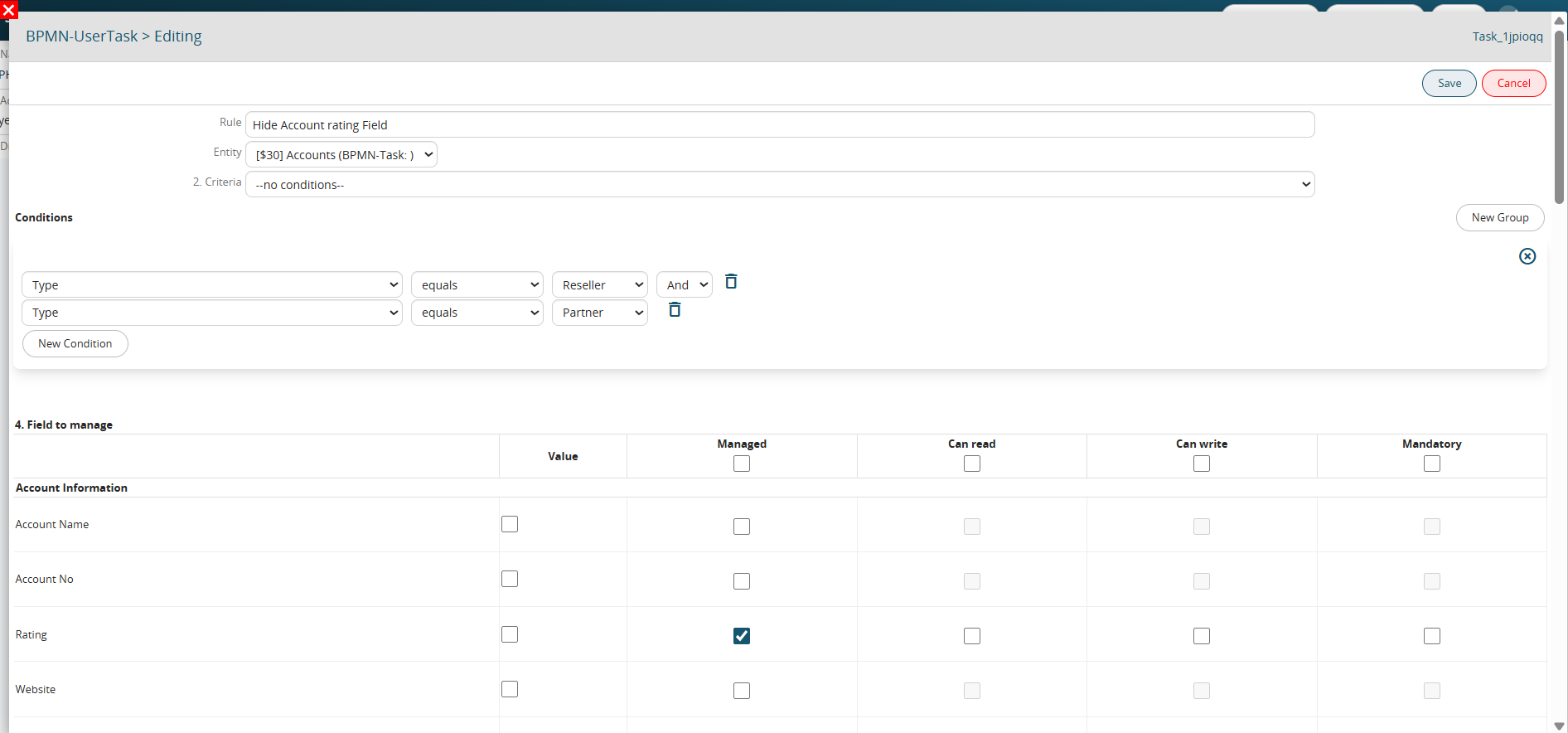
Figure 3
NOTE: compared to the standard conditional fields, an additional column called “Value” is available from the process, which allows you to force the insertion of static or dynamic data within the selected fields (Figure 4).

Figure 4
CONDITIONAL FIELDS ON DYNAMIC FORM (NOT SUPPORTED IN PORTAL MODE)
Allows you to set conditional field rules applicable to the fields of a specific dynamic form present within the process (Figure 5).
These rules will be valid only during the duration of the process, in fact once it is finished they will be automatically deactivated.
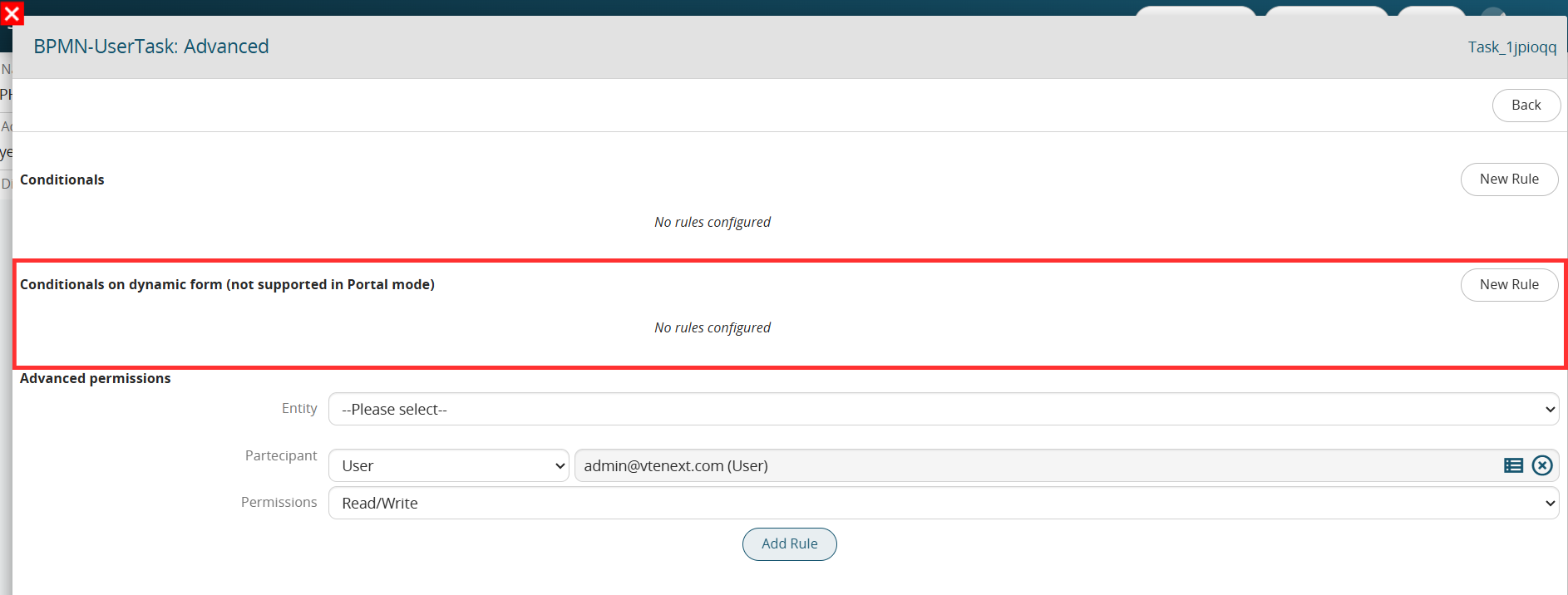
Figure 5
To proceed with the creation of a rule, you will have to click the “New Rule” button.
The system will ask you to enter a text description by filling in the “Rule” field.
You will then have to indicate any Roles or Groups to which you want to limit the application of the rule, insert a condition (which must occur for the rule to be activated) and finally insert the permissions on the fields involved.
For further information on the configuration of conditional fields, consult section 17.4 of the Vtenext general manual.
To better understand how it works, below is an example of a Process Helper aimed at requesting the approval of an internal flow by filling in a single field called “Action” (Figure 6).
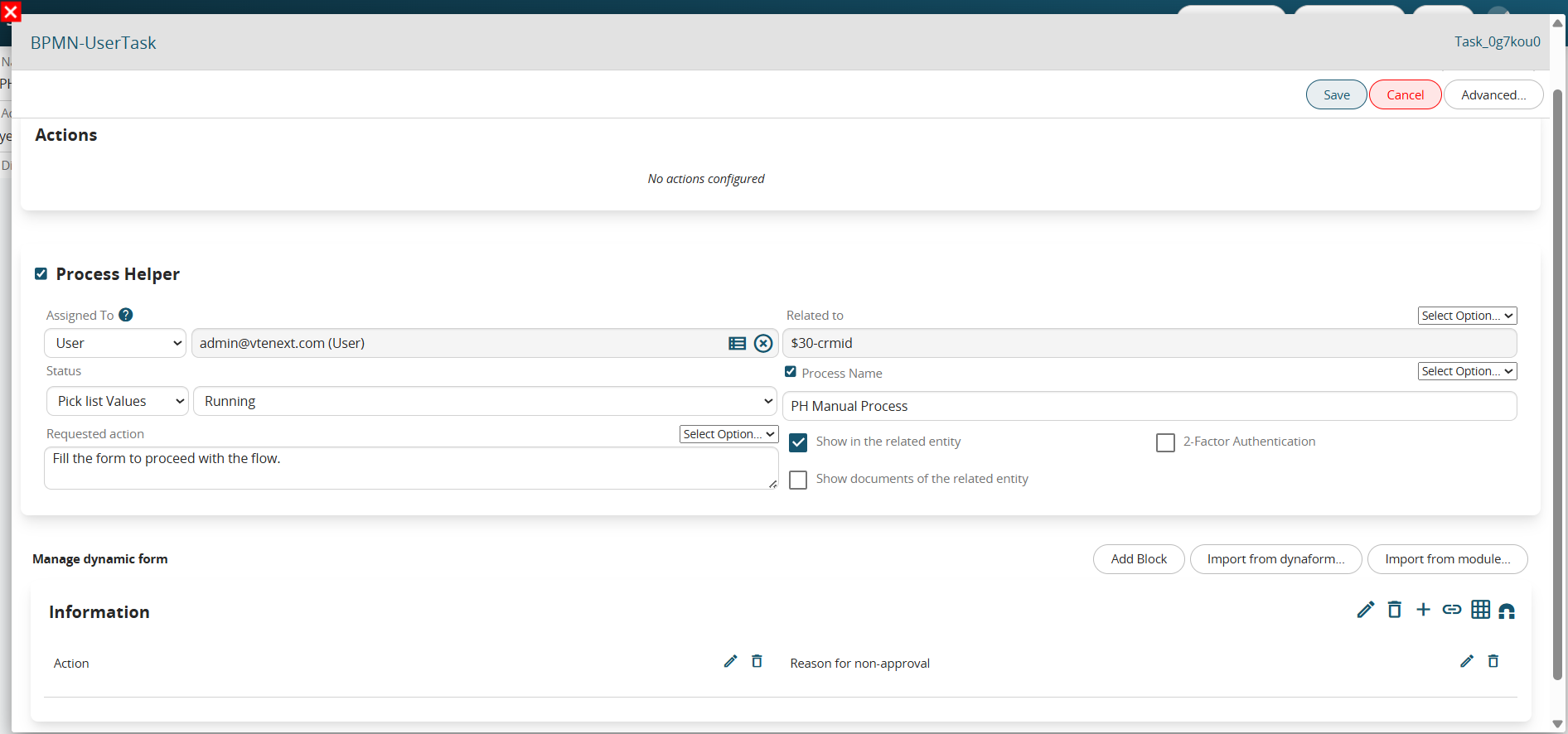
Figure 6
This is a picklist type field with the following 3 static values: “empty”, “APPROVATE” and “DO NOT APPROVE” and with mandatory permissions as Default (Figure 7)
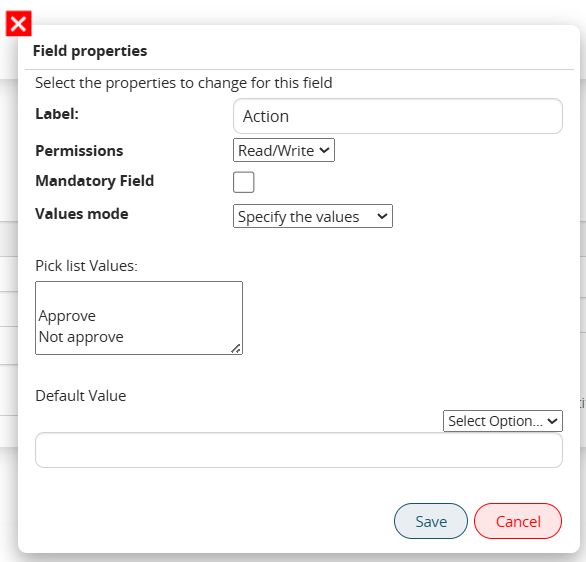
Figure 7
There is an additional field called “Reason for non-approval” that should be shown and filled in only if the user chooses the “DO NOT APPROVE” option.
For this reason, the following conditional field rule on dynamic form has been created that allows you to hide the aforementioned field if the “Action” field has a value other than “DO NOT APPROVE”.
Therefore, in the “Advanced” → “Conditional fields on dynamic form” section, a rule called
“If Action other than DO NOT APPROVE hide Reason for non-approval field” has been inserted (Figure 8).

Figure 8
In the “Condition” section, the “Action” condition other than “DO NOT APPROVE” has been inserted (Figure 9)

Figure 9
In the “Fields to manage” section, only the “Managed” column was selected in the “Reason for non-approval” field (Figure 10)

Figure 10
ADVANCED PERMISSIONS
Allows you to set complete visibility permissions on the instances of the modules involved in the process by specifying a user or a group (static or dynamic).
They will be valid only during the duration of the process, in fact once it is finished they will be automatically deactivated.
To proceed with the insertion of an advanced permission you will have to select an instance involved in the process, a user or group (static or dynamic) to apply it to and finally one of the available permissions (“Read/Write” and “Read Only”) (Figure 11).
Once you click the “Add Rule” button, the advanced permission will be saved and confirmed.

Figure 11