
6.1 Example of using Process Helper to request internal user data
As anticipated in the introductory chapter, one of the most common uses of the process helper concerns the creation of customized forms that can be presented to internal users of the CRM in order to request and save information.
The blocks and fields that make up these forms are called "dynamic forms".
In order to configure a process helper, you must first configure an Action Task (create a link with a dedicated section) following the dedicated procedure (Figure 1).
NOTE: it is advisable to use the User Task symbol, as we are indicating an activity that will be charged to the user.
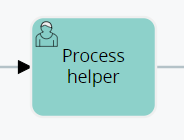
Figure 1
After the User Task, in this specific case it is essential to create a Task within which to perform some checks to allow the process to stop and present the dynamic form (Figure 2).
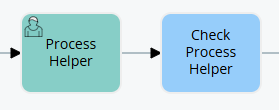
Figure 2
Once inside the User Task (in our example “Process Helper”) in configuration mode, we will find the section called “Process Helper” with all the related fields (Figure 3)
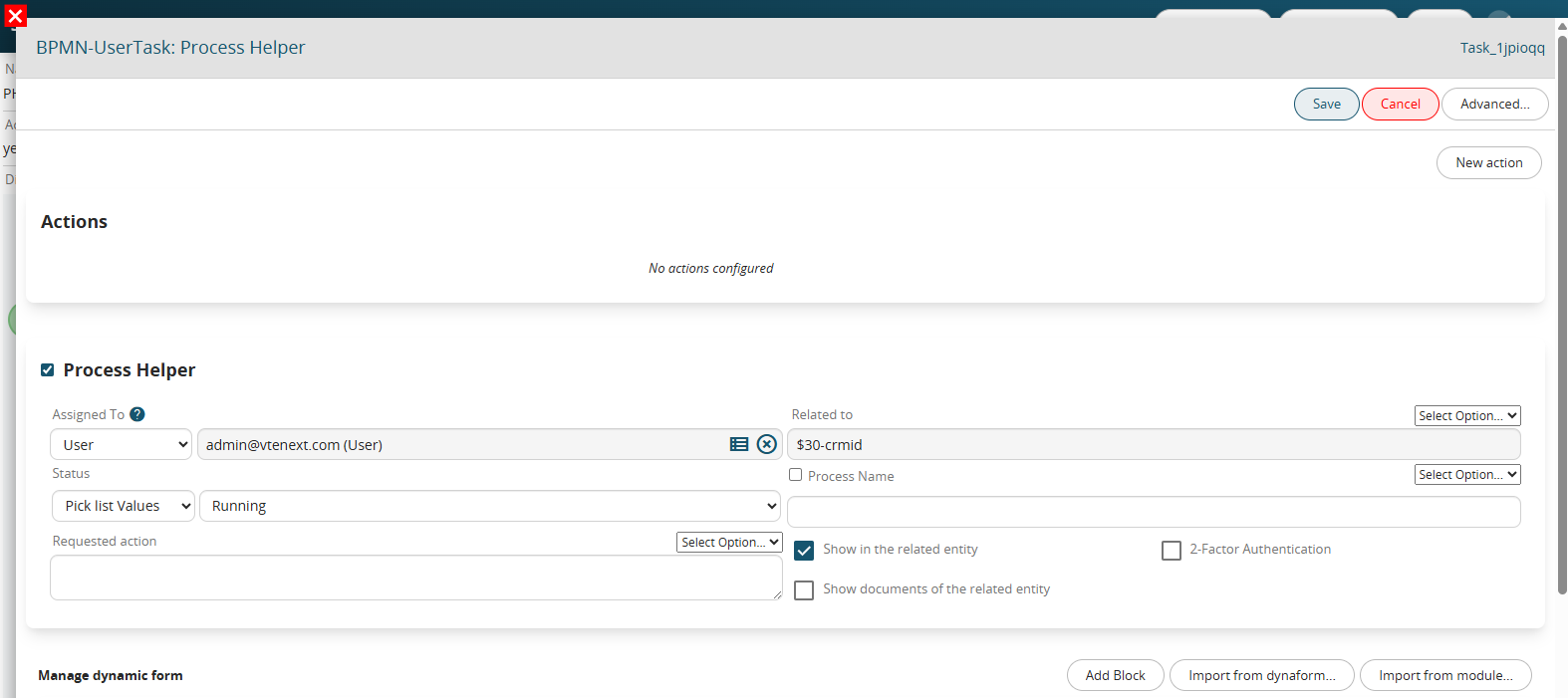
Figure 3
Once the main fields have been configured (Assigned to, Linked to, Action requested) we will create the necessary blocks and fields in the dynamic form in order to save the information that will be entered by the user (for more information on their configuration, see the chapter ...).
To better understand how it works, below is an example of a process helper aimed at requesting approval of an internal flow by filling in a single field called "Action" (Figure 4).
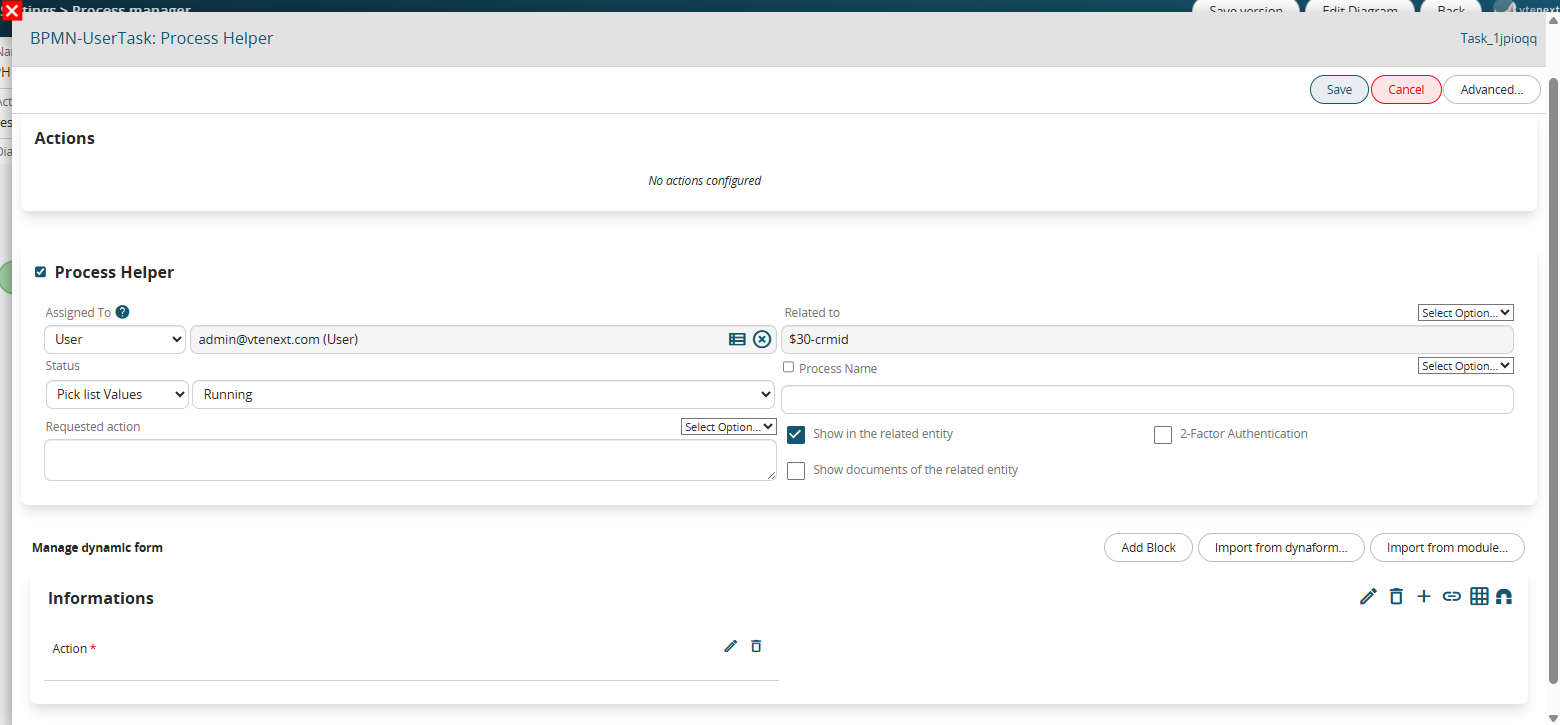
Figure 4
This is a picklist type field with the following 3 static values: “empty”, “APPROVATE” and “DO NOT APPROVE” and with mandatory permissions as Default (Figure 5)
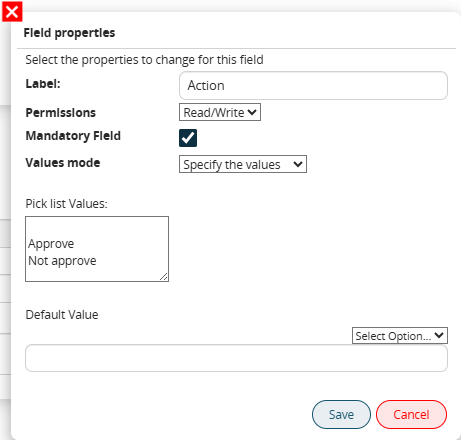
Figure 5
In the associated Control Task (called “Process Helper Control”) a condition is indicated that allows the process not to continue with its flow until a value other than blank has been entered (which instead represents the default value of the picklist) (Figure 6)
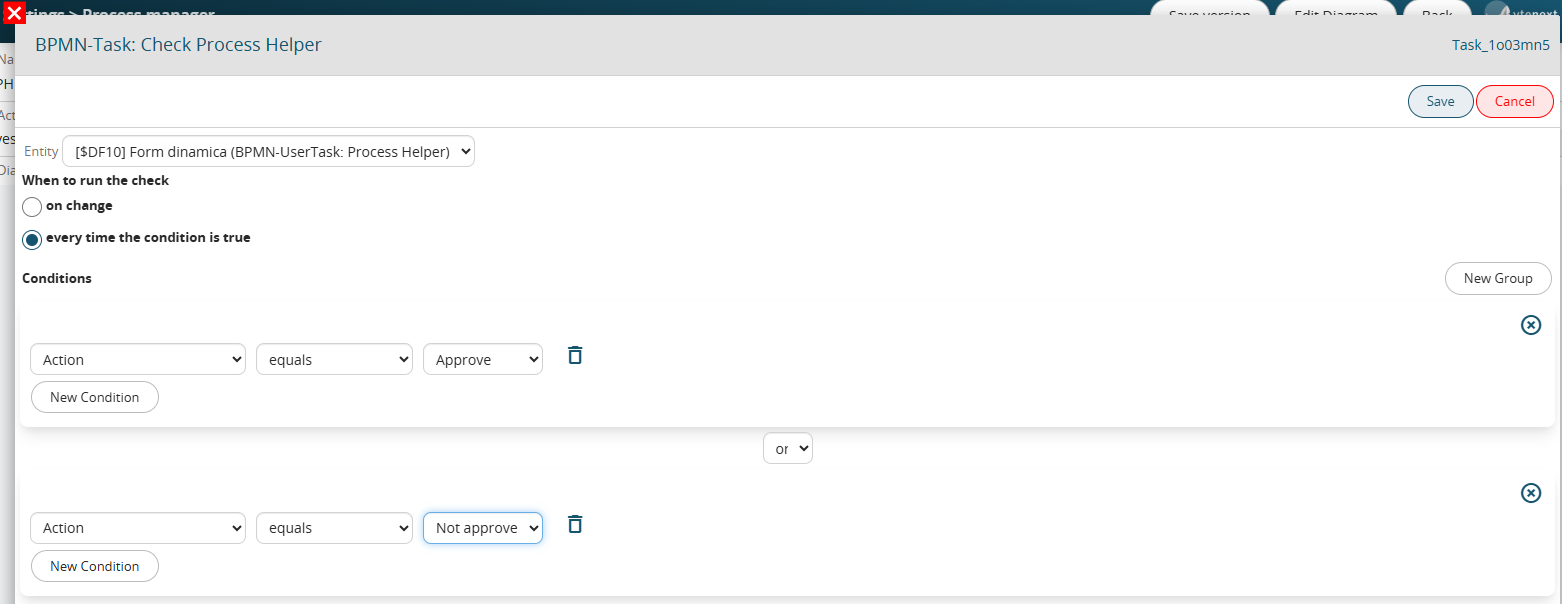
Figure 6
The two conditions inserted in separate groups allow the flow to be routed in two different paths based on the item selected by the user.
On the operational side, the process helper presents itself with a preview mask as shown in Figure 7, this is because the “Show in the linked entity” flag has been activated.
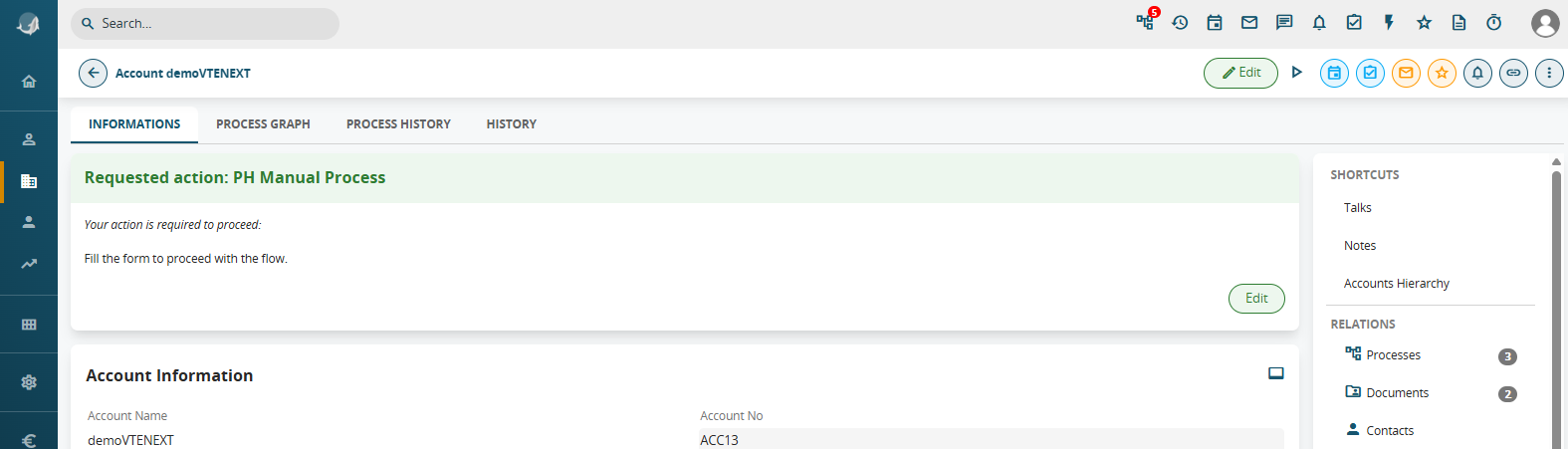
Figure 7
Clicking the Fill button displays a popup with the content of the dynamic form.
The user simply has to fill in the “Action” field and finally click on the “Save” button (Figure 8)
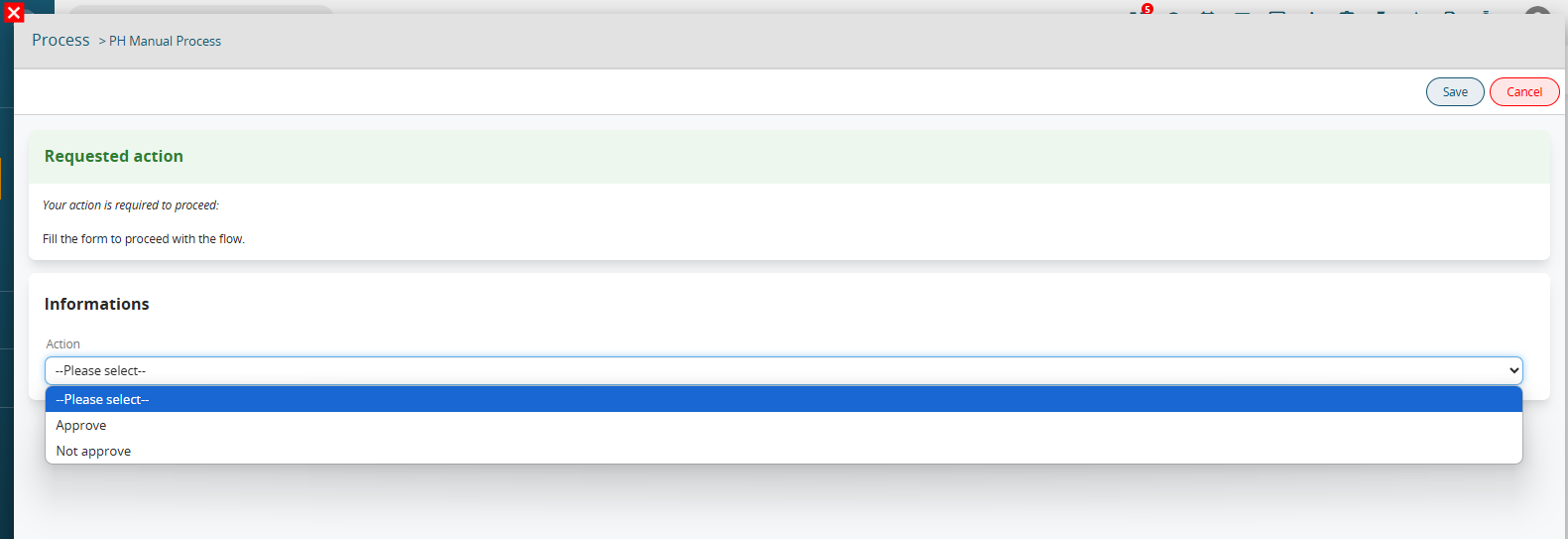
Figure 8