
6.5 Example of Process Helper usage for internal process use
As anticipated in the introductory chapter, one of the uses of the process helper concerns the creation of virtual spaces in which to store data or carry out operations necessary exclusively within the process (and which therefore would be useless to historicize in the CRM modules).
To proceed with the configuration of the process helper, you must first configure an Action Task (create link with dedicated section) following the dedicated procedure (Figure 1).
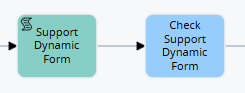
Figure 1
NOTE: It is NOT mandatory to create a subsequent Task, since the checks that would be performed within it would not be aimed at stopping the process to present the dynamic form but rather to perform a simple check on the data present in the fields of the dynamic form (which we remind you were not entered directly by any user).
Once inside the Action Task (in our example “Dynamic support form”) in configuration mode, we will find the section called “Process Helper” with all the related fields (Figure 3)
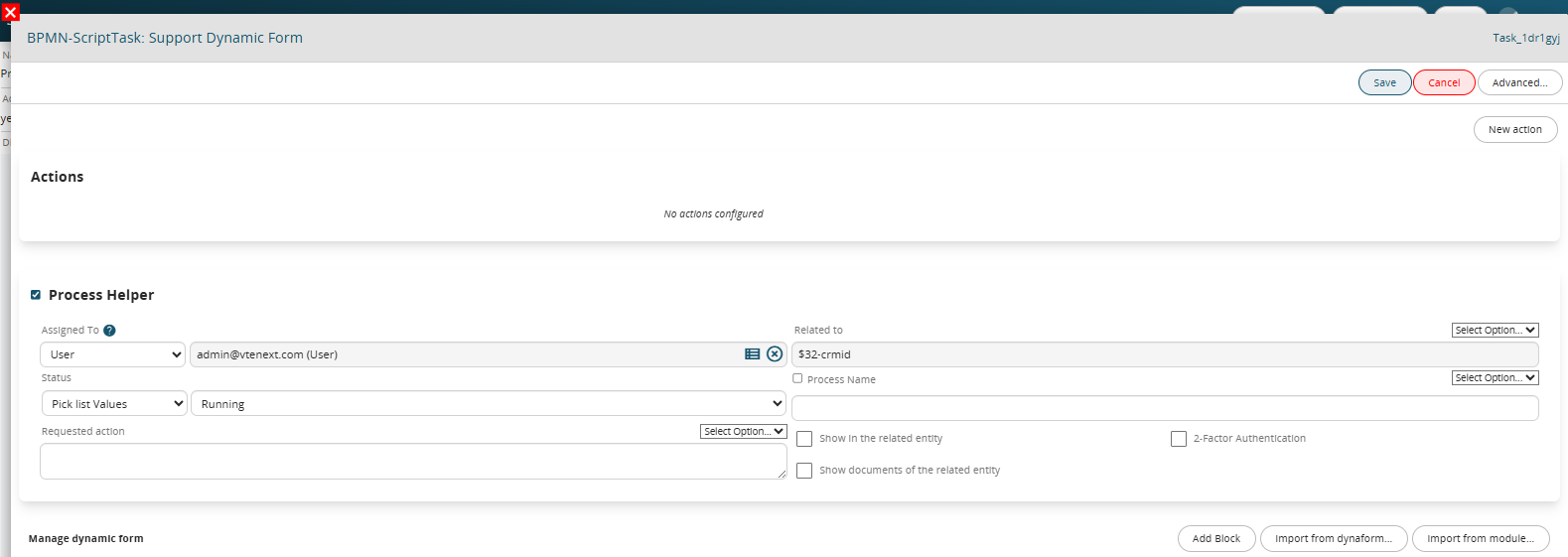
Figure 3
Once the main fields have been configured (Assigned to, Linked to, Action requested) we will create the necessary blocks and fields in the dynamic form based on the data we want to use or the calculations we want to perform.
To better understand how it works, below is an example of a process helper designed to calculate the difference in days between two dates and store the result in a field called "Calculation result", this to verify whether the two values taken into consideration are equal or different (and consequently perform different actions) (Figure 4).
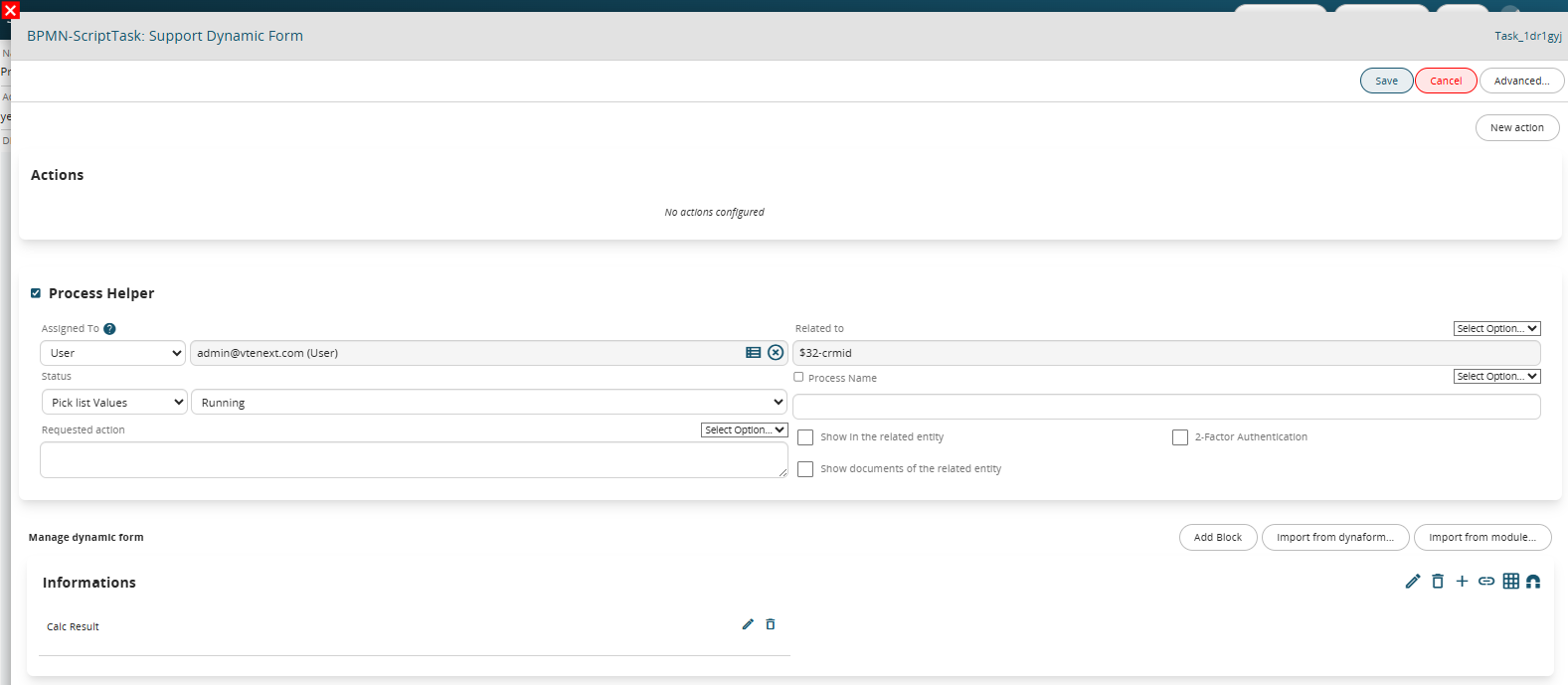
Figure 4
This is a “Number” type field in which the SDK “Diff Date” function is inserted as a Default value, which allows you to perform the difference between two dates.
NOTE: By default, the system returns the result in seconds, but if you want to obtain the result in days, you must pass the word “days” as the third parameter, as done in this example (Figure 5)
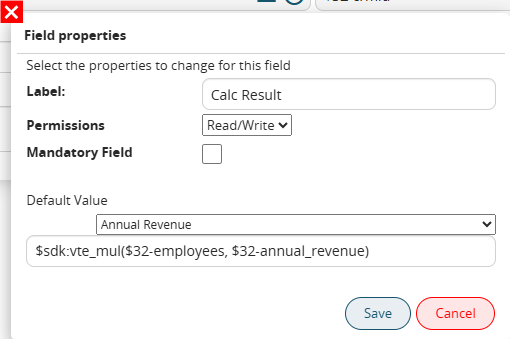
Figure 5
In the associated Control Task (called “Dynamic Support Form Control”) two different groups of conditions are indicated that allow the process to take different paths based on the calculation result (Figure 6).
Specifically, it is checked whether the content of the “Calculation Result” field is equal to or different from 0, this is because if the two compared values are equal the calculated difference will be equal to 0, otherwise it will be different from 0.
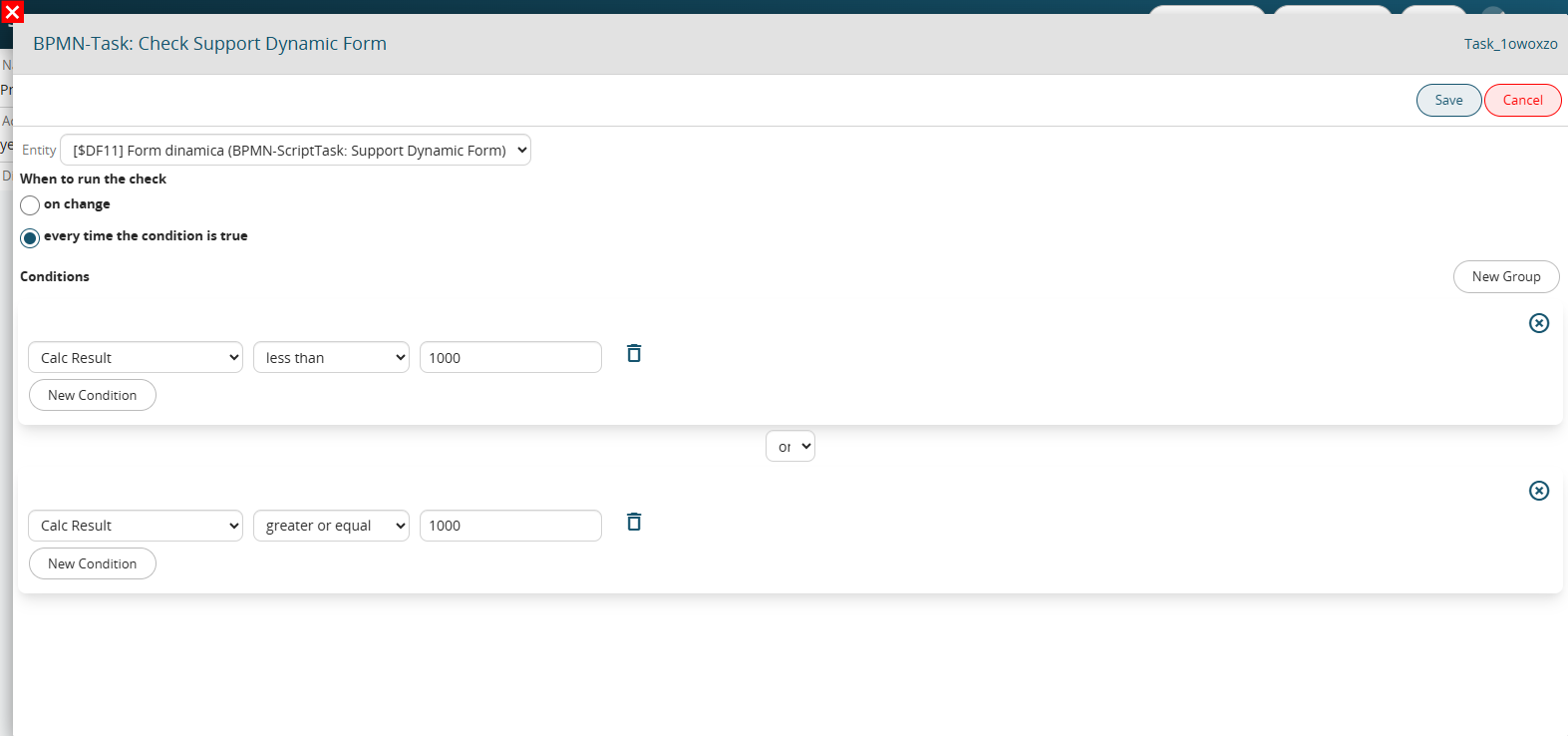
Figure 6