
7.1 Configuring a Basic Process - Quote Approval
FLOW DESCRIPTION
When creating a quote with Quote Stage = “Created”, the process will be triggered and will present the members of the “Management” group with a process helper in popup mode, requesting their completion.
In case of confirmation, an internal notification will be sent to the assignee of the quote (which corresponds to the sales representative who is managing the quote).
Instead, in case of rejection, a notification email will be sent to the assignee of the quote (which corresponds to the sales representative who is managing the quote) containing any internal notes/comments useful for reviewing the quote.
If the popup is not completed by any user within two days, the system will send a reminder email to the members of the group.
In the event of an SMTP error in sending the non-approval email, the system will notify the members of the “IT Department” group by sending an internal notification.
ELEMENTS REQUIRED IN THE PROCESS
To do this process we will need the elements listed below:
-Condition Task
-Action Task
-Timer Boundary Event
-Gateway
-End Event
If their operation is not clear we recommend first consulting chapter 2 of the process manual.
FLOW CHART CONFIGURATION
We use the elements mentioned above to set up a diagram like the one shown in Figure 1
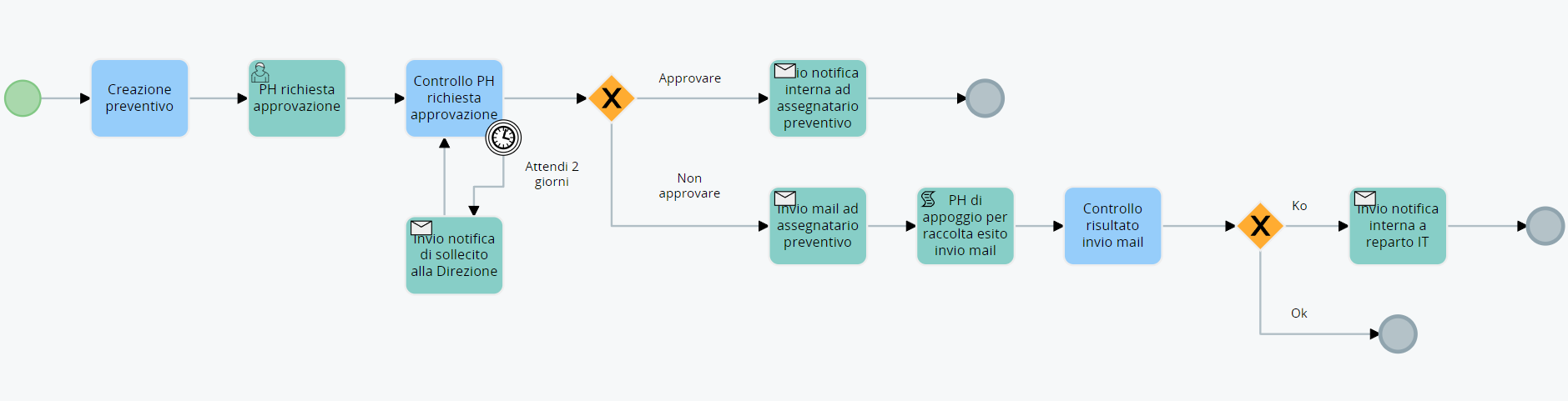
Figure 1
CONFIGURATION OF INDIVIDUAL ELEMENTS OF THE FLOW
Let's proceed with the configuration of the individual elements that make up the process flow.
Let's start with the Condition Task "Create estimate".
In the "When to run the check" section, select the "At creation" option to start the process only when the estimate is created with Estimate Stage = "Created" (Figure 2).
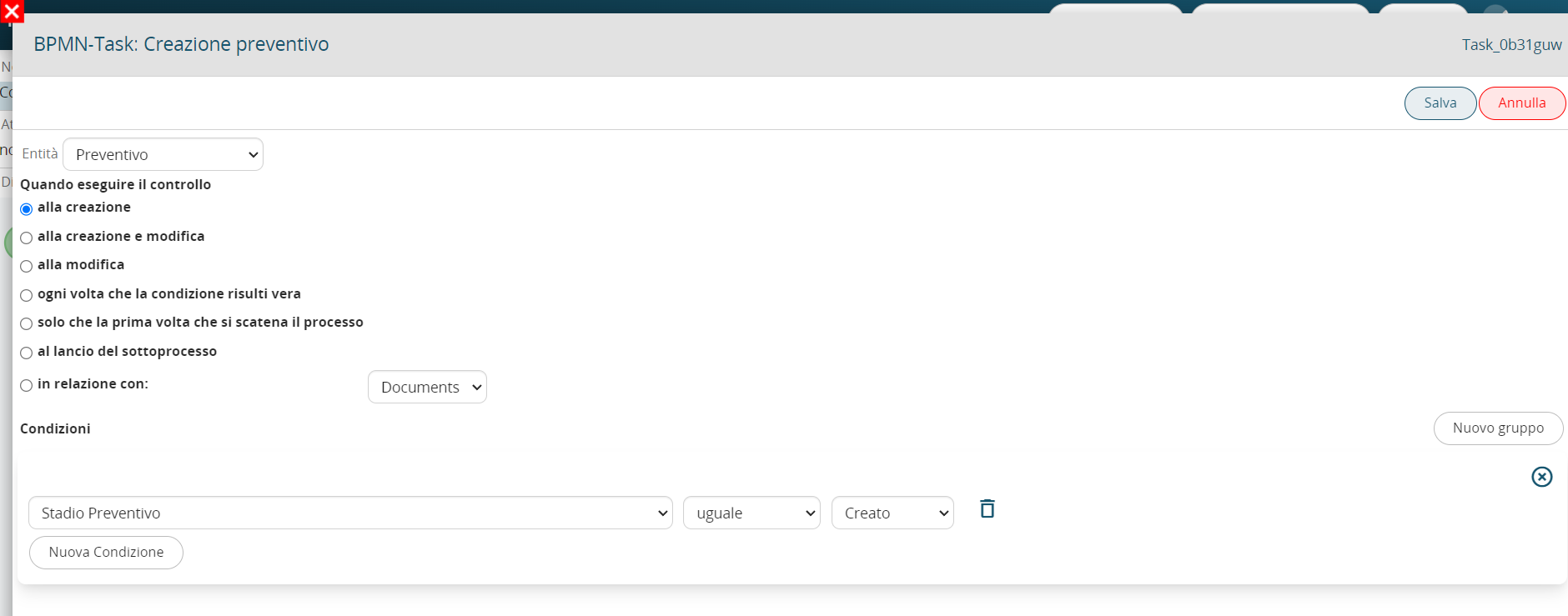
Figure 2
In the UserTask “PH approval request” we configure a process helper in order to request the user for the information necessary for the approval of the estimate.
“Process Helper” block configuration:
-in the “Assigned to” field we statically insert the “Direction” group
-in the “Linked to” field we insert the estimate ID
-in the “Process Name” field we indicate the name that will be assigned to the process in this specific step, then we insert the static part “PH approval request” followed by the value of the “Estimate Number” variable
-in the “Requested Action” field we insert a brief description of the activity to be performed
-we check the “Show in the linked entity” checkbox to activate the process helper popup mode
The result will be the one shown in Figure 3.

Figure 3
Dynamic form configuration:
In the dynamic form we create a single Block called “Quote Information” (see Figure 4) with the following fields:
1 “Action” (picklist field) with the following values: “empty”, “APPROVATE” and “DO NOT APPROVE” (see Figure 5)
2 “Internal Notes” (text area field)

Figure 4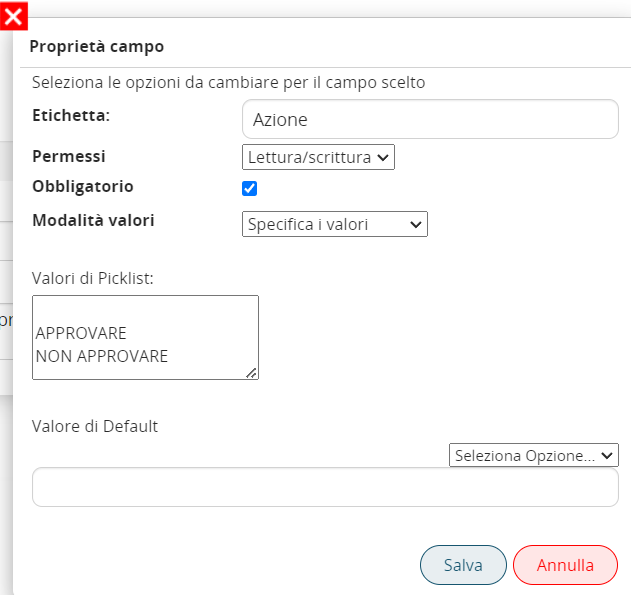
Figure 5
Dynamic Form Reset Action Configuration
Let's create a "Dynamic Form Reset" action to reset the values of the fields in the form in the event that the process helper is forced to re-compile (see Figure 6).

Figure 6
In the Condition Task “PH Control approval request” we are going to perform a check on the “Action” field of the process helper form to direct the process in the branch related to the value entered by the user (see Figure 7)
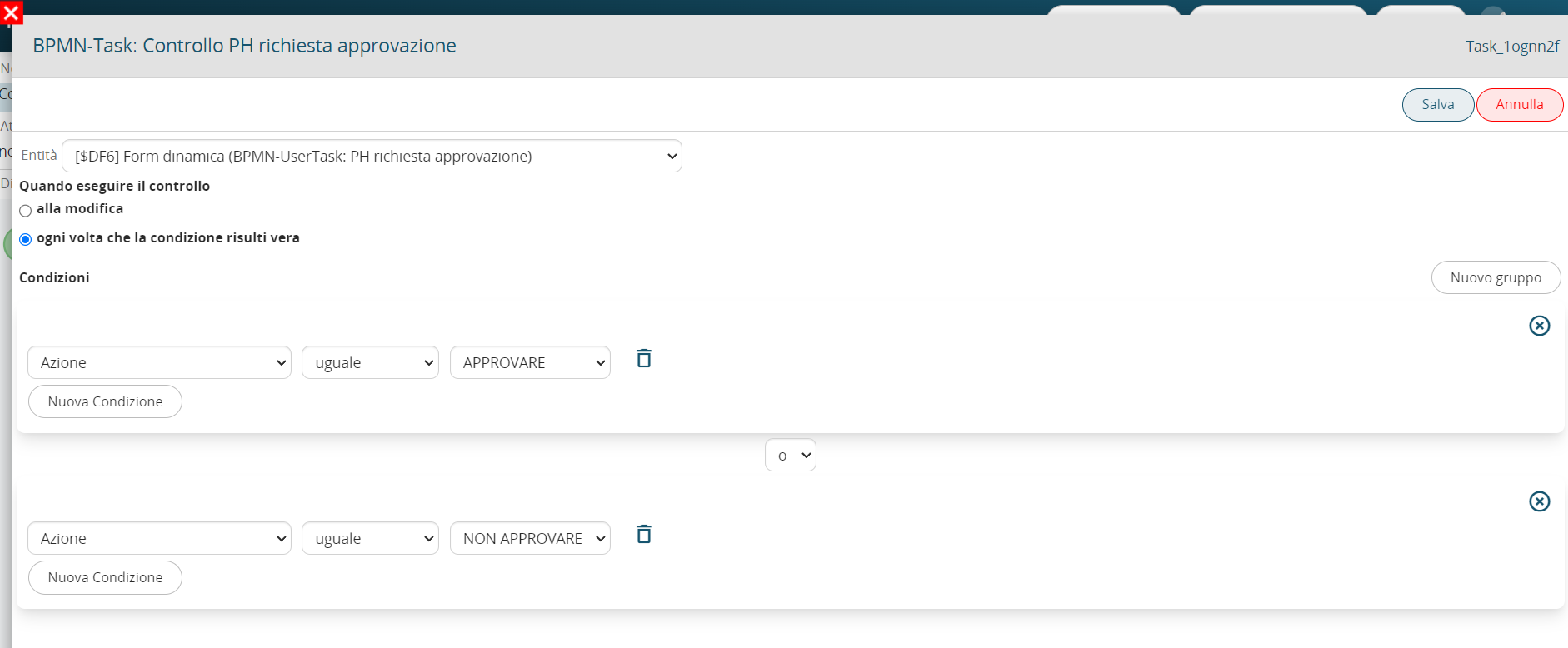
Figure 7
In the lower right edge of the task we place a Timer Boundary Event (Figure 8) and proceed with its configuration by inserting a 2-day time interval (Figure 9)
For further information, consult chapter 2.3 of the process manual.
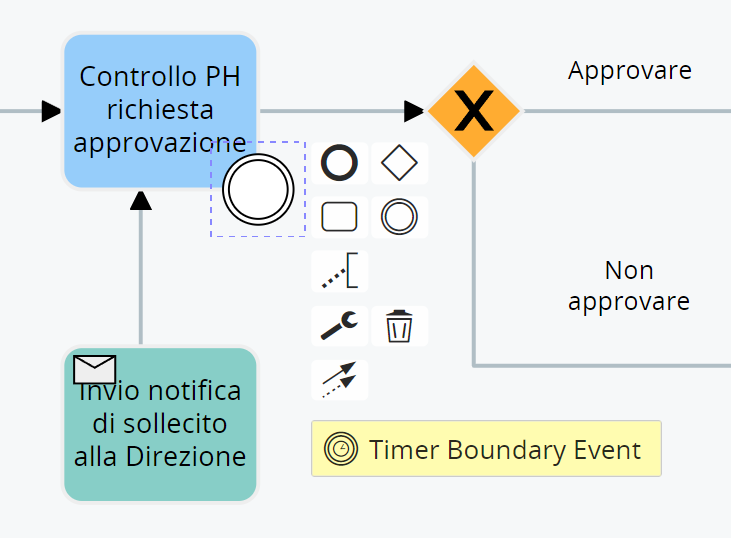
Figure 8
Figure 9
We are going to connect the SendTask “Send reminder notification to Management” to the Timer Boundary Event in order to send an internal notification to the members of the “Management” group in the event that the process remains stuck on the Condition Task “PH control approval request” for more than 2 days (Figure 10)
For further information, see section 3.4 of the process manual.
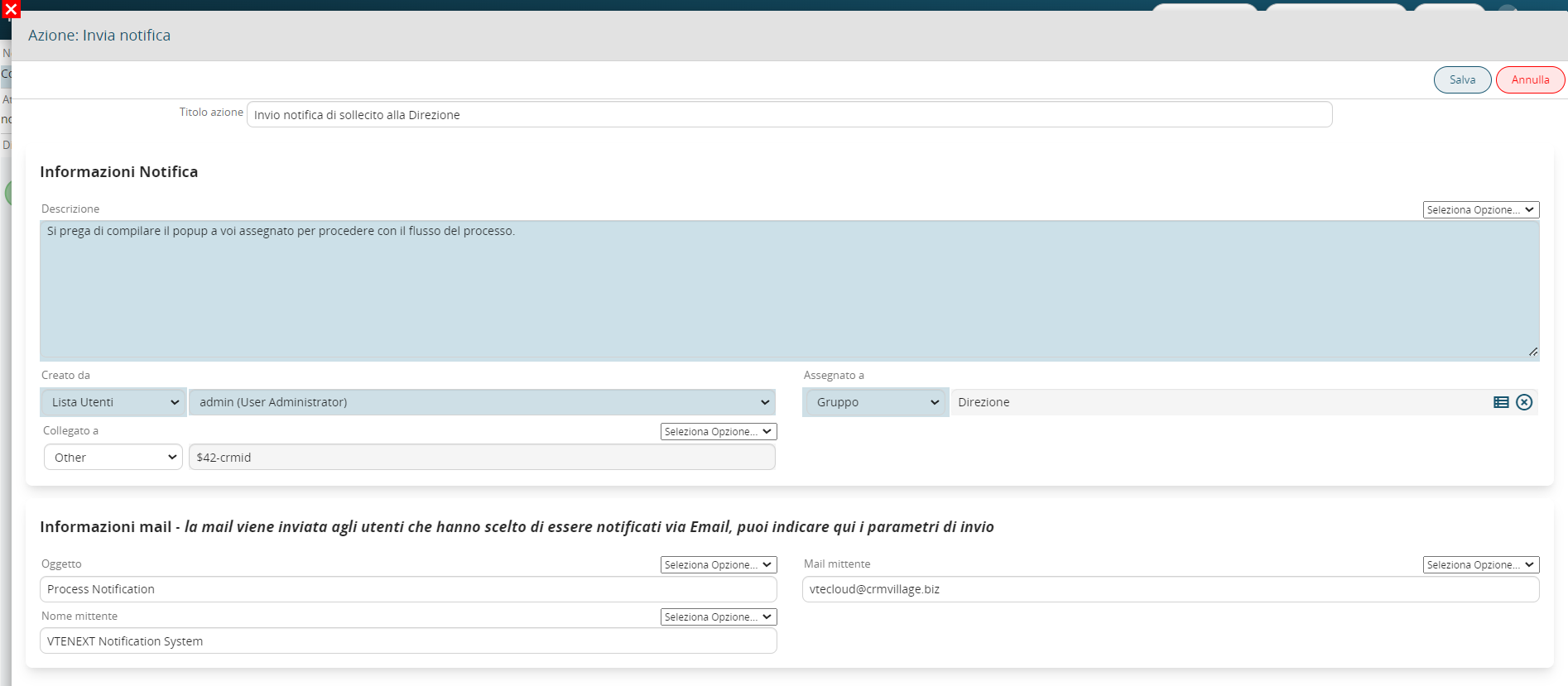
Figure 10
In the next gateway we associate each group of conditions (inserted in the Condition Task “PH Control approval request”) with the corresponding branch to follow (see Figure 11)

Figure 11
Configuration of the elements following the “APPROVE” branch
In the SendTask “Send internal notification to quote assignee” we configure the sending of an internal notification to the quote assignee (which corresponds to the sales representative who is managing the quote) to notify him of the approval of the quote (Figure 12).
For further information, see section 3.4 of the process manual.
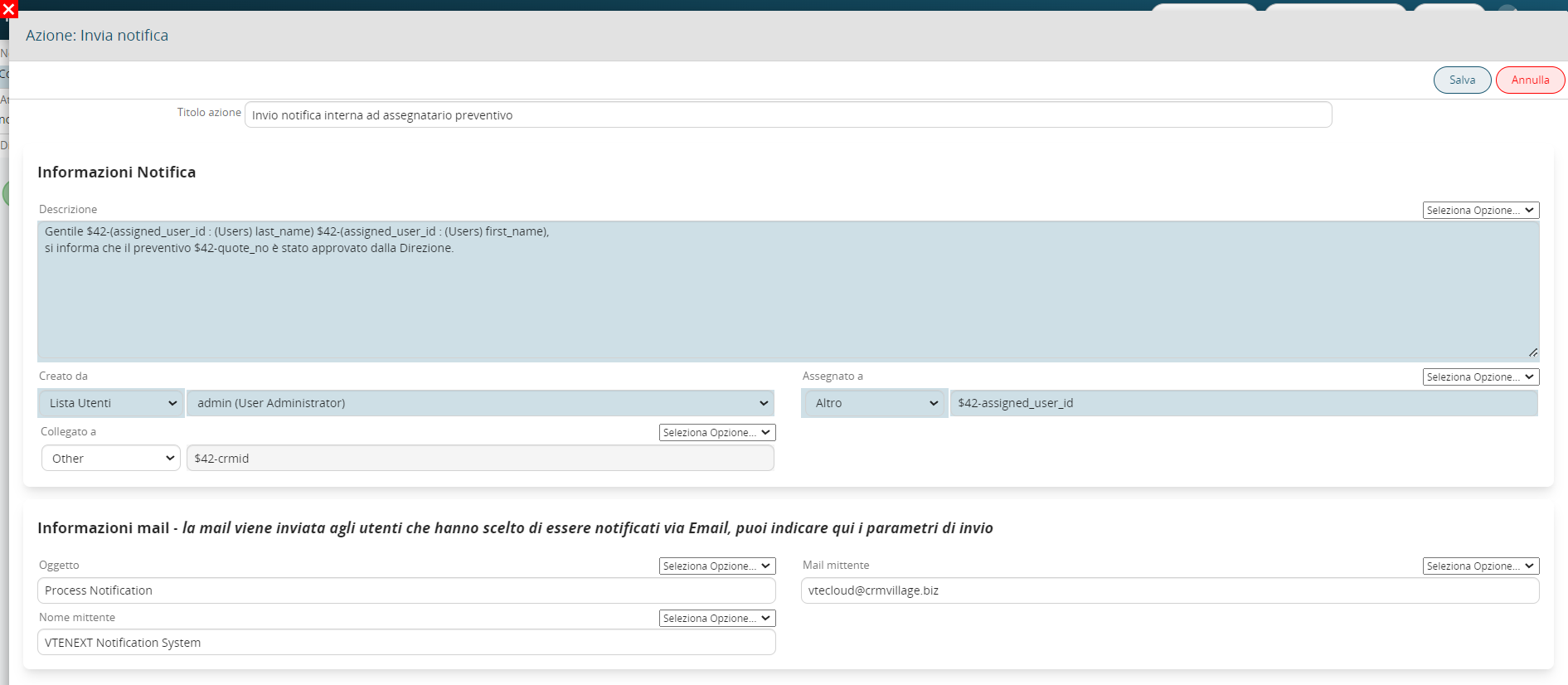
Figure 12
The endEvent must also be configured, because we have involved a process helper in the process, so it is necessary to activate a process helper inside it to set the process status to “Terminated” (see Figure 13)
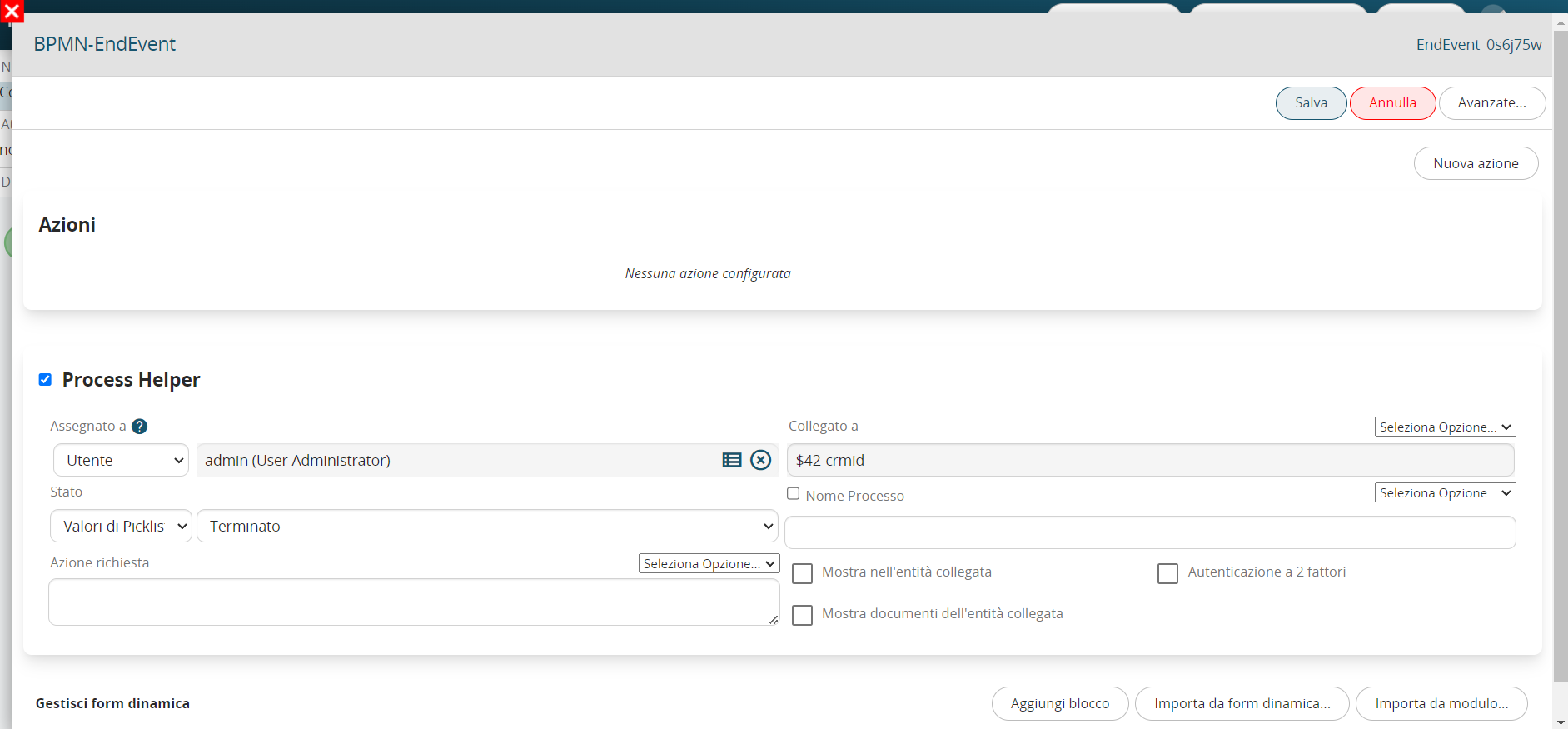
Figure 13
Configuration of the elements following the “DO NOT APPROVE” branch
In the SendTask “Send email to quote assignee” we configure the sending of an email to the quote assignee (which corresponds to the sales representative who is managing the quote) to notify him of the non-approval of the quote (Figure 14).
For further information, see section 3.5 of the process manual.
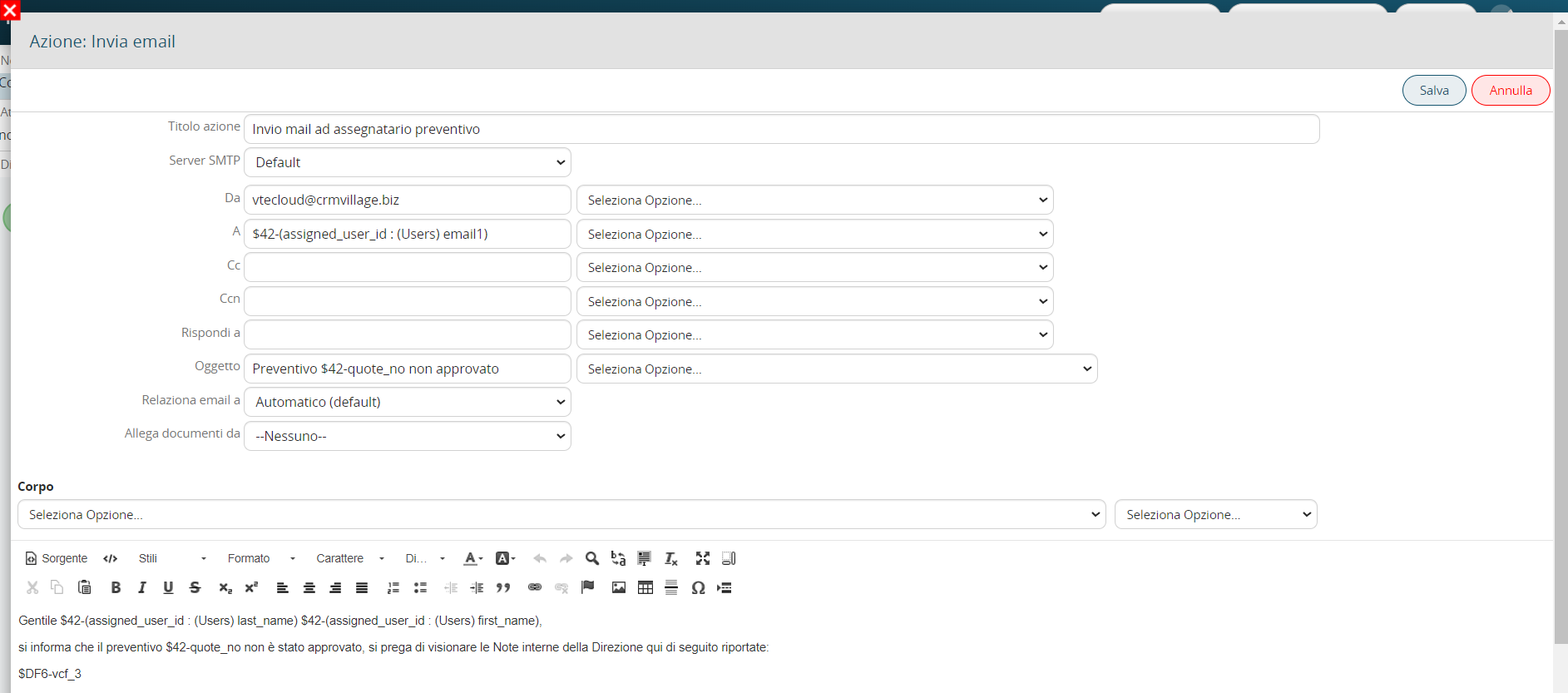
Figura 14
Nella ScriptTask “PH di appoggio per raccolta esito invio mail” andiamo ad attivare un process helper, al fine di sfruttarne la form dinamica per storicizzare il risultato dell’invio della mail (Figura 15).
Nello specifico, per ogni azione di “Invio mail” configurata all’interno del processo, il sistema mette a disposizione le seguenti due variabili (Figura 16 e 17):
- ”Esito positivo?” → viene restituito 1 nel caso in cui NON sia presente alcun tipo di errore SMTP, in caso contrario viene restituito 0
-”Messaggio di errore” → viene restituita la descrizione dell’errore SMTP riscontrato
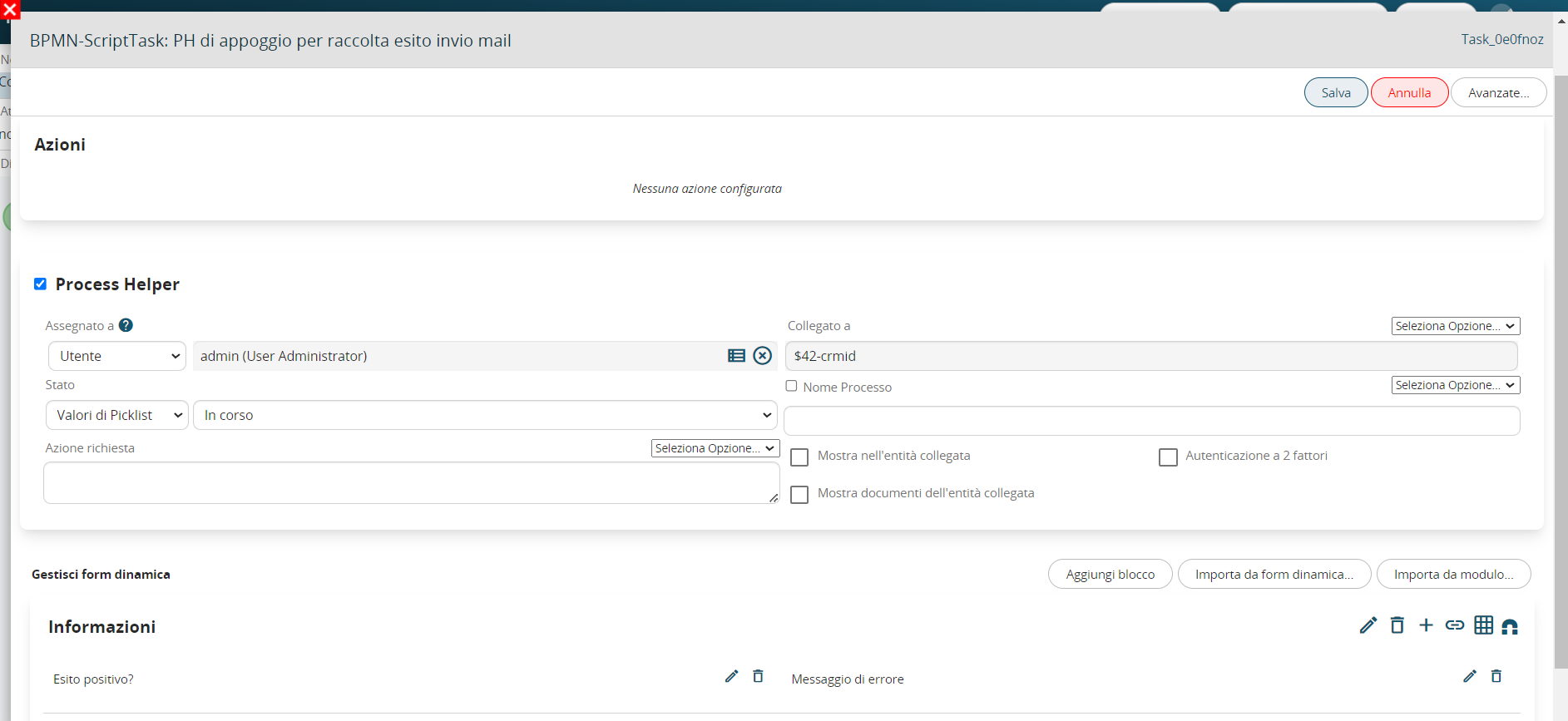
Figure 15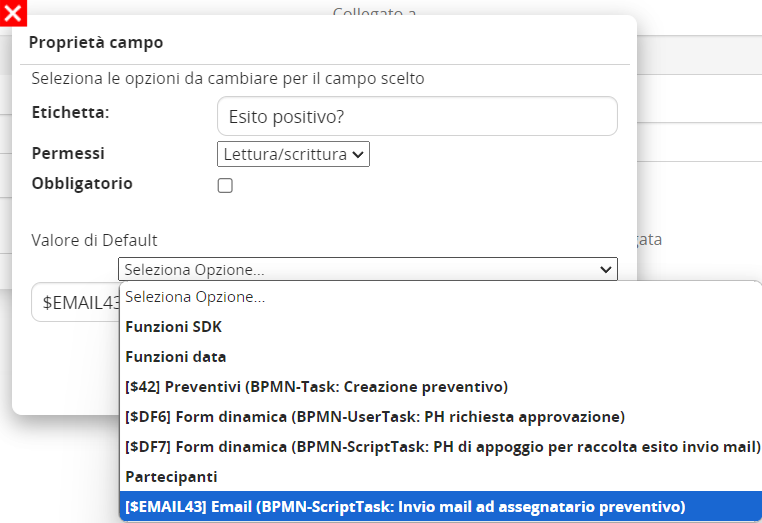
Figure 16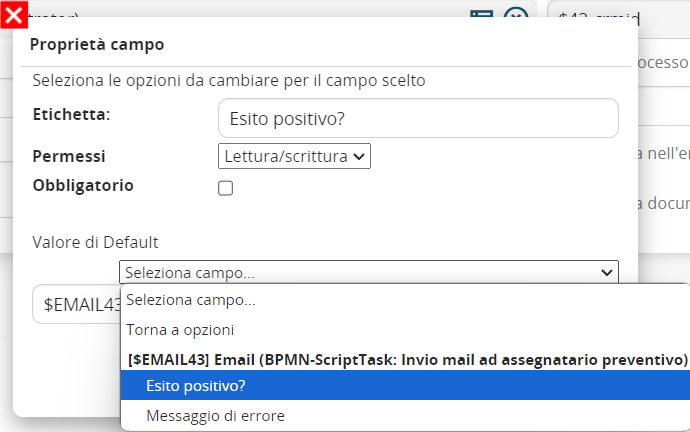
Figure 17
In the Condition Task “Check email sending result” we are going to perform a check on the “Positive outcome?” field of the process helper form to direct the process in the branch related to the email sending result (see Figure 18)
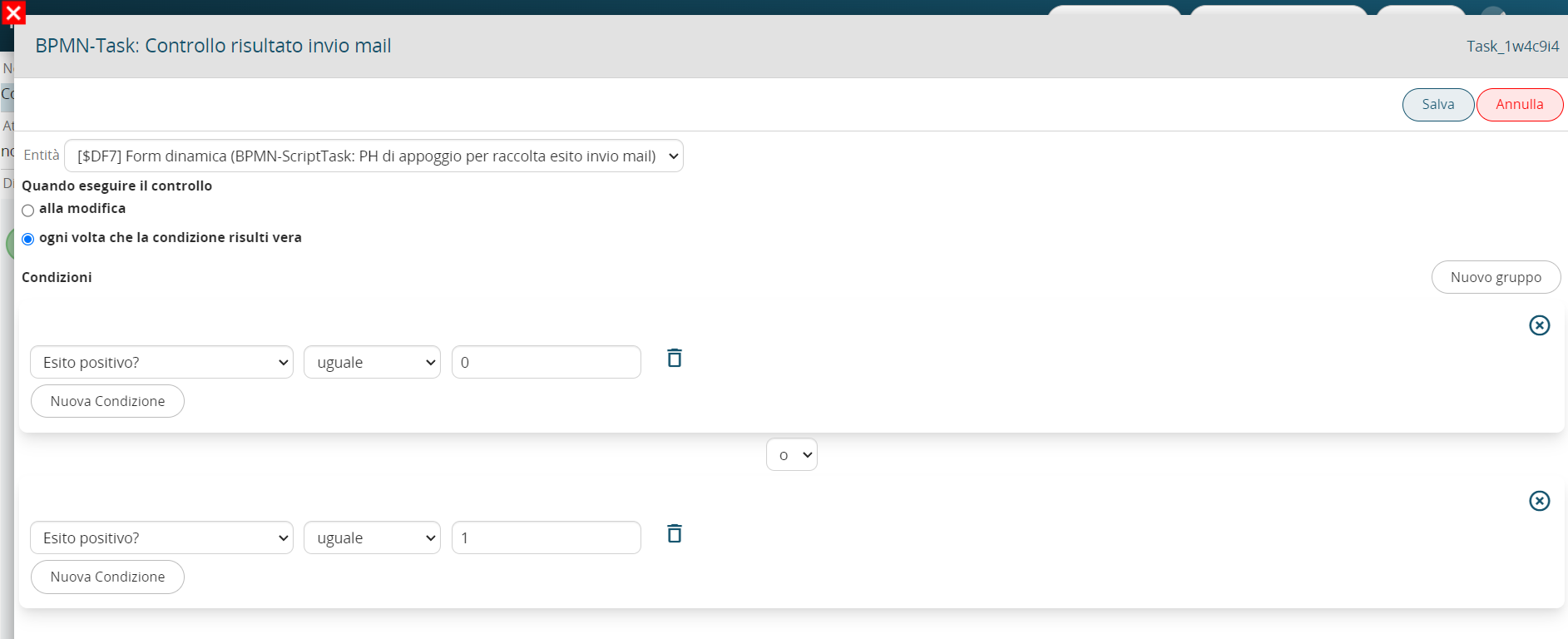
Figure 18
In the next gateway we associate each group of conditions (inserted in the Condition Task “Check email sending result”) with the corresponding branch to follow (see Figure 19)

Figure 19
Configuration of the elements following the “Ok” branch
The endEvent must also be configured, because we have involved a process helper in the process, so it is necessary to activate a process helper inside it to set the process status to “Terminated” (see Figure 20)
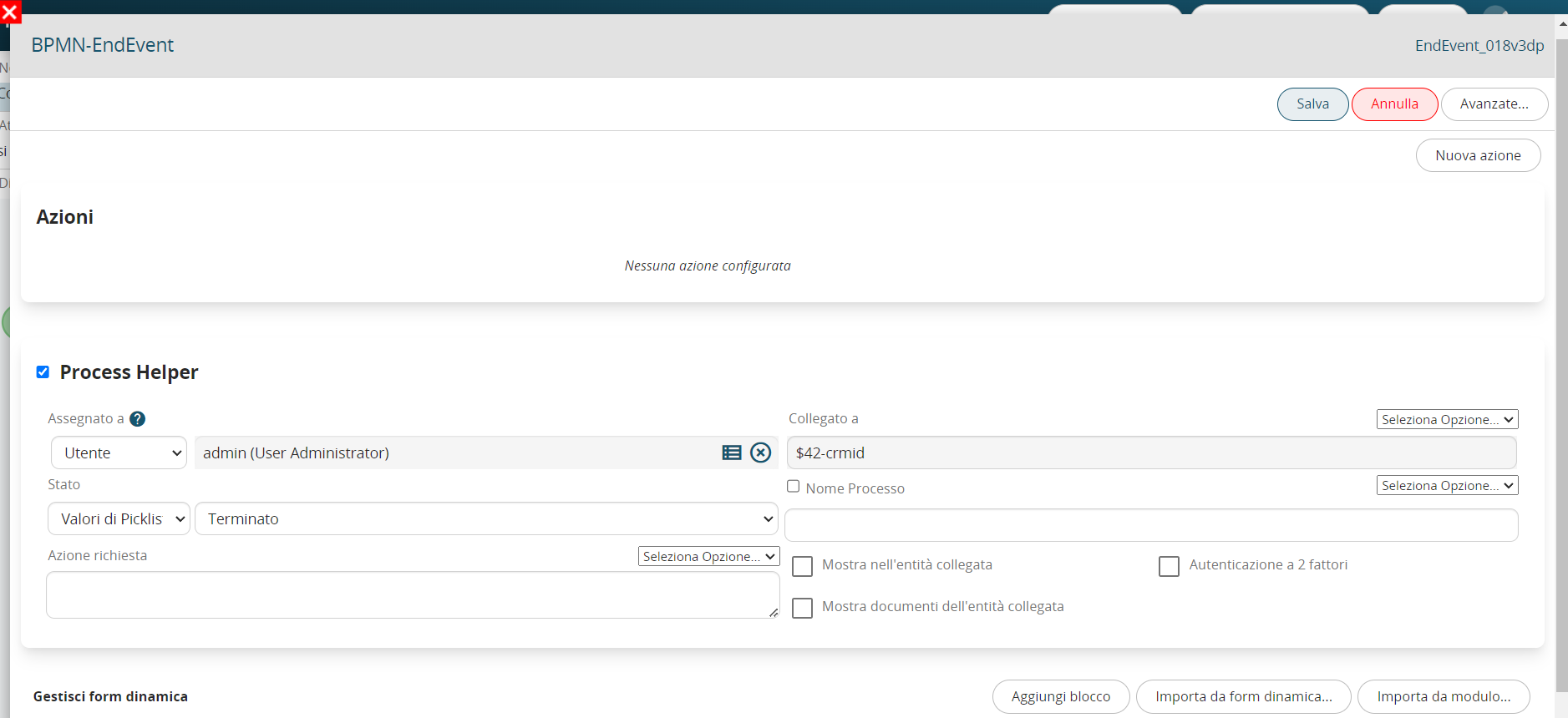
Figure 20
Configuration of the elements following the “Ko” branch
In the SendTask “Send internal notification to IT department” we configure the sending of an internal notification to the “IT Department” group to report the anomaly found in sending the email (Figure 21)
For further information, see section 3.4 of the process manual.
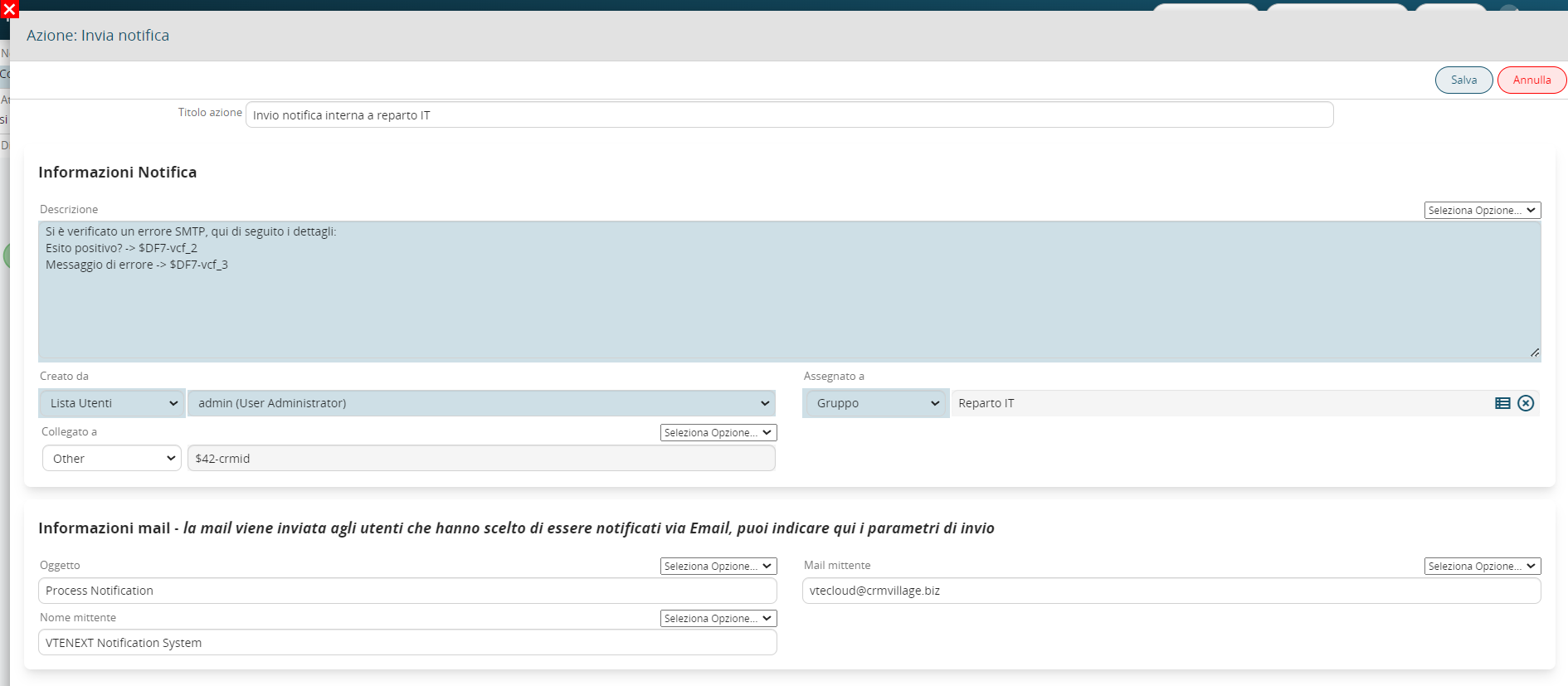
Figure 21
The endEvent must also be configured, because we have involved a process helper in the process, so it is necessary to activate a process helper inside it to set the process status to “Terminated” (see Figure 22)
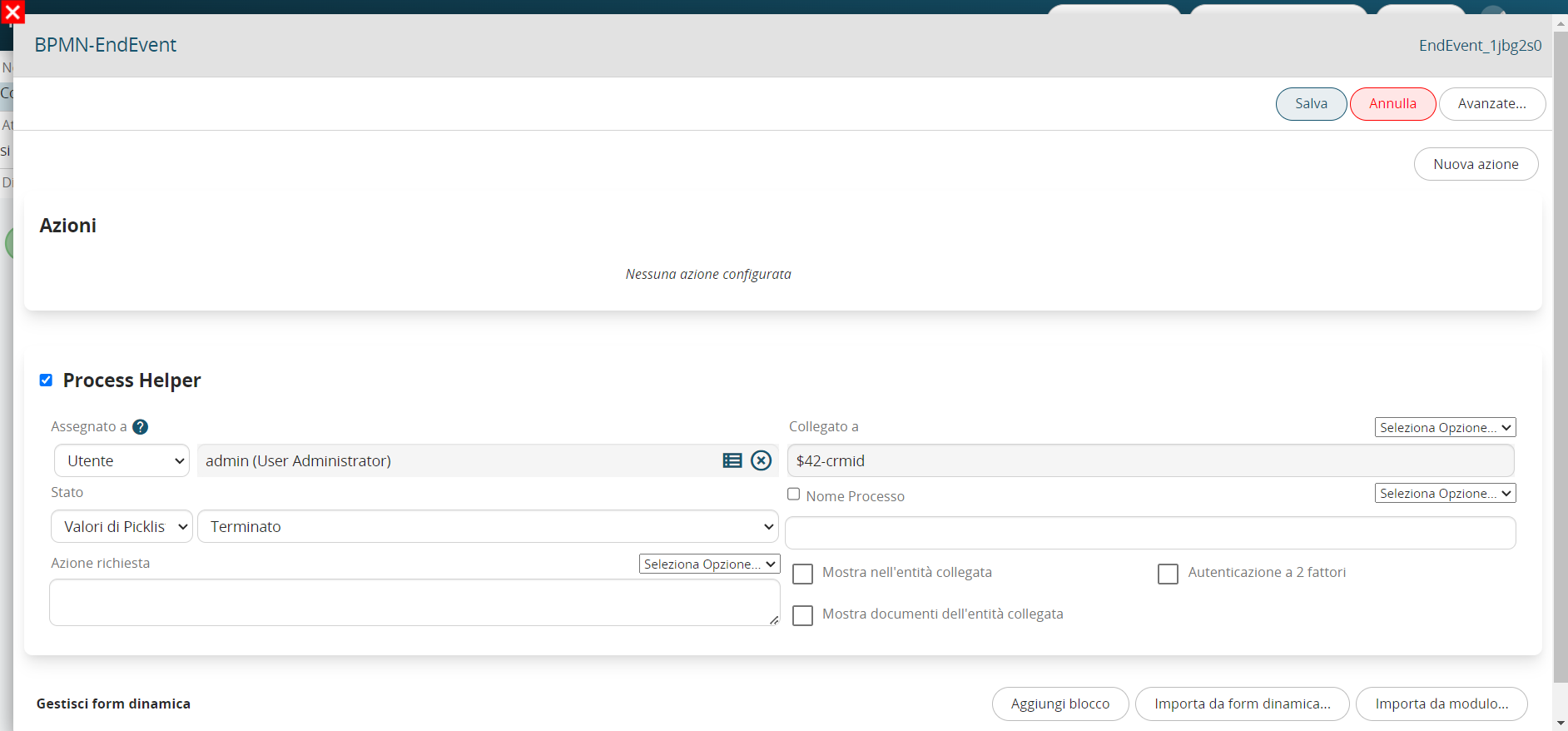
Figure 22