
Google Authenticator Mode
From the settings (Settings tab), it will also be possible to select the OAuth2 authentication mode towards Google:
- Proxy (default): authentication will take place through Pantarei Informatica servers, which will act as a bridge with Google Cloud. This mode is recommended for most scenarios.
- Native: the customer uses their own Google Cloud project, with the Client ID and Client Secret of the application. This mode is recommended for customers who already have their own Google Cloud panel or policies that require it.
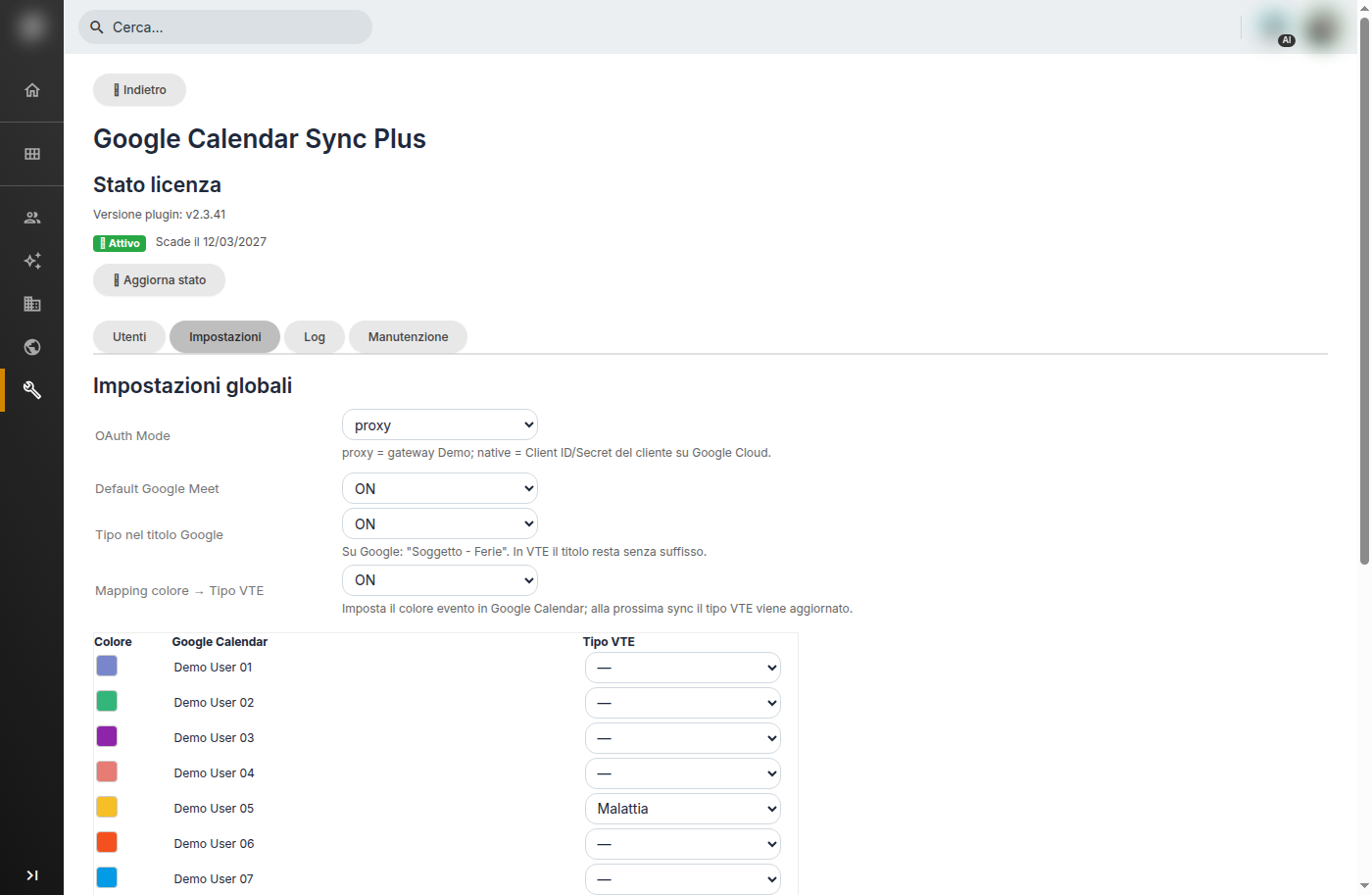
Global Settings
By selecting Native, the Client ID and Client Secret fields will appear (after saving, they remain masked), along with the Redirect URI to copy into the Google Cloud Console under the authorized redirect URIs, and a short operational guide. In the Console, it is necessary to enable the Google Calendar API, configure the OAuth consent screen (Internal for Google Workspace or External published in production; in Testing mode, refresh tokens expire after 7 days), create an OAuth client ID of type Web Application, register the Redirect URI shown in vtenext, and save the credentials in the plugin. The scope used is: https://www.googleapis.com/auth/calendar
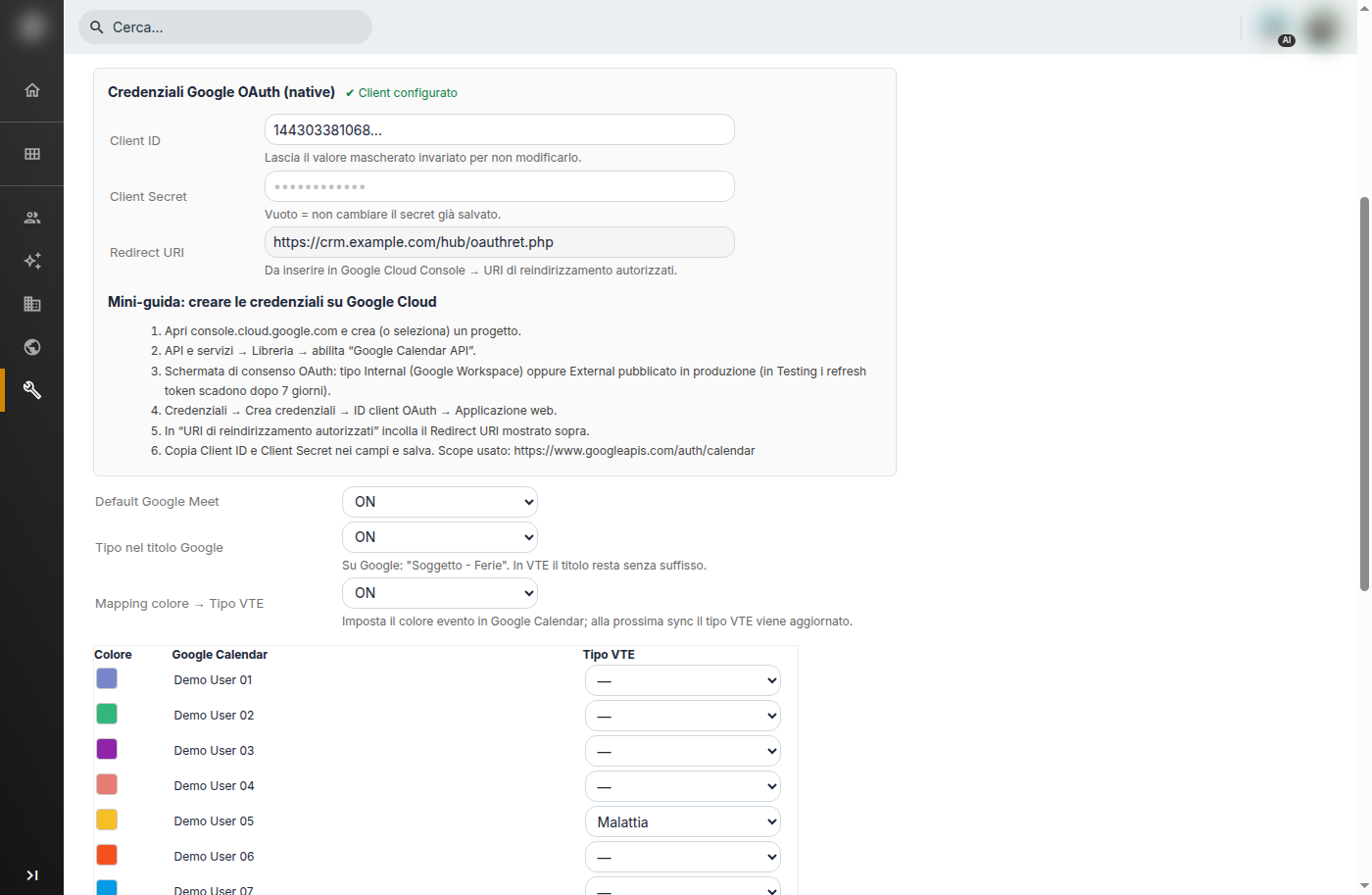
Native OAuth Credentials