
User Preferences Configuration
Users who have been assigned a license will be able to access their synchronization preferences and log in to their Google account. By entering User Preferences and clicking on the Google Calendar Sync Plus menu item, the user will be prompted to log in to Google by clicking the Connect Google Account button. An OAuth2 authentication window will open.
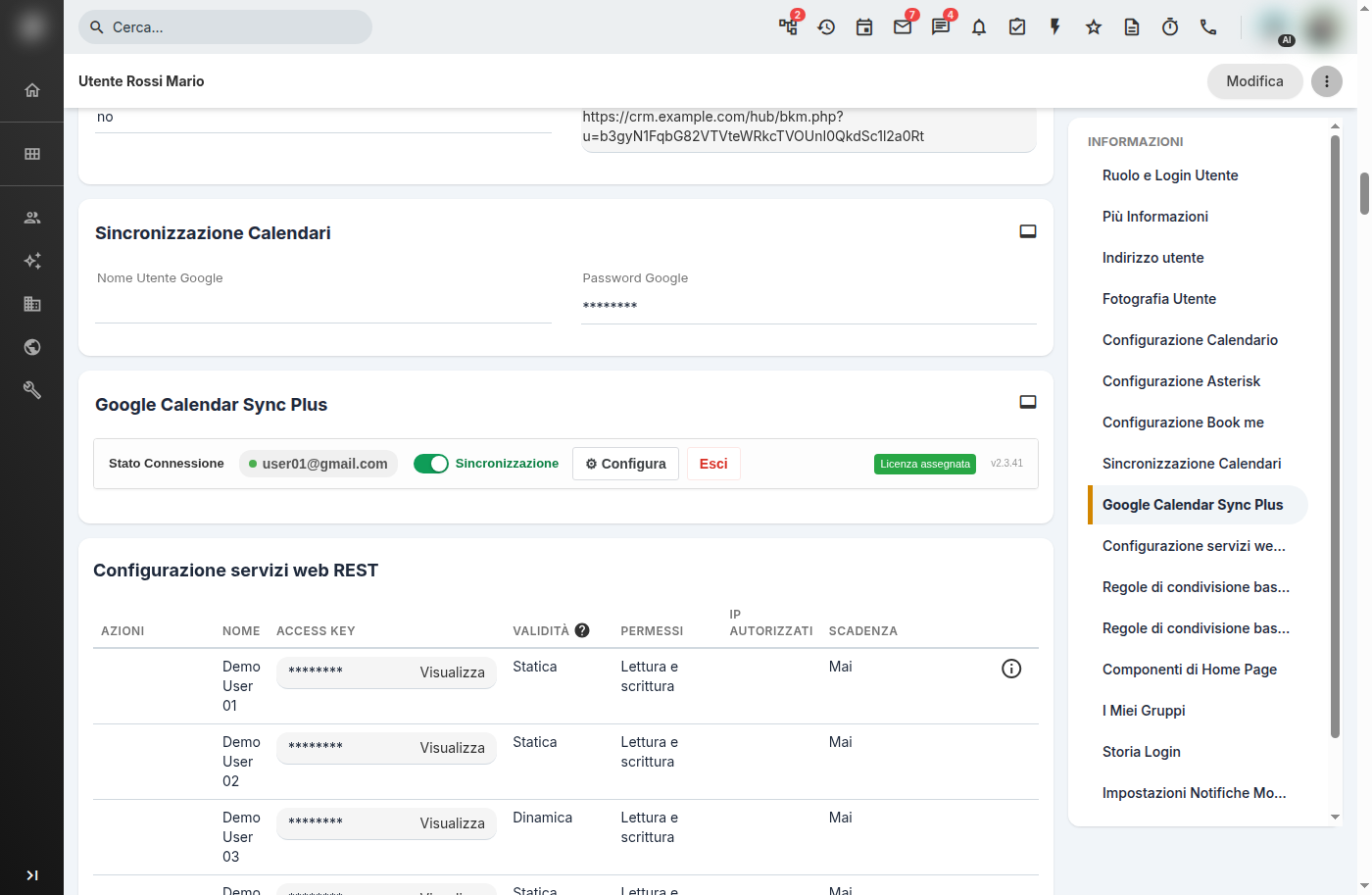
User Preferences — Plugin Block
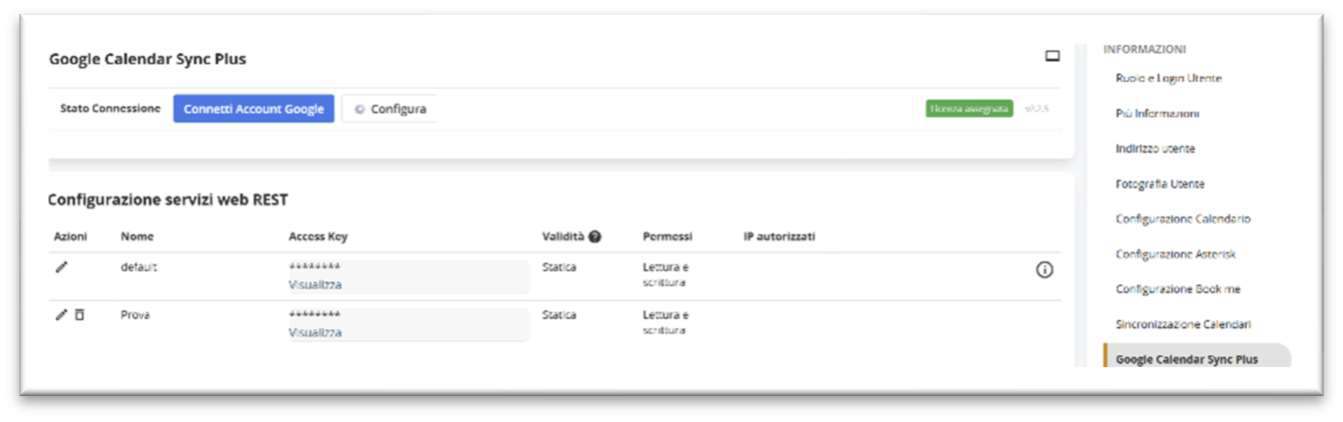
User Preferences — Connection
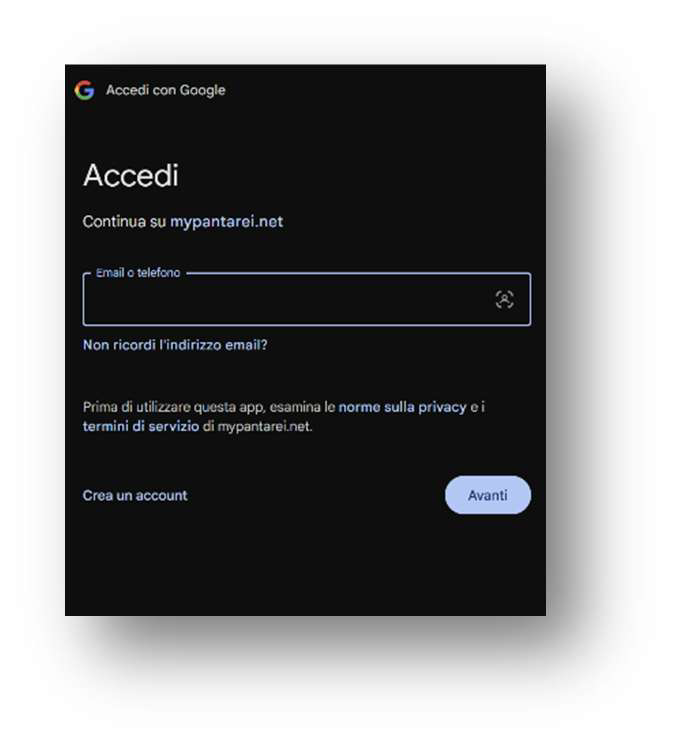
User Preferences — Connected Account
Once the login has been completed, it will be possible to click the Configure button to set personal preferences:
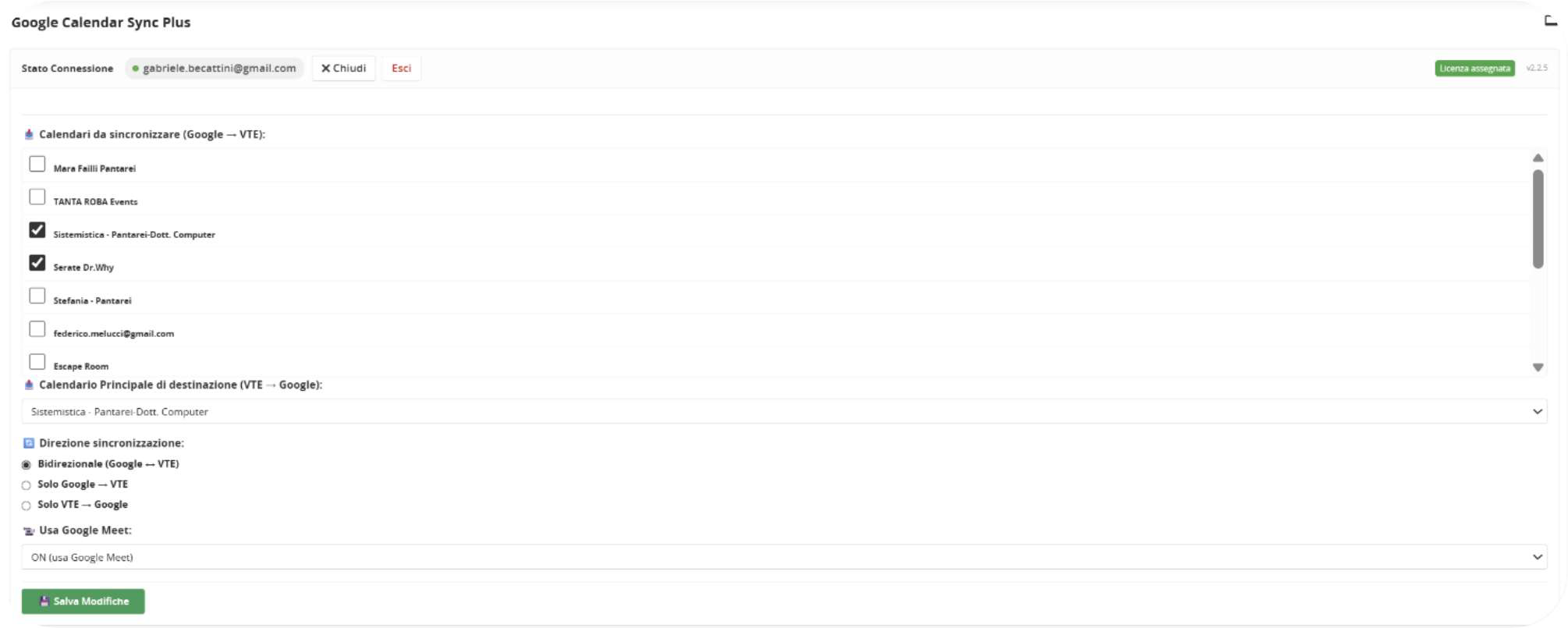
User Preferences — Configure
Calendars to synchronize (Google → VTE):
Select the calendars that will be imported into vtenext.
Main destination calendar (VTE → Google):
Select the main Google Calendar that will be used by default when creating an event in vtenext (it can be changed during each event creation with one of the calendars previously selected).
Synchronization direction:
Set the synchronization type. The system is designed as a bidirectional synchronization, but the user can choose to synchronize in one direction only, from one system to the other.
Use Google Meet:
If the admin has enabled the possibility of using the MEET system, the user can choose whether or not to use it from this setting.
Synchronization start date:
Indicates from which date to retrieve and synchronize events; it is also used by the administrative action for recovering missing events.
Once the settings have been configured and the Save button has been pressed, the plugin is ready to be used.