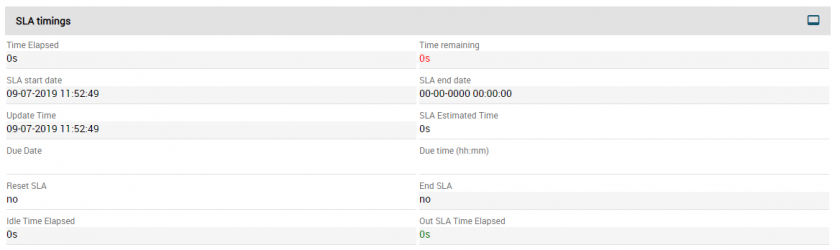
10.3.1 SLA configuration
To configure the SLA module, access the SLA.config.php file in the subfolder where the CRM modules/SLA is installed.
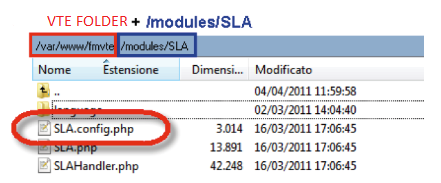
Then open the file with an editor (e.g. Notepad++):
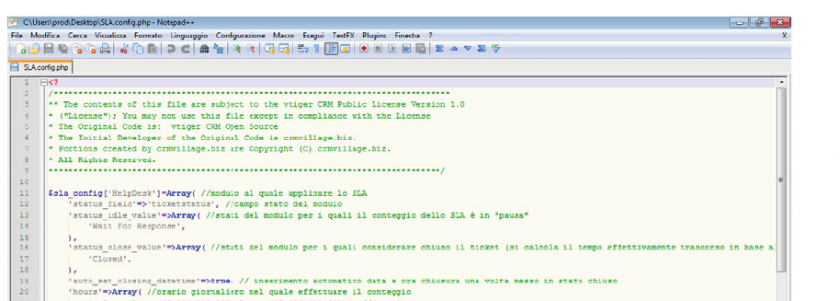
The file allows you to define a series of settings related to the SLA count; details given below.
Module and status field definition

Suspension statuses
It is possible to define one or more statuses for which the SLA count is interrupted:

In the figure, the SLA count is suspended if the ticket is placed in "Wait For Response" status.
Add a new status for suspension
To add a new state:
(a) add a new line to the configuration file as shown in the figure:

(b) enter the value between quotation marks and then the comma as shown in the figure:

Warning! The configuration is case sensitive so pay attention to upper and lower cases!
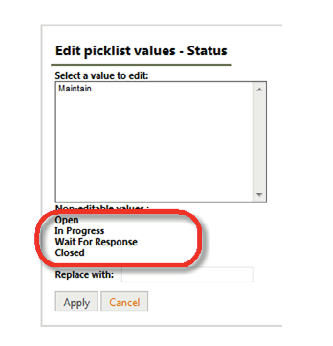
Warning! For pre-configured and non-removable values, the value must be entered in English (access the CRM in English and view the values e.g. with the picklist editor):
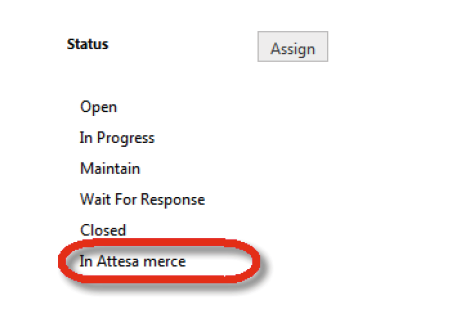
Warning! For custom values entered through the Standard Picklist Editor, input exactly the value entered:
In the figure, the custom value entered is "Waiting for goods" (all custom values entered through the standard picklist editor remain unchanged even when accessing in different languages. In the example in the figure, the value entered in Italian remains unchanged even when accessing in English).
(c) save changes.
Statuses for counting to the Deadline
It is possible to define one or more statuses that cause an end to counting:

Add a status for the Deadline
To add a new status:
(a) add a new line to the configuration file as shown in the figure:

(b) enter the value between quotation marks and then the comma as shown in the figure:

(c) save the changes
Due date and time
It is possible to define whether the Due Date and Due Time fields should be automatically recognised.

If so, the Due Date and Due Time will be automatically recognised as soon as the Status of the ticket takes on one of the values defined in the Statuses section of the paragraph for Counting to the Deadline.
If not, then Due Date and Due Time will have to be manually recognised.
Time slots
It is possible to define the time slot in which the service is to be considered active for each day of the week (therefore counted in the SLA calculation):

Let's look at the structure of a line in detail. Each line is made up of two time slots, one for the morning and the other for the afternoon; thus each time slot contains an indication of the start time and end time:

Example 1 of modifying a time slot.
Let's suppose we want to change the Wednesday time slot: FROM 8.00-12.00 and 15.00-19.00 TO 8.00-13.00 and 14.30-18.30.
Let’s intervene on the line that corresponds to the day “Wednesday” :

We therefore modify the line that corresponds to Wednesday
the file is then saved.
Example 2 of modifying a time slot.
Let’s suppose you want to set Saturday to work only in the morning time slot 8.00-12.00.
We therefore modify the line that corresponds to Saturday:

and we remove the code that refers to the afternoon time slot:

so:

and we save the file.
Excluded days of the week
It is possible to define which days of the week can be completely excluded from the counts:

Add a day to exclude
To add a day to exclude:
(a) add a new line as in the figure:

(b) indicate the sequence of the day followed by a comma:

Correspondence days and progressives:
|
Days |
Progressive number |
|
Sunday |
0 |
|
Monday |
1 |
|
Tuesday |
2 |
|
Wednesday |
3 |
|
Thursday |
4 |
|
Friday |
5 |
|
Saturday |
6 |
c) save the file.
Holidays in the year
It is possible to define days in the year that should be excluded from the count (public holidays):
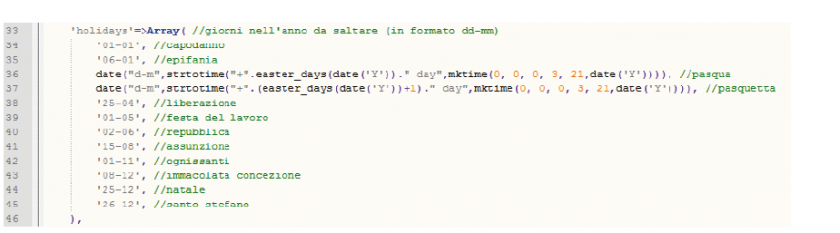
Add a holiday
For example, let’s add a Patron Saint’s day and assume it is celebrated on 5 June:
(a) add a new line as in the figure:
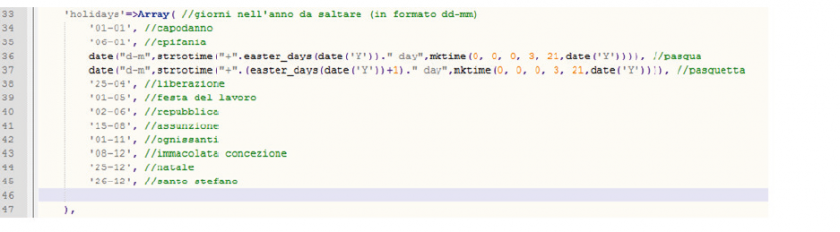
(b) Indicate the day between quotation marks according to the 'gg-mm' pattern and then a comma as in the figure:
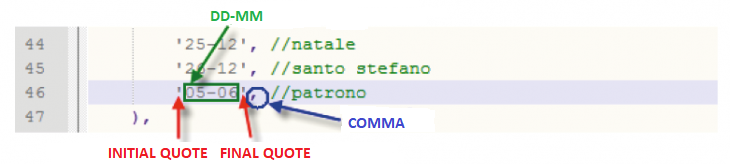
c) save the file.
Special days
It is possible to define special days. Special days may be: days in the year to be counted, although they are normally skipped; days with a different time window than normal:

Addition of a special day:
Let’s suppose you want to define Christmas Eve as 8.00-12.00 and 14.00-16.00, then:
(a) add a new line as in the figure:

(b) then indicate the day and time slot in the format: 'gg-mm'=>Array(Array("hh:mm", "hh:mm"), Array("hh:mm", "hh:mm")), in the example we will add the following line:

c) save the file.
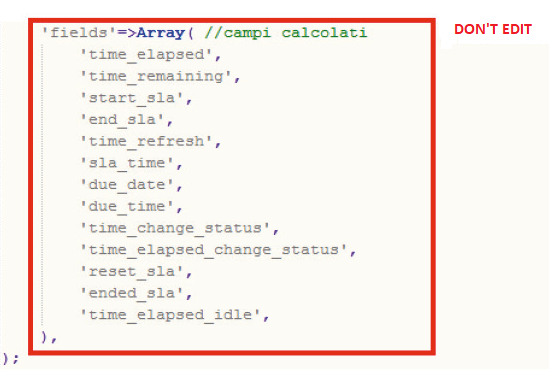
Calculated fields list
Do not change this section.
SLA Estimated Time
The field SLA Estimated Time field must be valorised with the estimated SLA resolution time associated with the ticket:
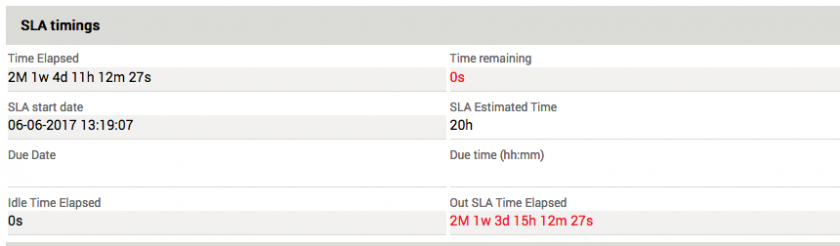
Warning! During the insertion phase, the SLA Estimated Time must be stated with the value expressed in seconds:

Automatic reported SLA Estimated Time
It is possible to configure vtenext in such a way as to automatically complete the SLA Estimated Time field through Process manager.
Example:
If the ticket is defined as blocking, then the SLA Estimated Time is 4 hours; otherwise it is 12 hours. We therefore create a Process that sets the SLA Estimated Time on the basis of the blocking Failure Flag by selecting:
1. Move to Settings Business process Manager > Process Manager and click on New in the top right corner of the screen.
2. Insert a title and eventually a descprition alligned to the subject of the process, like in the followin example:

3. Create a process that starts when the field priority is changed. The process has two different paths: urgent priority or other priorities. Now suppose that Urgent ticket set SLA to 4 hours instead other priorities set SLA to 12 hours;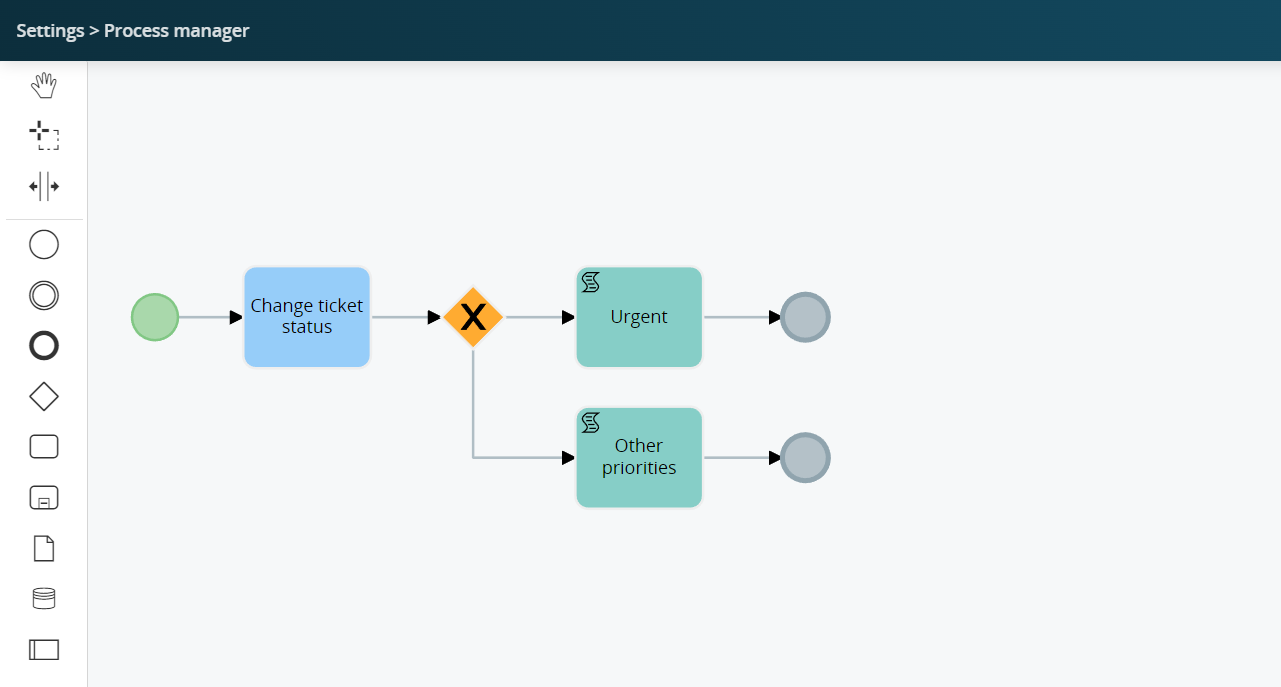
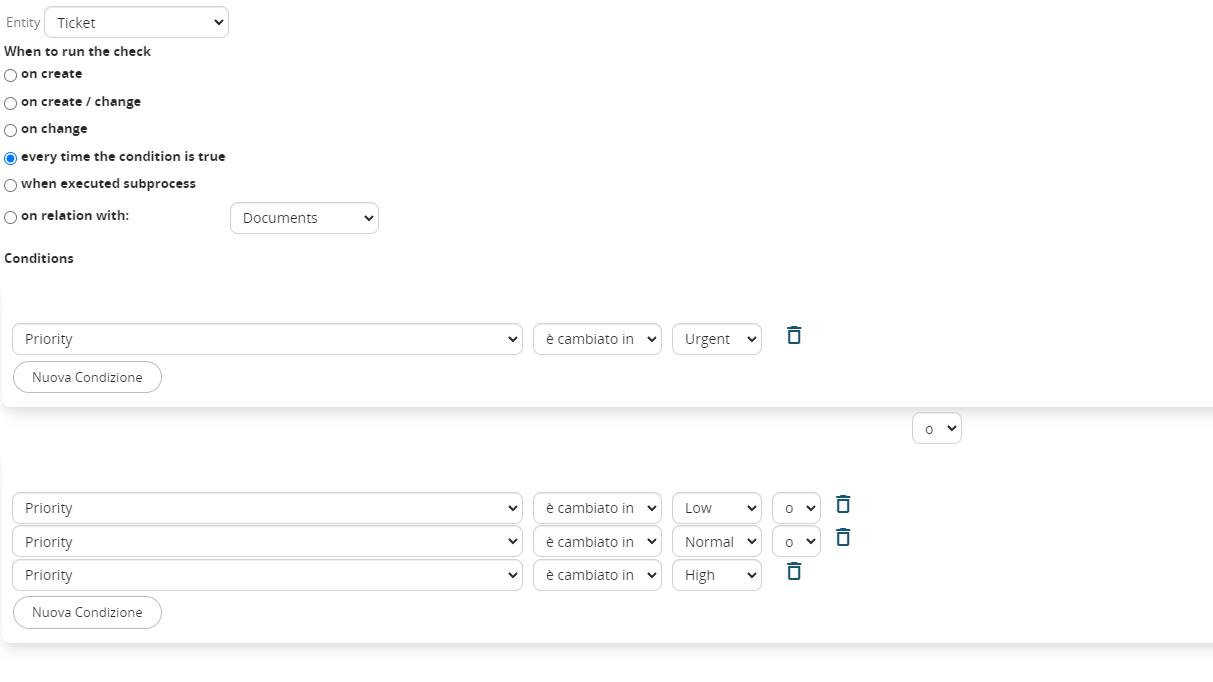
4. Set up the condition inside the task "Change ticket staus" as described below:
5. Now Set up the gateway to address the correct task if the process is urgent:

6. Lastly set up the two task "Urgent" and "Other priorities" in this way:

Urgent priority, set the field SLA estimed time to 4 hours (that is 14400 seconds)

Other priorities, set the field SLA estimed time to 12 hours (that is 43200 seconds)
Reset SLA
The SLA Reset Flag allows you to reset the counts in progress to zero and restart them when the SLA count is set.
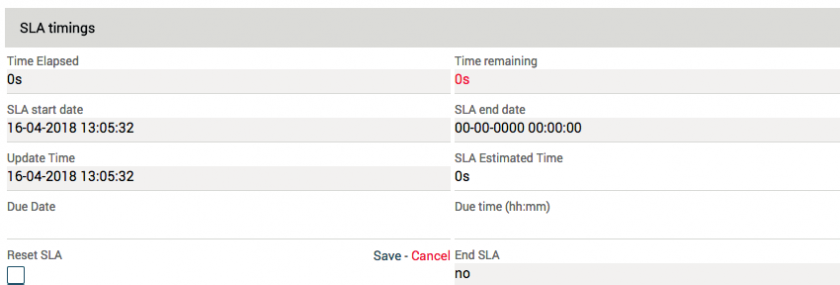
Procedure:
- flag the "Reset SLA" field to reset all counts to zero:
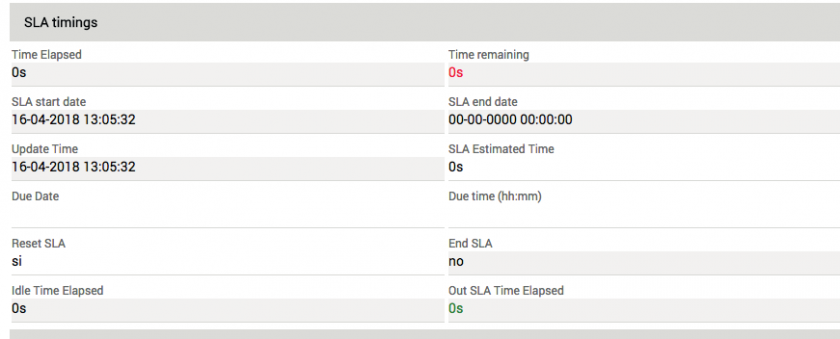
- then reload the page to view the new counts: