4.1 Add a calendar event
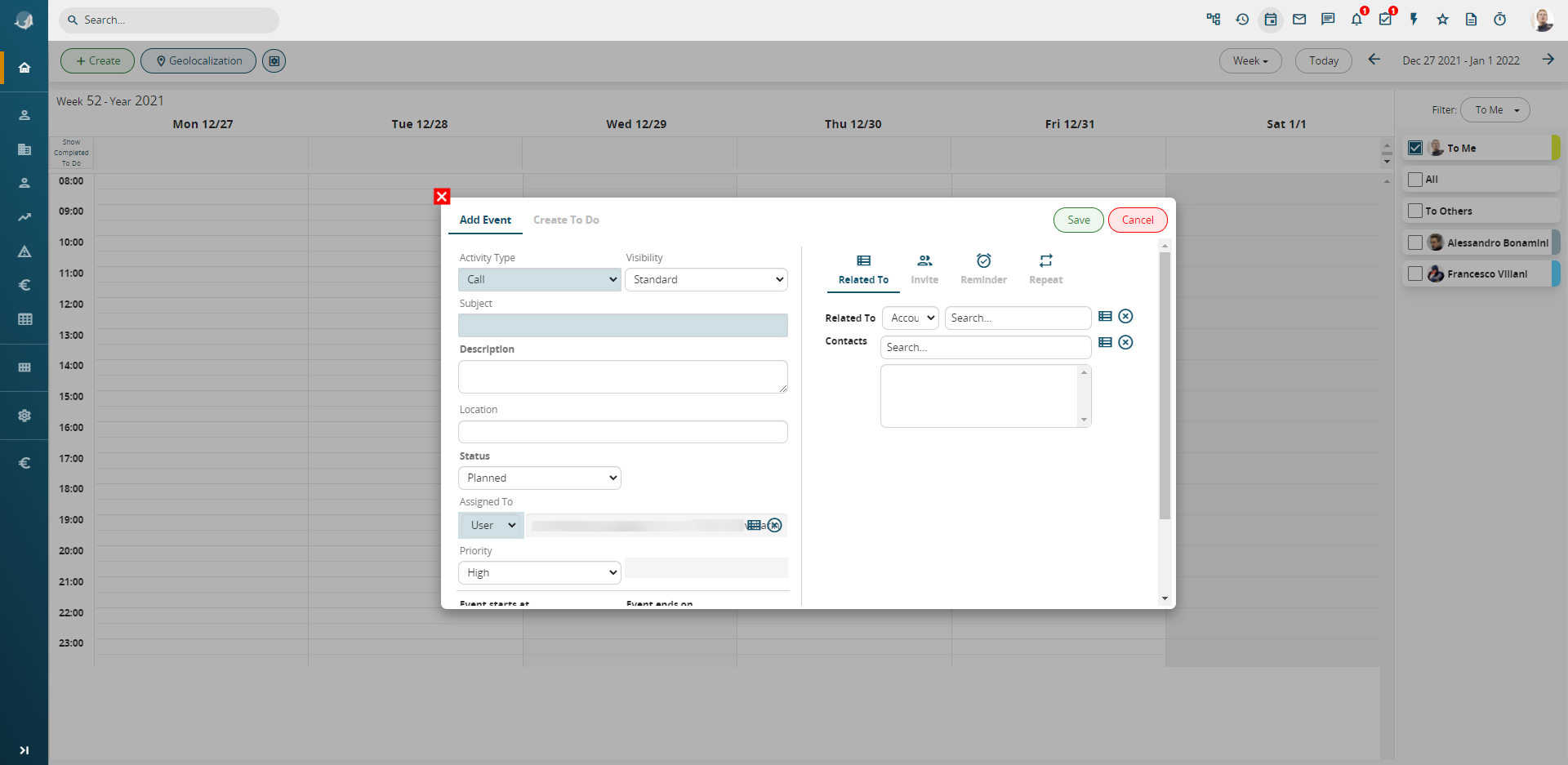
In the Calendar module you can click the green create button or click on the agenda area, dragging the mouse in accordance with the event duration (drag & drop).
|
Activity Type |
Select Call, Meeting or other customised values |
|
Visibility |
Classify an event as Public, Private or Standard |
|
Subject |
Enter a name (title) for the event |
|
Description |
You can add a brief description of the event |
|
Status |
Status is Planned by default. Defines the state of completion of the project |
|
Priority |
Set a priority level |
|
Assigned to |
Events are assigned by default to the person who creates them, but this can be changed if necessary |
|
Event starts at” and |
Each event has a start and end; events can last one or more days |
|
All day |
Select if the event lasts all day. By default it has 24 hous and it is placed at the top, in the Task section. |
Since events can be linked to CRM objects, they can be created also by starting from the object in question (see "Linked to" function).
Linked to
An event can be linked to standard and customised entities (generated by modules creation in Settings) within vtenext. Note that the contacts module is separate from the rest, allowing you to connect one or more contacts to the event.

Warning!
1) The following modules cannot be linked to the calendar: Documents, Reports, Services, Products, Product lines, Newsletters, Targets, Delivery Notes, Price Books, FAQs, PDF Creator, Installations, Timecards, Processes, Contract Services.
2) The relation between an event and the messages module is available only starting from the single email and not vice versa. This does not require the “linked” field to be filled in, but rather a copy of the body of the email in the “description” field.
Invite (free or busy)

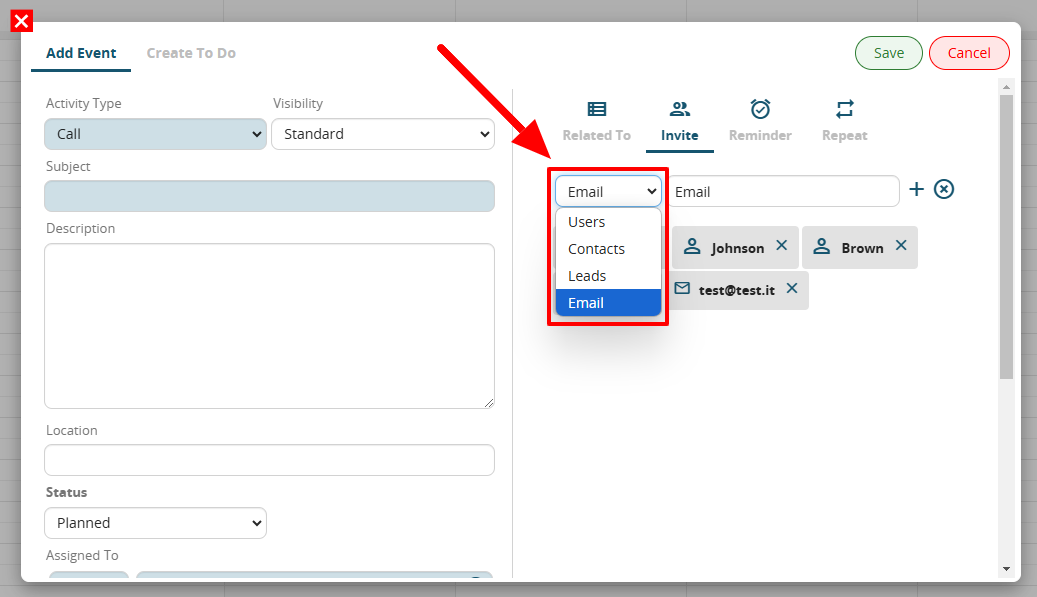
You can invite other usersusers, orcontacts, contactsleads, and email addresses to the event you are creating.
TheContacts, contactsleads, and email addresses will receive a notification email with details of the event details and will be given the option to stateindicate whether they will attend or not they plan to attend.not.
Users will receive a vtenext notification (Notificationsin the Notifications panel) andand, canby accessaccessing the event in the CRMCRM, tothey can indicate their intention to participateparticipation (yes/no)no) and displaysee the event in their agenda as thoughif it were assigned to them.
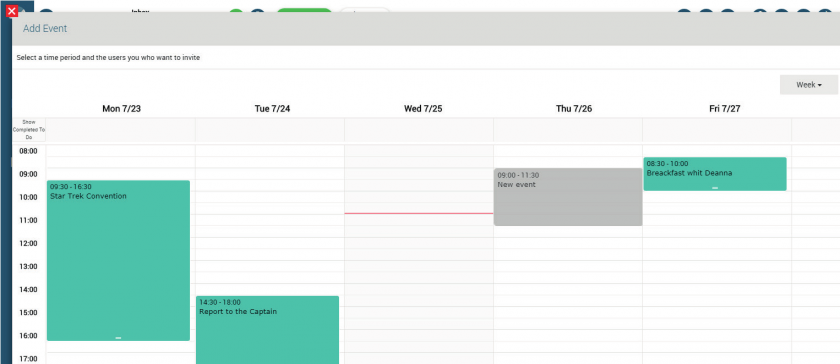
When a user invites another user to an event, the invited user will receive a notification informing them whether they are free or busy during that specific time slot, allowing them to easily accept or decline the invitation.

In this screen, you can see that the invited user appears as available and can choose to join the event without needing to check their calendar appointments

In this screen, it is clearly visible that the invited user is marked as busy, and the CRM notifies, with a clickable link, what the user is already scheduled for in the calendar
Attention! To send notification emails, the related job needs to be scheduled in the cron of the vtenext server. For more details, refer to the CRONJOB – Scheduled Processes chapter.
Reminder
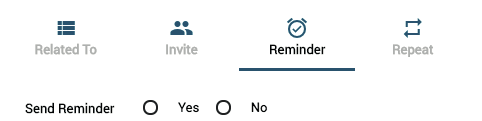
Provides the facility to schedule an automatic memo (in the form of an email or notification) to be sent to all the participants. You can decide how many days/hours/minutes before the event to send the notification.
Warning! To send notification emails you must schedule the job in question in the vtenext server cron; for more details refer to the chapter CRONJOB – Processes to plan.
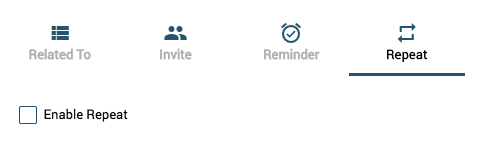
Repeat
Allows you to schedule events that are repeated regularly, establishing the frequency. When the settings are saved the system will create the “copy” events, which are independent from one another.