
17.15 Mail Converter
The Mail Converter is a tool that allows you to read one or more mailboxes and, when a condition occurs on an email, to activate automatic operations such as archiving the email, linking it to a registry entity, or transforming the email into a Ticket in the HelpDesk module. From vtenext 20.04 it is possible to configure in the mail scanner function also certified mailboxes (PEC). Starting from version 22.05.1, it is possible to use two-factor authentication (OAuth2) for Office365 mailboxes.
Warning: Starting from version 24.xx, for all new installations or updated installations that do NOT yet have the Mail Converter configured, it is possible to trigger a process from the creation/update of a ticket. If a version of vtenext has been updated to 24.xx and there are already configurations on the Mail Converter, please open a ticket with vtenext technical support to enable this update function from the process.
![17.15 [1].png](https://usermanual.vtenext.com/uploads/images/gallery/2026-05/Llfimage.png)
Enter your new mailbox data.
![17.15 [2].png](https://usermanual.vtenext.com/uploads/images/gallery/2022-06/prR17-15-2.png)
N.B.: if you want the Mail Converter to update the same ticket each time, linking the replies that arrive via email from the client, you need to insert the "Regex" variable in the subject line and both the "Update ticket" variable and the "Ticket ID" Comparison Key as an action(see image). Regex must be in first position, so that the CRM checks if a Ticket with that title already exists, in which case it updates it, or, if it is not present, creates a new one.
|
Scanner Nome |
Indicate the name, as preferred, to be given to the scanner |
|
Server Nome |
Enter the address of the IMAP mail server, for example: mail.dominiocompany.it |
|
Protocol |
Indicate IMAP4 or IMAP2 |
|
User Name |
Enter the User Name to access the inbox; it usually matches the email address |
|
Password |
Enter the inbox access password |
|
SSL Type, SSL Method |
Indicate the access security protocol information if required |
|
Parameters |
It is used to configure advanced parameters for the imap connection, without using the code.
|
|
PEC |
Indicate that the current email address is a PEC By enabling the flag. In this way the ticket will be created using the original email, that is the one contained in the attatched .eml file. |
|
Status |
Enable = mailbox scan is active; Disable = mailbox scan is not active |
|
Find |
Indicate if:
|
|
After Scanning |
Allows you to indicate whether to change the status of the email after scanning:
|
Warning! The mailbox must be accessible in IMAP mode; you cannot configure access in POP3 mode.
After saving the mailbox data you can:
- Decide which folders in your inbox will be read, using the Select Folders button
- Configure the rules of the Mail Converter, using the Setup Rule button
- Manually launch the scan of the box, using the Scan Now button
![17.15 [3].png](https://usermanual.vtenext.com/uploads/images/gallery/2022-06/LQN17-15-3.png)
Select Folders
Activate the flag at the folder to be scanned.
![17.15 [4].png](https://usermanual.vtenext.com/uploads/images/gallery/2022-06/2OE17-15-4.png)
Setup Rule
Through the Setup Rule button, you can configure the actions to be taken after the email check. Click the Add Rule button on the right and then set the rule:
![17.15 [5].PNG](https://usermanual.vtenext.com/uploads/images/gallery/2022-06/Coy17-15-5.PNG)
|
From |
Indicate a condition in the From field: (sender), if not present leave the field blank |
|
To |
Indicate a condition in the To field: (recipient), if not present leave the field blank |
|
Subject |
Indicate a condition in the Object field, if not present leave the field blank |
|
Body |
Indicate a condition in the body of the email, if not present leave the field blank |
|
Match |
Indicate:
|
|
Action |
Indicate the action to be taken when conditions occur.
|
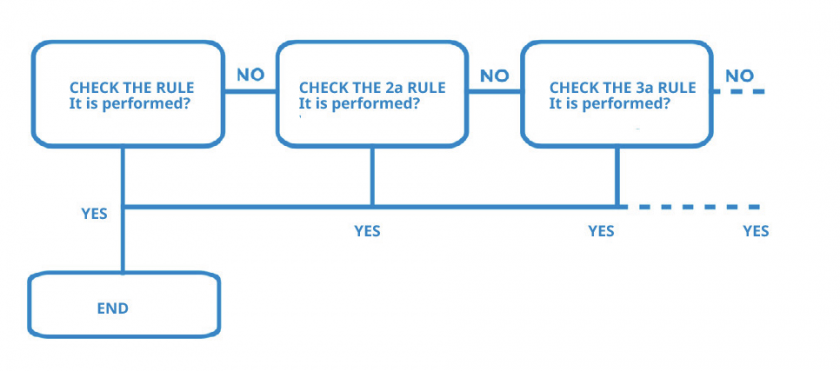
You can set multiple rules and define priorities using the arrows.

Logic:
Scan Now
You can manually launch the scan box by clicking the Scan Now button.
Warning! To activate the automatic check, you need to activate a job in the vtenext server. See the CRONJOB -– Processes to plan chapter.
What happens to the Trouble Tickets module?
At this point all the incoming emails of the preconfigured box for the Mail Converter, will go directly in the Trouble Tickets module. Note that the tickets created in this way are distinguished from those created directly in the CRM by the small flame icon, which allows us to mark that specific email as "spam" and consequently eliminate the ticket.
![17.15 [7].png](https://usermanual.vtenext.com/uploads/images/gallery/2022-06/v6q17-15-7.png)
When we have to answer to one of those email the procedure is simple.
In the button “Other”, present at the top right of each ticket record, there will be 3 new buttons:
![17.15 [8].png](https://usermanual.vtenext.com/uploads/images/gallery/2022-06/1fl17-15-8.png)
|
Mark as Spam |
In this way the email address of the sender will be put in spam. Furthermore, the ticket will be delated. |
|
Answer by mail |
It allows to reply to the email with the email address of the user that is carrying out that operation and not with the email set in the Mail Converter. Note: A new feature has been activated that allows, through code (so customers only need to submit a request on the vtenext support portal), the activation of the user's signature when replying using this function. |
|
Answer by Mail (Info) |
It allows to reply to the customer directly with the email address set in the Mail Converter. In this way, we will be able to track the exchange of communications in the ticket. Note: A new feature has been activated that allows, through code (so customers only need to submit a request on the vtenext support portal), the activation of the thread for replies. In this case, the thread will consist of the last response received from the customer + the response the user provides to the customer. |
It's possible to reply to a ticket through the comments system, the crm will send the reply via email exactly as it would by clicking on the "Reply via Mail (Info)" button (only for tickets generated by the Mail Converter).
N.B.: if you reply to the ticket with the "Reply via Mail" function, you exit from Mail Converter system. The question and answer will therefore be managed, in a personal way, between the customer's email address and the user's email address.
There is another way to massively mark as spam a group of emails (tickets). Go to the list view, tick the ticets you want to mark as spam, click on the button “Other”, and chose “Mark as spam”.
![17.15 [9].png](https://usermanual.vtenext.com/uploads/images/gallery/2022-06/ndk17-15-9.png)
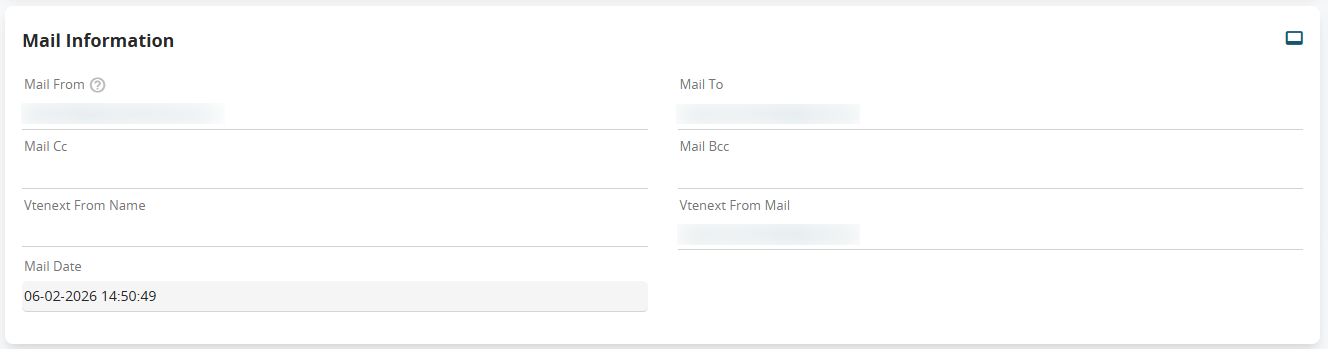
Within the Ticket record, there is a block called Mail Information that contains a set of fields related to senders and recipients that generate those tickets via the Mail Converter. Let’s look at them in detail:
|
Mail From |
the sender’s email address |
|
Mail To |
the recipient’s email address, i.e. the one configured in the Mail Converter |
|
Mail Cc |
any other addresses included in CC |
|
Mail Bcc |
any other addresses included in BCC |
|
Vtenext From Name |
the name of the vtenext sender linked to the email account (only if present) |
|
Mail Mittente vtenext |
the vtenext sender’s email address, which may correspond either to the address used by the Mail Converter (if replying with the generic mailbox “Reply via mail INFO”), or to the user’s email address (if replying with the user mailbox “Reply via mail”) |
|
Data Mail |
the exact date and time when the email generated the ticket (or when the email was delivered to the address configured in the Mail Converter) |
Mail Converter Management Examples
Intermediate configuration
I need to import all emails from info@example.it and avoid importing emails that come from Aruba (or any other specific address or domain).
-
Configure the email from SETTINGS > MAIL CONVERTER.
-
During RULE SETUP, enter the three rules that will control this configuration (in this order, from top to bottom):
-
If the Sender (FROM) contains
"@aruba.it", the Action is "Do nothing". -
If the Subject matches the Regex
"Ticket Id: ([0-9]+)", set Match to "All conditions".
-
-
Manage the folders as usual (INBOX for incoming mail and SPAM for unwanted mail), and the configuration is complete.
Advanced configuration
I need to import all emails from info@example.it send a TICKET OPENING email to the customer so they are notified, and make sure that if the customer replies using that opening email, the CRM does not create a duplicate (i.e. it does not open a new ticket).
-
Create a process that, upon creation of a Ticket with the field Mail Converter Rule = Support (or whatever name you give to your configuration), sends an email to the customer who opened the ticket. The template can be enriched with various details, such as the subject (which may contain the original Ticket title, the ticket number itself, and the Ticket ID variable, which is essential for automatically linking reply emails).
IMAGEConfiguration of the second task, that is, sending the ticket opening email to the customer. The email subject should be, for example: Opening $1-ticket_no - $1-ticket_title - Ticket Id: $1-crmid
Note that the Ticket Id has been added, which will generate the ticket ID in the email subject. This ID will be in the format 9x123456 (unlike the one generated by the Mail Converter, which will only be 123456).
- Configure the email from SETTINGS > MAIL CONVERTER.
- During RULE SETUP, enter the three rules that will govern how this configuration works (in this order, from top to bottom).
IMAGE
Regex rule on the Subject, with 9x placed before the parentheses, and Match set to “All Conditions.”
IMAGE
Standard Regex rule on the Subject with All Conditions set to “Matches.”
IMAGEAny Condition set to the option “Matches” and Create Ticket as the Action.
- Manage the folders as usual (INBOX for incoming mail and SPAM for unwanted mail), and the configuration is complete here.