
18.10 REST Webservice
REST Webservice Settings
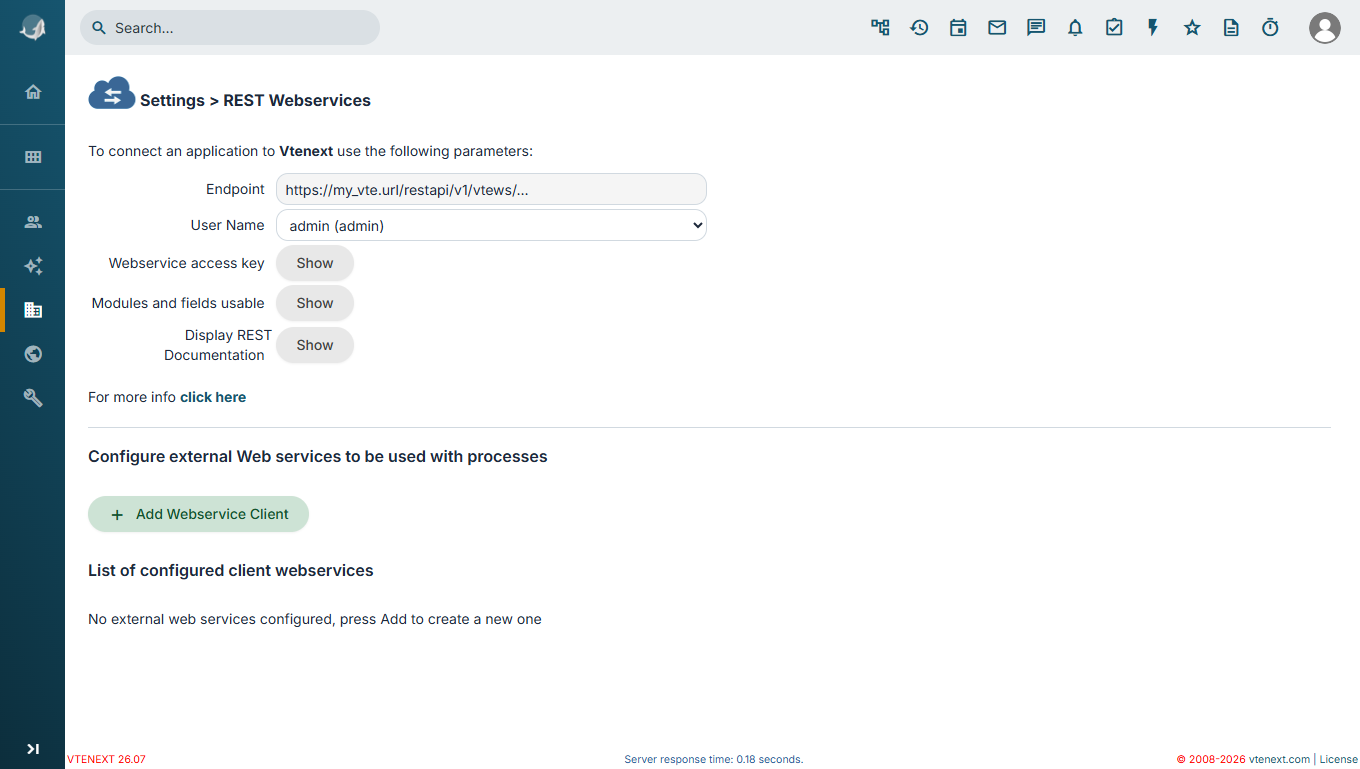
From the CRM settings its possible to view the available web services (referred here as webservice, or REST webservice), to allow external applications to interact with the CRM itself, using the REST paradigm. A webservice is accessible by an URL address (referred here as endpoint), usually made by the URL address of the vte installation, followed by /restapi/v1/vtews/, and the method name associated to the endpoint of interest.
Once configured, it is possible to invoke the desired endpoint with HTTP requests to execute the requested actions.
HTTP requests format
HTTP requests support the POST method only and the Basic authentication type, meaning the definition of Authorization defined as Basic <credentials>, where <credentials> is the Base64 encoding of the user name and the accesskey, separated by :.
Webservice requests are intended to return a response in JSON format: on success they return a status and the data computed by the endpoint, and on error they return the error code and relative description.
User selector and access keys, list of modules and fields views
By using the picklist associated to User Name, it is possible to select the user, and this allows, with related buttons, to view the accesskeys and the available modules to do HTTP request with the selected user.
REST Documentation Page (OpenAPI)
By clicking the button associated with Display REST Documentation, it is possible to display the page which lists the endpoints exposed by the CRM. Initially empty, click on Generate OpenAPI Documentation to get the definition of the endpoints that will be used for their layout.
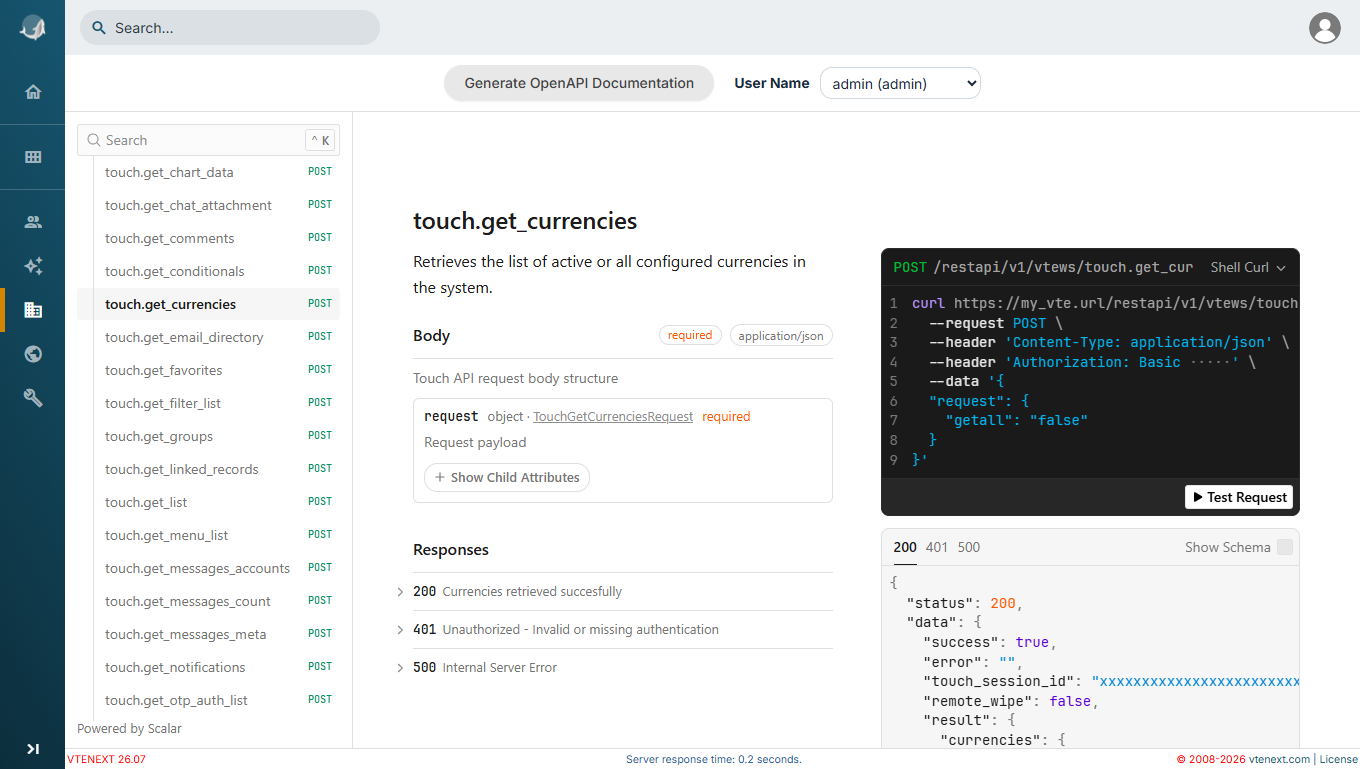
It is then possible to test single endpoints by clicking the button Test Request, located in the example box adjacent to the description of the method, for the desired endpoint and user. The user can be selected with the related selector, located centrally at the top of the page.
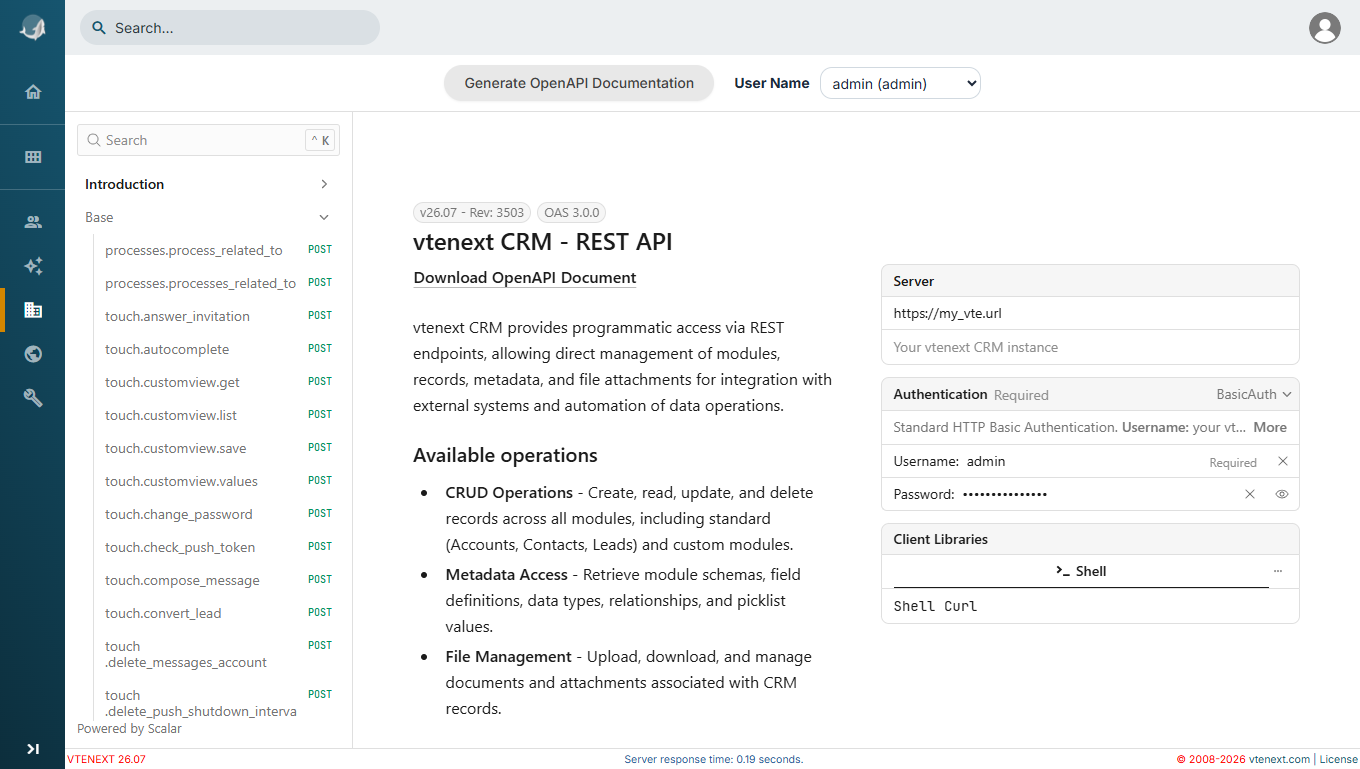
The endpoints are viewed by scrolling directly on the page, by clicking on the endpoint listed in the sidebar, or by searching with the search bar located at the top of the endpoint list (which can also be opened by pressing CTRL-K, or CMD-K on macOS). Every single endpoint has then displayed the body of the request, the responses, and optional examples of each.
Configuration of external Web services for use in processes
In the settings page is possible to add external web service clients, based on Zapier (refer to the dedicated chapter), or by custom settings.
Once configured and activated, done by clicking the button Add Webservice Client and filling up the required settings, they can be viewed in the List of configured client webservices section, and used in processes.
Additional information
You can see the additional, more technical information of the REST Webservice system here.