
22.1 LLM
The LLM section of the settings allows you to register the Large Language Models (LLMs) that vtenext can use for AI agents and other AI-powered features. Here, you can define the model's connection details, assign it a name for identification, and configure parameters that influence the model's response behavior.
vtenext does not include a built-in AI model within the CRM. To configure an LLM, you must have either a remote model accessible through OpenAI-compatible APIs or a locally installed model that is reachable by the system. In other words, this configuration is used to connect vtenext to an external or local AI service—the model itself is not built into the CRM.
The List View
The list displays all previously saved configurations. For each entry, you can view:
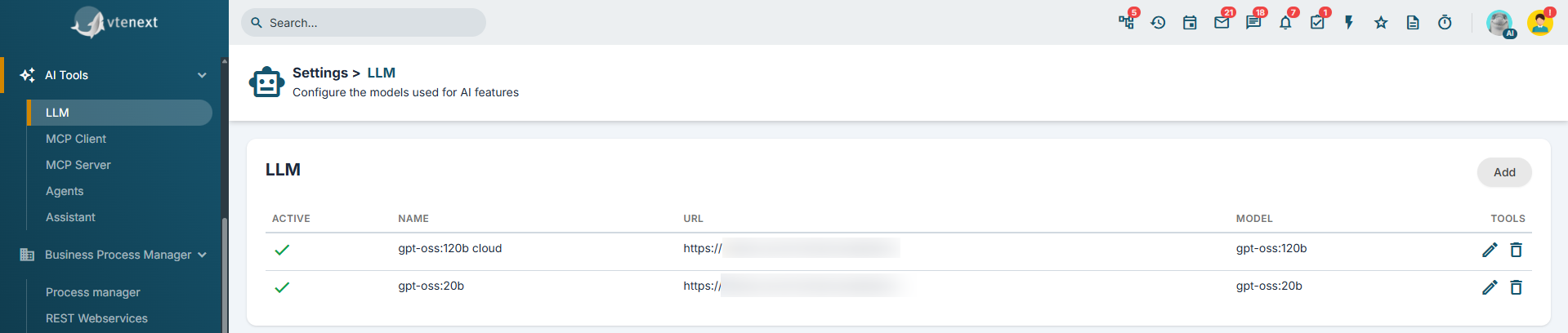
- Active or inactive status
- Configuration name
- Service URL
- Model used
From the list, you can create a new configuration, edit an existing entry, delete it, or quickly enable and disable it.
Creating a new LLM
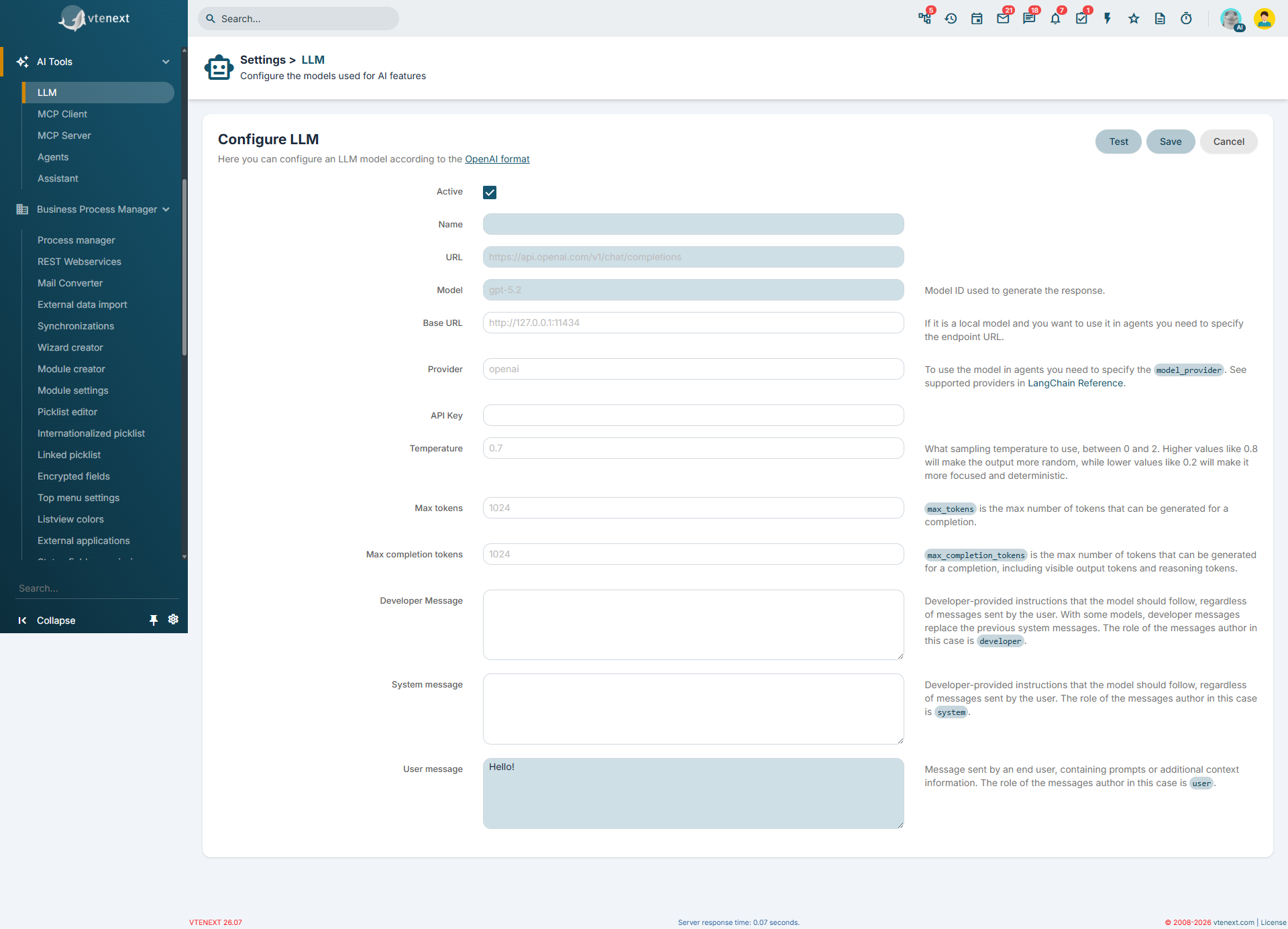
- Open the LLM section.
- Click Add.
- Fill in the required fields.
- If necessary, run a configuration test.
- Save.
- Active: makes the model available for use.
- Name: descriptive name of the model displayed in vtenext. Required field.
- URL: API endpoint to which vtenext sends requests to the model (for example, https://api.openai.com/v1/chat/completions). Required field.
- Model: identifier of the model to be used (for example, gpt-5.2). Required field.
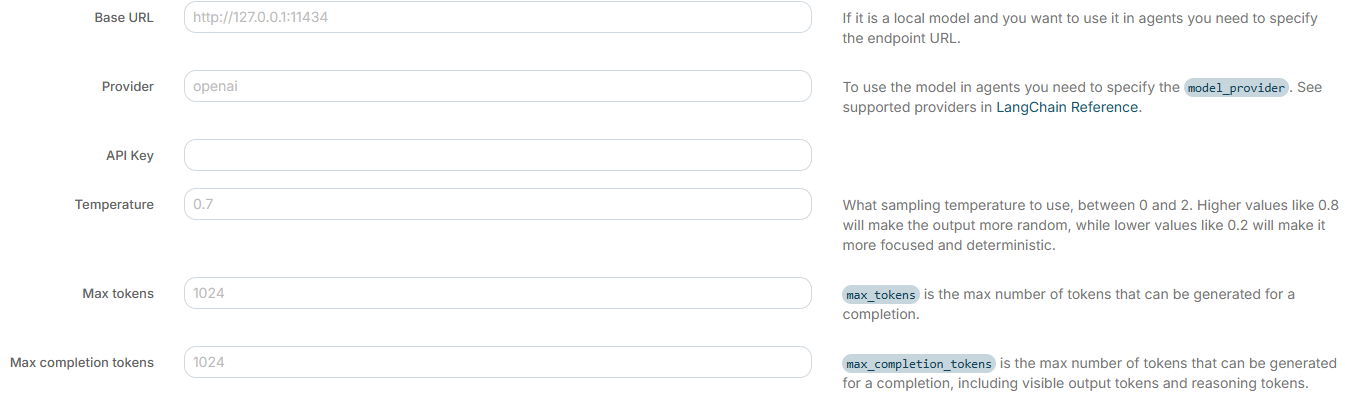
- Base URL: the base address of the service hosting the model. In practice, it tells AI agents and the Python orchestrator where the model service is located. It becomes particularly important when using a local model or an internal service within the infrastructure, for example an endpoint such as http://127.0.0.1:11434.
- Provider: indicates to vtenext and the Python orchestrator what type of service is behind the model, such as OpenAI or Ollama.
- API Key: authentication key provided by the provider, required to authorize API requests.
- Temperature: controls the level of randomness in generated responses. Lower values (for example, 0.2) produce more consistent, predictable, and repeatable responses; higher values (for example, 0.8 or above) encourage more varied and creative responses.
- Maximum Tokens: defines the maximum total number of tokens that the model can use to process the request, including both the messages sent and the generated response (if supported by the provider).
- Maximum Completion Tokens: limits the maximum number of tokens that the model can use exclusively for the generated response.
- Developer Message: instructions addressed to the model with the developer role, used to define behavioral rules or application constraints.
- System Message: general instructions that define the model’s behavior during the conversation.
- User Message: test message sent to the model to verify its operation. Required field.
How the test works
The TEST button sends an actual request to the model using the configured parameters and displays:
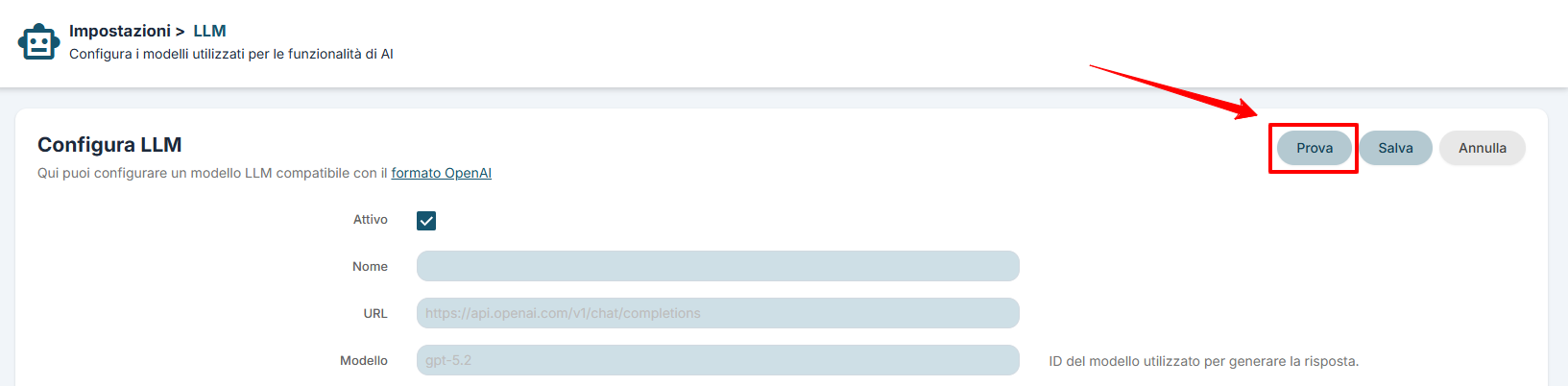
- Operation result
- Response code
- Returned headers
- Full response body
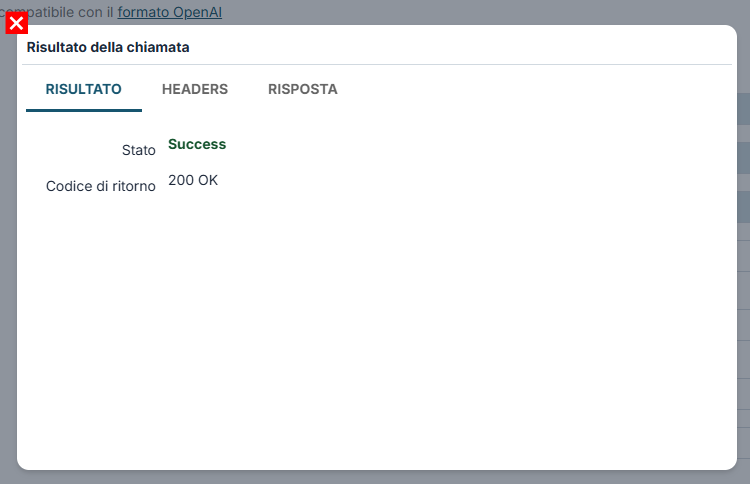
Call Result: RESULT tab
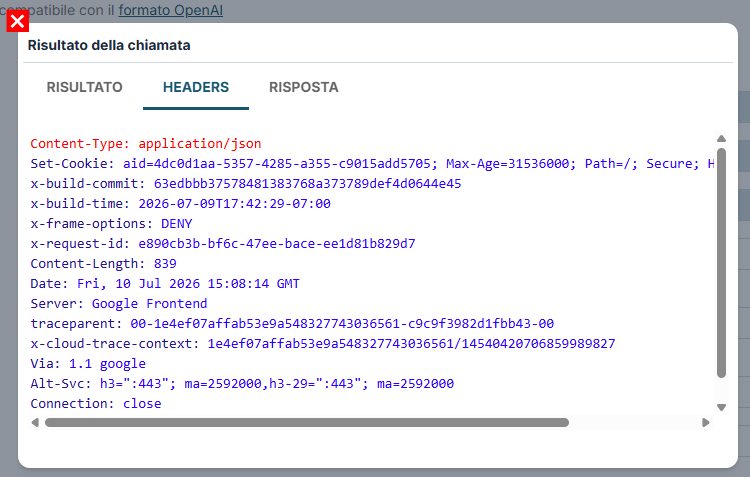
Call Result: HEADERS tab
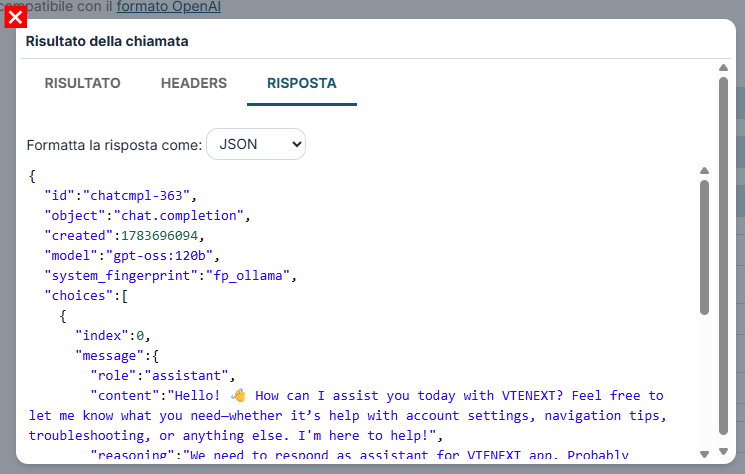
Call Result: RESPONSE tab
The test is used to verify the configuration, but it does not replace saving the configuration.
The test sends an actual request to the remote or local model. If the model cannot be reached via API, the test cannot be performed.
Practical examples
Example 1: OpenAI-compatible model
Use this configuration when the model is available as a remote service through an external API. Set the name, URL, model, and API Key, then send a simple test message.
Example 2: Local model
If the model runs locally or on an internal infrastructure, also fill in the Base URL and Provider fields. In this case as well, the model must already be installed, active, and reachable over the network.