
22.2 MCP Server
The MCP Servers section allows you to publish, through vtenext, an MCP endpoint that makes CRM tools and operations available to compatible external clients. In practice, this section is used to define which MCP server to expose and which tools to publish through it.
In summary: an MCP server is not an AI model and does not replace an AI agent. It is an access point that securely exposes CRM functions, allowing compatible MCP clients to invoke them from external applications.
When to use it
- To expose CRM tools to external MCP-compatible clients.
- To precisely select which operations should be made available.
- To create a stable internal endpoint for use in AI integrations.
- To generate, if required, an MCP client connected to the same server.
The List View
The list displays all previously configured MCP servers.

- Active: indicates whether the server is enabled and publicly available.
- Endpoint: identifier of the published server.
- Description: descriptive text for the server.
- Published Tools: number of tools made available through the server.
- MCP: associated MCP client, if any, including its synchronization status.
From the list, you can create a new server, edit an existing one, delete it, or copy its full URL.
Creating a New MCP Server
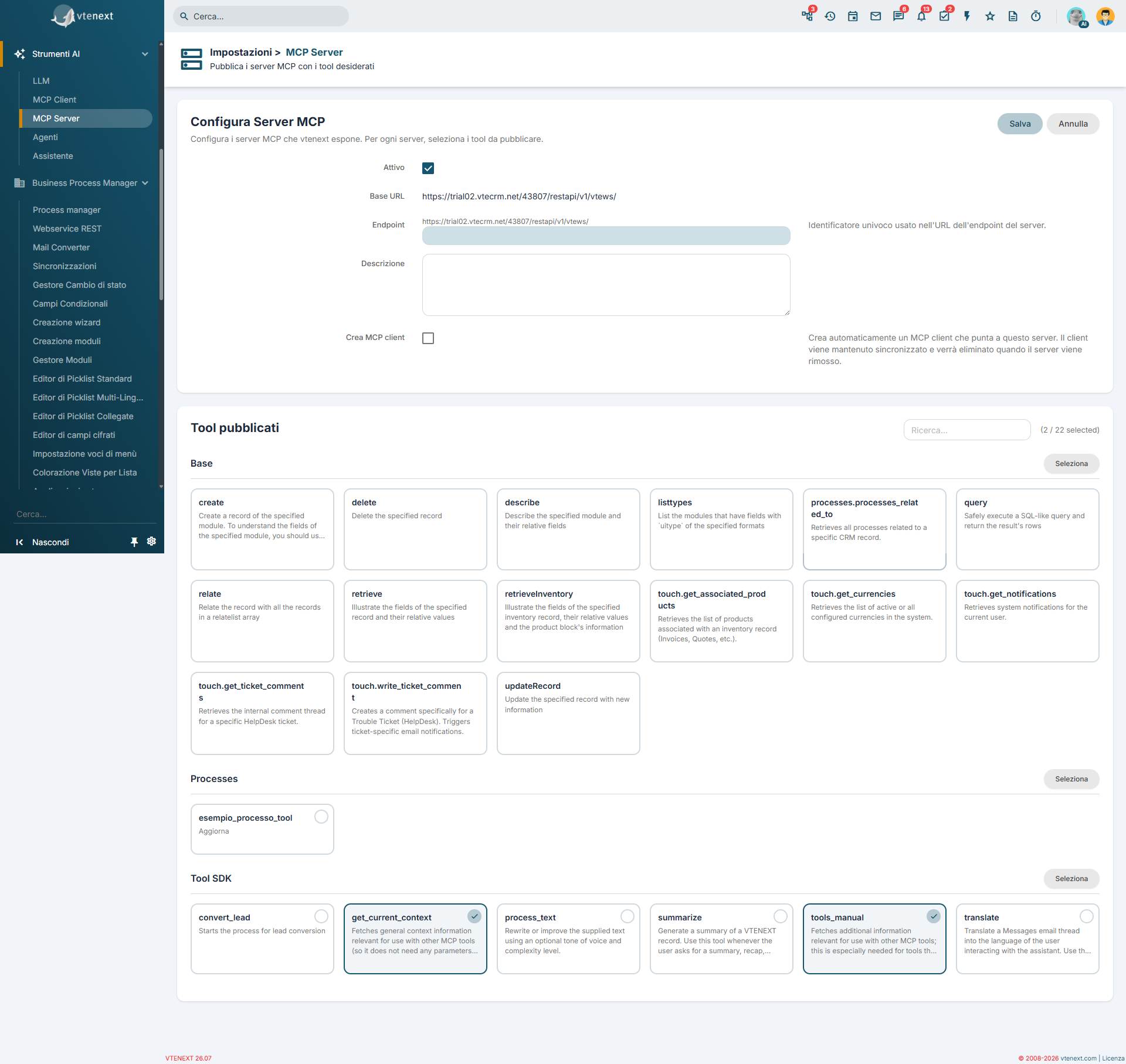
- Open the MCP Servers section.
- Click Add.
- Check the Base URL displayed by the system and verify that it is accessible from outside the network.
- Enter the Endpoint name.
- Add a Description, if needed.
- Choose whether to also create the associated MCP client.
- Select the tools to publish.
- Save the configuration.
Configuration Parameters
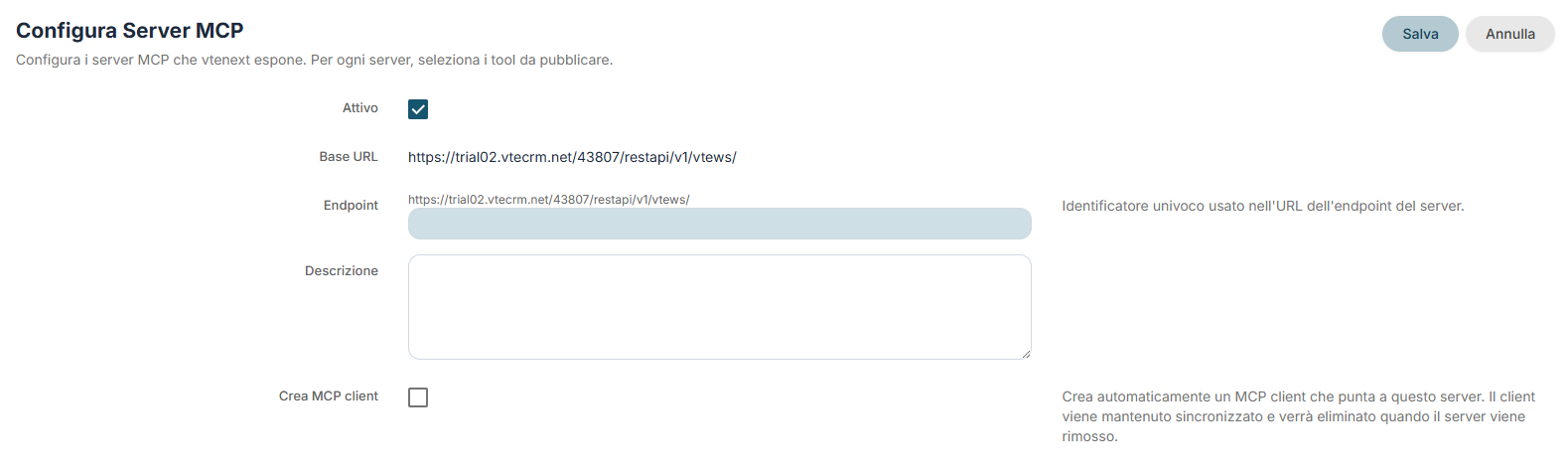
- Active: makes the server available for use.
- Base URL: initial part of the server address ($site_URL), displayed as read-only. It is automatically generated by the system.
- Endpoint: final identifier of the server. It is the part that completes the public URL of the MCP server. It must be unique and may contain letters, numbers, underscores, and hyphens.
- Description: used to explain the purpose of the server to administrators or users responsible for maintaining it.
- Create MCP Client: automatically creates an MCP client pointing to this server. The connection is kept synchronized and, if the server is deleted, the associated client is also removed.
Published Tools Selection
After the main fields, the screen displays the section dedicated to the published tools.
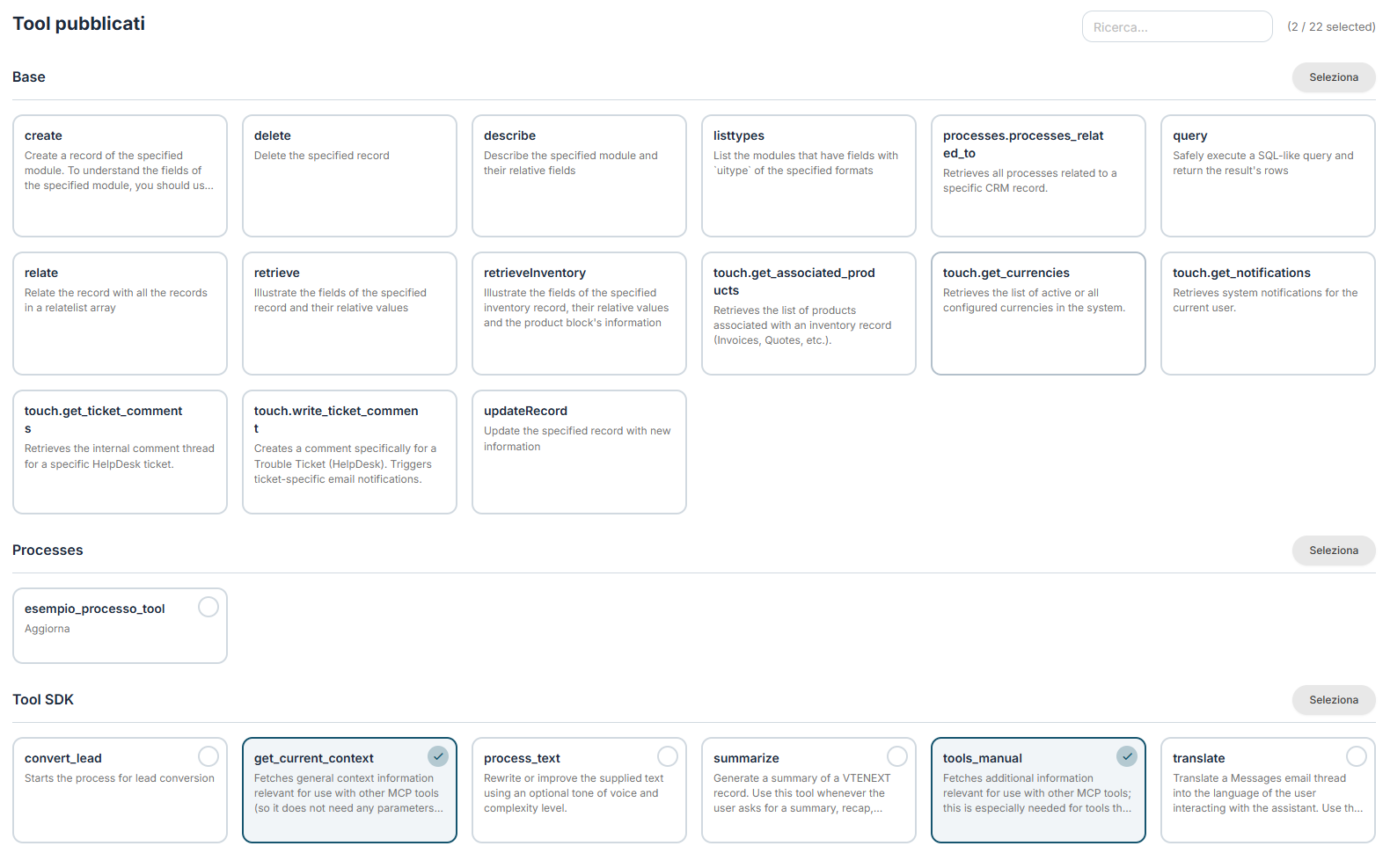
I tool disponibili possono provenire da più aree del sistema, ad esempio:
- Tool Base
- Tool SDK (vedi MCP Server per ulteriori dettagli)
Puoi selezionarli per gruppo oppure cercarli rapidamente tramite il campo di ricerca. Alcuni tool di base vengono mantenuti automaticamente dal sistema, anche se non li selezioni manualmente, per garantire il corretto funzionamento dell'integrazione.
Esempi pratici
Esempio 1: server MCP per tool interni del CRM
Puoi creare un server dedicato a un insieme ristretto di tool, per esempio solo quelli necessari a un assistente interno o a un'integrazione controllata.
Esempio 2: server MCP con client collegato
Se vuoi che il server sia subito utilizzabile anche dal lato client, puoi attivare l'opzione Crea MCP client. In questo modo vtenext prepara automaticamente anche il client che punta a quel server.
Esempio 3: pubblicazione selettiva dei tool
Se non vuoi esporre tutte le funzioni disponibili, puoi pubblicare solo i tool realmente necessari. Questo approccio aiuta a mantenere l'integrazione più ordinata e controllata.