
22.2 MCP Server
The MCP Servers section allows you to publish, through vtenext, an MCP endpoint that makes CRM tools and operations available to compatible external clients. In practice, this section is used to define which MCP server to expose and which tools to publish through it.
In summary: an MCP server is not an AI model and does not replace an AI agent. It is an access point that securely exposes CRM functions, allowing compatible MCP clients to invoke them from external applications.
When to use it
- To expose CRM tools to external MCP-compatible clients.
- To precisely select which operations should be made available.
- To create a stable internal endpoint for use in AI integrations.
- To generate, if required, an MCP client connected to the same server.
The List View
The list displays all previously configured MCP servers.

|
Active |
indicates whether the server is enabled and publicly available |
|
Endpoint |
identifier of the published server |
|
Description |
descriptive text for the server |
|
Published Tools |
number of tools made available through the server |
|
MCP |
associated MCP client, if any, including its synchronization status |
From the list, you can create a new server, edit an existing one, delete it, or copy its full URL.
Creating a New MCP Server
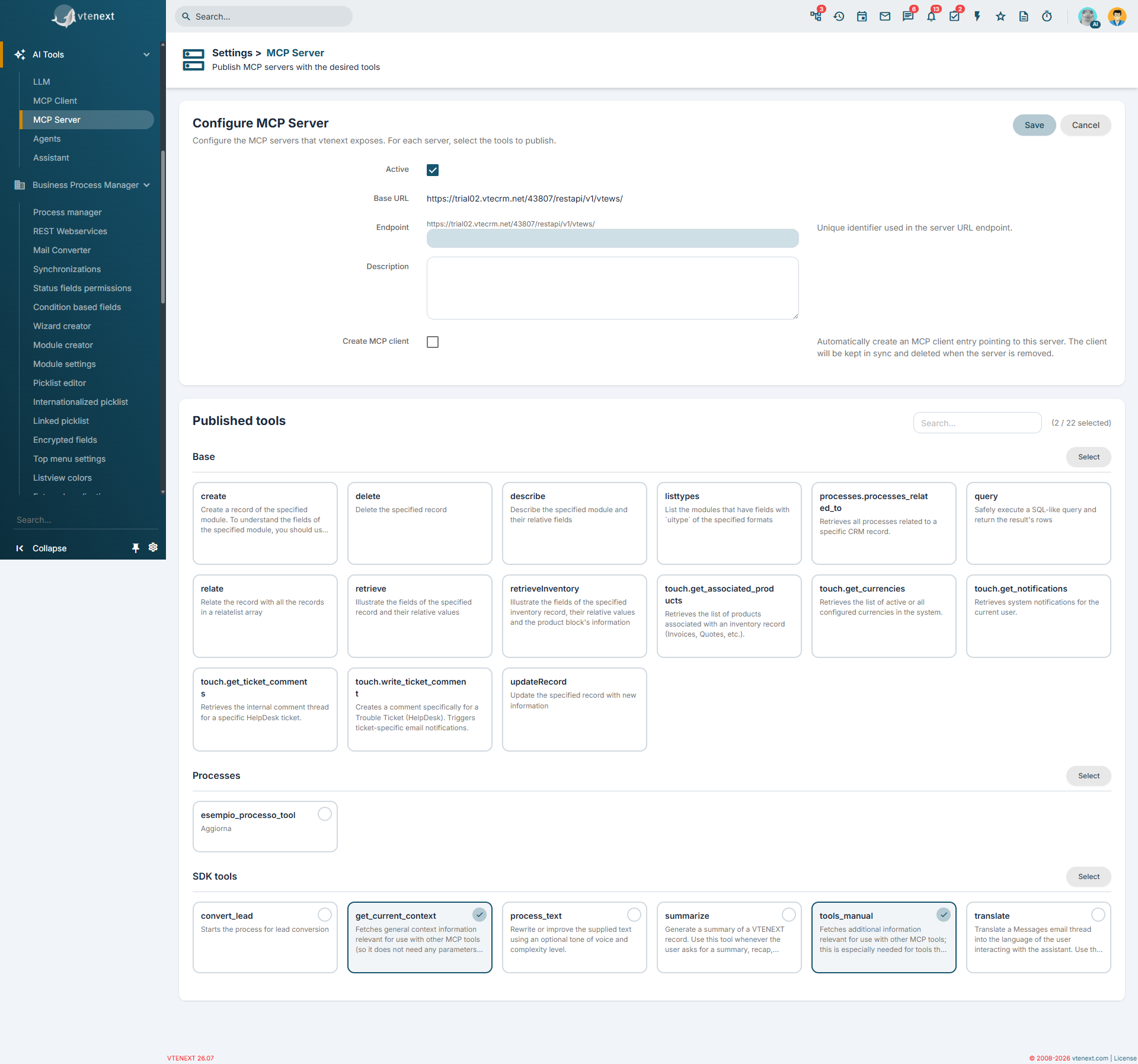
- Open the MCP Servers section.
- Click Add.
- Check the Base URL displayed by the system and verify that it is accessible from outside the network.
- Enter the Endpoint name.
- Add a Description, if needed.
- Choose whether to also create the associated MCP client.
- Select the tools to publish.
- Save the configuration.
Configuration Parameters
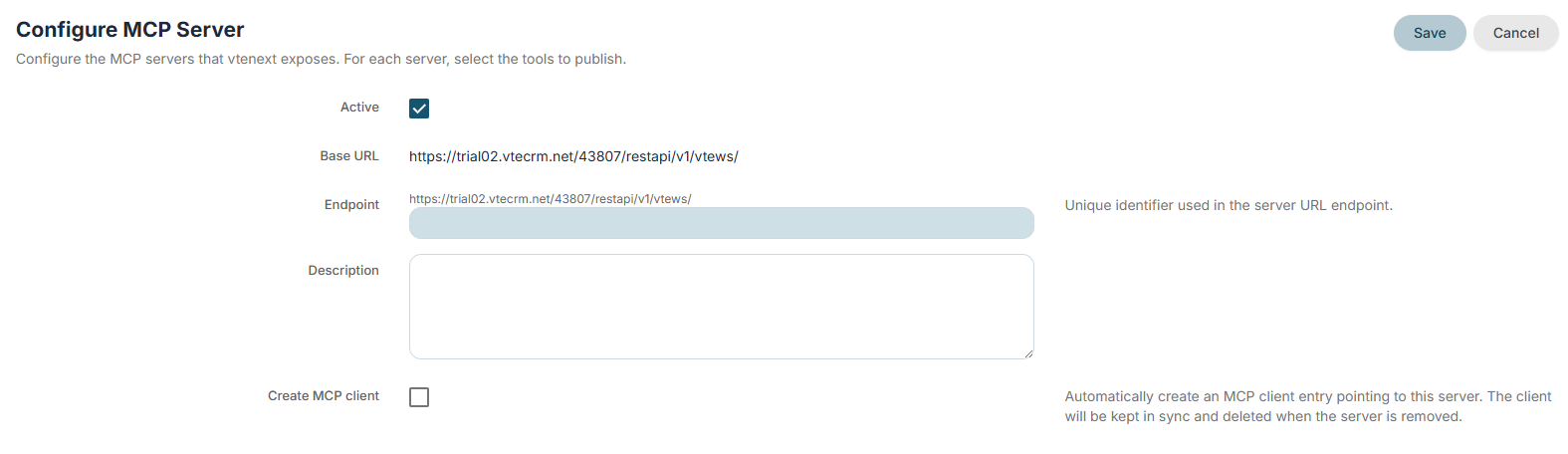
|
Active |
makes the server available for use |
|
Base URL |
initial part of the server address ($site_URL), displayed as read-only. It is automatically generated by the system |
|
Endpoint |
final identifier of the server. It is the part that completes the public URL of the MCP server. It must be unique and may contain letters, numbers, underscores, and hyphens |
|
Description |
used to explain the purpose of the server to administrators or users responsible for maintaining it |
|
Create MCP Client |
automatically creates an MCP client pointing to this server. The connection is kept synchronized and, if the server is deleted, the associated client is also removed |
Published Tools Selection
After the main fields, the screen displays the section dedicated to the published tools.
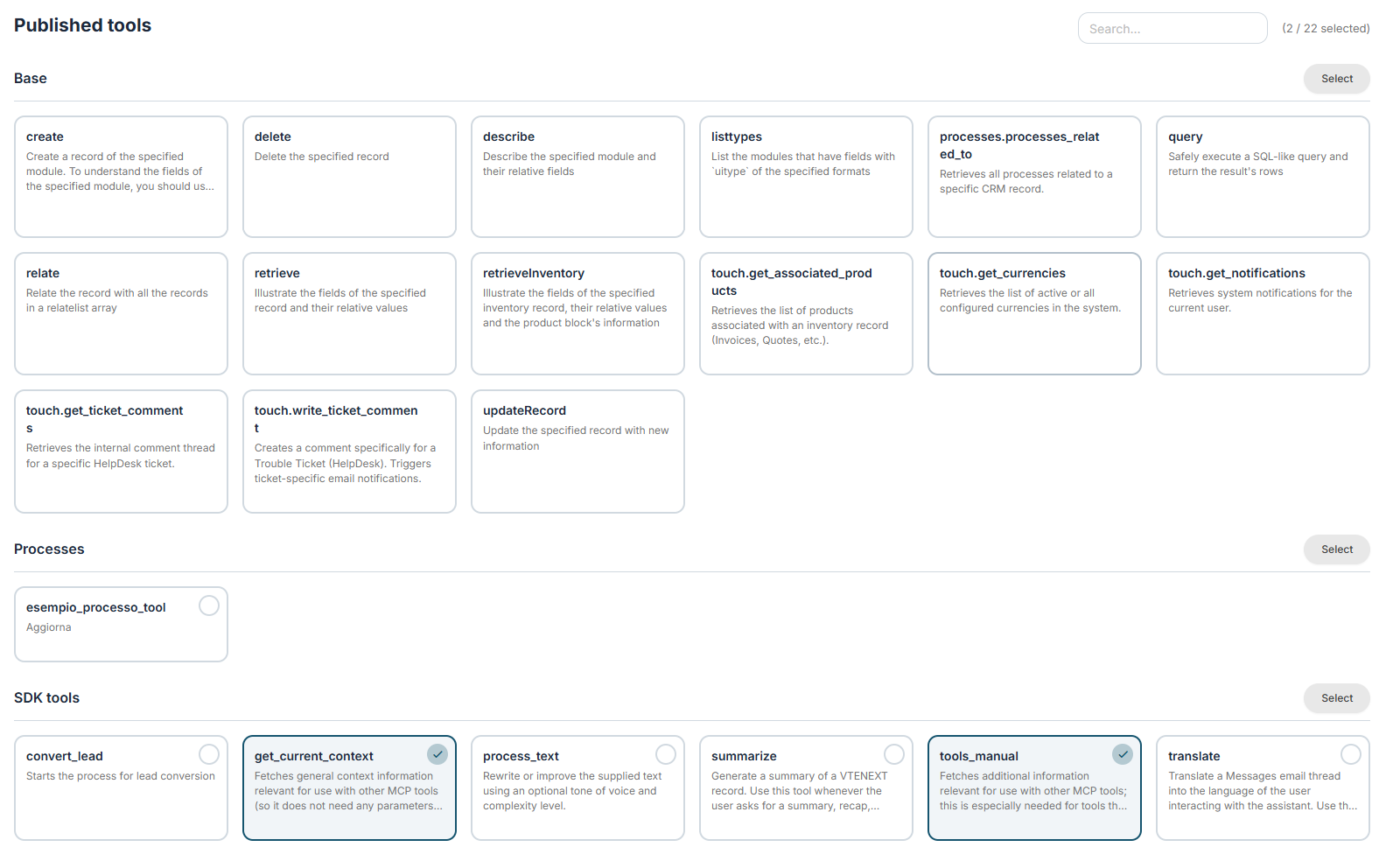
The available tools can come from multiple areas of the system, for example:
- Base Tools
- SDK Tools (see MCP Server for further details)
- Processes
Tools
You can select them by group or quickly search for them using the search field. Some basic tools are automatically maintained by the system, even if they are not manually selected, to ensure the correct operation of the integration.
Practical examples
Example 1: MCP server for internal CRM tools
You can create a server dedicated to a limited set of tools, for example only those required by an internal assistant or a controlled integration.
Example 2: MCP server with connected client
If you want the server to be immediately usable from the client side as well, you can enable the Create MCP Client option. In this way, vtenext automatically prepares the client that connects to that server.
Example 3: Selective tool publishing
If you do not want to expose all available functions, you can publish only the tools that are actually required. This approach helps keep the integration more organized and controlled.