
22.3 Client MCP
The MCP Clients section is used to connect vtenext to an external or internal MCP server, allowing it to retrieve and use the available tools within processes and agents. In practice, this section is where you configure how to reach the MCP server, how to authenticate, and how to keep the list of available tools up to date.
In summary: the MCP client does not publish functions externally. It performs the opposite operation: it connects to an MCP server, retrieves its tools, and makes them available within vtenext.
When to use it
- To connect vtenext to an already available MCP server.
- To use the tools exposed by an MCP server within processes and agents (see AI Actions).
- To keep the list of available tools synchronized over time.
- To quickly connect an MCP server created in the MCP Servers section.
The List View
The list displays all previously configured MCP clients.

|
Active |
indicates whether the client is enabled |
|
Name |
internal name used to identify the connection |
|
URL |
address of the MCP server to which the client connects |
|
Last Synchronization |
shows when the tools were last synchronized, or indicates that the client has never been synchronized |
From the list, you can create a new client, edit it, or delete it. If the client is connected to an internal MCP Server, you can also directly open that server from the list.
Creating a New MCP Client
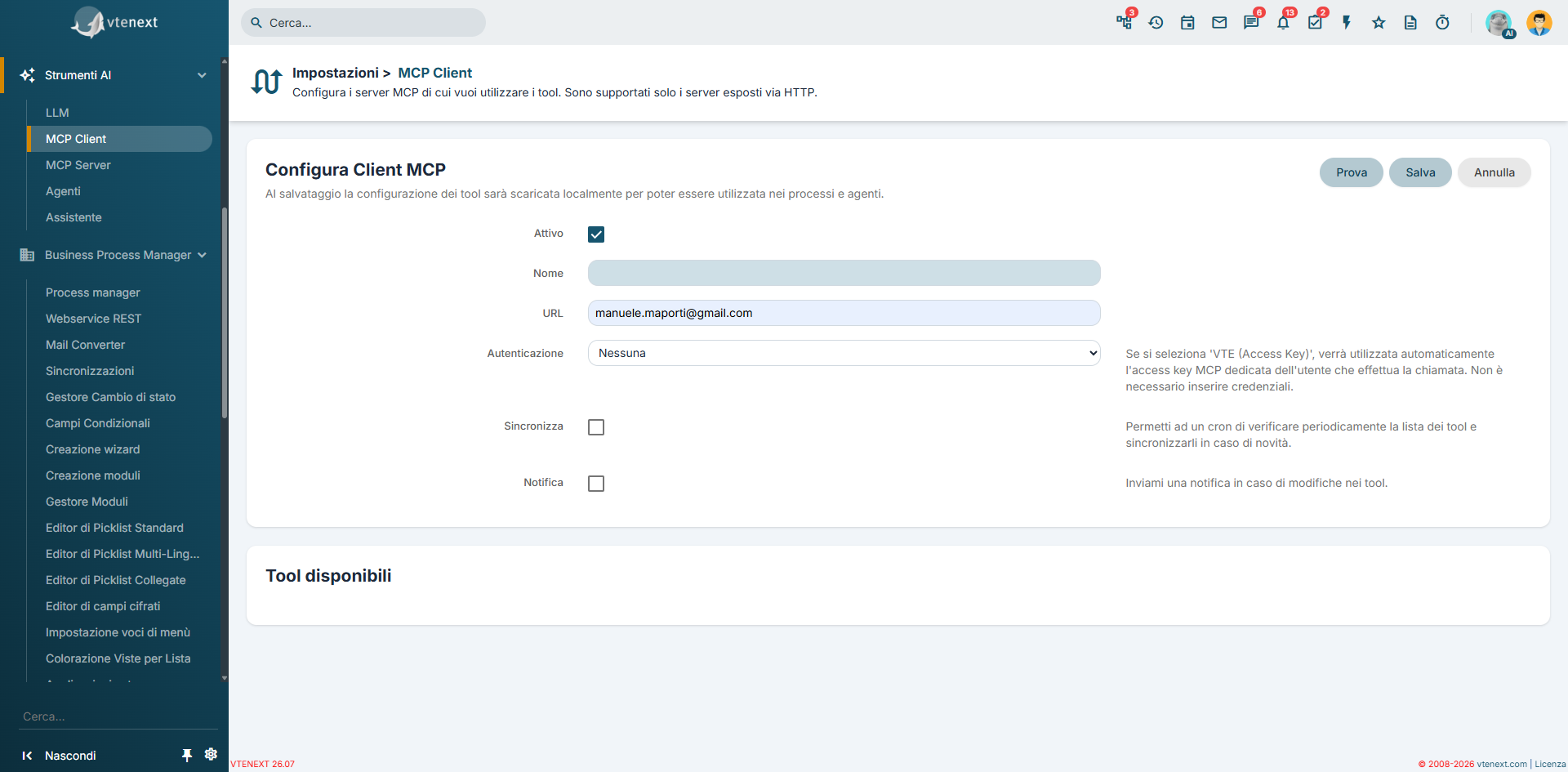
- Open the MCP Clients section.
- Click Add.
- Enter an easily recognizable Name.
- Enter the URL of the MCP server.
- Choose the Authentication type.
- Fill in the required credentials, if applicable.
- Decide whether to enable Periodic Synchronization.
- Enable Notifications if you want to be notified when tools change.
- Save the configuration.
Important: when saving, vtenext actually attempts to connect to the MCP server. If the connection fails, the configuration is not accepted.
Configuration Parameters
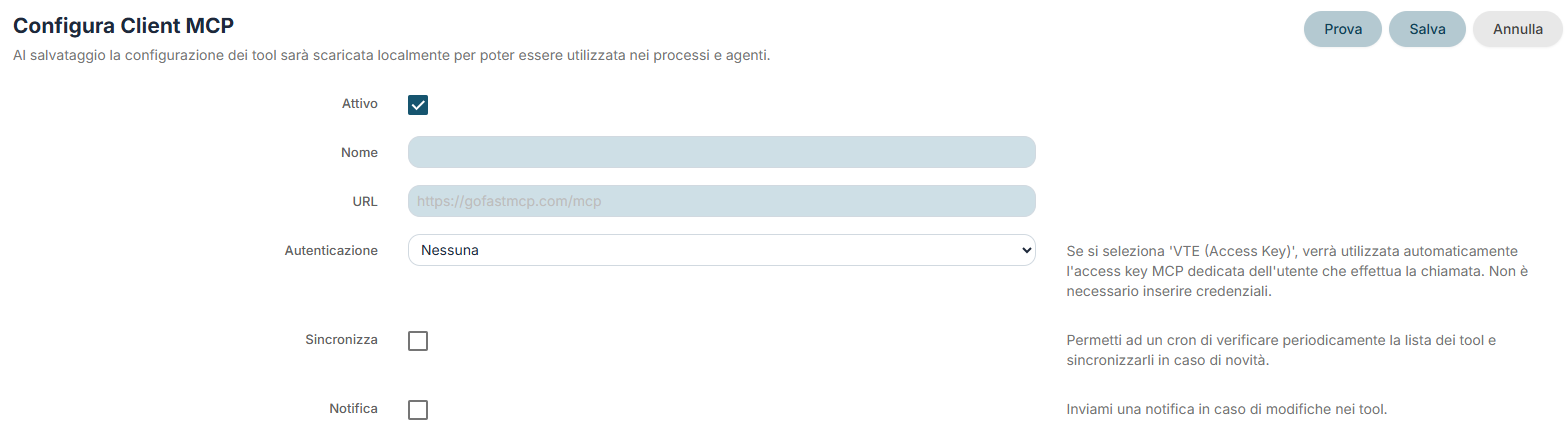
|
Active |
enables or disables the client |
|
Name |
descriptive name of the connection |
|
URL |
full address of the MCP server to connect to |
|
Authentication |
defines how the client authenticates with the MCP server |
|
Username and Password |
displayed when Basic Authentication is selected |
|
API Key |
displayed when Bearer or X-API-Key authentication is selected |
|
Synchronize |
allows a cron job to periodically check the available tools and update them when new ones are detected |
|
Notification |
sends a notification when synchronization detects changes in the server's tools |
ComeHow funzionaauthentication l'autenticazioneworks
LaThe sceltaselected dell'autenticazioneauthentication cambiamethod ichanges campithe mostratifields nelladisplayed scheda.in the configuration form.
|
|
|
|
Basic |
|
|
Bearer |
|
|
X-API-Key |
|
|
VTE (Access Key) |
vtenext |
QuandoWhen usareto use VTE (Access Key): questathis opzioneoption èis particolarmenteparticularly utileuseful quandowhen ilthe client puntapoints ato unan MCP Server MCPexposed esposto daby vtenext, perchébecause permetteit alallows sistemathe disystem gestireto l'autenticazionemanage inauthentication modo automatico.automatically.
VerificaConnection dellaVerification connessioneand eTool mappatura dei toolMapping
La schermata delThe client mettescreen also provides a disposizioneverification anchefunction.
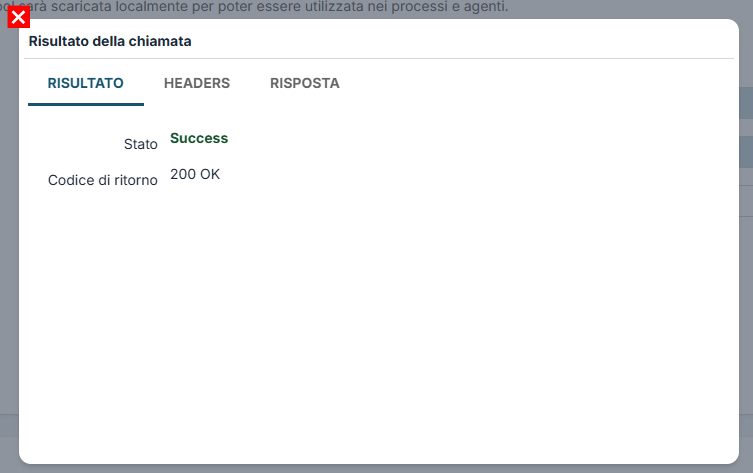
RisultatoCall dellaResult: chiamata: RISULTATORESULT
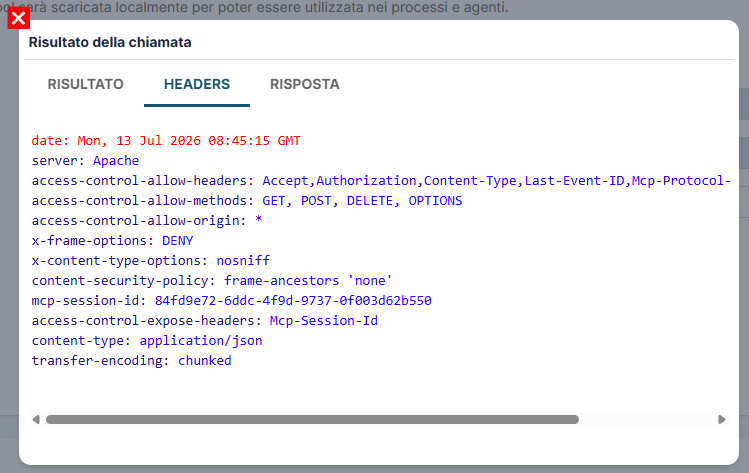
RisultatoCall della chiamata:Result: HEADERS
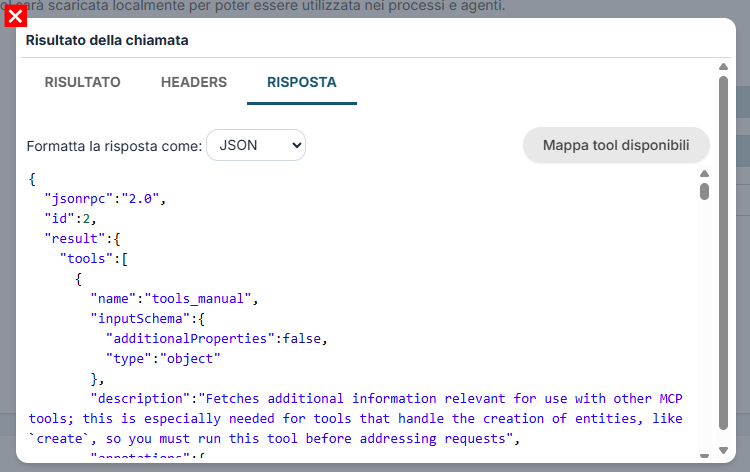
RisultatoCall dellaResult: chiamata: RISPOSTARESPONSE
Il pulsante diThe testcontrollabuttonsechecksilwhether the MCP serverMCPrespondsrisponde correttamente.correctly.InIfcasothediresultesitoispositivo,successful, vtenextpuòcanleggereretrievelathelistalistdeioftoolavailabledisponibili.tools.DallaFromfinestrathediverificationverificawindow,puoiyouaggiornarecanlaupdatesezionethedeiavailabletooltoolsdisponibilisectionconusingil comandotheMappaMaptoolAvailabledisponibiliTools.command.
QuestaThis verificaverification èis utileespecially soprattuttouseful quandowhen staiconfiguring configurandoa un nuovonew server oor quandowhen vuoiyou controllarewant seto l'autenticazionecheck èthat correttaauthentication primais delworking salvataggiocorrectly definitivo.before the final save.
ToolAvailable disponibiliTools
DopoAfter ilsaving, salvataggio,or oppureafter dopomapping lafrom mappaturathe dallaverification verifica,window, vtenext mostradisplays lathe listalist deiof tooltools lettiretrieved dalfrom serverthe MCP.MCP server.
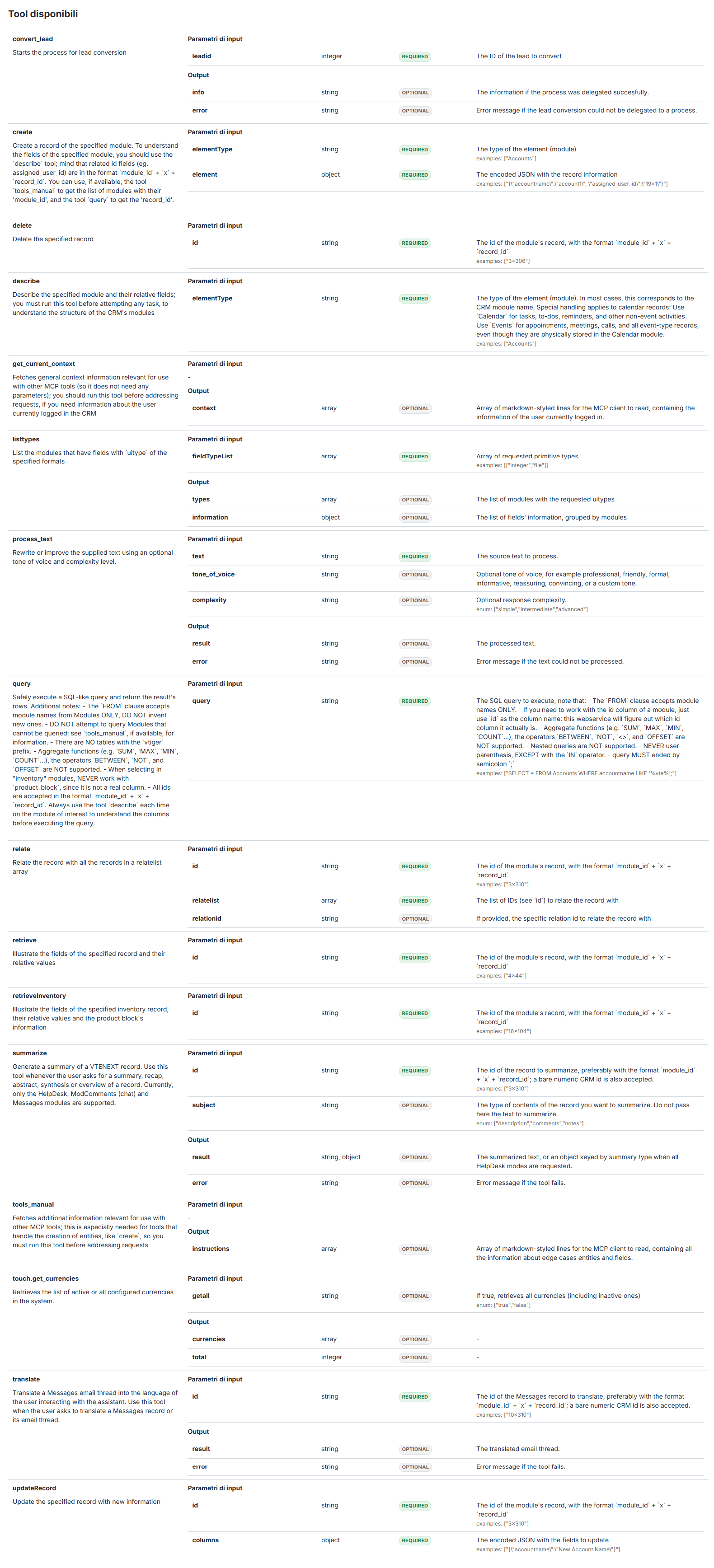
Per ogni tool puoi vedere:
- nome del tool
- descrizione
- parametri di input
- campi obbligatori e facoltativi
- struttura dell'output restituito
Queste informazioni vengono salvate localmente, così i tool possono poi essere richiamati dentro gli agenti e i processi senza dover reinterpretare ogni volta la struttura del server remoto.
Sincronizzazione periodica
Se attivi Sincronizza, un processo schedulato può controllare periodicamente se sul server MCP sono disponibili tool nuovi o modificati.
- Se trova cambiamenti, aggiorna la configurazione locale dei tool.
- Se non trova differenze, aggiorna comunque la data dell'ultima sincronizzazione.
- Se hai attivato anche Notifica, ricevi un avviso quando il set dei tool cambia.
Attenzione: quando i tool cambiano sul server MCP, può essere necessario verificare eventuali processi o agenti che li usano, soprattutto se sono cambiati parametri o output.
Esempi pratici
Esempio 1: collegamento a un server MCP esterno
Puoi configurare un client MCP che punta a un server esterno pubblicato da un altro sistema. In questo caso inserisci URL, autenticazione richiesta e poi verifichi i tool disponibili.
Esempio 2: collegamento a un Server MCP di vtenext
Se hai già creato un Server MCP nella relativa sezione, puoi collegare il client allo stesso endpoint e usare l'autenticazione VTE (Access Key) per semplificare la configurazione.
Esempio 3: aggiornamento controllato dei tool
Se i tool del server remoto possono cambiare nel tempo, conviene attivare la sincronizzazione periodica e, se necessario, anche le notifiche, così mantieni allineati processi e agenti.
Web Search MCP - Exa
vtenext mette a disposizione anche un client MCP preconfigurato chiamato Web Search MCP - Exa. Questa voce viene creata automaticamente ma resta disattivata finché non decidi di usarla.
Exa è un servizio di ricerca web pensato per agenti AI. Permette di fare ricerche sul web in tempo reale, recuperare contenuti di pagine specifiche e fornire ai modelli informazioni più aggiornate rispetto alla sola conoscenza già incorporata nel modello.
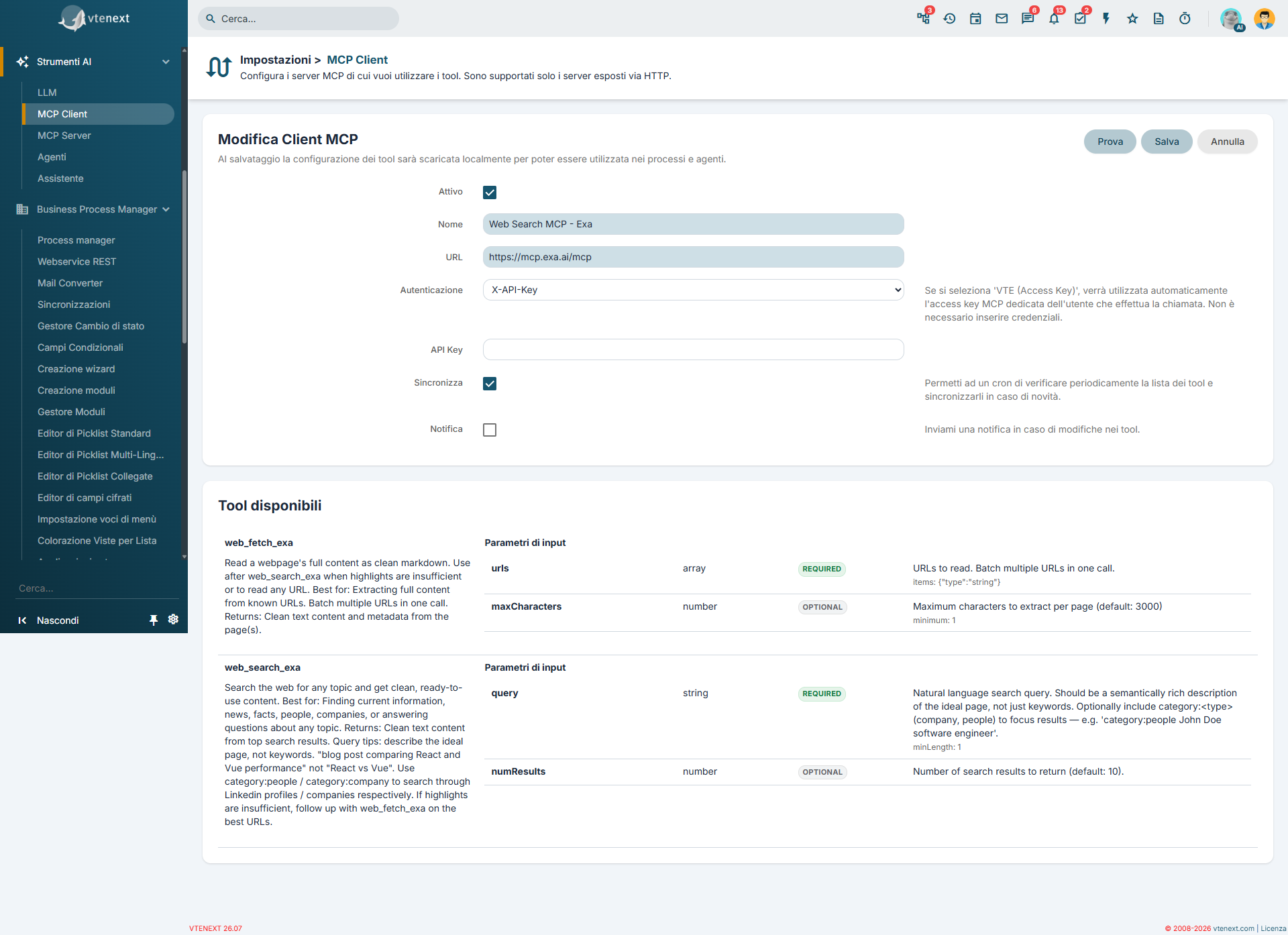
Come attivarlo
- Apri la scheda Web Search MCP - Exa nella lista dei Client MCP.
- Lascia invariato l'URL precompilato, che punta al server MCP pubblico di Exa.
- Imposta o completa l'autenticazione X-API-Key con la chiave API del tuo account Exa.
- Attiva il client.
- Salva e verifica i tool disponibili.
In questo caso l'autenticazione prevista da vtenext è X-API-Key, già selezionata nella configurazione iniziale del client.
Tool disponibili con Exa
Il server MCP espone questi tool:
- web_search_exa: esegue ricerche sul web e restituisce contenuti già pronti da usare da parte dell'agente.
- web_fetch_exa: recupera il contenuto completo di una pagina web a partire da un URL noto.
Quando può essere utile: Exa è particolarmente adatto quando vuoi dare agli agenti e ai processi accesso a ricerca web aggiornata, analisi di pagine online o raccolta rapida di informazioni esterne.
Per ulteriori dettagli sul servizio e sulle funzionalità del server MCP di Exa, consulta il sito ufficiale: https://exa.ai/mcp.