
22.3 Client MCP
The MCP Clients section is used to connect vtenext to an external or internal MCP server, allowing it to retrieve and use the available tools within processes and agents. In practice, this section is where you configure how to reach the MCP server, how to authenticate, and how to keep the list of available tools up to date.
In summary: the MCP client does not publish functions externally. It performs the opposite operation: it connects to an MCP server, retrieves its tools, and makes them available within vtenext.
When to use it
- To connect vtenext to an already available MCP server.
- To use the tools exposed by an MCP server within processes and agents (see AI Actions).
- To keep the list of available tools synchronized over time.
- To quickly connect an MCP server created in the MCP Servers section.
The List View
The list displays all previously configured MCP clients.

|
Active |
indicates whether the client is enabled |
|
Name |
internal name used to identify the connection |
|
URL |
address of the MCP server to which the client connects |
|
Last Synchronization |
shows when the tools were last synchronized, or indicates that the client has never been synchronized |
From the list, you can create a new client, edit it, or delete it. If the client is connected to an internal MCP Server, you can also directly open that server from the list.
Creating a New MCP Client
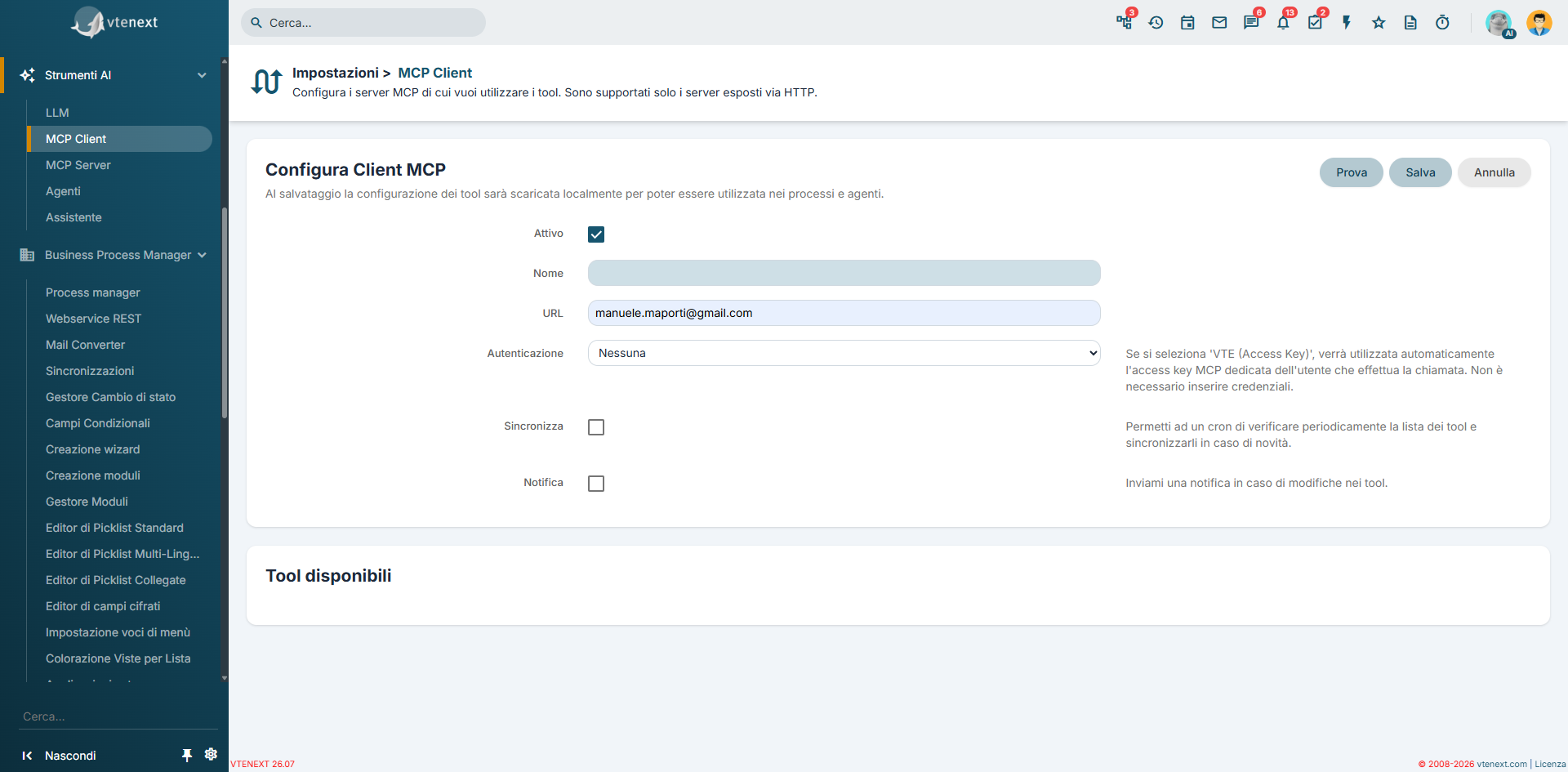
- Open the MCP Clients section.
- Click Add.
- Enter an easily recognizable Name.
- Enter the URL of the MCP server.
- Choose the Authentication type.
- Fill in the required credentials, if applicable.
- Decide whether to enable Periodic Synchronization.
- Enable Notifications if you want to be notified when tools change.
- Save the configuration.
Important: when saving, vtenext actually attempts to connect to the MCP server. If the connection fails, the configuration is not accepted.
Configuration Parameters
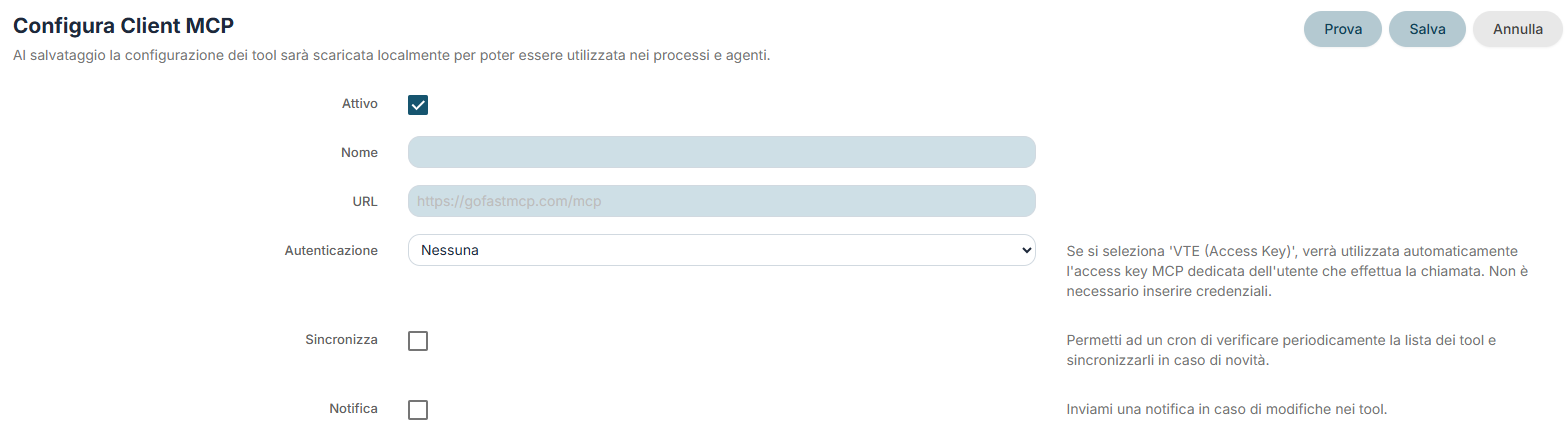
|
Active |
enables or disables the client |
|
Name |
descriptive name of the connection |
|
URL |
full address of the MCP server to connect to |
|
Authentication |
defines how the client authenticates with the MCP server |
|
Username and Password |
displayed when Basic Authentication is selected |
|
API Key |
displayed when Bearer or X-API-Key authentication is selected |
|
Synchronize |
allows a cron job to periodically check the available tools and update them when new ones are detected |
|
Notification |
sends a notification when synchronization detects changes in the server's tools |
How authentication works
The selected authentication method changes the fields displayed in the configuration form.
|
No Authentication |
no additional credentials are required |
|
Basic |
you must enter a username and password |
|
Bearer |
you must enter a token or API key |
|
X-API-Key |
you must enter the API key in the dedicated field |
|
VTE (Access Key) |
vtenext automatically uses the dedicated MCP access key of the user performing the call. No credentials need to be entered manually |
When to use VTE (Access Key): this option is particularly useful when the client points to an MCP Server exposed by vtenext, because it allows the system to manage authentication automatically.
Connection Verification and Tool Mapping
The client screen also provides a verification function.
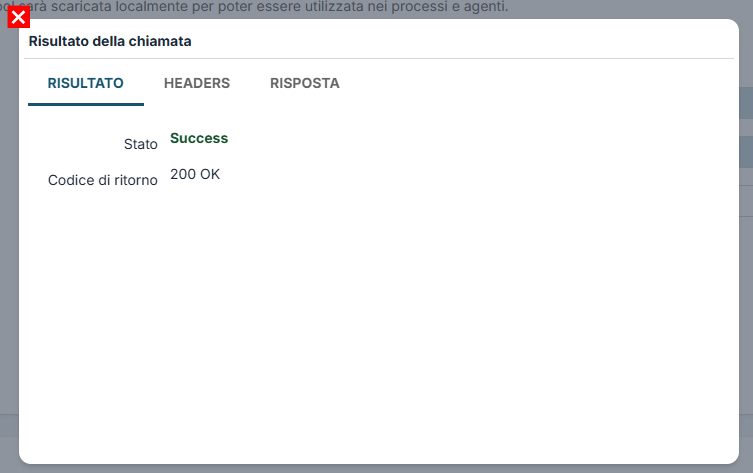
Call Result: RESULT
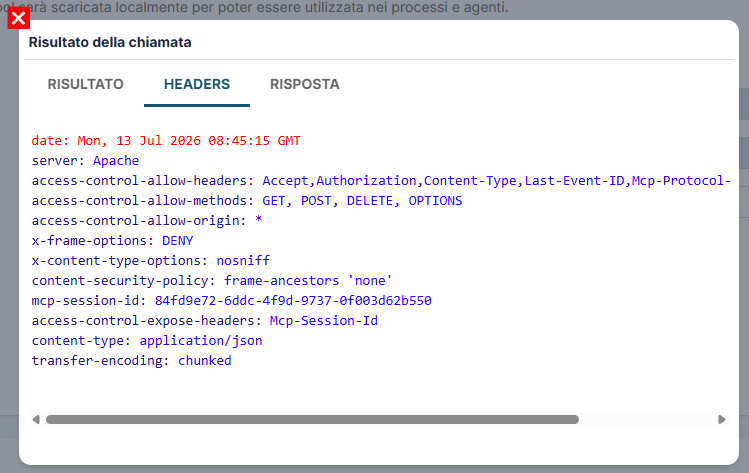
Call Result: HEADERS
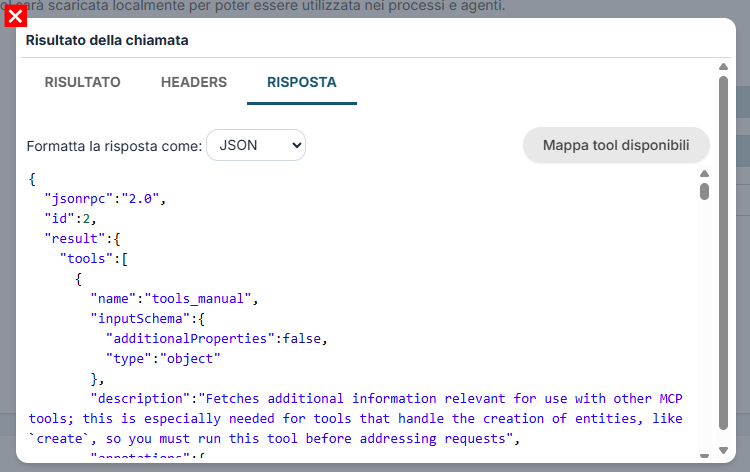
Call Result: RESPONSE
- The test button checks whether the MCP server responds correctly.
- If the result is successful, vtenext can retrieve the list of available tools.
- From the verification window, you can update the available tools section using the Map Available Tools command.
This verification is especially useful when configuring a new server or when you want to check that authentication is working correctly before the final save.
Available Tools
After saving, or after mapping from the verification window, vtenext displays the list of tools retrieved from the MCP server.
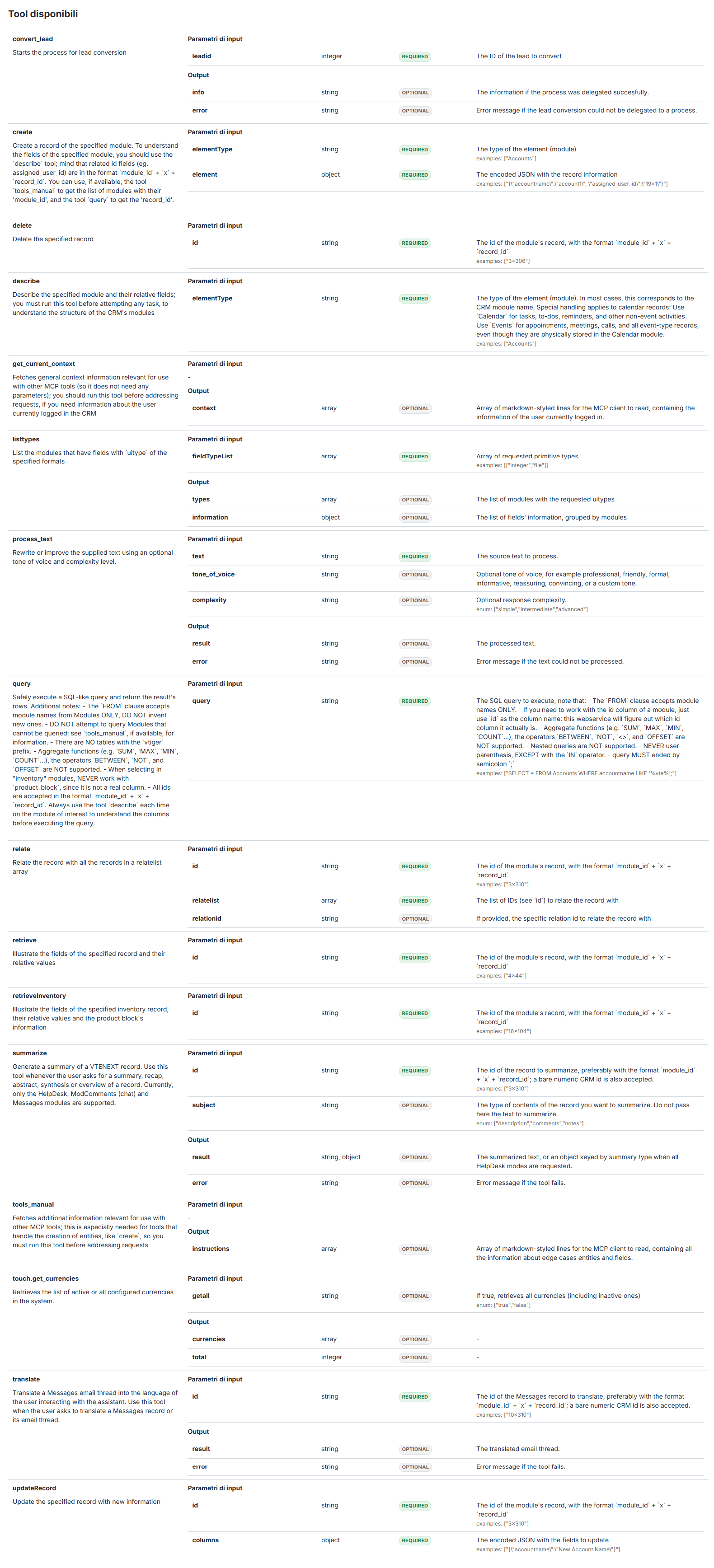
PerFor ognieach tooltool, puoiyou vedere:can view:
nometooldel toolnamedescrizionedescriptionparametriinputdi inputparameterscampirequiredobbligatoriandeoptionalfacoltativifieldsstrutturastructuredell'of the returned outputrestituito
QuesteThis informazioniinformation vengonois salvatestored localmente,locally, cosìso ithe tooltools possonocan poithen esserebe richiamatiinvoked dentrowithin gliagents agentiand eprocesses iwithout processihaving senzato doverreinterpret reinterpretarethe ogni volta la struttura delremote server remoto.structure each time.
SincronizzazionePeriodic periodicaSynchronization
SeIf attiviyou enable SincronizzaSynchronize, una processoscheduled schedulatoprocess puòcan controllareperiodically periodicamentecheck sewhether sulnew serveror modified tools are available on the MCP sono disponibili tool nuovi o modificati.server.
SeIftrovachangescambiamenti,areaggiornadetected,latheconfigurazionelocallocaletooldeiconfigurationtool.is updated.SeIfnonnotrovadifferencesdifferenze,areaggiornafound,comunquetheladatedataofdell'ultimathesincronizzazione.last synchronization is updated anyway.SeIfhaiyouattivatohaveanchealso enabledNotificaNotification,riceviyouunwillavvisoreceivequandoanilalert when the setdeioftooltoolscambia.changes.
Attenzione:Warning: quandowhen itools toolchange cambianoon sulthe serverMCP MCP,server, puòit esseremay necessariobe verificarenecessary eventualito processicheck oany agentiprocesses cheor liagents usano,that soprattuttouse sethem, sonoespecially cambiatiif parametriparameters oor output.outputs have changed.
EsempiPractical praticiexamples
EsempioExample 1: collegamentoConnecting to an external MCP server
You can configure an MCP client that points to an external server published by another system. In this case, enter the URL, the required authentication method, and then verify the available tools.
Example 2: Connecting to a un servervtenext MCP esternoServer
PuoiIf configurareyou unhave already created an MCP Server in the relevant section, you can connect the client MCPto chethe punta a un server esterno pubblicato da un altro sistema. In questo caso inserisci URL, autenticazione richiesta e poi verifichi i tool disponibili.
Esempio 2: collegamento a un Server MCP di vtenext
Se hai già creato un Server MCP nella relativa sezione, puoi collegare il client allo stessosame endpoint eand usare l'autenticazioneuse VTE (Access Key) perauthentication semplificareto lasimplify configurazione.the configuration.
EsempioExample 3: aggiornamento controllato deiControlled tool updates
SeIf ithe tooltools delon the remote server remotomay possonochange cambiareover neltime, tempo,it convieneis attivarerecommended lato sincronizzazioneenable periodicaperiodic e,synchronization seand, necessario,if anchenecessary, lenotifications notifiche,as cosìwell, mantieniso allineatithat processiprocesses eand agenti.agents remain aligned.
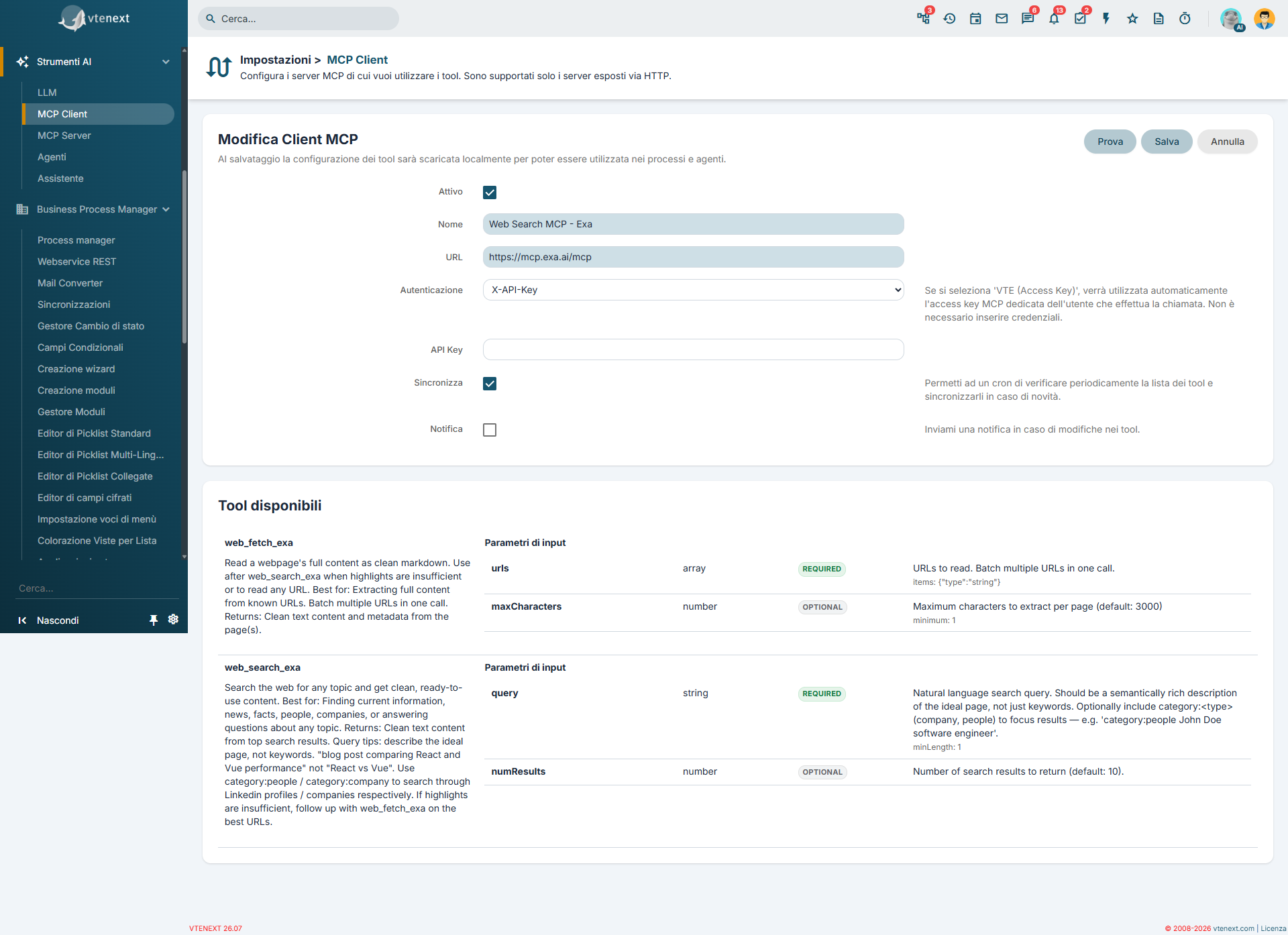
Web Search MCP - Exa
vtenext mettealso provides a disposizionepreconfigured anche unMCP client MCP preconfigurato chiamatocalled Web Search MCP - Exa. QuestaThis voceentry vieneis creatacreated automaticamenteautomatically mabut restaremains disattivatadisabled finchéuntil nonyou decididecide dito usarla.use it.
Exa èis un servizio di ricercaa web pensatosearch perservice agentidesigned AI.for PermetteAI diagents. fareIt ricercheallows sulreal-time web insearches, temporetrieval reale,of recuperarecontent contenutifrom dispecific pagineweb specifichepages, eand fornireprovides aimodels modelliwith informazionimore piùup-to-date aggiornateinformation rispettocompared allato solathe conoscenzaknowledge giàalready incorporataembedded nelwithin modello.the model.
Come attivarlo
- Apri la scheda Web Search MCP - Exa nella lista dei Client MCP.
- Lascia invariato l'URL precompilato, che punta al server MCP pubblico di Exa.
- Imposta o completa l'autenticazione X-API-Key con la chiave API del tuo account Exa.
- Attiva il client.
- Salva e verifica i tool disponibili.
In questo caso l'autenticazione prevista da vtenext è X-API-Key, già selezionata nella configurazione iniziale del client.
Tool disponibili con Exa
Il server MCP espone questi tool:
- web_search_exa: esegue ricerche sul web e restituisce contenuti già pronti da usare da parte dell'agente.
- web_fetch_exa: recupera il contenuto completo di una pagina web a partire da un URL noto.
Quando può essere utile: Exa è particolarmente adatto quando vuoi dare agli agenti e ai processi accesso a ricerca web aggiornata, analisi di pagine online o raccolta rapida di informazioni esterne.
Per ulteriori dettagli sul servizio e sulle funzionalità del server MCP di Exa, consulta il sito ufficiale: https://exa.ai/mcp.