
22.5 Kitt Assistant
The Assistant section allows you to define how the vtenext Kitt Assistant should generate its responses. In practice, this is where you choose which response engine to use: a direct LLM, a preconfigured agent, or a custom REST Web Service.
In summary: the assistant is the access point through which the user interacts. Depending on the configuration, it can respond directly using a model, use advanced tools through an agent, or delegate the response to an external service.
Prerequisites
- To use an LLM, you must first configure at least one model in the LLM section.
- To use an Agent, you must first configure at least one agent in the Agents section.
- To use a REST Web Service, you must first configure the service in the relevant section.
- For the assistant to work correctly, the background task worker must be enabled.
Creating or Editing the Assistant
[SCREENSHOT: form dell'Assistente con selezione del tipo tra Agente, LLM e Webservice REST]
- Open the Assistant section.
- Enable or disable the configuration.
- Select the Assistant Type.
- Fill in the field displayed based on the selected type.
- Save the configuration.
Type: Agent
If you select Agent, the assistant will use one of the agents already configured in vtenext.

- Select an agent from the available list.
- The assistant inherits the capabilities of the selected agent.
- This includes, if configured in the agent, MCP tools, RAG documents, specific prompts, and guardrails.
When to use an agent: it is the right choice when you want the assistant to do more than provide a simple text response, for example by using tools, consulting documents, or applying more advanced controls.
Type: LLM
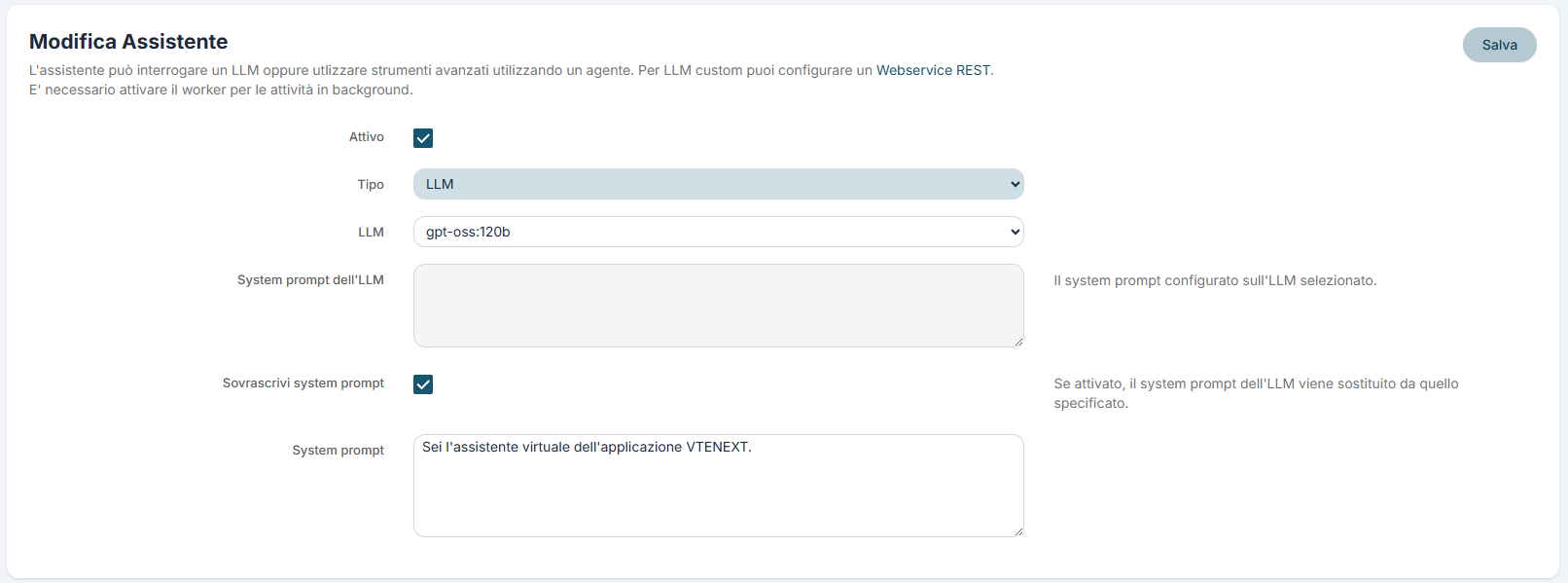
If you select LLM, the assistant will use a language model configured directly in the LLM section.

- Select the LLM model to use.
- You can view the currently configured LLM system prompt.
- You can enable the Override system prompt option to use a custom prompt specifically for the assistant.
This mode is simpler than using an agent because it does not involve MCP tools or RAG documents.
Overriding the System Prompt
When the assistant is configured in LLM mode, you can decide whether to keep the model’s system prompt or replace it.
-
LLM System Prompt: displays the standard prompt already configured for the selected model.
Override System Prompt: if enabled, the assistant uses the text specified in the assistant configuration.
System promptPrompt: dell'LLM:field mostrawhere ilyou promptdefine standarddedicated giàinstructions presentefor sulthe modelloassistant.
QuandoWhen èit utile:is useful: laoverriding sovrascrittura delthe system prompt serveis quandouseful vuoiwhen mantenereyou lowant stessoto modellokeep mathe cambiaresame tono,model obiettivobut ochange comportamentothe dell'assistenteassistant’s rispettotone, adpurpose, altreor configurazionibehavior checompared usanoto loother stessoconfigurations that use the same LLM.
Type: REST Web Service
If you select REST Web Service, the assistant delegates the response generation to an external REST service that has already been configured.
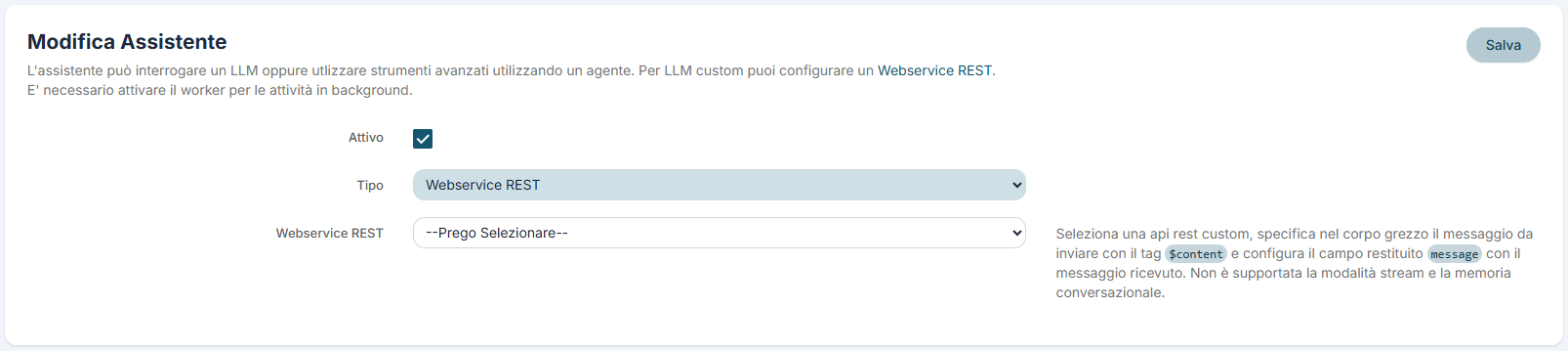
- Select a custom REST Web Service from the list.
- The user's message must be passed in the raw request body using the
$contentplaceholder. - The expected response must be mapped to the returned
messagefield.
Limitation: in this mode, streaming and conversational memory are not supported.
This option is useful when you want to connect the assistant to an existing external system or to a custom AI service that is not managed directly as an LLM or agent within vtenext.
Practical examples
Example 1: LLM-only assistant
You can configure a lightweight assistant that uses an LLM directly to answer general questions, without additional tools or documents.
Example 2: Agent-based assistant
You can use an agent when you want the assistant to have access to web search, company documents, or CRM operational tools.
Example 3: Assistant with an external service
You can connect a custom REST Web Service if your workflow relies on an external response engine or business logic already developed outside of vtenext.