22.6 Examples
Below are some example requests to demonstrate the assistant’s capabilities.
Creating an Account
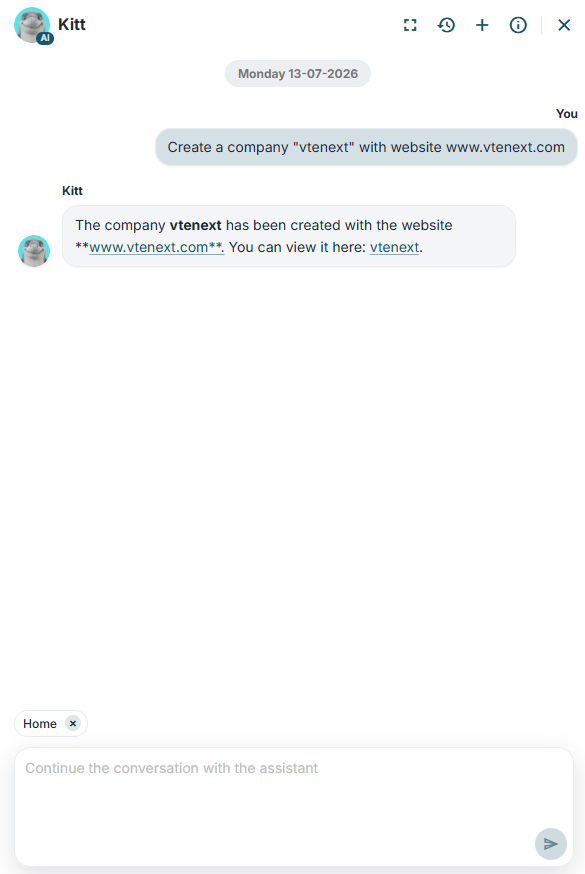
I can create any record managed by the CRM, such as an account in this case. Any tools used by the assistant are displayed, and for write operations, approval is requested before proceeding.
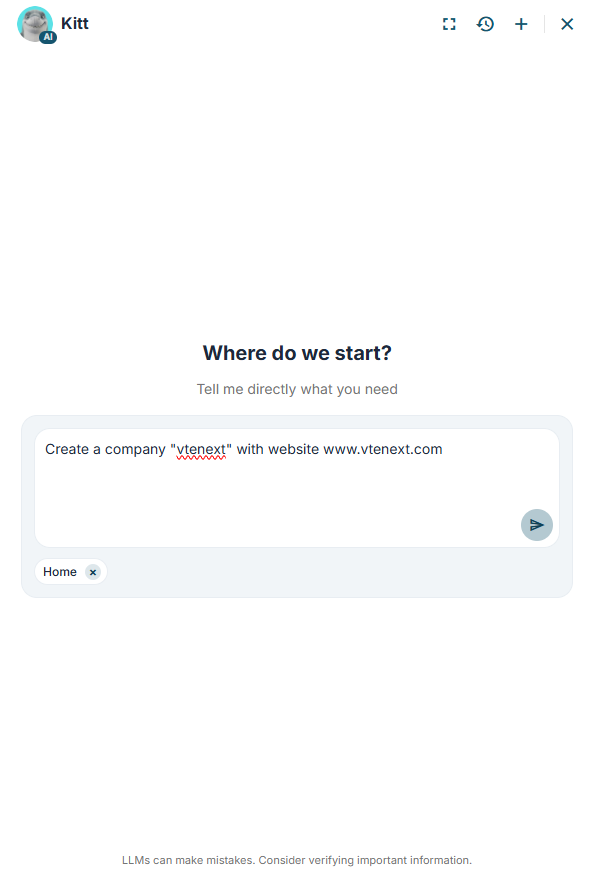
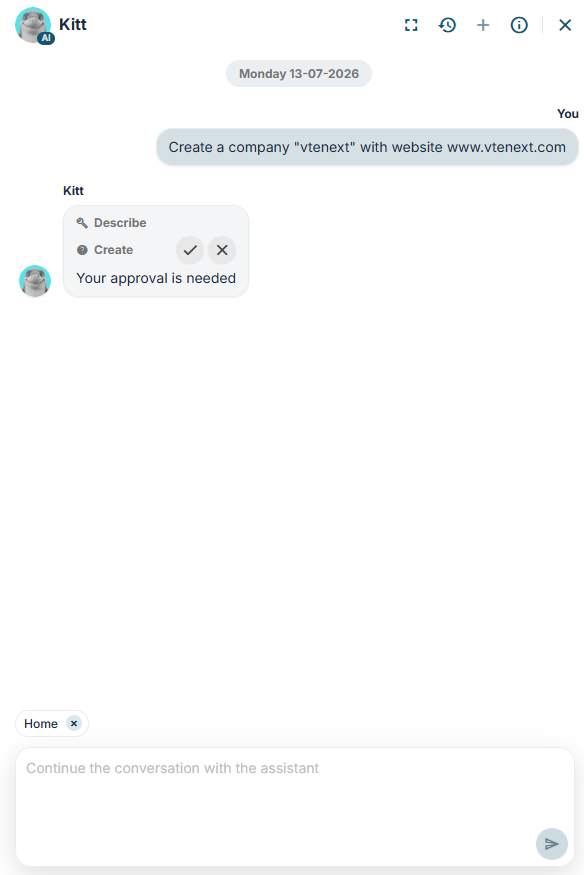
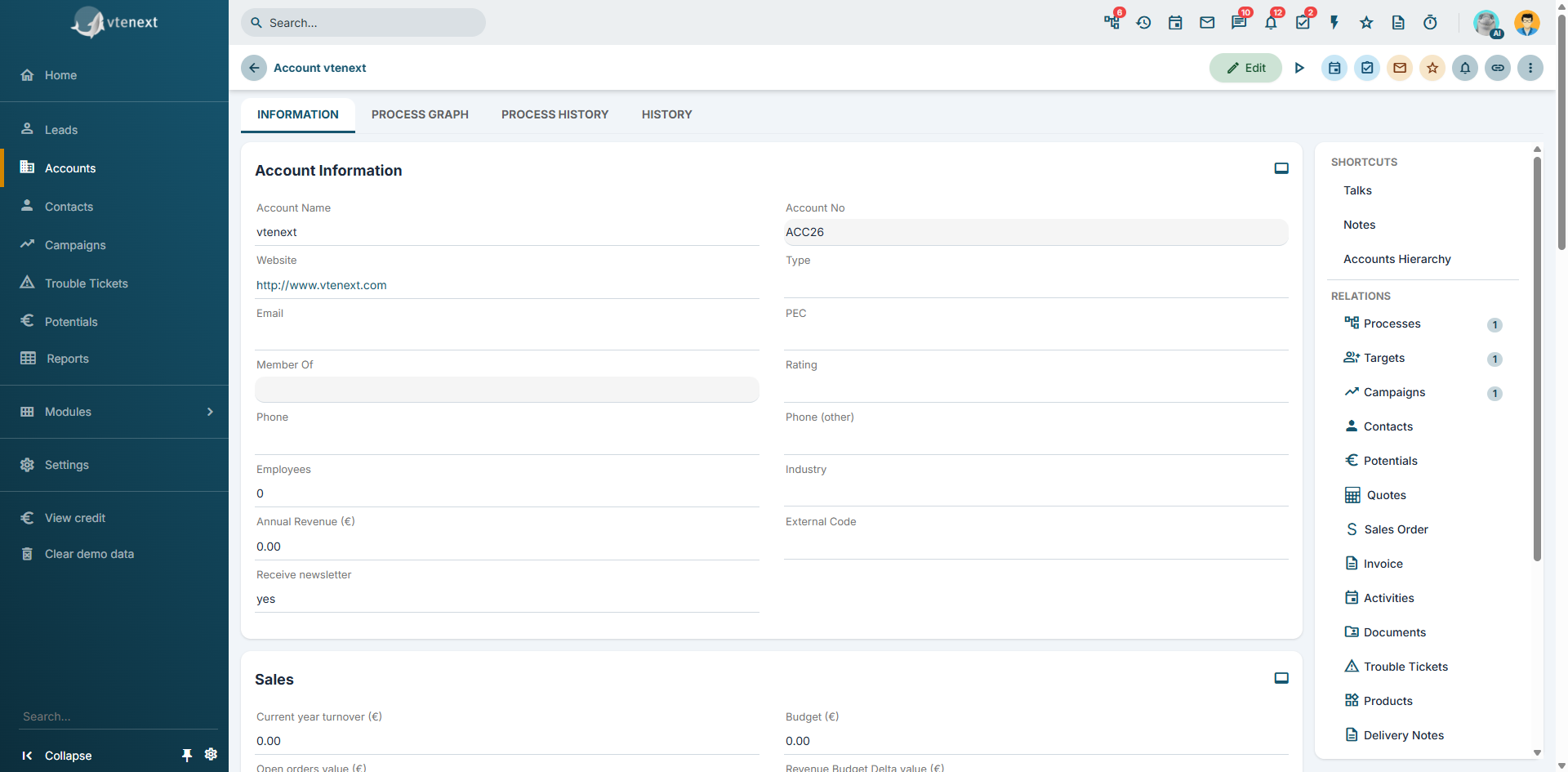
The account is created by triggering any configured processes. In this example, the active process performs web scraping to enrich the information in the company record.
Ticket Response Rewording
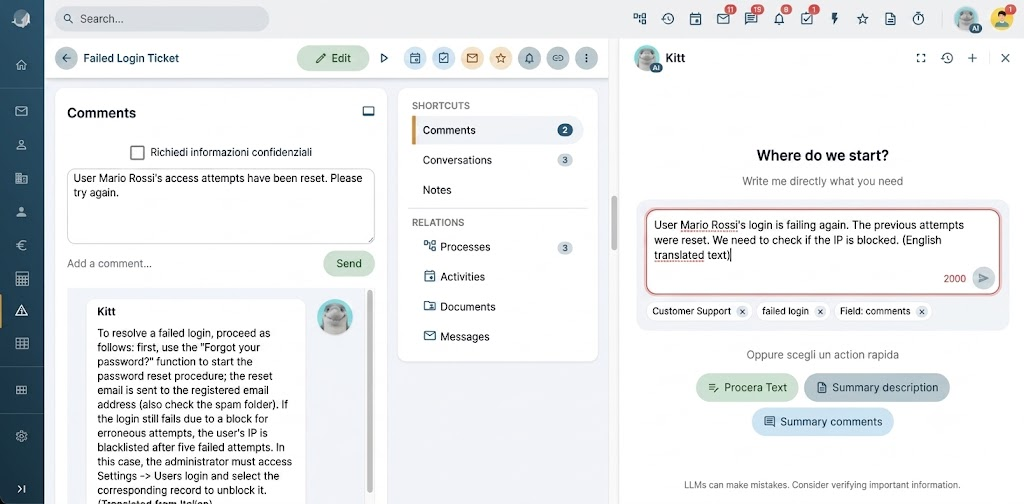
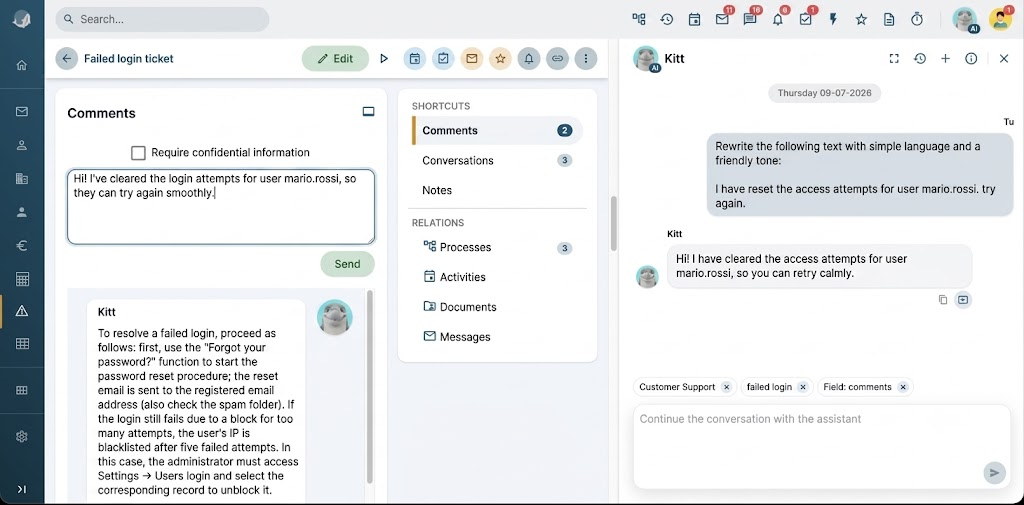
In this example, I need to reply to a ticket where the customer reported login issues. I can create a draft response by typing it directly into the Add Comment field.
By clicking on that field, the content is added to Kitt’s context and the Process Text quick action becomes available.
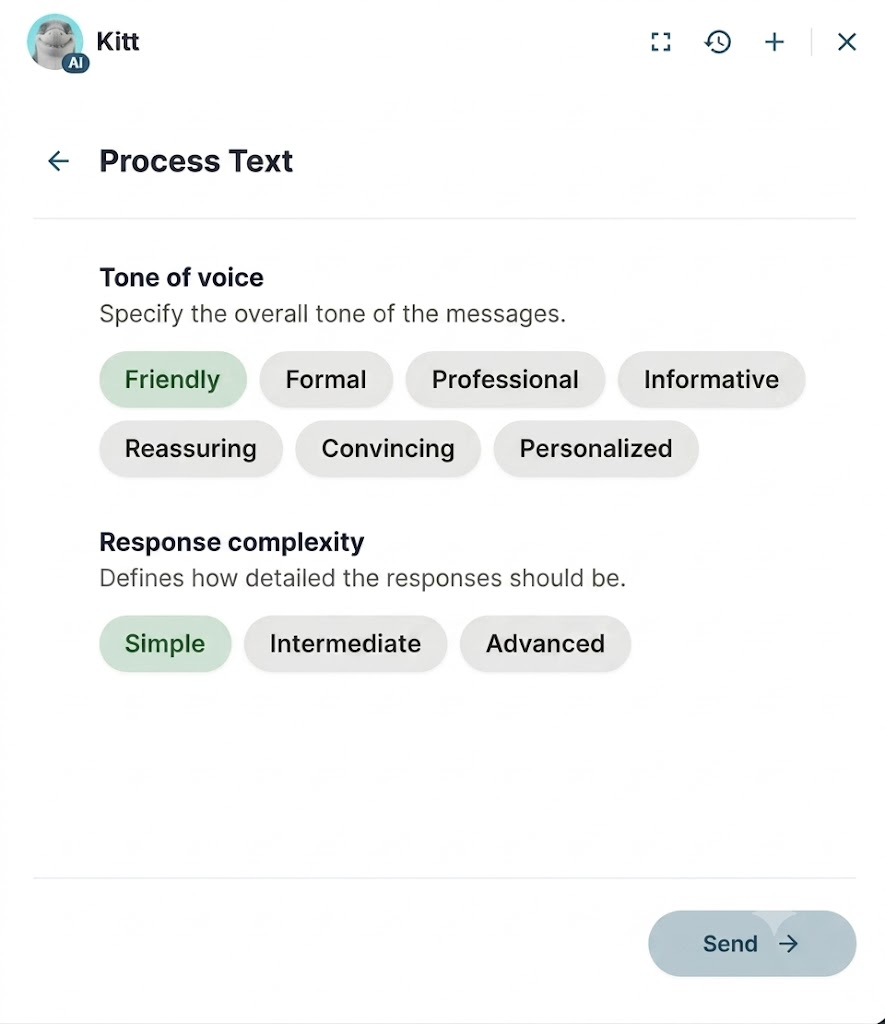
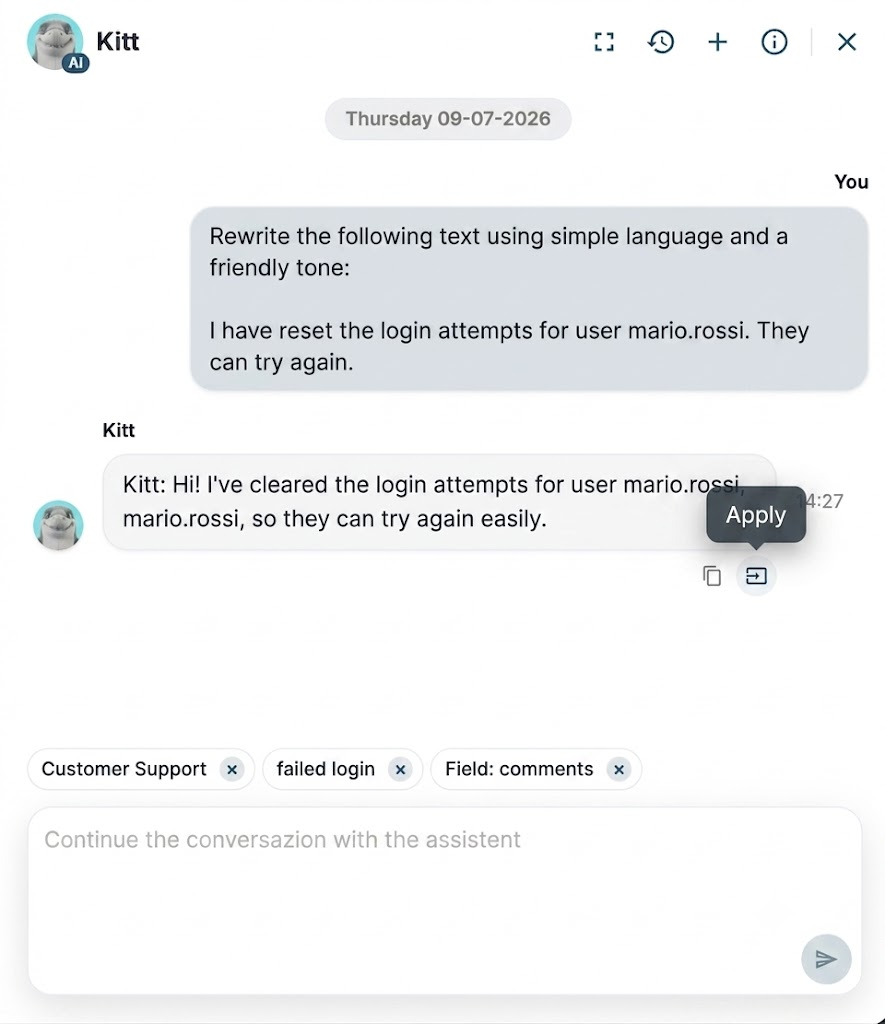
The response will include an Apply button, which allows you to replace the text in the field used as context with the processed text. You can then proceed to send the message.
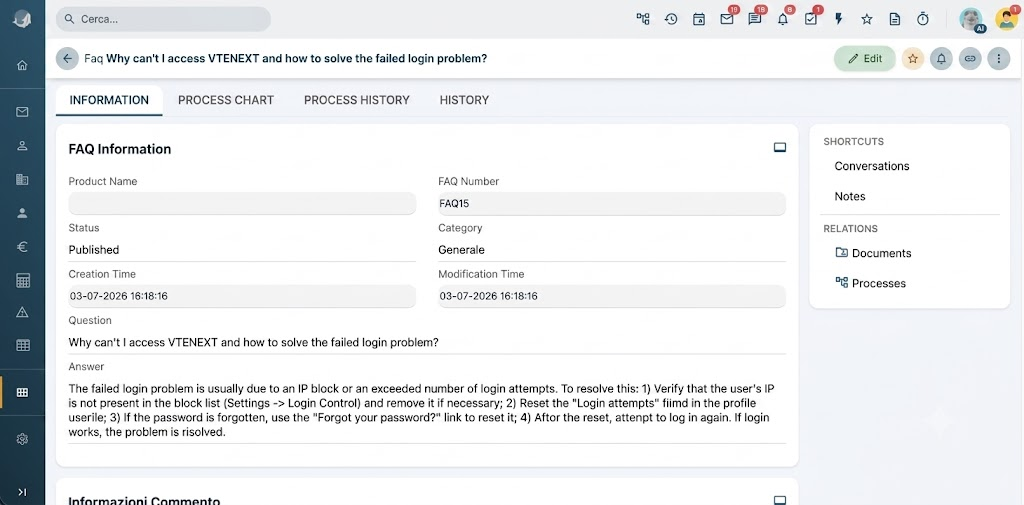
From Ticket to FAQ
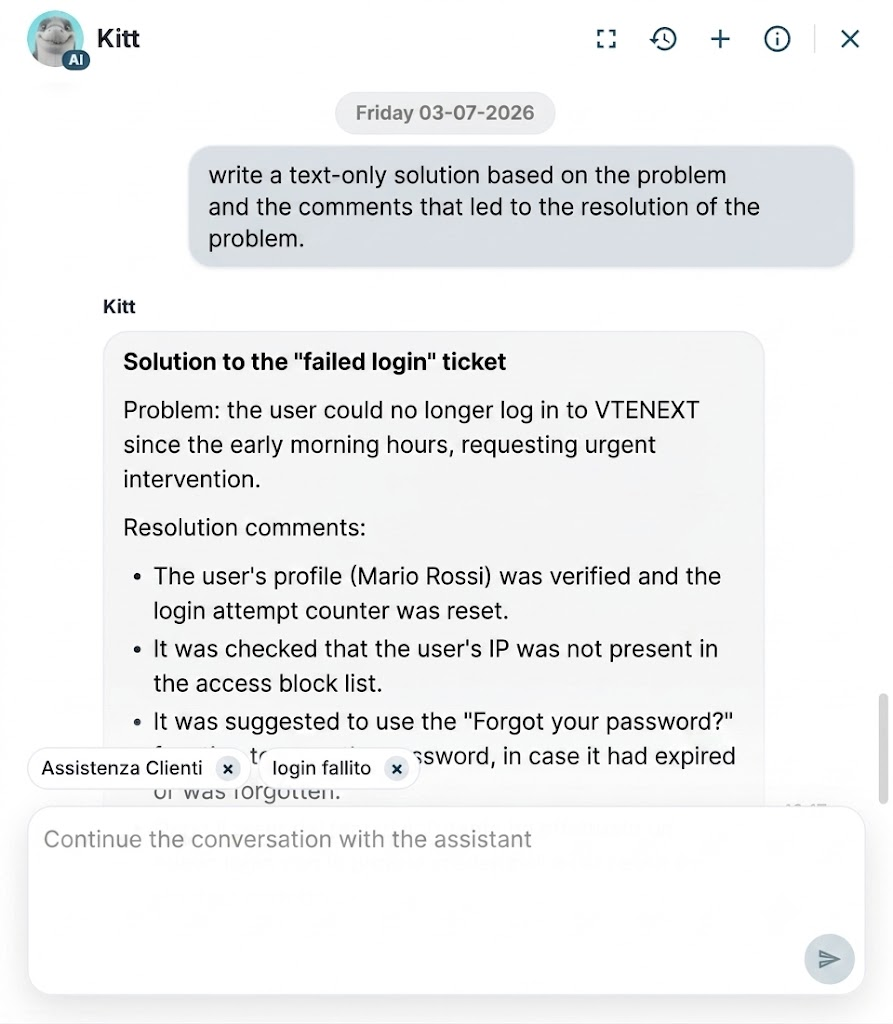
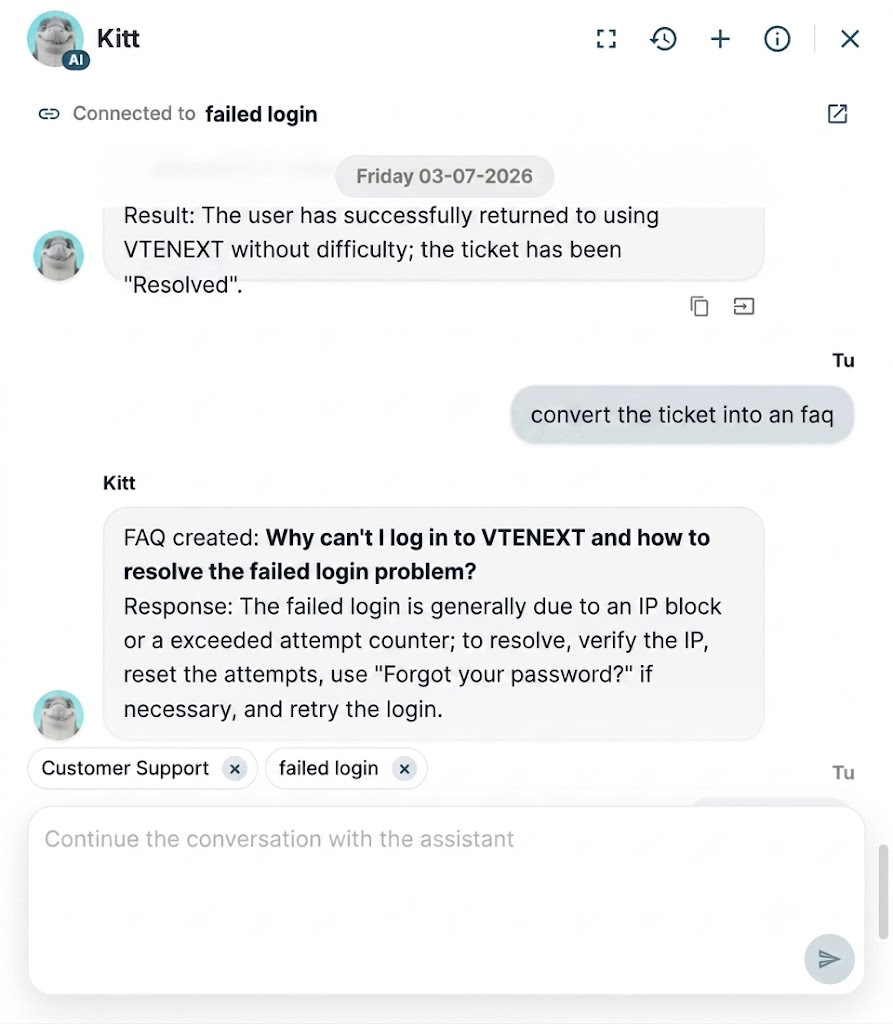
Using the ticket from the previous example, I ask the assistant to write a solution based on the comments and then create an FAQ.
Sending an Email
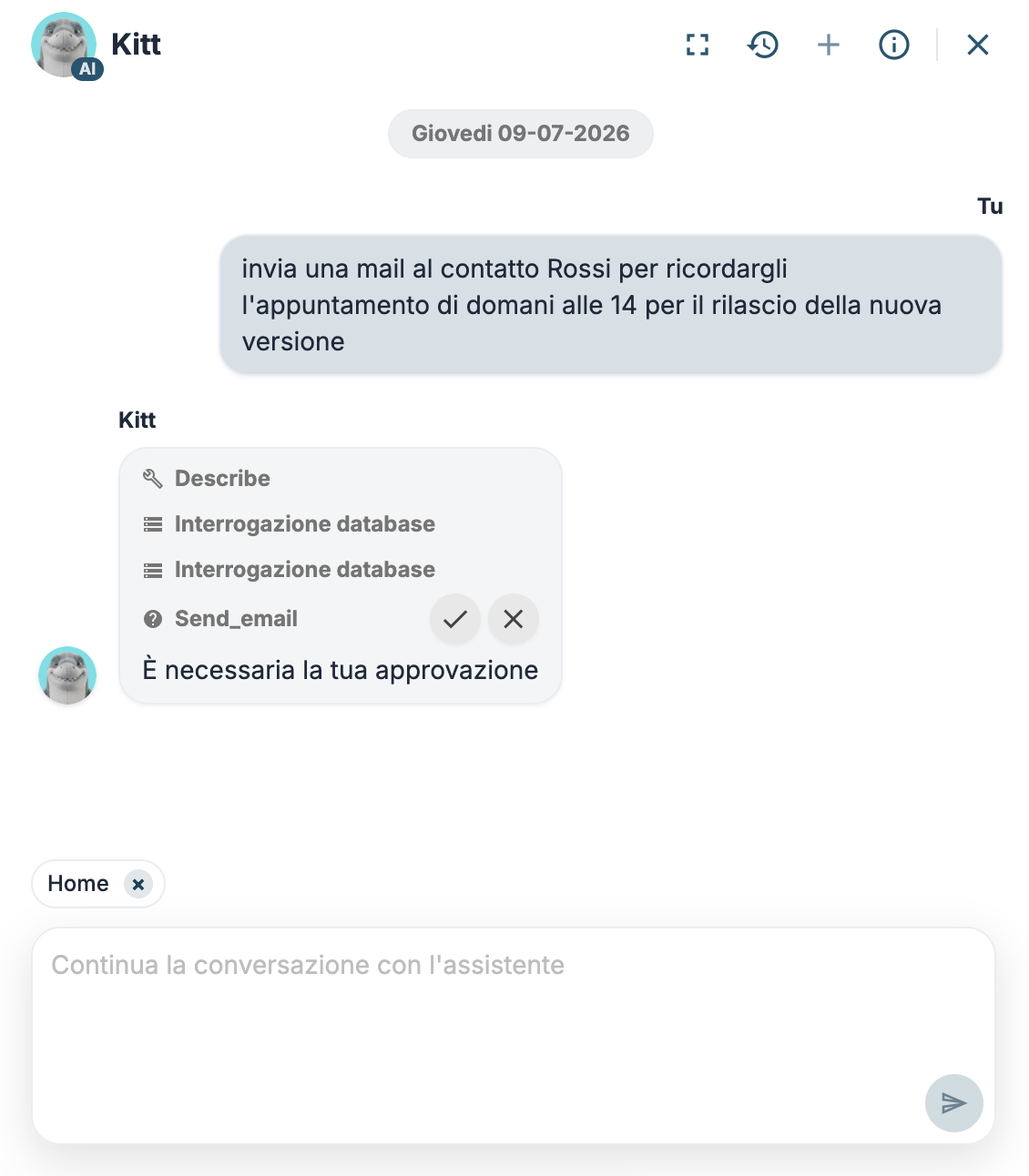
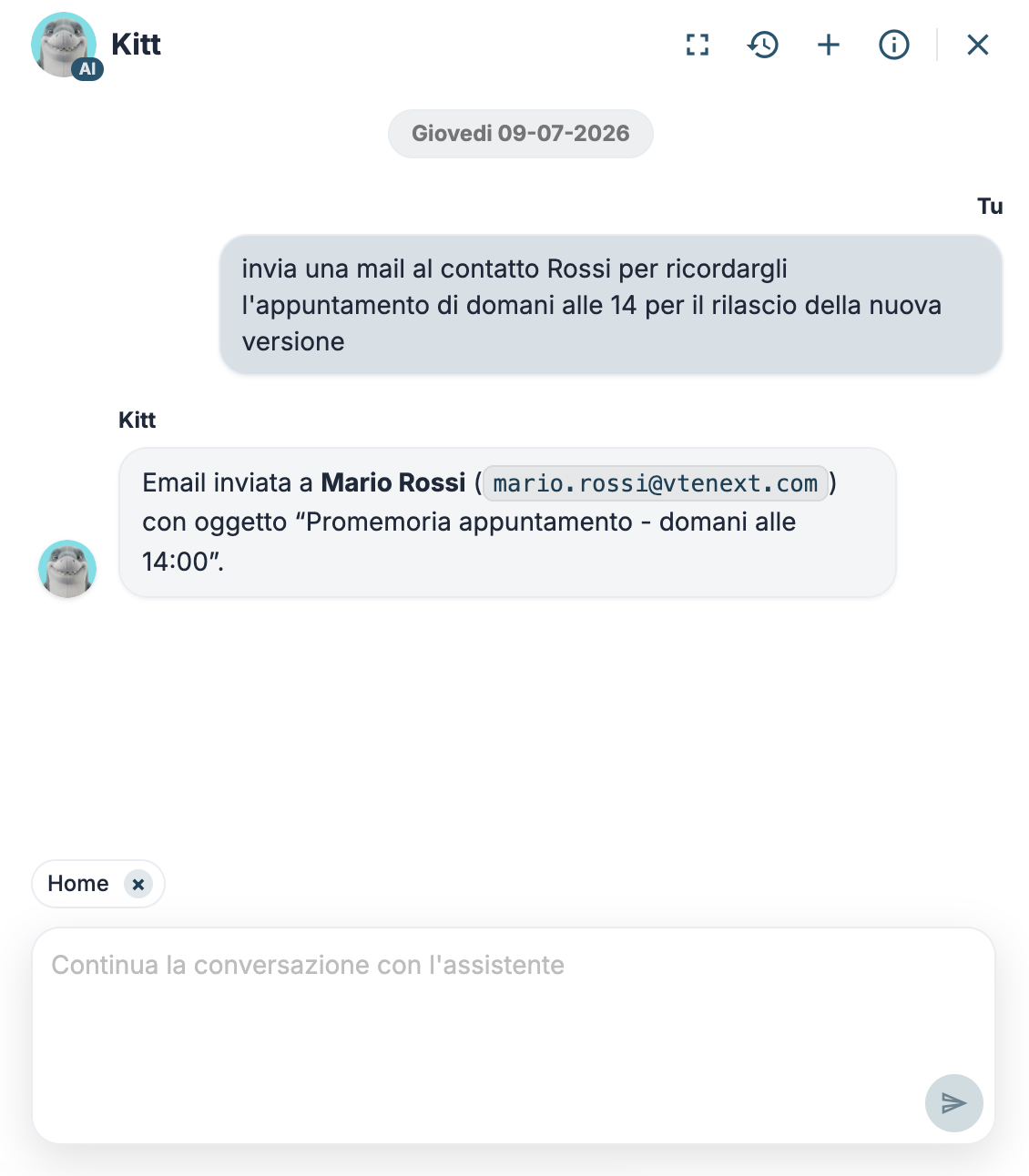
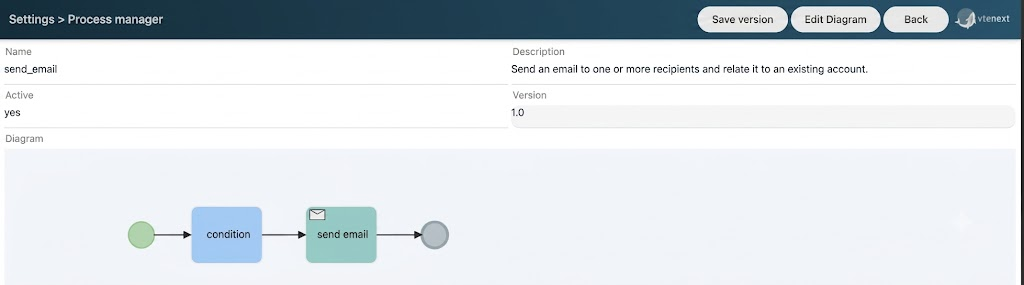
If the assistant uses an agent, all active tools can be used directly within the chat. For example, you can configure a process tool for sending emails and then ask the assistant to send an email.
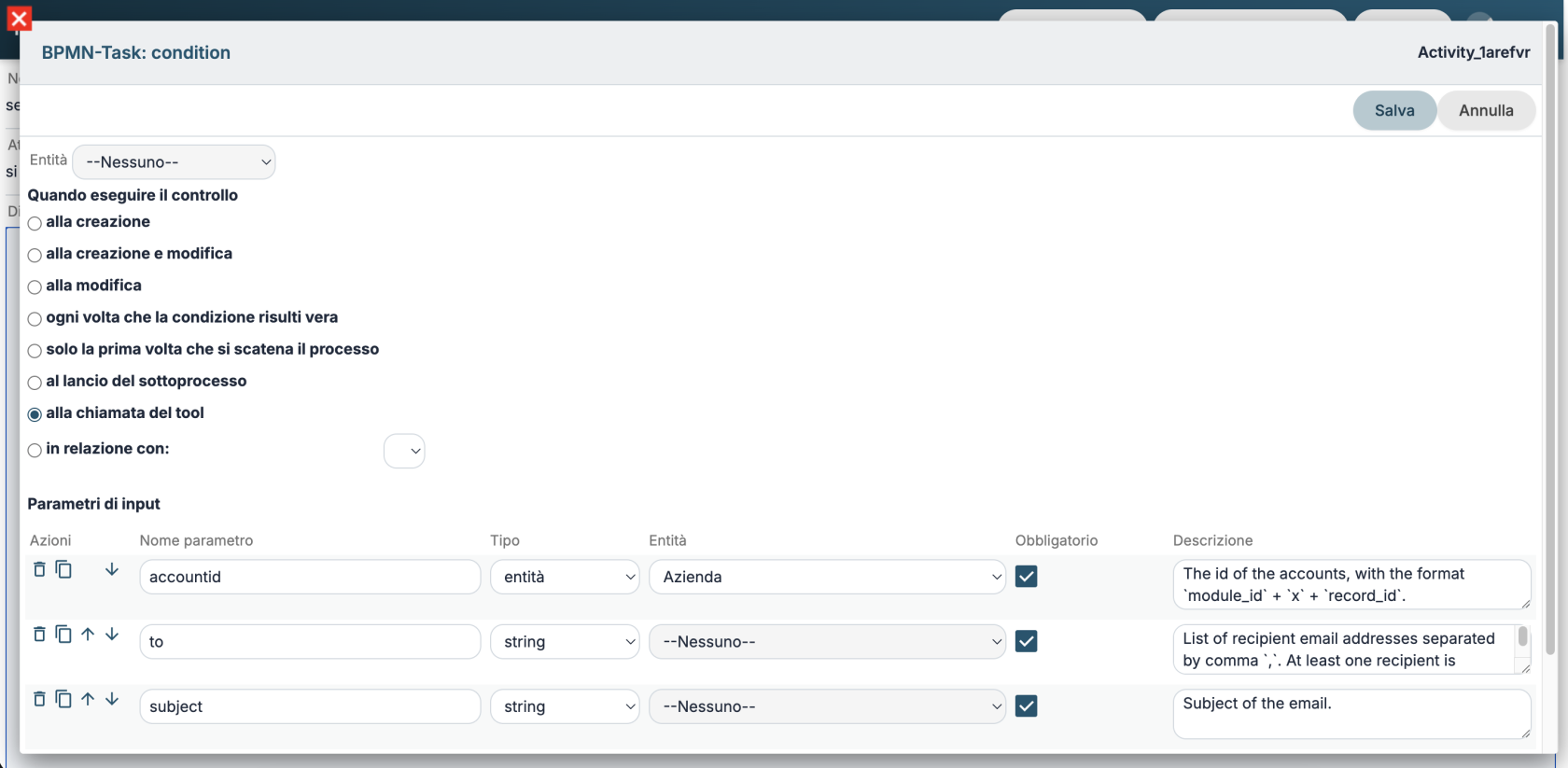
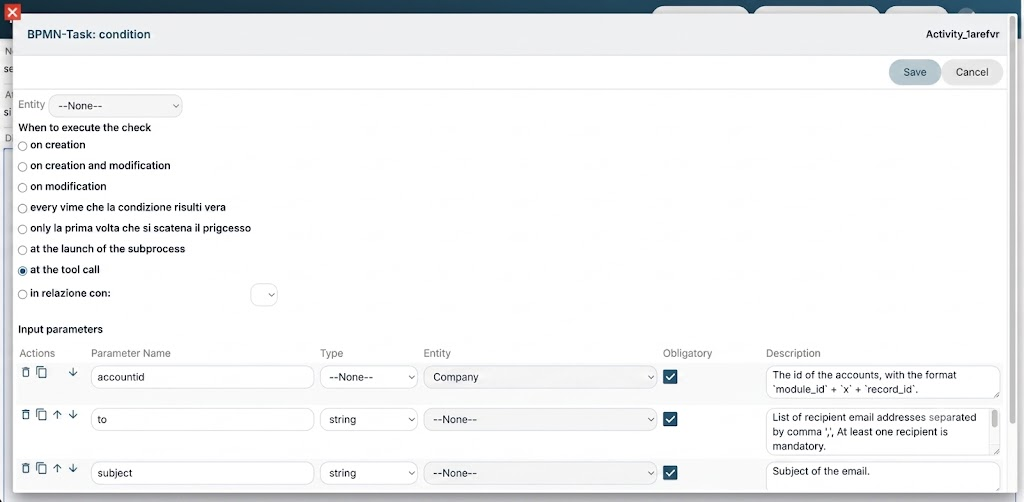
The process will be configured as shown, and once activated, make sure that the tool is enabled in the agent.
By asking the assistant to send an email to a contact, the VTE tools will then be used.