
Branzino - User Manual
Interface Overview
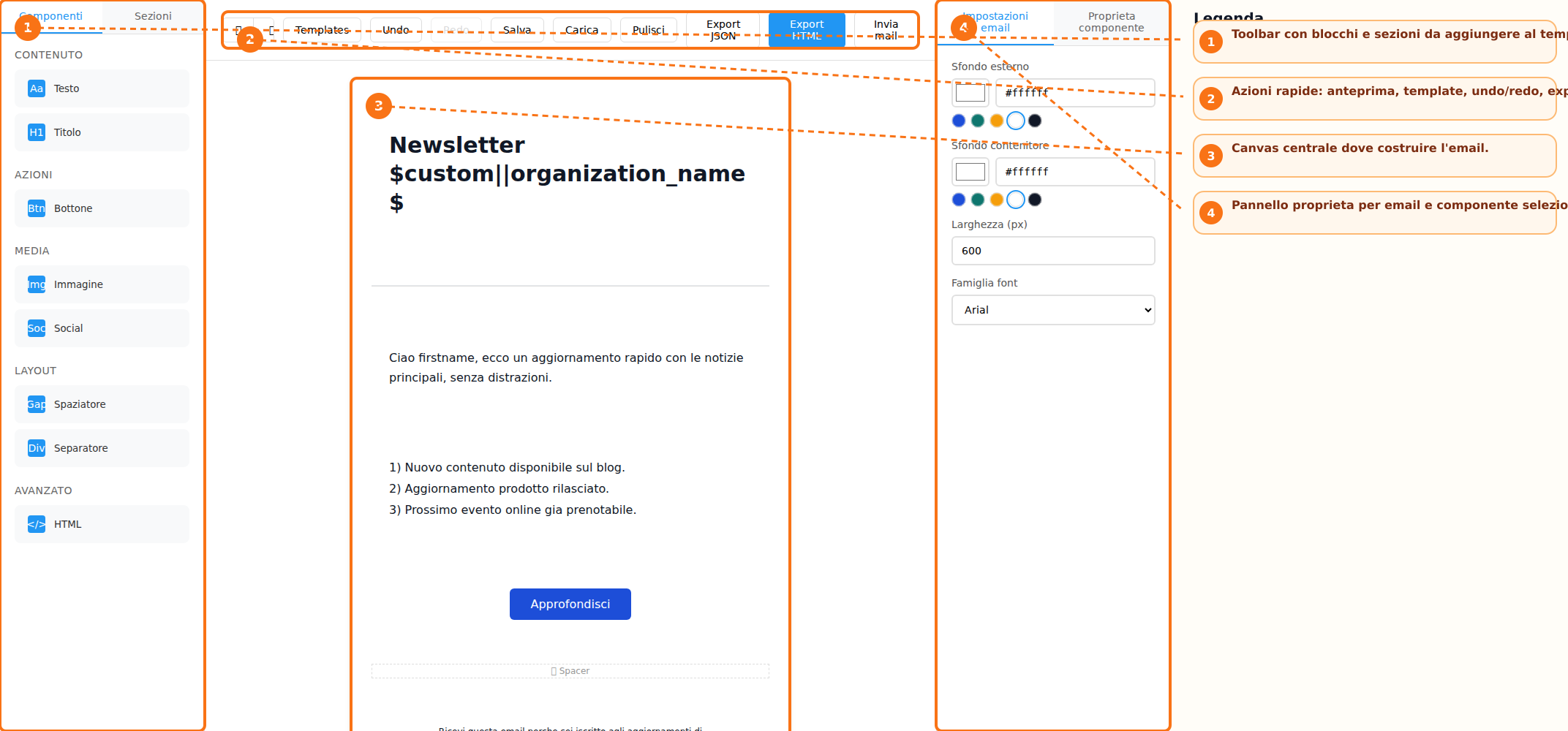
The builder interface is organized into three main areas: the sidebar toolbar, the central canvas, and the properties panel. The toolbar contains the **Components** and **Sections** tabs, from which users can select the elements to be added to the email. The central canvas represents the workspace where the newsletter content is created. Here, users can view the email structure in real time and modify its content. On the right side, the **Properties Panel** displays the email settings and the options related to the currently selected element. The interface is completed by the **Action Bar**, which provides access to template management, undo and redo functions, preview options, email export, and email sending features.
Creating a New Email
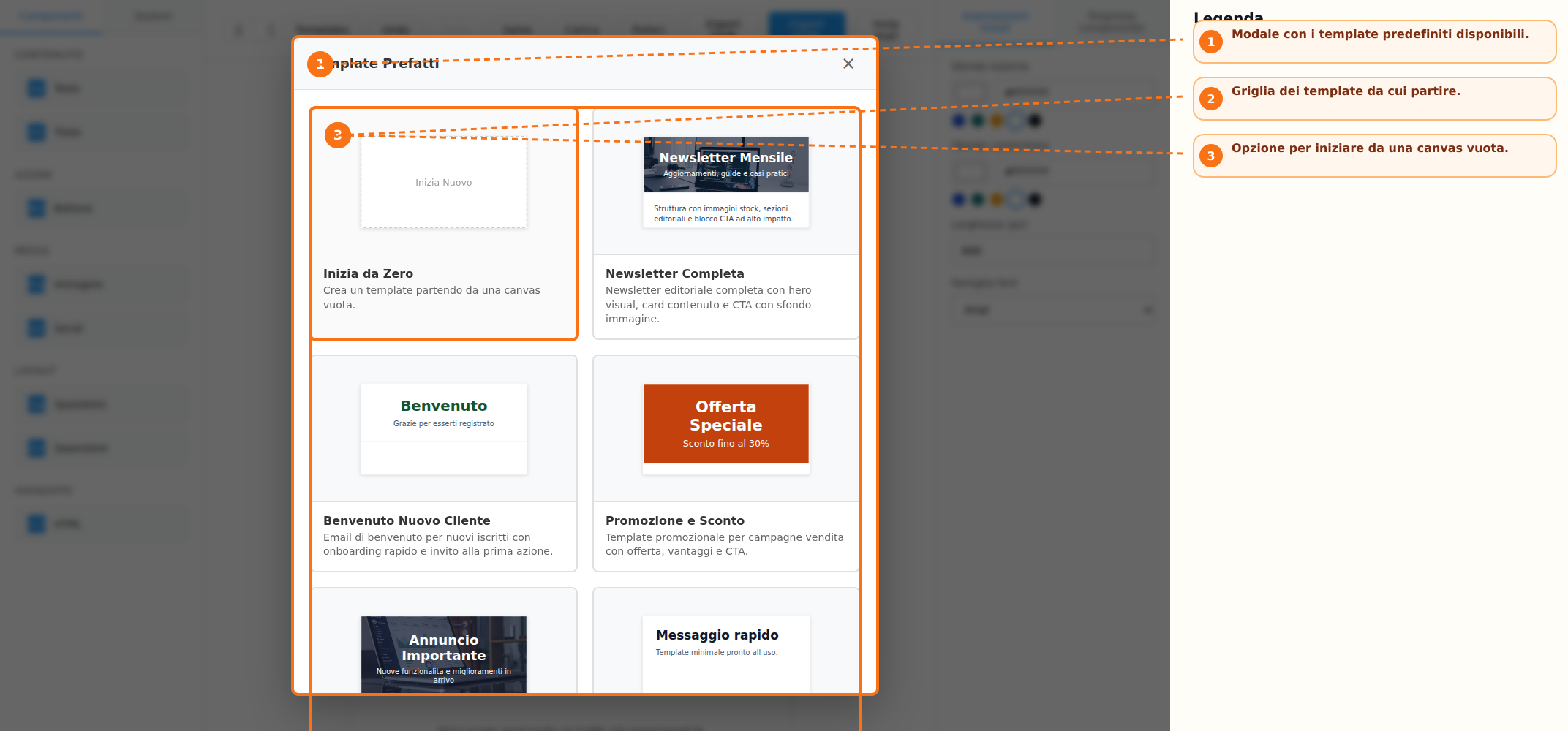
To start designing a new email, users can choose between two operating modes. The first option is to use one of the predefined templates available in the library, accessible through the **Templates** button. Templates are available for newsletters, promotions, events, and other common use cases. Alternatively, users can select the **Start from Scratch** option, which opens an empty canvas where the email content can be built freely from the ground up.
Content and Layout Management
Email composition is performed by adding blocks and sections available in the toolbar. The available content blocks include:
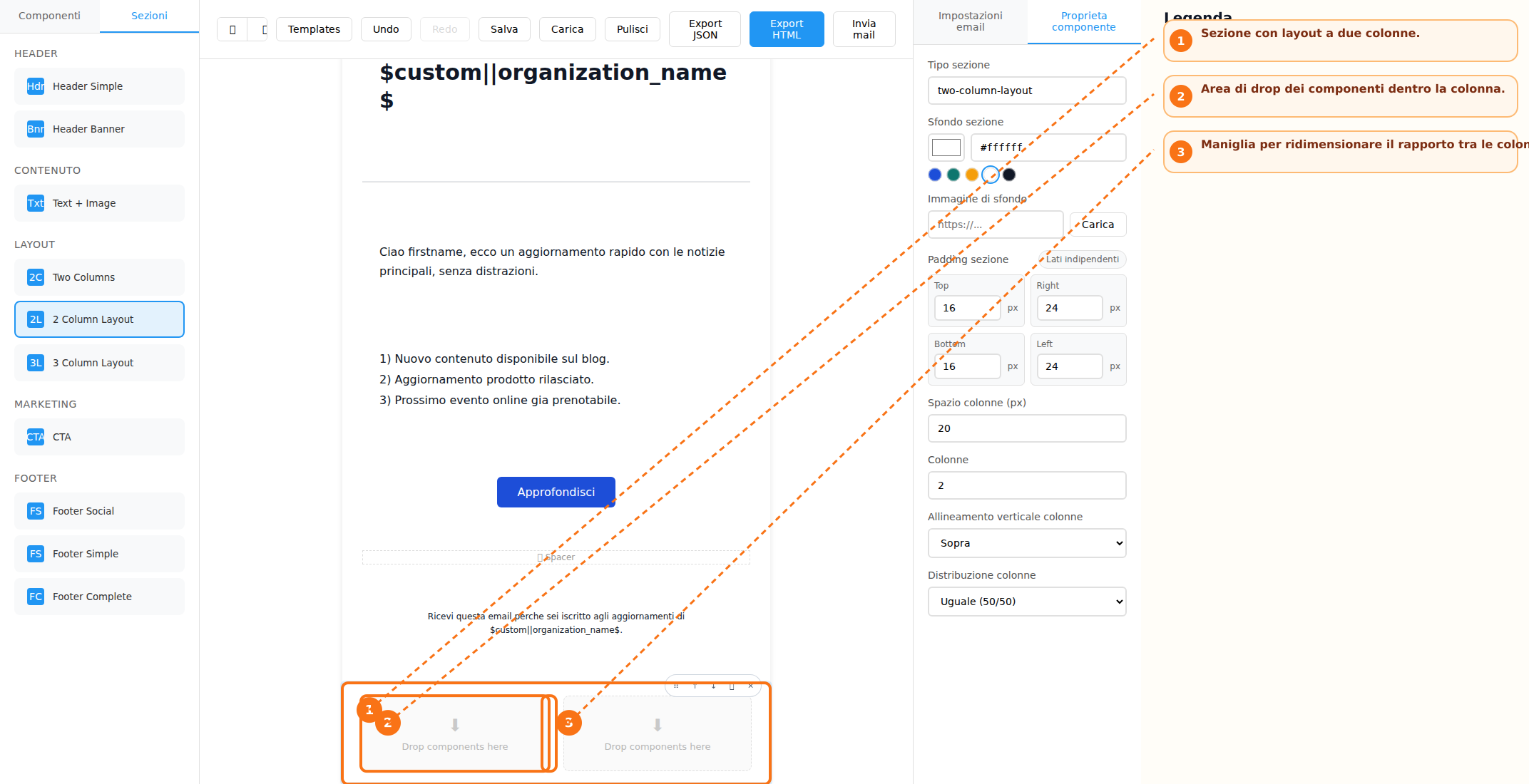
Several preconfigured sections are available to structure the email layout:
Elements can be added either by using drag-and-drop or by simply clicking the corresponding buttons. Each block also includes quick controls that allow users to:
- Move the block up or down
- Duplicate the block
- Delete the block
- Drag and reposition it within the layout
For multi-column layouts, column widths can be adjusted using the dedicated resize handle, allowing greater flexibility in the design of the email structure.
Text Editing and Visual Customization
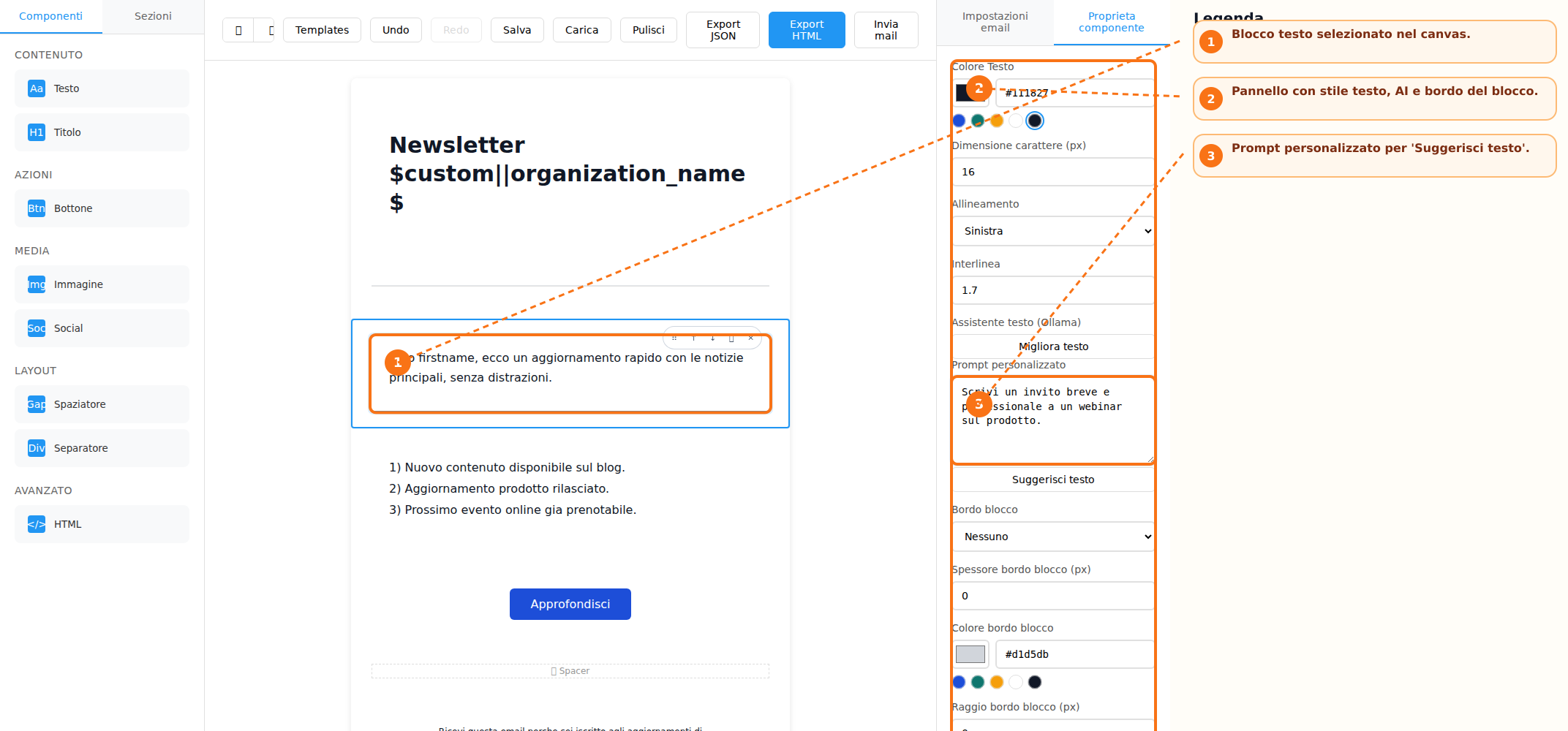
Text blocks support direct content editing within the canvas. For each text element, users can customize key typography settings, including:
-
Text color
-
Font size
-
Line height
-
Text alignment
For heading elements, users can also select the appropriate heading tag (for example, H1, H2, H3, and so on). All modifications are managed through the Properties Panel, which automatically updates the available options according to the currently selected element.
Image Management and Dynamic Content
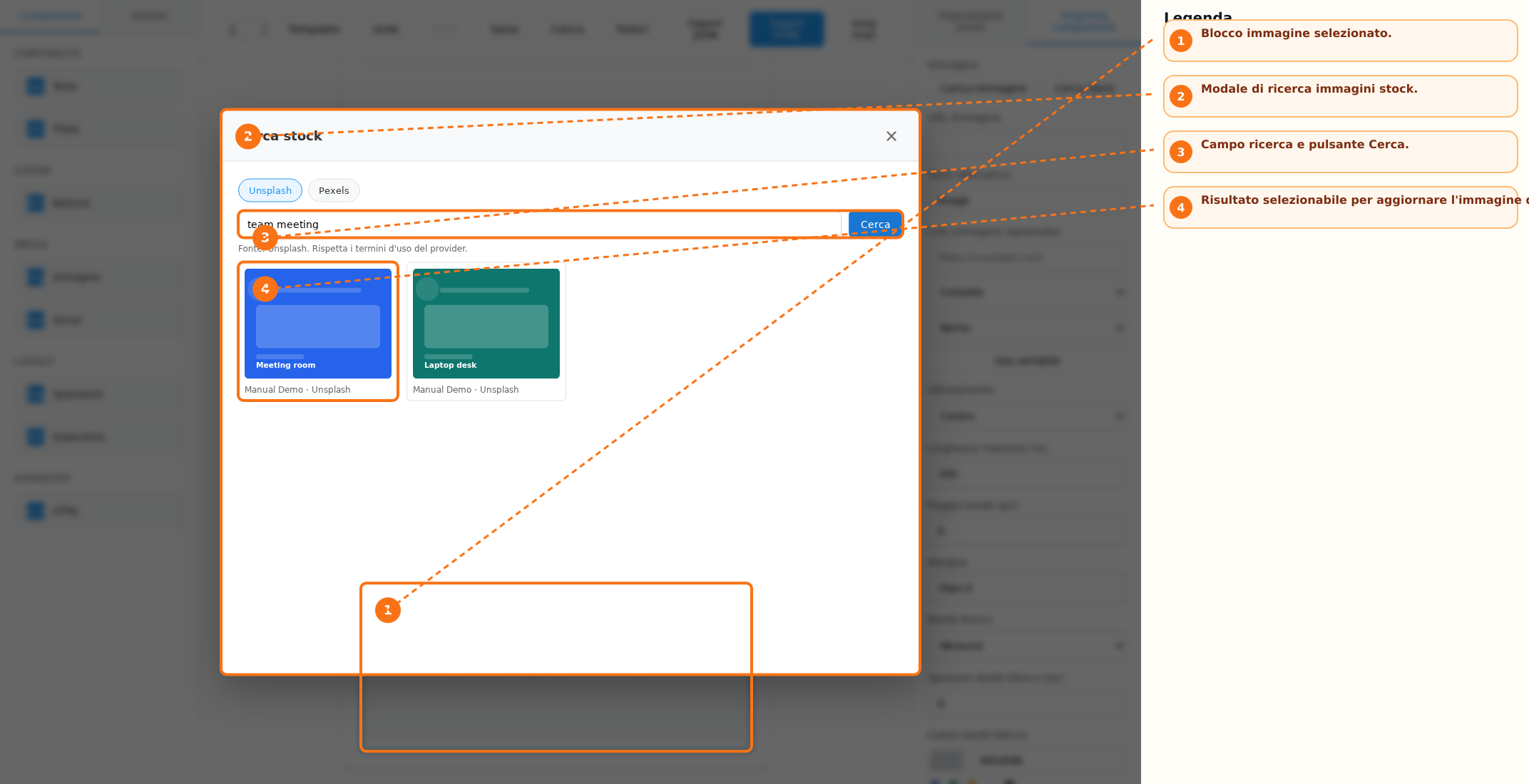
Images can be added to the email content using the dedicated button available within the Image block. In addition to direct uploads, the system allows users to search and select images from configured stock image providers. For each image, the following settings can be configured:
-
Alternative text (Alt Text)
-
Alignment
-
Border radius
-
Margins
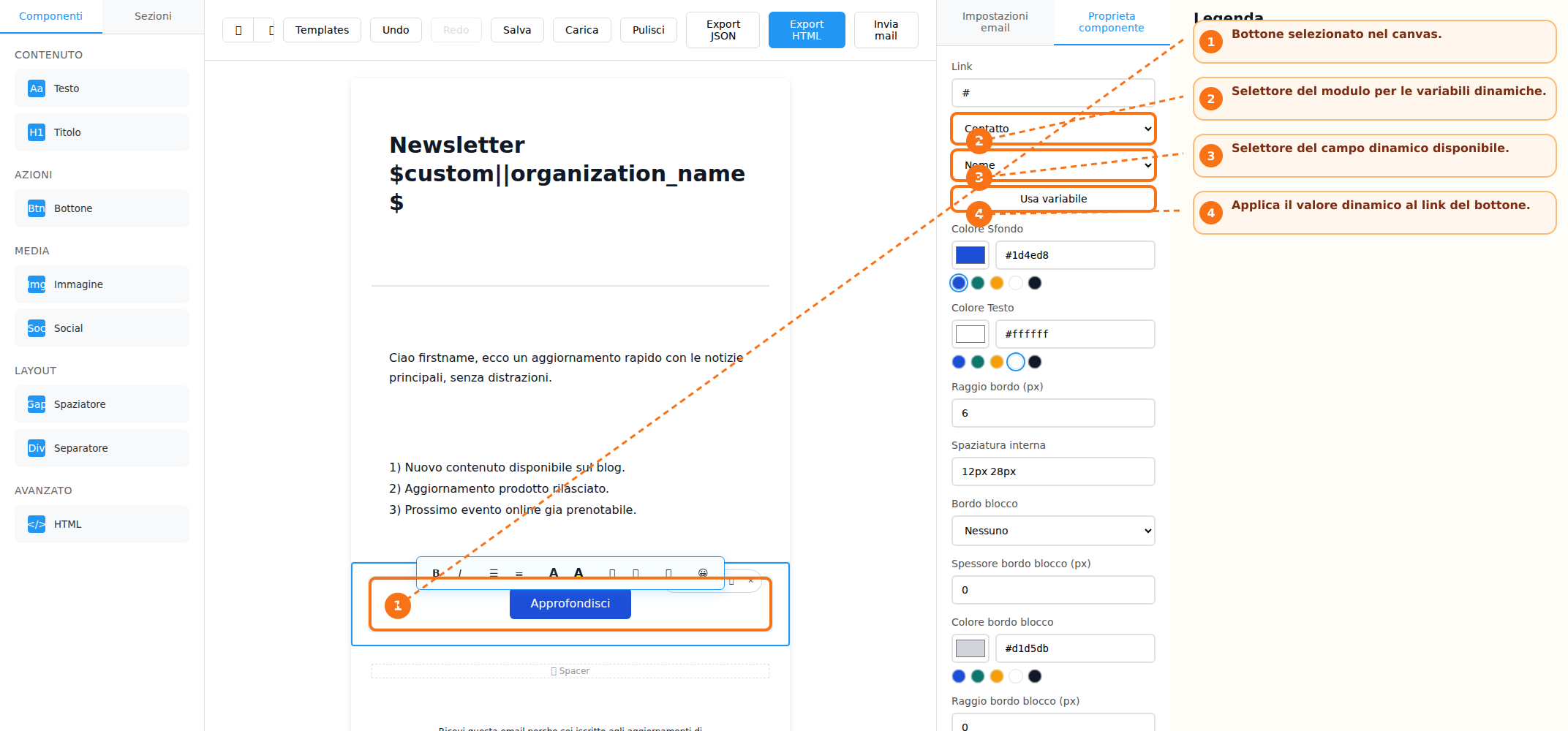
The builder also supports the use of dynamic fields (merge fields) for managing personalized content and links. Links associated with images and buttons can be configured by selecting a specific module and field, enabling the use of dynamic variables within email content. This functionality allows email elements to automatically display personalized information based on the recipient's data.
Salvataggio e riutilizzo dei template
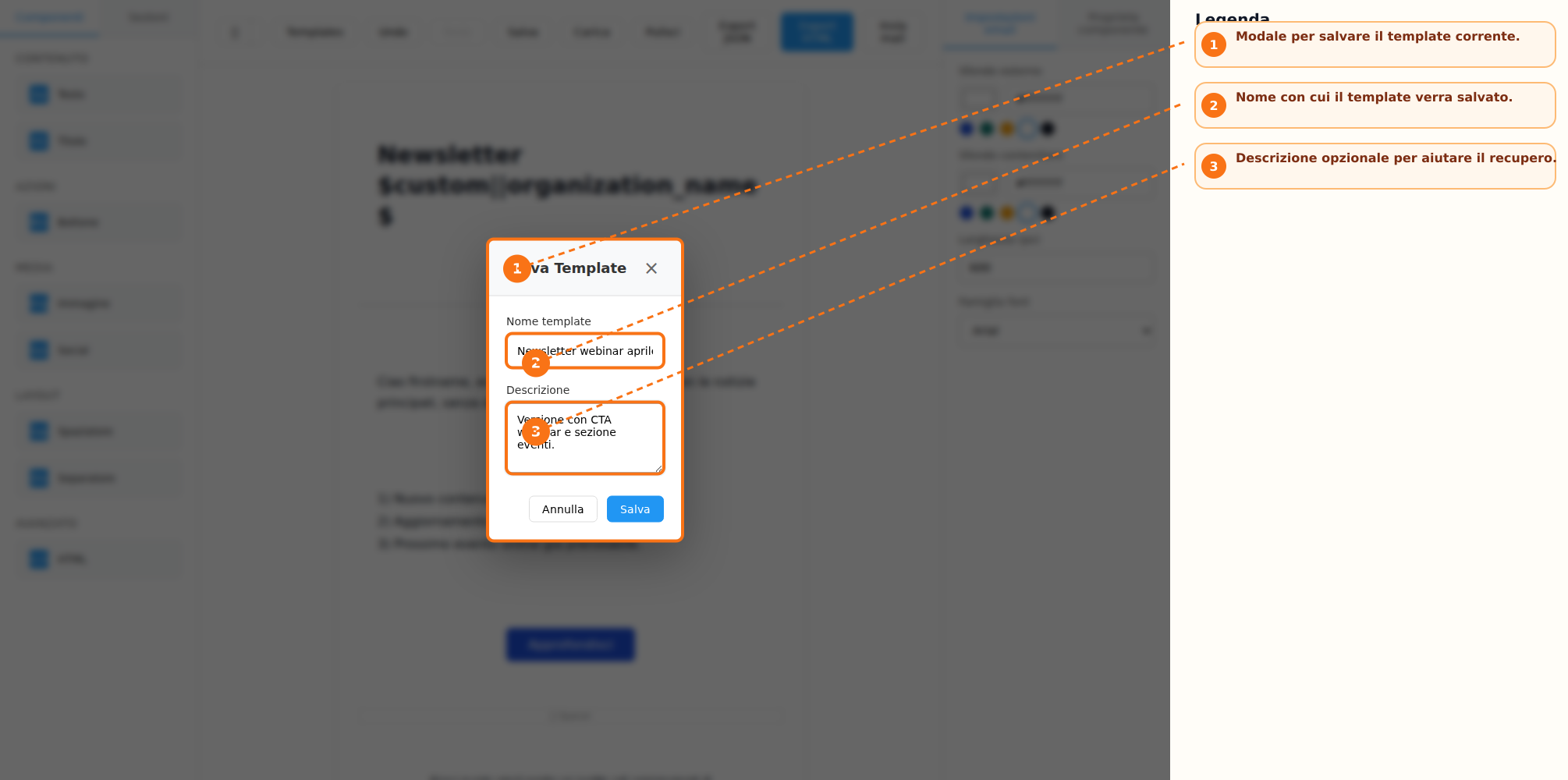
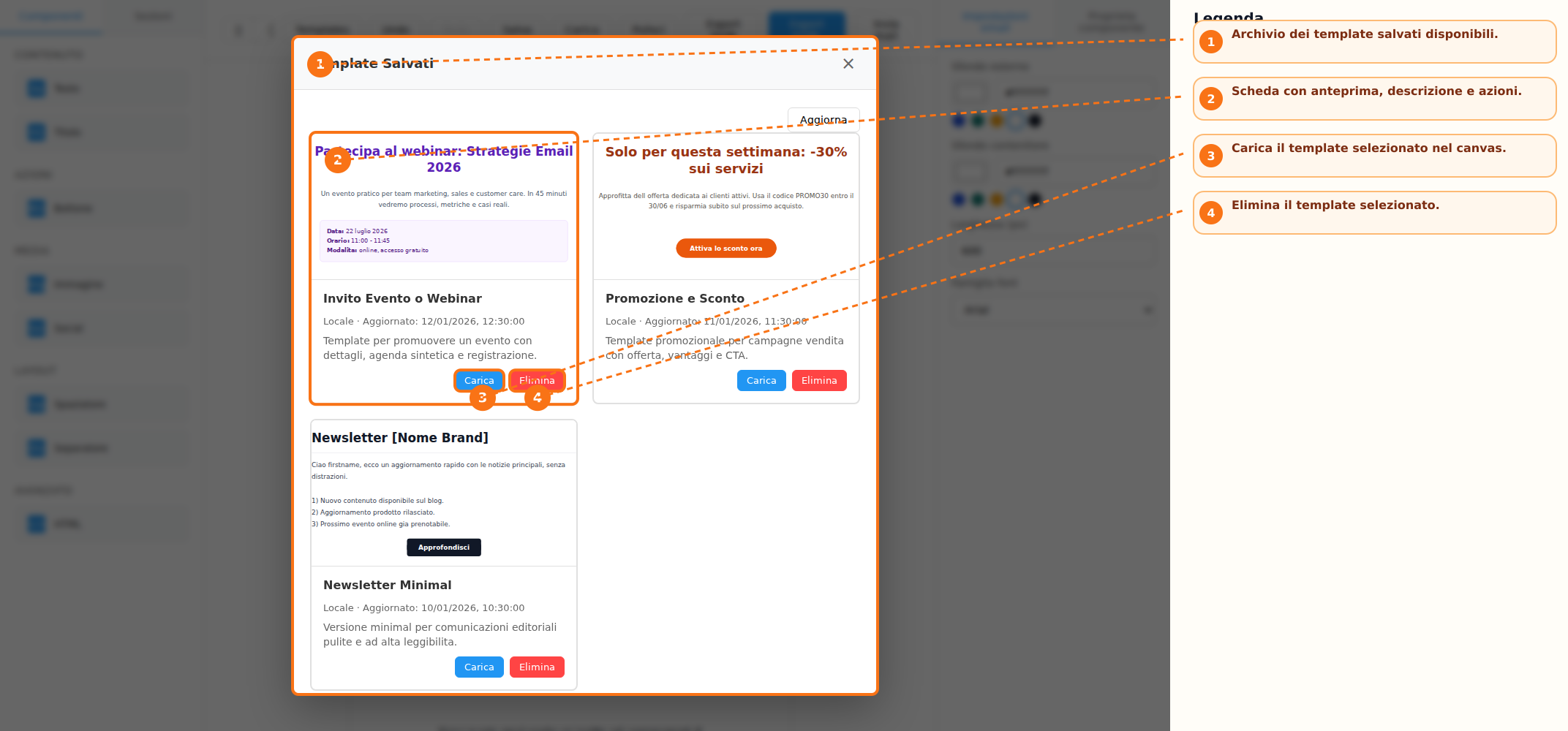
Una volta completato il lavoro, il template può essere salvato per un utilizzo futuro. Durante il salvataggio è possibile assegnare un nome e una descrizione al modello. I template salvati vengono archiviati in un elenco dedicato che include anche un'anteprima HTML. Dall'archivio è possibile:
-
Caricare un template esistente nel canvas
-
Riutilizzare modelli precedentemente creati
-
Eliminare template non più necessari
Esportazione, anteprima e invio
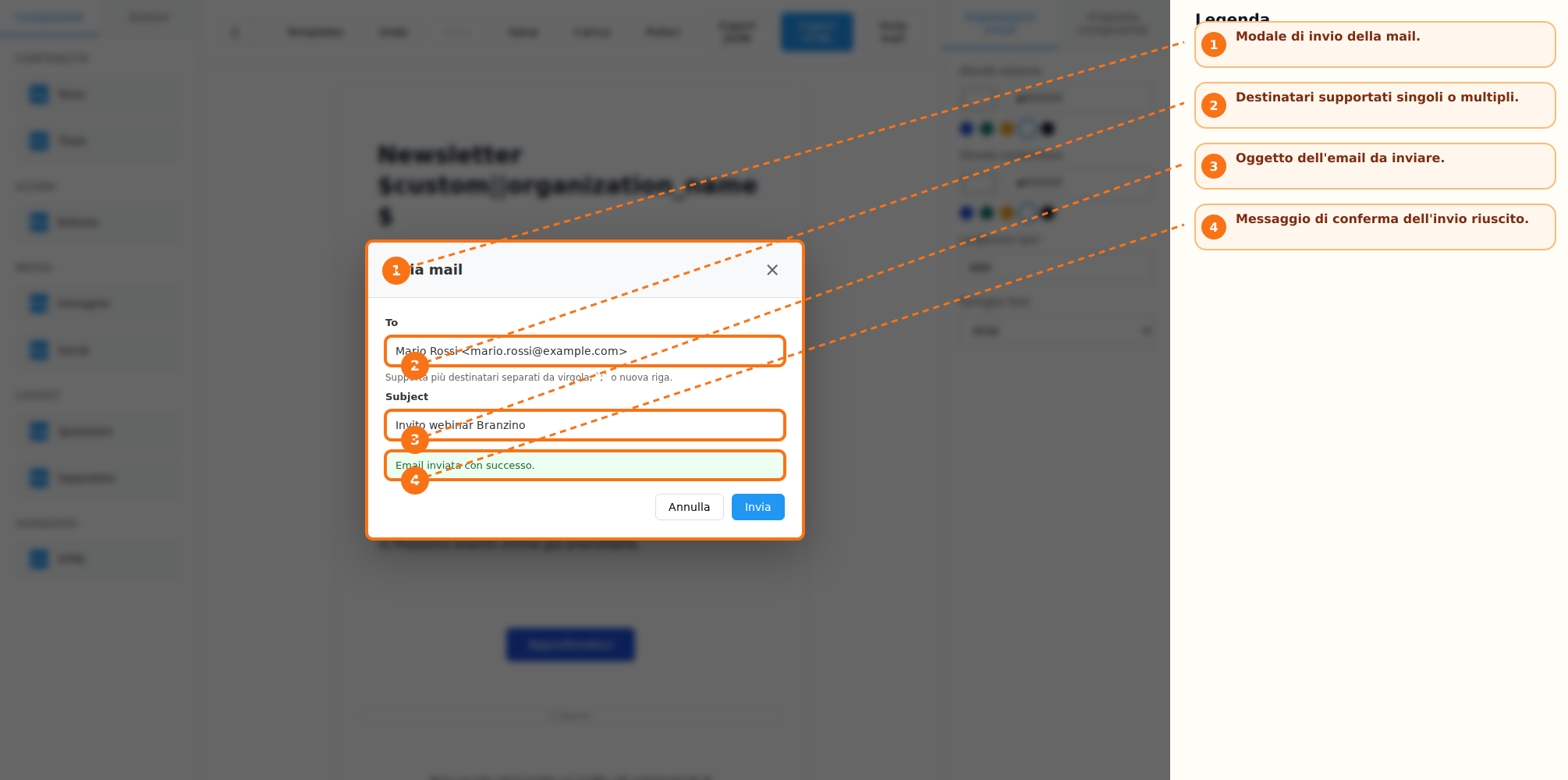
Il builder mette a disposizione diverse funzionalità per la verifica e la distribuzione del contenuto creato. Quando previsto dall'integrazione utilizzata, è possibile esportare il risultato nei formati HTML e JSON. L'applicazione consente inoltre di visualizzare un'anteprima sia in modalità desktop sia in modalità mobile direttamente dalla barra delle azioni. Se configurato un endpoint dedicato all'invio delle email, il builder permette anche l'invio diretto dei messaggi.
Cronologia delle modifiche e salvataggio automatico
Durante la composizione dell'email, il sistema mantiene una cronologia delle operazioni eseguite. Le funzioni Undo e Redo consentono rispettivamente di annullare o ripristinare le modifiche effettuate. È inoltre disponibile un sistema di salvataggio automatico della bozza locale. In caso di riavvio dell'applicazione, il builder può proporre il ripristino del lavoro precedentemente salvato.
Scorciatoie da tastiera
Per velocizzare il lavoro sono disponibili alcune scorciatoie operative:
-
Ctrl/Cmd + Z per eseguire Undo.
-
Ctrl/Cmd + Shift + Z oppure Ctrl/Cmd + Y per eseguire Redo.
-
Delete o Backspace per eliminare il blocco selezionato quando il cursore non si trova all'interno di un campo editabile.
-
Escape per chiudere eventuali finestre modali aperte.
Procedura operativa consigliata
Per realizzare una nuova email si consiglia di seguire il seguente flusso operativo:
-
Scegliere se partire da un template predefinito oppure da un canvas vuoto.
-
Aggiungere blocchi e sezioni dalla toolbar laterale.
-
Selezionare gli elementi inseriti e personalizzarli tramite il pannello delle proprietà.
-
Utilizzare Undo e Redo durante la composizione quando necessario.
-
Salvare il template qualora si desideri riutilizzarlo in futuro.
-
Verificare il risultato tramite le anteprime desktop e mobile.
-
Esportare il contenuto in HTML o JSON oppure inviare una mail di test, se consentito dall'integrazione utilizzata.
Note operative
La funzione di ricerca delle immagini stock è disponibile solo quando è stato configurato almeno un provider dedicato. Le funzioni Salva, Carica, Export HTML, Export JSON e Invia mail possono essere abilitate o disabilitate dall'integrazione host. Il builder salva automaticamente una bozza locale e può proporne il ripristino al successivo avvio dell'applicazione.