
Branzino - User Manual
Interface Overview
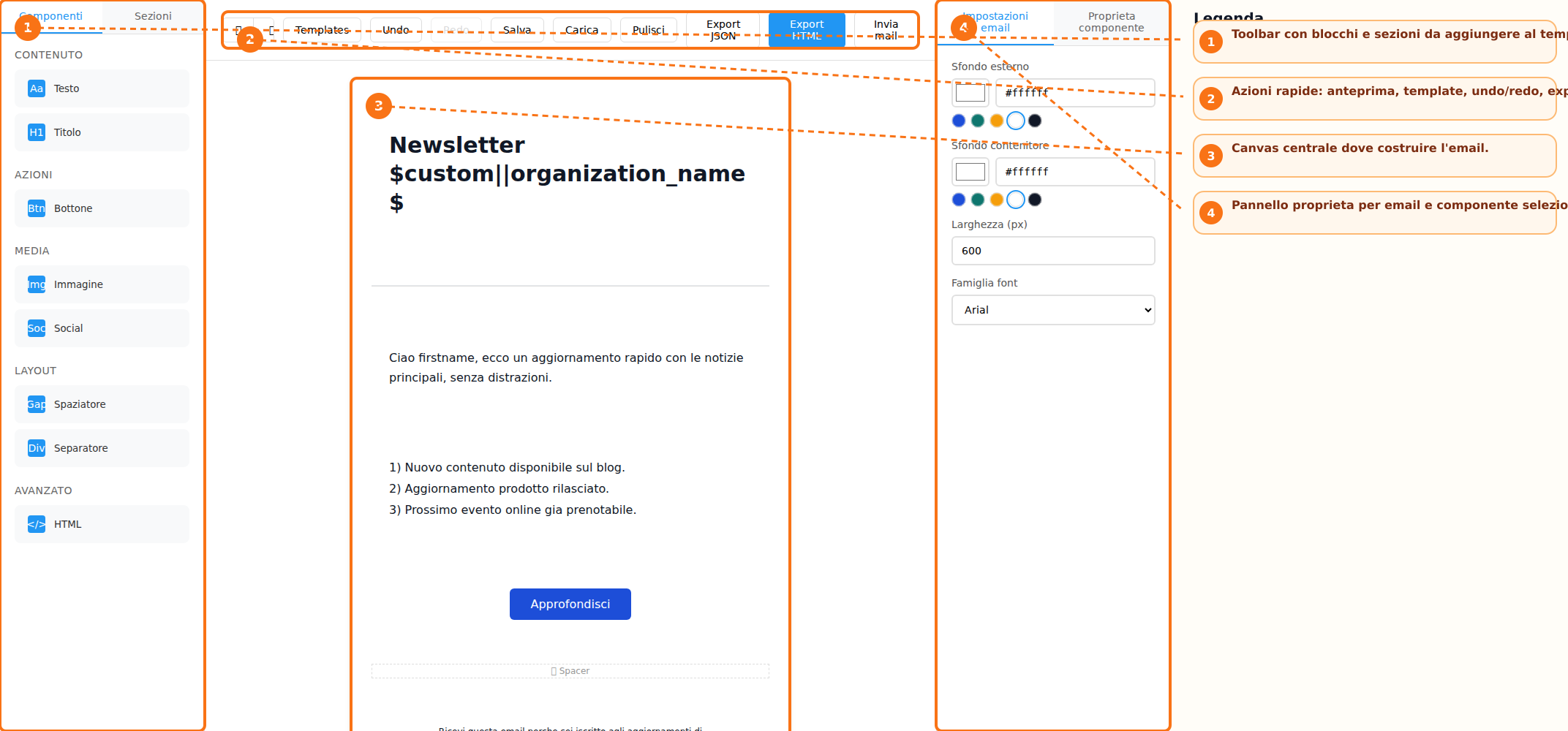
The builder interface is organized into three main areas: the sidebar toolbar, the central canvas, and the properties panel. The toolbar contains the **Components** and **Sections** tabs, from which users can select the elements to be added to the email. The central canvas represents the workspace where the newsletter content is created. Here, users can view the email structure in real time and modify its content. On the right side, the **Properties Panel** displays the email settings and the options related to the currently selected element. The interface is completed by the **Action Bar**, which provides access to template management, undo and redo functions, preview options, email export, and email sending features.
Creating a New Email
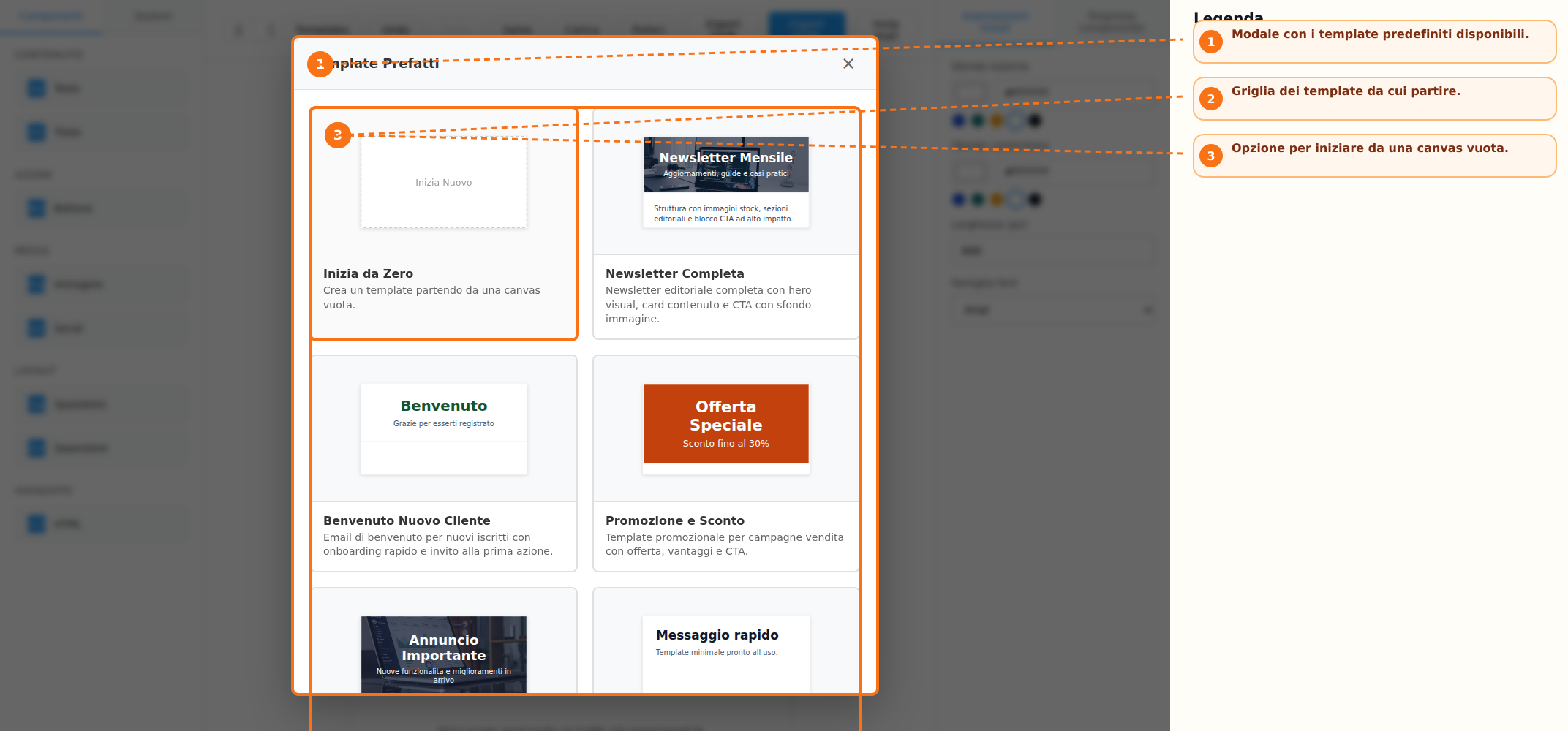
To start designing a new email, users can choose between two operating modes. The first option is to use one of the predefined templates available in the library, accessible through the **Templates** button. Templates are available for newsletters, promotions, events, and other common use cases. Alternatively, users can select the **Start from Scratch** option, which opens an empty canvas where the email content can be built freely from the ground up.
Content and Layout Management
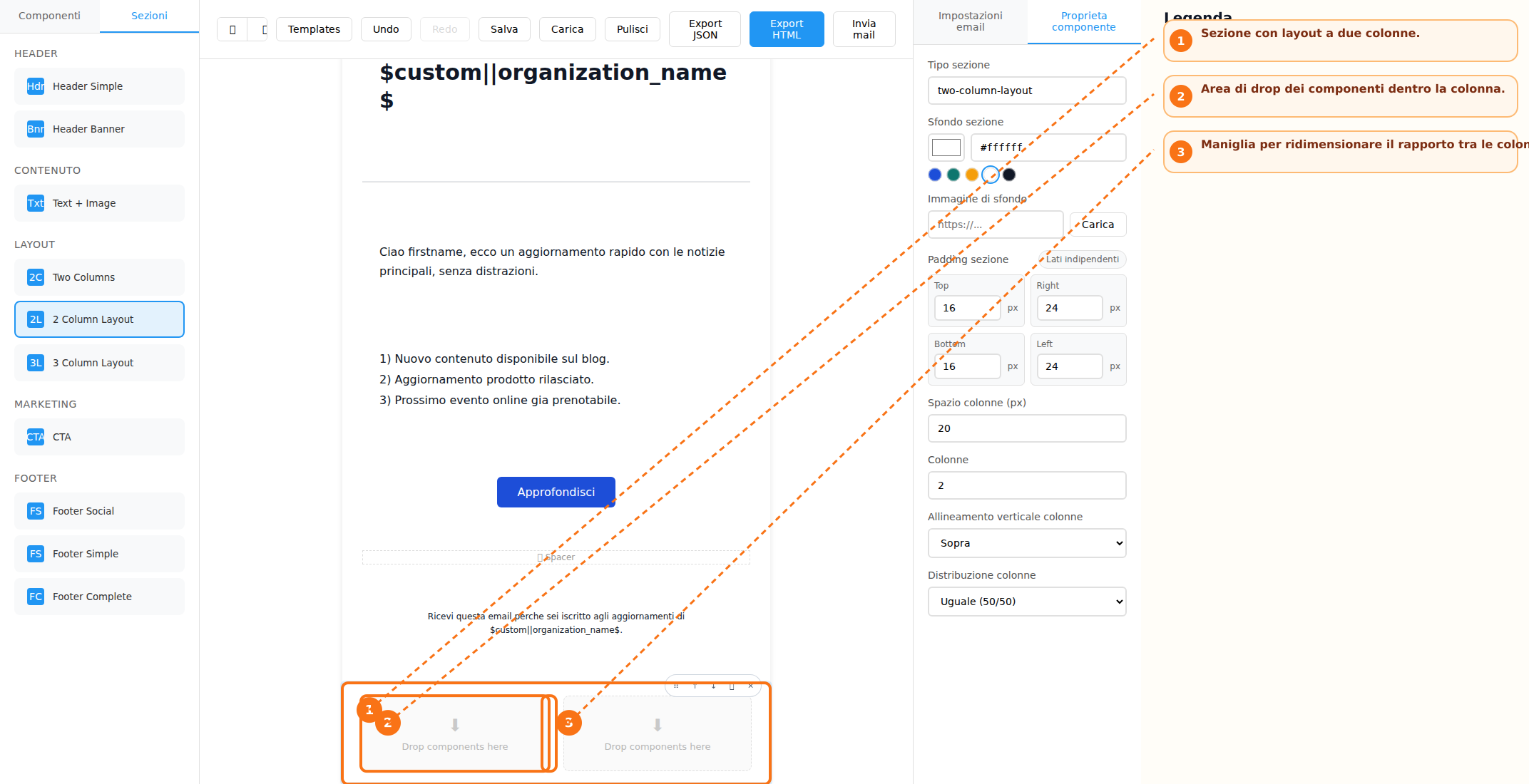
Email composition is performed by adding blocks and sections available in the toolbar. The available content blocks include:
Several preconfigured sections are available to structure the email layout:
Elements can be added either by using drag-and-drop or by simply clicking the corresponding buttons. Each block also includes quick controls that allow users to:
- Move the block up or down
- Duplicate the block
- Delete the block
- Drag and reposition it within the layout
For multi-column layouts, column widths can be adjusted using the dedicated resize handle, allowing greater flexibility in the design of the email structure.
Text Editing and Visual Customization
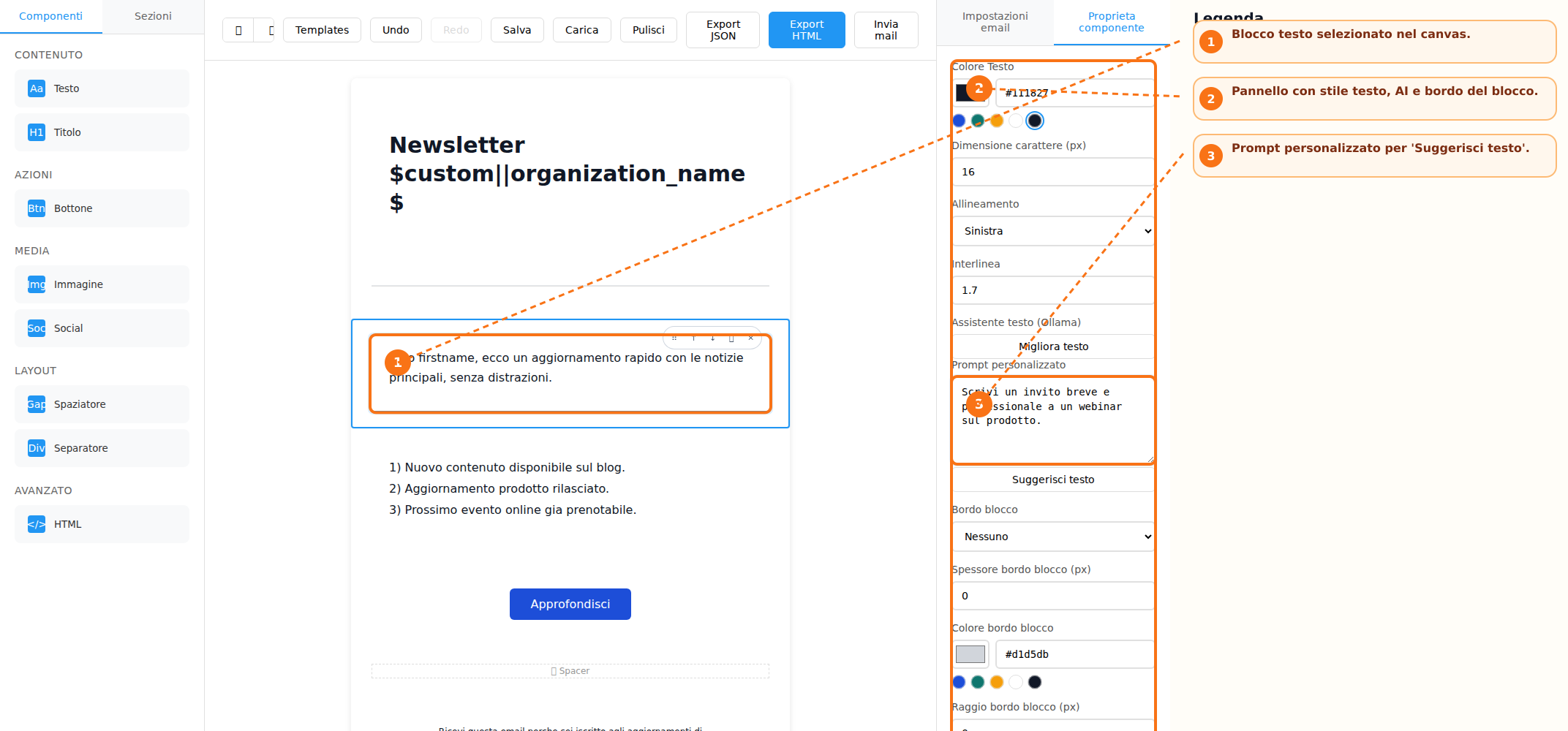
Text blocks support direct content editing within the canvas. For each text element, users can customize key typography settings, including:
-
Text color
-
Font size
-
Line height
-
Text alignment
For heading elements, users can also select the appropriate heading tag (for example, H1, H2, H3, and so on). All modifications are managed through the Properties Panel, which automatically updates the available options according to the currently selected element.
Image Management and Dynamic Content
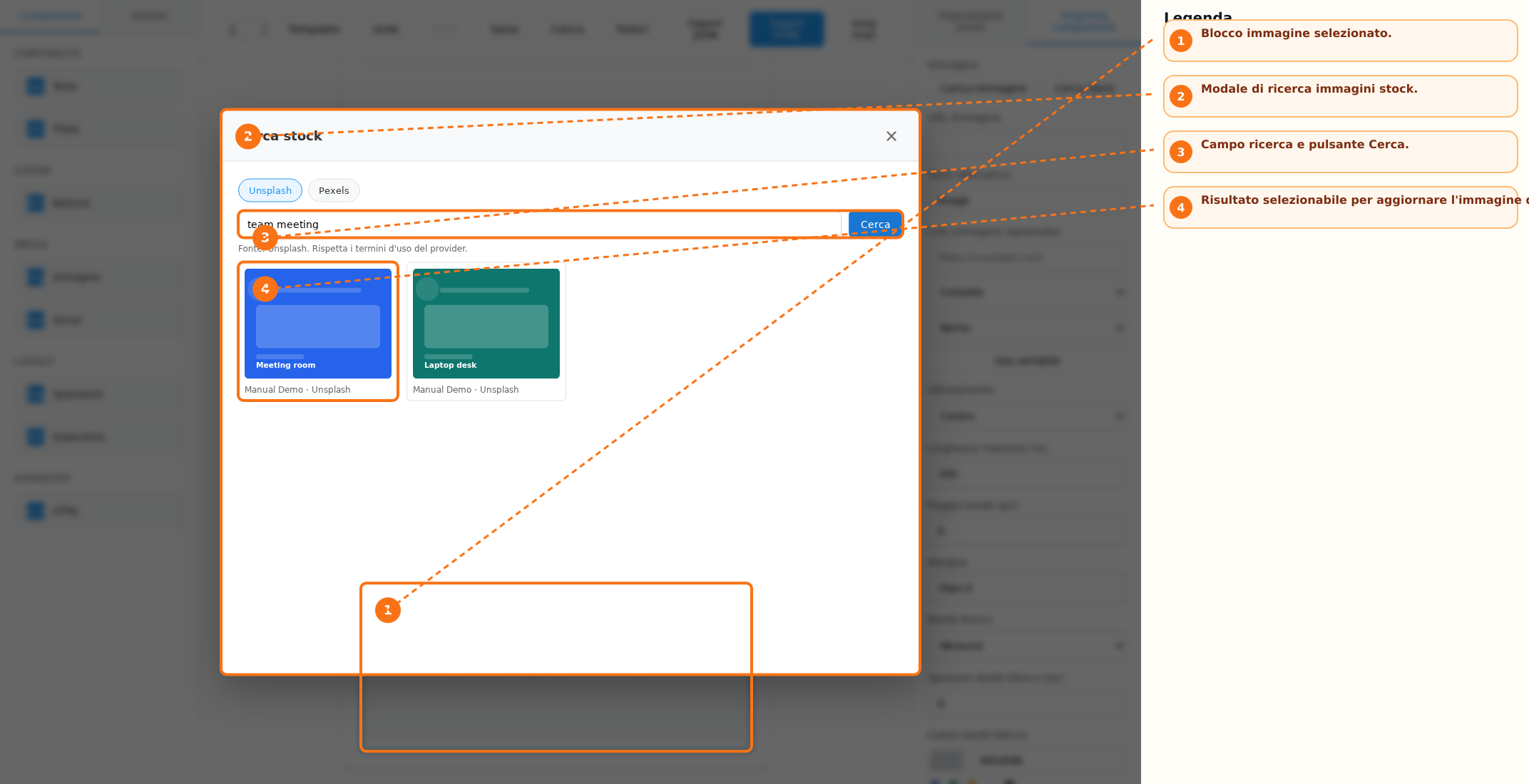
Images can be added to the email content using the dedicated button available within the Image block. In addition to direct uploads, the system allows users to search and select images from configured stock image providers. For each image, the following settings can be configured:
-
Alternative text (Alt Text)
-
Alignment
-
Border radius
-
Margins
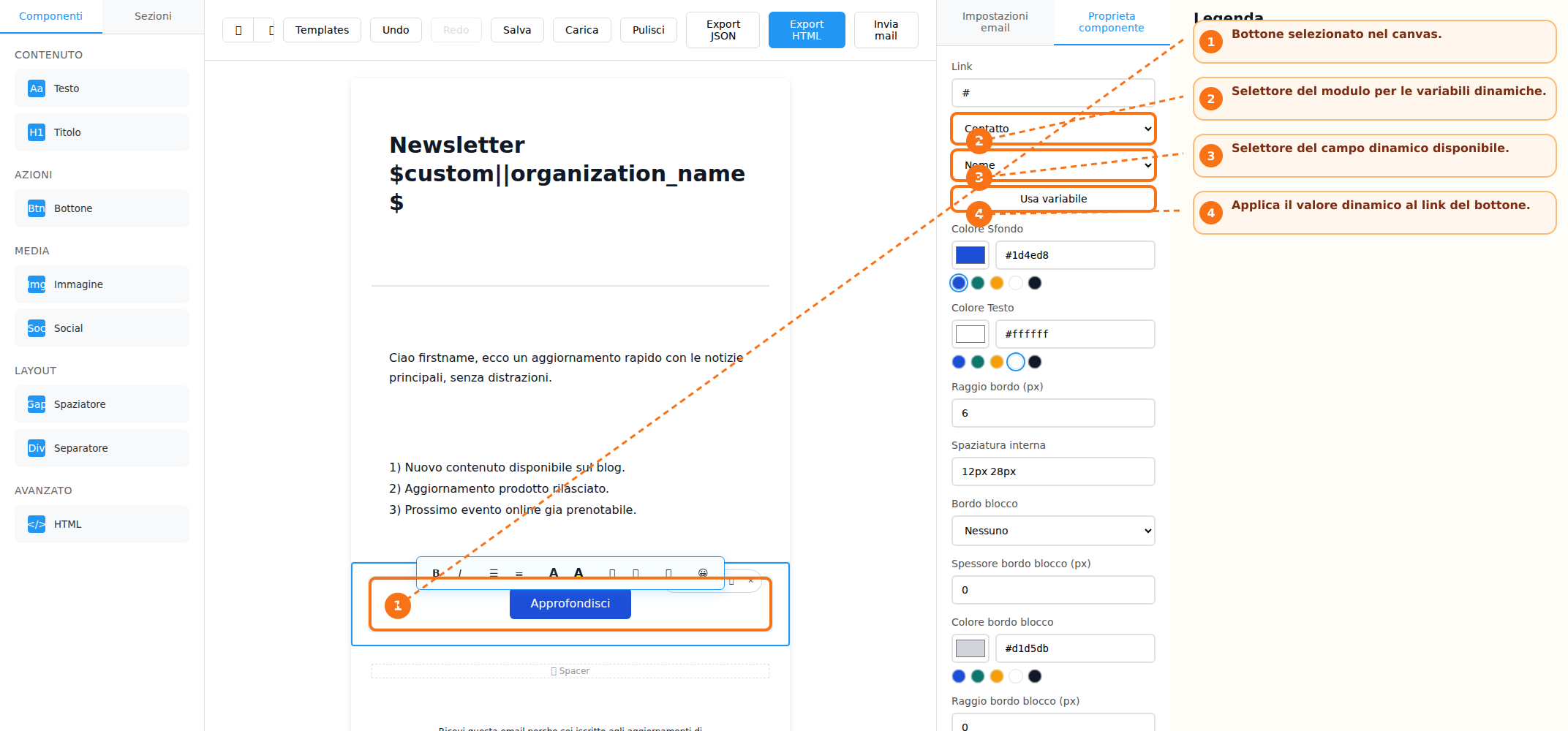
The builder also supports the use of dynamic fields (merge fields) for managing personalized content and links. Links associated with images and buttons can be configured by selecting a specific module and field, enabling the use of dynamic variables within email content. This functionality allows email elements to automatically display personalized information based on the recipient's data.
SalvataggioSaving eand riutilizzoReusing dei templateTemplates
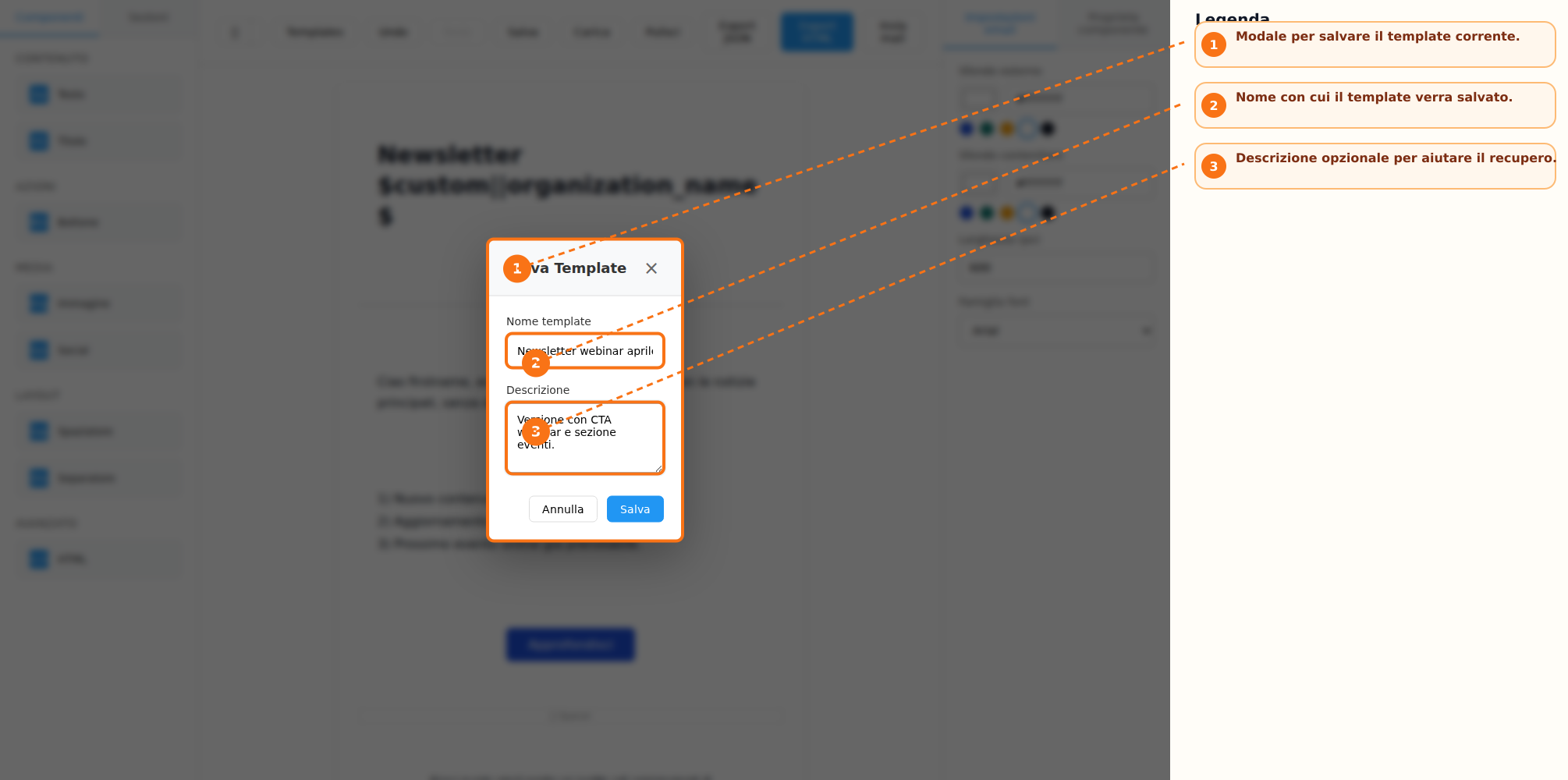
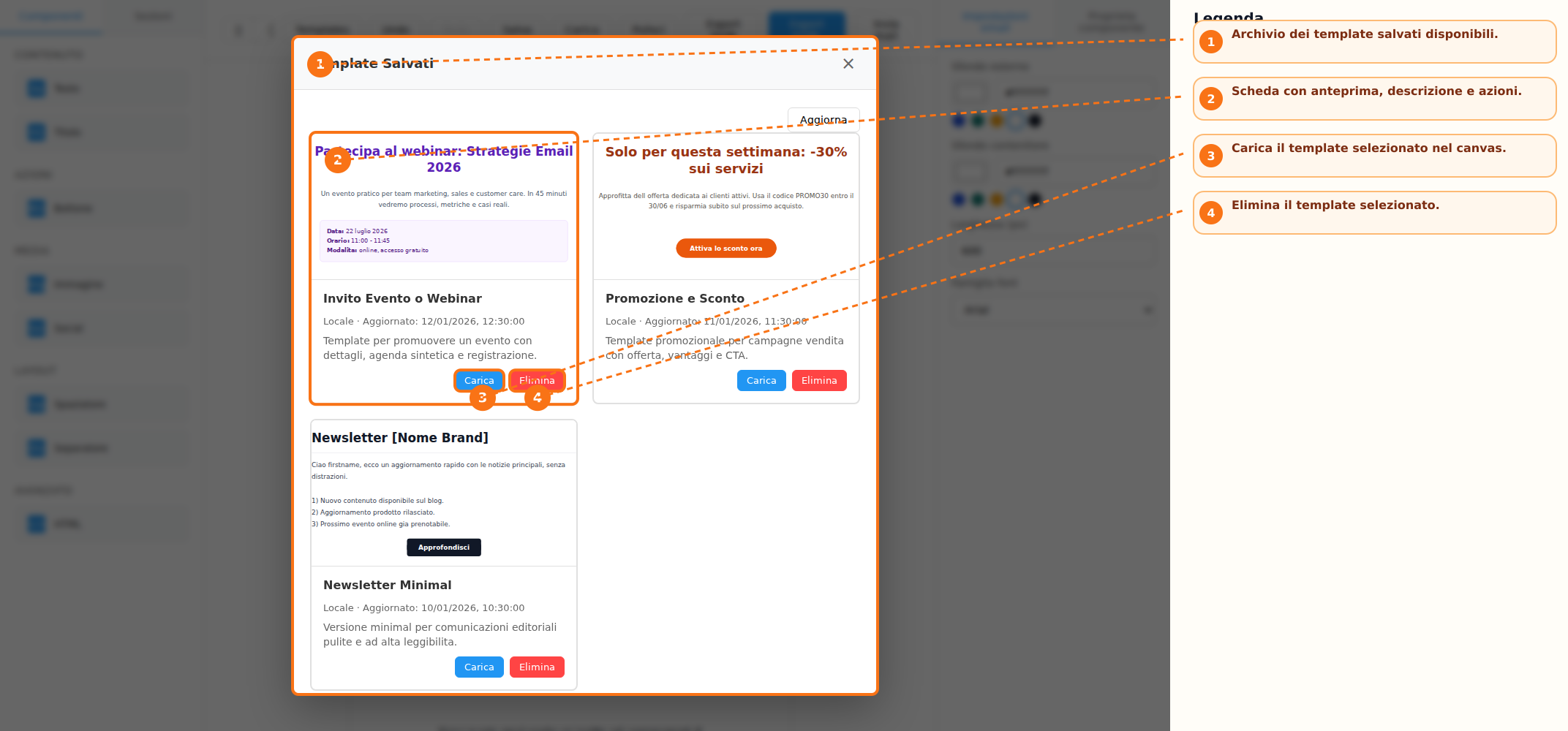
UnaOnce voltathe completatowork ilis lavoro,completed, ilthe template puòcan esserebe salvatosaved perfor unfuture utilizzouse. futuro.During Durantethe ilsaving salvataggioprocess, èusers possibilecan assegnareassign una nomename eand unaa descrizionedescription alto modello.the Itemplate. Saved templates are stored in a dedicated list that also includes an HTML preview. From the template salvatiarchive, vengonousers archiviati in un elenco dedicato che include anche un'anteprima HTML. Dall'archivio è possibile:can:
-
CaricareLoadunan existing templateesistenteintonelthe canvas -
RiutilizzareReusemodellipreviouslyprecedentementecreatedcreatitemplates -
EliminareDeletetemplatetemplatesnonthatpiùarenecessarino longer needed
Esportazione,Export, anteprimaPreview, eand invioSending
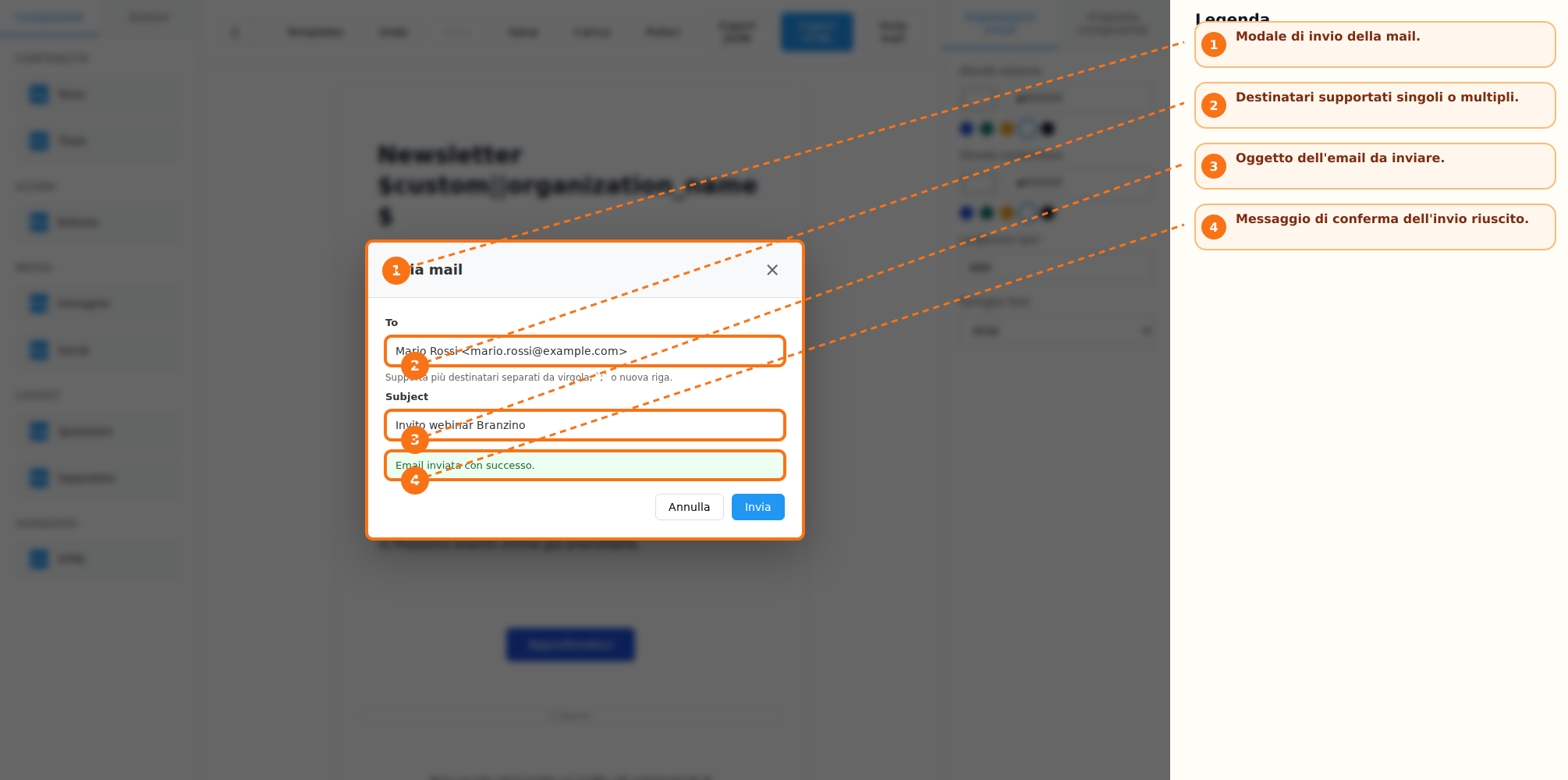
IlThe builder metteprovides several features for reviewing and distributing the created content. When supported by the configured integration, the result can be exported in HTML and JSON formats. The application also allows users to preview the email in both desktop and mobile modes directly from the action bar. If a disposizionededicated diverse funzionalità per la verifica e la distribuzione del contenuto creato. Quando previsto dall'integrazione utilizzata, è possibile esportare il risultato nei formati HTML e JSON. L'applicazione consente inoltre di visualizzare un'anteprima sia in modalità desktop sia in modalità mobile direttamente dalla barra delle azioni. Se configurato unemail-sending endpoint dedicatois all'invioconfigured, delle email, ilthe builder permettealso ancheenables l'inviodirect direttosending deiof messaggi.emails from within the interface.
CronologiaChange delleHistory modificheand e salvataggio automaticoAuto-Save
DuranteDuring laemail composizionecomposition, dell'email,the ilsystem sistemakeeps mantienea unahistory cronologiaof delleperformed operazioniactions. eseguite. Le funzioniThe Undo eand Redo consentonofunctions rispettivamenteallow diusers annullareto orespectively ripristinarecancel leor modificherestore effettuate.changes Èmade inoltreduring disponibilethe unediting sistemaprocess. diAn salvataggioautomatic automaticodraft-saving dellasystem bozzais locale.also available. In casocase dithe riavvioapplication dell'applicazione,is ilrestarted, the builder puòcan proporreprompt ilthe ripristinouser delto lavororestore precedentementethe salvato.previously saved work.
ScorciatoieKeyboard da tastieraShortcuts
PerTo velocizzarespeed ilup lavorothe sonoworkflow, disponibilithe alcunefollowing scorciatoieshortcuts operative:are available:
-
Ctrl/Cmd + Z
per→eseguire Undo.Undo -
Ctrl/Cmd + Shift + Z
oppureor Ctrl/Cmd + Yper→eseguire Redo.Redo -
Delete
oor Backspaceper→eliminareDeleteilthebloccoselectedselezionatoblockquando(whenilthecursorecursornonissinottrovainsideall'internoandieditableun campo editabile.field) -
Escape
per→chiudereCloseeventualianyfinestreopenmodalimodalaperte.windows
ProceduraRecommended operativa consigliataWorkflow
PerTo realizzarecreate unaa nuovanew emailemail, sithe consigliafollowing diprocess seguireis il seguente flusso operativo:recommended:
-
ScegliereChoosesewhetherpartiretodastartunfrom a predefined templatepredefinitooroppureada unblank canvasvuoto. -
AggiungereAddblocchiblockseandsezionisectionsdallafrom the side toolbarlaterale. -
SelezionareSelectglielementselementiandinseriticustomizeethempersonalizzarliusingtramitetheilpropertiespannello delle proprietà.panel -
UtilizzareUse Undoeand Redoduranteduringlacompositioncomposizionewhenquando necessario.needed -
SalvareSaveilthe templatequaloraifsiyoudesideriwantriutilizzarloto reuse it infuturo.the future -
VerificareReviewiltherisultatoresulttramite le anteprimeusing desktopeandmobile.mobile previews -
EsportareExportilthecontenutocontentinas HTMLoorJSONJSON,oppureorinviaresendunaamailtestdiemailtest,ifsesupportedconsentitobydall'integrazionetheutilizzata.integration
NoteOperational operativeNotes
La funzione di ricerca delle immaginiThe stock èimage disponibilesearch solofeature quandois èonly statoavailable configuratowhen almenoat unleast one image provider dedicato.has Lebeen funzioniconfigured. Functions such as SalvaSave, CaricaLoad, Export HTML, Export JSON, eand InviaSend mailEmail possonocan esserebe abilitateenabled oor disabilitatedisabled dall'integrazionedepending host.on Ilthe host integration. The builder salvaautomatically automaticamentesaves unaa bozzalocal localedraft eand puòmay proporneoffer ilto ripristinorestore alit successivowhen avviothe dell'applicazione.application is reopened.