
Update vtenext from 18ce to 19ce
General premises
The update is valid only for vtenext 18ce
You have to enable cron in order to run the update
Please backup the files and the database of vtenext before the updateupdate.
Backup
In this section you can find a general guide to perform vtenext backups.
The backup procedure was performed with vtenext 19ce. The guide is also valid for vtenext 18ce.
Windows
Go toFollow the rootinstructions folderin ofthis vtenext (eg. C:\vtenext19ce\htdocs) and create new zip archive.

Then open SQLyog or phpMyAdmin and dump the database. If you use SQLyog follow these step:

config.inc.php


Done!
Linux
Go to the root folder of vtenext (eg. /var/www/html/vtenext19ce) and create new archive.
cd /var/www/html
tar cvzf backups/vte1907_1817_20191126.tgz vtenext19ce
Replace vtenext19ce with your folder name
You can rename the backup vte1907_1817_20191126.tgz as you want
Then dump the database.
mysqldump -u root -p vte1907_1817 --single-transaction --quick --routines --triggers --events | gzip -7 > backups/vte1907_1817_20191126.sql.gz
Replace vte1907_1817 with your database name
You can rename the backup vte1907_1817_20191126.sql.gz as you wantlink.
Update
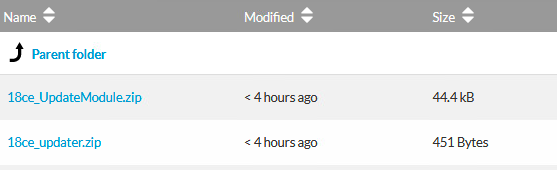
- Open this link and download the following packages:
18ce_UpdateModule.zip
18ce_updater.zip
- Extract the content of
18ce_updater.zip
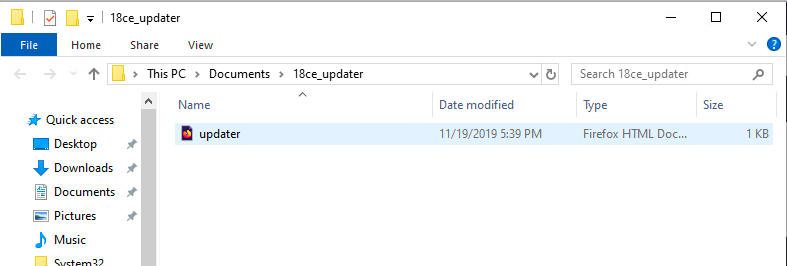
- Copy&paste the contents of
18ce_updaterinside the root folder of vtenext. - Open your web browser and navigate to the url where you installed vtenext. Login and then navigate to updater.html (eg. localhost:81/updater.html) and the page will redirect to the application settings.
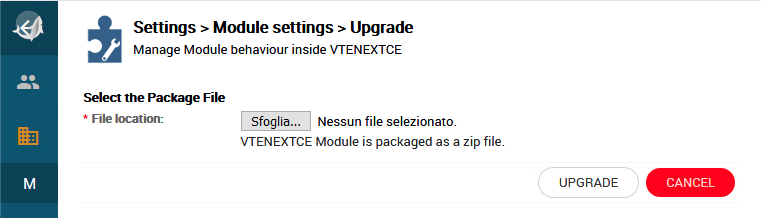
- Upload
18ce_UpdateModule.zipfile:
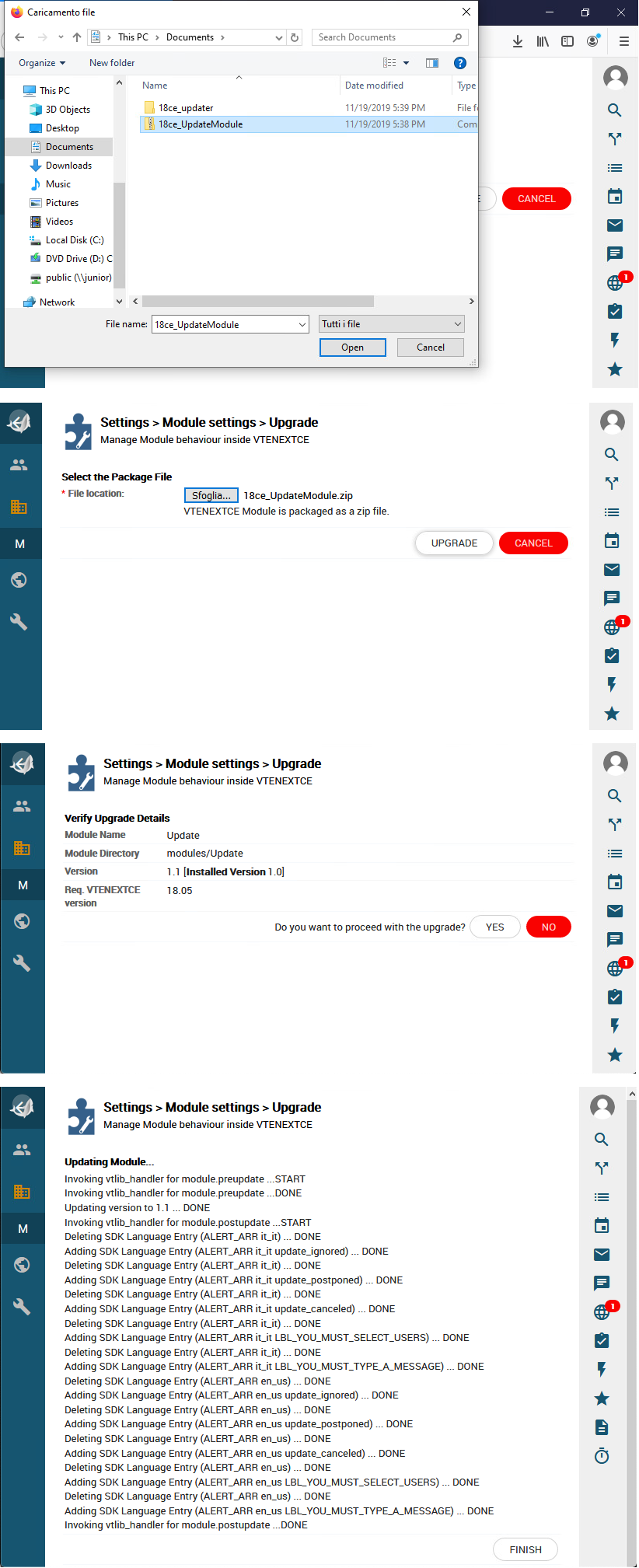
If you have cron enabled, wait 12 hours (the updater checks every 12 hours to avoid server overloads). Otherwise, enable them.
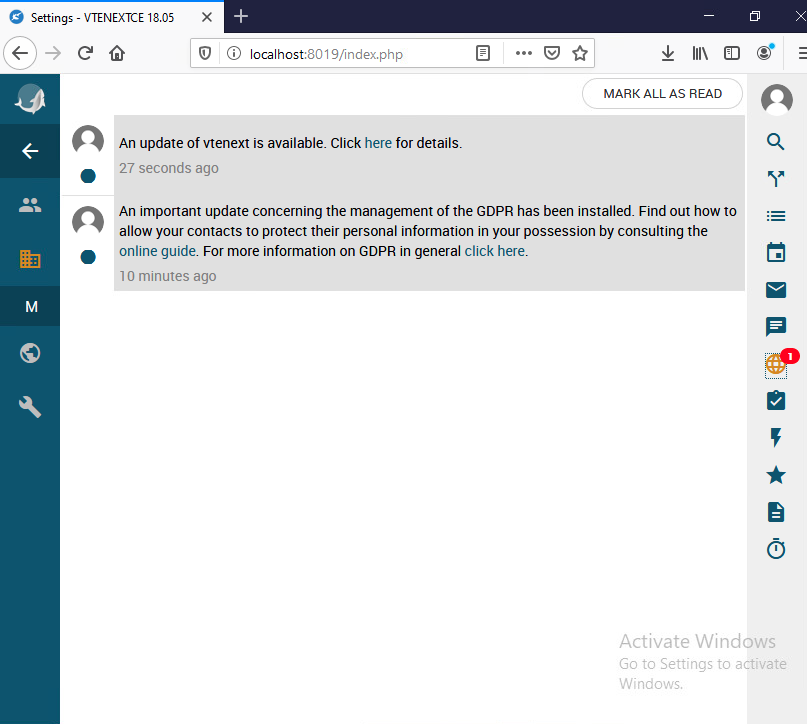
- Click the notification and a new page will open with the details of the update:
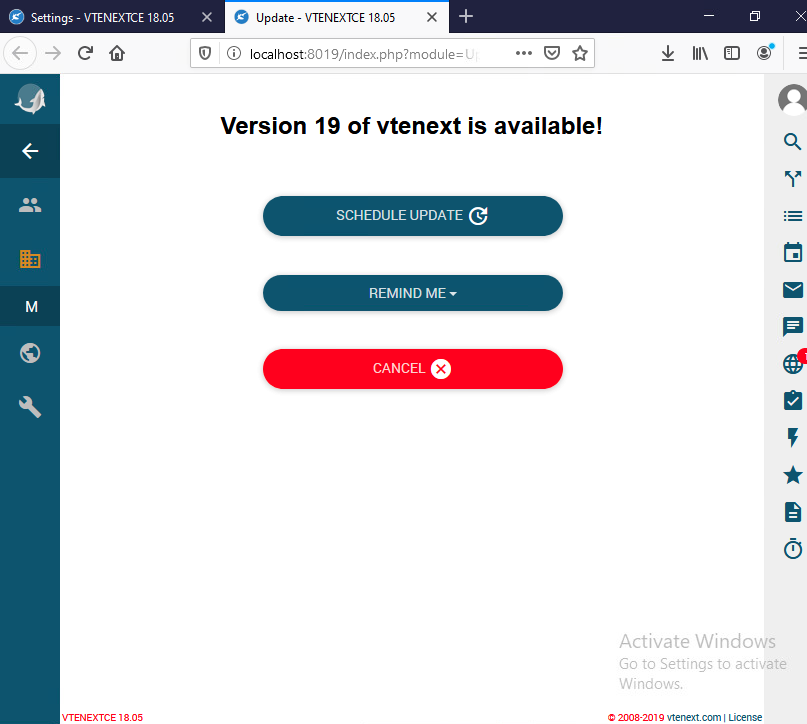
- Click "Schedule Update" and now there will be 2 scenarios depending on the operating system you are using.
Windows
Automatic update is not supported on Windows.
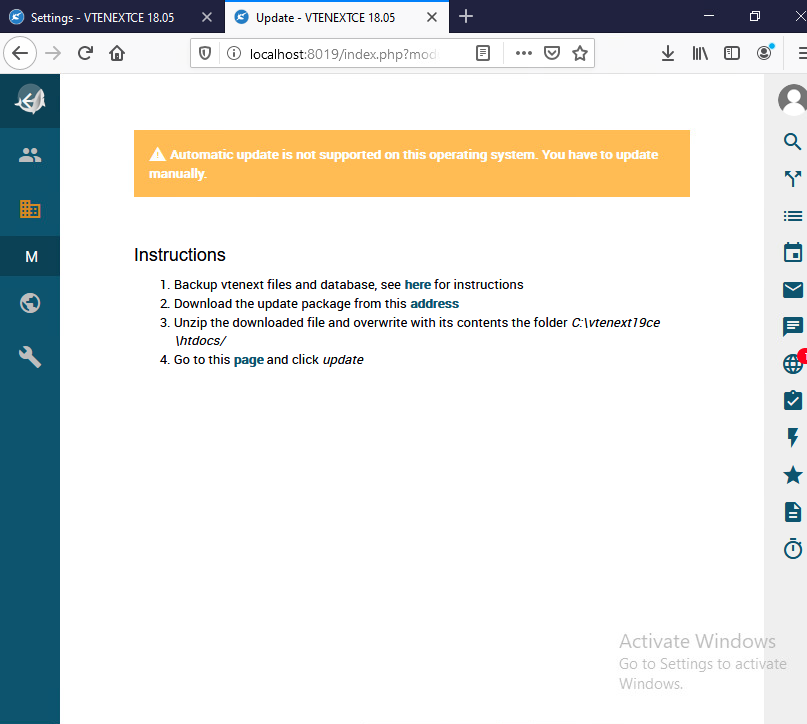
Follow the on-screen instructions to update.
- Backup files and database
- Download the update package
- Unzip the downloaded file and overwrite with its contents the root folder of vtenext
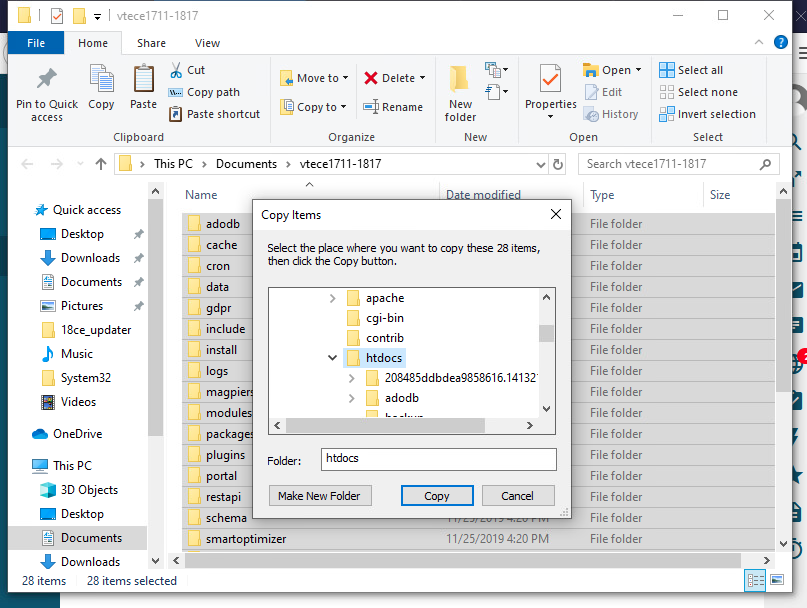
- Follow the point 4 of the instructions
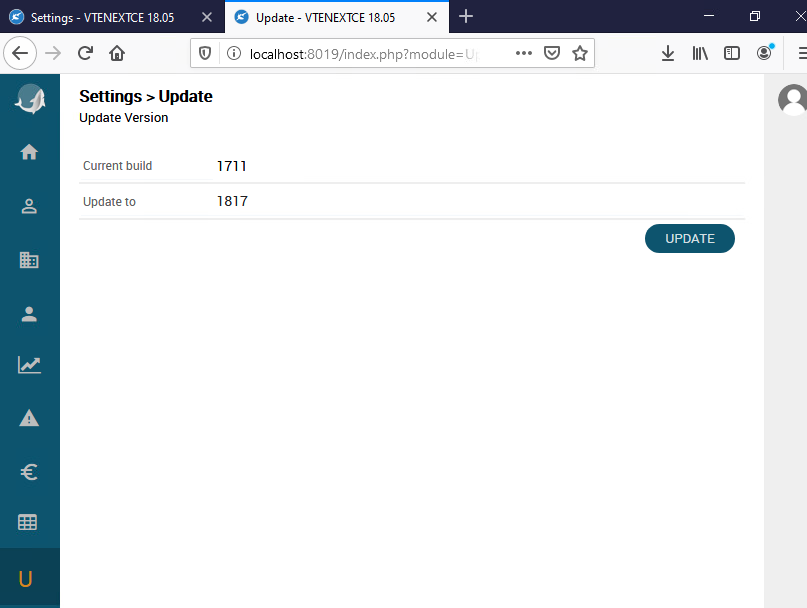
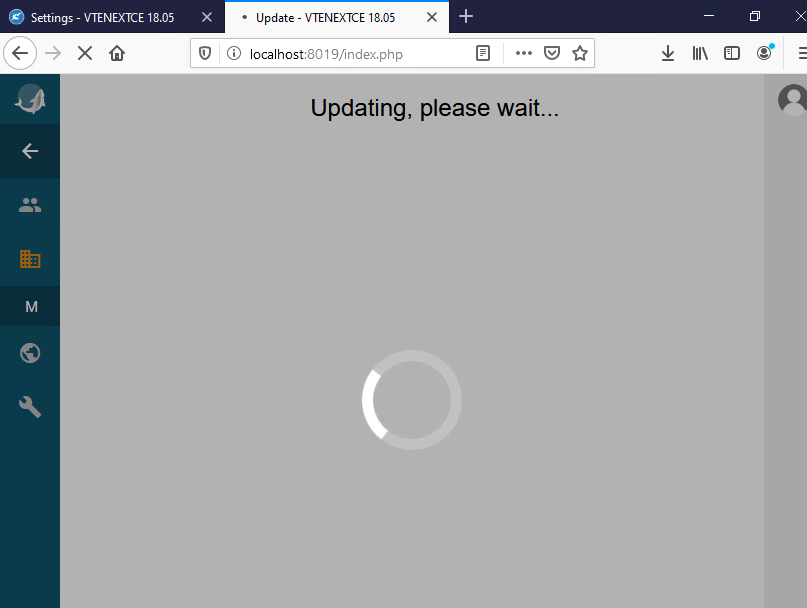
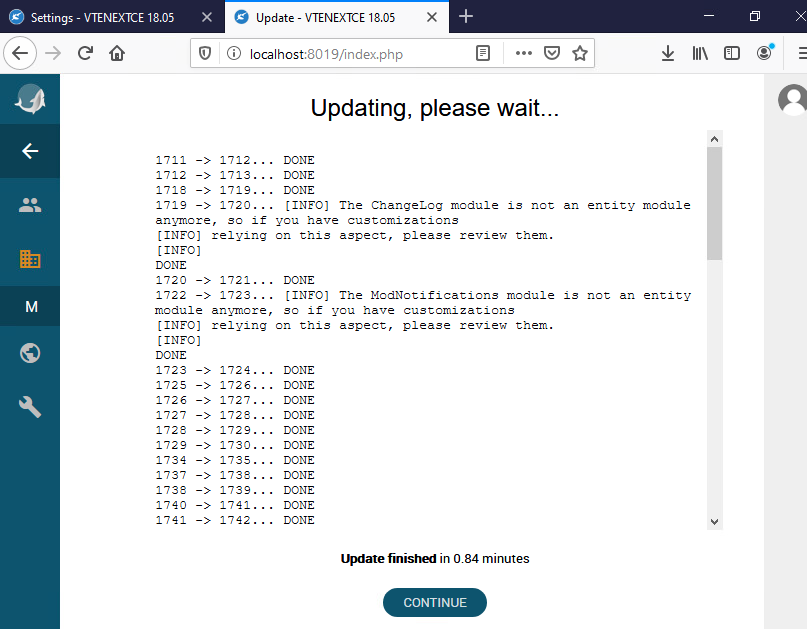
Done!
Linux