
New integration
Hot to create an integration with vtenext in Zapier
1. The first step is to go to https://developer.zapier.com/, log in with your Zapier credentials, and click on "Start a Zapier Integration".

2. It is then necessary to fill in all the fields that the Zapier screen requests.
Example:
Name: vtenext
Description: Integrate vtenext with Zapier
Audience: Private
Role: I have no affiliation with...
Category: CRM

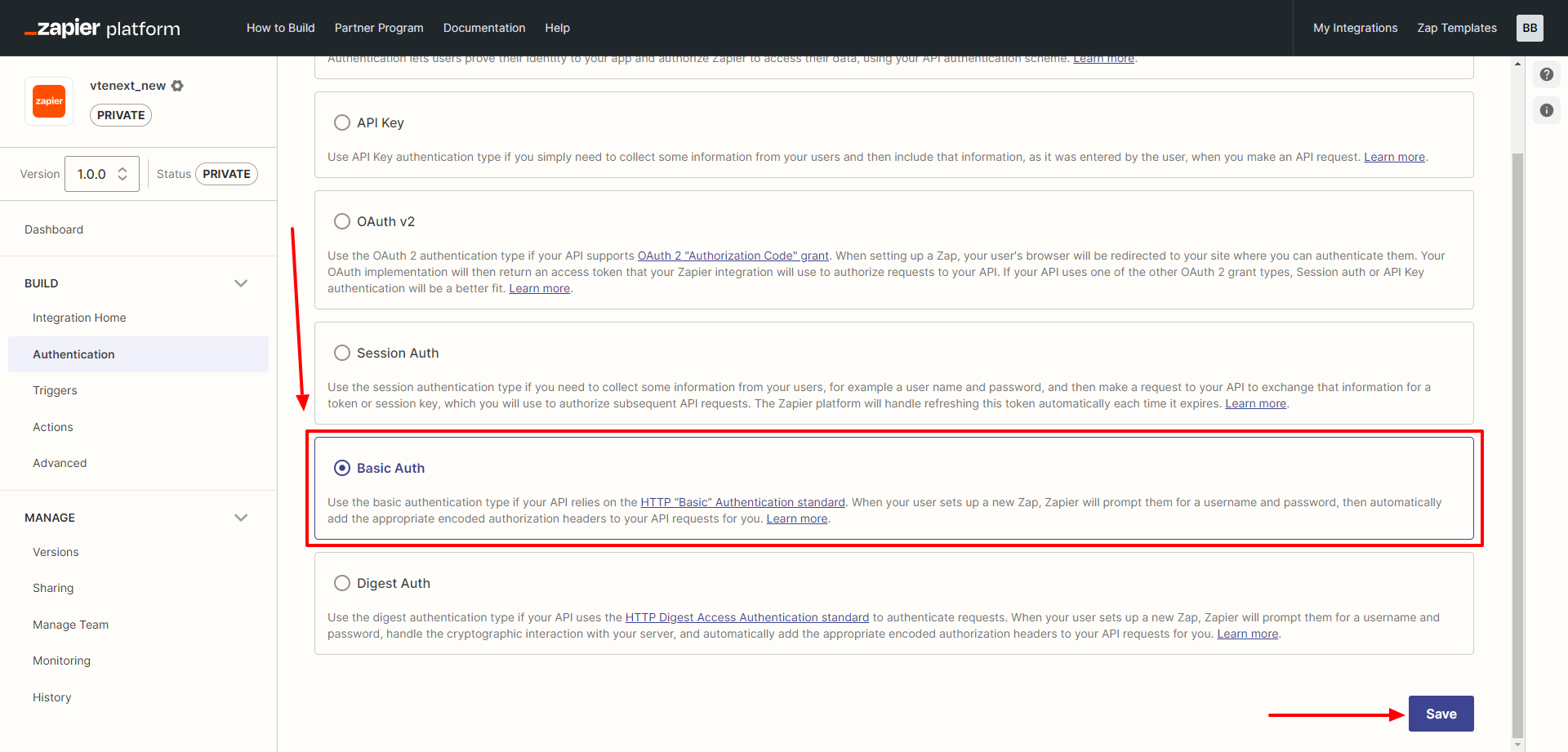
3. After a successful save message and successful creation, you will be able to configure the type of authentication.

You should select BASIC AUTH and then click on SAVE accordingly.
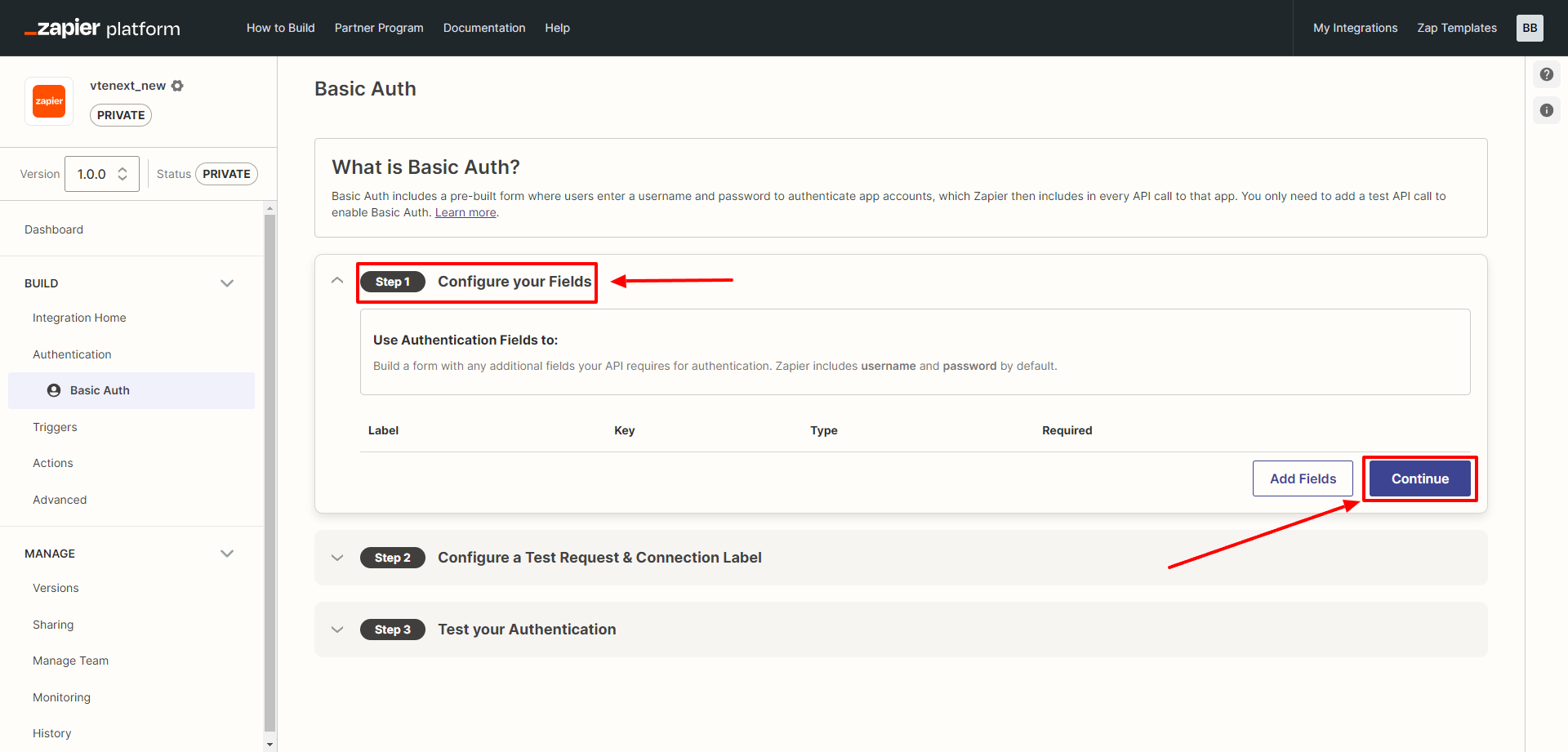
STEP 1: Leave it blank and click on CONTINUE.
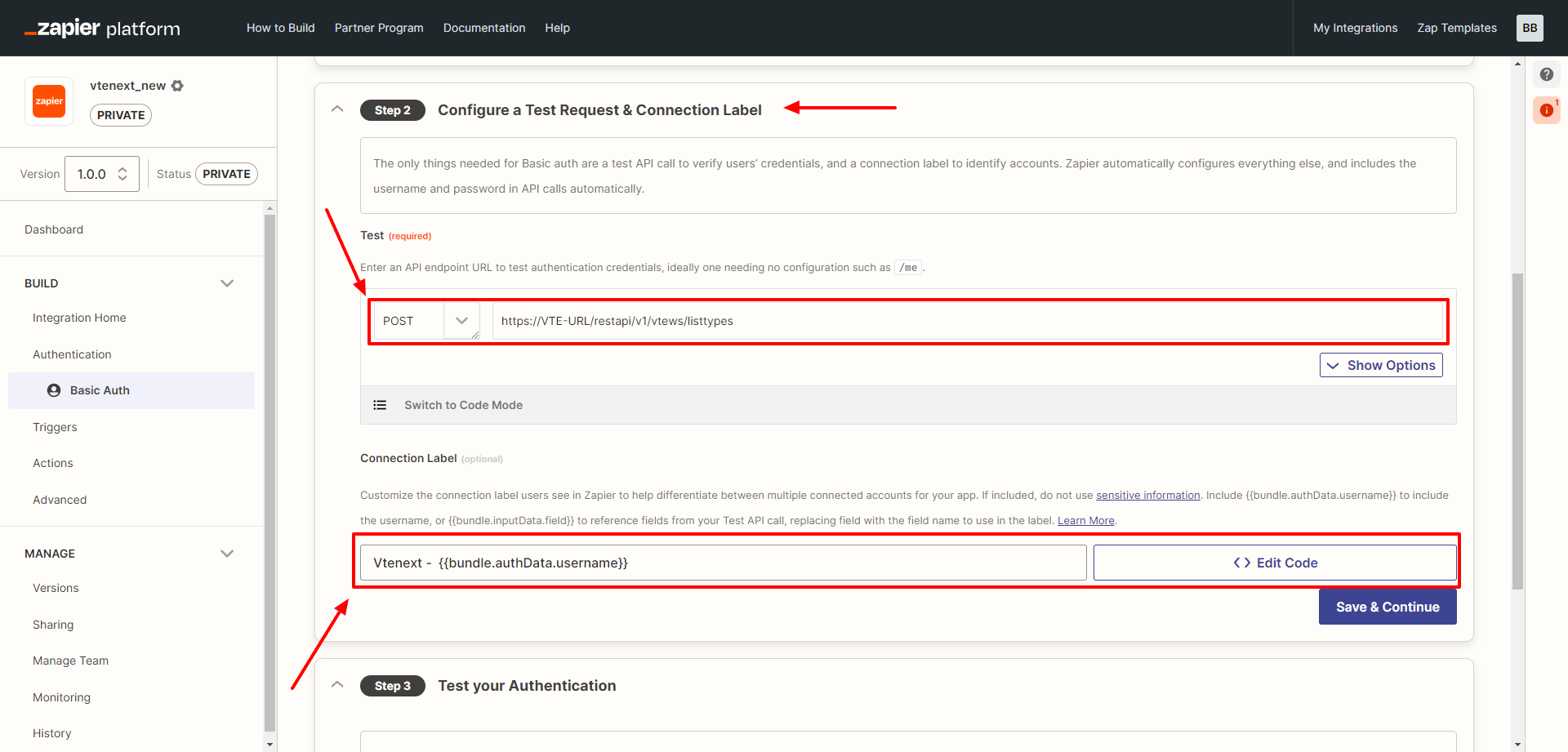
STEP 2: Enter in the test, the POST method, and configure the URL with the following string: https://VTE-URL/restapi/v1/vtews/listtypes (where VTE-URL is the absolute address of your vtenext installation).
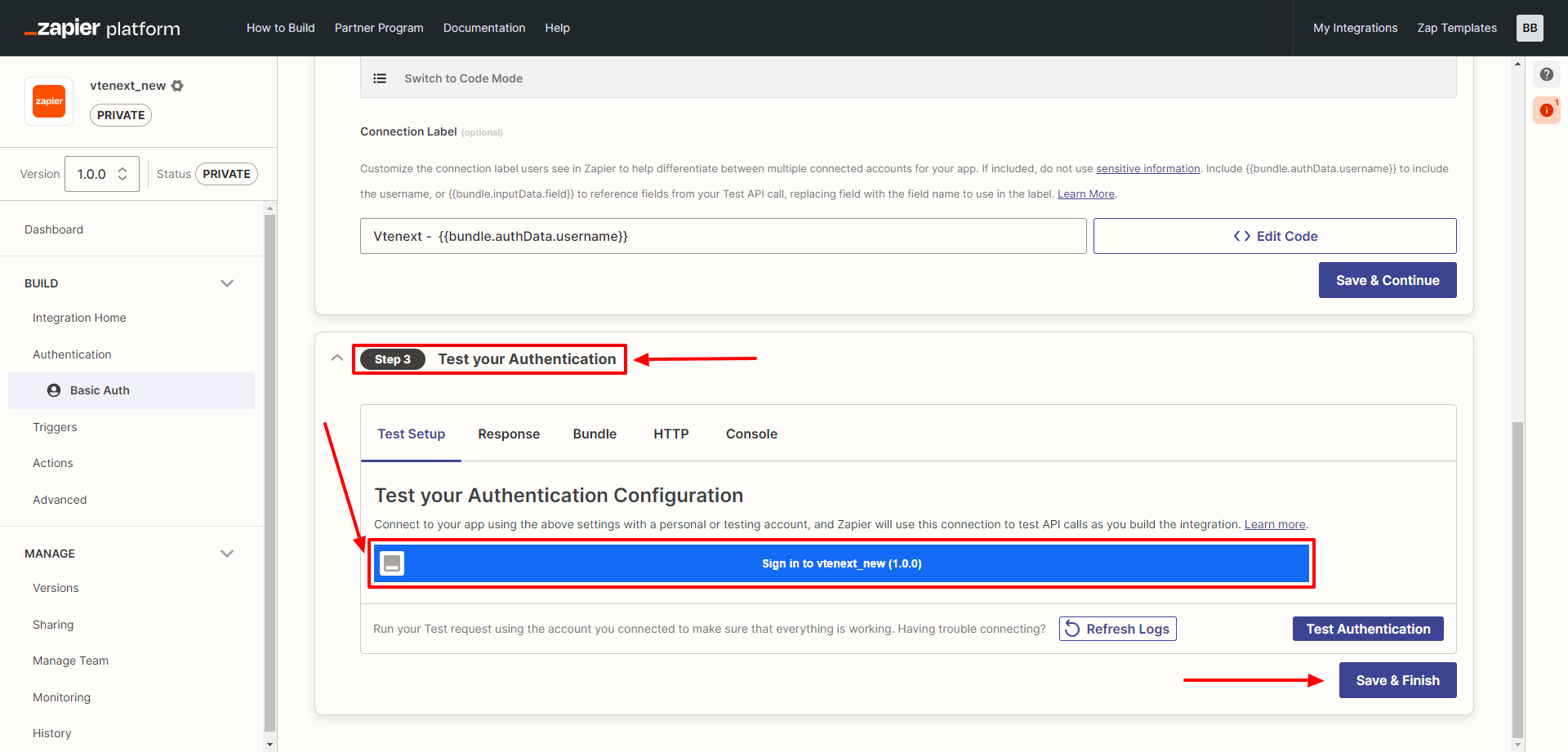
STEP 3: It's time to test the authentication by clicking on the blue "Sign In" button and finally clicking on SAVE & FINISH.
CAUTION: The password to use is the access key of the vtenext user, which can be found in the user's preferences.
4. Trigger creation
This step is optional, it's necessary only if we want to execute Zapier actions when in vtenext some condition is met (for example, when a Lead is created, or when a condition of a process is satisfied).
Let's add a trigger as shown below:
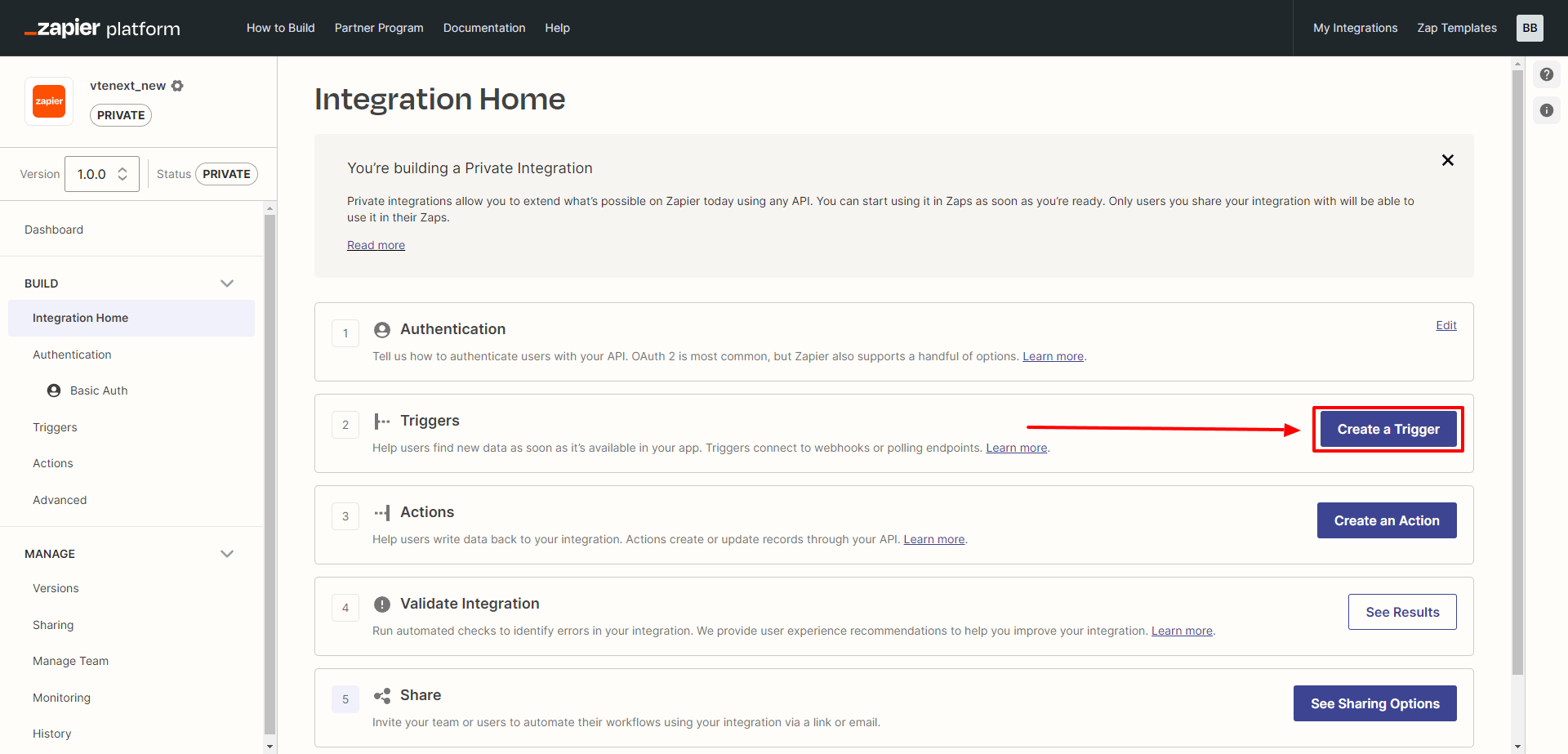
Clicking on the CREATE A TRIGGER button will present a screen with some fields to fill in. These fields should be managed based on what you want to achieve with the trigger itself (in the example, it involves intercepting the creation of a new Lead).
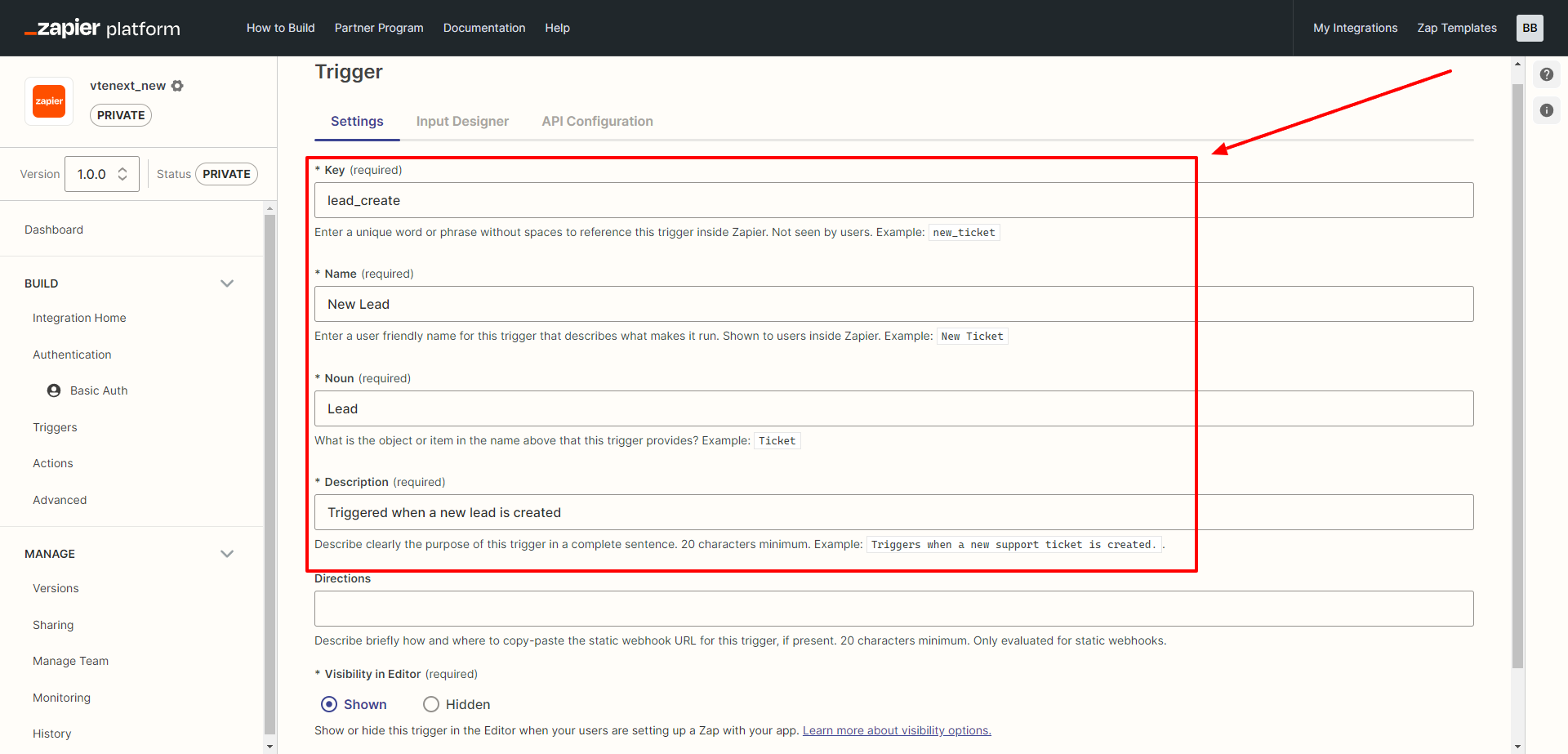
Once all the fields are filled in, click on SAVE & CONTINUE at the bottom of the page on the right.
Immediately after, the following page will appear, where you will need to click on API CONFIGURATION to create a webhook.
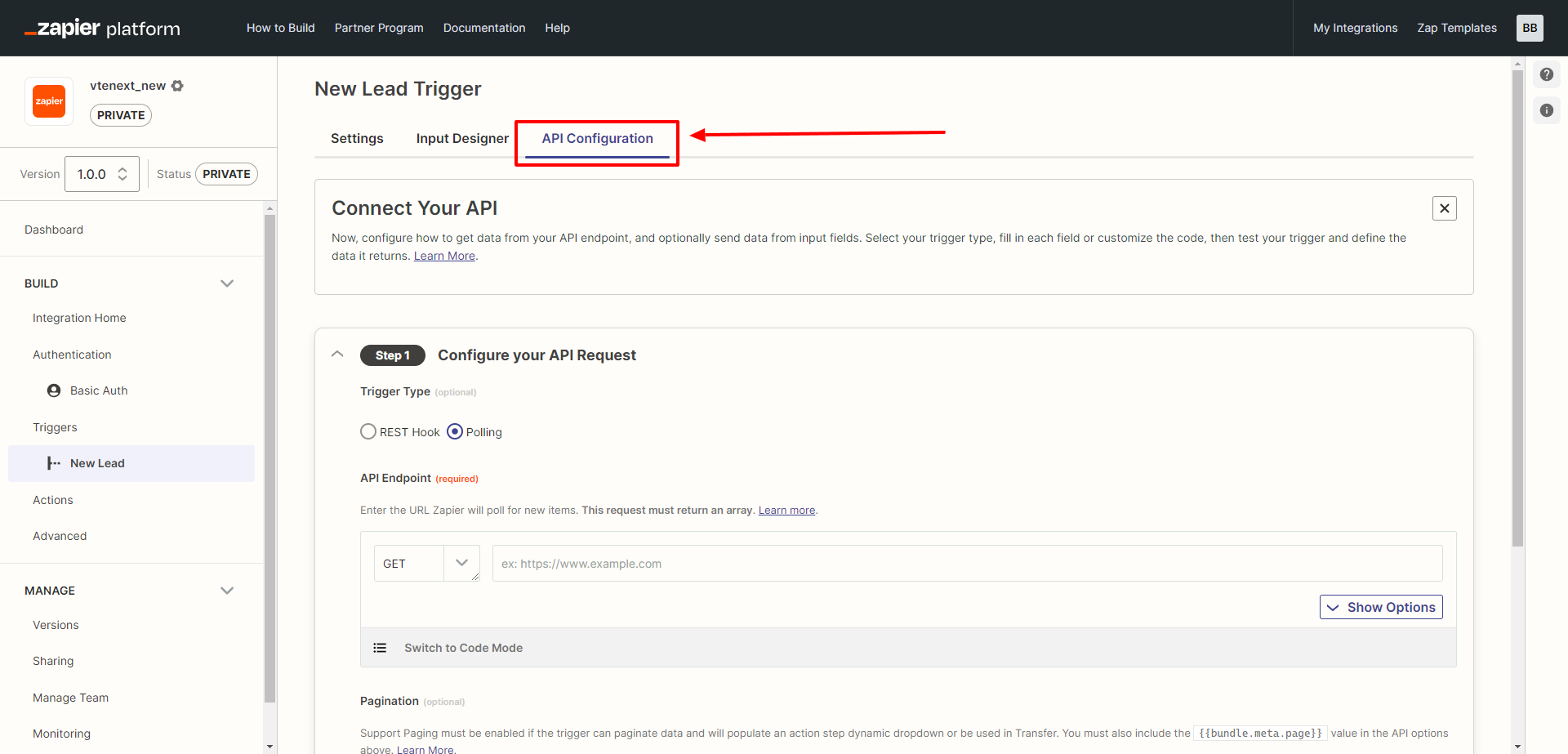
In STEP 1, choose the following parameters:
SUBSCRIBE
- REST Hook (select it)
- POST (select it from the dropdown menu, then enter the following webhook, replacing VTE-URL with the correct address of your CRM)
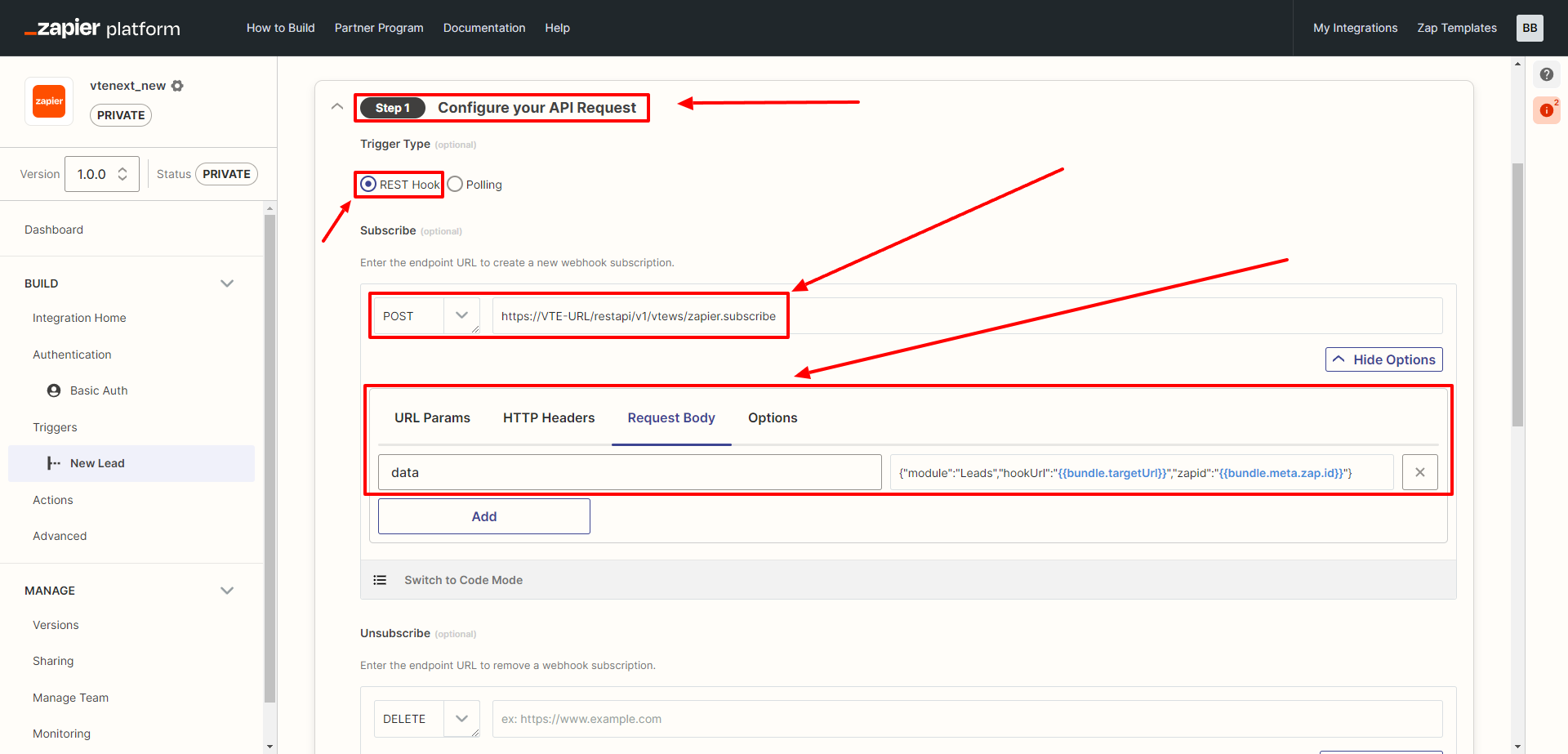
https://VTE-URL/restapi/v1/vtews/zapier.subscribe
{"module":"Leads","hookUrl":"{{bundle.targetUrl}}","zapid":"{{bundle.meta.zap.id}}"}
In this code, you can replace "Leads" with the module you want to configure.
Continuing the configuration, scrolling down the page, we find the UNSUBSCRIBE option, which should be configured with the following code.
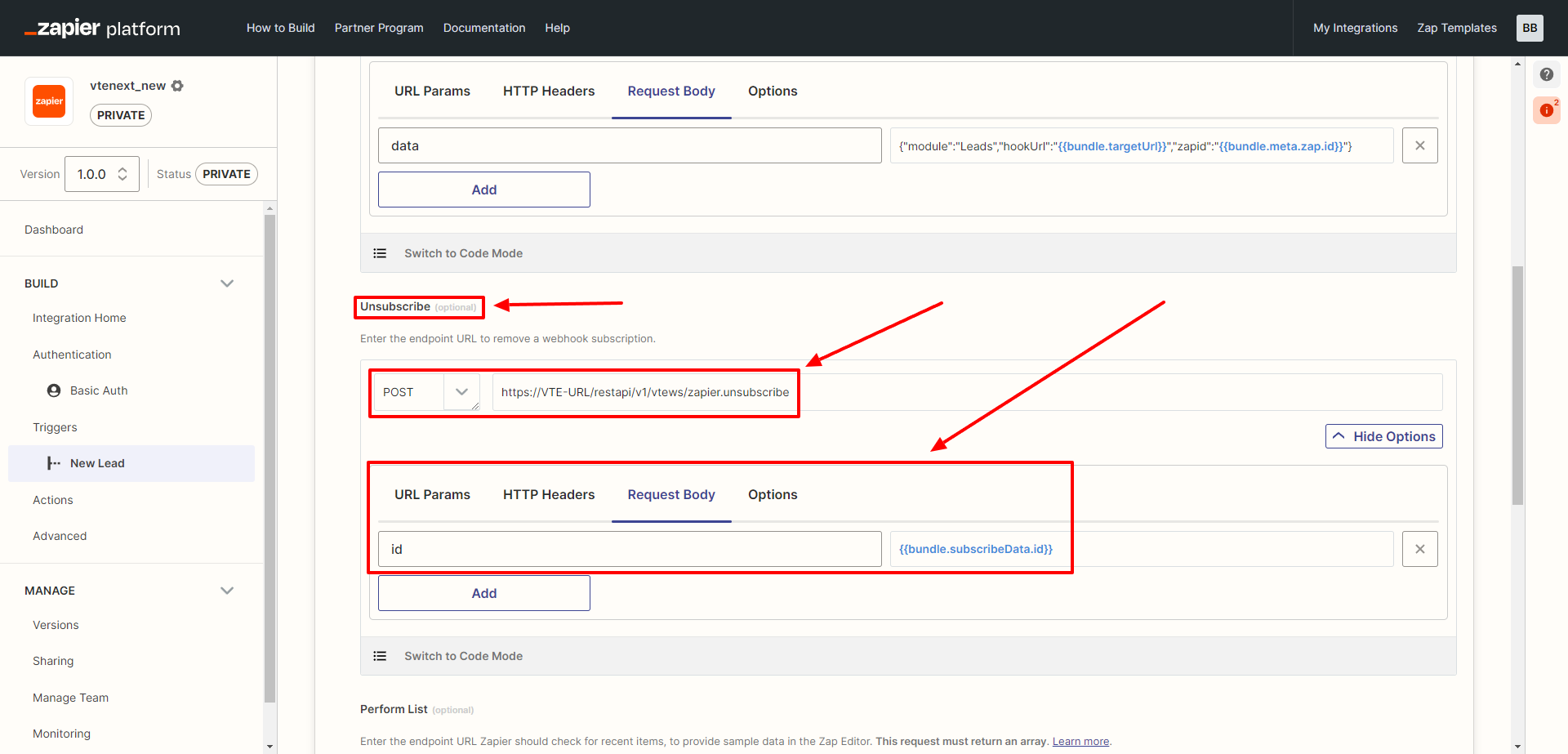
https://labs2.vtecrm.net:8443/restapi/v1/vtews/zapier.unsubscribe
{{bundle.subscribeData.id}}
Continuing with the PERFORM LIST parameter, you will need to configure the following code:

https://VTE-URL/restapi/v1/vtews/zapier.perform_list
Leads
Finally, for PAGINATION, there is nothing to configure, and you can click on SAVE API Request & Continue.
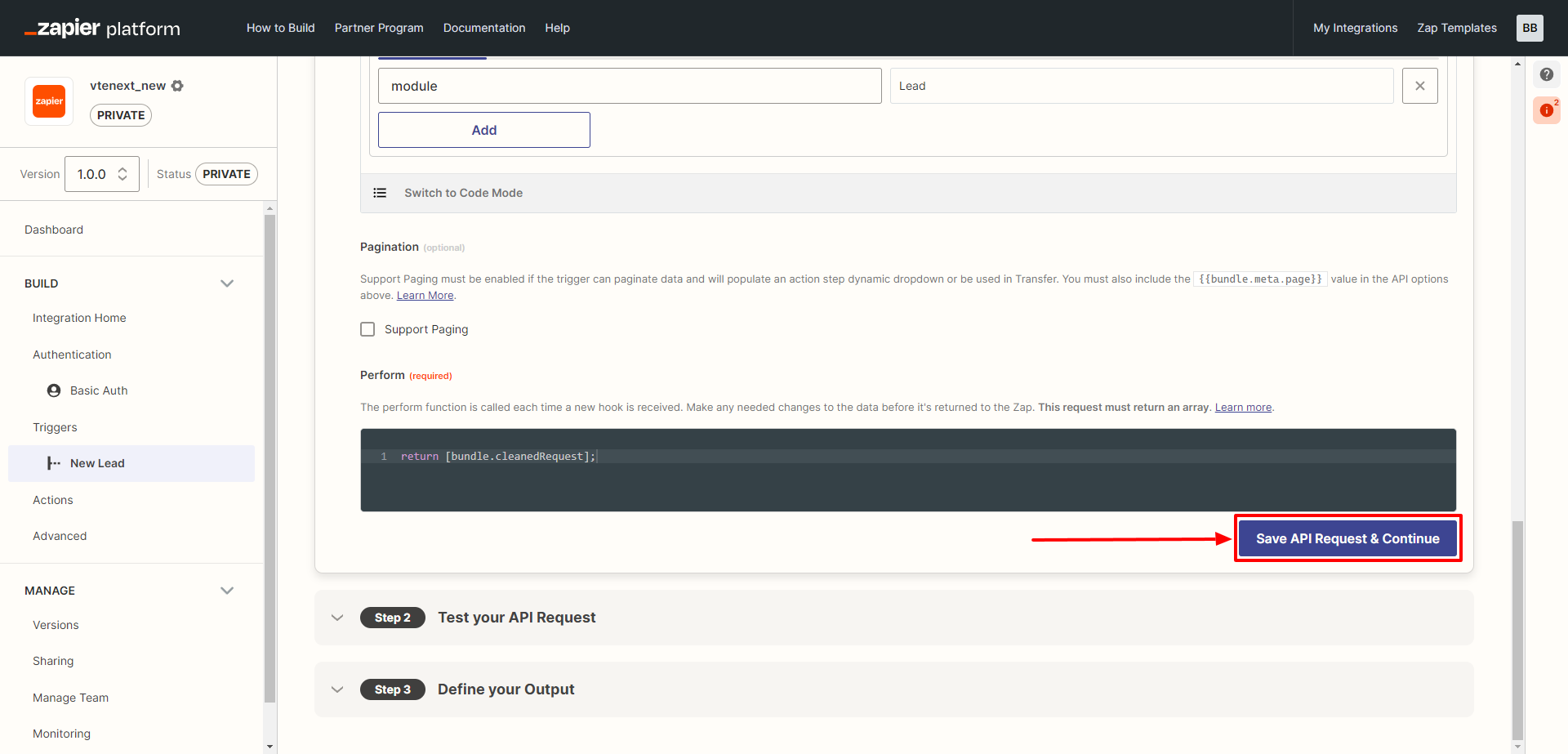
At STEP 2 of the Trigger configuration, nothing needs to be configured.
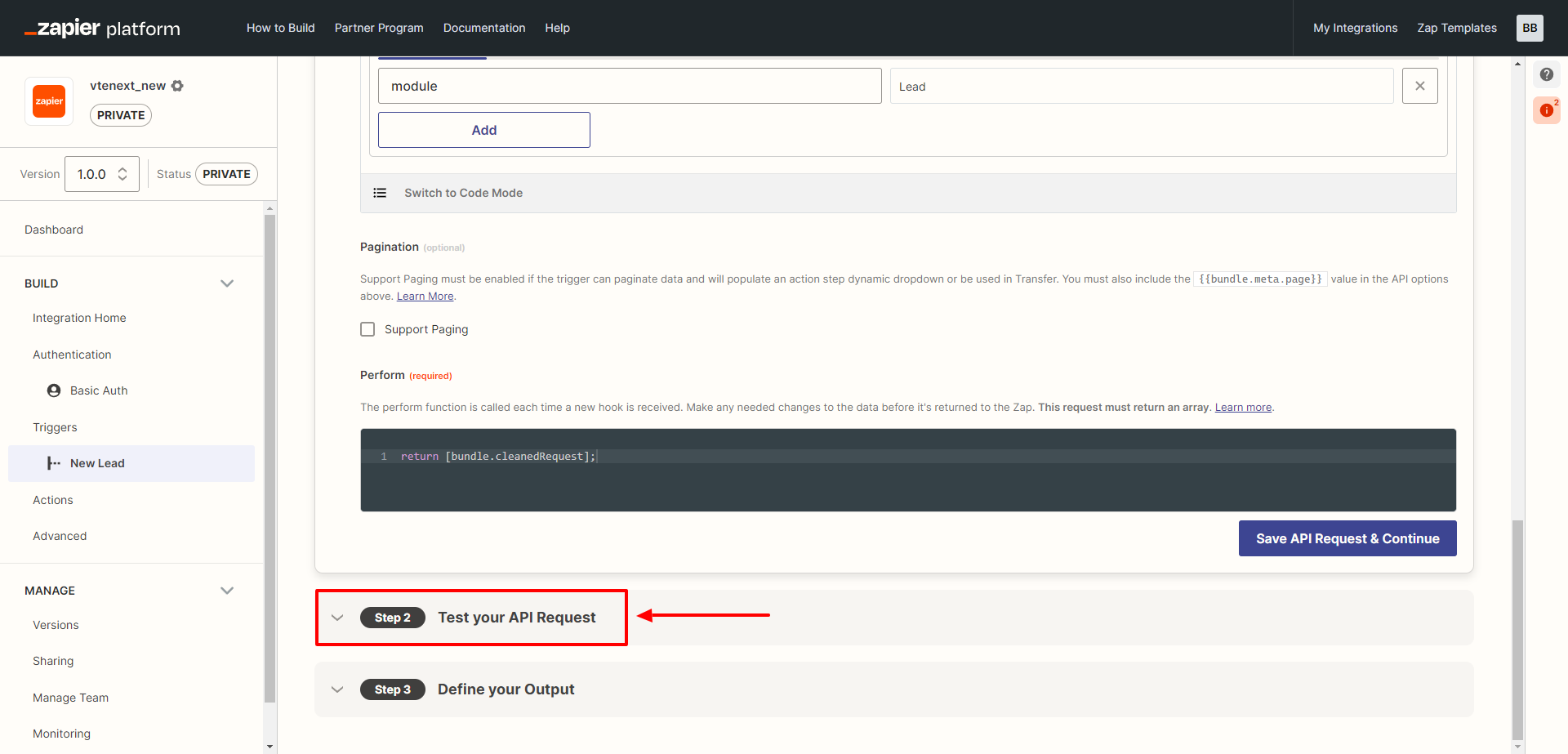
At STEP 3 of the Trigger configuration, it is necessary to leave the field in that block empty.

5. Creating Actions
Also in this case, this step is optional, it's necessary only if we want to execute actions in vtenext when the Zapier trigger satisfies its conditions. Actions available in vtenext are: search of a record, creation, update or deletion.
Moreover, it's possible to only create the actions required by your own integration.
I. Search Action
On the left-hand column, click on the ACTION item, and then on the right, click on the CREATE ACTION button.

It will open the following screen, which needs to be filled out as shown.
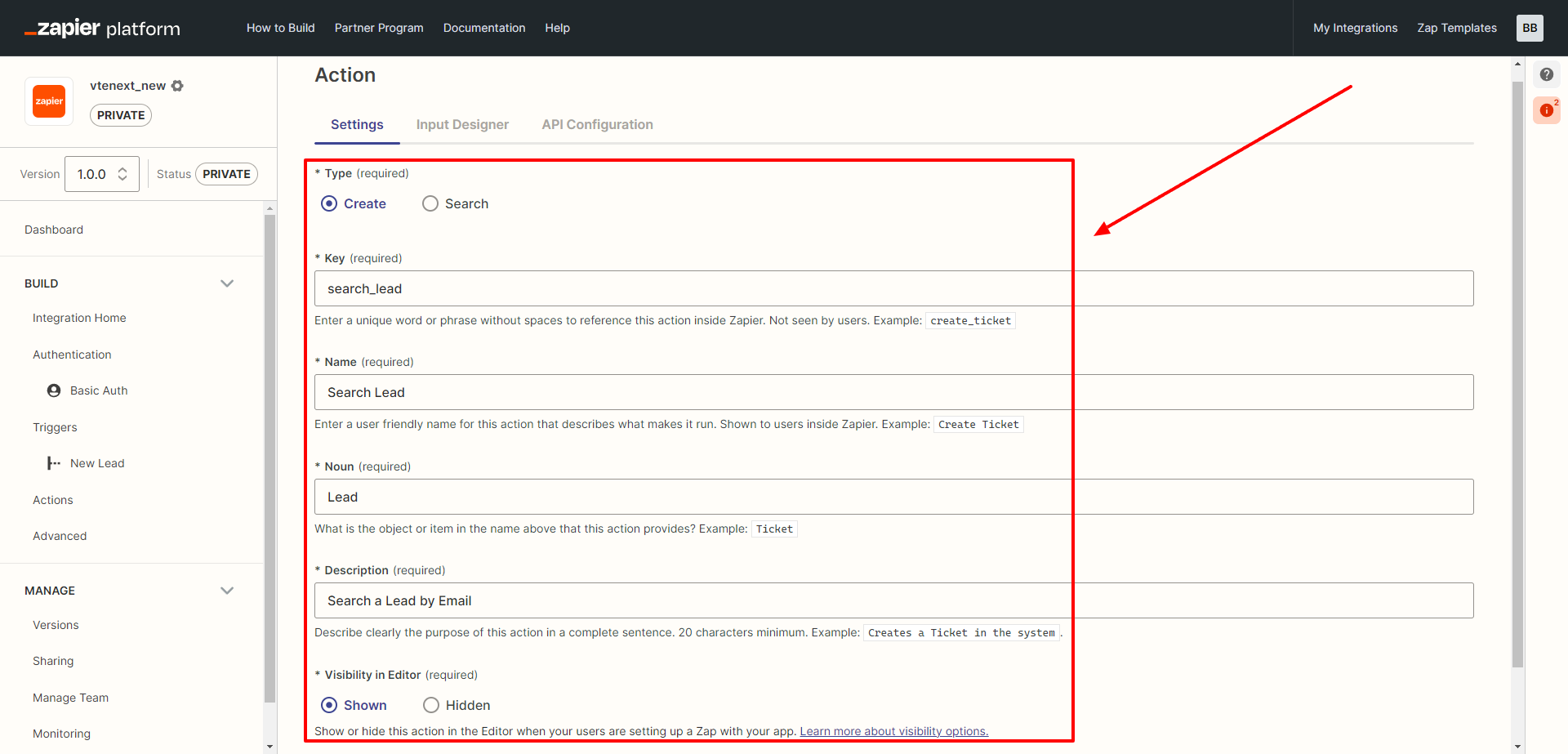
After completing the fields as shown in the previous image, you can click on SAVE AND CONTINUE. This will allow you to move to the next TAB to configure the INPUT DESIGNER.
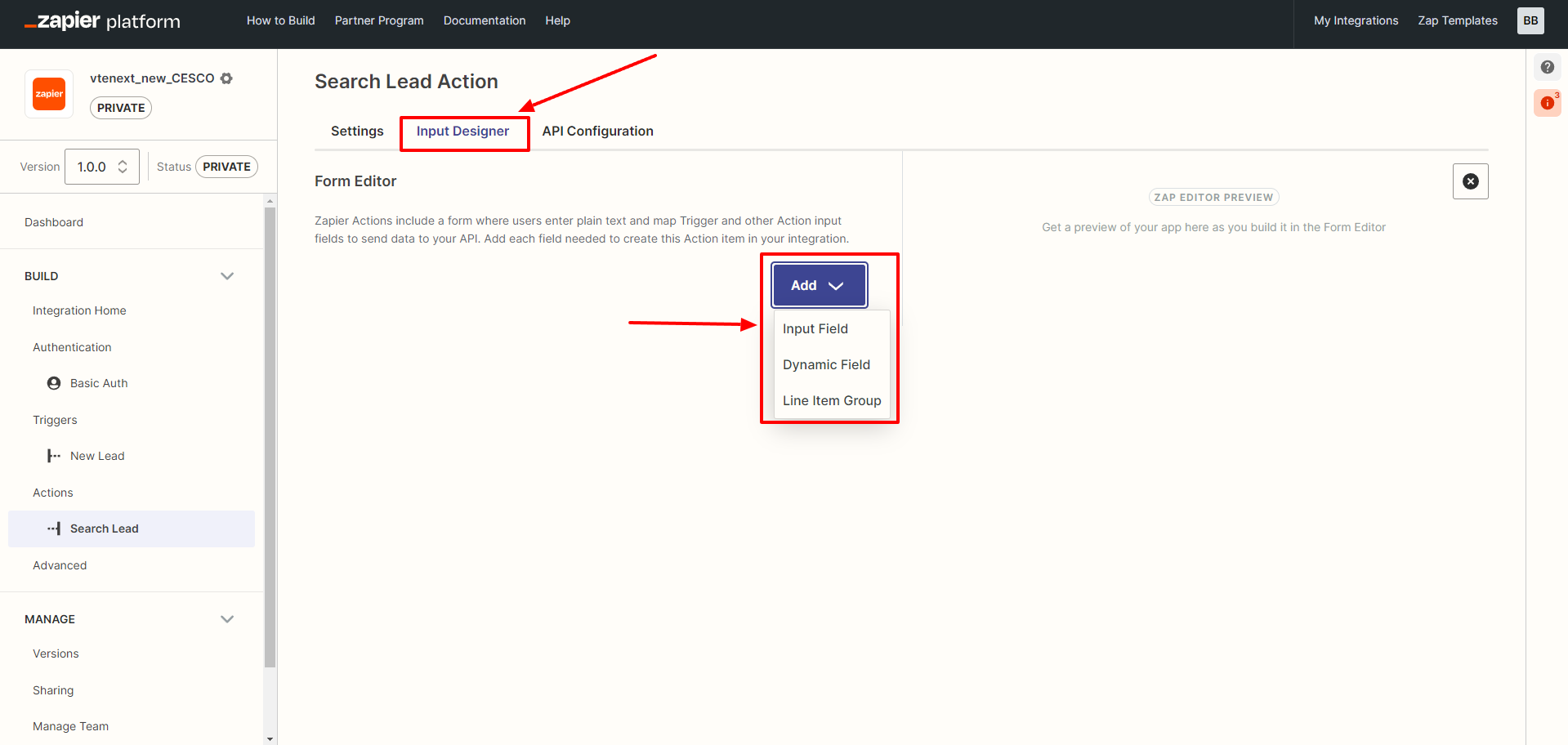
In this screen, click on ADD, choose INPUT FIELD, and the next configuration screen will appear.
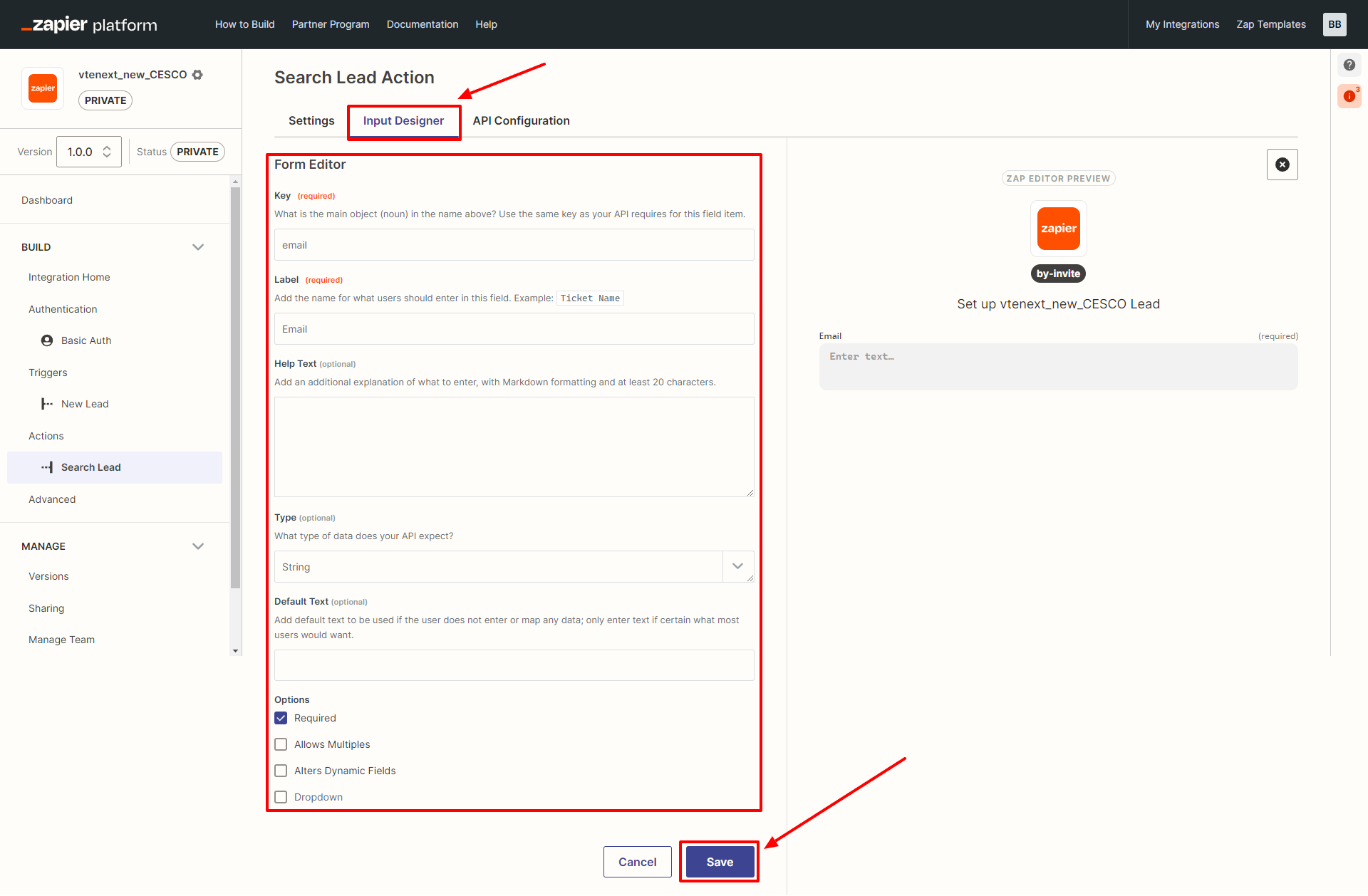
Enter the variables in the appropriate fields as indicated and then click on the SAVE button. This will move you to the API CONFIGURATION tab.
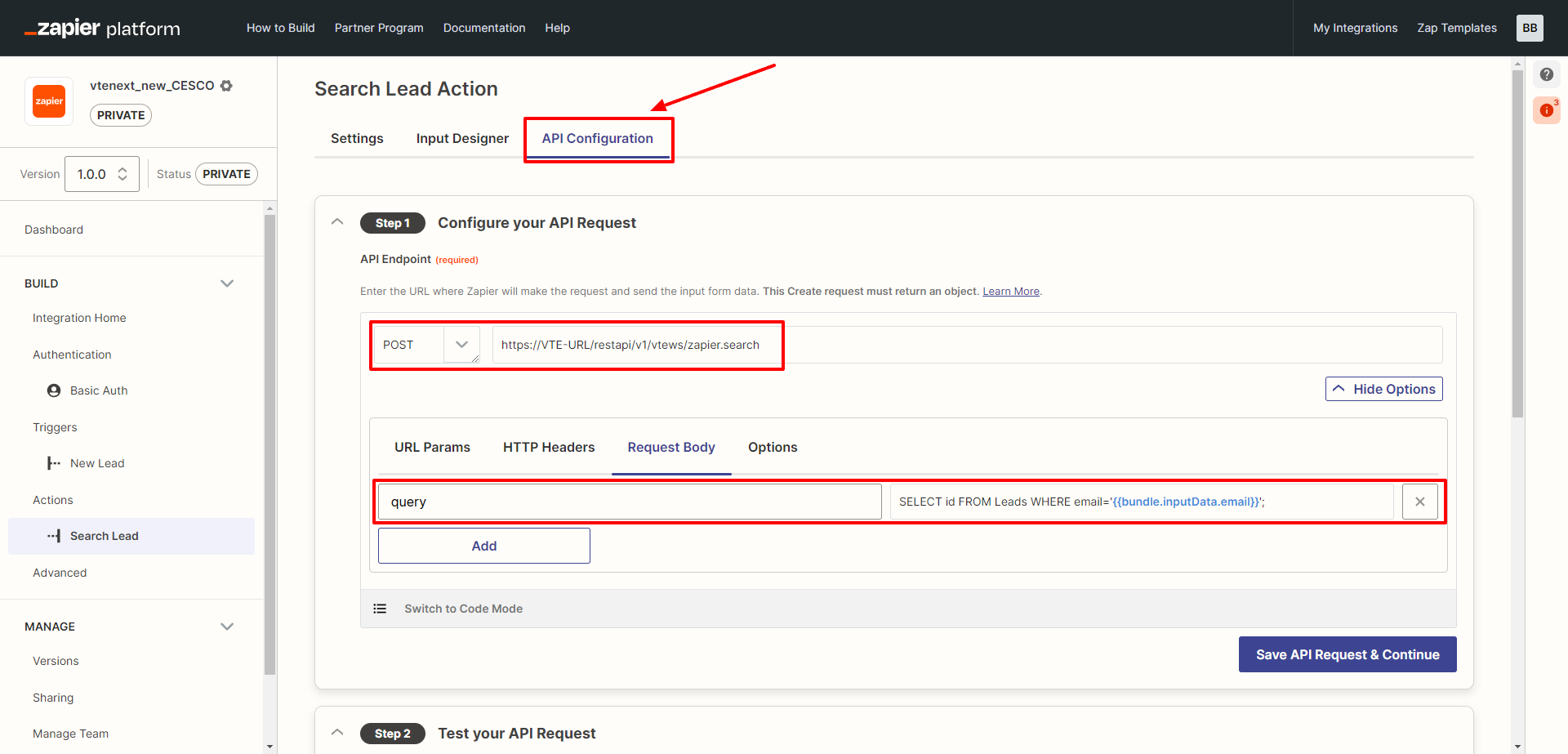
In this screen, enter the variables as shown. Replace "VTE-URL" with the full address of your vtenext installation. Finally, click on SAVE API REQUEST & CONTINUE.
https://VTE-URL/restapi/v1/vtews/zapier.search
SELECT id FROM Leads WHERE email='{{bundle.inputData.email}}';
In the TEST phase of STEP 2 on this page, enter a valid and existing email address for connection testing.
For the OUTPUT tab:
- Use the response from the test data.
- Generate output field definitions.
- Set the appropriate type for each field.
Finally, click on SAVE OUTPUT & FINISH at the bottom right.
II. Create Action
Click on ADD ACTION to create a new action and fill the Settings tab as the following image:
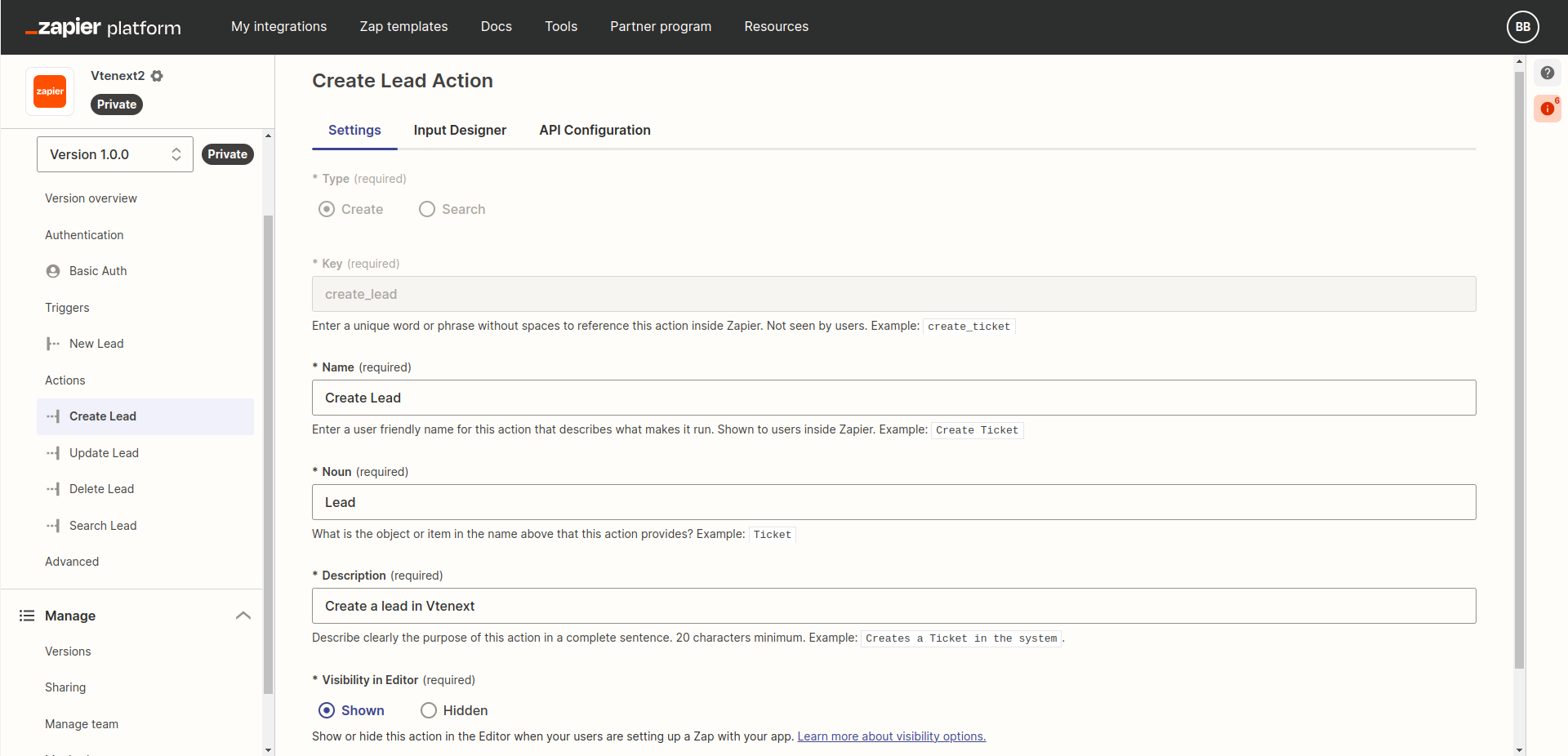
Click SAVE AND CONTINUE and move to the next TAB, to configure the INPUT DESIGNER, where a new INPUT FIELD should be added and configured in this way:
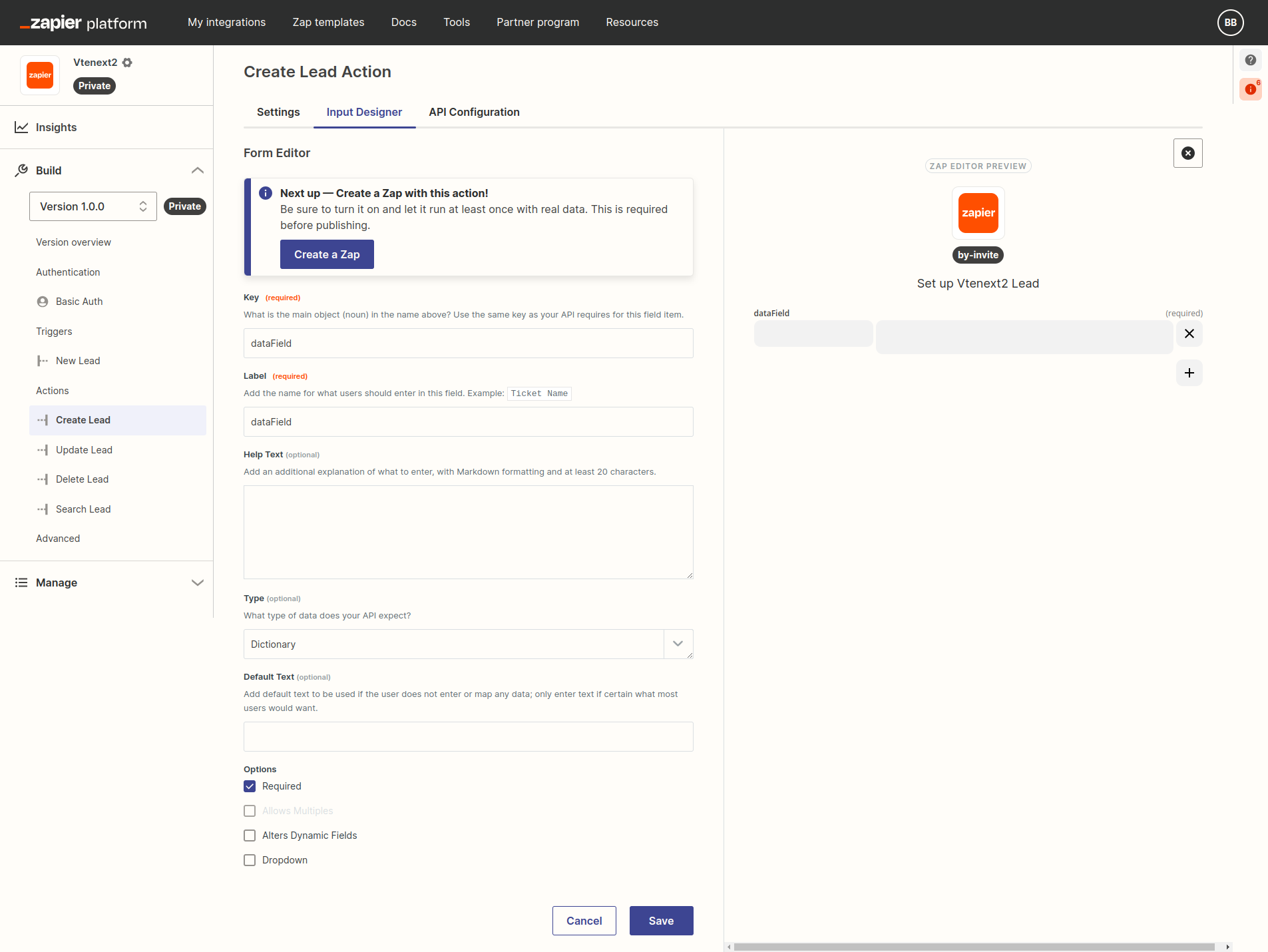
Click on SAVE and move to the tab API Configuration and configure parameters in the STEP 1 like this:

https://VTE-URL/restapi/v1/vtews/zapier.create

module = Leads
data = {{bundle.inputData.dataField}}
Clearly, VTE-URL should be replaced with the complete address of your vtenext installation, while the term "Leads" can be replaced with another module, in case you wish to create a different entity (for example Contacts or Accounts). Then click on SAVE API REQUEST & CONTINUE.
In STEP 2, to make a test choose "Raw" and replace all the code with the following:
{
  "inputData": {
    "dataField": {
      "firstname":"Test lead",
      "lastname":"Zapier",
      "phone":"123456789",
      "company":"Test Company Zapier"
    }
  },
  "authData": {},
  "environment": {},
  "subscribeData": {},
  "cleanedRequest": {
    "url": "https://example.com/hook-request-origin",
    "method": "POST",
    "body": {},
    "headers": {
      "Content-Type": "application/json"
    }
  }
}
and click on Test Your Request, which should result in the creation of a Lead with name "Test Lead" and surname "Zapier" in your vtenext instance. Then click Finish Testing & Continue.
In STEP 3 click on Use Response from Test Data and then Generate Output Field Definitions to automatically map the returned fields. Finally, click on Save Output & Finish.
III. Update Action
Click on ADD ACTION to create a new action and fill the Settings tab as the following image:

In the INPUT DESIGNER tab, create 2 fields of type Input Field, with the followinf characteristics:
- Key = id, Label = ID, Type = String, Required = yes
- Key = dataField, Label = dataField, Type = Dictionary, Required = no
Once created, we should have the following situation:
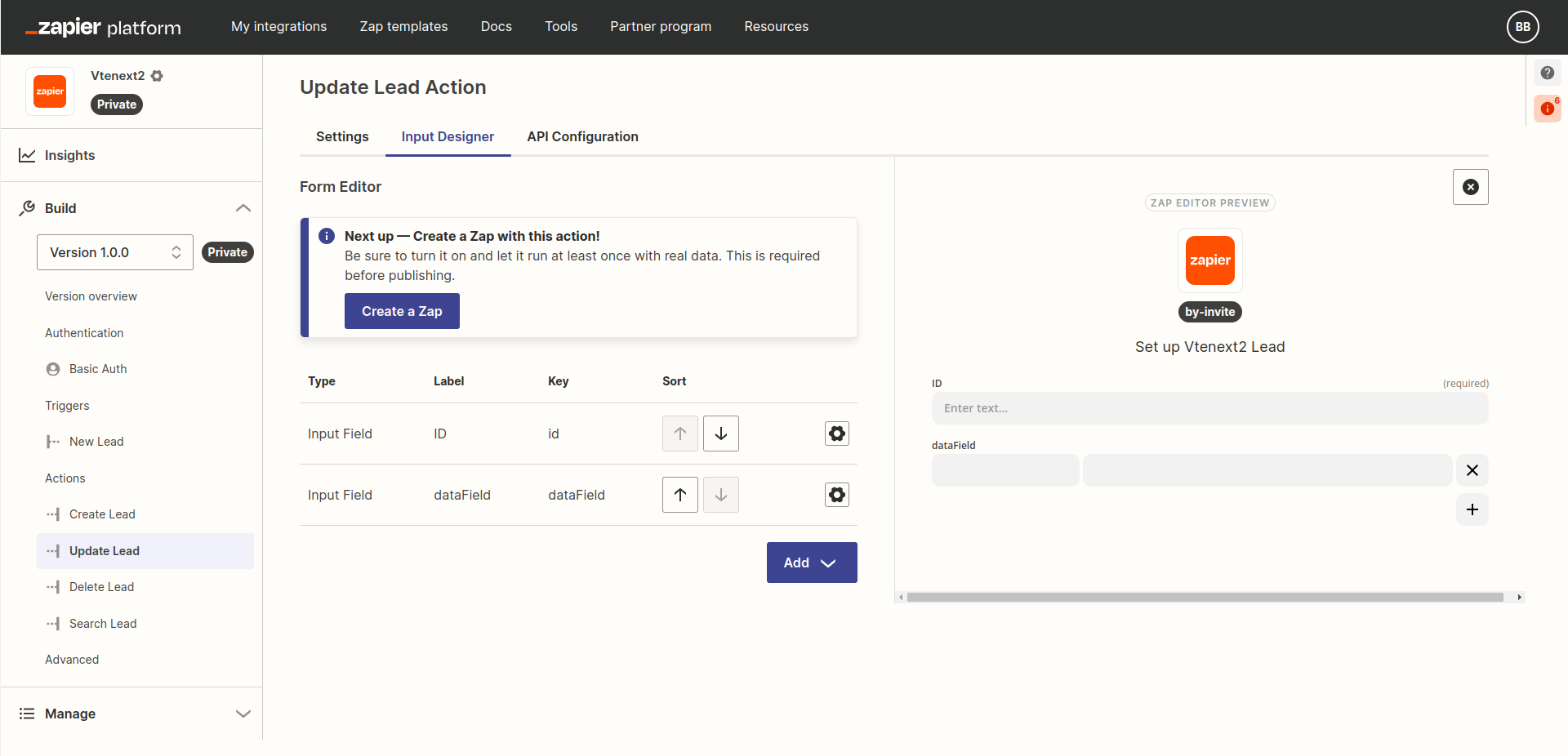
Move to the tab API Configuration and configure parameters in STEP 1 like this:
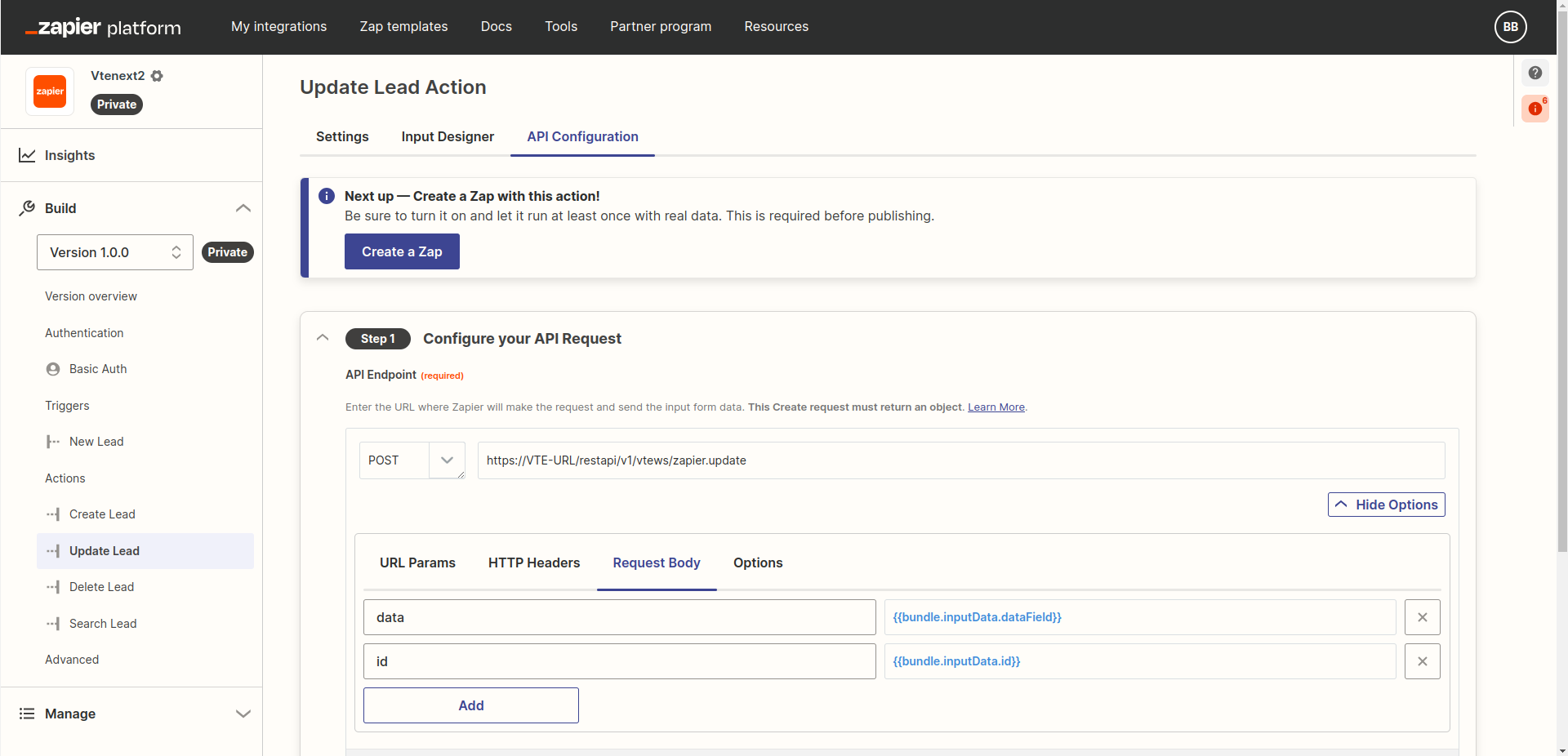
https://VTE-URL/restapi/v1/vtews/zapier.update

id = {{bundle.inputData.id}}
data = {{bundle.inputData.dataField}}
Replacing VTE-URL with the full address of your vtenext installation. Then click on SAVE API REQUEST & CONTINUE.
In STEP 2, to make a test choose "Raw" and replace all the code with the following:
{
  "inputData": {
    "id": "2x53",
    "dataField": {
      "phone":"556677"
    }
  },
  "authData": {},
  "environment": {},
  "subscribeData": {},
  "cleanedRequest": {
    "url": "https://example.com/hook-request-origin",
    "method": "POST",
    "body": {},
    "headers": {
      "Content-Type": "application/json"
    }
  }
}
but replacing the "53" at line 3 with the ID of a lead in your installation:
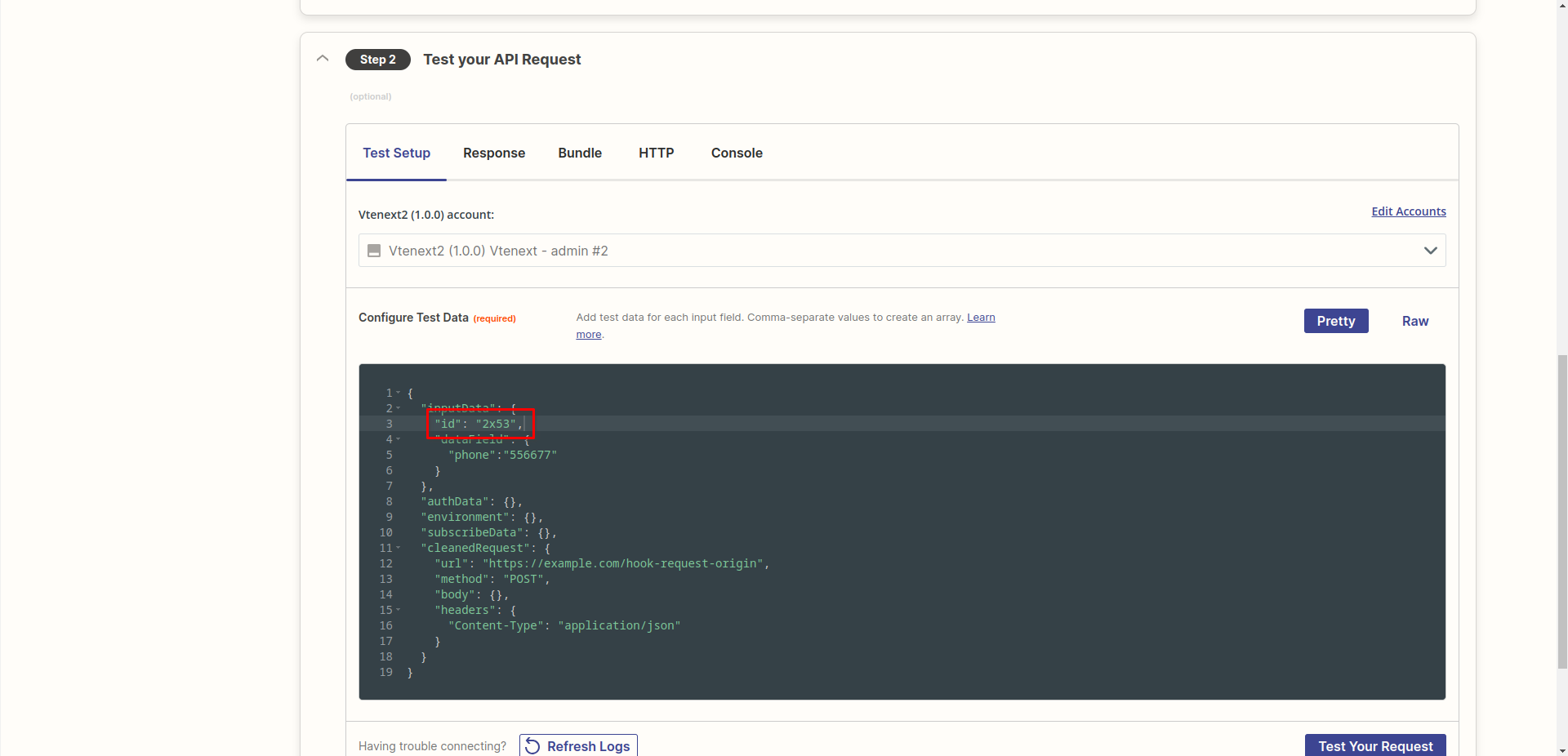

By clicking on Test Your Request you should get a result like the following:
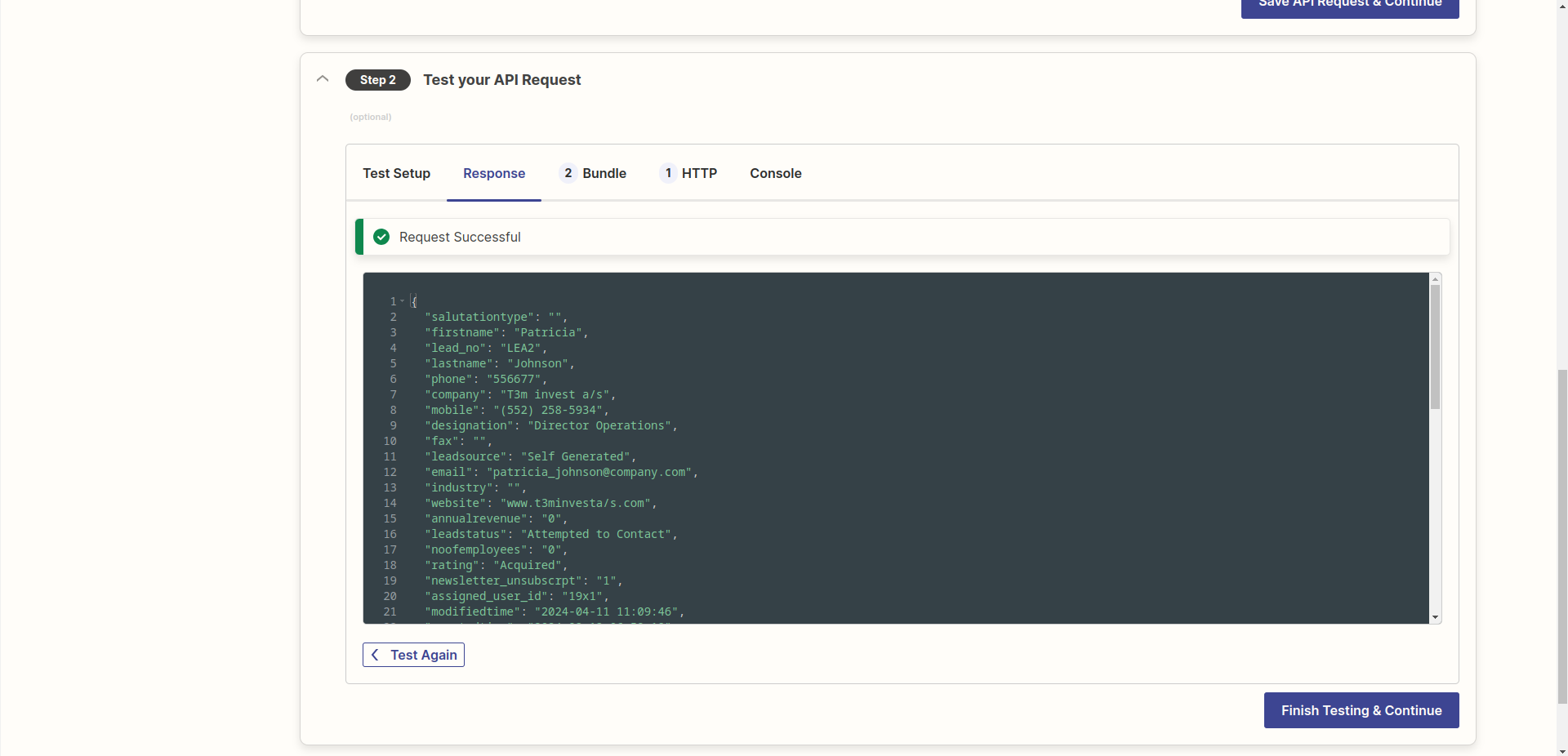
Finally, in STEP 3 click on Use Response from Test Data and then Generate Output Field Definitions to automatically map the returned fields. Click then on Save Output & Finish.
IV. Delete Action
Click on ADD ACTION to create a new action and fill the Settings tab as the following image:
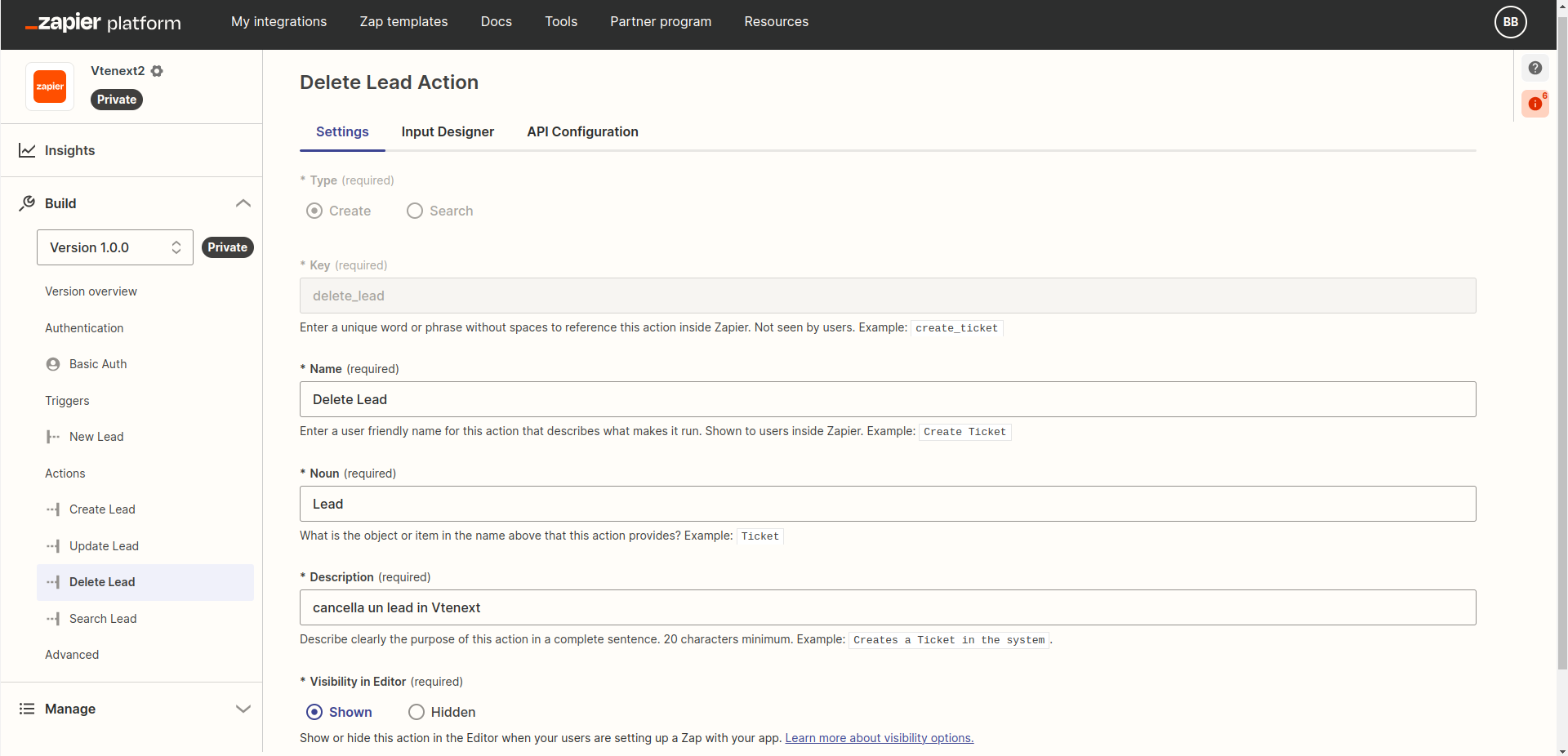
In the INPUT DESIGNER tab, create a field of type Input Field, with the following characteristics:

Move to the tab API Configuration and configure parameters in STEP 1 like this:
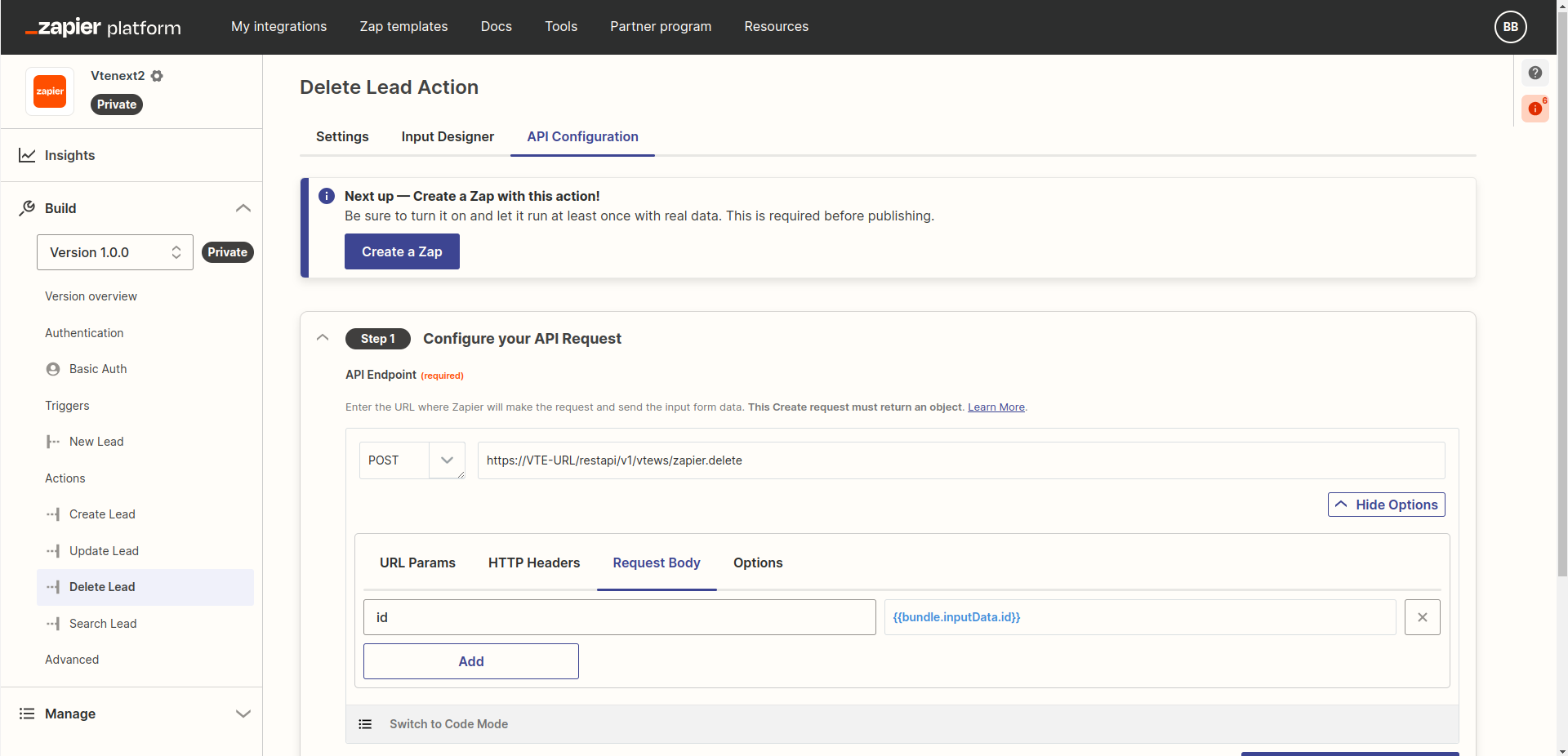
https://VTE-URL/restapi/v1/vtews/zapier.delete

id = {{bundle.inputData.id}}
Replacing VTE-URL with the full address of your vtenext installation. Then click on SAVE API REQUEST & CONTINUE.
In STEP 2 insert as test value the ID of the Lead you wish to delete, in webservice format, so like "2xCRMID", for example:

In this action it's not necessary to configure STEP 3 about the output fields.
Congratulations! The creation of the integration is complete!
You can now configure specifics ZAP to integrate different services with vtenext.